Managing Notifications
Head to your Engagifii Workspace
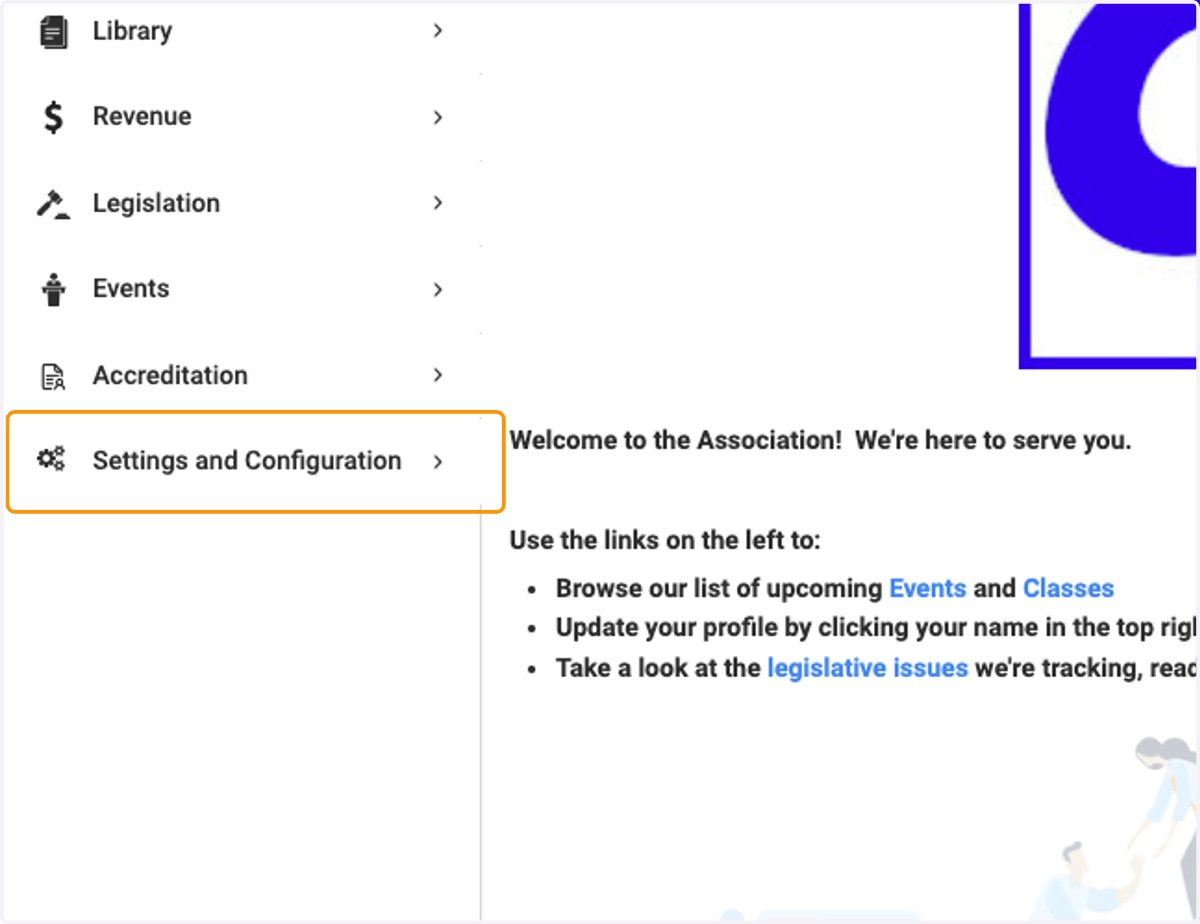
1. Click on Settings and Configuration
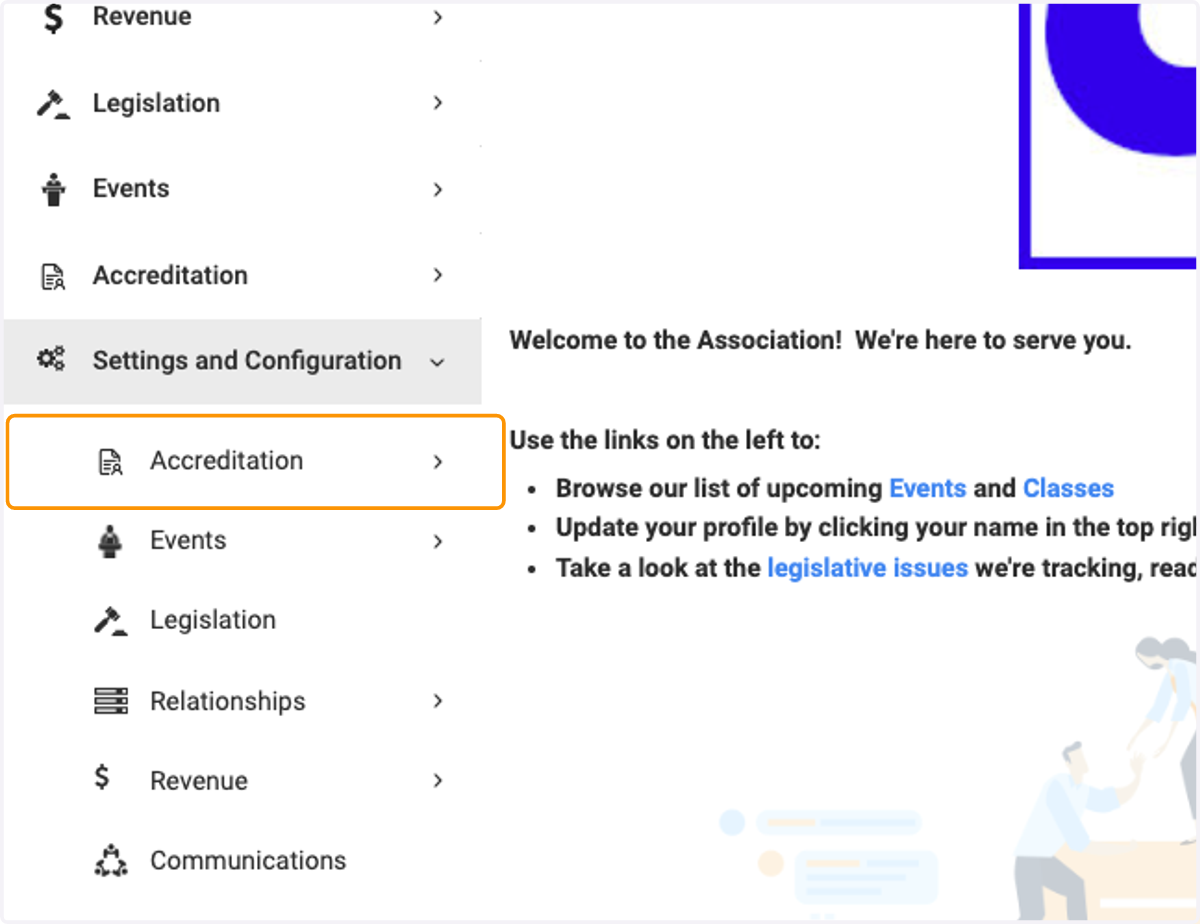
2. Click on module name you would like to see (in our case here, we're using Accreditation)
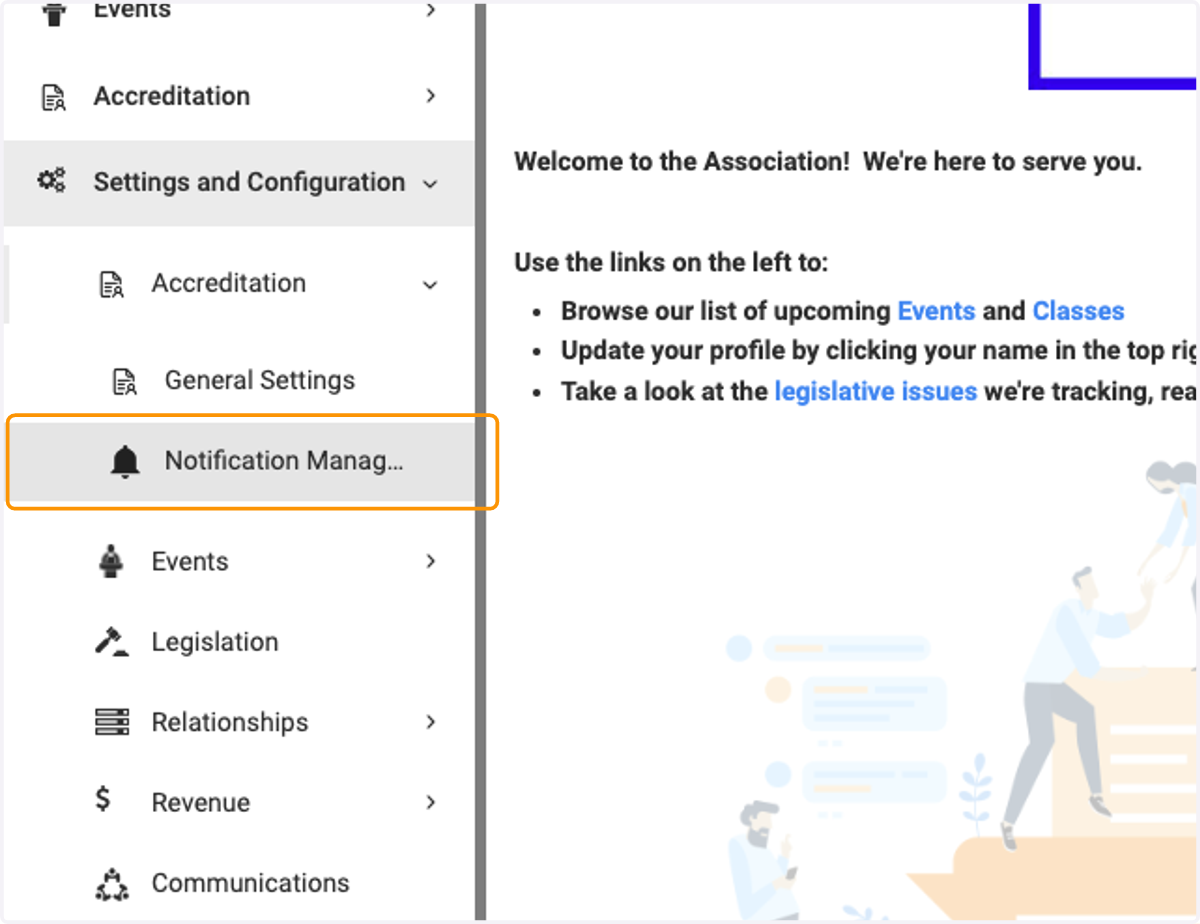
3. Click on Notification Management
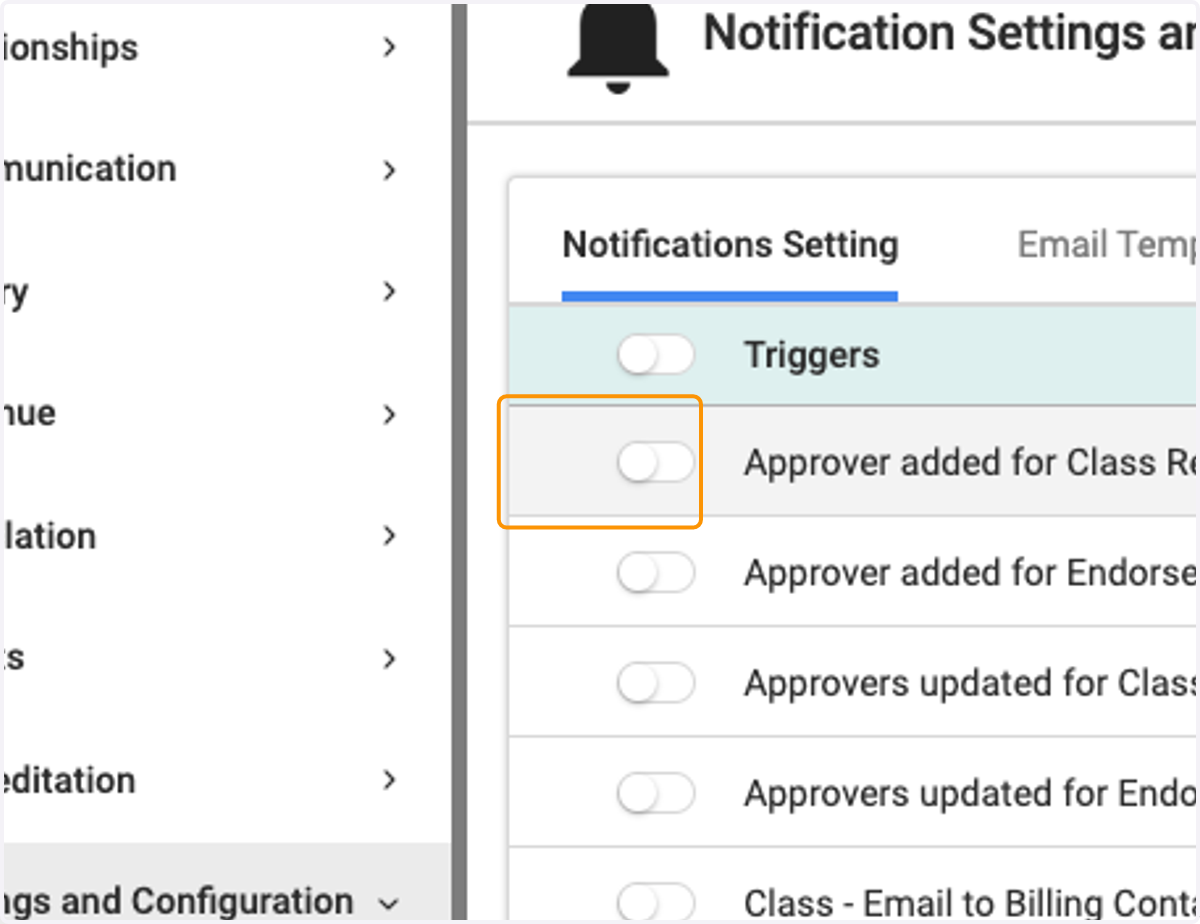
4. To turn a notification on, click on the toggle to the left of the name
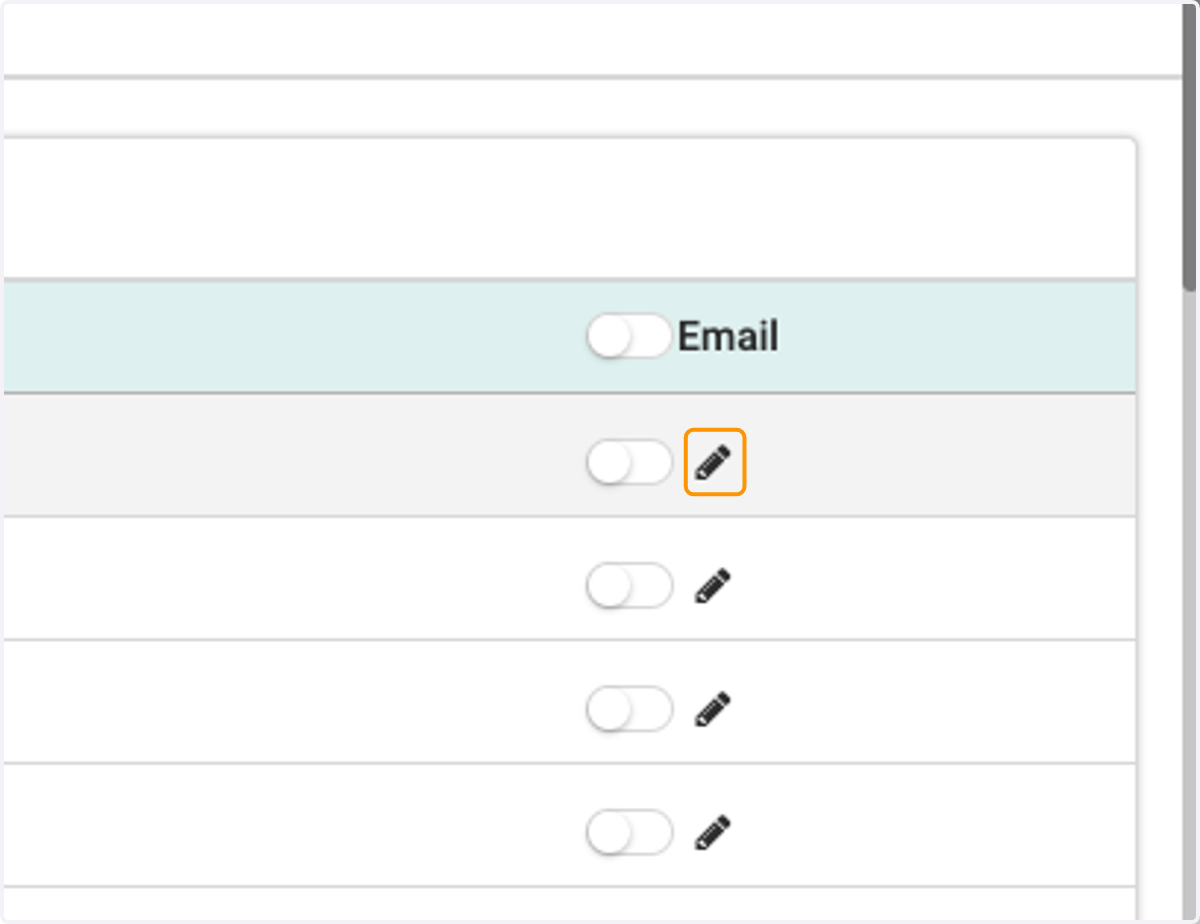
5. Next, click on the toggle below Email, and then click on the pencil icon to Edit your template
6. In the edit screen, you have the ability to create a fresh template from scratch by using the text editor, or you can edit what is already there. You also have the option of utilizing the Merge Tags (located to the right of the text editor) to create a more custom template.
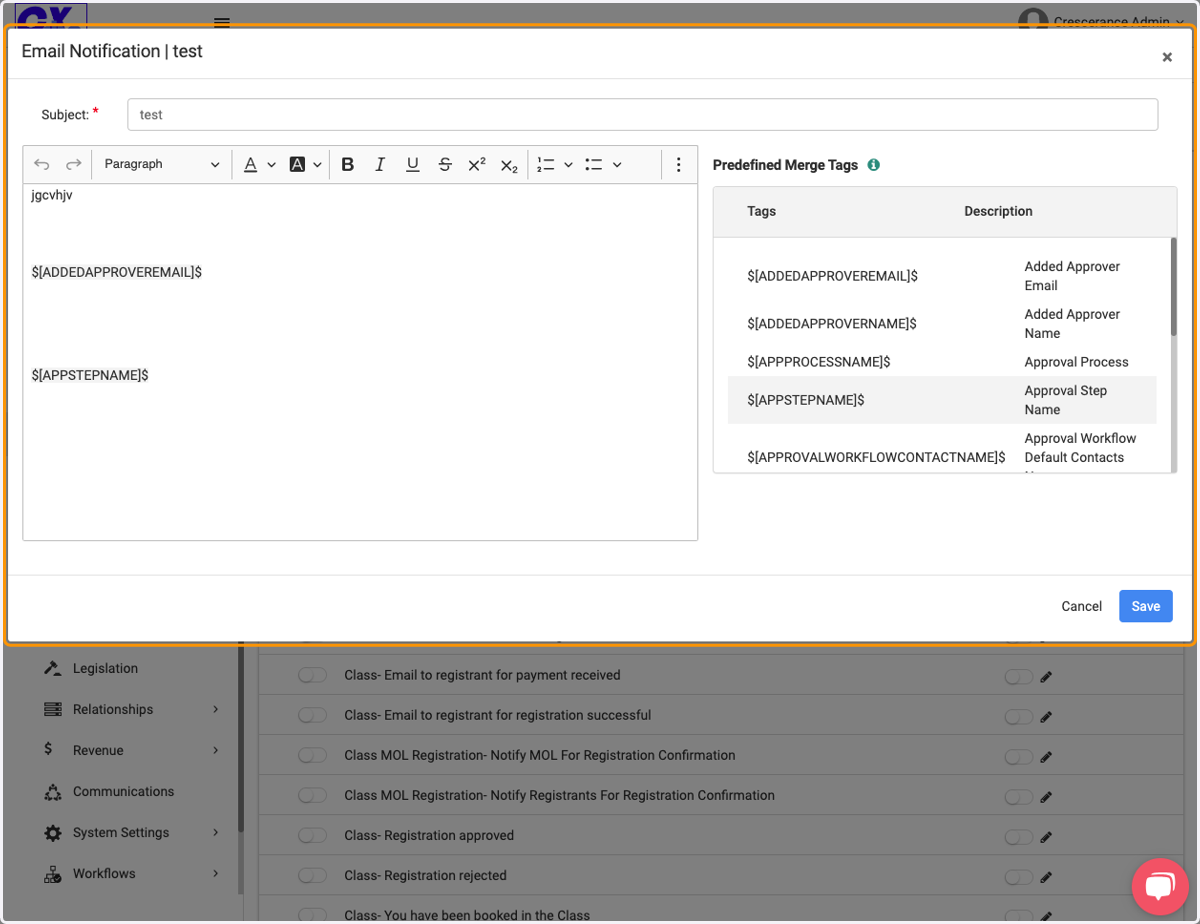
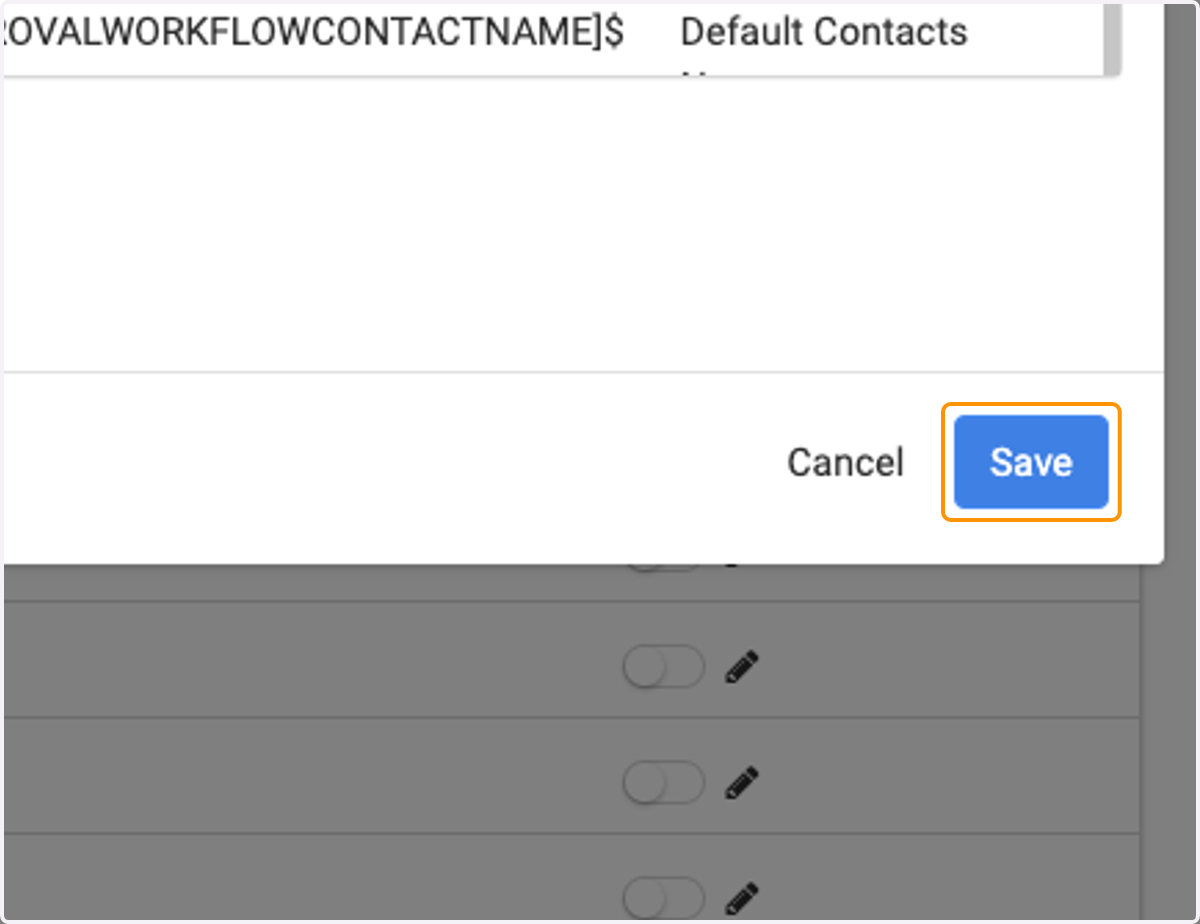
7. Click on Save