Managing Day and Night Targets and Alerts in Recipes

  1. 1. Navigate to Recipes

    Navigate to Recipes
  2. 2. Click on Create new recipe

    Click on Create new recipe
  3. 3. Name the Recipe

    Name the Recipe
  4. 4. Wait for the save succeeded for recipe to apear

    Wait for the save succeeded for recipe to apear
  5. 5. Click on + of the desired phase and name the Phase

    Click on + of the desired phase and name the Phase
  6. 6. Wait for the Save succeeded for phase to appear

    Wait for the Save succeeded for phase to appear
  7. 7. Click on Add targets & alerts

    Click on Add targets & alerts
  8. 8. Click on the desired reading to add targets and alerts

    Click on the desired reading to add targets and alerts
  9. 9. Enter desired Target minimum and maximum range
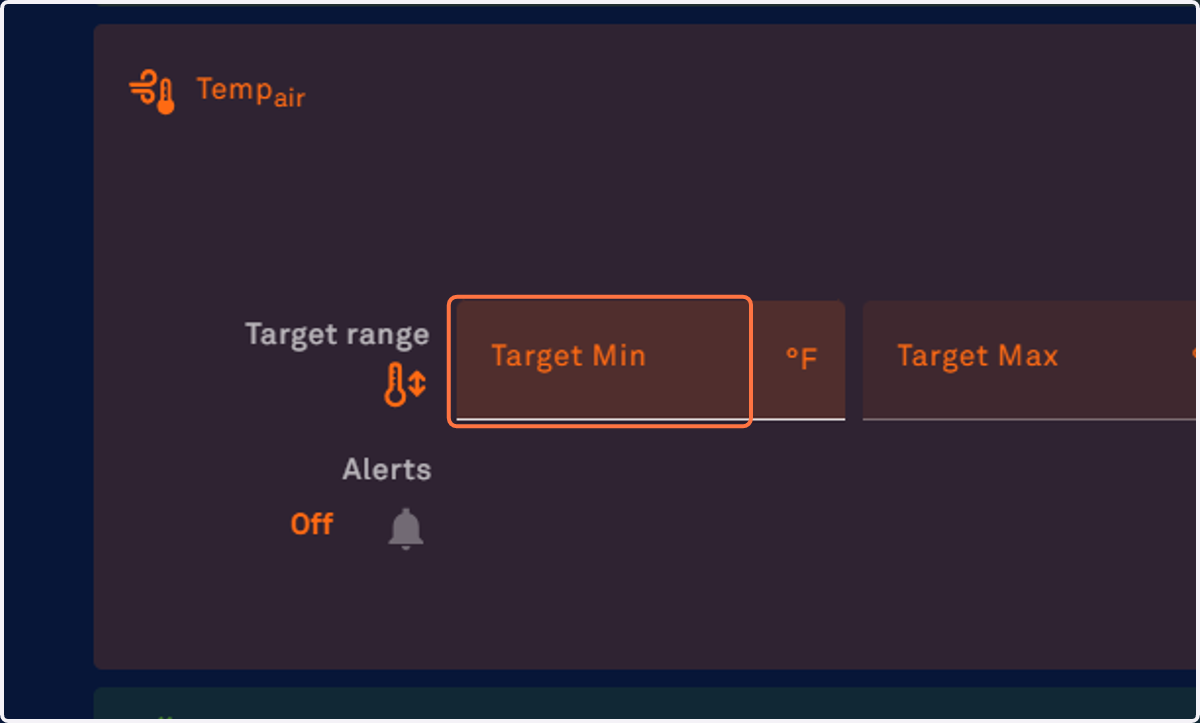
    Enter desired Target minimum and maximum range
  10. 10. Wait for the Saved confirmation

    Wait for the Saved confirmation
  11. 11. Alerts can be toggled on and off by selecting that option next to the Bell

    Alerts can be toggled on and off by selecting that option next to the Bell
  12. 12. Add Separate Targets and Alerts for Lights Off

    Add Separate Targets and Alerts for Lights Off
  13. 13. First set the 'Light schedule'

    First set the 'Light schedule'
  14. 14. Select when the lights turn on and for the desired hours

    Select when the lights turn on and for the desired hours
  15. 15. Click on Apply Changes

    Click on Apply Changes
  16. 16. Click on Add 'Lights off' targets
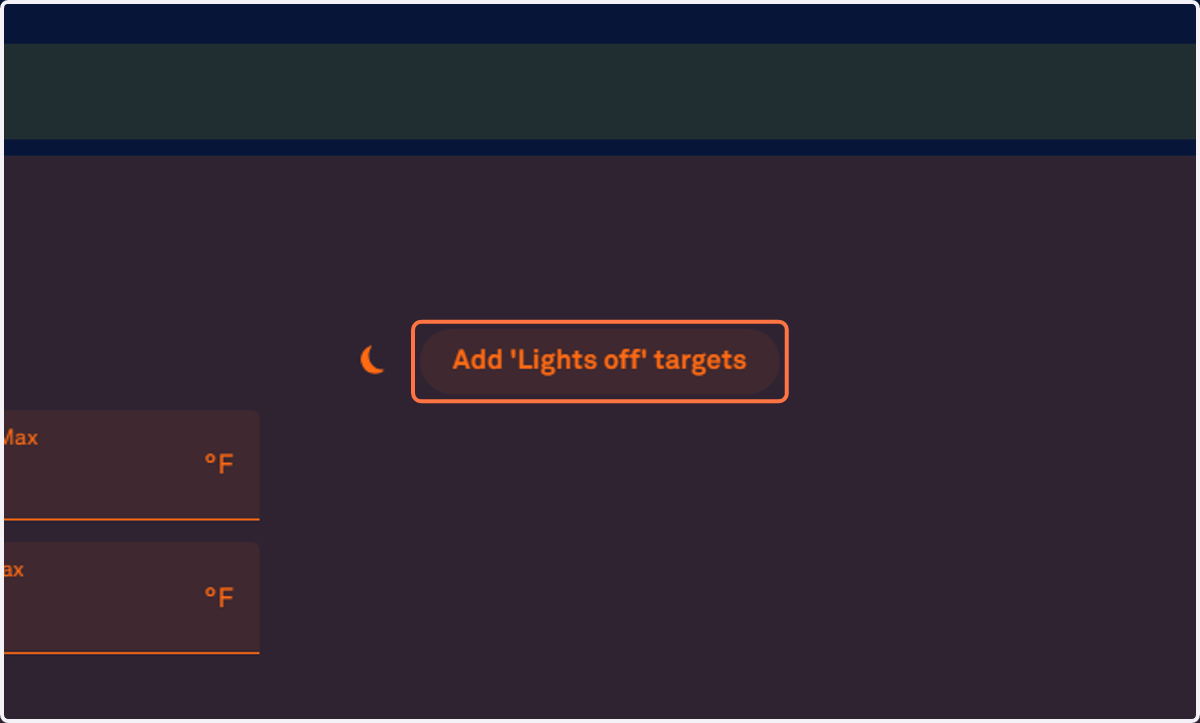
    Click on Add 'Lights off' targets
  17. 17. Enter desired Target minimum and maximum range

    Enter desired Target minimum and maximum range
  18. 18. Once the settings have auto saved, click the Back arrow to return to the previous screen

    Once the settings have auto saved, click the Back arrow to return to the previous screen