Change your password
This tutorial shows you how to change your password. You can move through the tutorial at your own pace using the Next button below.
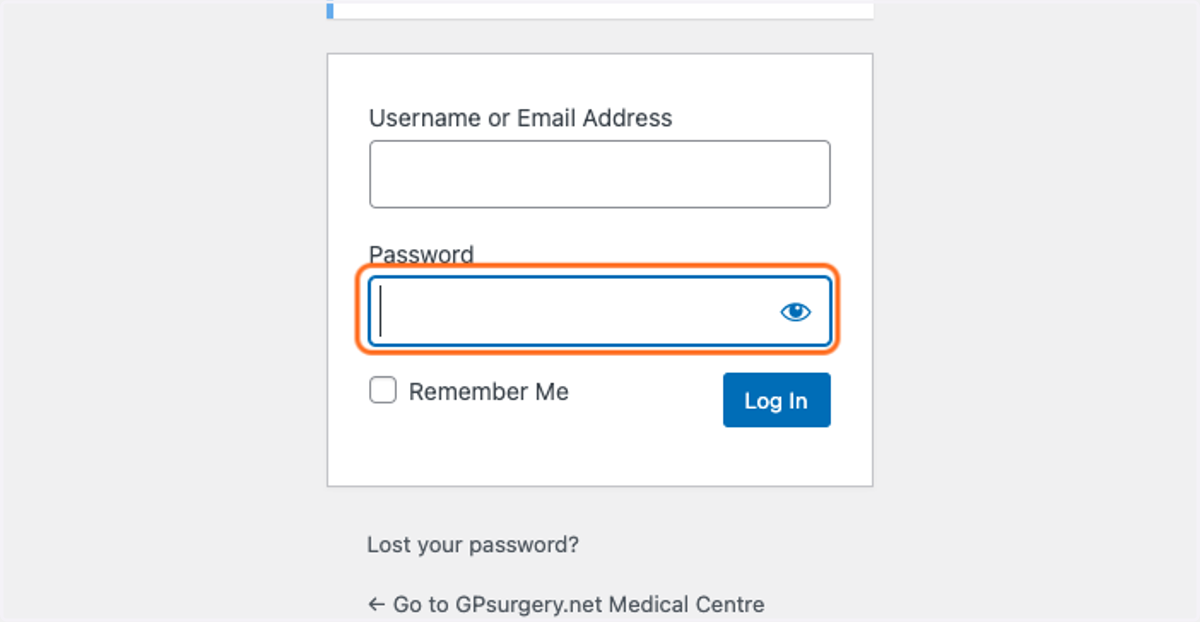
1. Make sure that you are logged in to your website.
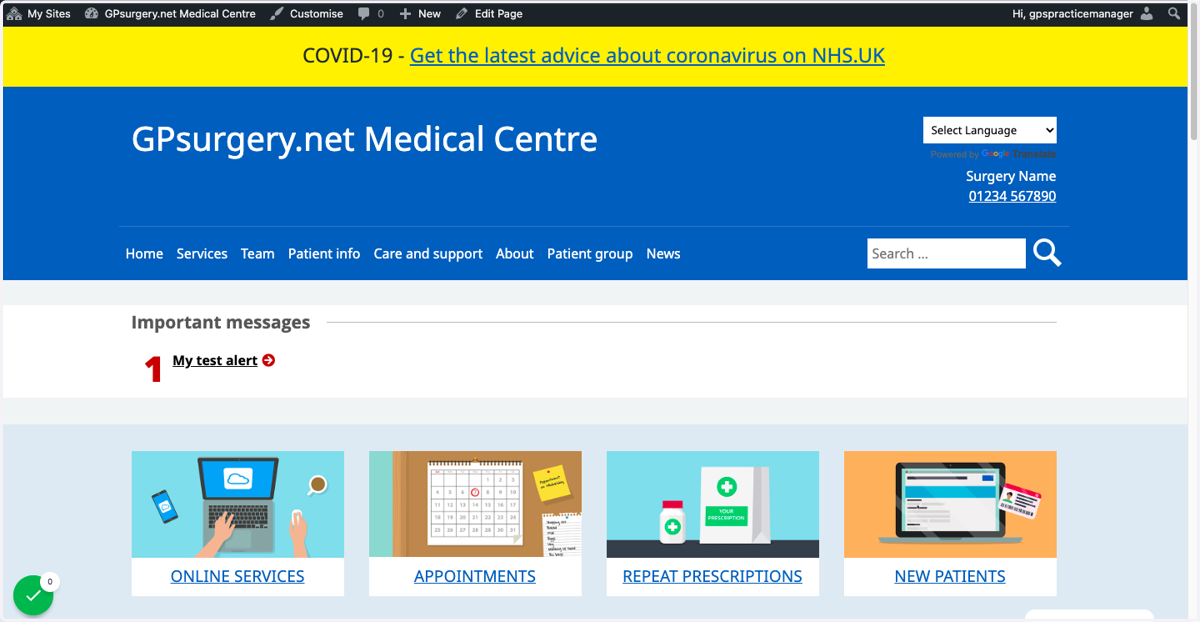
2. Hover over your name in the top right-hand corner of the screen, and select Edit Profile from the drop-down list.
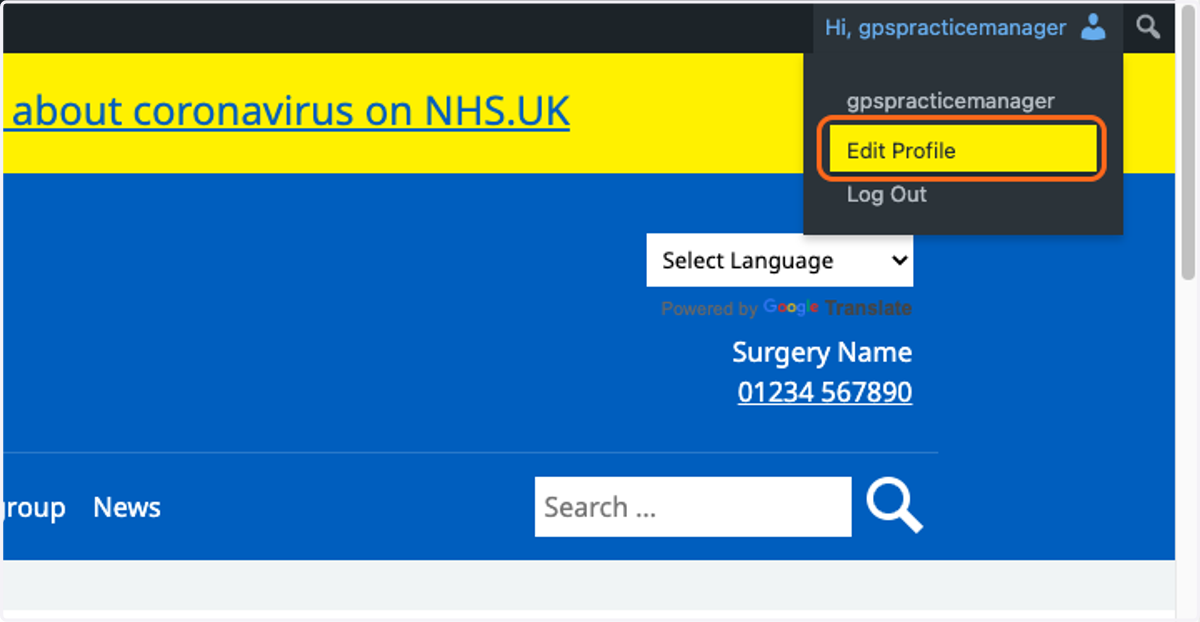
3. Scroll down to the Account Management section of the page.
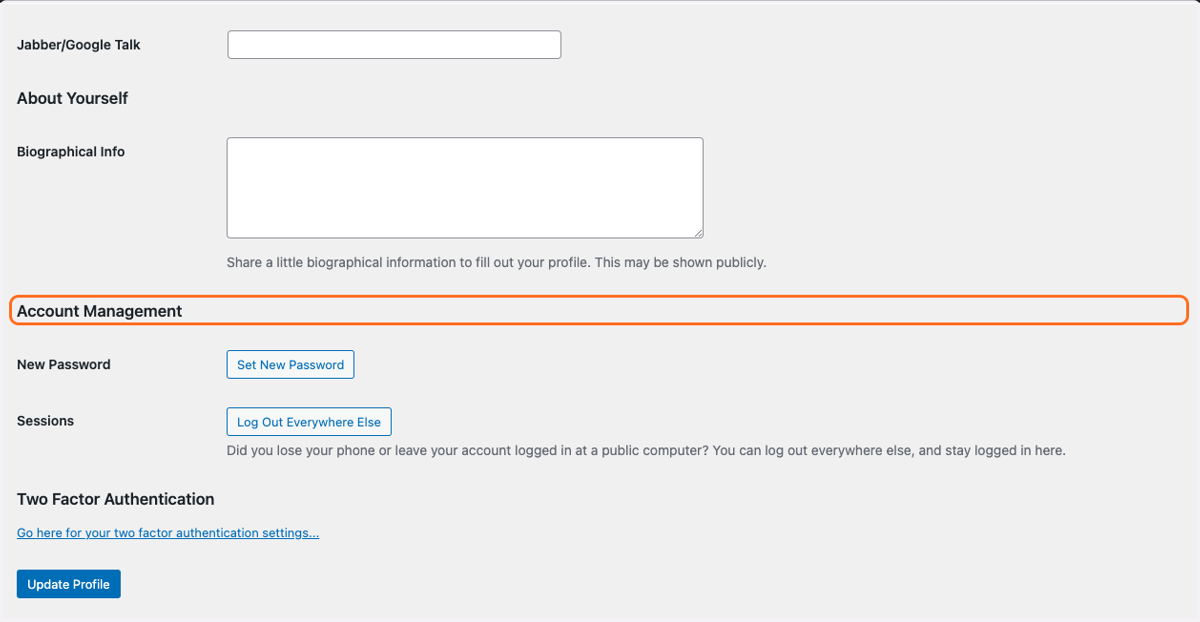
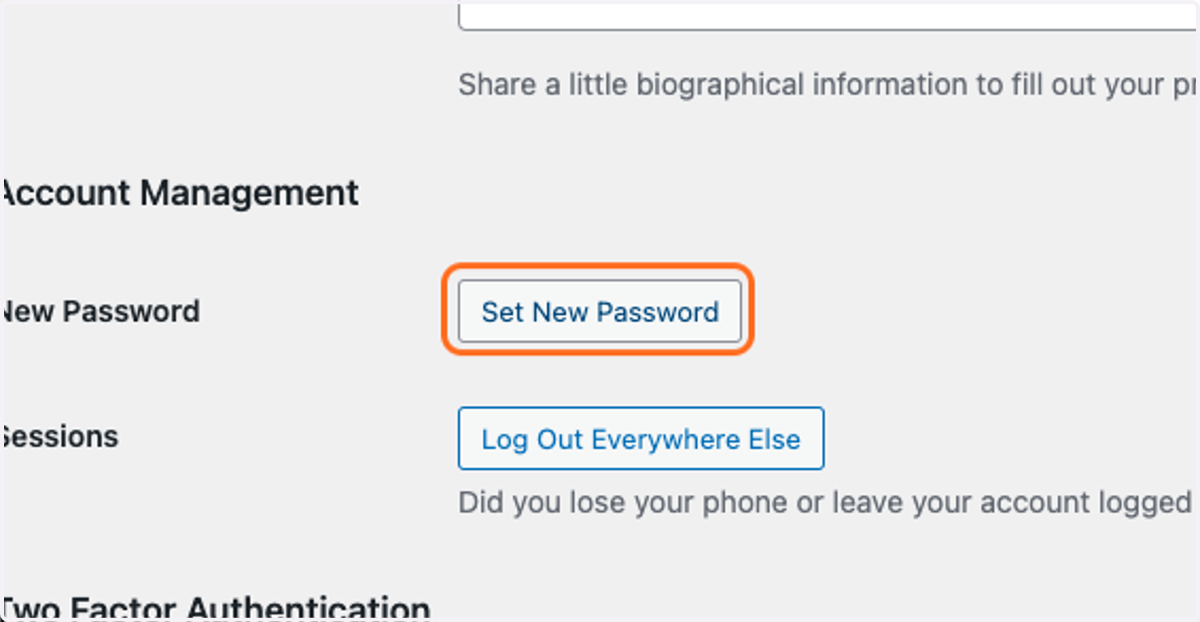
4. Click on the Set New Password button.
5. A new, strong password will automatically generate. You can use this, or...
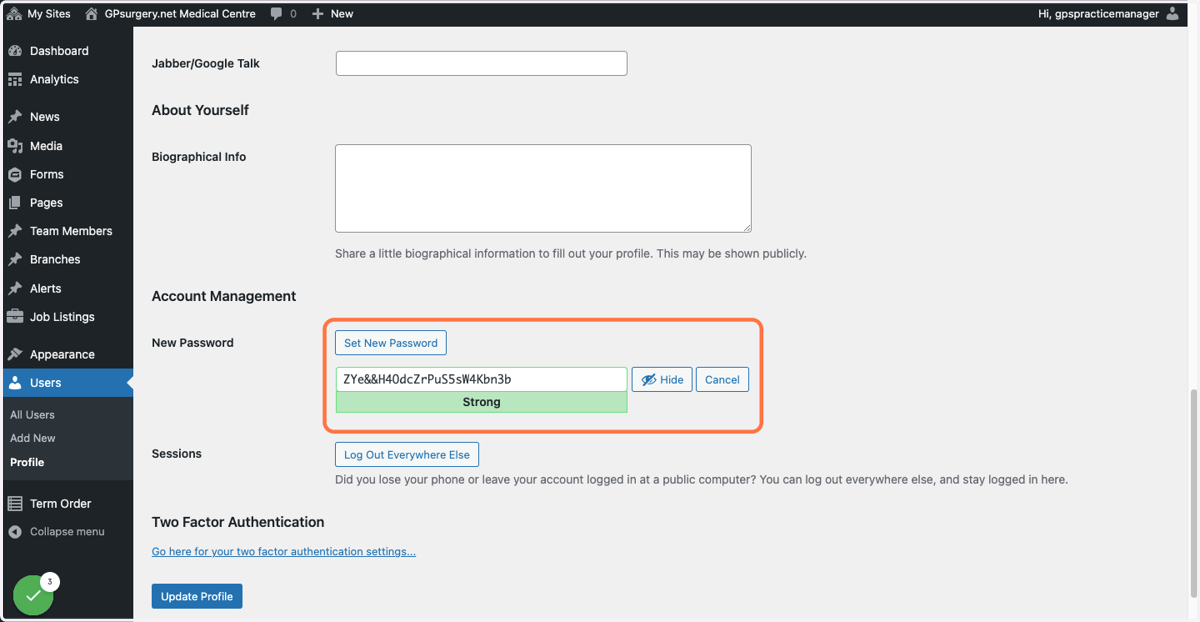
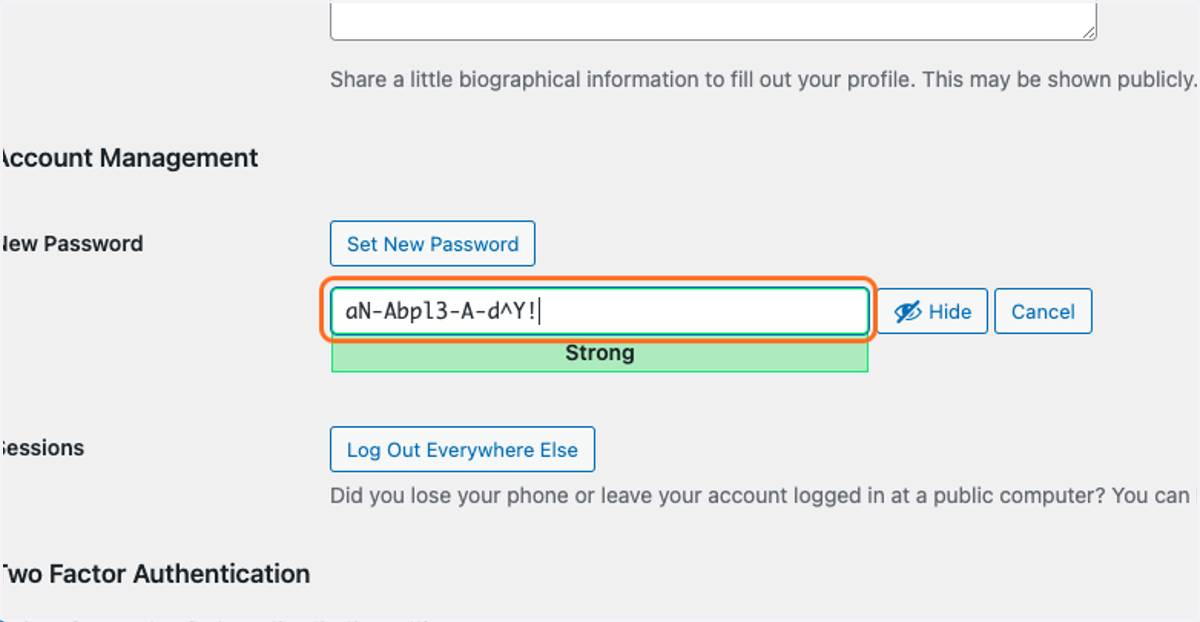
6. ...Set your own, more memorable password.
Ensure that you use a mixture of uppercase and lowercase letters, numbers and symbols so that your website remains secure. Below the New Password box, you will see a meter showing how strong your password is.
7. Click on the Set New Password button.
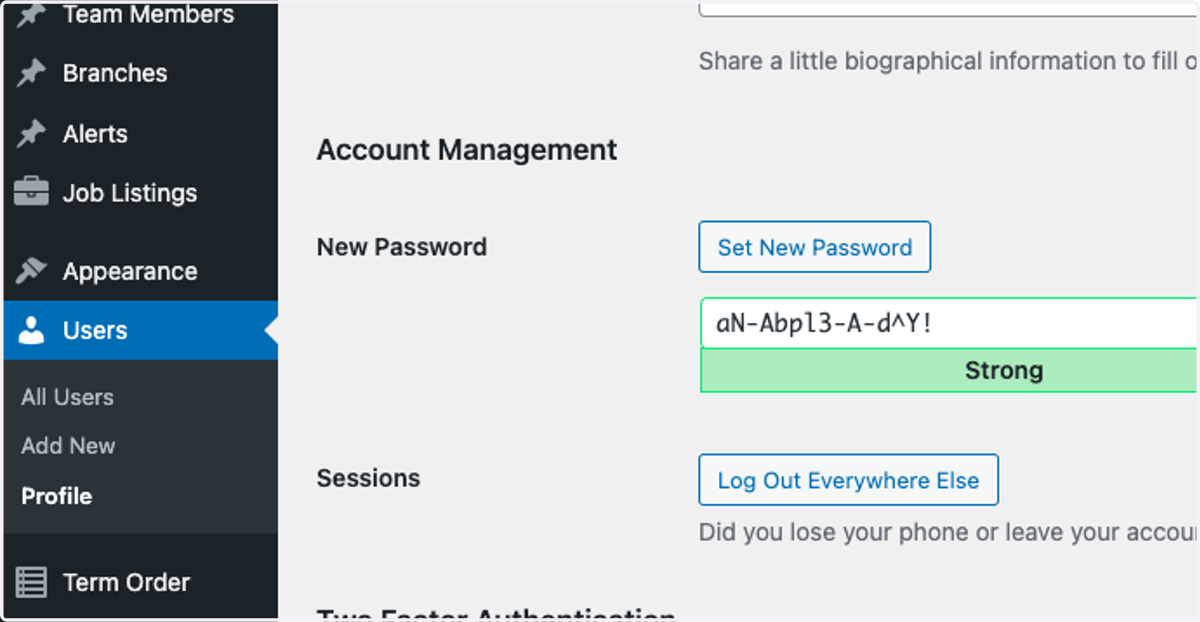
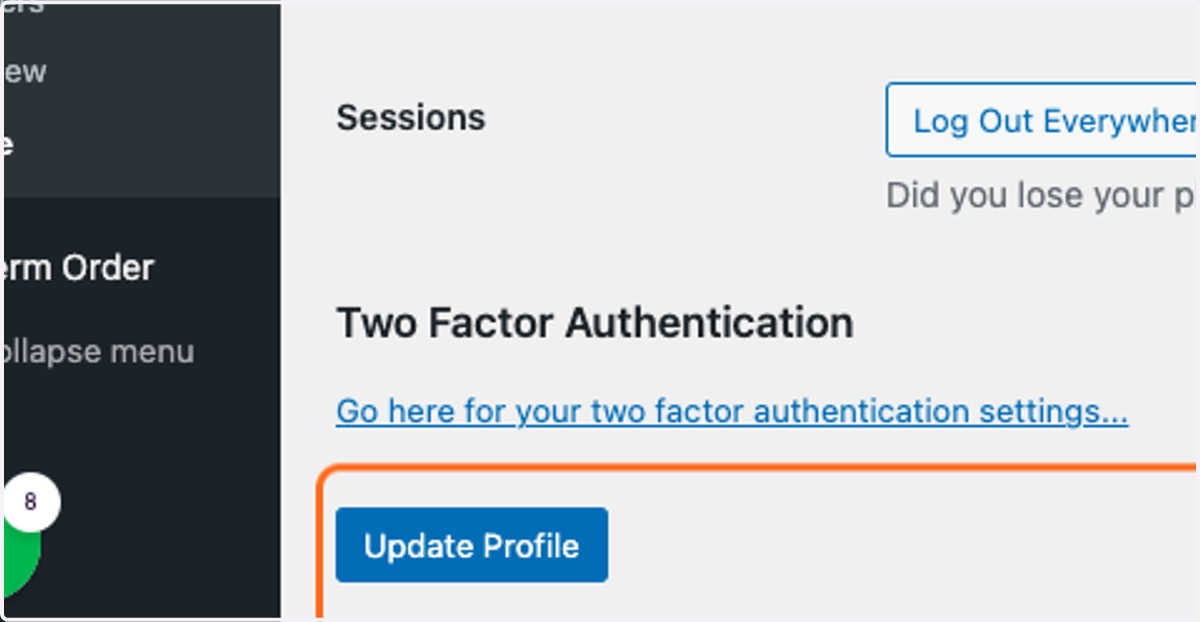
8. Click the Update Profile button to save your new password.
9. You will now be able to login with your new password.