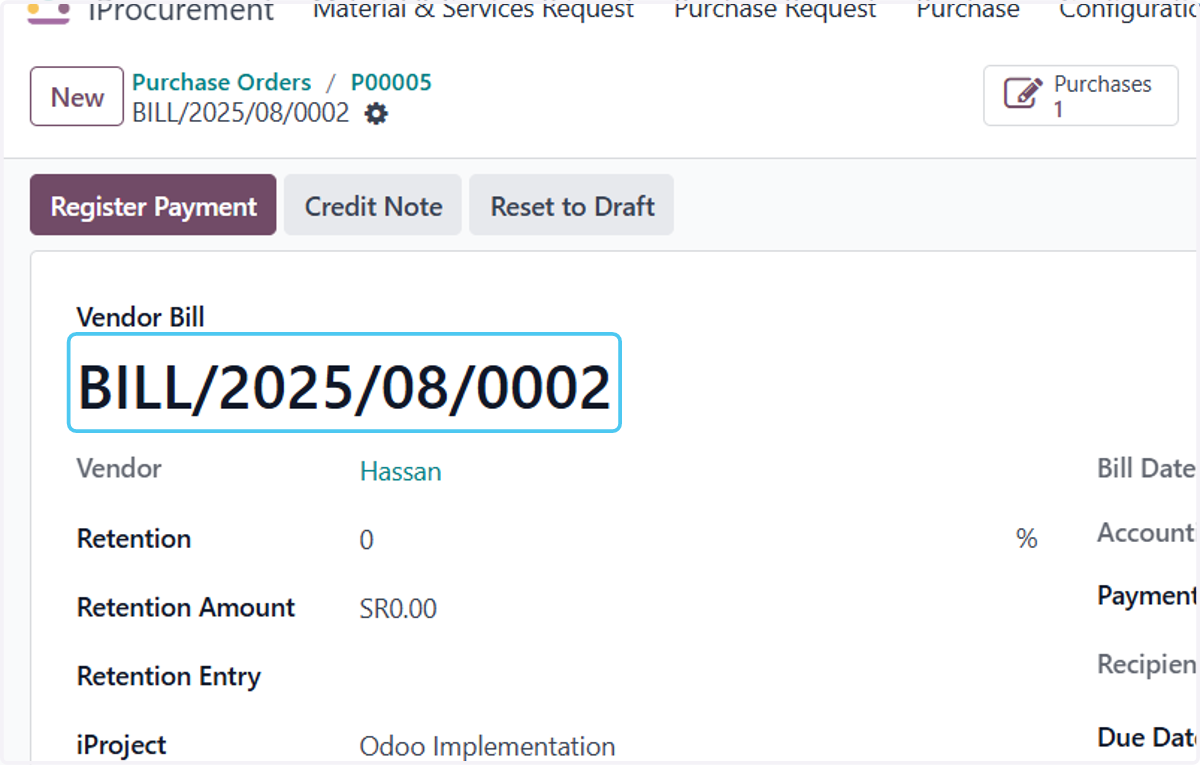
How to Create and Confirm Purchase Bill in Odoo - iLines iProcurement
Odoo
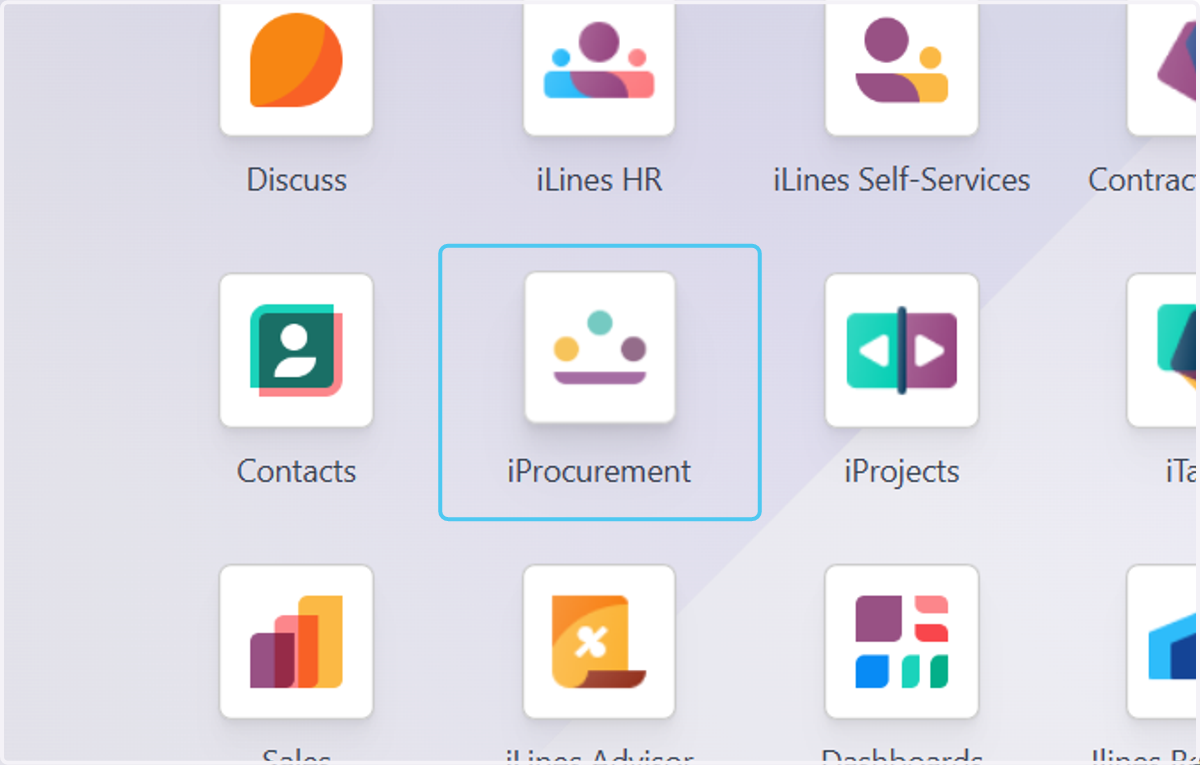
1. Click on iProcurement
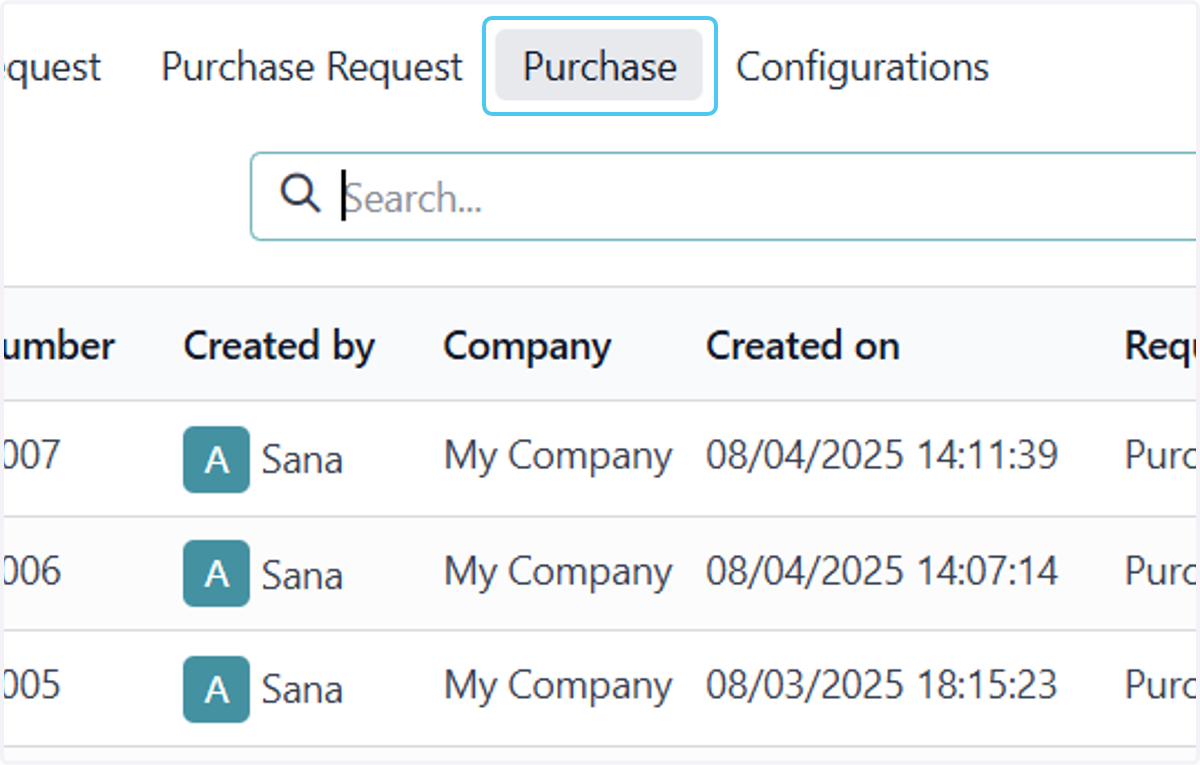
2. Click on Purchase
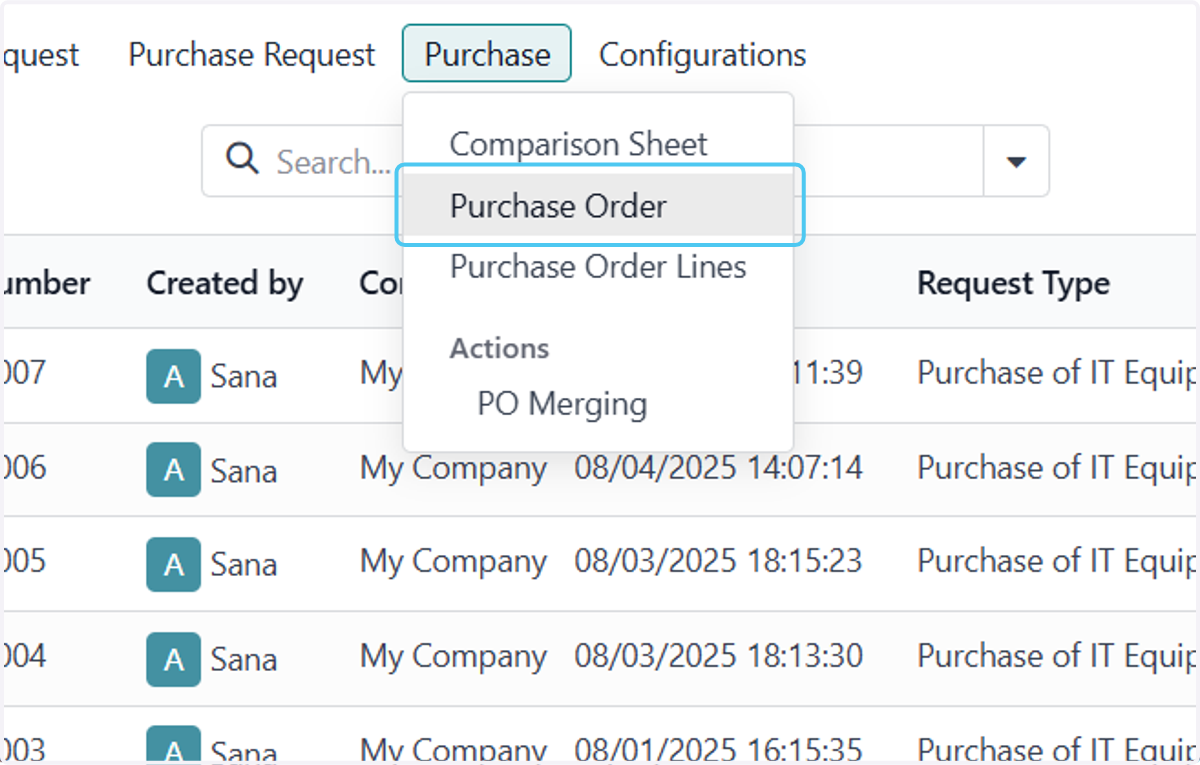
3. Click on Purchase Order
4. Click on P00005
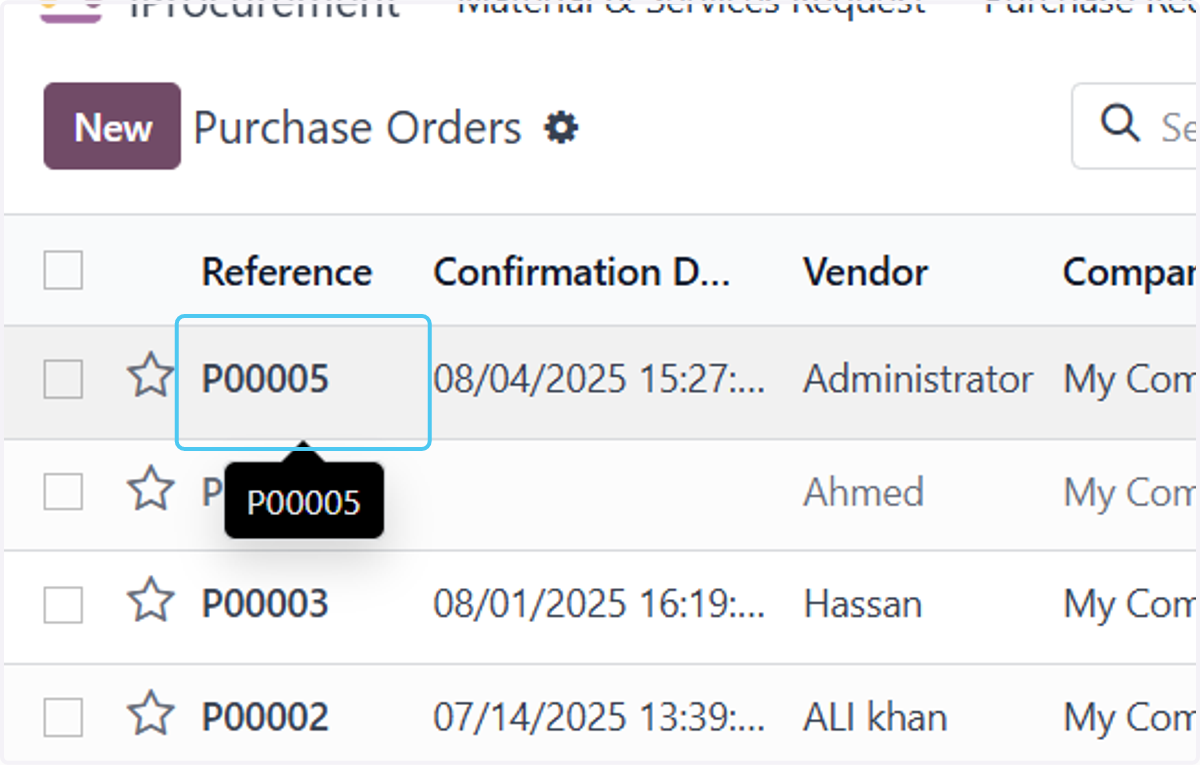
5. Click on Create Bill
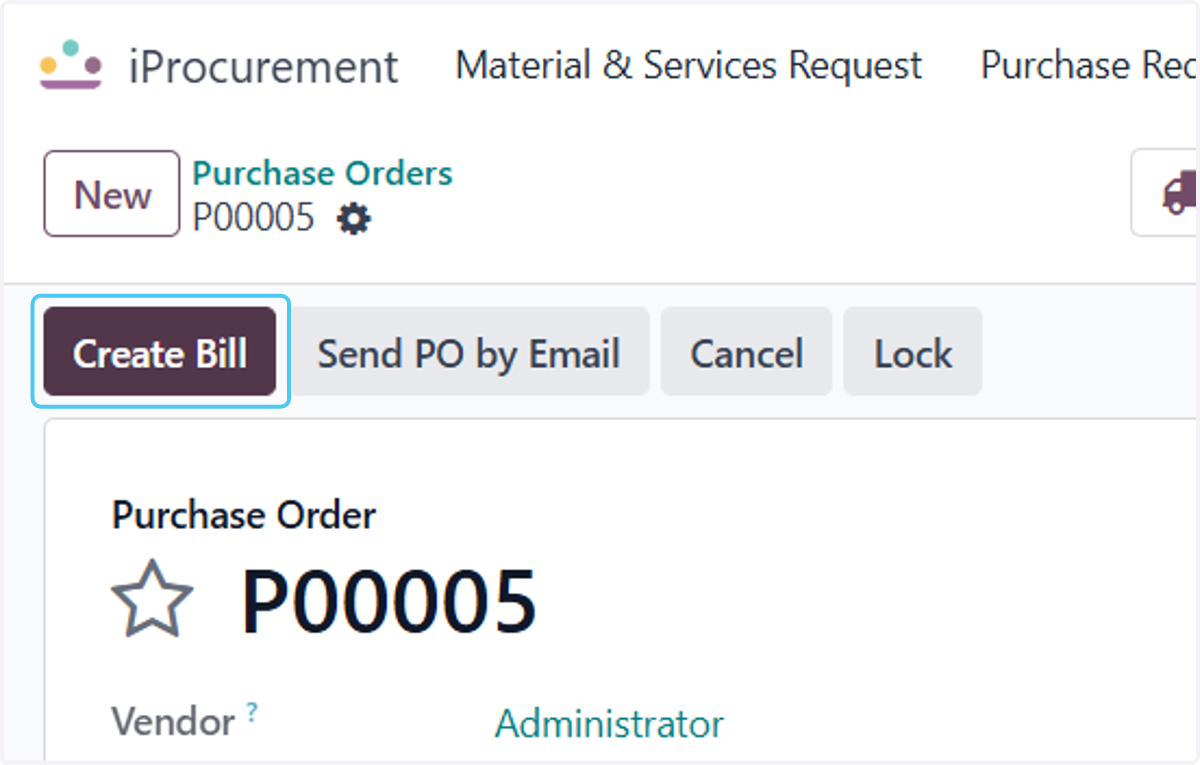
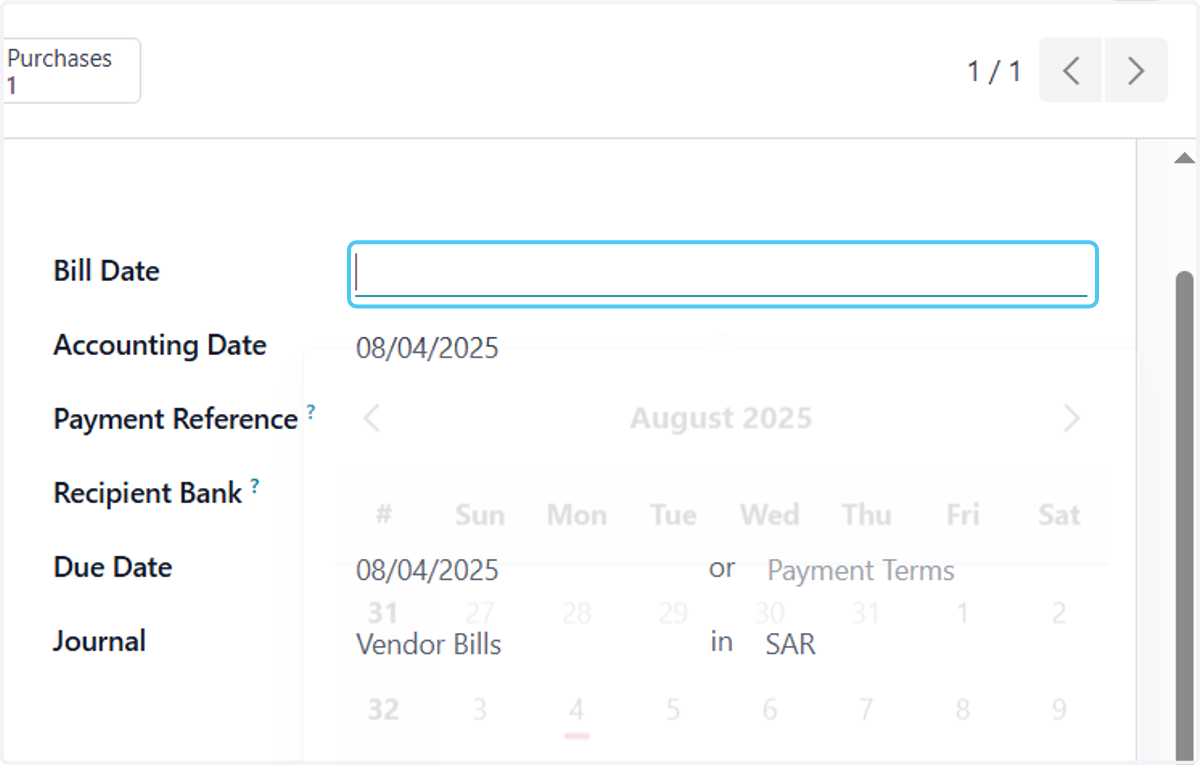
6. Click on Bill Date
Add the Bill date
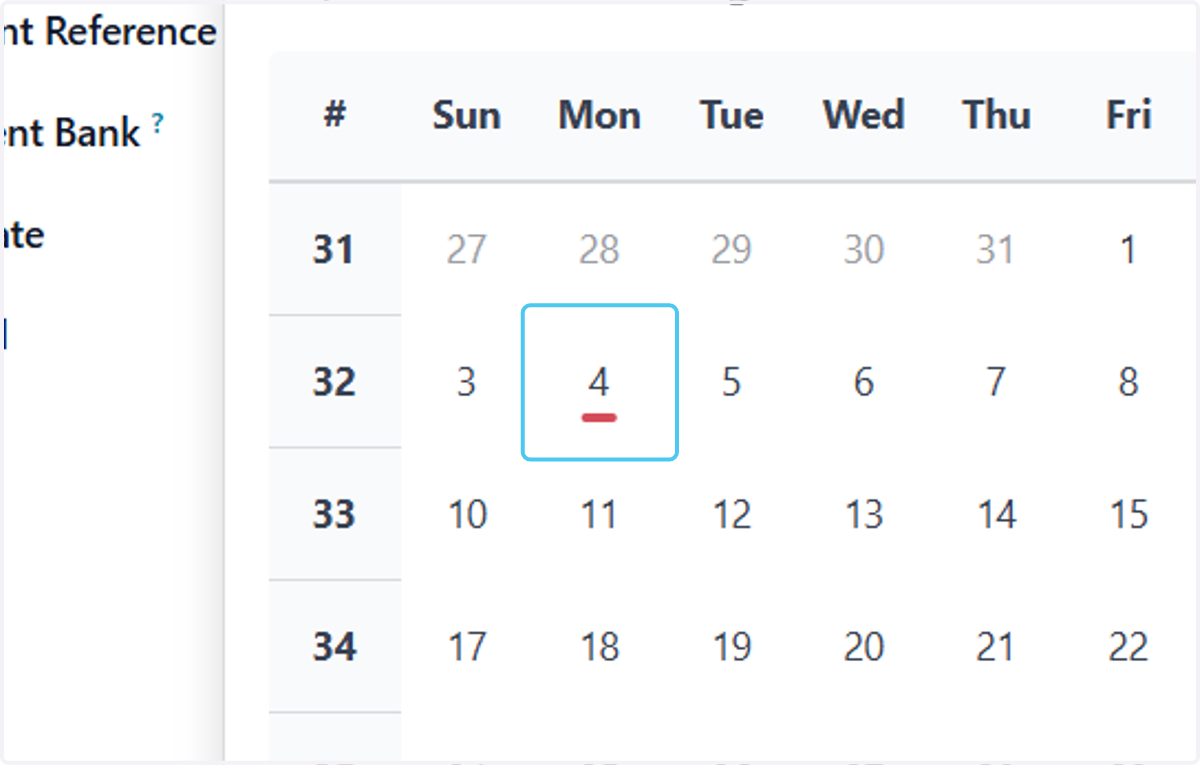
7. Click on 4
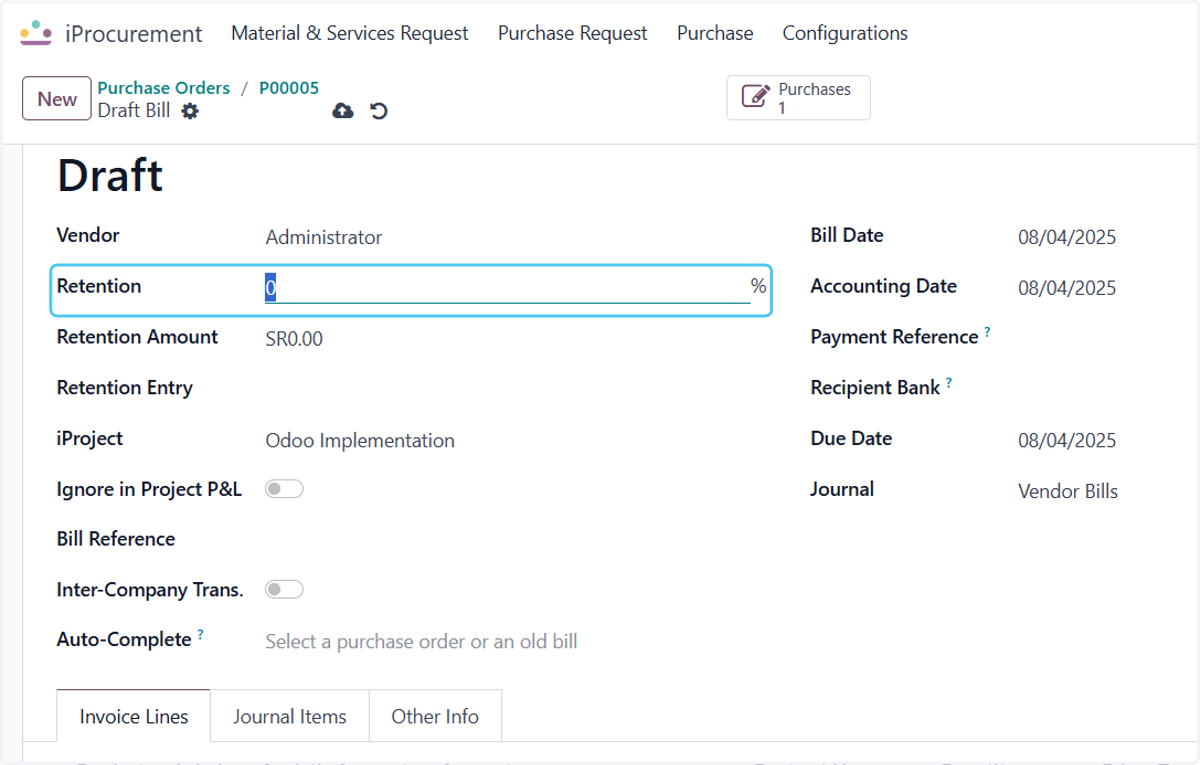
8. Click on Retention
Add retenion percentage or the Retension Amount if any
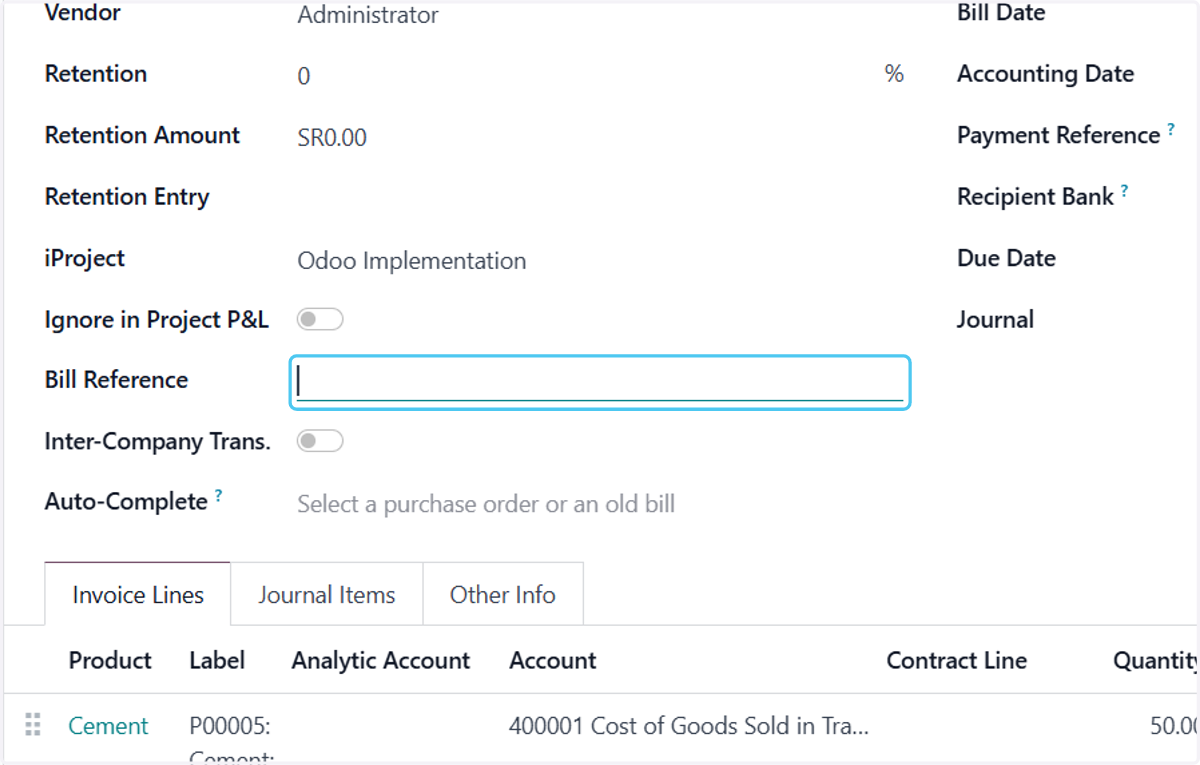
9. Click on Bill Reference
Add a bill reference if you want
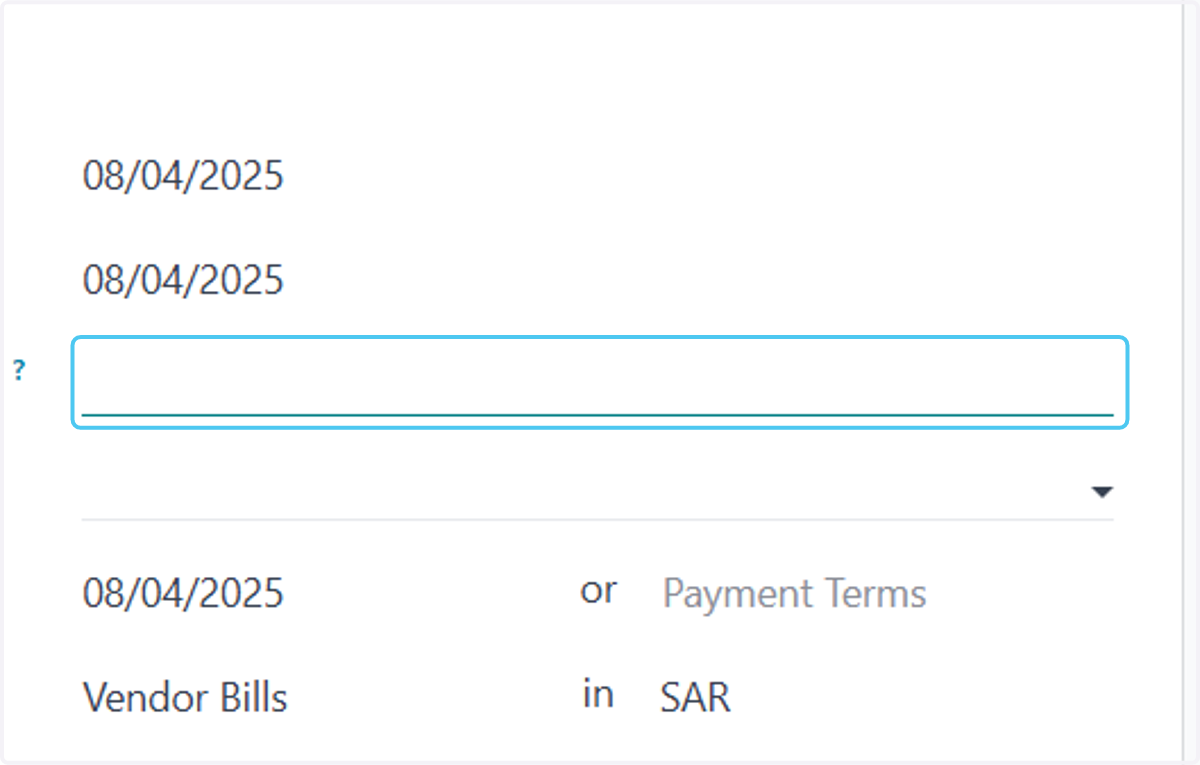
10. Drag highlighted input
Add a Payment reference if you want to
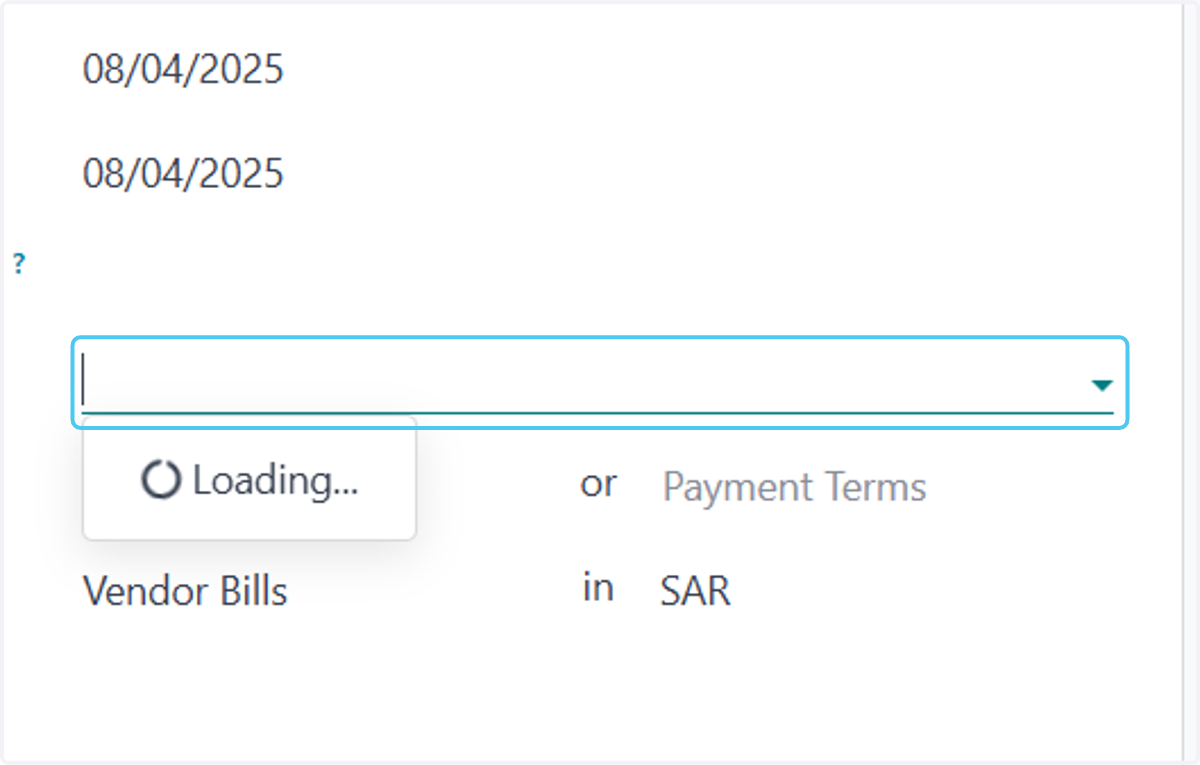
11. Click on Recipient Bank?
Select the Reciptent if you want
12. Click on Vendor
add the vendor if you want or it will be auto fetch from Po
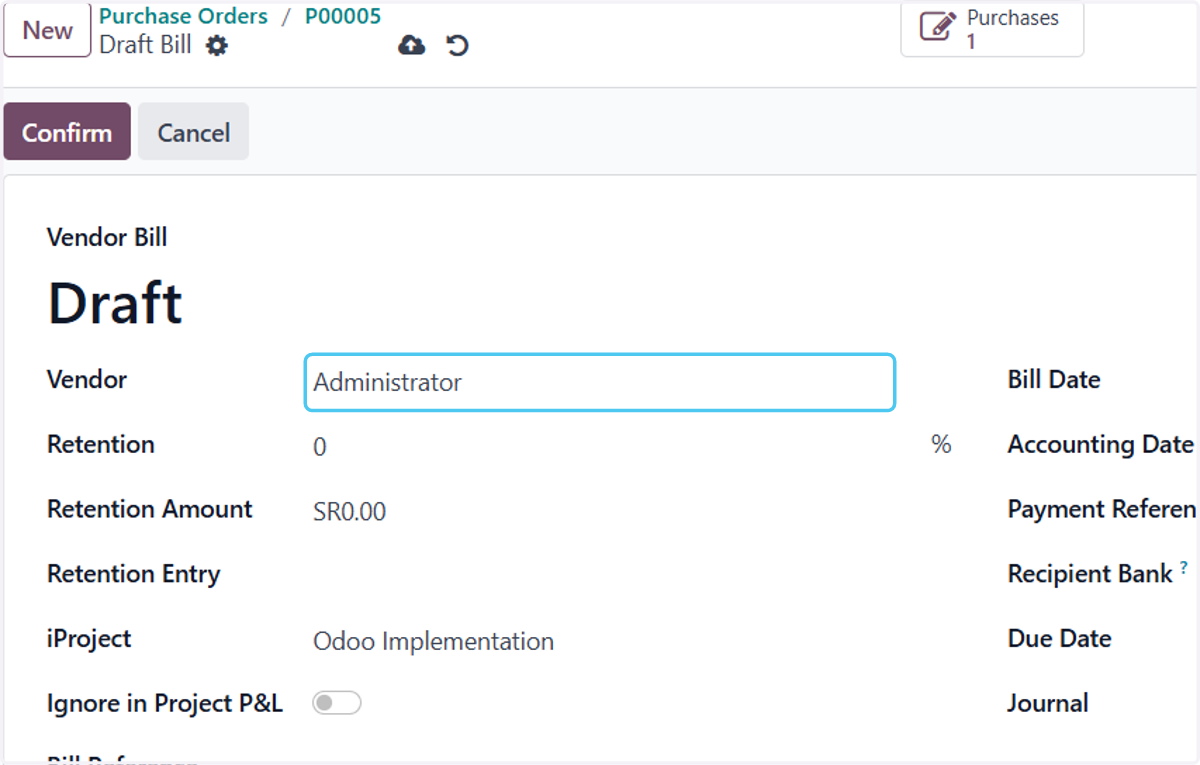
13. Click on Hassan
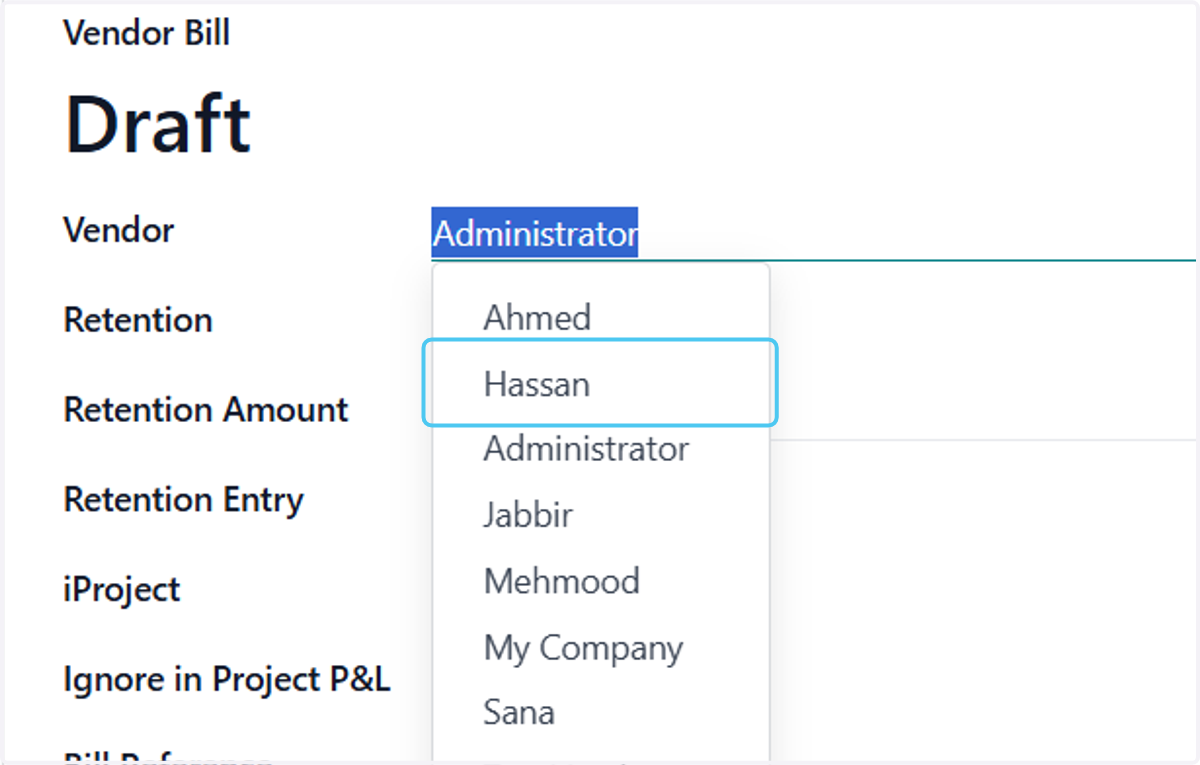
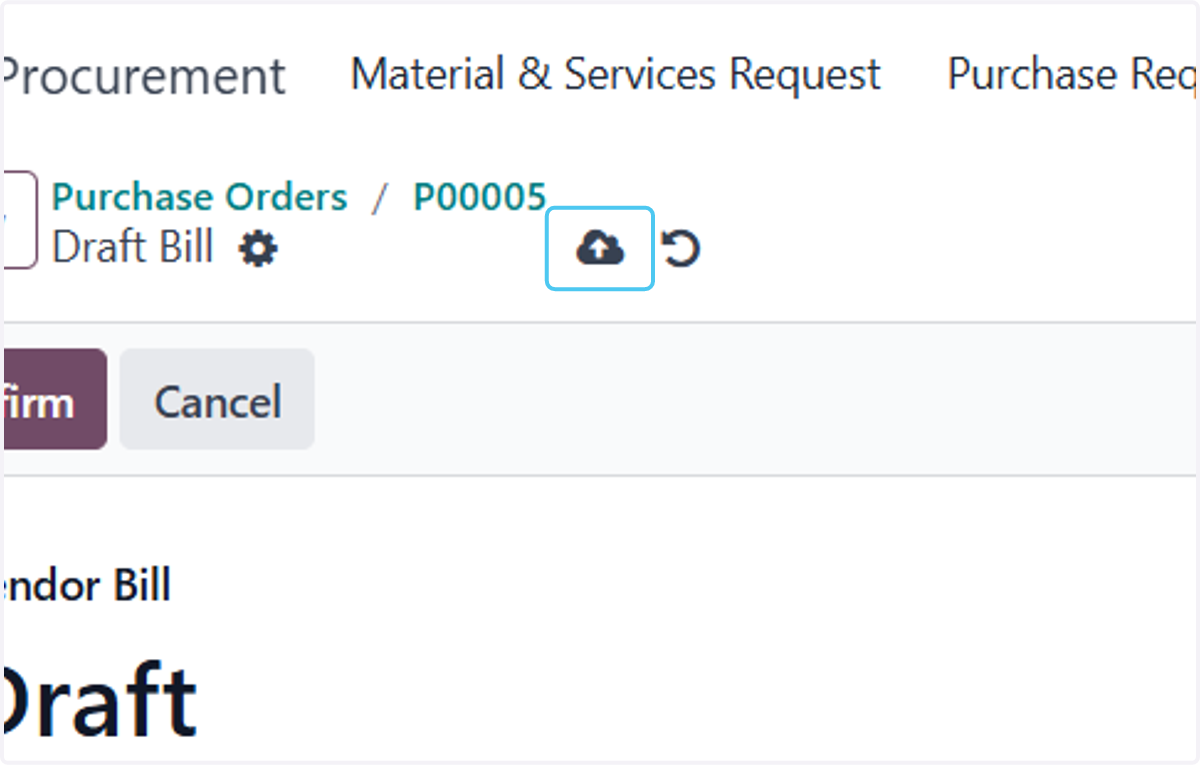
14. Click on Save manually
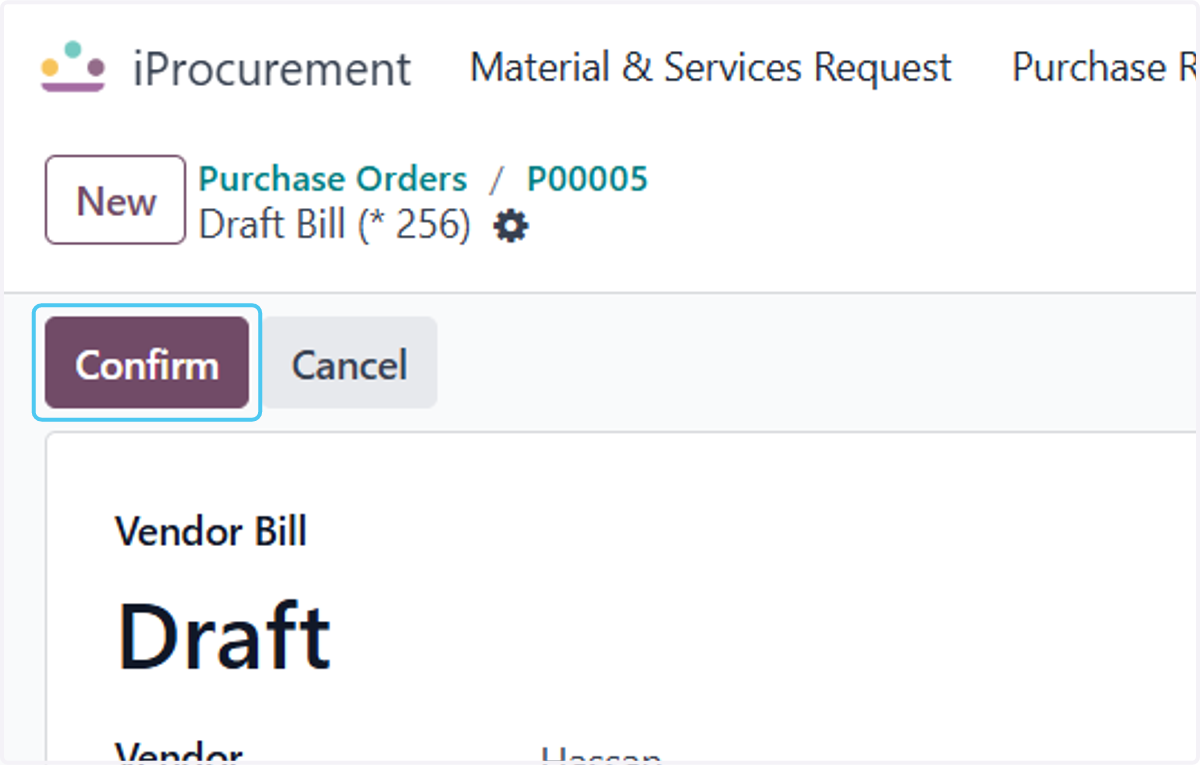
15. Click on Confirm
Once Bill is Confirmed it is created
16. Click on BILL/2025/08/0002