How to create a Heat Map report for only specific Individuals within a Company
Note: Rather than running a Heat Map for an entire Company and all of the Contacts you know, you can choose specific Individuals from the Company that you would like to include in a Heat Map report.
🚀 Launch Client Sense
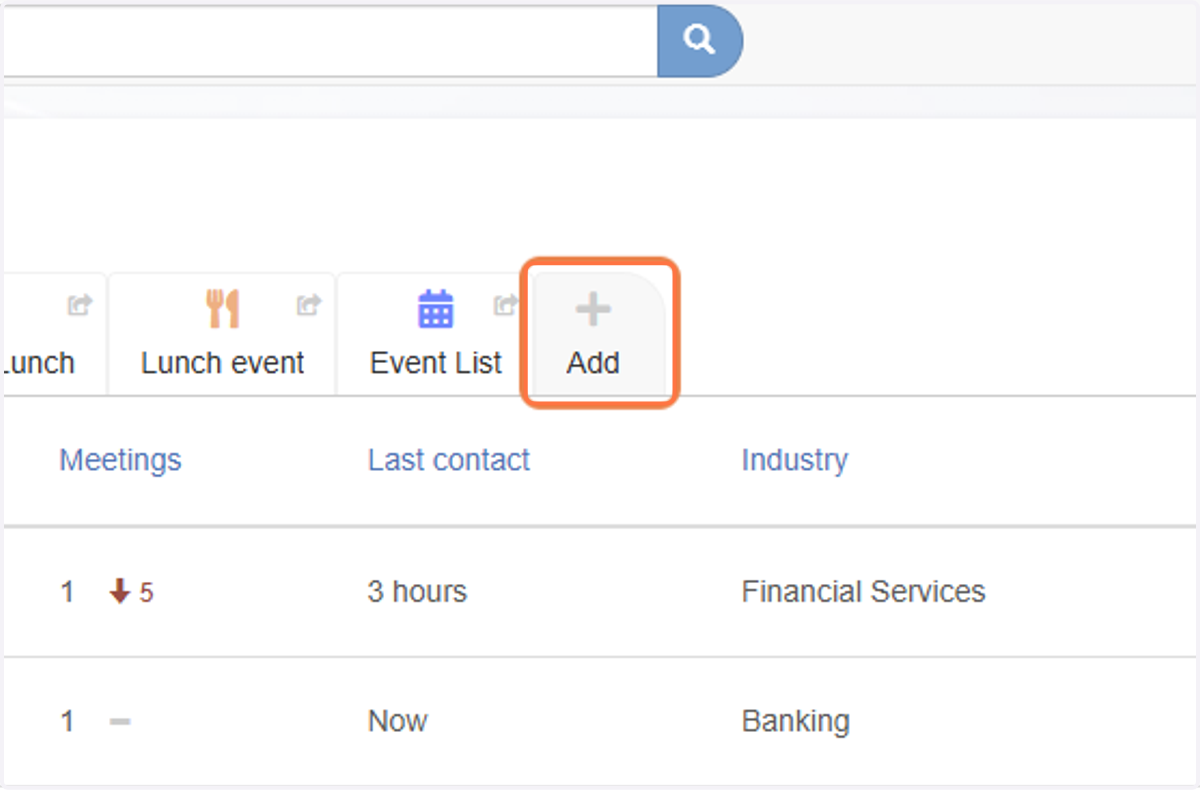
1. Click on Add
This will allow you to create a list we can use to define who we would like to target as those we want included from the Company
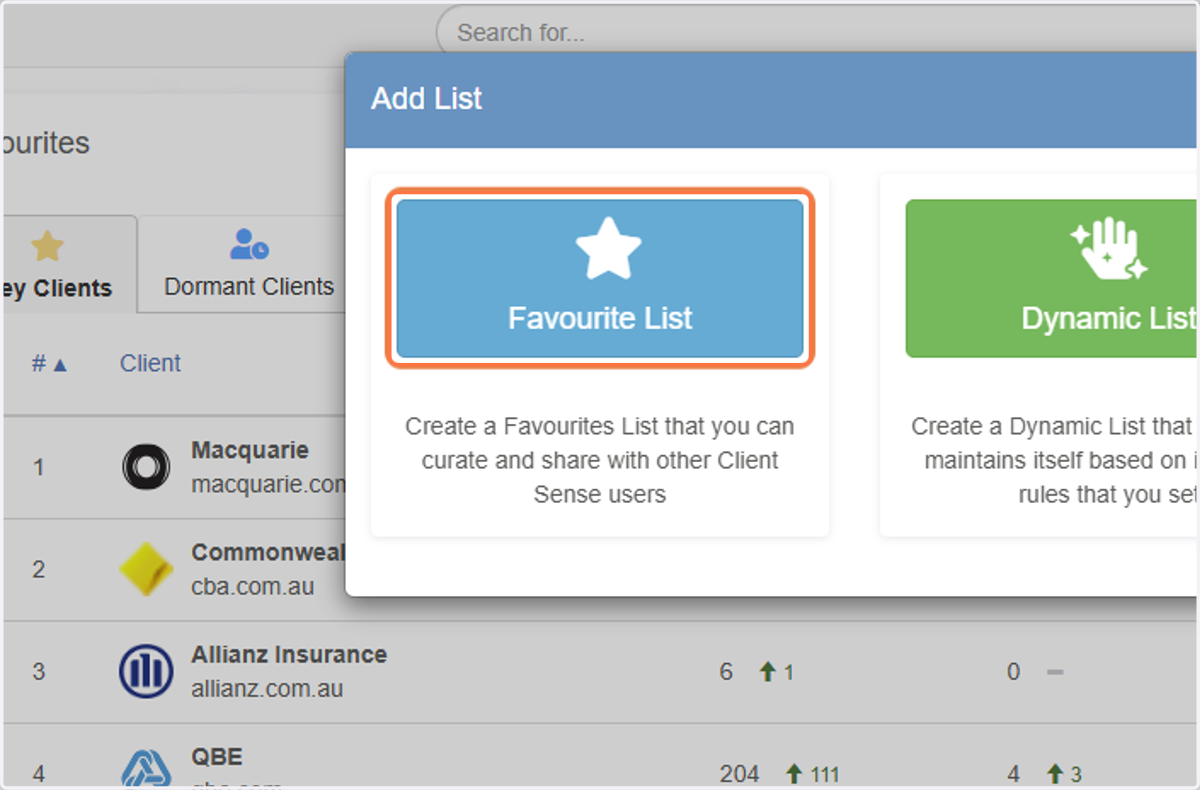
2. Select Favourite List
Note: A Dynamic List can be used to automatically add Individuals or Companies to a list based on certain criteria. A Dynamic List can be used to then create a Heat Map report also, but for the benefit of this example, we will use a static Favourite (or Favorite) list.
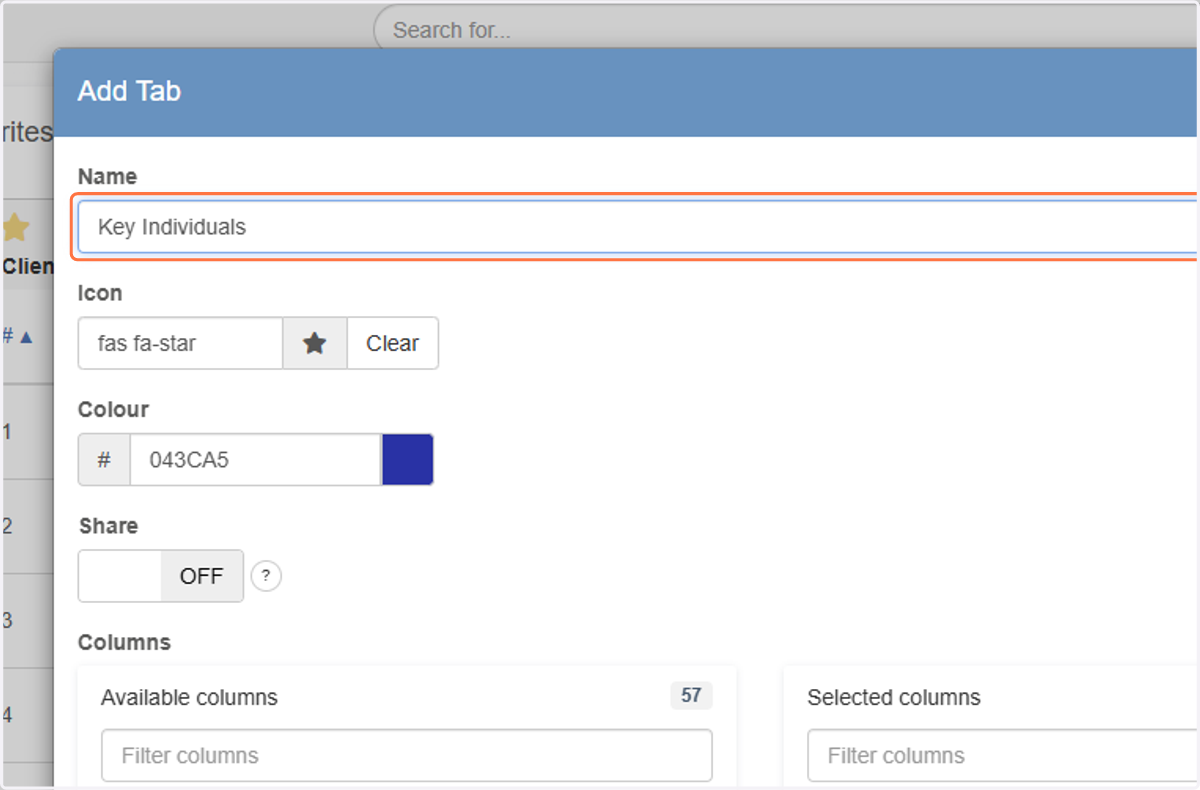
3. Give this a name
In our exmaple we will call this Key Individuals
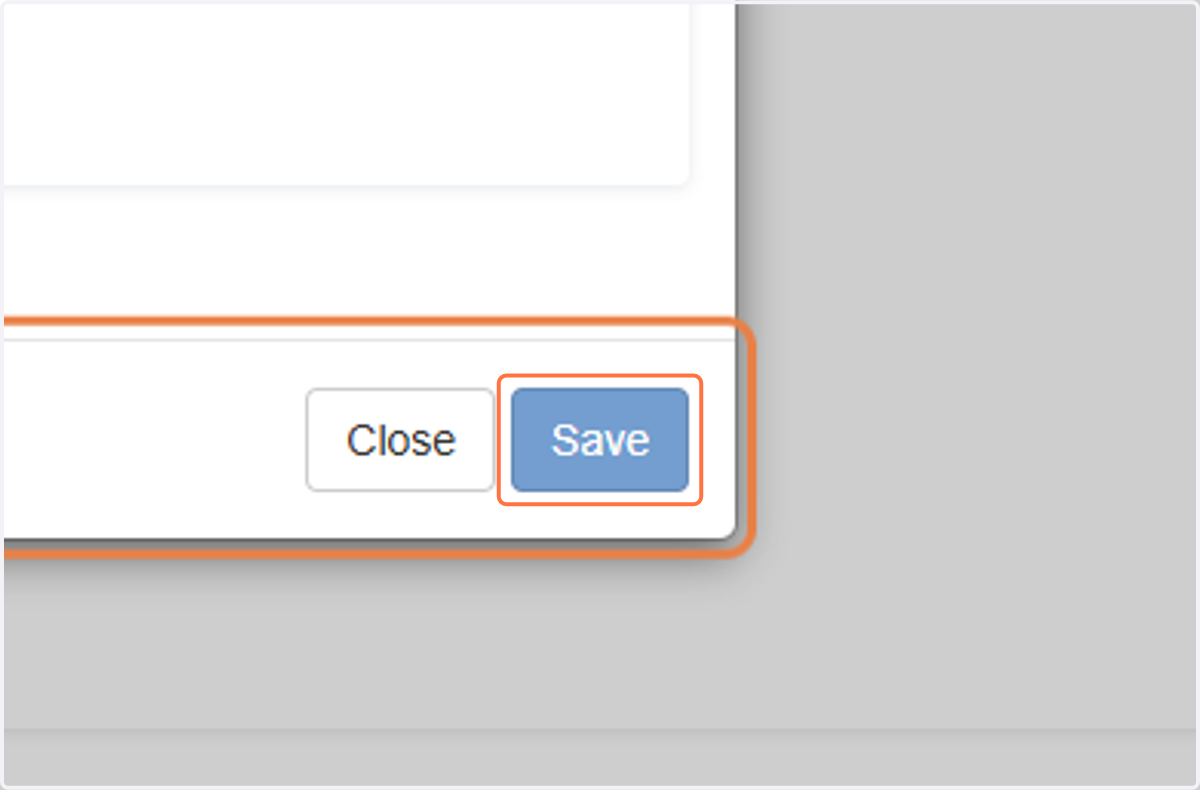
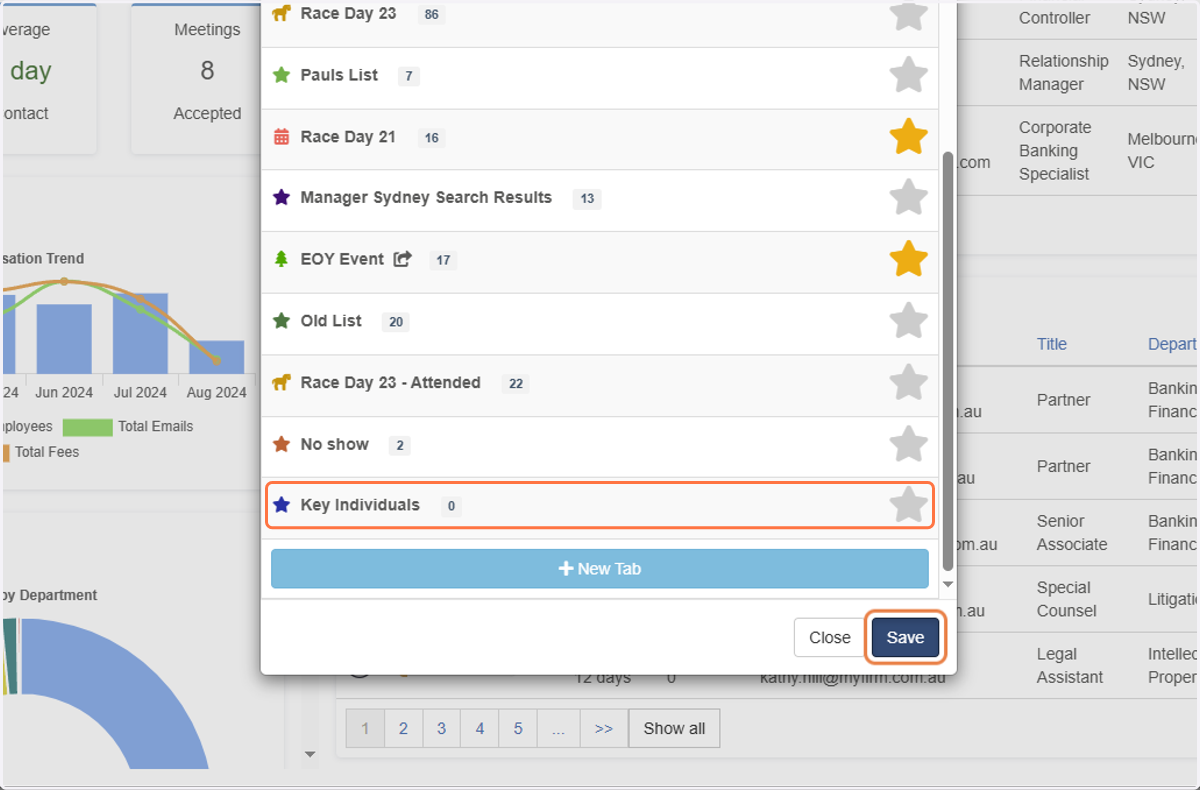
4. Click on Save
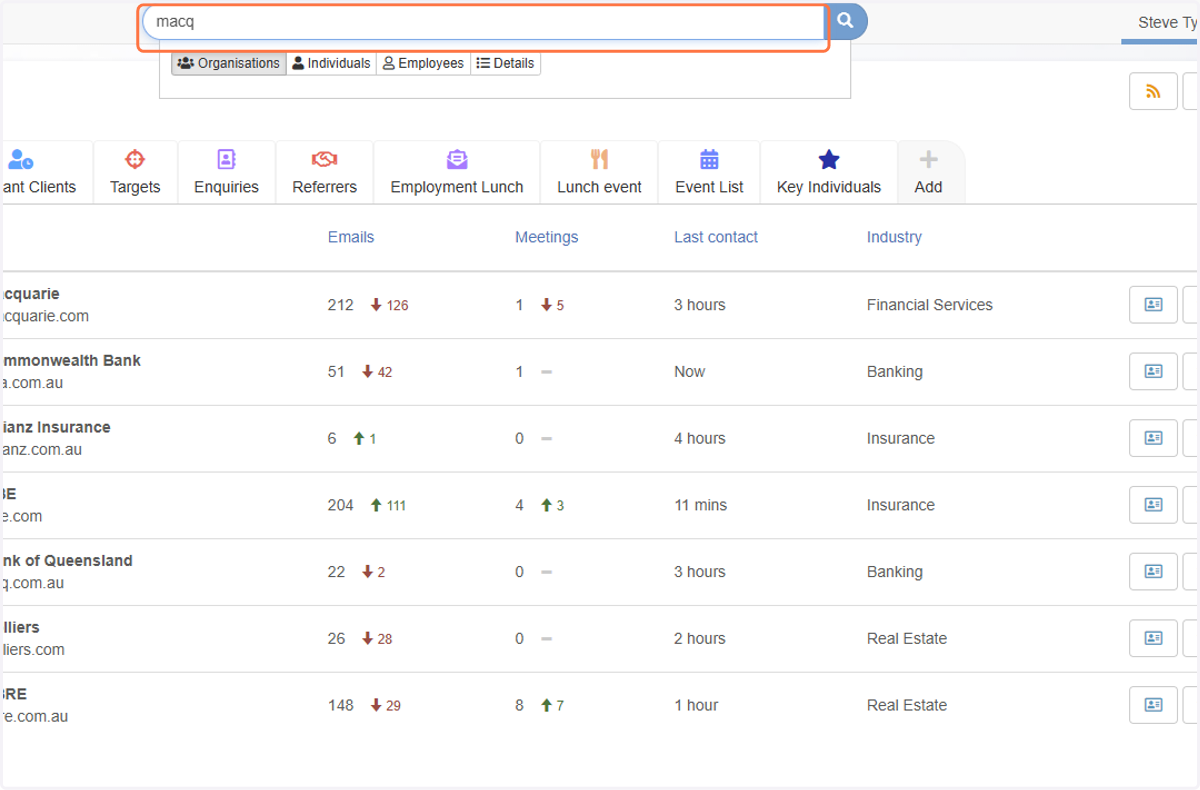
5. Search for the Company
In our exmaple, we will look for Macquarie
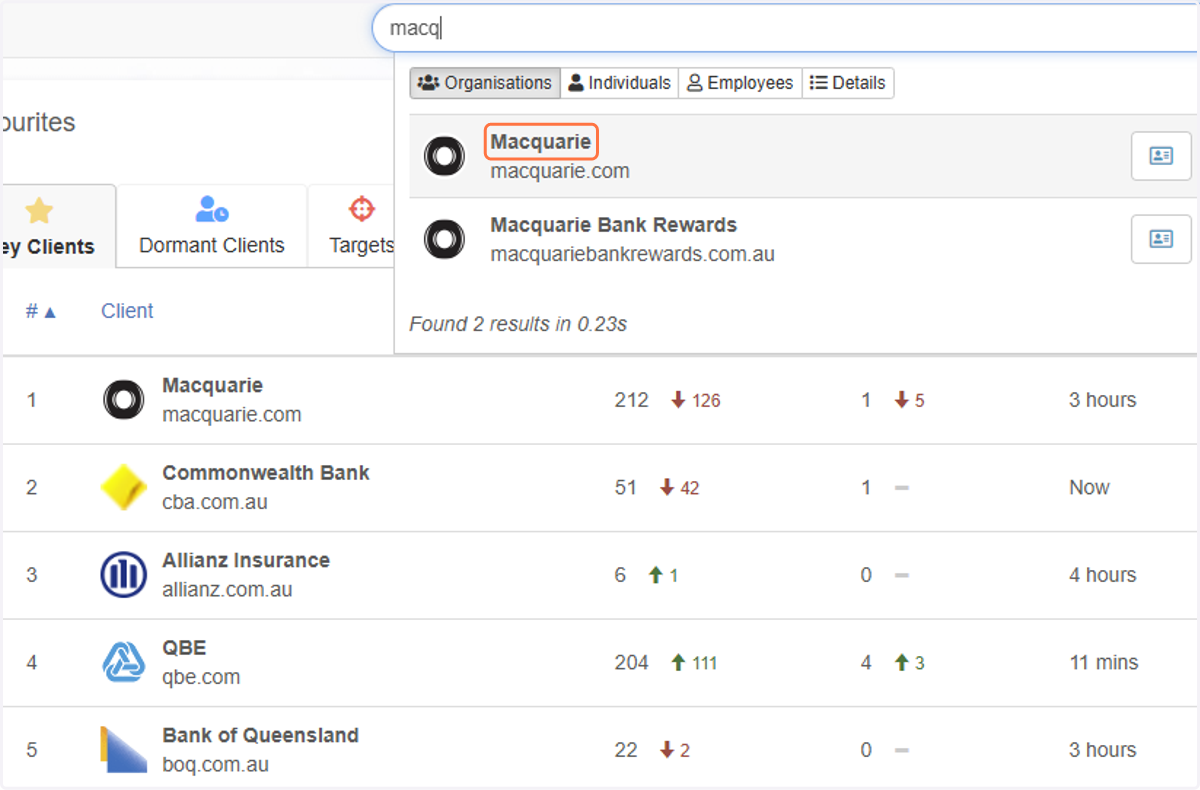
6. Click on the Company name
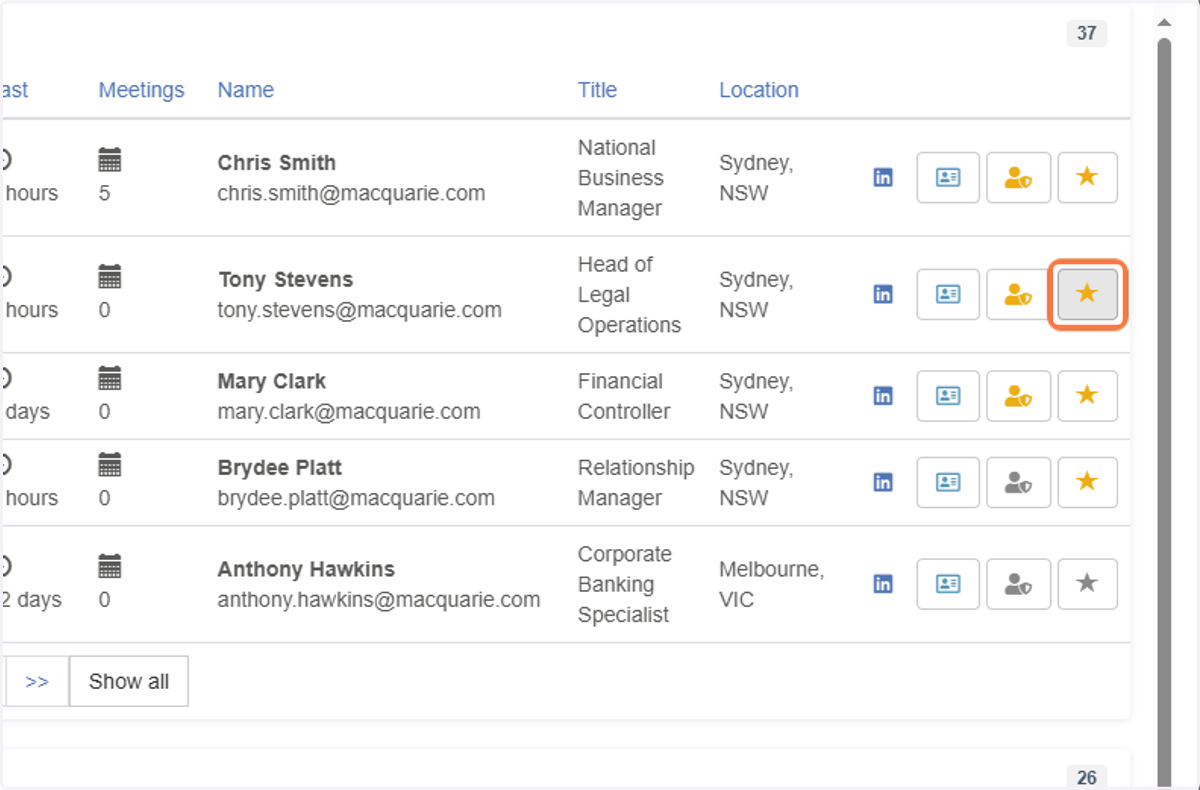
7. Click on the Favourites button for those Individuals you would like to include in your Heat Map report
8. Choose your List
In our exmaple we will choose the Key Individuals list we created
Repeat this process for as many Individuals you would like to include
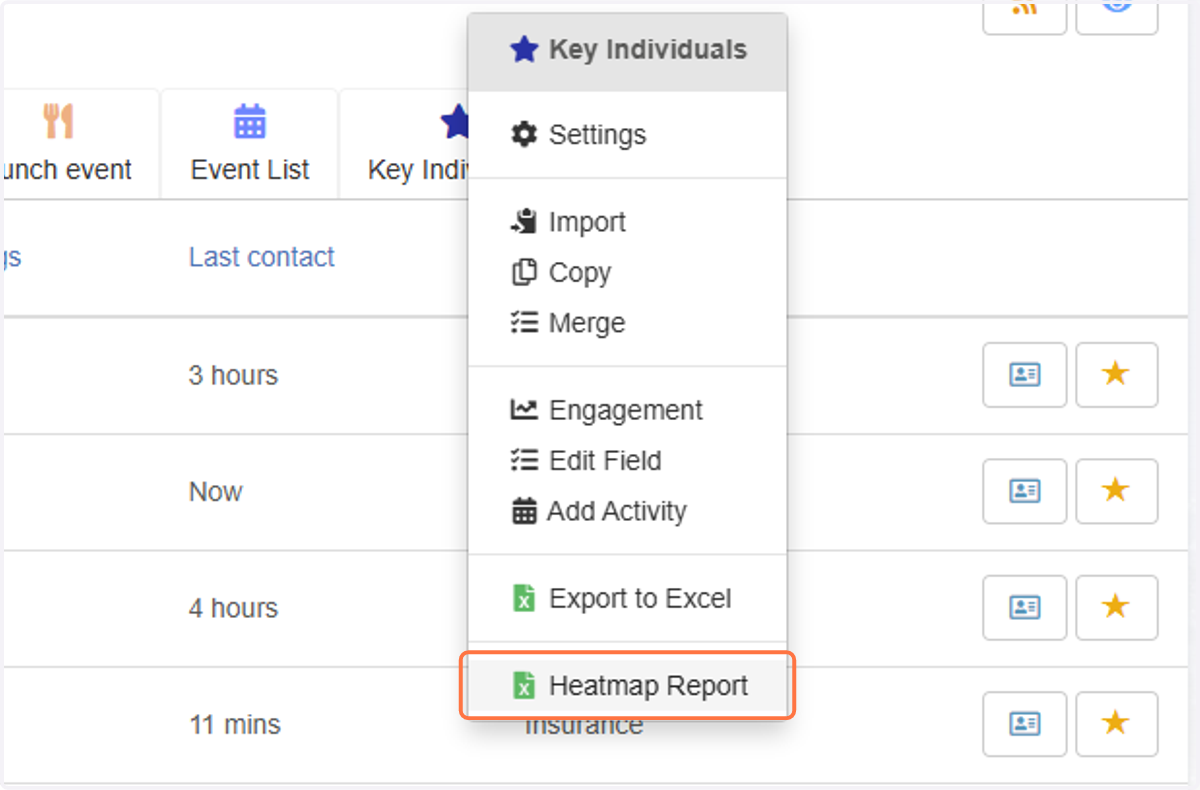
9. Right-click your List and choose Heatmap Report
In this exmaple, using your mouse, you will right click the Key Individuals tab and select Heatmap Report.
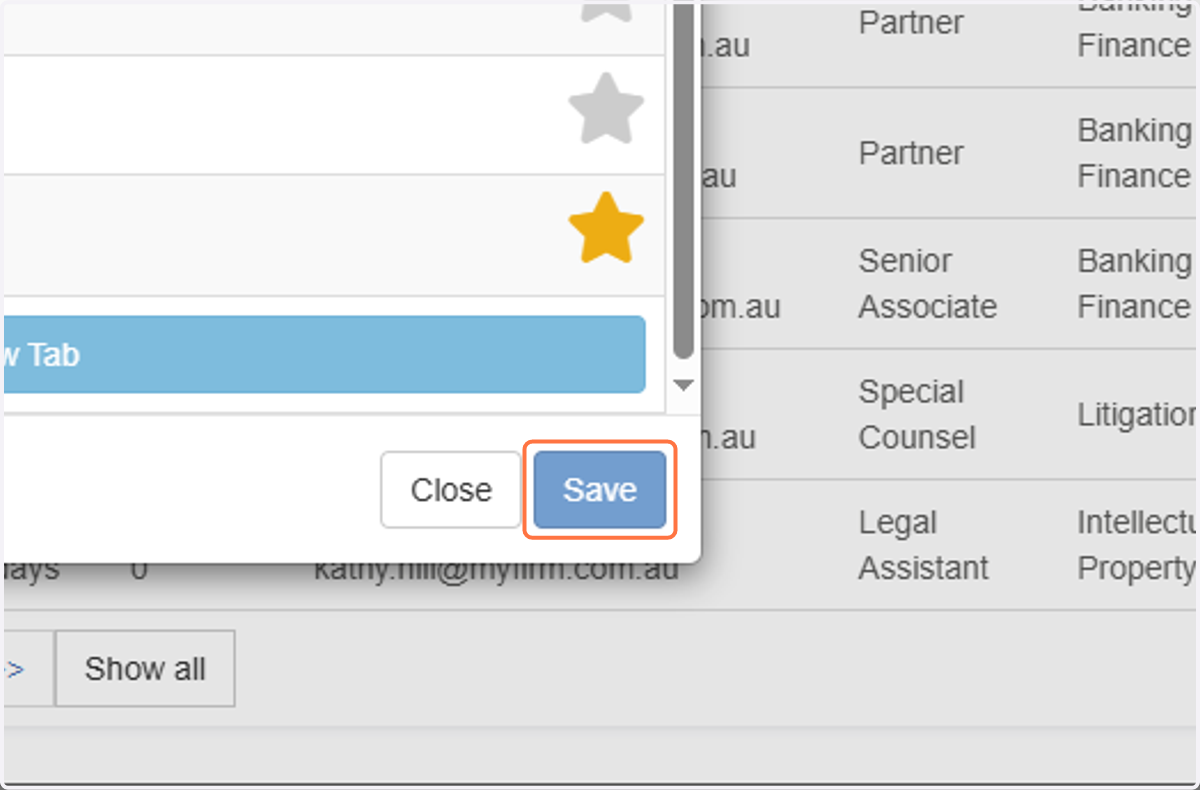
10. Click on Save
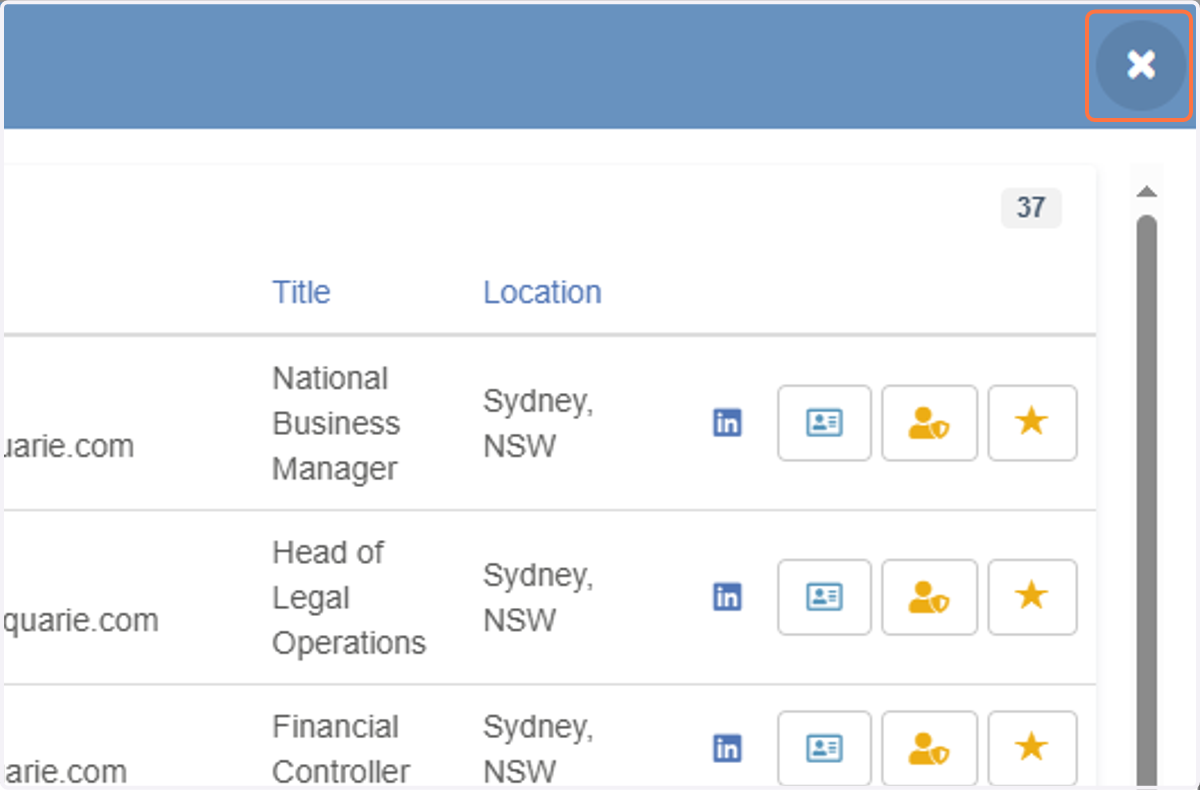
11. Click on the X
This will close the 360° Company view will return you to the main Favourites screen
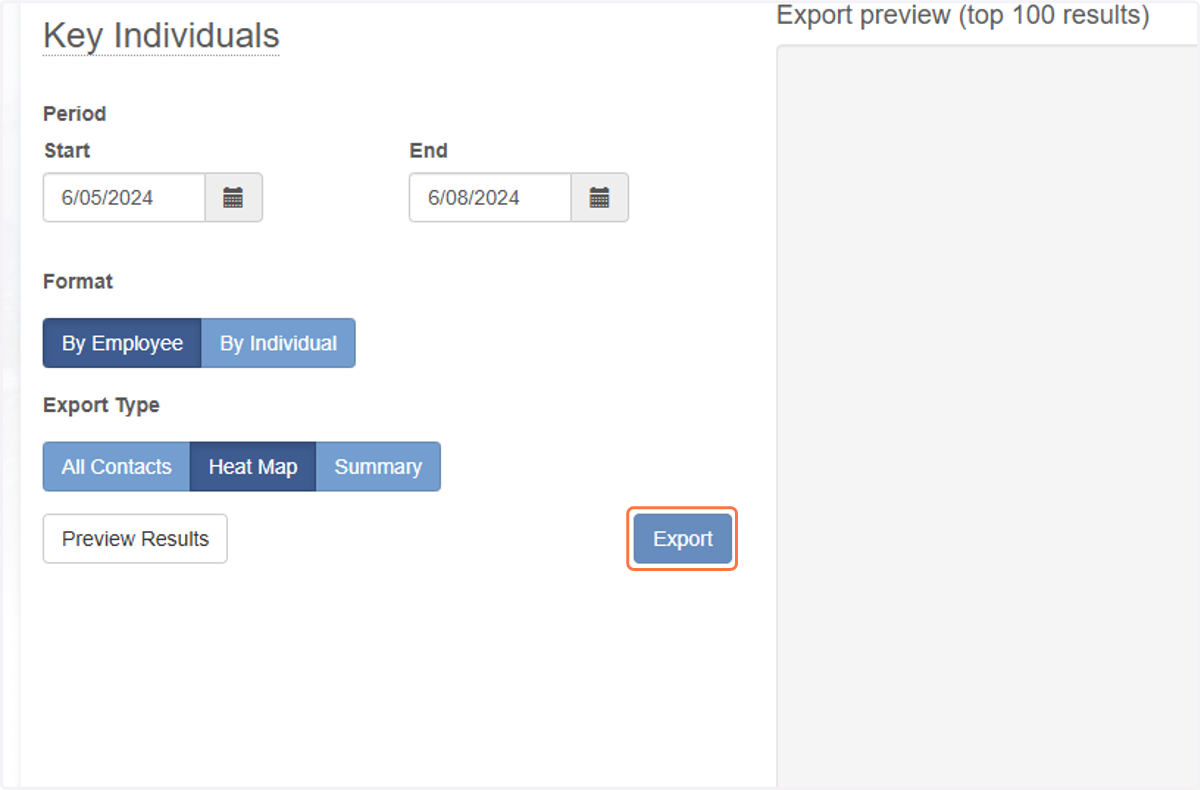
12. Click on Export
Selecting a different date range changes the Employees that will appear, depedning on if they have had contact in the timeframe specified.