Placing an Excel Courier Online Order
Go to Excel Courier's Client Portal
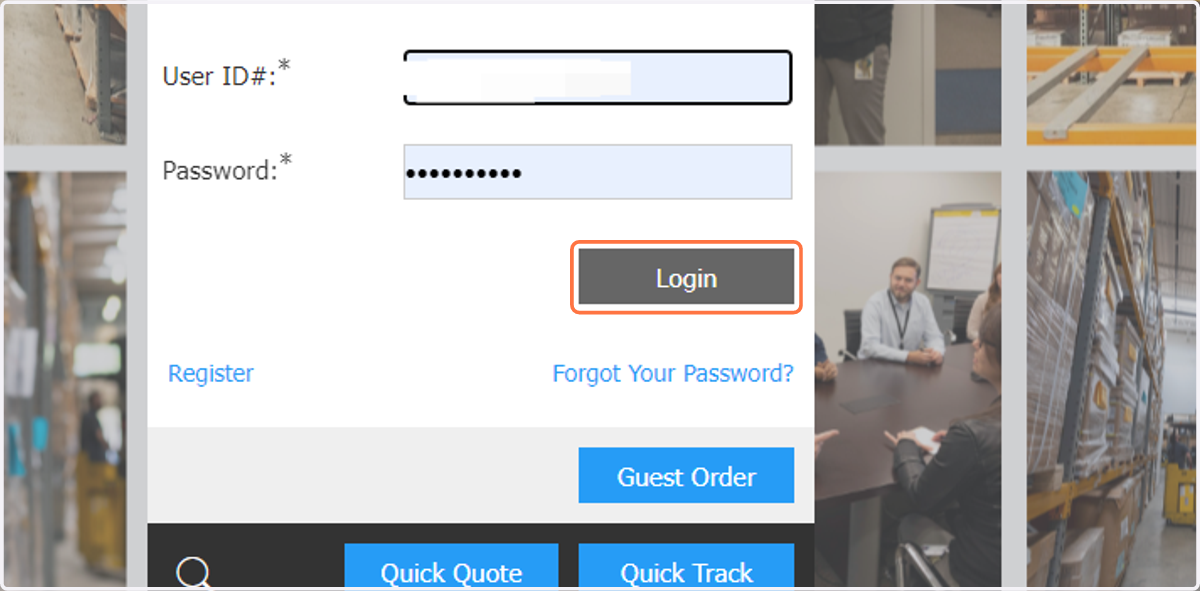
1. Enter your provided credentials and click Login
If you need an account or your password reset, please contact Excel Courier at 703-478-0140.
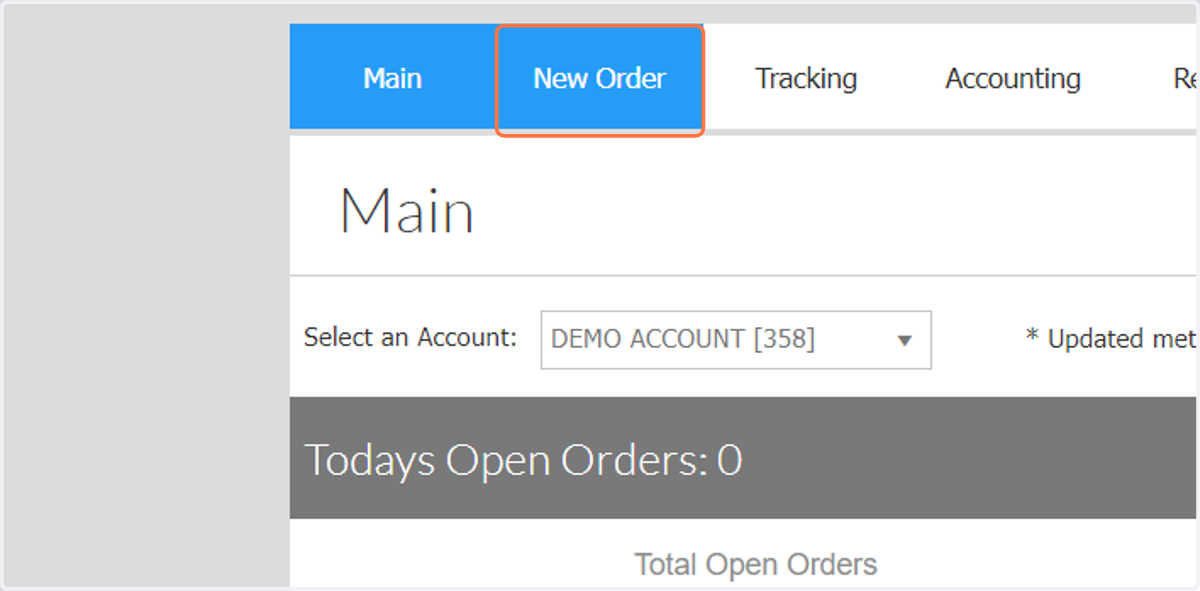
2. Click on the New Order tab
You can also make this your default home page in your profile settings, along with other default settings such as service level, pickup address, and vehicle.
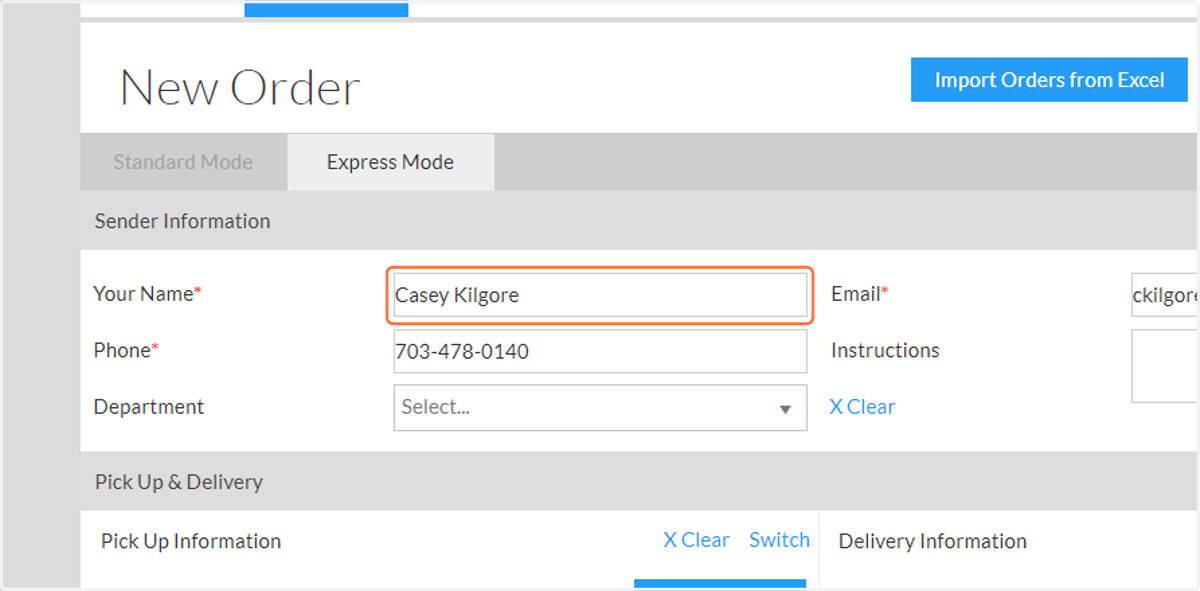
3. Complete the Sender, 'Caller' section
This will already be automatically filled with your information.
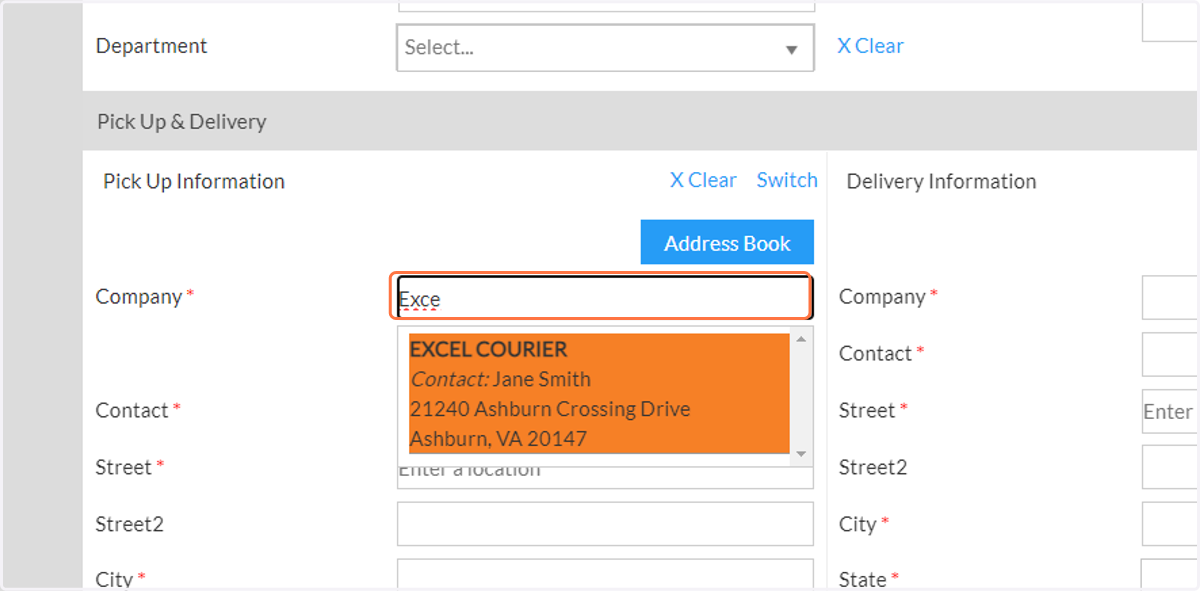
4. Complete Pick Up Information Section…
Complete all fields with an asterisk at minimum. If the address is already saved in your address book, it will be auto-completed. If it's a new address, the system will generate it as you enter it. If this is a new address, click 'update address' at the bottom of the section to save for future use.
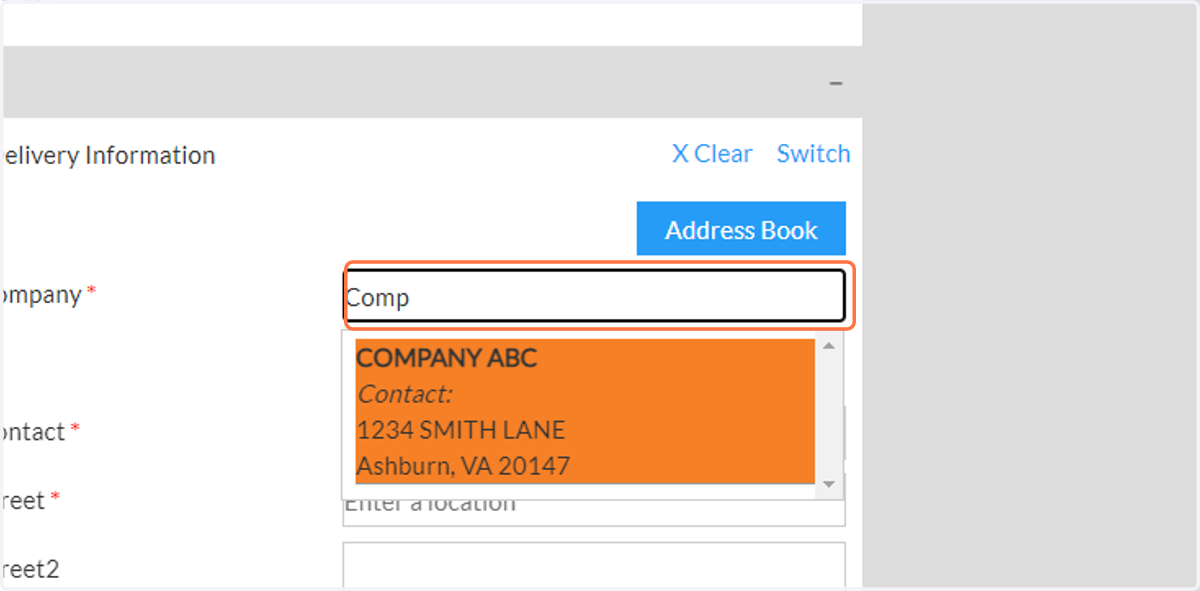
5. Complete Delivery Information Section…
Apply the pickup information section instructions here.
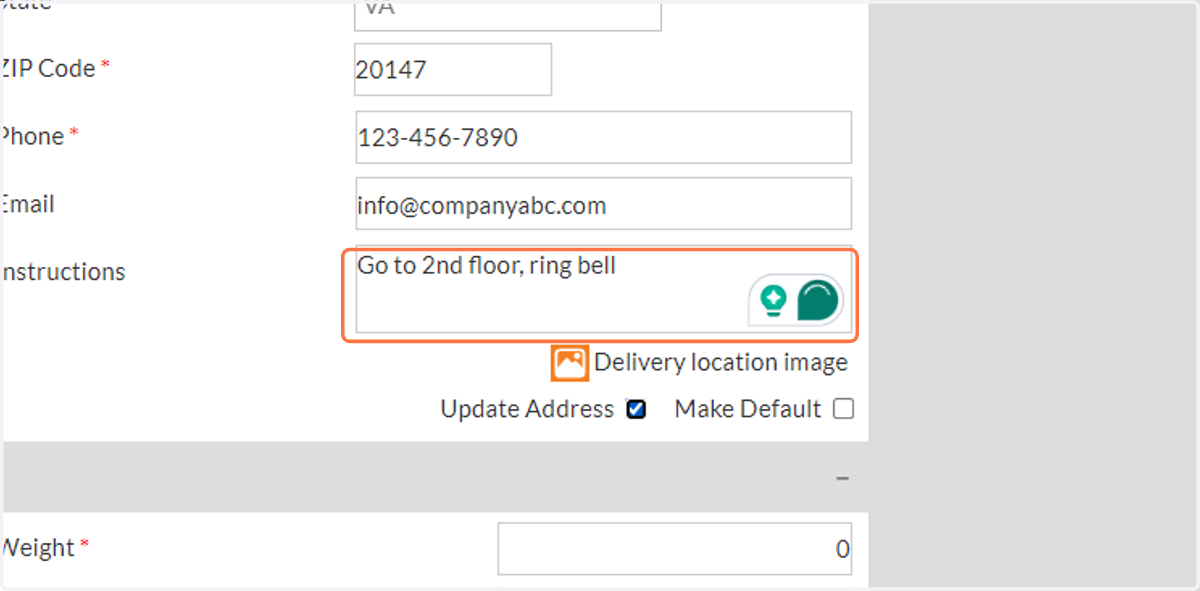
6. Provide Special Instructions, if any
Please provide any on-site instructions that could assist our driver in locating the pickup or delivery address and material more easily. This may include specific departments or 'go to front desk', floors, entry instructions, and/or any special details regarding the materials being picked up.
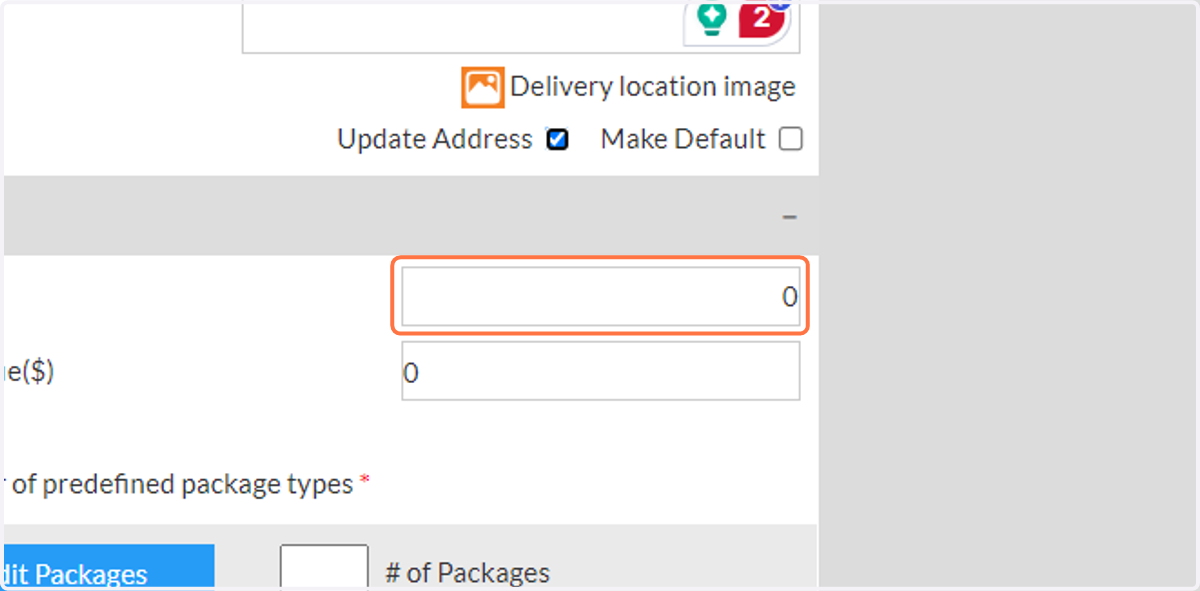
7. Add the weight of the package
The first 50 lbs are free.
8. Click on Add / Edit Packages
You will have a selection of package options to choose from. This will help us determine the number of items we are picking up. Drivers will report any discrepancies to our dispatch. It is important to be accurate, to avoid delays.
If you don't see an option that best fits the description, select the closest option and let us know. We can update your account to reflect options that fit your business better.
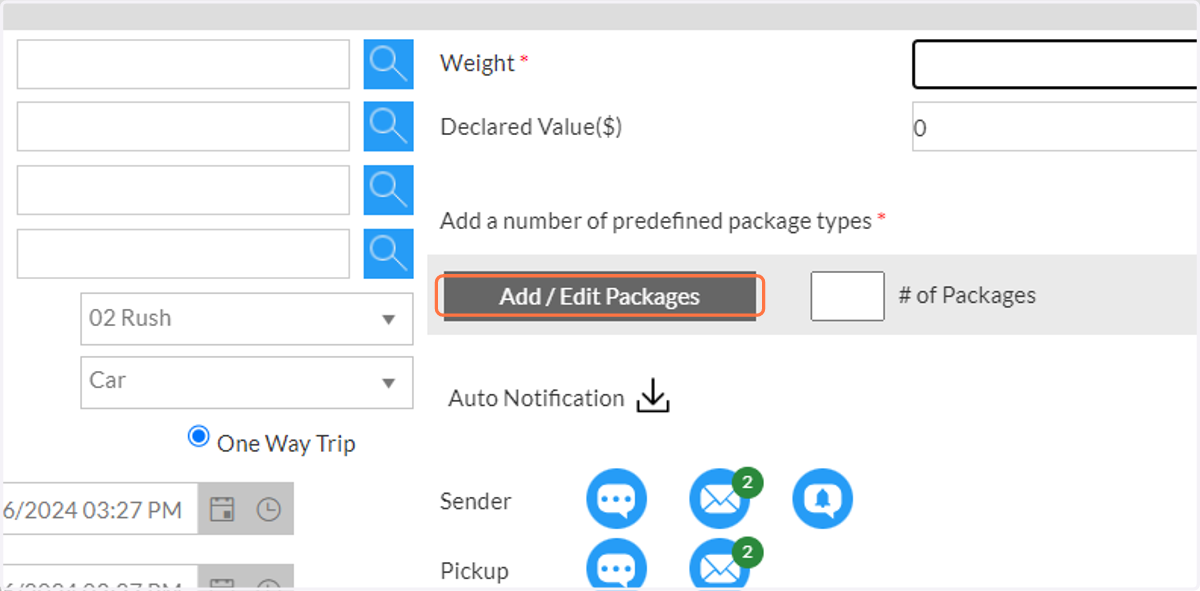
9. Select the type of package you need delivered to expand your options.
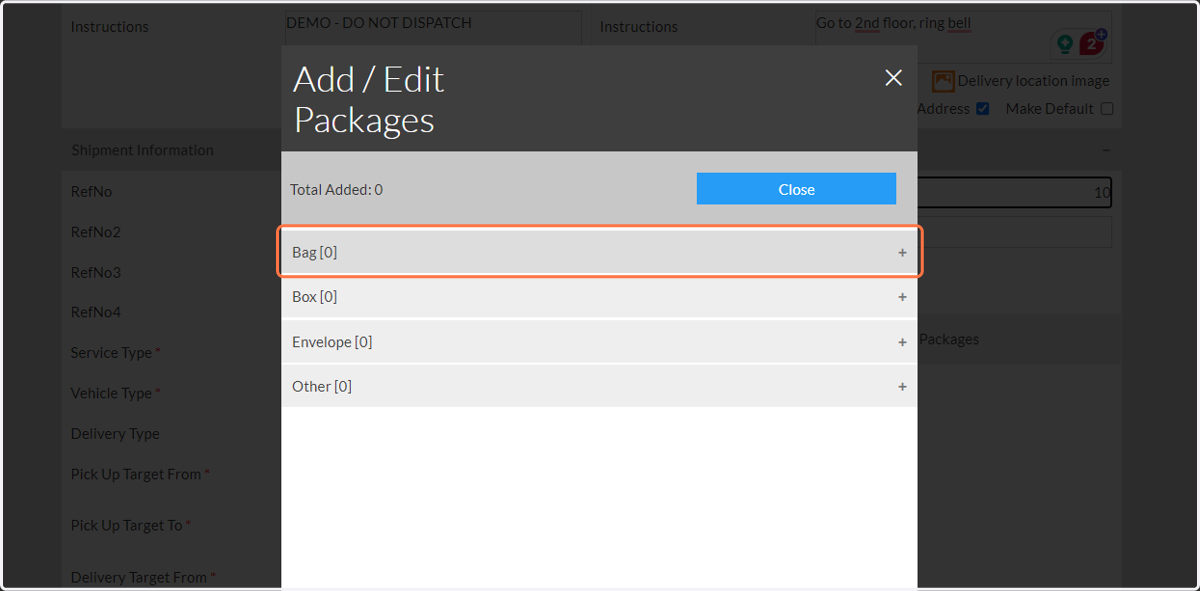
10. Add the quantity, click 'Set' and, below that set the weight for EACH package
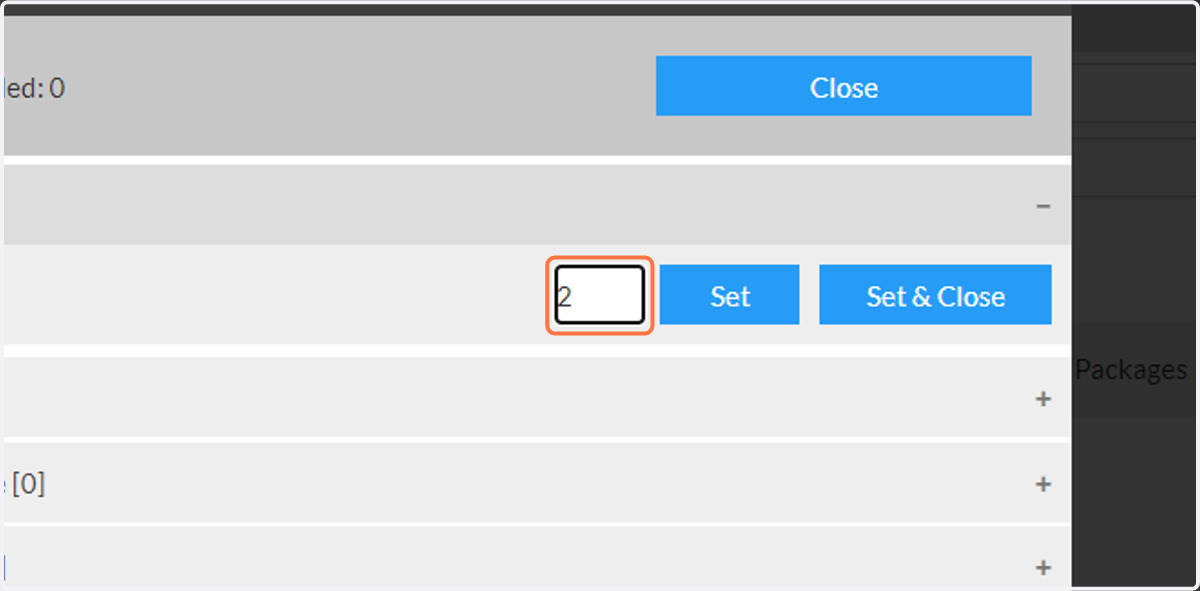
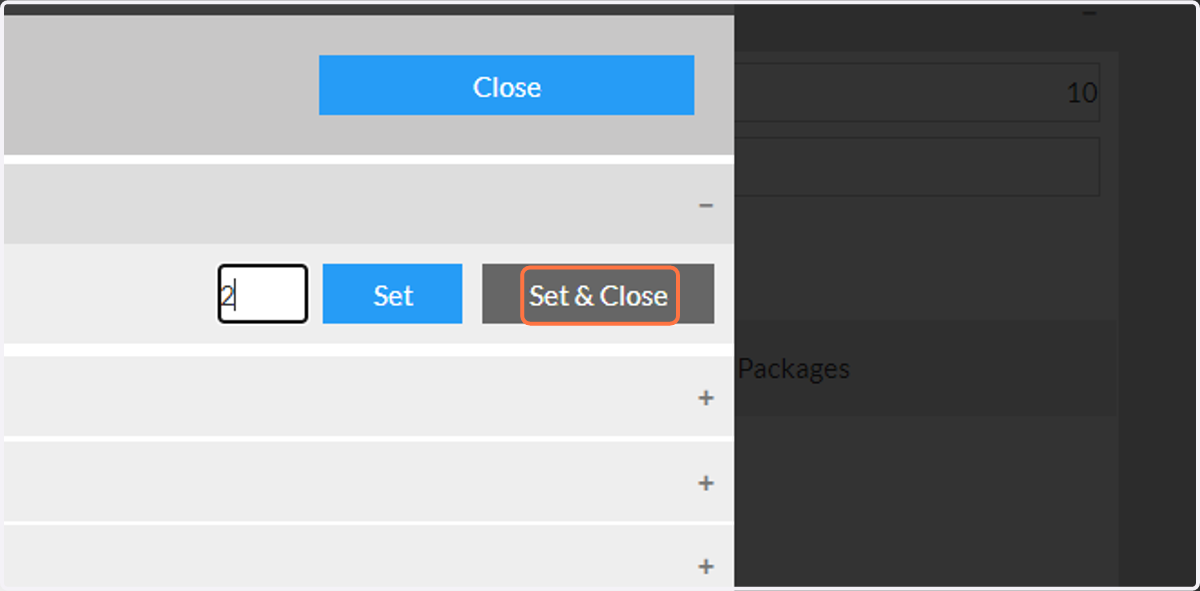
11. Click on Set & Close
If you have other types of packages to add to this order, click 'Set' instead and select the additional package types needed. Repeat this step for all packages. Once done, click 'Set & Close'.
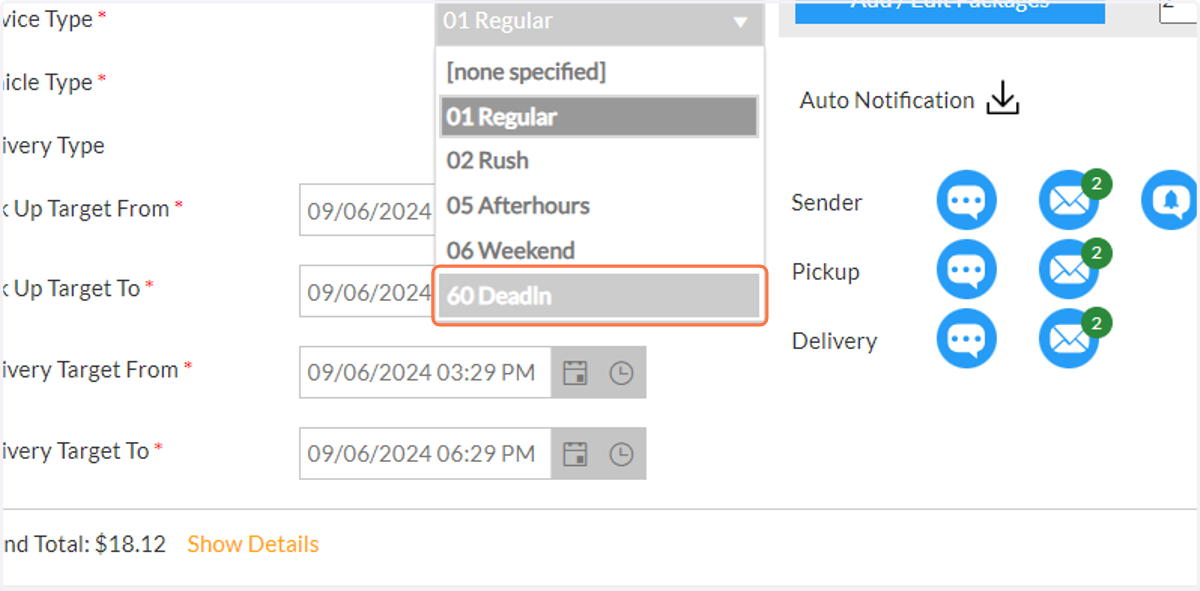
12. Choose your service type
The times will automatically adjust based on the service level selected. If you are dormant on the new order page for too long, it may request you update the Pick Up times.
Unless noted otherwise by our team, the windows of service are:
Regular - pickup and delivery within 3-4 hours, unavailable after 3:00 PM
Rush - pickup and delivery within 2 hours
Deadline - nonstop or a specific pick-up time (i.e. need to be picked up exactly at 9:00 AM)
Afterhours - between 6:00 PM - 7:59 AM Monday - Friday (pings off the pickup time)
Weekend - Saturday and Sunday
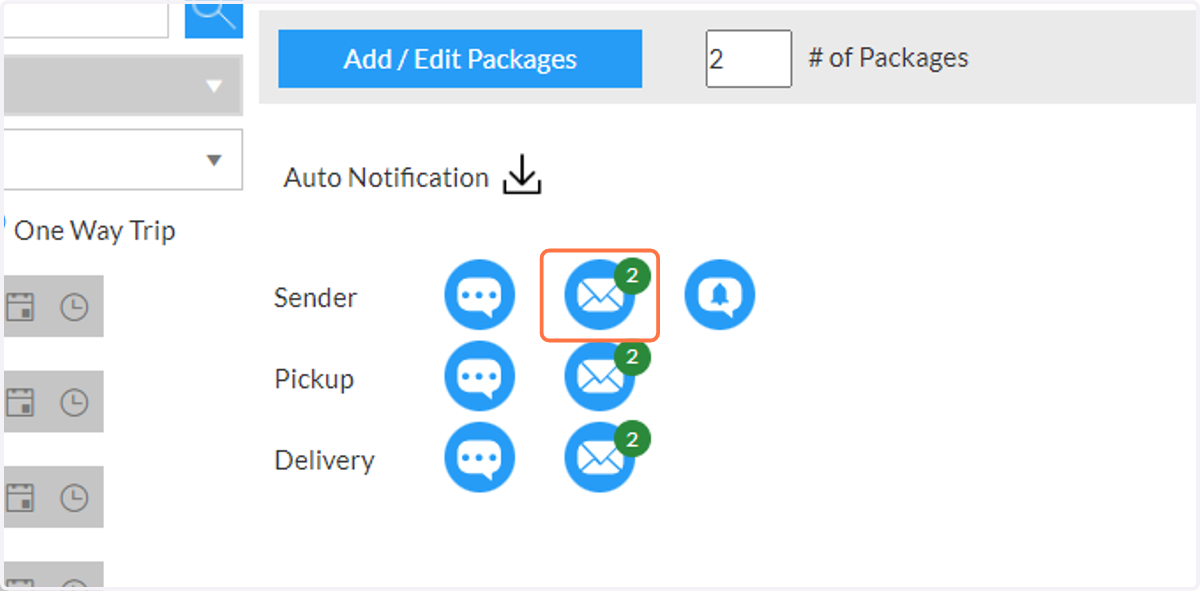
13. Click the email icon under 'Auto Notification' to set up who you'd like to receive automatic emails
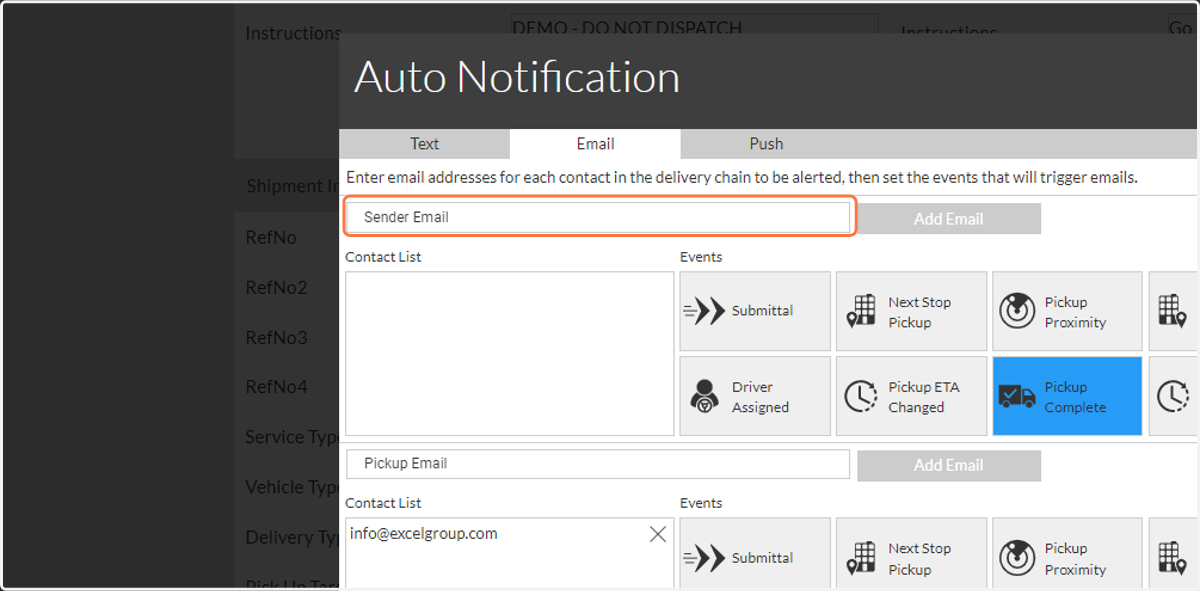
14. Add emails to 'Sender Email', 'Pickup Email' and 'Delivery Email' as needed
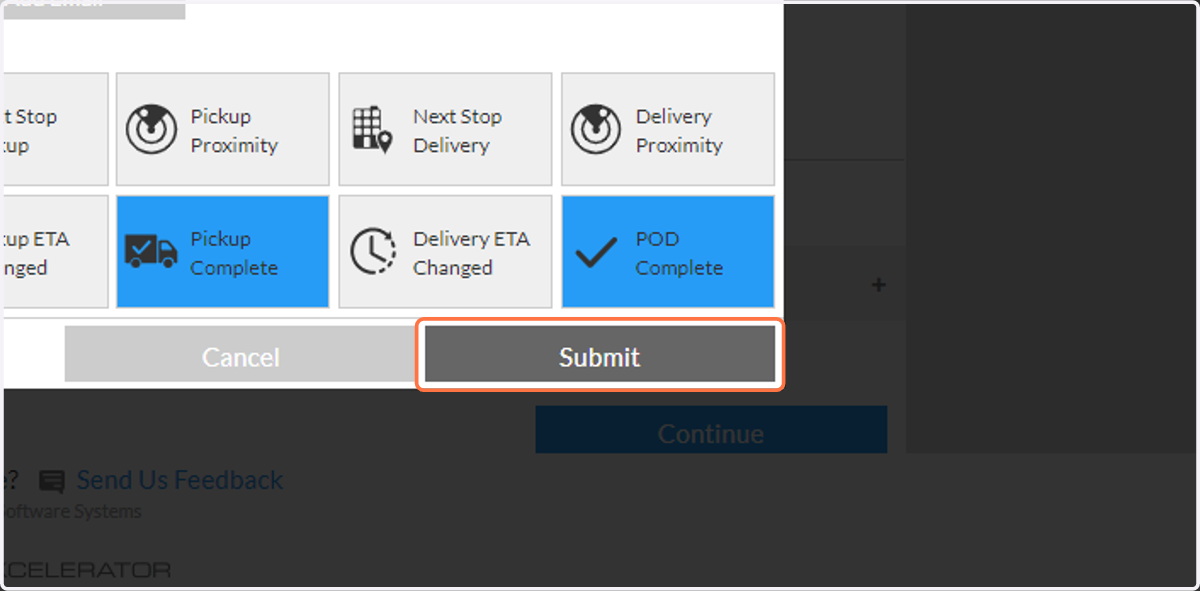
15. Click on Submit
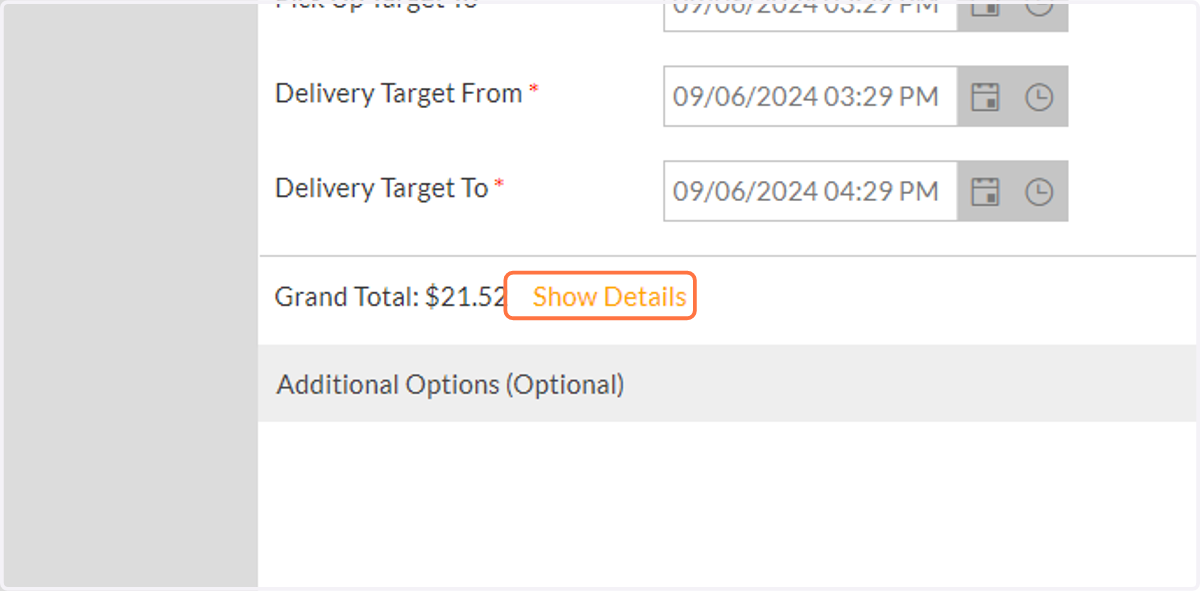
16. To see total charge and details, go to bottom of screen and click on 'Show Details'
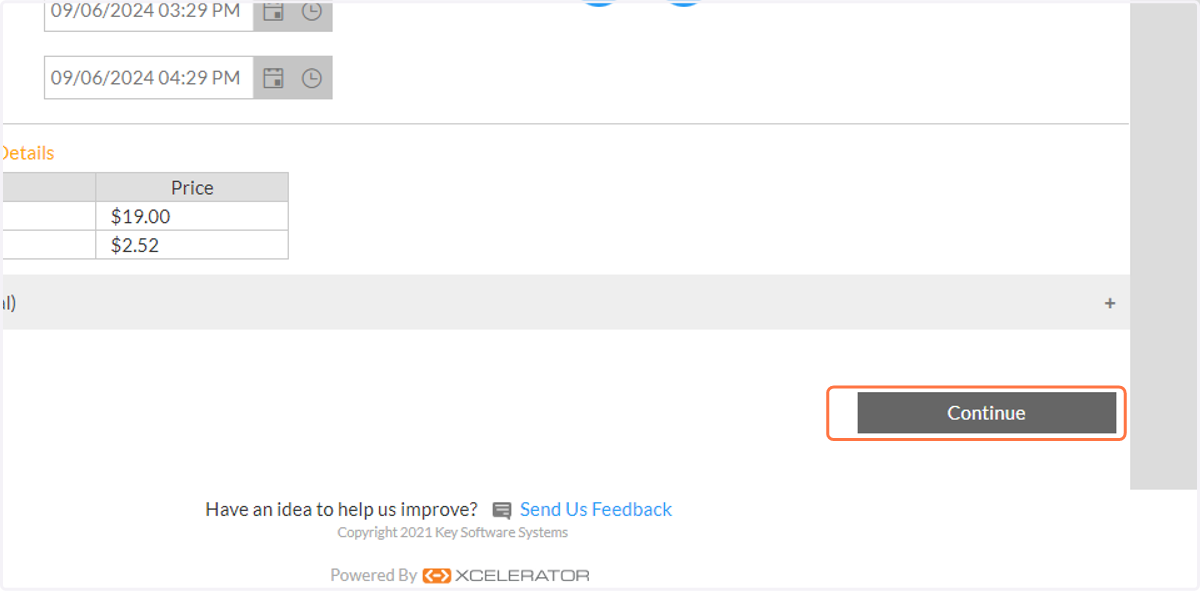
17. Click on Continue
If information is missing or needs to be adjusted, you will be prompted by the system to review.
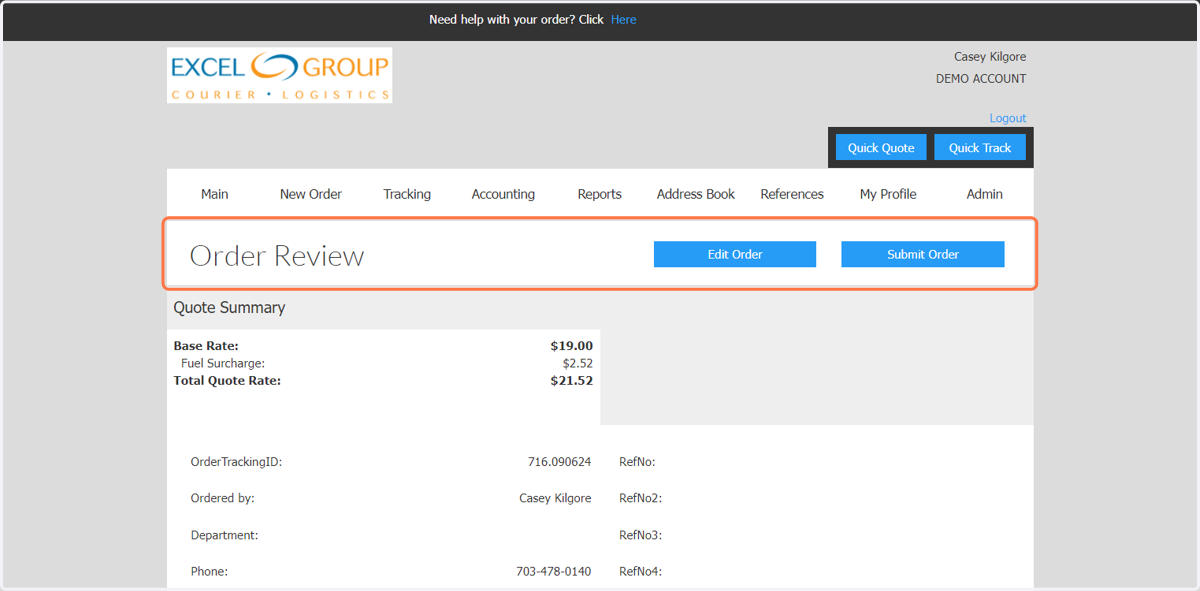
18. The order is not submitted yet. Review your order details for accuracy.
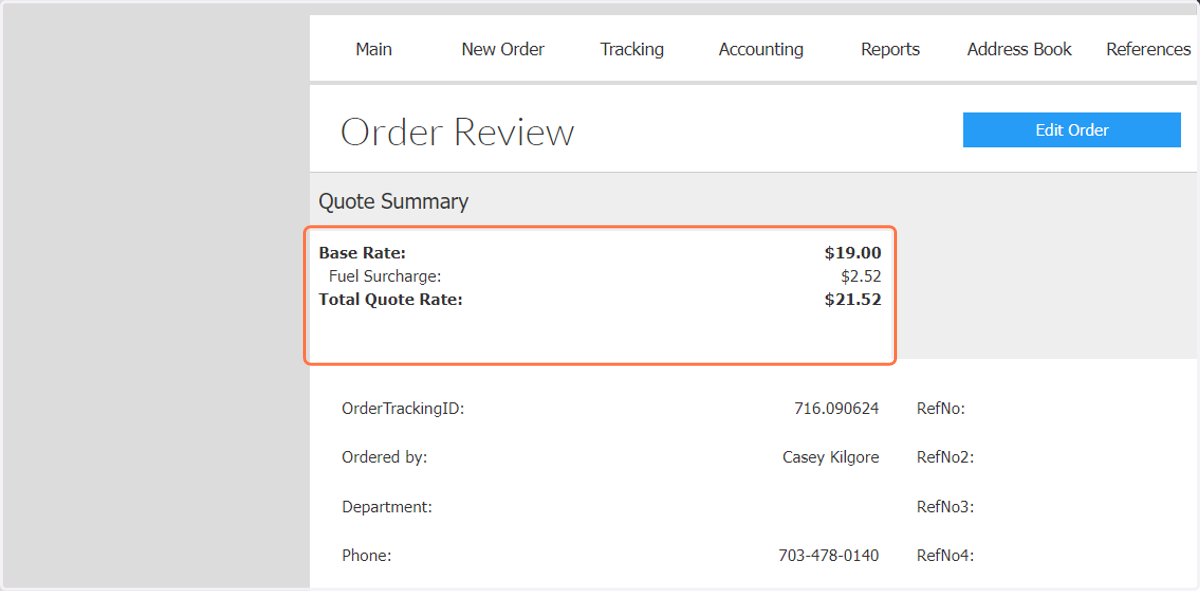
19. If all information is correct, you are ready to click 'Submit Order'. The next screen will provide you with a unique job number to identify your order online and when calling in.
If you need to make any changes to your order, please contact our Client Services team at 703-478-0140 available 24/7/365.