New Property - Setting up Stay Restrictions (CTA/CTD/ST)
When setting up Stay Restrictions in RevMax, make sure the required variables are also enabled in Streamline for the restrictions to apply and sync correctly.
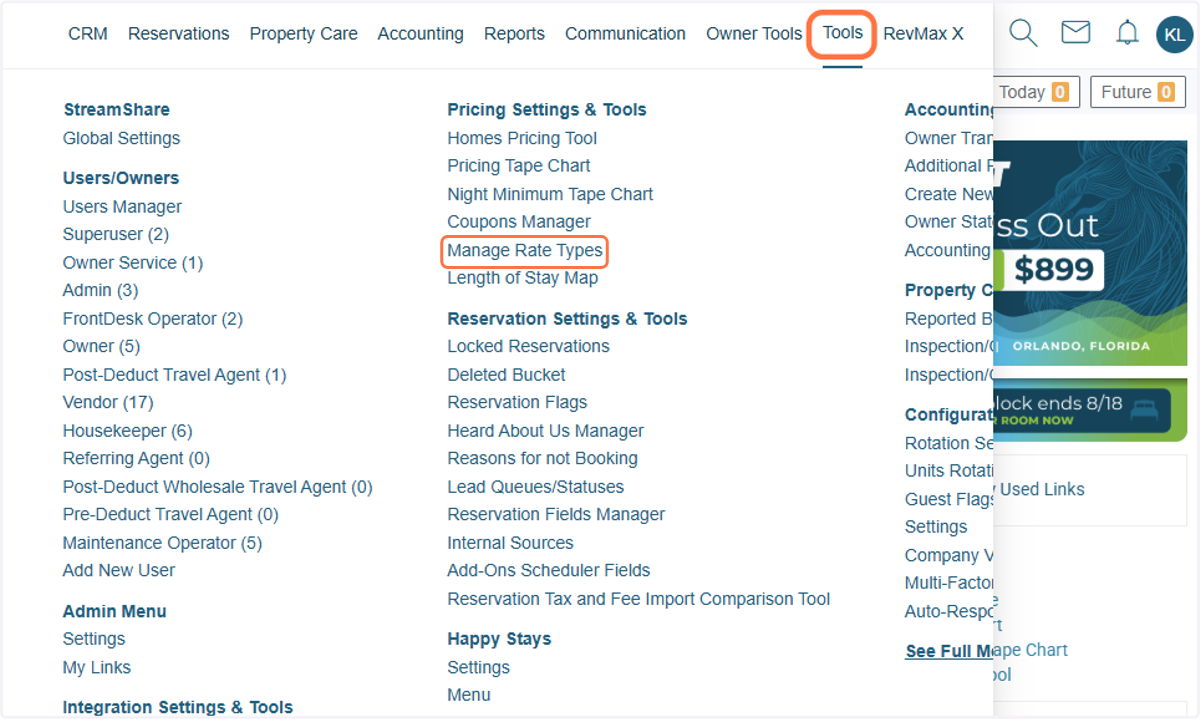
1. In your Streamline system, go to Manage Rate Types to confirm the Stay Restriction Settings in Streamline.
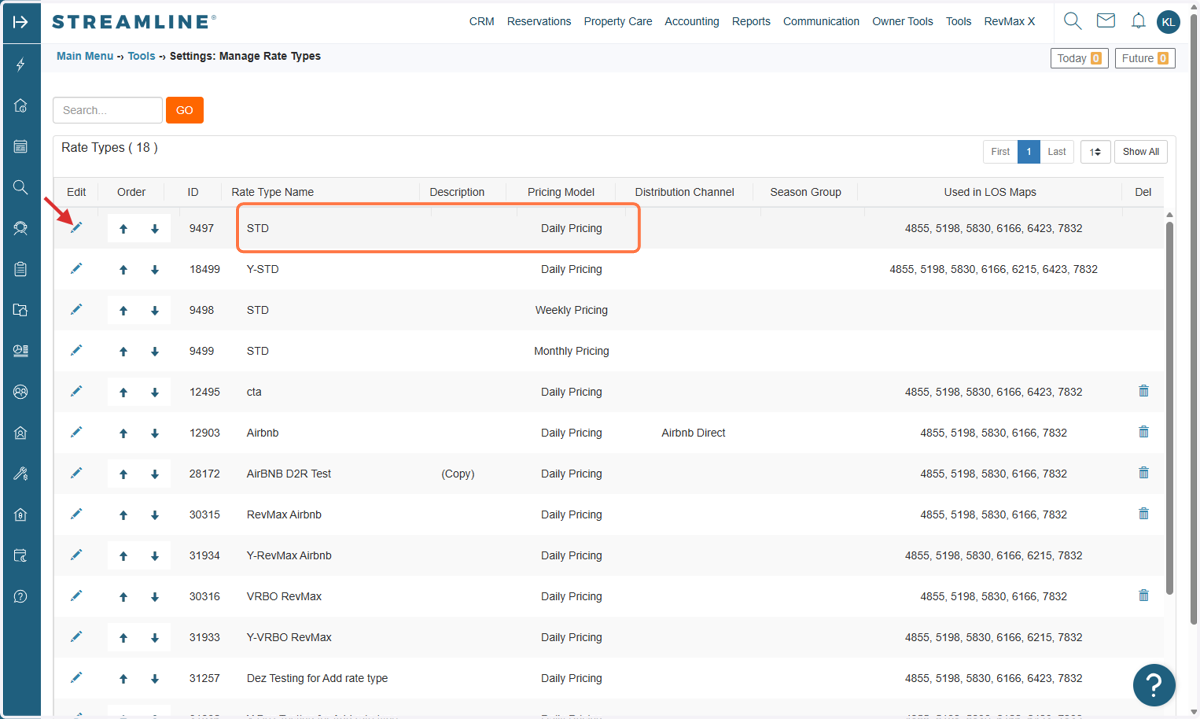
2. Click the STD (Daily Pricing) Rate Type settings.
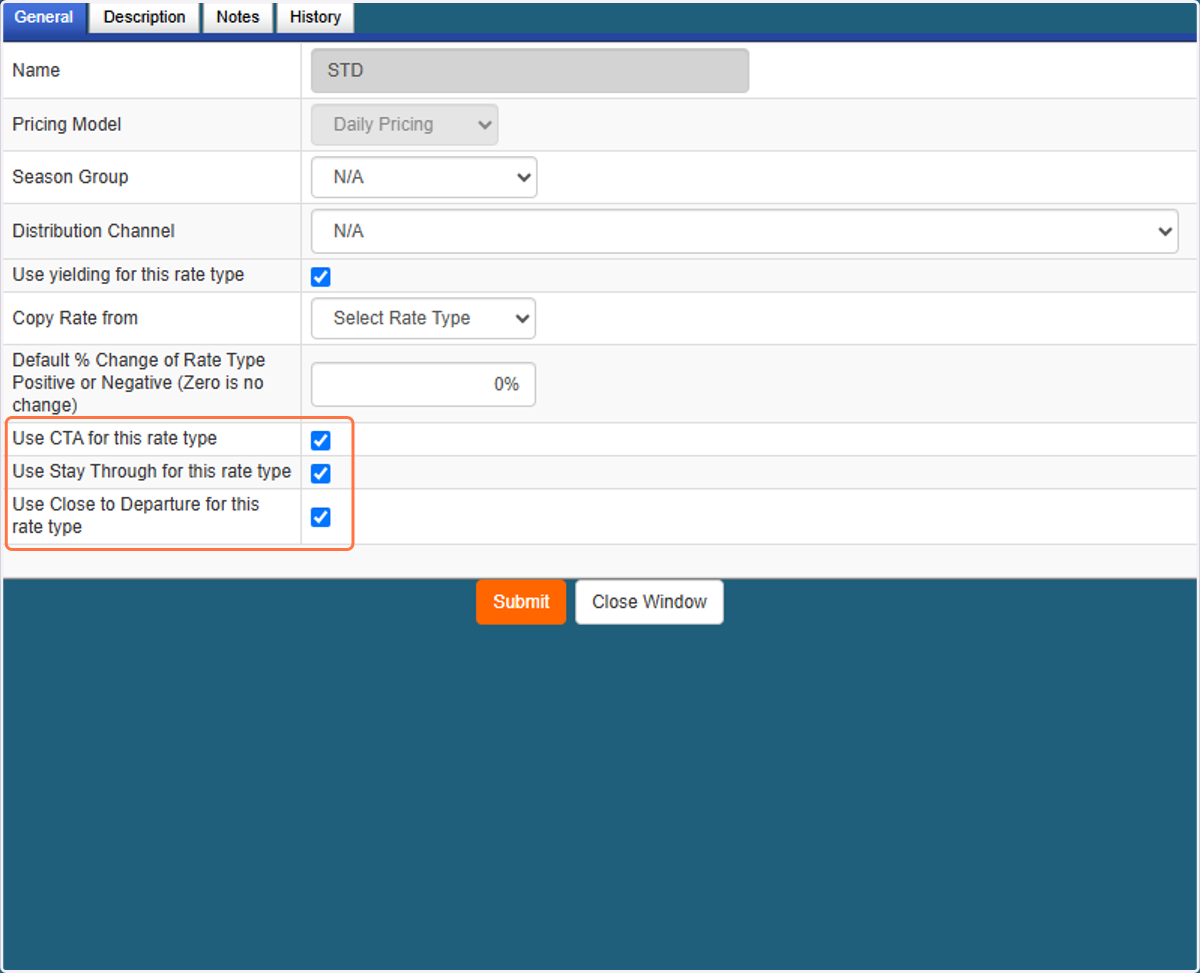
3. Ensure the three required stay restriction options are enabled.
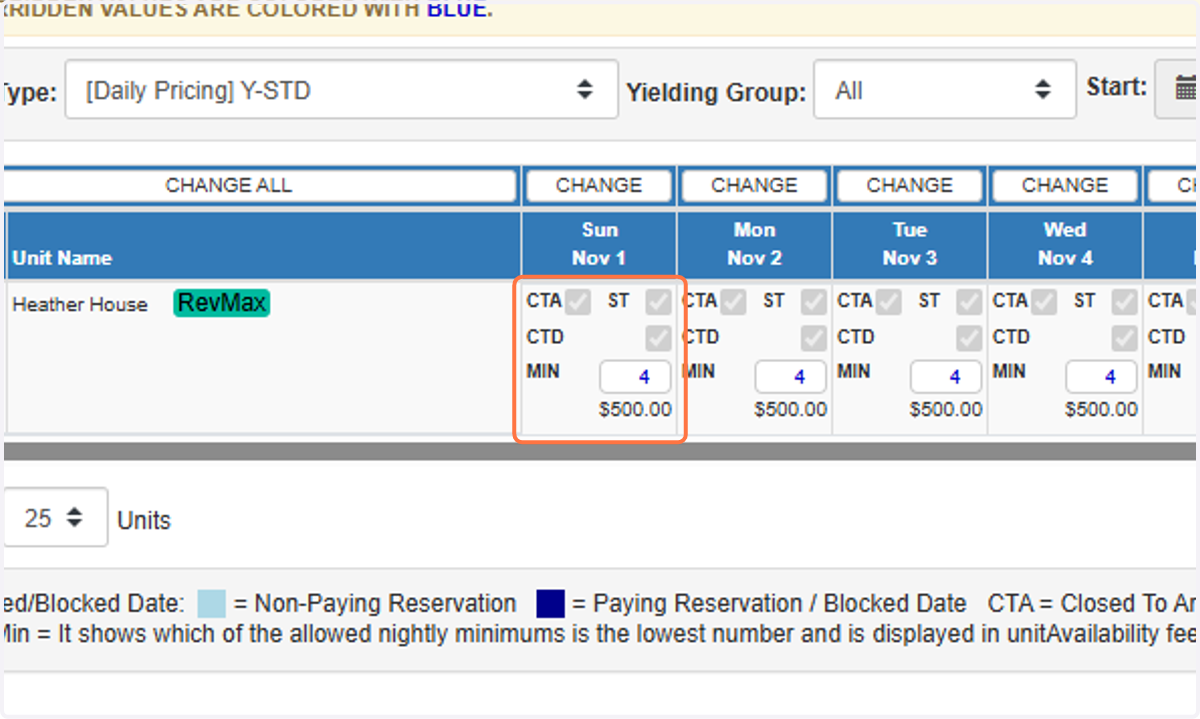
4. Once confirmed, navigate to Streamline’s Night Minimum Tape Chart to verify that the CTA (Closed to Arrival), CTD (Closed to Departure), and ST (Stay Through) boxes are visible.
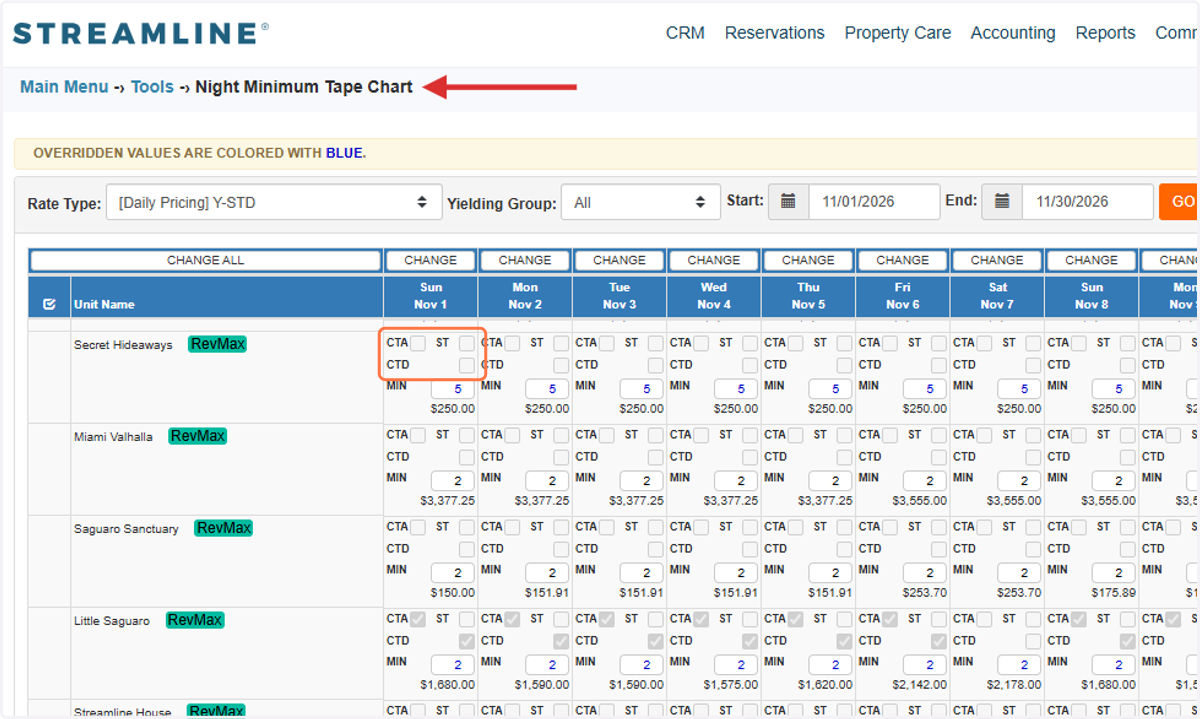
5. In RevMax, filter the date range and/or select the specific units where you would like to apply Stay Restrictions.
You can also use additional filters, such as
-Bedroom Count
-Location
-Occupancy Group
-Other available unit filters
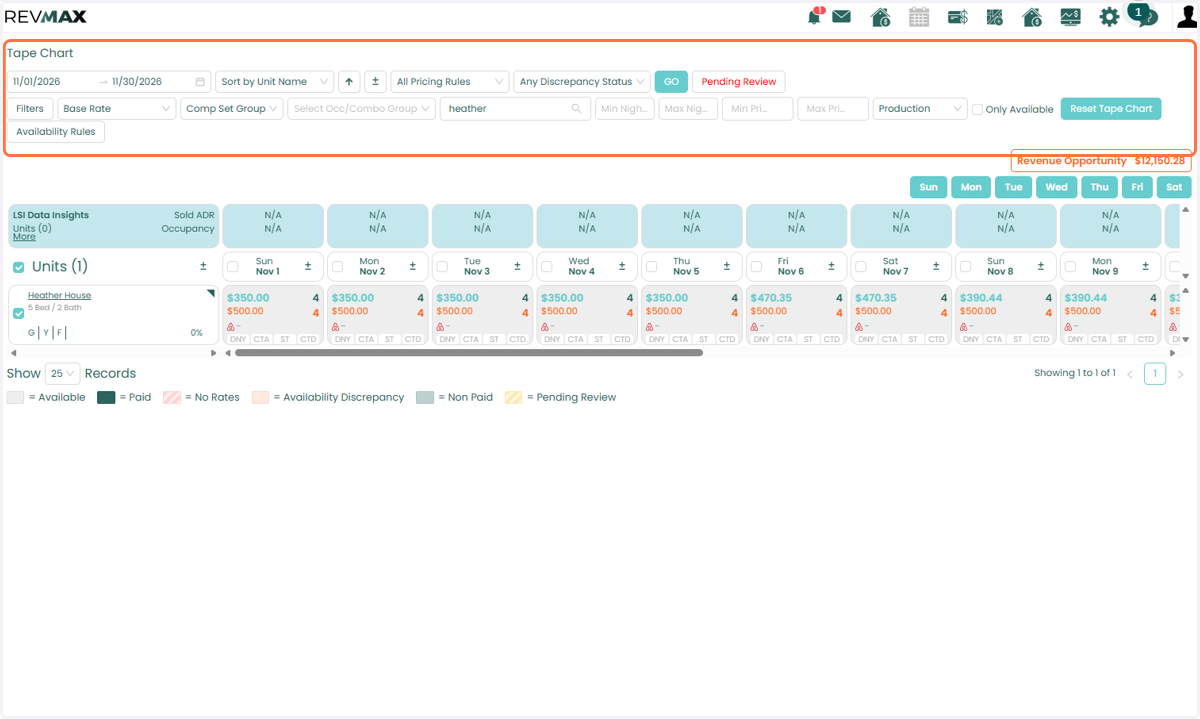
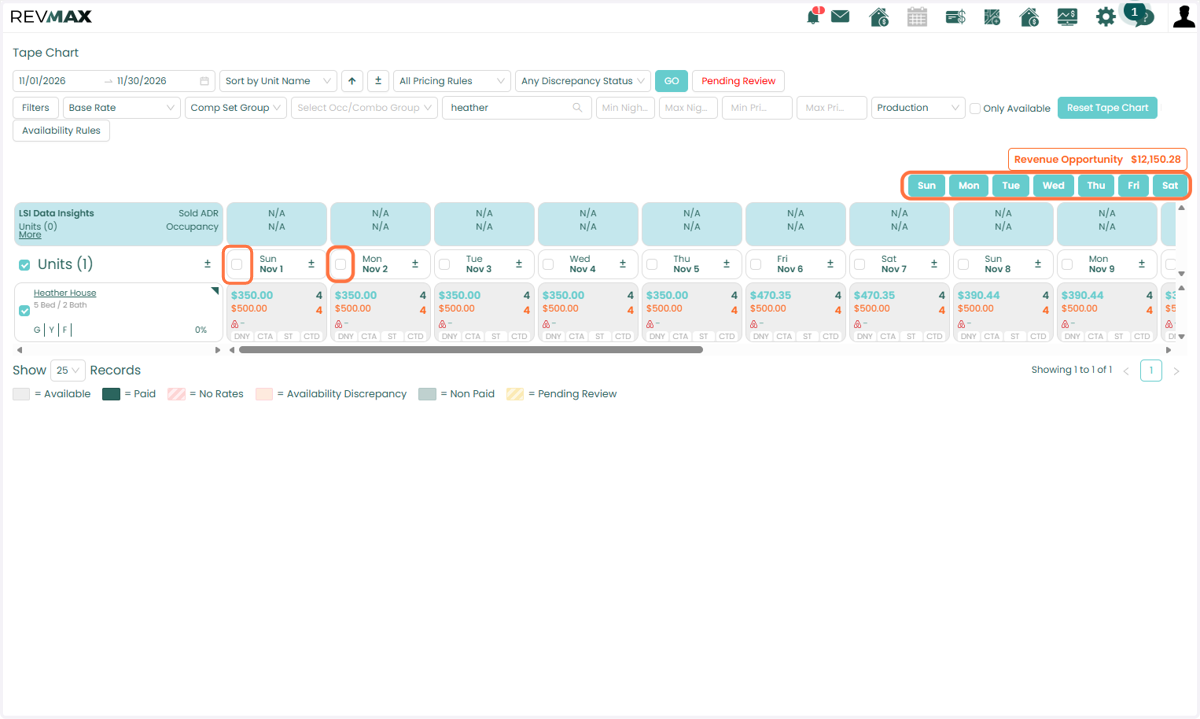
6. A Days of the Week filter is also available if you want to apply restrictions only to specific days of the week.
You can also select individual dates by checking the boxes next to the desired dates.
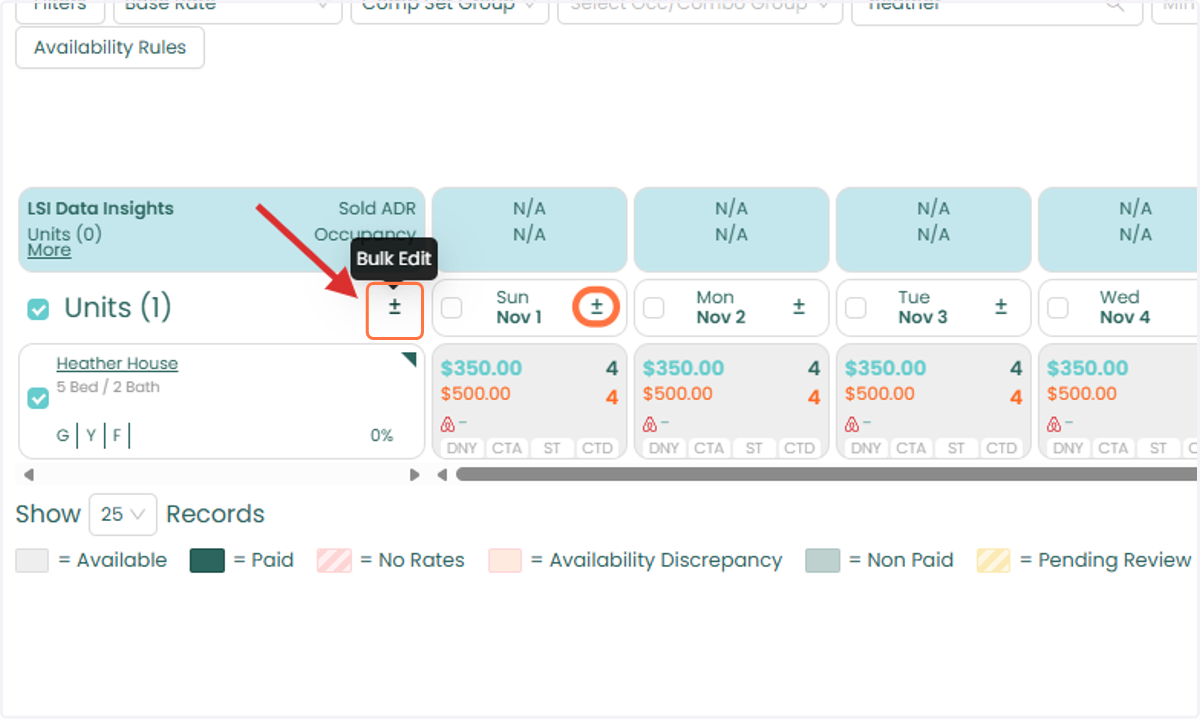
7. Once you have selected your desired dates and units, click the Bulk Edit icon.
Tip: If you want to update a specific date for the selected units, click the Bulk Edit icon located to the right of the date.
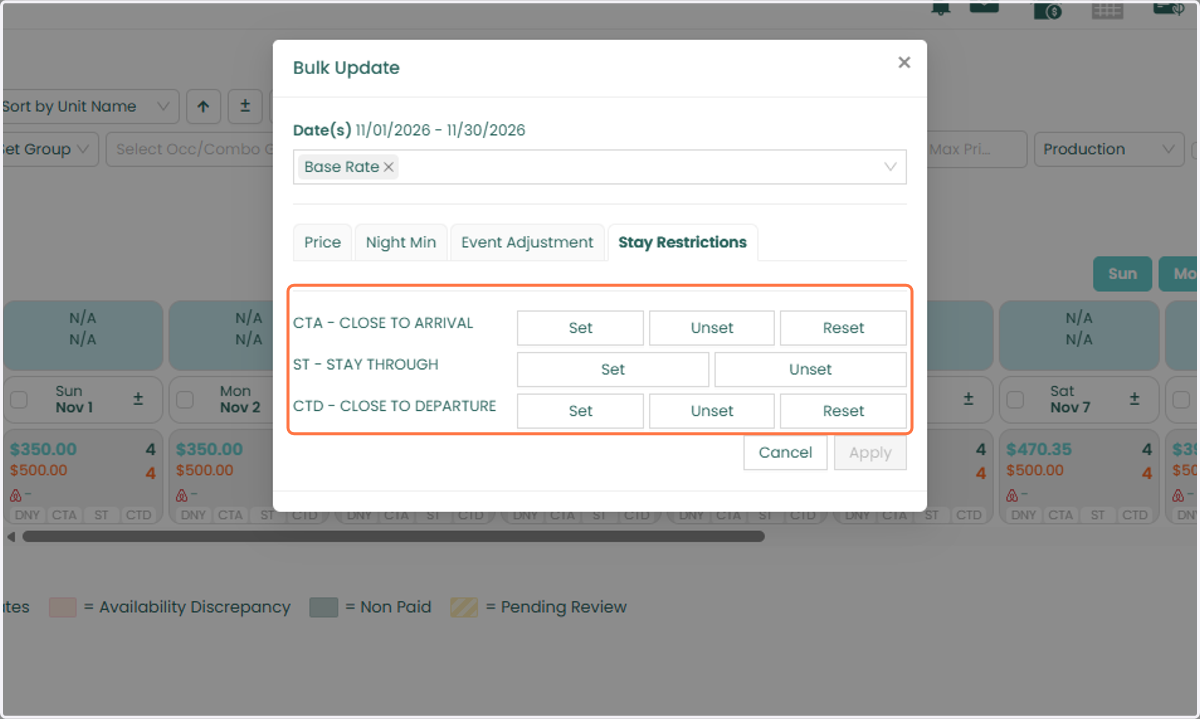
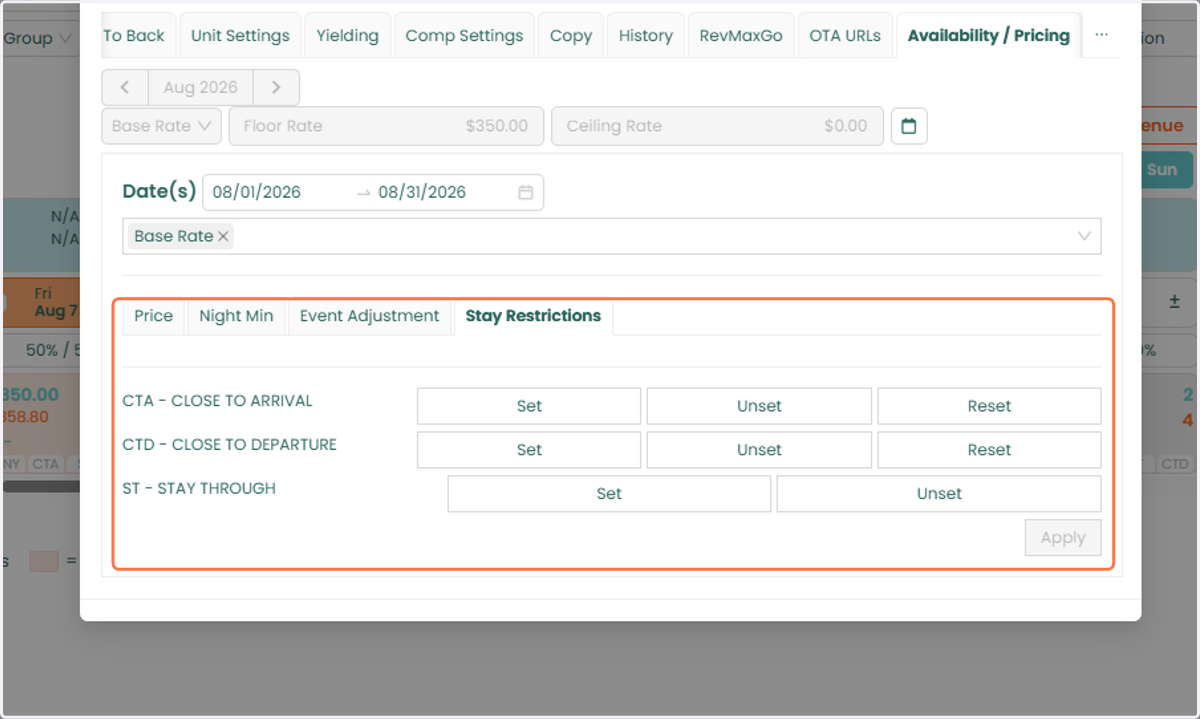
8. Go to the Stay Restrictions tab to apply any of the following: - CTA (Closed to Arrival) - CTD (Closed to Departure) - ST (Stay Through)
To apply a restriction, click the Set button next to the corresponding option.
To remove an existing restriction, use the Unset or Reset button.
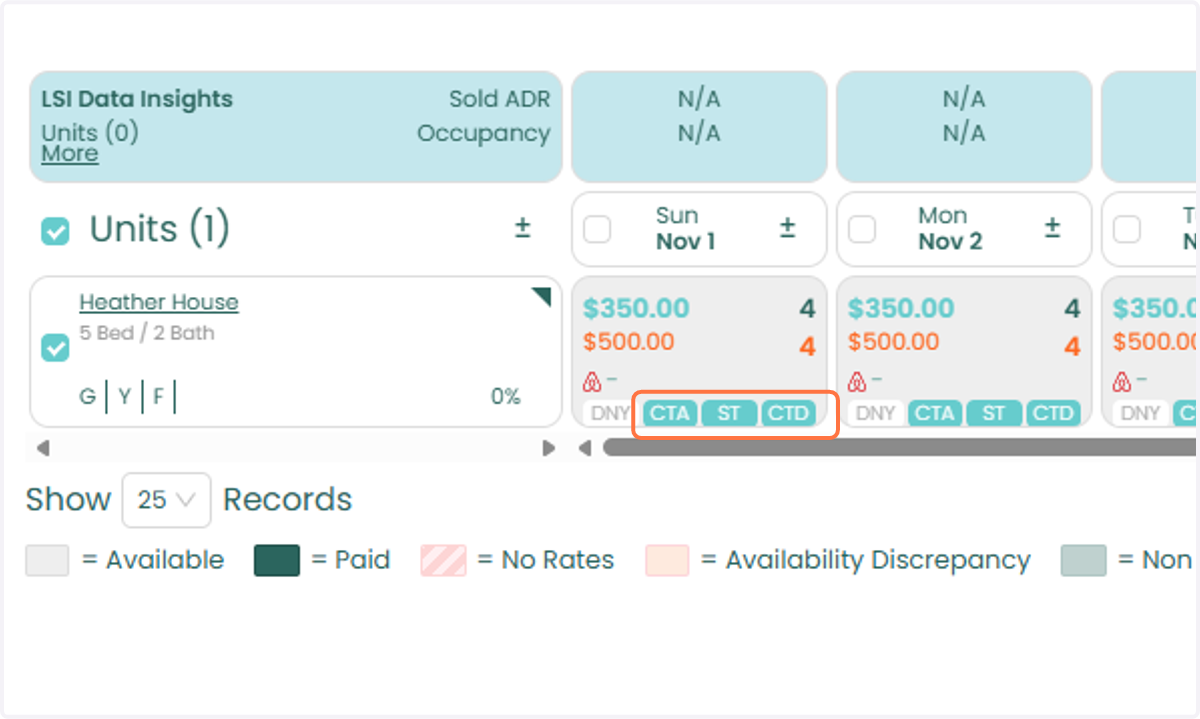
9. Once CTA, CTD, or ST has been set, the corresponding boxes will be highlighted, indicating that the restriction is active for the selected date(s) and unit(s).
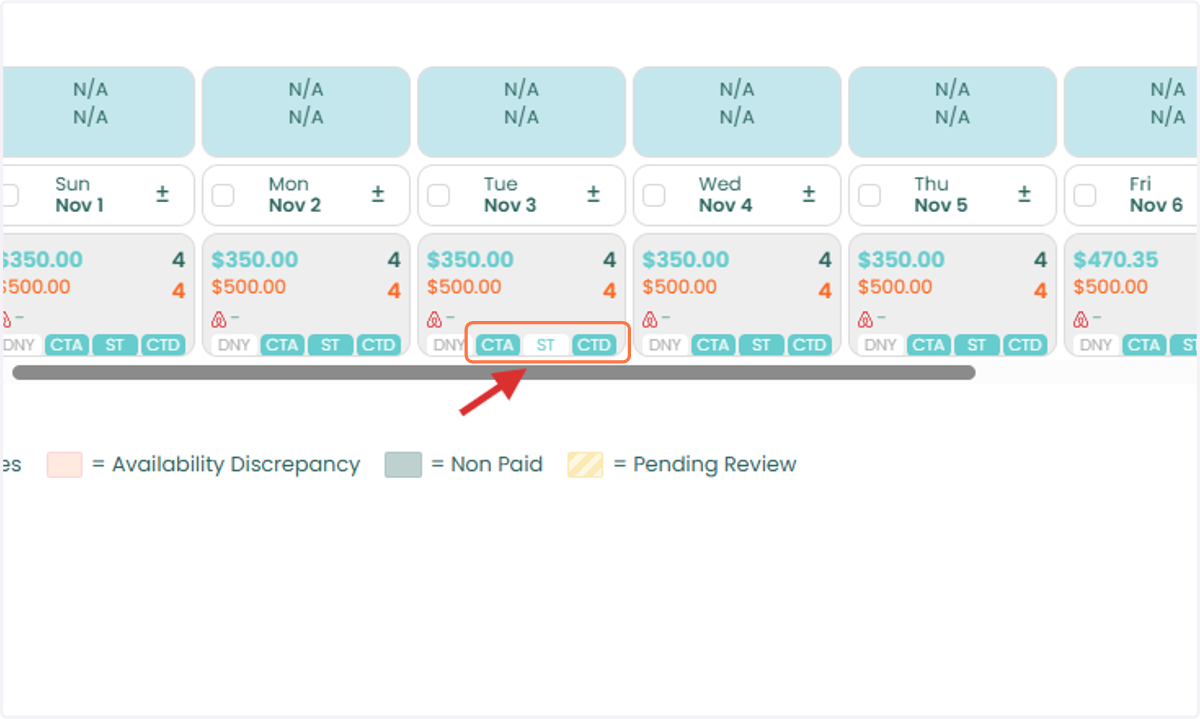
10. You can also apply these restrictions directly from the Tape Chart by clicking the CTA, CTD, or ST boxes.
11. The bulk editing option is also available when viewing pricing through Unit-Level Settings > Availability/Pricing.
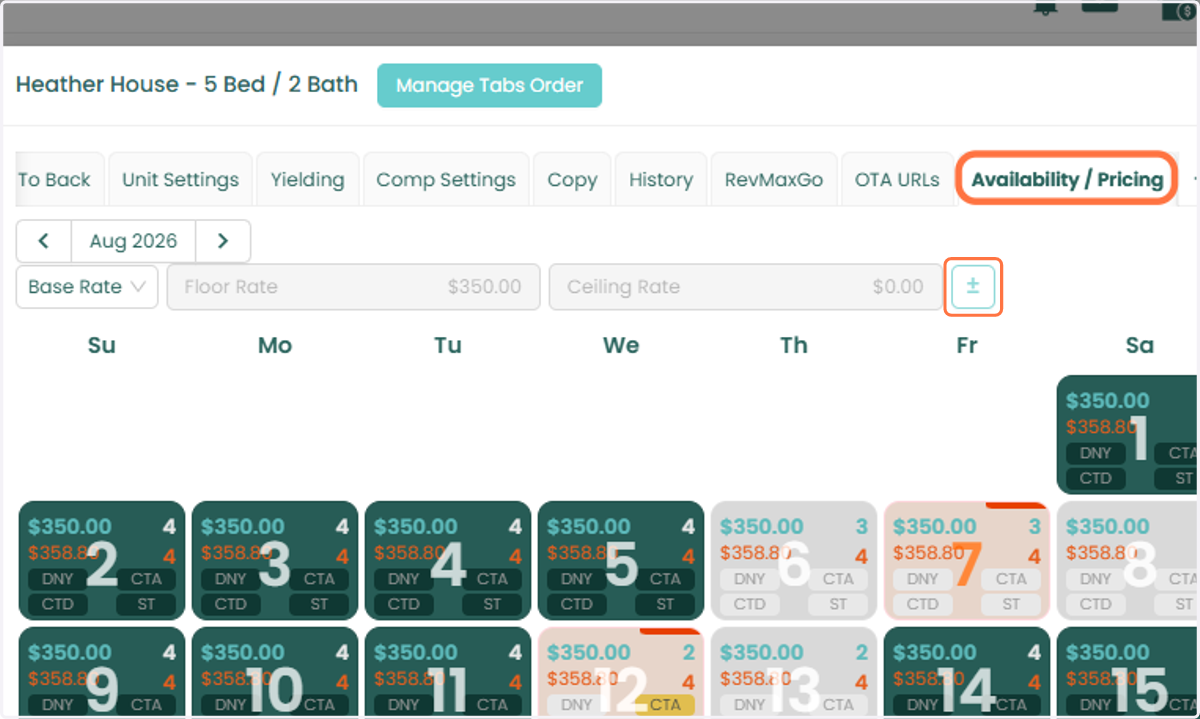
12. This allows you to apply Stay Restrictions directly from the unit-level pricing view.
13. To confirm that the Stay Restrictions have successfully synced to Streamline, navigate to the Night Minimum Tape Chart in Streamline.
The corresponding CTA, CTD, and ST boxes should be marked as checked for the dates and units where the restrictions were applied.