Leads from Paid Referral Sources
Picking the correct source for your lead can be tricky. Please follow the below example to make sure you are flagging the correct Source of your paid lead, that way it shows up correct in BI, and in Reporting!
Senior CRM
1. In the prospect profile select the 3 dots next to "Source"

2. Make sure the Bubble next to "Source" is checked
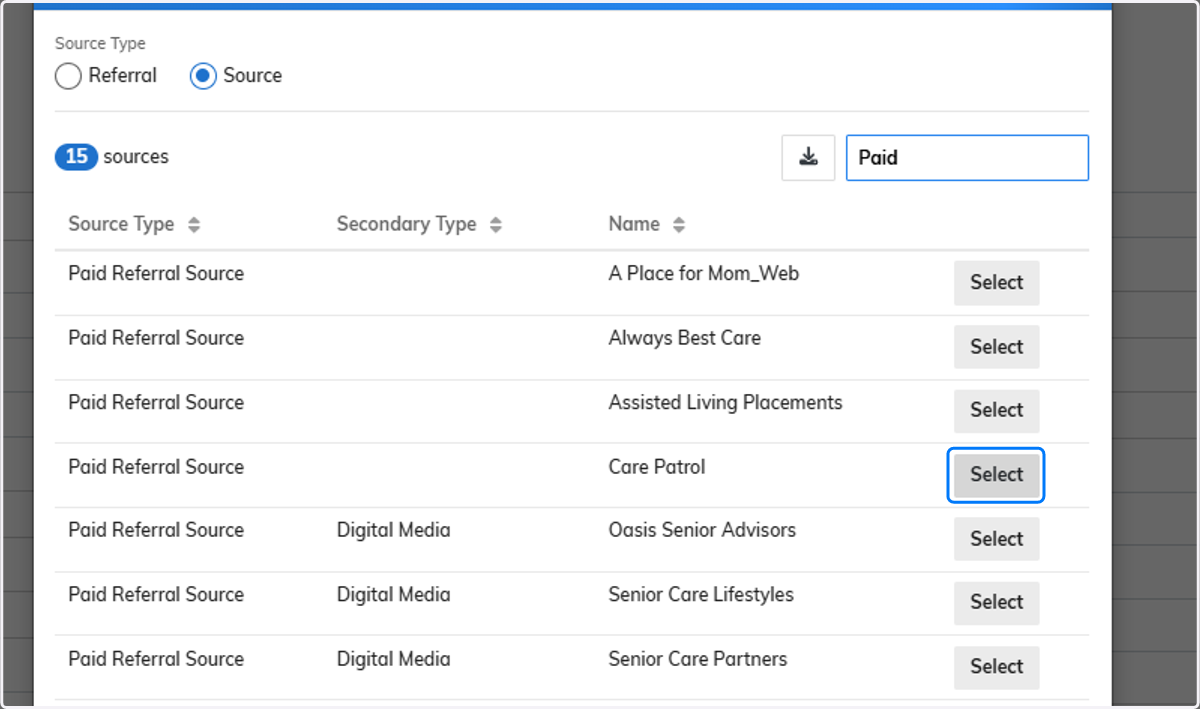
All Paid Referral Sources are "Sources" not Referrals,

3. Type "Paid" or the name of the Source for easy selection

4. Select the correct Paid Referral Source Name
The steps below will go over adding a Secondary Source or Referral
5. Want to capture the Person that sent you the lead as well? Use Source Secondary and click the 3 dots.
This will help you remember the specific person that sent you this lead, while maintaining BI reporting.

6. Select Referral
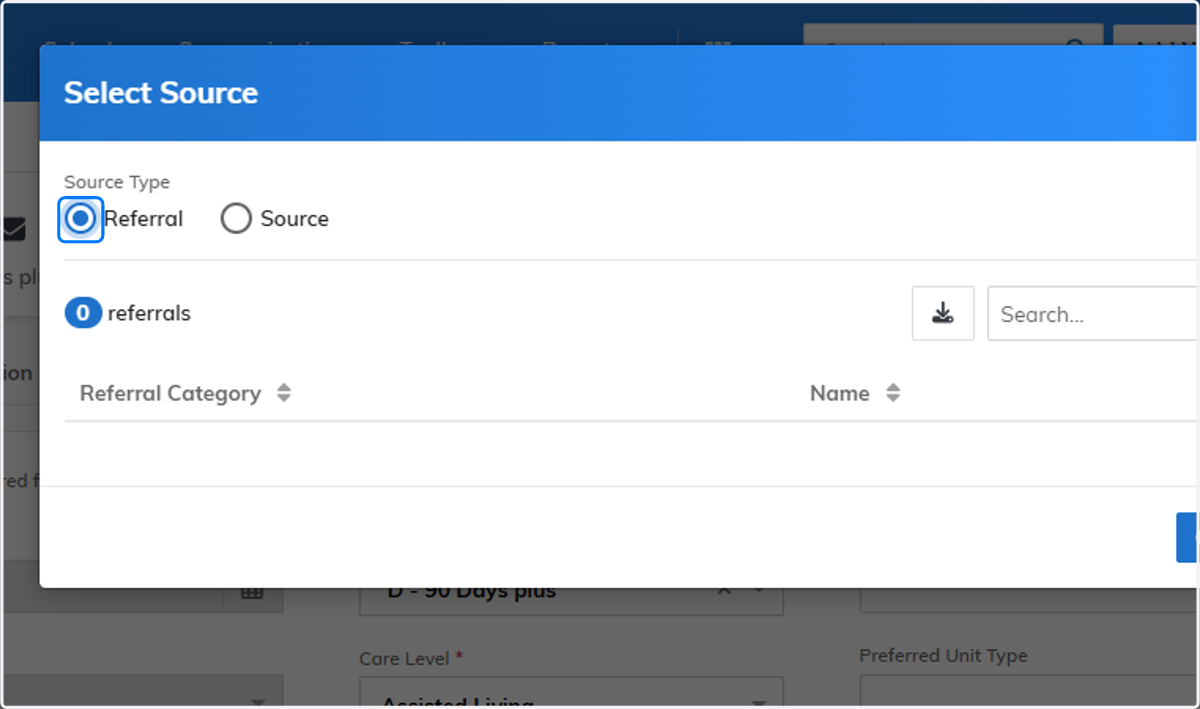
7. Click on Search and type the name of the individual that sent you this lead

8. Click on Select next to the appropriate referrers name

9. Now Care Patrol is your primary source, however we can also track who from the company sent the Lead to you.
