Creating Pension Pay Elements
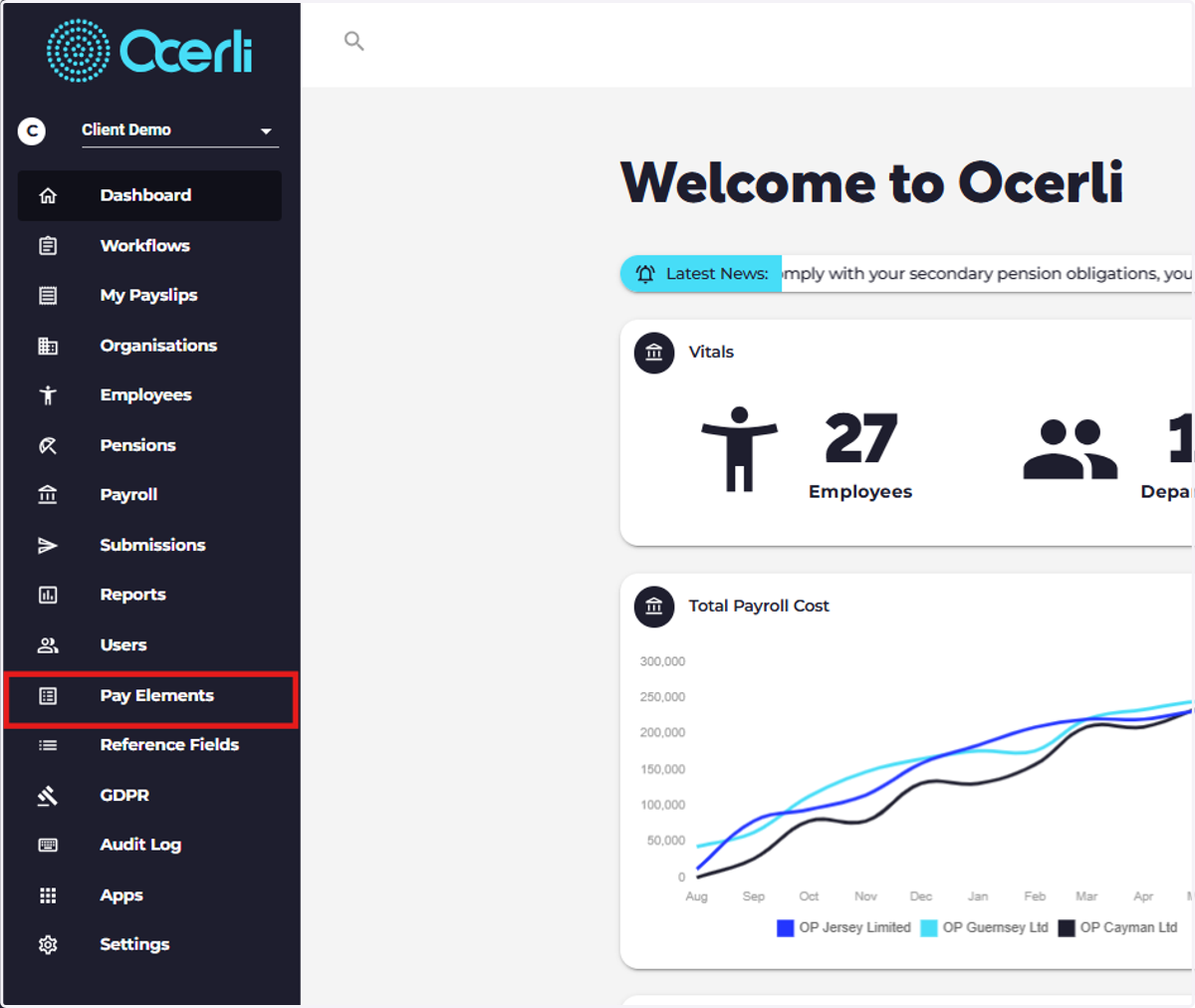
1. Select 'Pay Elements'
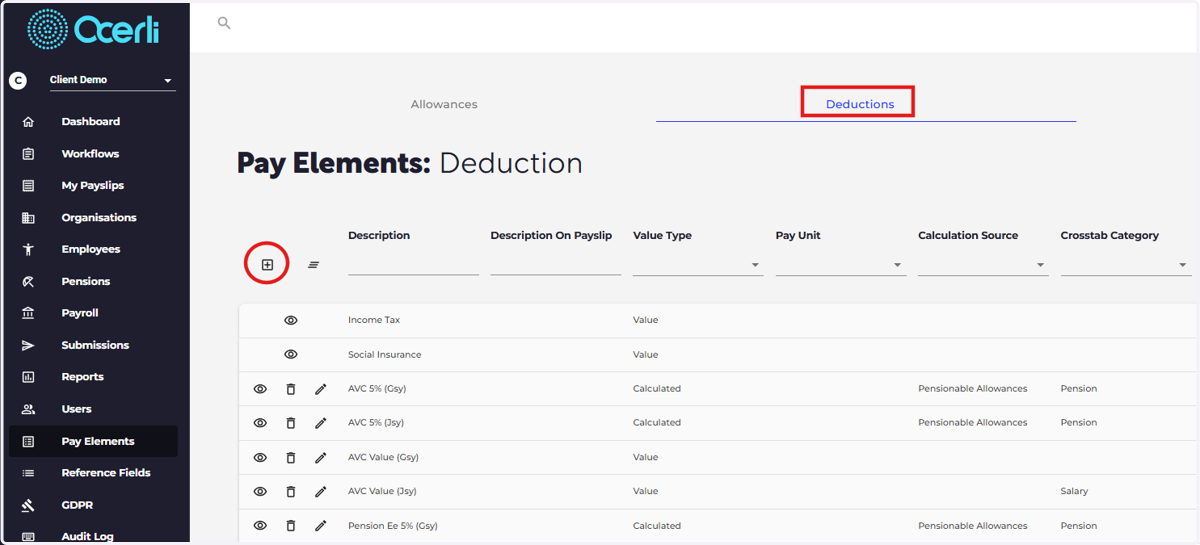
2. Click on Deductions or Employer depending on the type of pay elements you wish to create.
Select the plus icon to create a new pay element.
3. Type the name of the new pay element, if you'd like something different to show in the employees payslips you can add this to the description on payslip field.
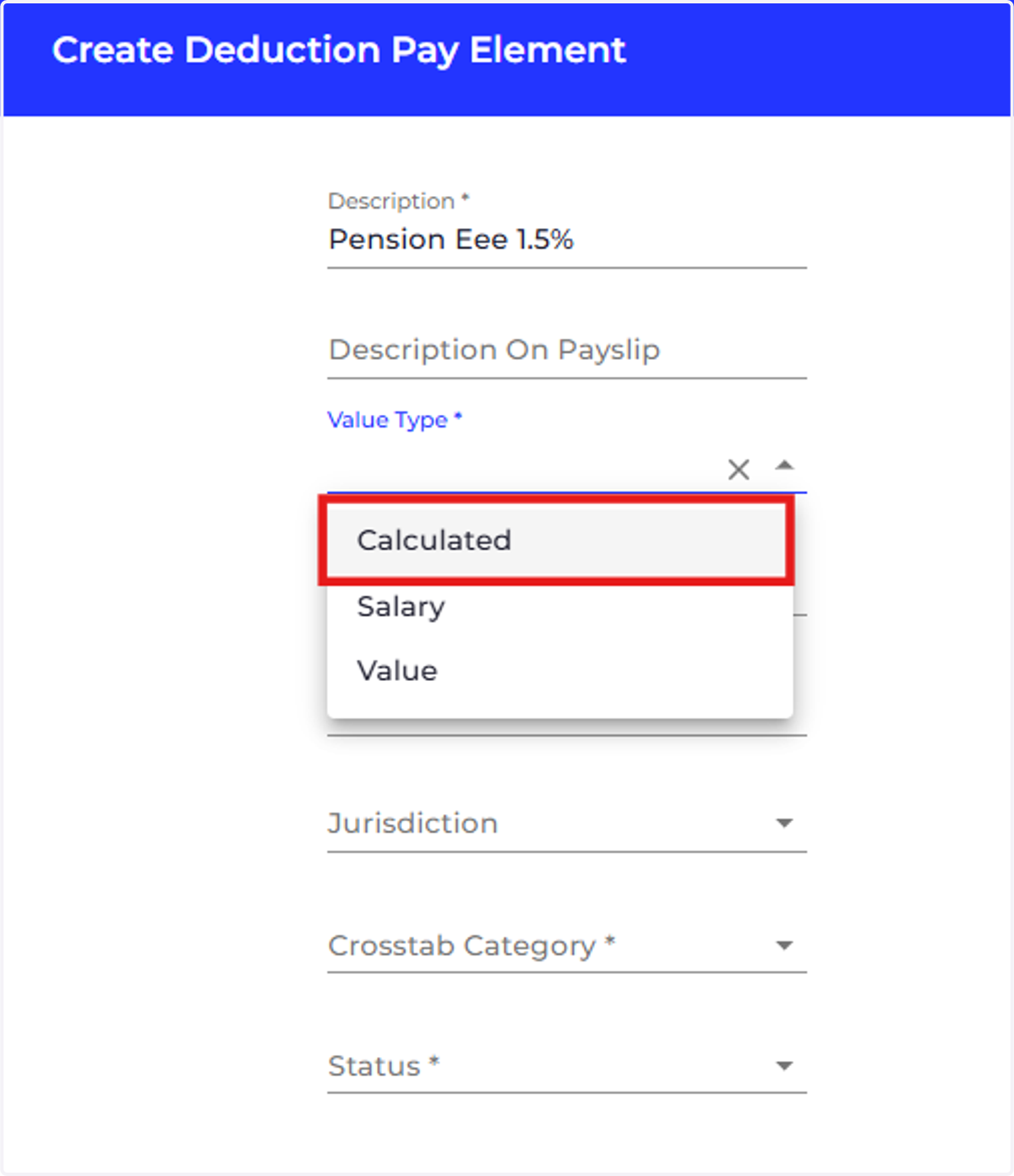
Choose a value type for the pay element.
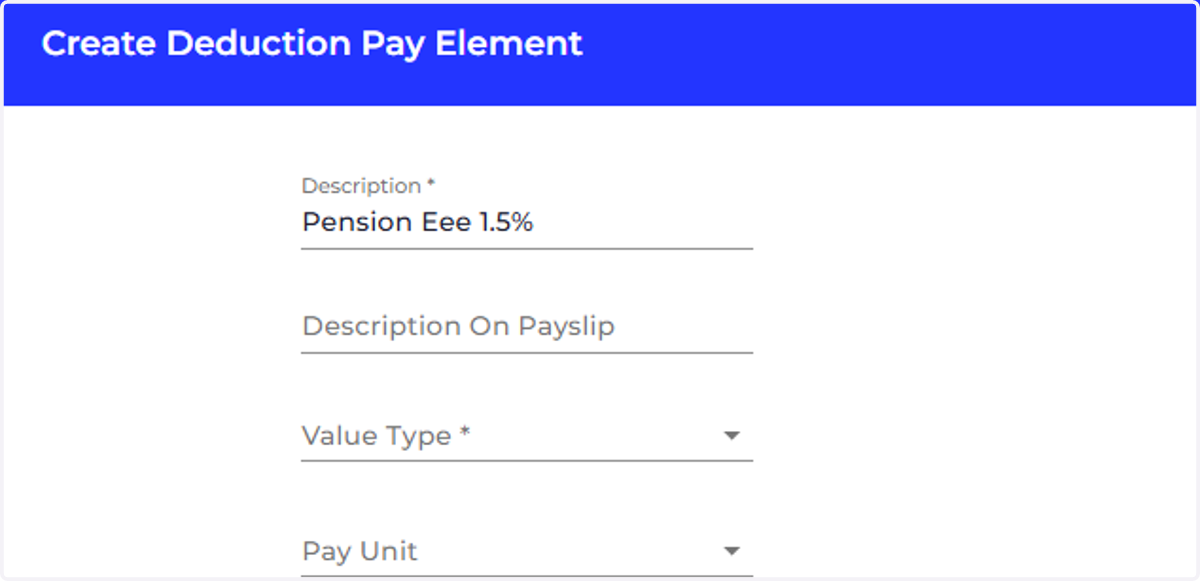
4. Choose a value type for the pay element.
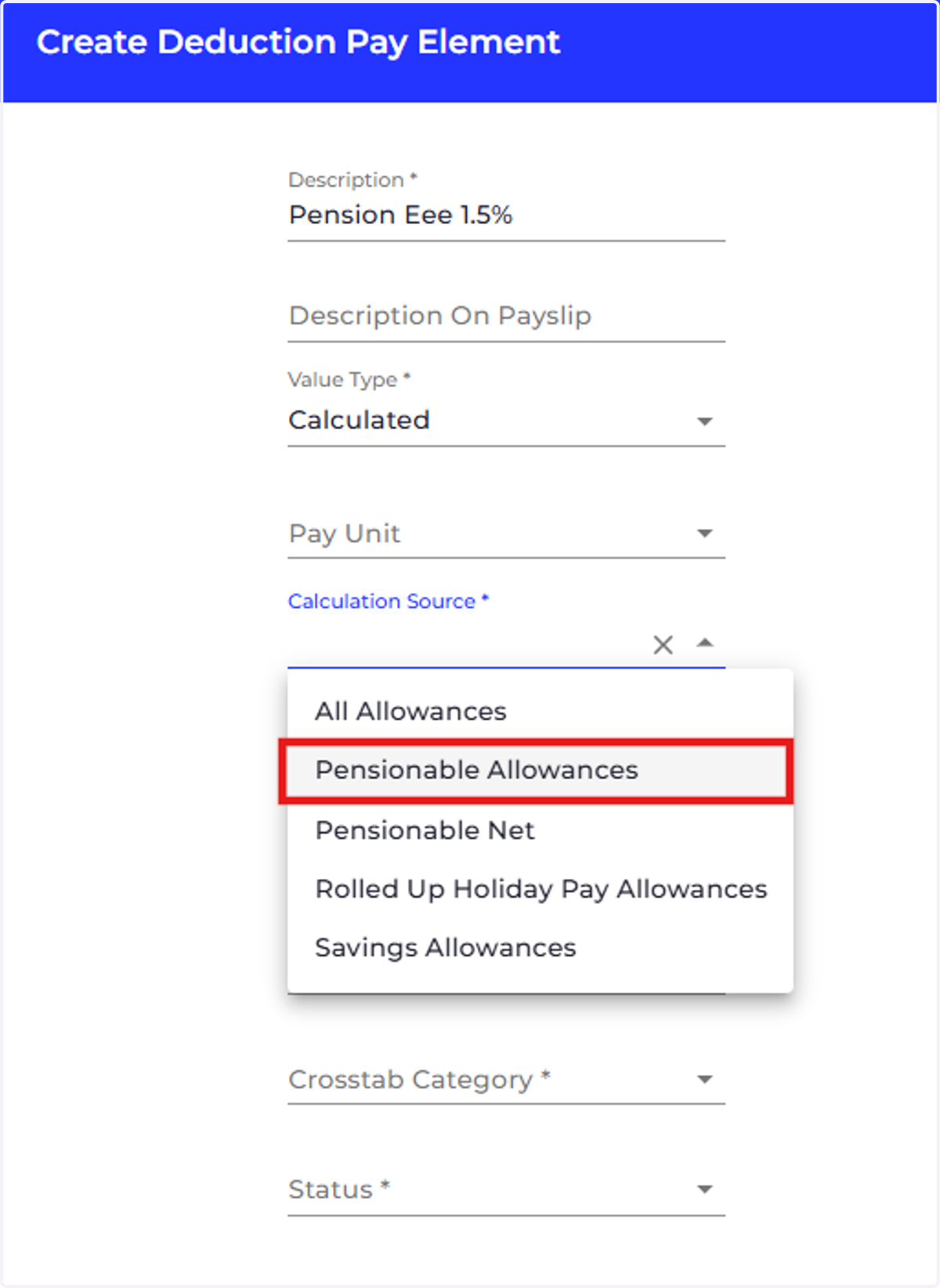
5. If you've selected a calculated value type you can now choose the calculation source.
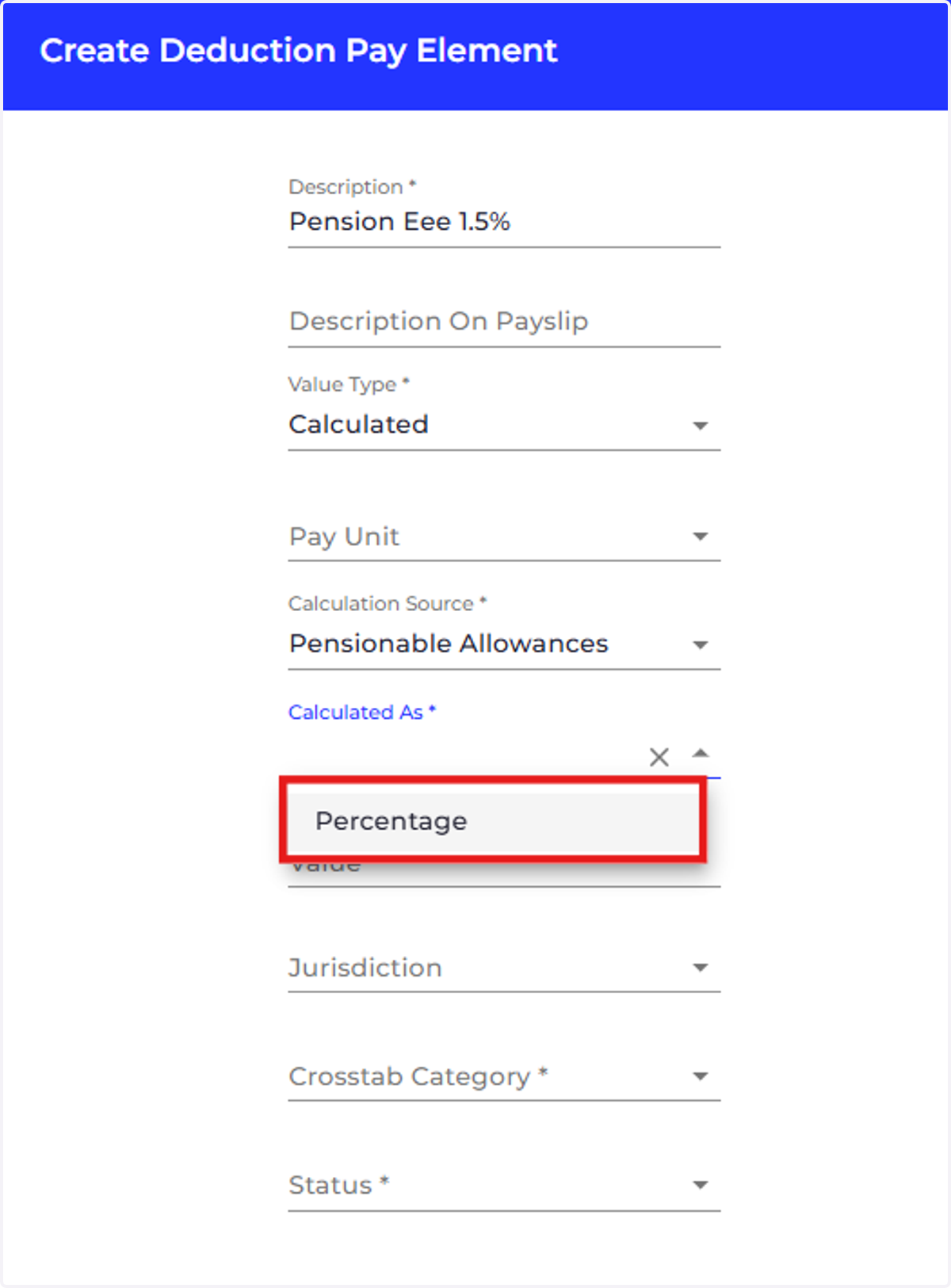
6. Choose a 'Calculated As' Option
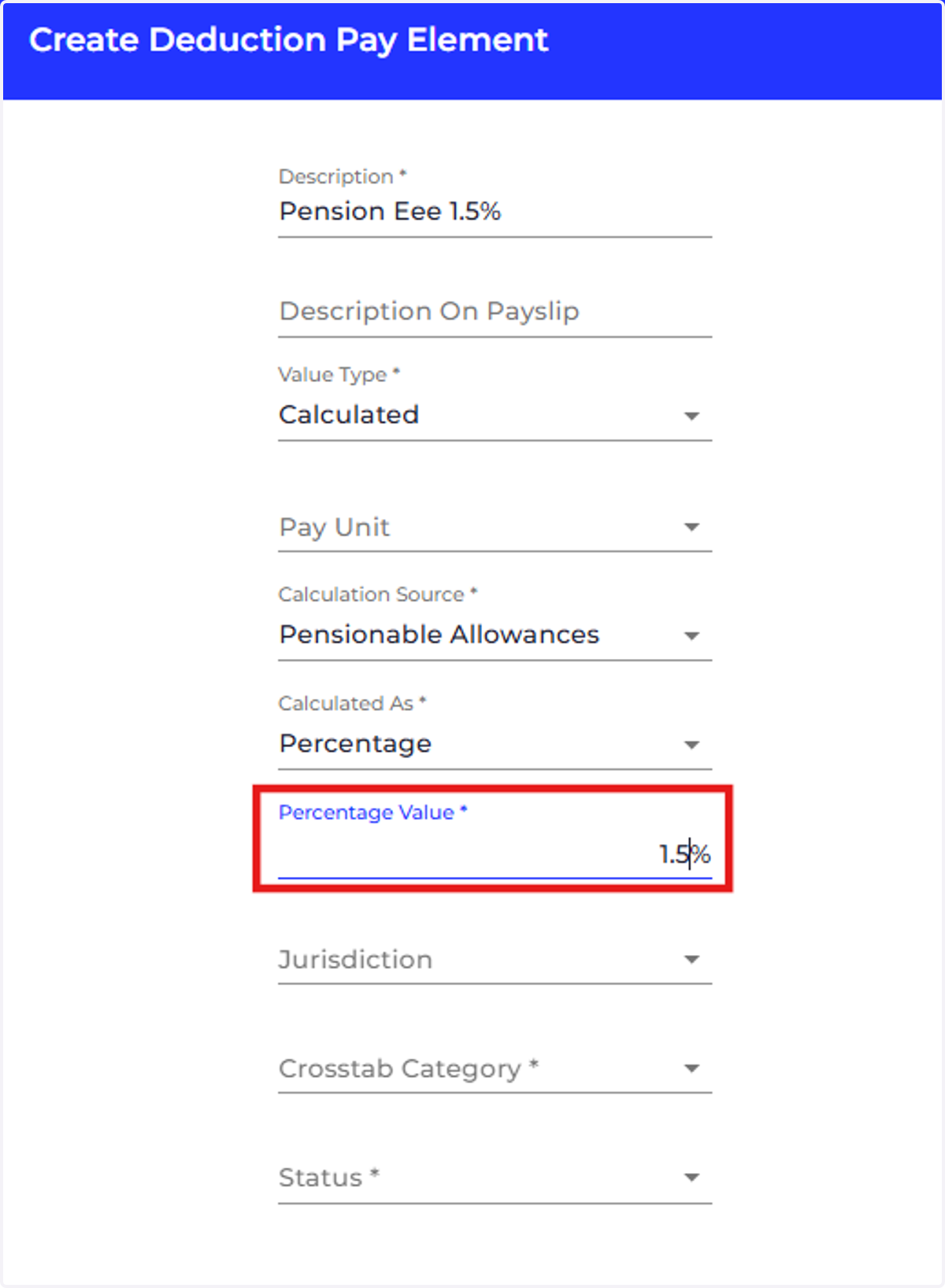
7. Add the required percentage value.
8. Choose a Jurisdiction
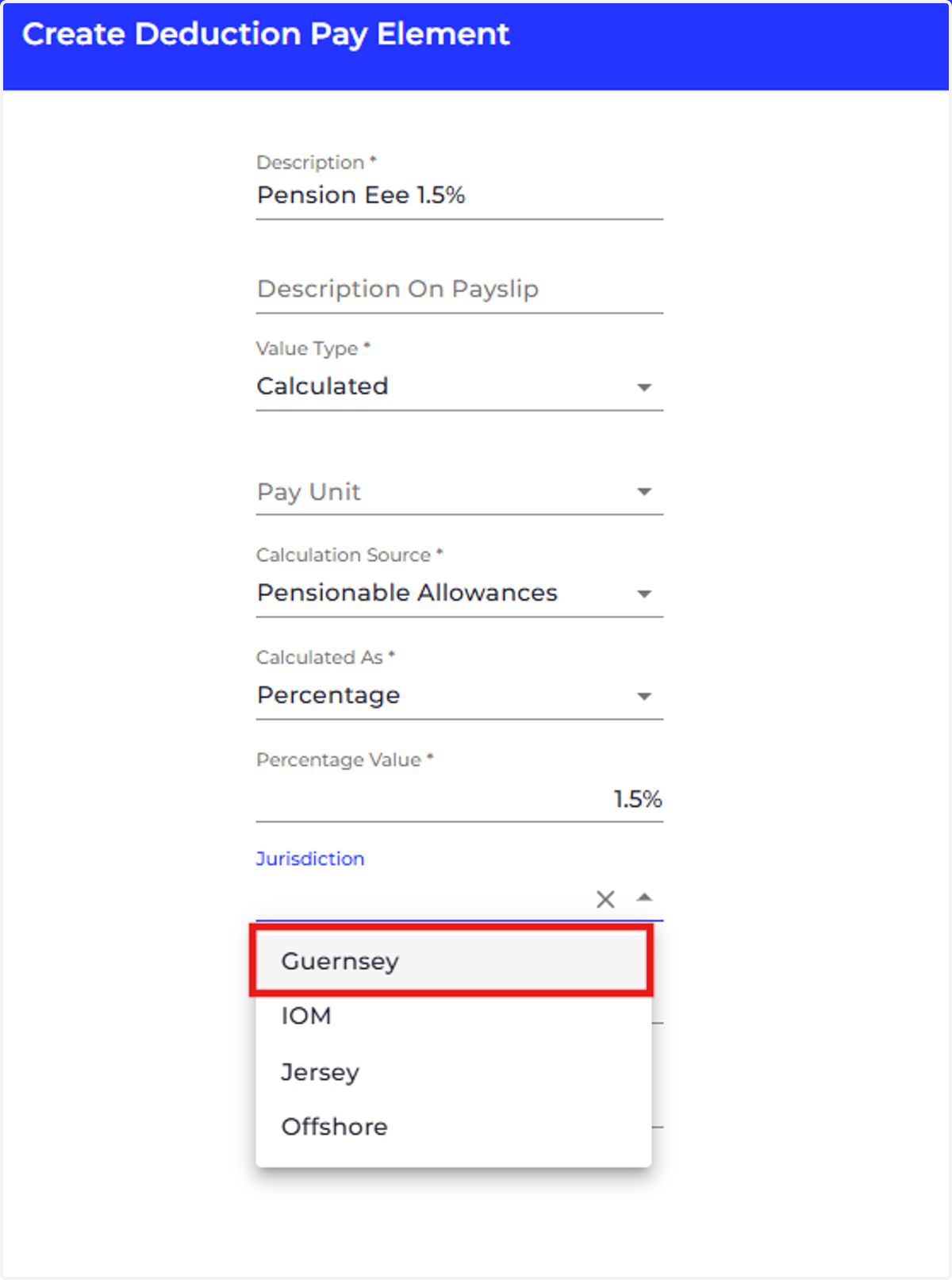
9. Choose a crosstab category
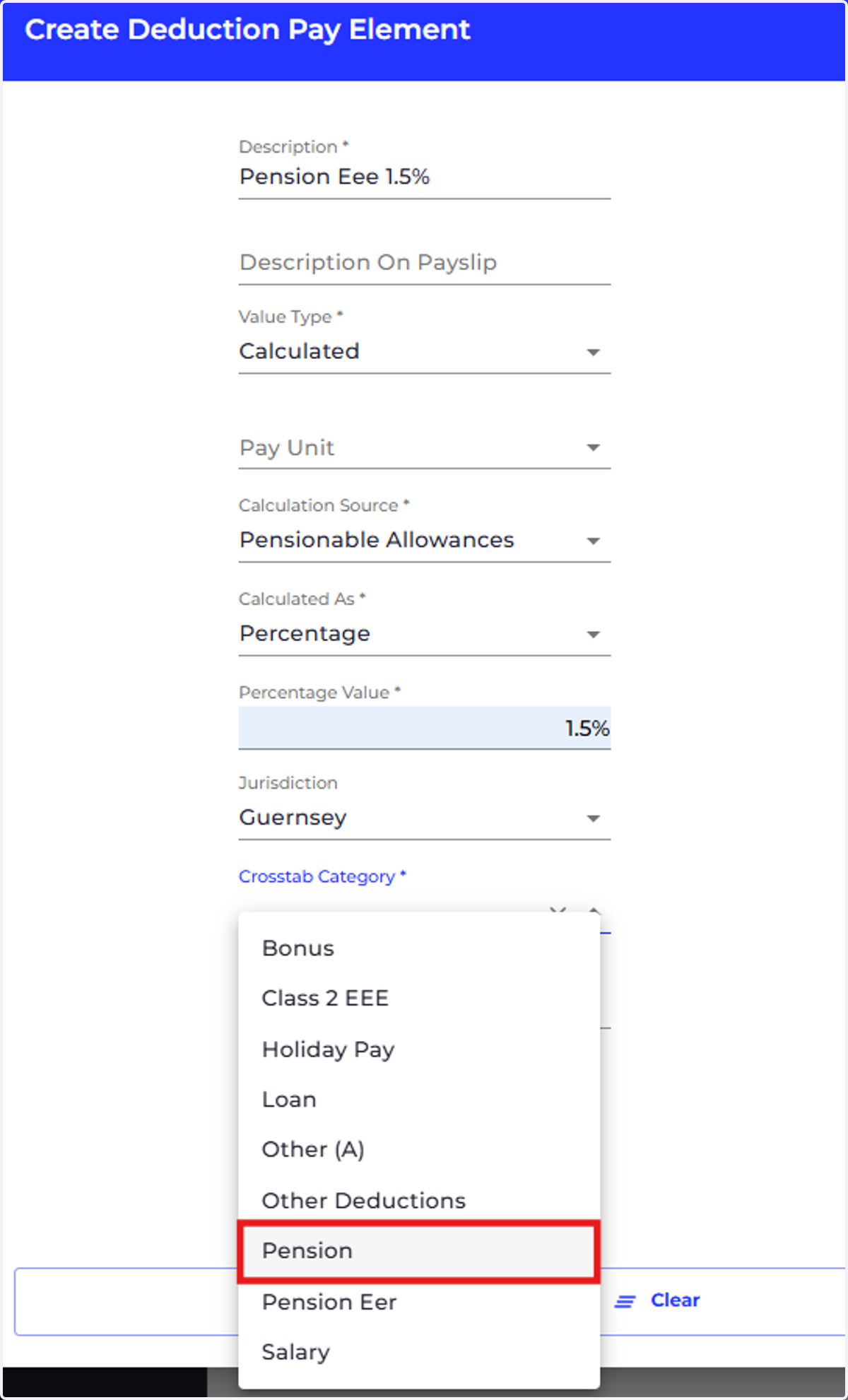
10. Set the status of the pay element to 'Active'
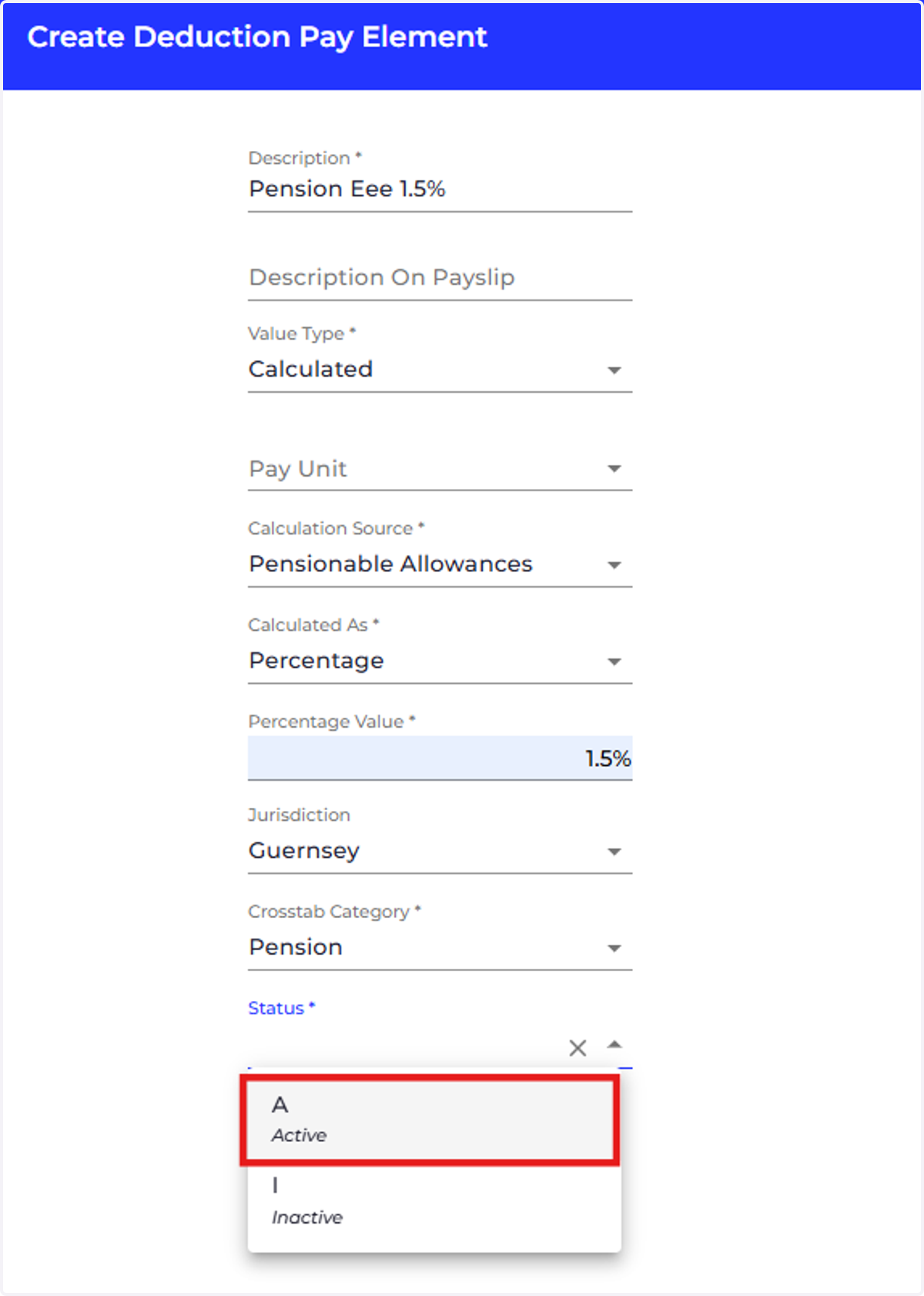
11. Ensure you select the relevant tax and social tick boxes if applicable
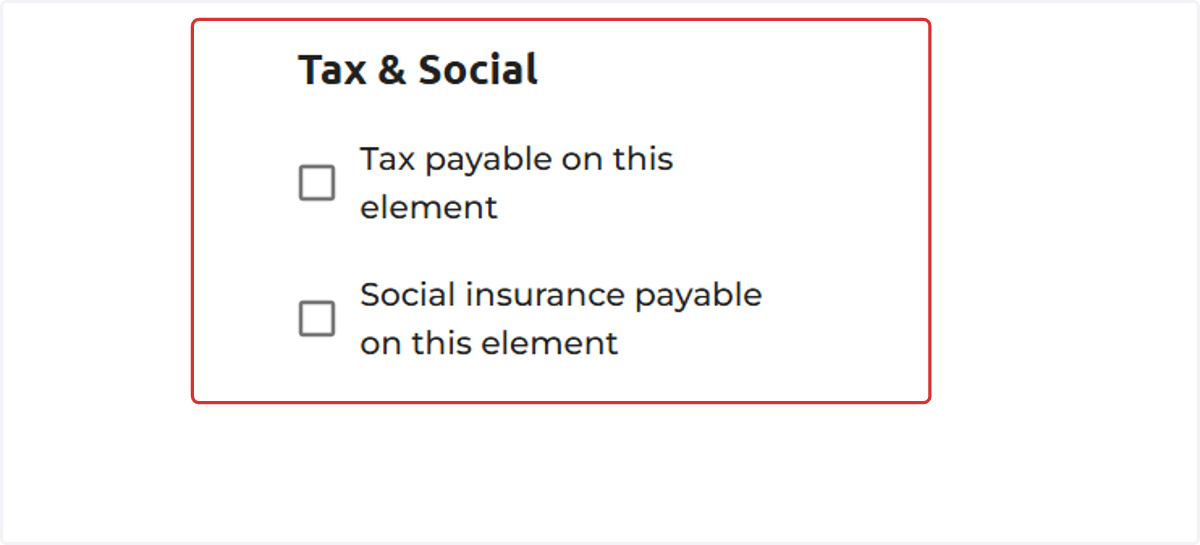
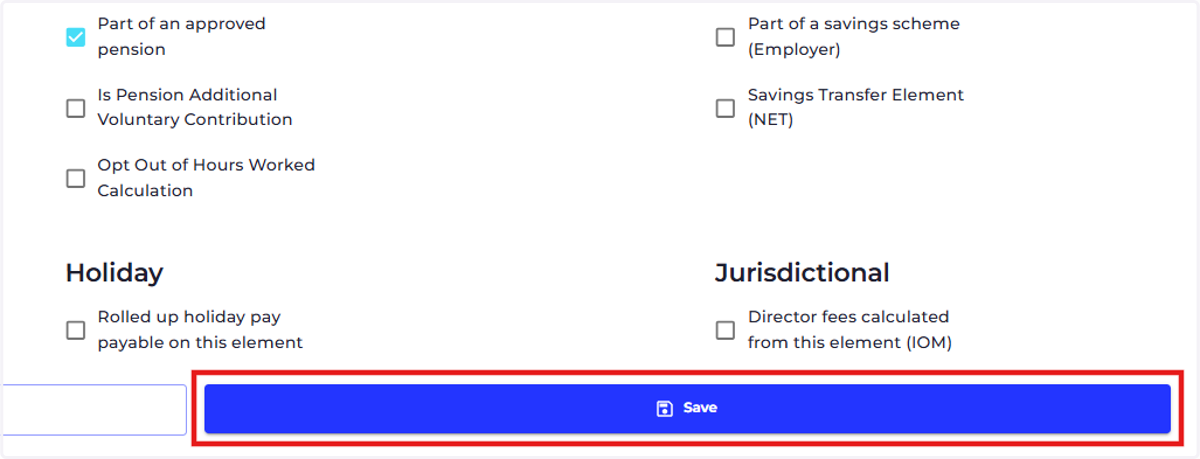
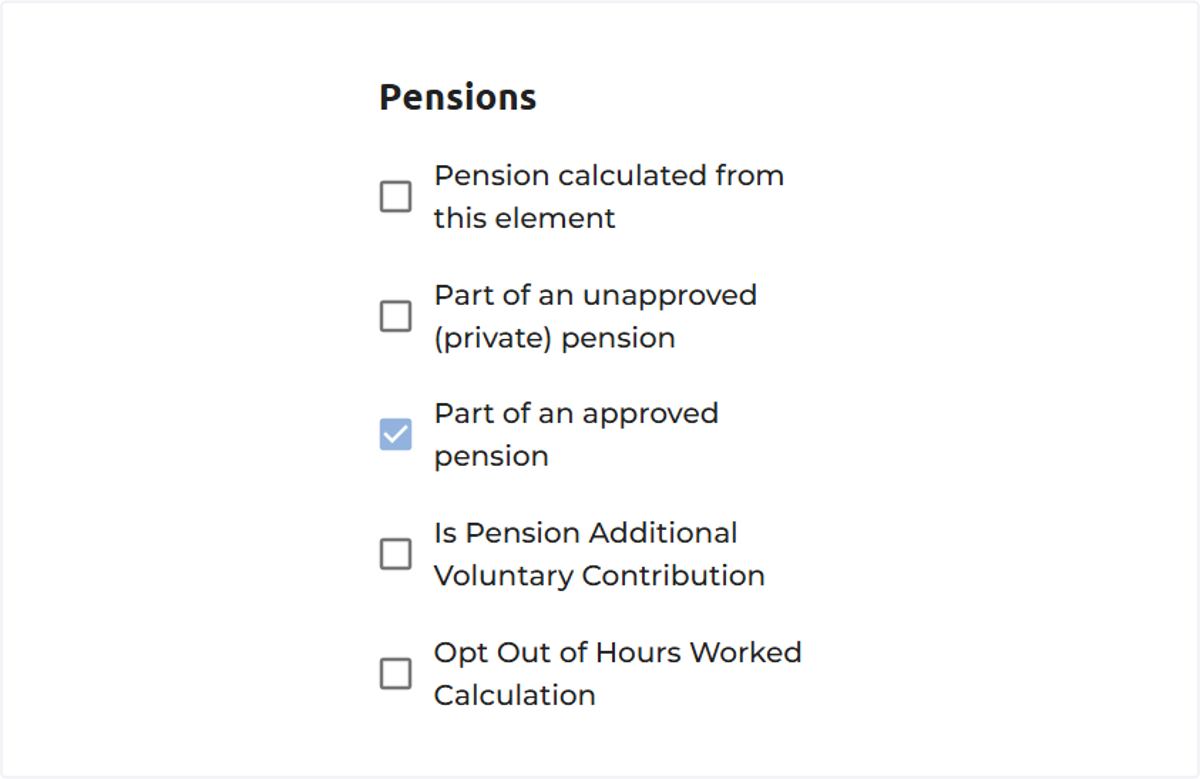
12. Mark your pension pay element as either "part of an approved pension" or "part of an unapproved pension" if this pension isn't approved by a Government scheme.
13. Select 'Save' to save the pay element