Adding Pay Elements to an Organisation Employee Pay Templates
1. To add a pay element to an organisations pay template, please follow the steps below.
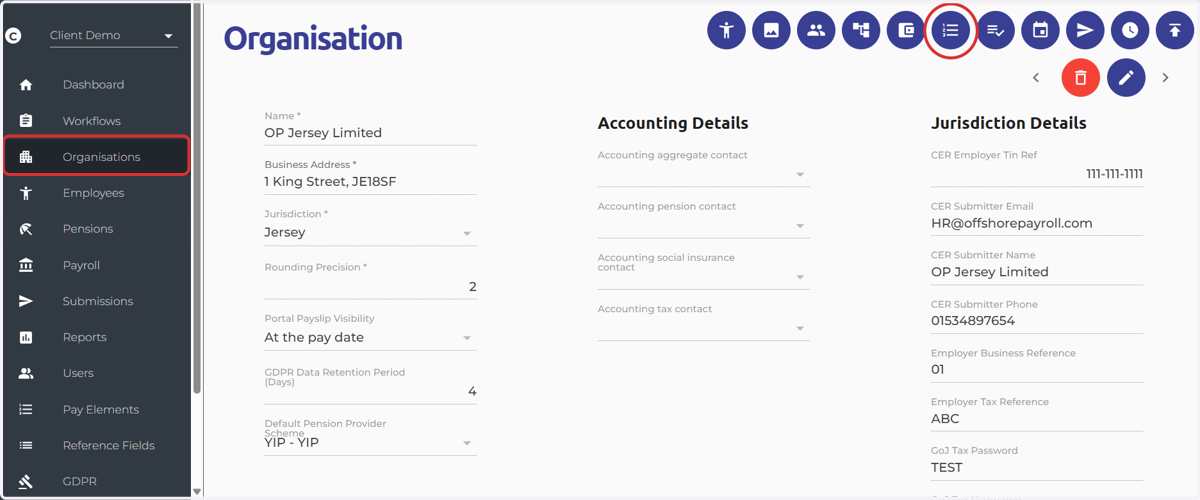
Navigate to the organisation screen > Select the 'Pay Template' icon
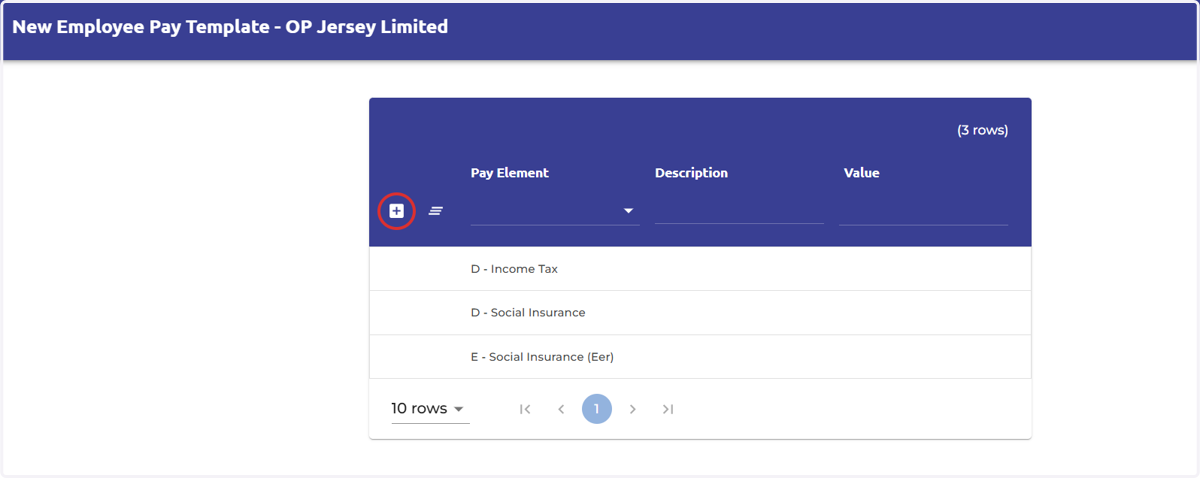
2. Select the plus icon to add a new record
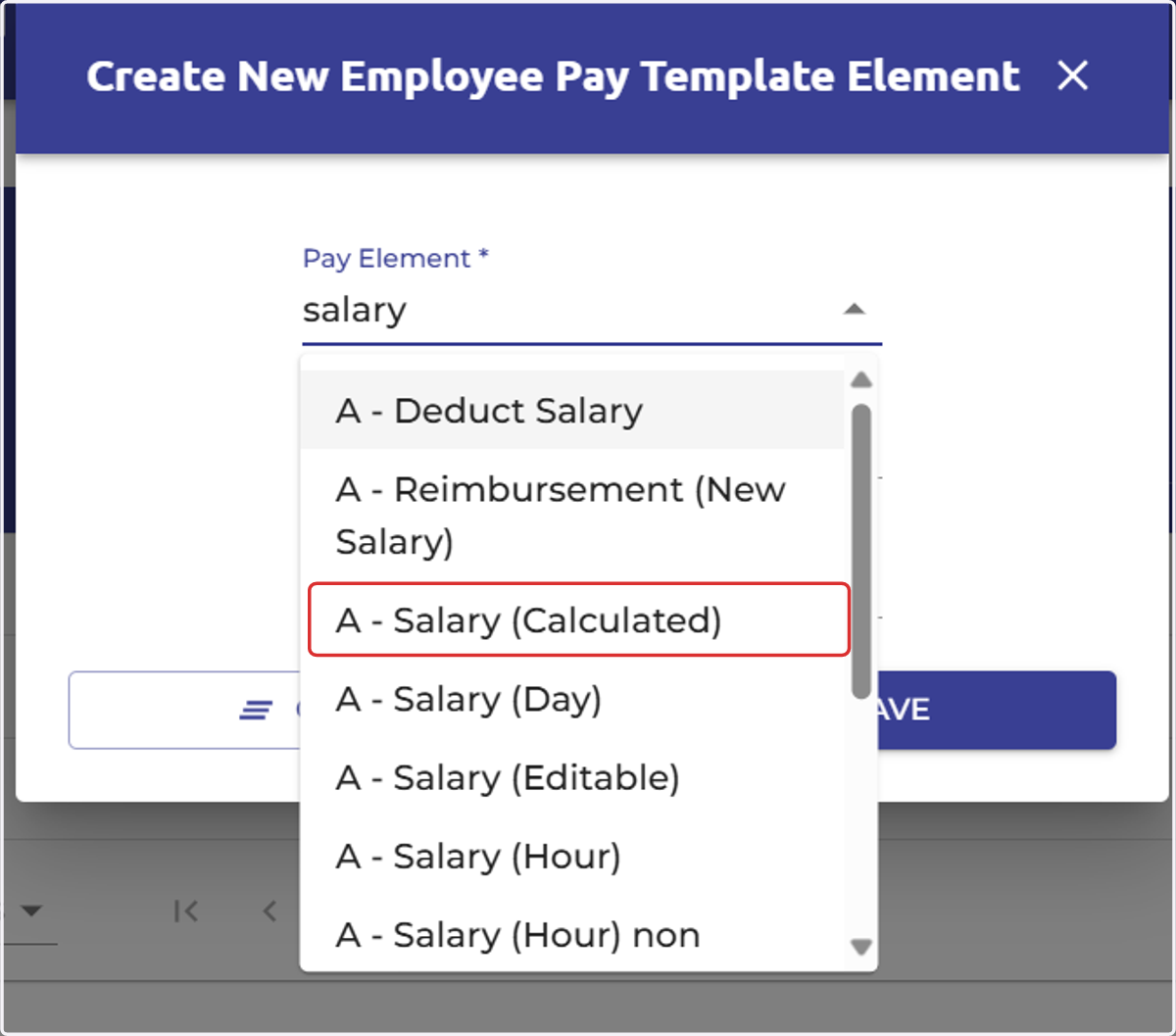
3. Use the filter option to type in the name of the pay element, or simply scroll to find the relevant pay element.
Select the pay element you wish to add.
All allowance-type pay elements will begin with an A
All deduction-type pay elements will begin with a D
All Employer-type pay elements will begin with an E
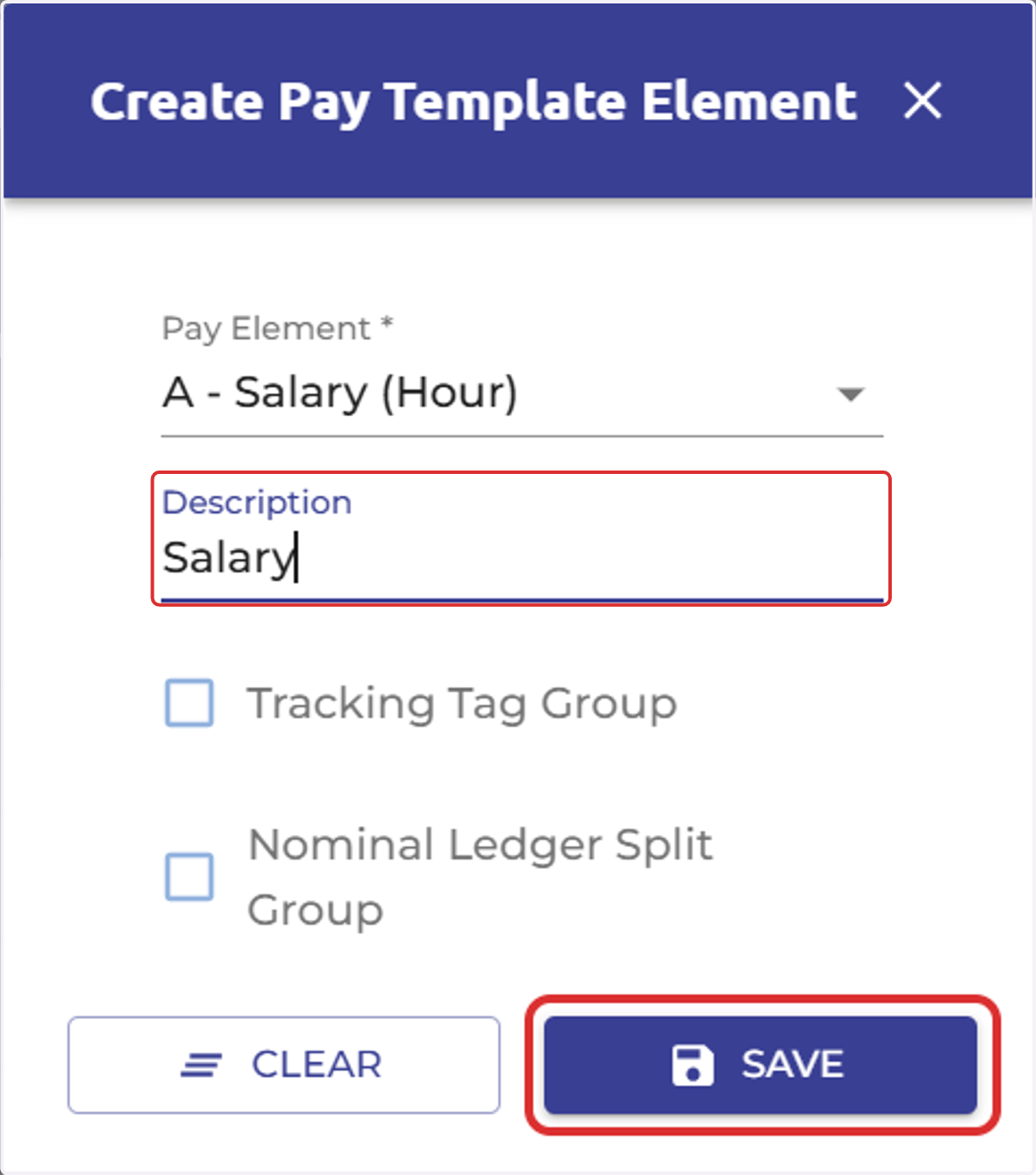
4. You can type in the description field if you wish for the pay element to appear differently in employee's payslips, or you can leave this blank and the system will default to the pay element name.
Select 'Save'
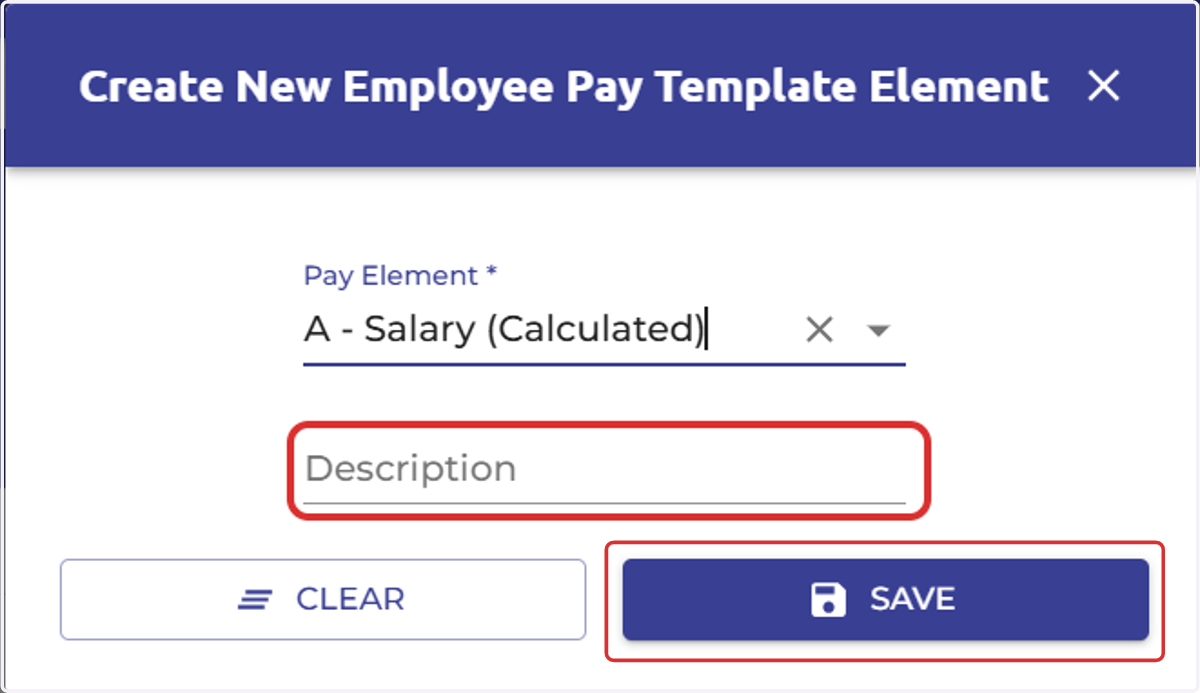
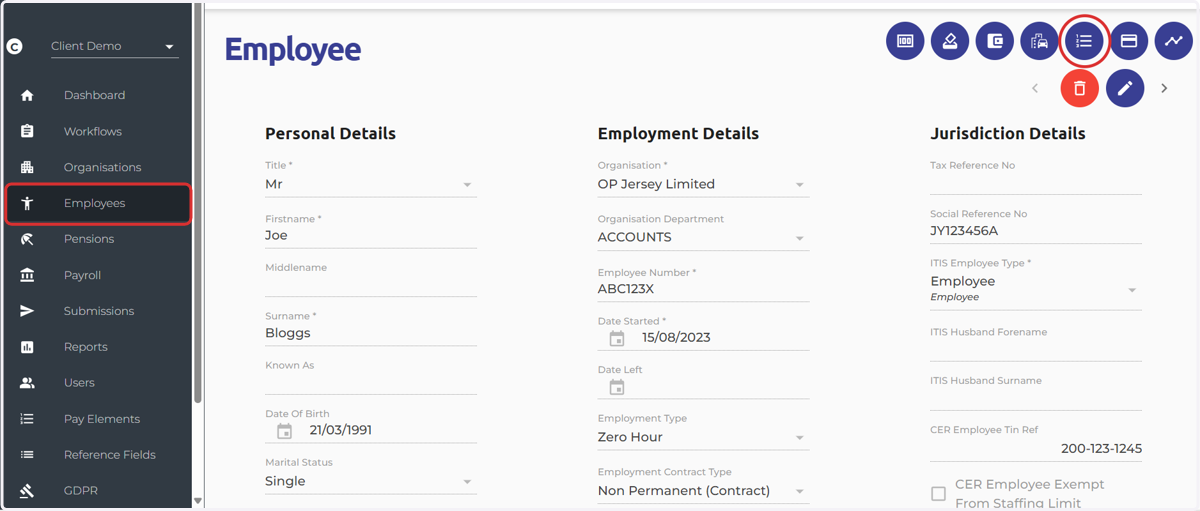
5. If you wish to customise employees pay templates you can add pay elements to the pay templates in the employee screen.
Navigate to the employee screen > Select the 'Pay Template' icon
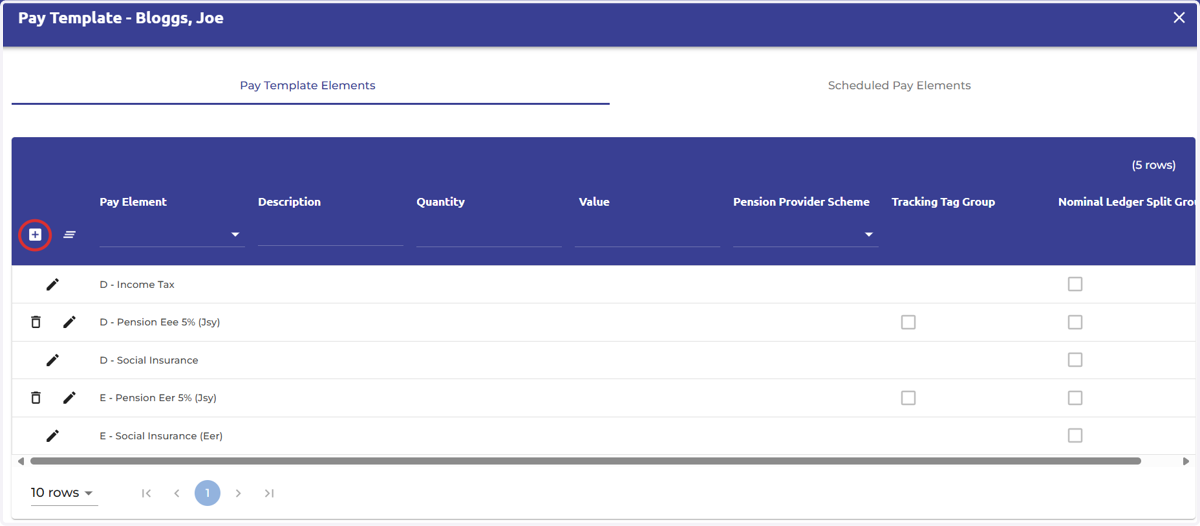
6. Select the plus icon to add a new record
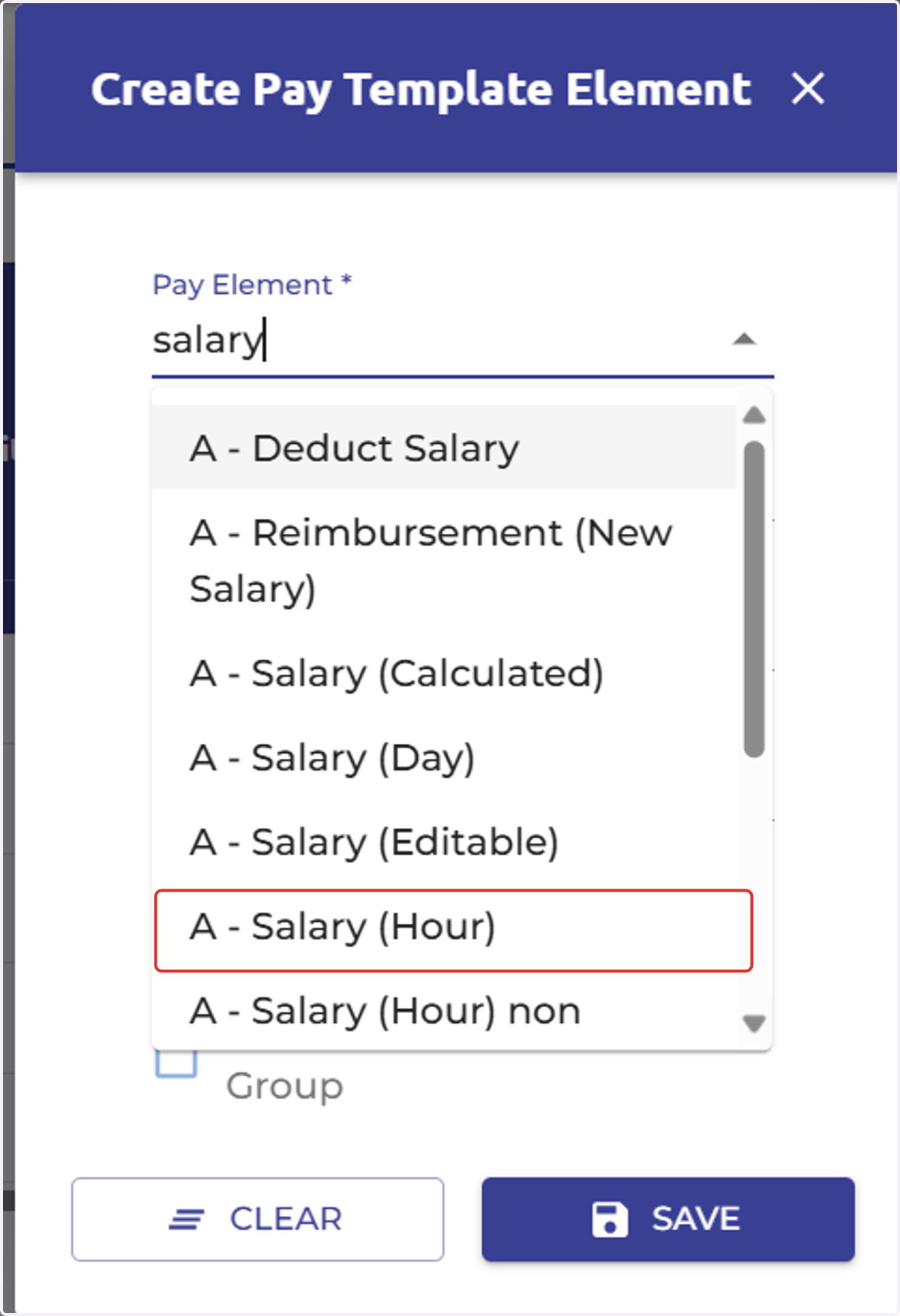
7. Use the filter option to type in the name of the pay element, or simply scroll to find the relevant pay element.
Select the pay element you wish to add.
All allowance-type pay elements will begin with an A
All deduction-type pay elements will begin with a D
All Employer-type pay elements will begin with an E
8. You can type in the description field if you wish for the pay element to appear differently in employee's payslips, or you can leave this blank and the system will default to the pay element name.
Select 'Save'
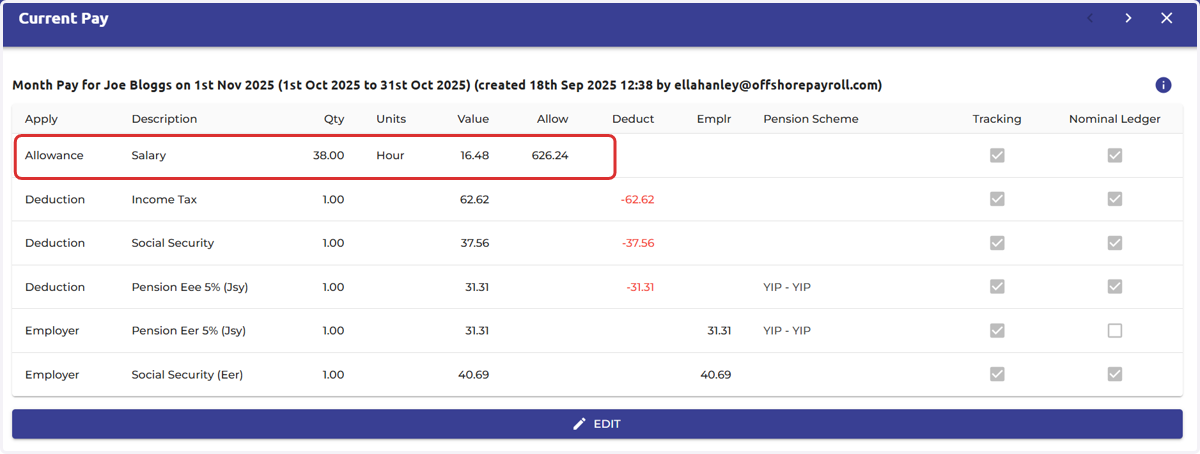
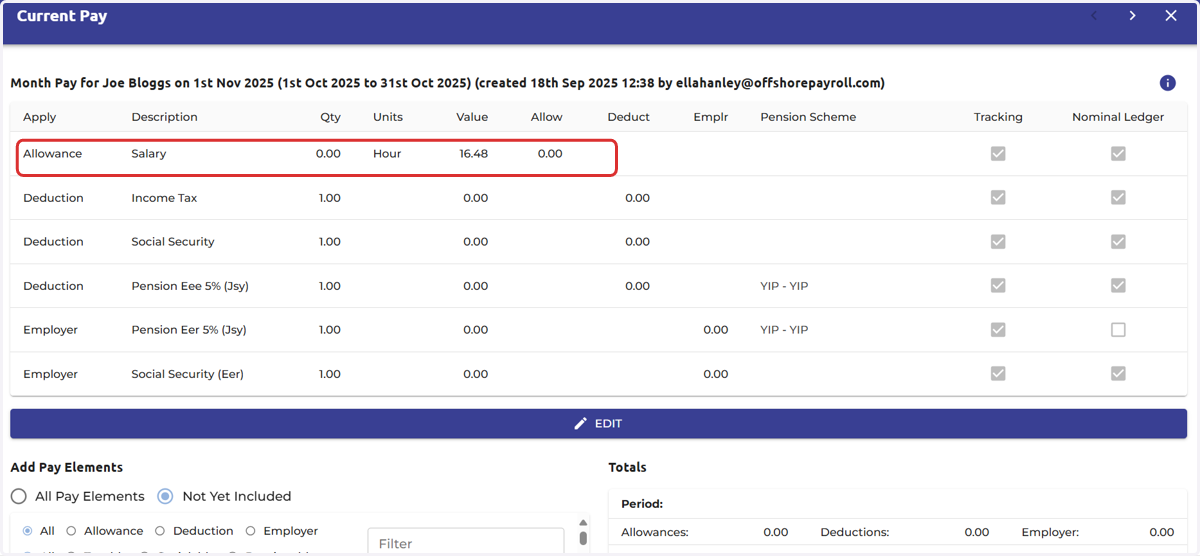
9. Payslip example below:
Joe Bloggs' payslip shows the 'Salary (Hour)' Pay element that was added to his pay template. The description in the payslip is different, as this was changed at the pay template level.
Please note that if you have already started your pay run before making changes to the employee's or the organisation's pay template, you will need to reset the pay run to pull through these changes.
10. You can now enter the quantity of hours as shown in the screenshot example.
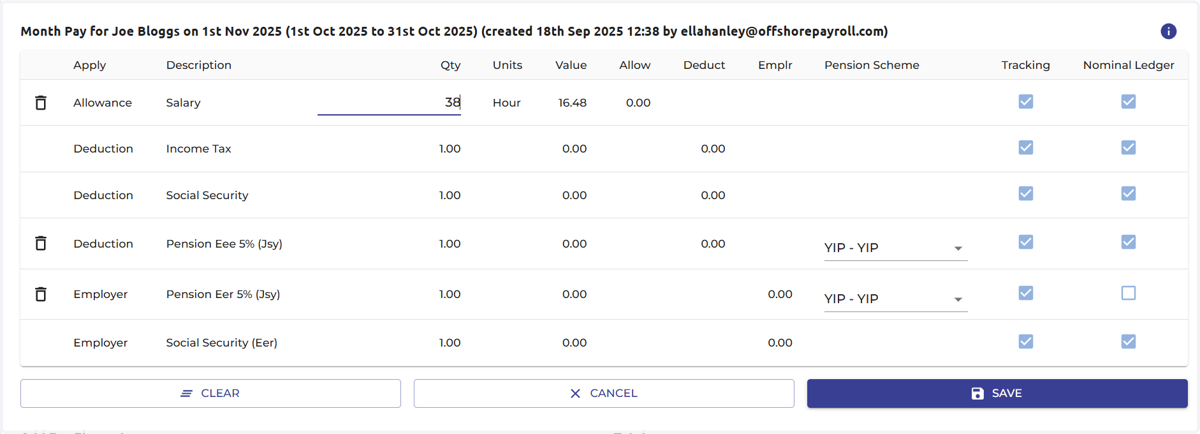
11. The system will then calculate the employee's salary based on the quantity of hours and the salary record.