Booking Manager Overview
Club Director
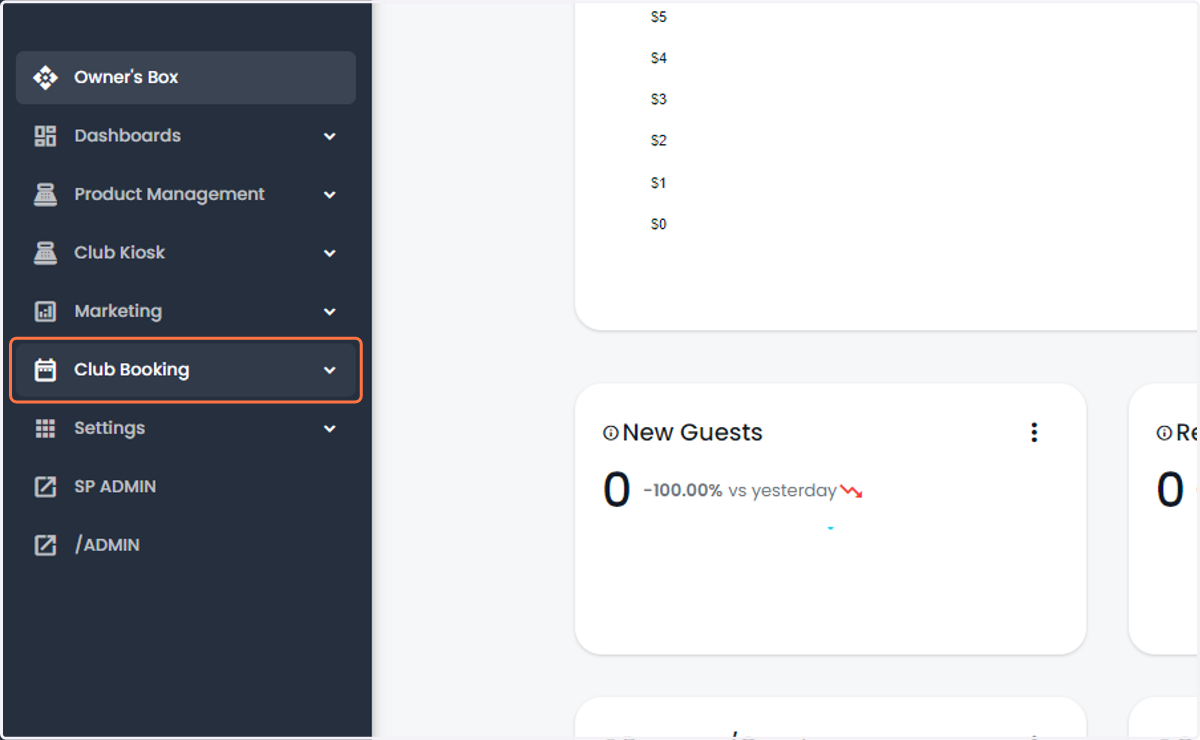
1. Click on Club Booking
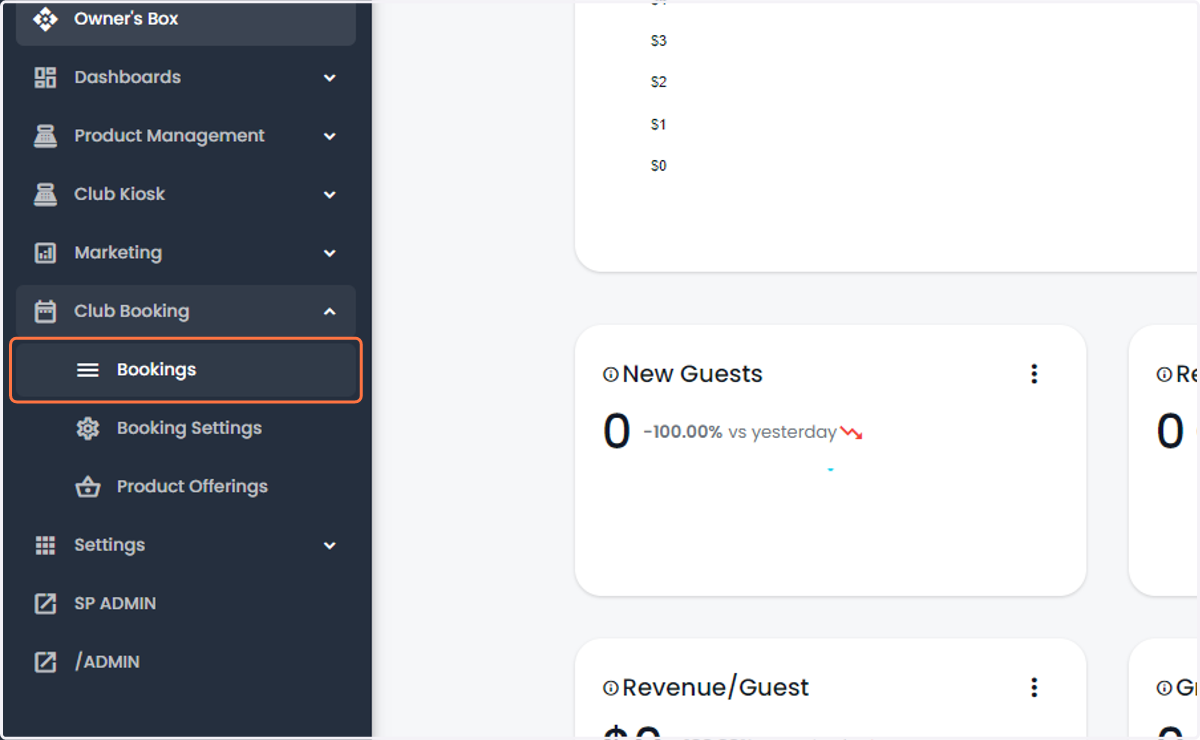
2. Select Bookings
3. This will show you a list of all of your bookings (can search using the top bar)
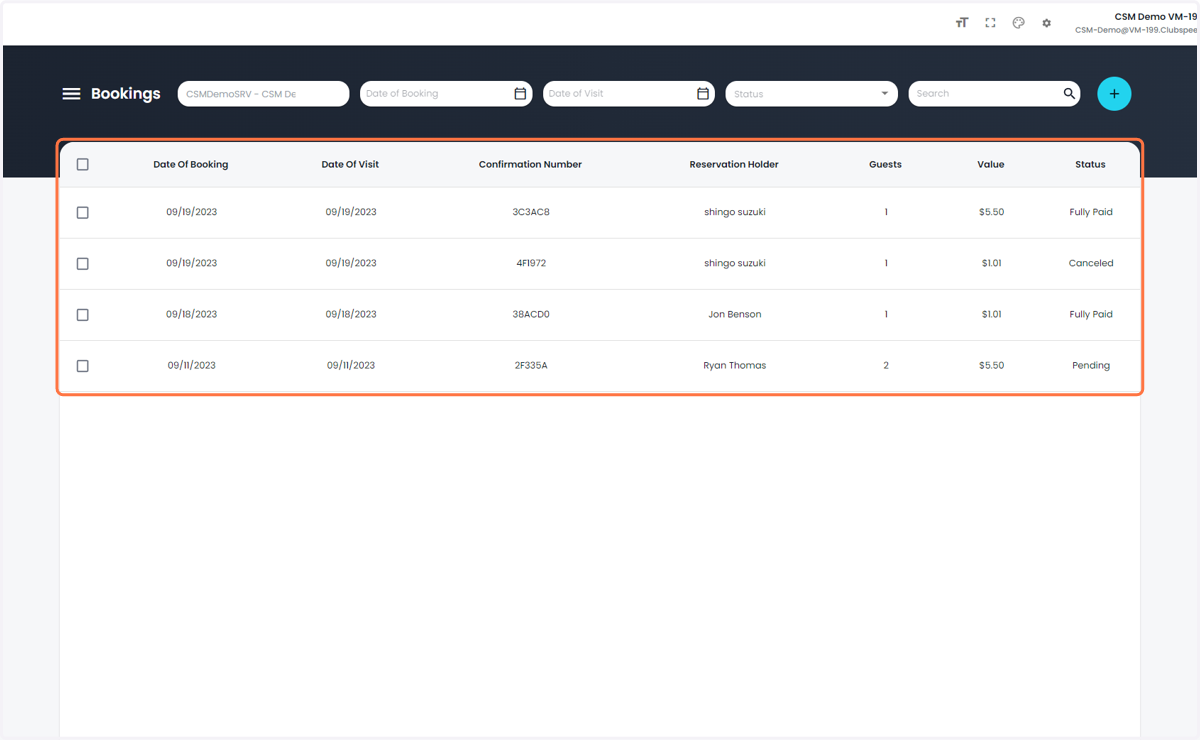
4. Select a booking you want to manage
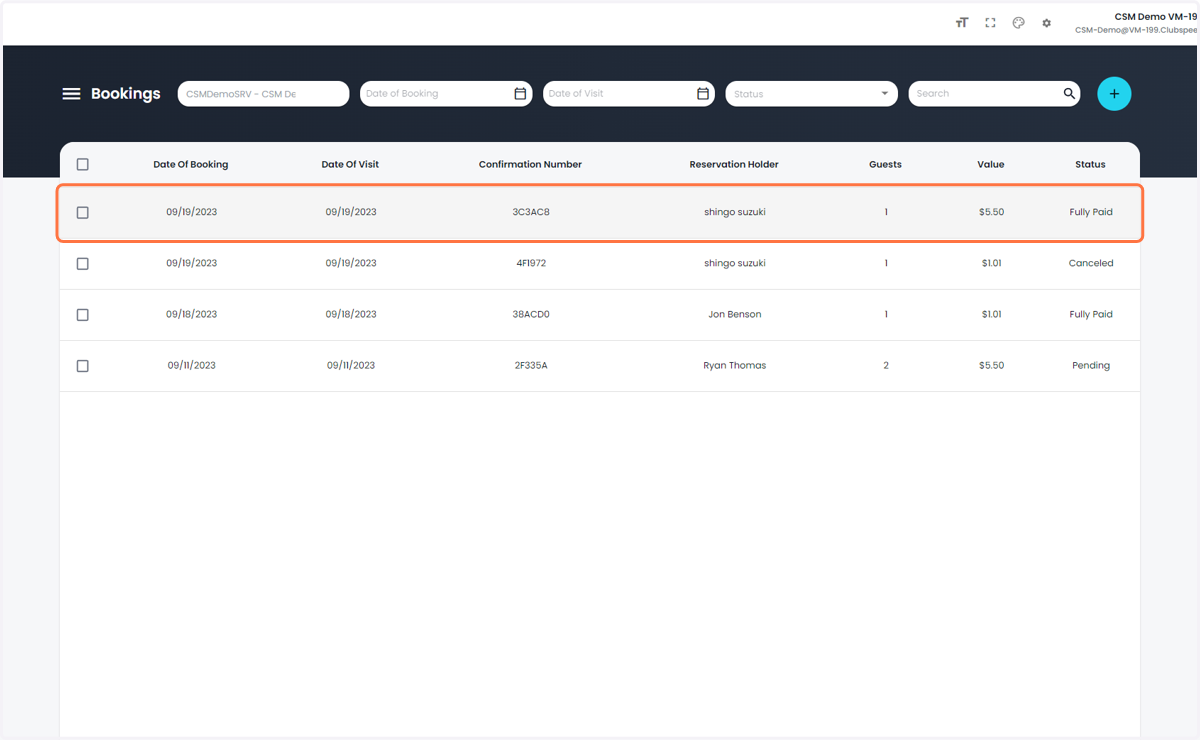
5. This will open full details on the booking
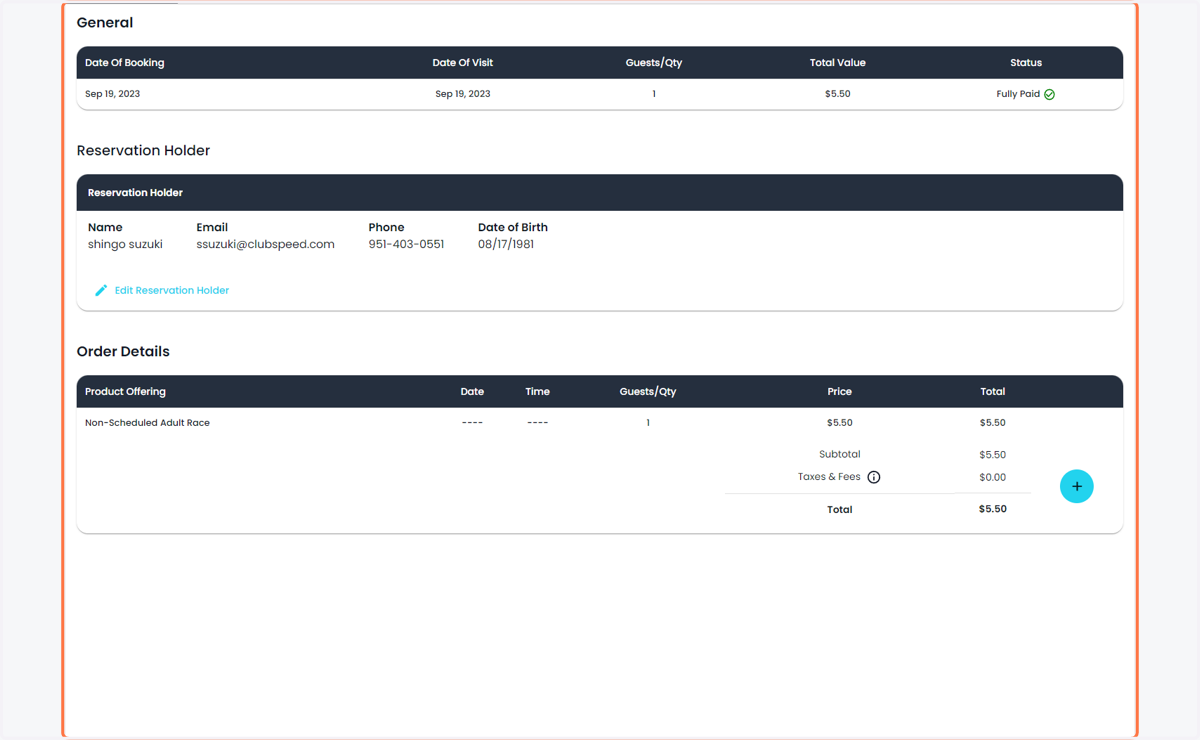
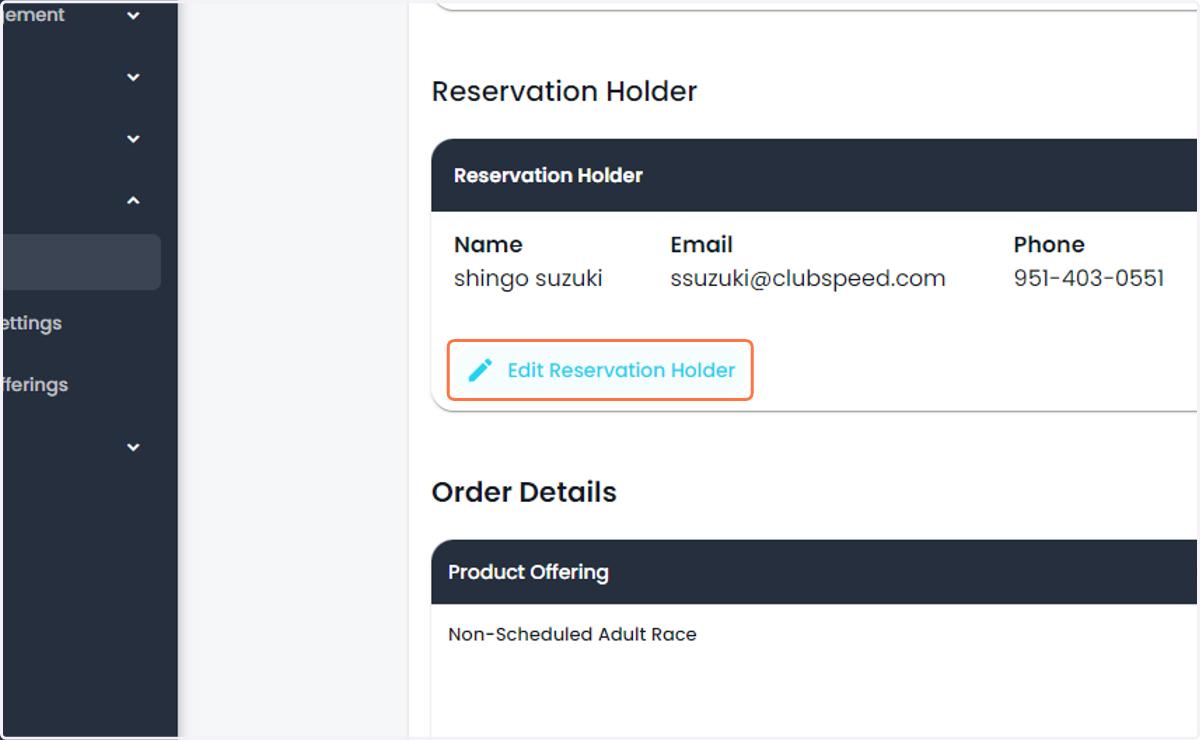
6. You can update the Guest information here
7. What the guest purchased is viewable under order details
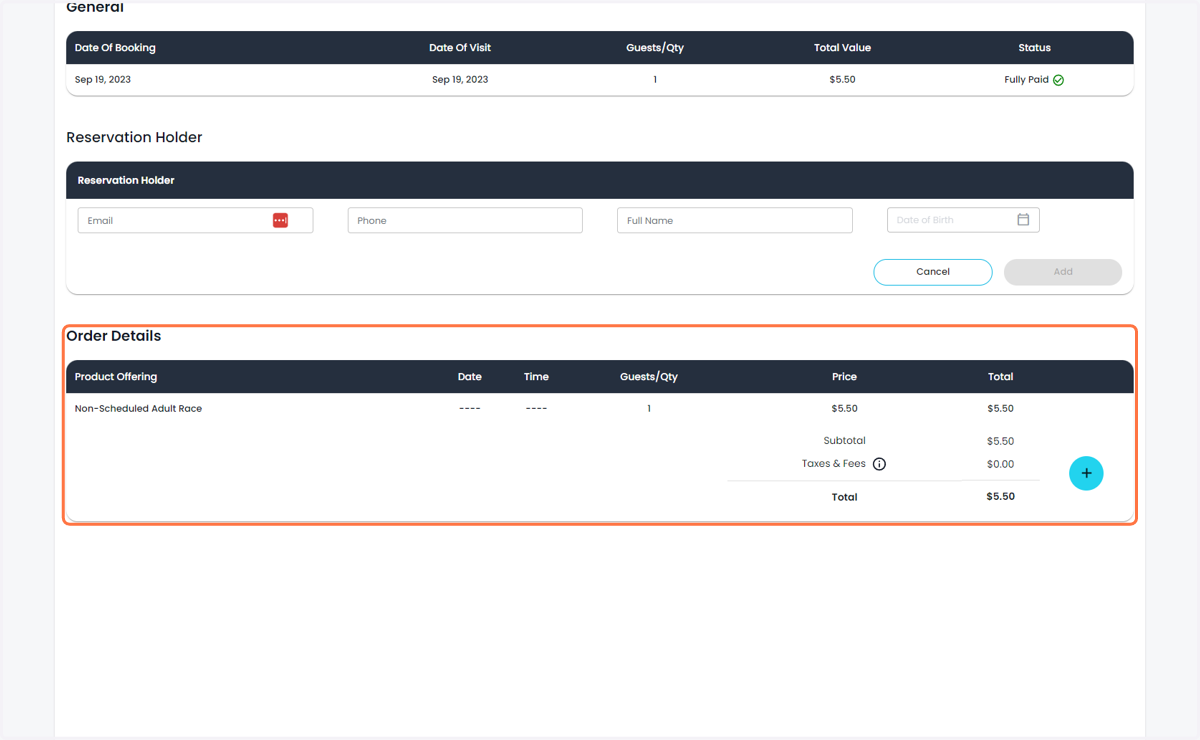
8. You can add to their existing reservation
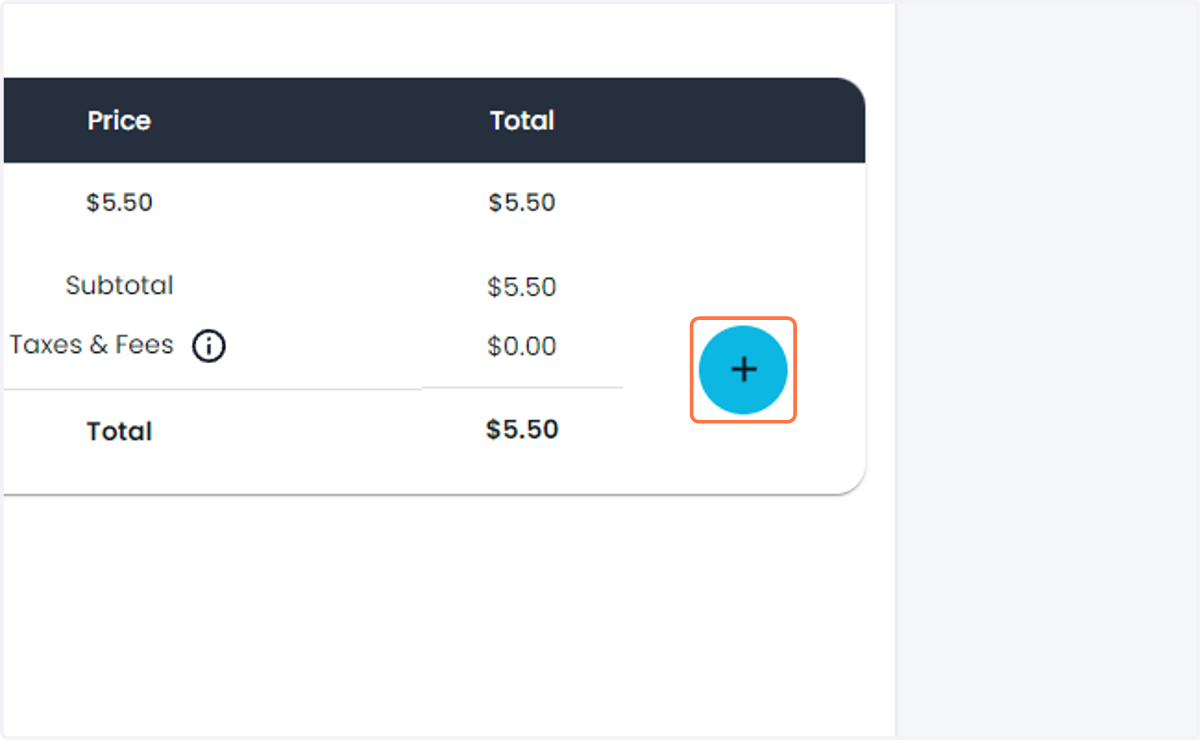
9. A menu will pop out for you to add more items
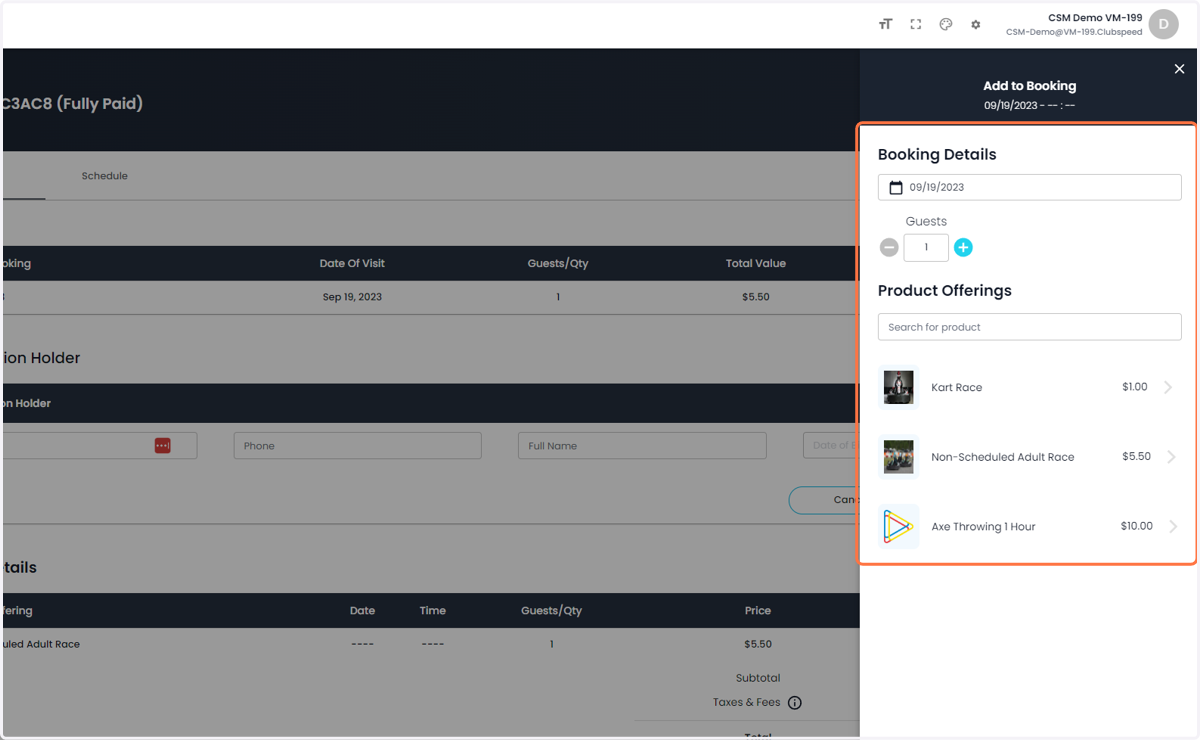
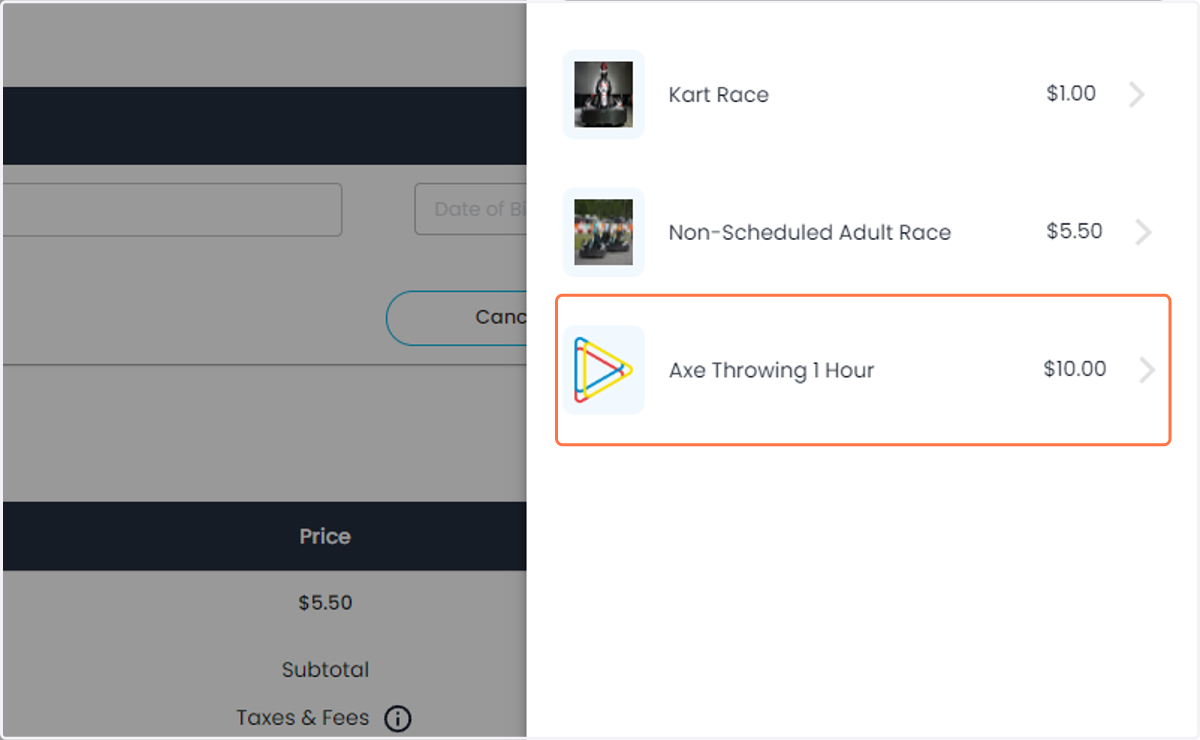
10. Select the item you would like to have added
11. Choose the time of the activity
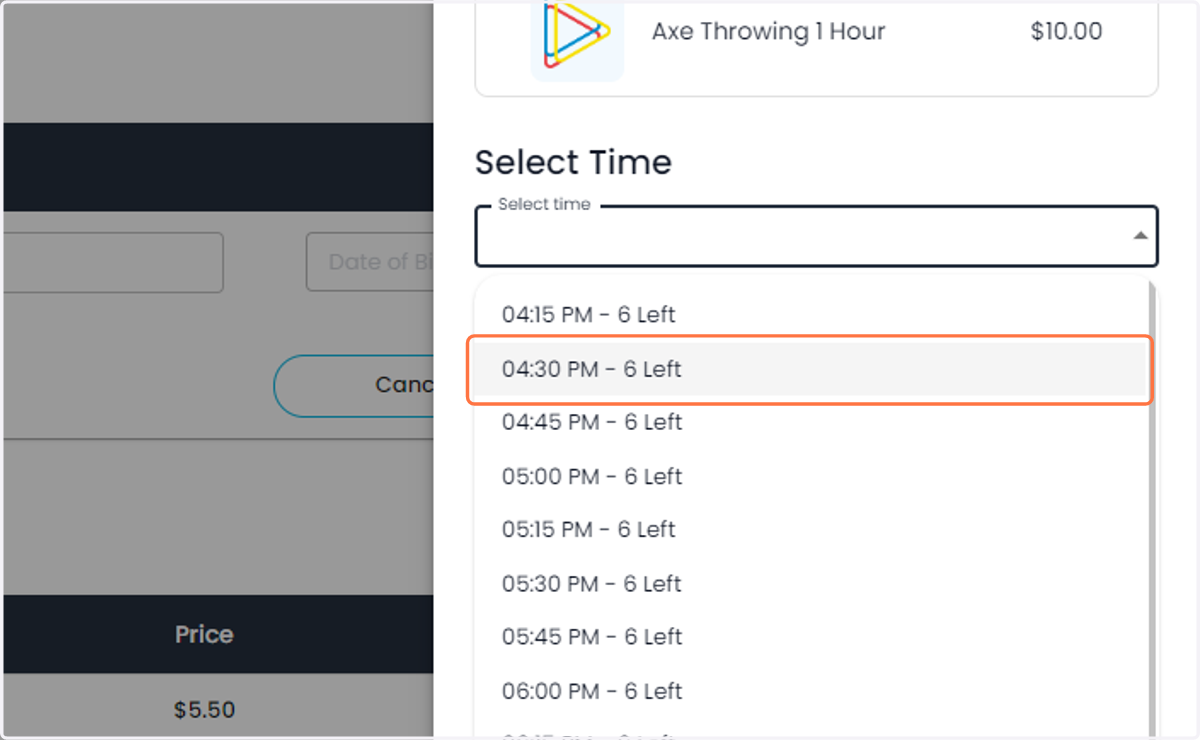
12. Click on Add to Booking
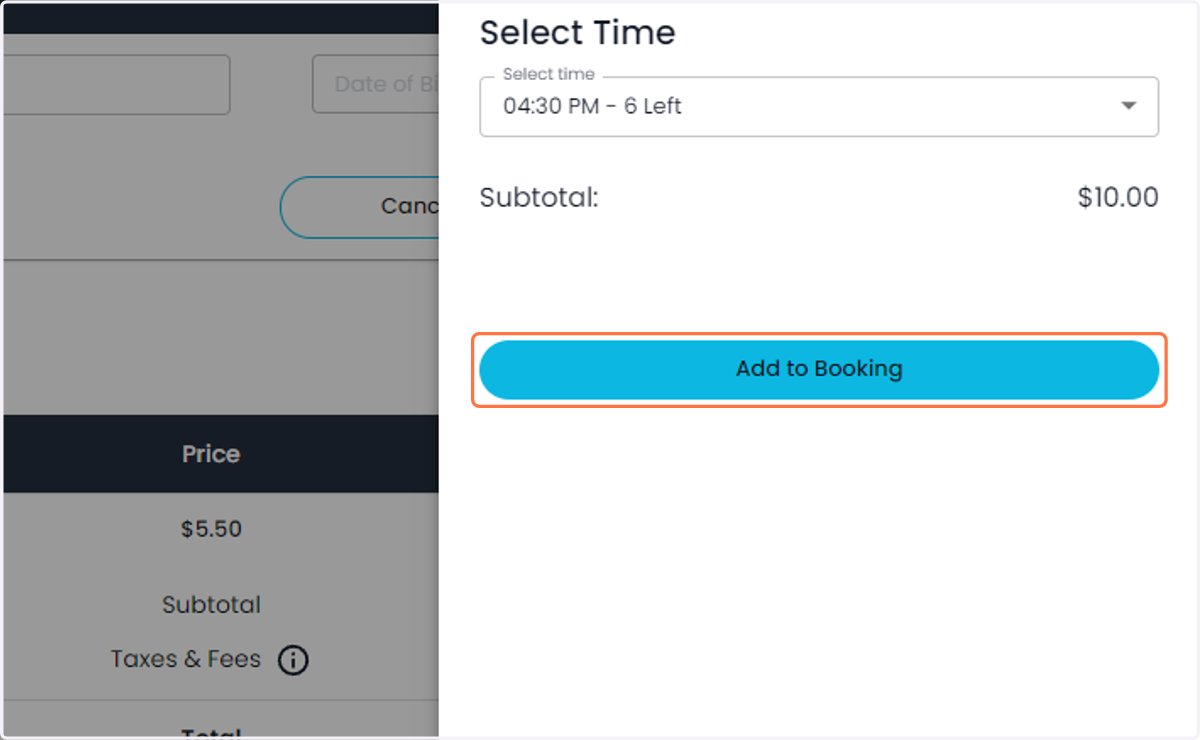
13. You will now need a new item added to the reservation
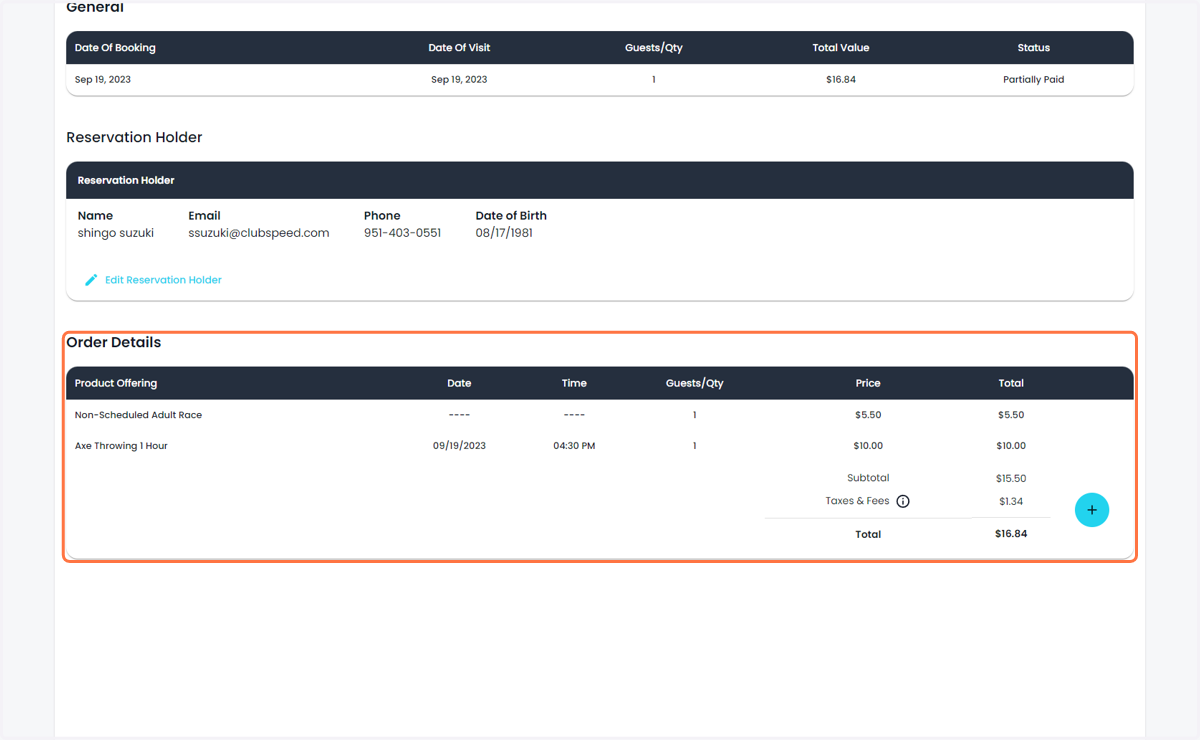
14. You can take Payment as well here (Click Read More)
USA - Full Payments, Partial, Refund support
International (Stripe) - Full Payments support, Partial and refunds coming soon.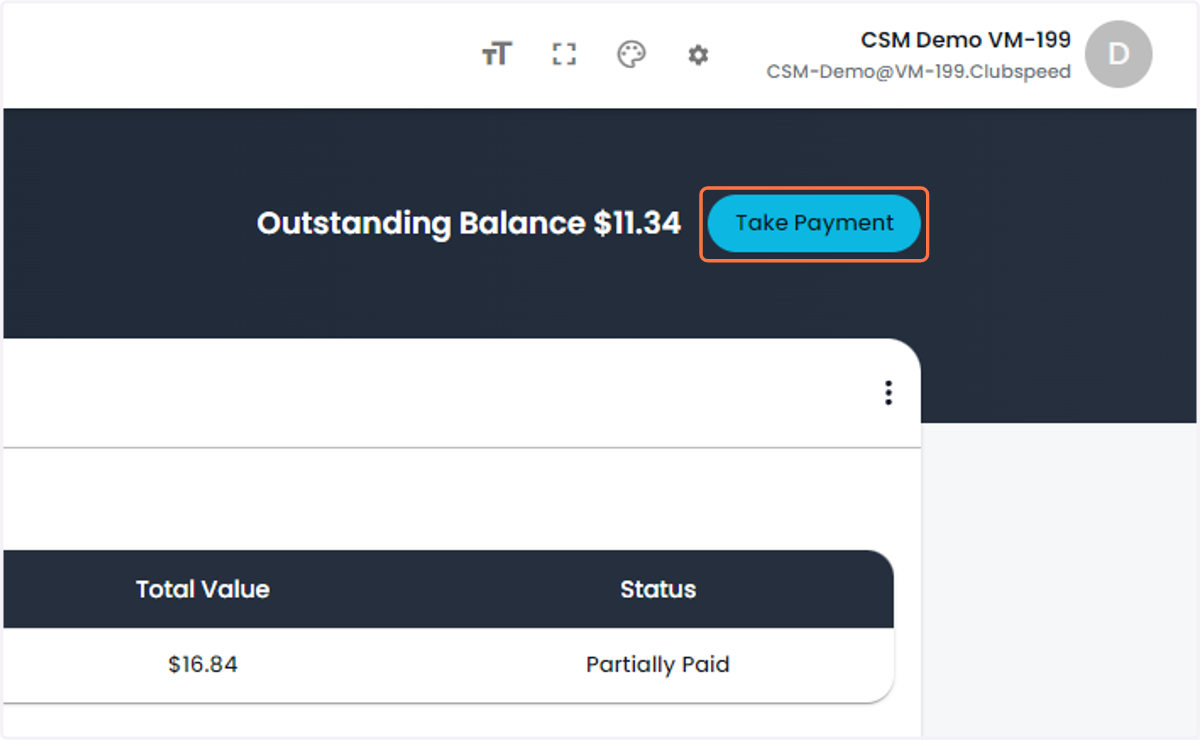
15. Choose your payment method (Click Read More)
USA - Full Payments, Partial, Refund support
International (Stripe) - Full Payments support, Partial and refunds coming soon.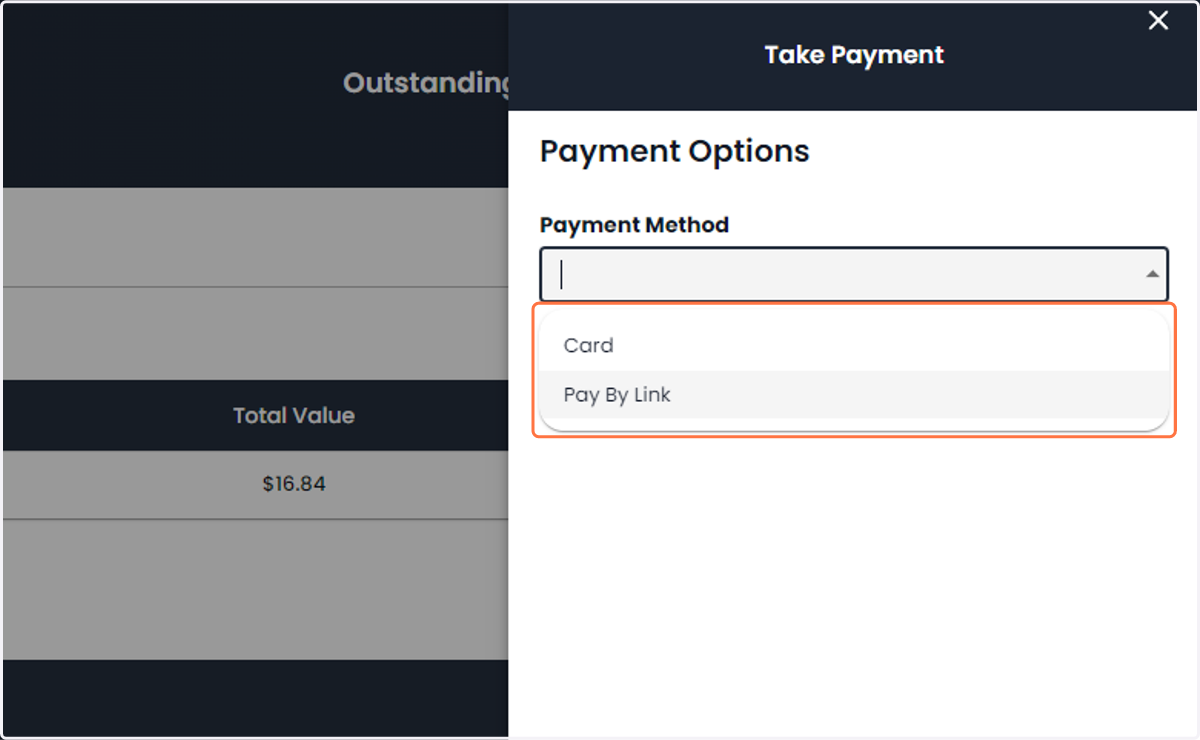
16. View the customer schedule here
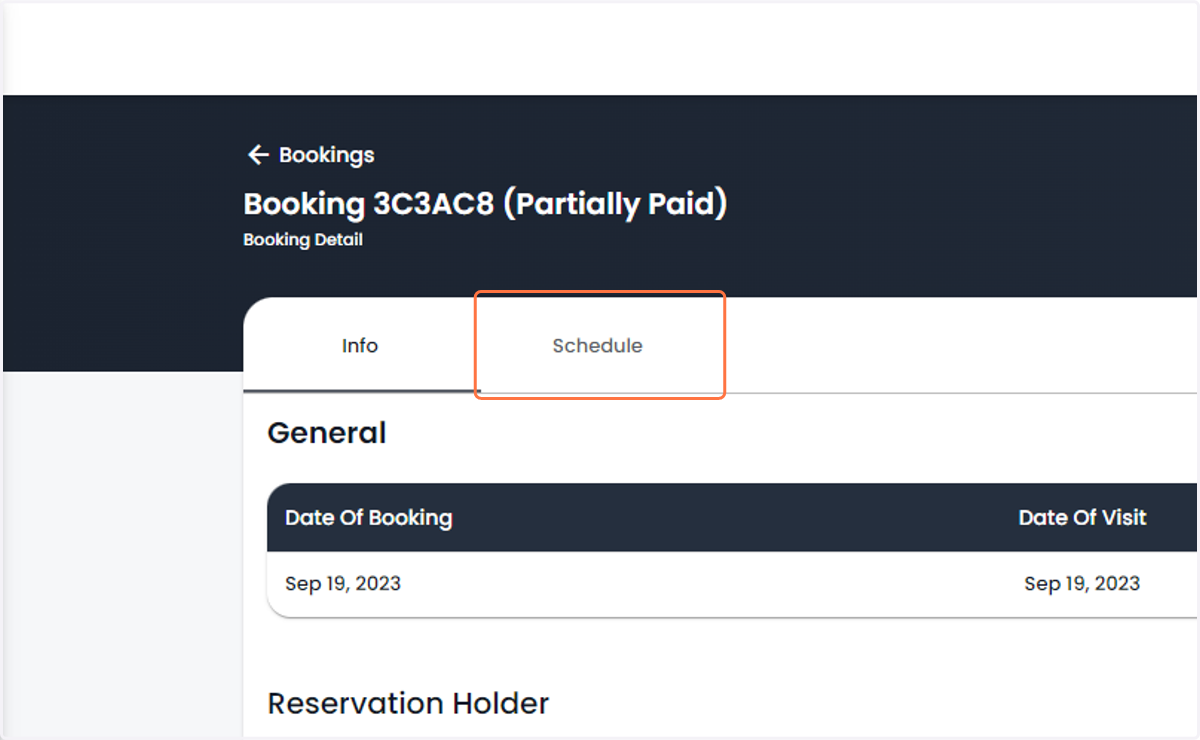
17. Reschedule activities if plans change
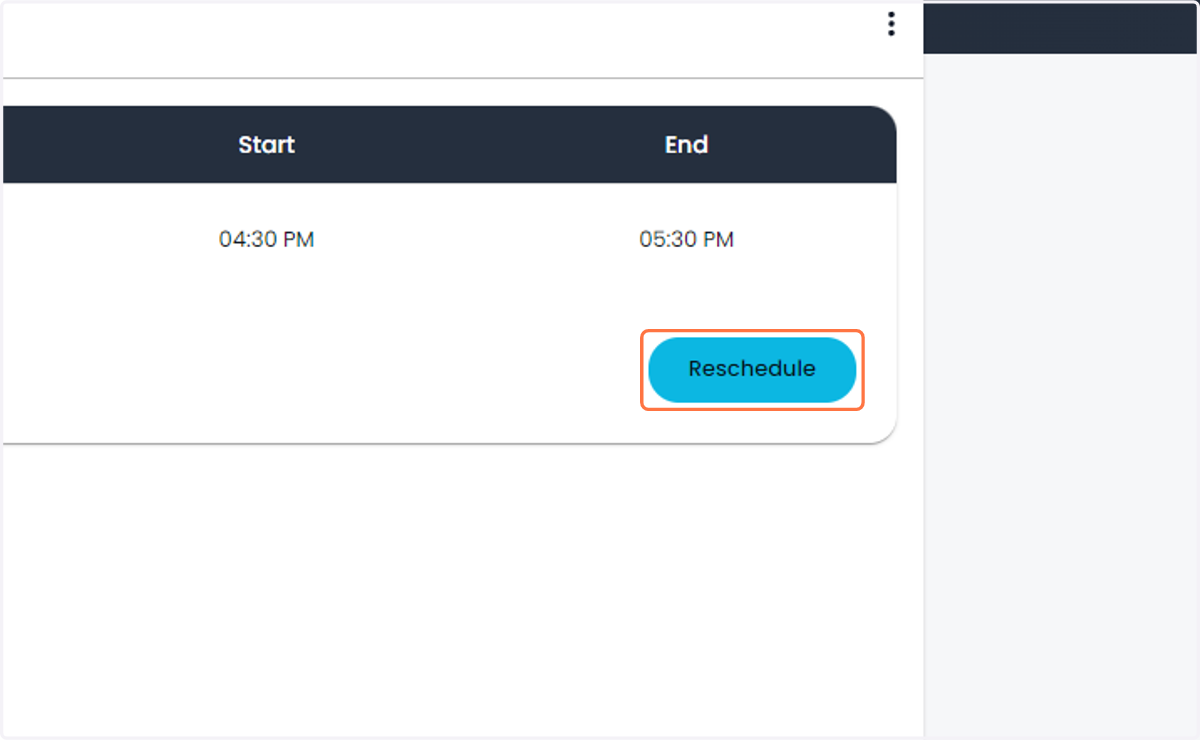
18. A pop-up will show the current scheduled activities
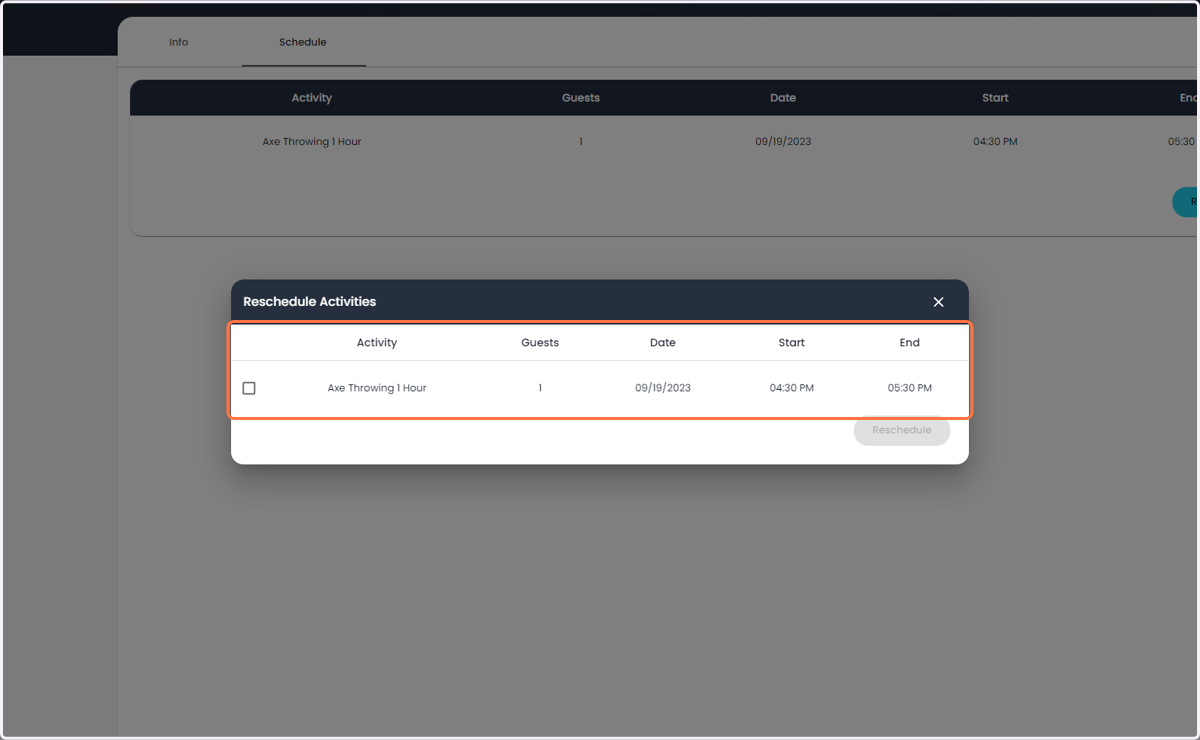
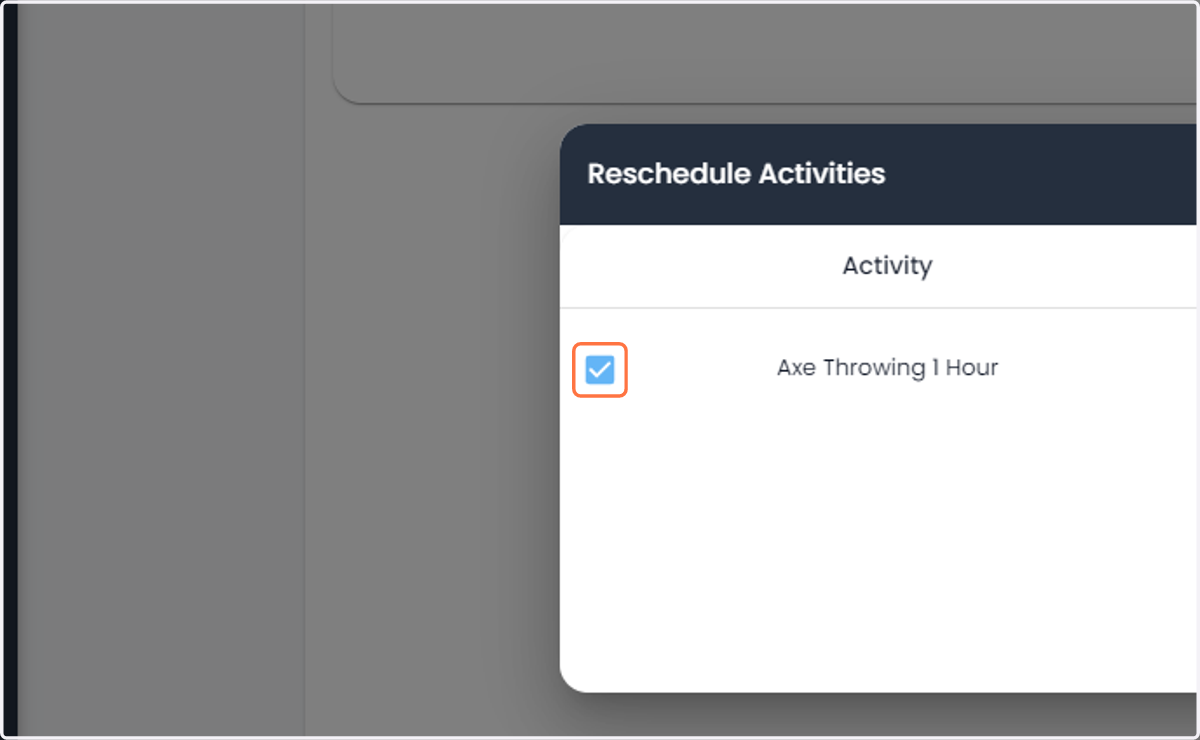
19. Check the items you want to reschedule
20. Select the new date
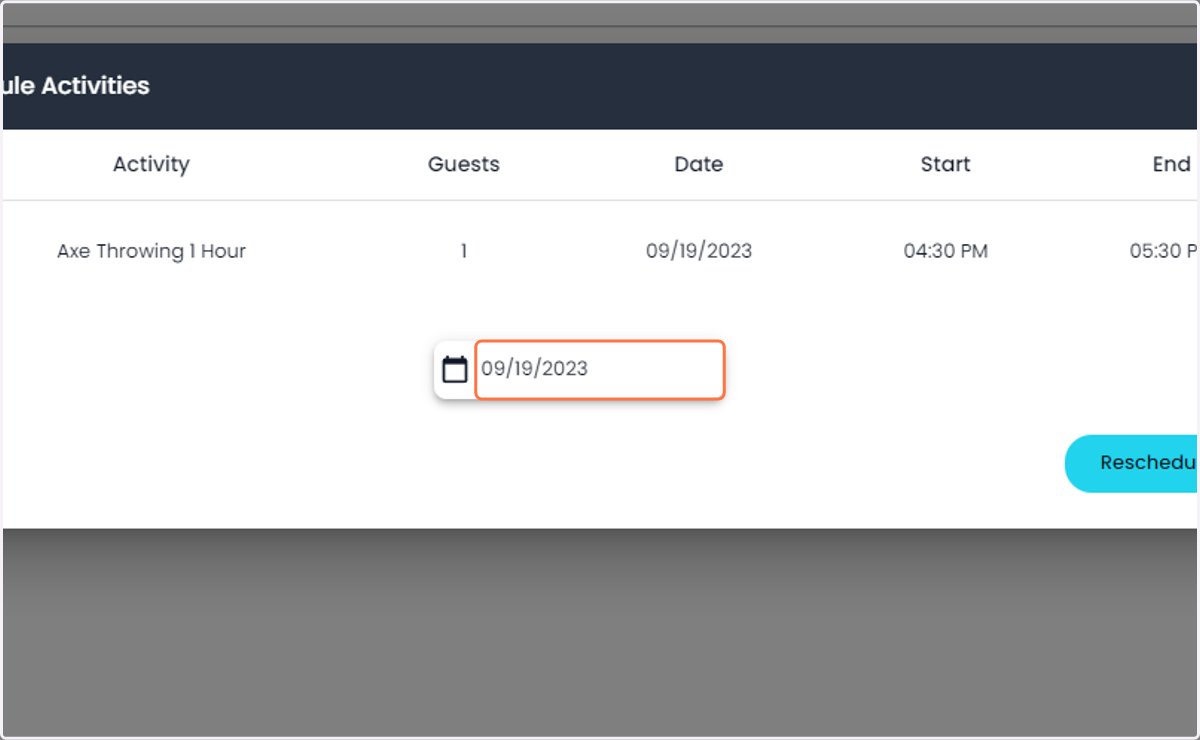
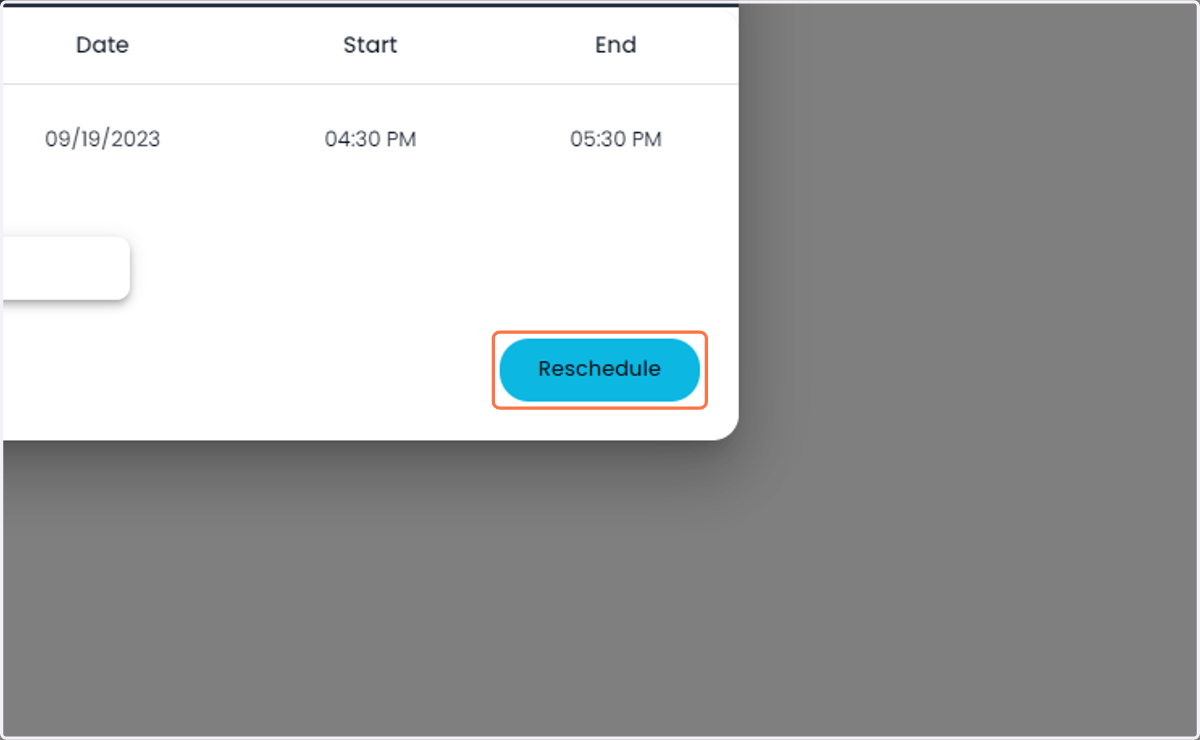
21. Press Reschedule
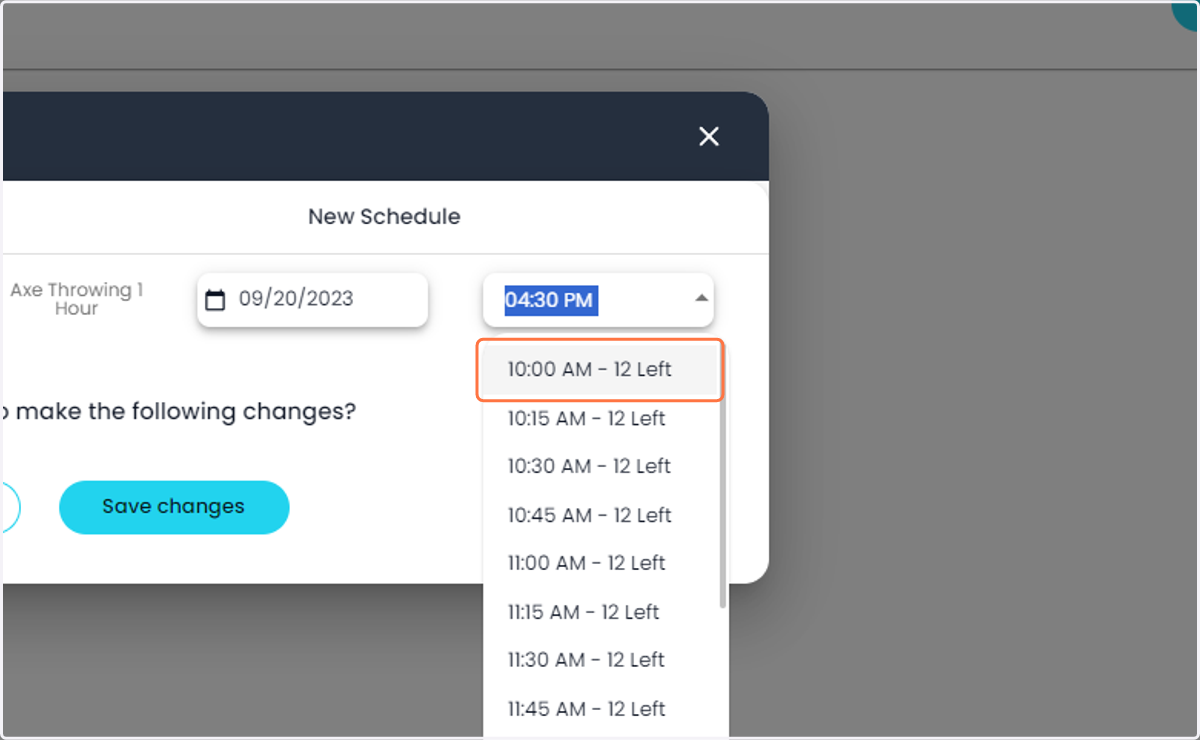
22. Confirm if there is a time change as well
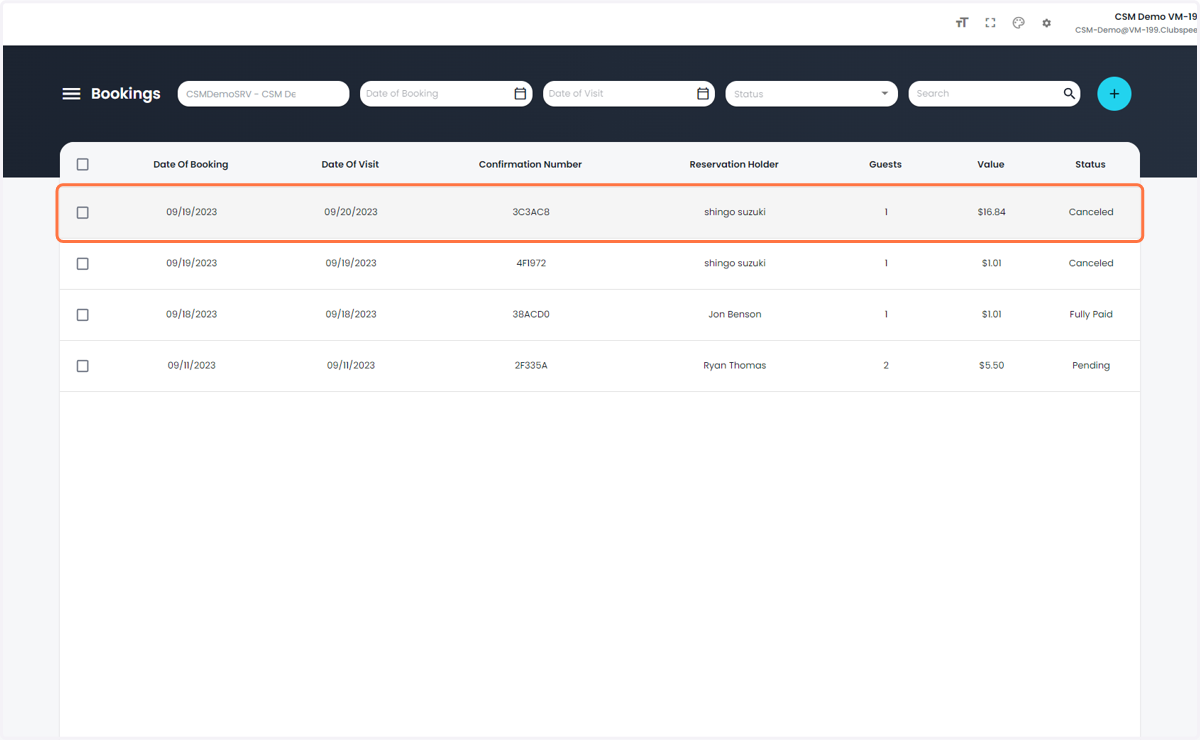
23. Click on Save changes
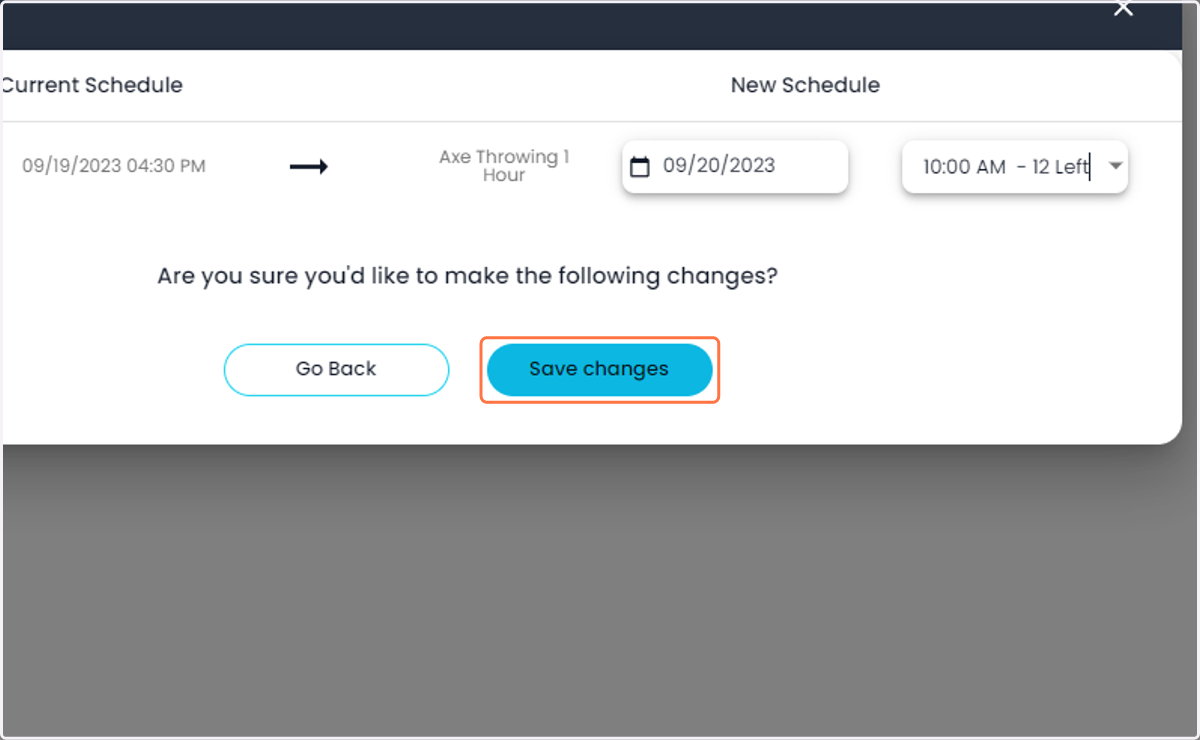
24. The activity is now rescheduled
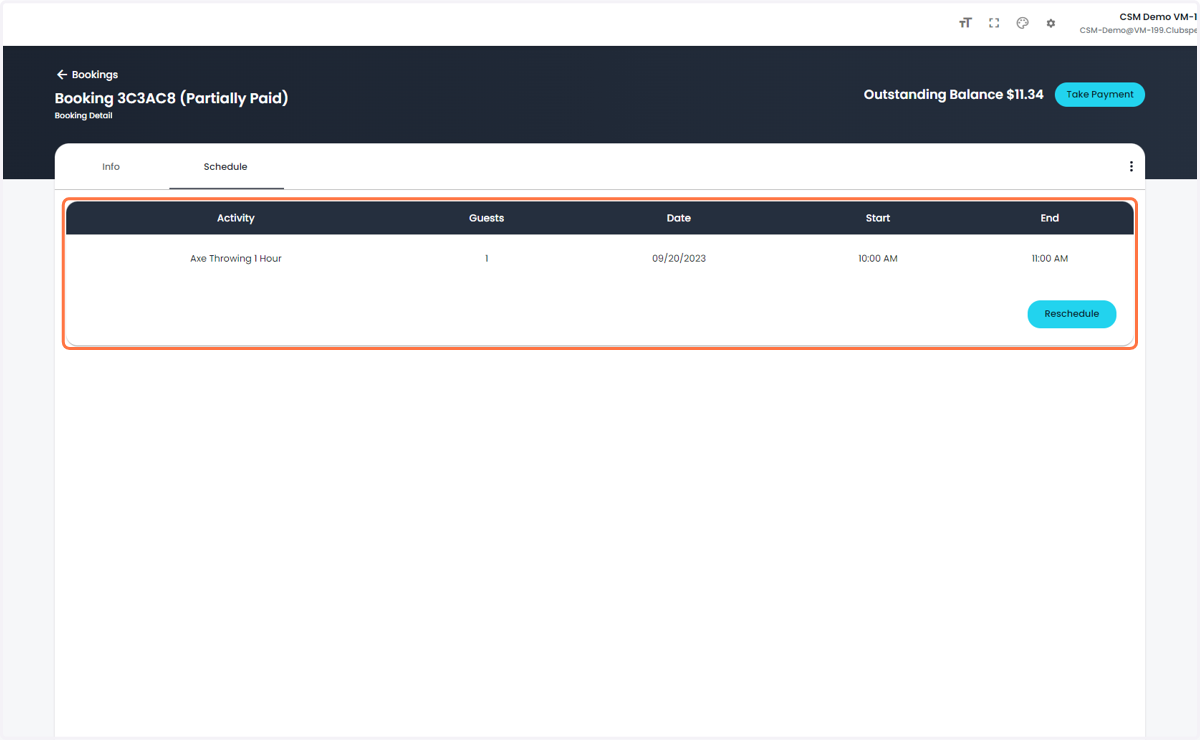
25. You can also resend confirmation emails, refund, or cancel a booking
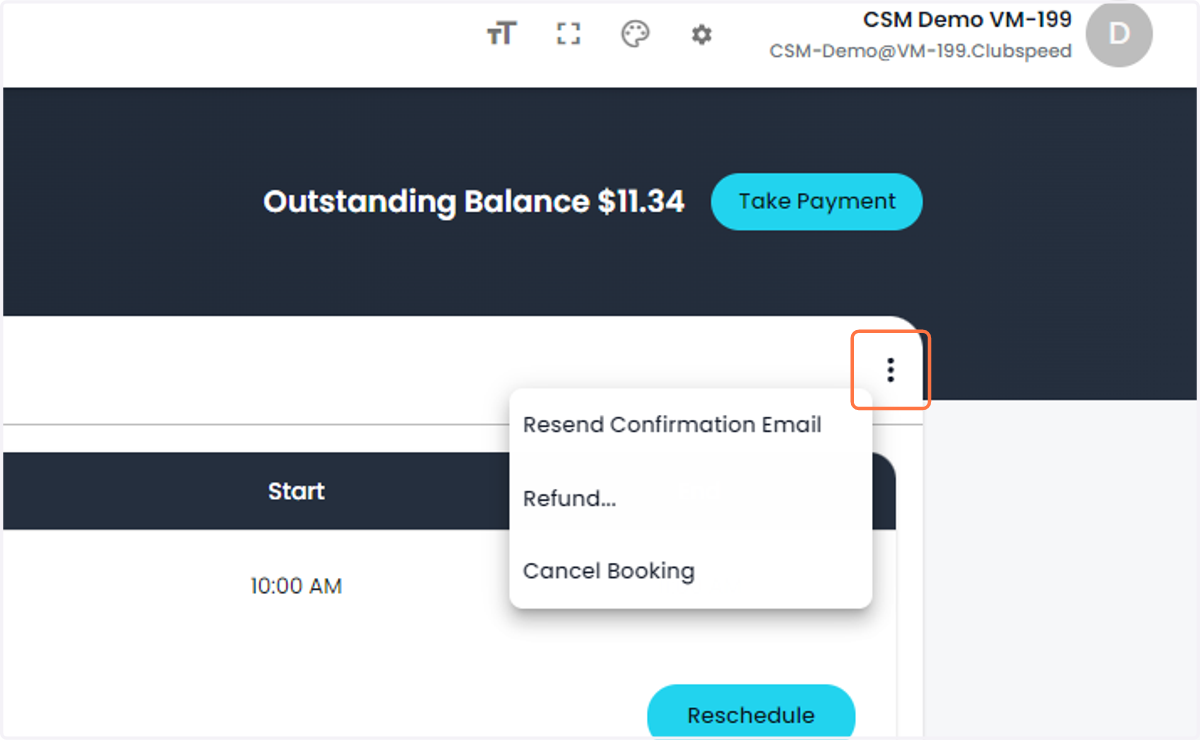
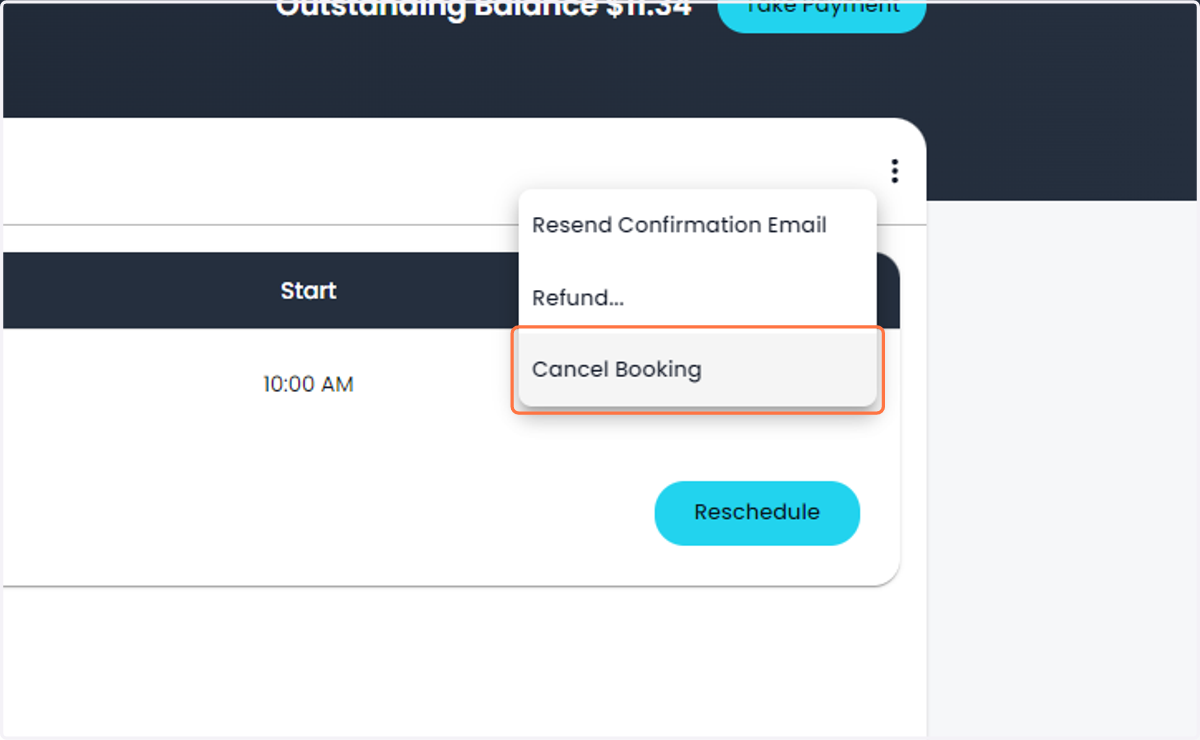
26. Click here to Cancel a Booking
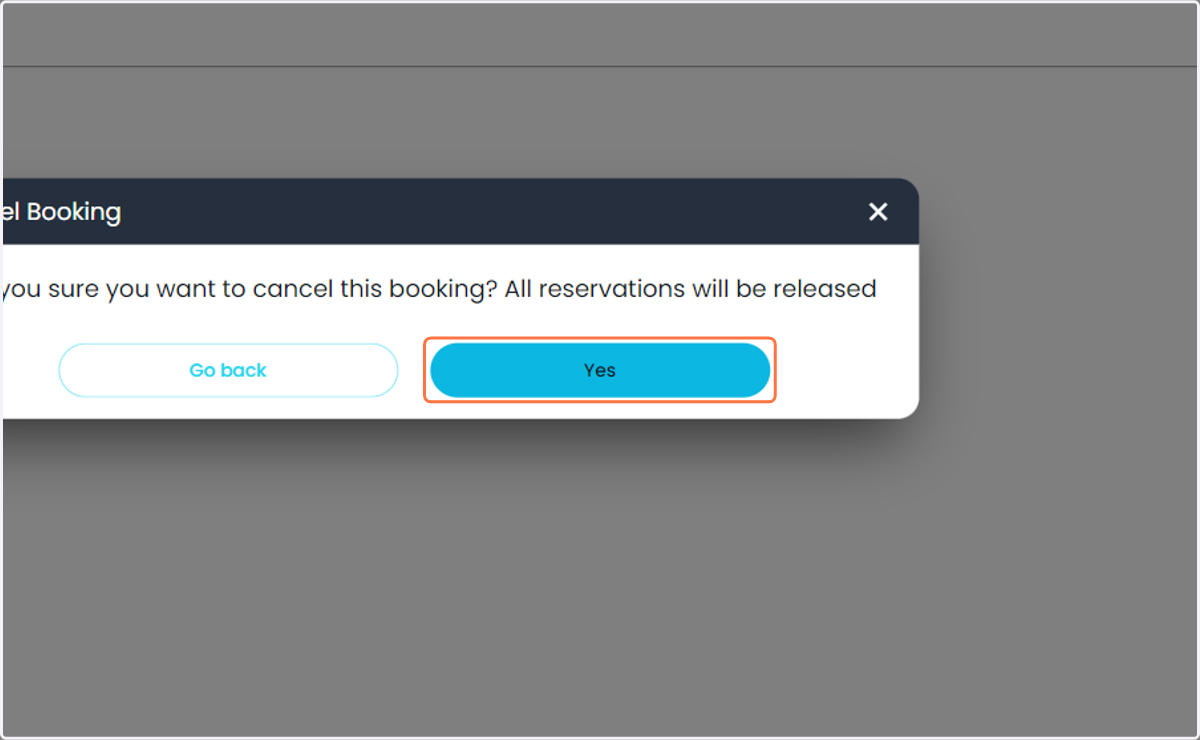
27. Press Yes to Confirm
28. You can now see the reservation has been cancelled