Halo PSA
Halo PSA
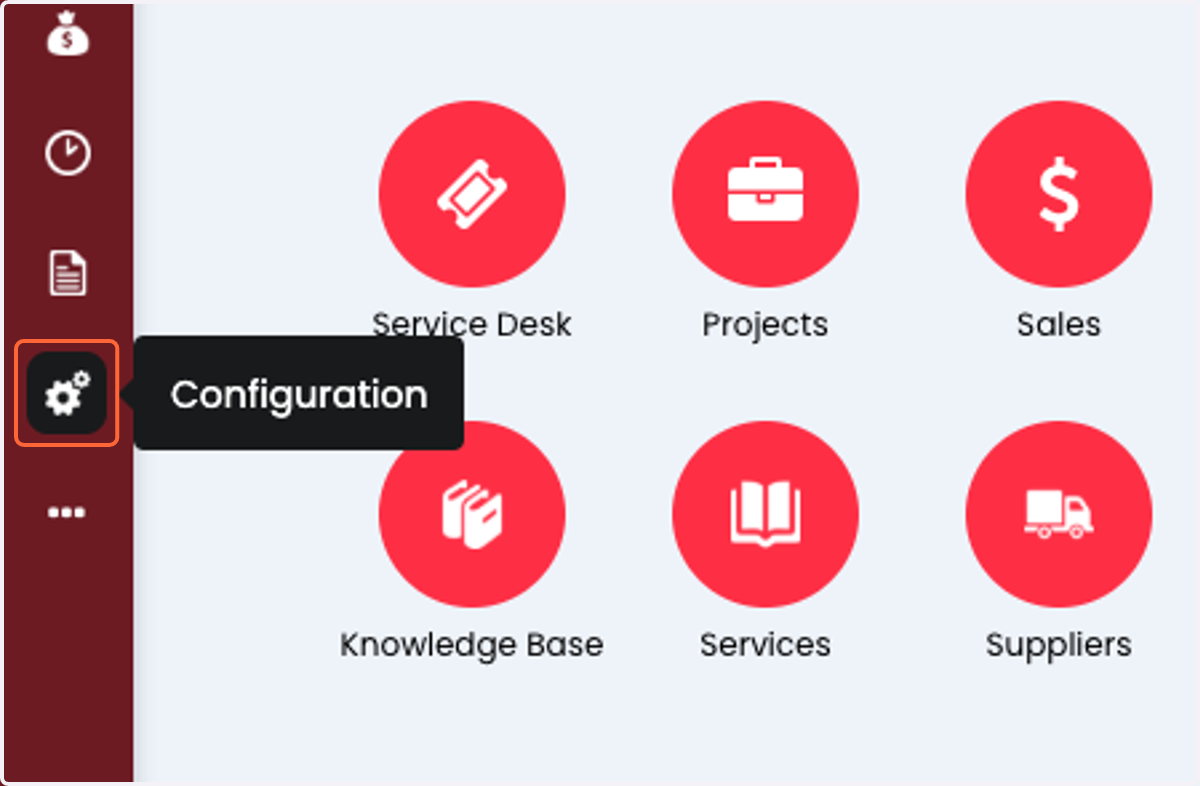
1. Click on Configuration
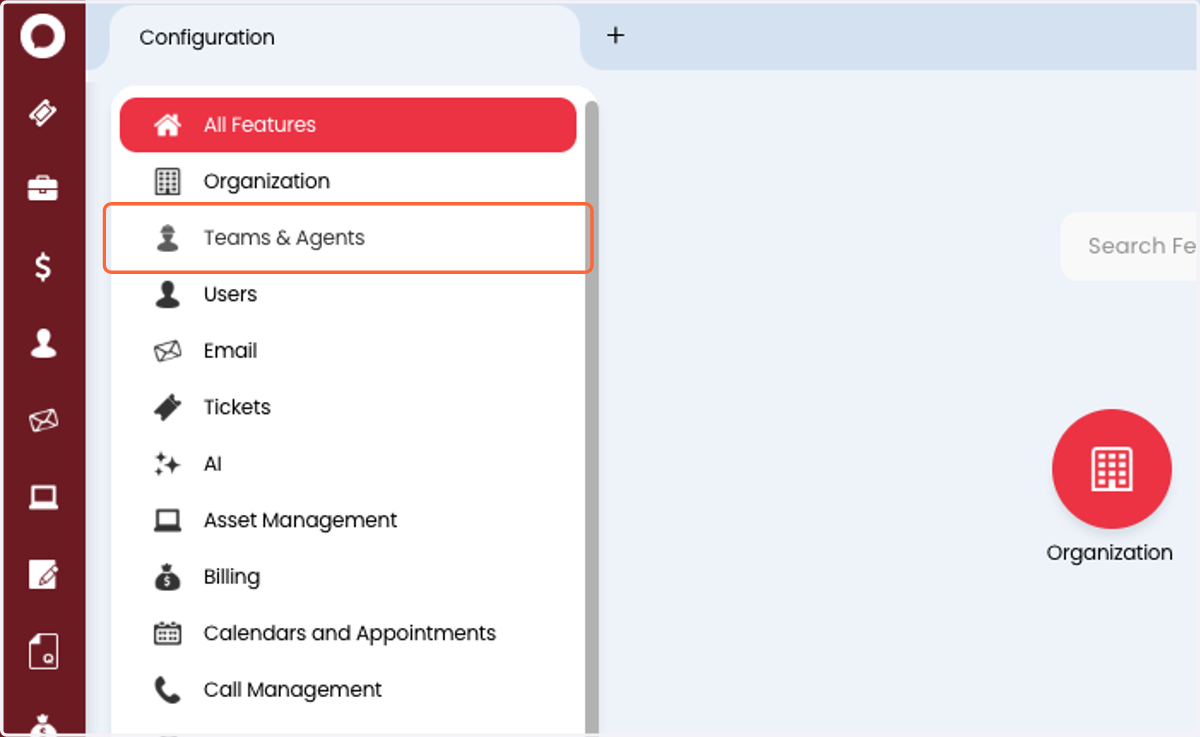
2. Click on Teams & Agents
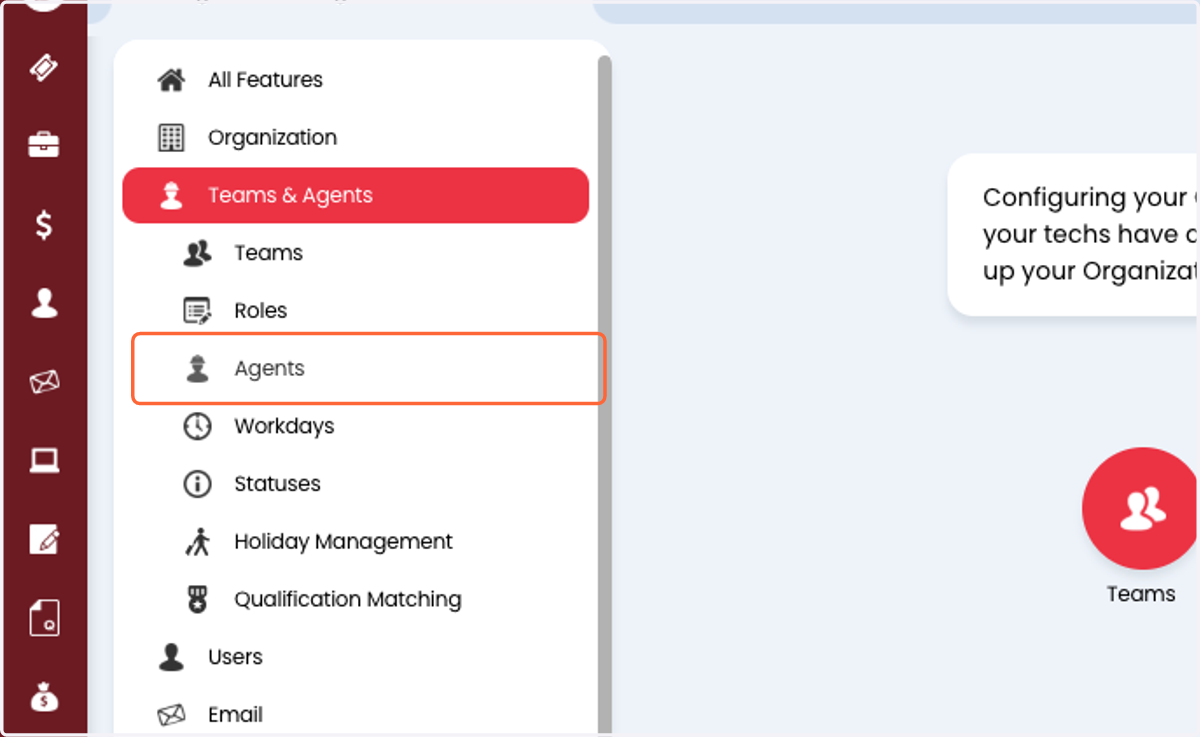
3. Click on Agents
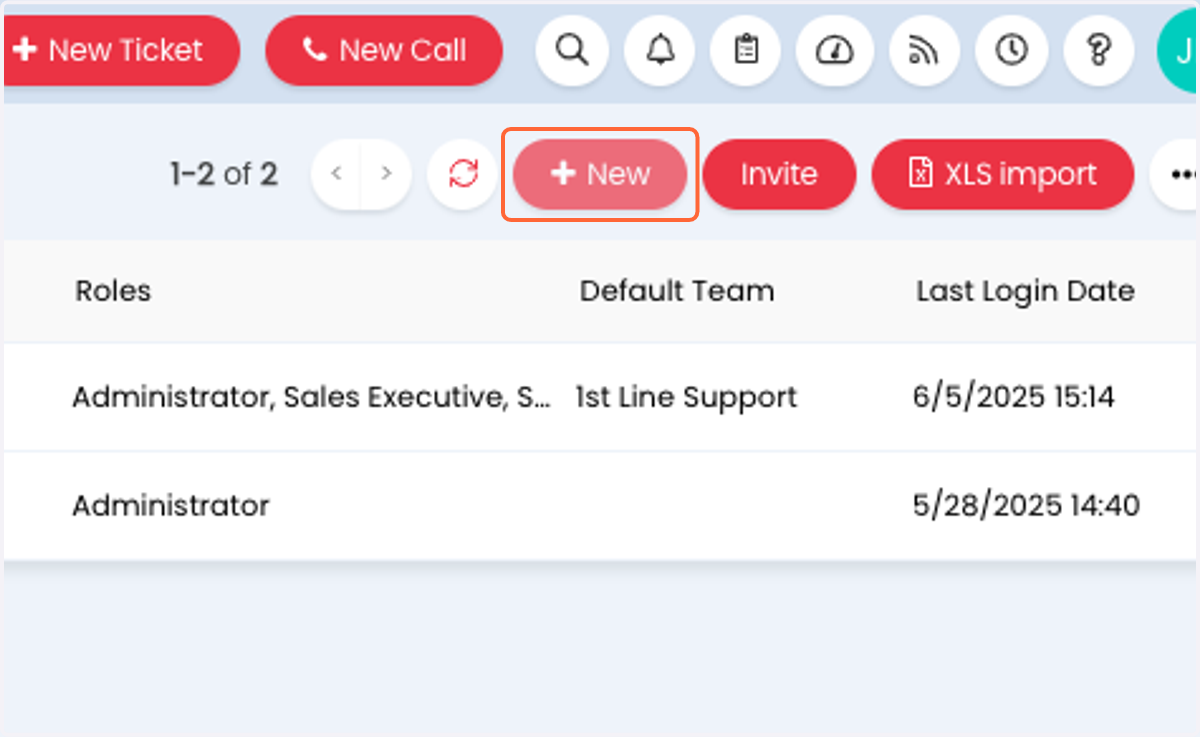
4. Click on New
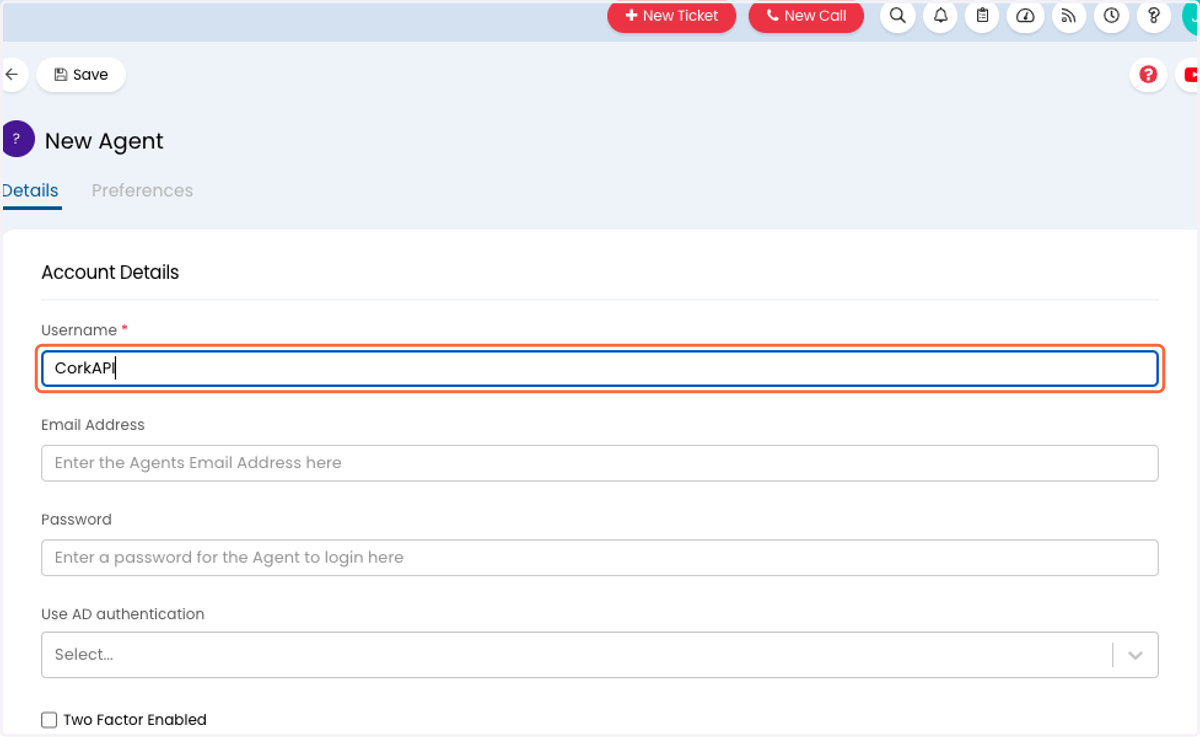
5. Type "CorkAPI" for Username
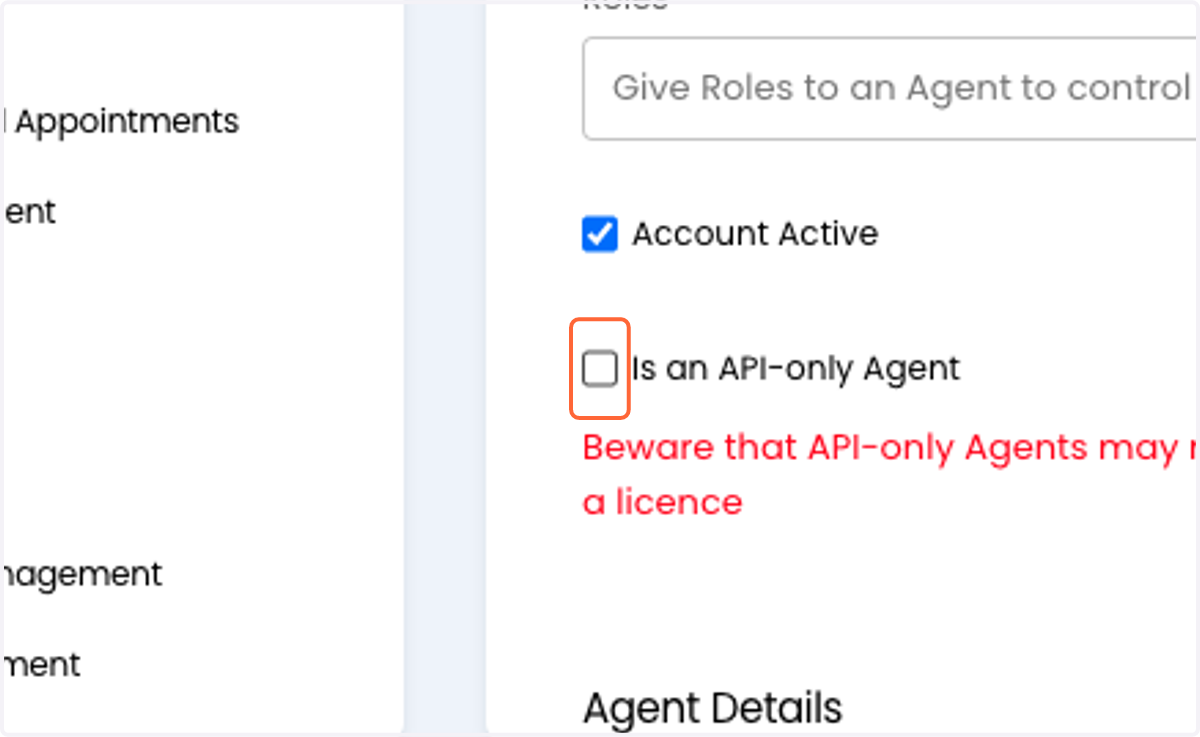
6. Check "Is an API-only Agent"
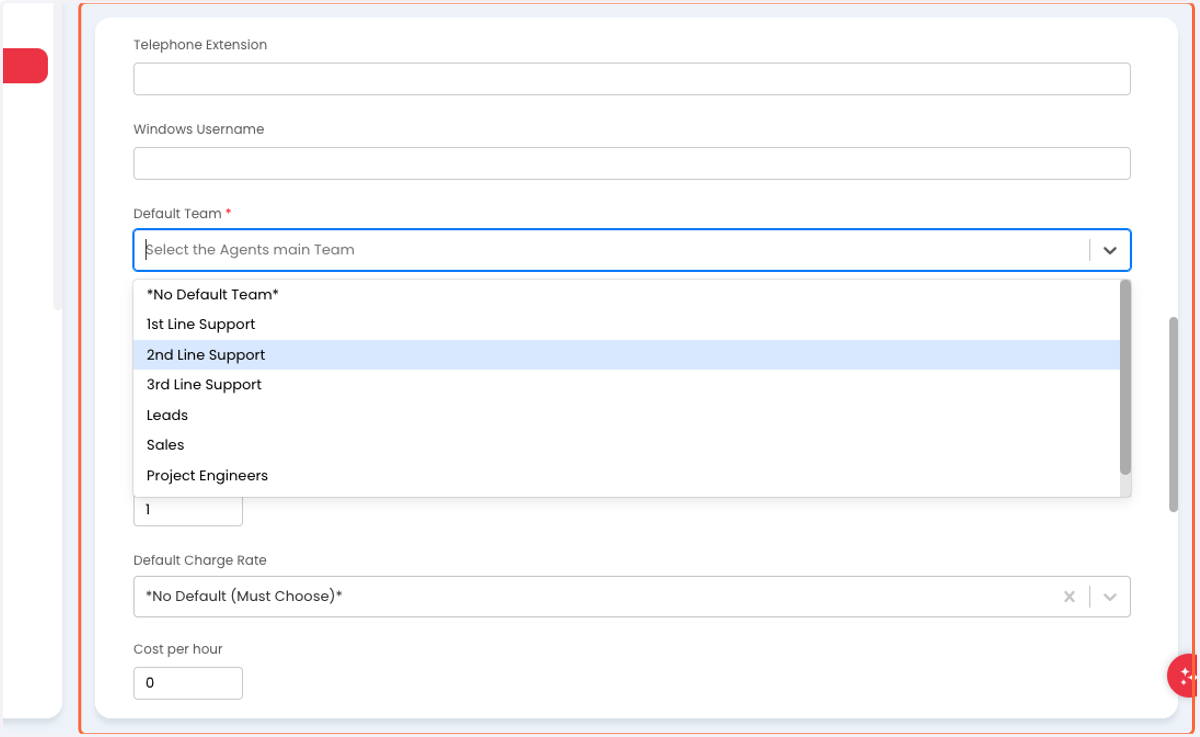
7. Select the appropriate Default Team
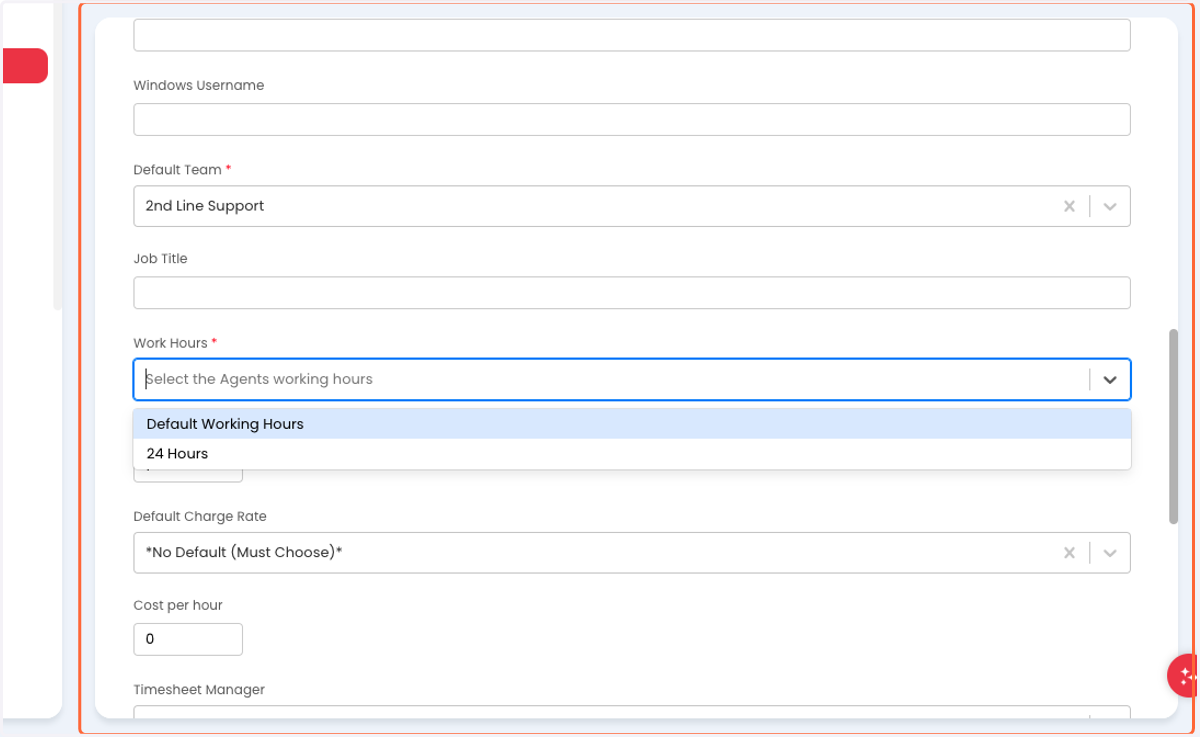
8. Select the appropriate Work Hours
9. Click on Save
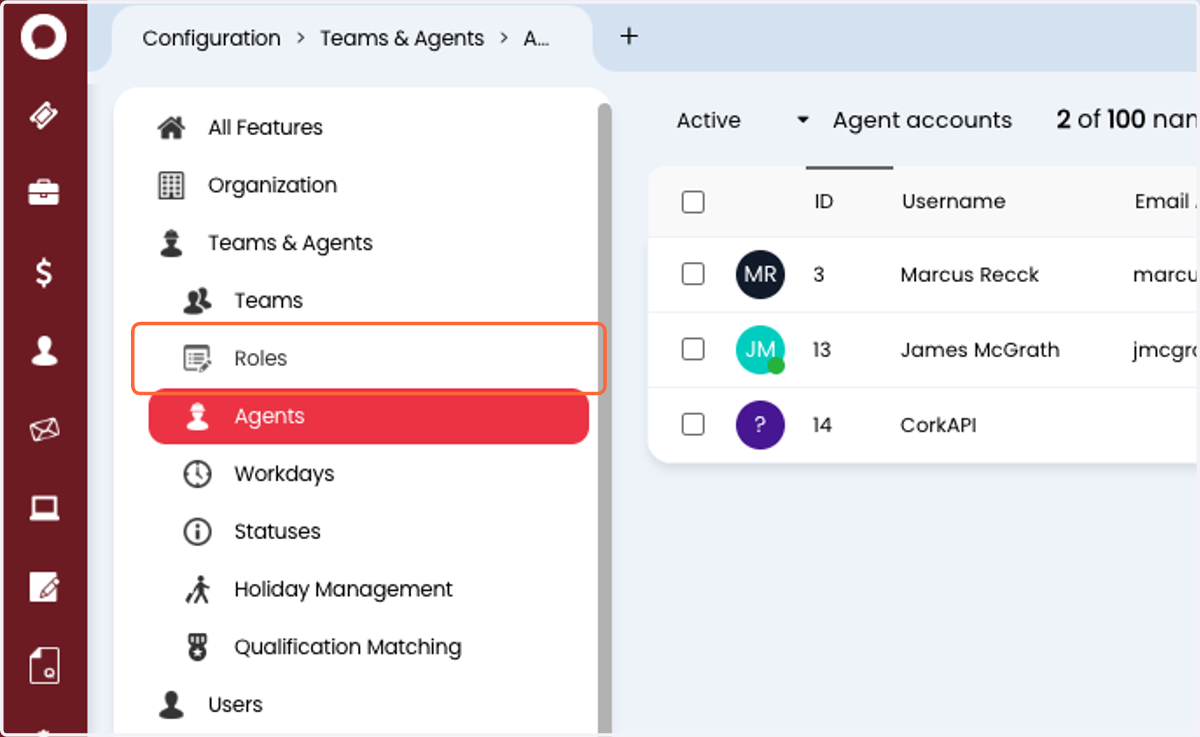
10. Click on Roles
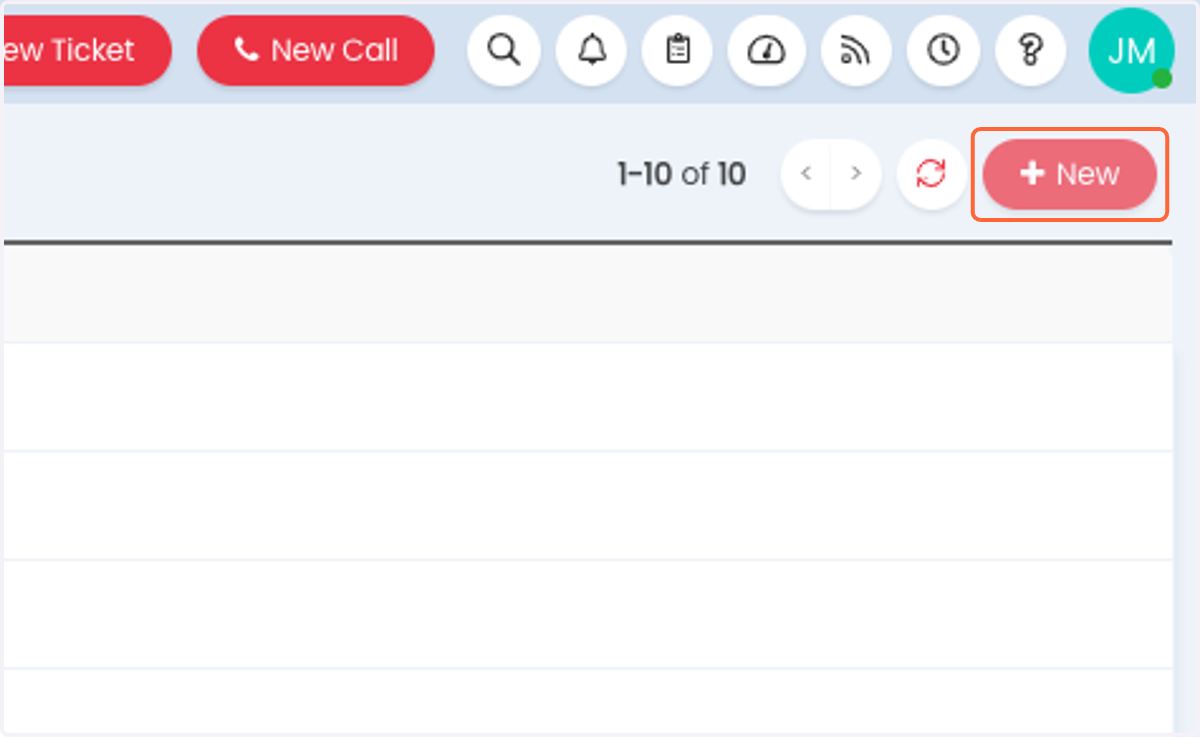
11. Click on New
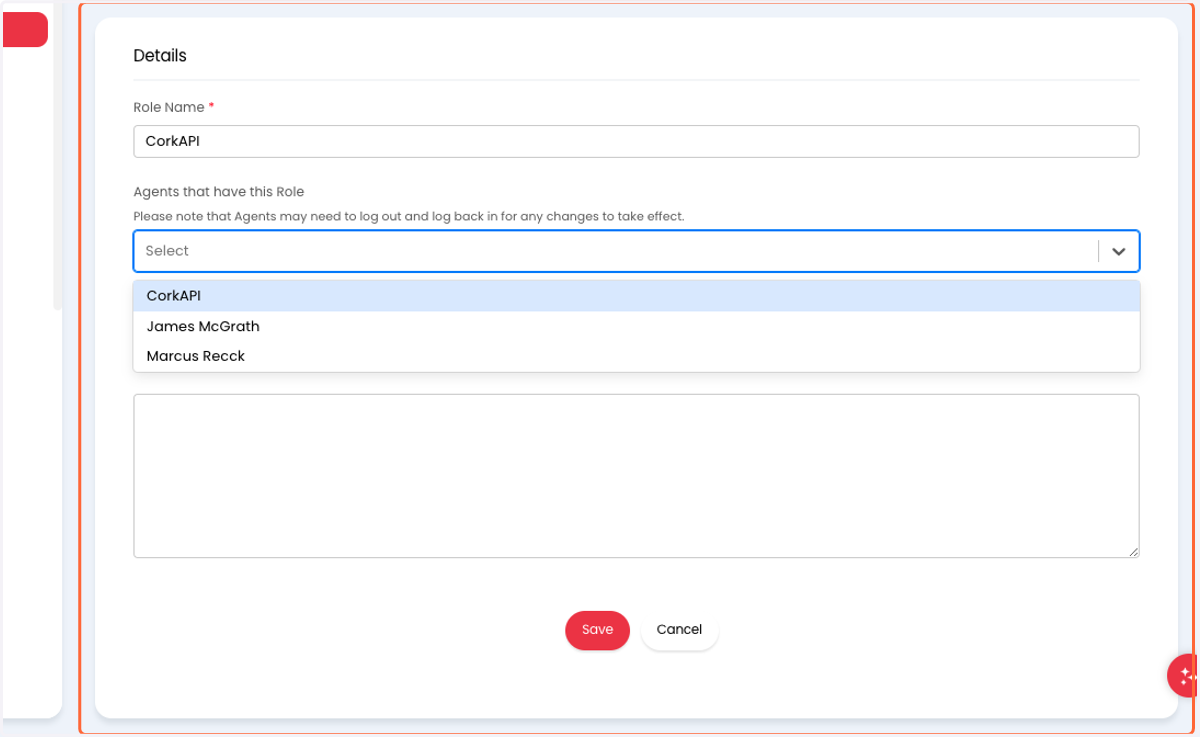
12. Type "CorkAPI" for Role Name
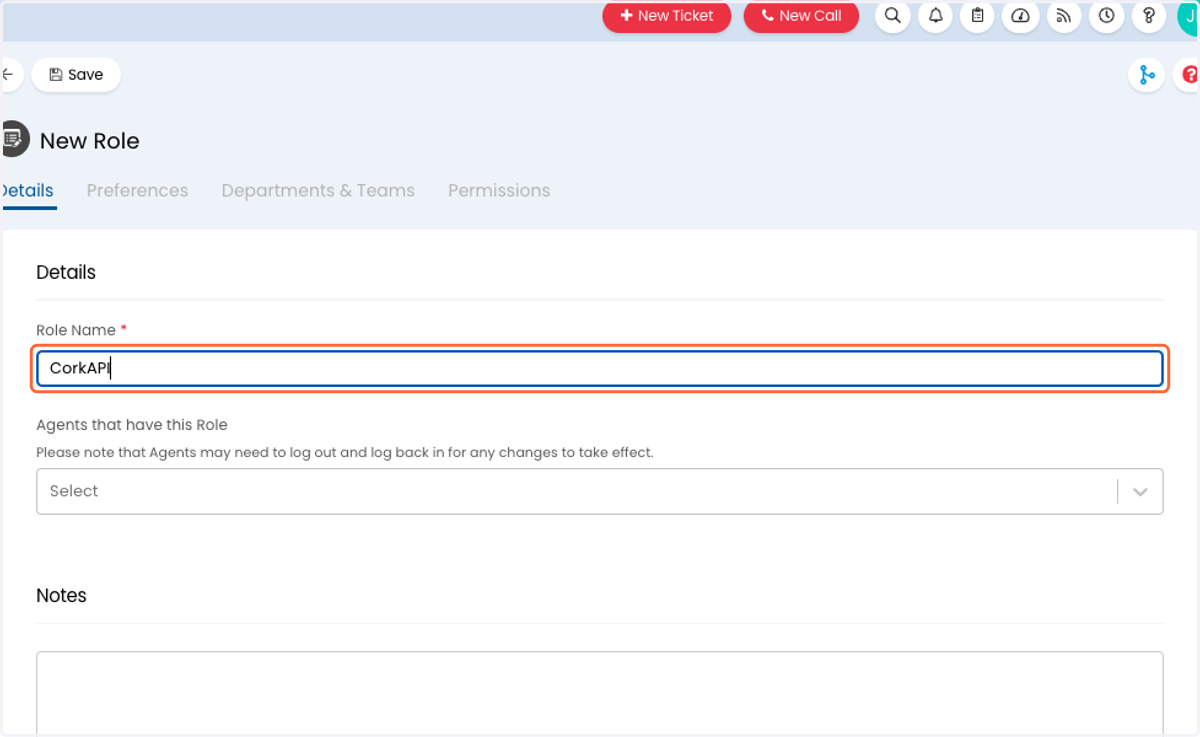
13. Select the "CorkAPI" agent you just created for Agents that have this Role
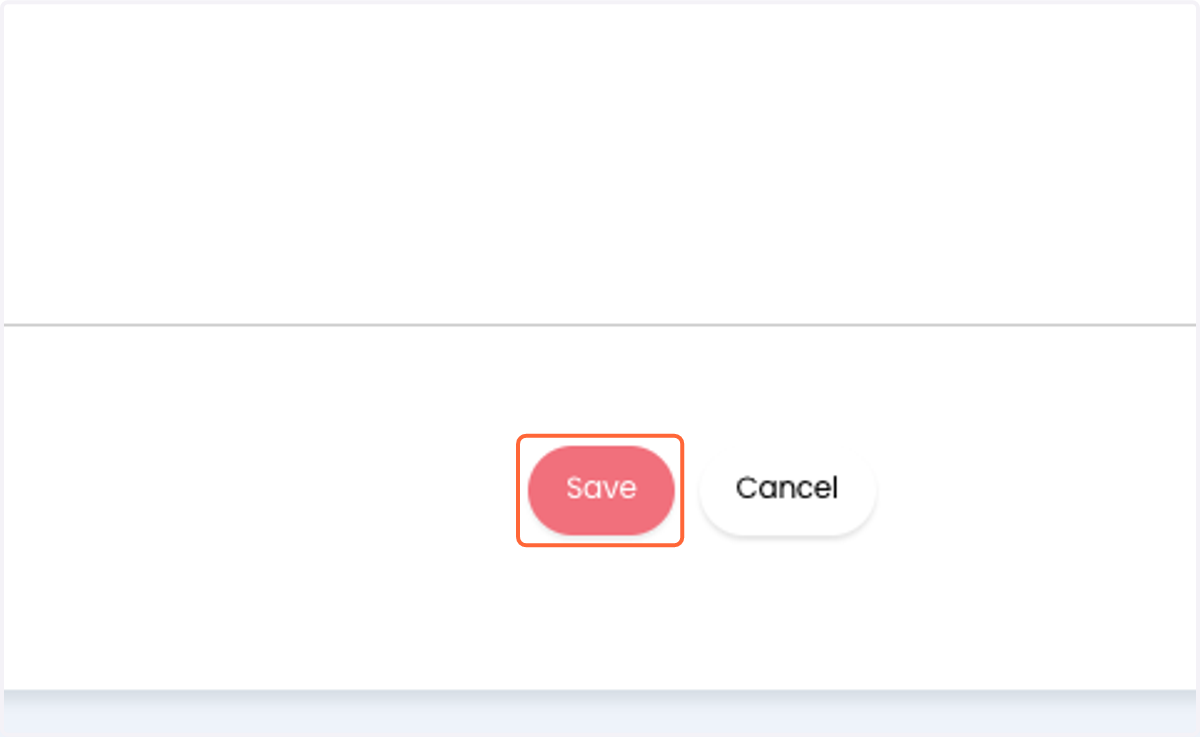
14. Click on Save
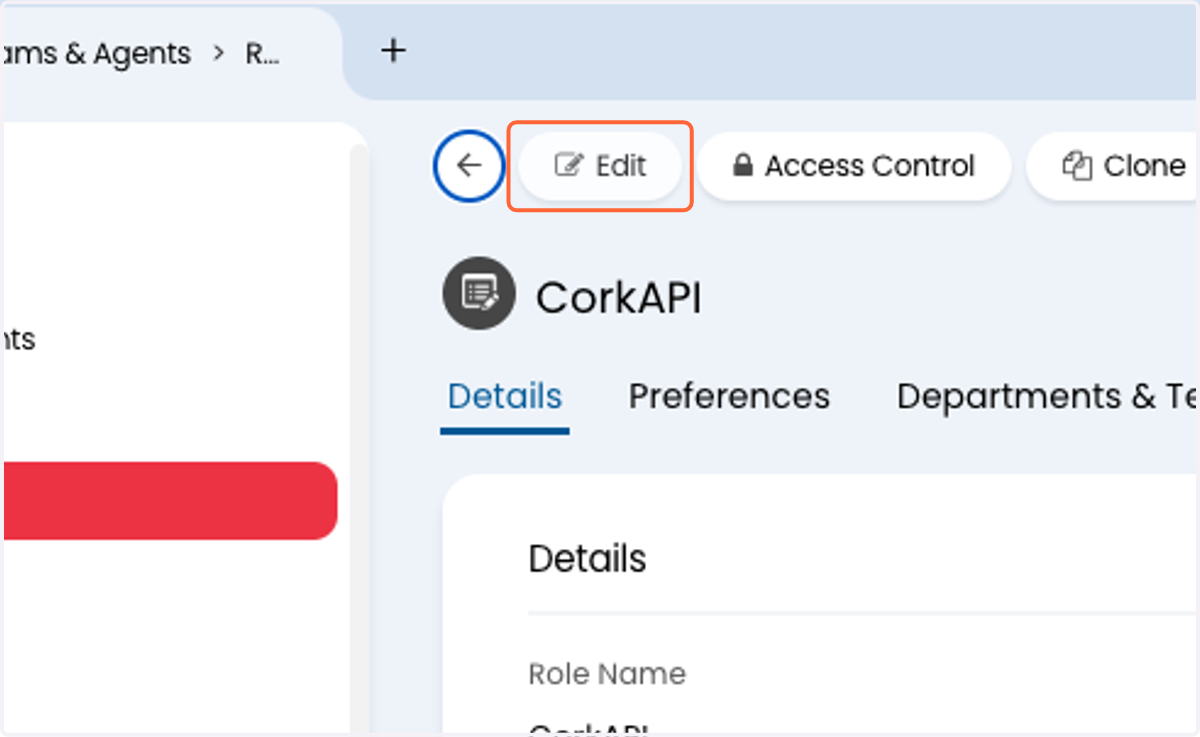
15. Click on Edit
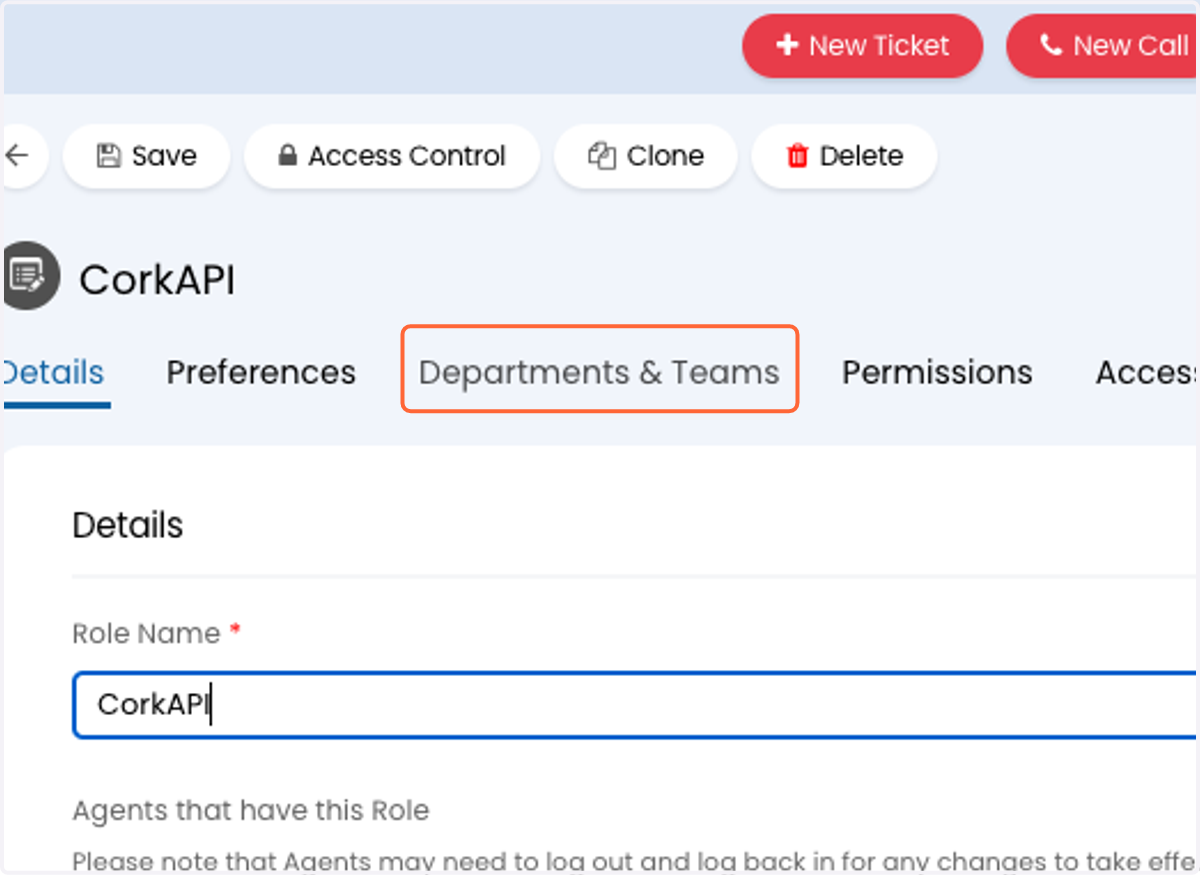
16. Click on Departments & Teams
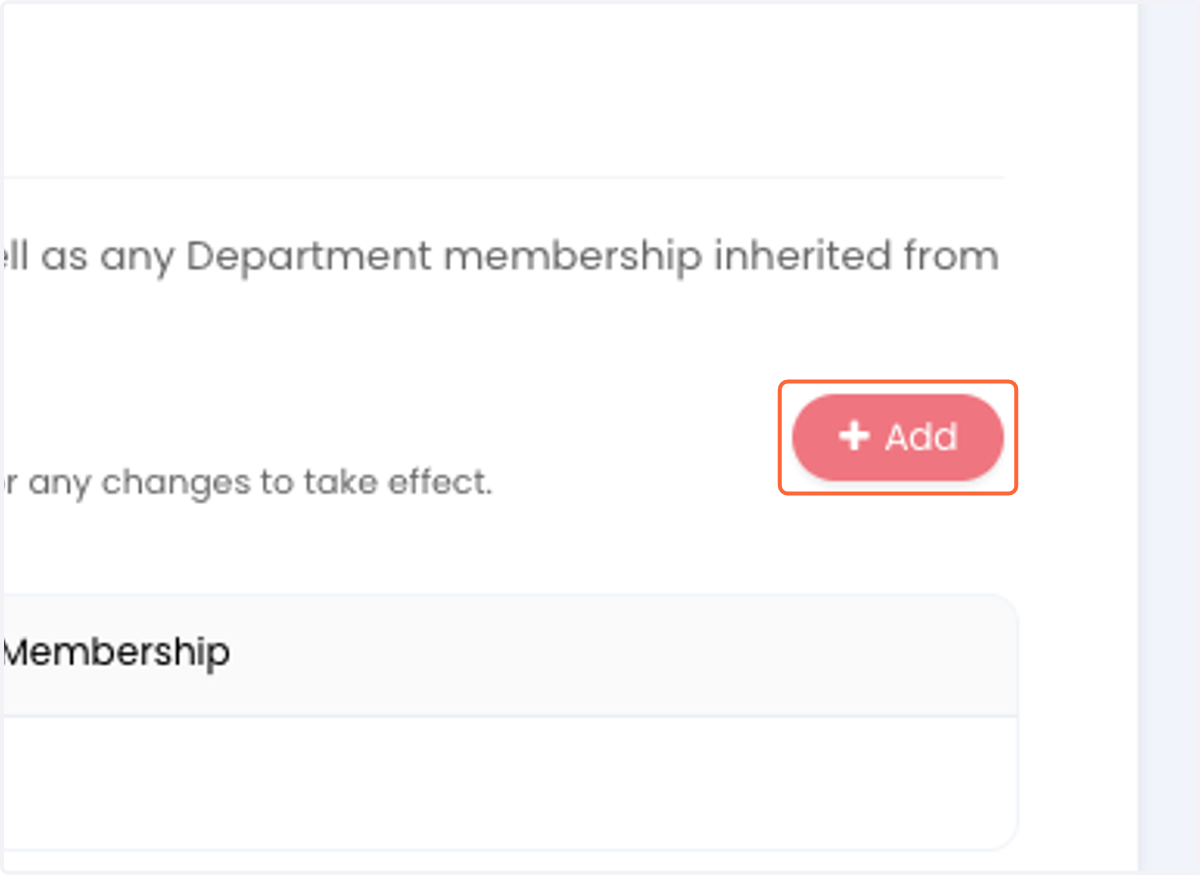
17. Click on Departments > Add
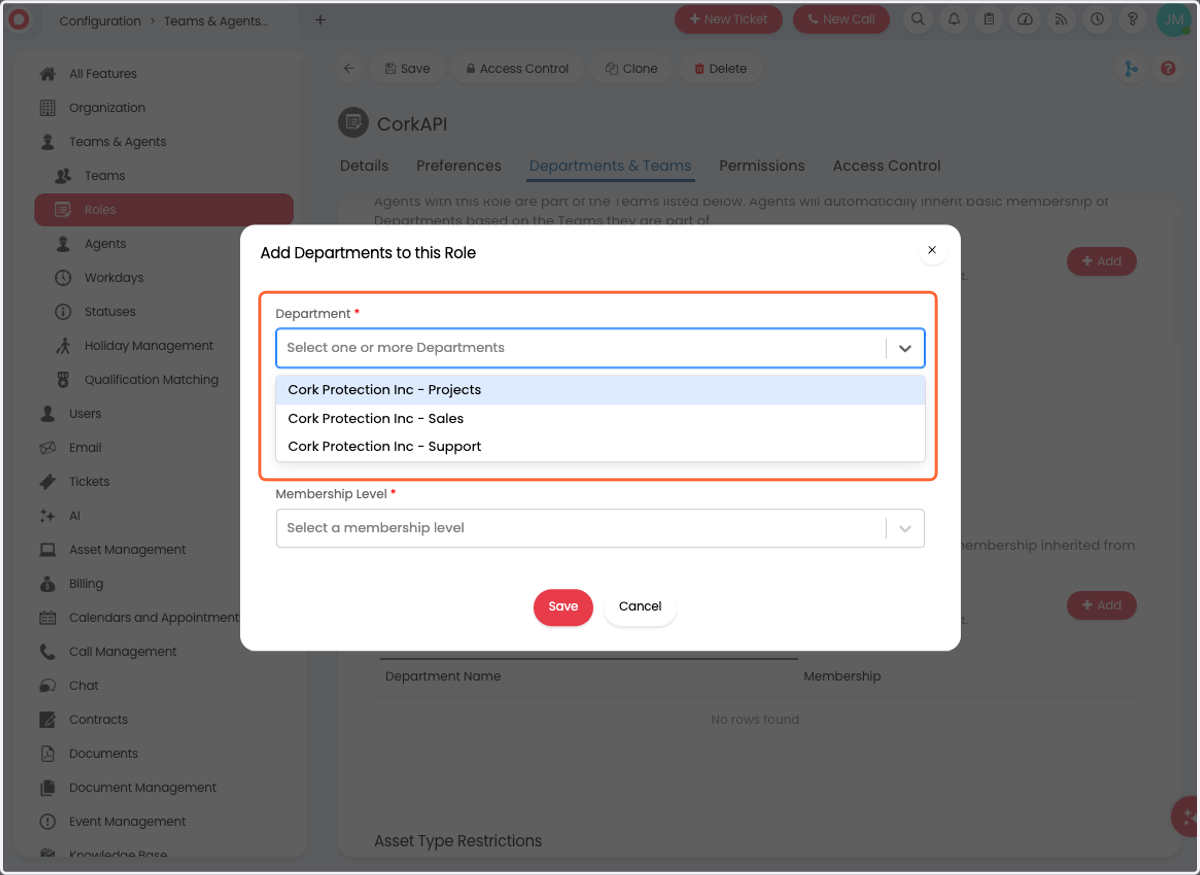
18. Select the appropriated department(s)
Note: At minimum, access is needed for the department that handles service ticket teams
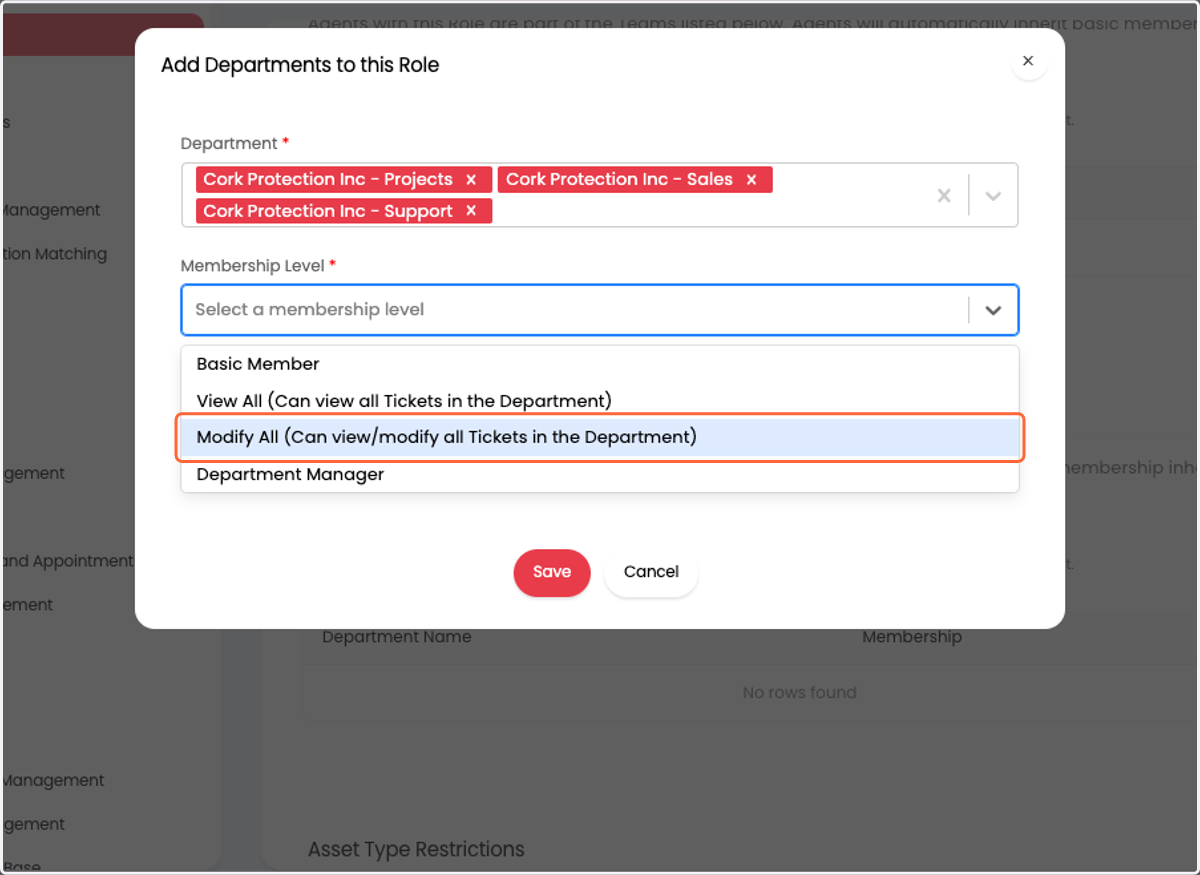
19. Click on Modify All for Membership Level
20. Click on Save
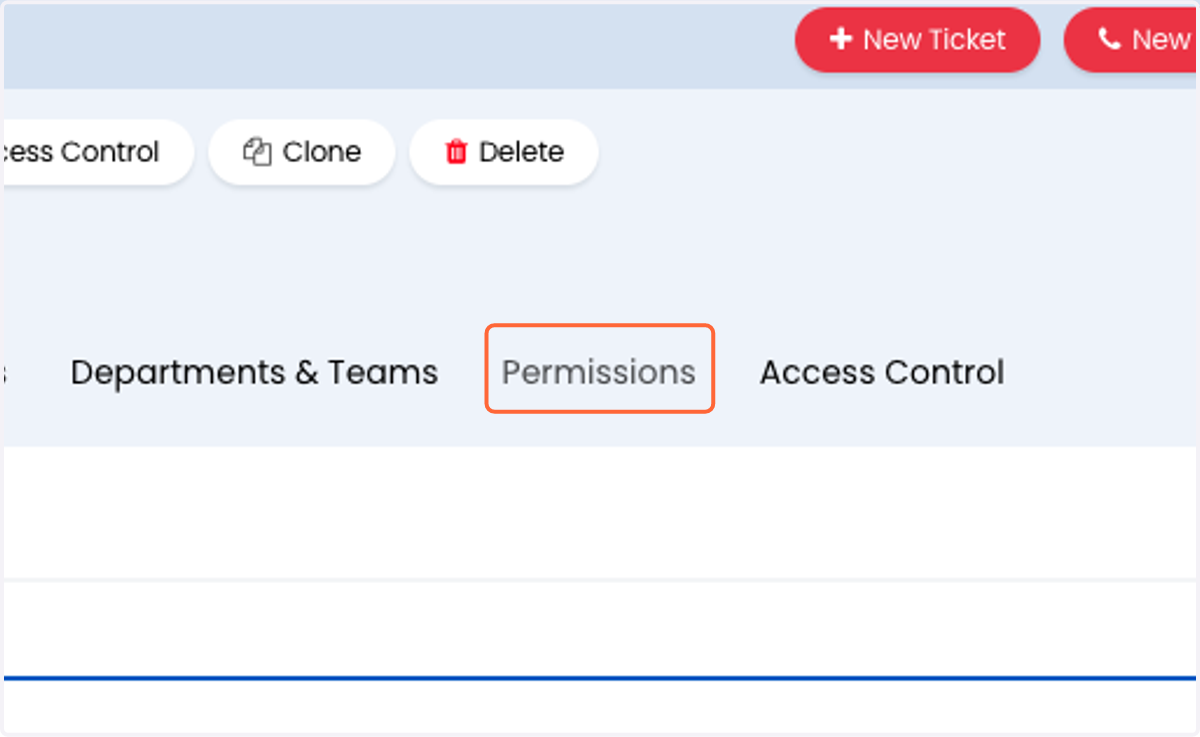
21. Click on Permissions
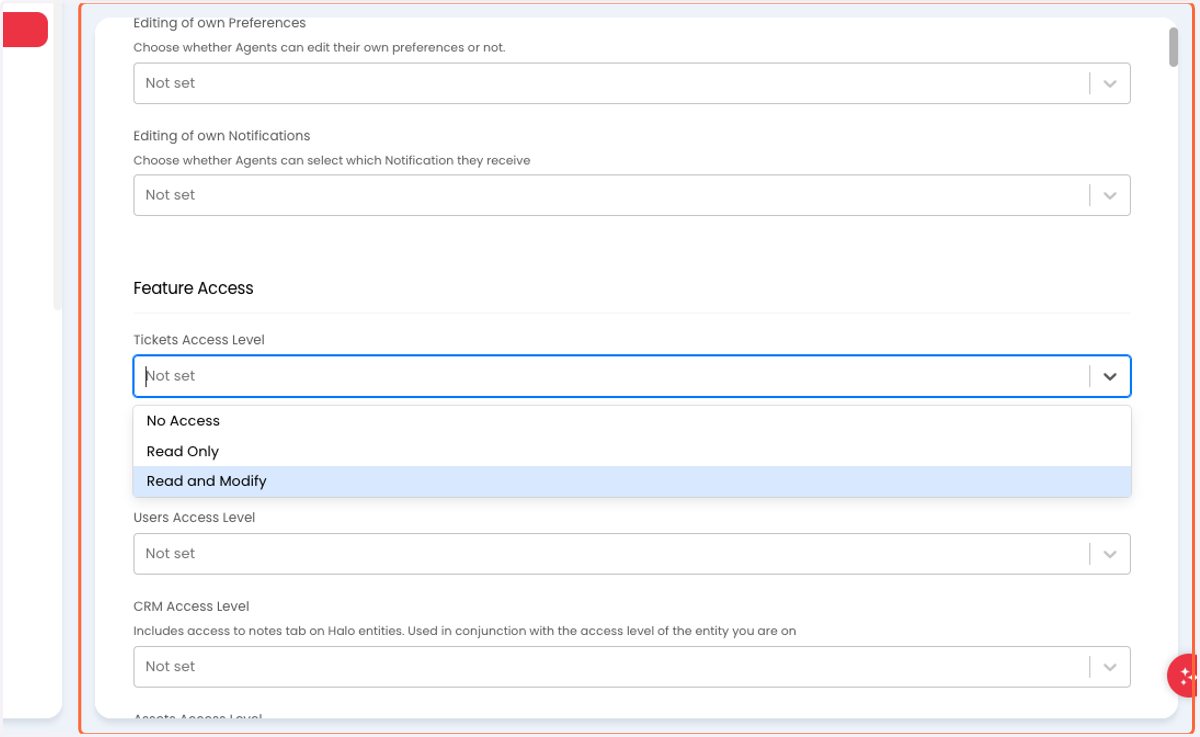
22. Select "Read and Modify" for Feature Access > Tickets Access Level
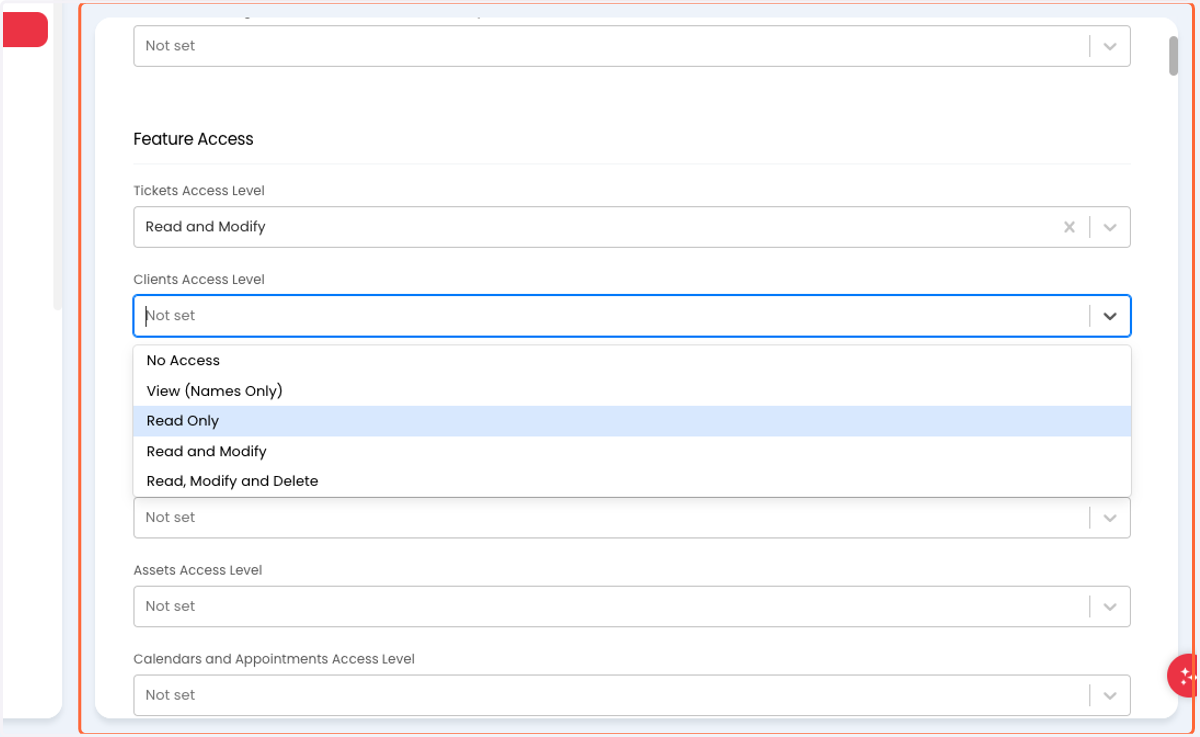
23. Select "Read Only" for Feature Access > Clients Access Level
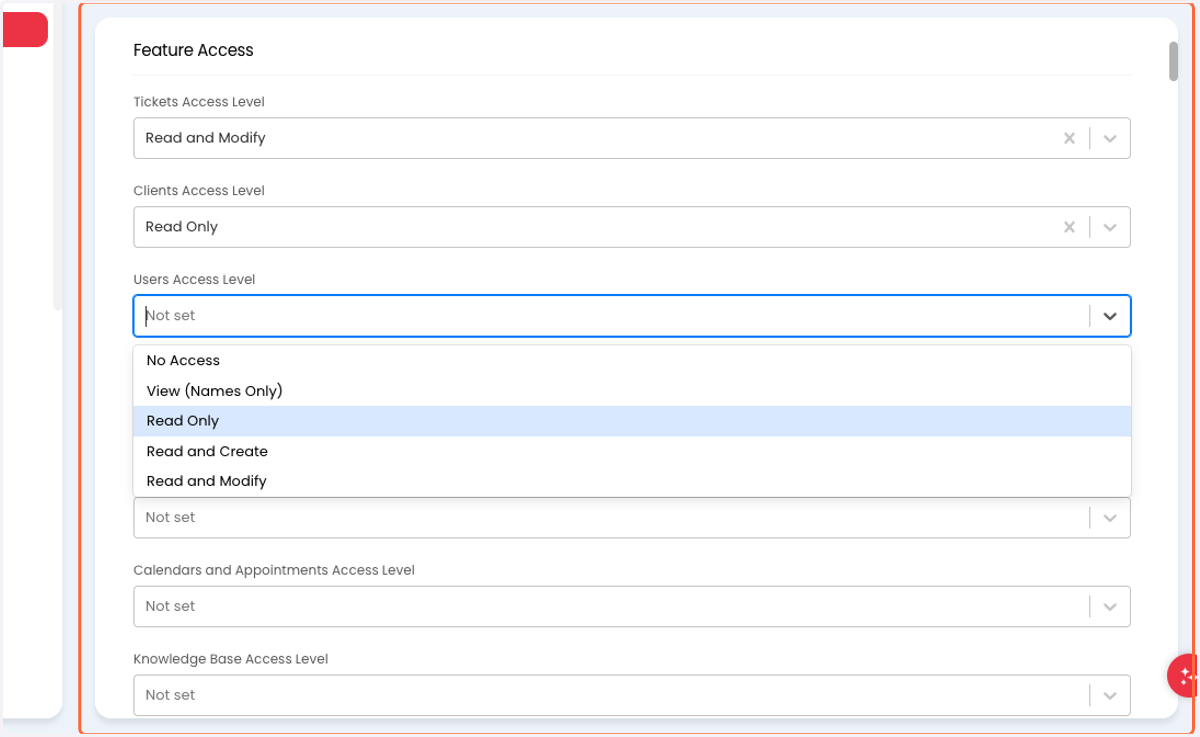
24. Select "Read Only" for Feature Access > Users Access Level
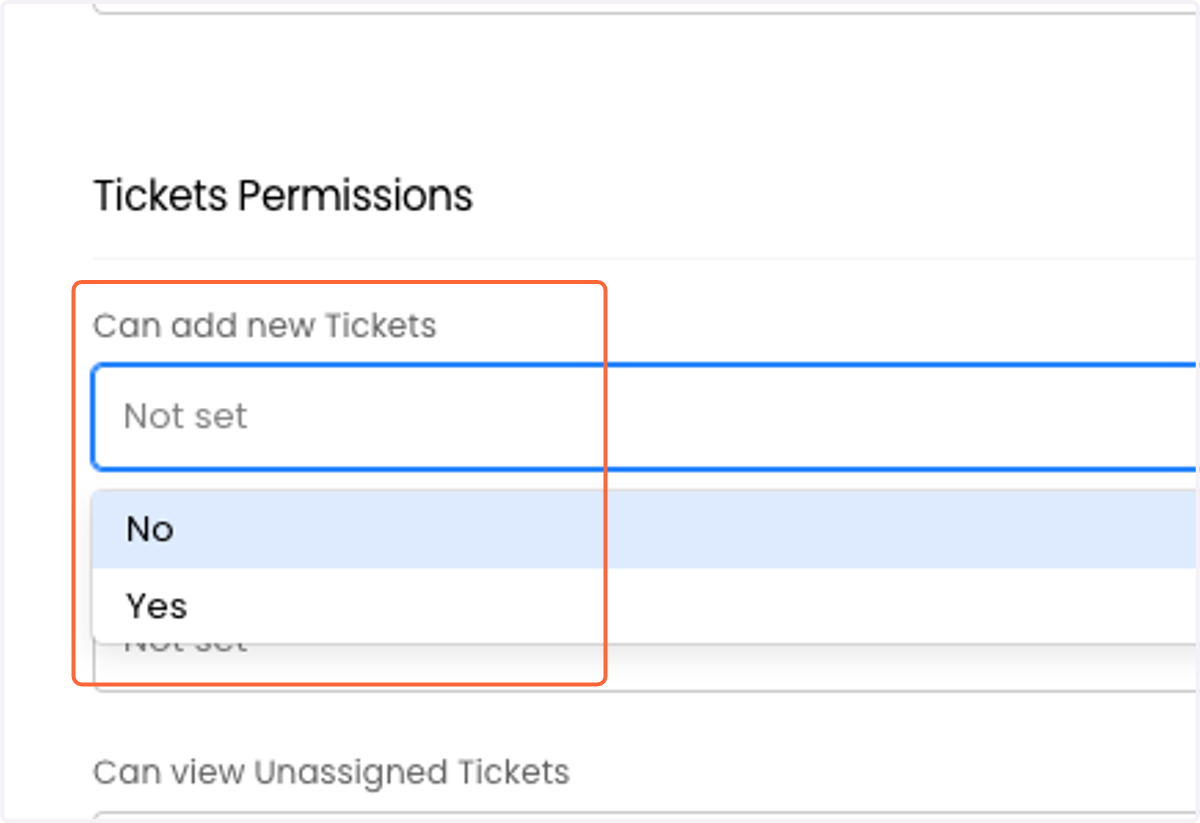
25. Select "Yes" for Can add new Tickets
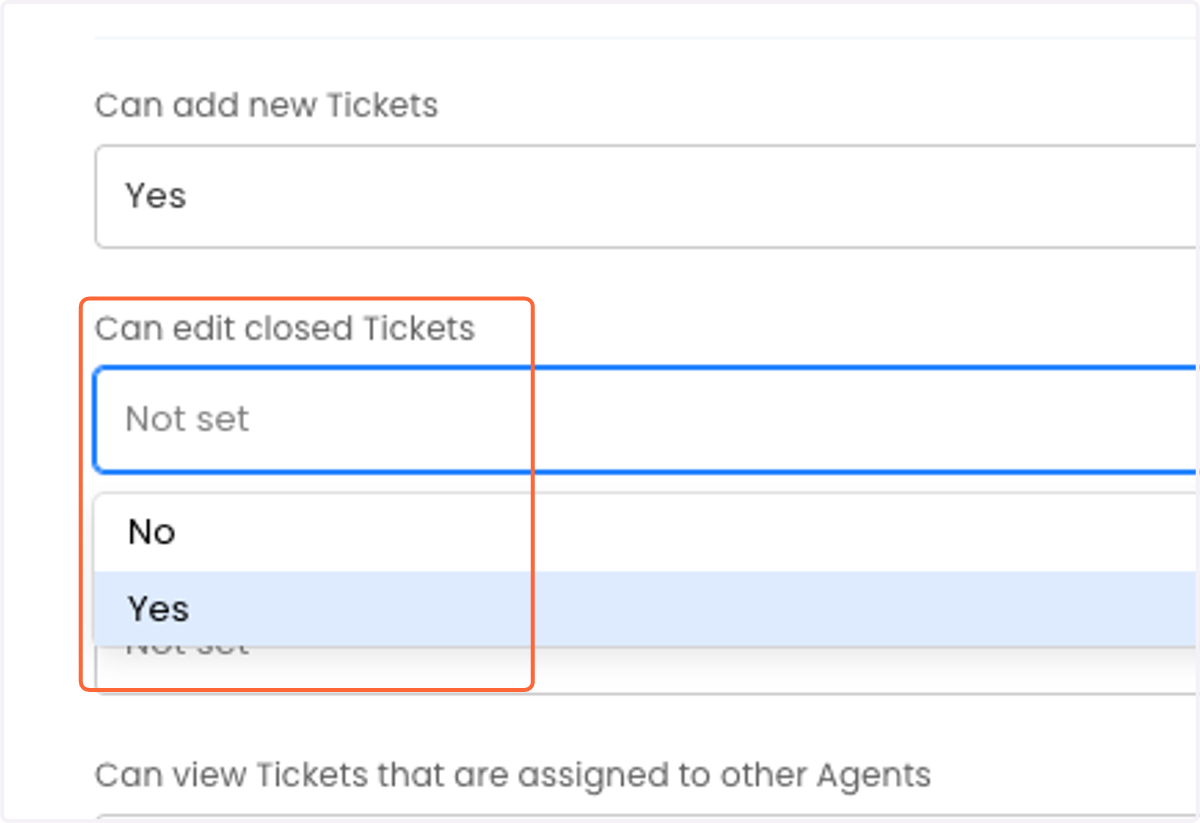
26. Select "Yes" for Can edit closed Tickets
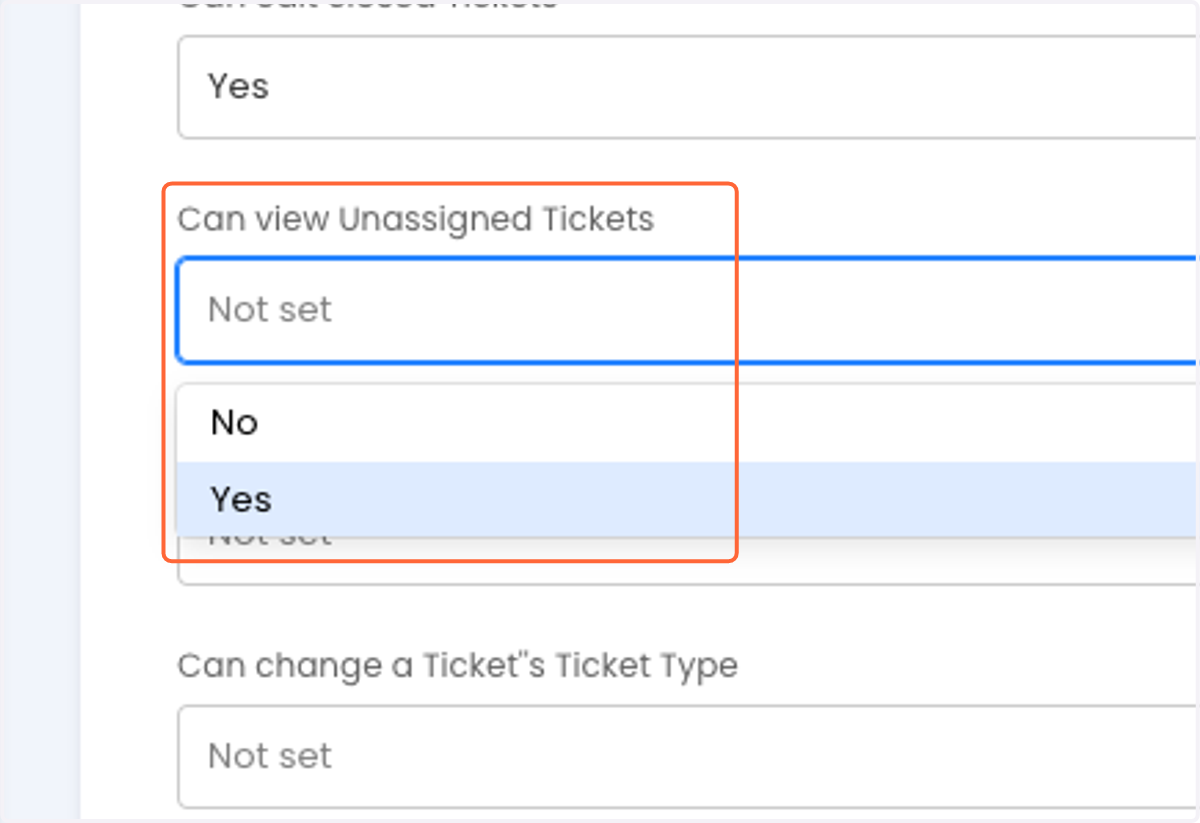
27. Select "Yes" for Can view Unassigned Tickets
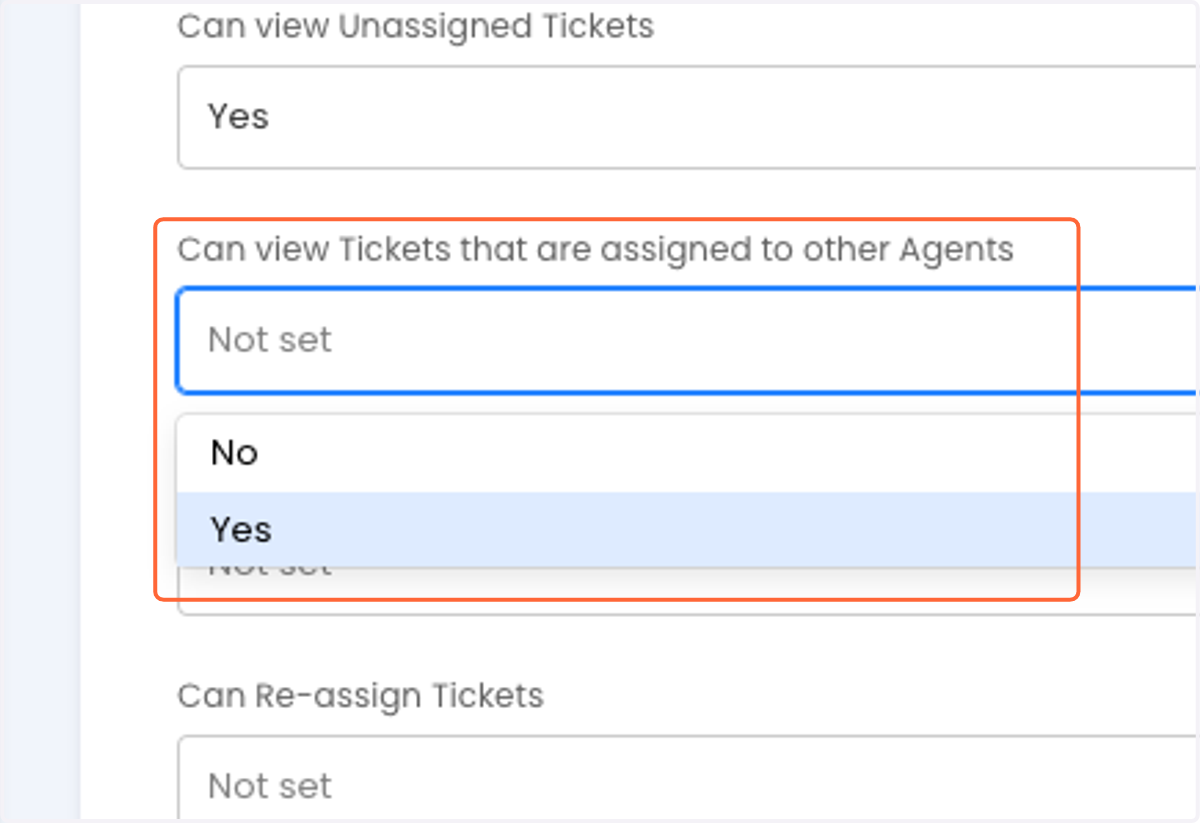
28. Select "Yes" for Can view Tickets that are assigned to other Agents
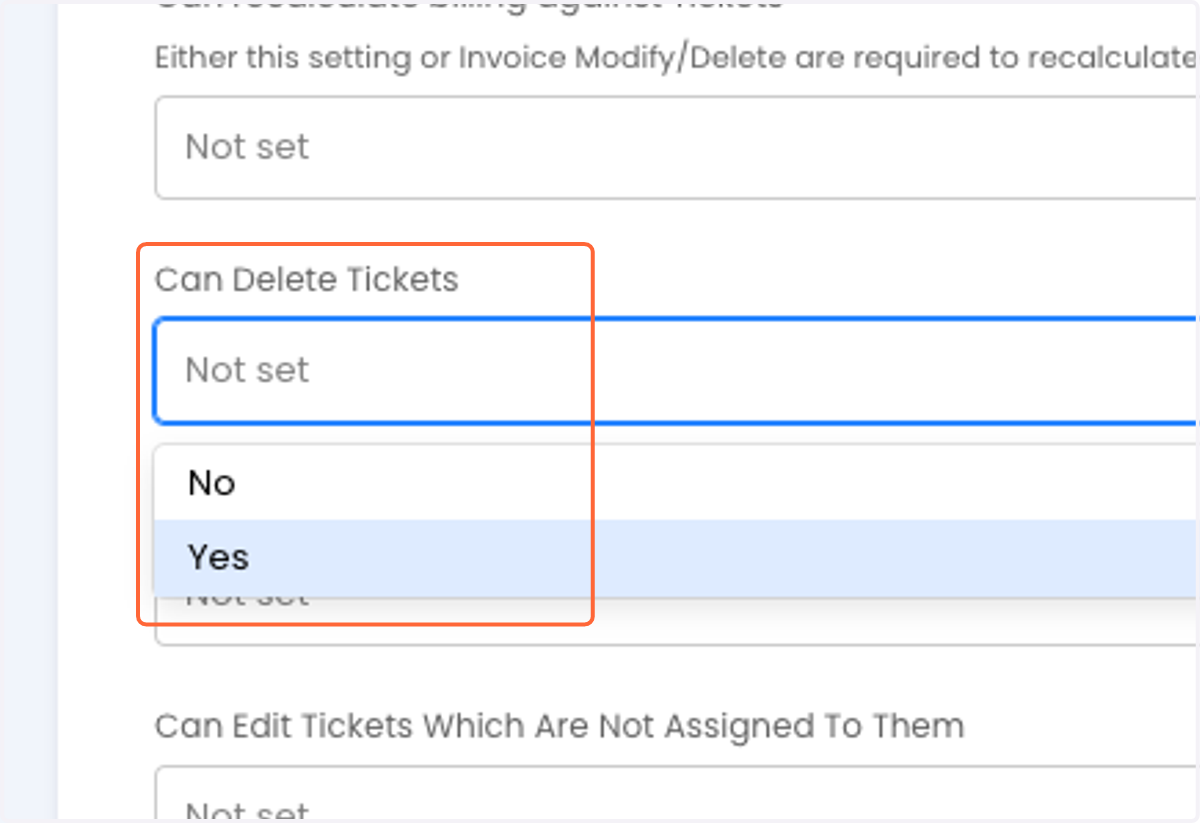
29. Click on Can Delete Tickets
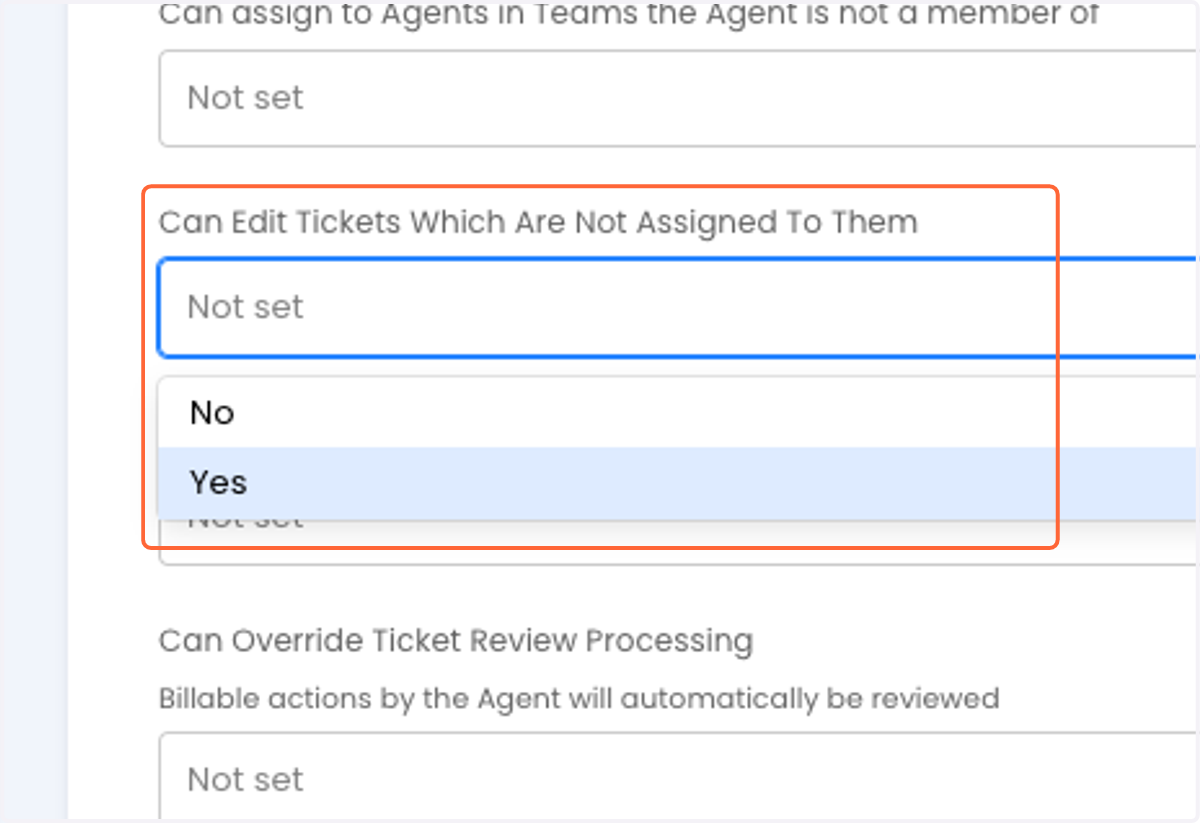
30. Select "Yes" for Can Edit Tickets Which Are Not Assigned To Them
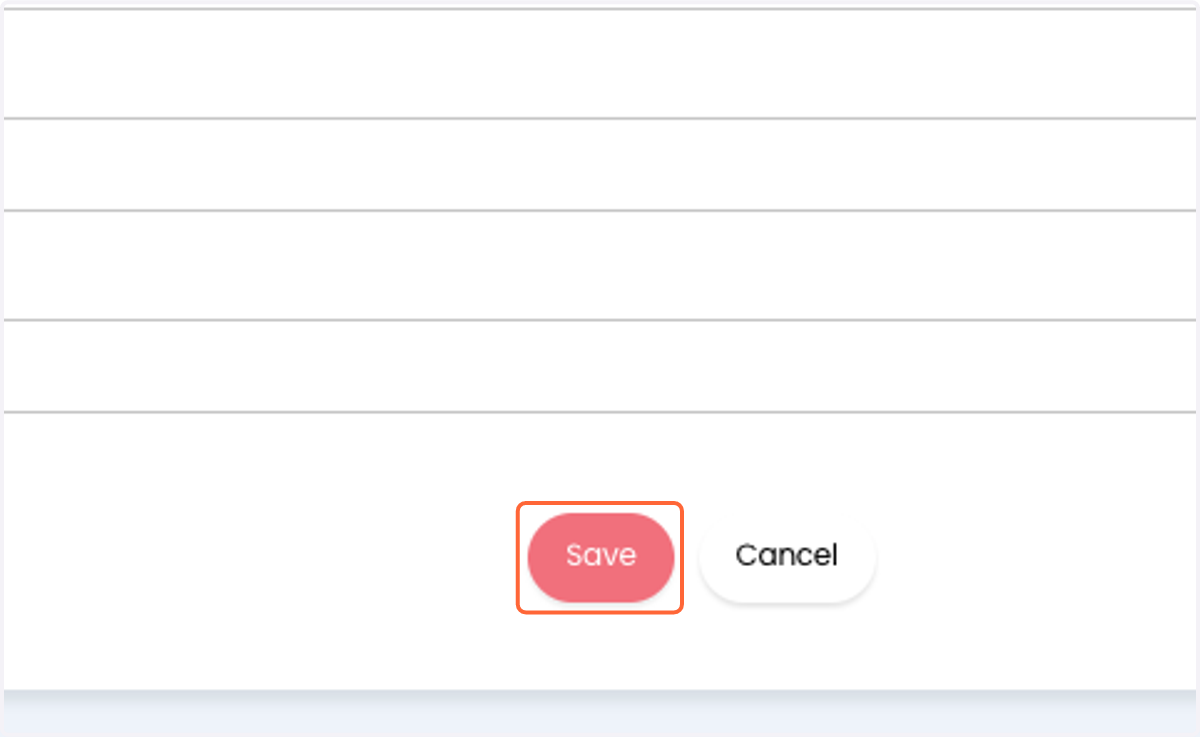
31. Click on Save
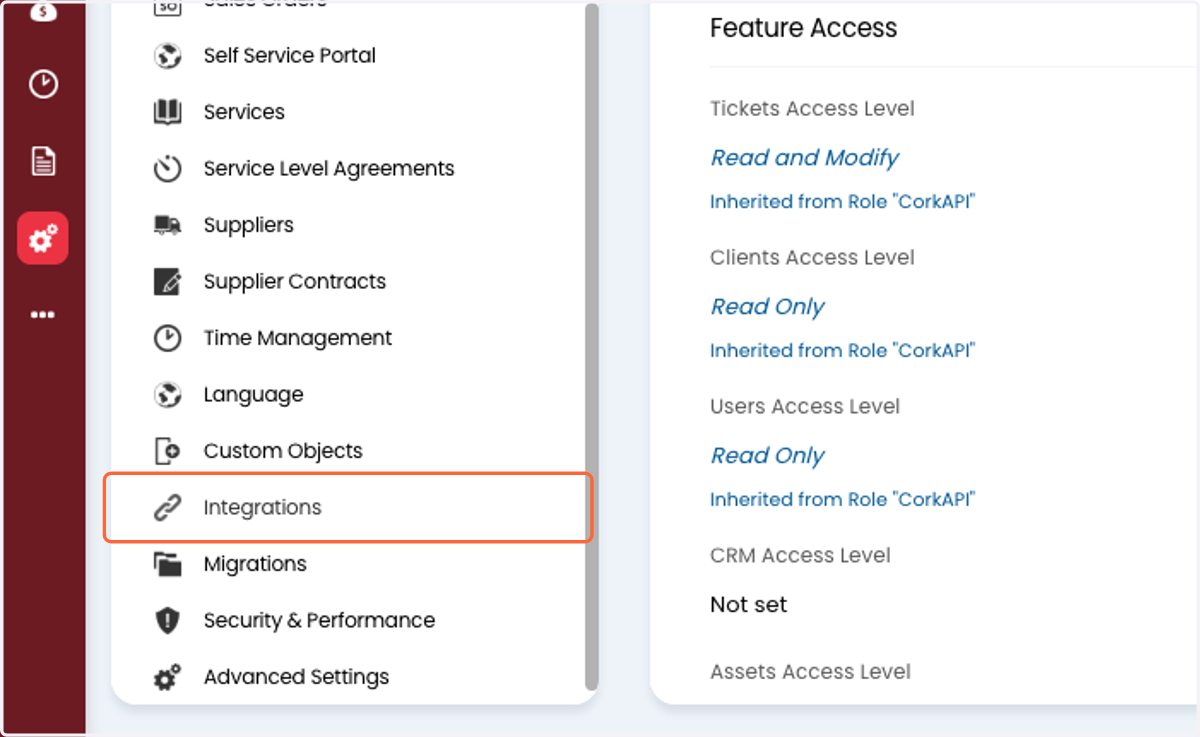
32. Click on Integrations
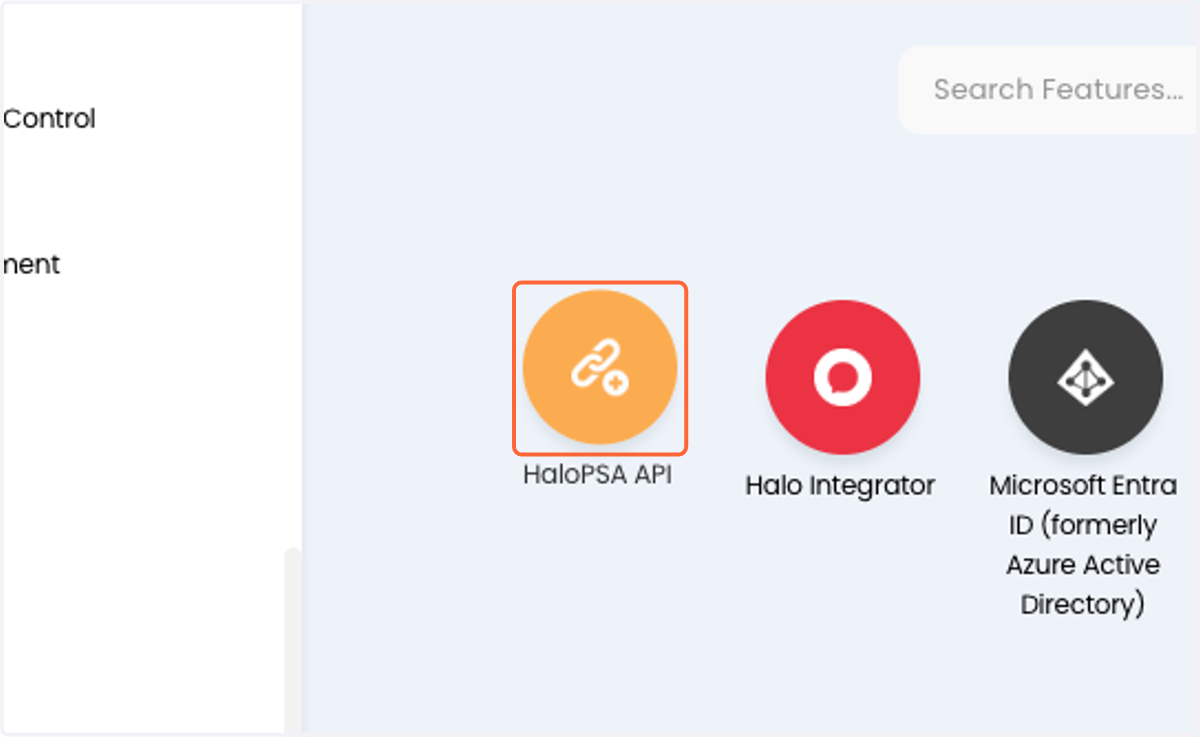
33. Click on HaloPSA API
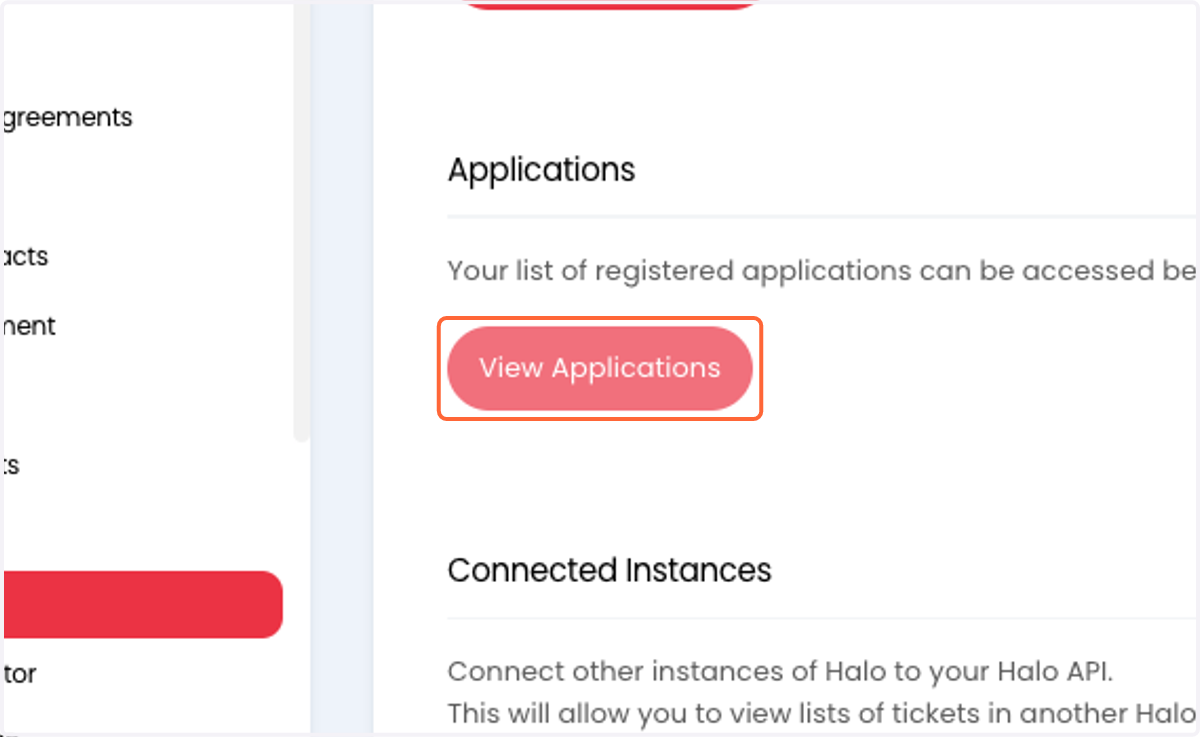
34. Click on View Applications
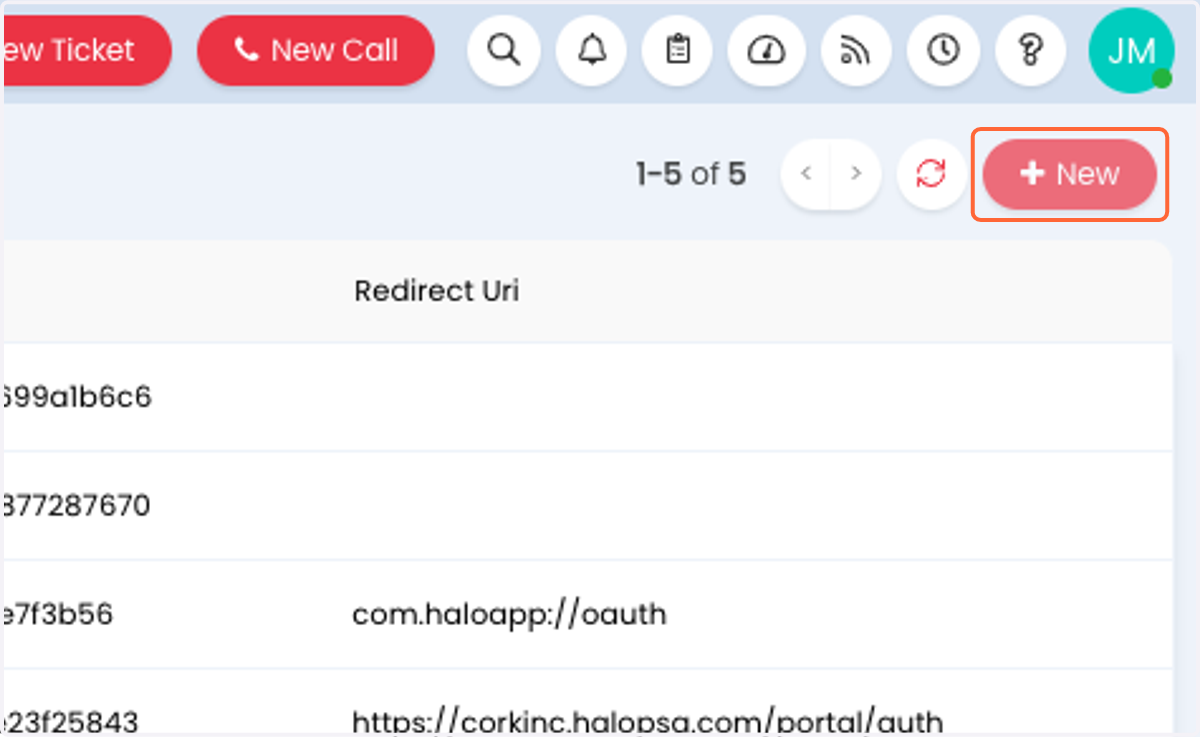
35. Click on New
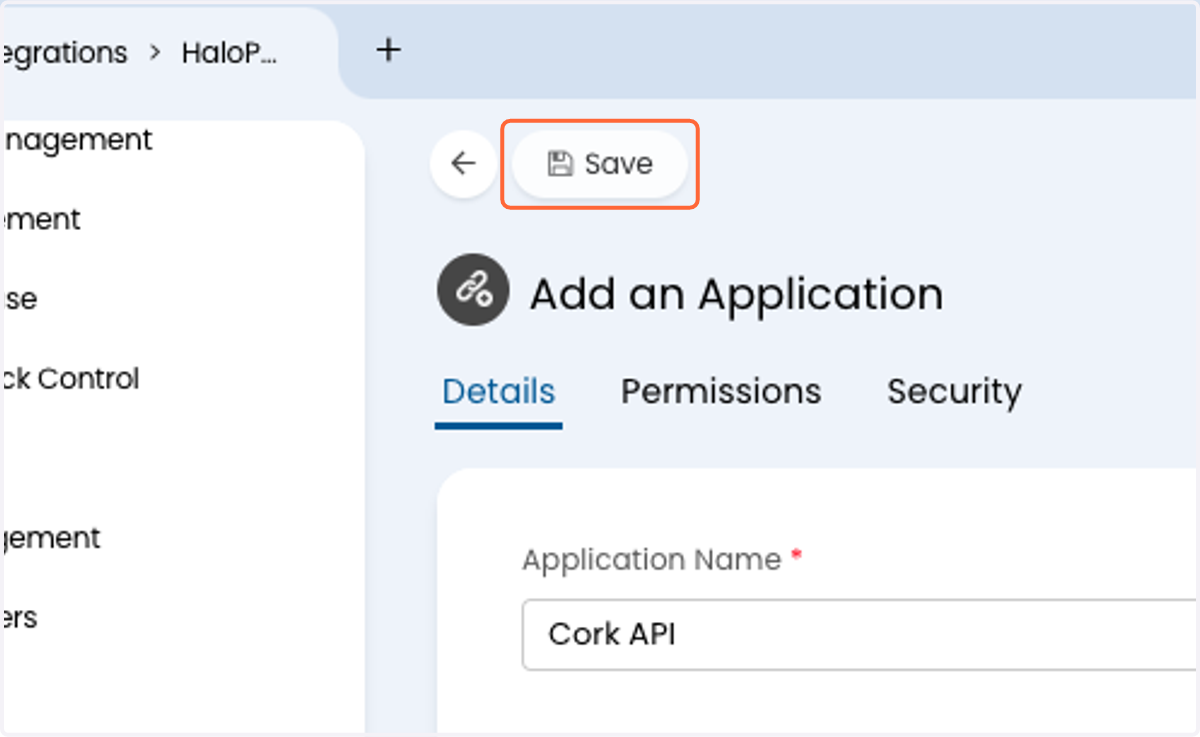
36. Type "Cork API" for Application Name
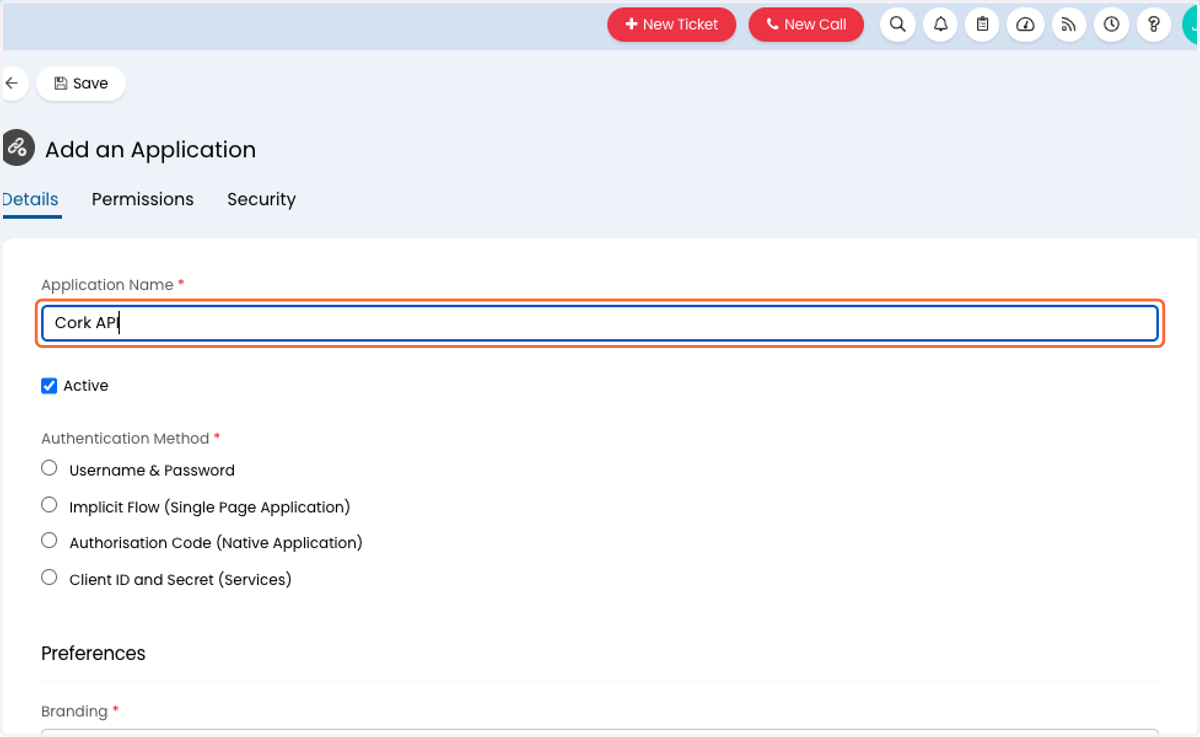
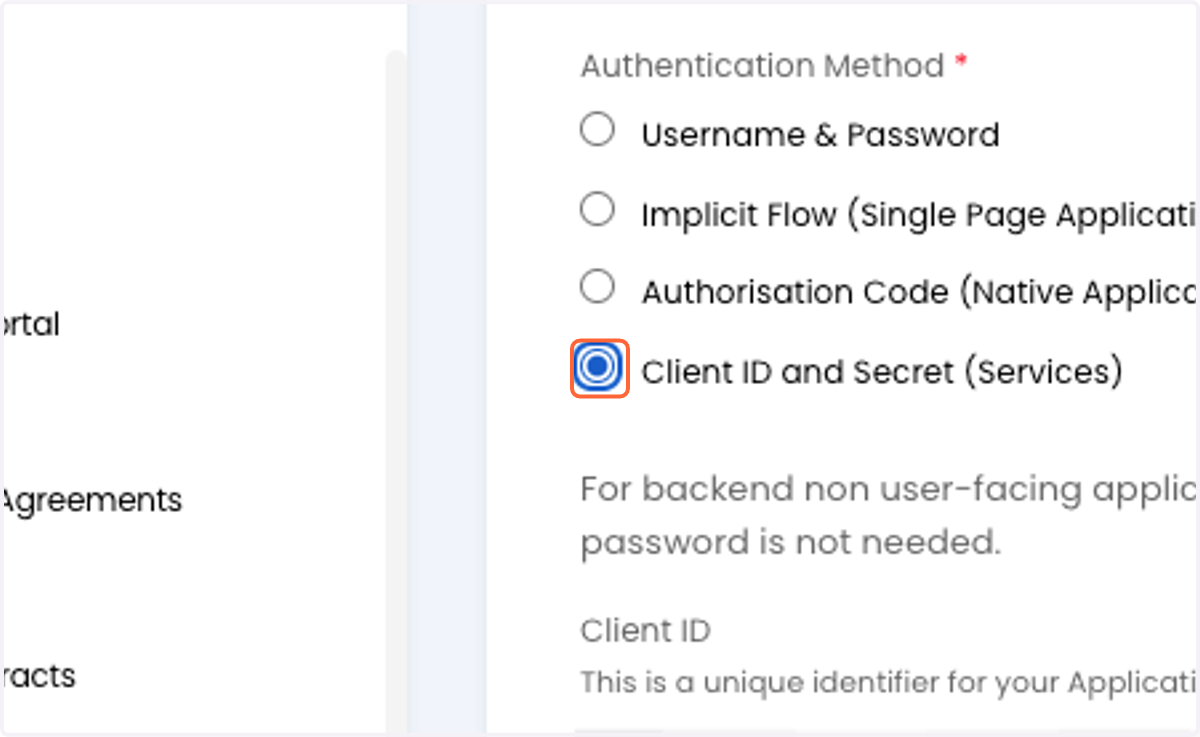
37. Select Client ID and Secret (Services)
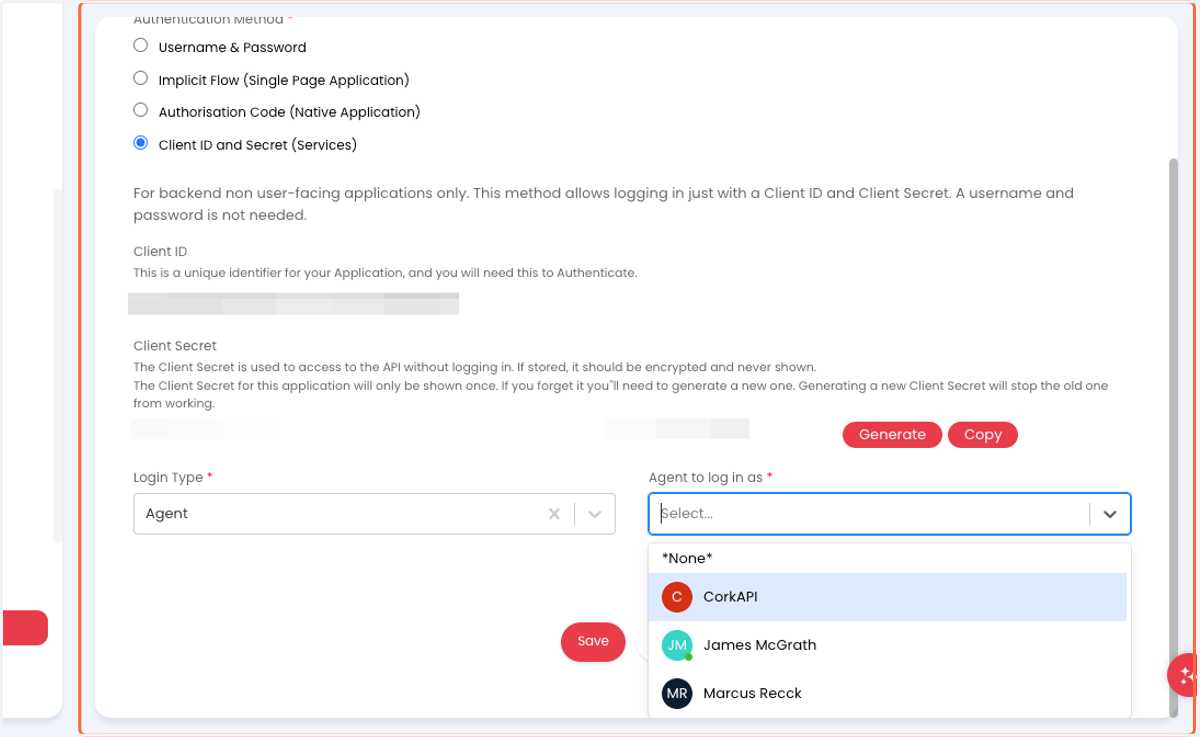
38. Select the "CorkAPI" agent as the Agent to log in as
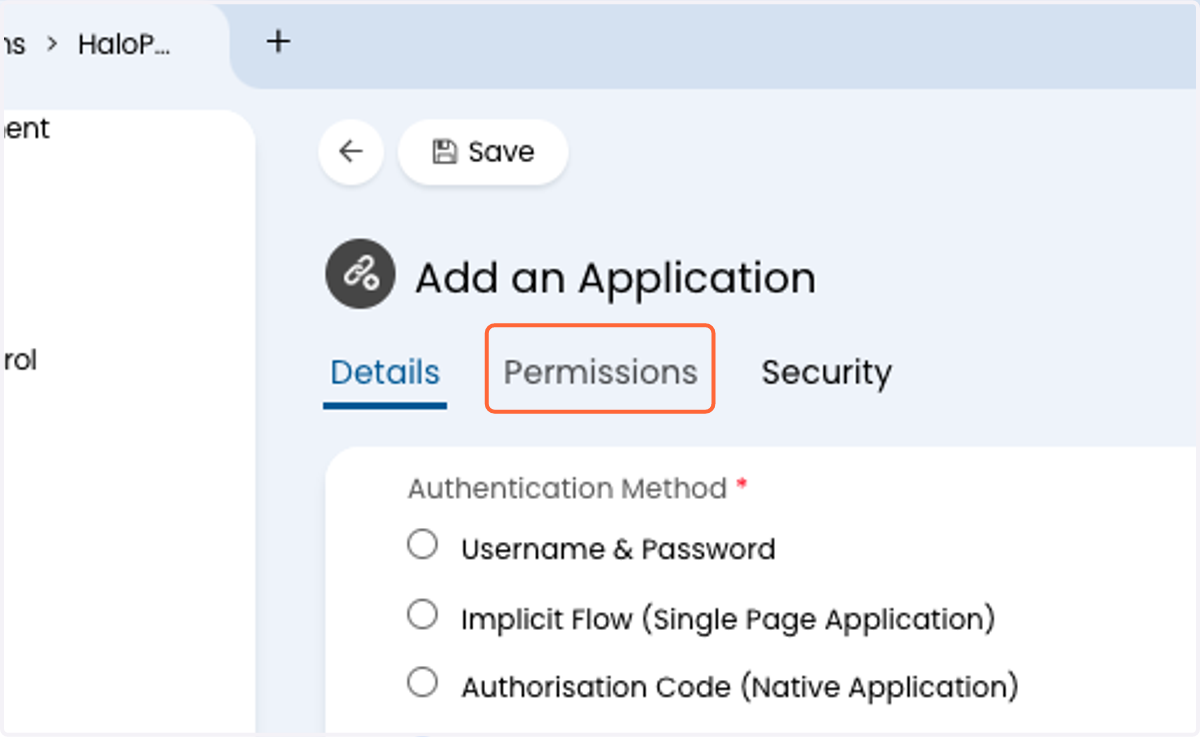
39. Click on Permissions
40. Check read:tickets
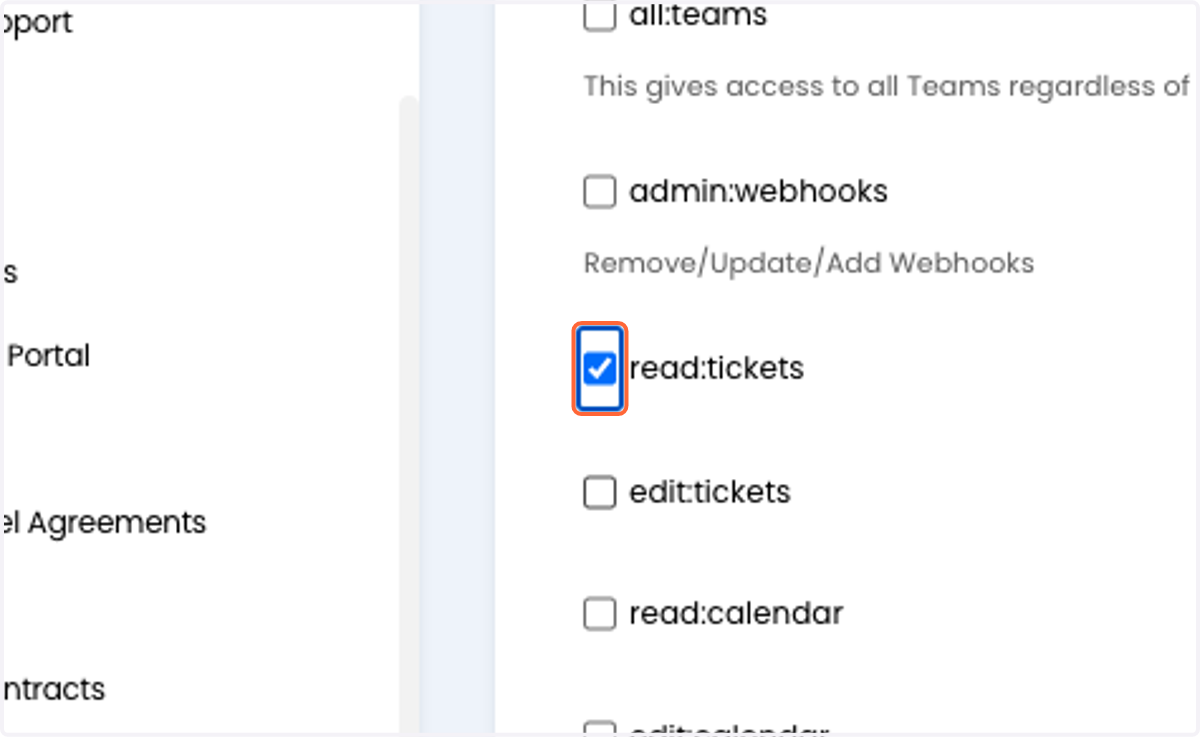
41. Check edit:tickets
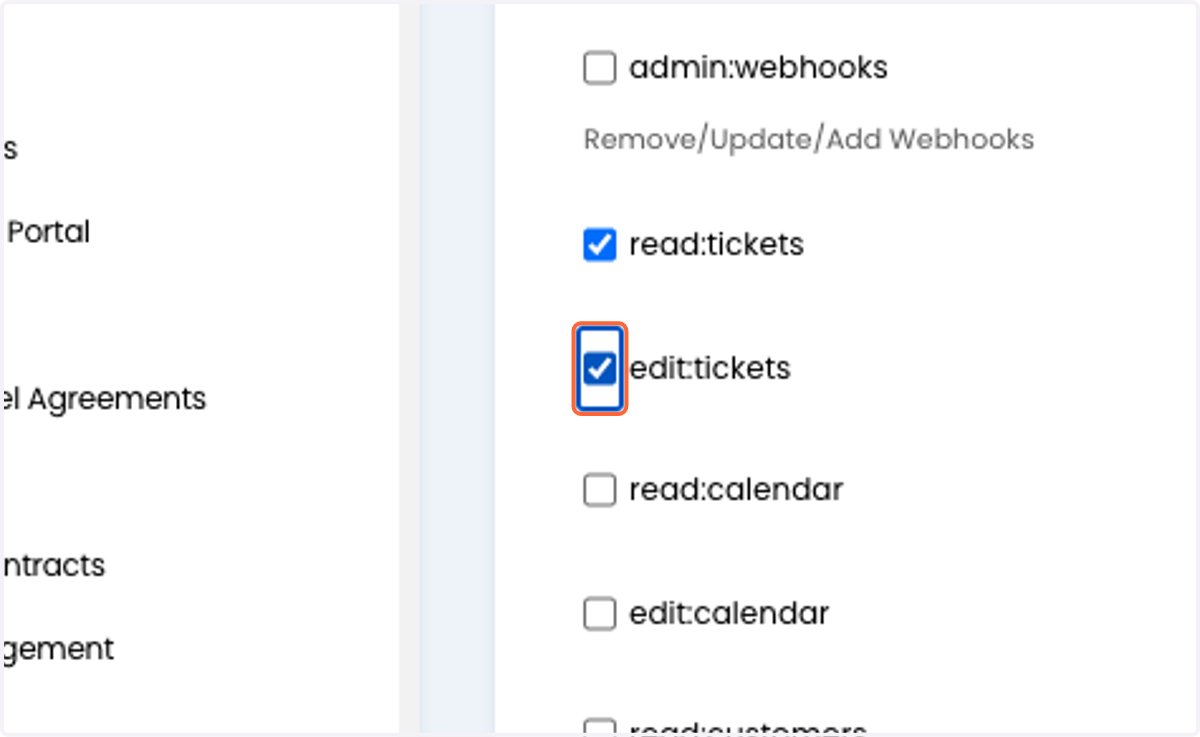
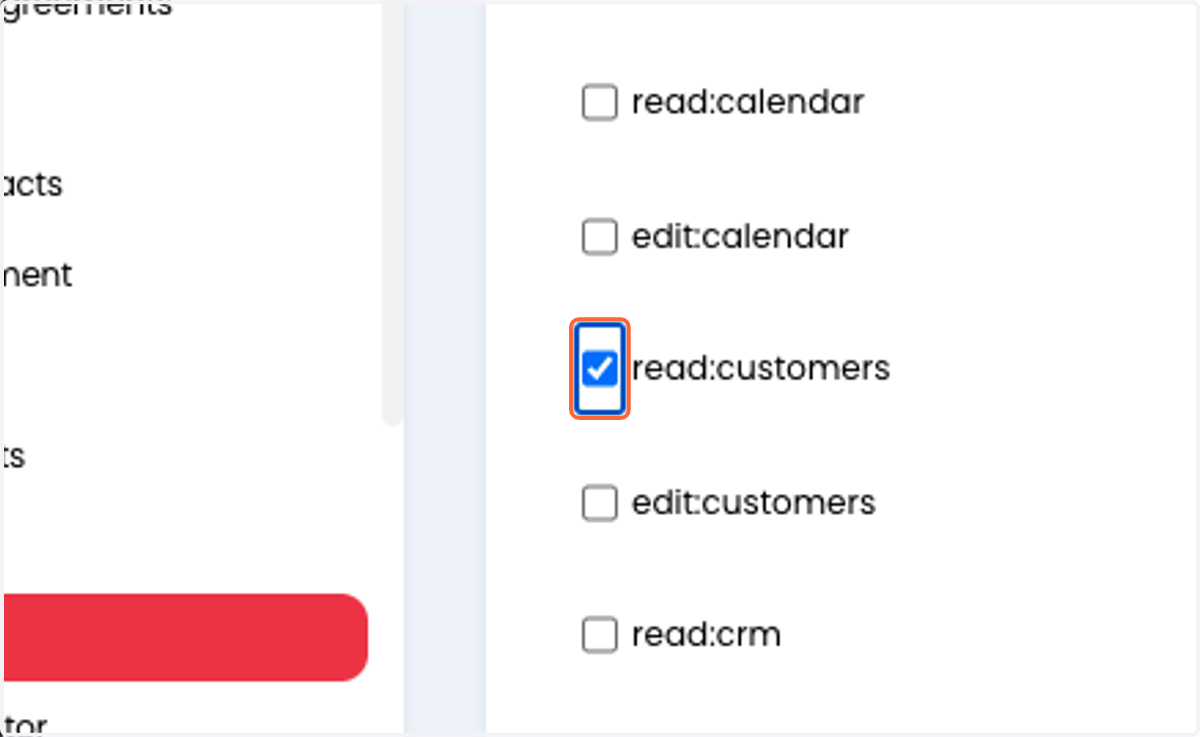
42. Check read:customers
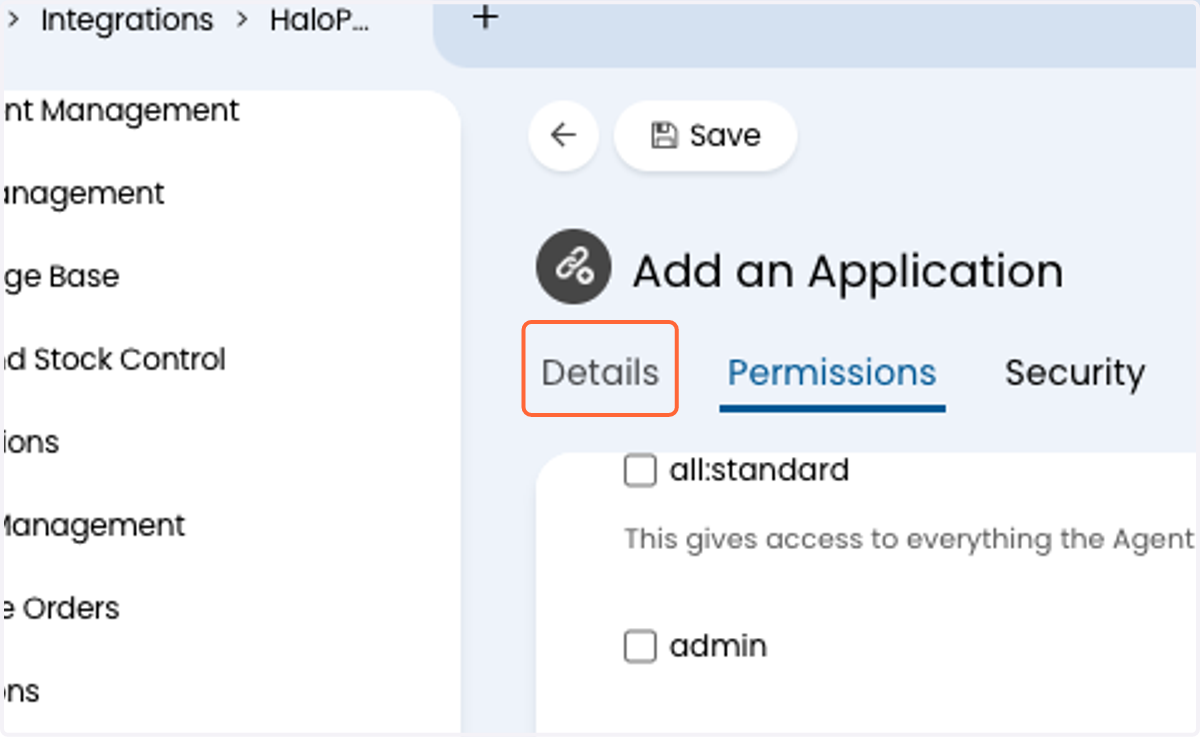
43. Click on Details
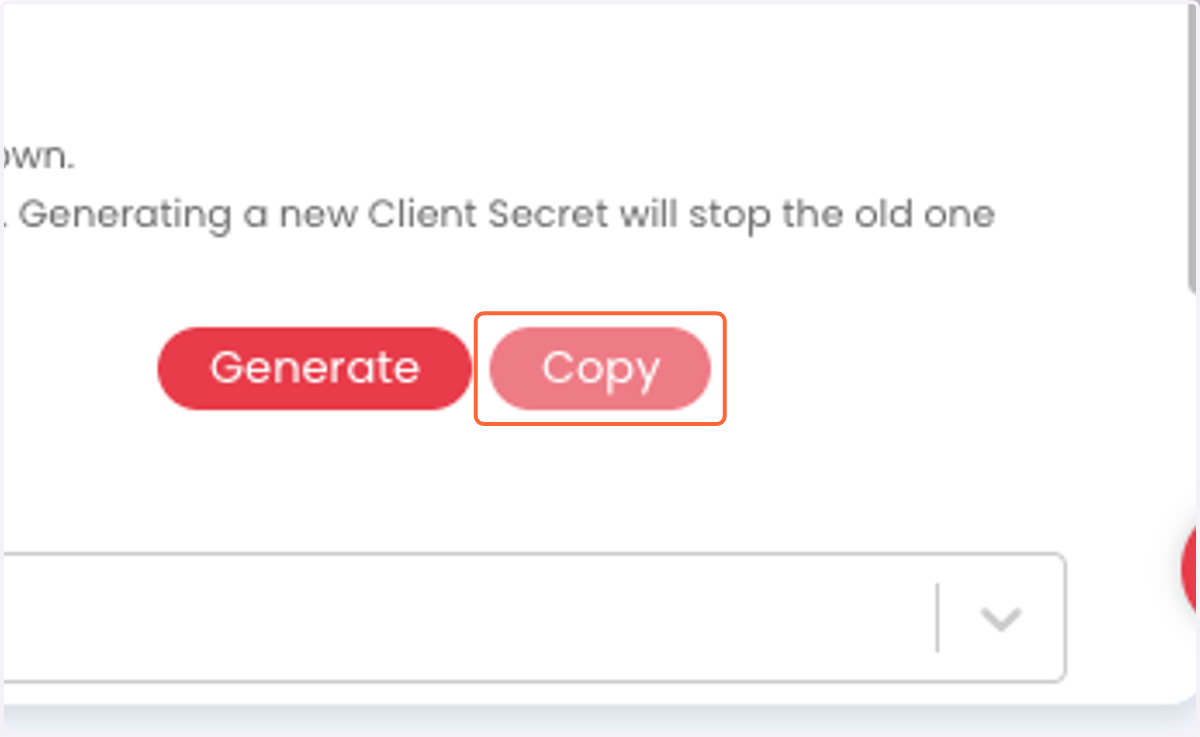
44. Copy your Client Secret
45. Click on Save
Cork
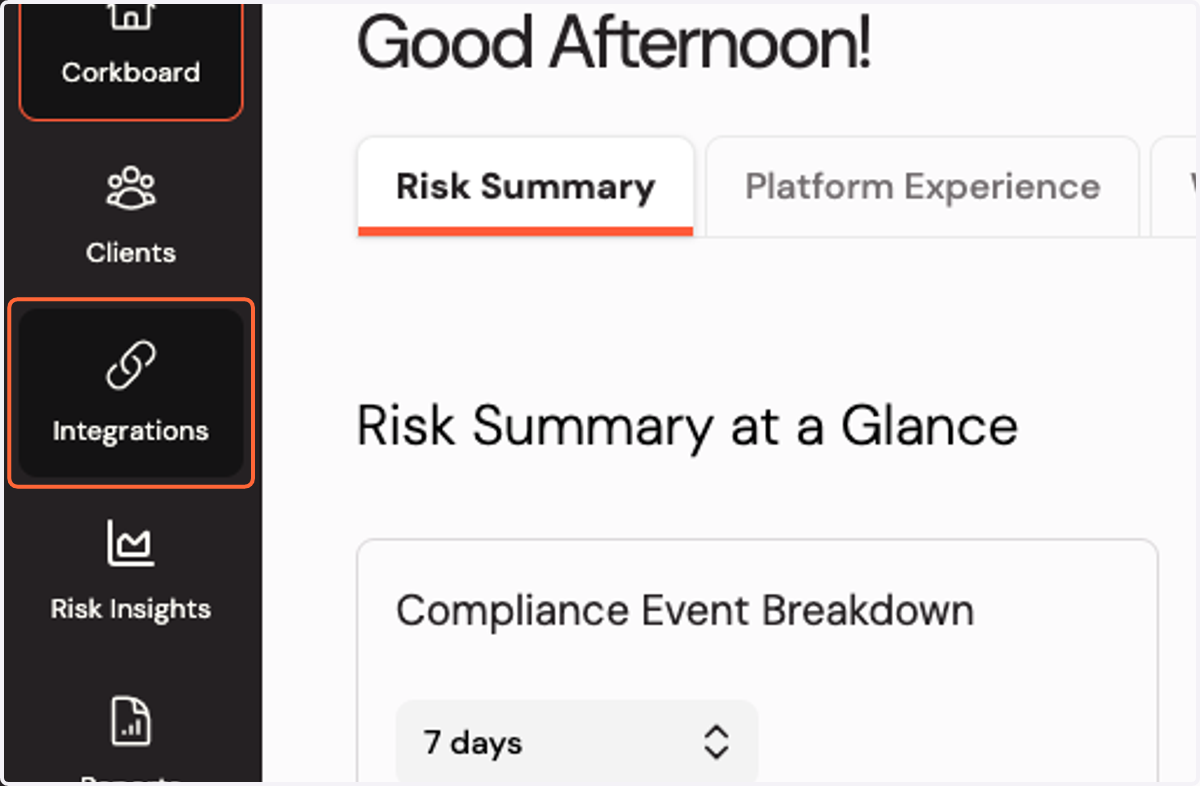
46. Click on Integrations
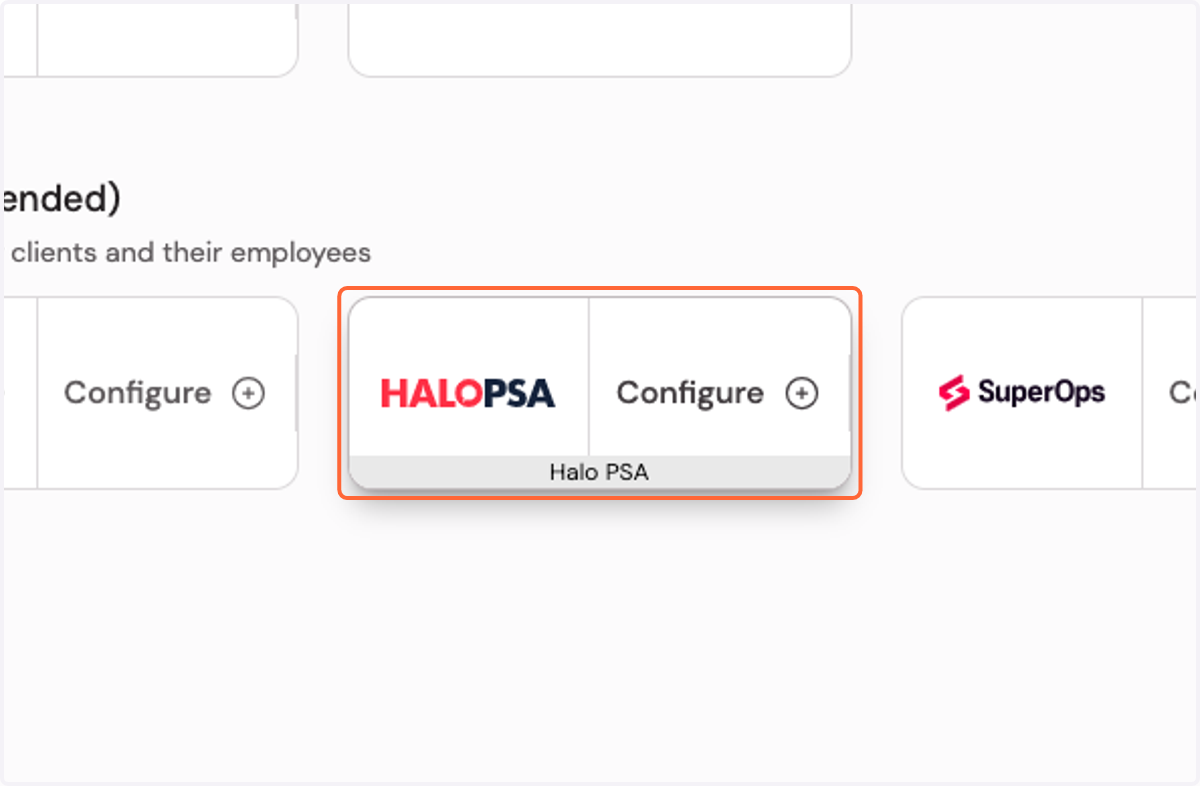
47. Click on Configure Halo PSA
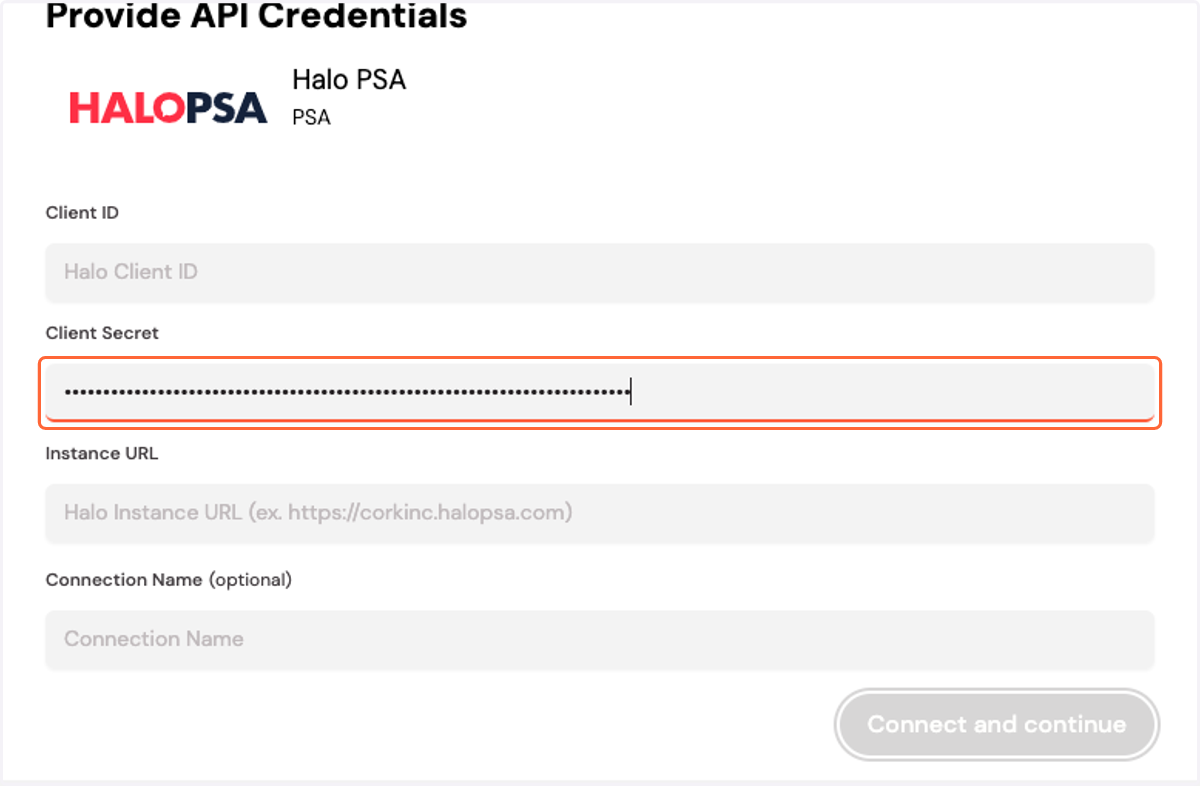
48. Paste your Client Secret
Halo
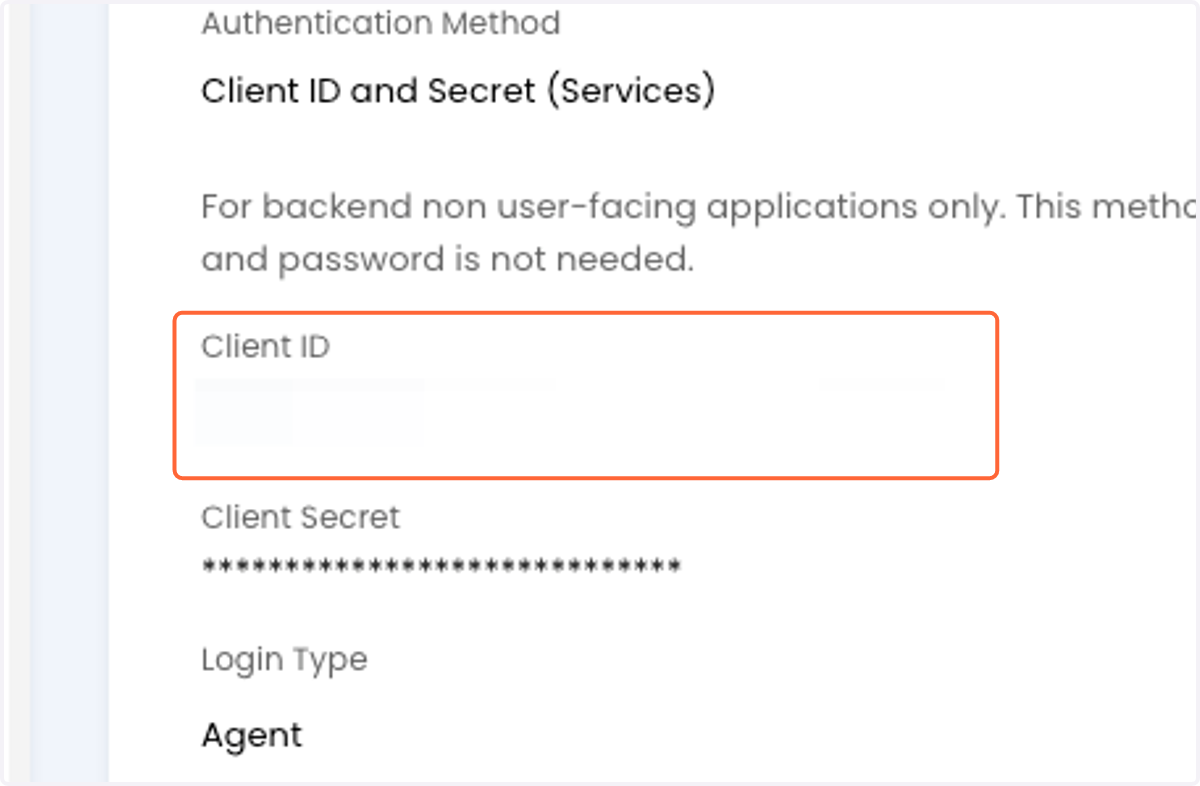
49. Copy your Client ID
Cork - Integrations
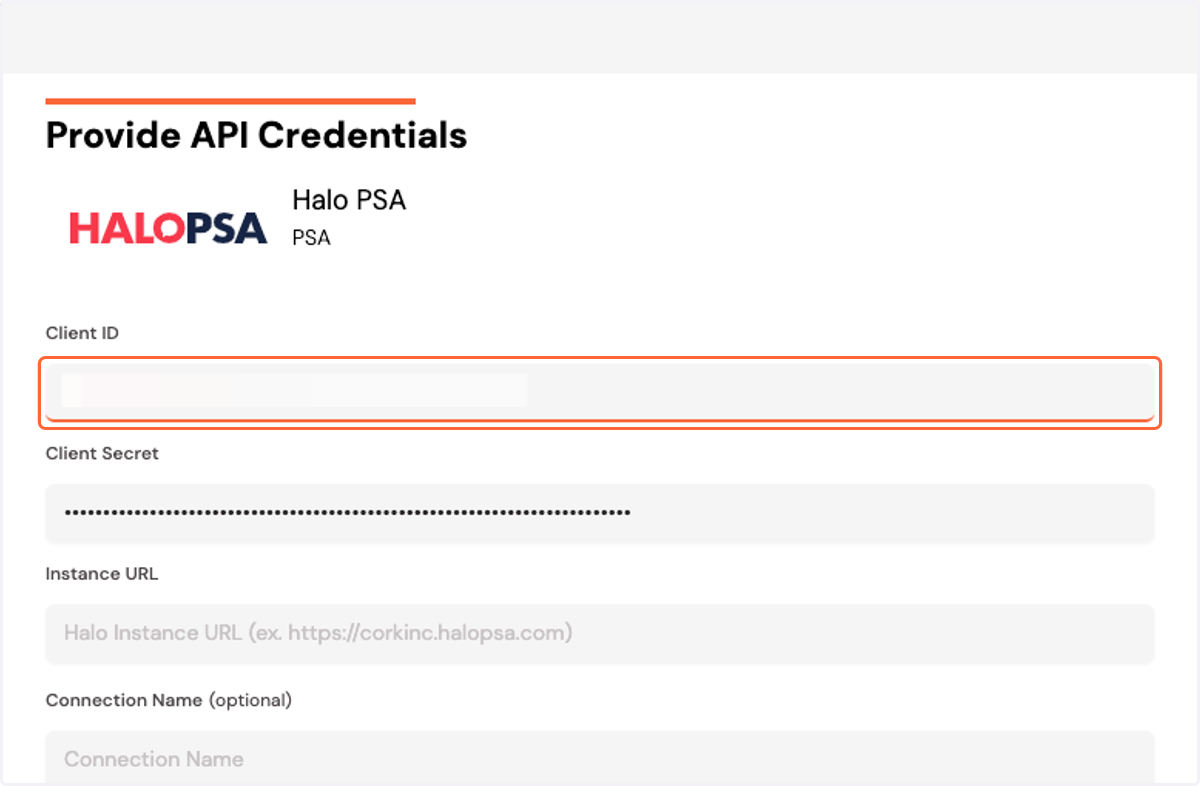
50. Paste your Client ID
51. Enter your Halo Instance URL
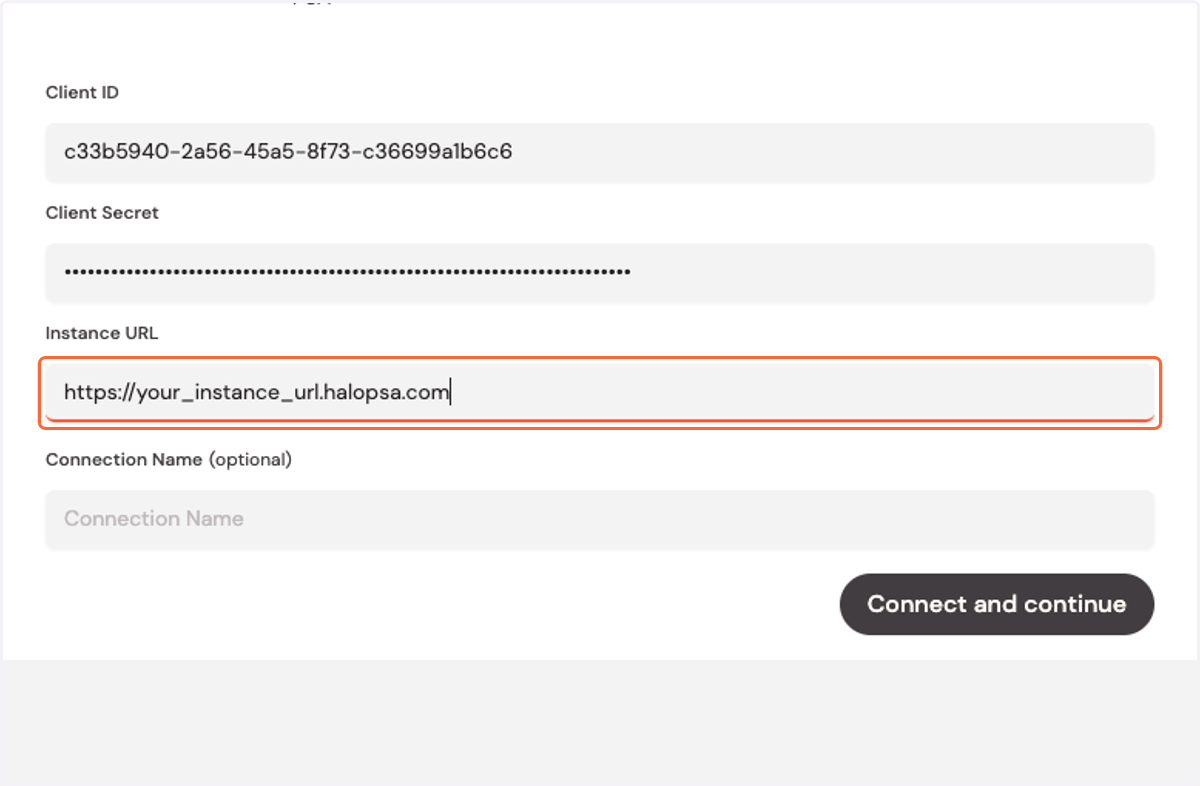
52. Click "Connect and continue"