Create Sales BoQ in i projects

Odoo

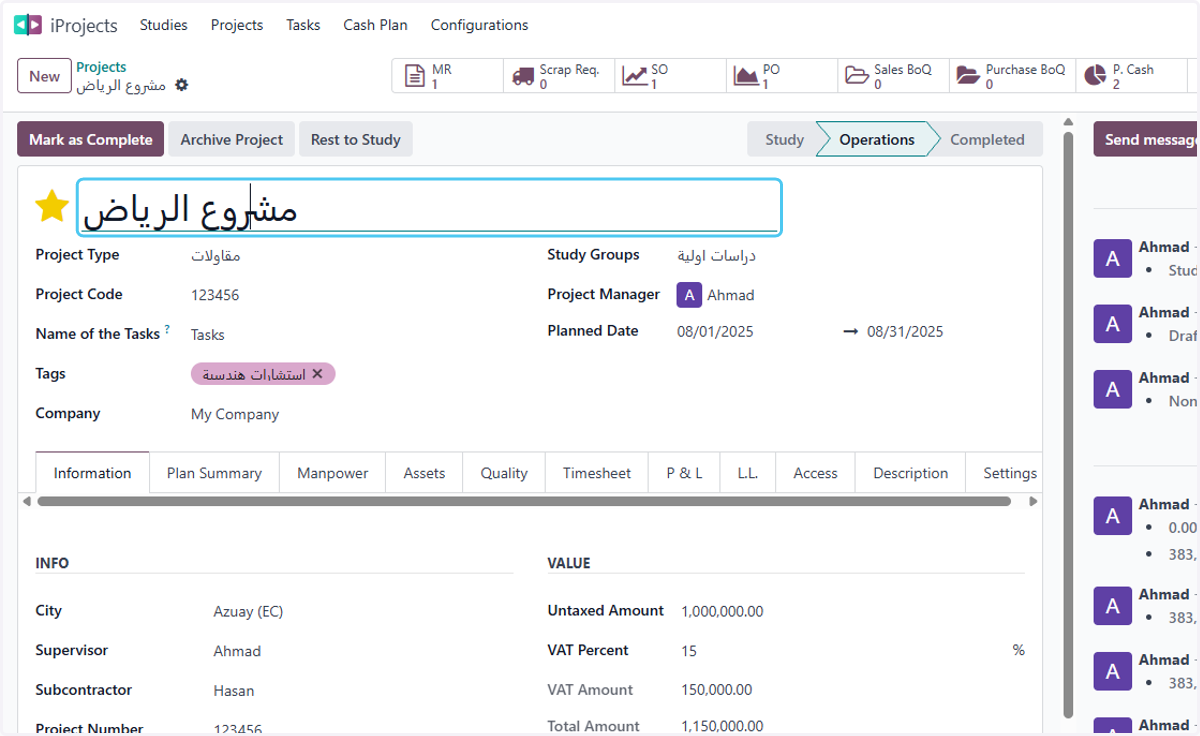
  1. 1. from the project screen

    from the project screen
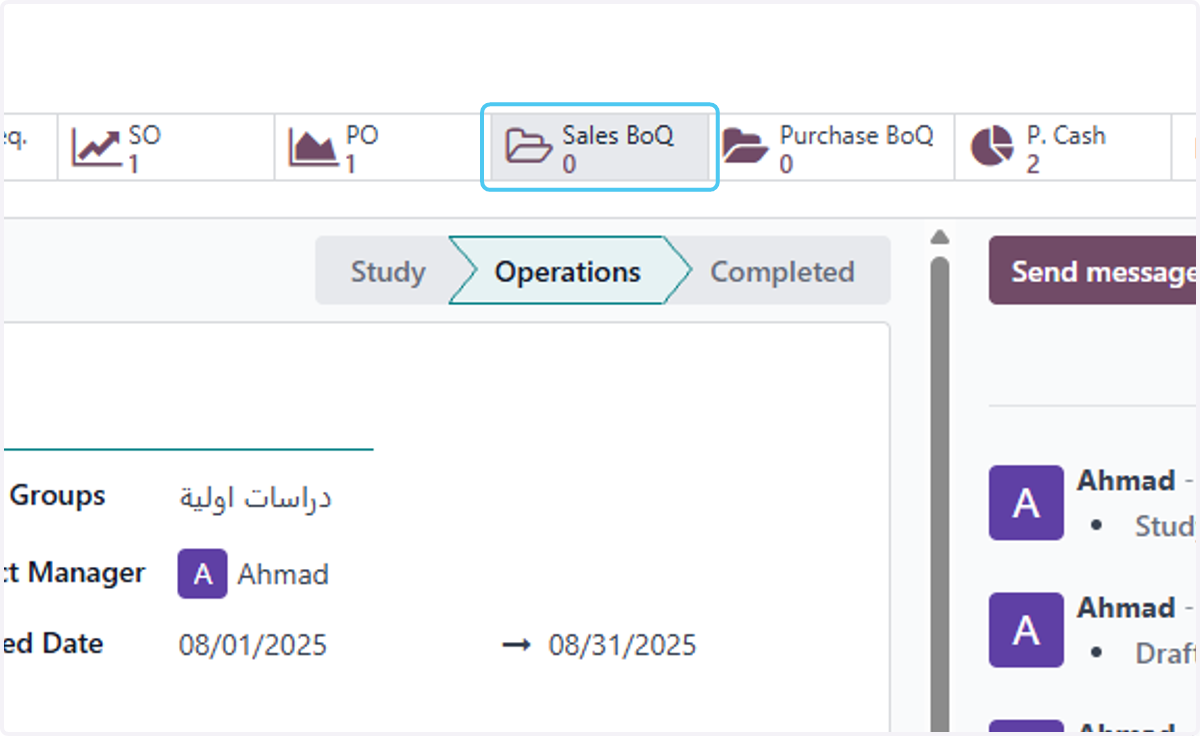
  2. 2. Click on Sales BoQ

    Click on Sales BoQ
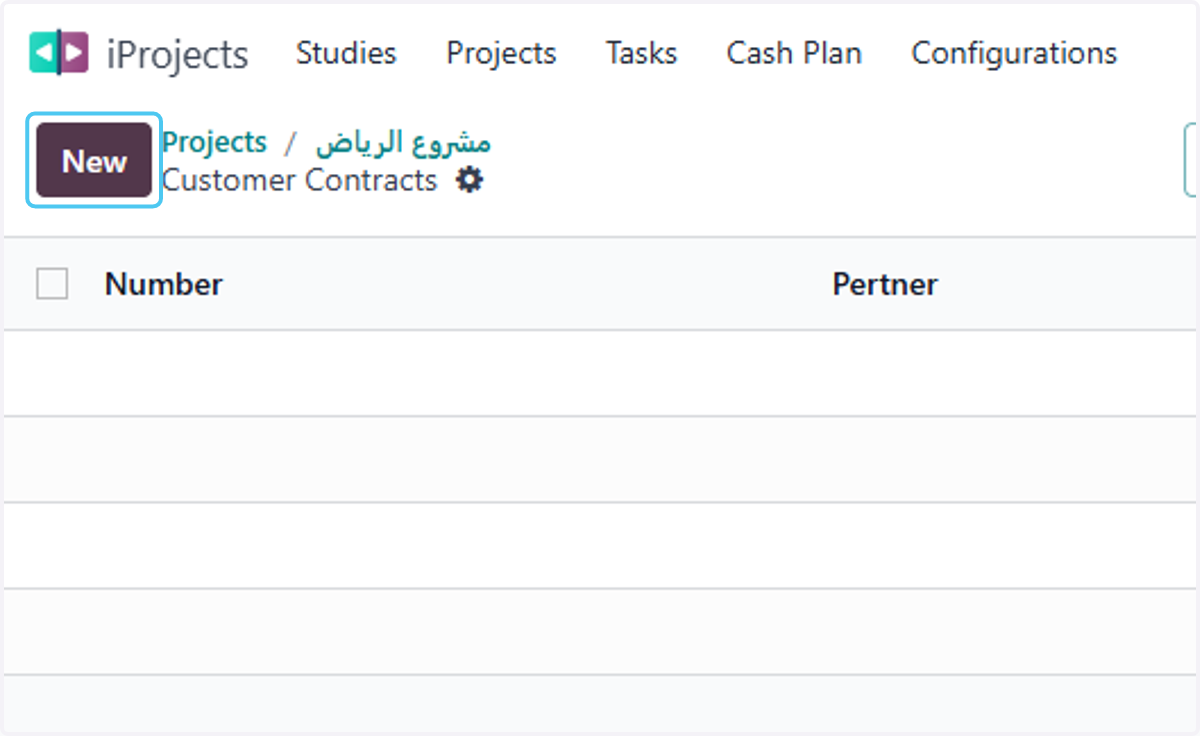
  3. 3. Click on New

    Click on New
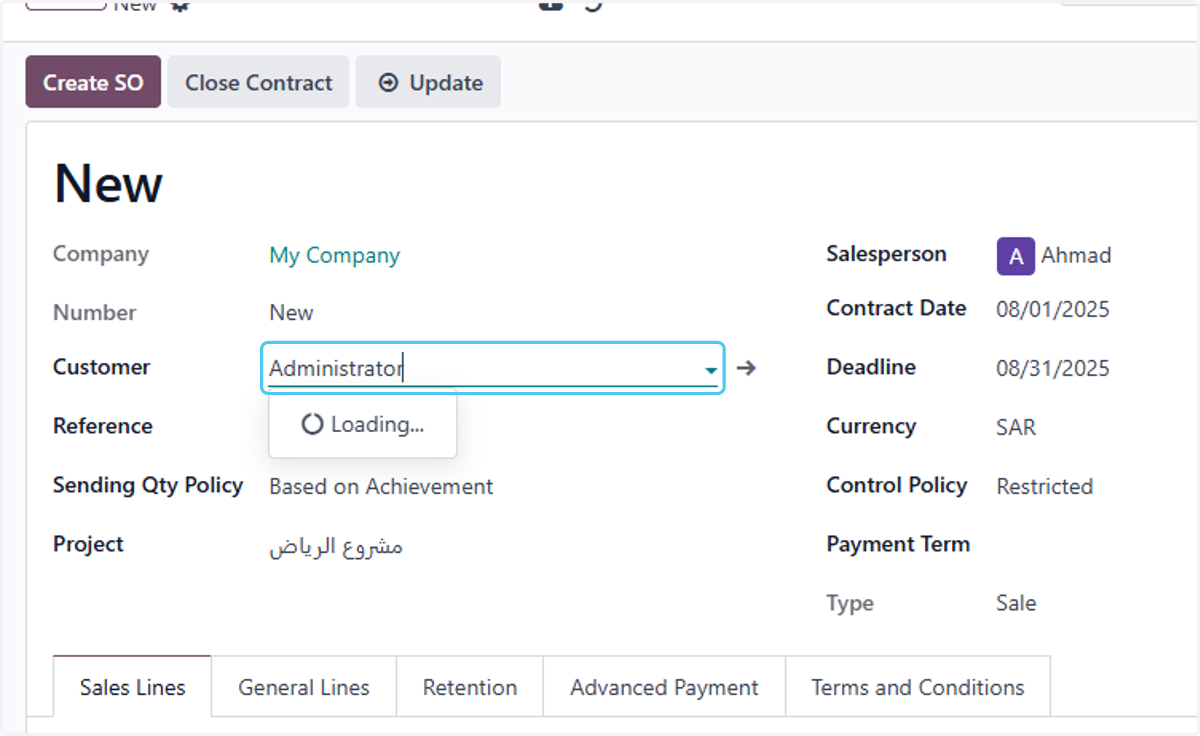
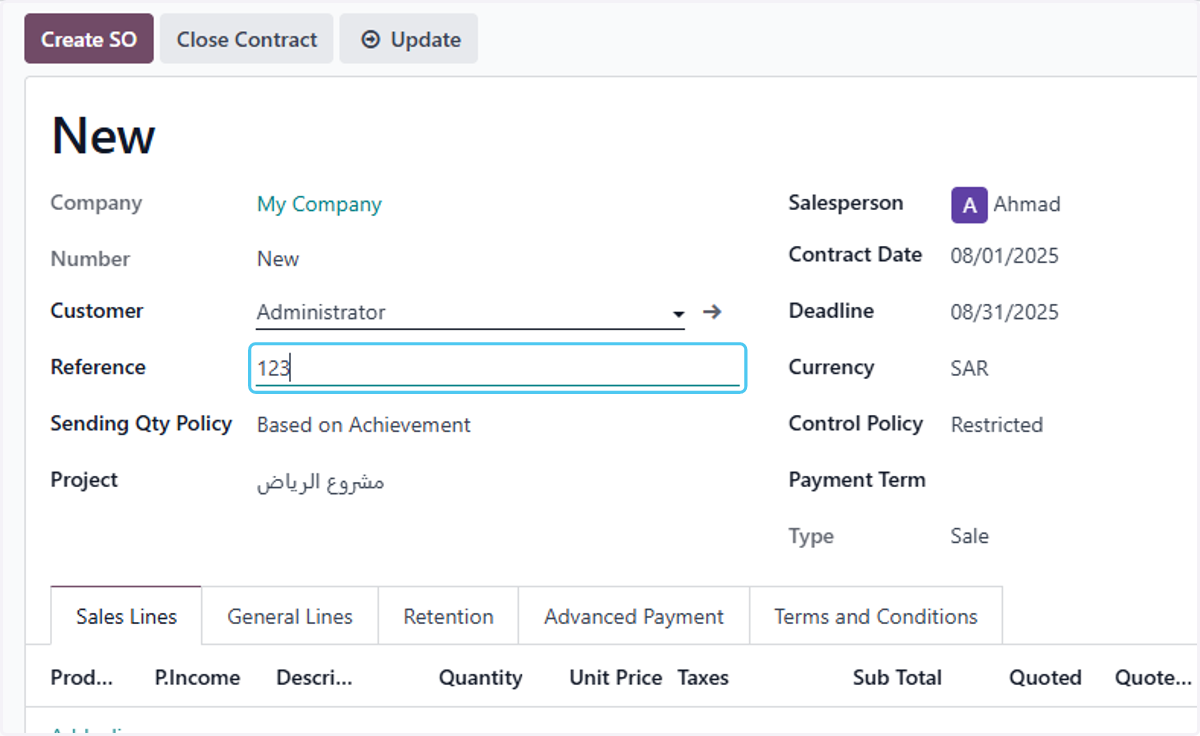
  4. 4. select the Customer

    select the Customer
  5. 5. Type the reference

    Type the reference
  6. 6. Select All Quantities from Sending Qty Policy
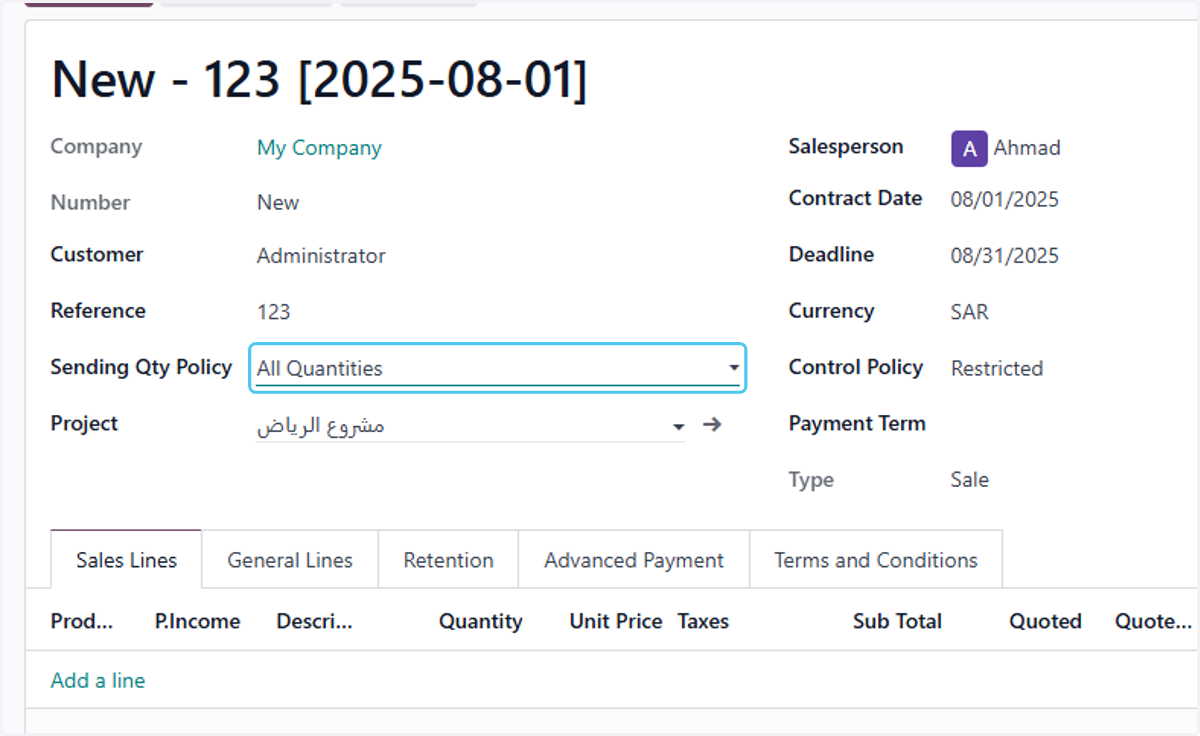
    Select All Quantities from Sending Qty Policy
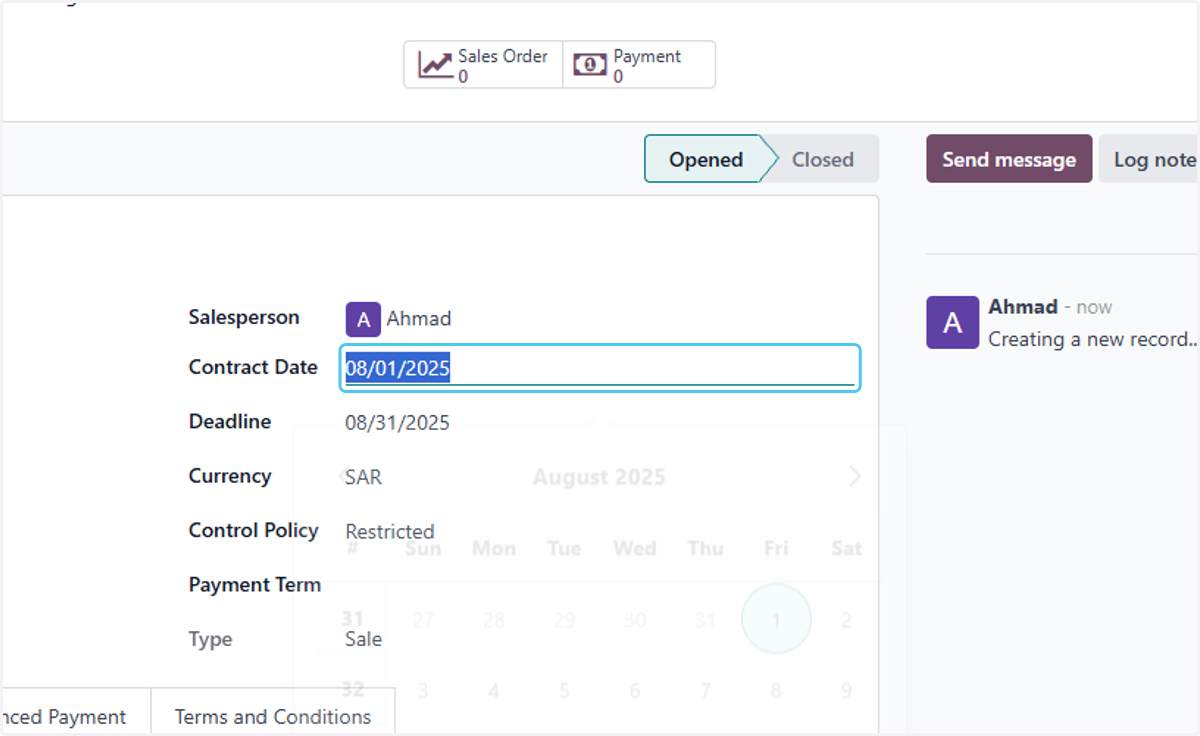
  7. 7. Click on Contract Date

    Click on Contract Date
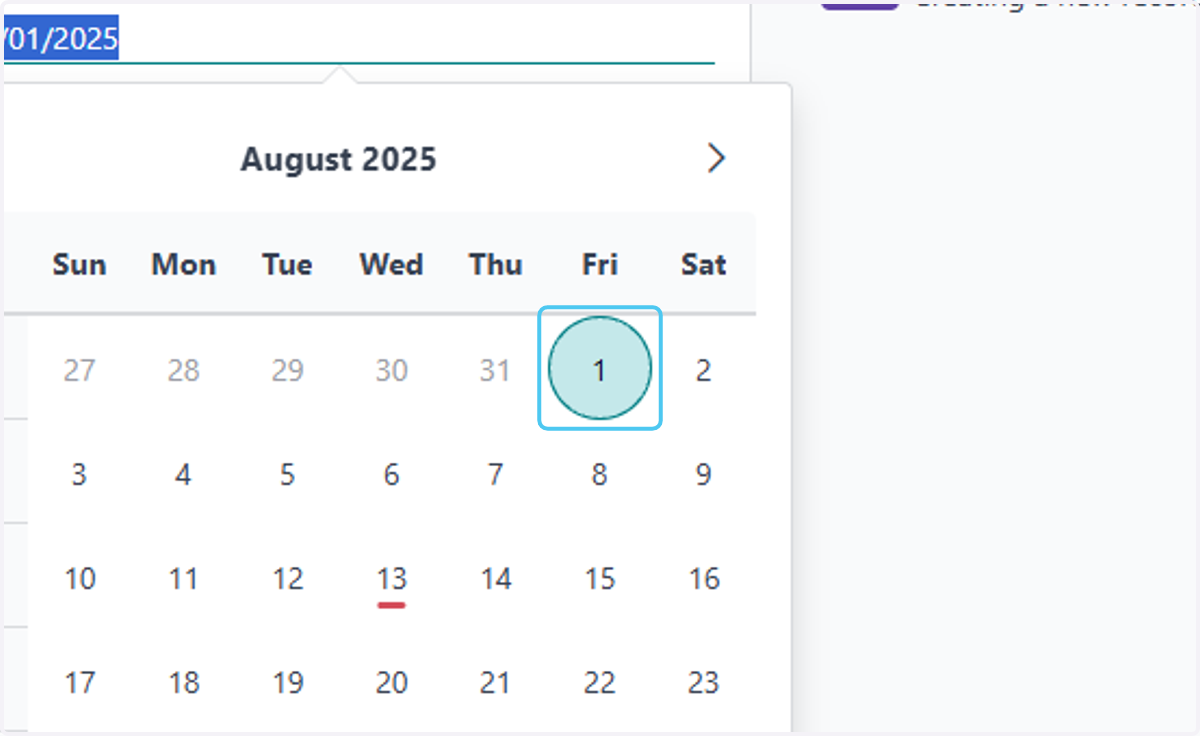
  8. 8. select the Contract Date

    select the Contract Date
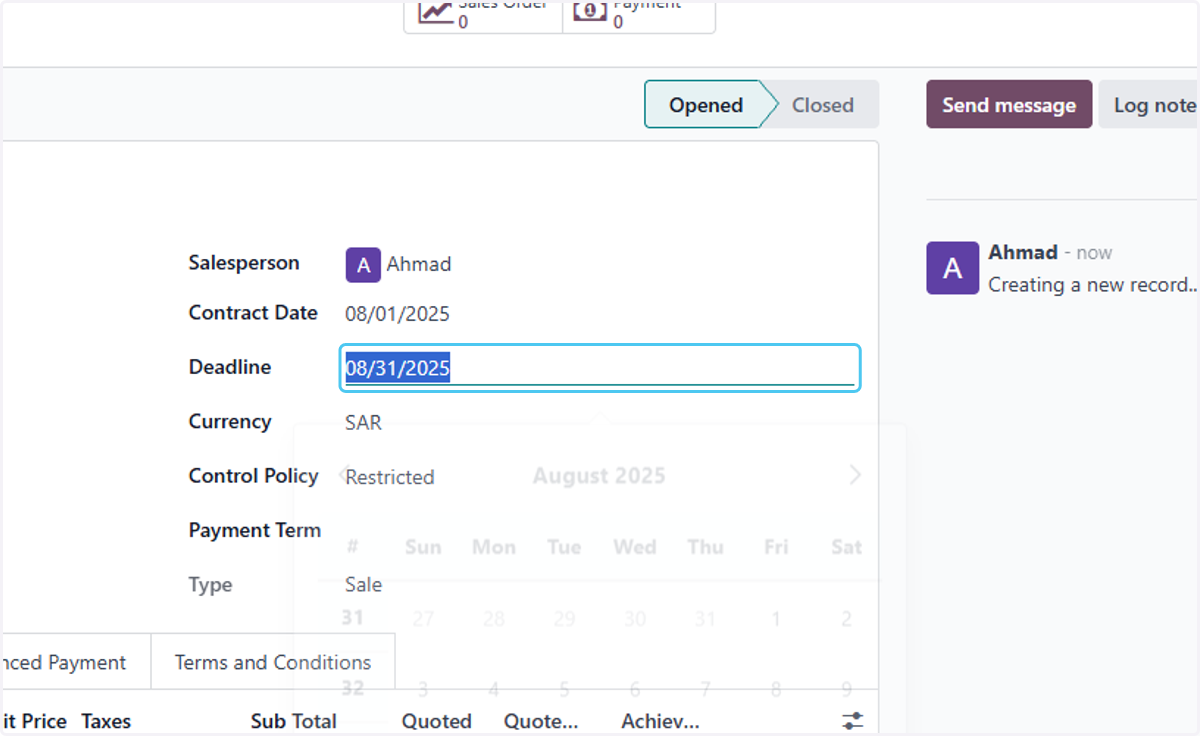
  9. 9. select the Deadline Date

    select the Deadline Date
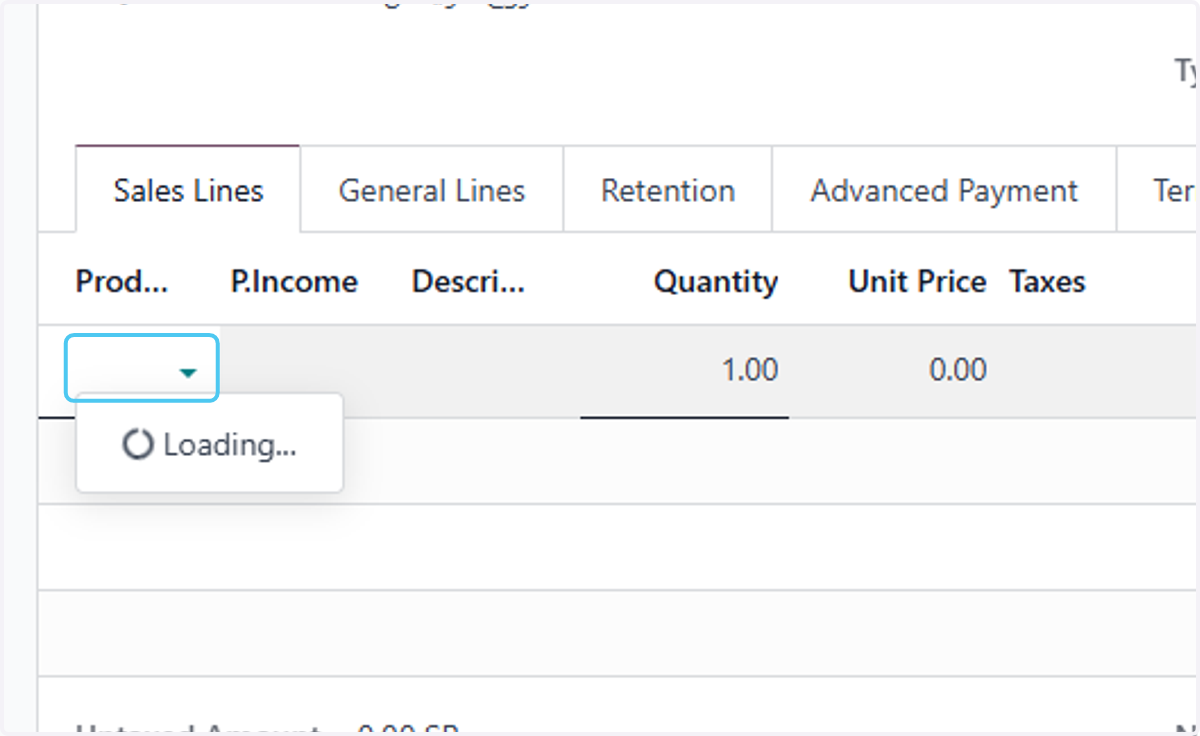
  10. 10. Click on dropdown trigger

    Click on dropdown trigger
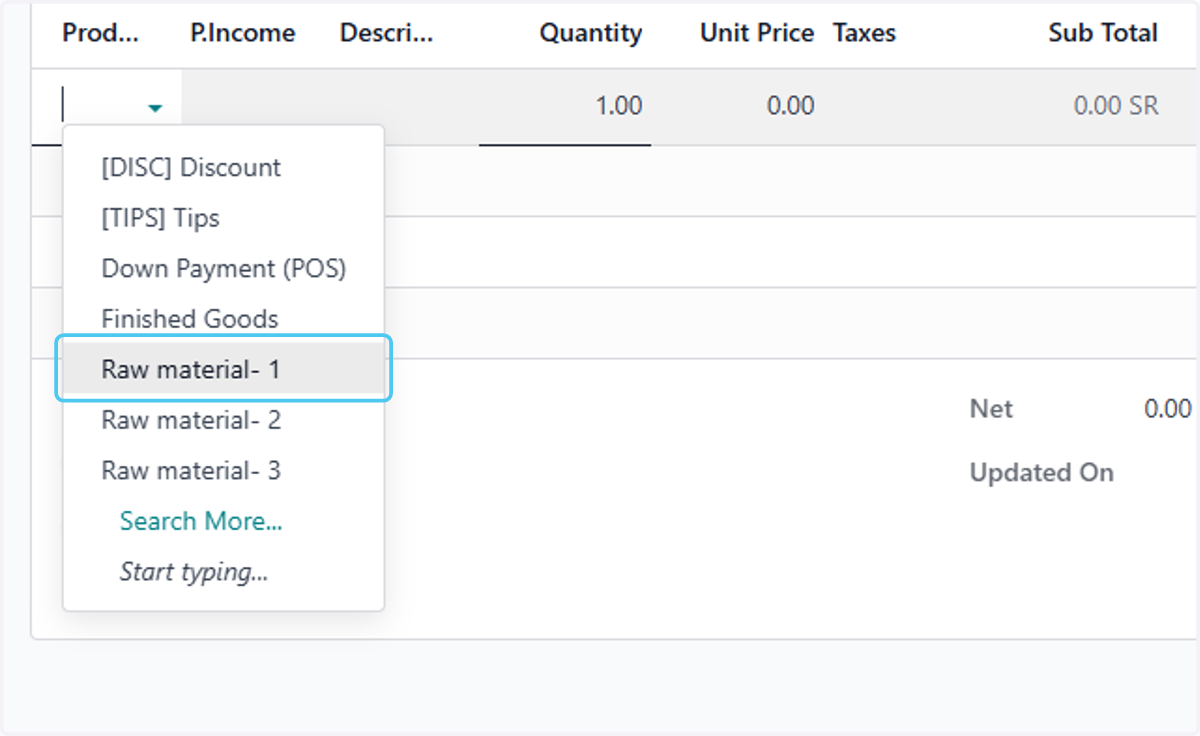
  11. 11. select the product

    select the product
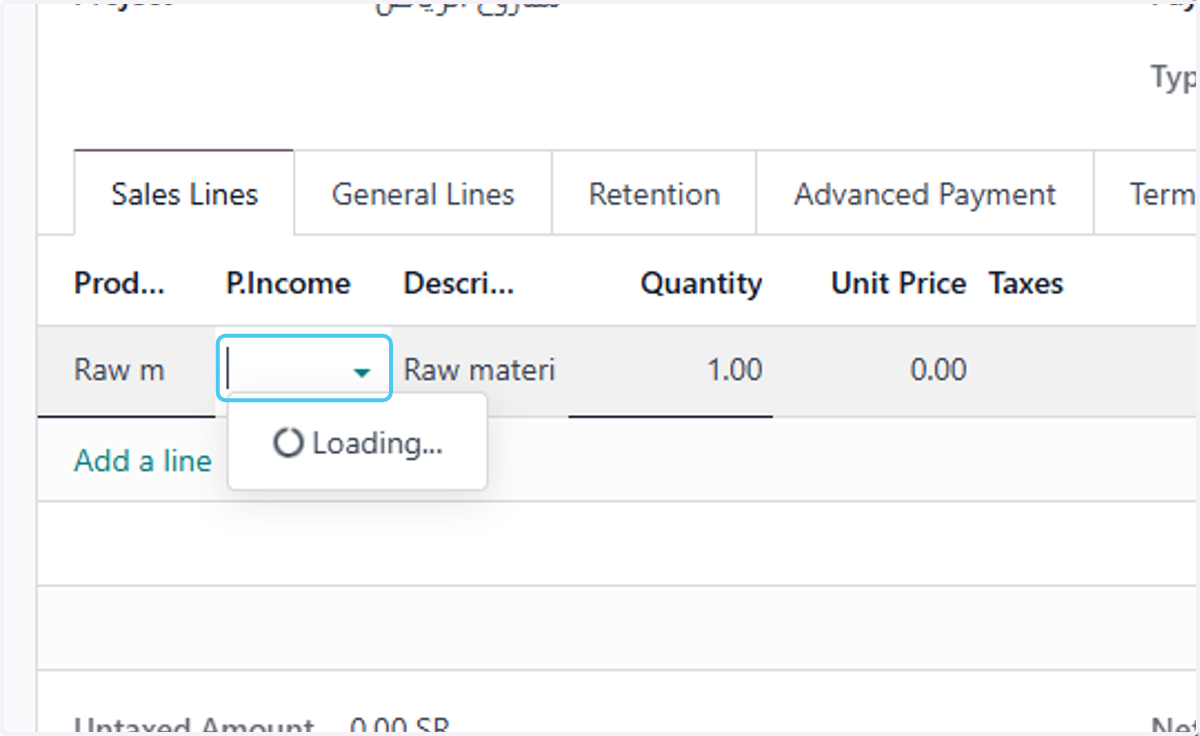
  12. 12. Click on dropdown trigger

    Click on dropdown trigger
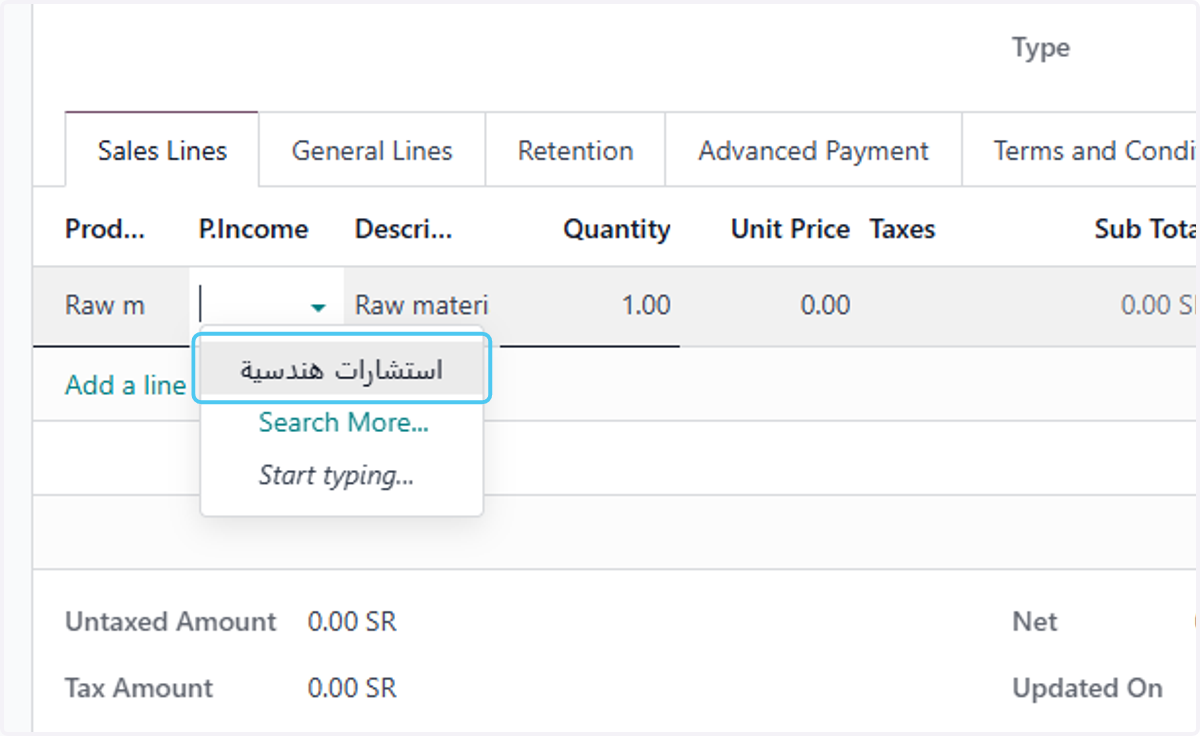
  13. 13. select the planned income line

    select the planned income line
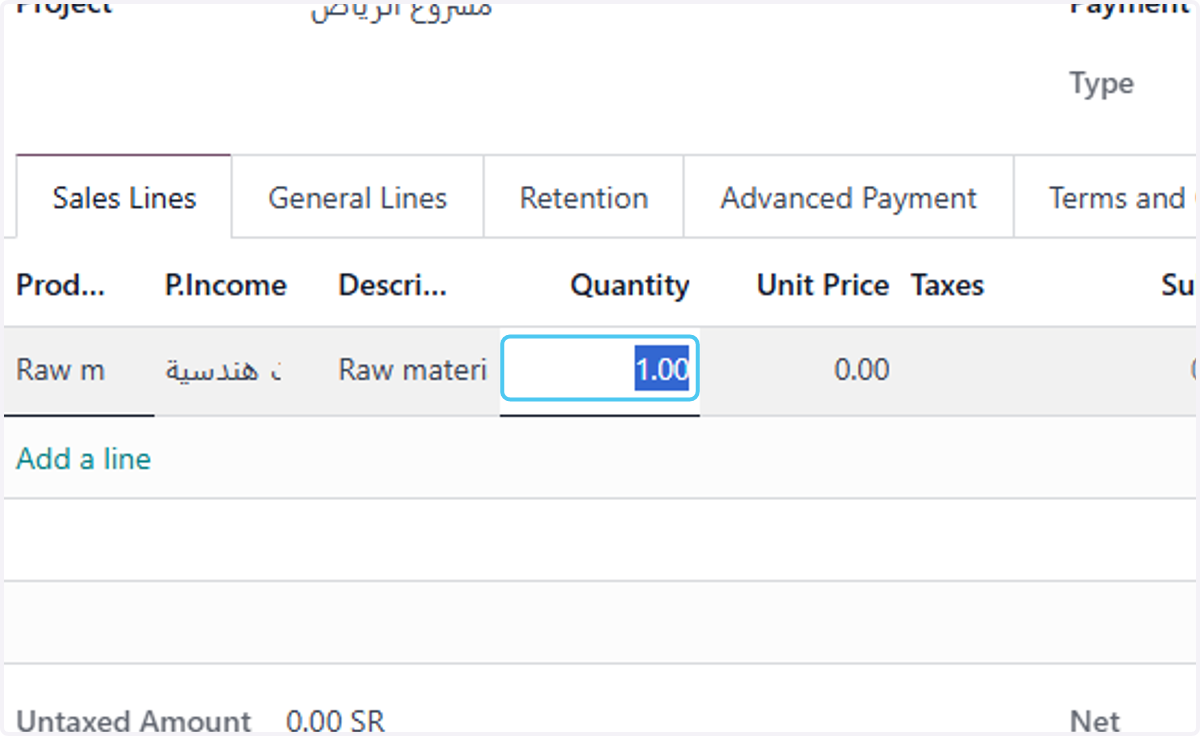
  14. 14. type the quantity

    type the quantity
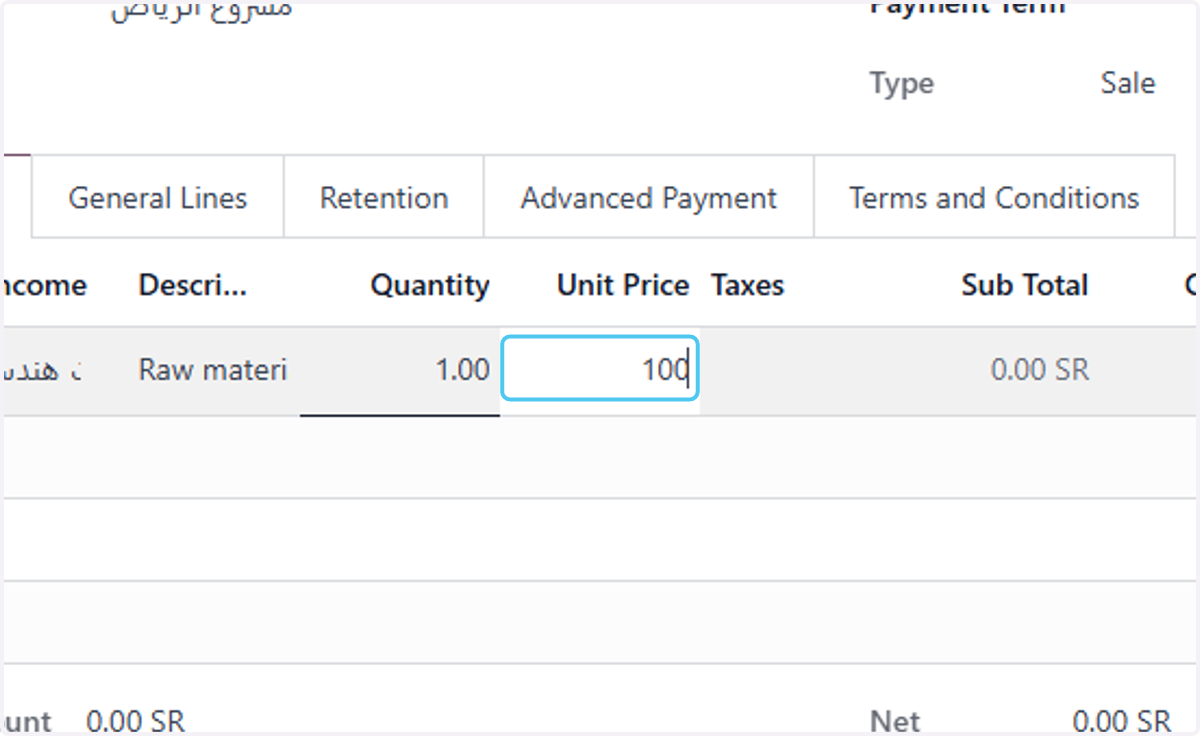
  15. 15. Type the price

    Type the price
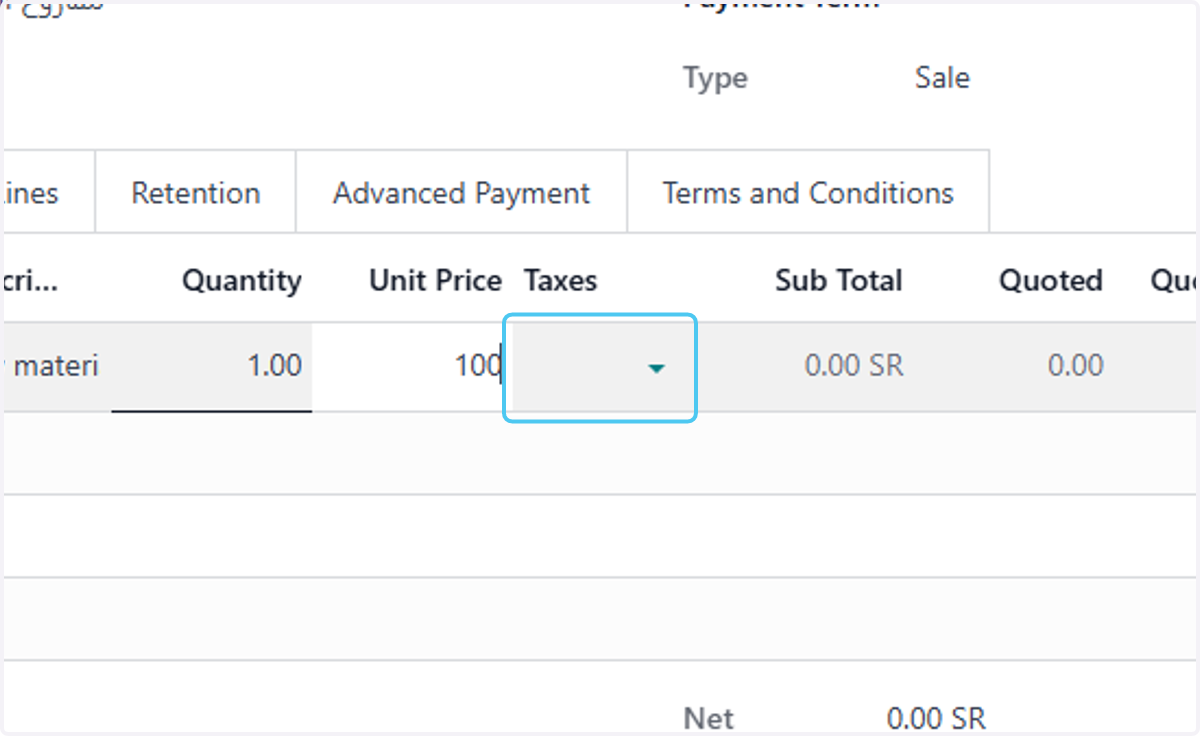
  16. 16. select the tax

    select the tax
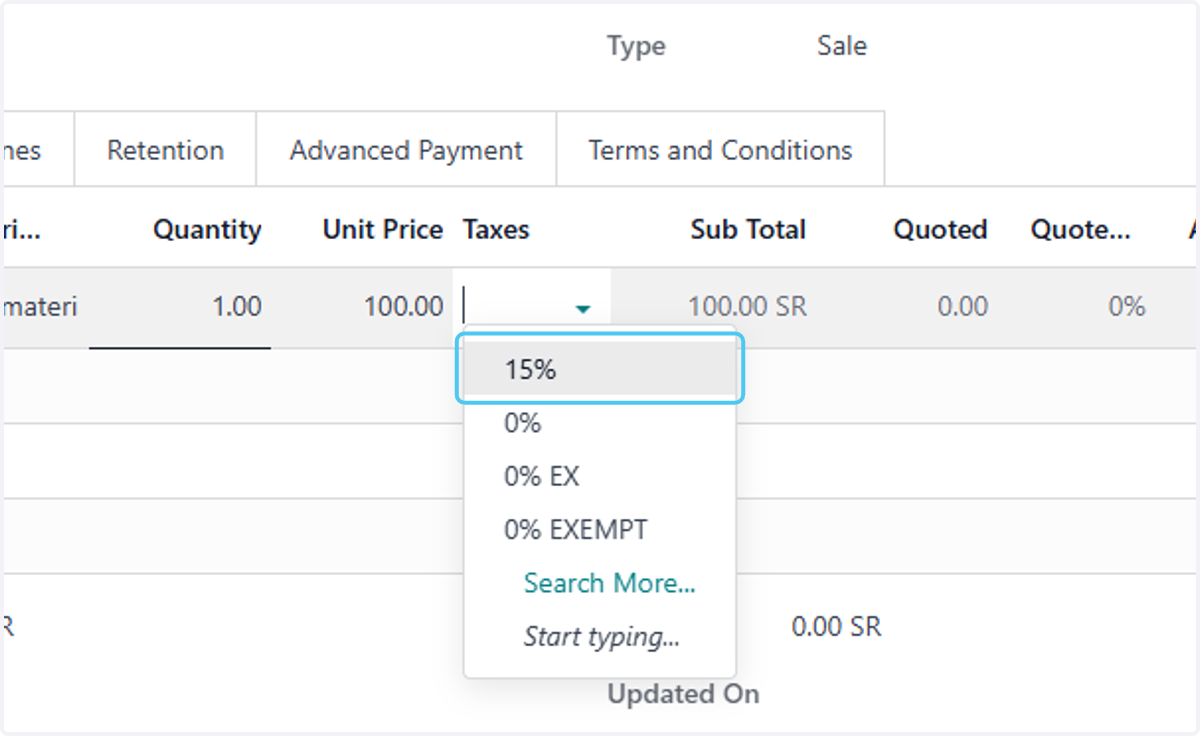
  17. 17. Click on 15%

    Click on 15%
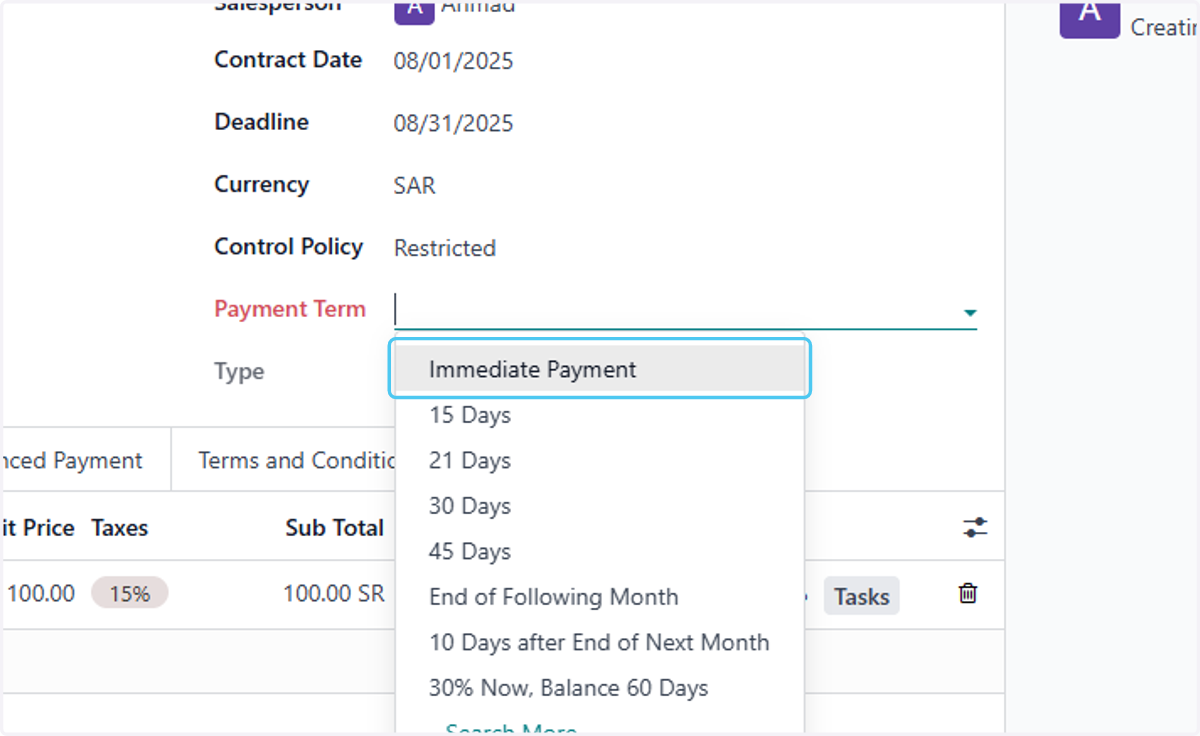
  18. 18. select the payment terms

    select the payment terms
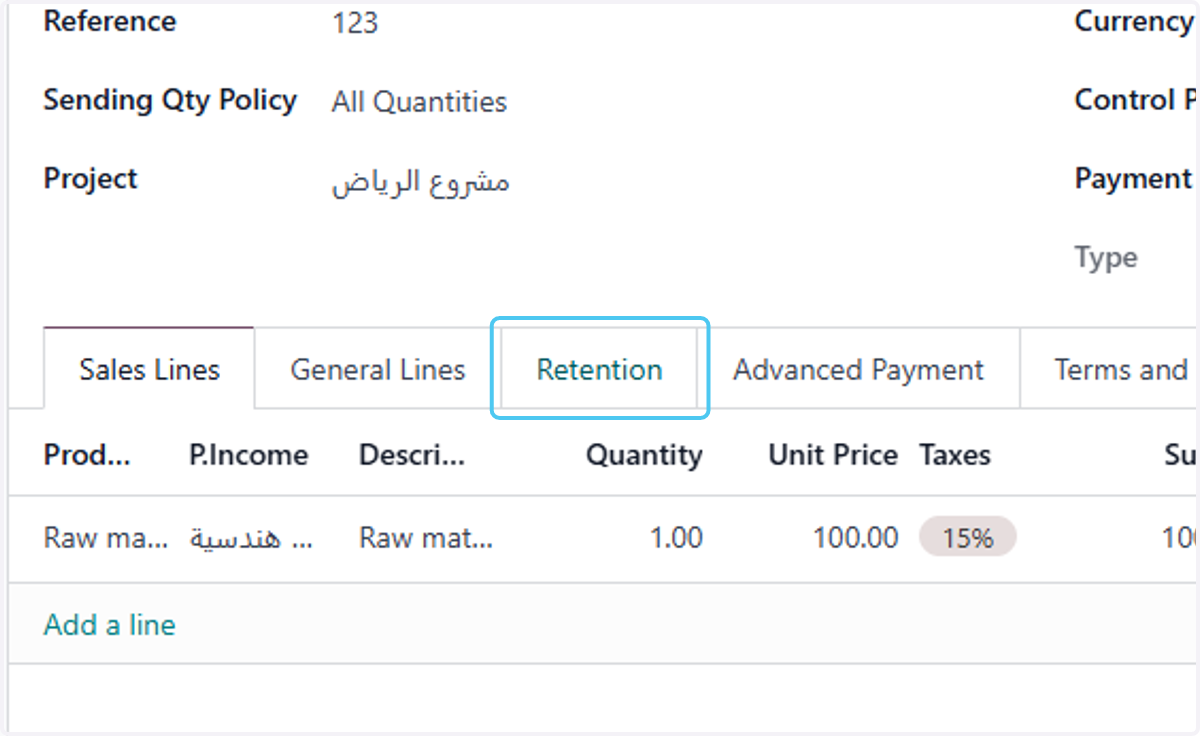
  19. 19. Click on Retention

    Click on Retention
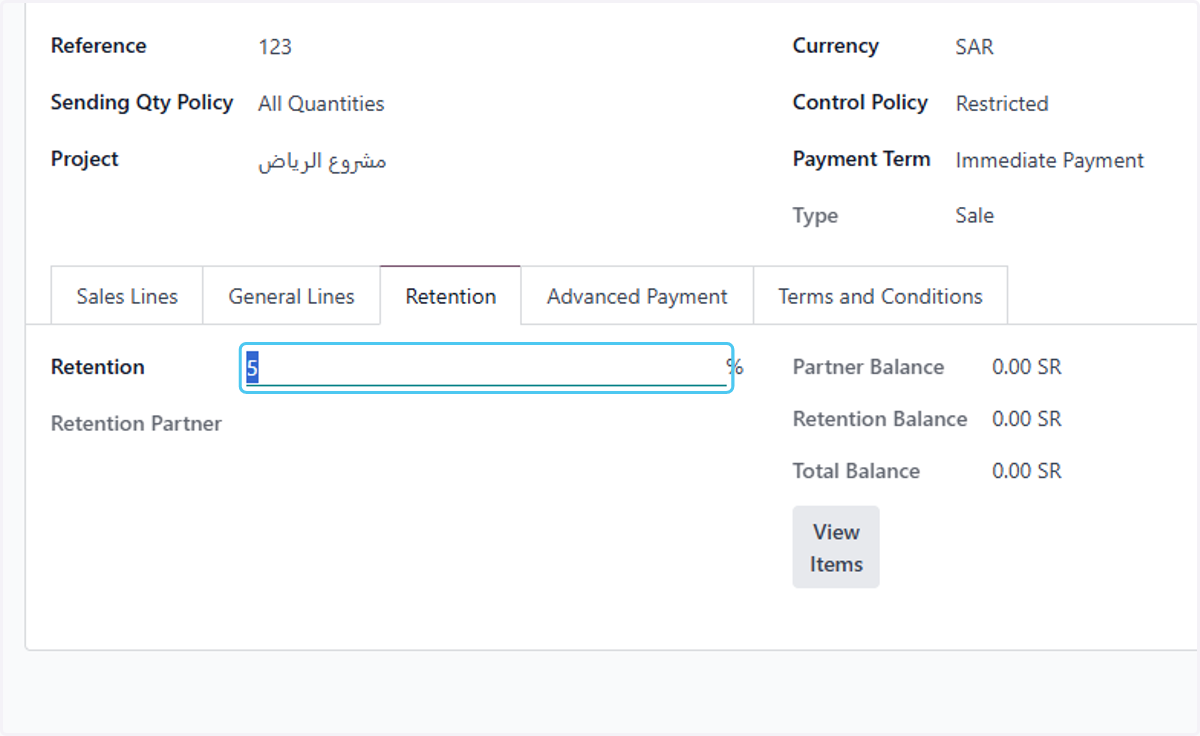
  20. 20. type the retintion

    type the retintion
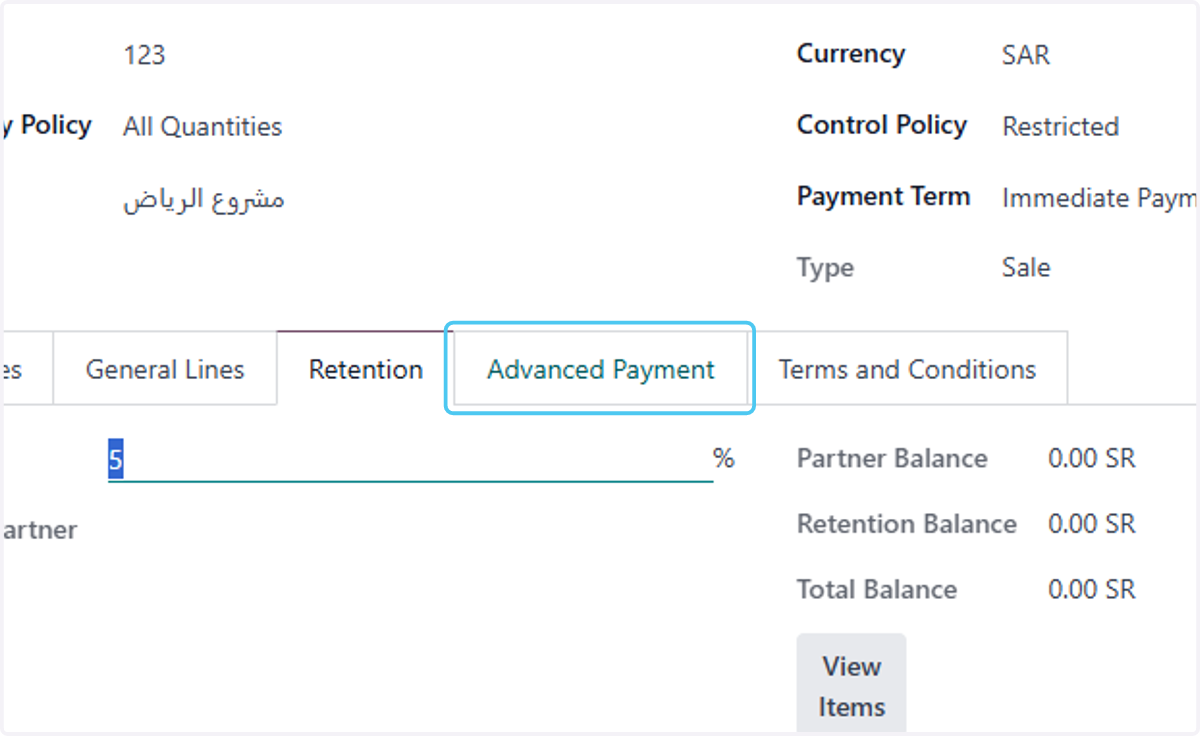
  21. 21. Click on Advanced Payment

    Click on Advanced Payment
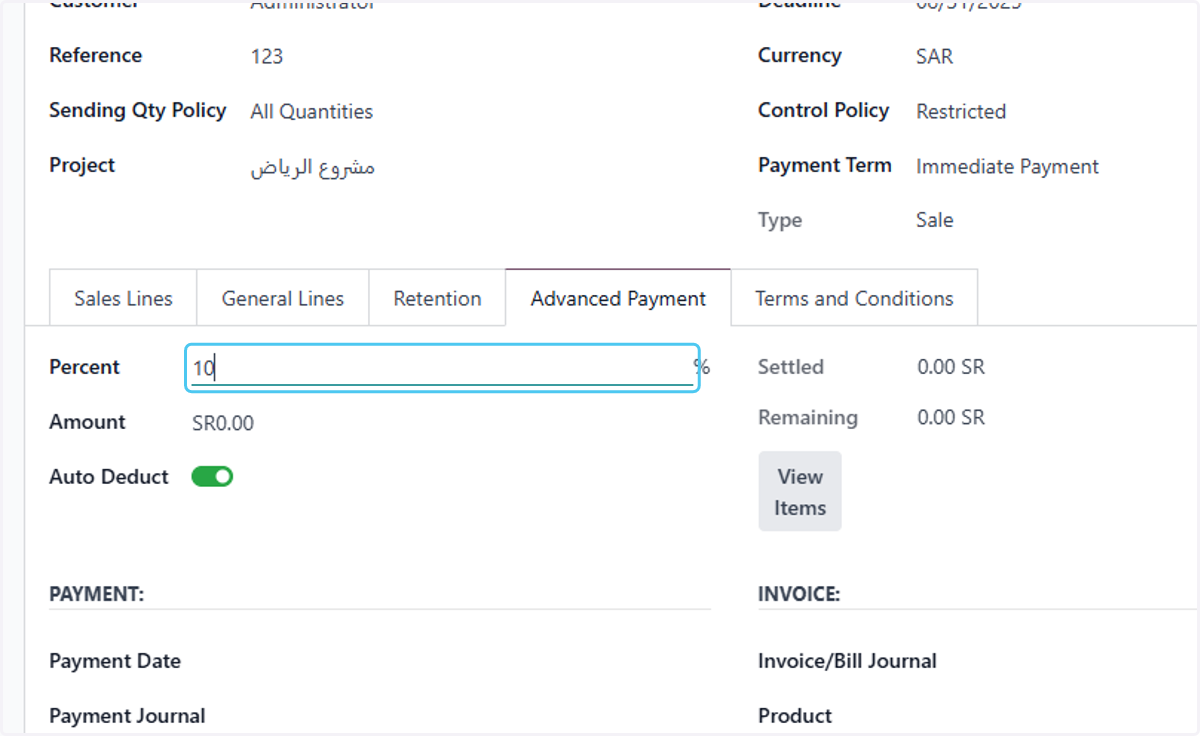
  22. 22. Type the addvance payment %

    Type the addvance payment %
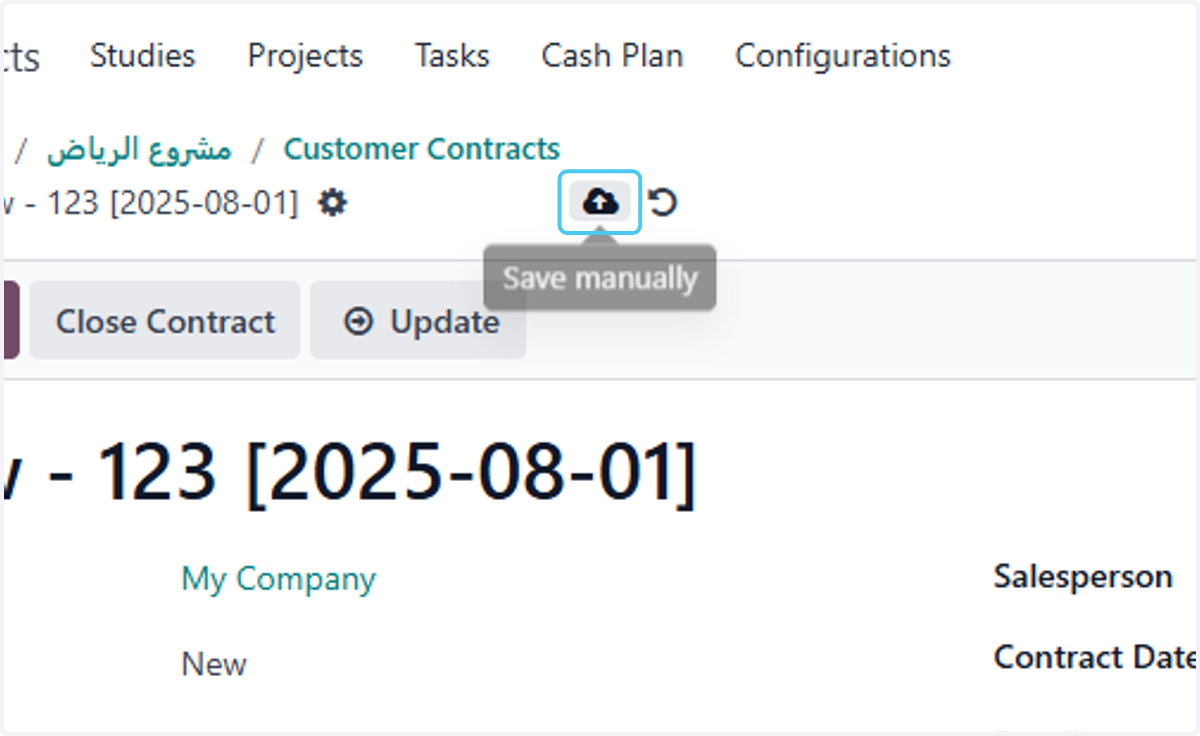
  23. 23. Click on Save manually

    Click on Save manually