State Leaders: Creating a Chapter in CONNECT
Login to connect.fbla.org using your State Leader credentials
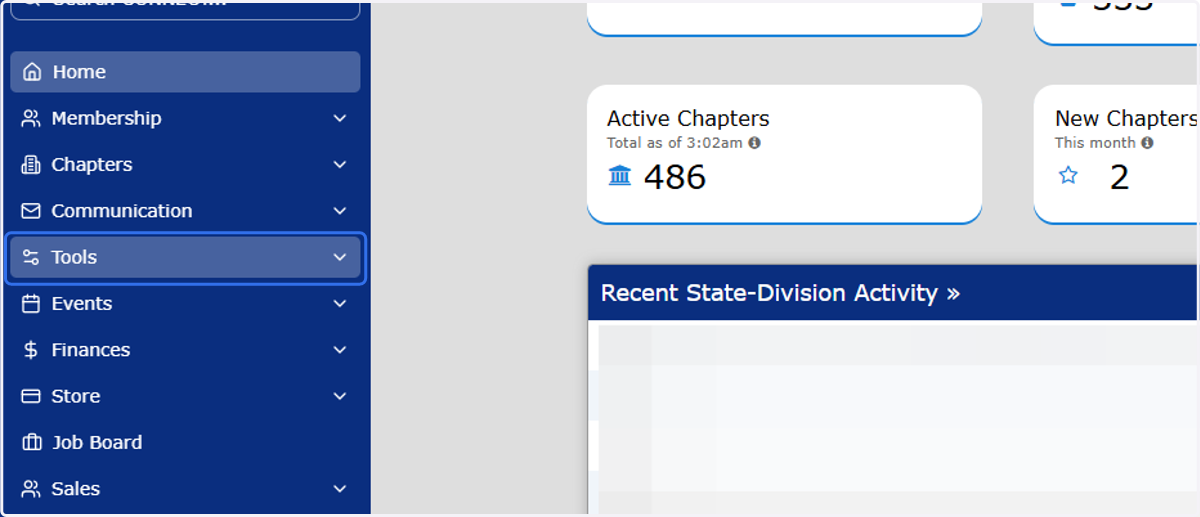
1. Click on Tools
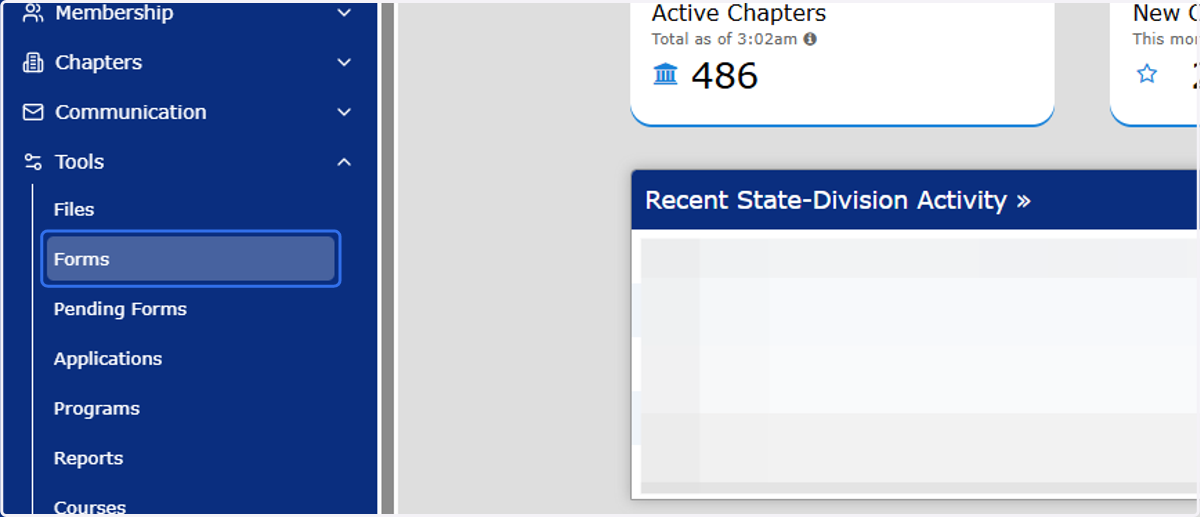
2. Click on Forms
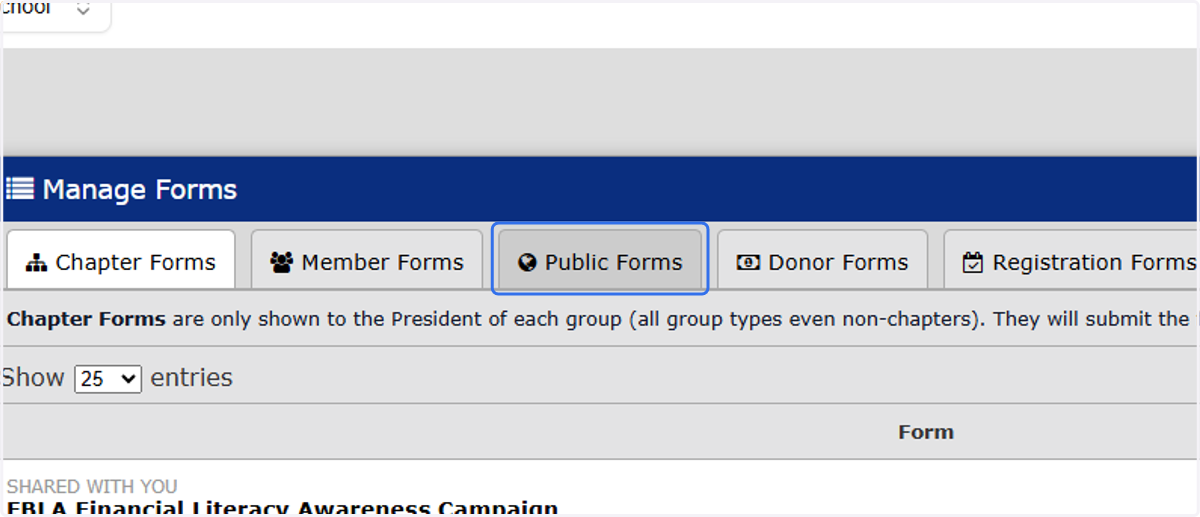
3. Click on Public Forms
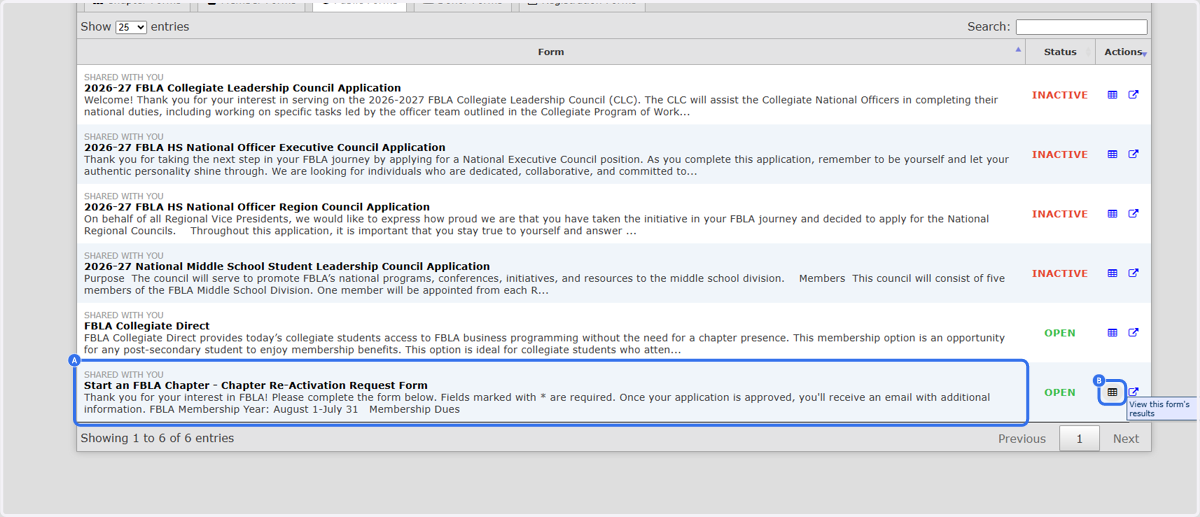
4. A. Click on Start an FBLA Chapter - Chapter Re-Activation Request From
4. B. Click on the grid to view submissions
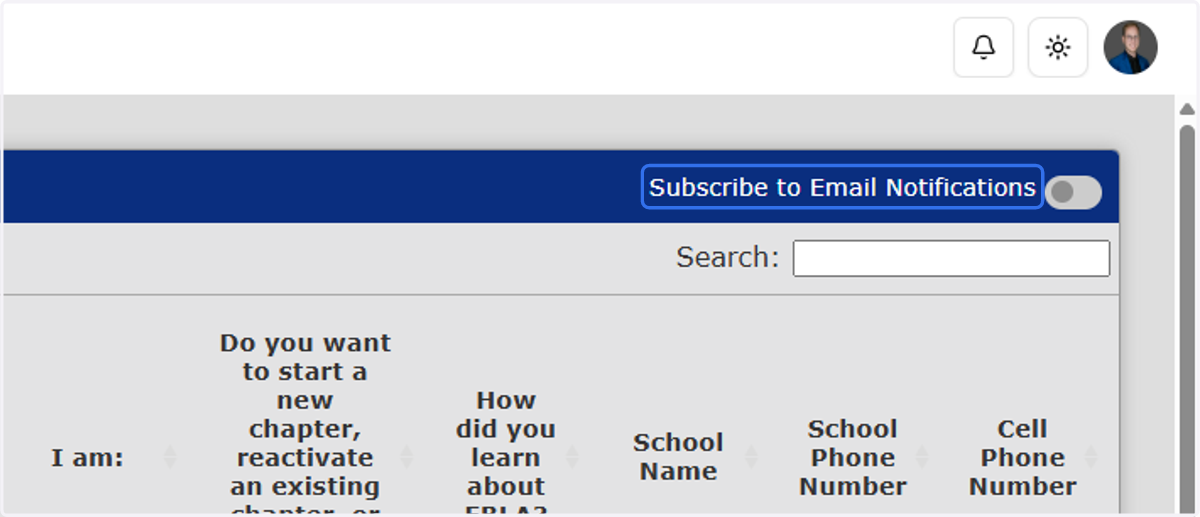
5. Click on Subscribe to Email Notifications to get notified for when submissions are received
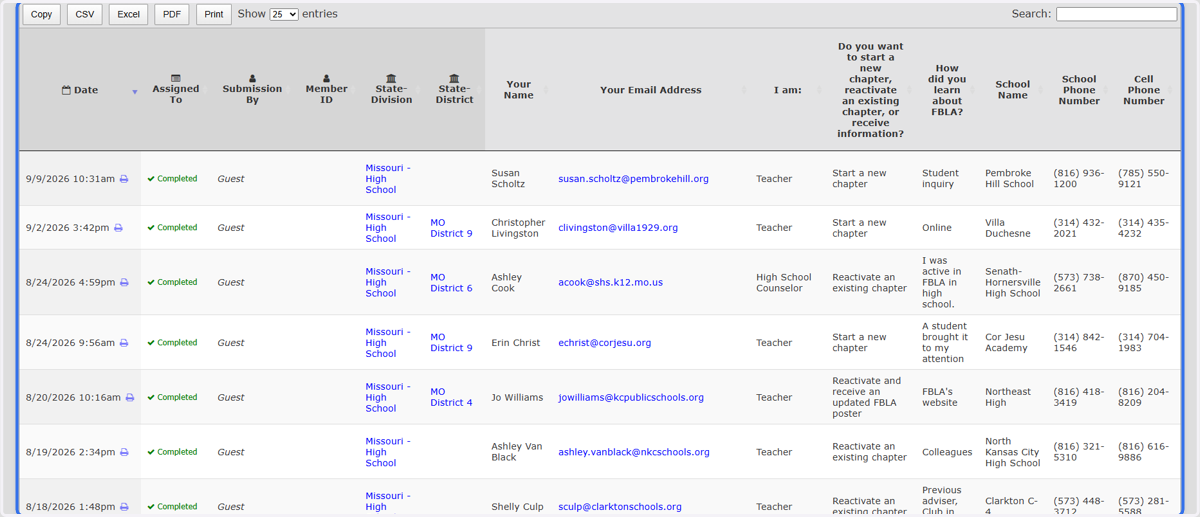
6. Review Submissions
All requests will be listed here. The green Completed button shows that it's been completed already. If it's not complete, then click Assign to Me and then click Completed once finalized.
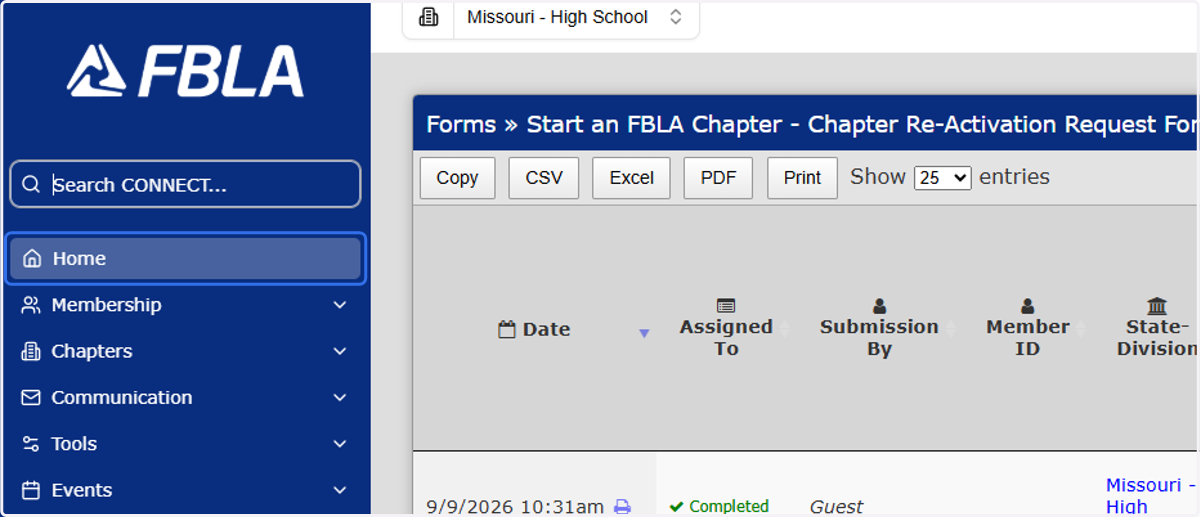
7. Click on Home
Now to review and see if the chapter has been created or needs to be created.
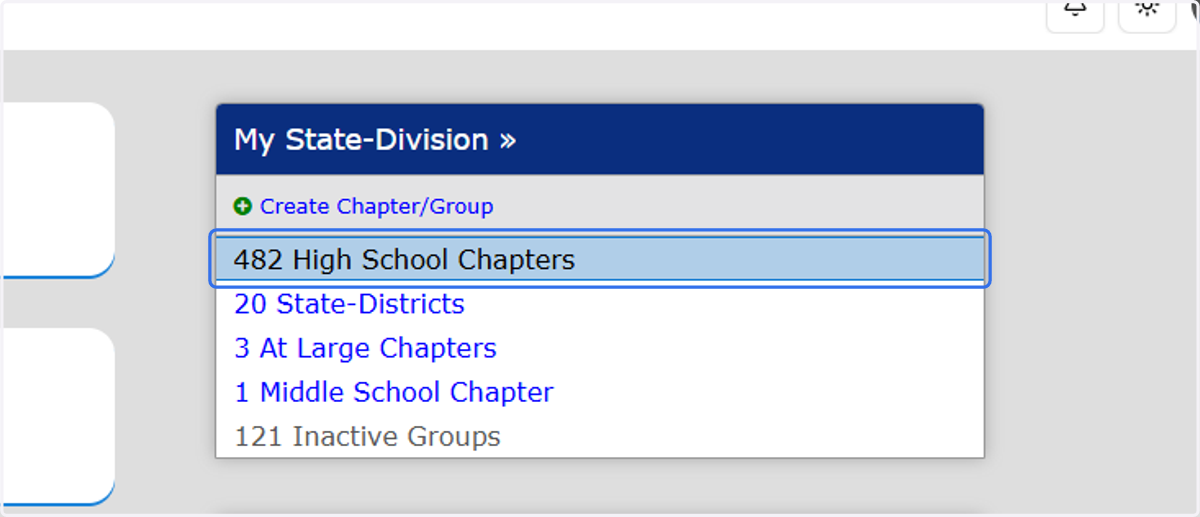
8. Click on Chapters for Active
See if a chapter already exists.
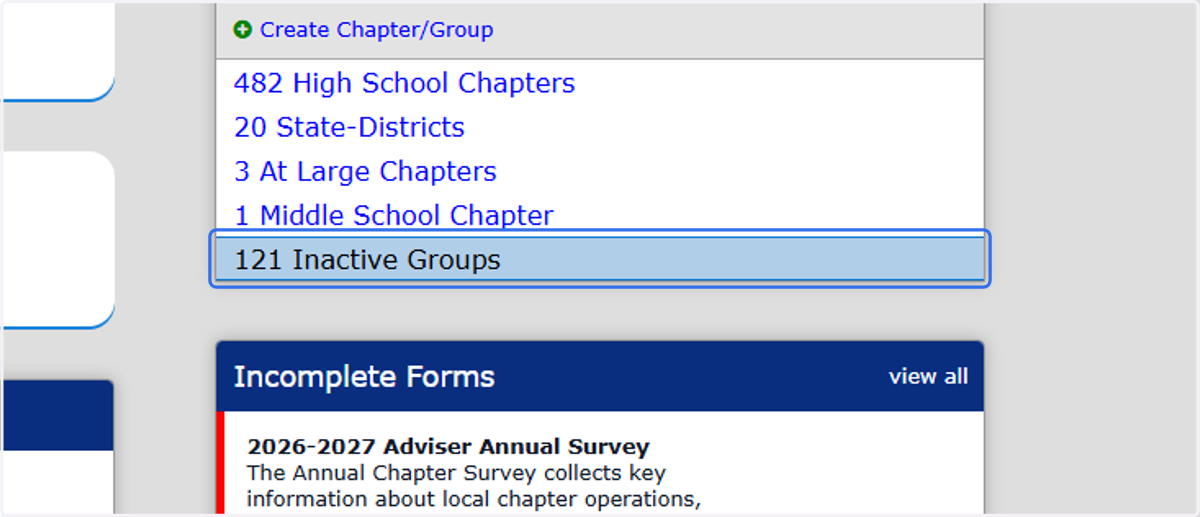
9. Click on Inactive Groups
If the chapter does not exist in the Active Chapters, now check to see if it's been inactive.
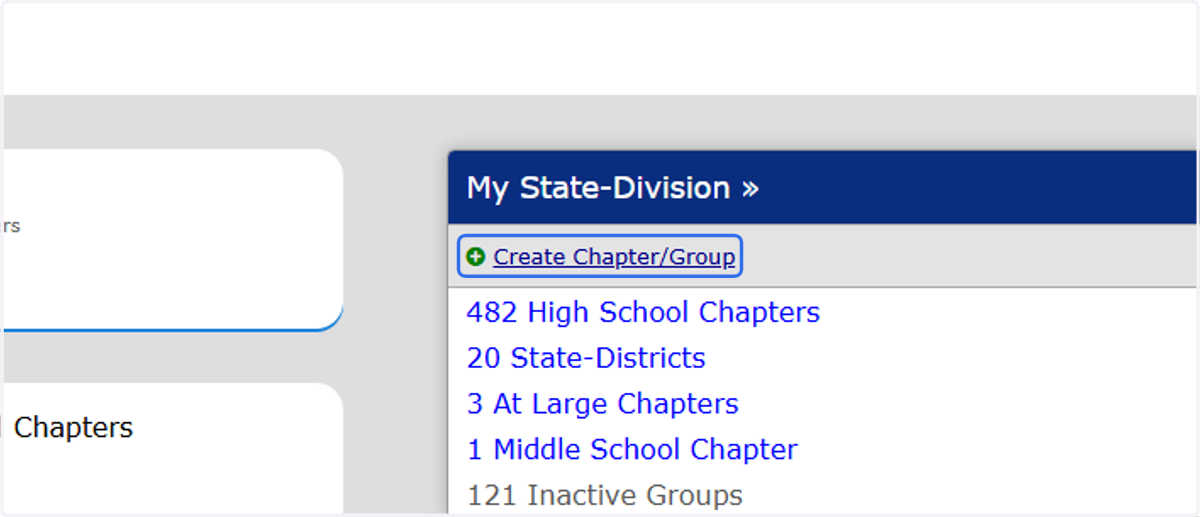
10. Click on Create Chapter/Group if the chapter need to be fully created.
11. Click on Create Chapter
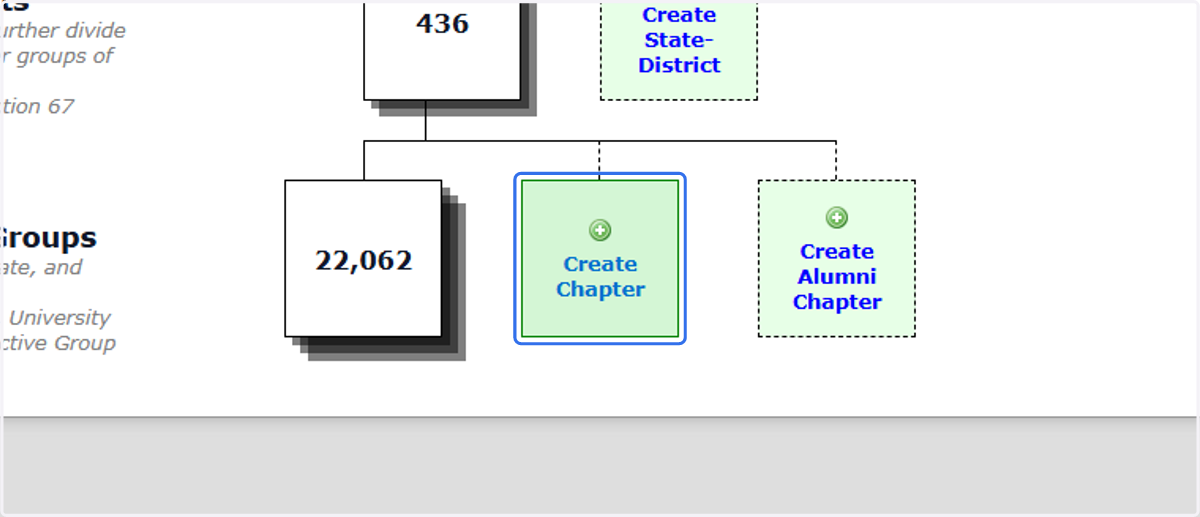
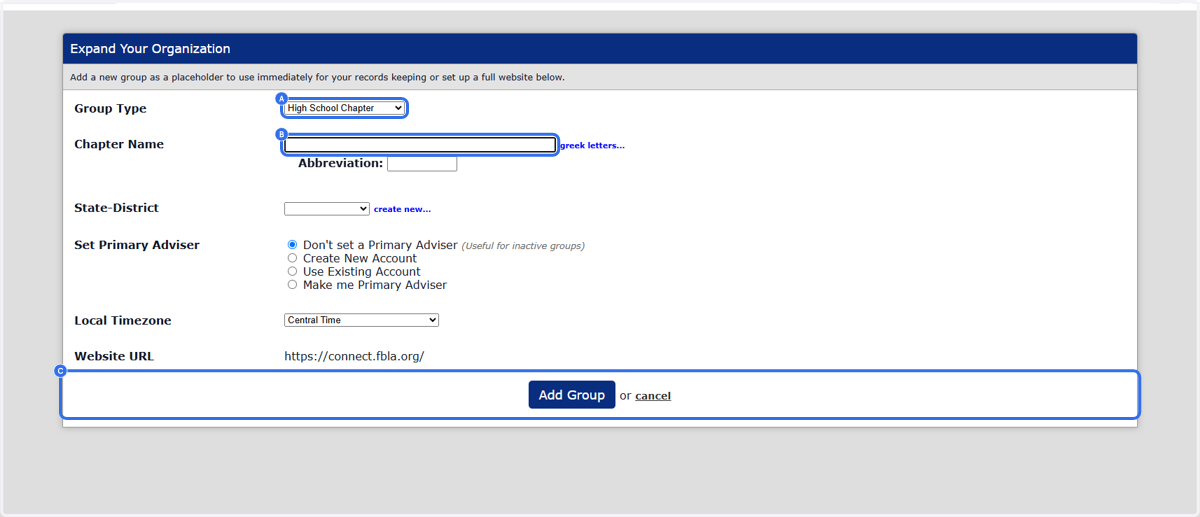
12. A. Select the correct Group Type
12. B. Enter the Chapter Name
12. C. Complete the rest of the information and click Add Group when finished