Creating and Customizing Forms: A Step-by-Step Tutorial
Horse Business Manager
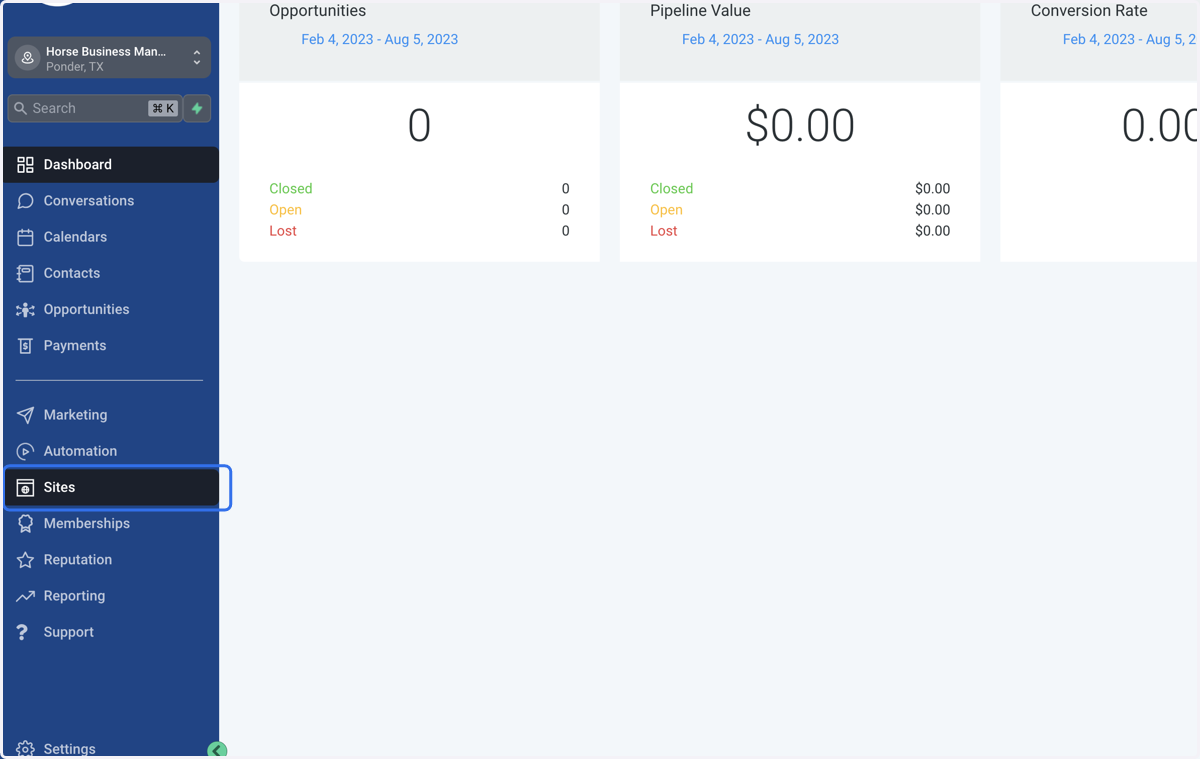
1. Click on Sites
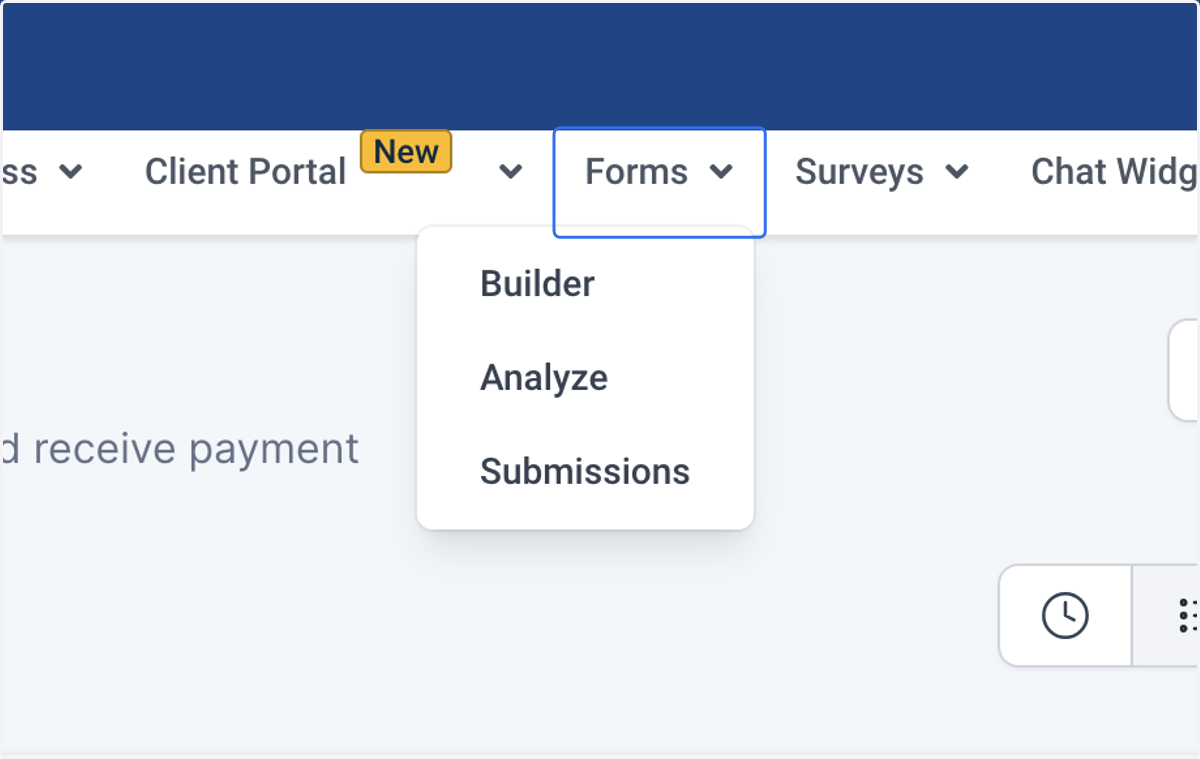
2. Click on Forms
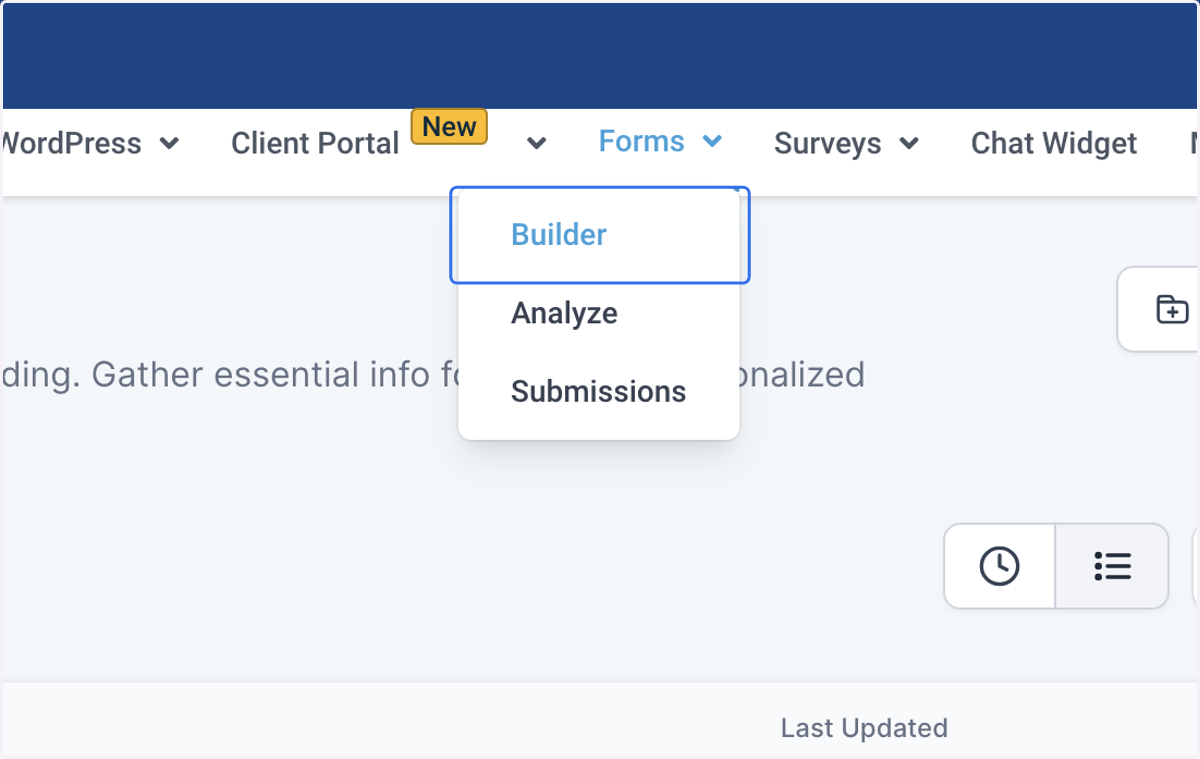
3. Click on Builder
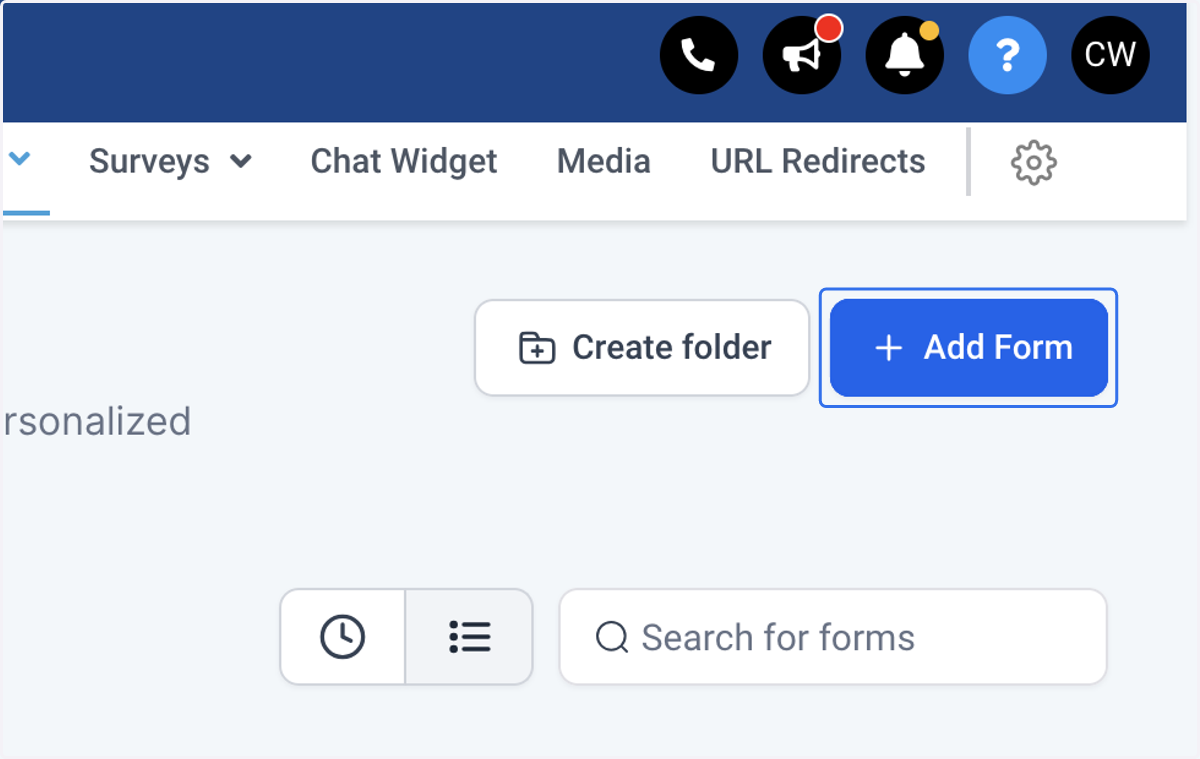
4. Click on Add Form
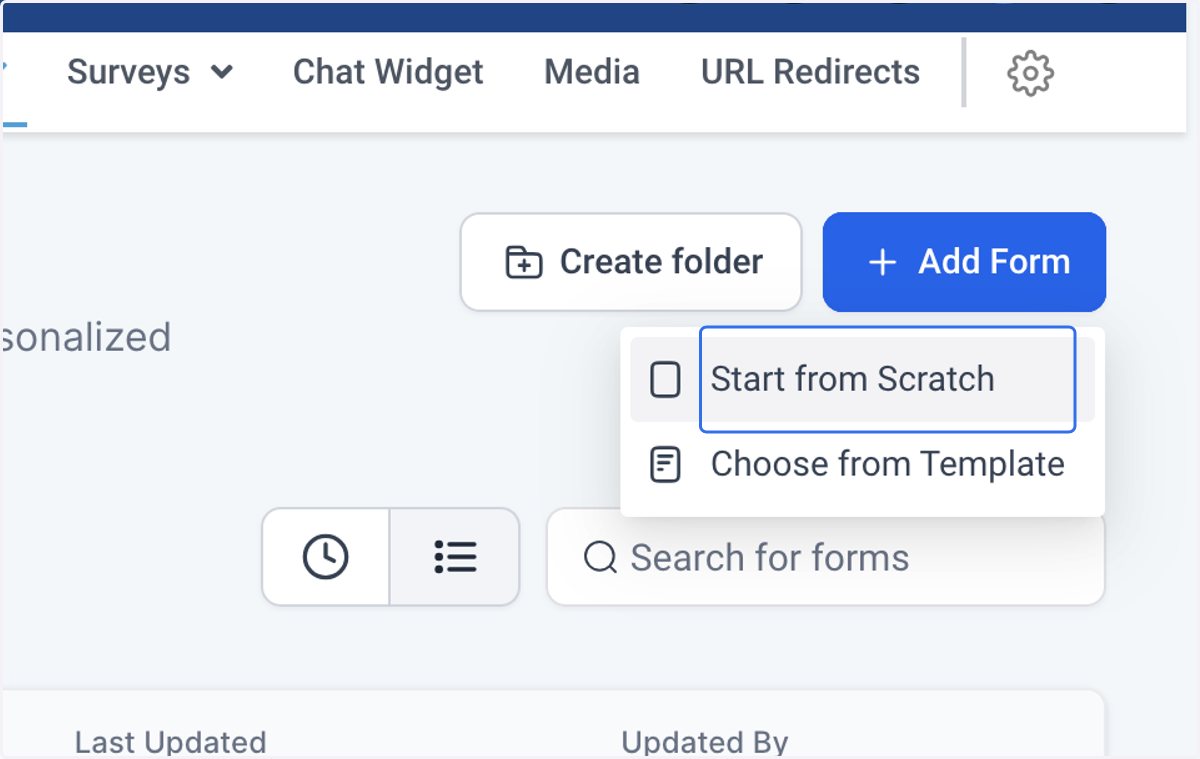
5. Click on Start from Scratch
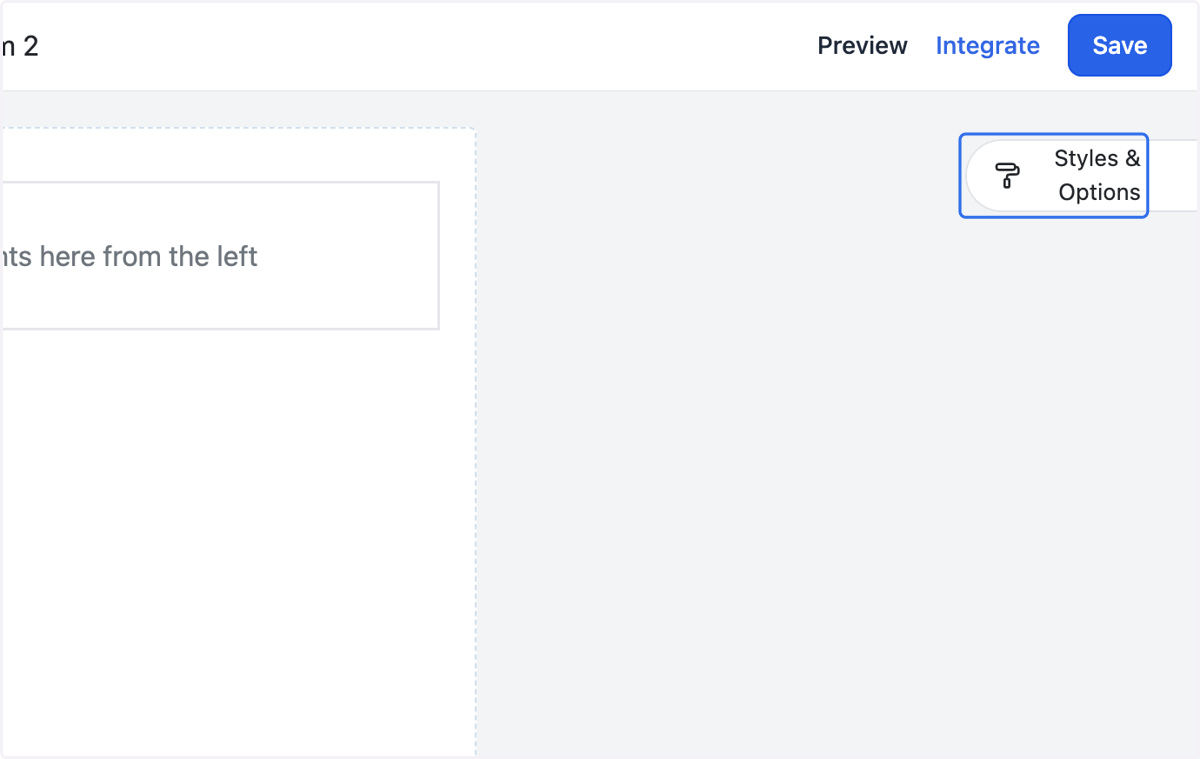
6. Click on Styles & Options
7. Select the Options tab
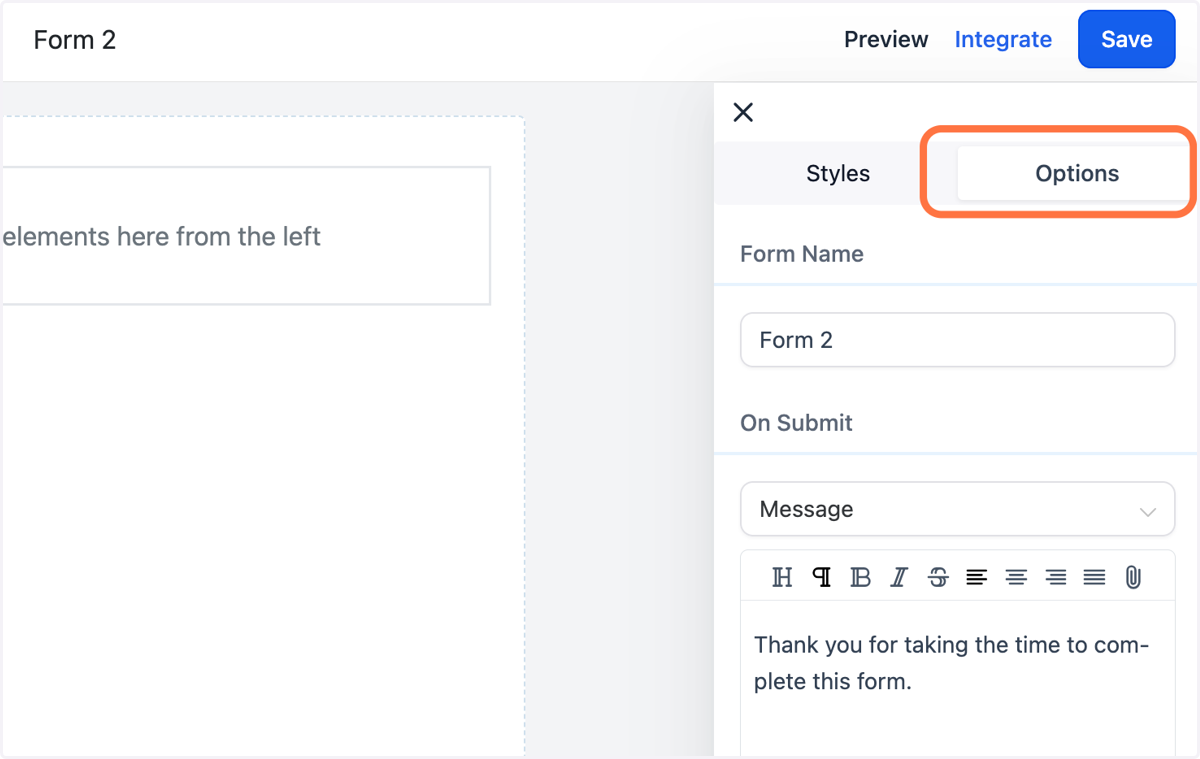
8. Name your form
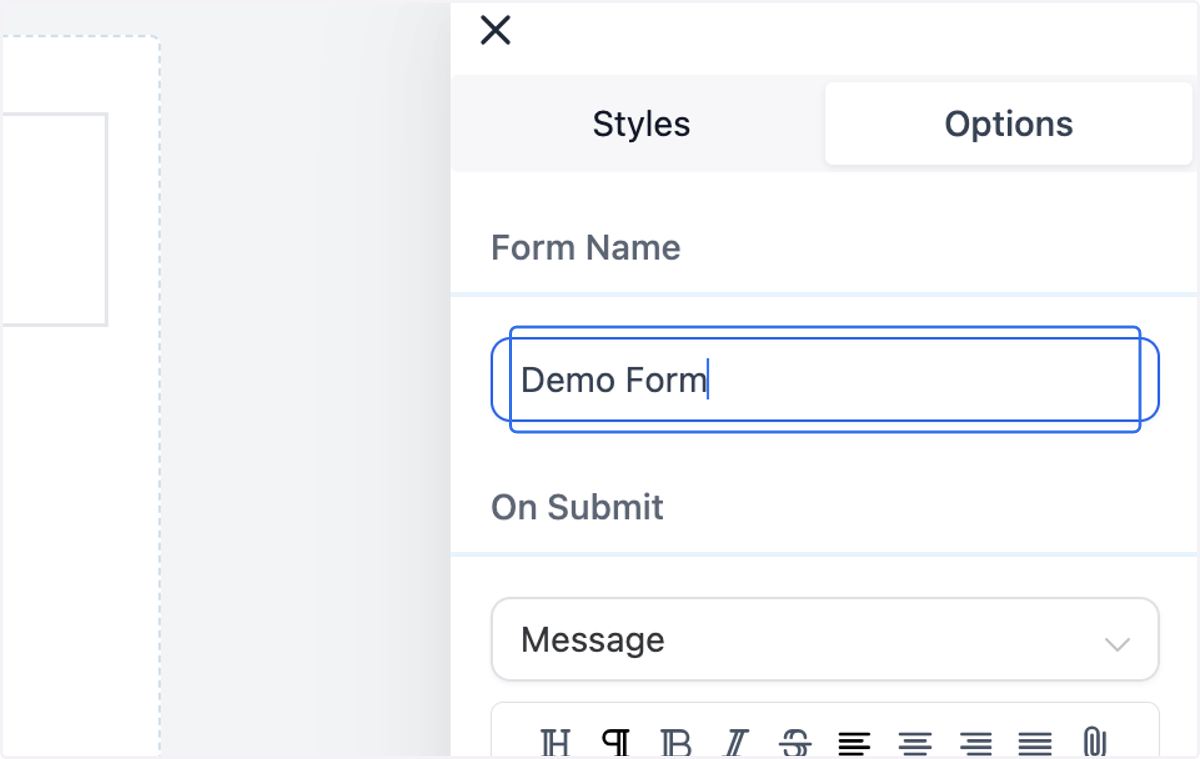
9. Edit the On Submit section
This section can be customized to show a Message after the form is submitted or take the user to another webpage.
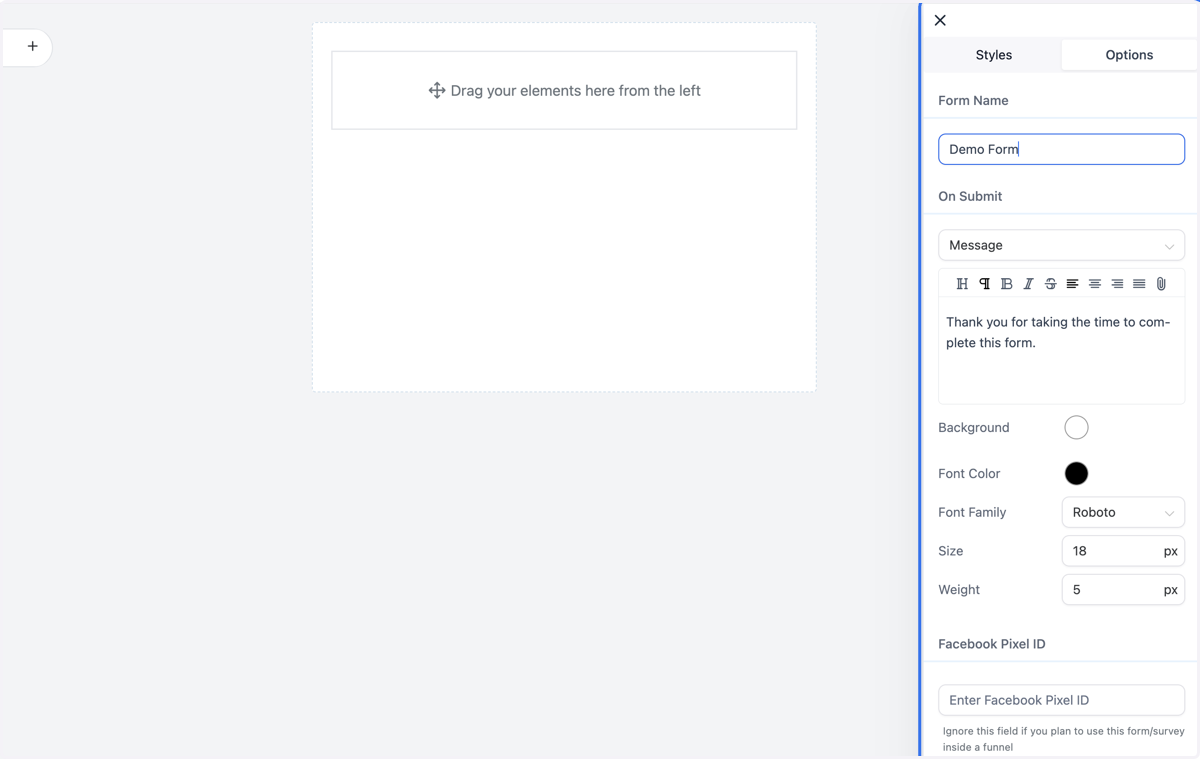
10. Toggle On Sticky Contact
This will autofill any of the user's information into the form that was previously entered on your site.
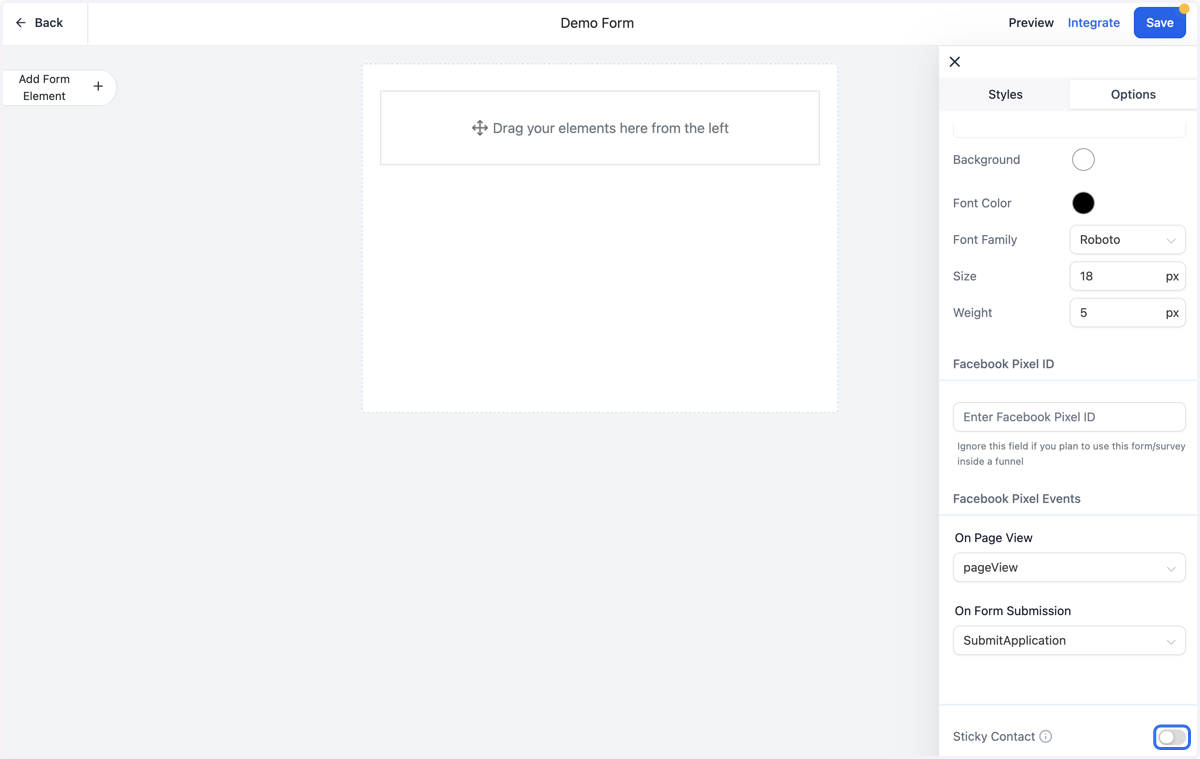
11. Click on Styles
You can customize the design of the form using the style buttons below
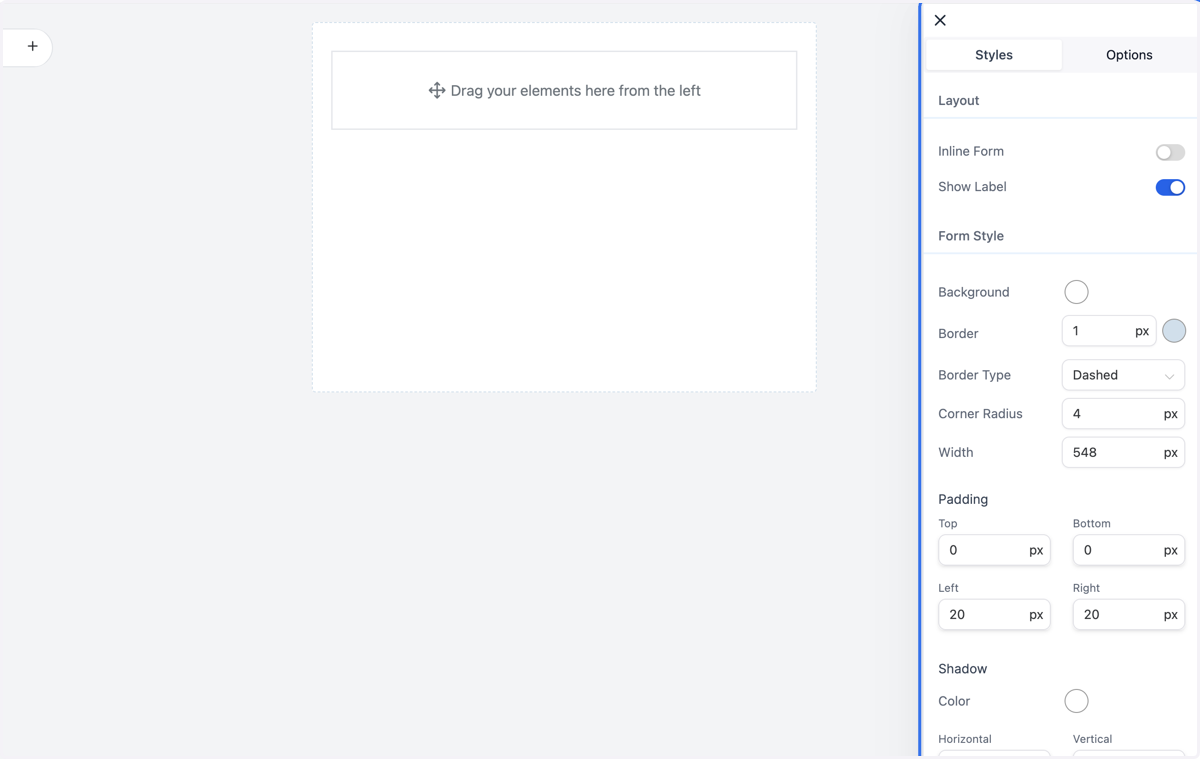
12. Click on Add Form Element…
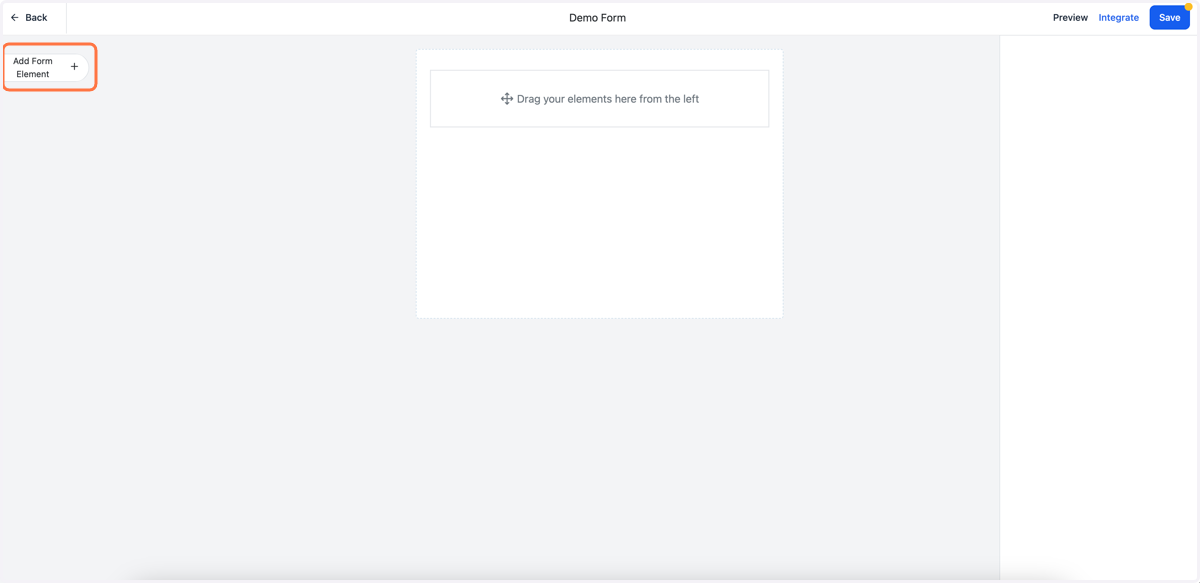
13. Click on the element that you want to add to your form and drag it into the center section
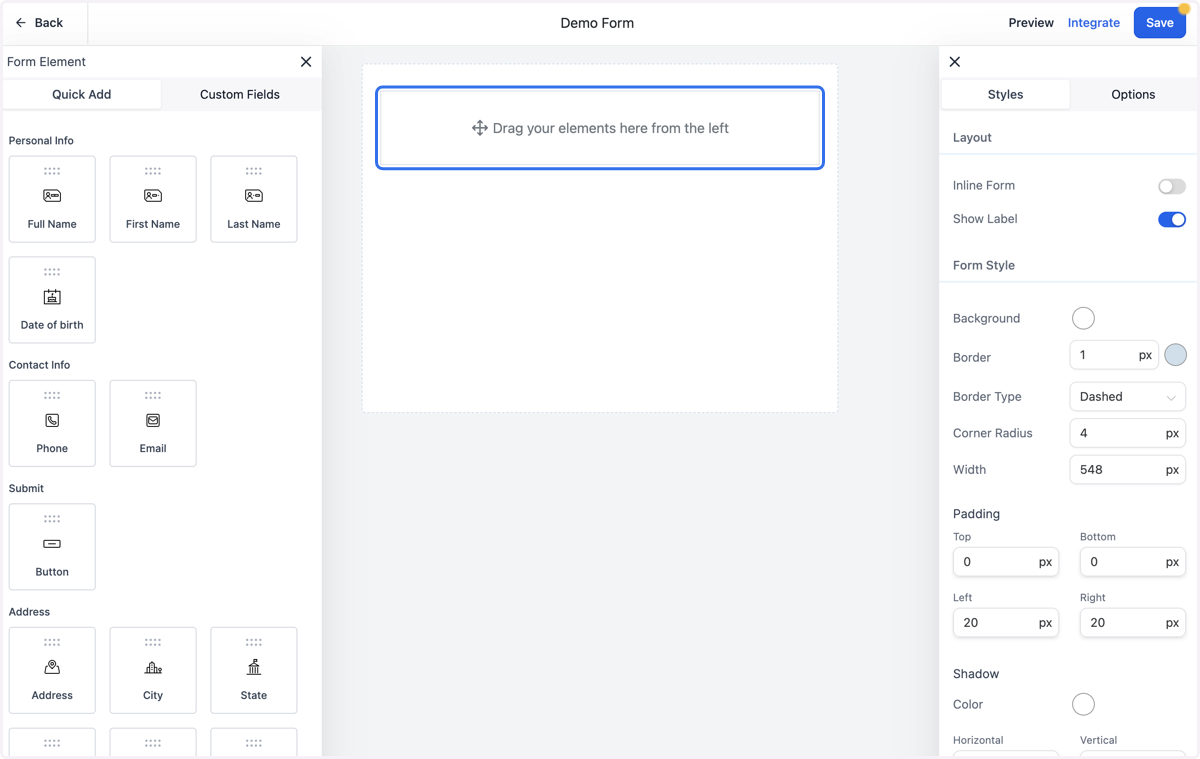
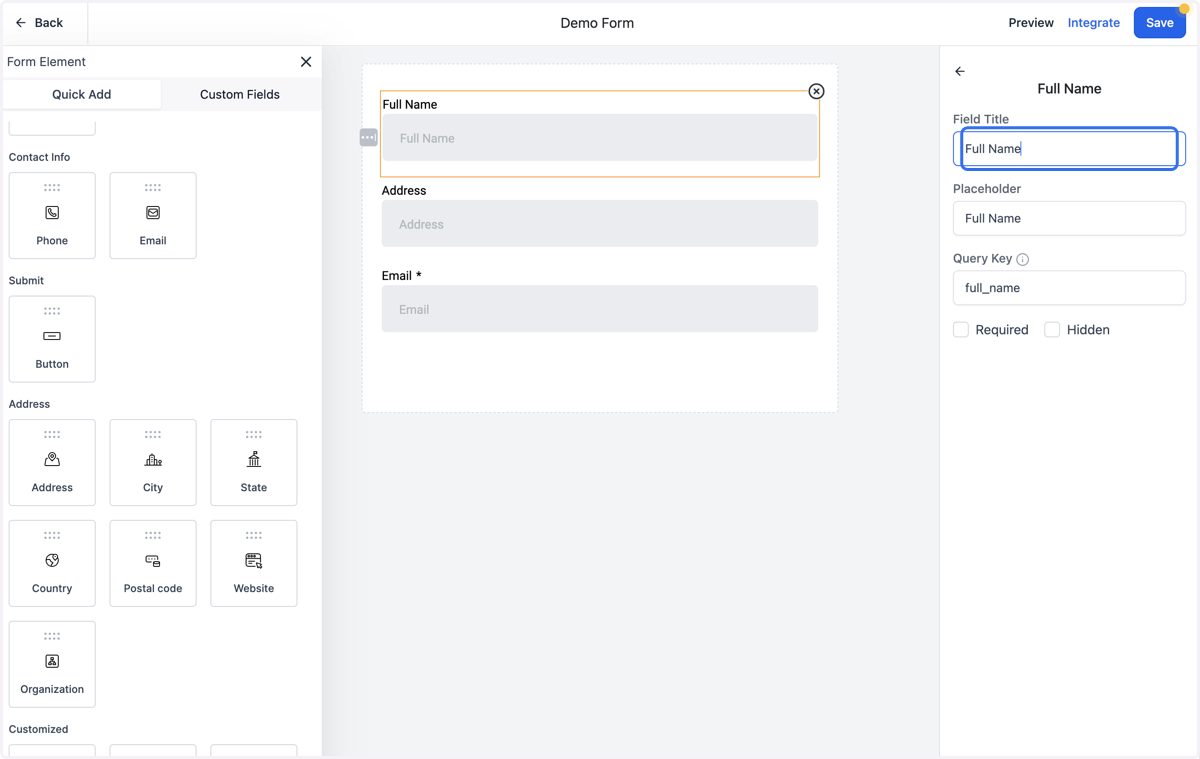
14. Once your element is in place, you can click on it to edit how it is displayed
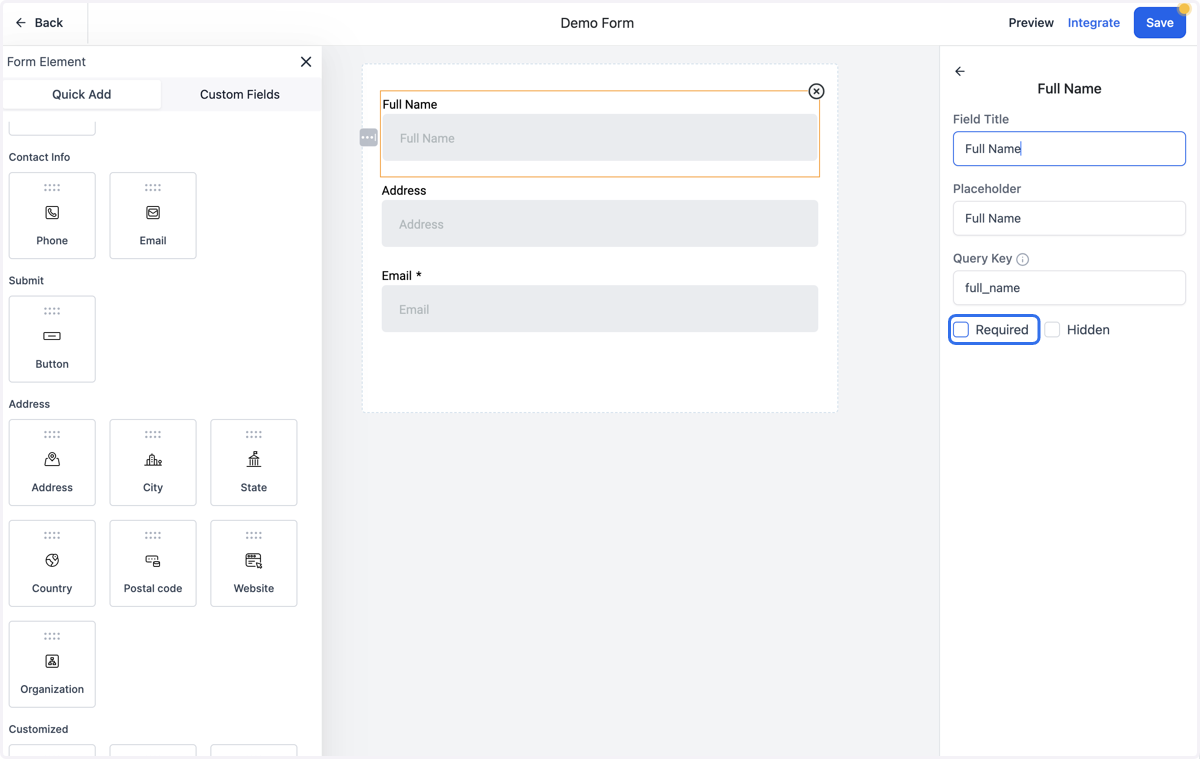
15. You can also mark the element as Required to ensure that it gets filled out
16. If you want to add Custom Fields, click on the Custom Fields tab
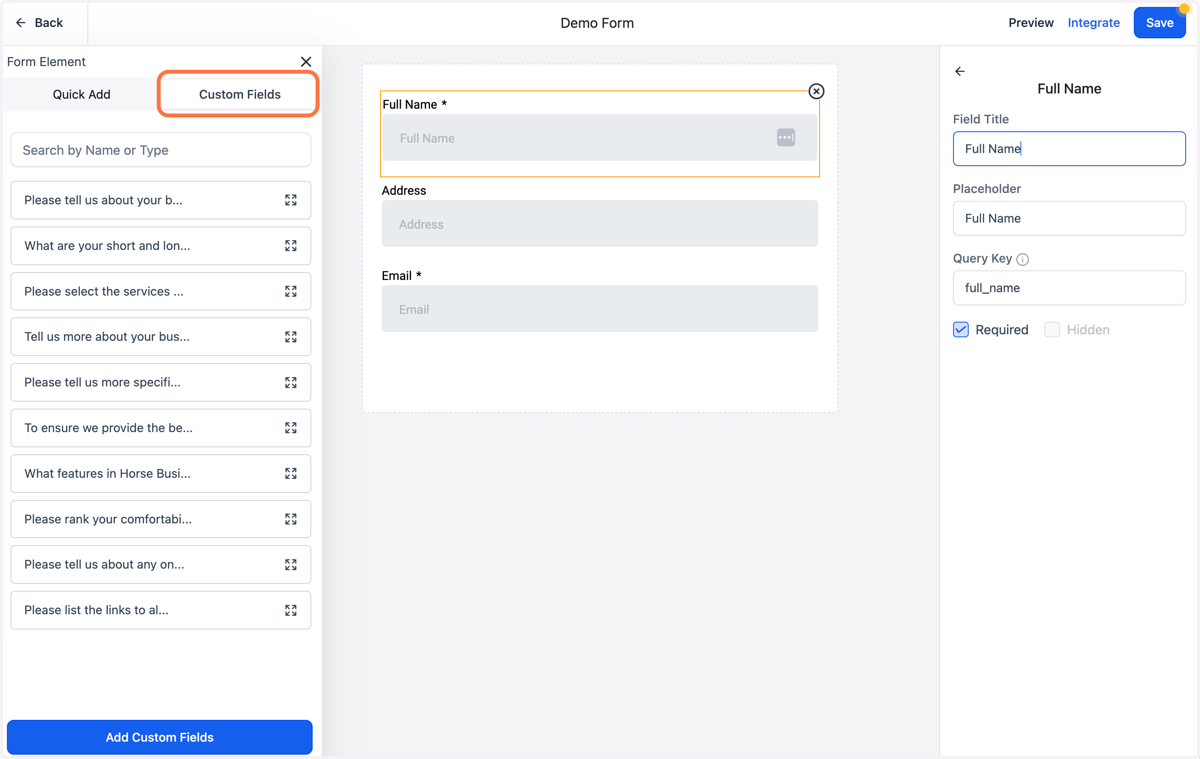
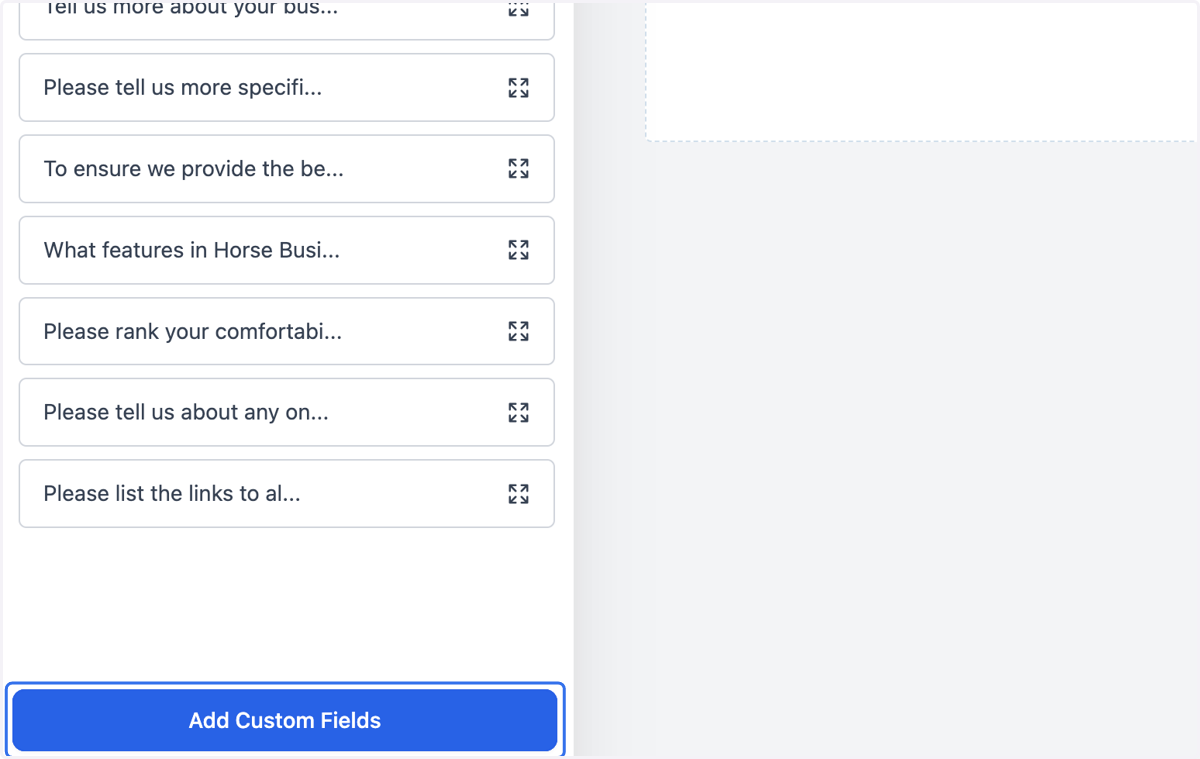
17. Click on Add Custom Fields
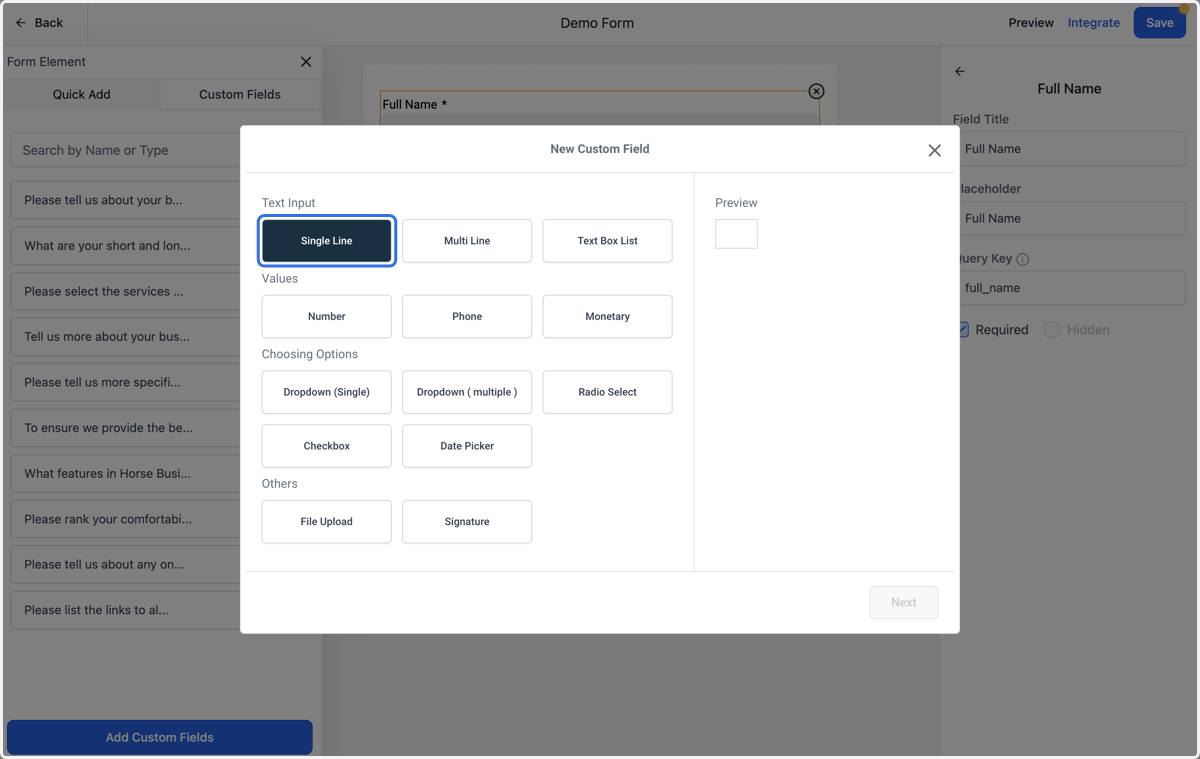
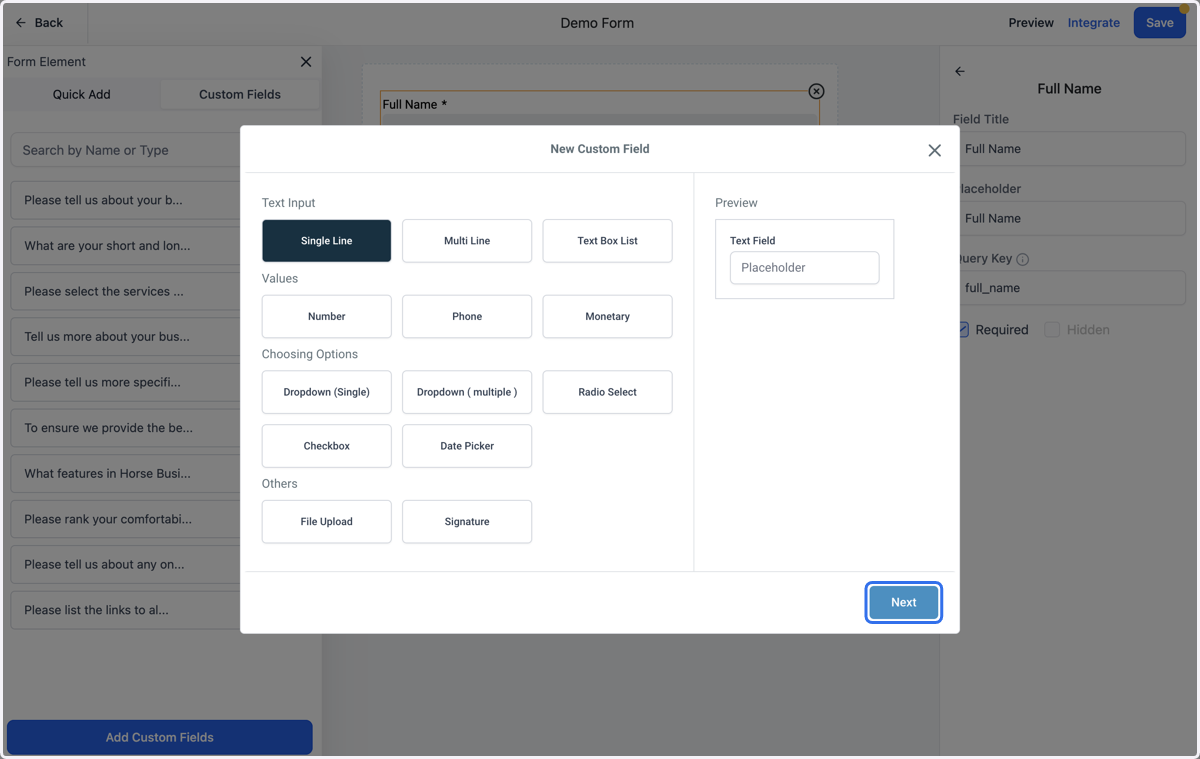
18. Select the type of field you want to add. An example of the field will show up on the righthand side of the box.
19. Click on Next
20. Type the name of the field
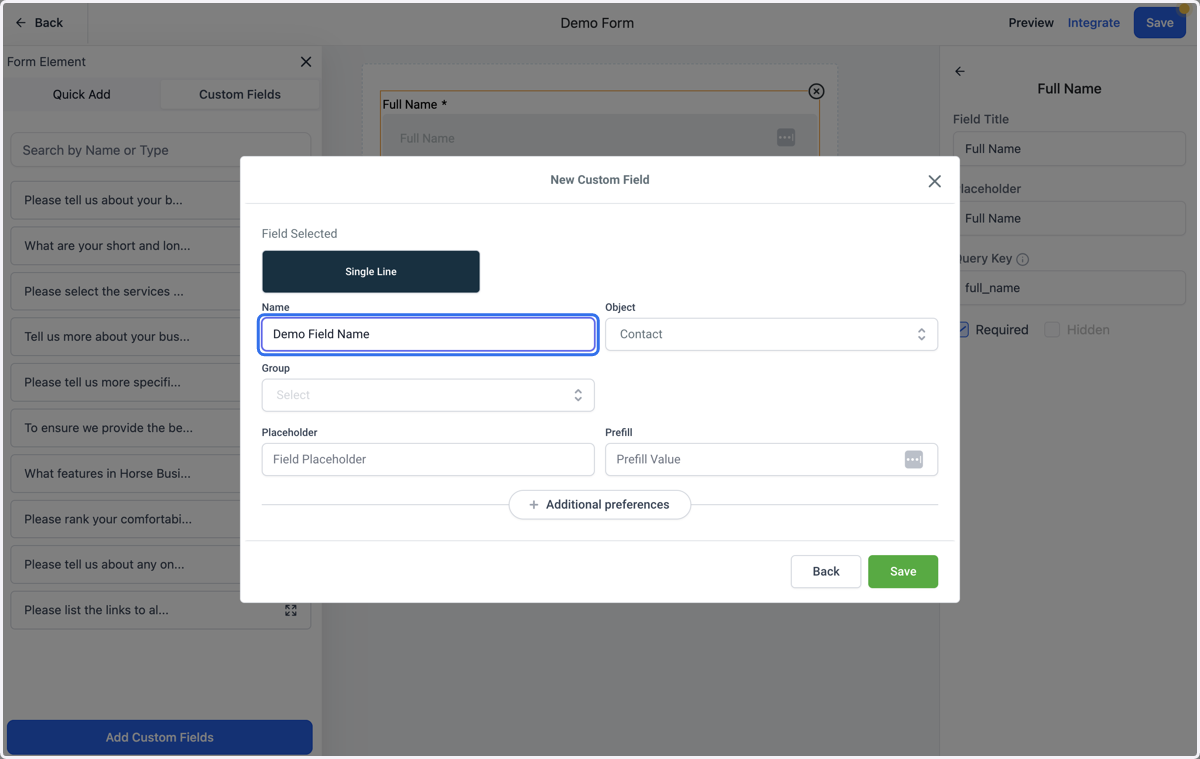
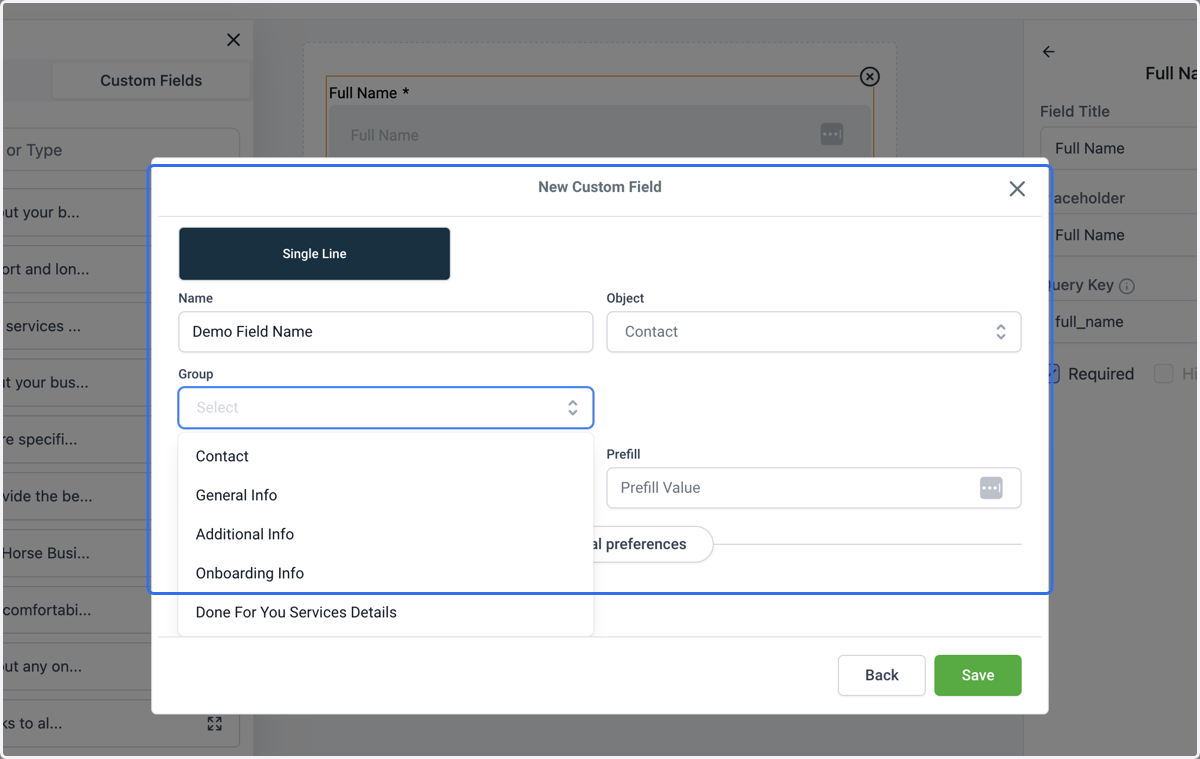
21. Select the Group (category of information) that this field pertains to
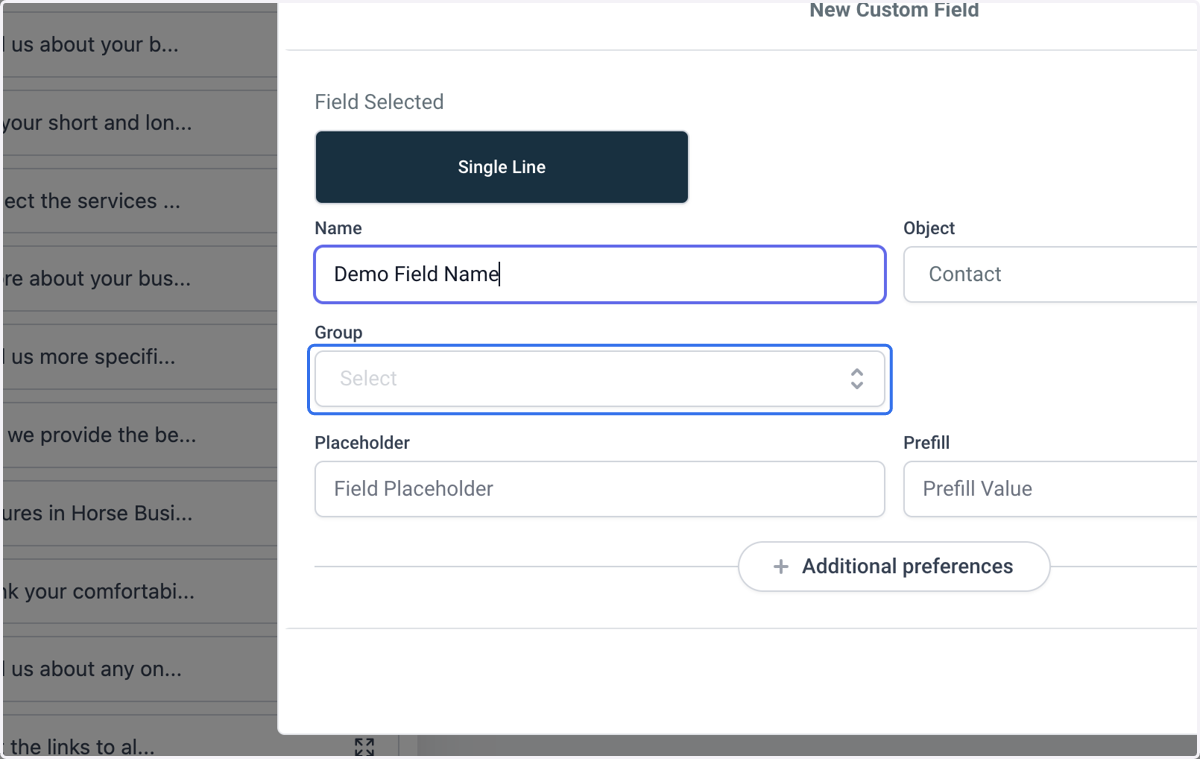
22. To add new Groups, see the Editing Custom Fields tutorial
23. If you want, add a placeholder text or prefill value
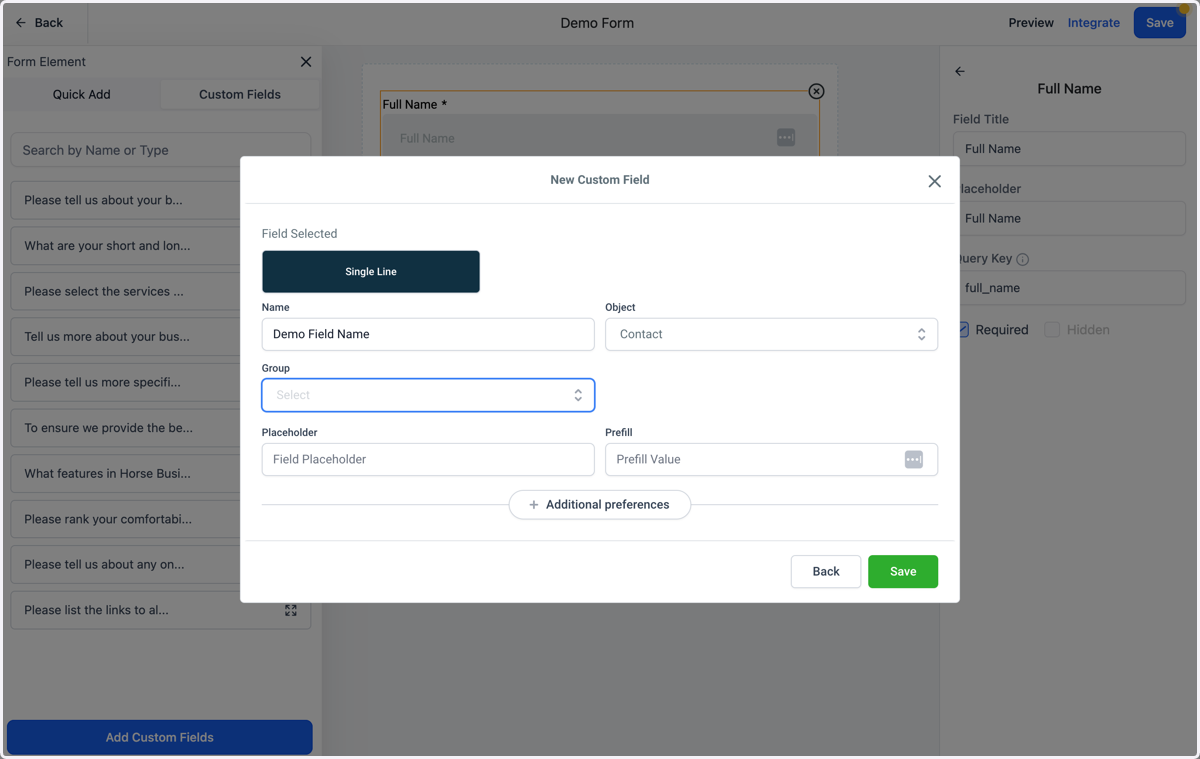
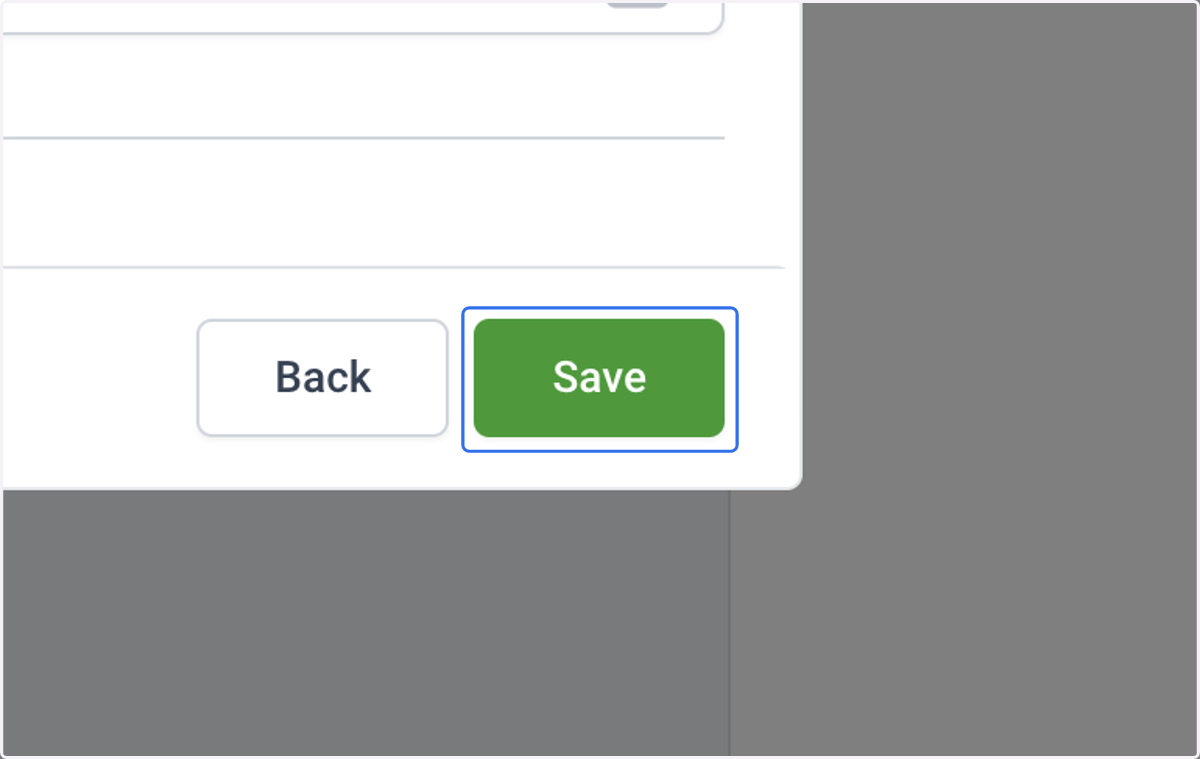
24. Click on Save
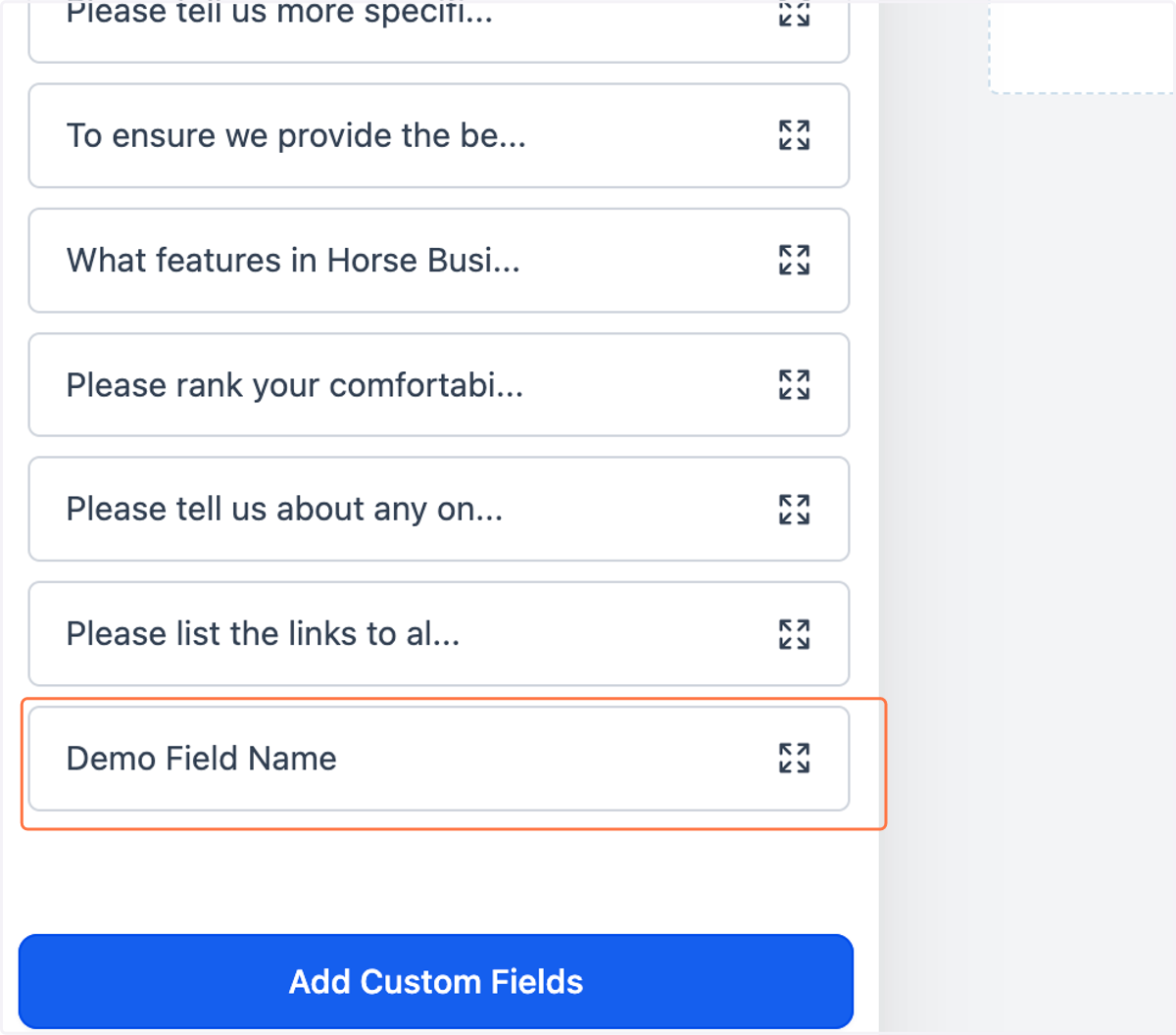
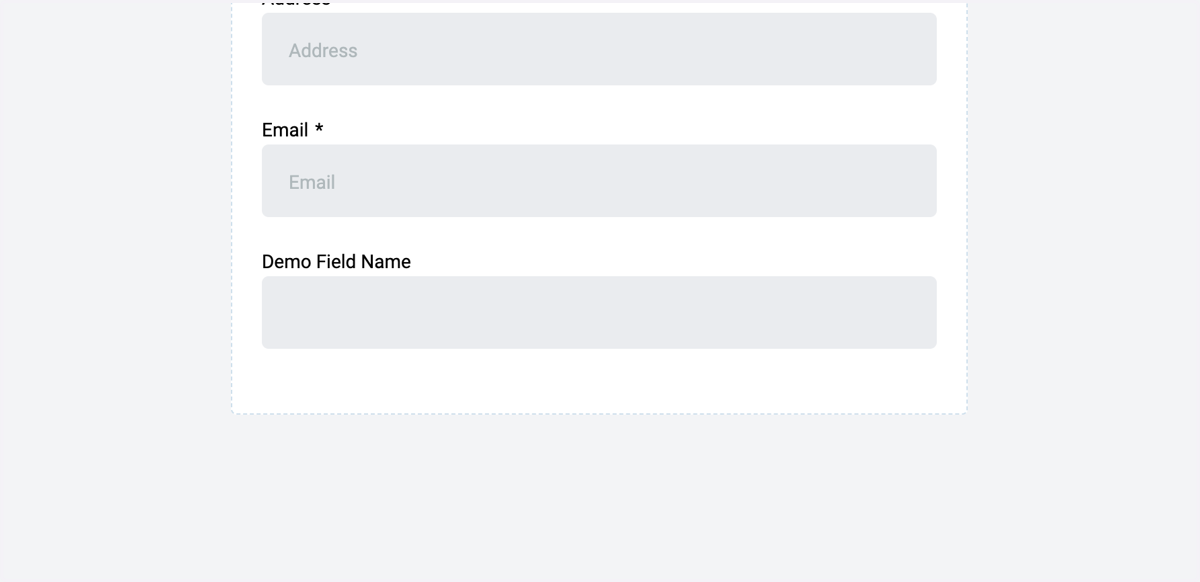
25. Your new Custom Field will show up at the bottom of the list under the Custom Fields tab. Click and drag it onto your form.
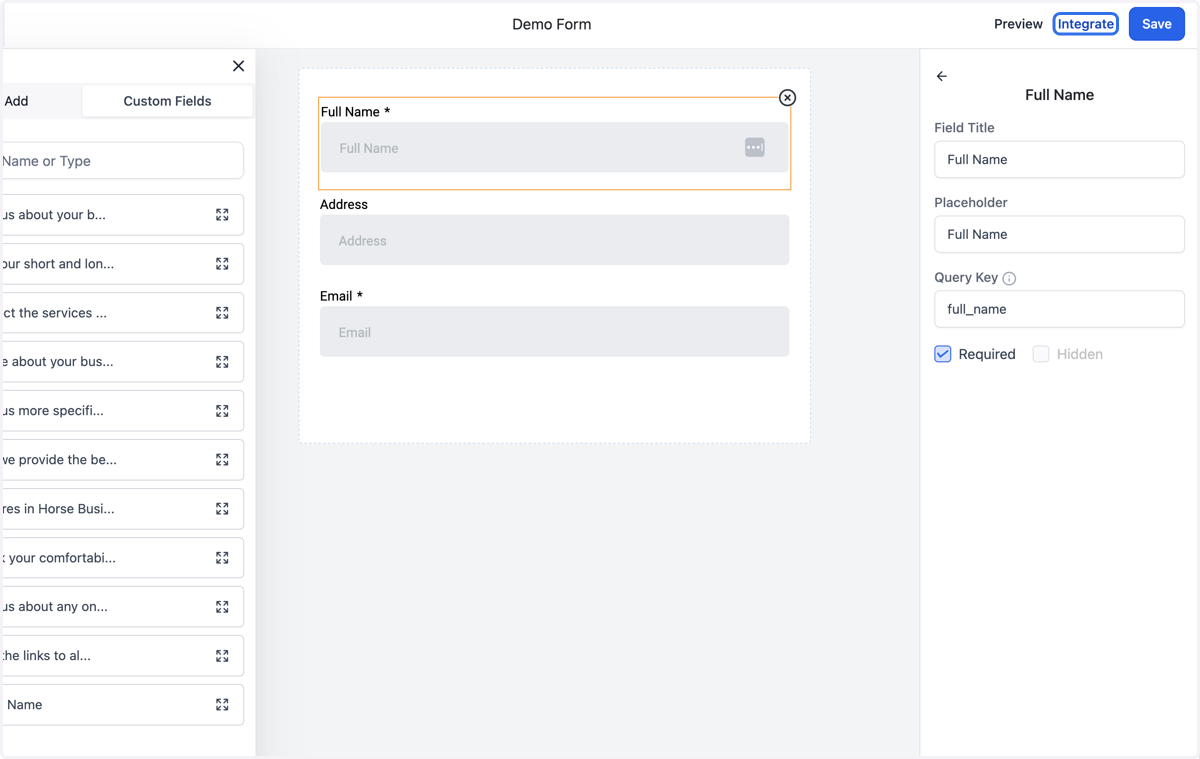
26. Once you are finished building your form, click Save
27. When you are ready to share your form, click on Integrate
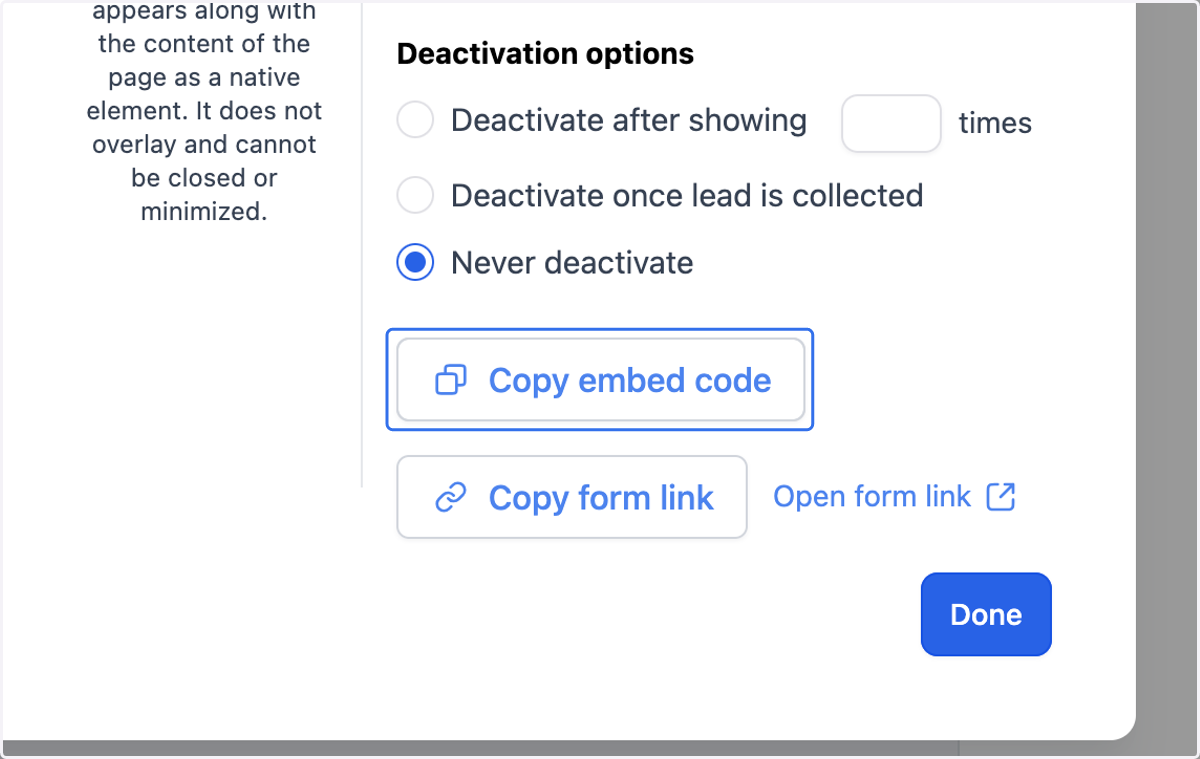
28. If you want to embed your form directly onto your website, click on Copy embed code.
29. If you want to share your form via a link, click on Copy form link
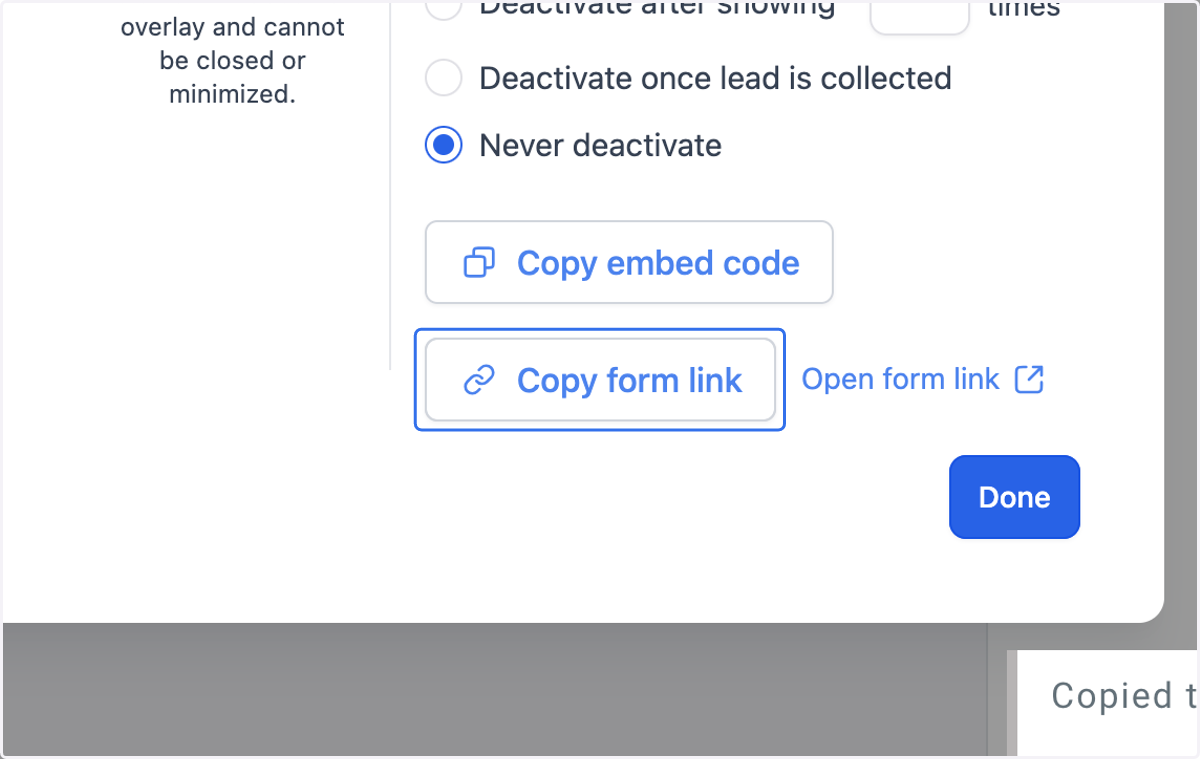
30. Click on Done