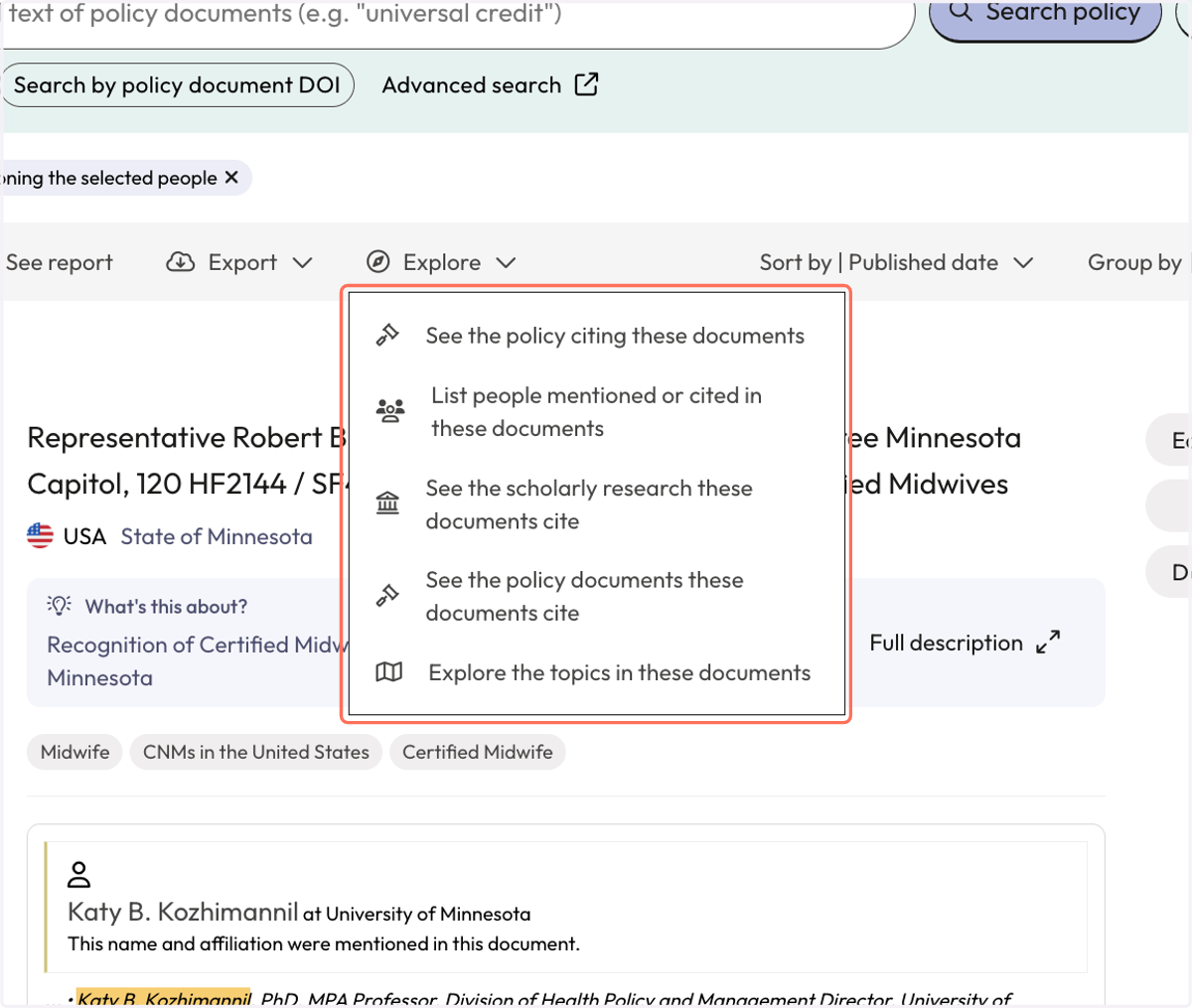
Search for mentions using your name in the People search
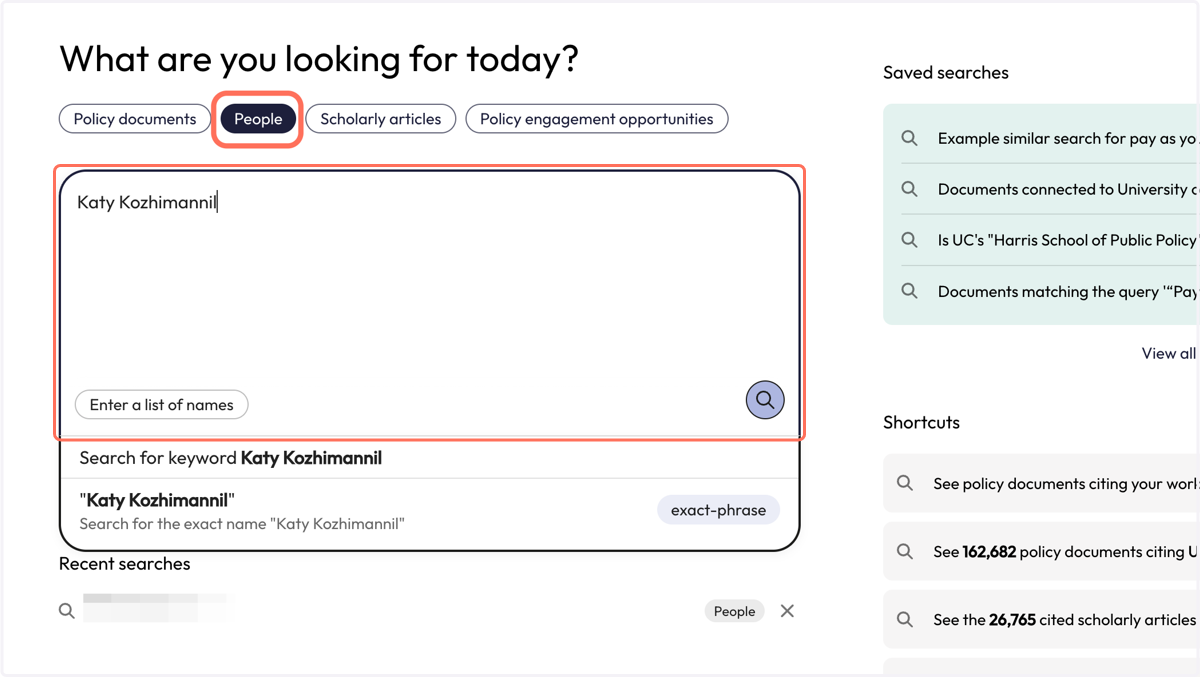
1. Click on the 'People' tab above the search box, type a name into the search box and click on the purple icon with the magnifying glass (bottom right).
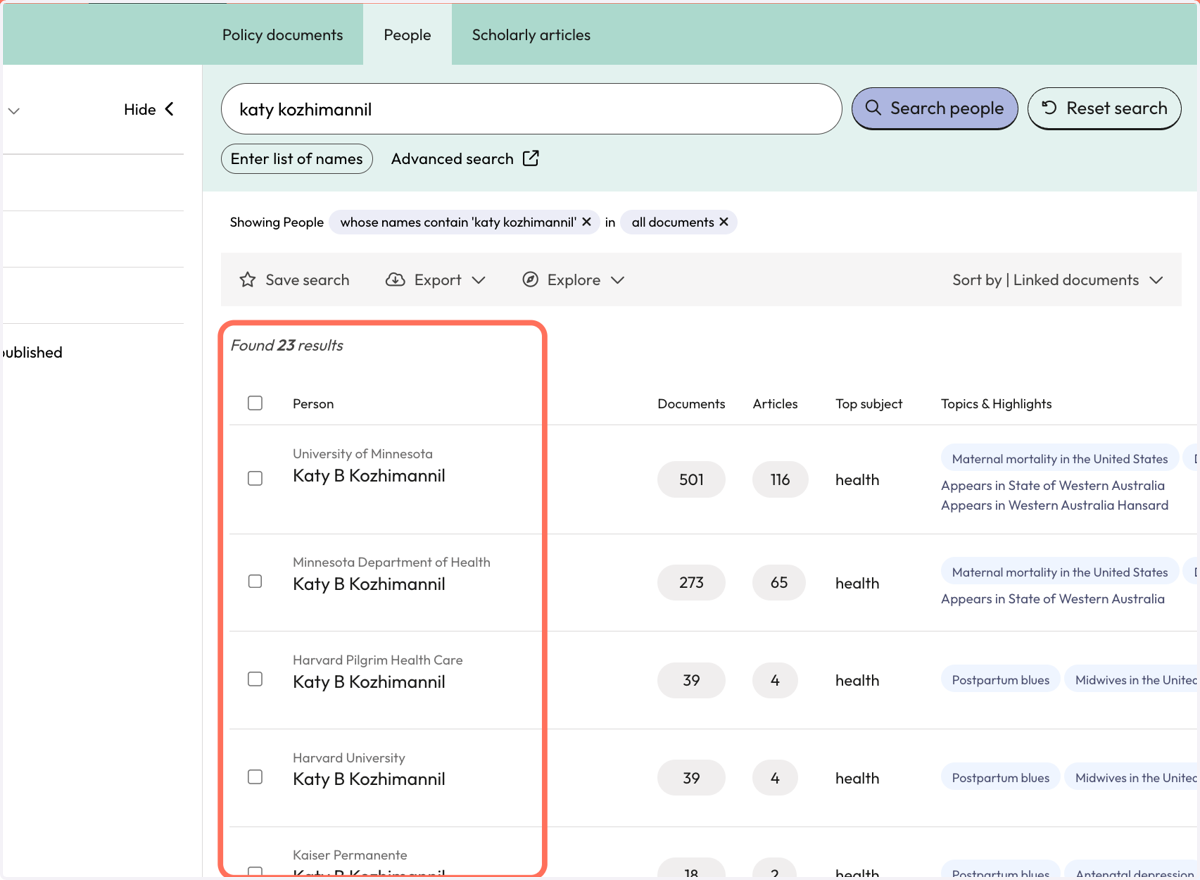
2. You will be brought to the main 'People search' page where you can see the results for your name.
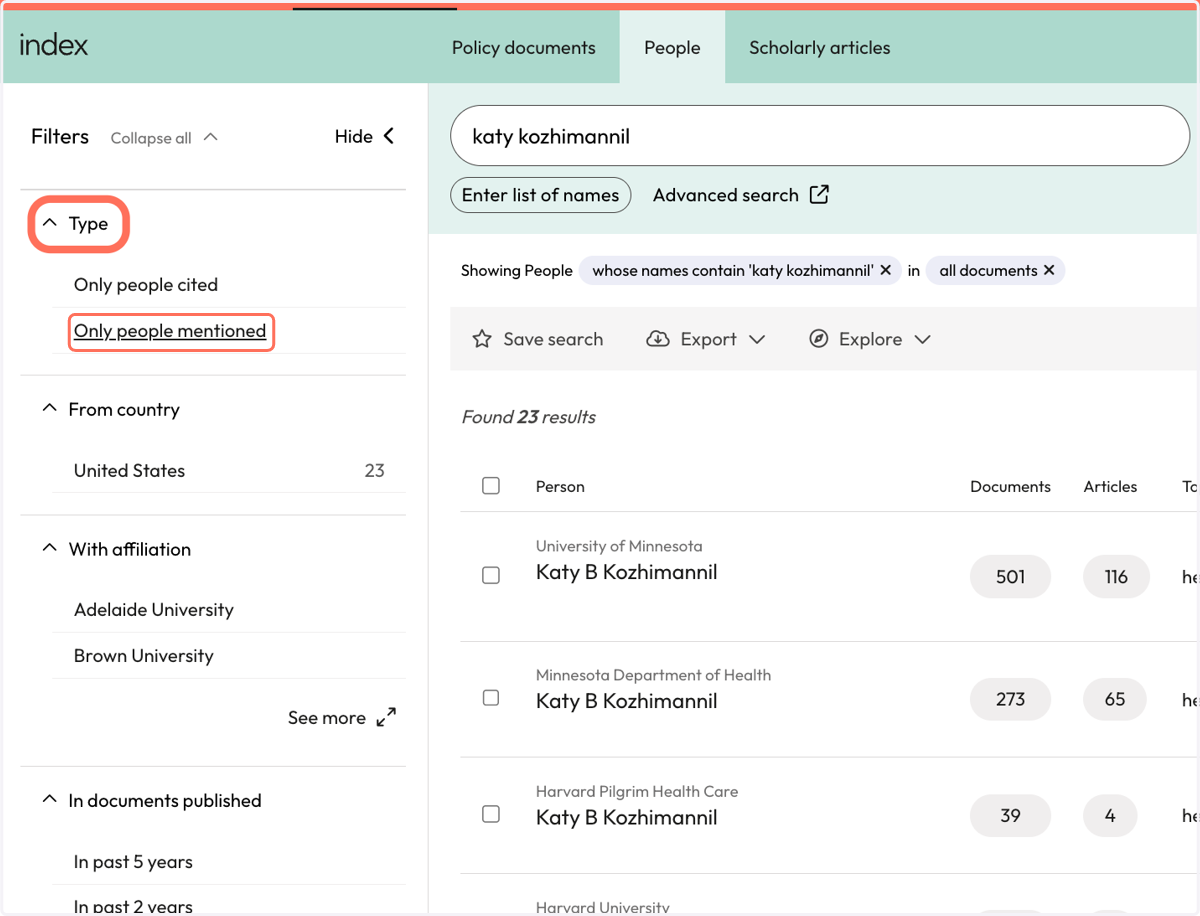
3. Select 'Type' to filter for 'Only people mentioned' to only see results for people mentions.
Only people mentioned will show results for someone if their name and affiliation were found in the full-text of policy documents and Overton had enough metadata to validate the finding. Mentions happen for many reasons.
4. Each result entry includes a name and institutional affiliation. A person may have multiple results if they have been affiliated with multiple institutions.
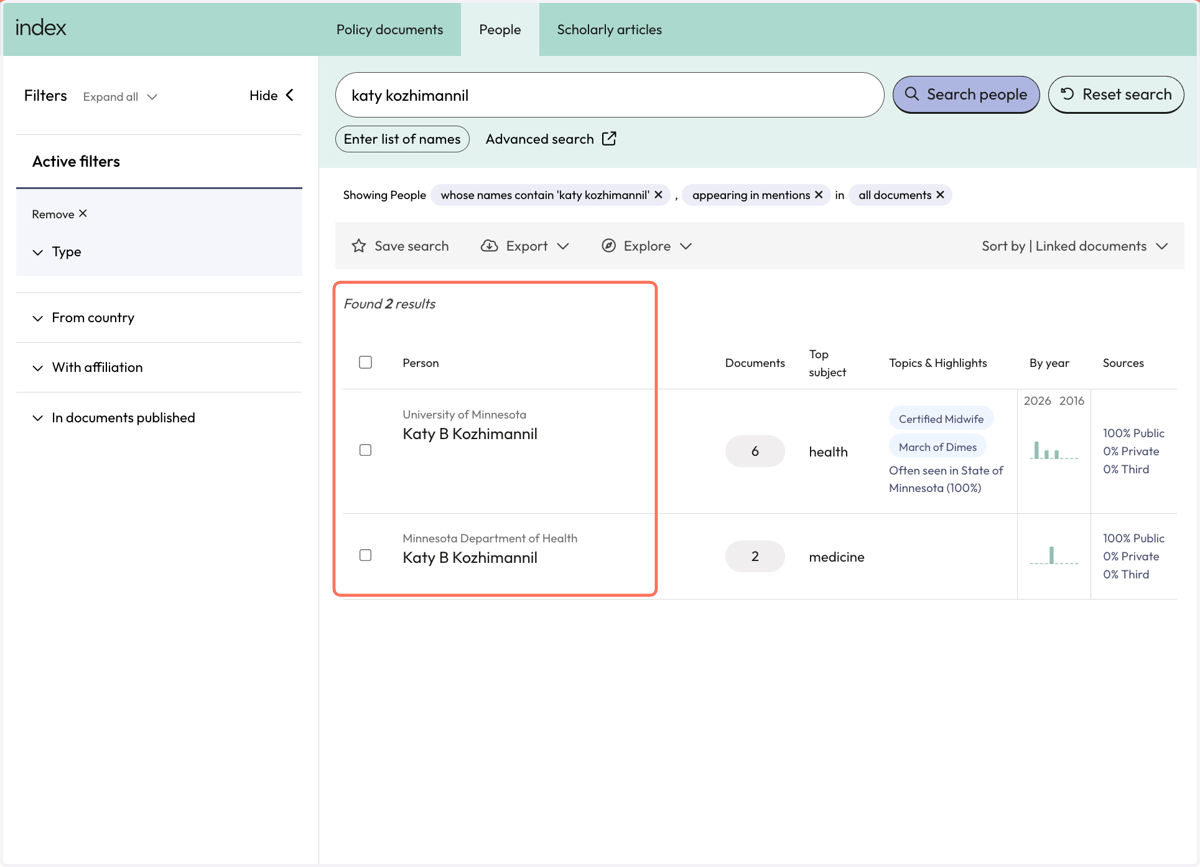
5. To select specific results, check the box beside the relevant name/affiliation pair.
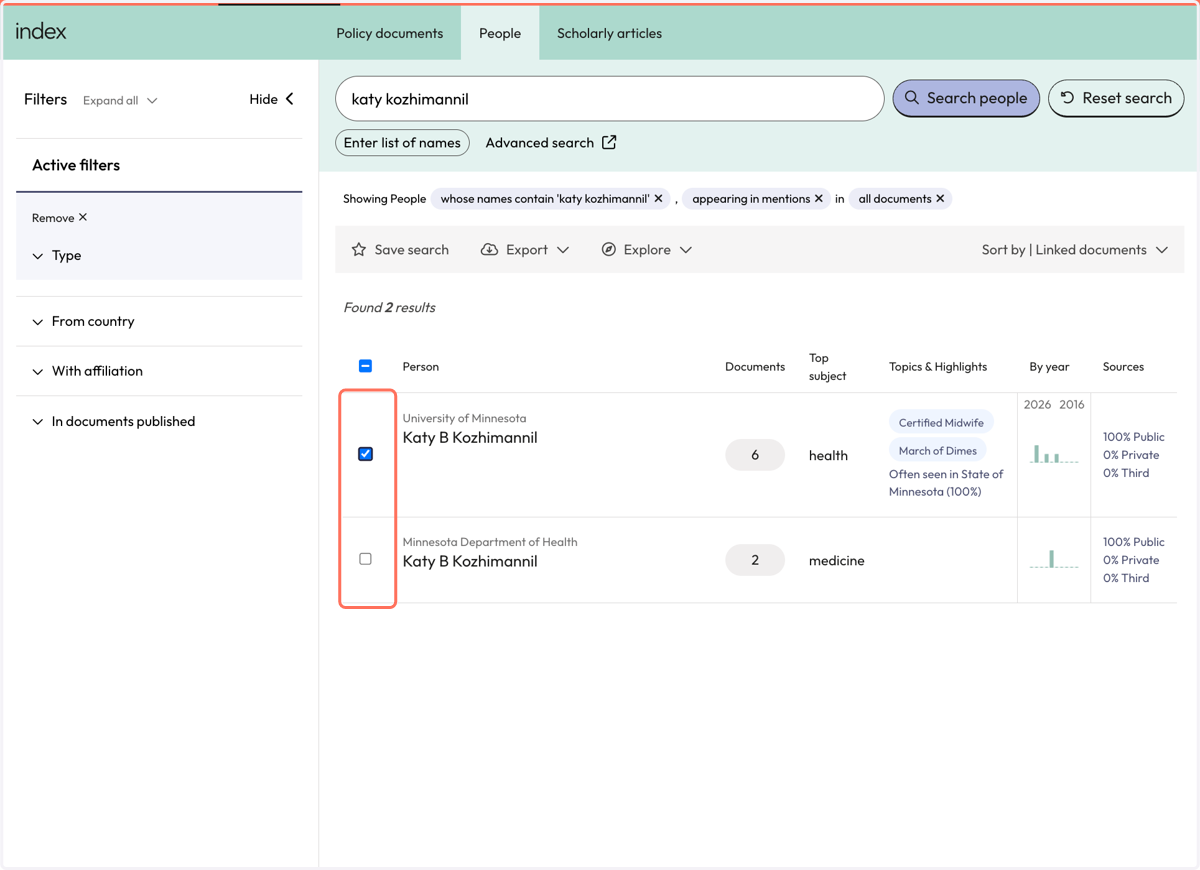
6. Or, to select all results, click on the checkbox at the top of the results like to select all name/affiliation pairs.
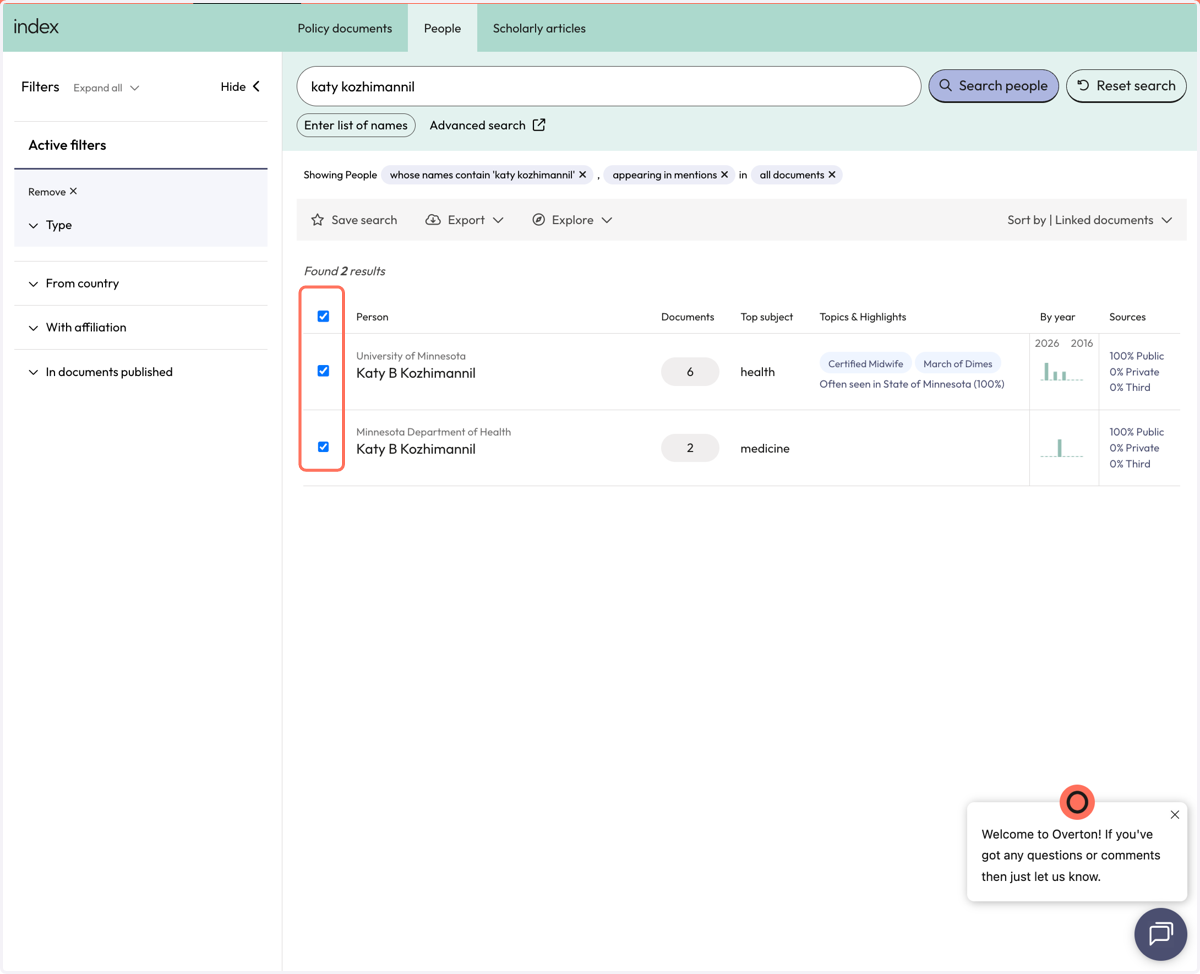
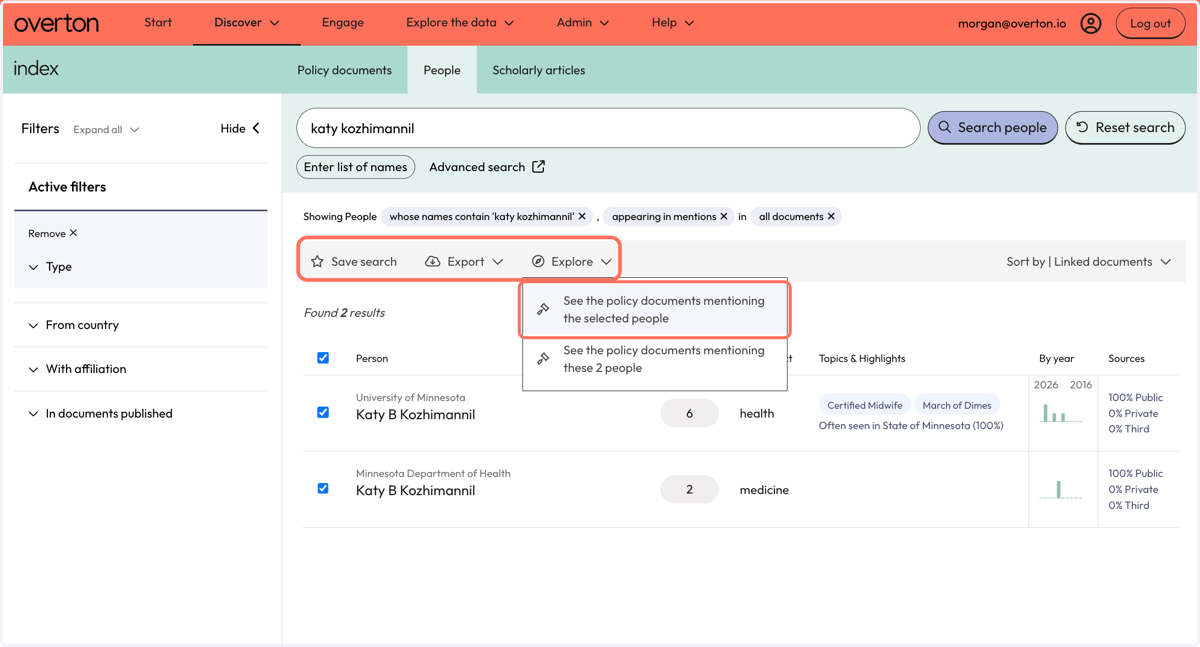
7. Once you have your selected results, you can take an action like saving the search or exporting your selected results to CSV of use 'Explore' to view policy document results for mentions of for the selected individuals (see next step).
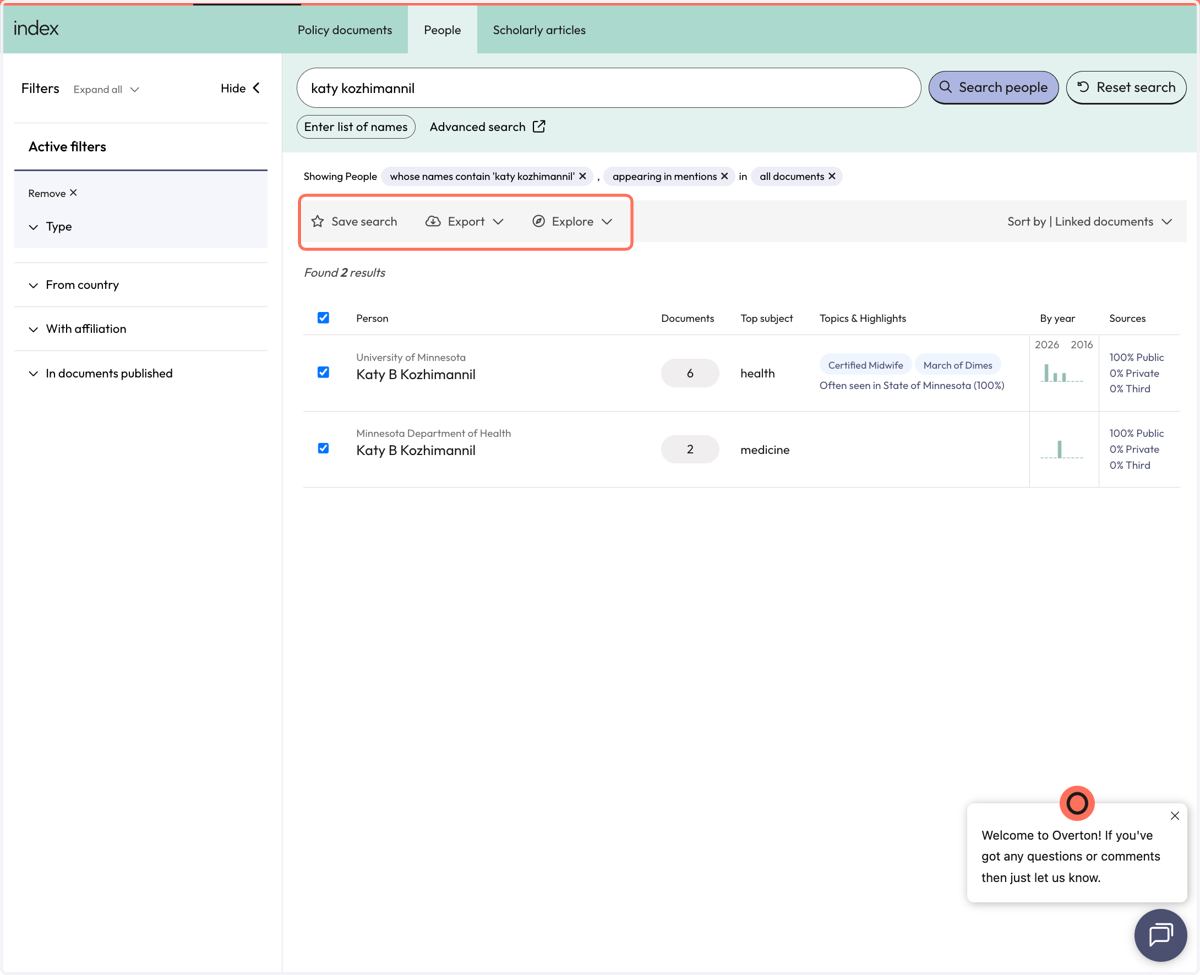
8. Click on 'Explore' then 'See the policy documents mentioning the selected people' to see the policy documents where the person was cited.
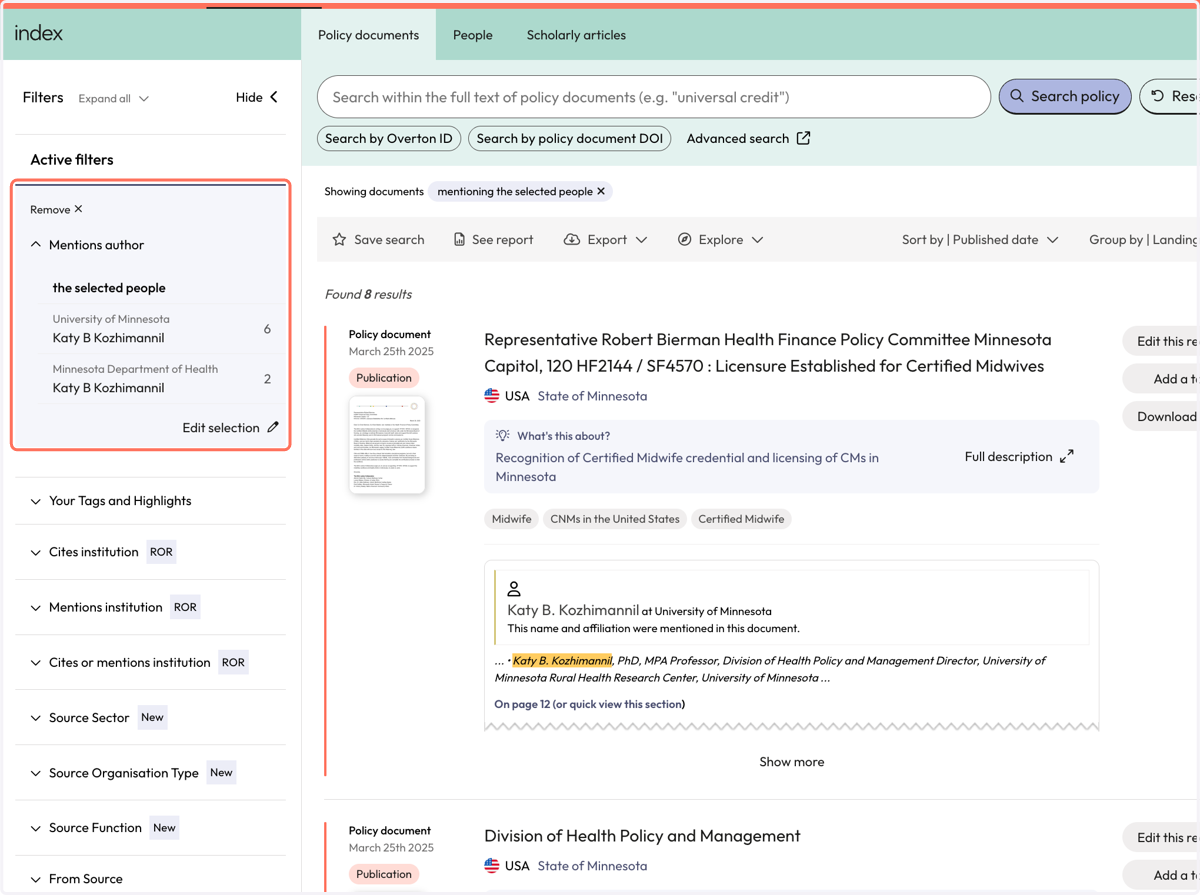
9. You will be taken to the 'Search Policy Documents' search and can view the policy documents that mention the selected people.
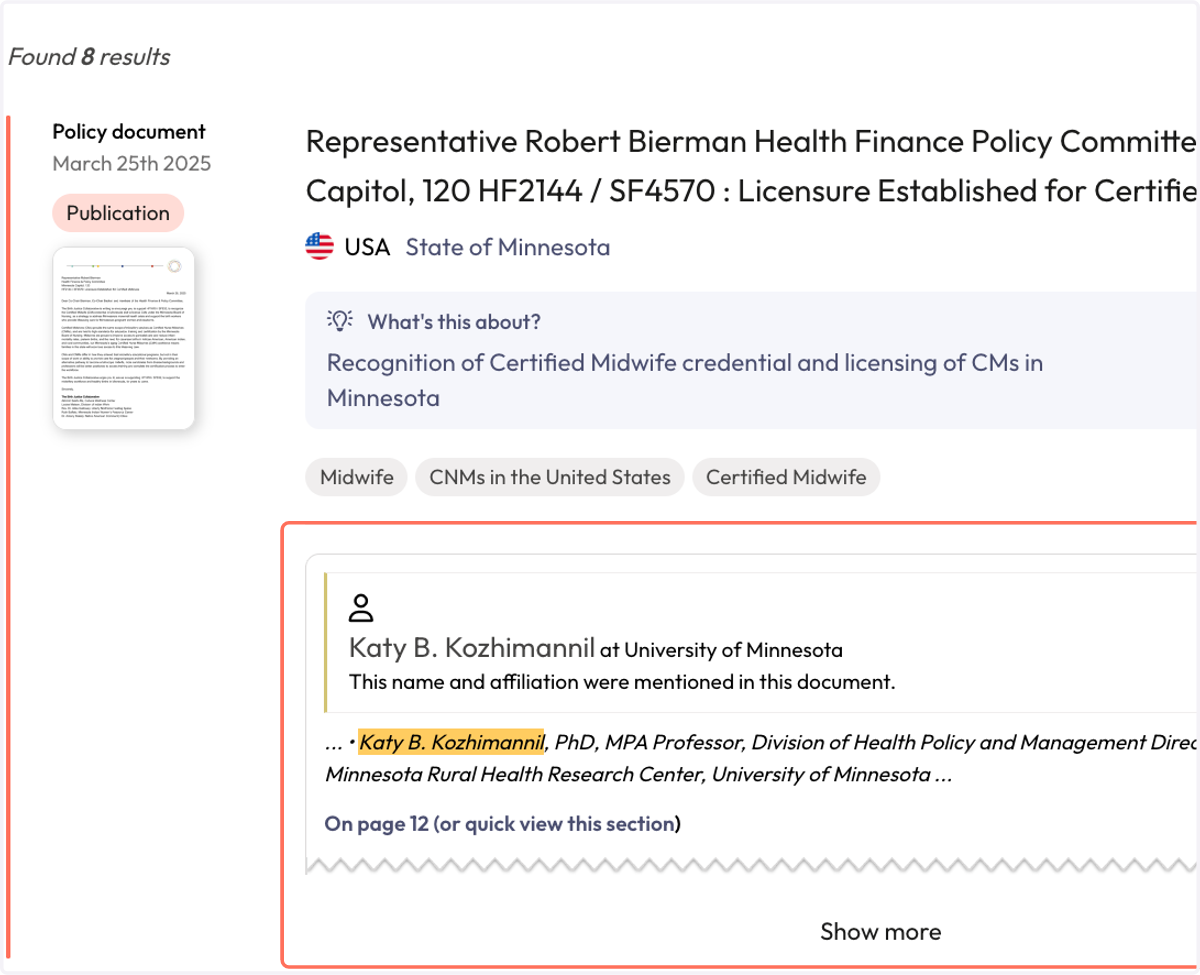
10. A 'mention' found via the People search is distinguished by the presence of the yellow bar beside the evidence snippet (the thing we found in the policy document).
11. From here, you can apply filters to narrow results or go directly to the grey action bar above the search results to take an action like saving a search, generating a summary report, exporting results or exploring results further.
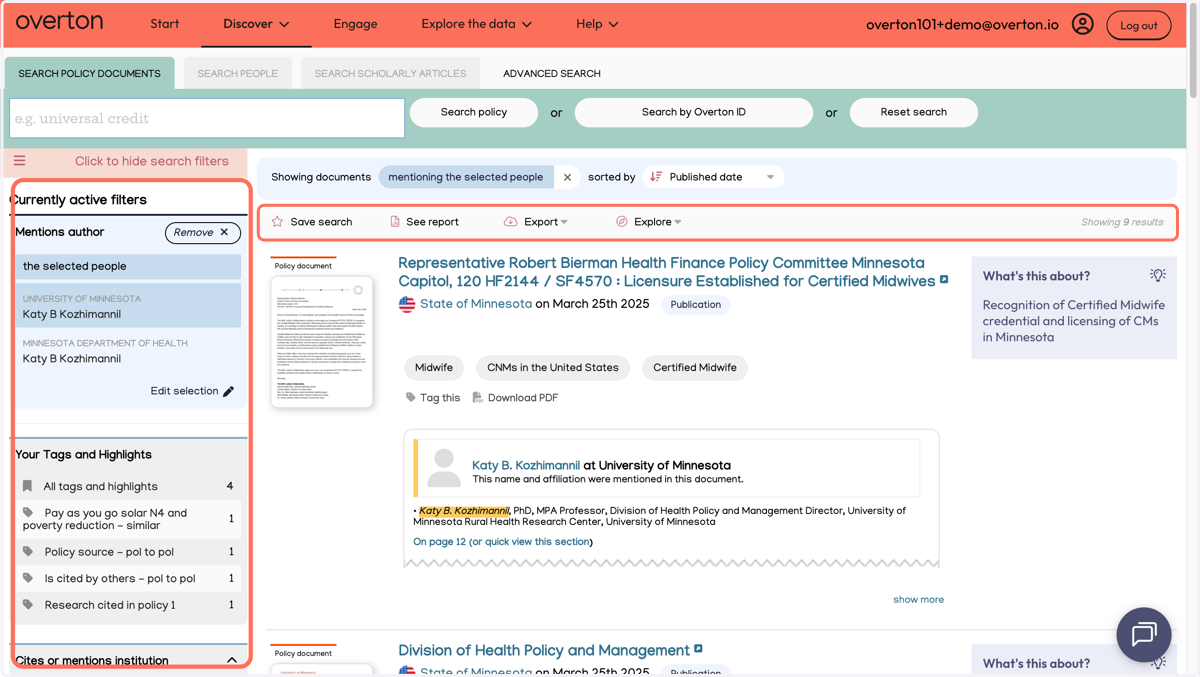
12. From here, you can apply filters to narrow results or go directly to the grey action bar above the search results to take an action like saving a search, generating a summary report, exporting results or exploring results further.
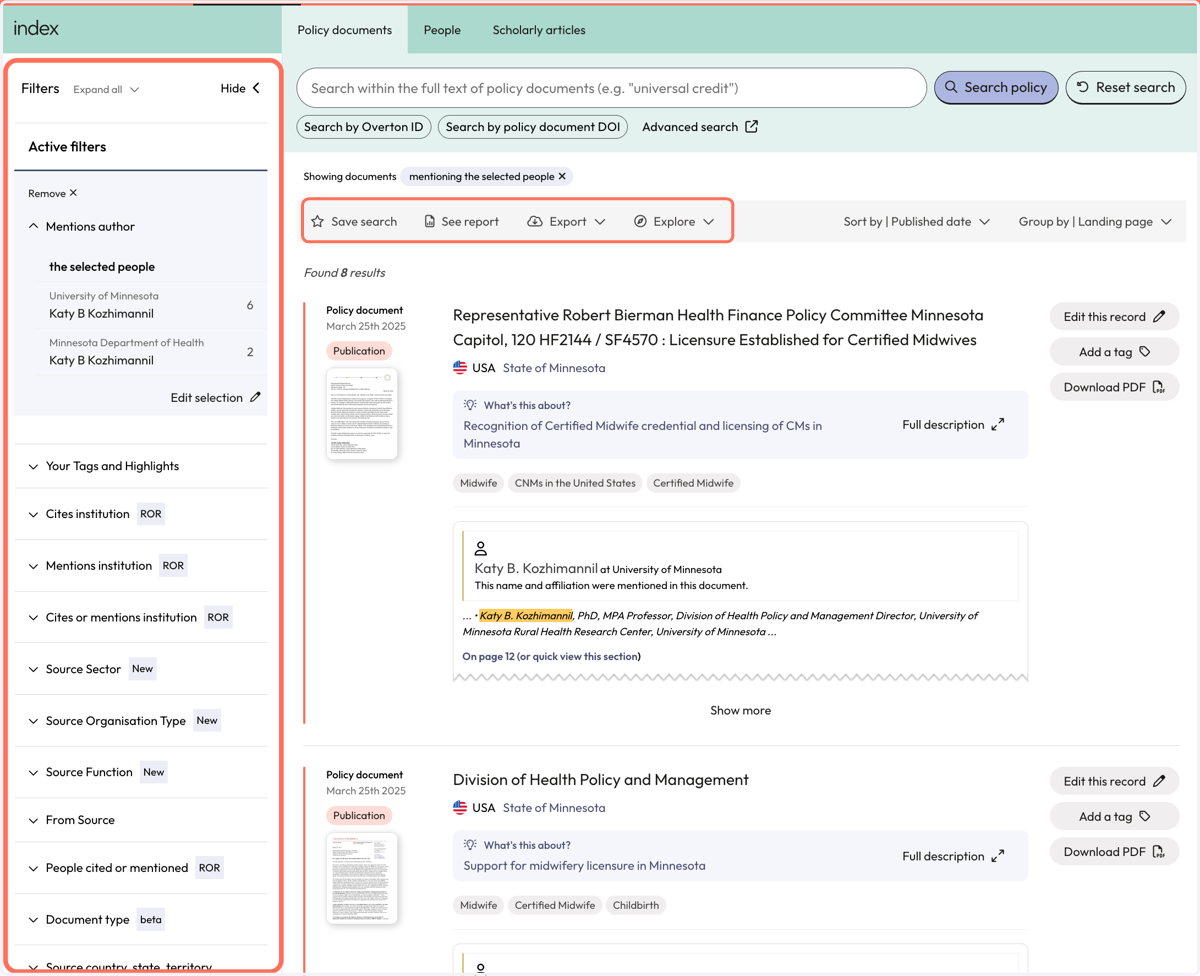
13. You can also use Explore to see policy citing the current results, or view people, articles, and topics.