Integrating RaiseThon PhoneRaise
Part 1: RaiseThon Settings
1. Log in to your RaiseThon admin account
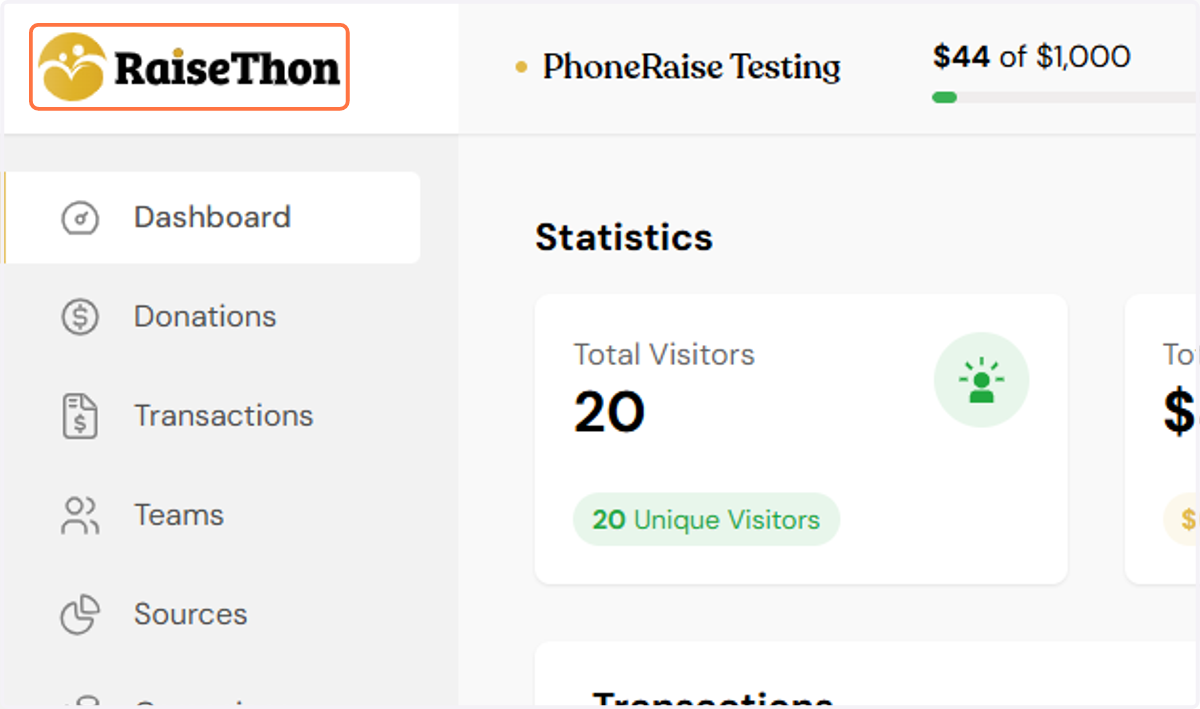
2. Click on Settings
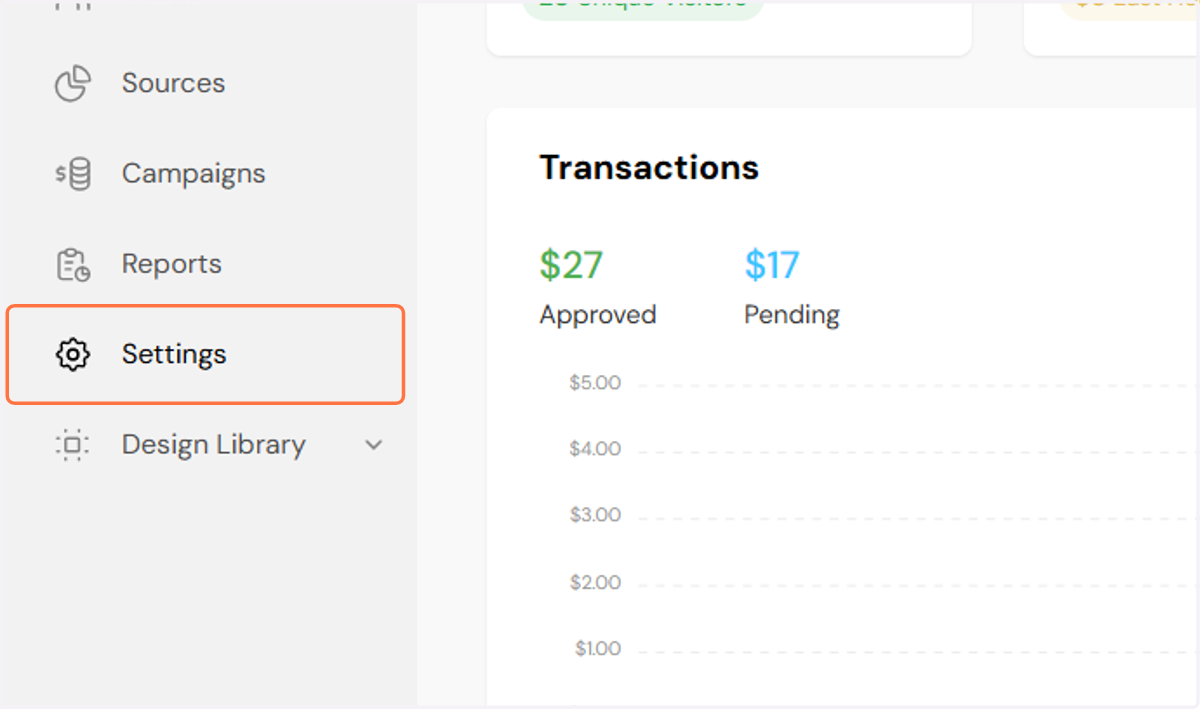
3. Click on Web Hooks
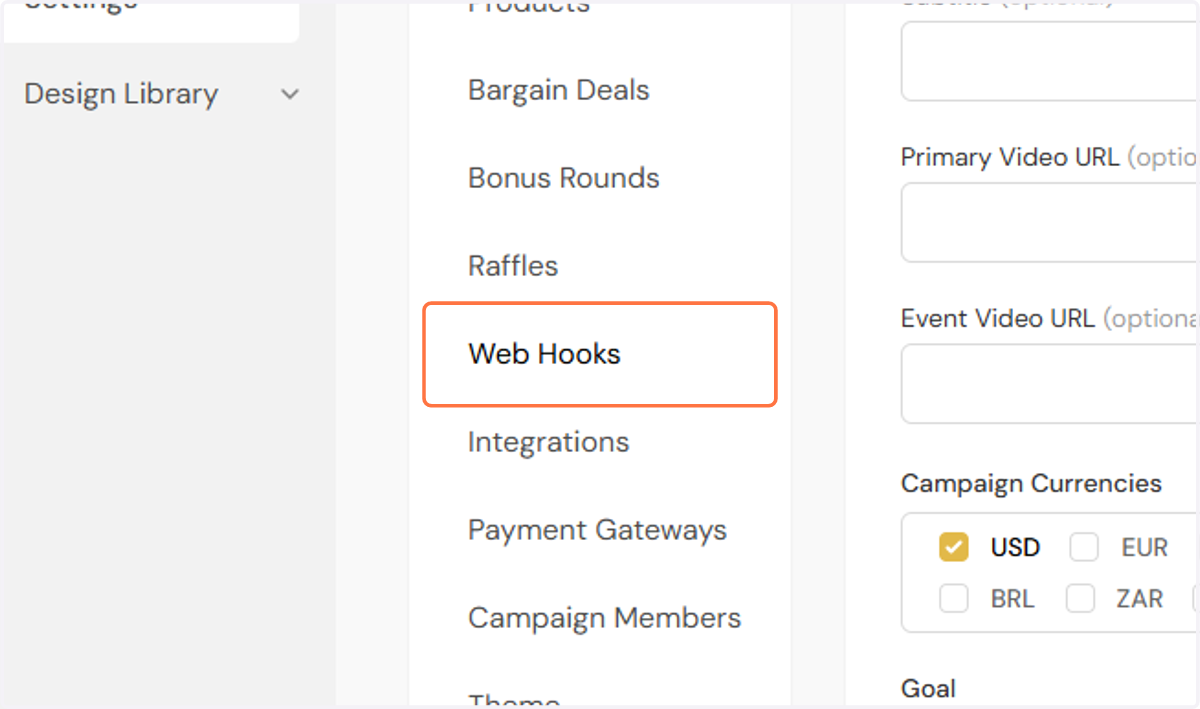
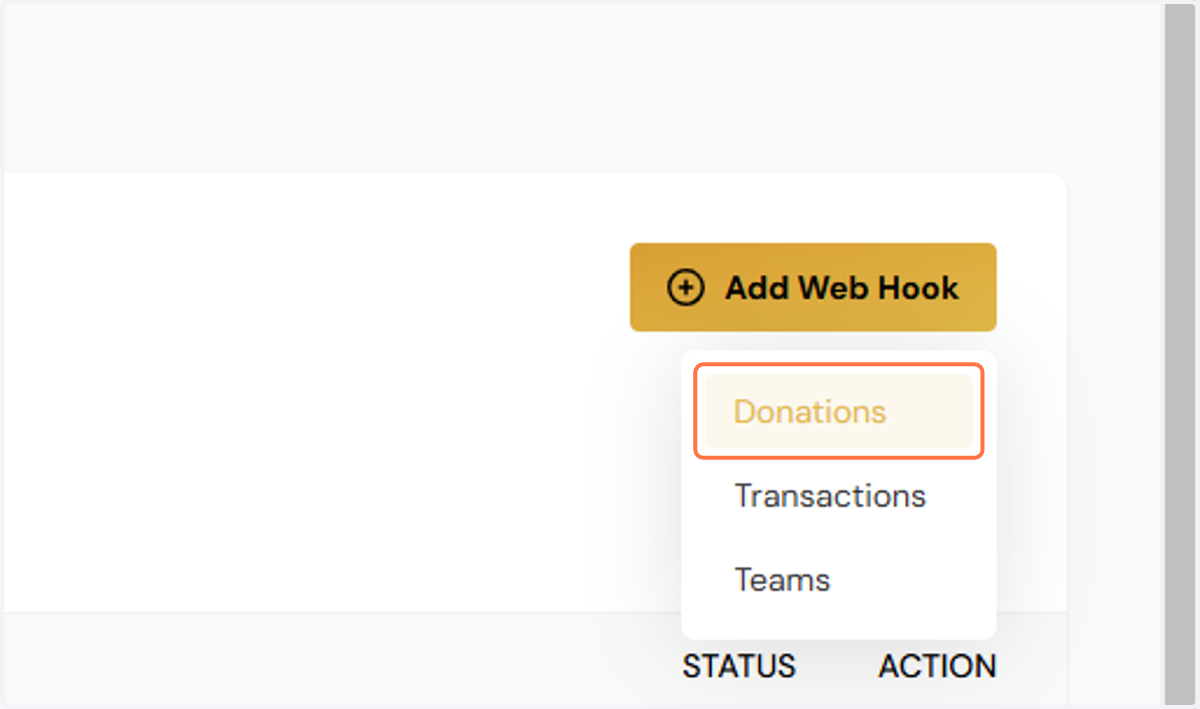
4. Click on Add Web Hook

5. Click on Donations
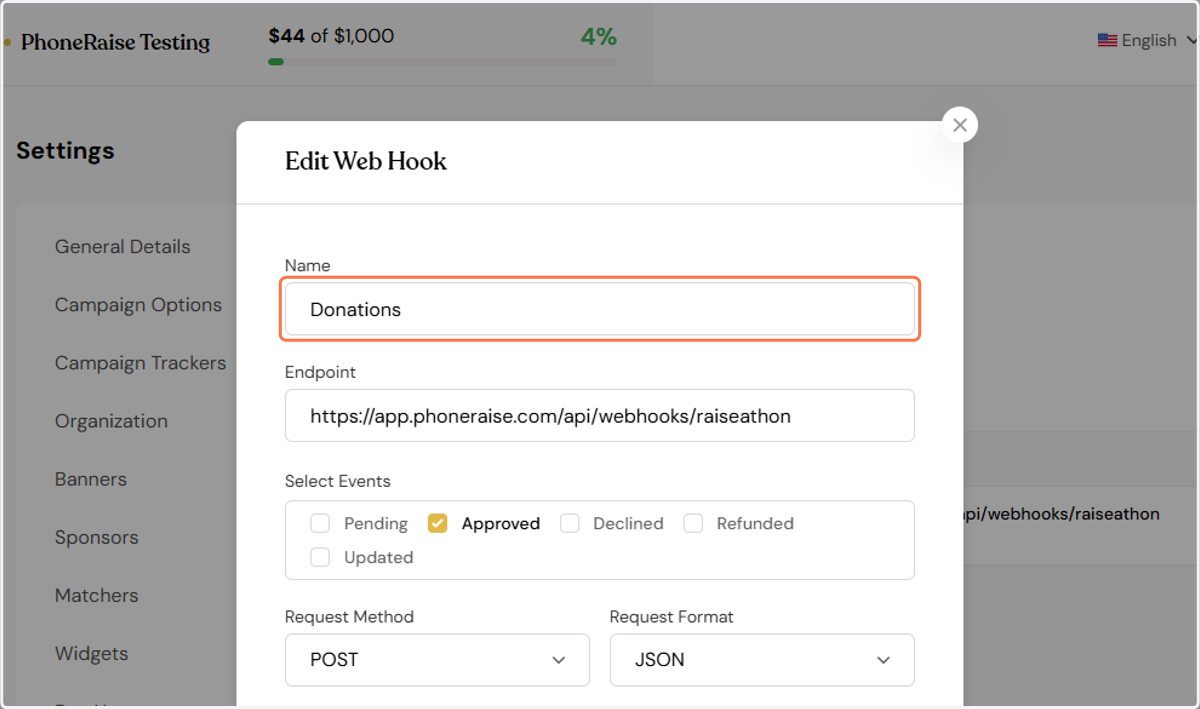
6. Enter the webhook name
You can enter PhoneRaise or PhoneRaise Donations etc.
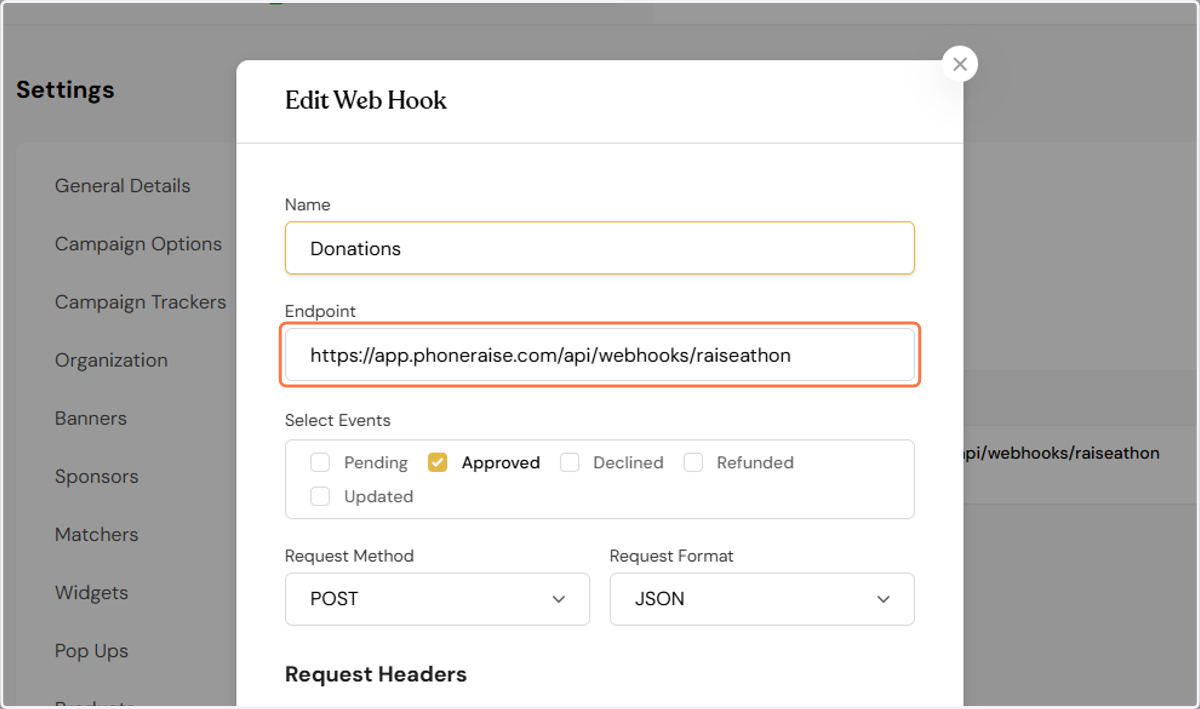
7. Enter the endpoint displayed below
https://app.phoneraise.com/api/webhooks/raiseathon
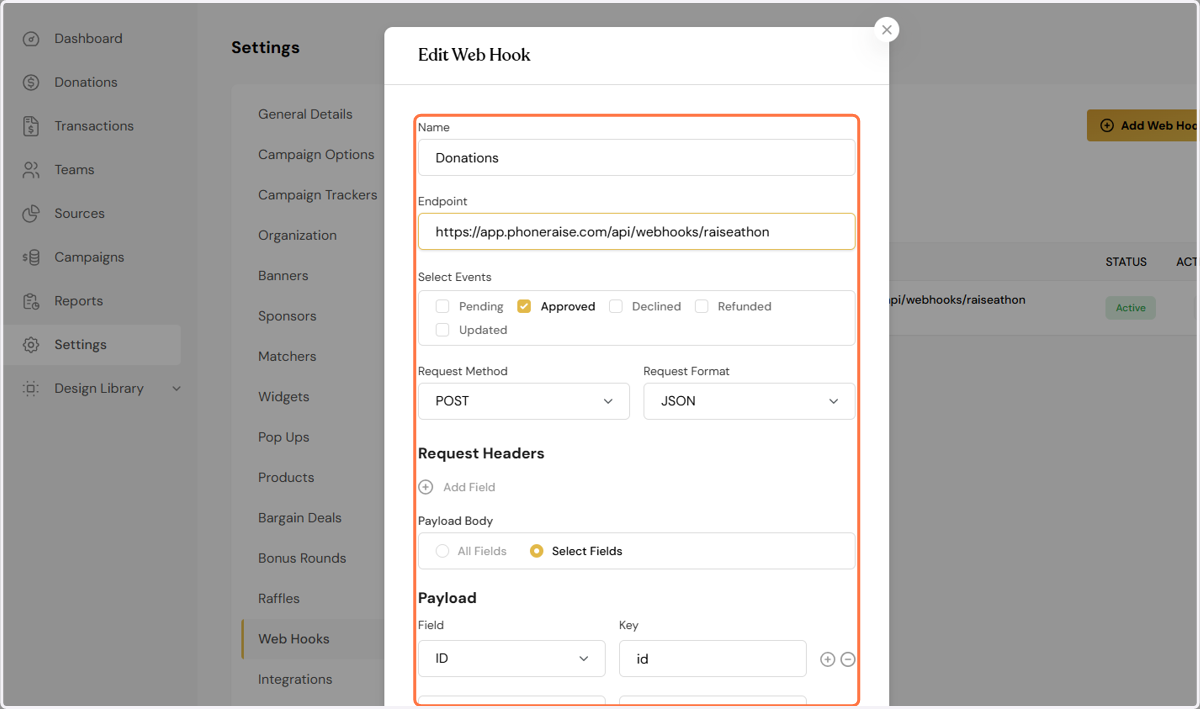
8. Make sure the rest of your settings match the image below
9. your campaign name should be displayed by default
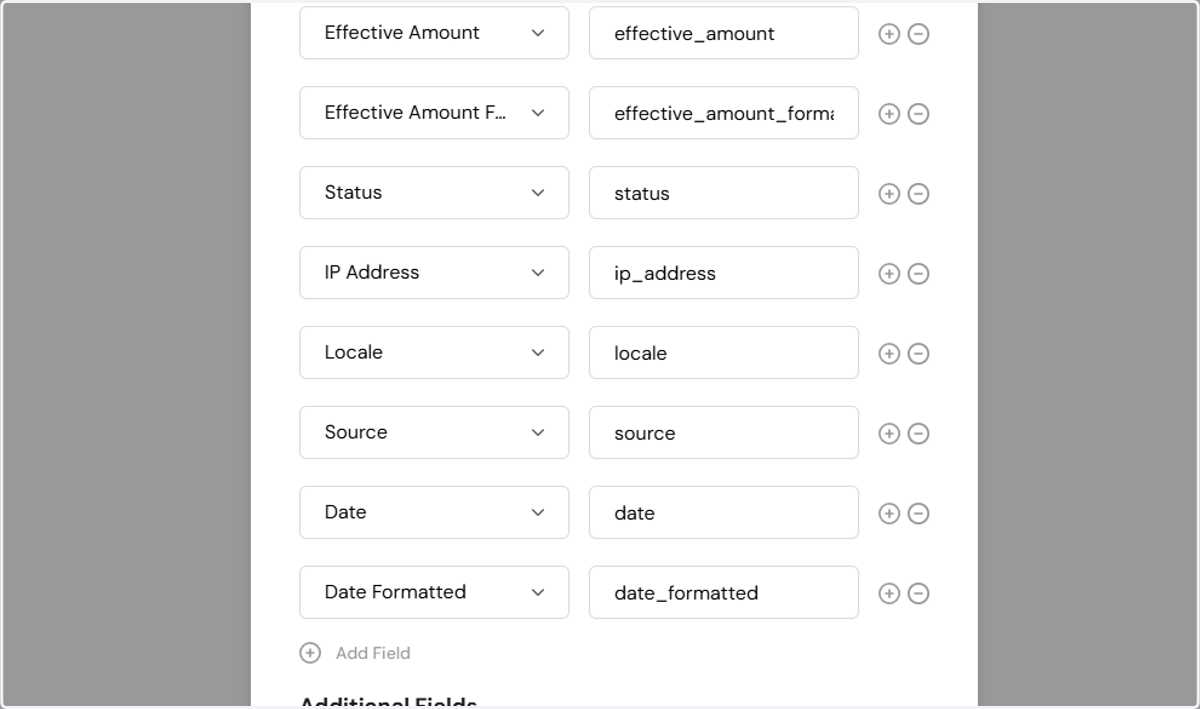
10. The Key should be campaign_name and the value is the campaign id
For example, if your URL is raisethon.com/feedthehungry your campaign id would be feedthehungry
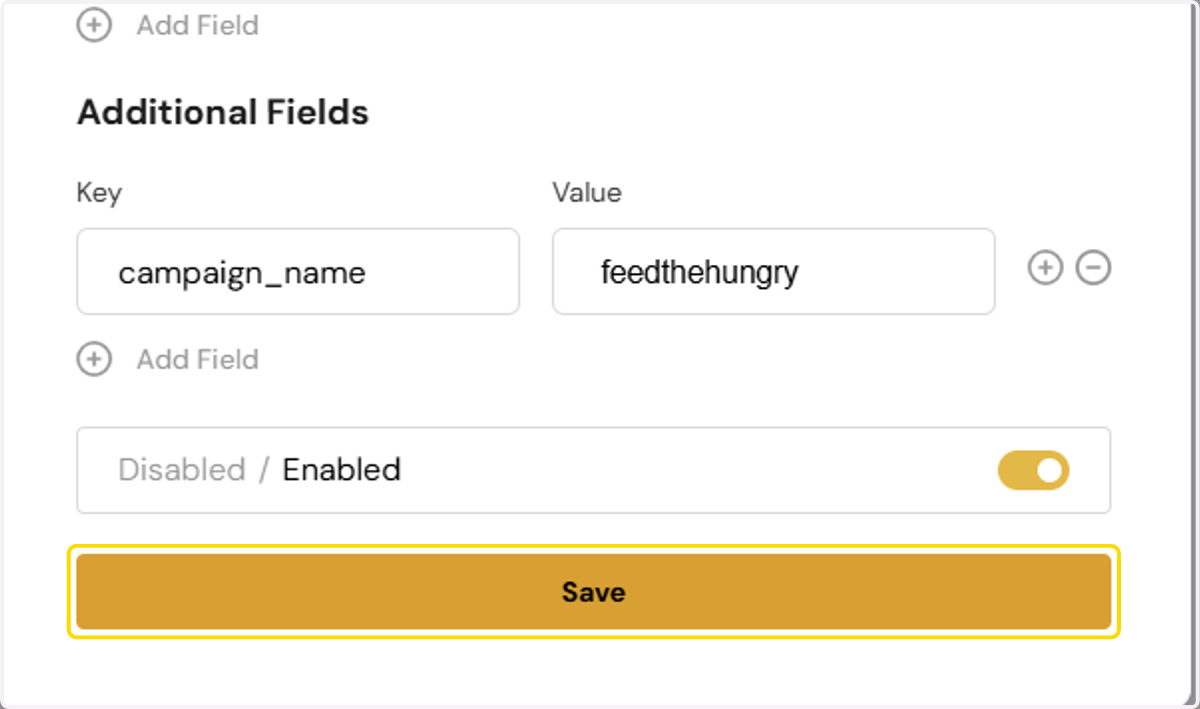
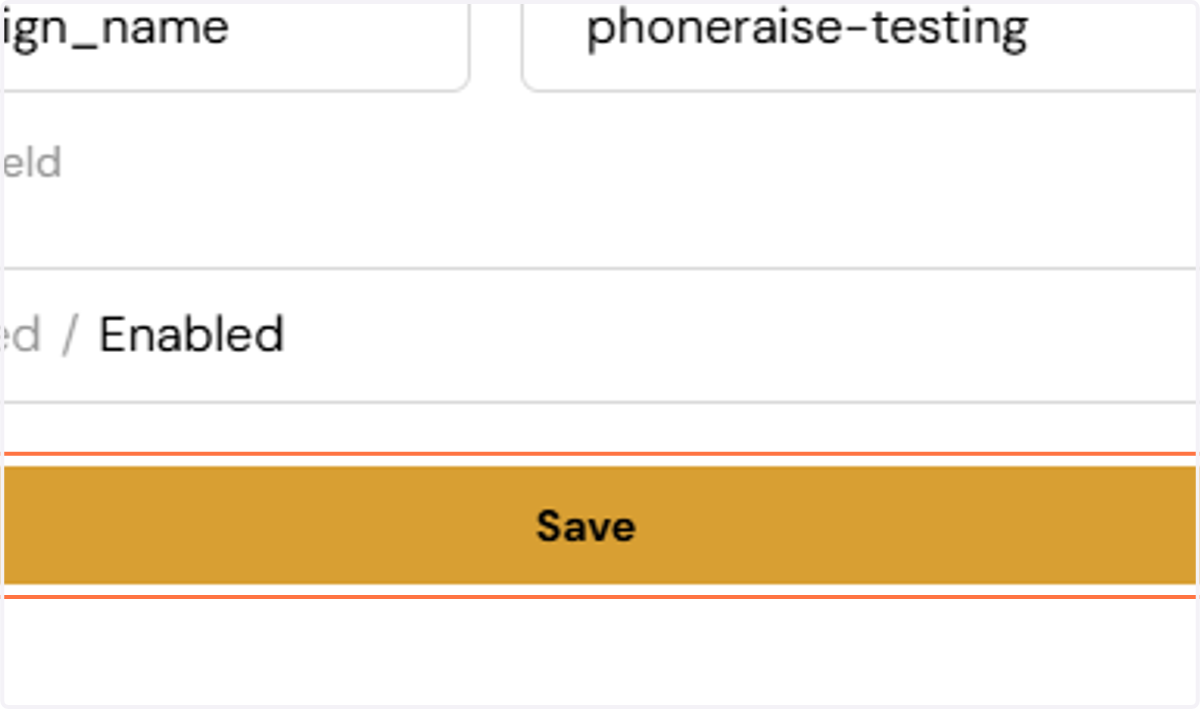
11. Click Save
Part 2: PhoneRaise Settings
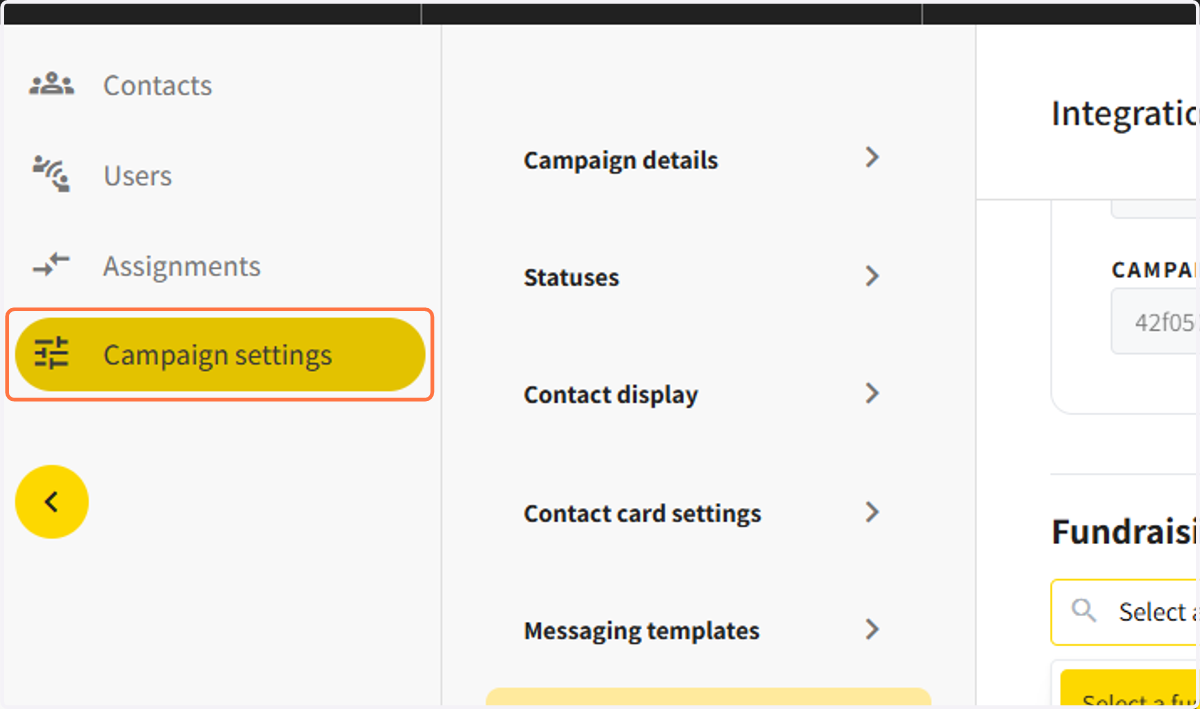
12. Go to your PhoneRaise Campaign and click Campaign Settings
13. Click on Select fundraising platform
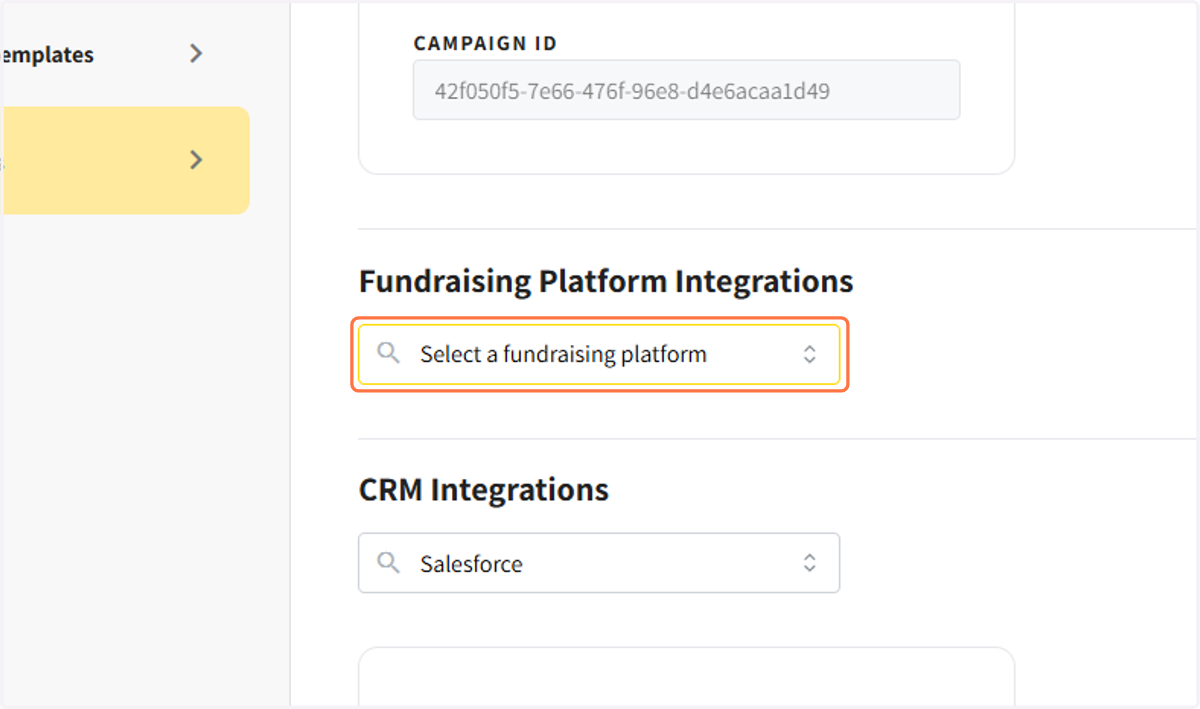
14. Click on Raisethon
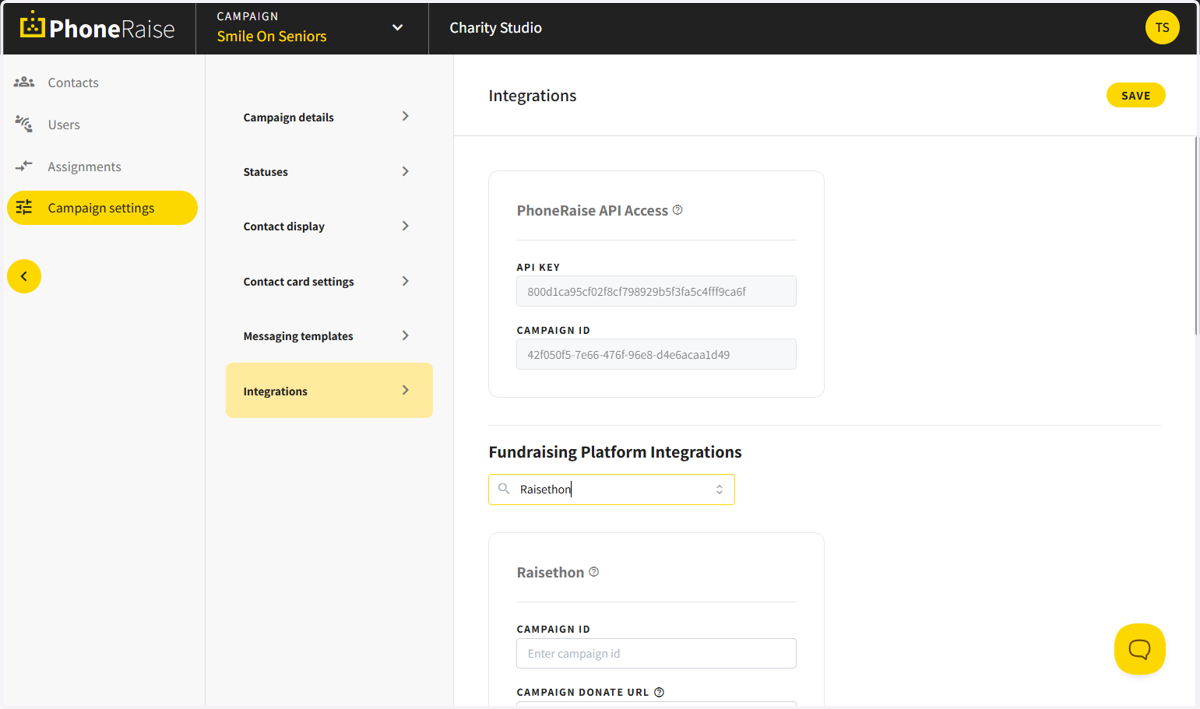
15. Enter your campaign name.
the campaign url will automatically populate
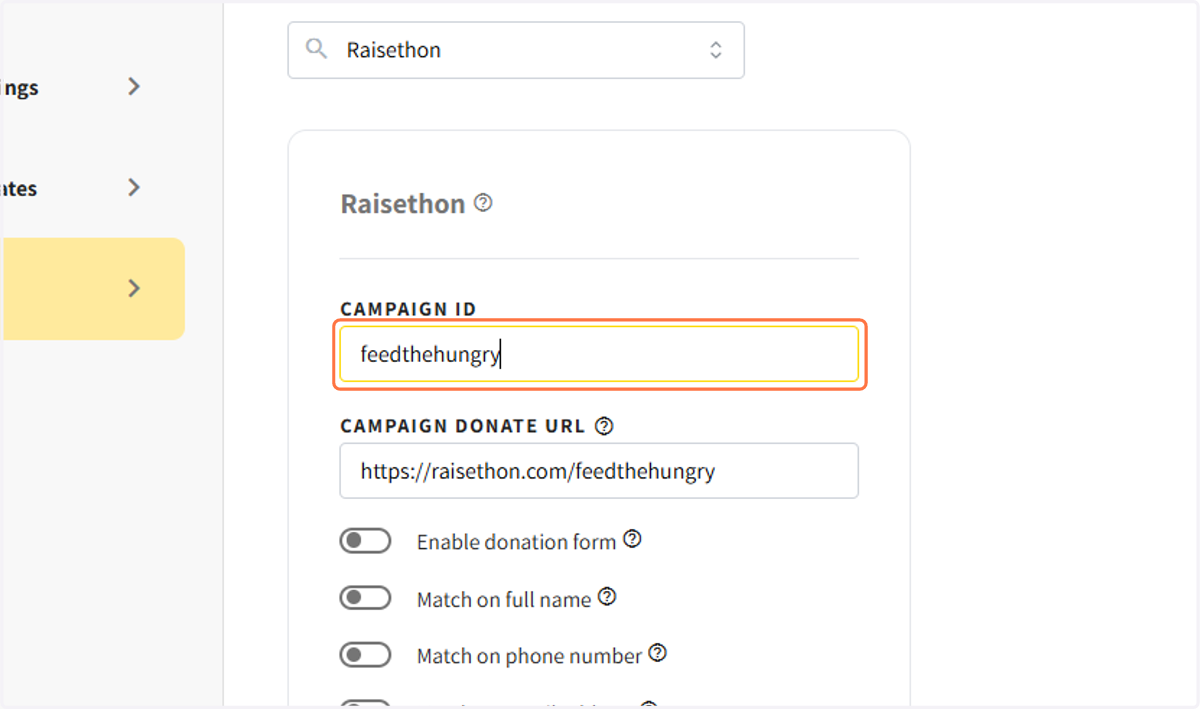
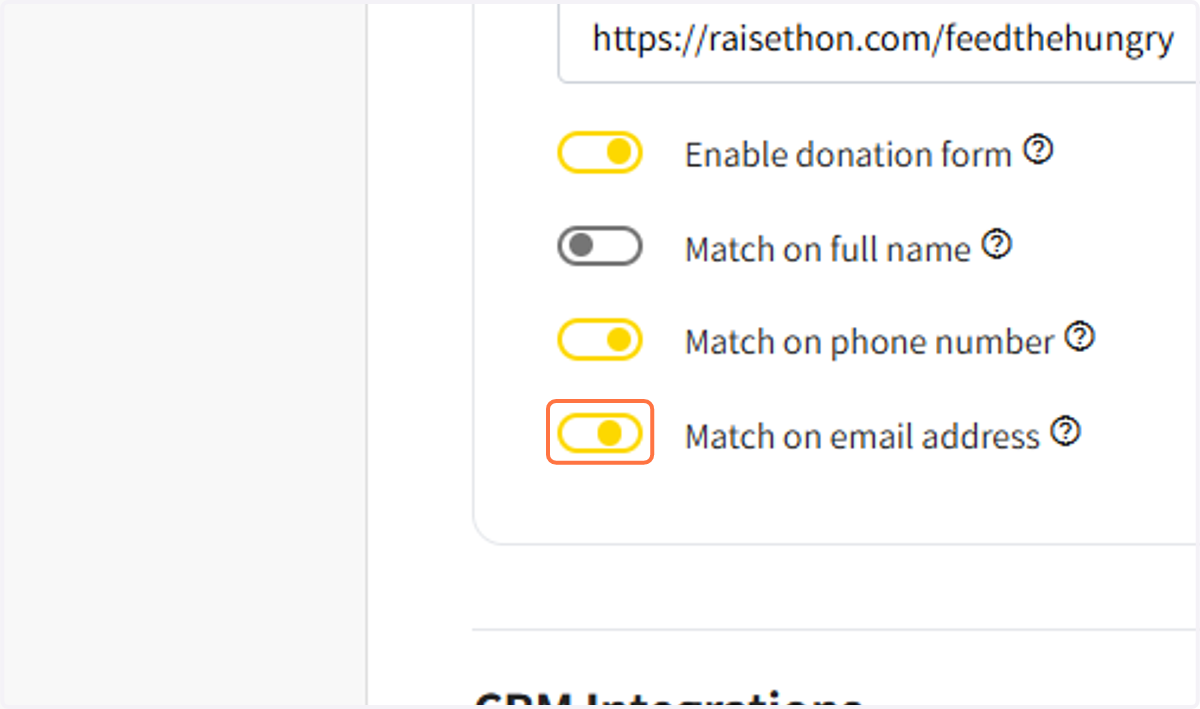
16. Enable the donation form
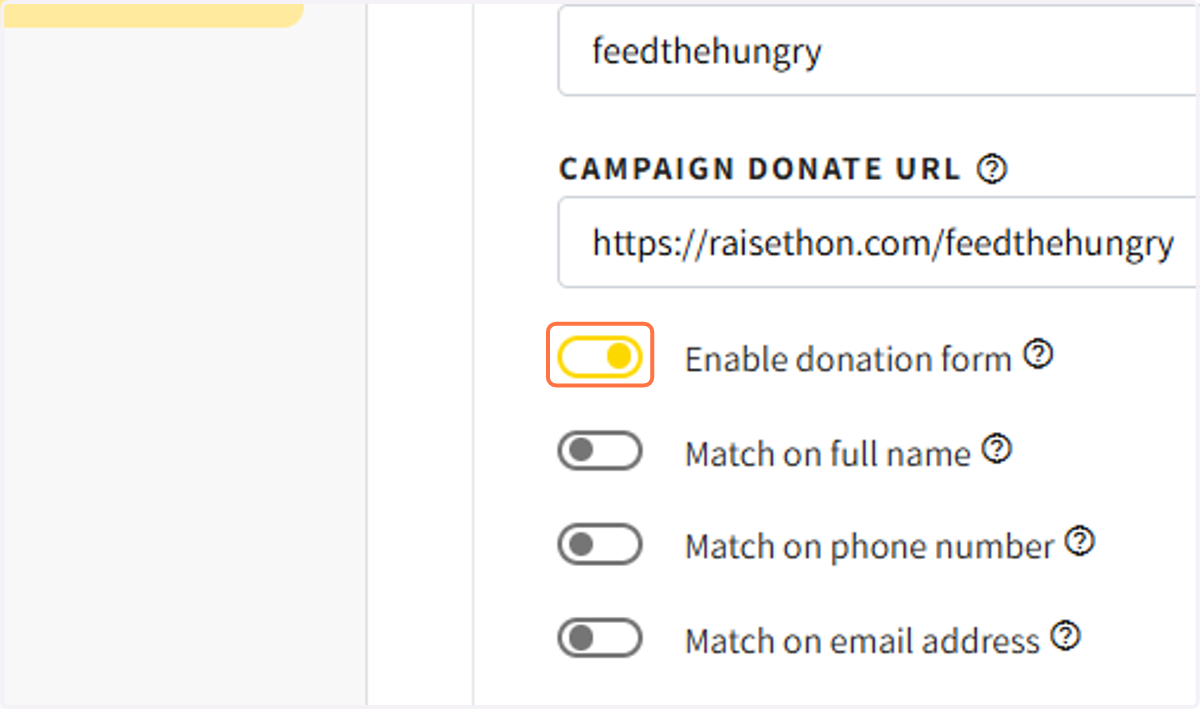
17. Enable match on phone number
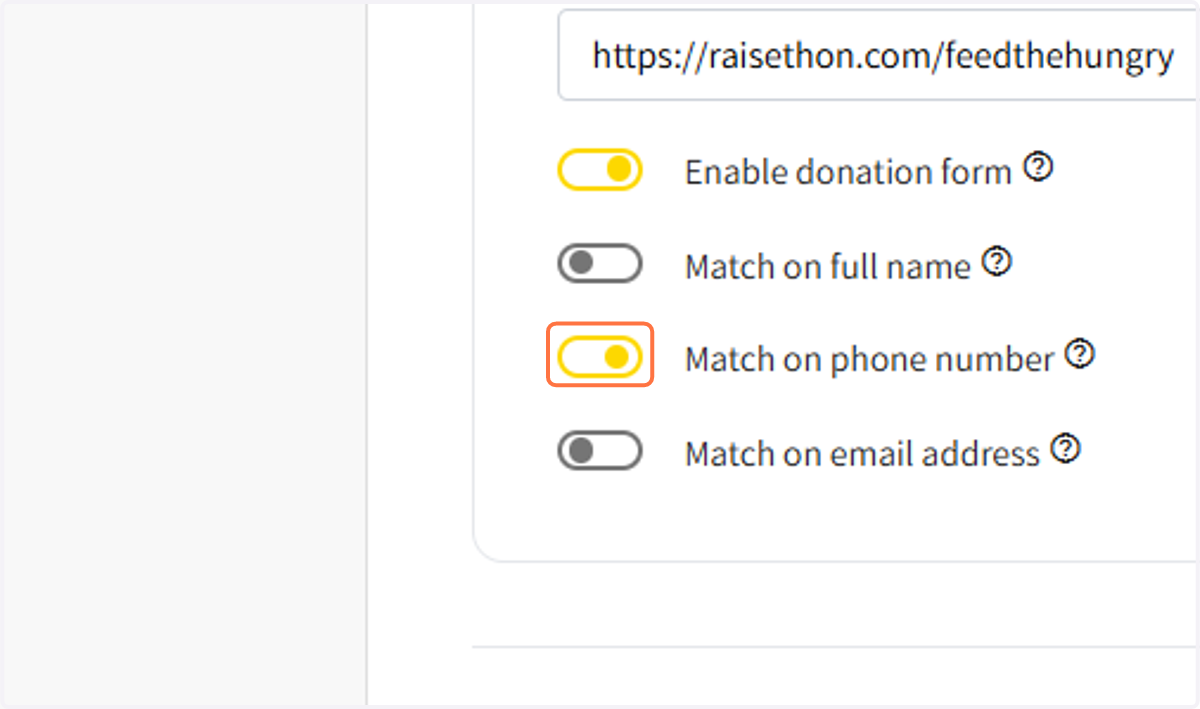
18. Enable match on email address
19. Click on SAVE