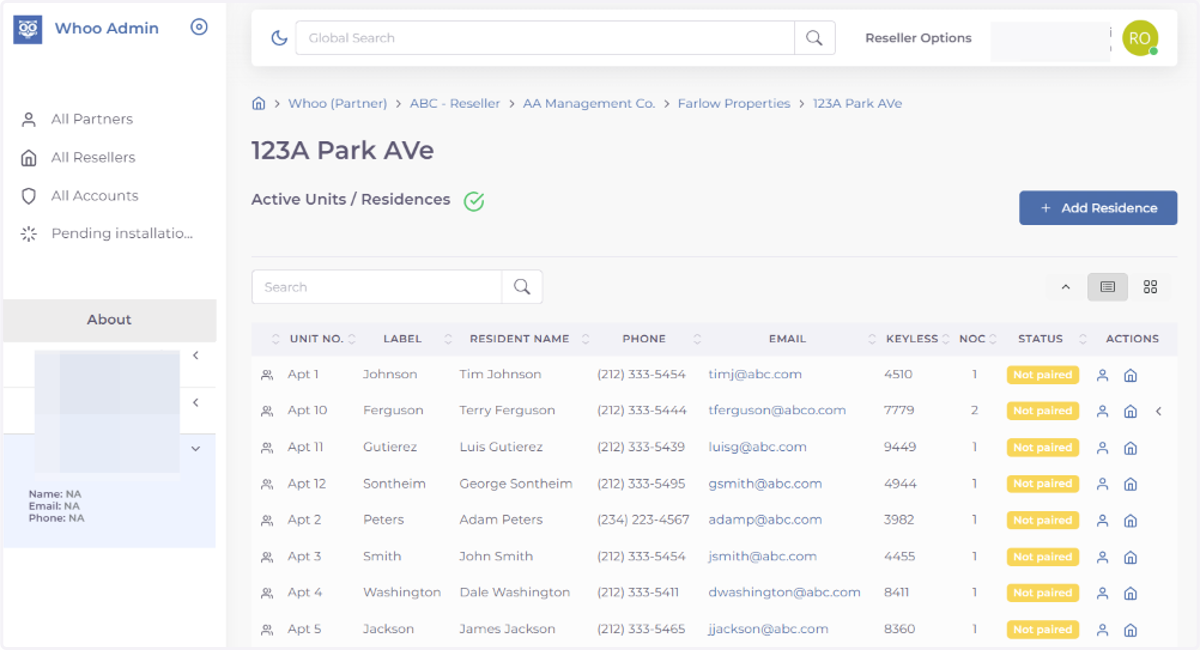
Setting up your Building & Residents
Whoo
1. Go to console.whoo.ai
2. Start at your Property Homepage
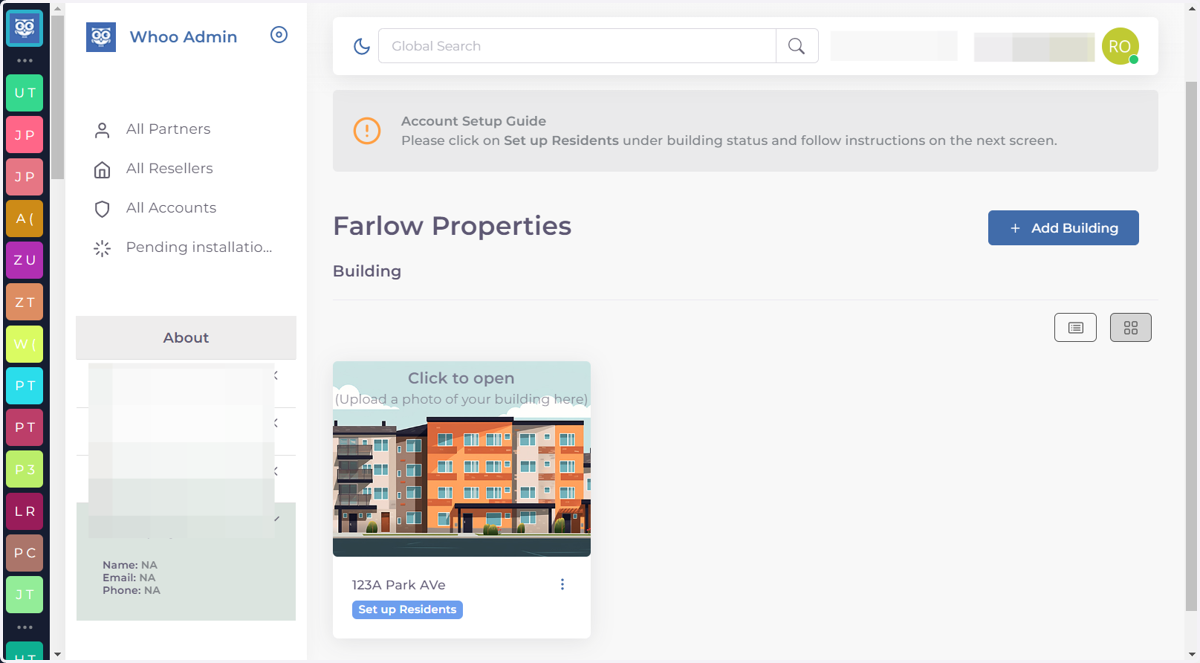
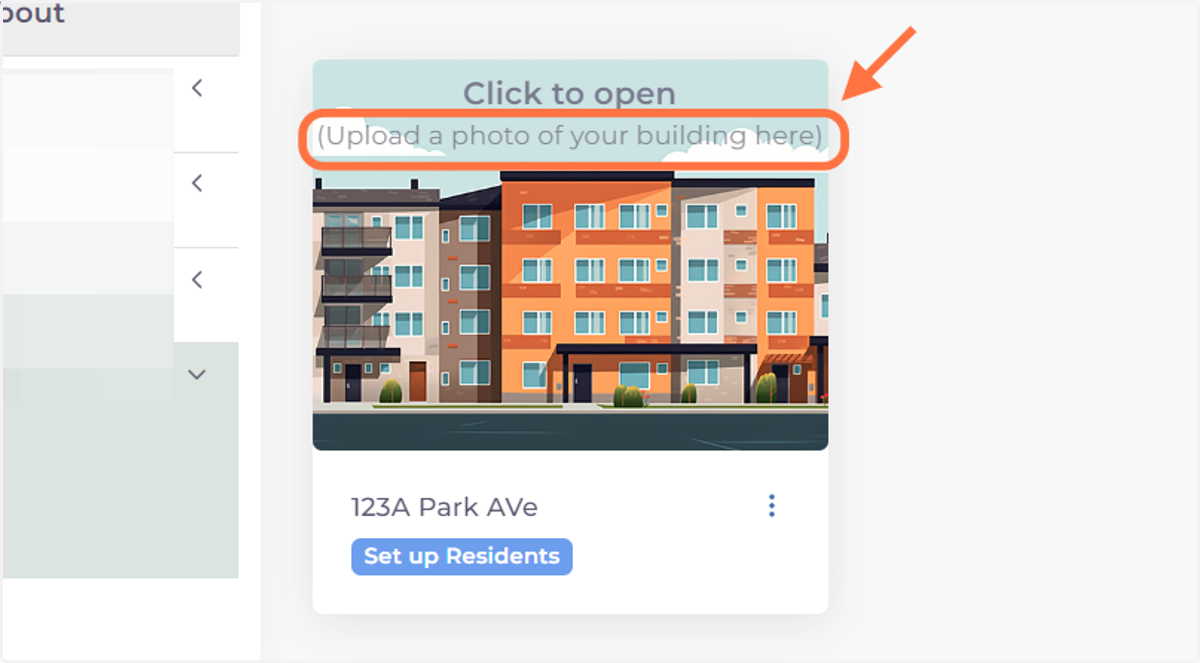
3. Click on (Upload a photo of your building here)
If you want to have a custom photo of your building you can upload it here.
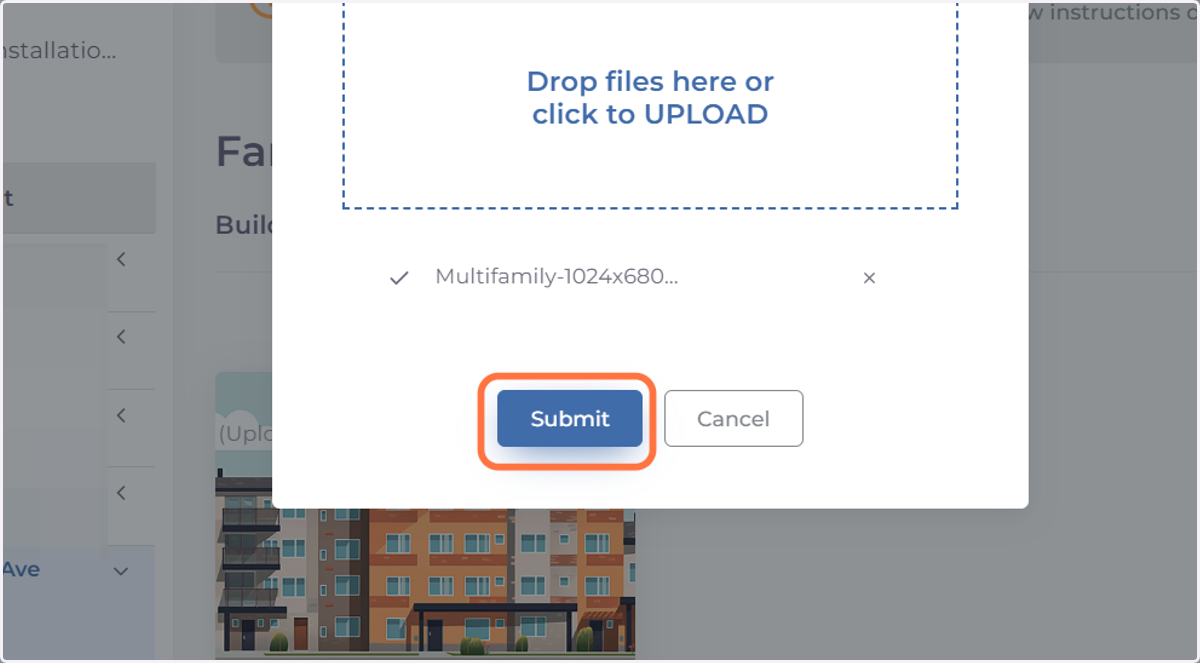
4. Choose a photo you like of your building & drop it in the upload section.
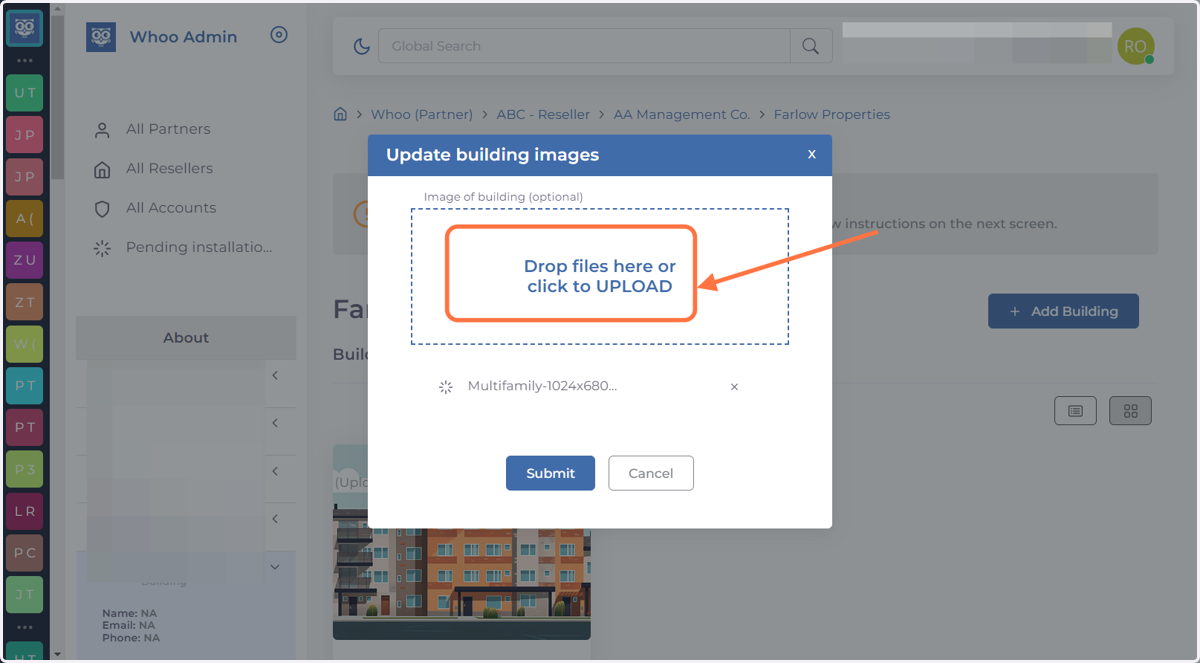
5. Click on Submit
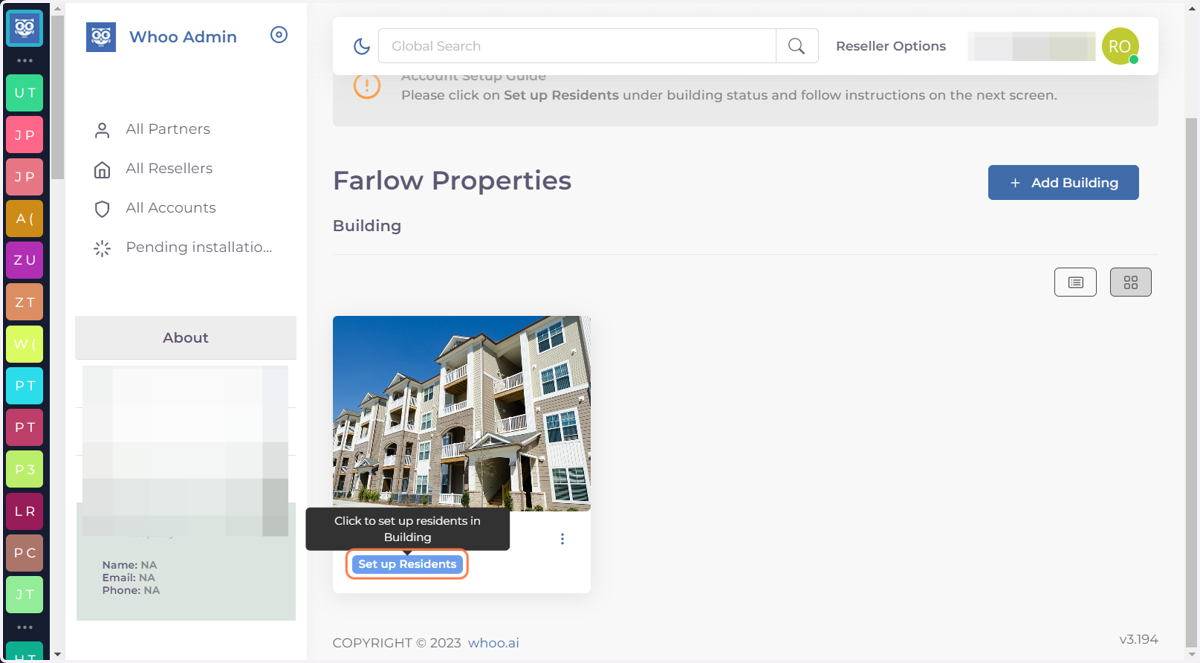
6. Now you can Set Up your Building. Click on Set up Residents
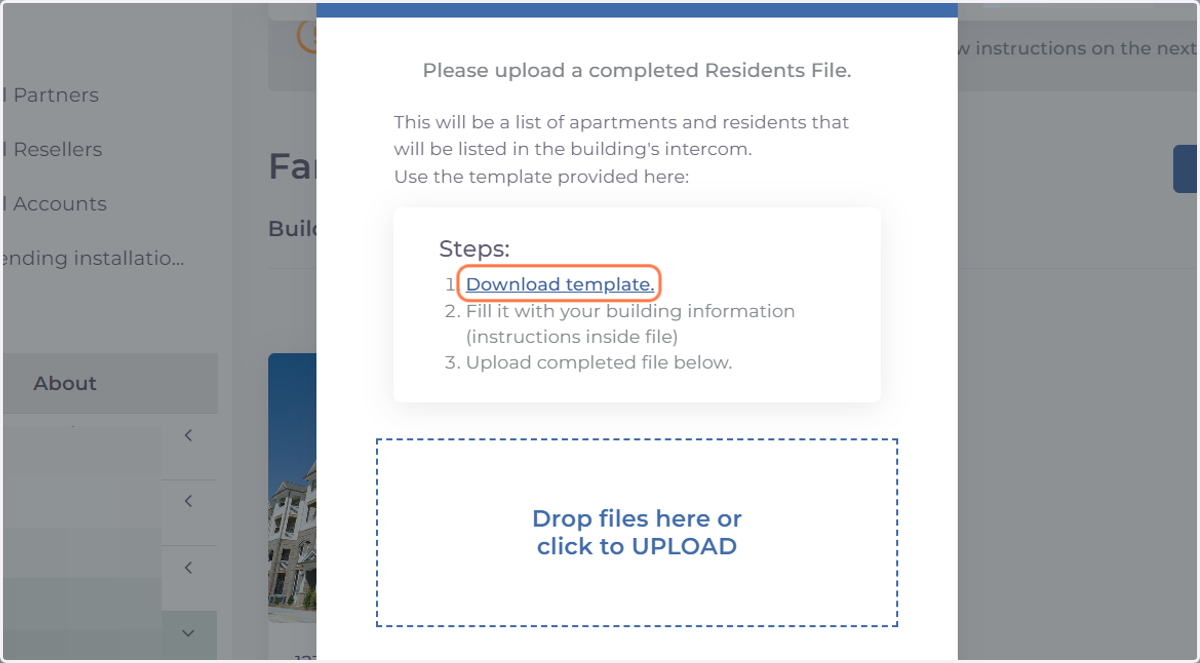
7. Step 1 of 2. Upload Residents' info. Click on Download template. You will use this spreadsheet (xls file) to enter the building residents' information.
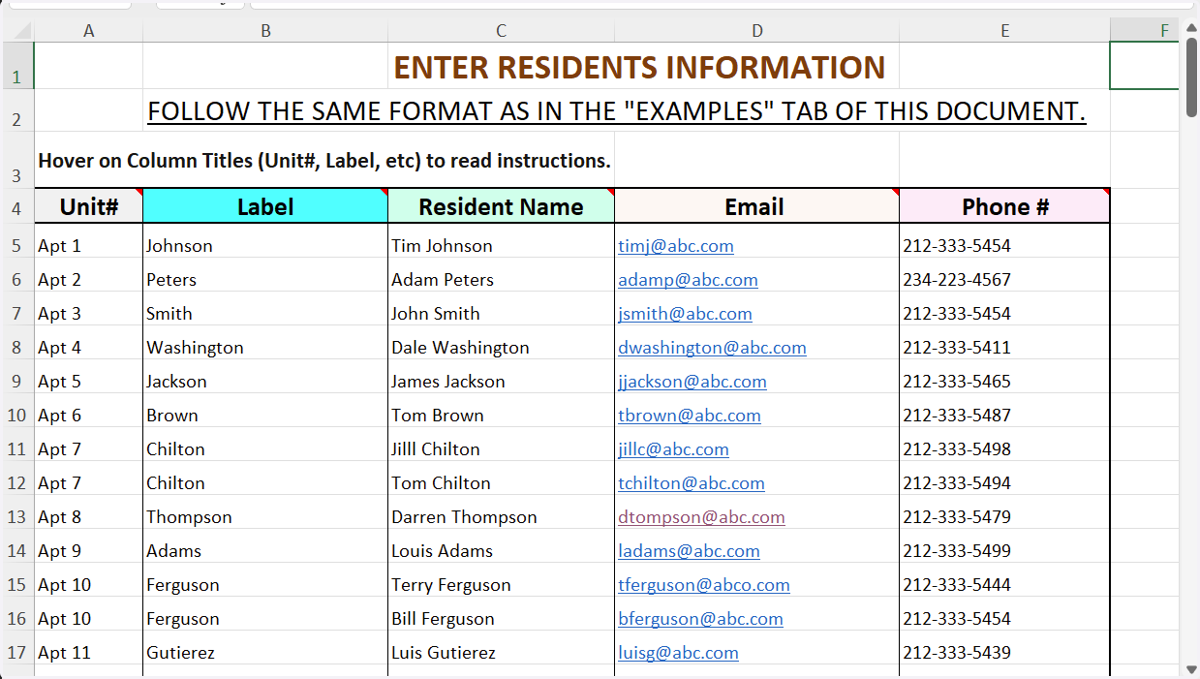
8. This is a sample of a completed Spreadsheet. You need to follow this format. Instructions are in the template file.
The headers have instructions on how to fill it in the correct format
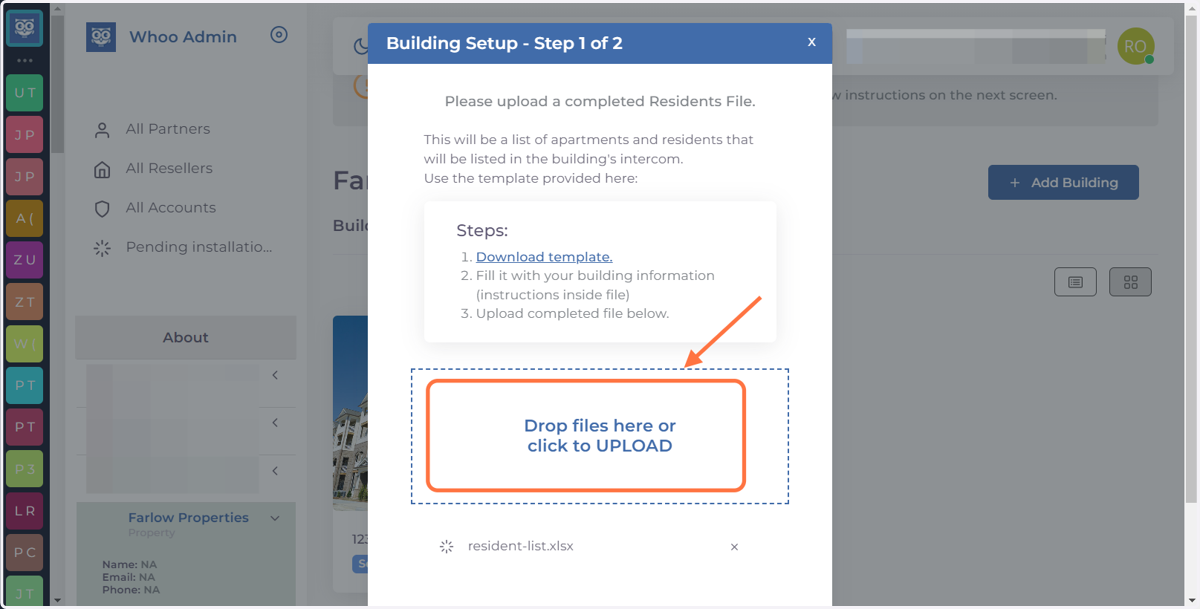
9. Upload completed file
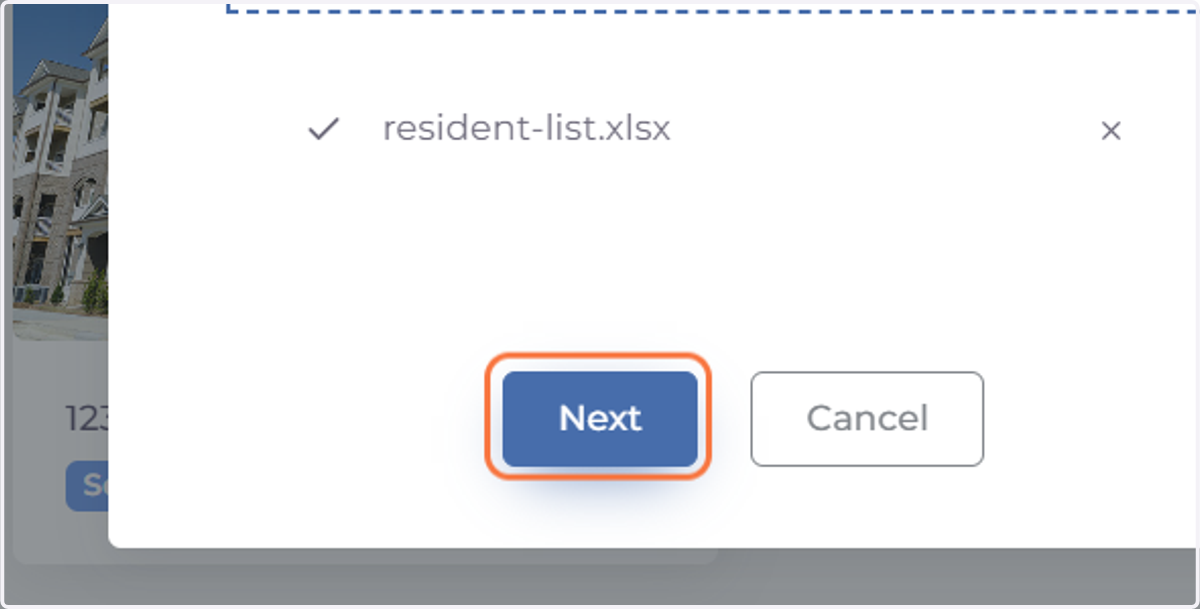
10. Click on Next
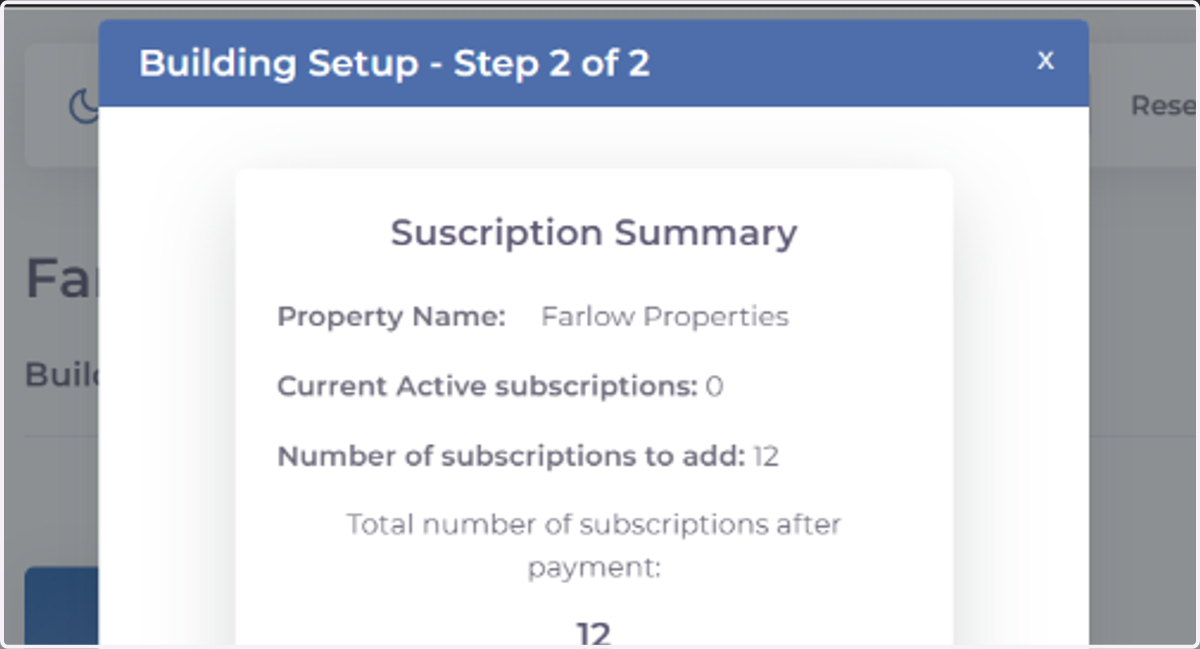
11. Step 2 of 2 - Choose how you want to pay for subscriptions.
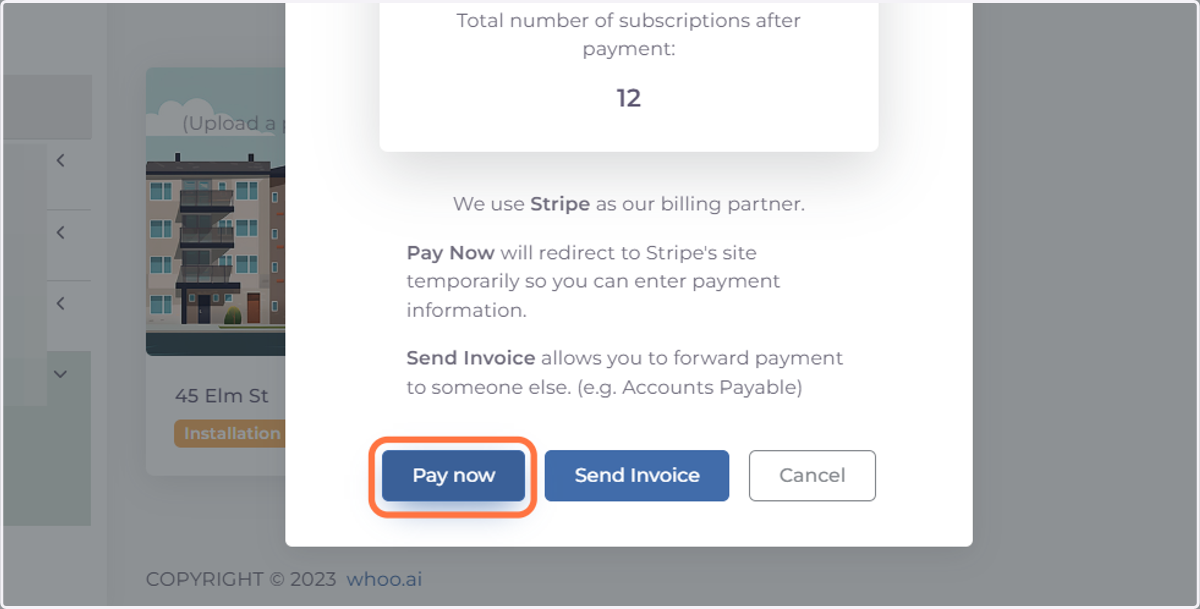
You can Pay Now or Send Invoice to a member of your team.
12. Options 1: Pay Now if you have all payment information
This will take you to Strip (our billing partner)
13. Choose your payment method
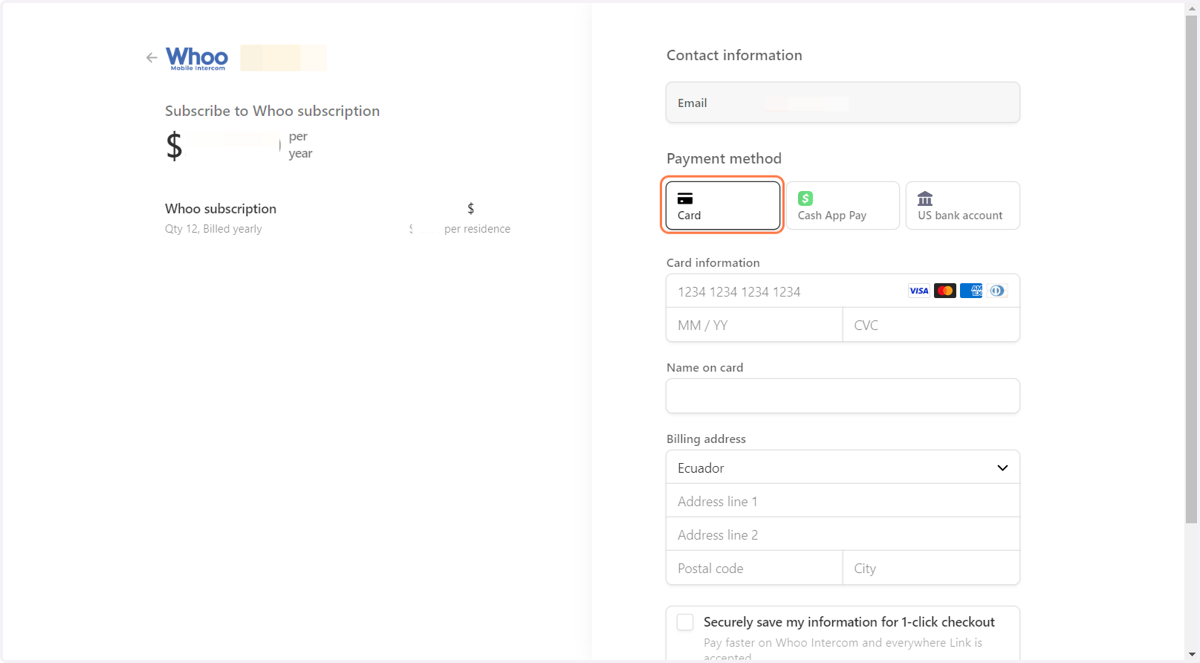
14. Complete payment info
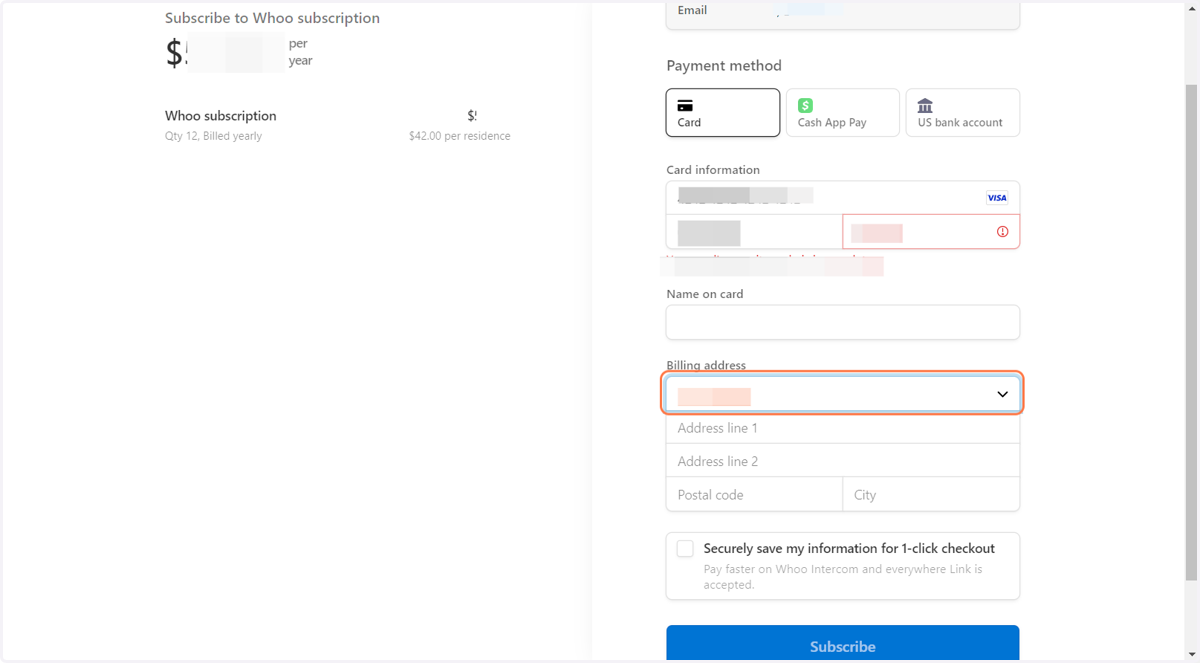
15. Click on Subscribe…
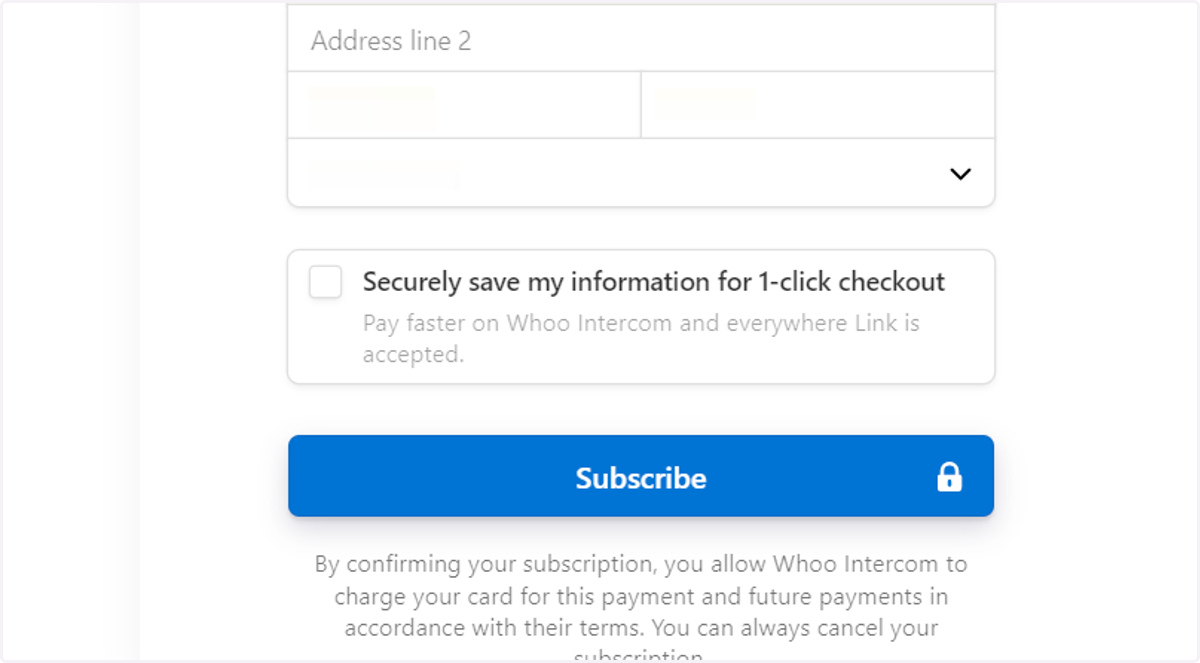
Stripe
16. Options 2: Send Invoice - You need to fill out some info
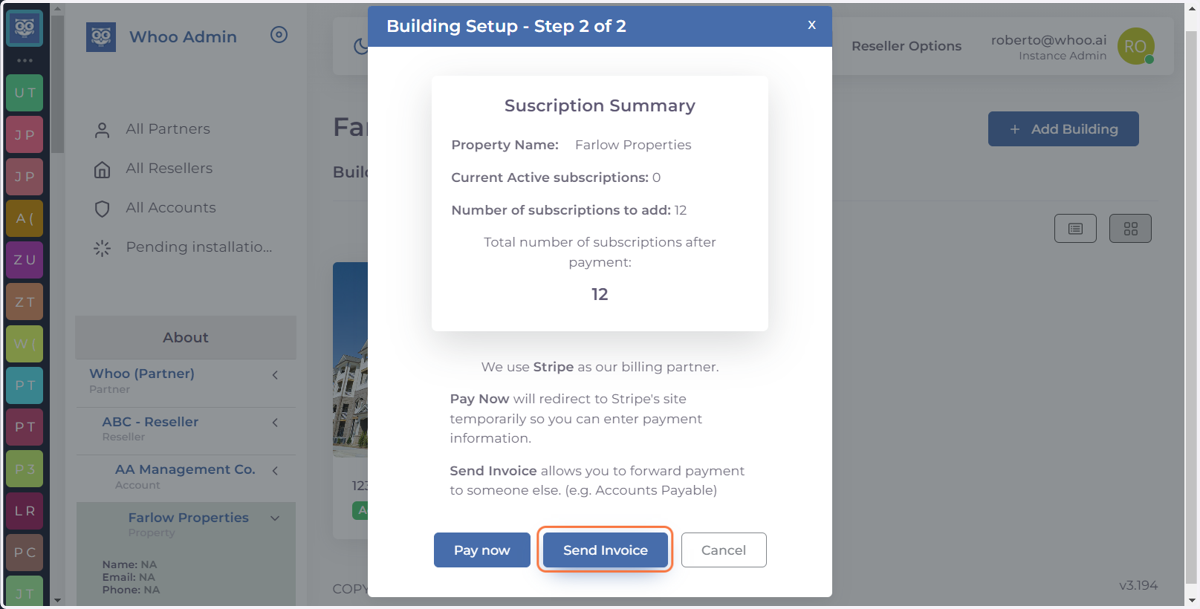
17. Complete contact information form for the Property
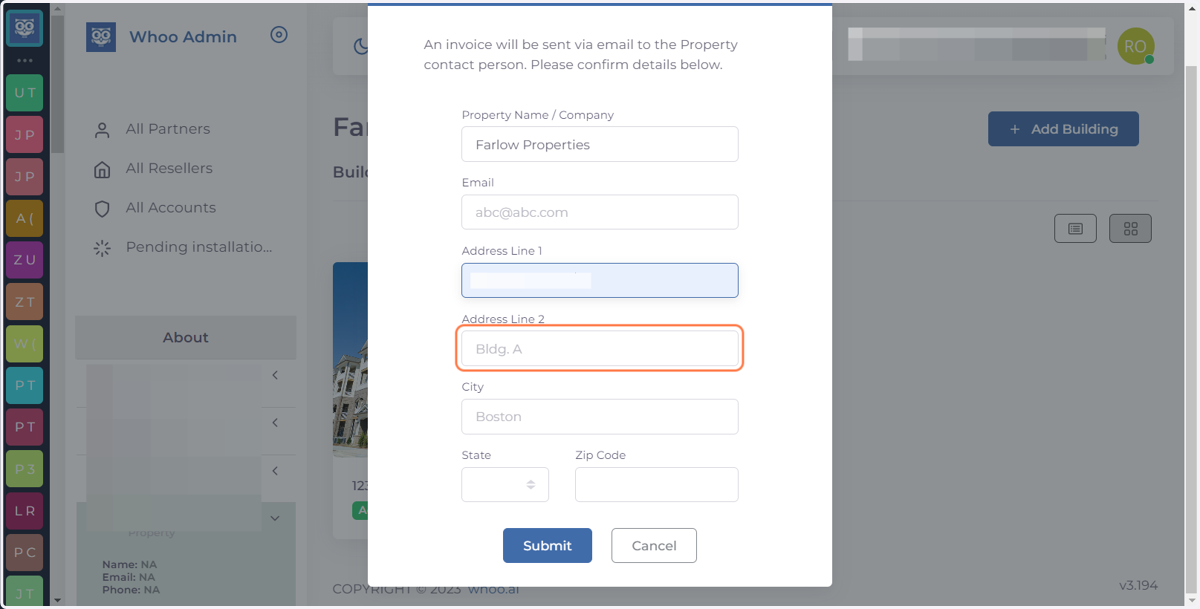
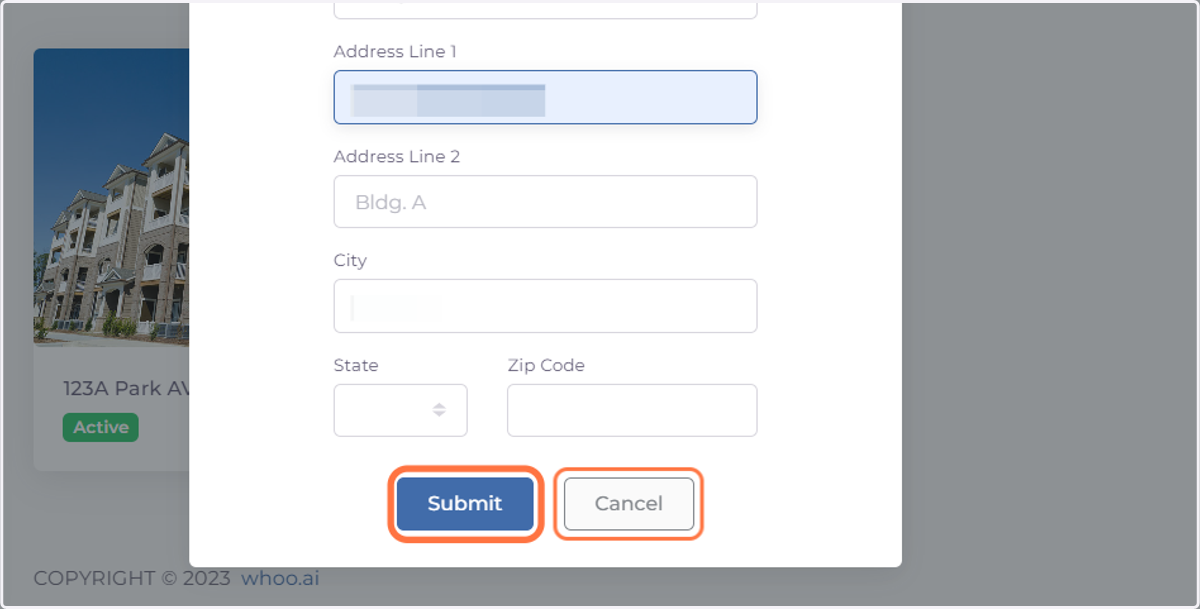
18. Click on Submit
Whoo
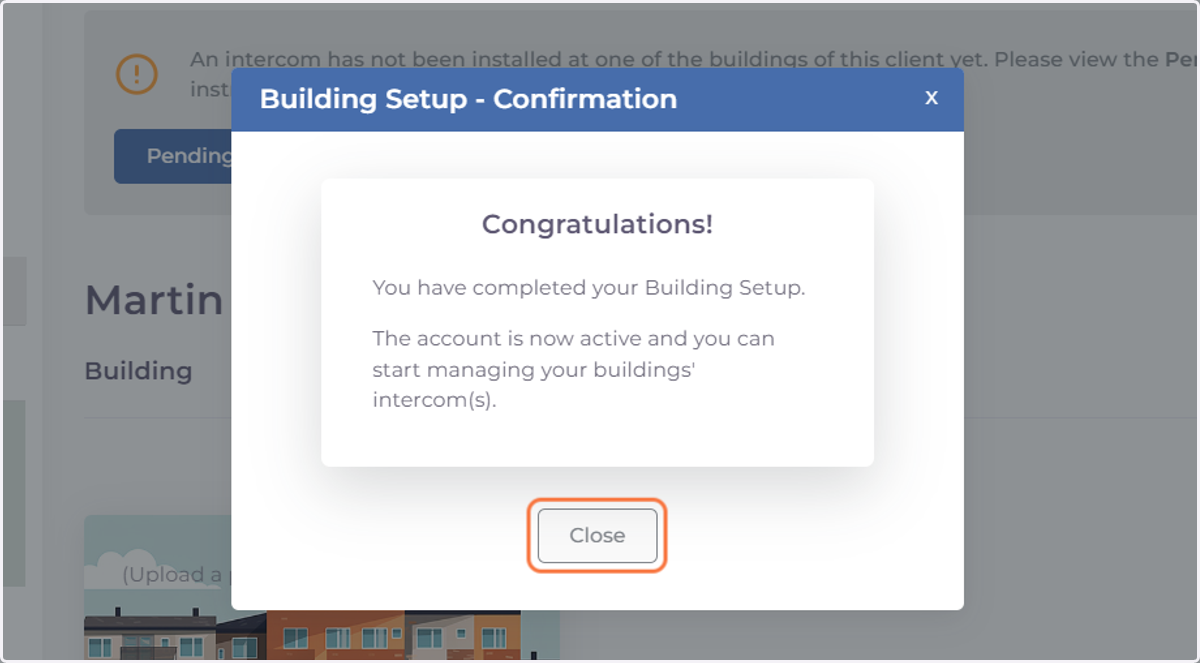
19. Congratulations! Your have completed Building Set up and your subscriptions are active.
20. Click your building image to see details
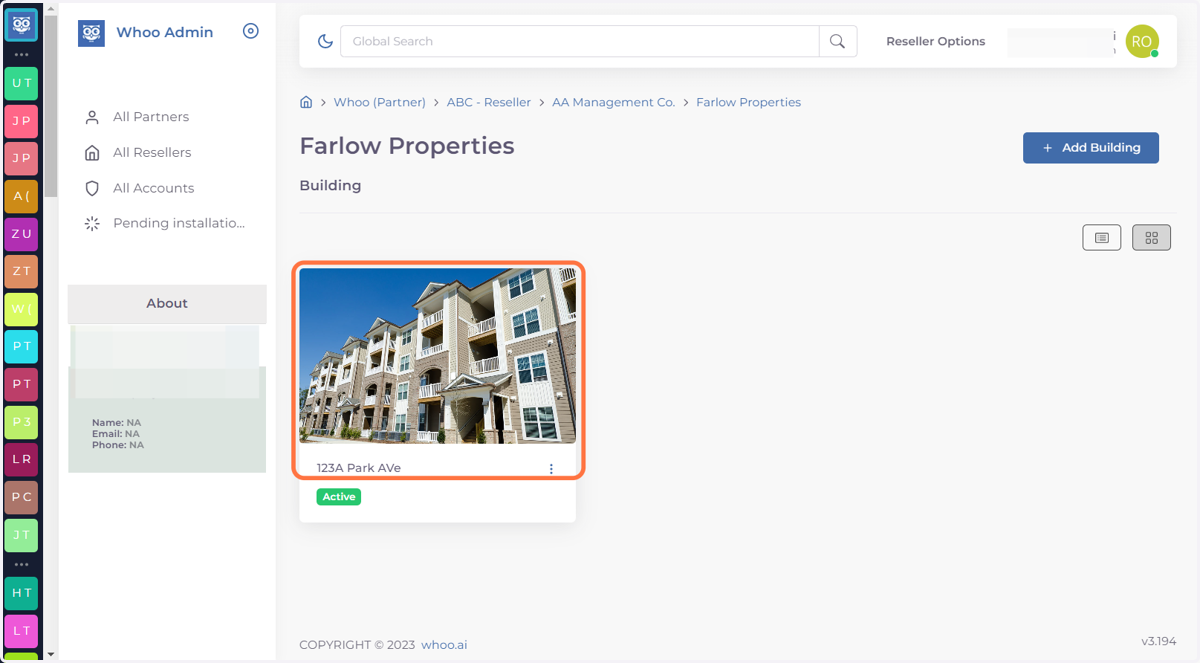
21. You can now see the Building with all their residents.