Ocerli: Importing Employee Tax Rates

Ocerli

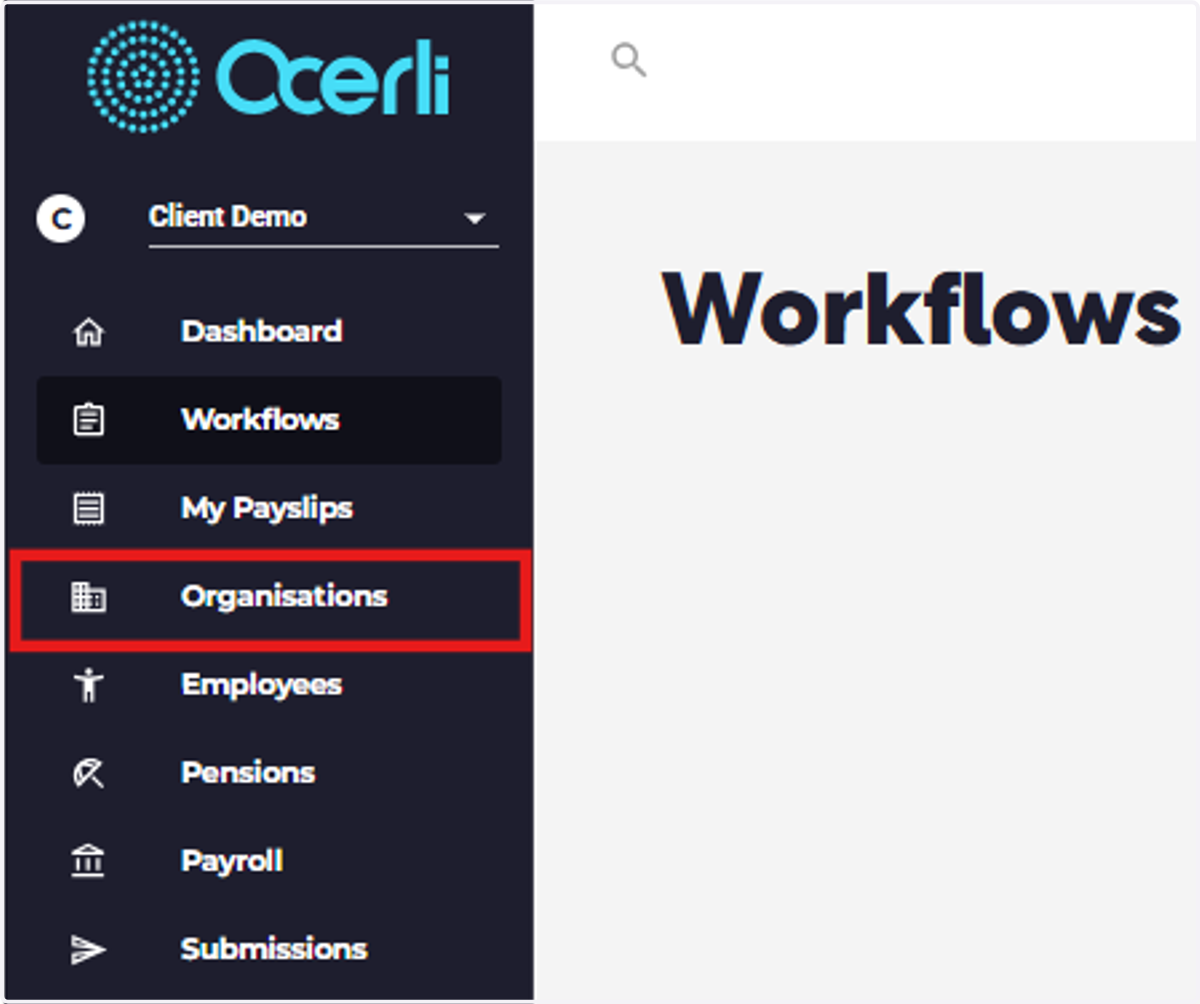
  1. 1. Click on Organisations

    Click on Organisations
  2. 2. Click on View to open your organisation.
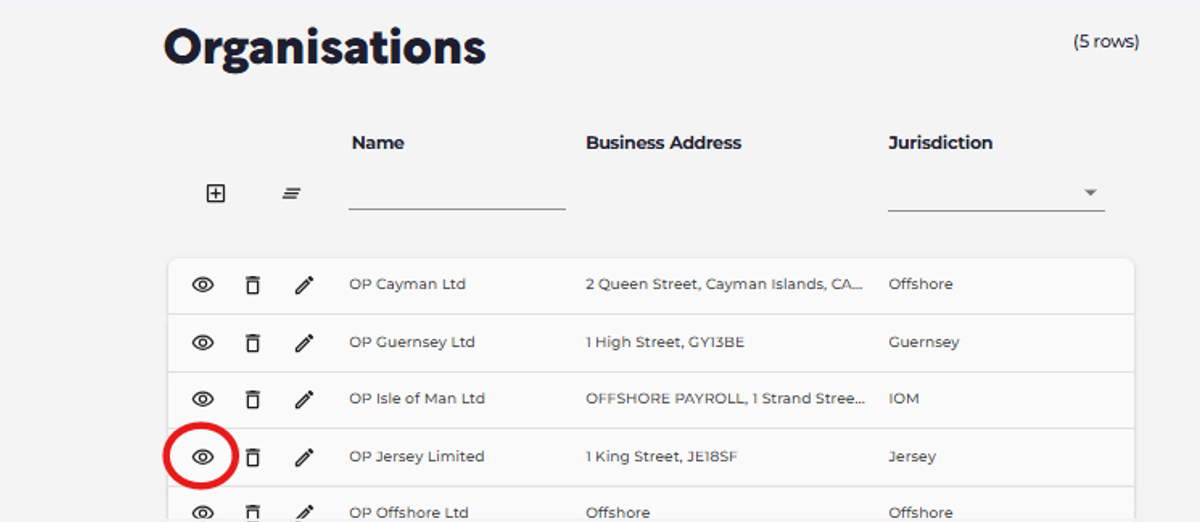
    Click on View to open your organisation.
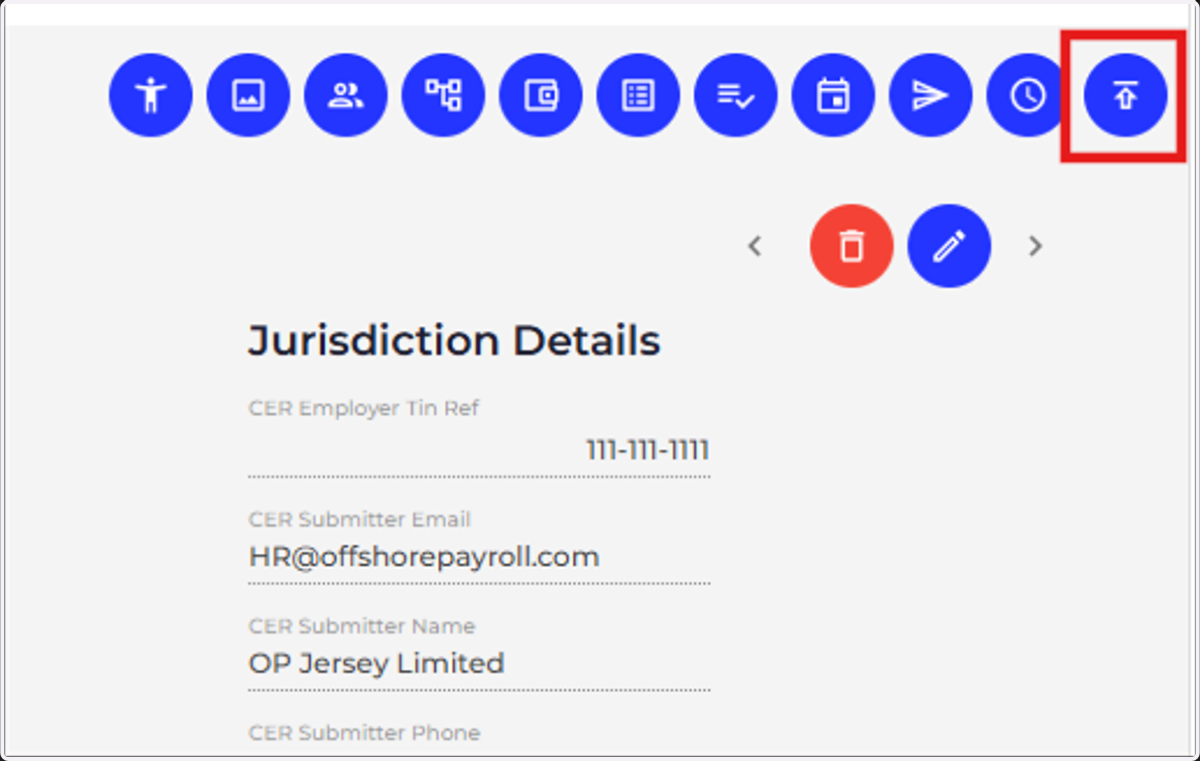
  3. 3. Click on Organisation Imports

    Click on Organisation Imports
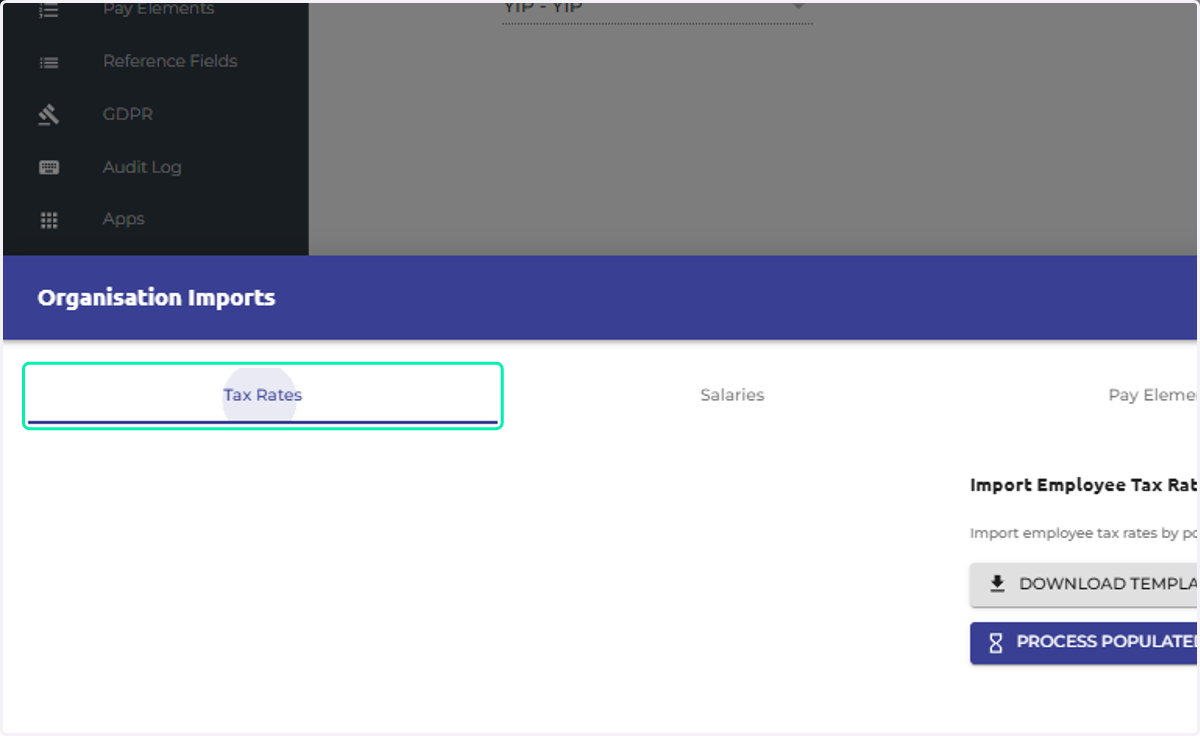
  4. 4. Click on Tax Rates

    Click on Tax Rates
  5. 5. Click on DOWNLOAD TEMPLATE, complete the template with your employee's updated information and effective date for the new record to begin from.
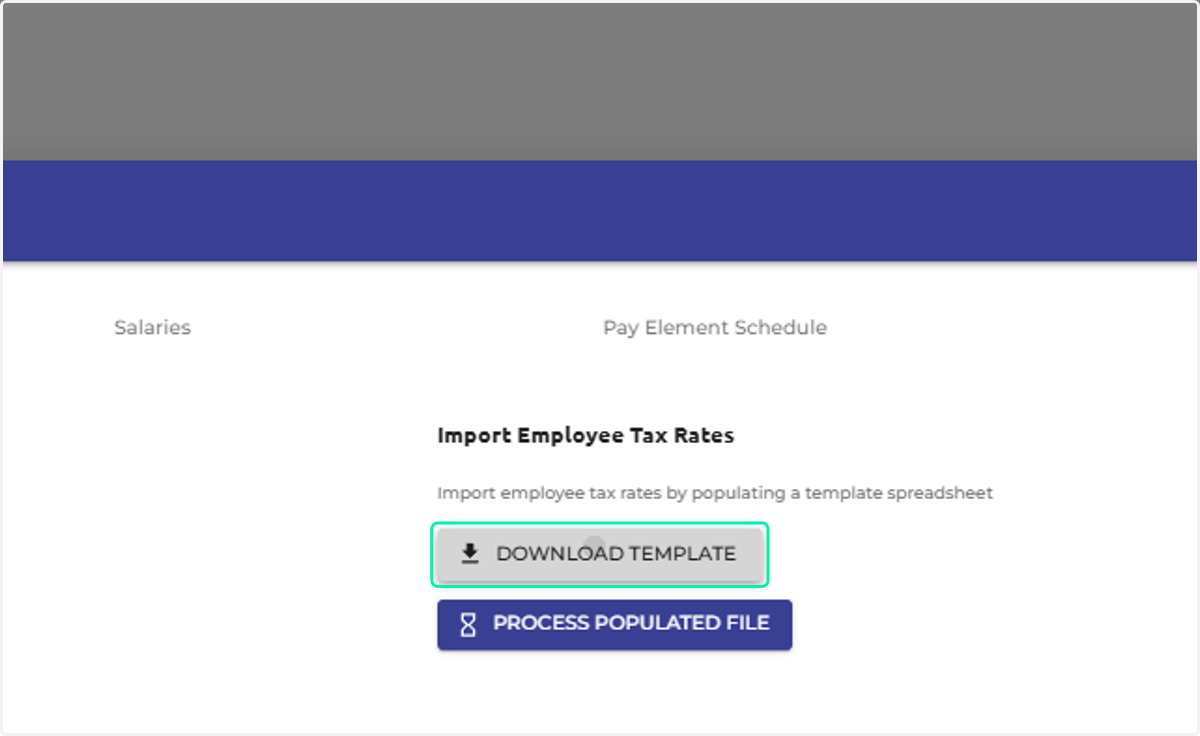
    Click on DOWNLOAD TEMPLATE, complete the template with your employee's updated information and effective date for the new record to begin from.
  6. 6. Once your template has been completed, in the organisation imports section click "process populated file". Select the file to import.
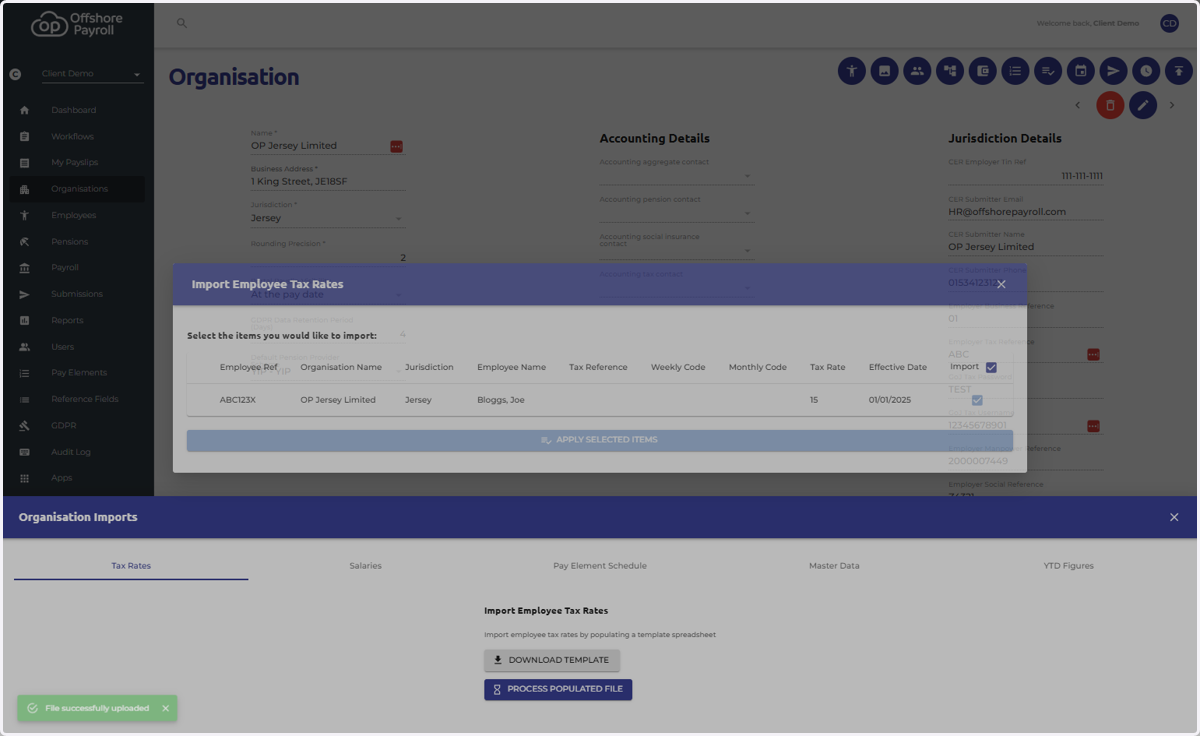
    Once your template has been completed, in the organisation imports section click "process populated file". Select the file to import.
  7. 7. Check through your data in the pop-up window.
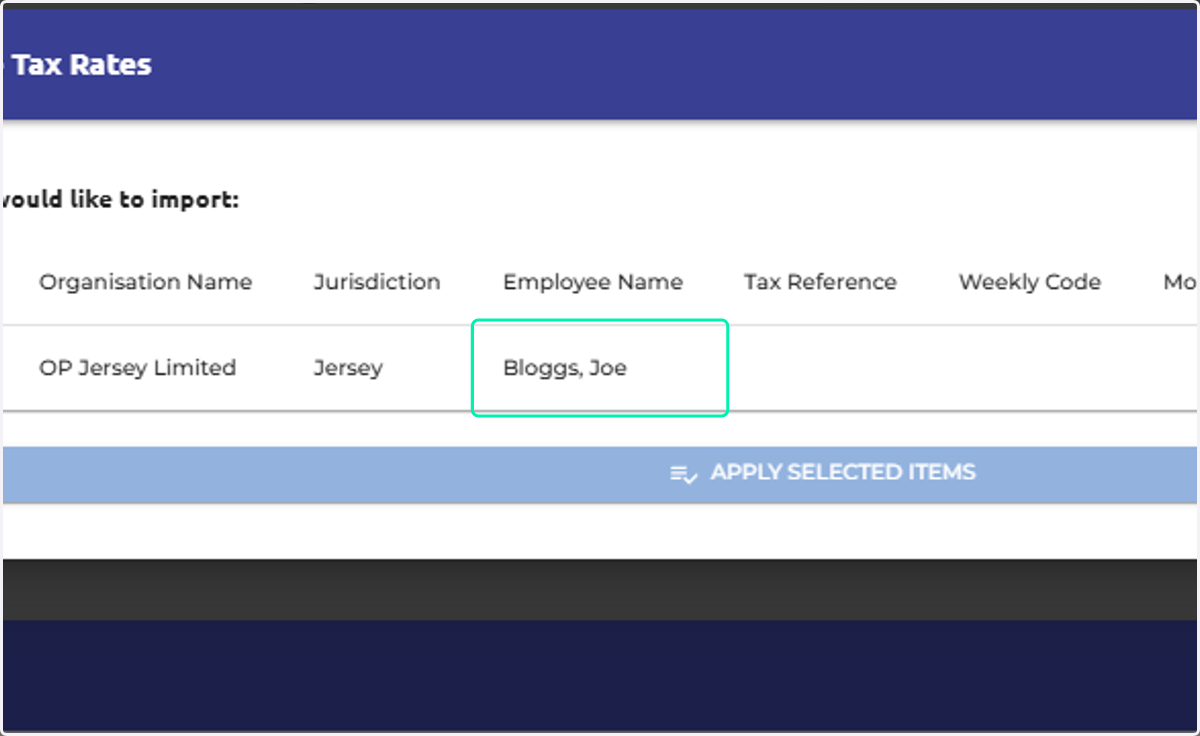
    Check through your data in the pop-up window.
  8. 8. Click on APPLY SELECTED ITEMS to process the import.
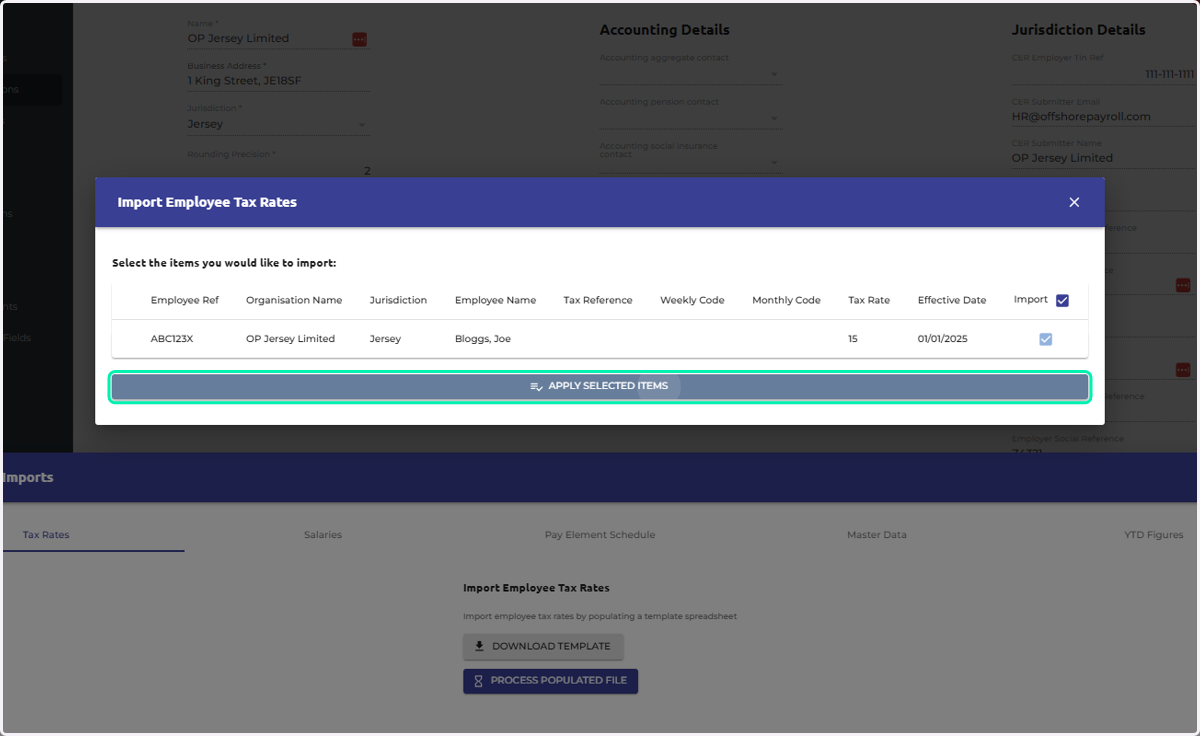
    Click on APPLY SELECTED ITEMS to process the import.
  9. 9. A successful import will be indicated by a green pop-up message "Successfully imported Employee Tax Rates from import file".
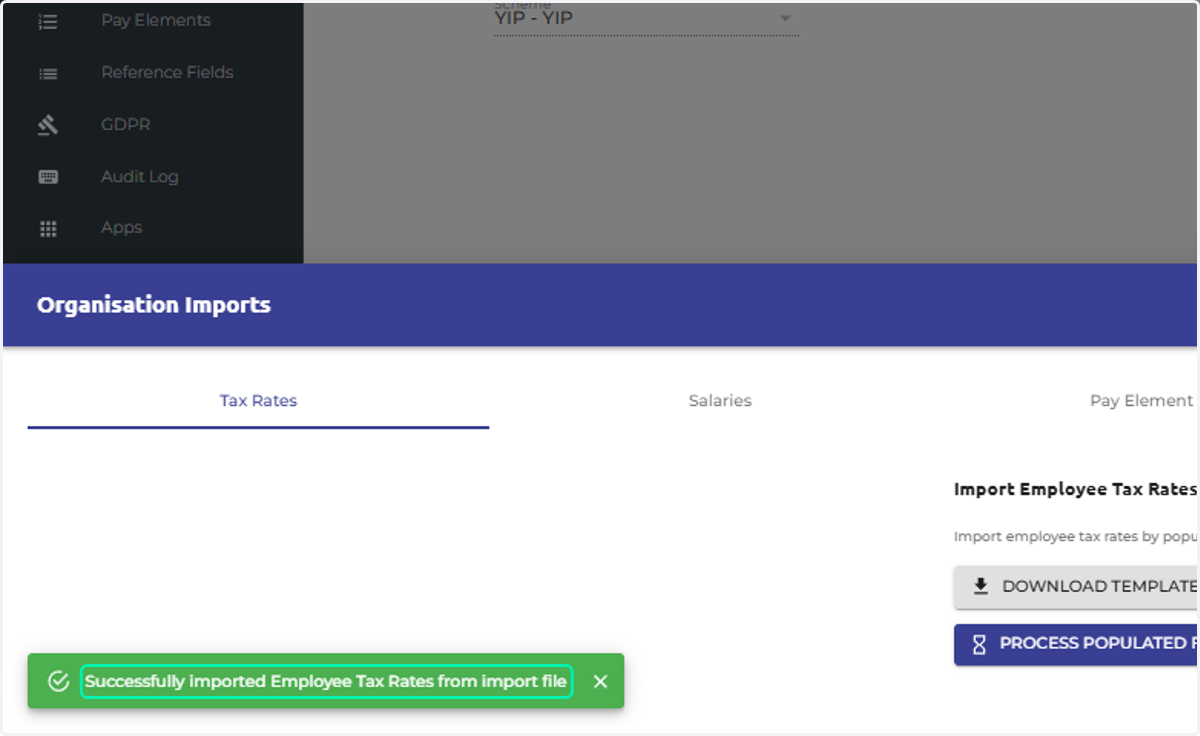
    A successful import will be indicated by a green pop-up message "Successfully imported Employee Tax Rates from import file".