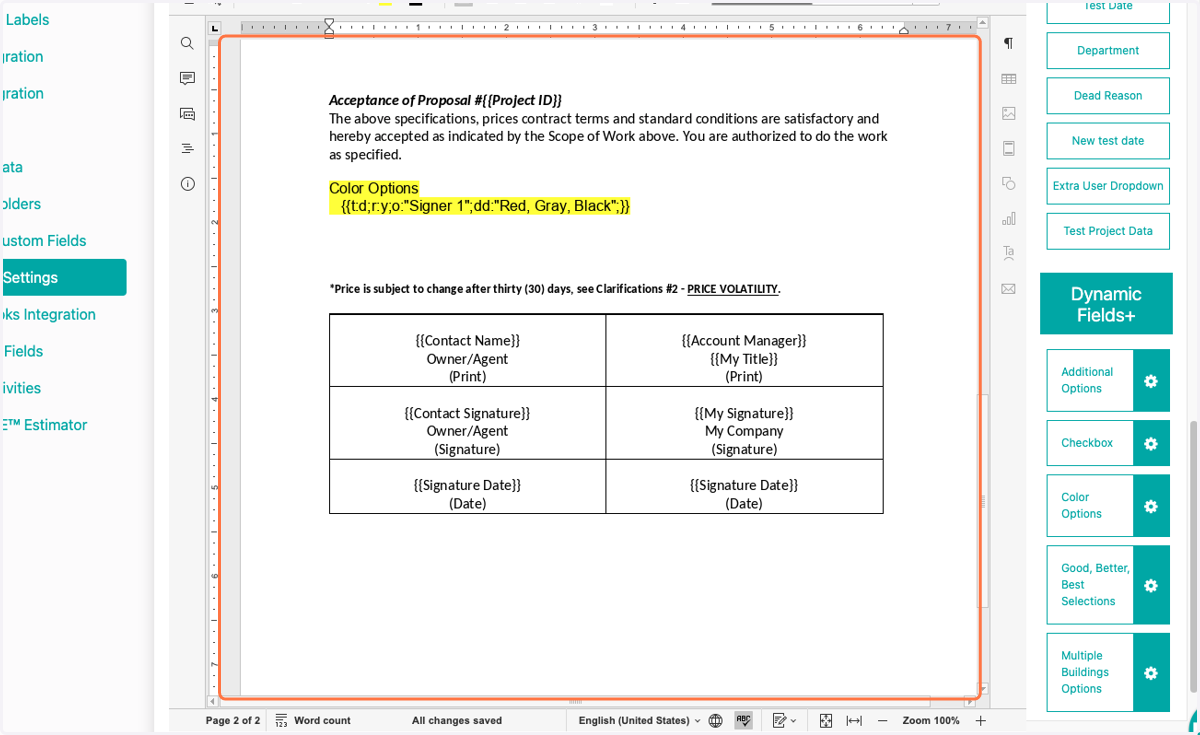
How to Add Dynamic Fields to Proposal Content
FollowUpCRM
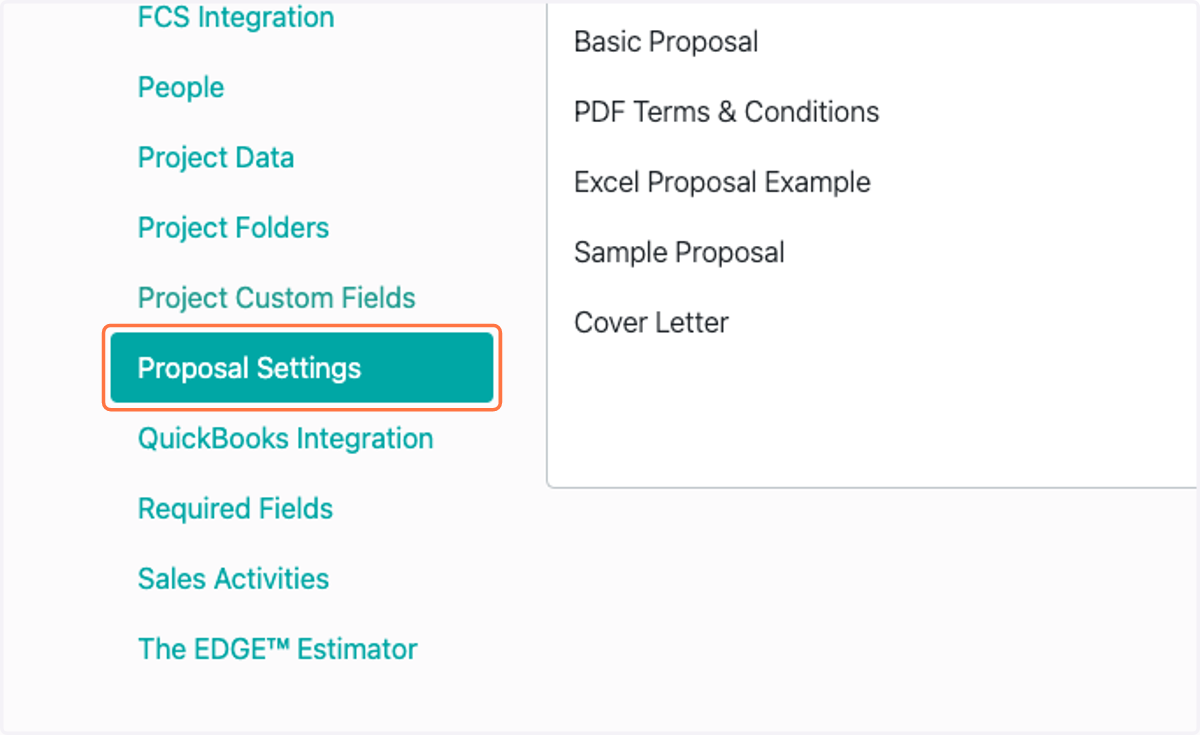
1. Click on Proposal Settings
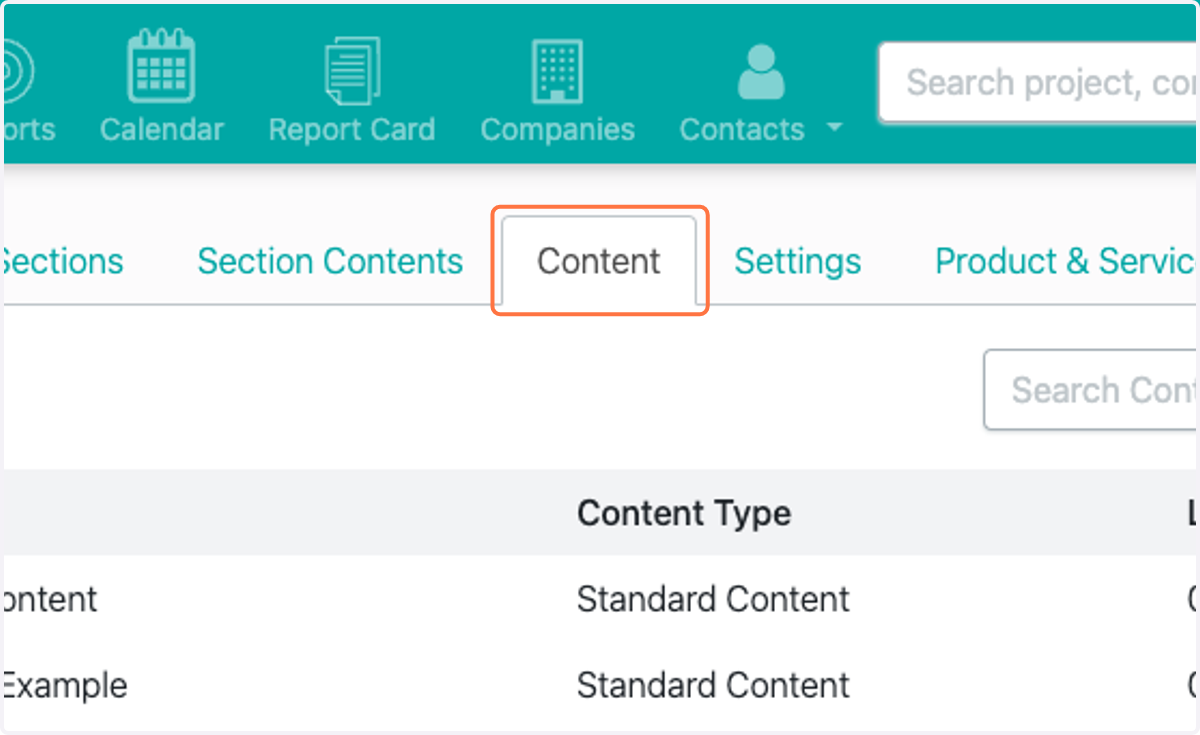
2. Click on Content
3. Select the piece of content you would like to edit
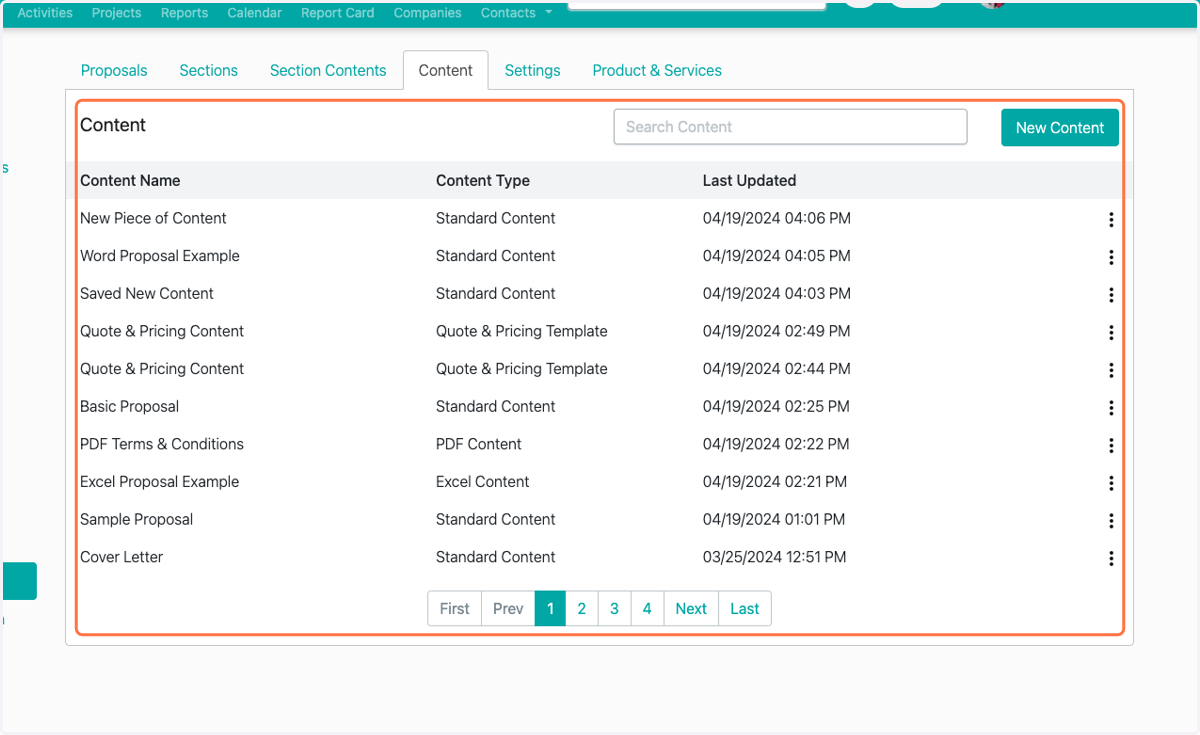
4. Click on dropdown trigger
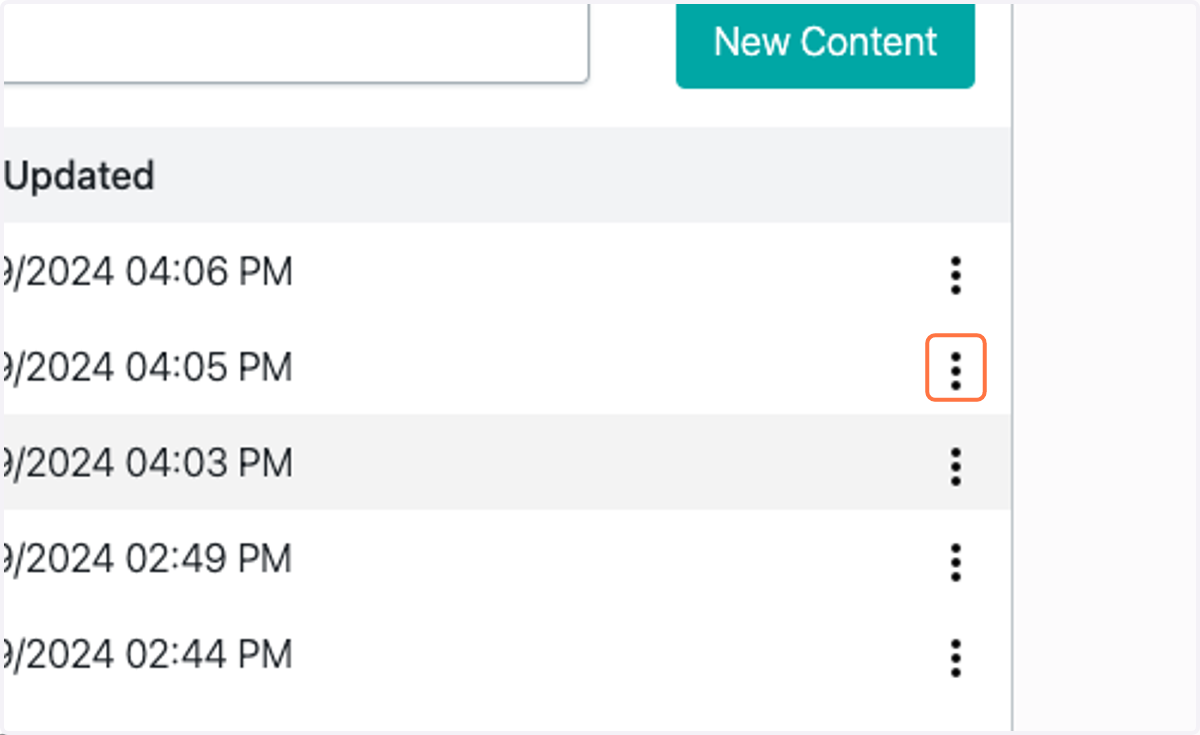
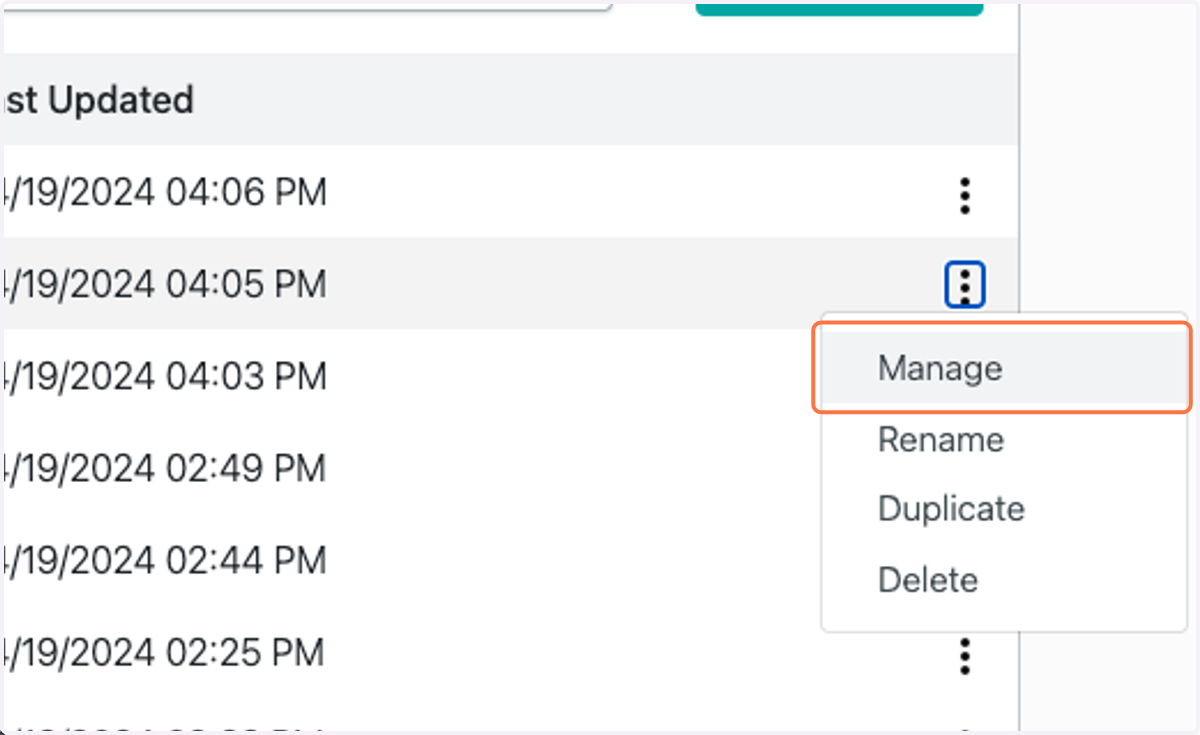
5. Click on Manage
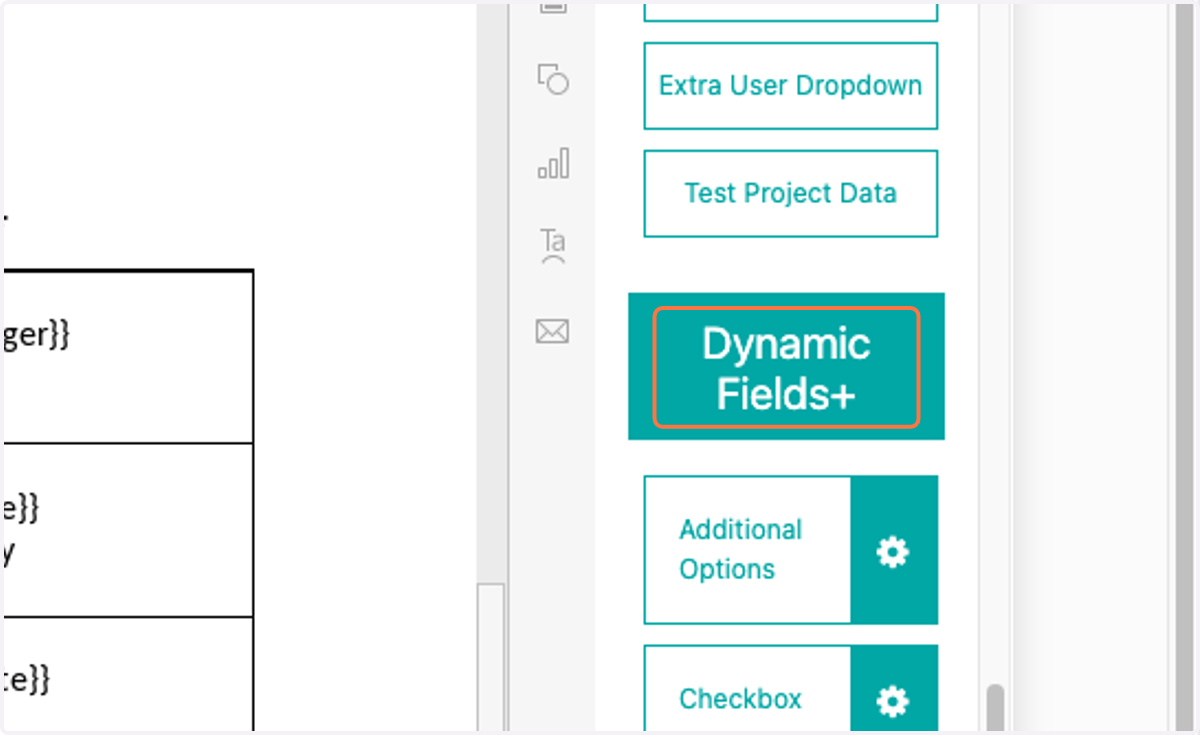
6. Click on Dynamic Fields+
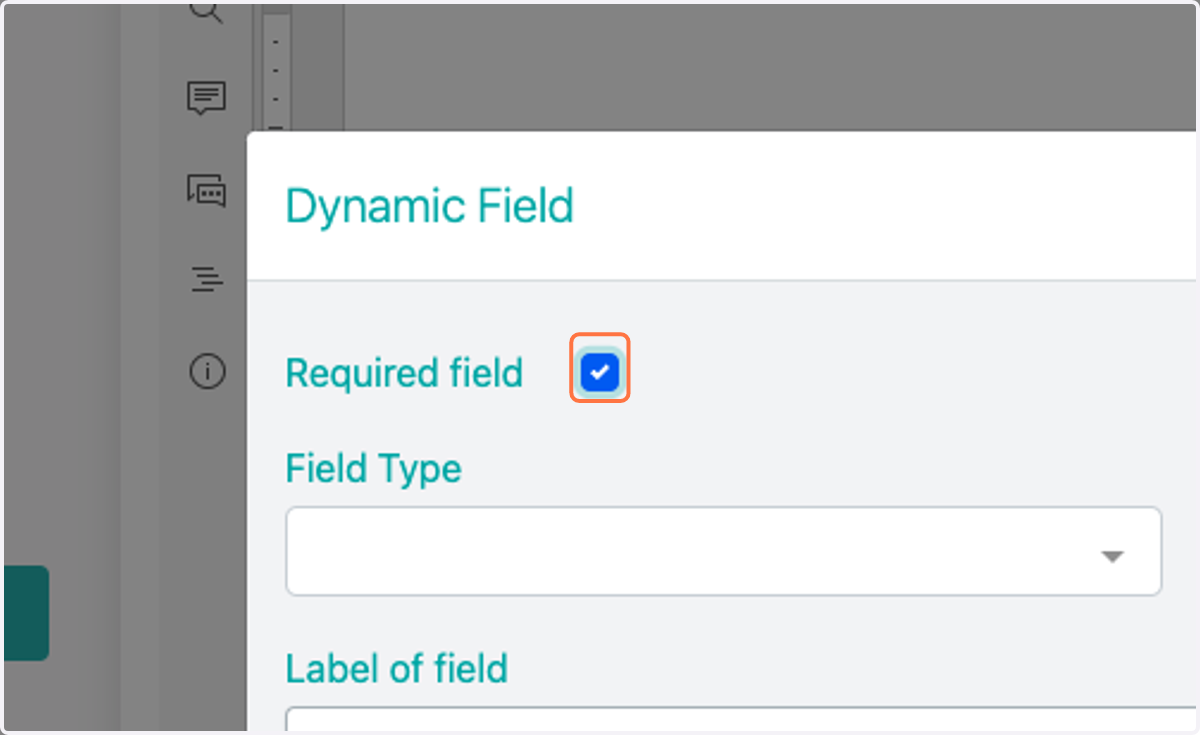
7. Select whether this is required for the customer to complete
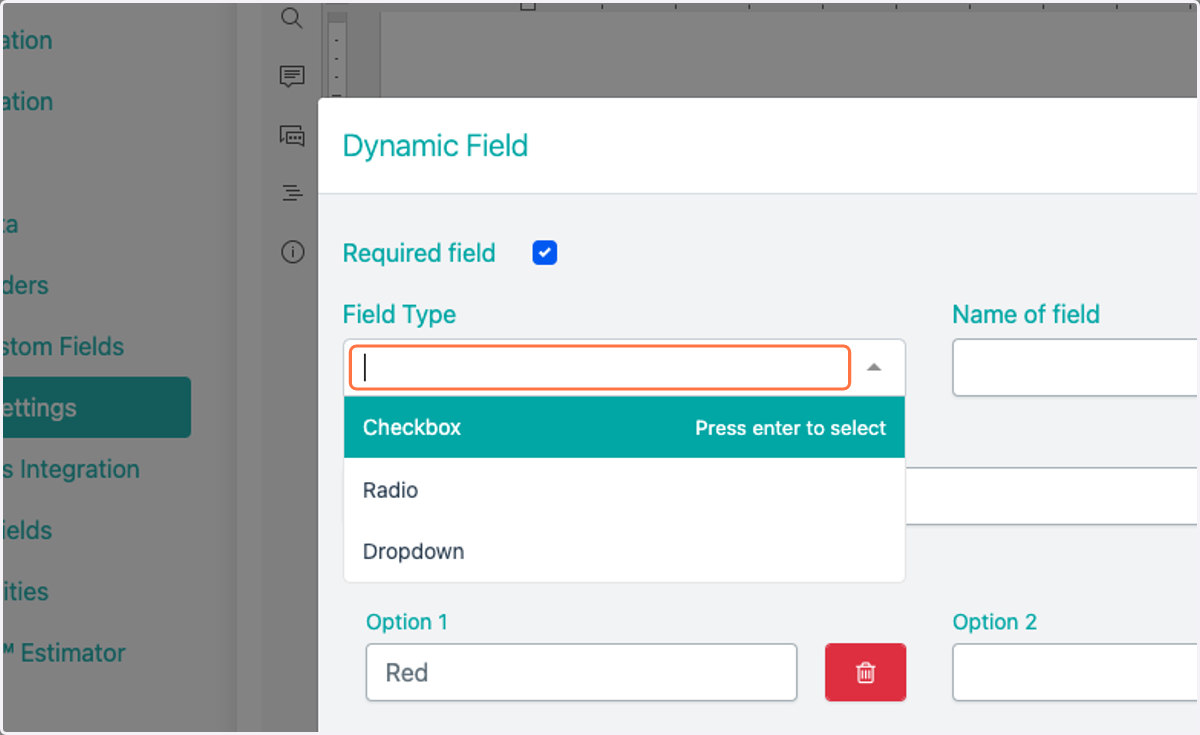
8. Select Field Type
Checkbox, Radio buttom and Dropdown available
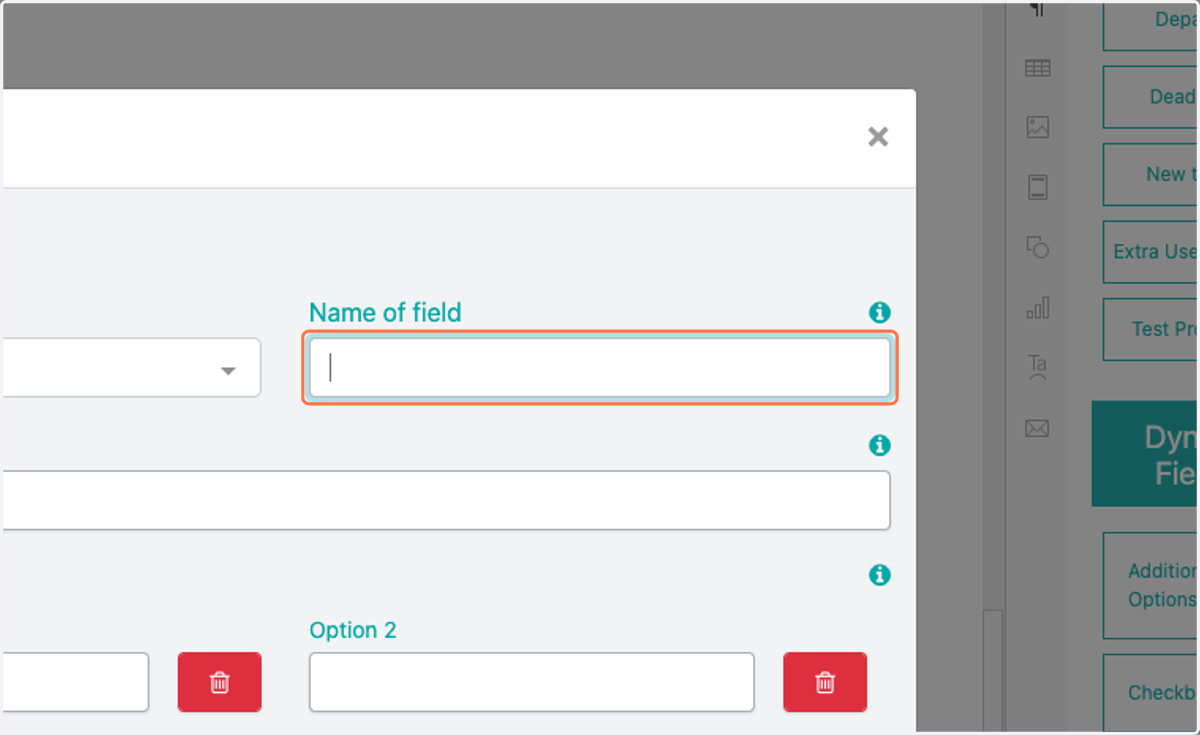
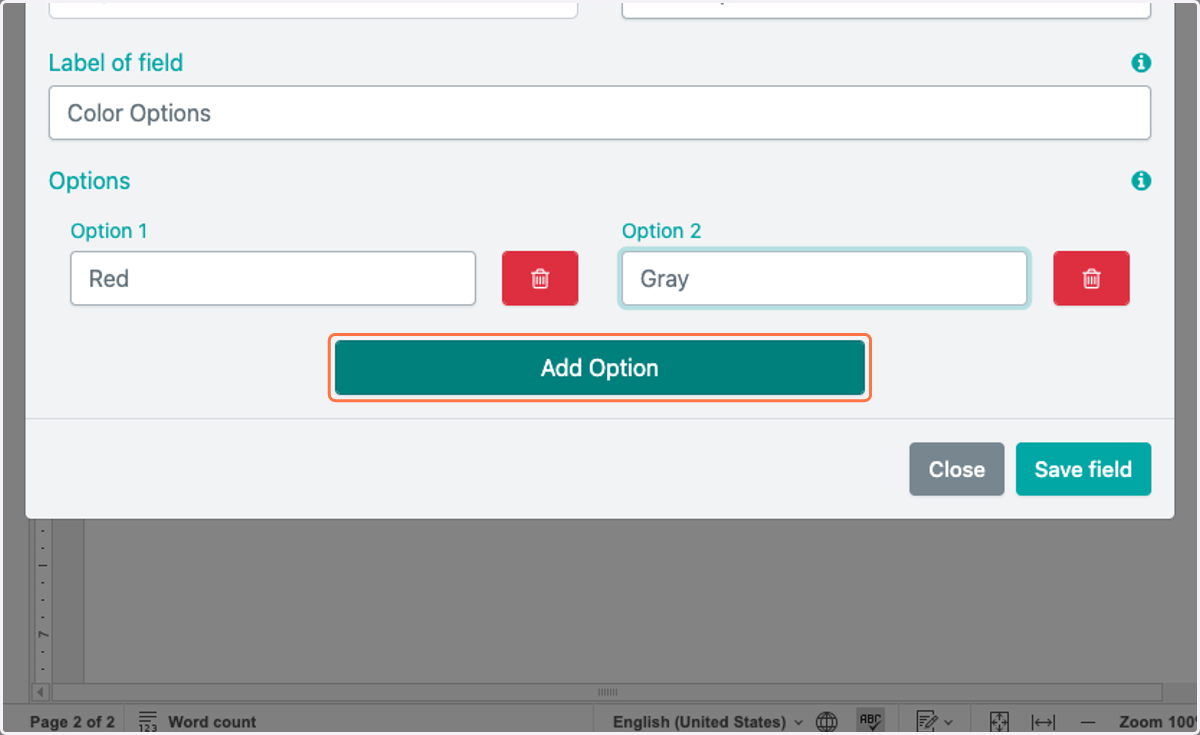
9. Enter field name
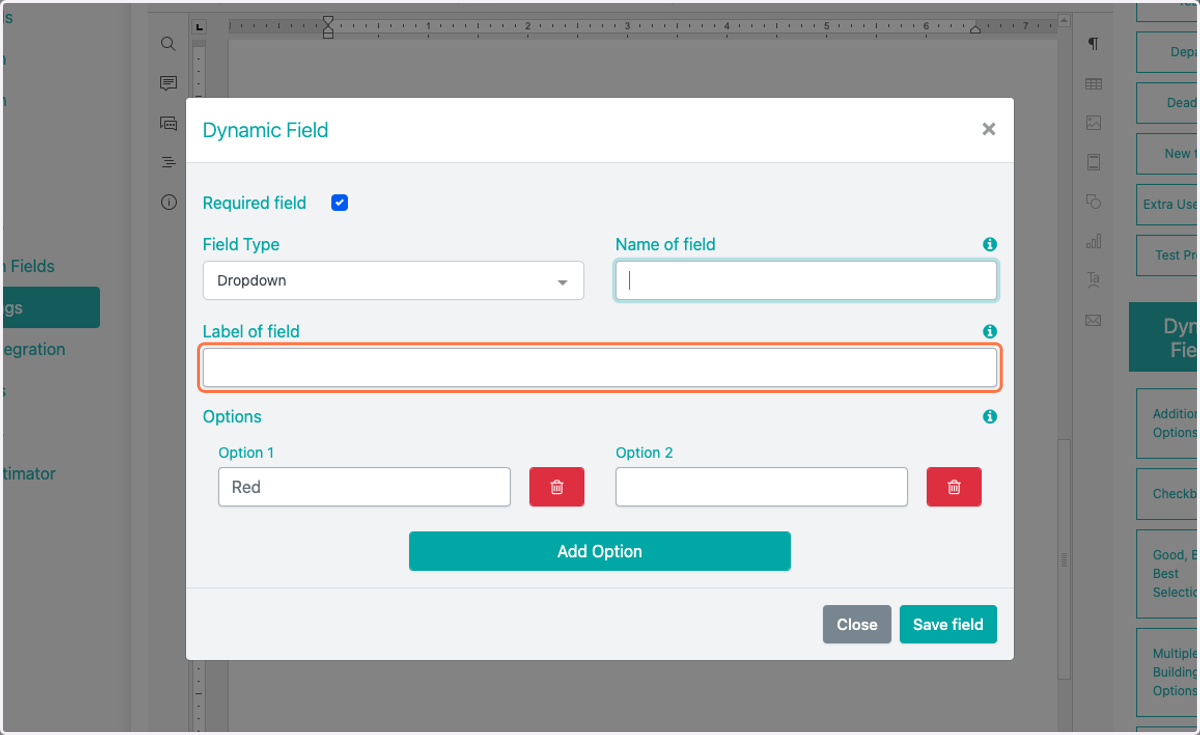
10. Enter field label
11. Enter checkbox/radio/dropdown options
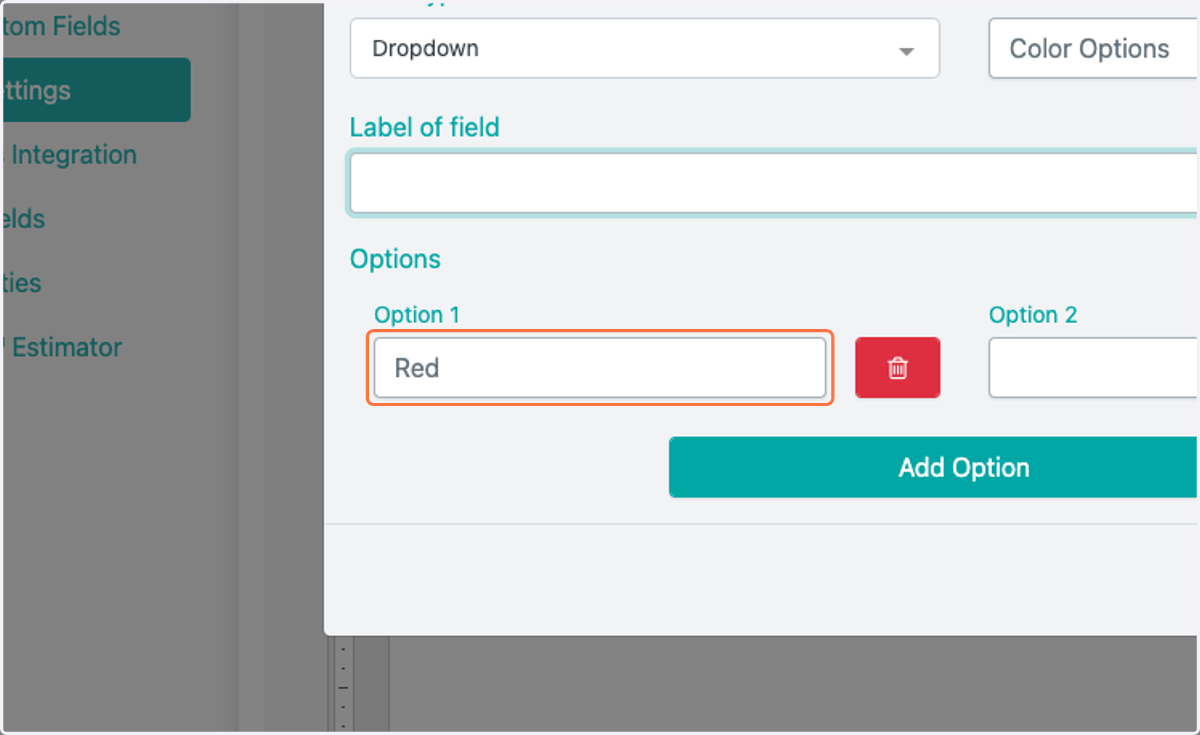
12. Click on Add Option to include more
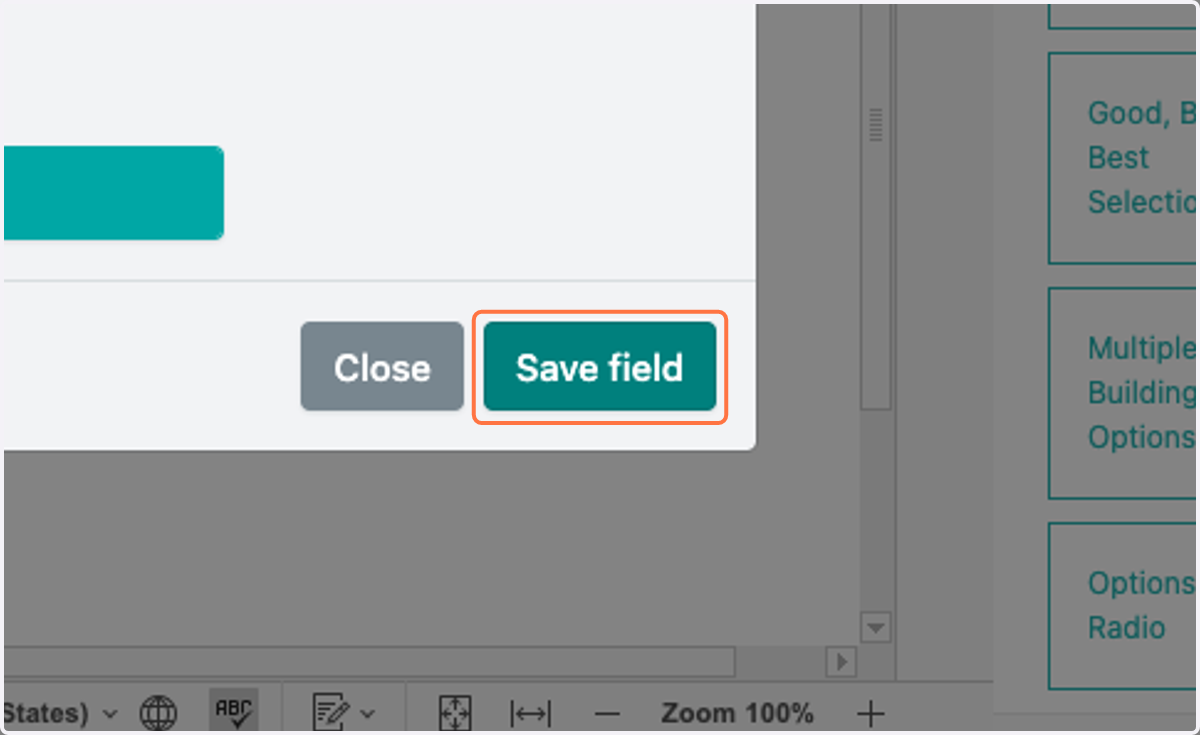
13. Click on Save field
14. Click on the dynamic field you want to add to the document
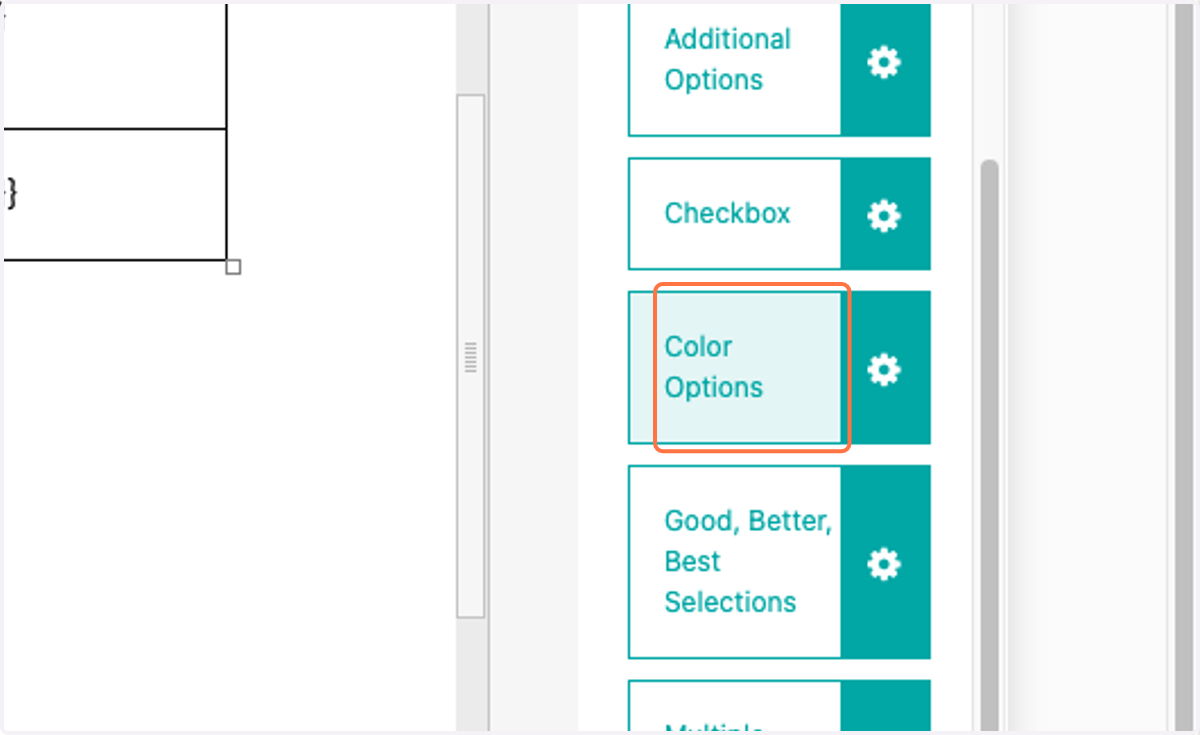
15. The coded dynamic fields will display with the label