How to Control Employee Contract Editing Permissions in Odoo-iLines HR

Odoo

  1. 1. Click on iLines HR

    Click on iLines HR
  2. 2. Click on Configurations

    Click on Configurations
  3. 3. Click on Configurations

    Click on Configurations
  4. 4. Click on Company Configurations

    Click on Company Configurations
  5. 5. Click on My Company Configuration

    Click on My Company Configuration
  6. 6. Click on Edit Blocking

    Click on Edit Blocking
  7. 7. Right click on Employee Editing Allowed Group? Here you can select the group if you want to assing a specific Group to only edit the employee file but if the group is not present user will no be able to edit the employee data

    Right click on Employee Editing Allowed Group? Here you can select the group if you want to assing a specific Group to only edit the employee file but if the group is not present user will no be able to edit the employee data
  8. 8. Click on ​ the code if you want to disable the code editing in the employee form once it is created

    Click on ​ the code if you want to disable the code editing in the employee form once it is created
  9. 9. Check Employee Name?

    Check Employee Name?
  10. 10. Check Nationality?

    Check Nationality?
  11. 11. Check Hire Date?

    Check Hire Date?
  12. 12. Click on Master Data

    Click on Master Data
  13. 13. Click on Employee

    Click on Employee
  14. 14. Click on ABDALLA KHALED

    Click on ABDALLA KHALED
  15. 15. Type "ABDALLA zabeeh" here you will try to change the name of the employee

    Type "ABDALLA zabeeh" here you will try to change the name of the employee
  16. 16. Click on Save manually

    Click on Save manually
  17. 17. Click on Access Error… this validation error will appear

    Click on Access Error… this validation error will appear
  18. 18. Click on Code?

    Click on Code?
  19. 19. Type "241"

    Type "241"
  20. 20. Click on dropdown trigger

    Click on dropdown trigger
  21. 21. Click on Save manually

    Click on Save manually
  22. 22. Click on Access Error…

    Click on Access Error…
  23. 23. Click on Employee Editing Allowed Group?

    Click on Employee Editing Allowed Group?
  24. 24. Click on Administration / Access Rights

    Click on Administration / Access Rights
  25. 25. Click on Save manually

    Click on Save manually
  26. 26. Type "ABDALLA zabeh"

    Type "ABDALLA zabeh"
  27. 27. Click on Save manually after assigning the group it will allow you to make changes

    Click on Save manually after assigning the group it will allow you to make changes
  28. 28. Click on dropdown trigger

    Click on dropdown trigger
  29. 29. Type "2413"

    Type "2413"
  30. 30. Click on Save manually

    Click on Save manually
  31. 31. Click on Code?

    Click on Code?
  32. 32. Click on Employee Editing Allowed Group?

    Click on Employee Editing Allowed Group?
  33. 33. Click on EMPLOYEE BLOCKED FIELDS

    Click on EMPLOYEE BLOCKED FIELDS
  34. 34. Click on CONTRACT BLOCKED FIELDS. Here you can also enable the blocking of the employee wages and other details in the employee contract

    Click on CONTRACT BLOCKED FIELDS. Here you can also enable the blocking of the employee wages and other details in the employee contract
  35. 35. Check Wage?

    Check Wage?
  36. 36. Check Housing?

    Check Housing?
  37. 37. Click on Master Data

    Click on Master Data
  38. 38. Click on Employee

    Click on Employee
  39. 39. Click on ABDALLA zabeh

    Click on ABDALLA zabeh
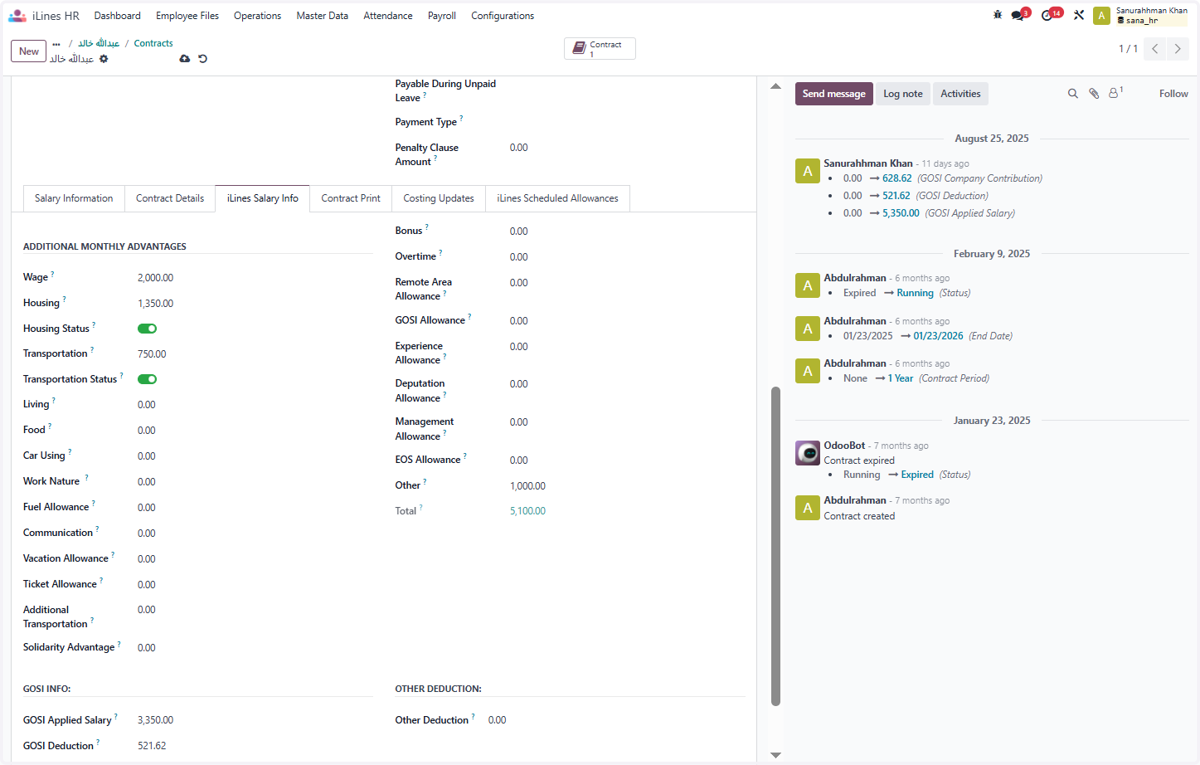
  40. 40. Click on In Contract Since…

    Click on In Contract Since…
  41. 41. Click on iLines Salary Info

    Click on iLines Salary Info
  42. 42. Type "2000"

    Type "2000"
  43. 43. Click on Employee?

    Click on Employee?
  44. 44. Click on Save manually

    Click on Save manually
  45. 45. Click on Access Error…

    Click on Access Error…
  46. 46. Click on Close

    Click on Close
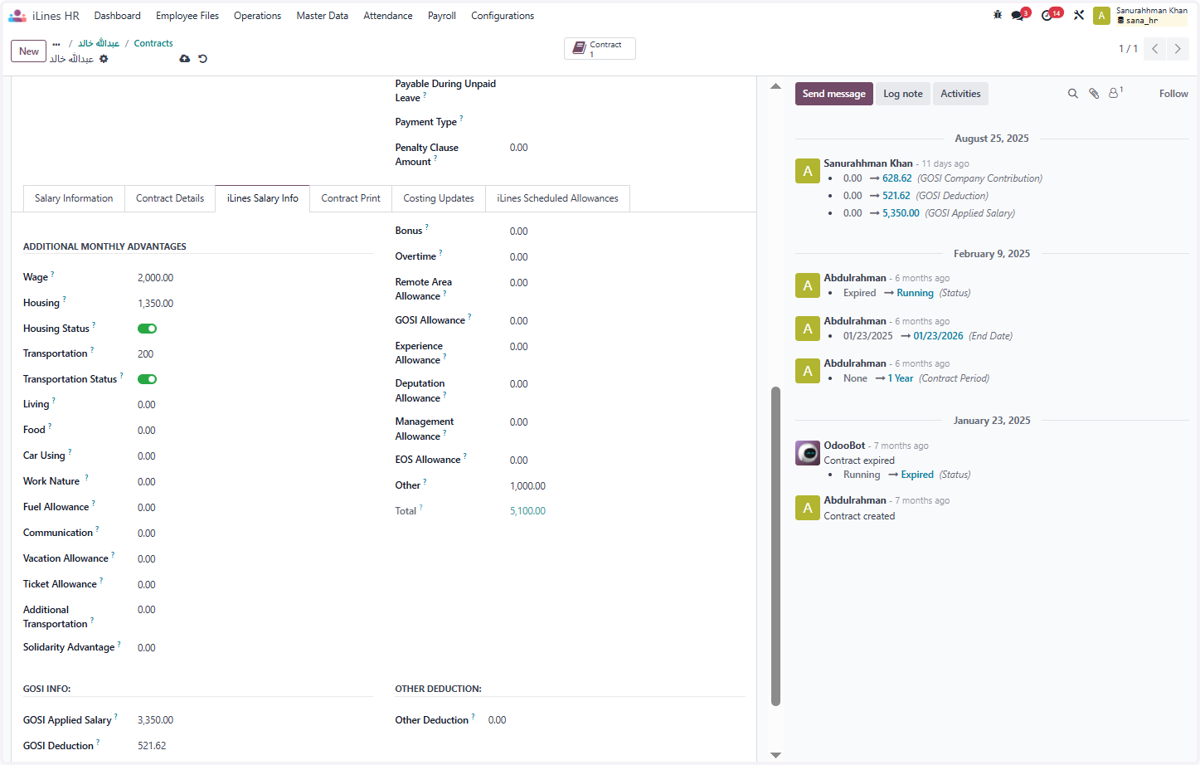
  47. 47. Type "200"

    Type "200"
  48. 48. Click on Save manually

    Click on Save manually
  49. 49. Click on Access Error…

    Click on Access Error…
  50. 50. Click on Close

    Click on Close
  51. 51. Click on Configurations

    Click on Configurations
  52. 52. Click on Company Configurations

    Click on Company Configurations
  53. 53. Click on My Company Configuration

    Click on My Company Configuration
  54. 54. Click on Edit Blocking

    Click on Edit Blocking
  55. 55. Click on Contract Editing Allowed Group?

    Click on Contract Editing Allowed Group?
  56. 56. Click on Administration / Access Rights

    Click on Administration / Access Rights
  57. 57. Click on Save manually

    Click on Save manually
  58. 58. Click on In Contract Since…

    Click on In Contract Since…
  59. 59. Click on iLines Salary Info

    Click on iLines Salary Info
  60. 60. Type "4500"

    Type "4500"
  61. 61. Click on Save manually

    Click on Save manually
  62. 62. Click on Wage? Now you can see that when the user details are filled, the data can be changed once you assign a group

    Click on Wage? Now you can see that when the user details are filled, the data can be changed once you assign a group
  63. 63. Click on Other?

    Click on Other?
  64. 64. So Finally here we can give the permissions and the editing rights

    So Finally here we can give the permissions and the editing rights