Updating Check Numbers in Yardi Elevate and Voyager
Start at Step 12 if the BOD provides the CTRL#
1. Click on Reports in Elevate

2. Click on CHECKscan

3. Click on CHECKscan Summary

4. Enter the original deposit date in both date fields

5. Click on More Selected

6. Choose the community

7. Click on Search

8. Click on the batch

9. Note the correct check number

10. Click on Report

11. Control numbers appear in the third column, locate the deposit and note the control number for the check requiring a fix

12. Click on Checkscan in Voyager

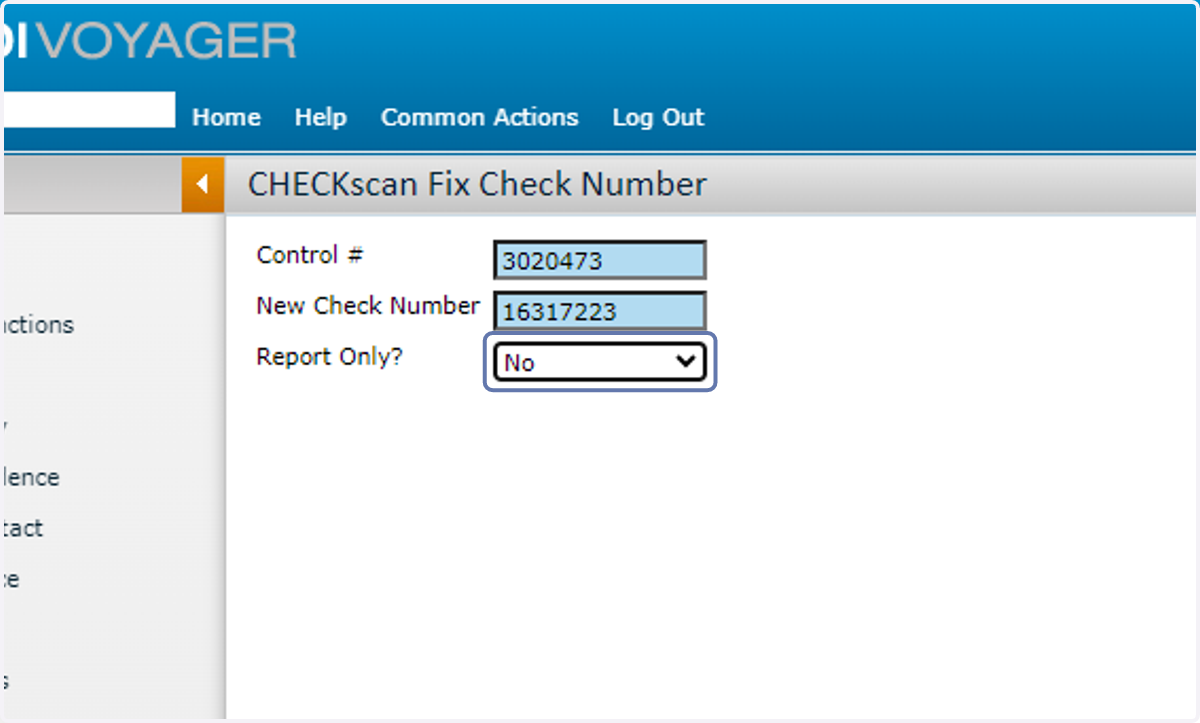
13. Click on CHECKscan Fix Check Number

14. Type in the control number and the correct check number, then select No
15. Click on Display

16. The data below indicates the fix was successful

17. To verify, find the original deposit date

18. Note the correct check number now appears
