Creating a Certemy Account
This guide will show you how to create and activate your Certemy account.
To begin, please navigate to narm.certemy.com/entry/self-enrollments/Provisional-Membership-Application/b9e0b451-2ef2-4a01-ac3c-cf144aca8175 and follow the directions below.
1. Enter your first name, last name, email, and password
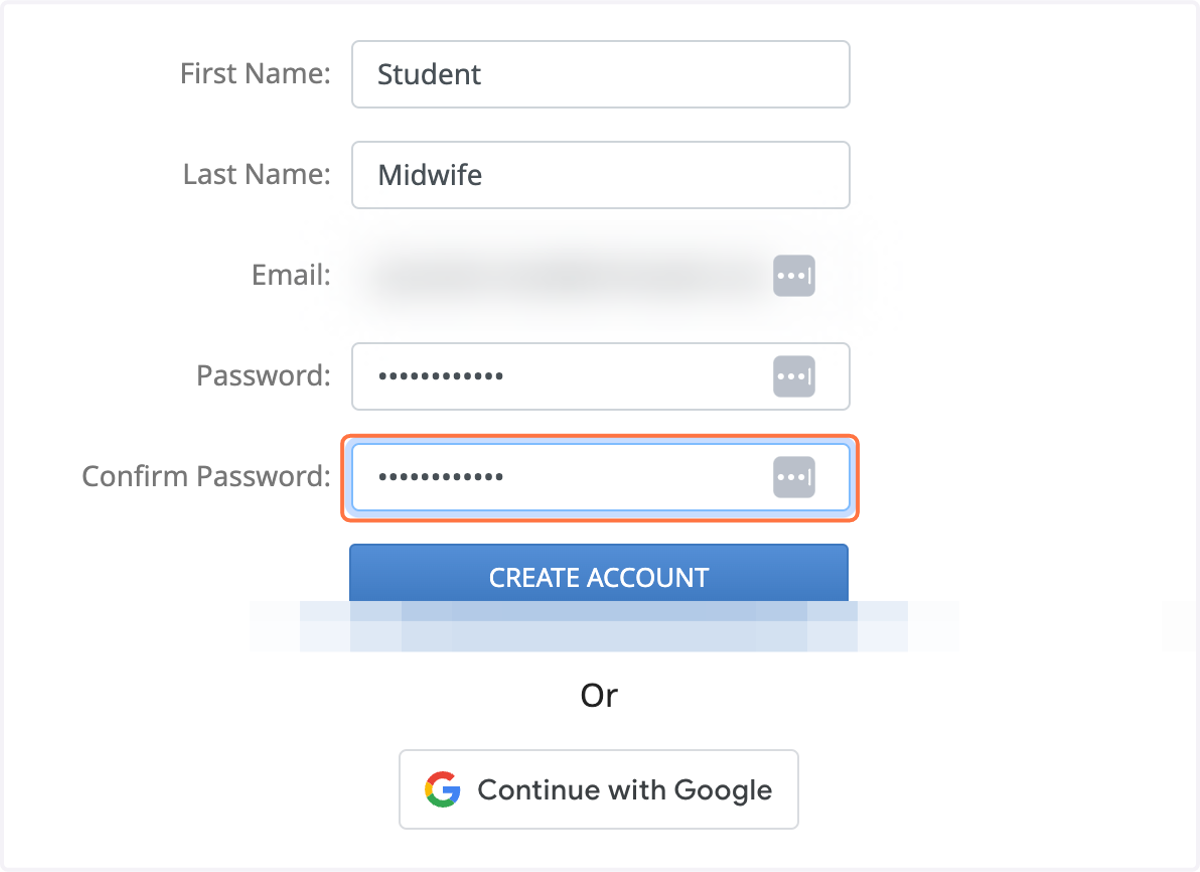
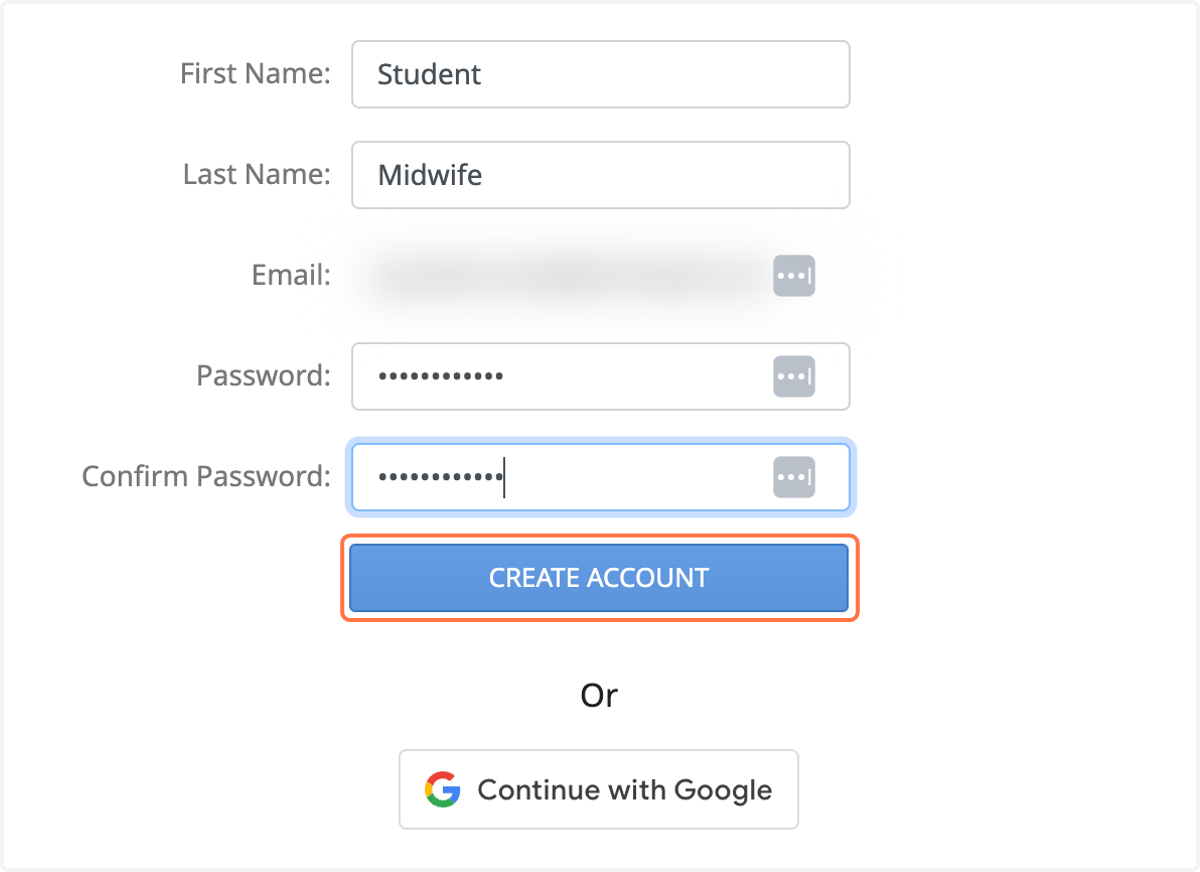
2. Click CREATE ACCOUNT
3. You will receive a pop up asking you to complete the email verification.
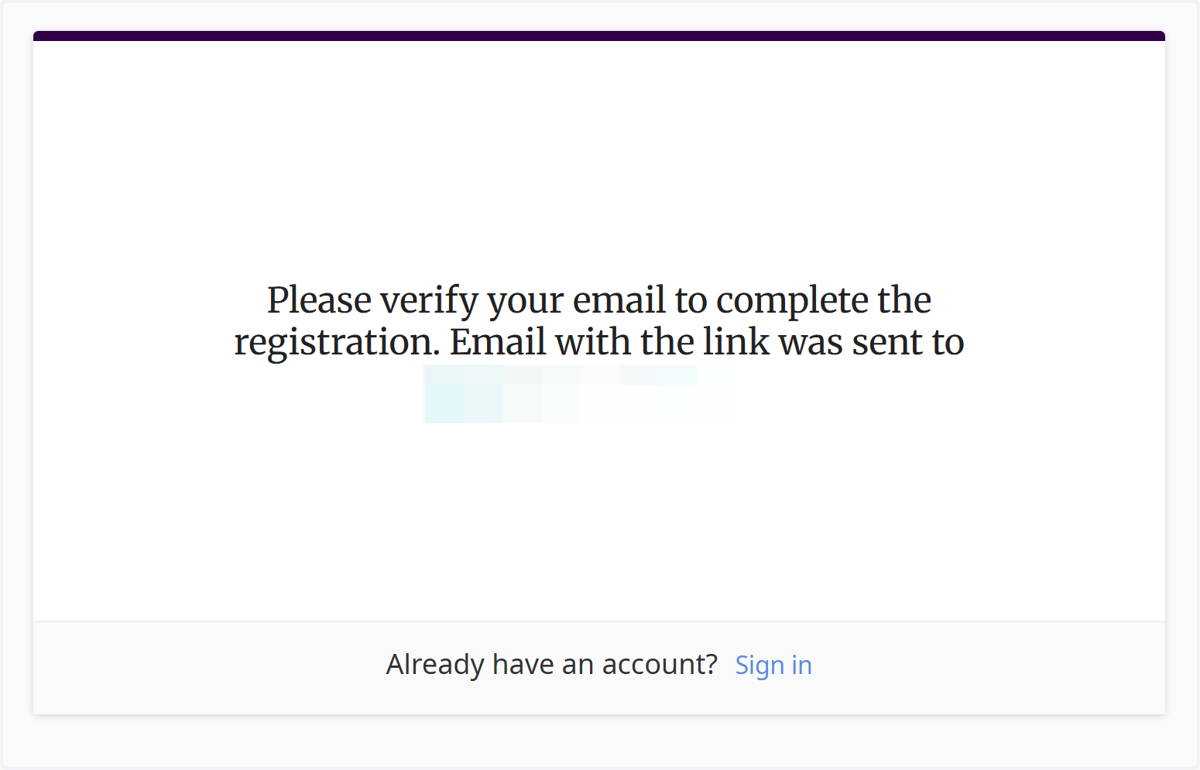
✅ Complete the email verification
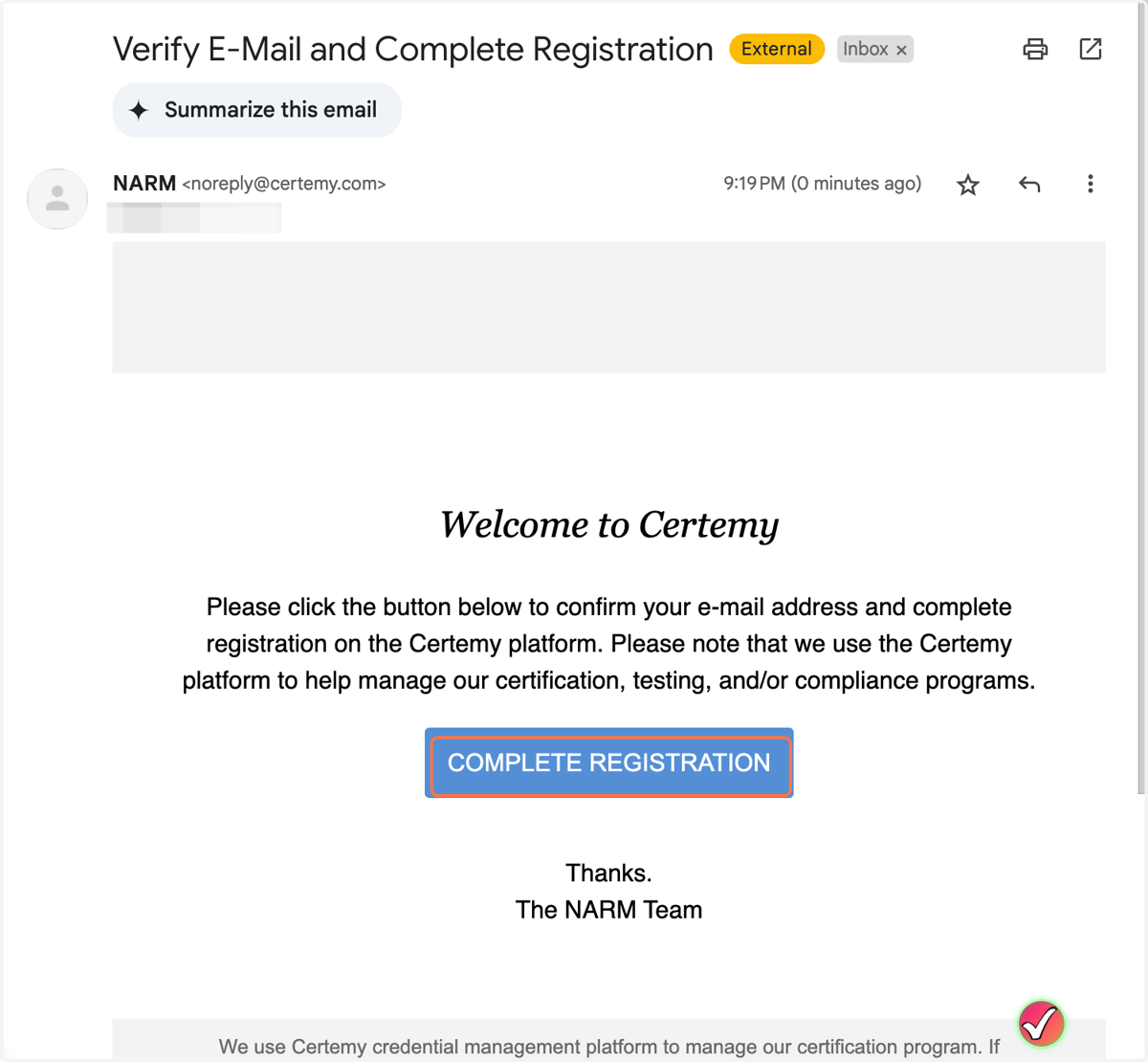
4. In your email account, locate the email with the subject line "Verify E-Mail and Complete Registration". Open that email. Click "COMPLETE REGISTRATION"
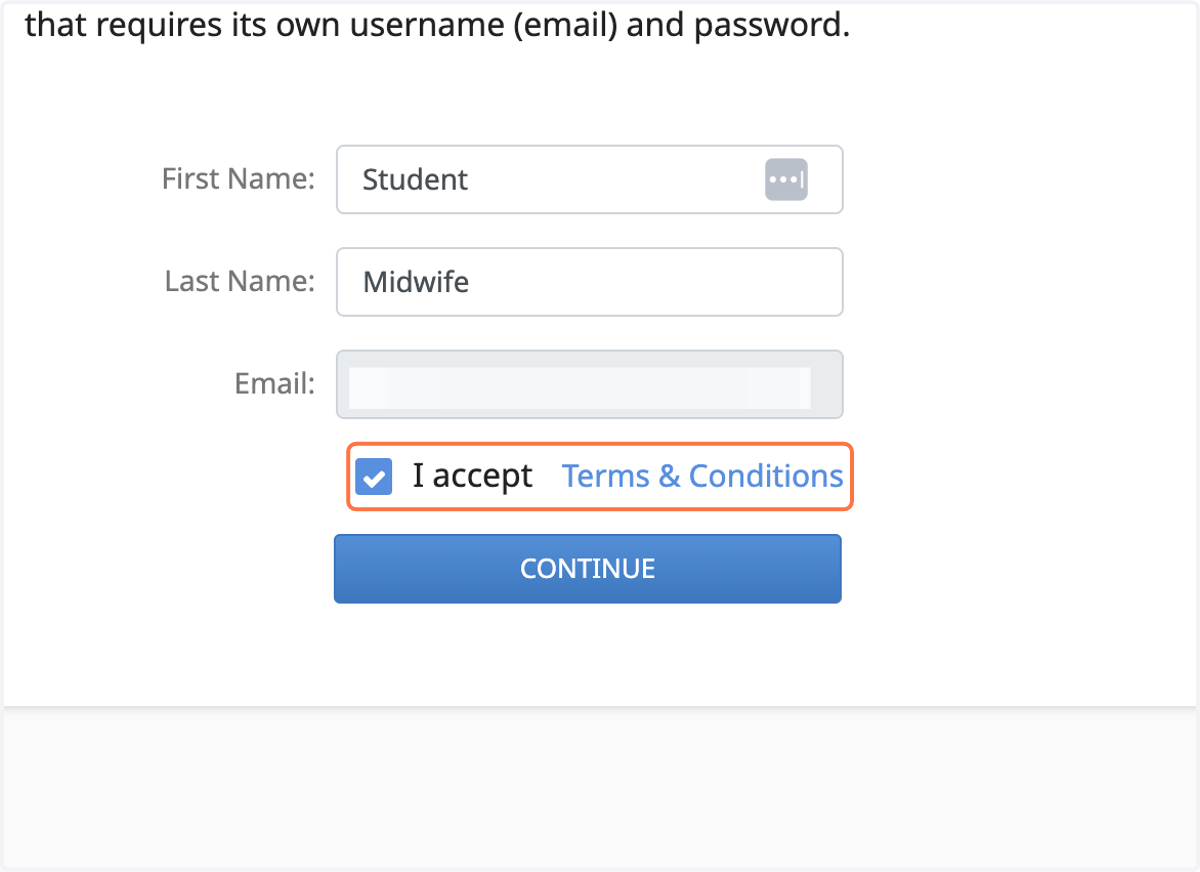
5. Your first name, last name, and email address should be pre-filled. Click the checkbox to accept the terms and conditions.
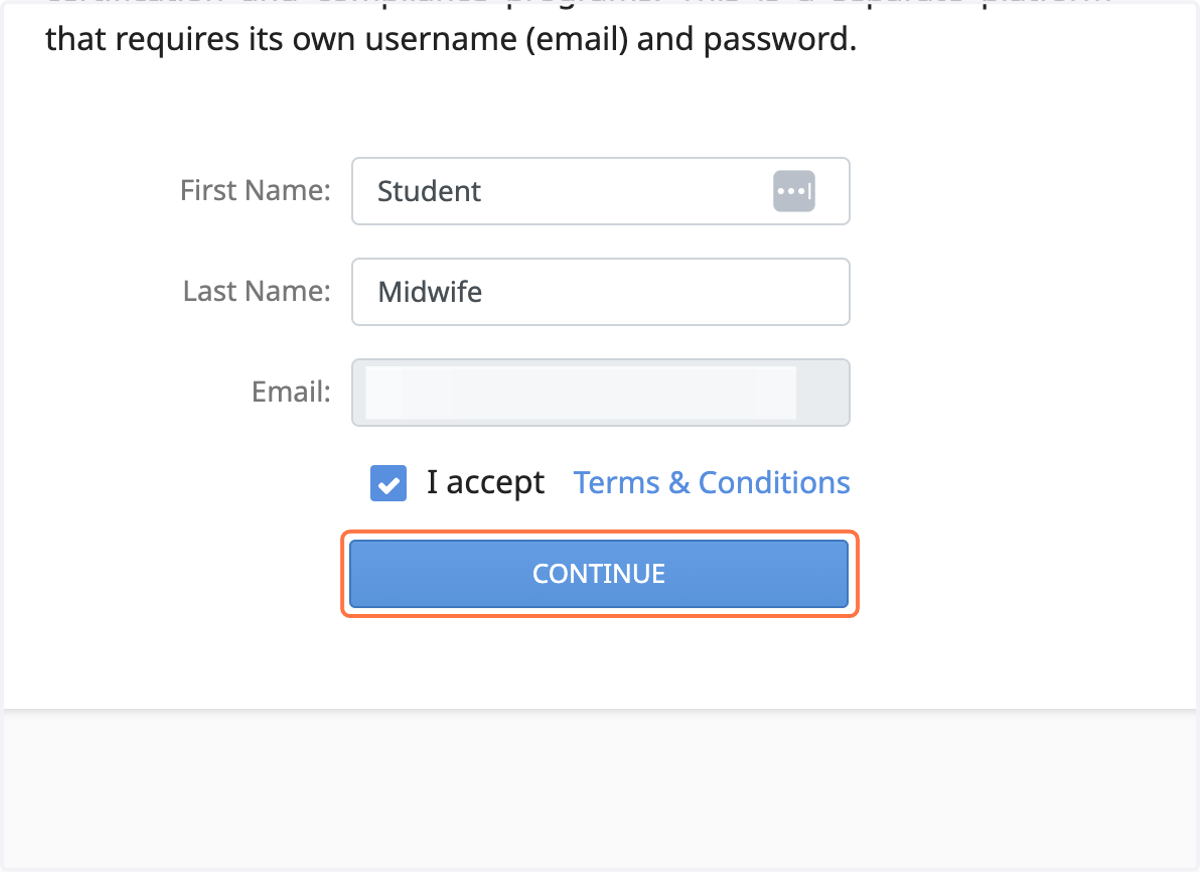
6. Click CONTINUE
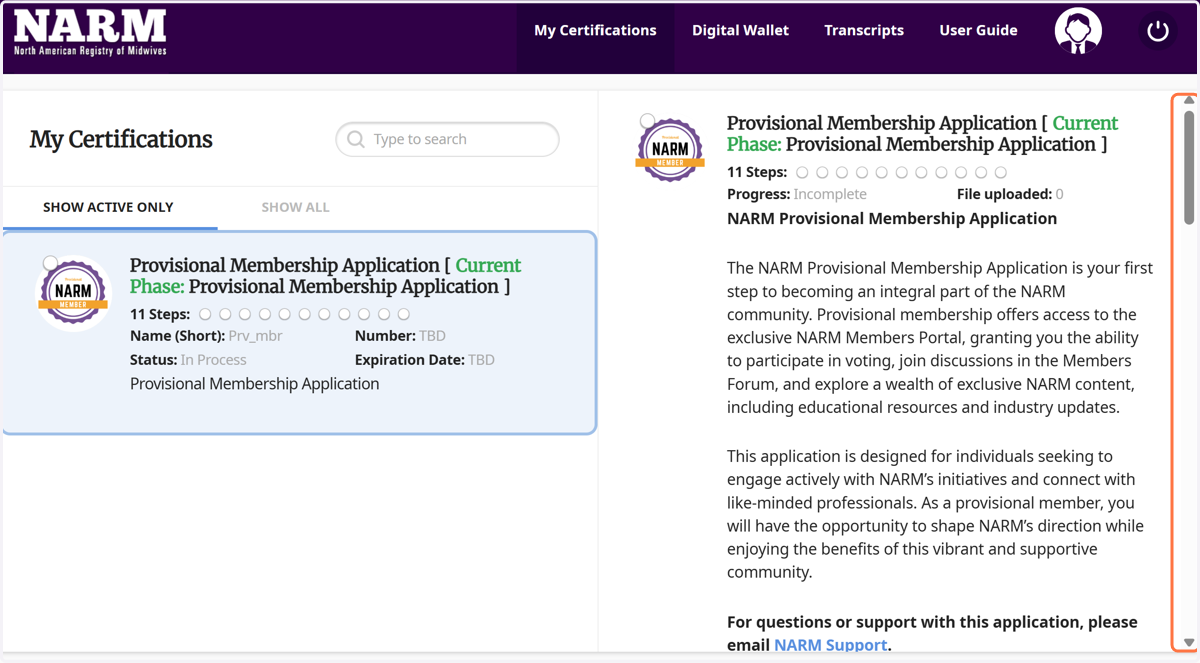
7. You will be logged into Certemy and be shown that you have a Provisional Membership Application that has been filed. Use the scroll bar down on the right to access the application navigation.
✅ Complete the application
You will be accessing and completing the application section-by-section. Use the navigation on the right to click through and complete each section. The status of each section will change as you complete them and the progress bar of your application will be updated.
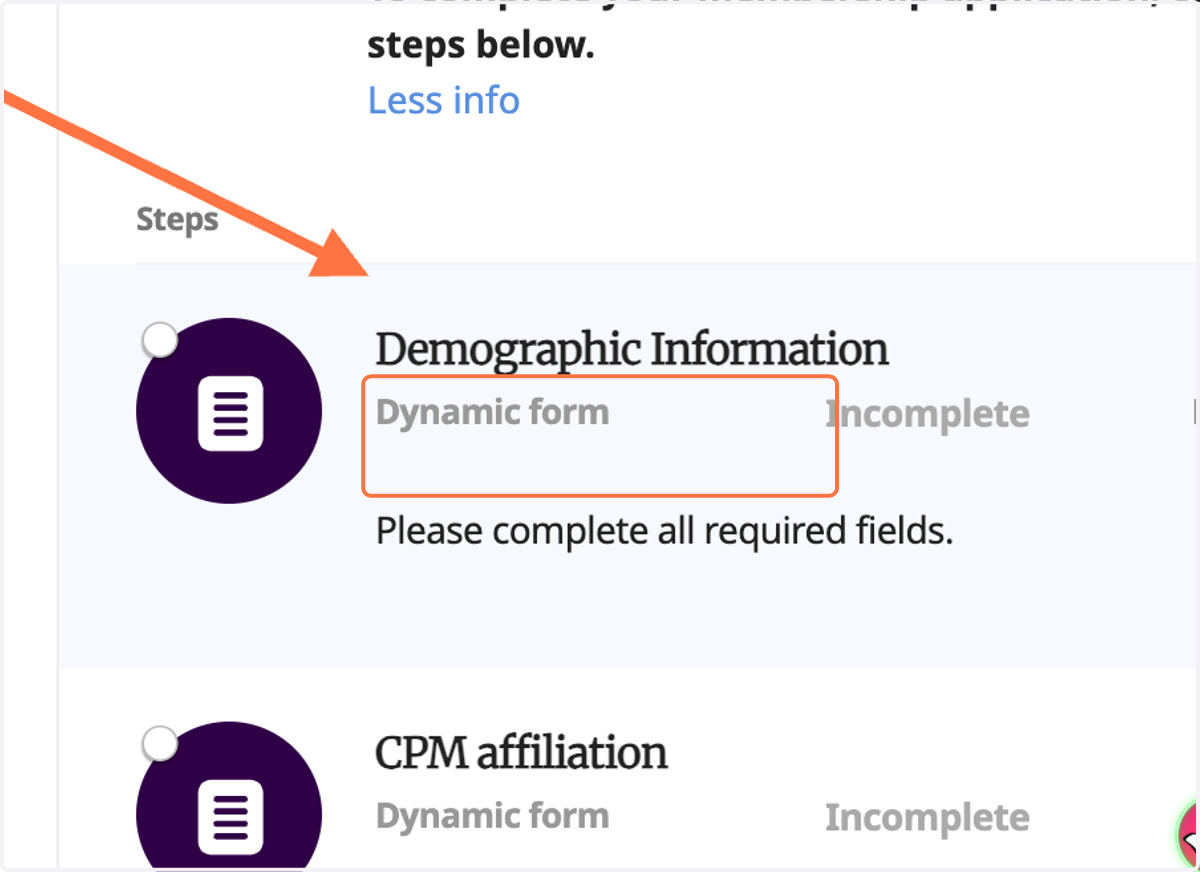
8. Click on Demographic Information
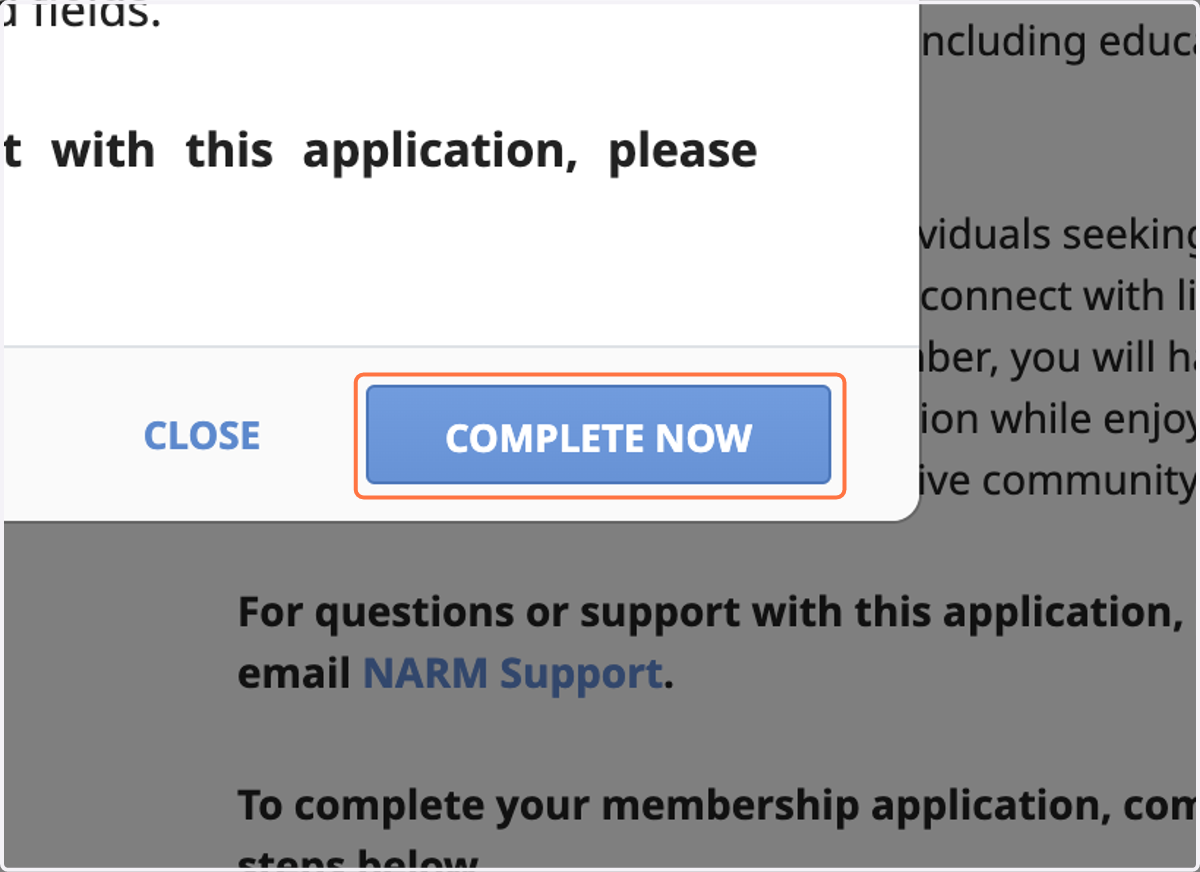
9. Click COMPLETE NOW
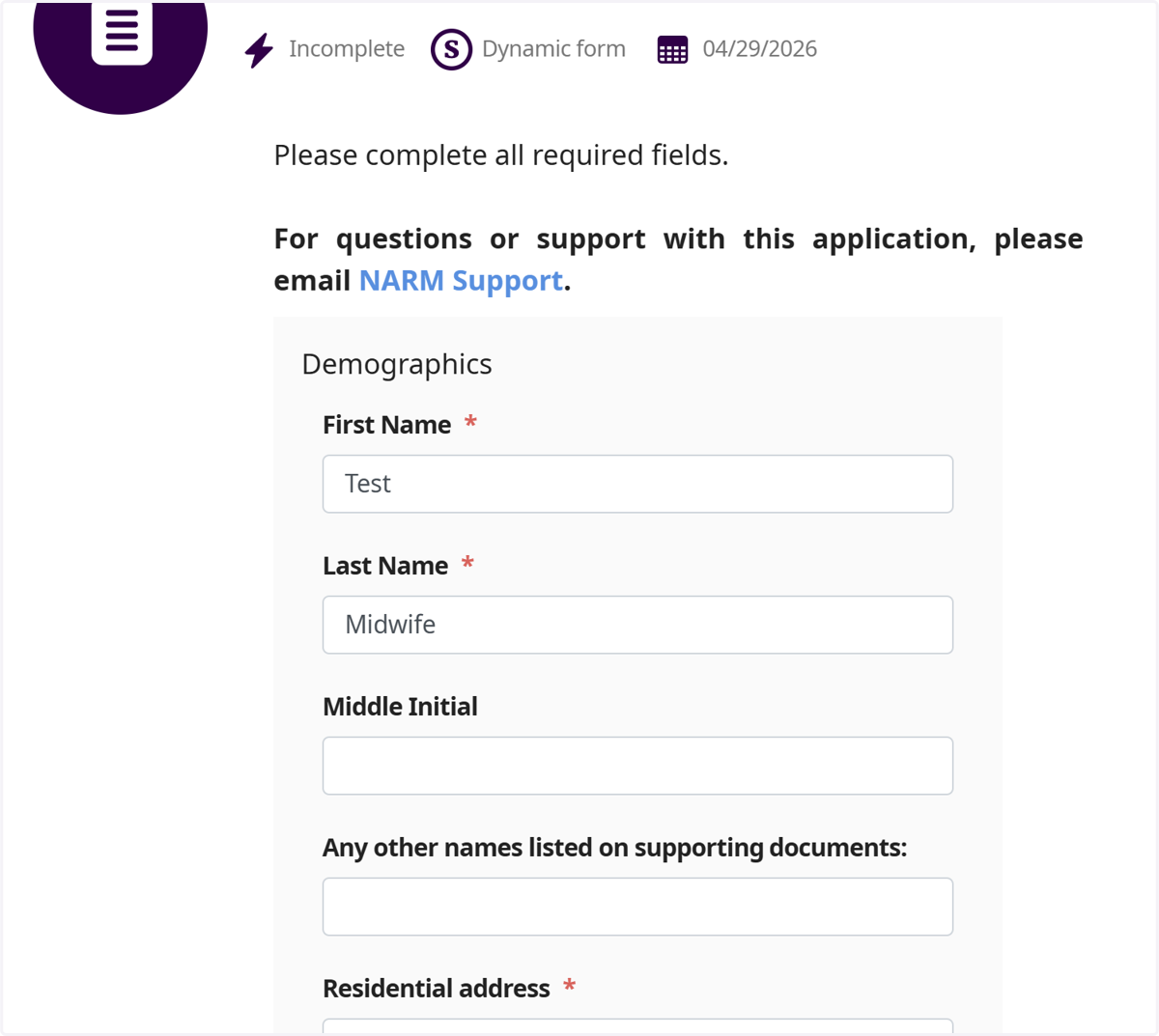
10. Complete the form
Fill in all of the necessary demographic information.
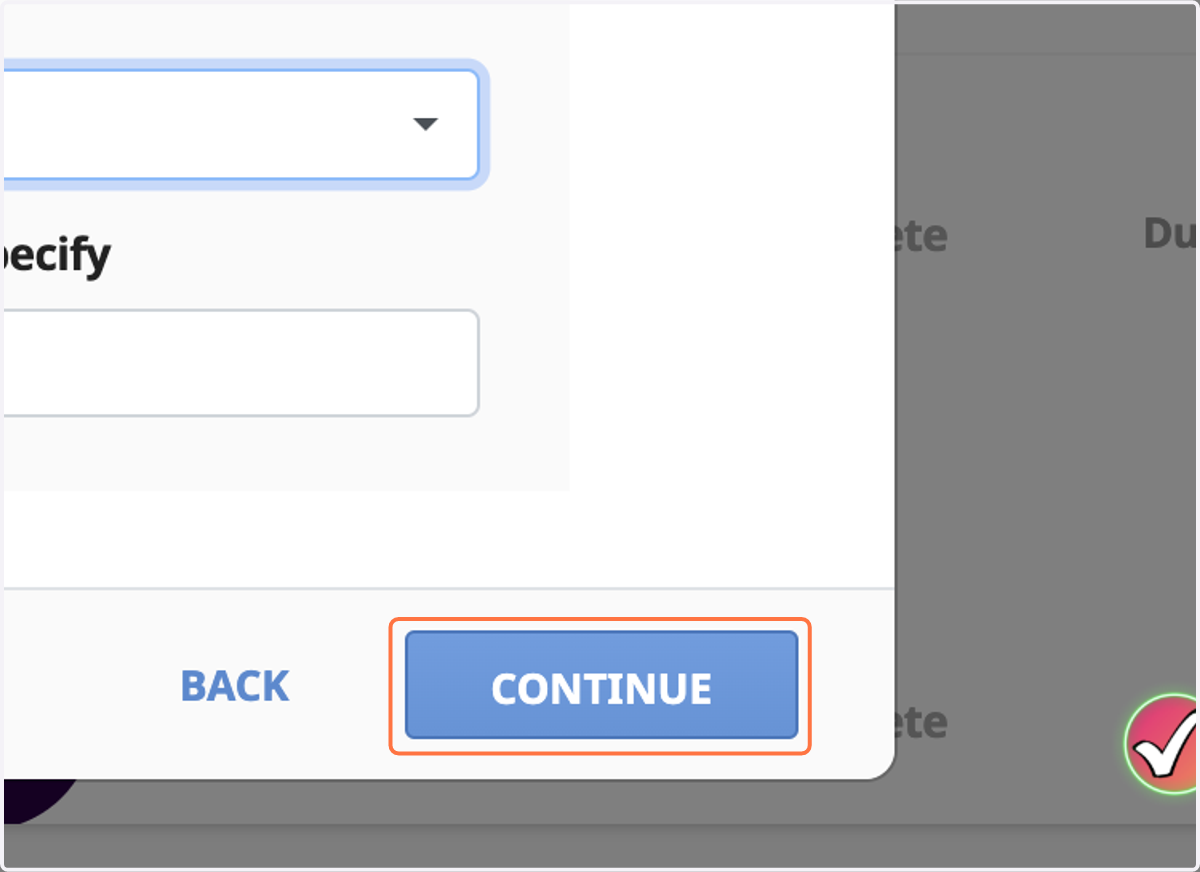
11. Once done, click CONTINUE at the bottom of the form
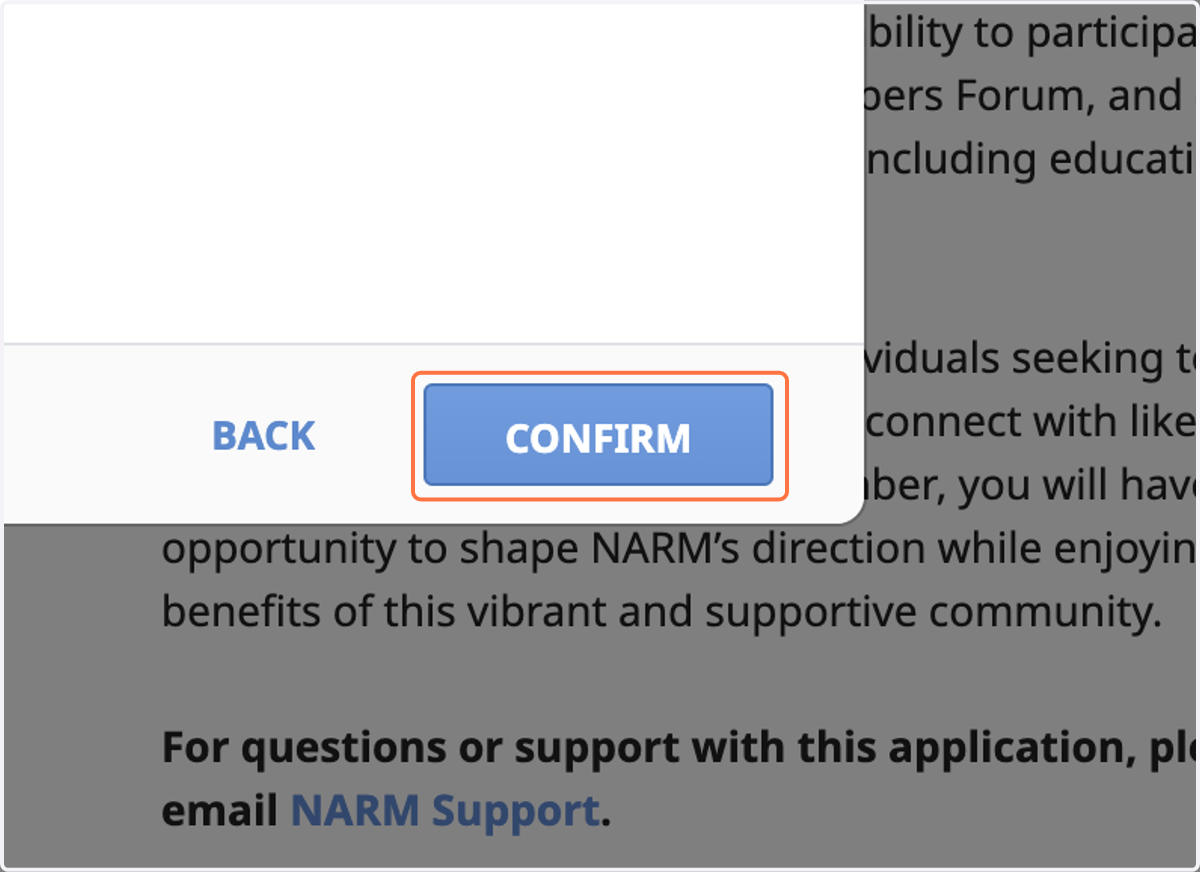
12. Click CONFIRM
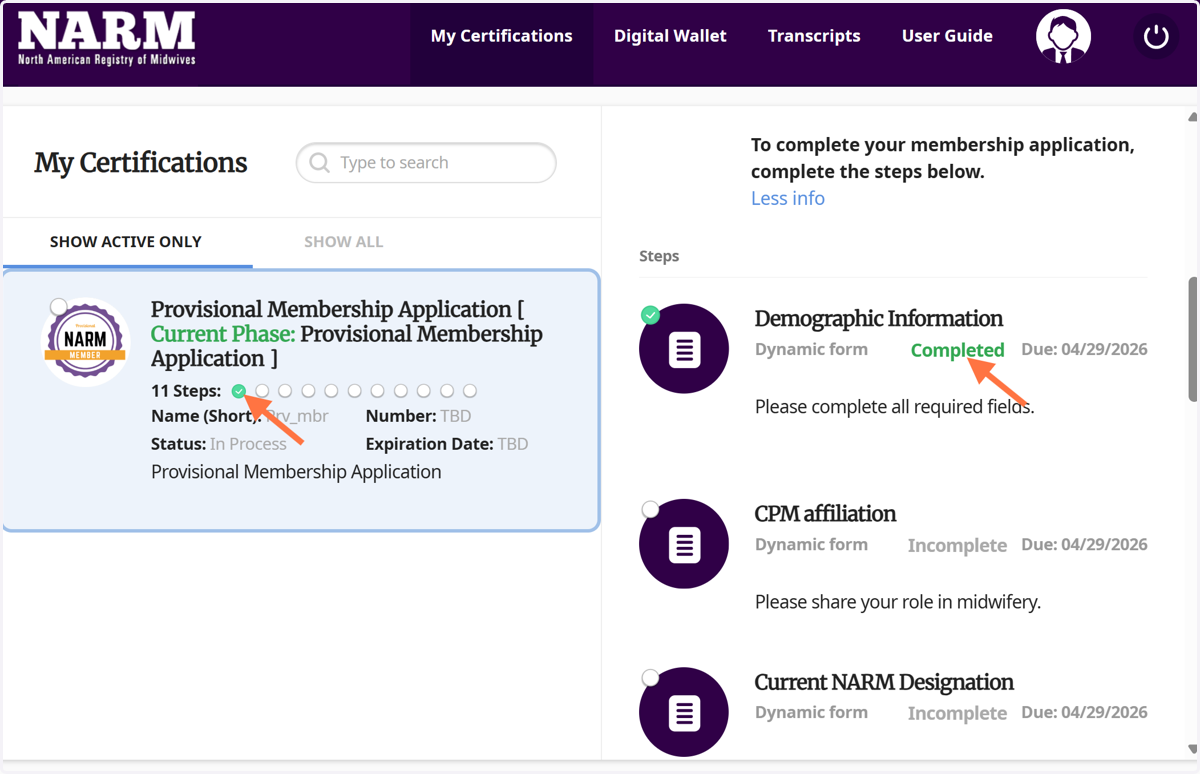
13. Once you have completed a section, you'll see it marked as completed in the navigation.
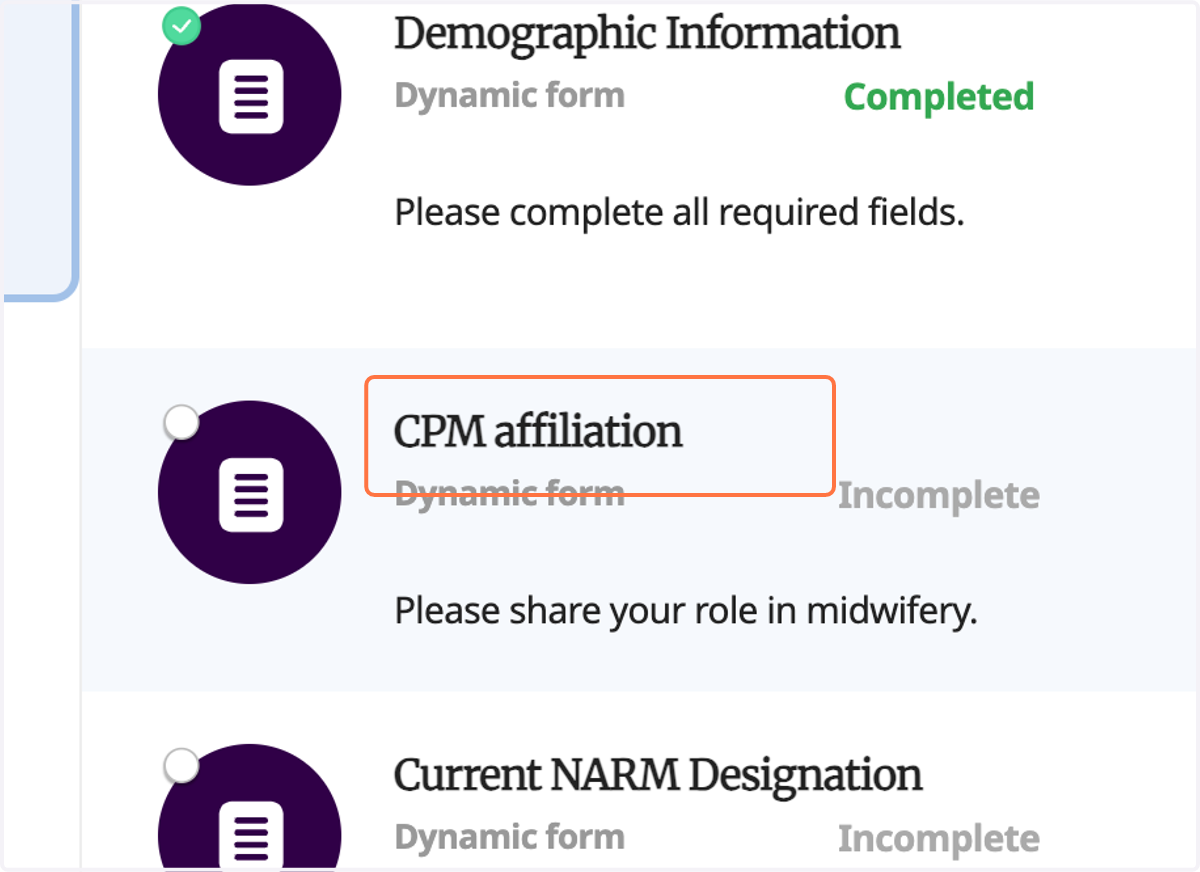
14. To move on to the next section, click CPM affiliation
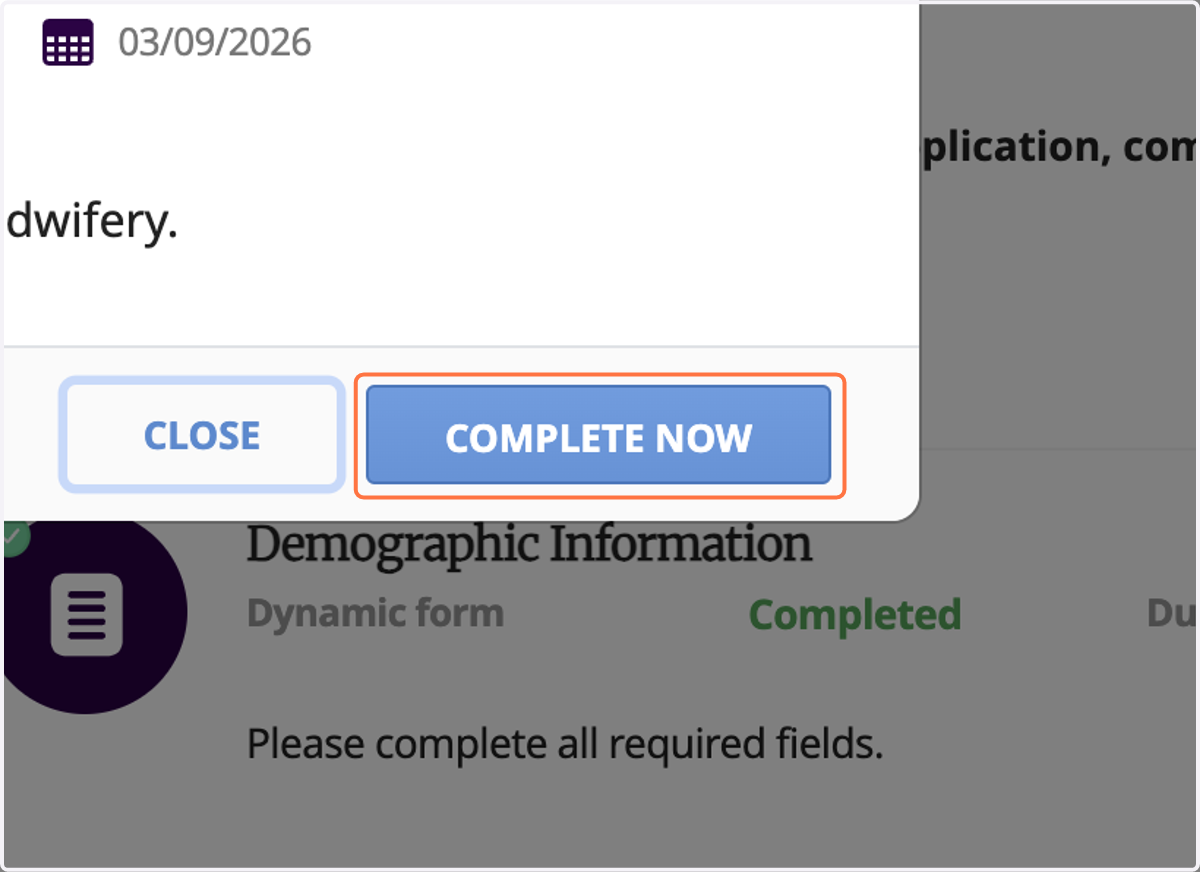
15. Click COMPLETE NOW
16. Select your CPM affiliation from the drop down
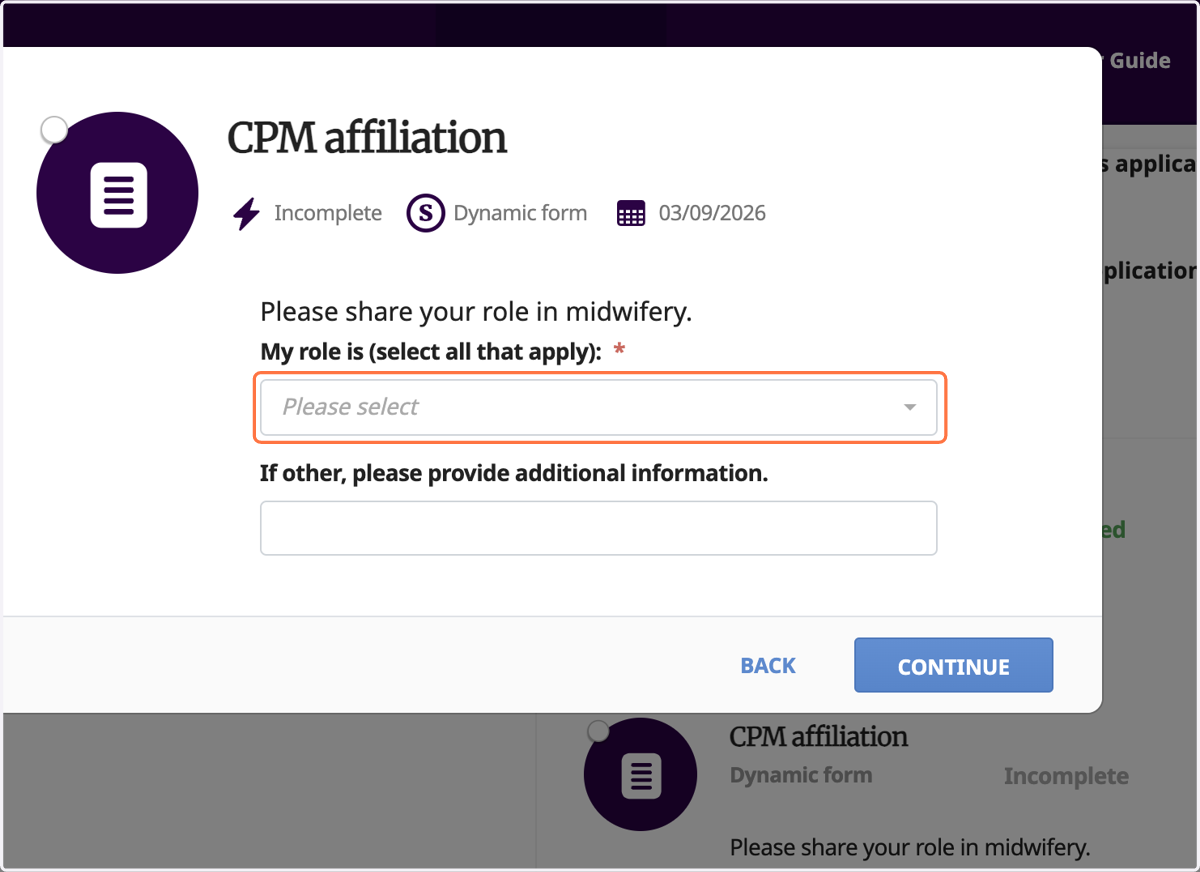
17. Click CONTINUE
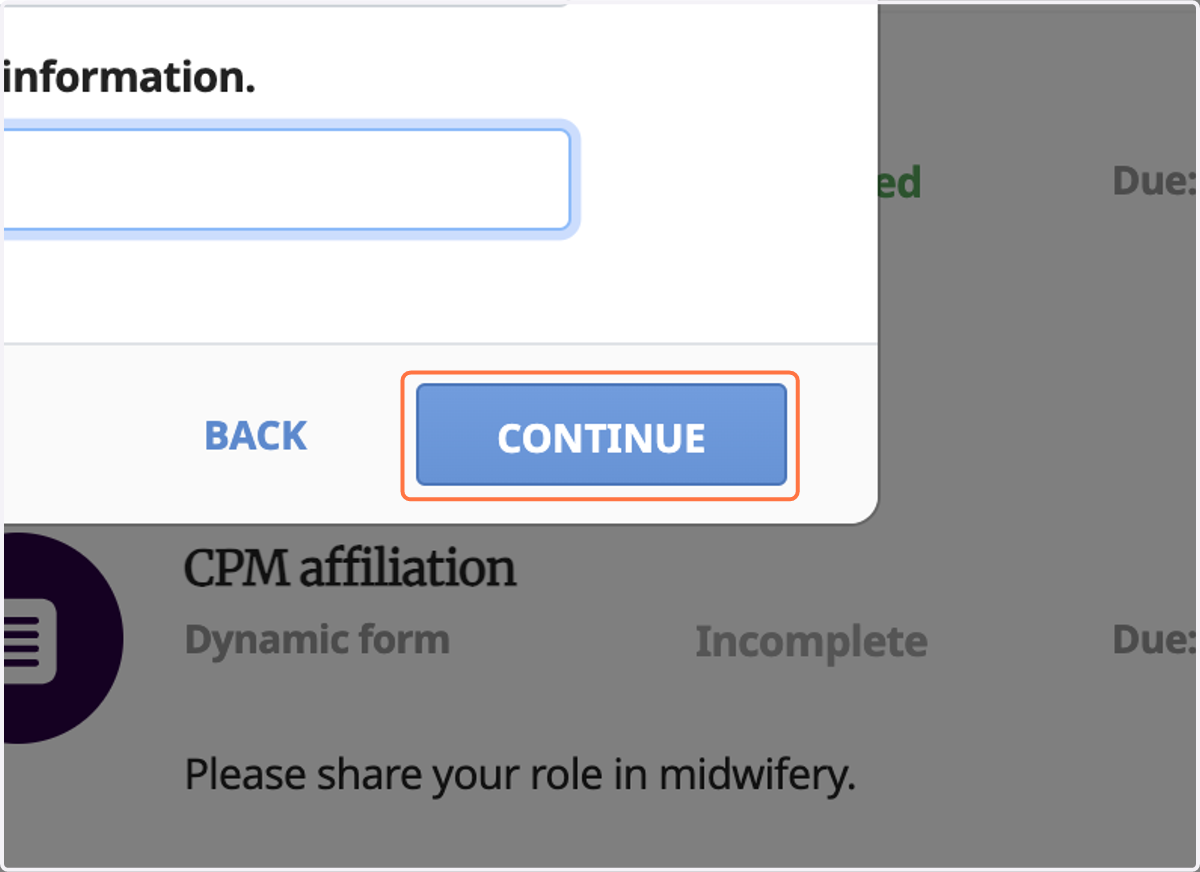
18. Click CONFIRM
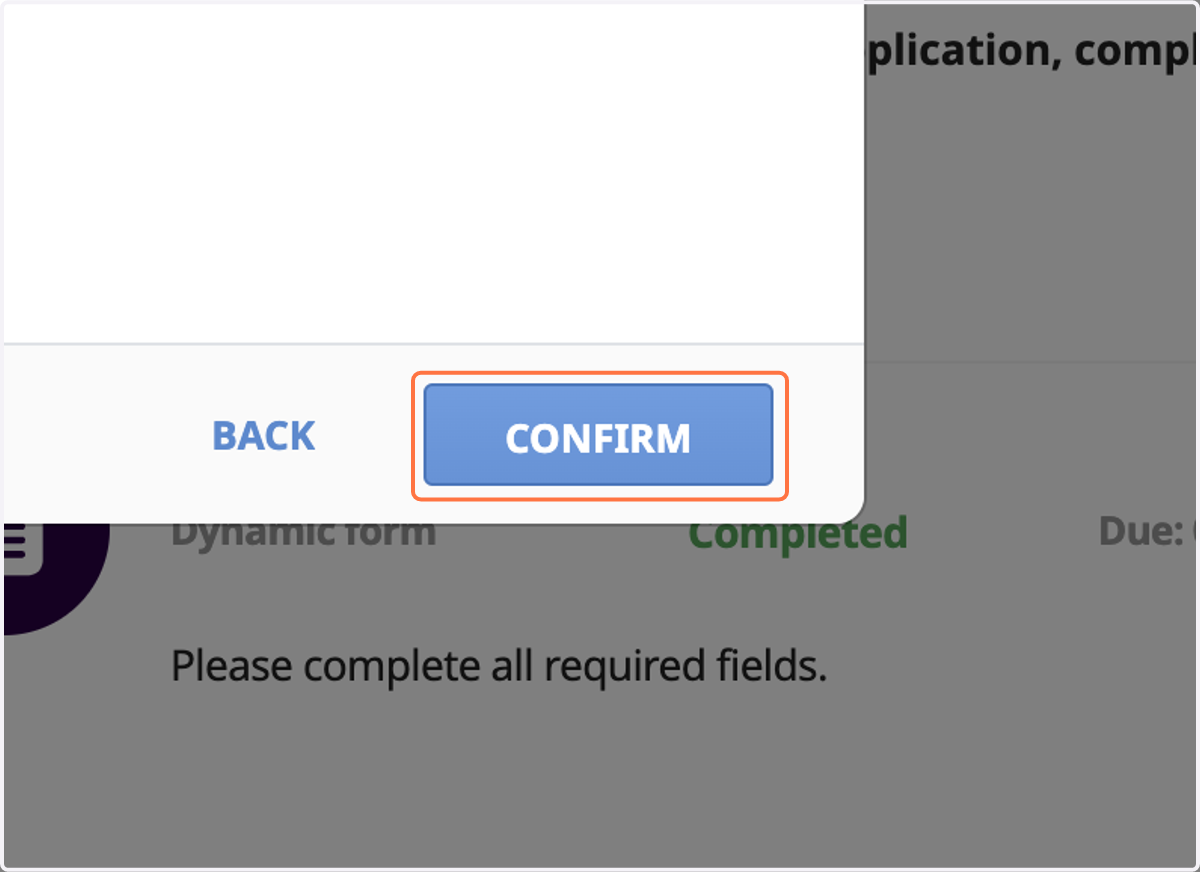
19. To move on to the next section, click Current NARM Designation
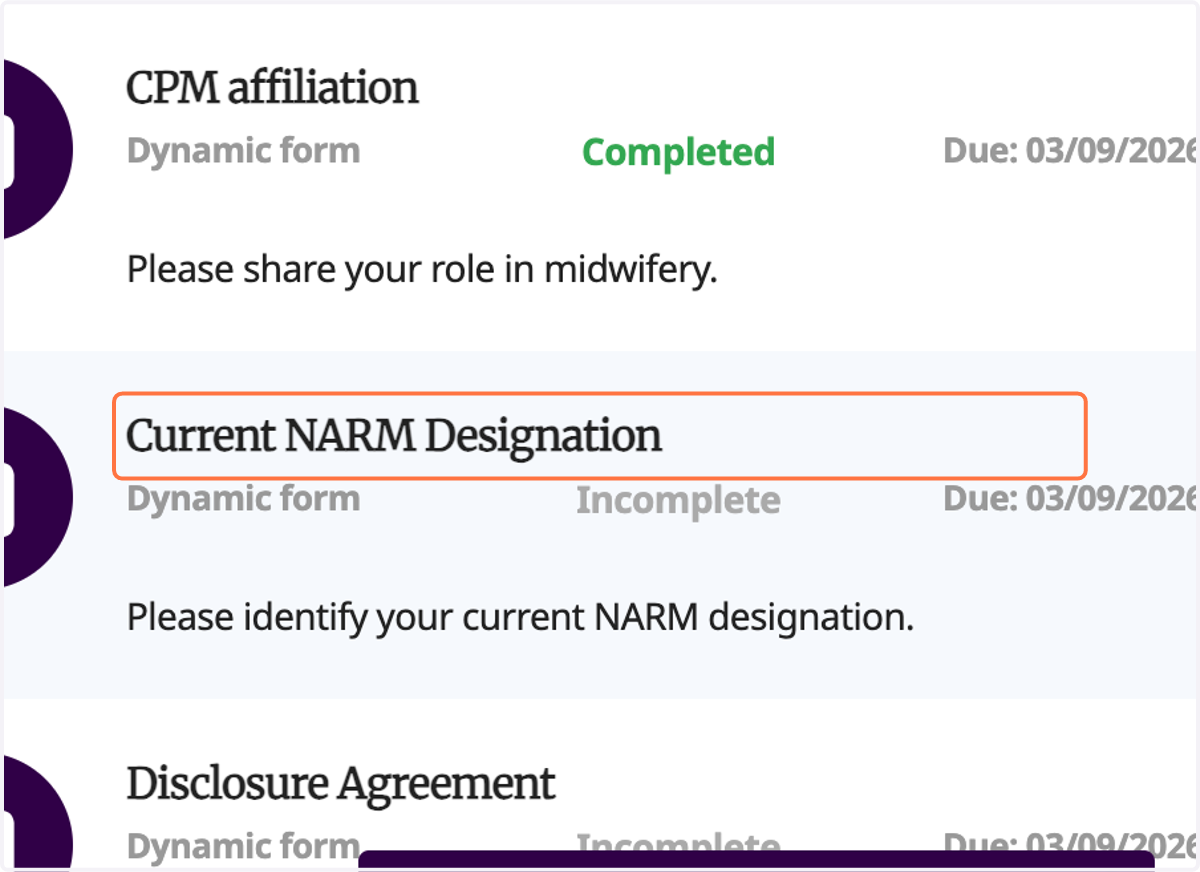
20. Click COMPLETE NOW
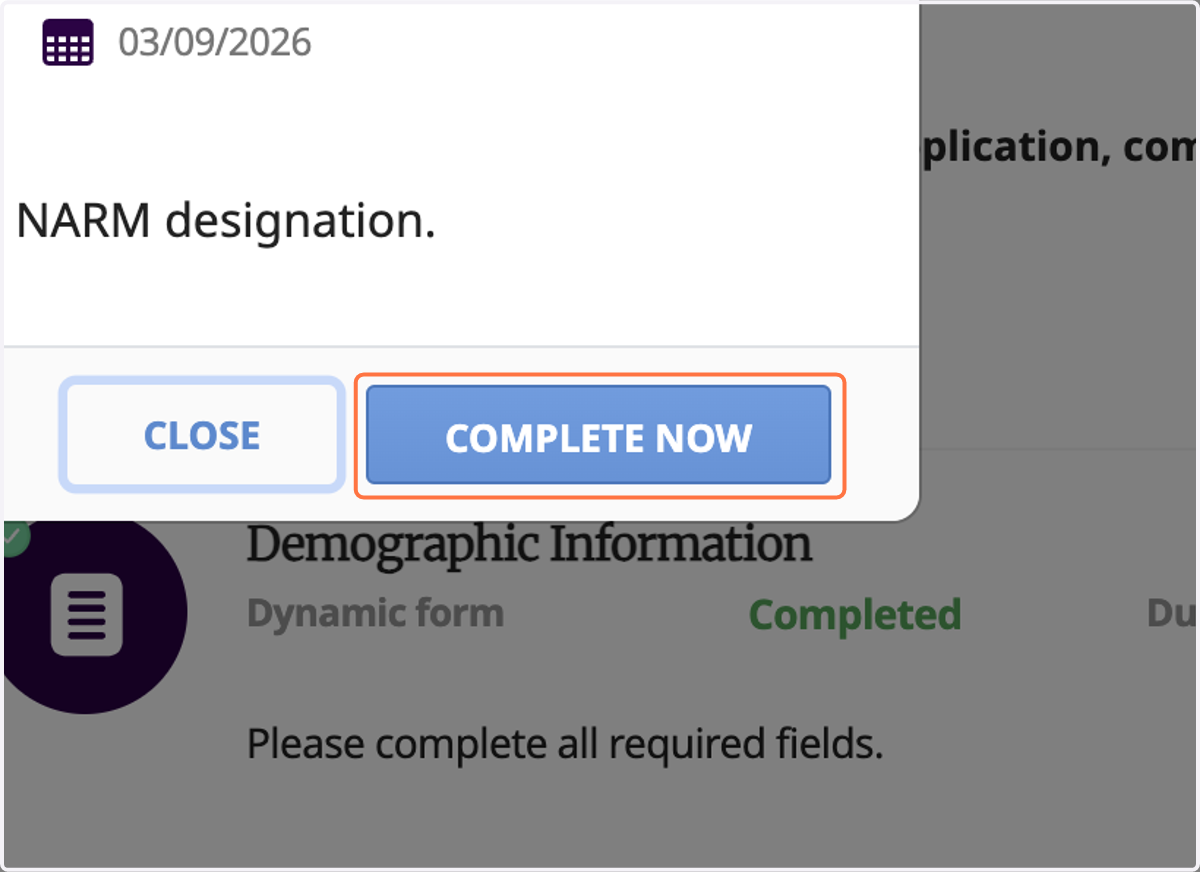
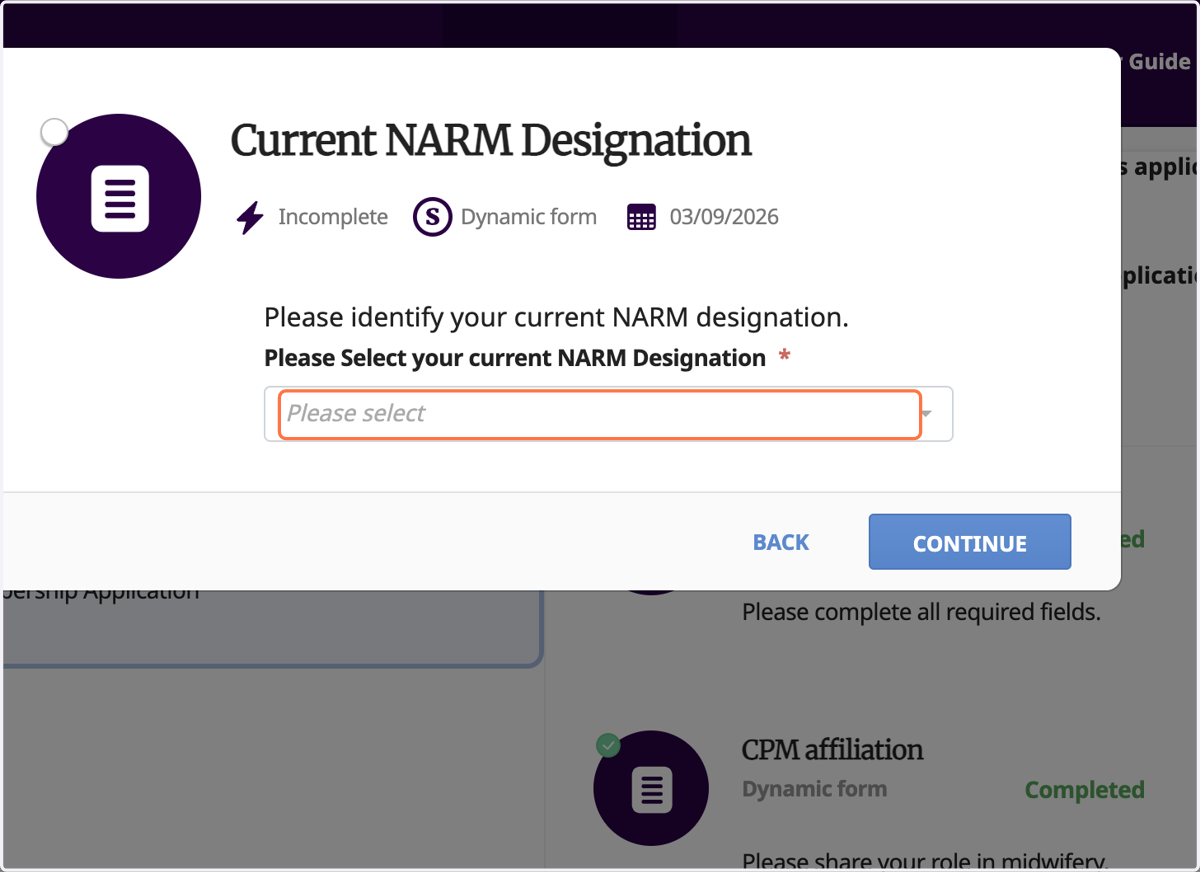
21. Click in the box to select your NARM designation from the drop down
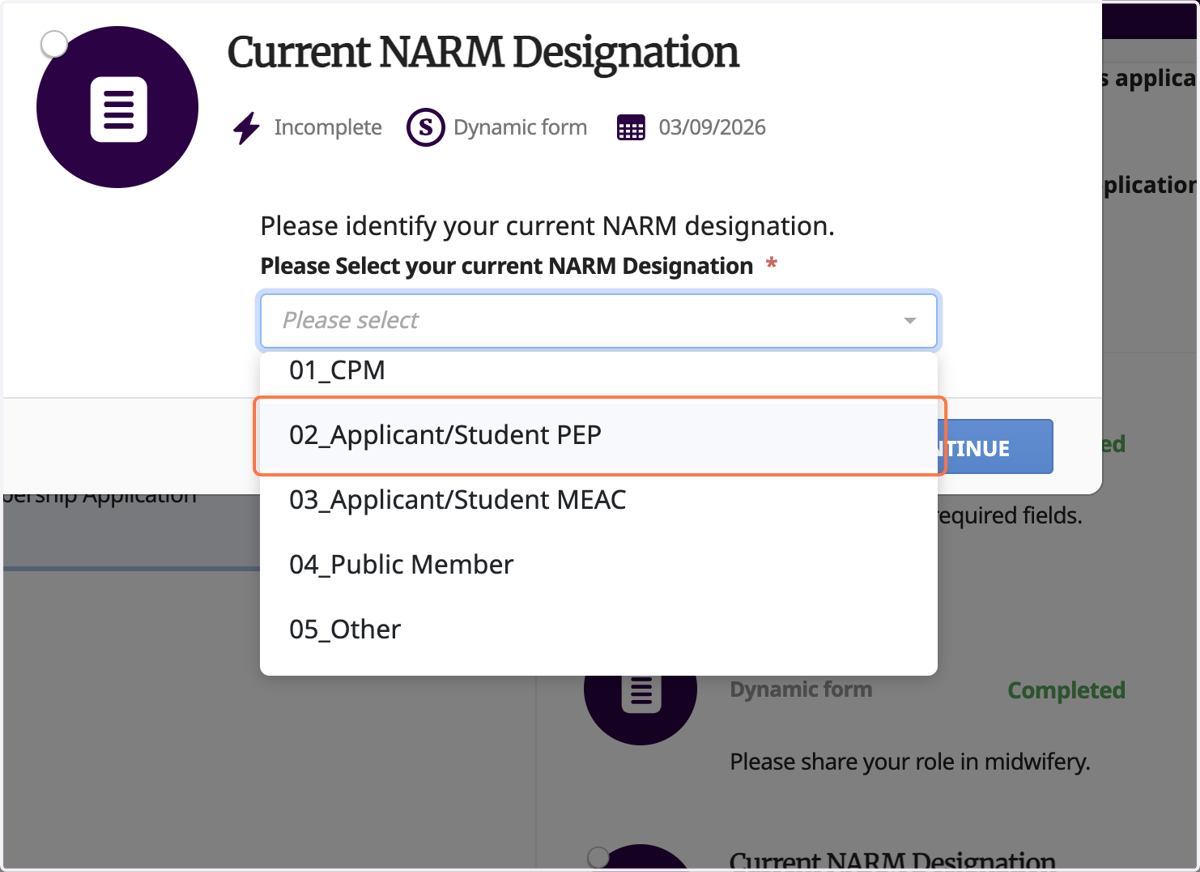
22. Make your selection
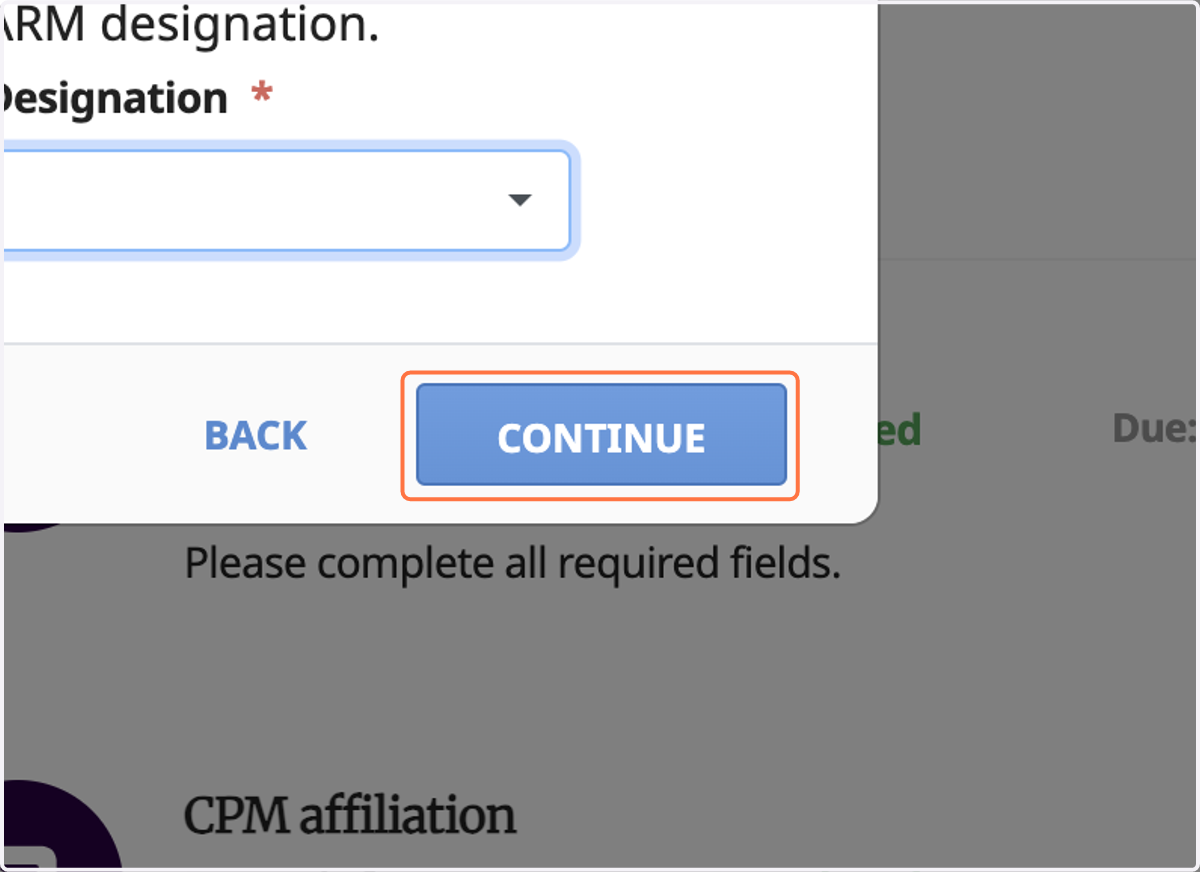
23. Click CONTINUE
24. Click on CONFIRM
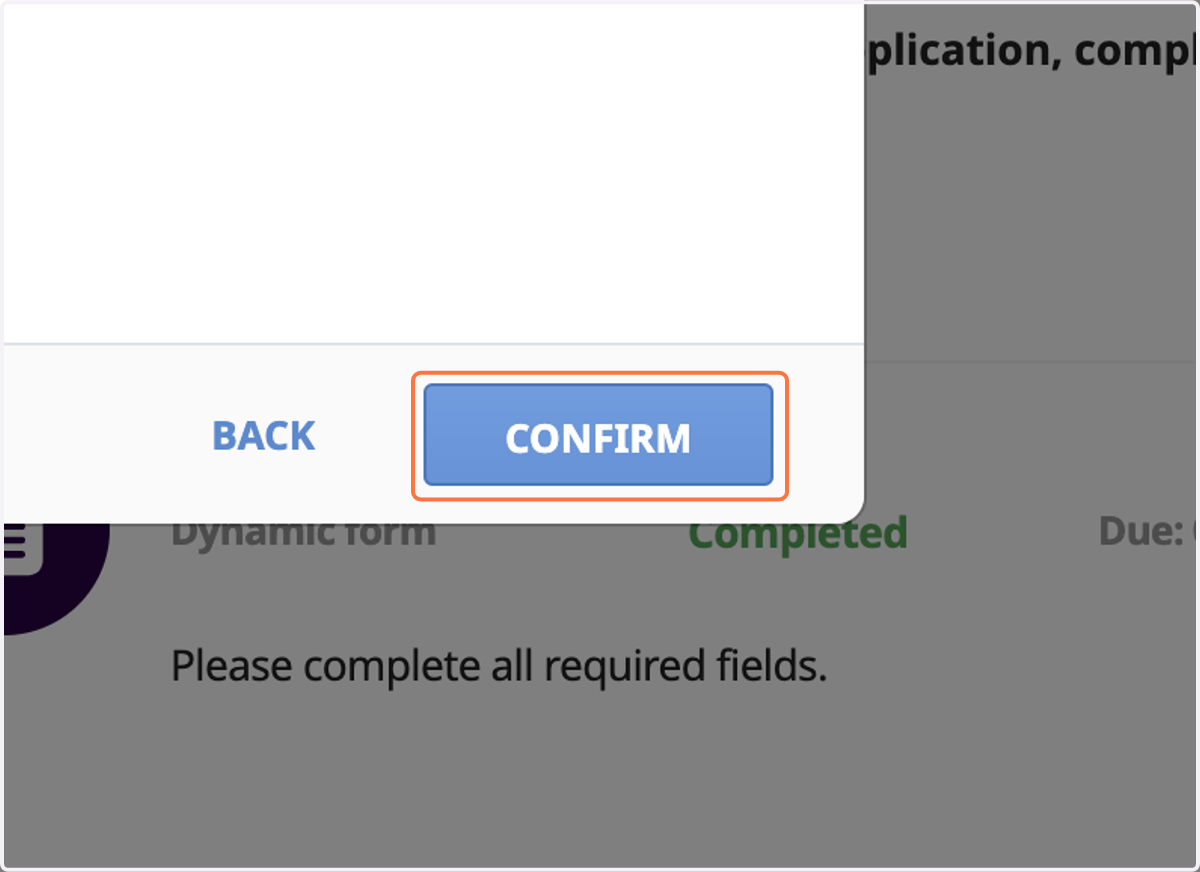
25. Once this step is completed, you'll notice that it says pending verification.
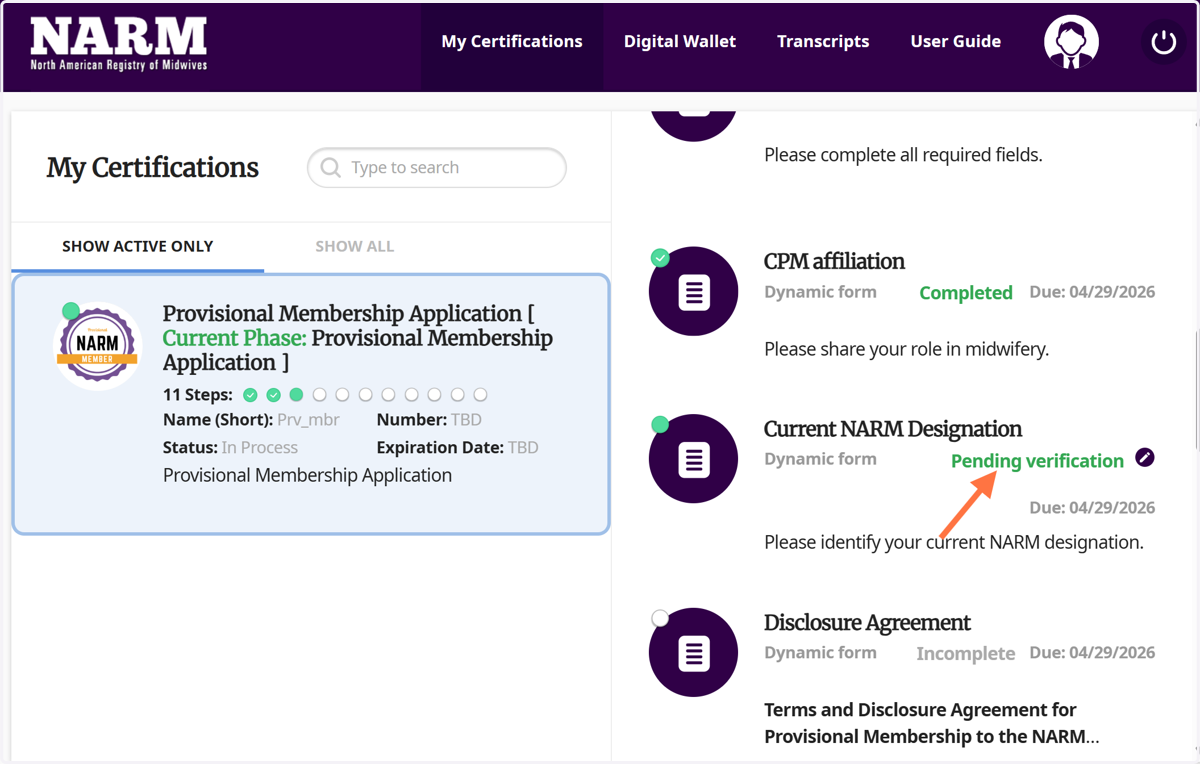
26. To move on to the next section, click Disclosure Agreement
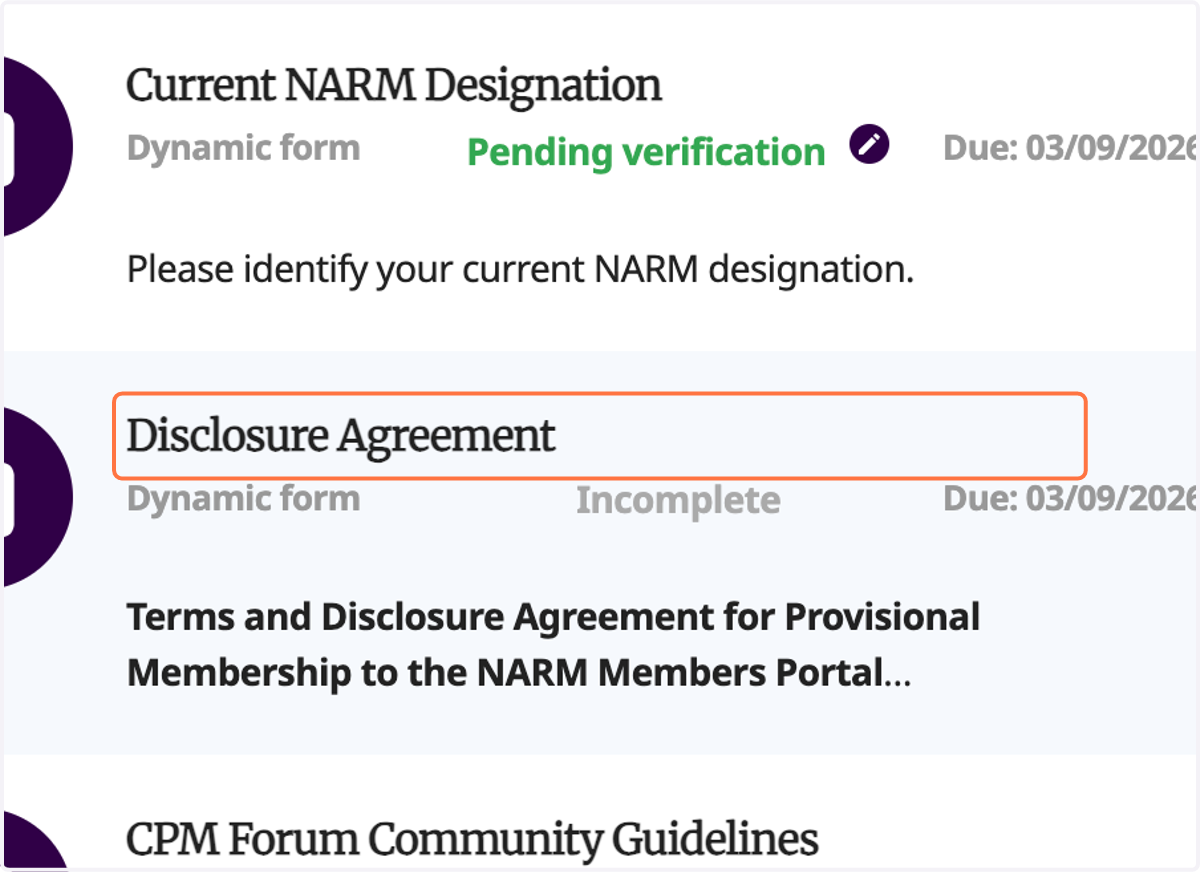
27. Read over the terms and click COMPLETE NOW
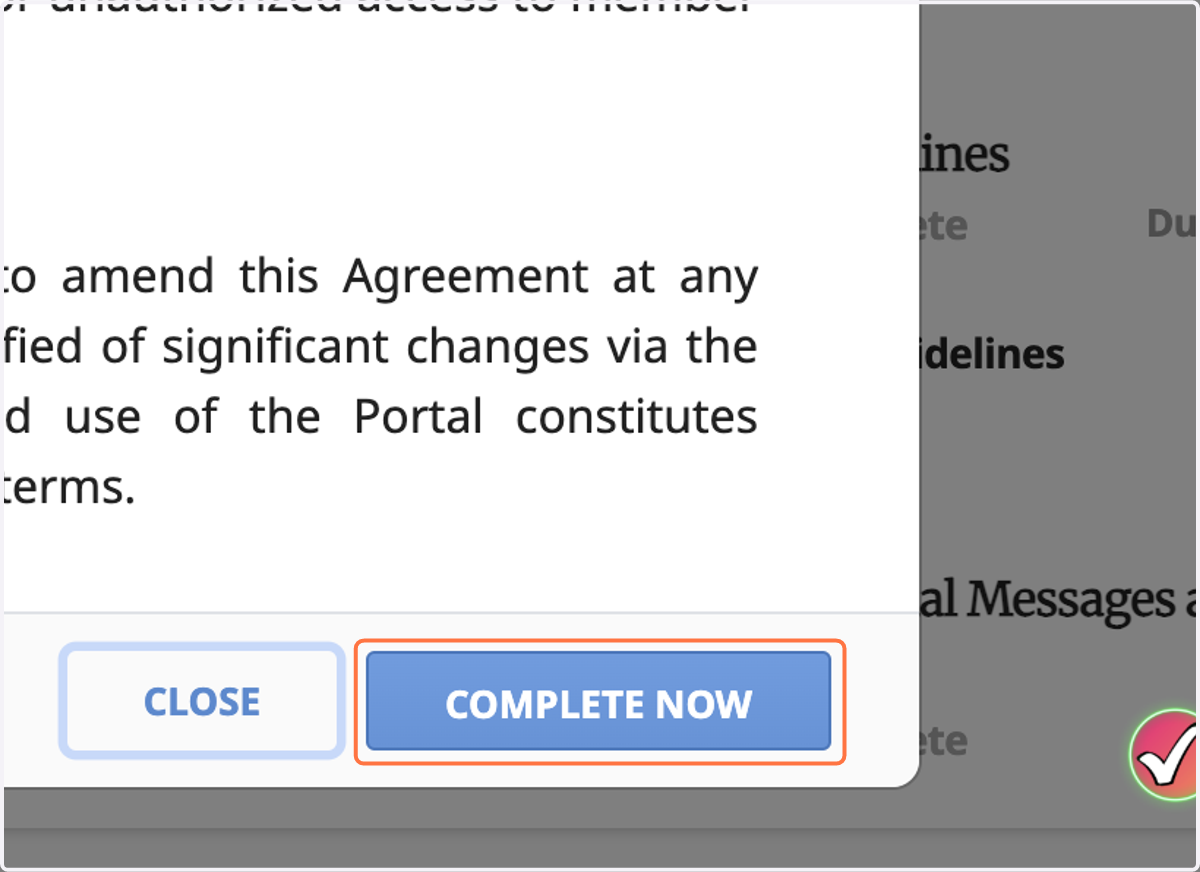
28. Sign the acknowledgment by entering your Full Legal Name
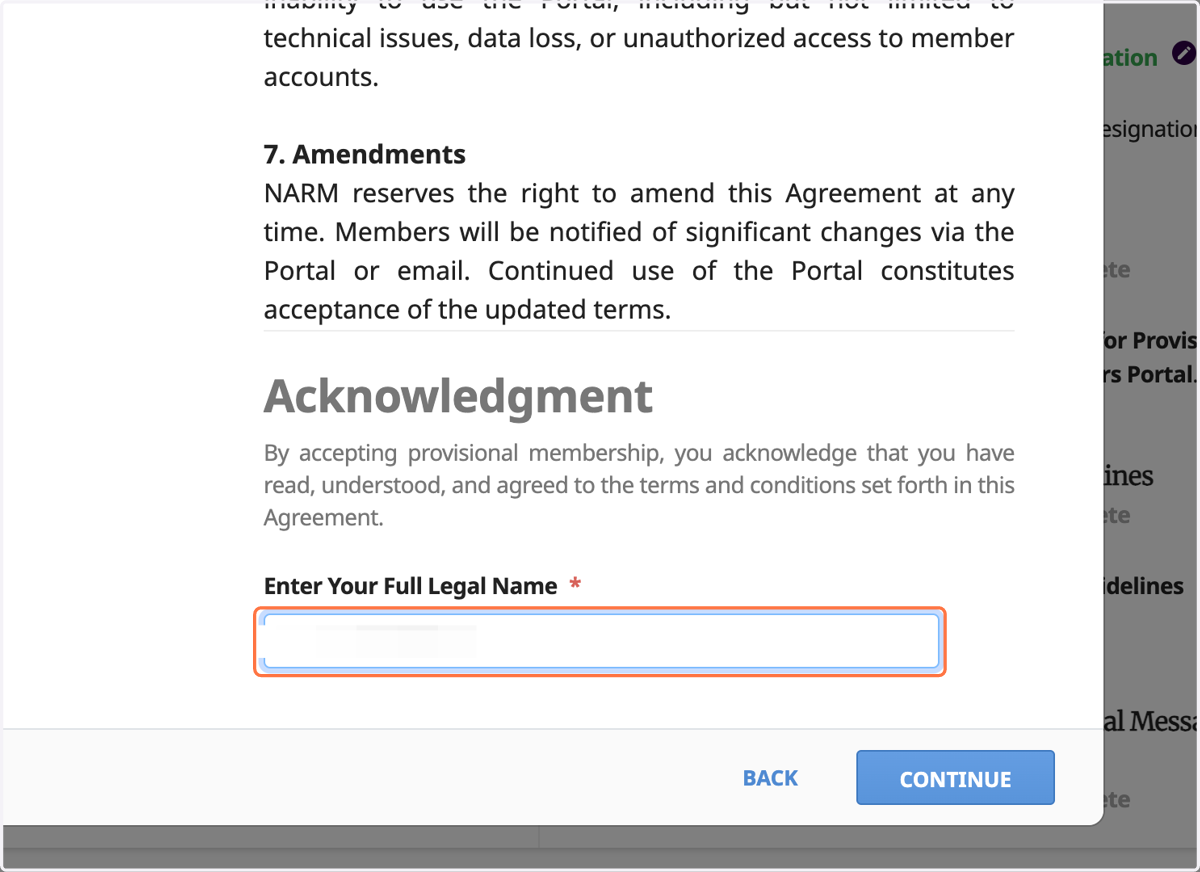
29. Click CONTINUE
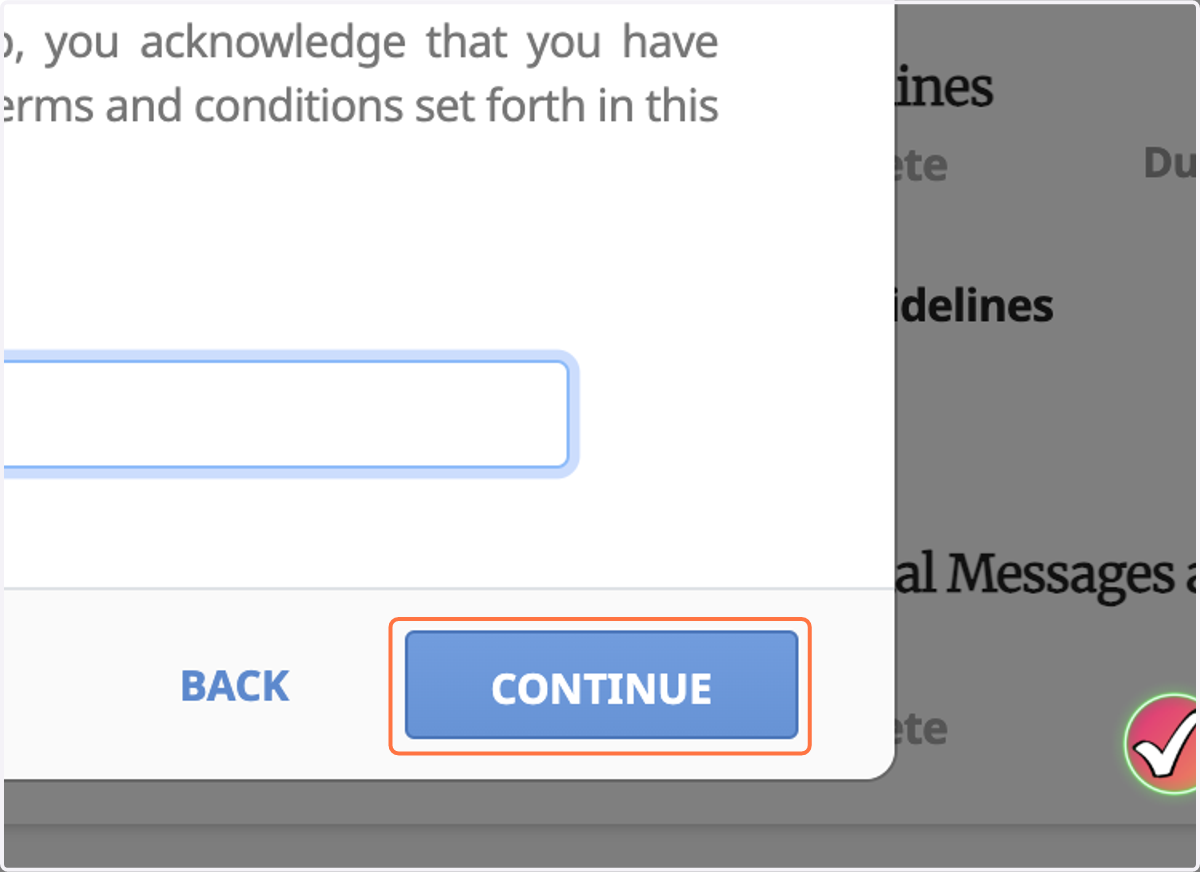
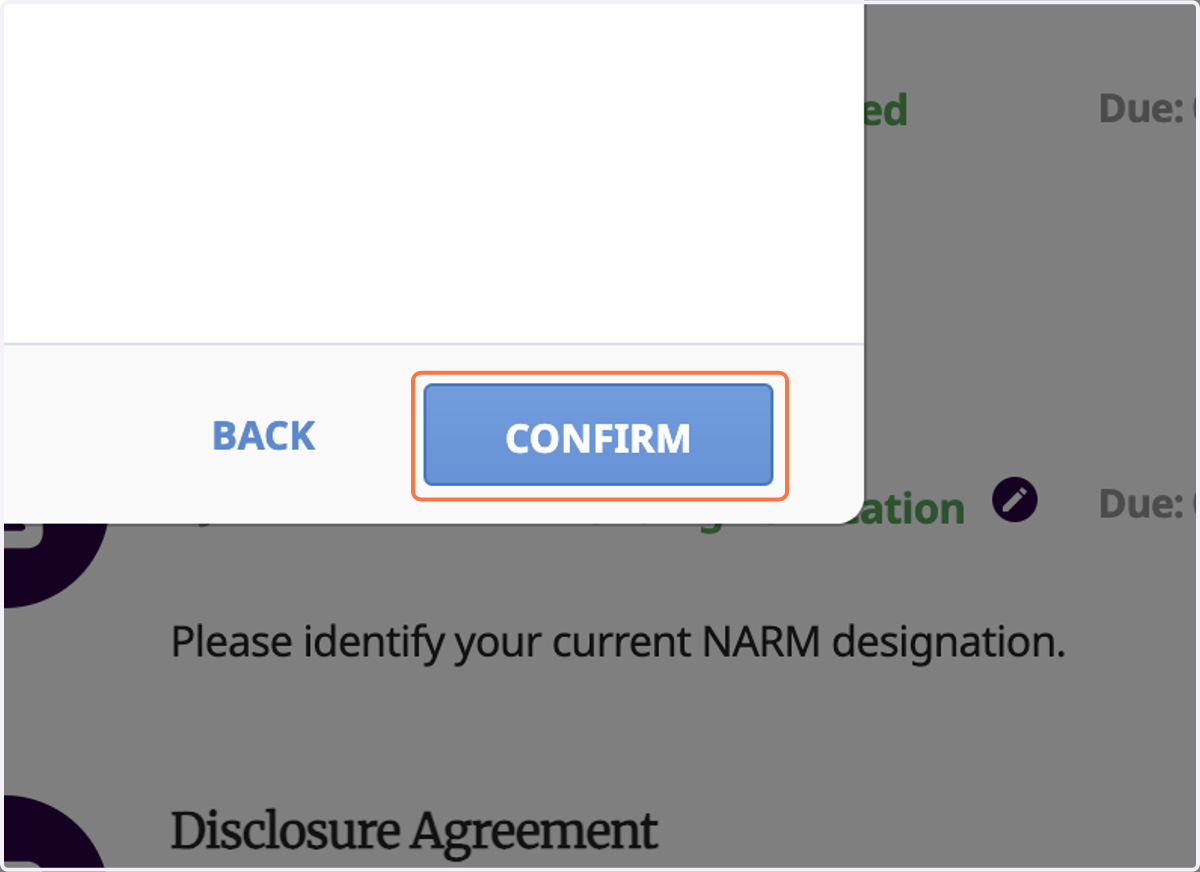
30. Click CONFIRM
31. To move on to the next section, click CPM Forum Community Guidelines
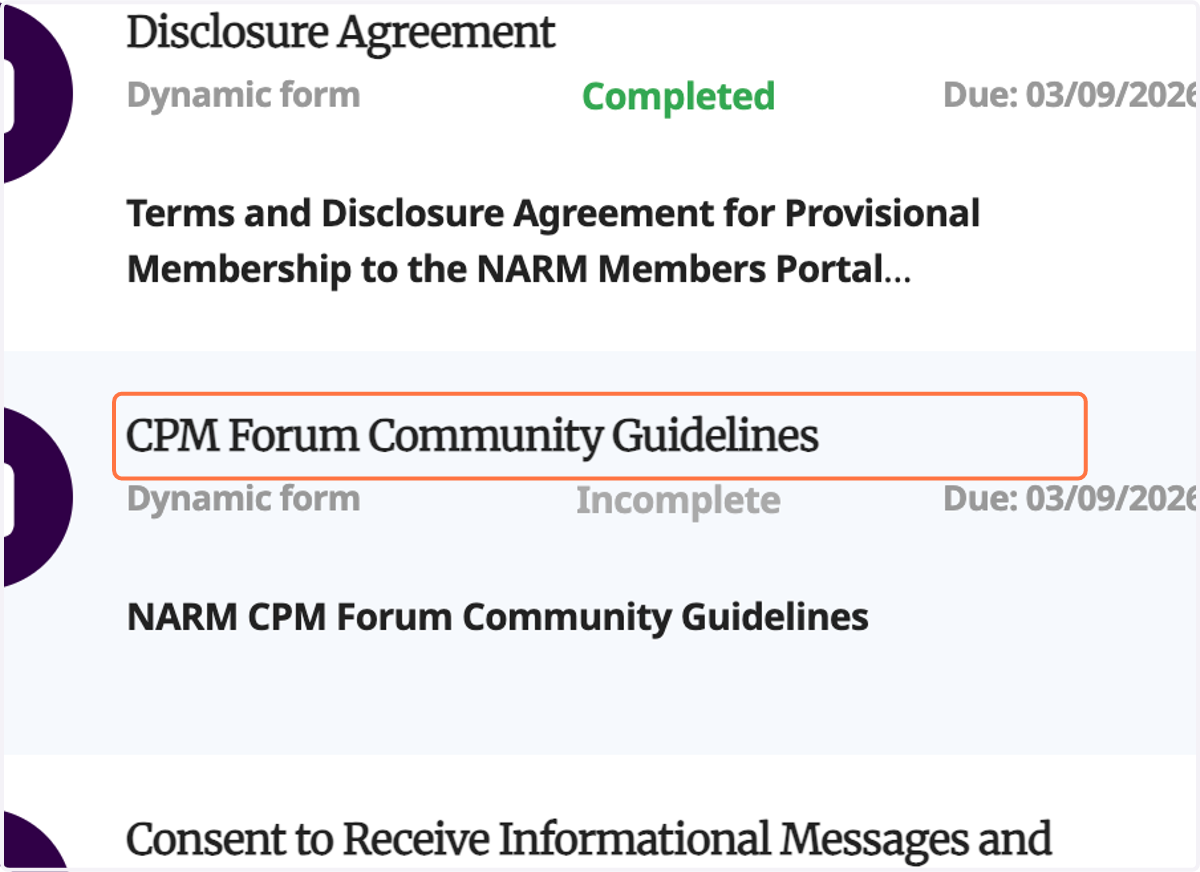
32. Read over the terms and click COMPLETE NOW
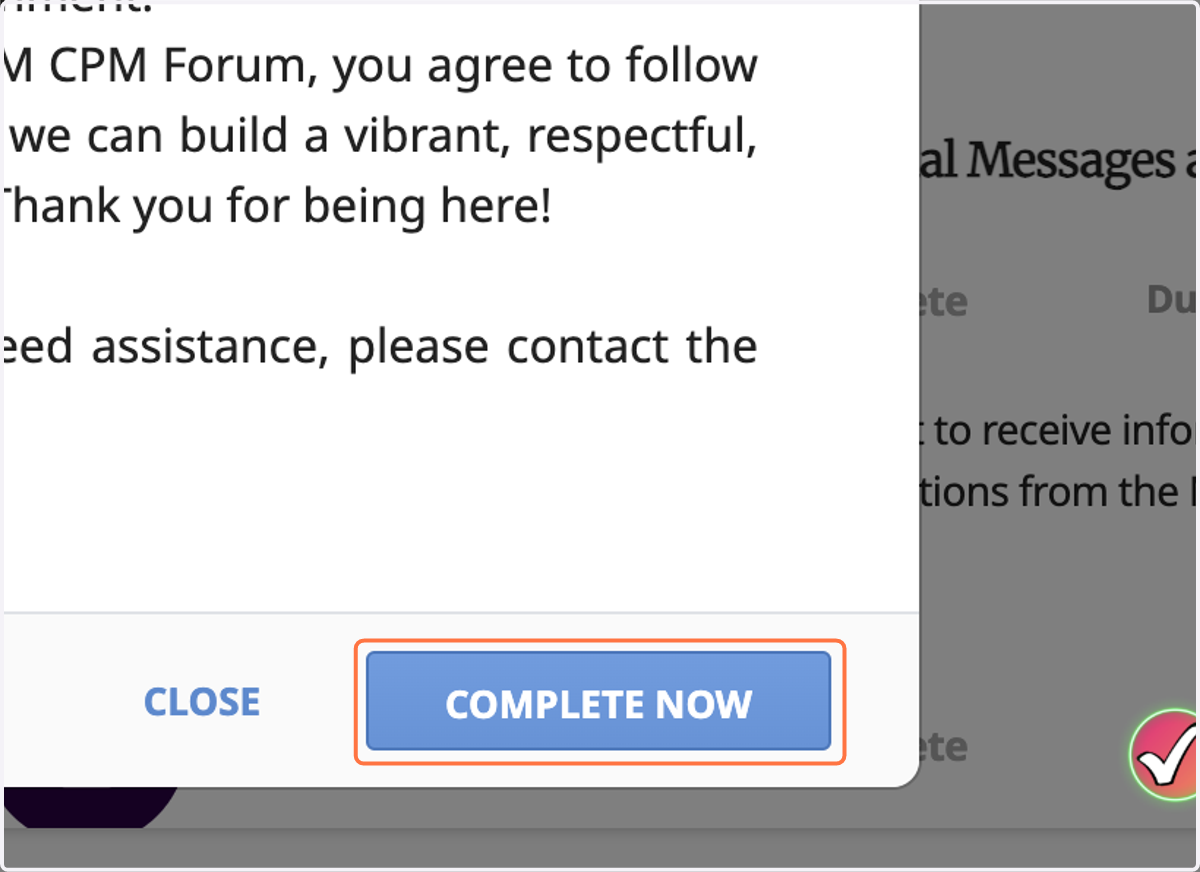
33. Sign the acknowledgment by Entering your full legal name
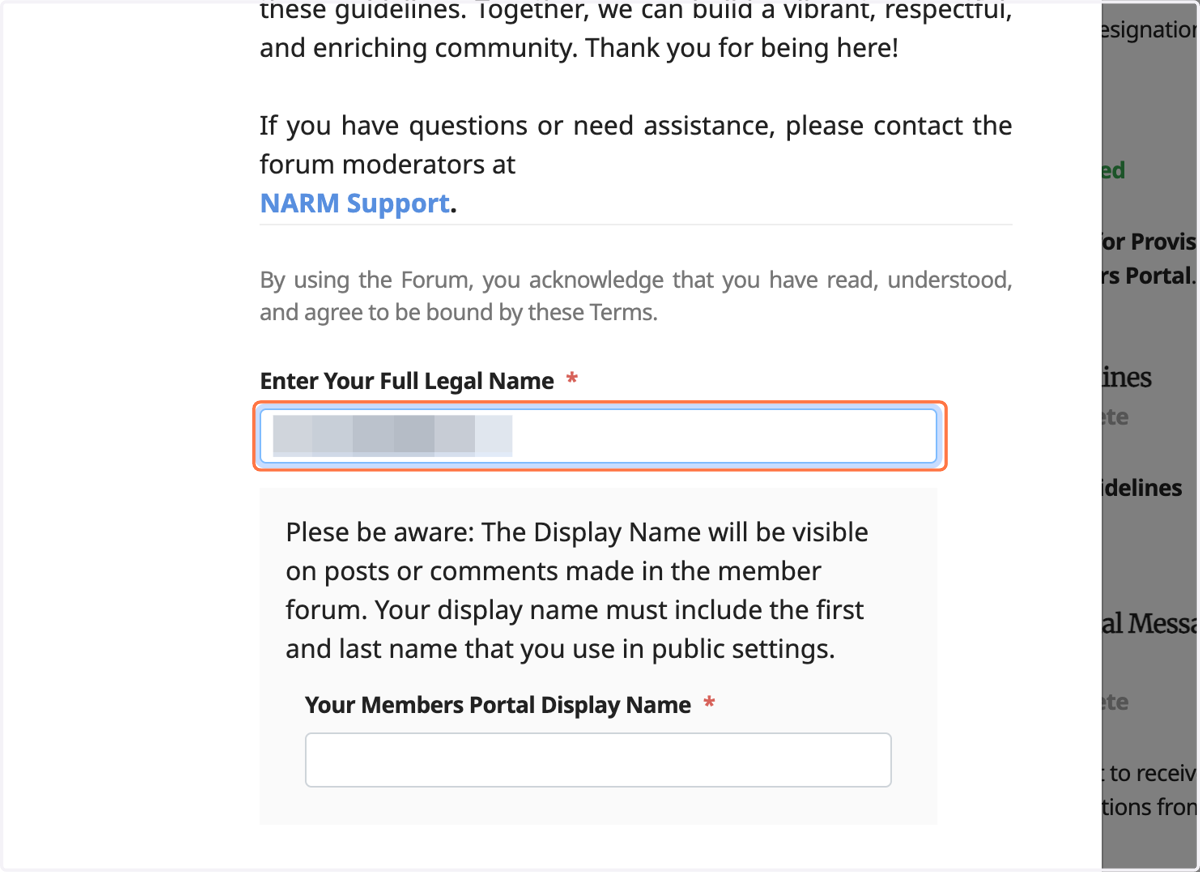
34. Enter your desired portal display name
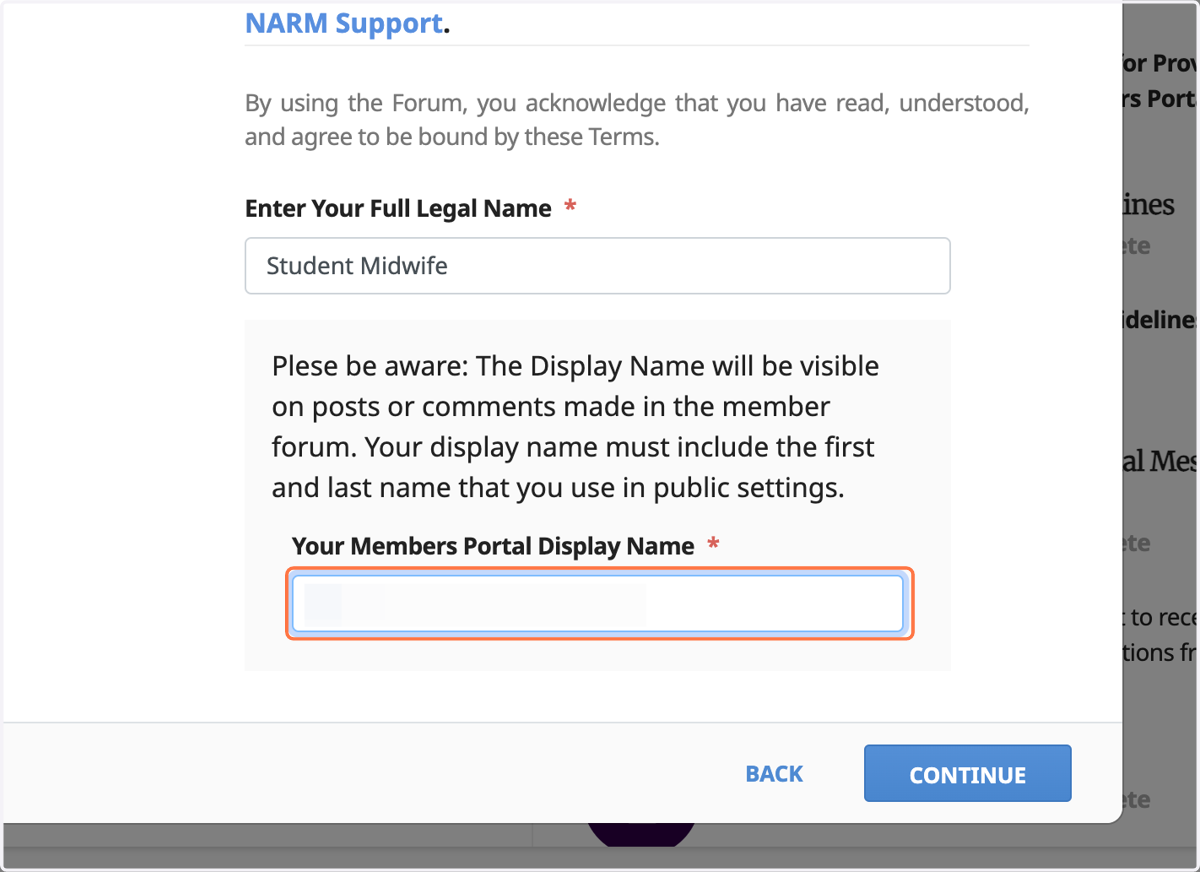
35. Click CONTINUE
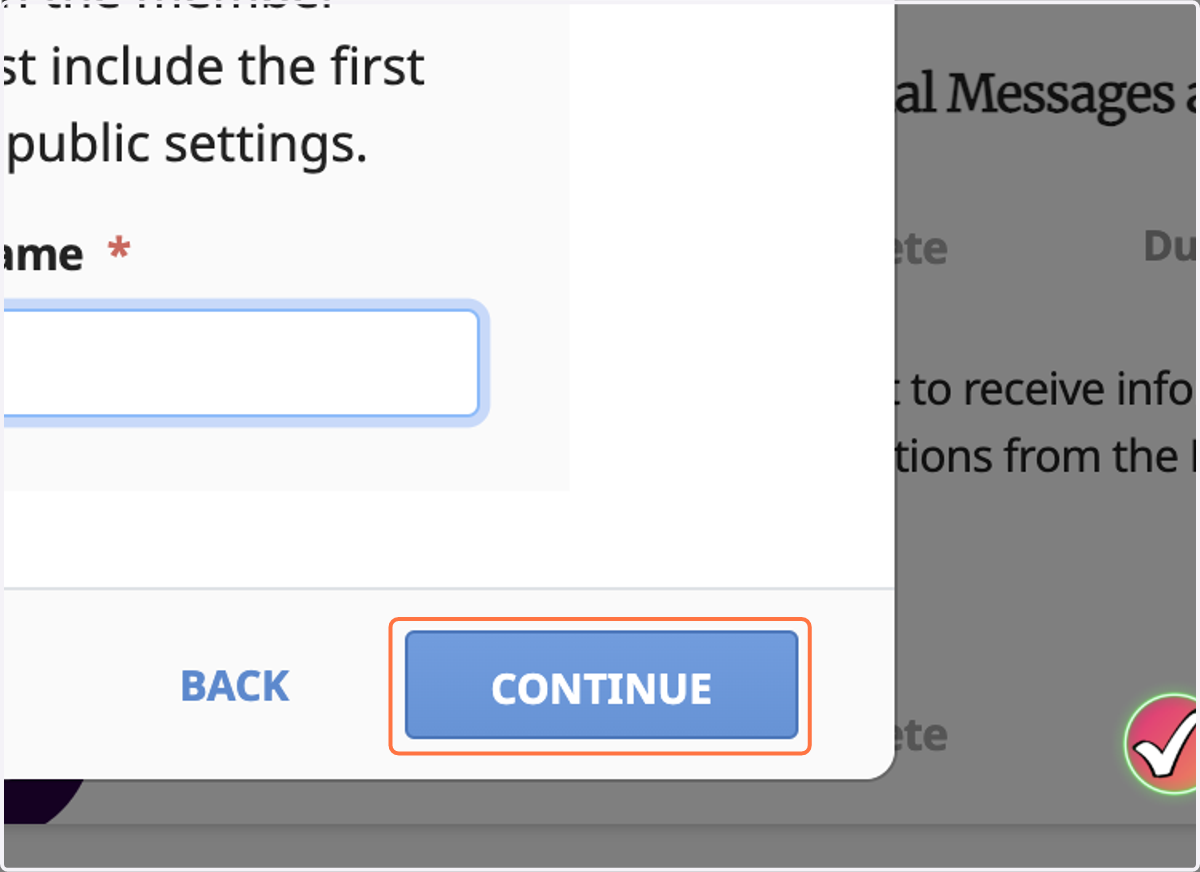
36. Click CONFIRM
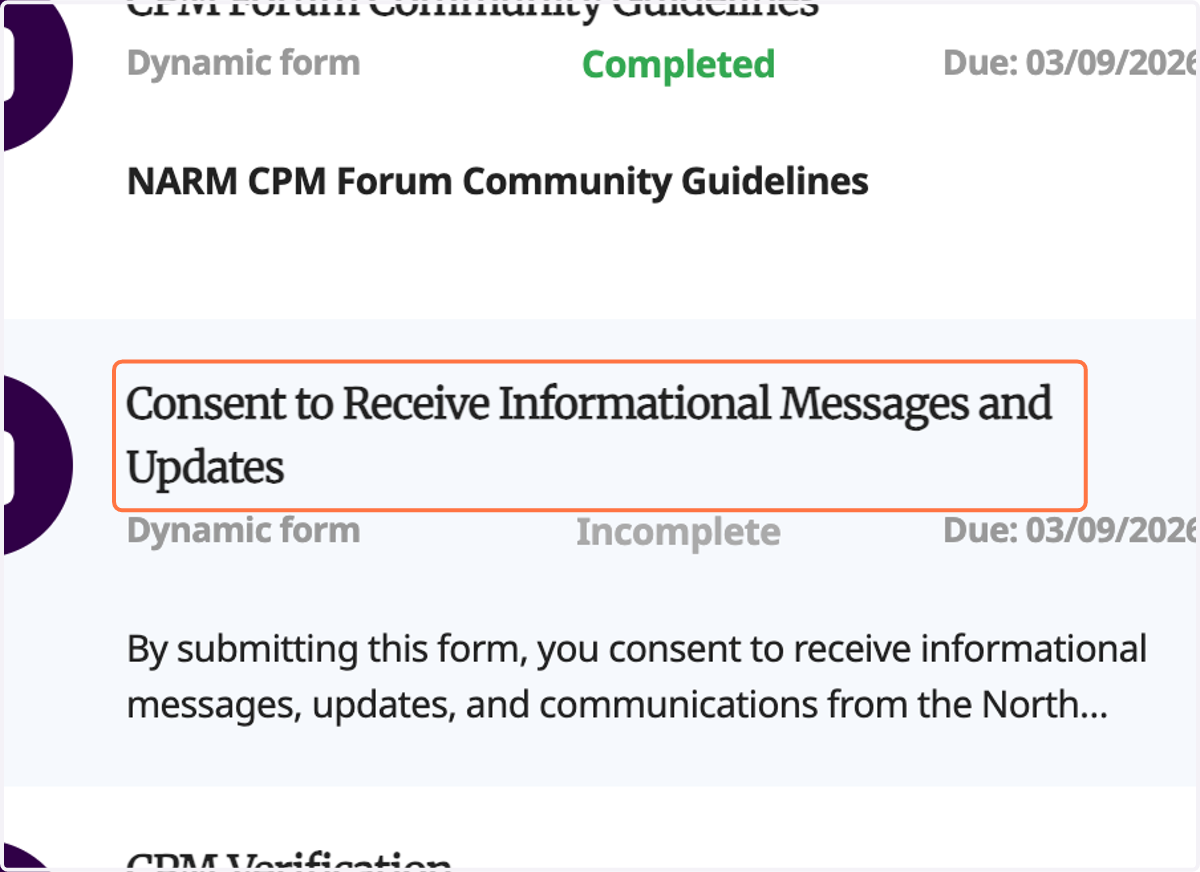
37. To move on to the next section, click Consent to Receive Informational Messages and Updates
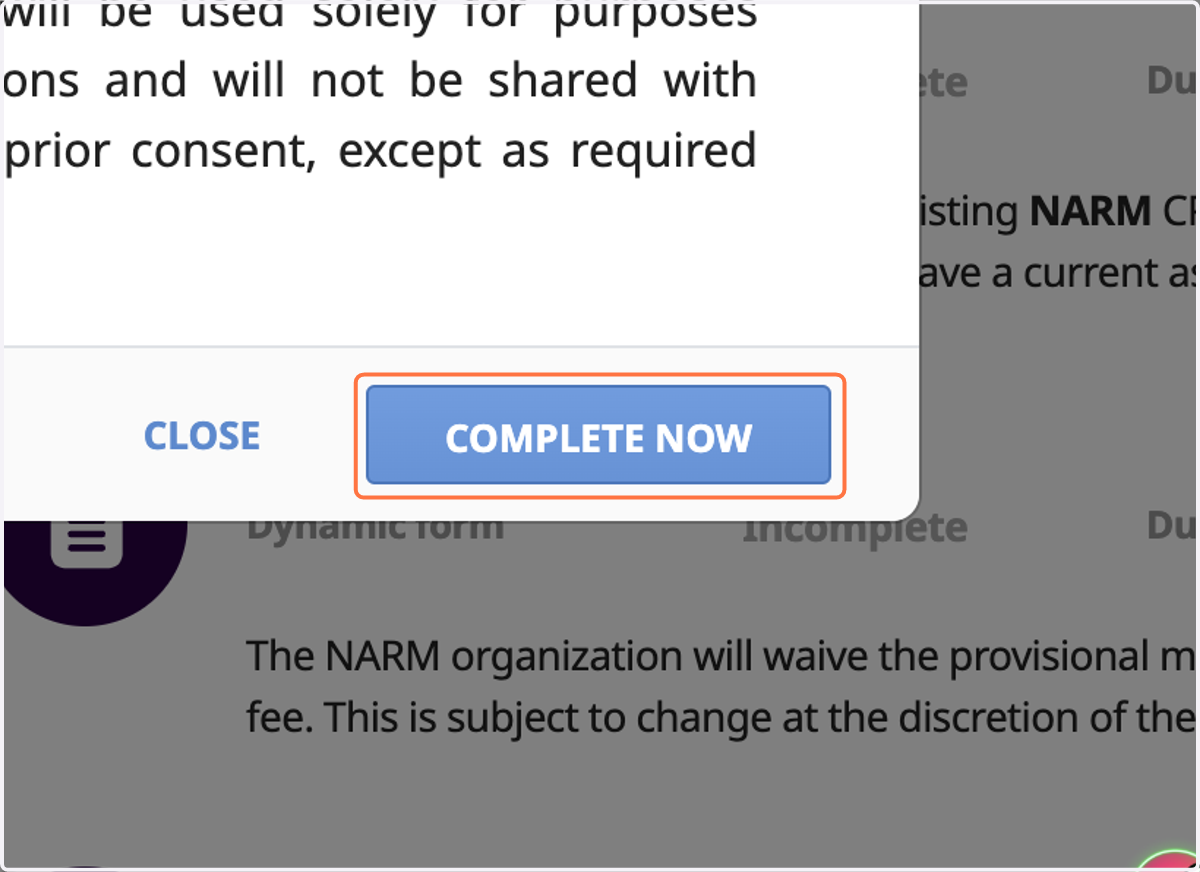
38. Read over the terms and click COMPLETE NOW
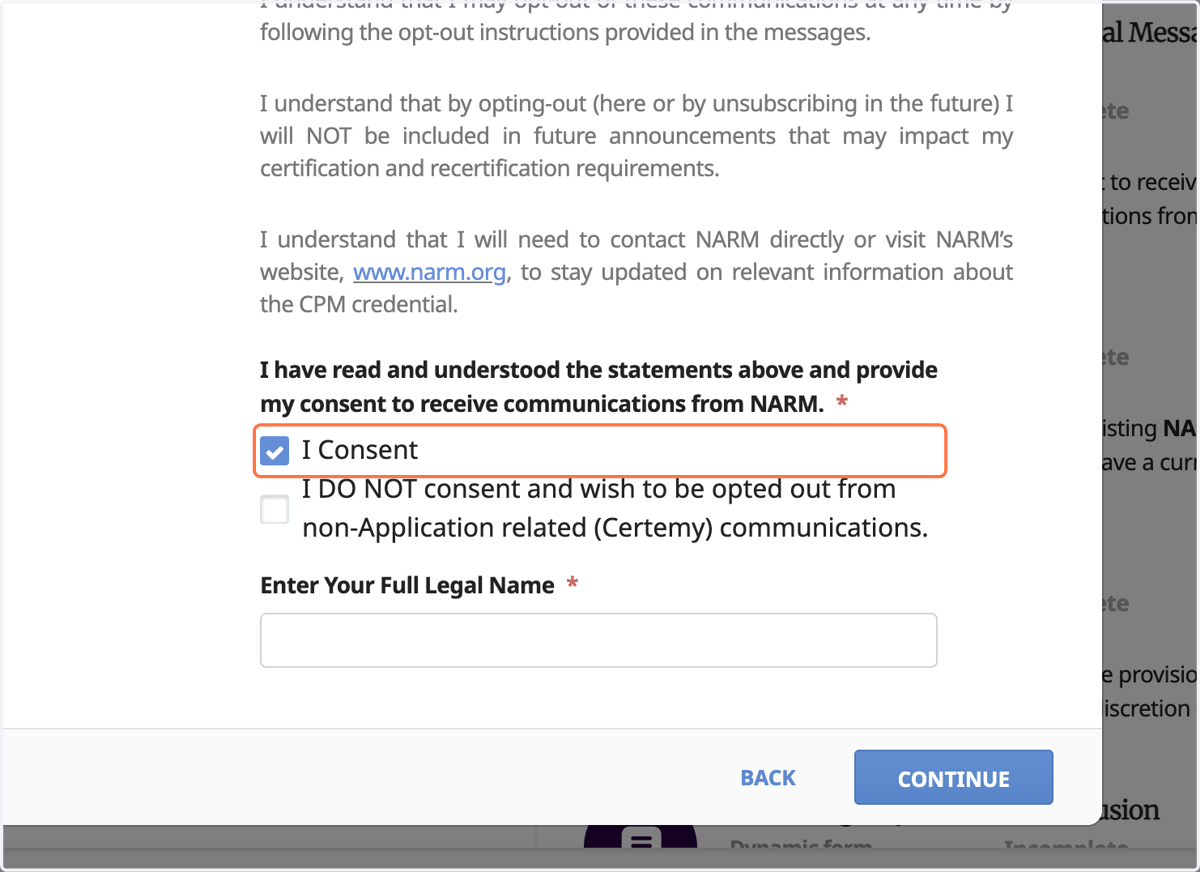
39. Check I Consent
This is to acknowledge that you have read and understood the agreement and agree to communications from NARM.
40. Enter your full legal name
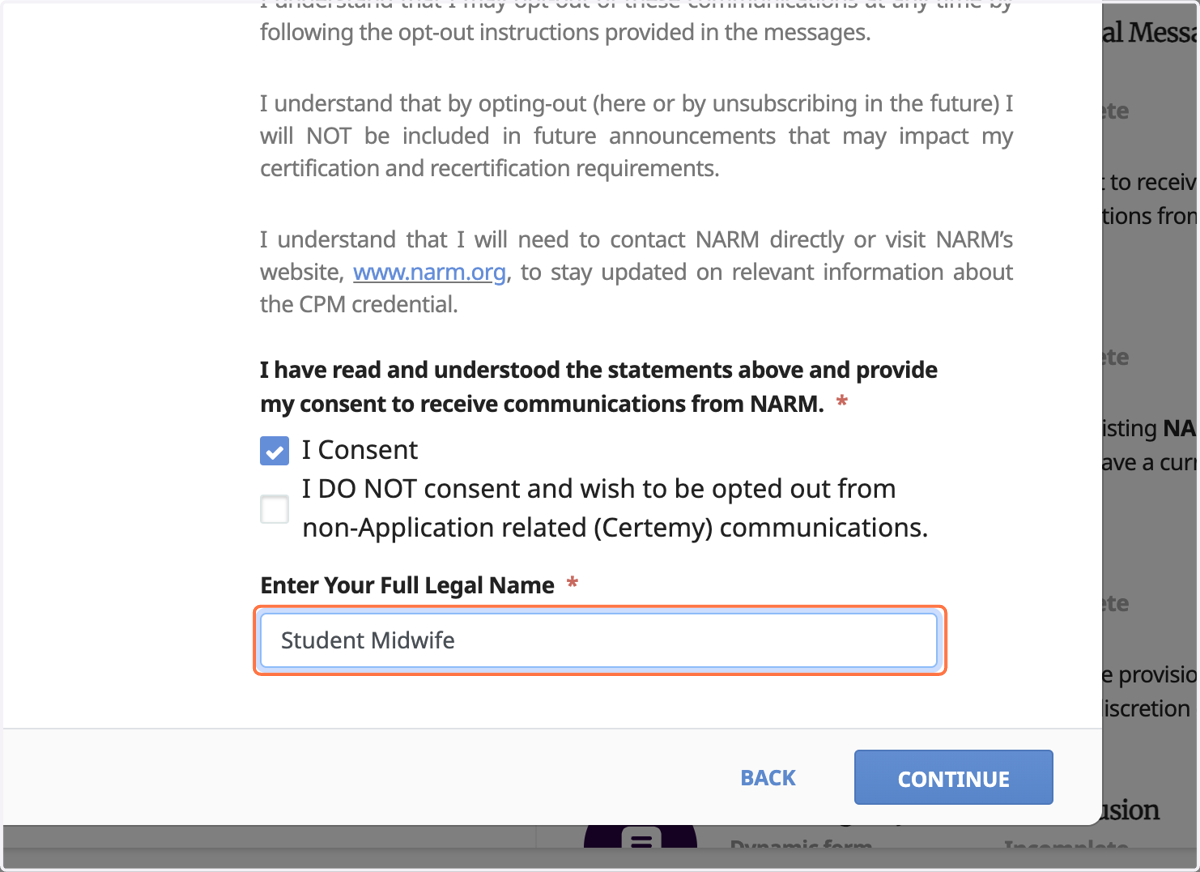
41. Click CONTINUE
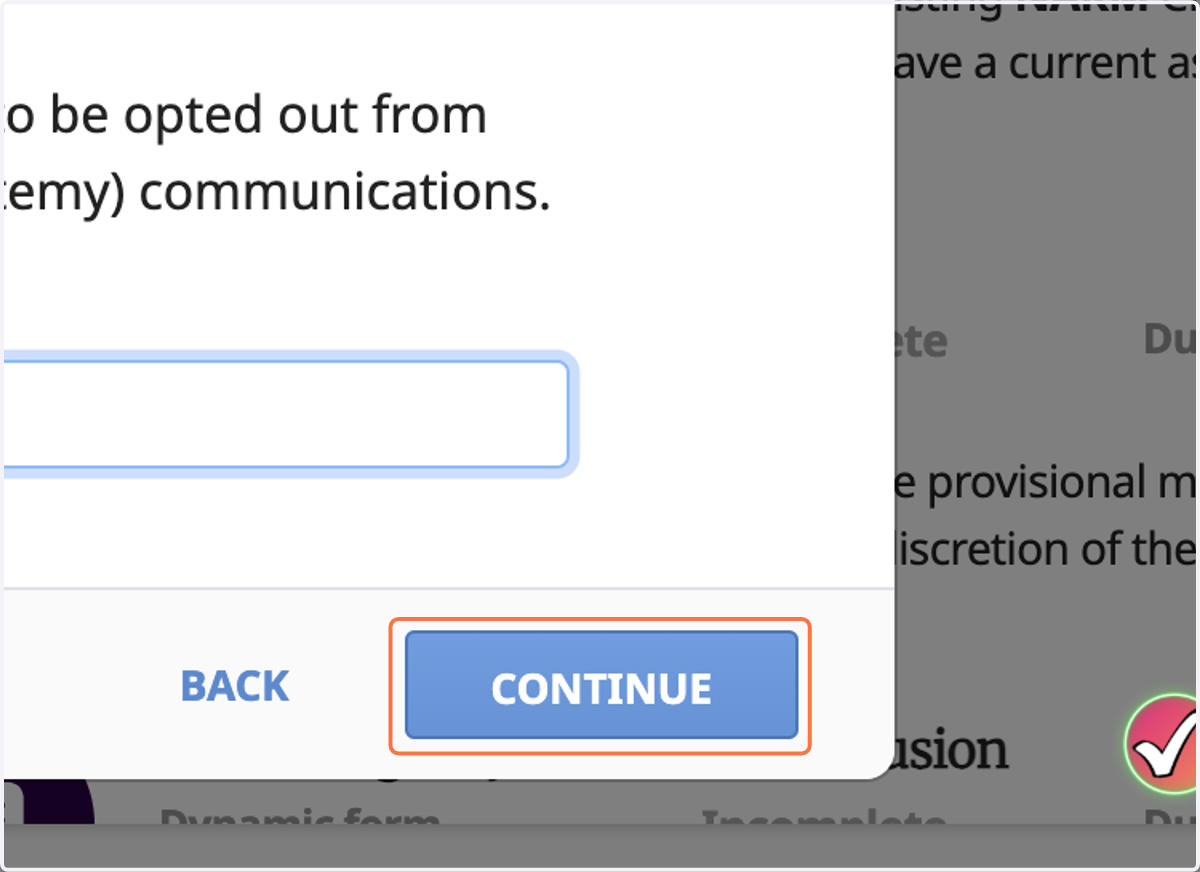
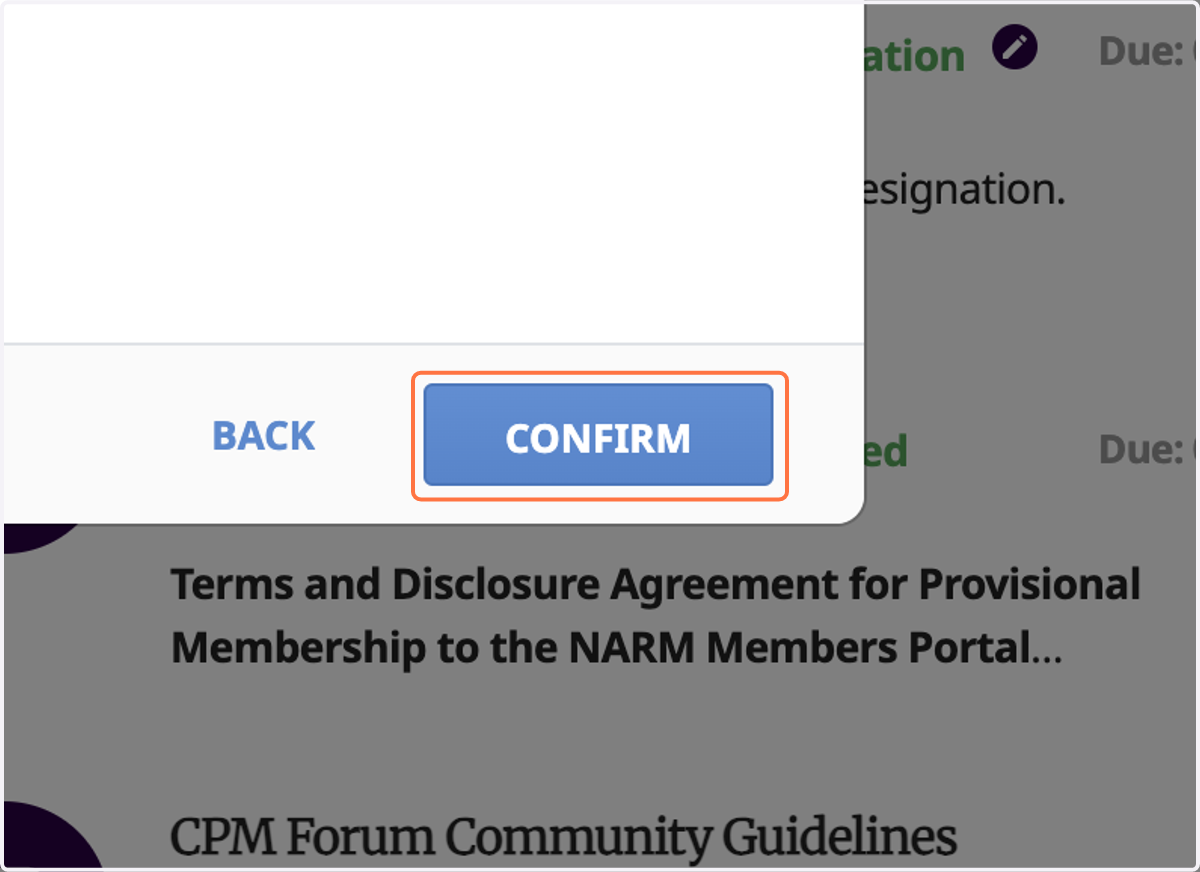
42. Click CONFIRM
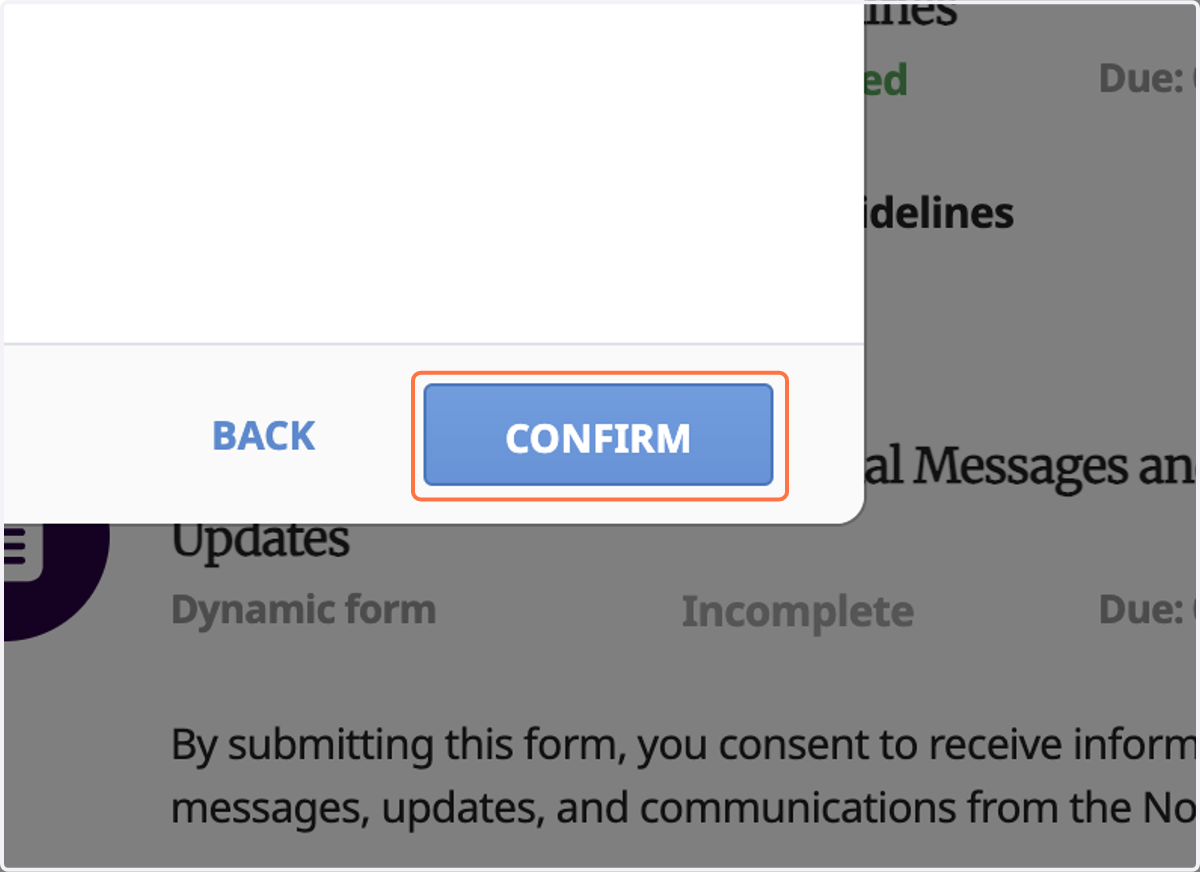
43. To move on to the next section, click CPM verification
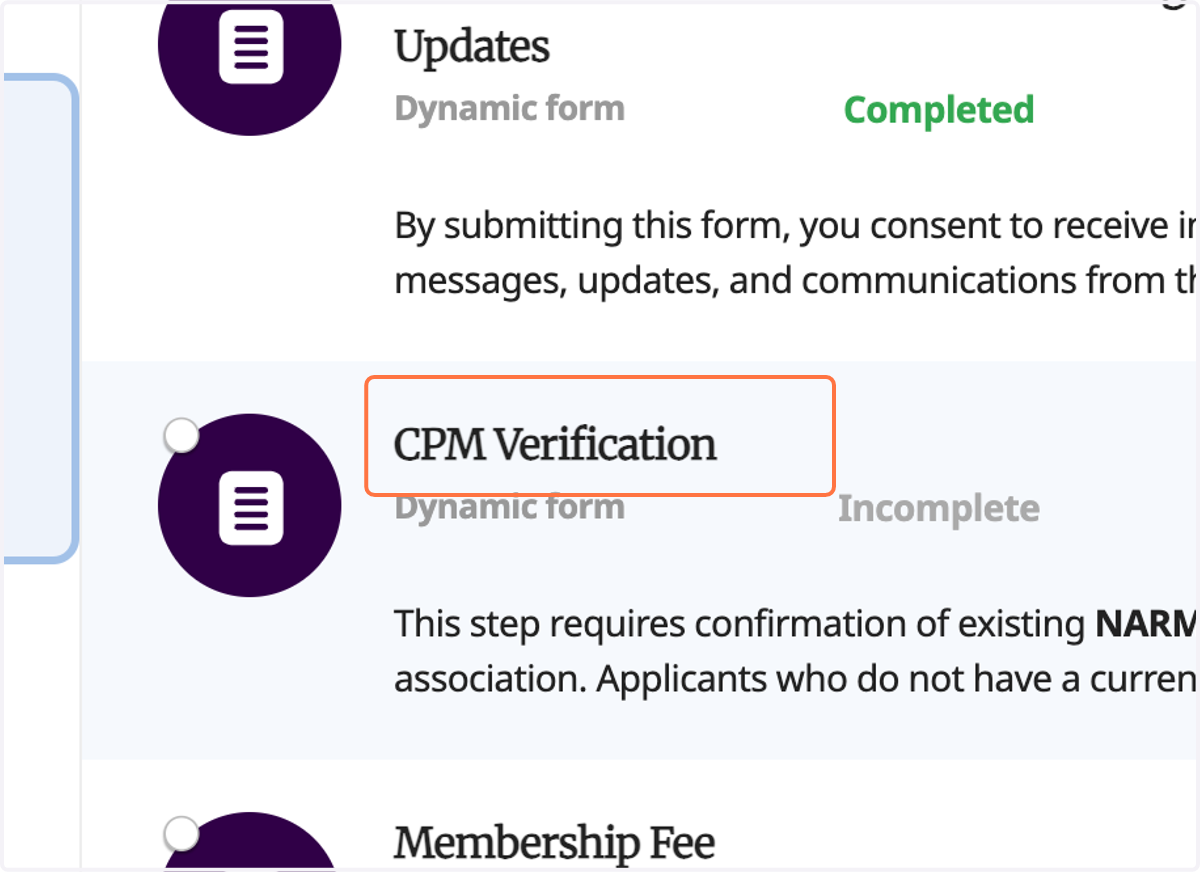
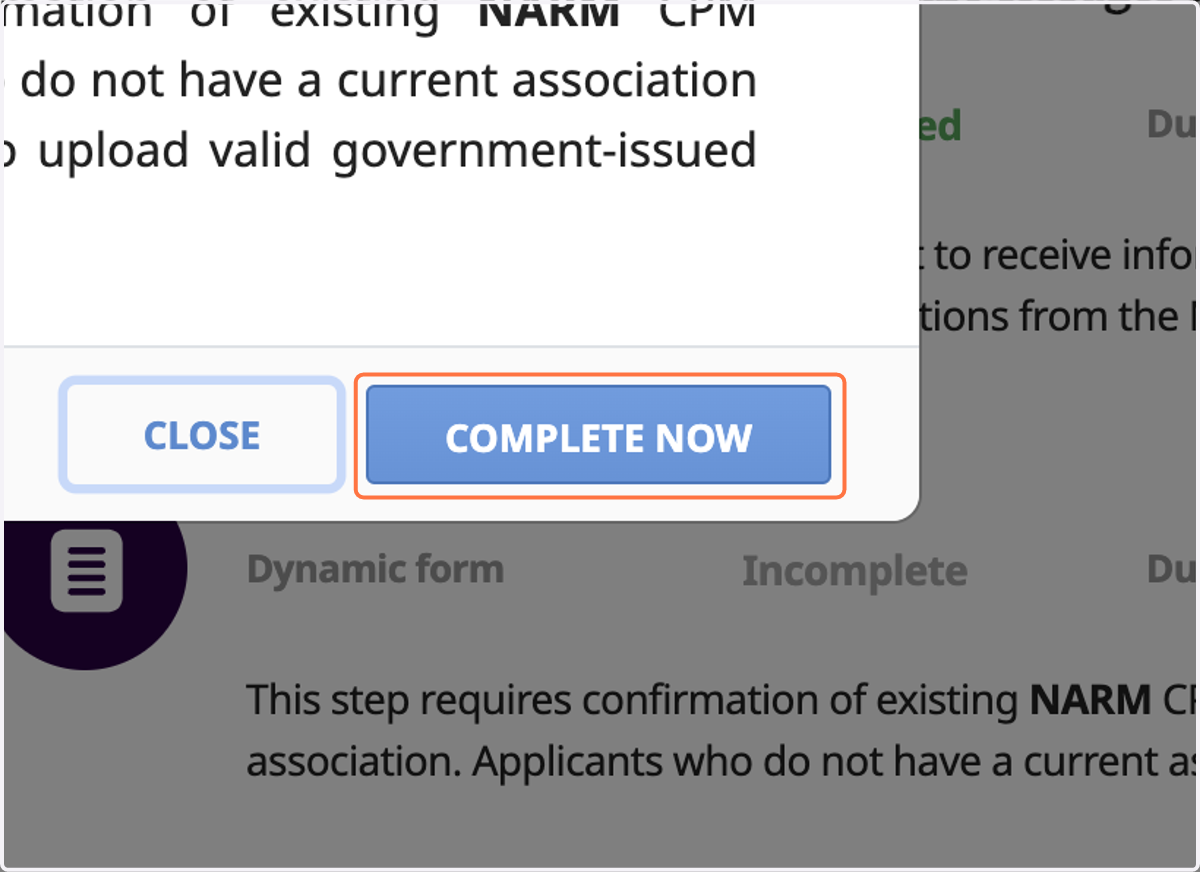
44. Click COMPLETE NOW
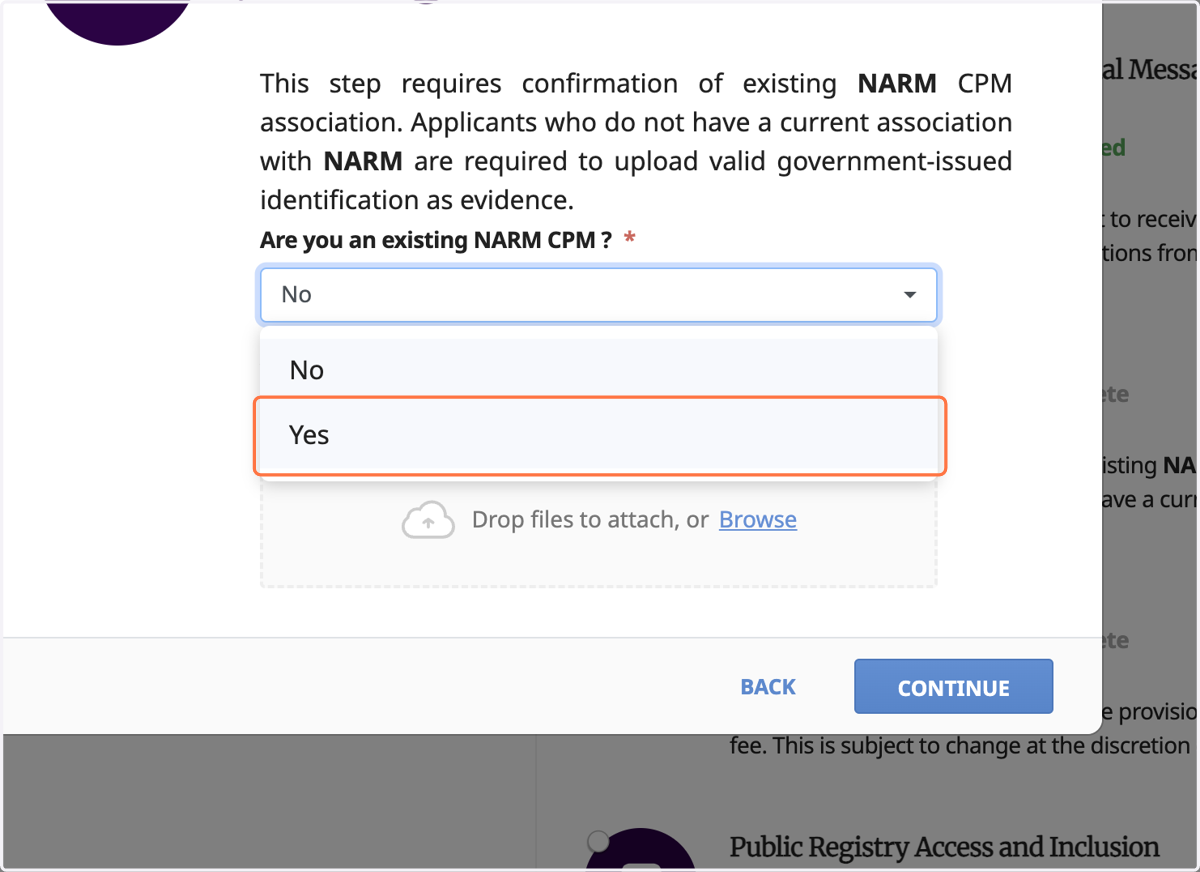
45. Indicate your CPM status
46. Click CONTINUE
47. Click CONFIRM
48. This step will also show Pending Verification
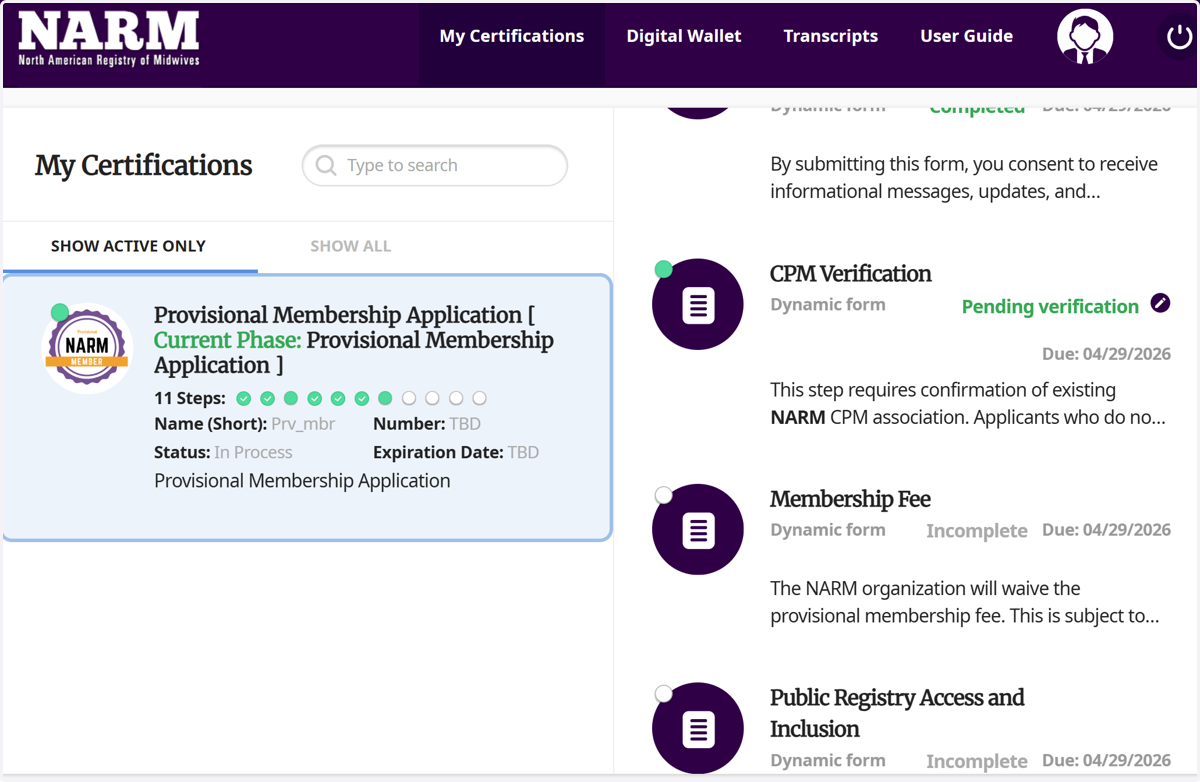
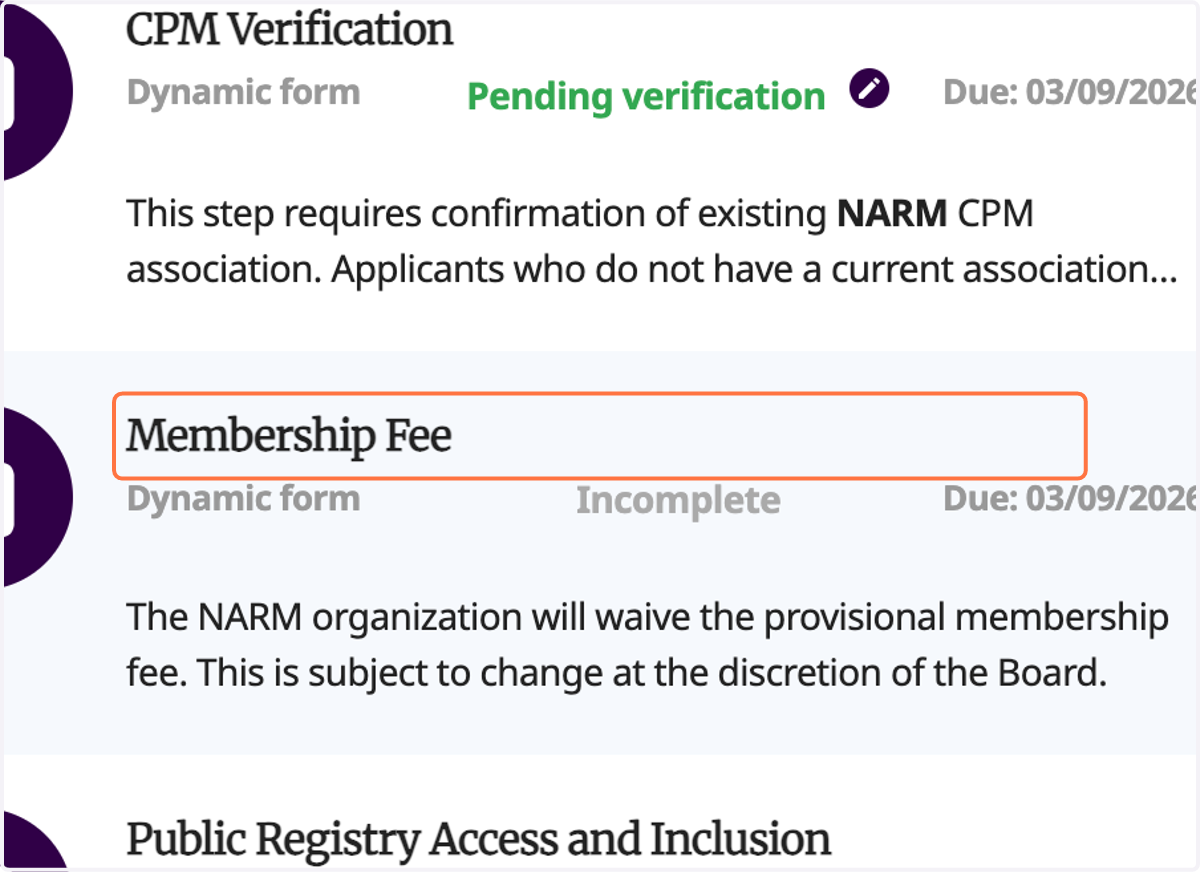
49. To move on to the next section, click Membership Fee
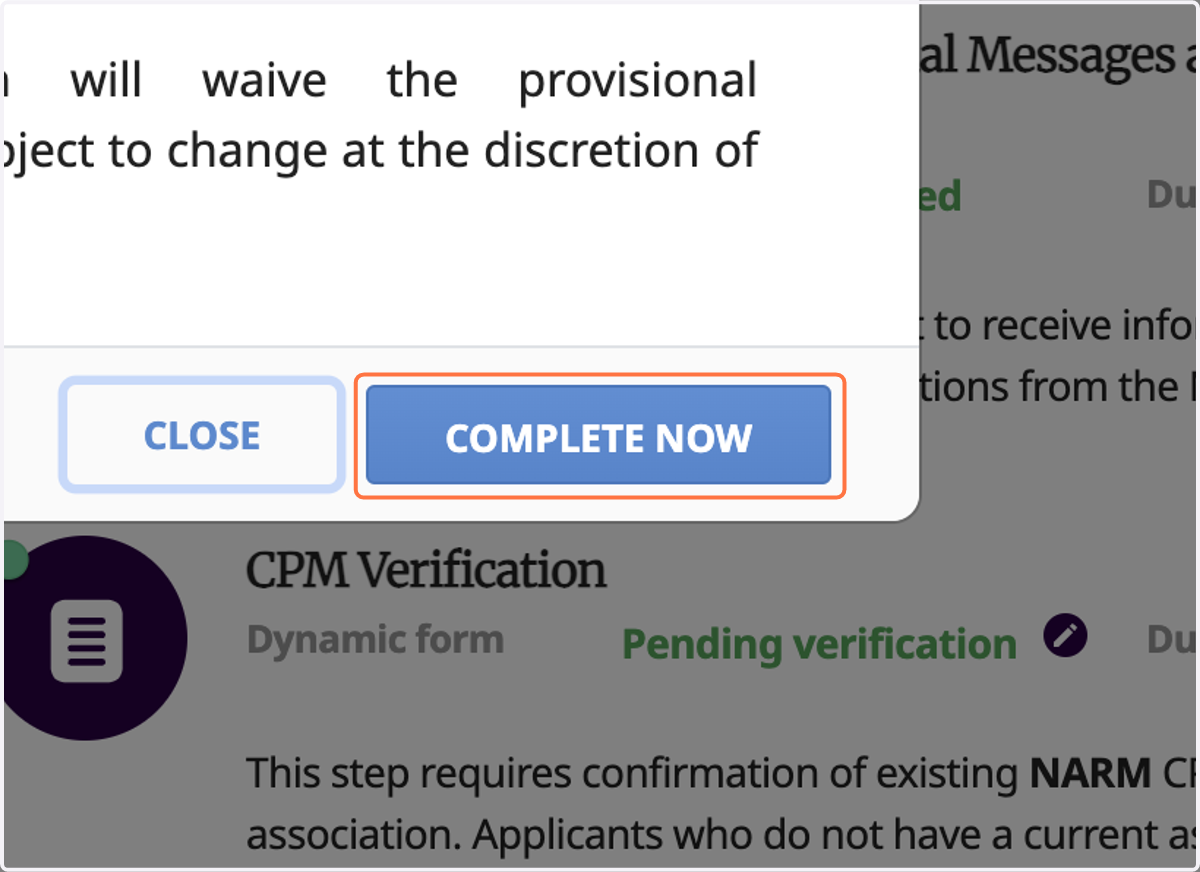
50. Click COMPLETE NOW
51. Enter your full legal name
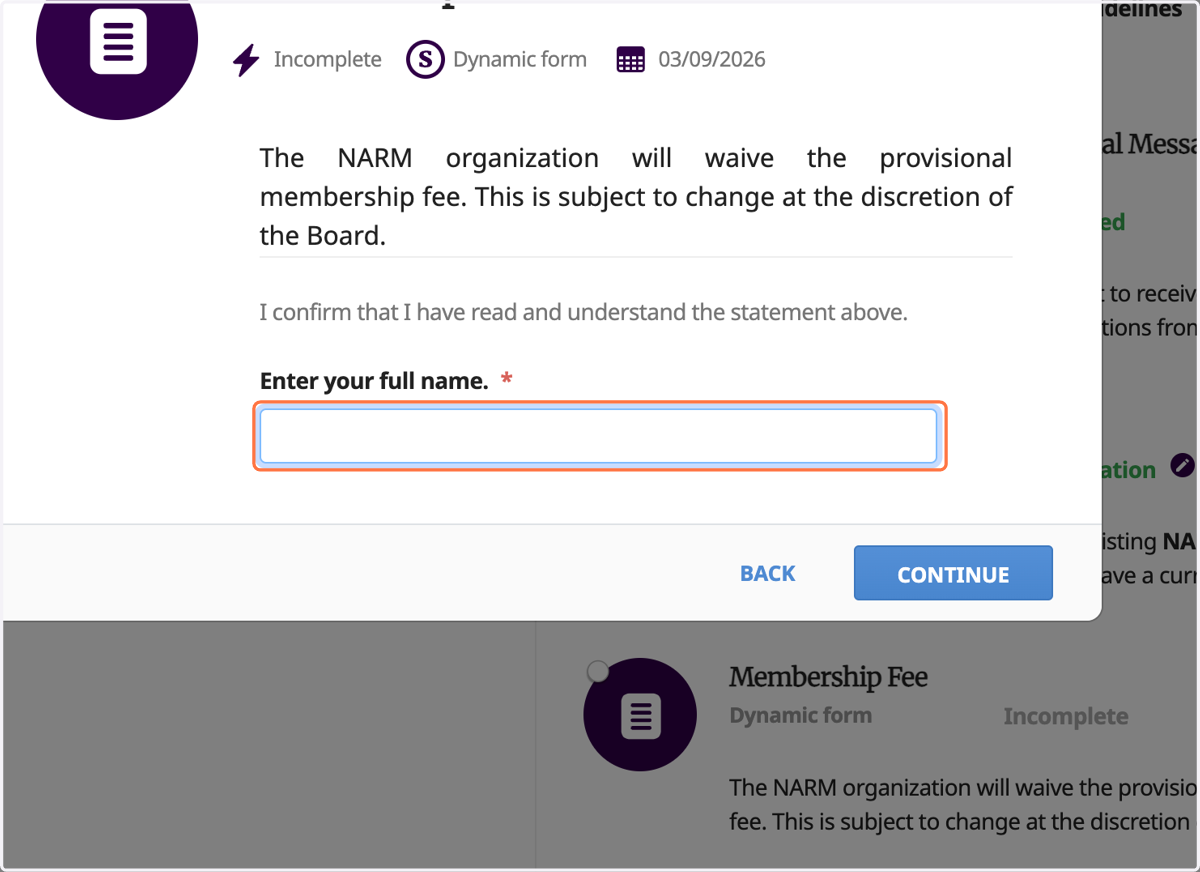
52. Click CONTINUE
53. Click CONFIRM
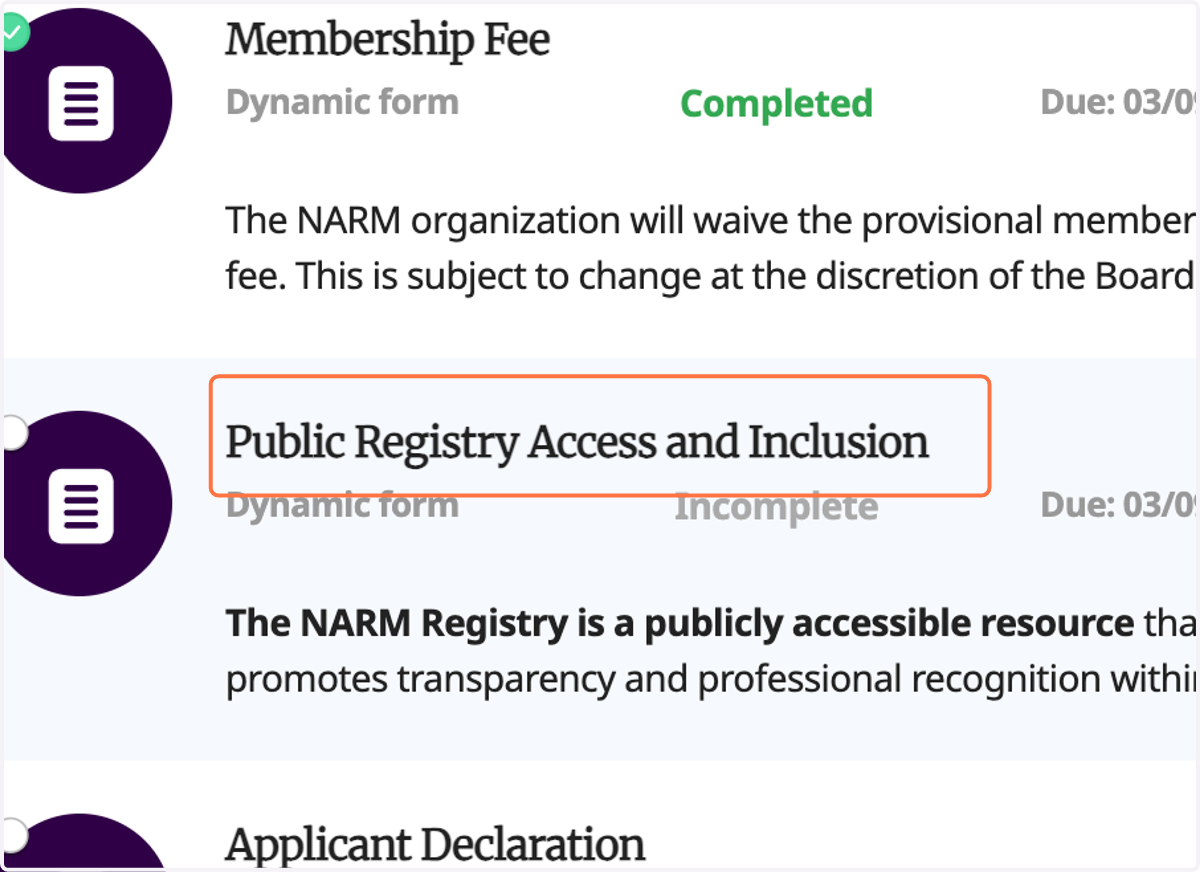
54. To move on to the next section, click Public Registry Access and Inclusion
55. Click COMPLETE NOW
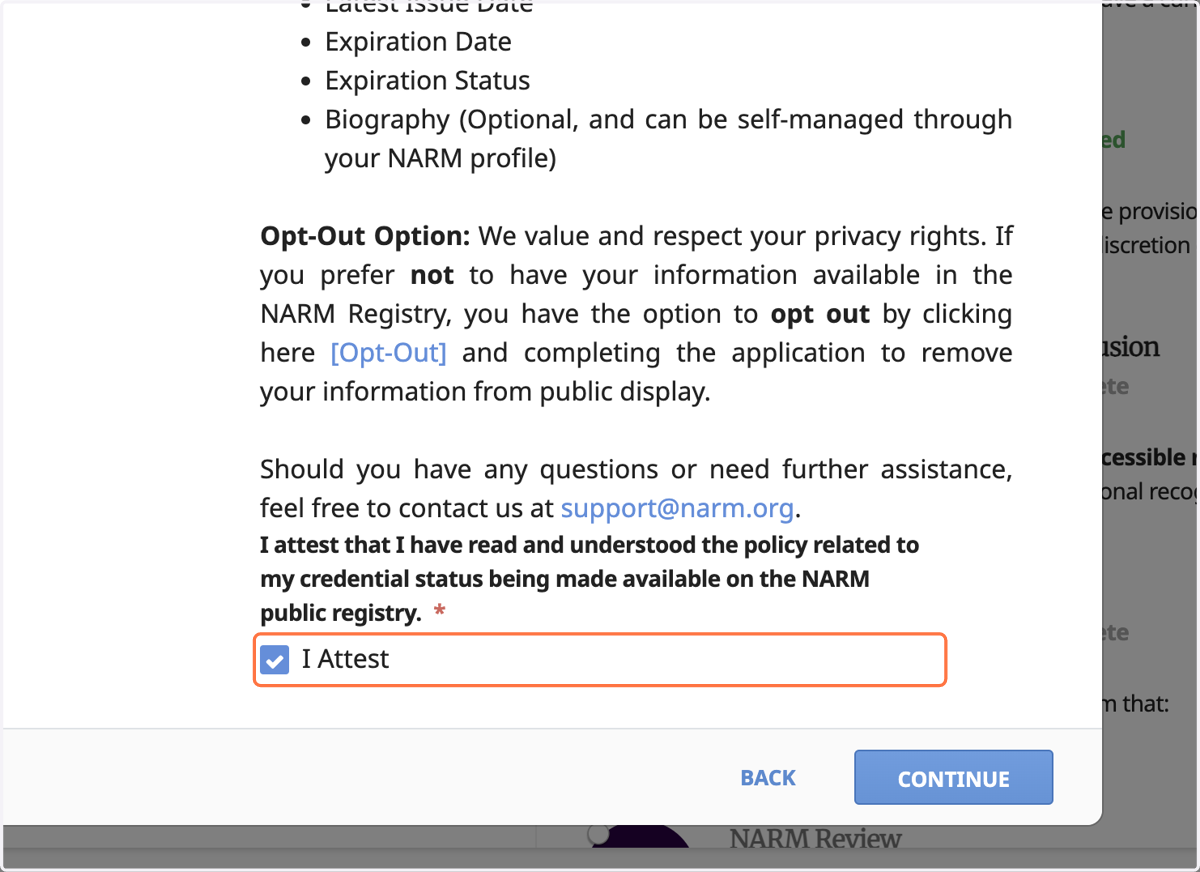
56. Check I Attest and click Continue
Checking this box acknowledges that you have read and understood the agreement.
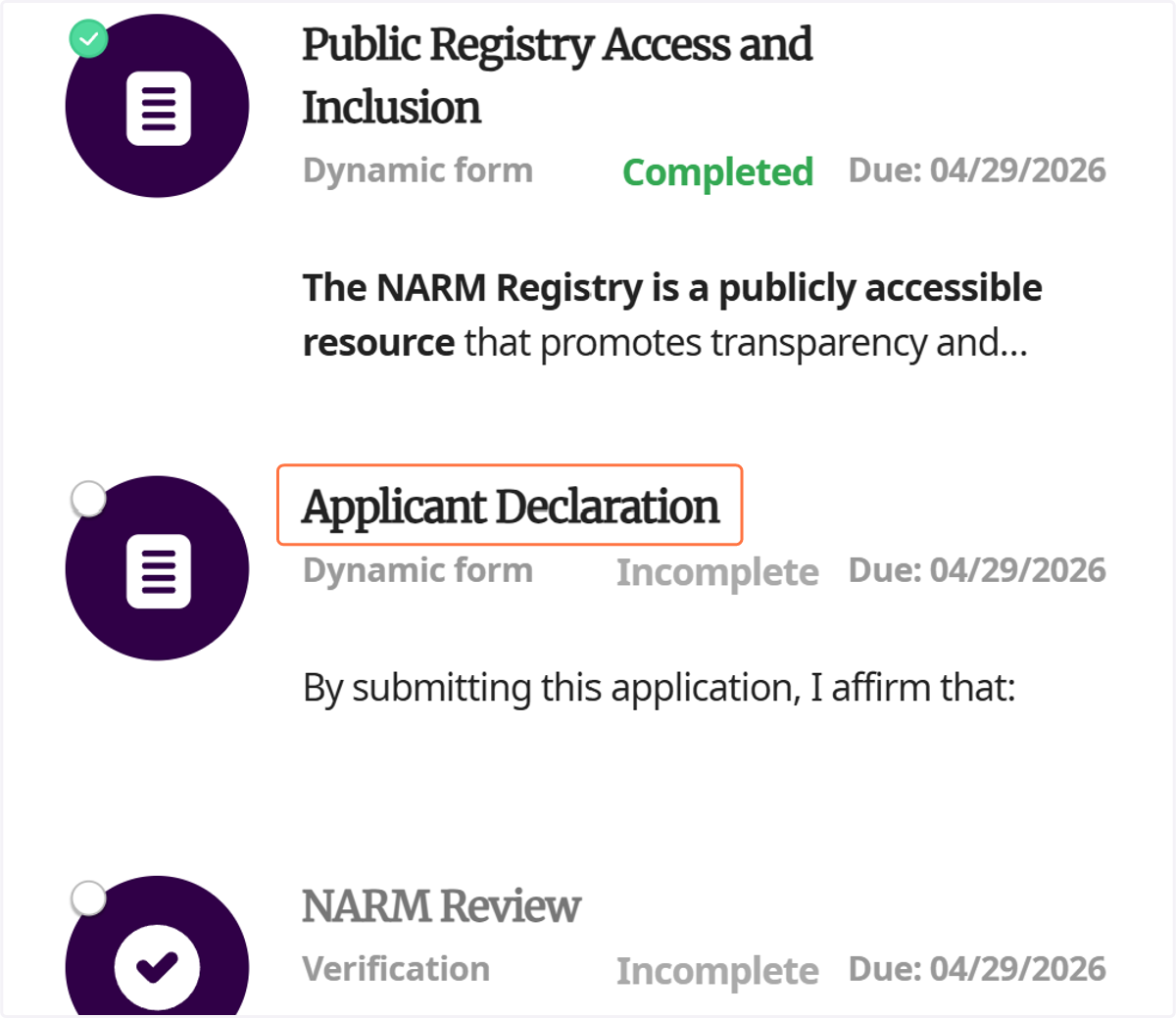
57. To move on to the next section, click Applicant Declaration
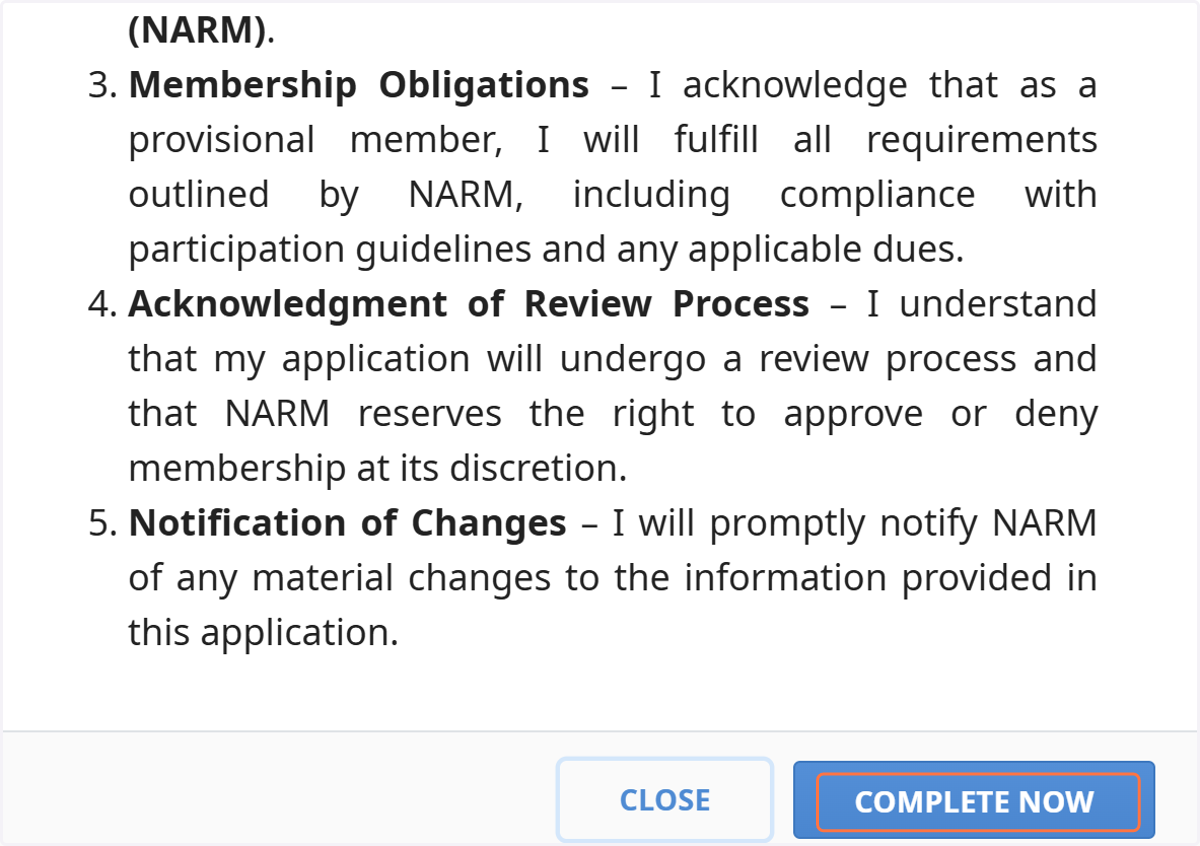
58. Read over the terms and click COMPLETE NOW
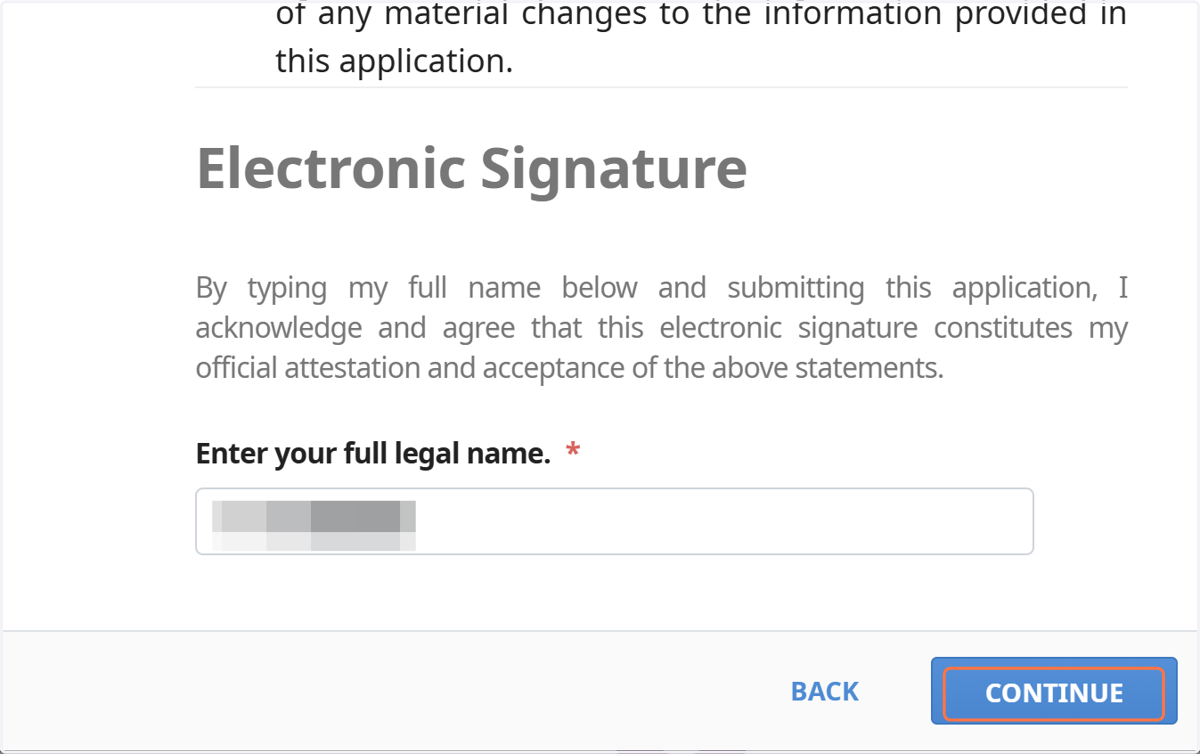
59. Enter your full legal name to sign, then click CONTINUE
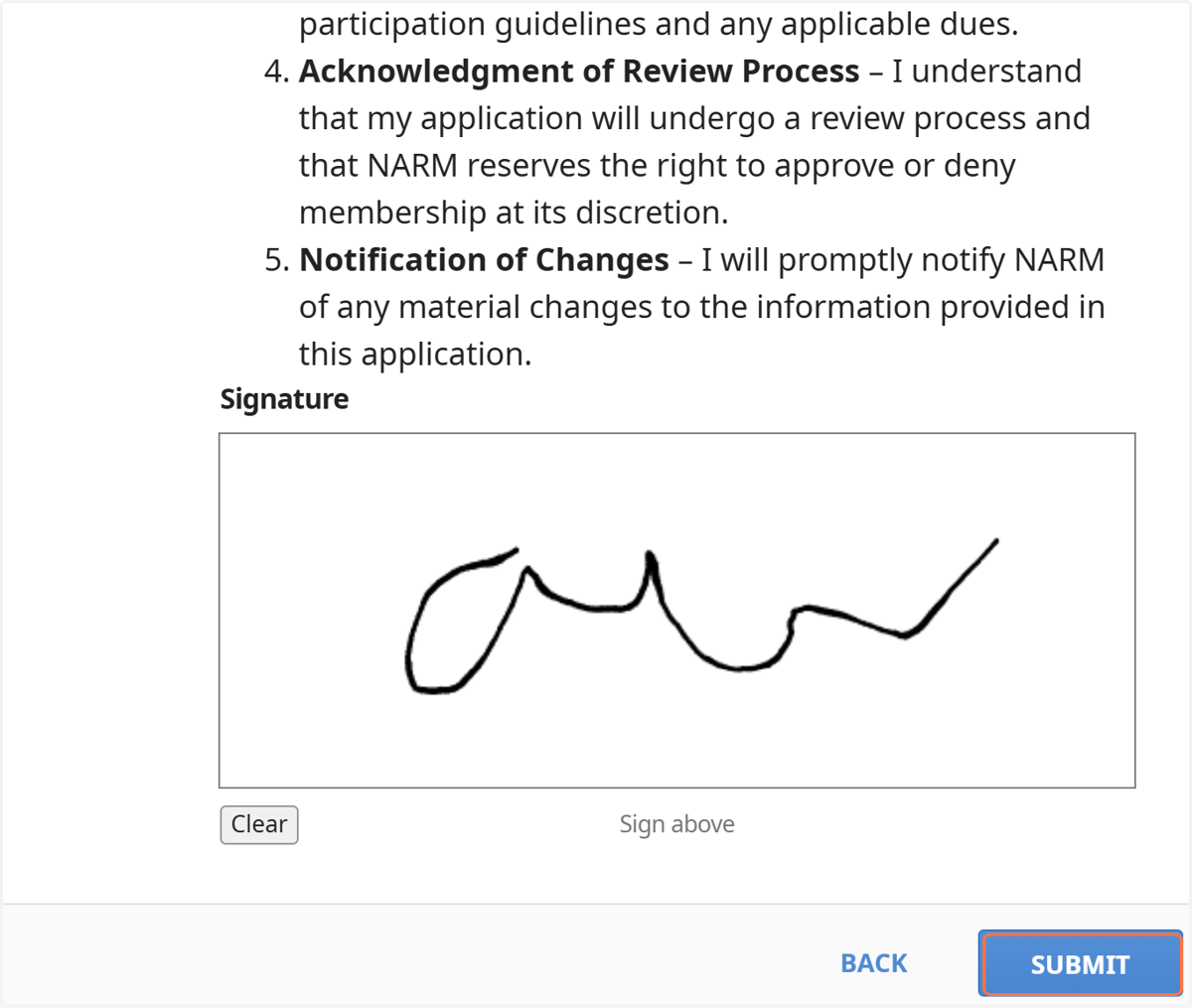
60. Provide your written signature on the next screen and click SUBMIT
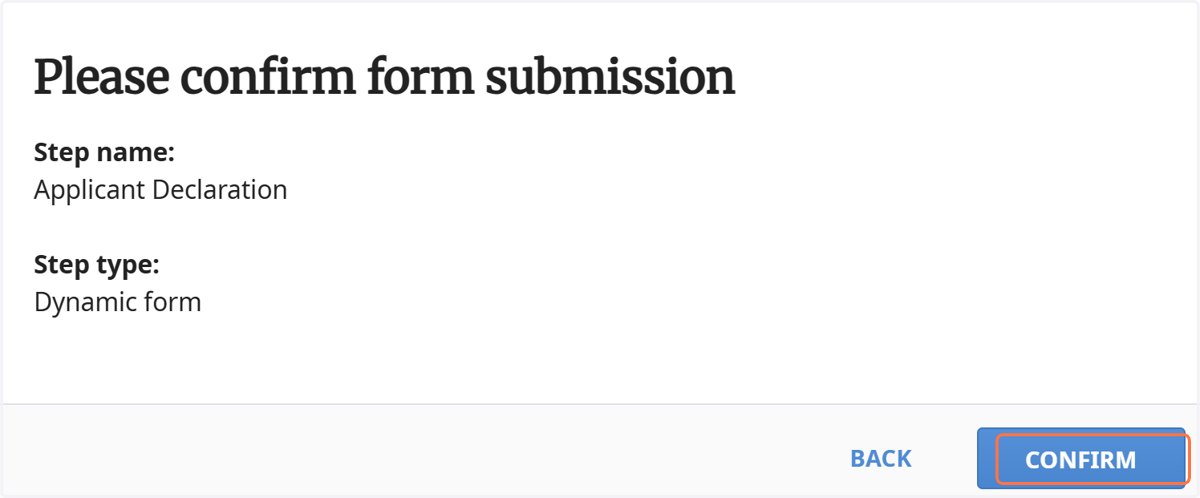
61. Click CONFIRM
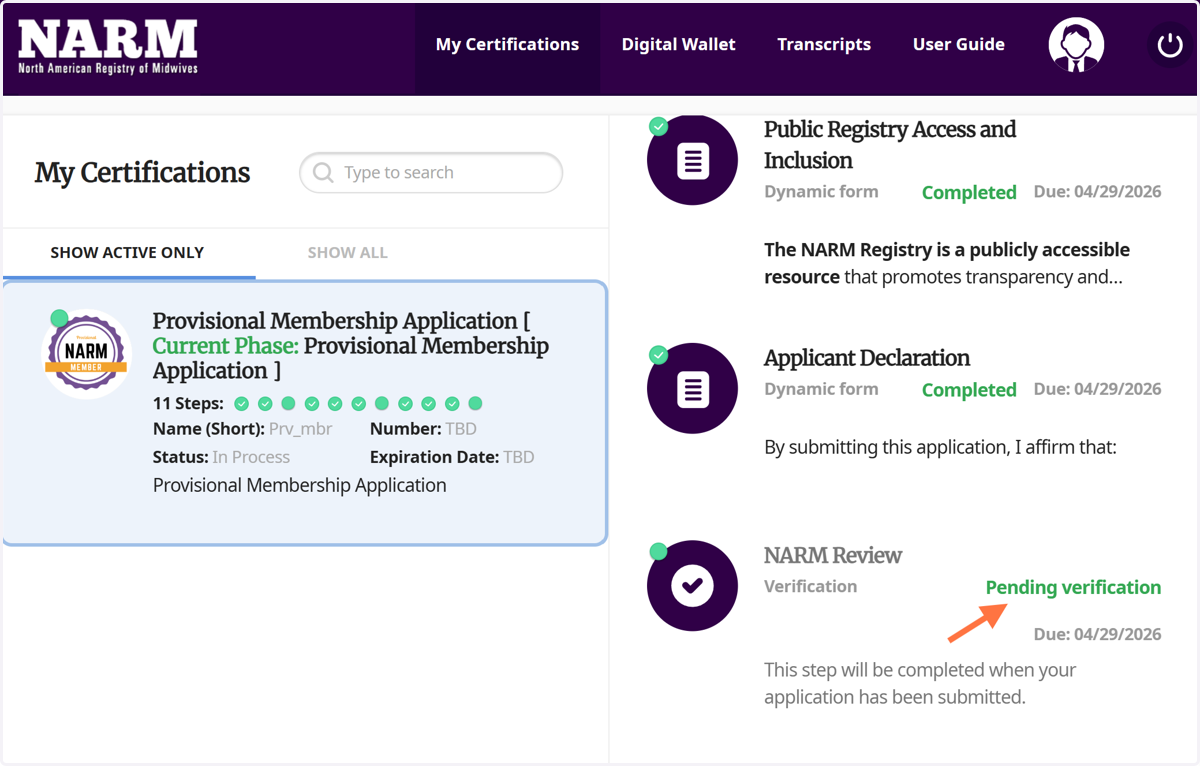
✅ Done
62. Congratulations! You've now successfully submitted your application. It is pending NARM's review. You will be notified when the review has been completed.