Resubmit a CER Return
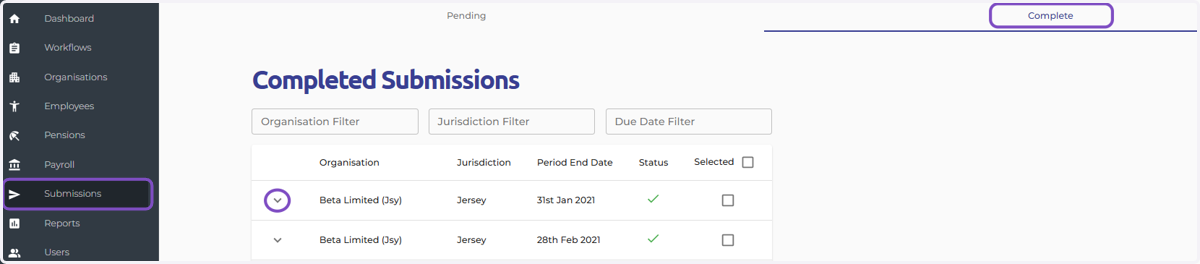
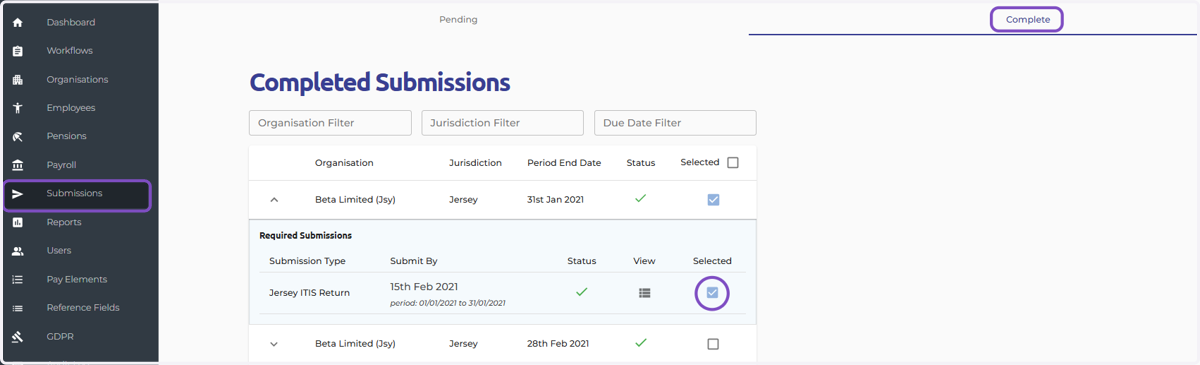
1. Navigate to the "Submissions" module, and select the "Completed Submissions" tab. Locate the Jersey return you need to resubmit. Select the down arrow icon next to the return to review the data.
This screen displays the updated submission data based on any changes made to completed payslips within the relevant submission period.
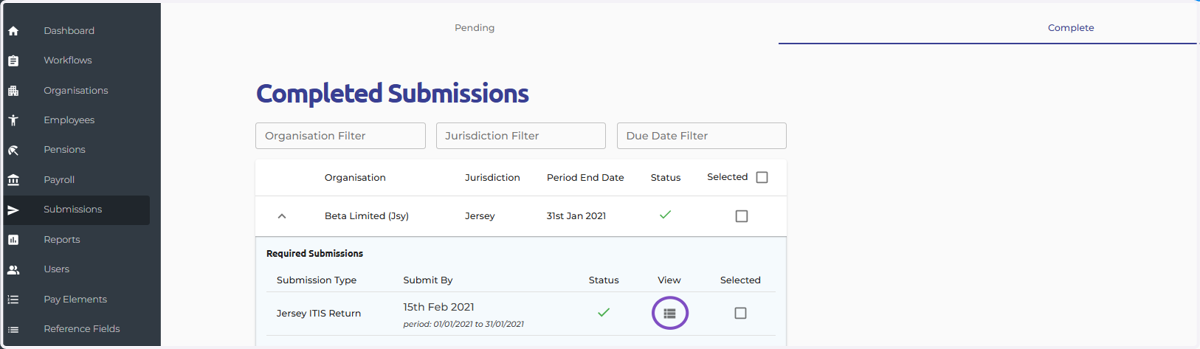
2. Click View on desired return and ensure you’re happy with the re-generated data.
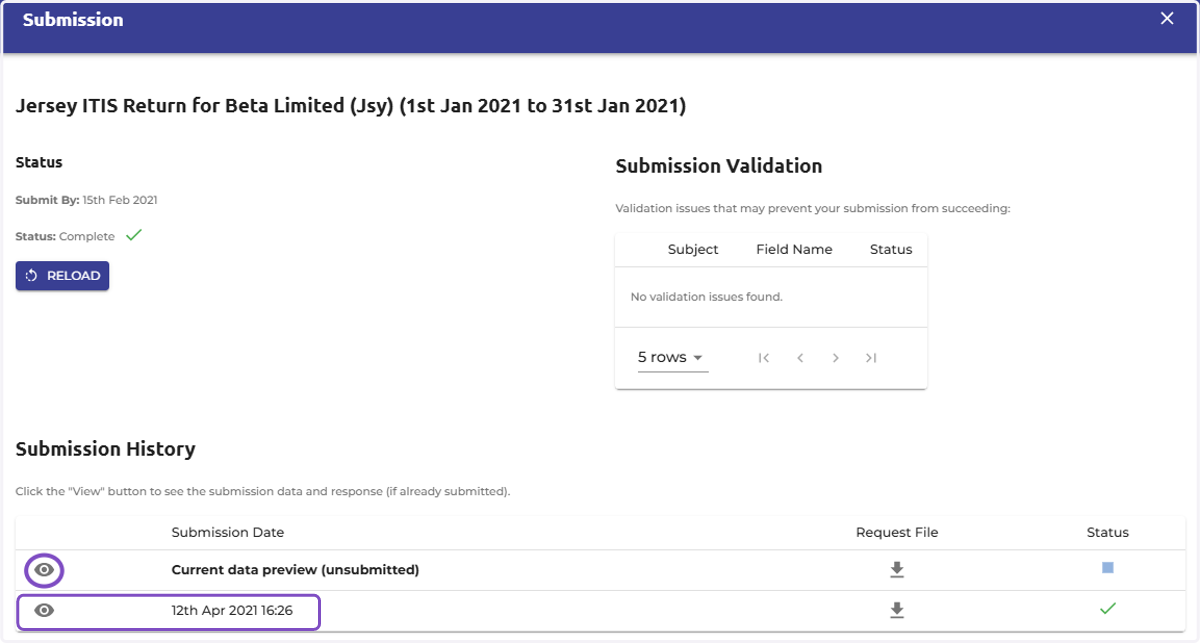
3. To view the data you wish to re-submit, please select the eye icon next to 'Current data preview (Unsubmitted)
If you wish to view the return that has already been submitted to the government, select the eye icon next to the return with the 'green tick' status.
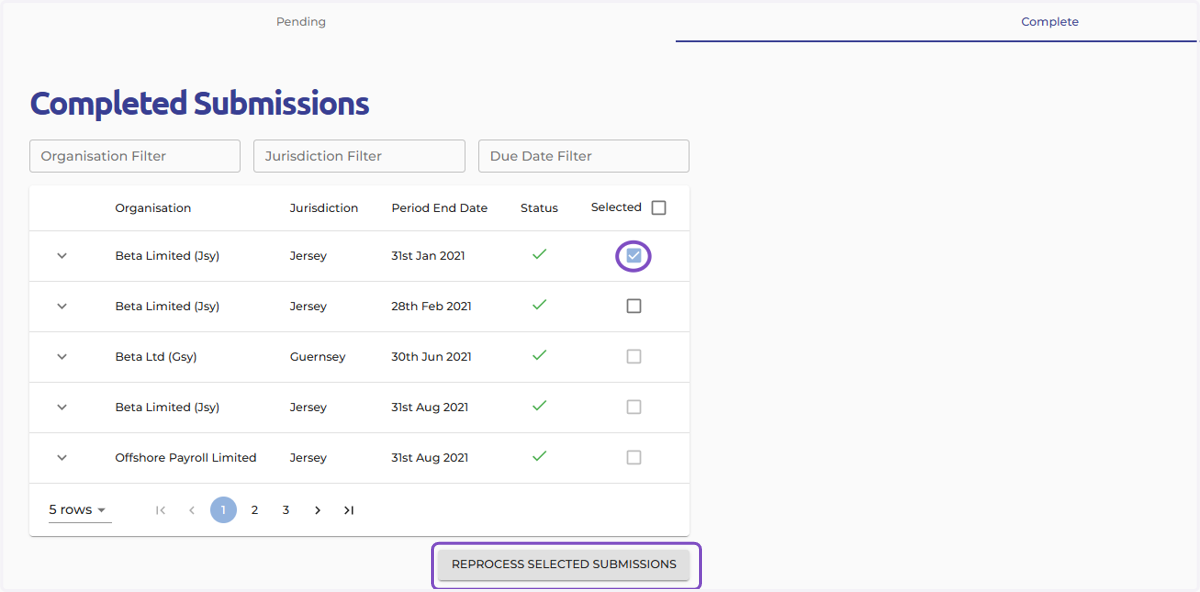
4. Back on the completed submission screen, please select the tick box next to the submission you wish to re-submit.
5. Click the "REPROCESS SELECTED SUBMISSIONS" button. Ocerli will automatically process the resubmission with the Jersey government. Confirmation: The system will provide confirmation once the resubmission is complete.
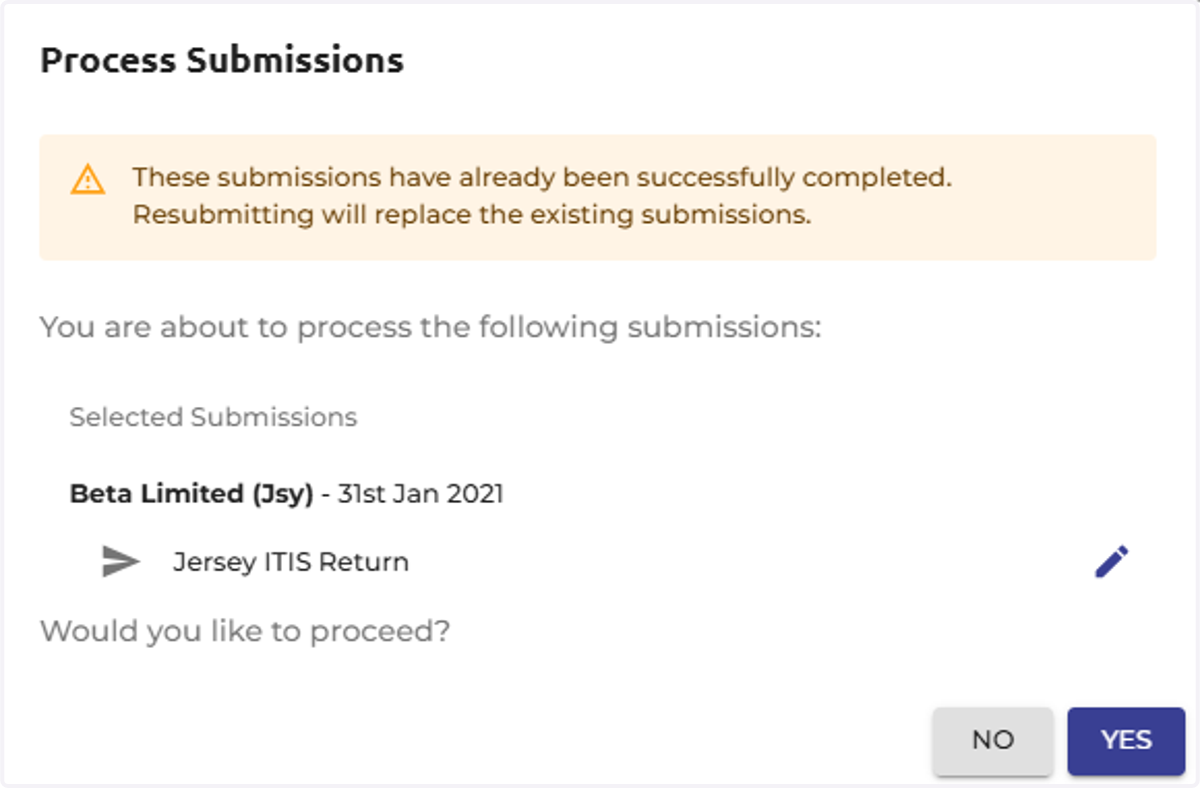
6. Select 'Yes' to confirm you wish to proceed with the resubmission
Confirmation: The system will provide confirmation once the resubmission is complete.