Step 2: Creating a User(s)
MatrixIQ Telematics
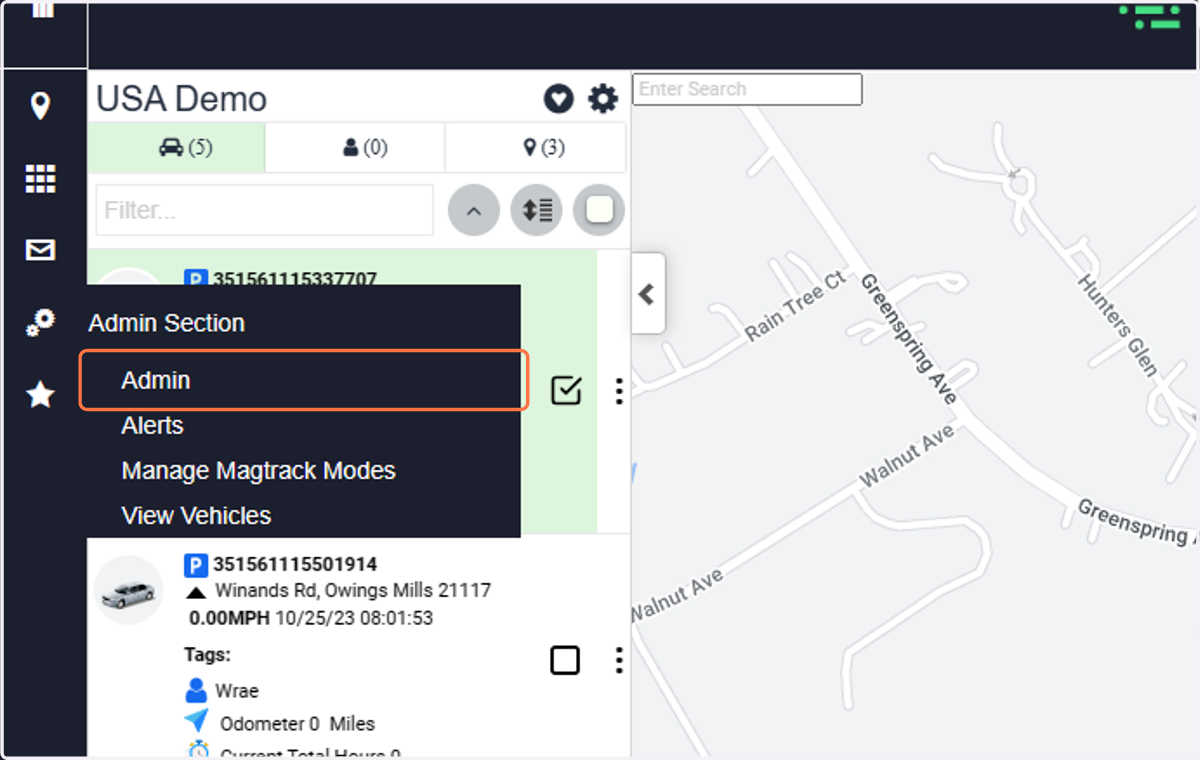
1. Click on Admin
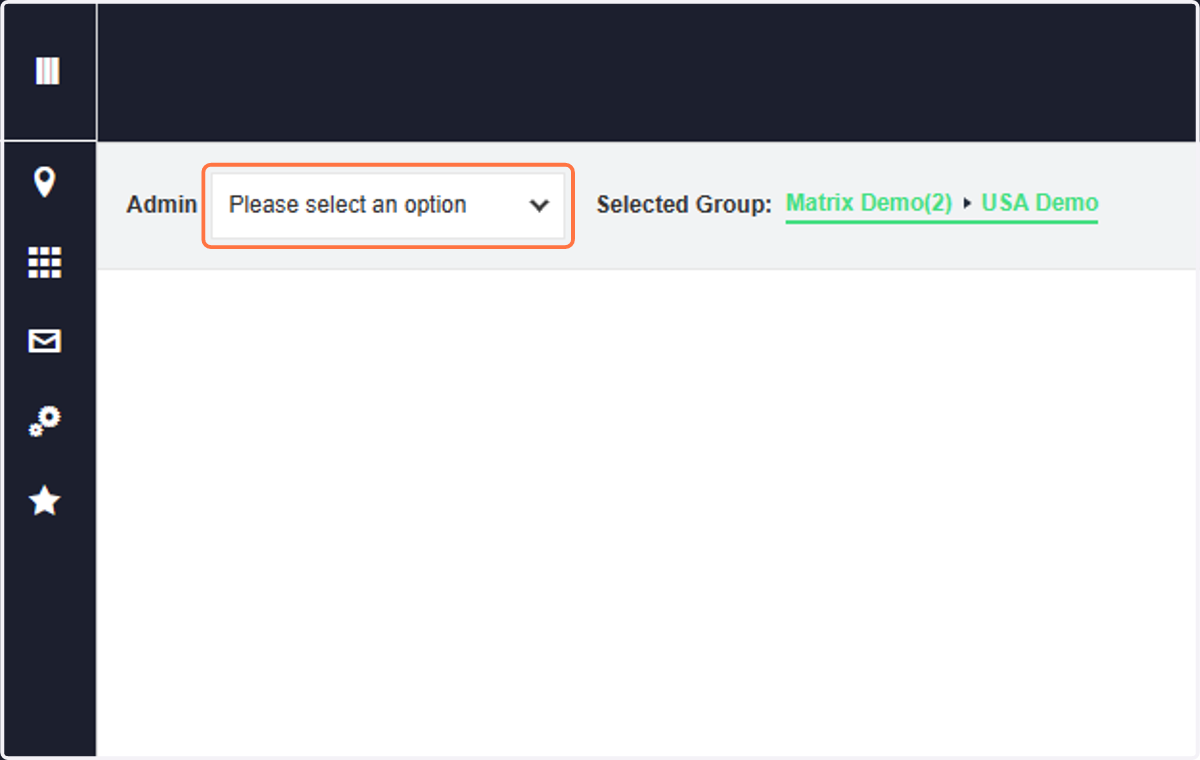
2. Click on Please select an option
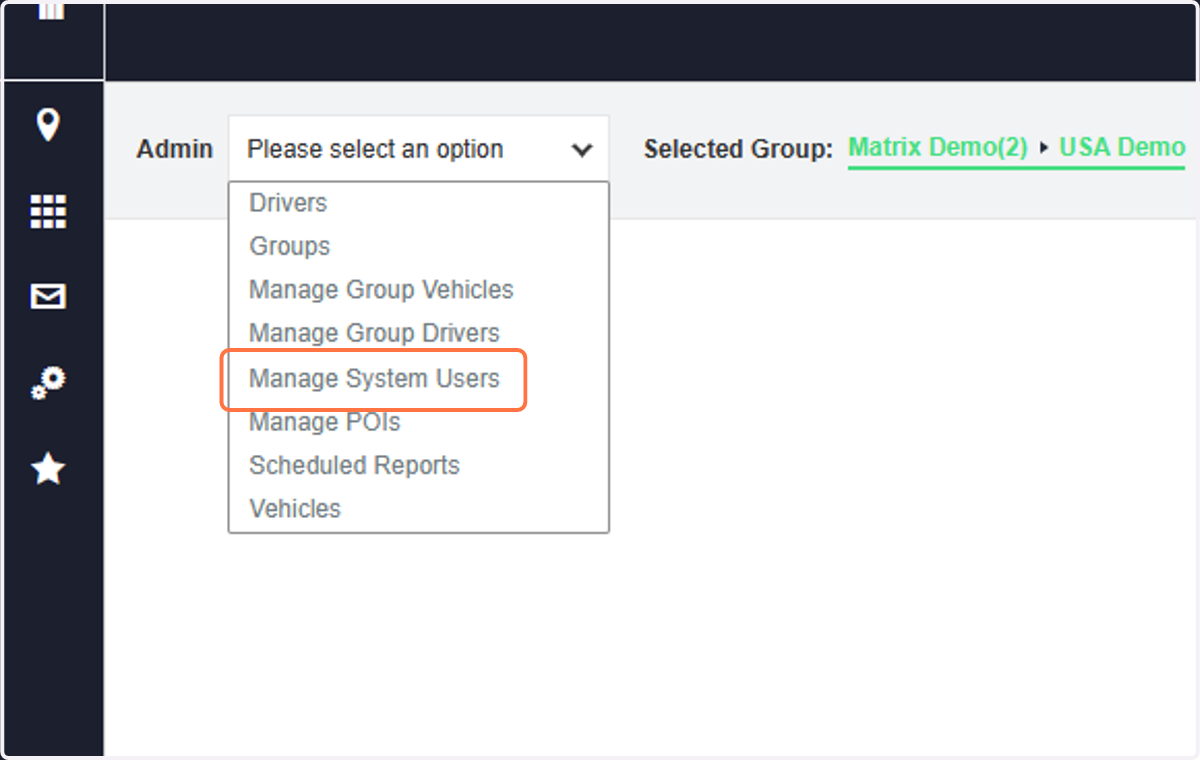
3. Click on Manage System Users
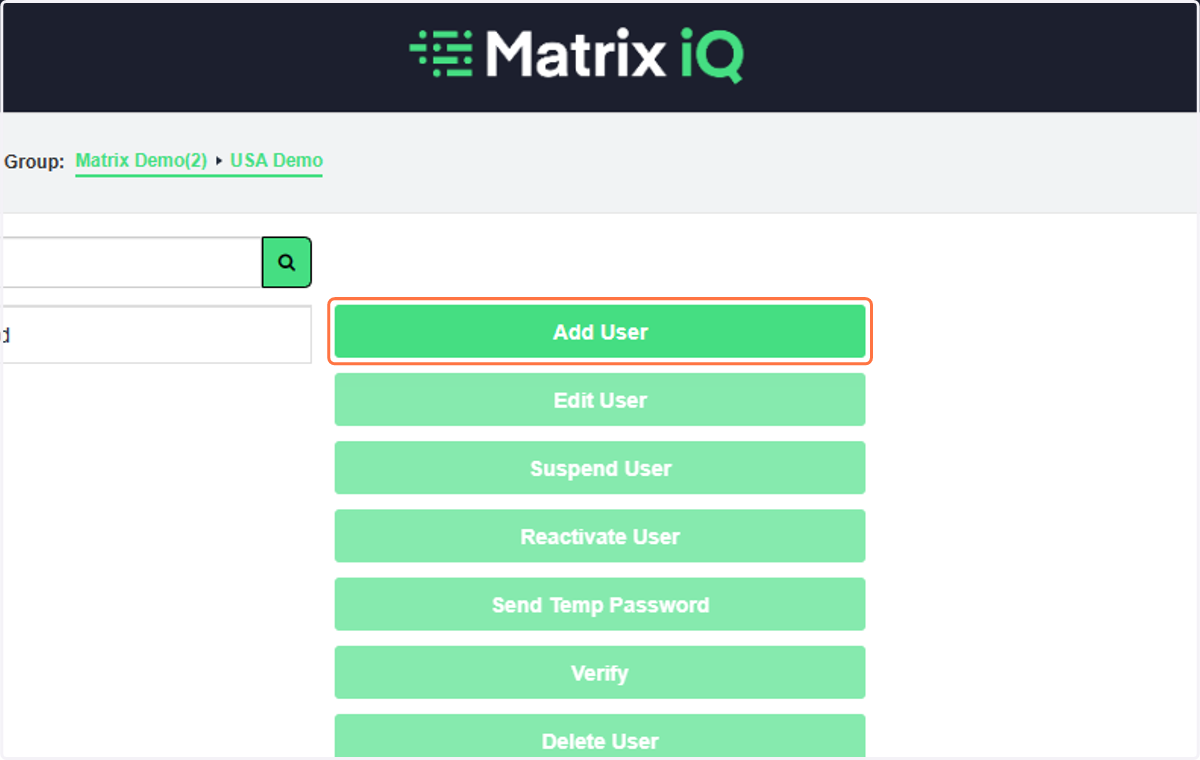
4. Click on Add User
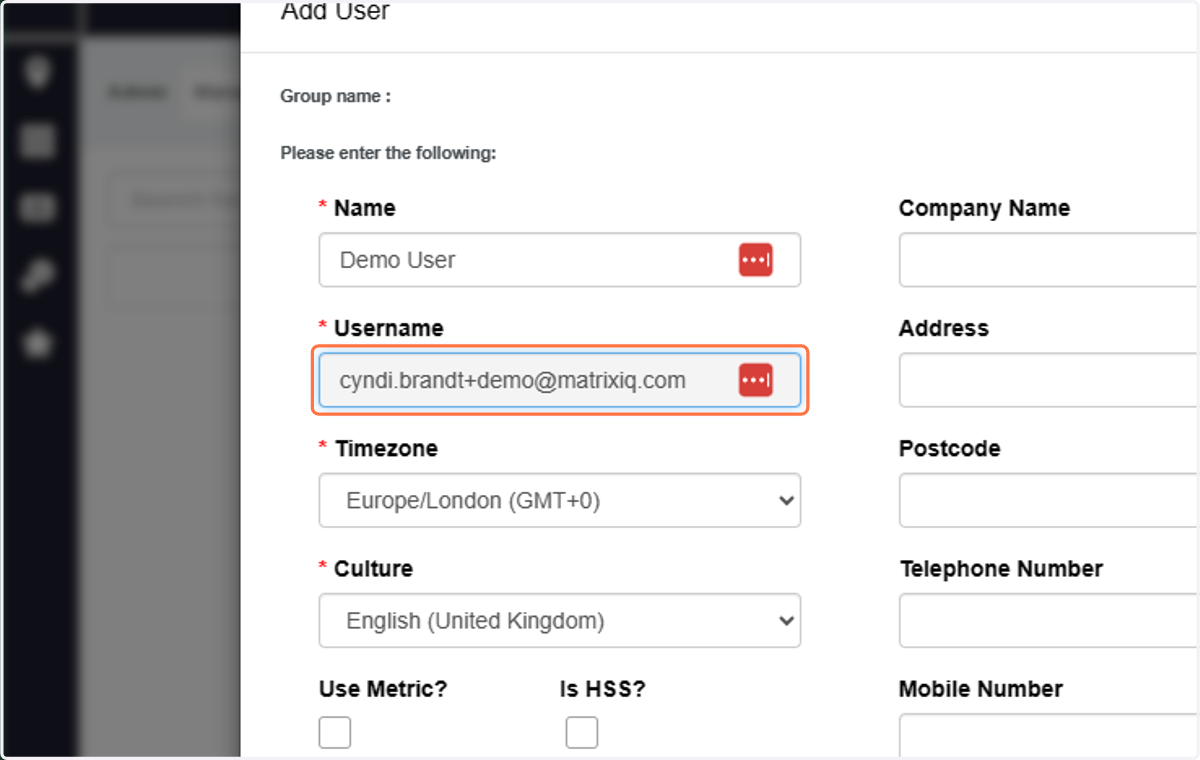
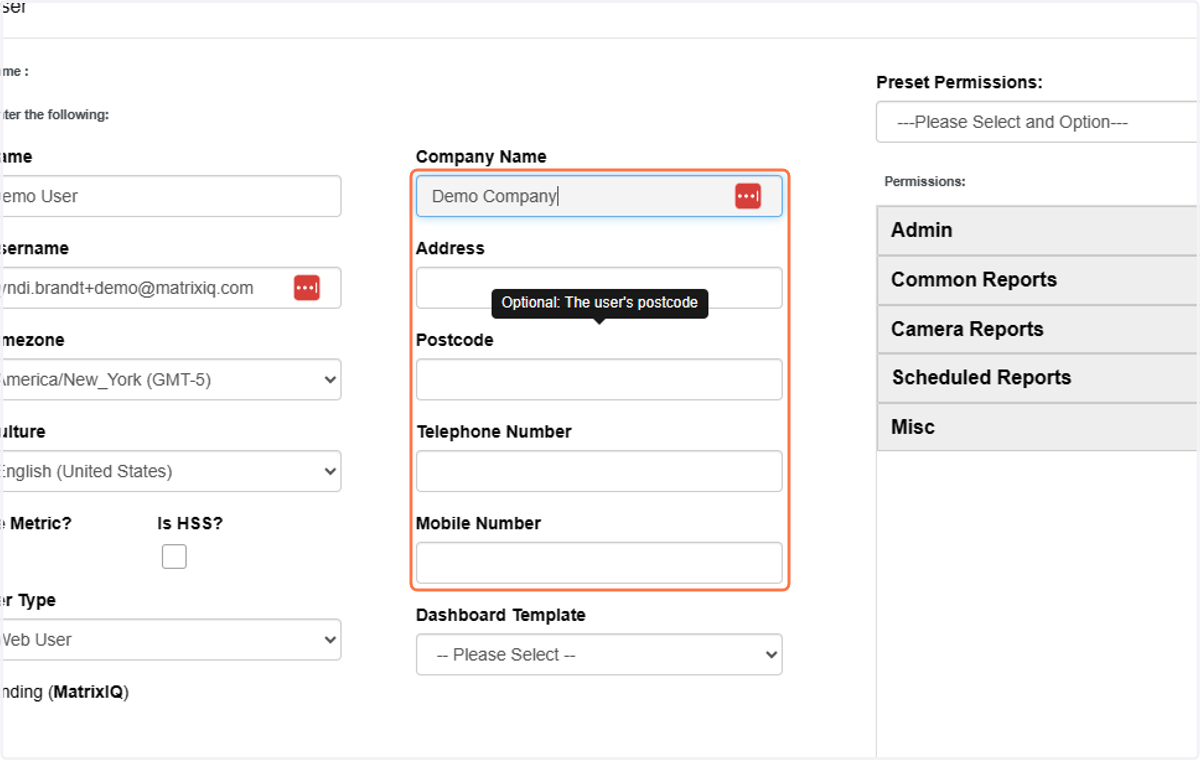
5. Type the name of the user and also provide a Username - this must be an email address.
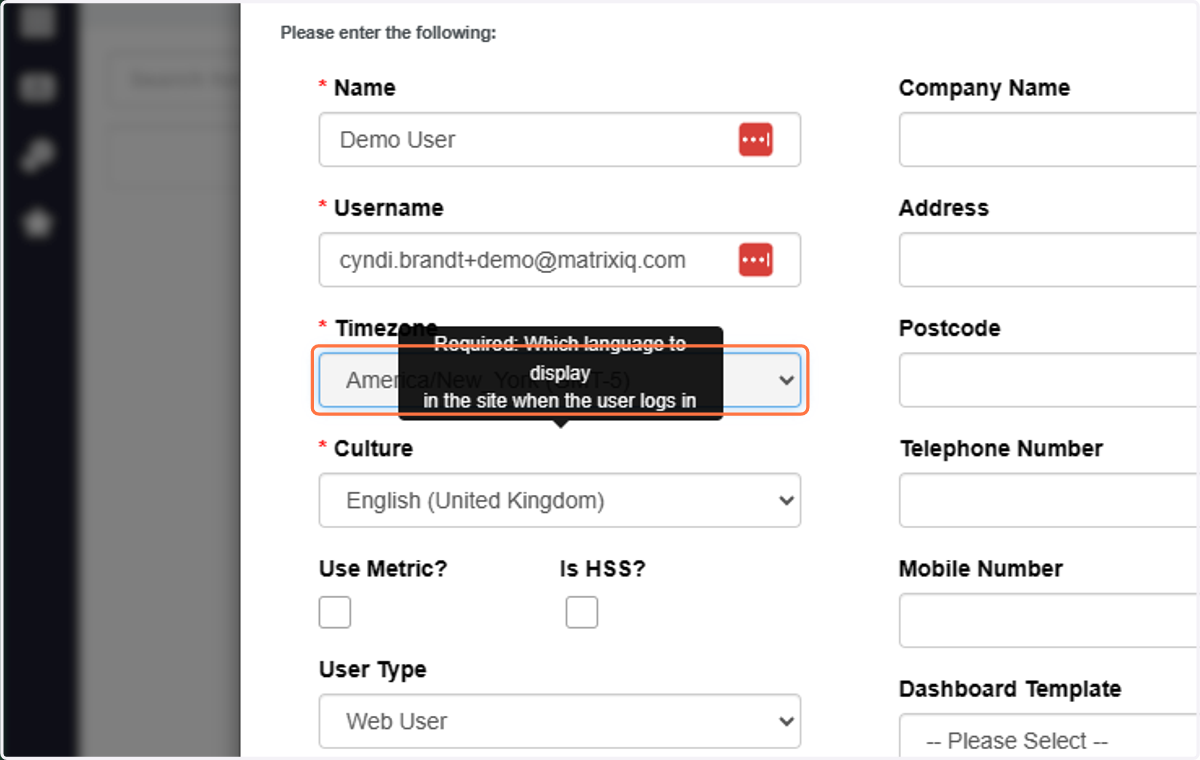
6. Next choose location preferences - select the correct timezone
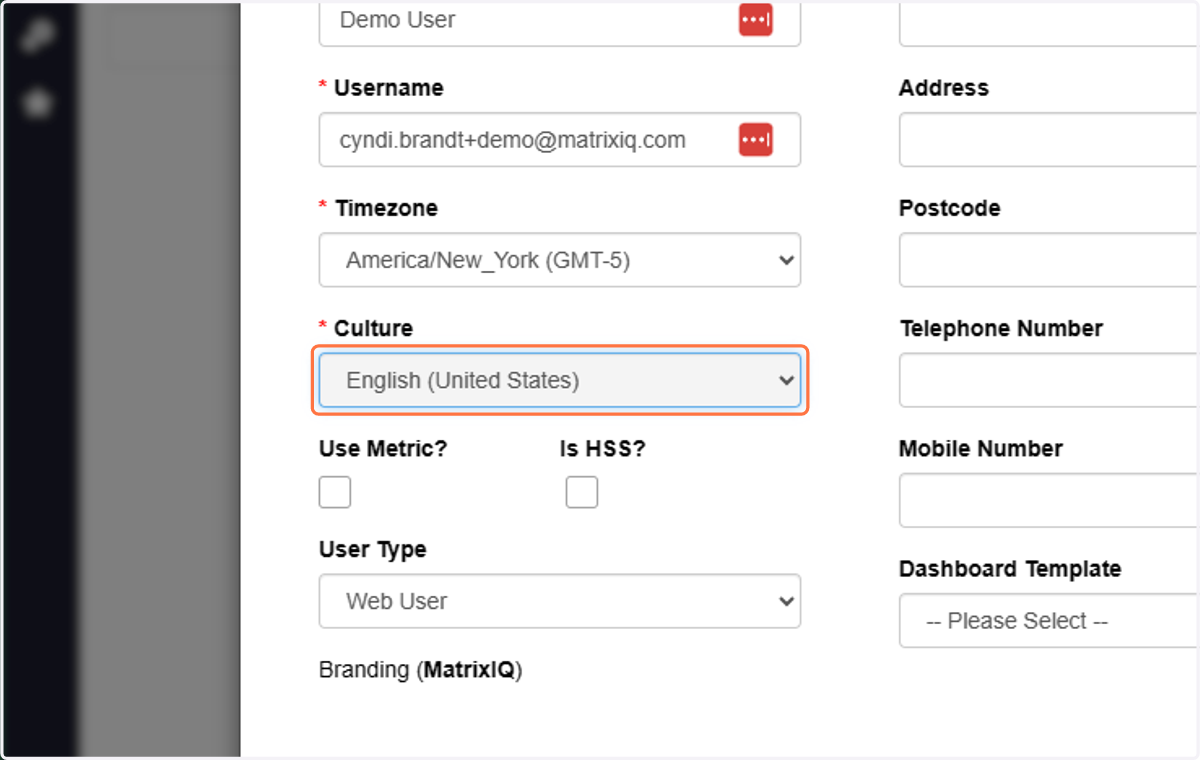
7. And localization
8. Fill in information about the Company
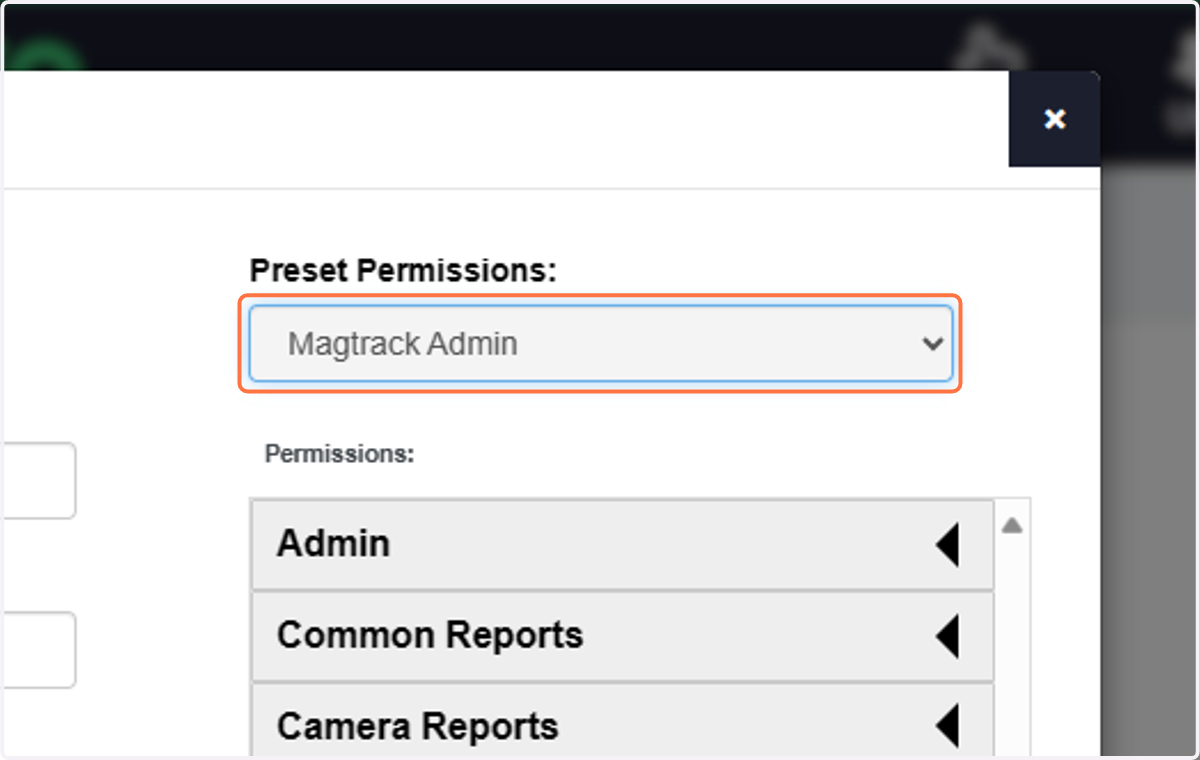
9. Select Magtrack Admin from Preset Permissions:
You then want to click on the following in Permissions:
ADMIN: Add Scheduled, Drivers, Manage Group Drivers, MFA (if 2 factor authentication is required, Vehicles
COMM: Fleet Report
SCHEDULED: Current Location, Fleet List, Non Movement Report, Non Reporting Report, Speed Limit Report, Time at POI
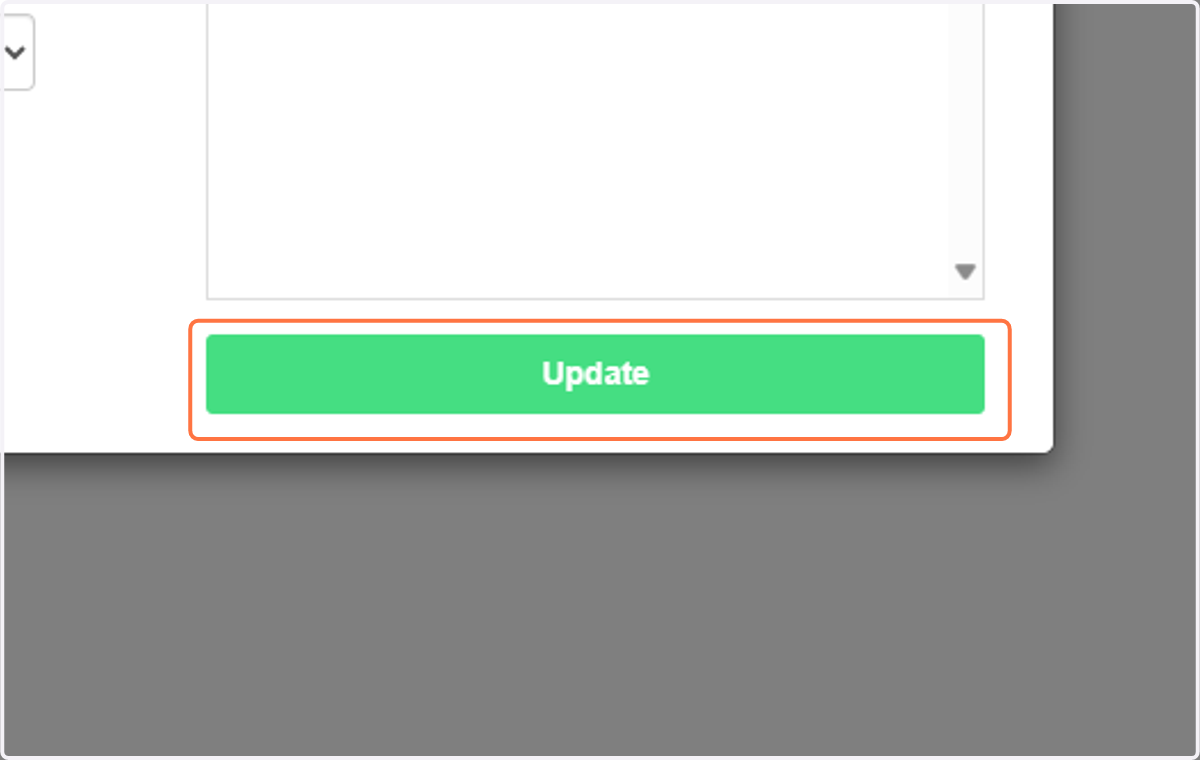
10. Click on Update to save your new user...
Your new user will receive TWO emails: 1 - welcome with a link to the platform and their user name, 2 - a separate email with their password