Editing Custom Fields and Folders

Horse Business Manager

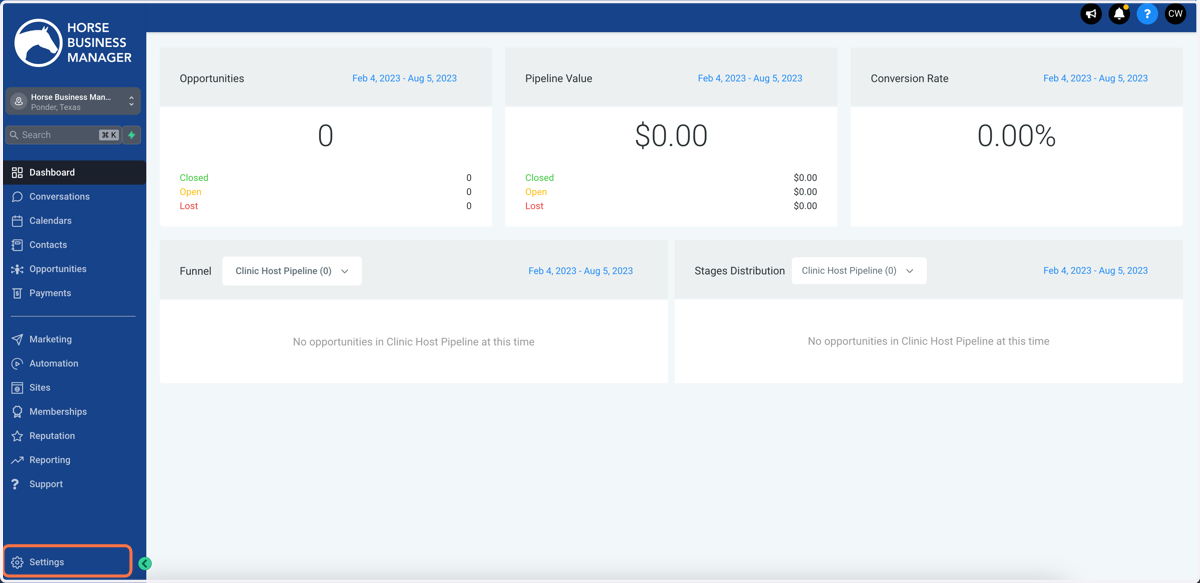
  1. 1. Click on Settings

    Click on Settings
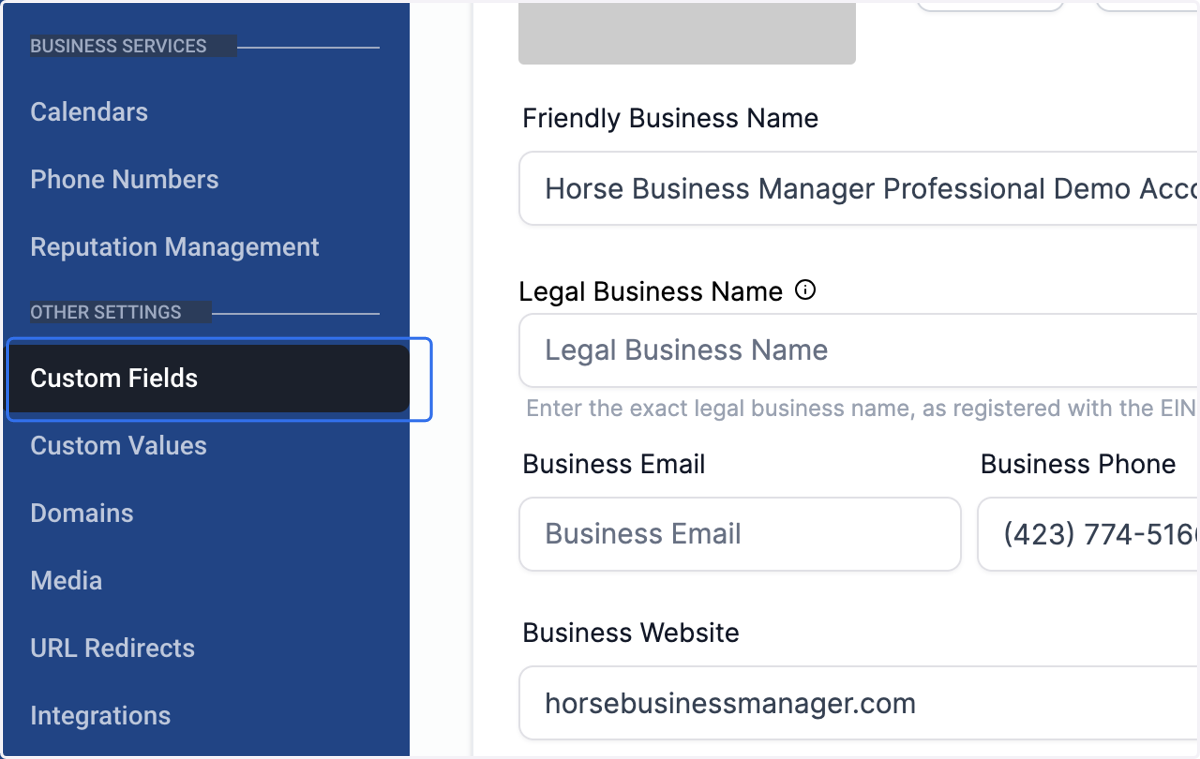
  2. 2. Click on Custom Fields

    Click on Custom Fields
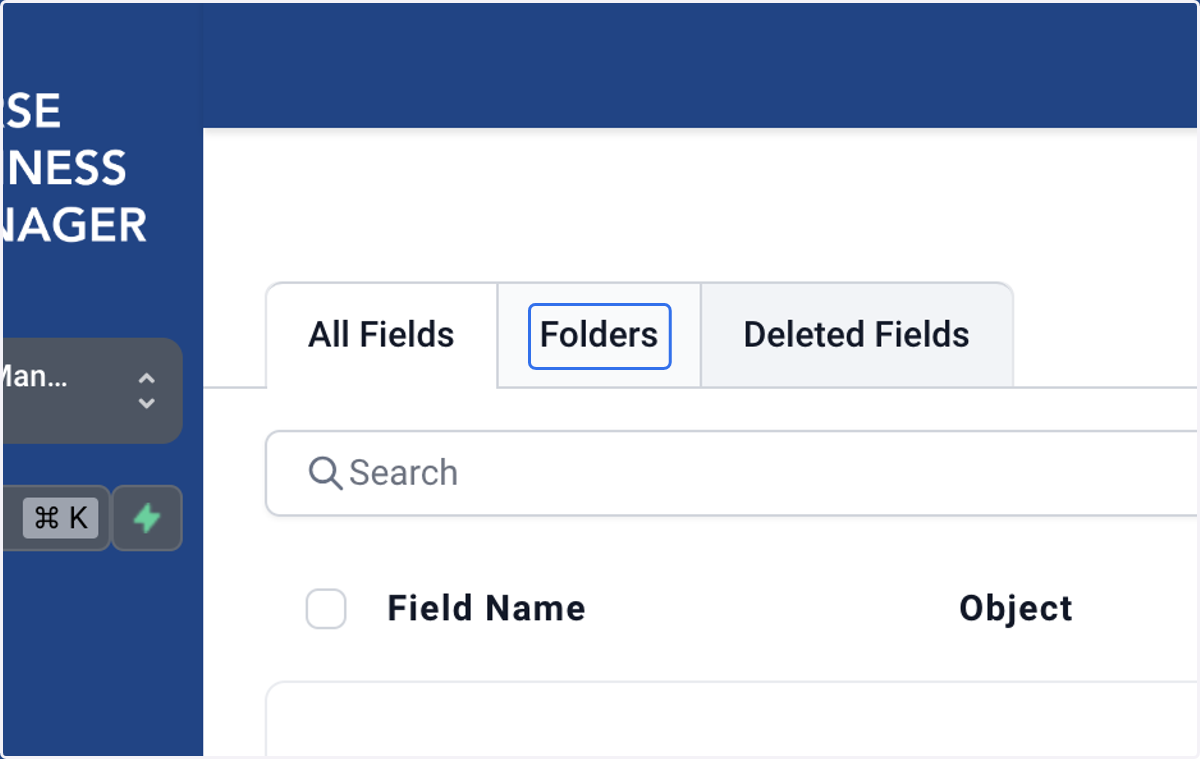
  3. 3. Click on Folders

    Click on Folders
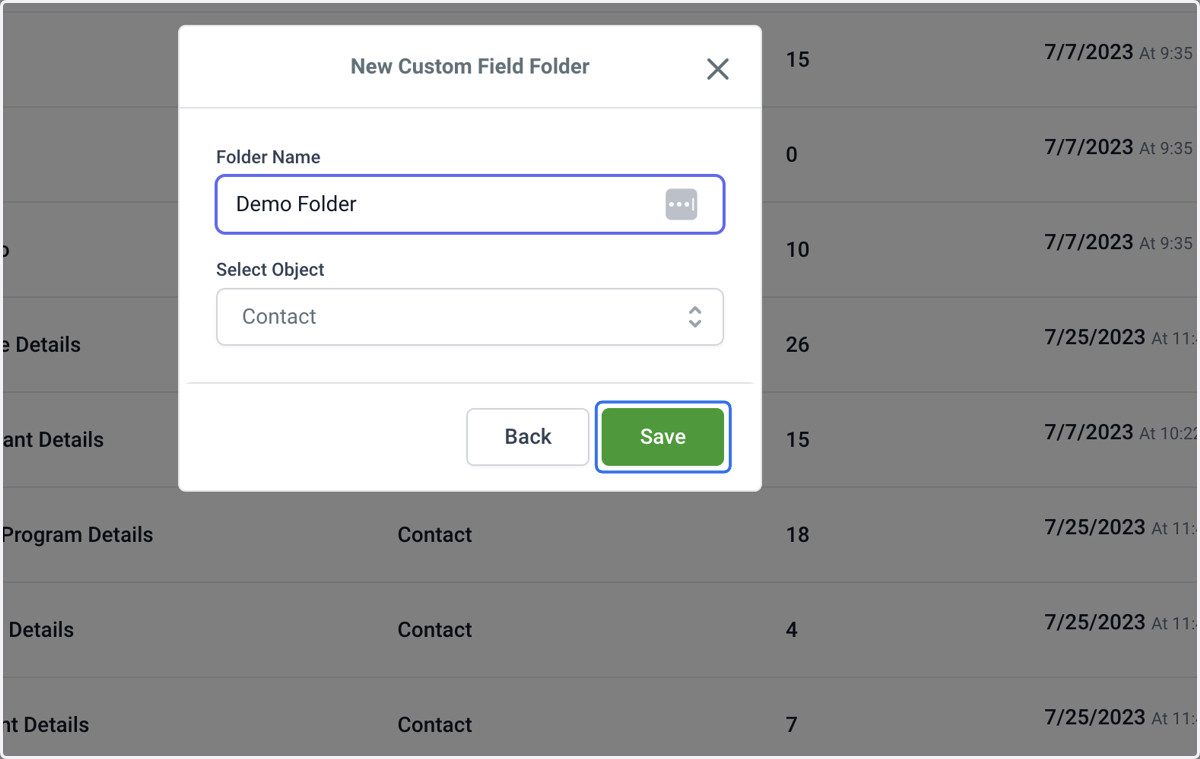
  4. 4. If you want to create a new folder, click Add Folder
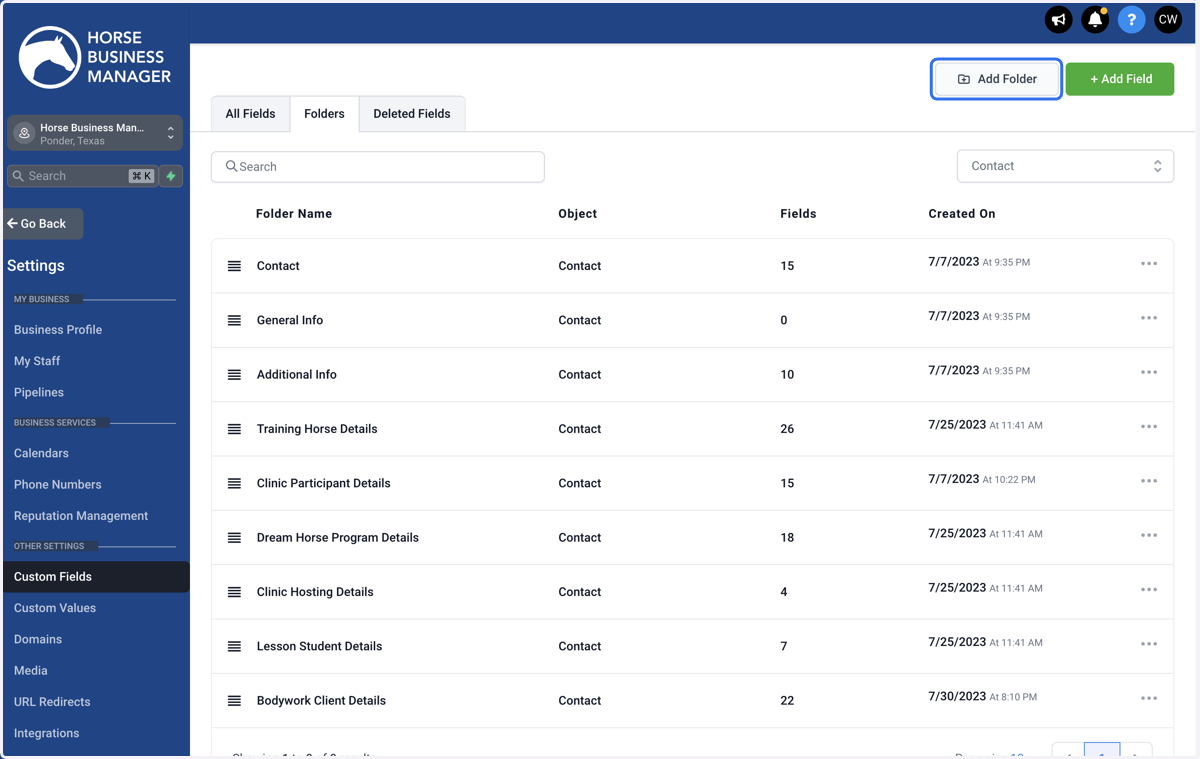
    If you want to create a new folder, click Add Folder
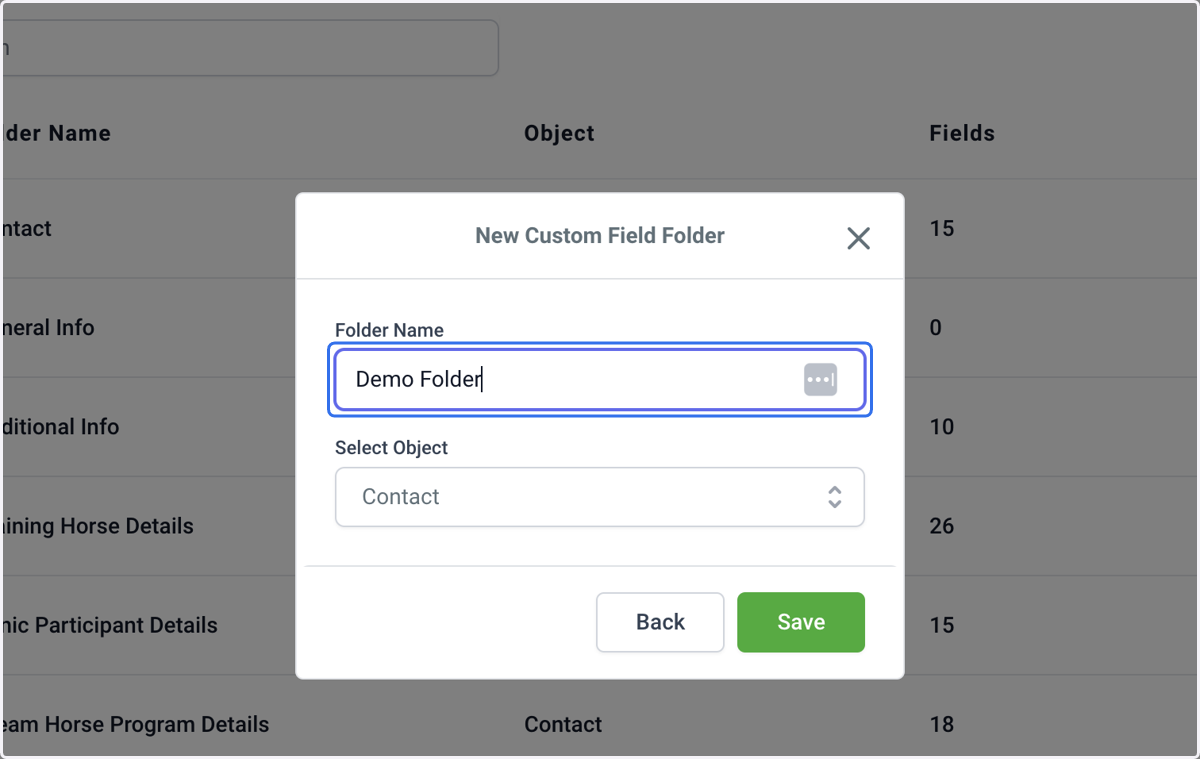
  5. 5. Type the name of your new folder

    Type the name of your new folder
  6. 6. Click on Save

    Click on Save
  7. 7. Or if you want to edit fields in an existing folder, select that folder.
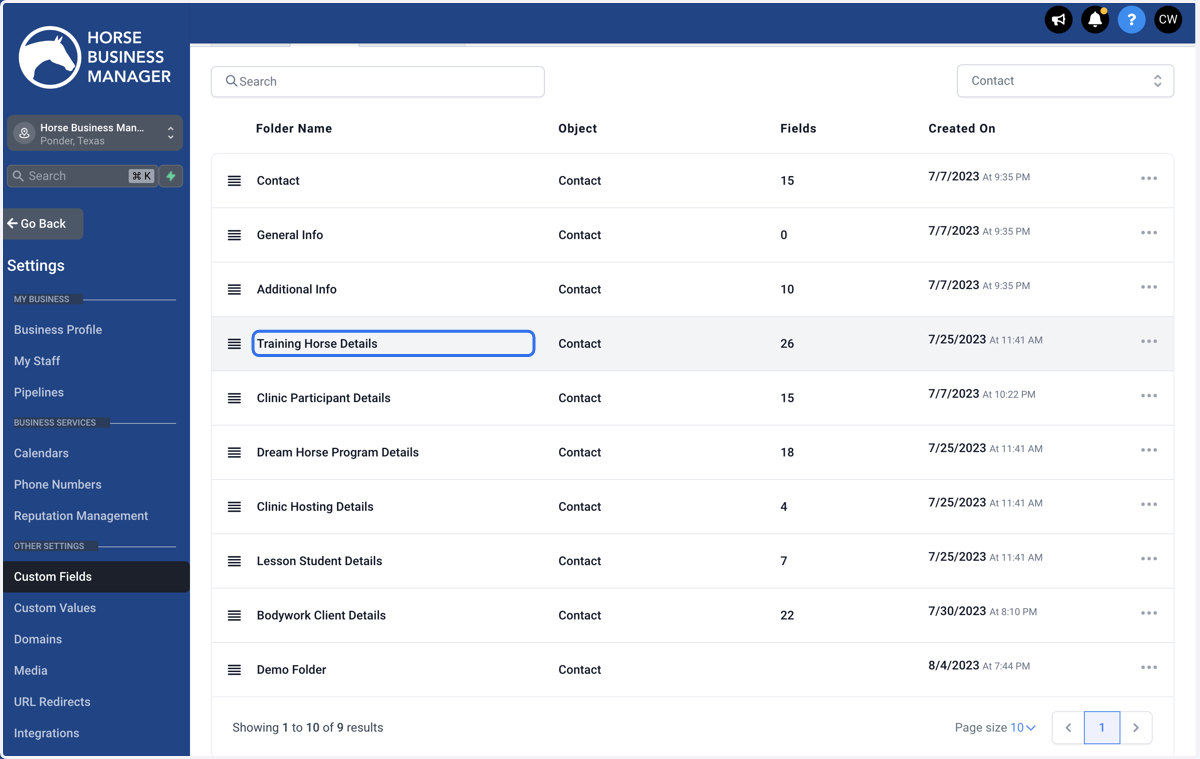
    Or if you want to edit fields in an existing folder, select that folder.
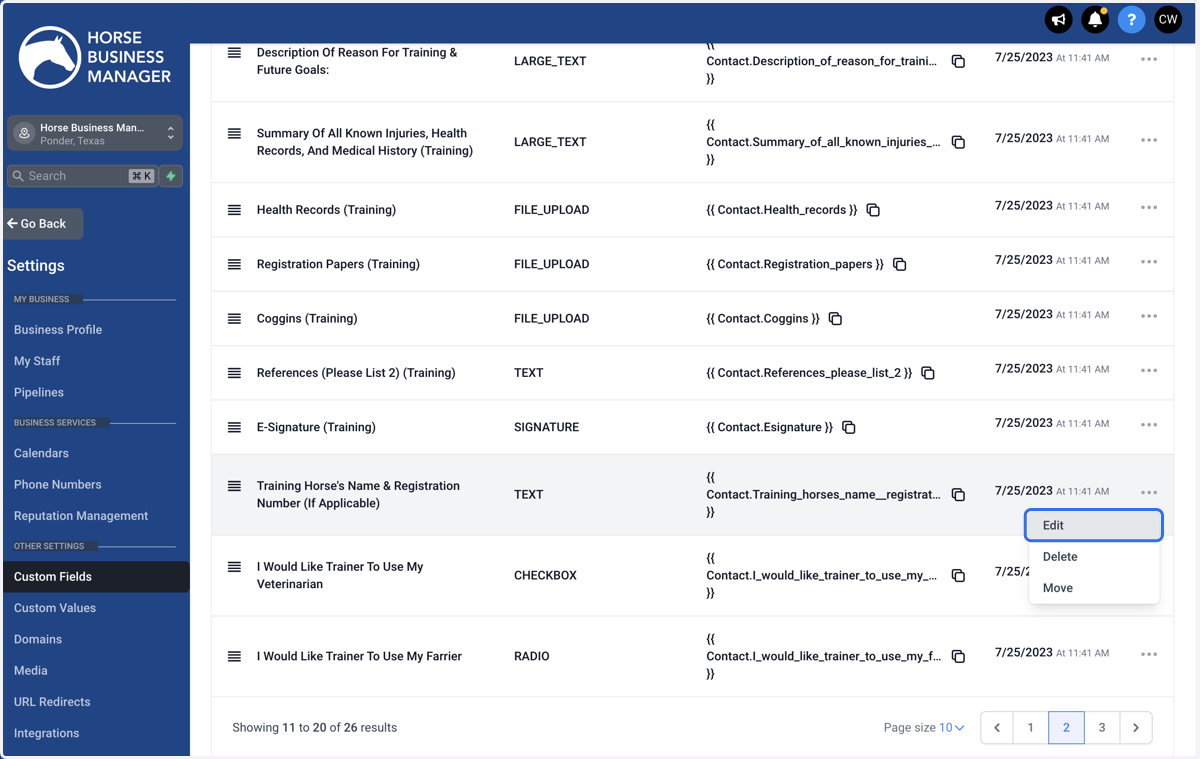
  8. 8. If you want to edit an existing field, click on the three dots
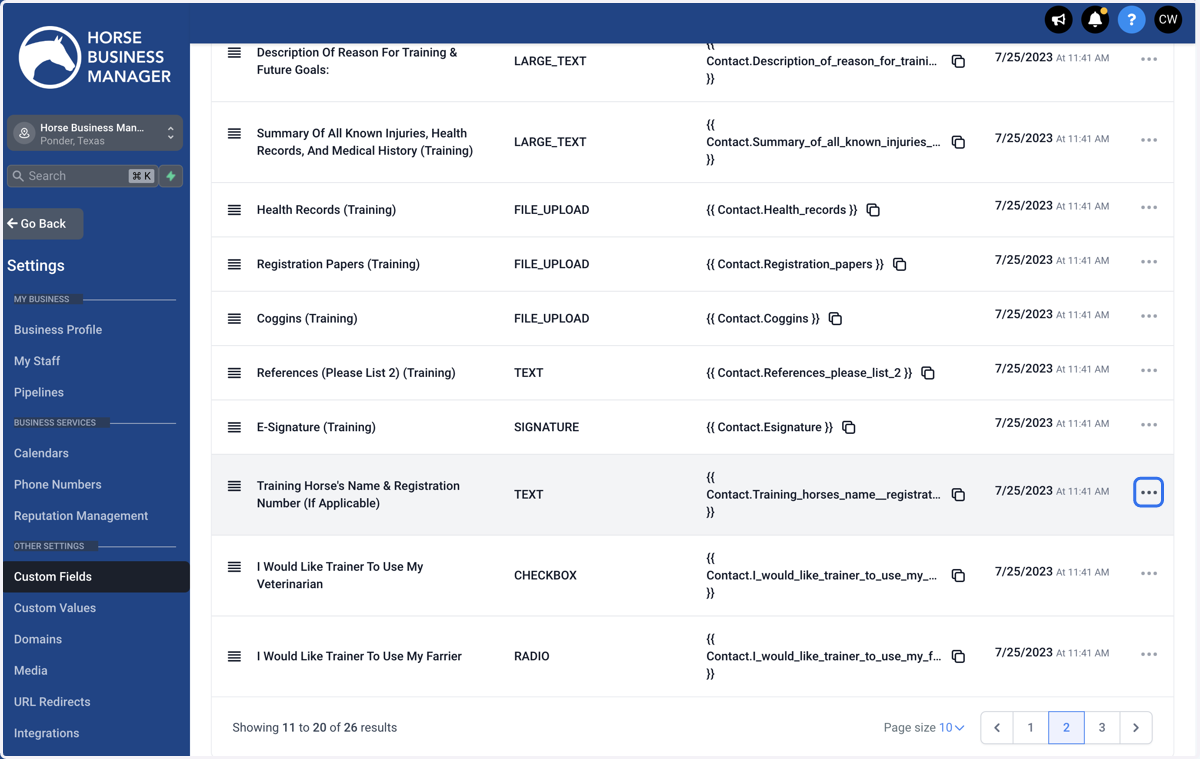
    If you want to edit an existing field, click on the three dots
  9. 9. Then click on Edit

    Then click on Edit
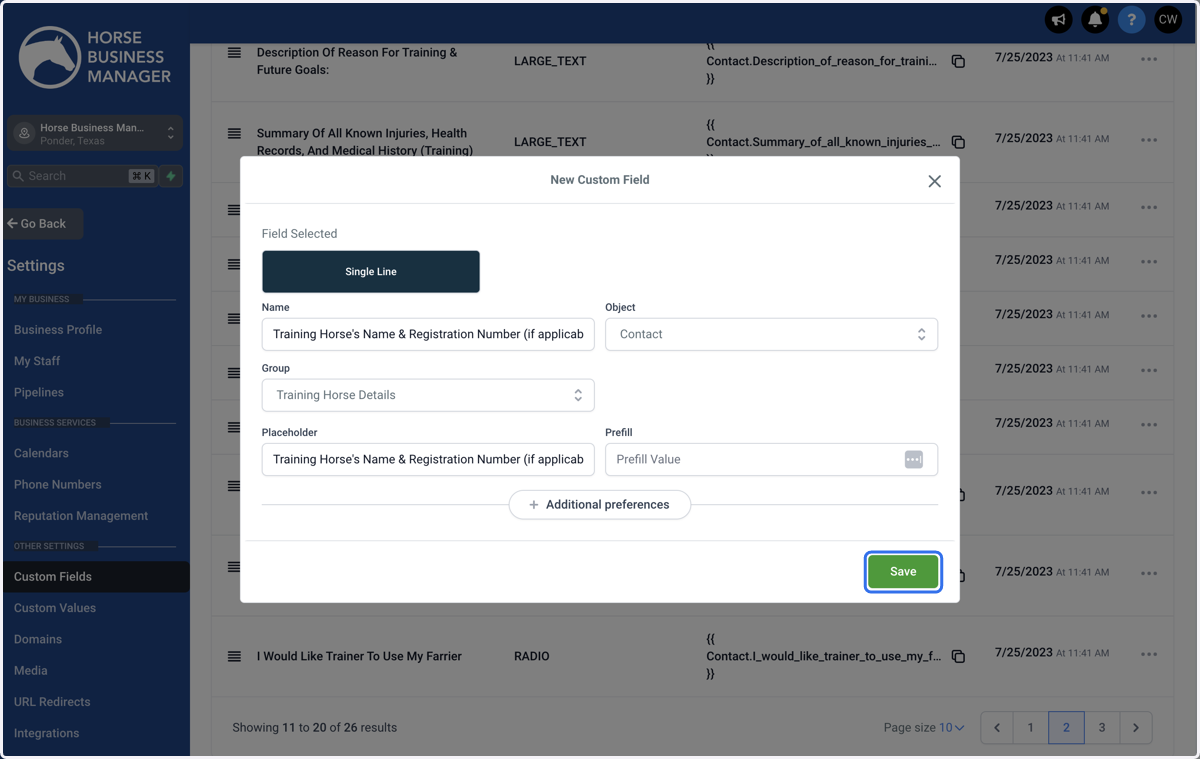
  10. 10. Use the Custom Field Editor box to edit the existing custom field.
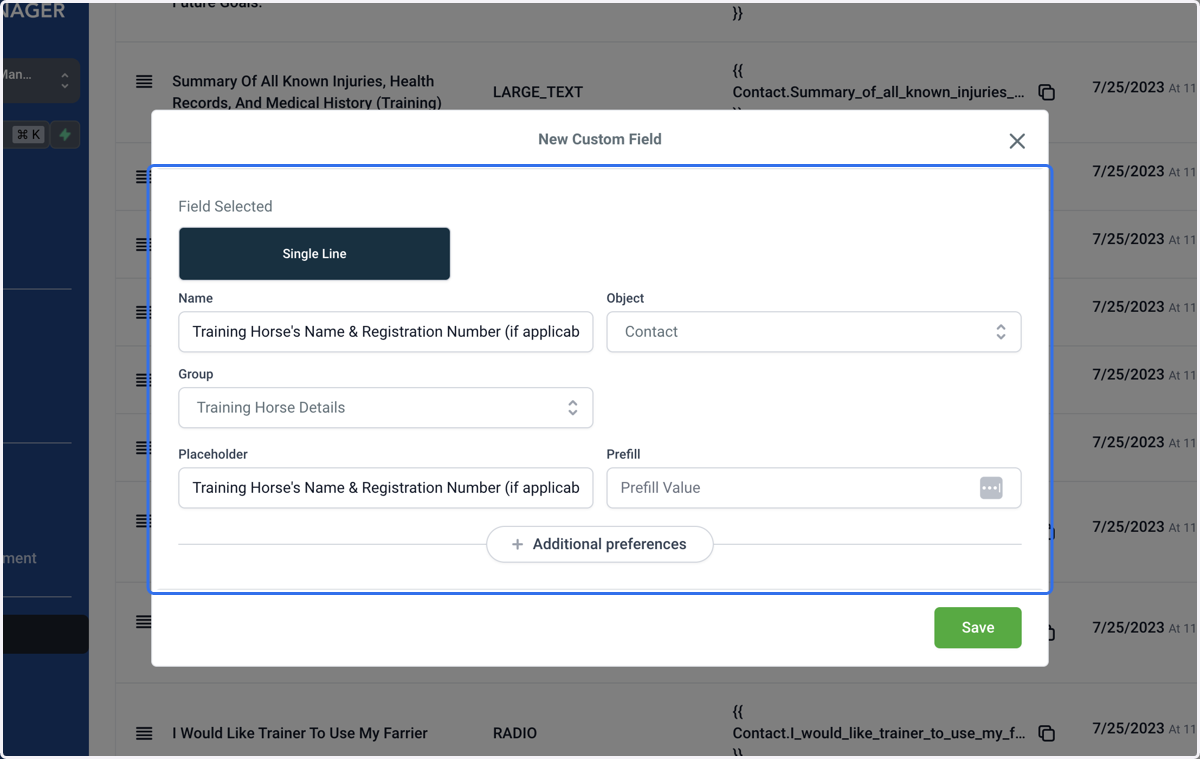
    Use the Custom Field Editor box to edit the existing custom field.
  11. 11. Click on Save

    Click on Save
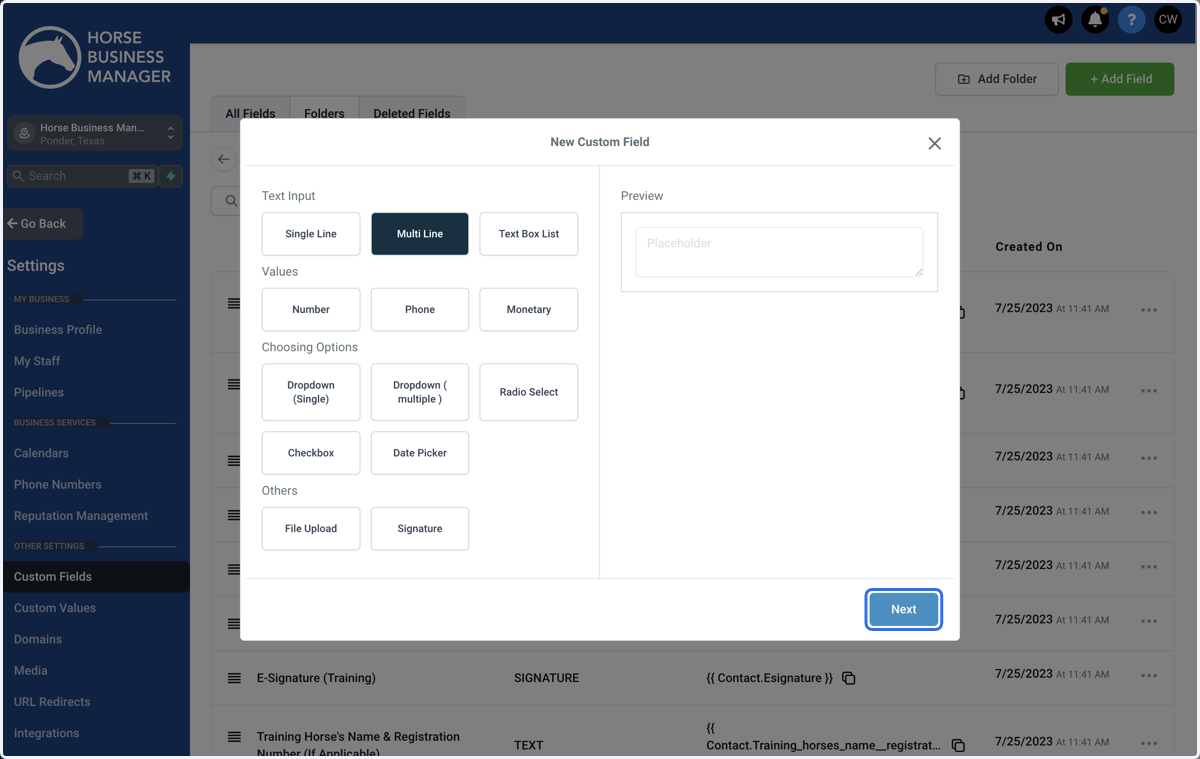
  12. 12. If you want to add a new Custom Field to the folder, click Add Field
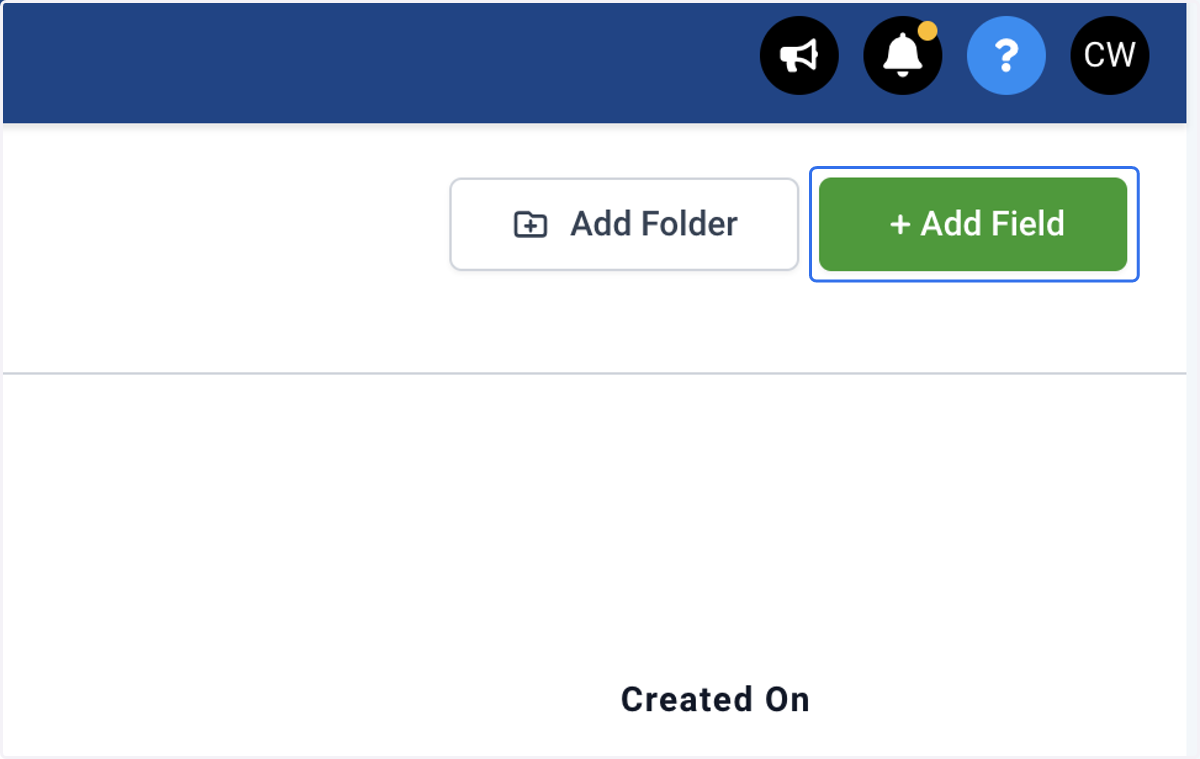
    If you want to add a new Custom Field to the folder, click Add Field
  13. 13. Select the type of field you want to add
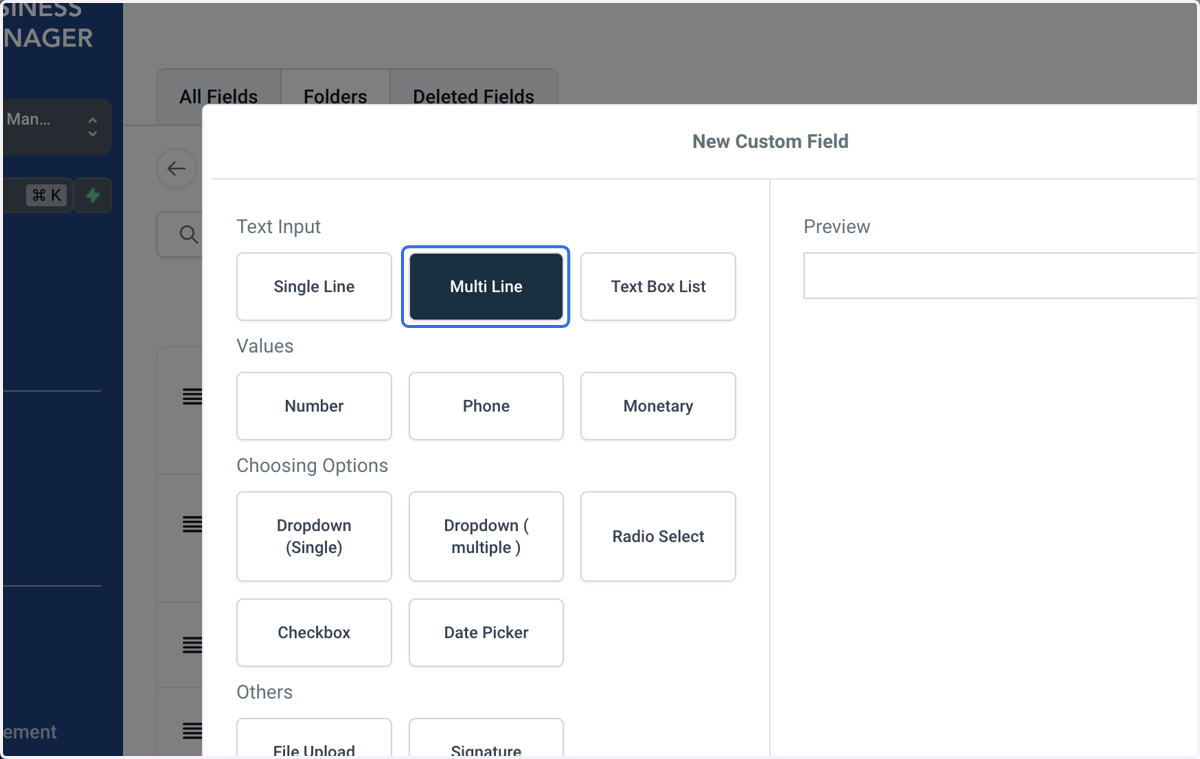
    Select the type of field you want to add
  14. 14. Click on Next

    Click on Next
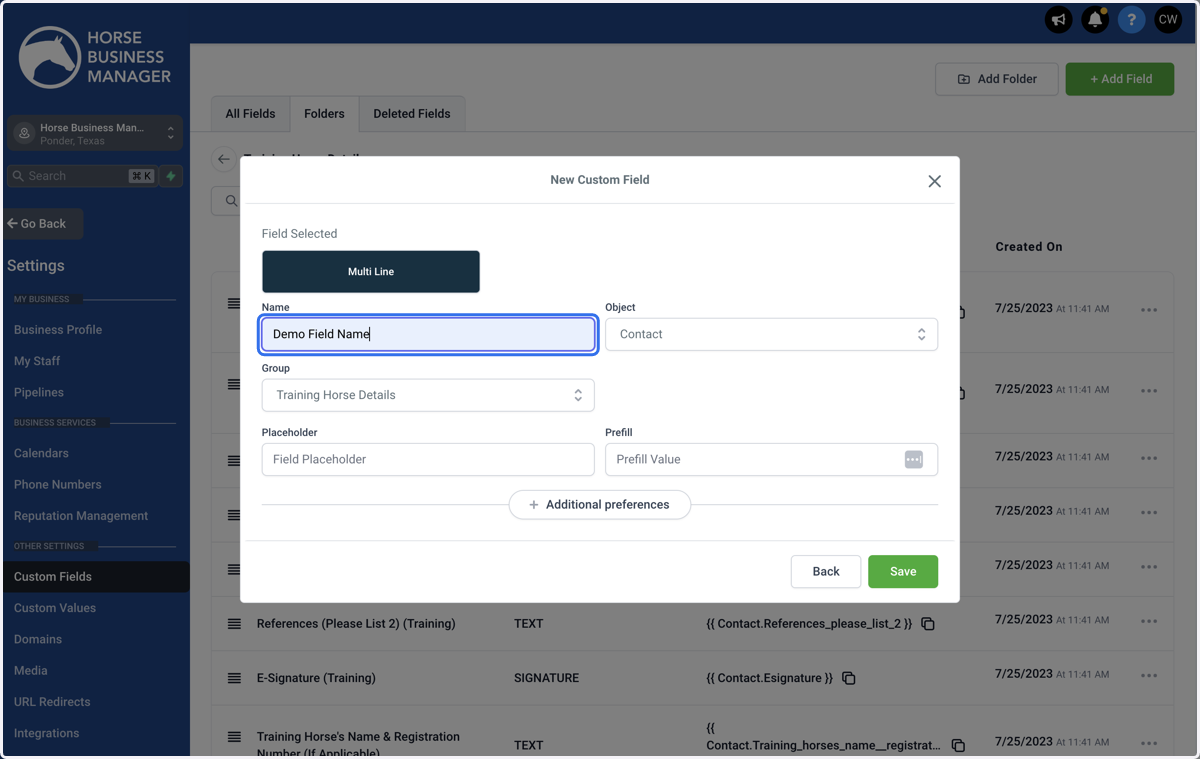
  15. 15. Type the name of the field

    Type the name of the field
  16. 16. Select the Group (folder) that you want this field to show up in
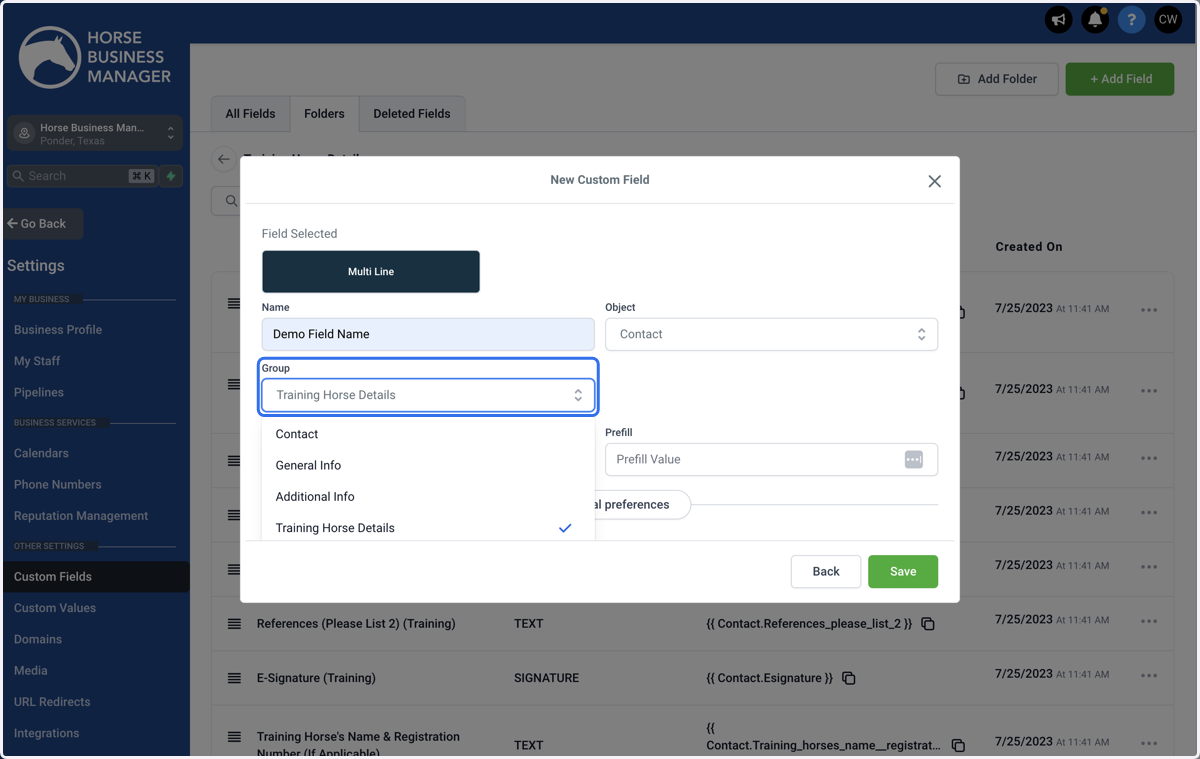
    Select the Group (folder) that you want this field to show up in
  17. 17. Complete any of the other sections that you
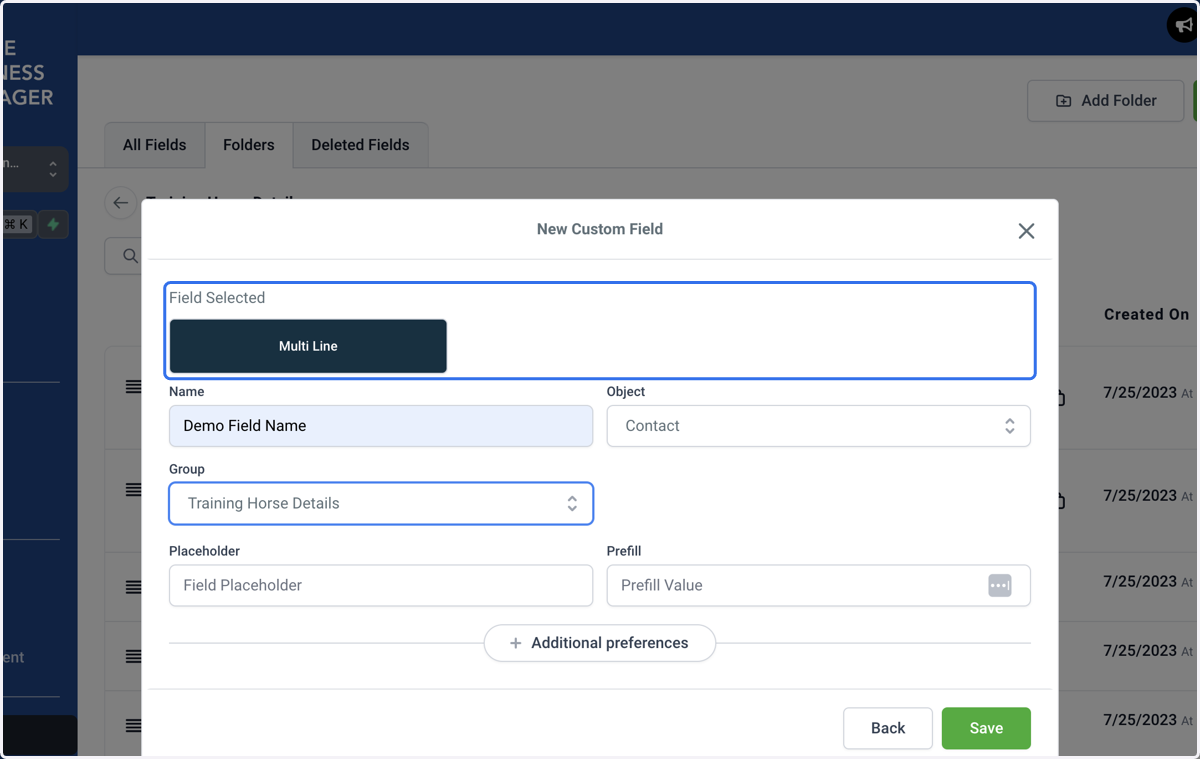
    Complete any of the other sections that you
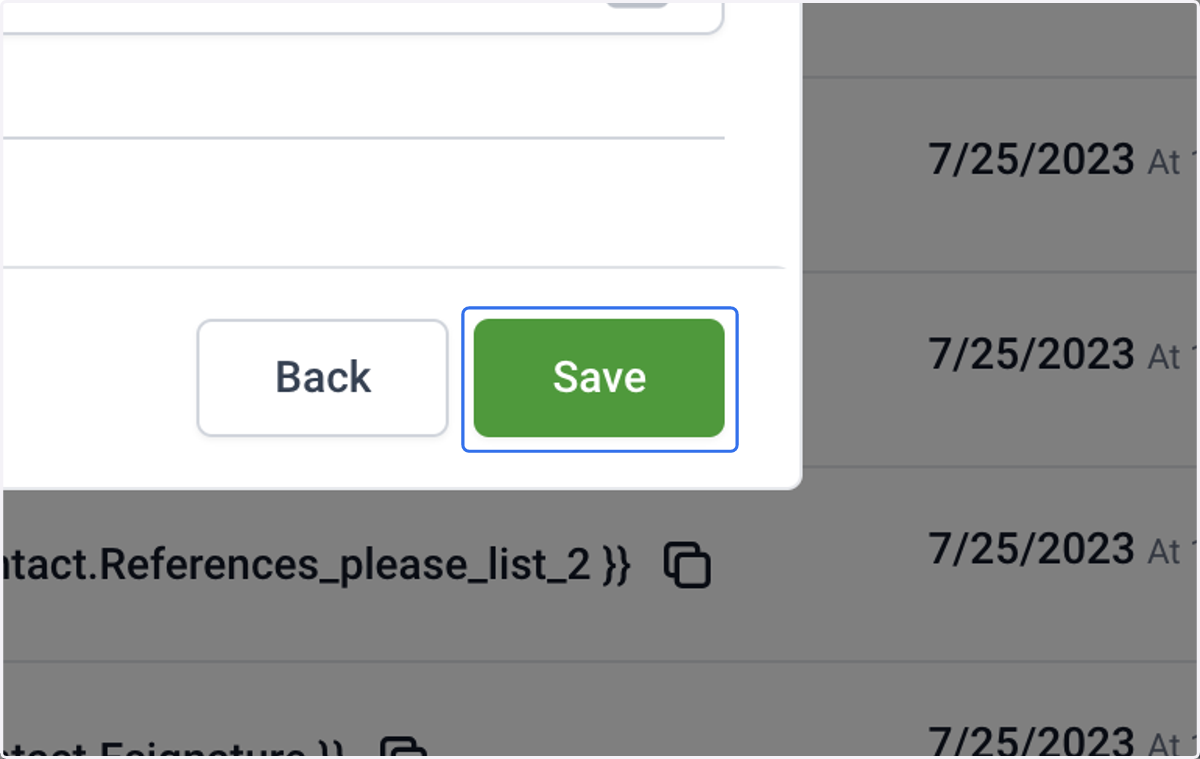
  18. 18. Click on Save

    Click on Save