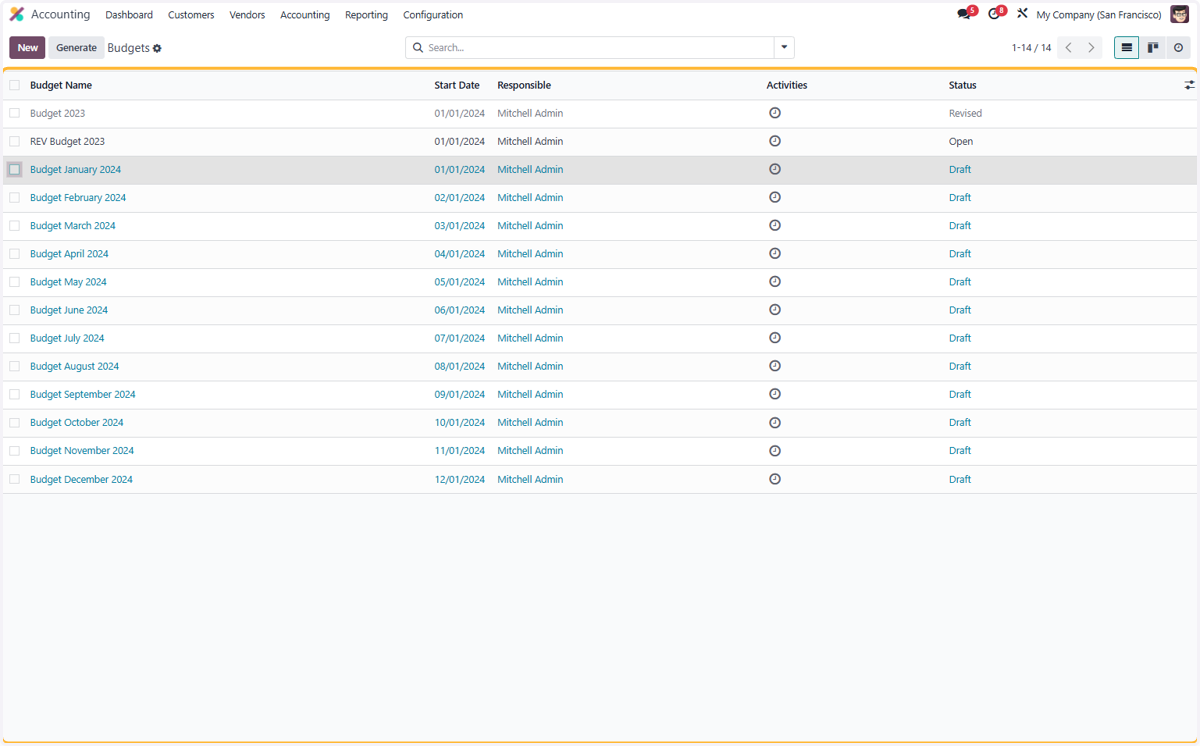
4.1 How to manage Analytic Budget
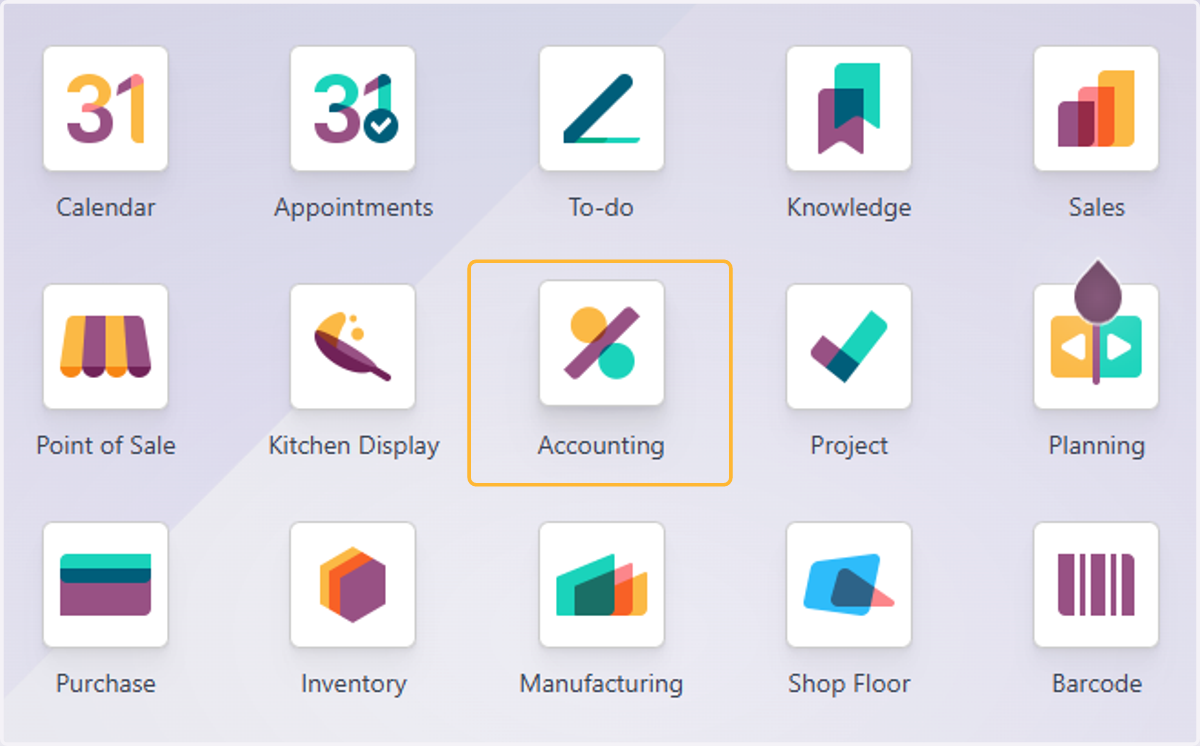
1. Click on Accounting
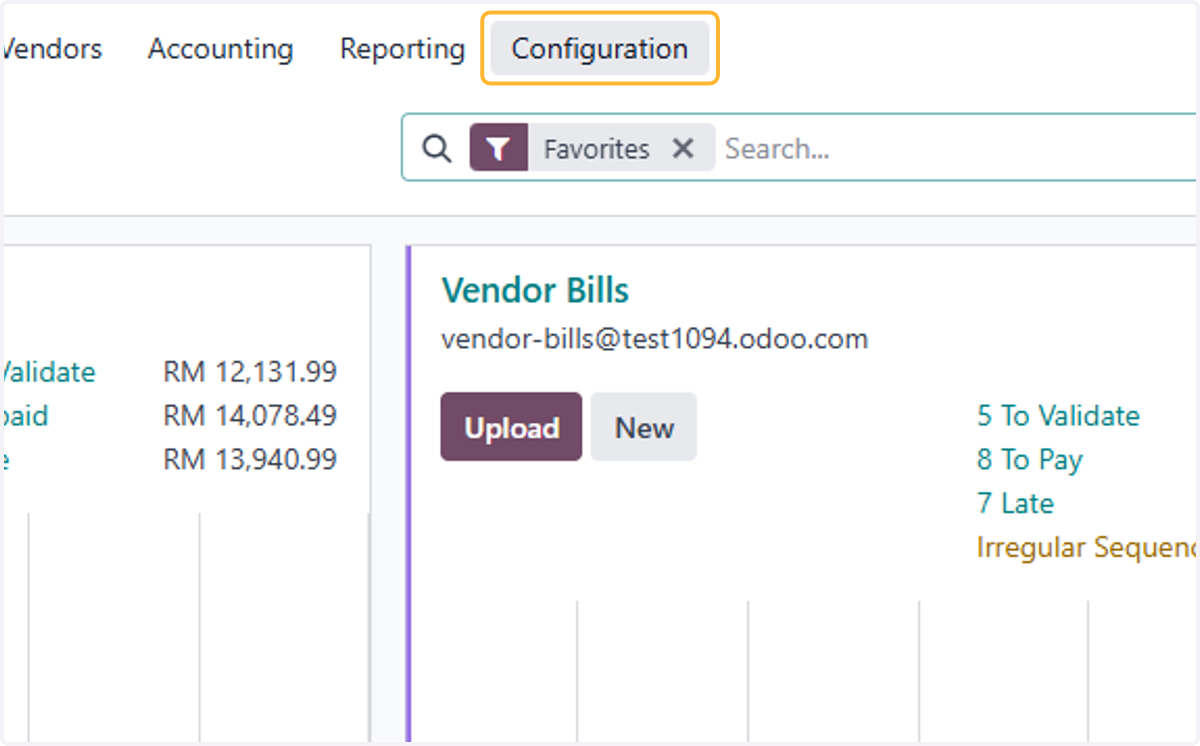
2. Click on Configuration
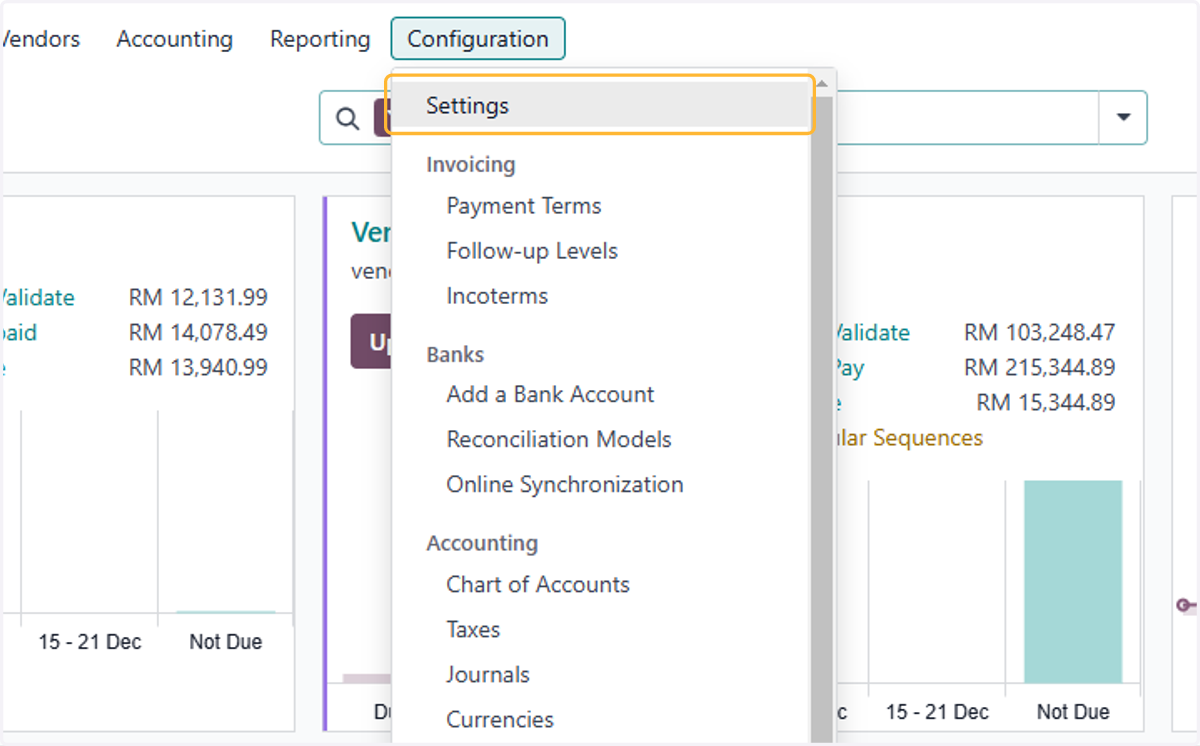
3. Click on Settings
4. Type "bud"
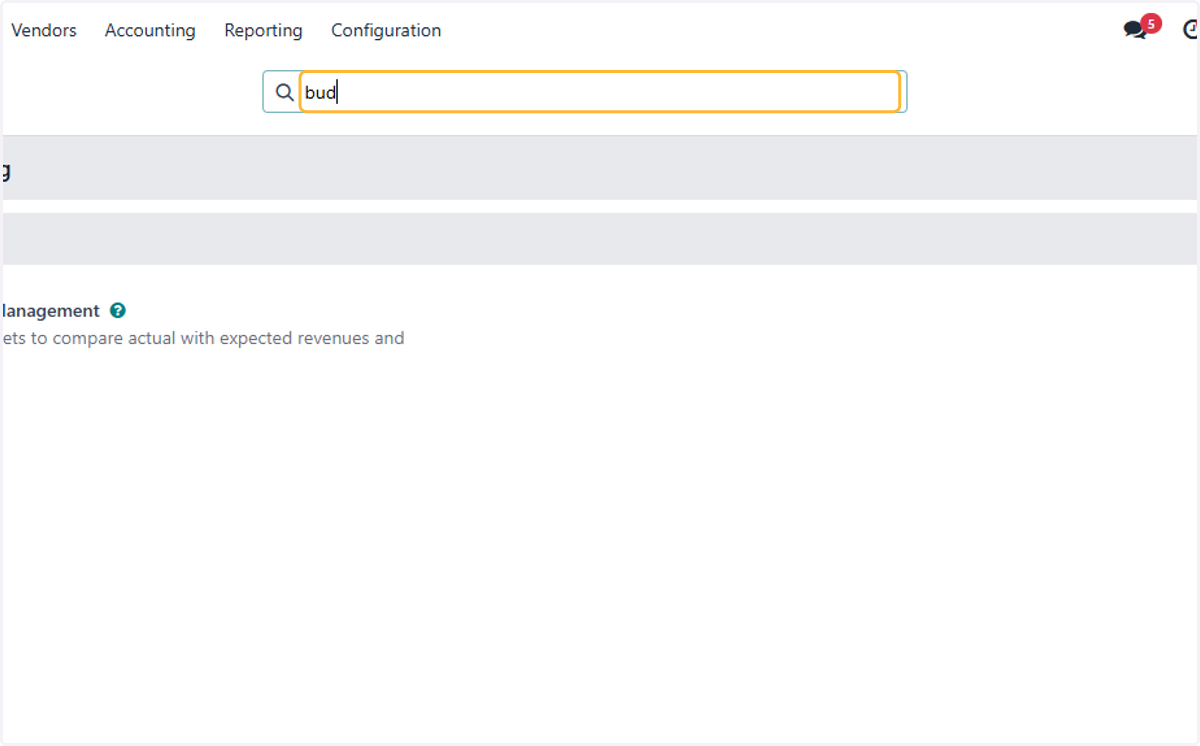
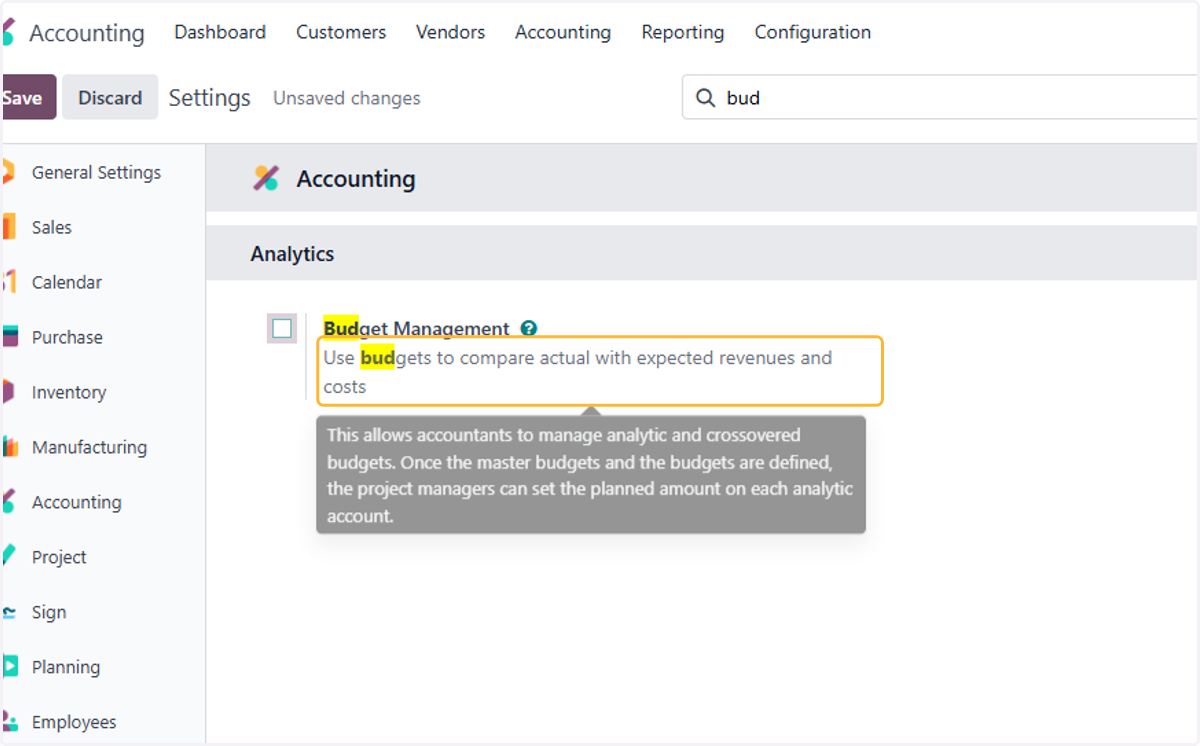
5. Enable Budget Management
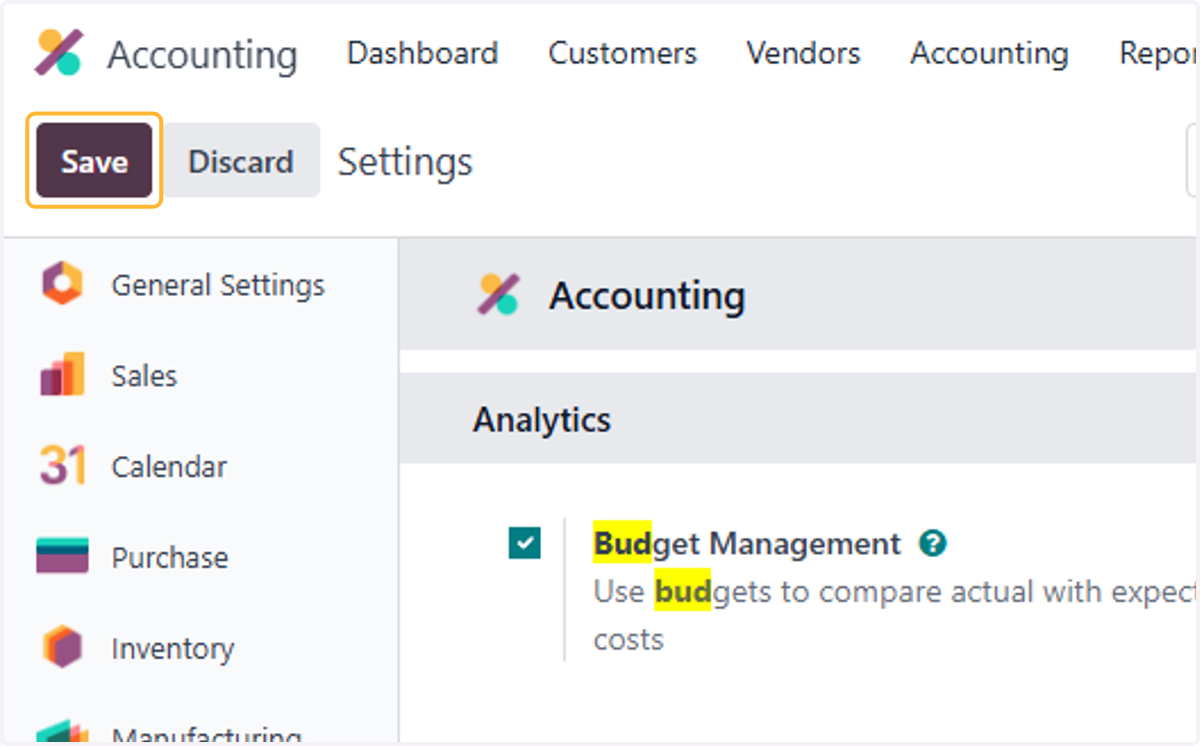
6. Click on Save
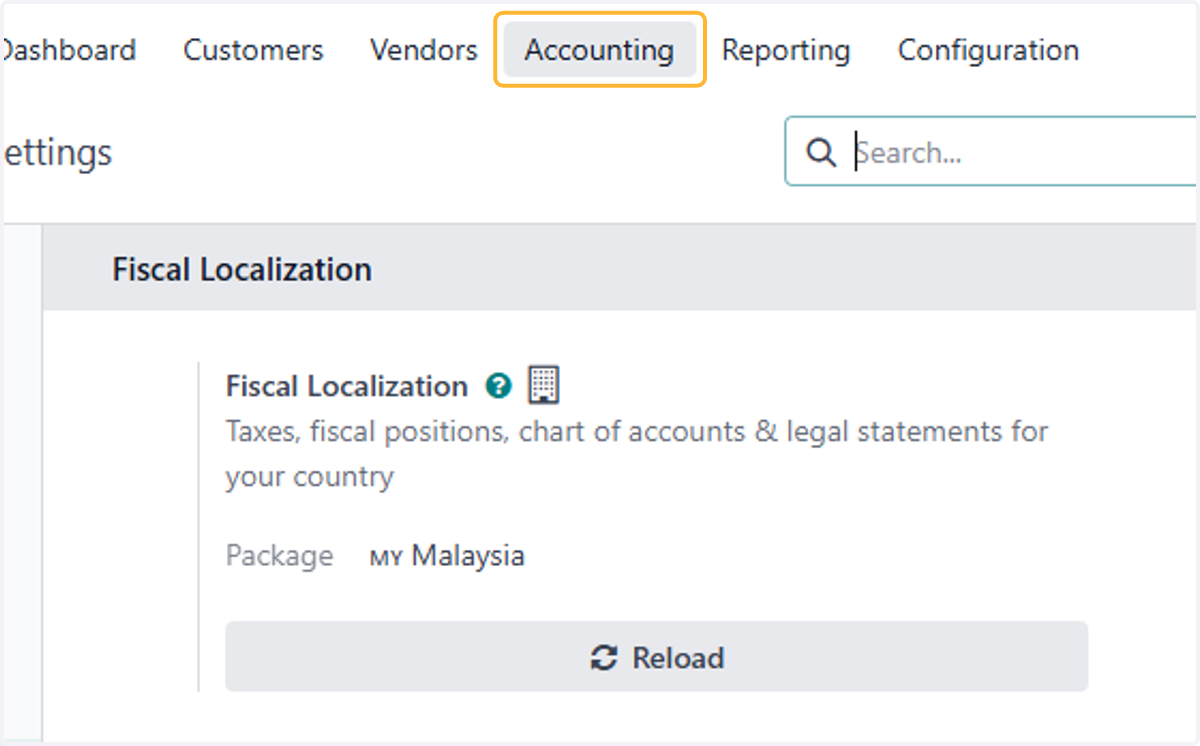
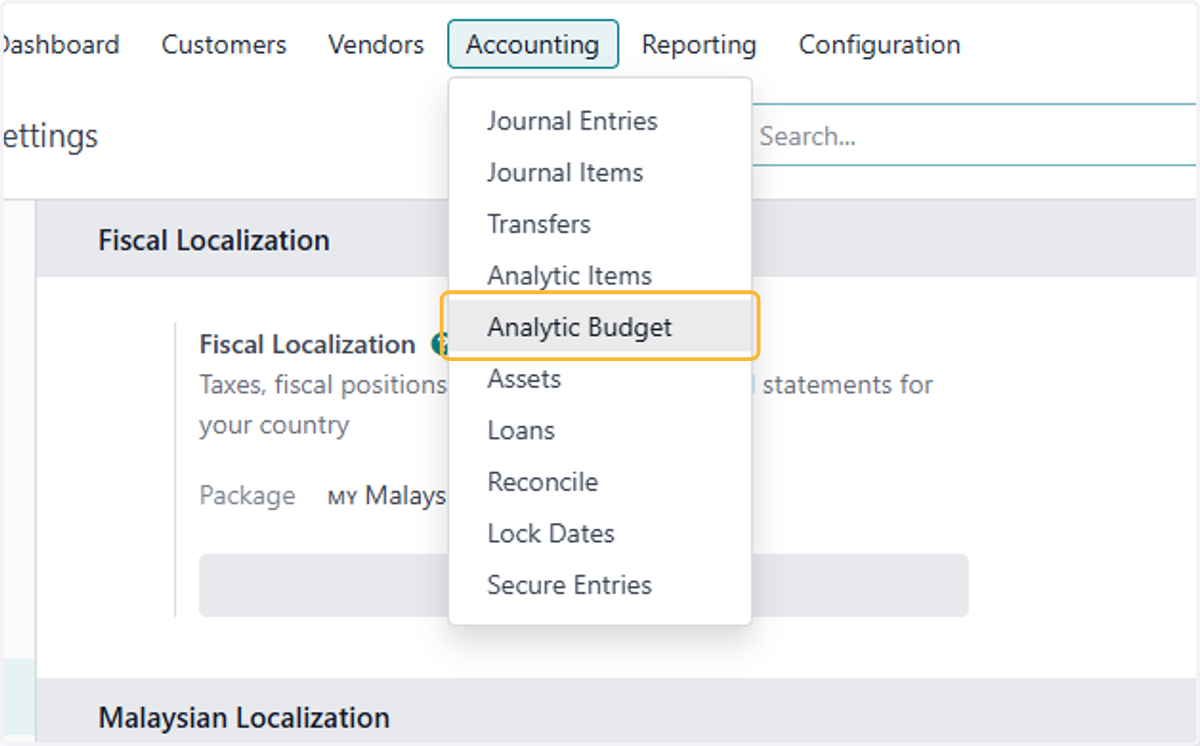
7. Click on Accounting
8. Click on Analytic Budget
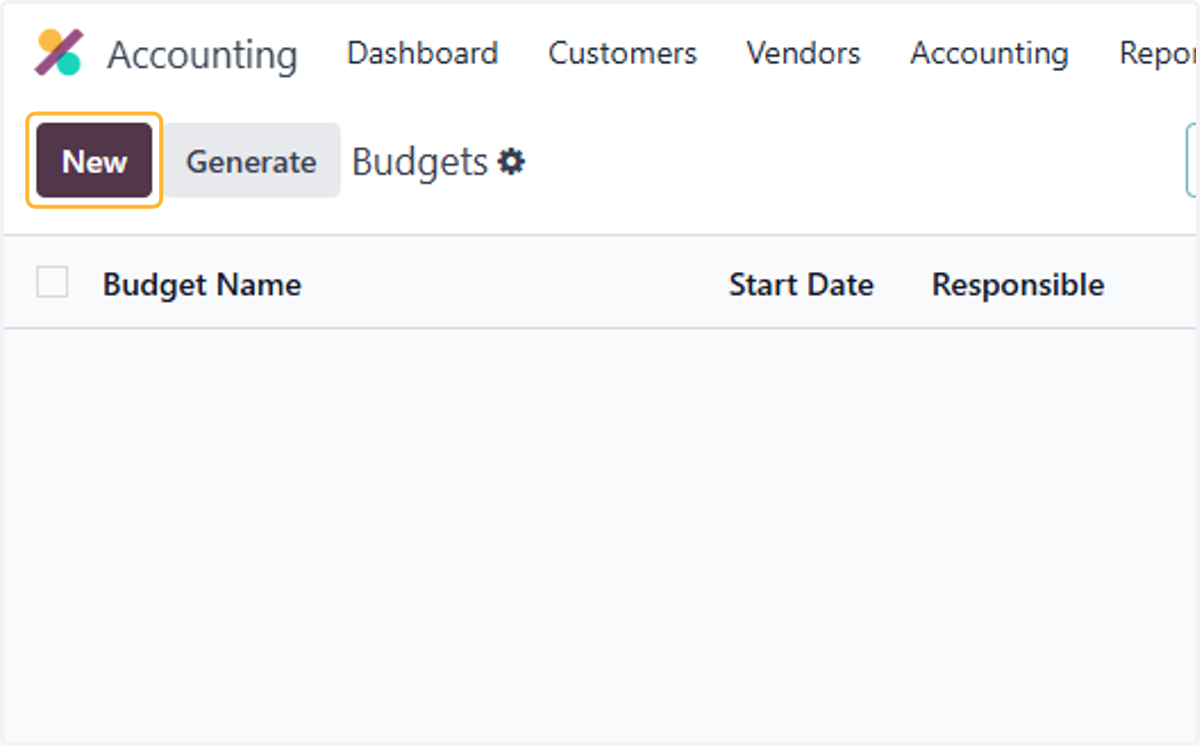
9. Click on New
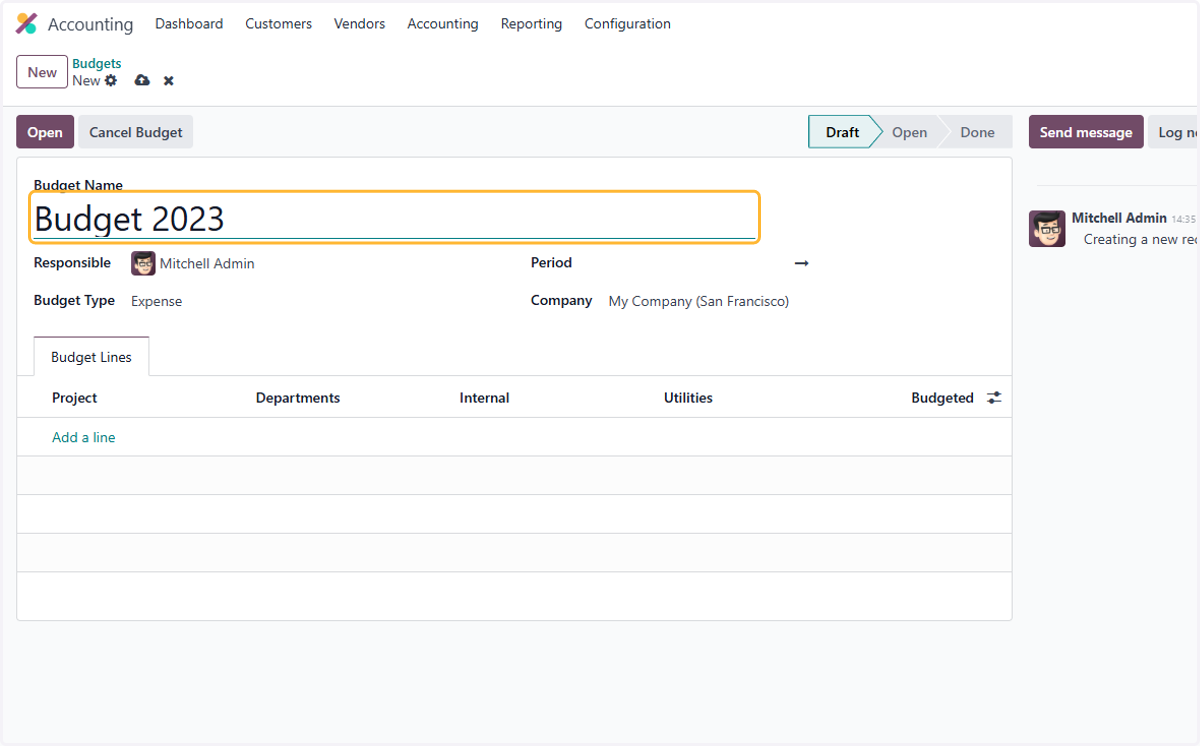
10. Fill in name of Budget
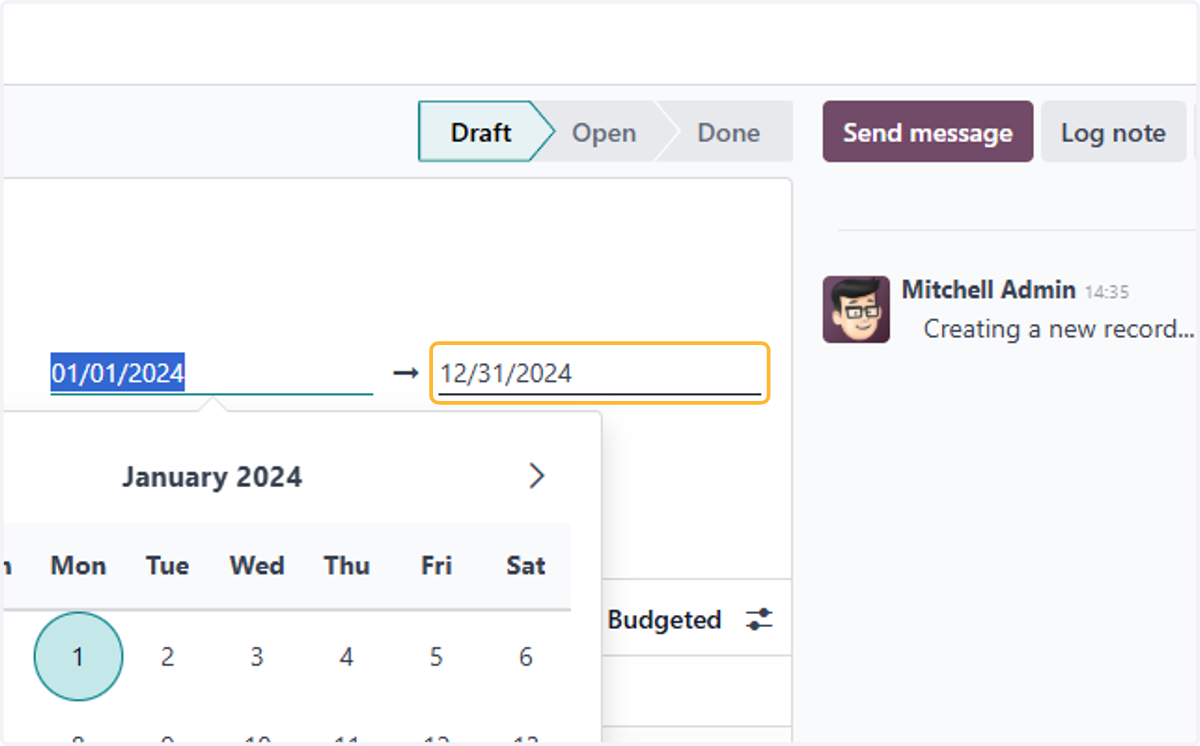
11. Select a start date for period of budget
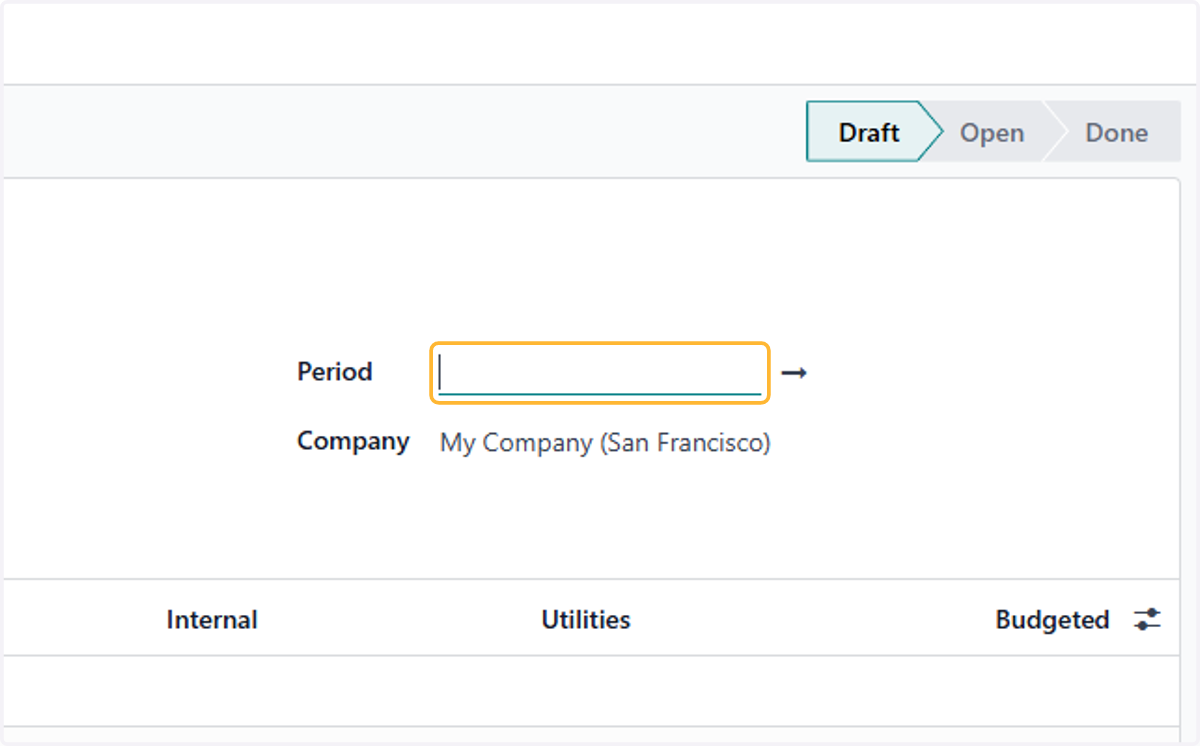
12. Select end date of period of budget
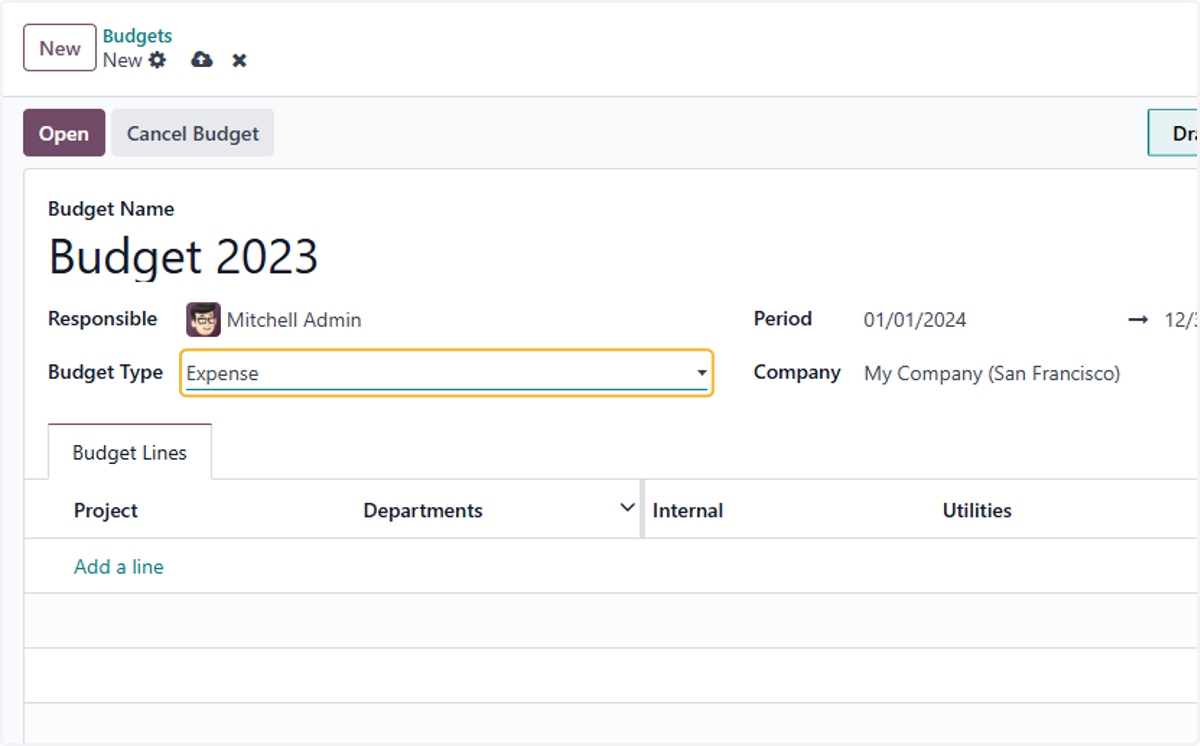
13. Select Budget Type
There are 3 option. Revenue, Expense & Combination of Both
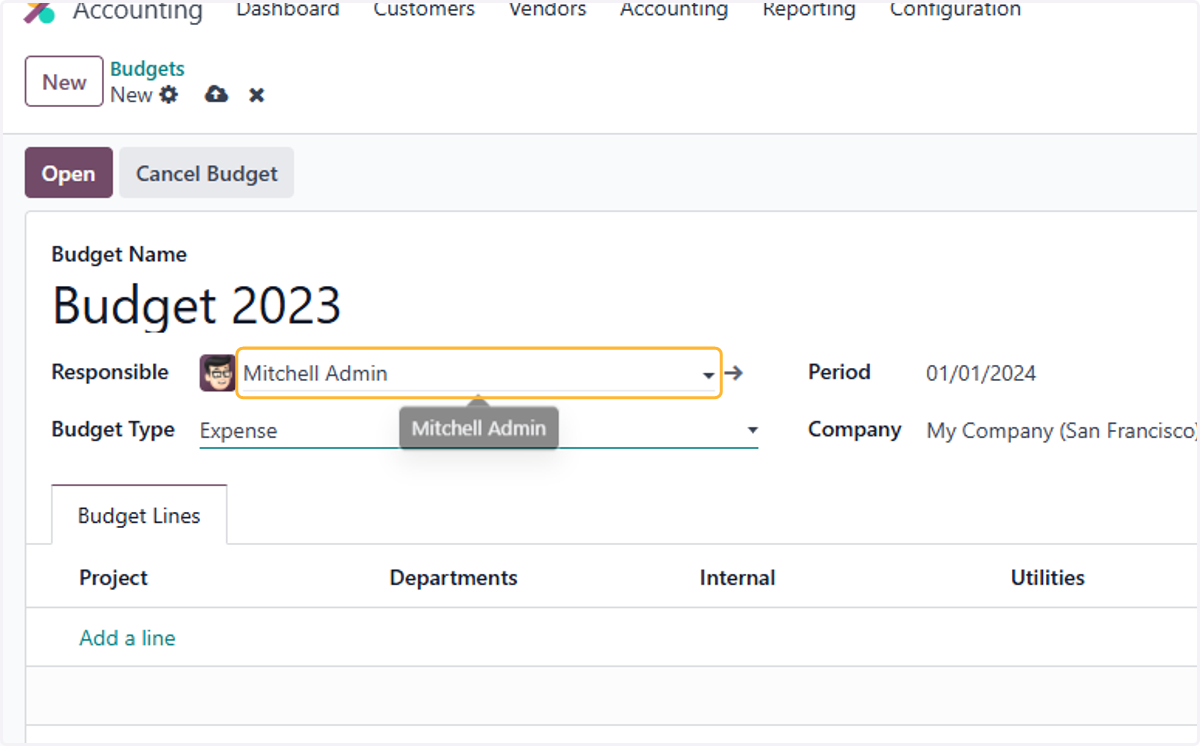
14. By default, the user is set as responsible for the budget. Amend if needed
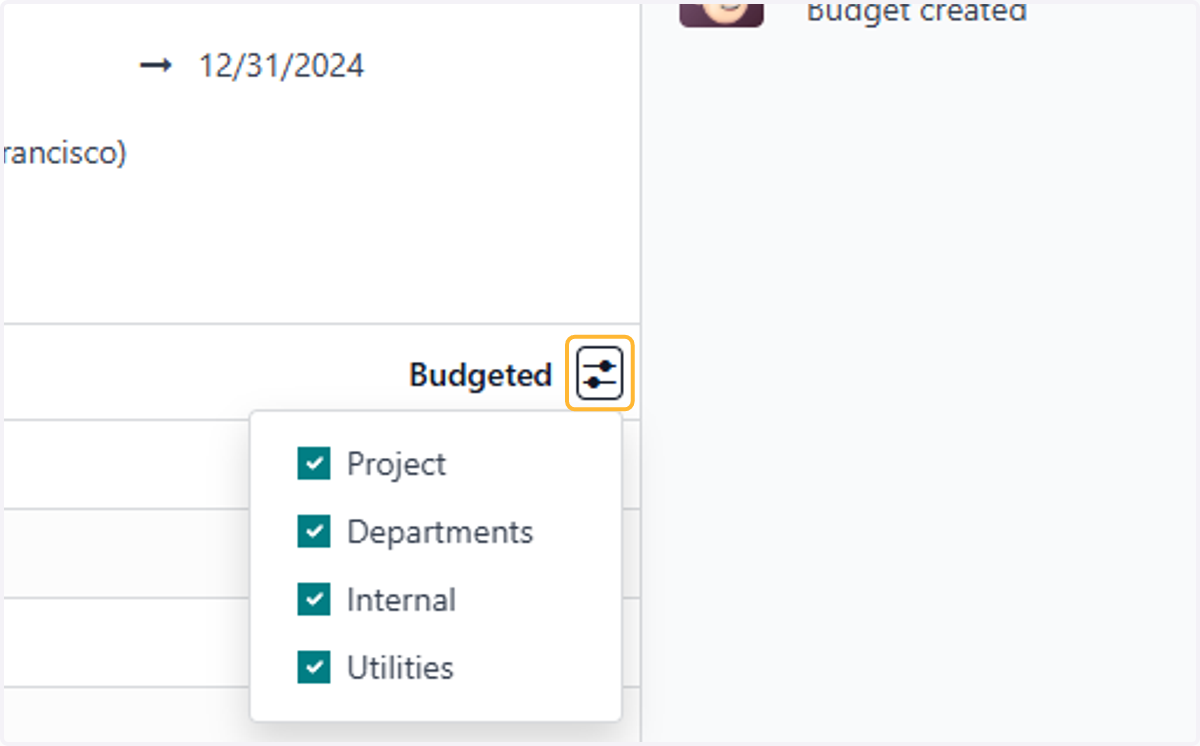
15. Click on highlight for dropdown menu to allow/disallow analytic plans included in the budget
16. Click on Add a line
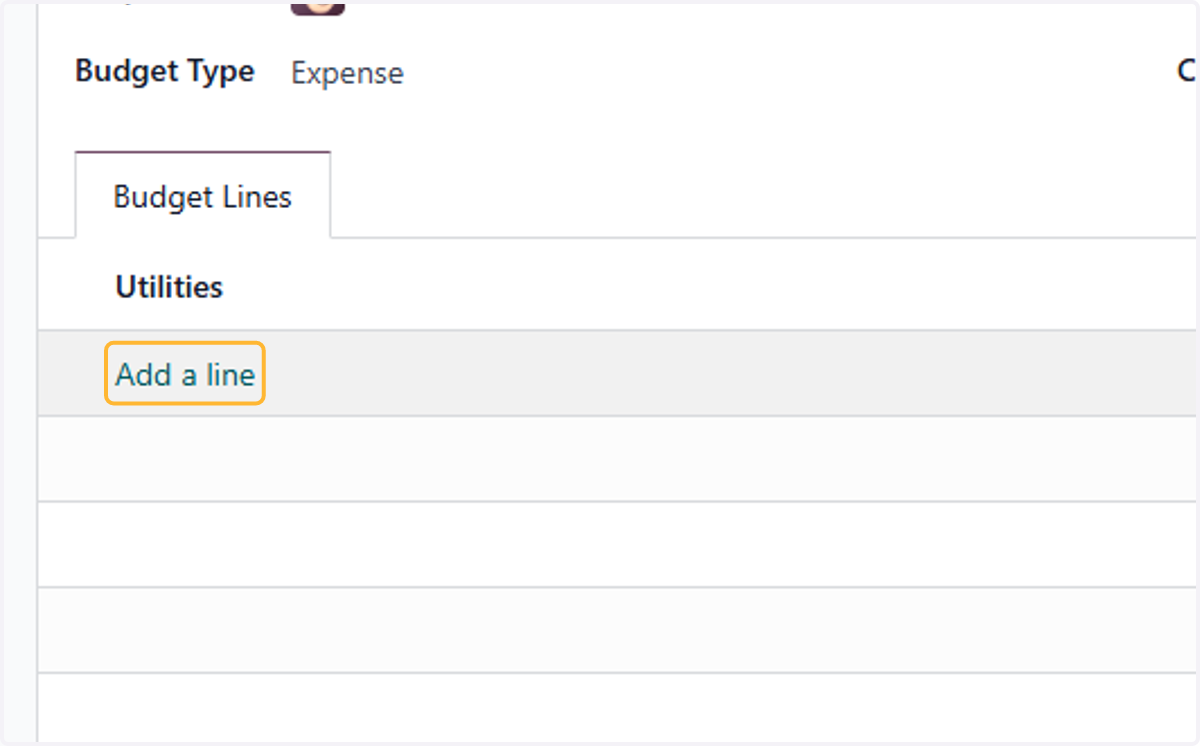
17. Fill in relevant analytic accounts/tags
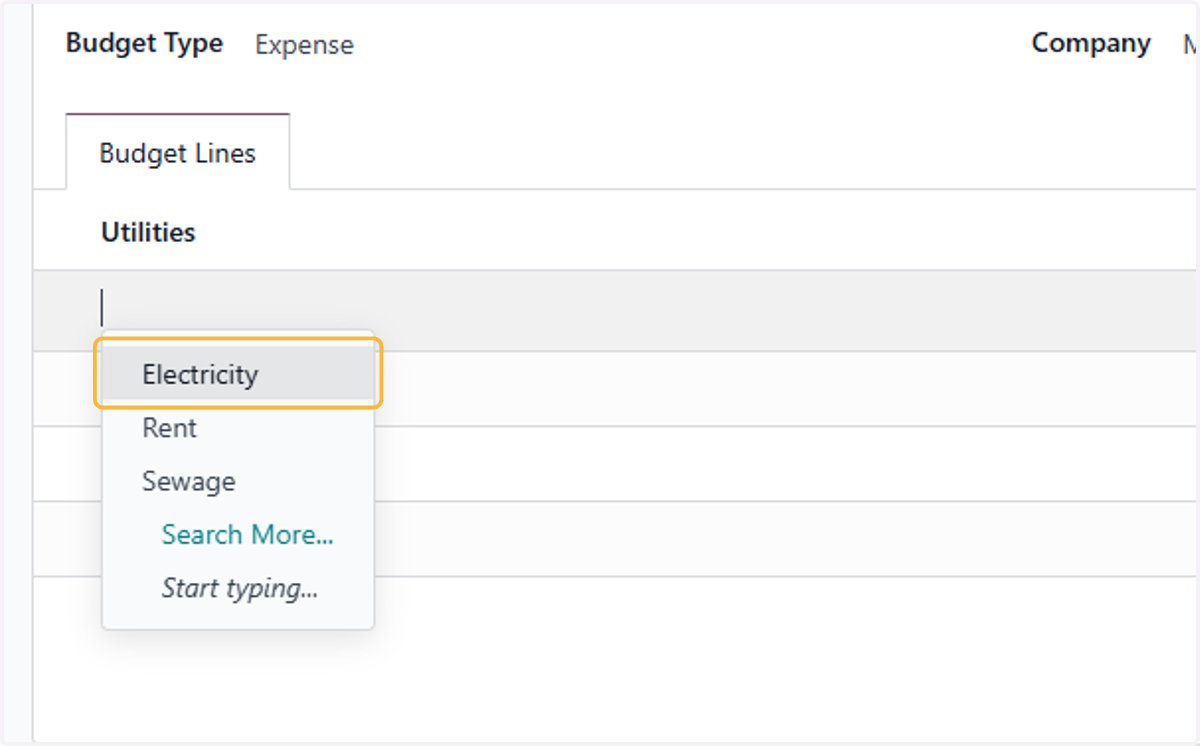
18. For example, Electricity, Rent & Sewage has been selected
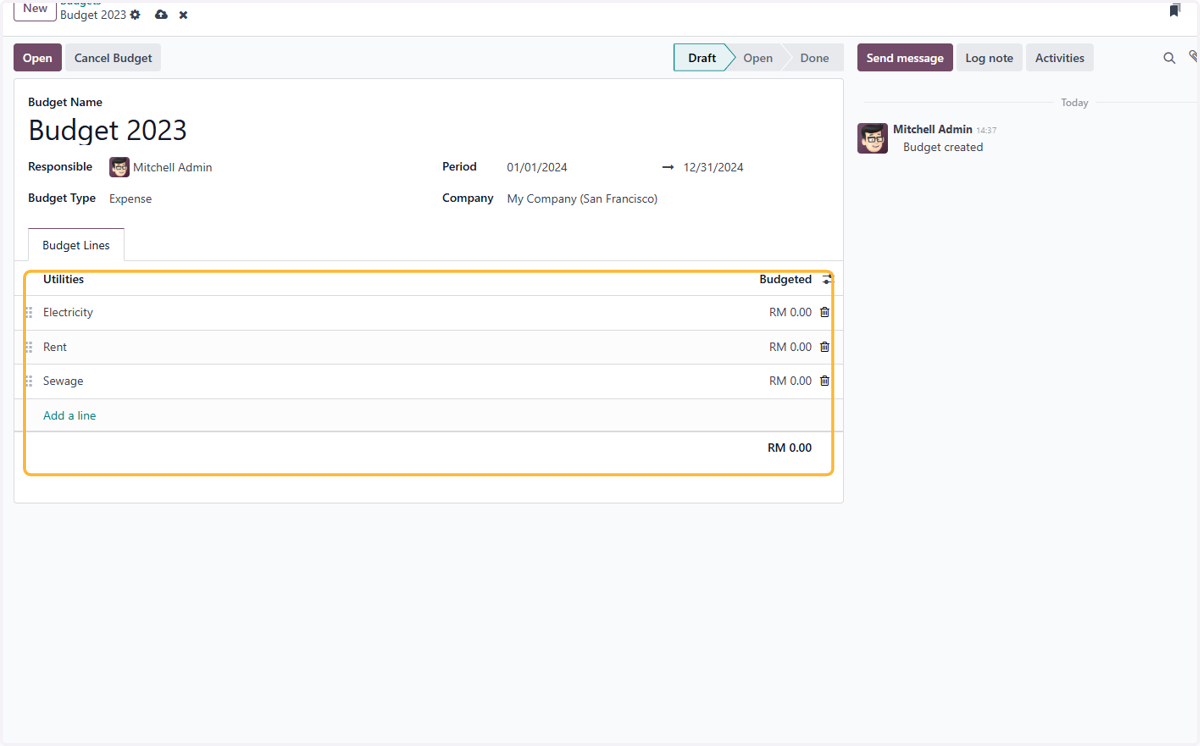
19. Fill in budgeted amount
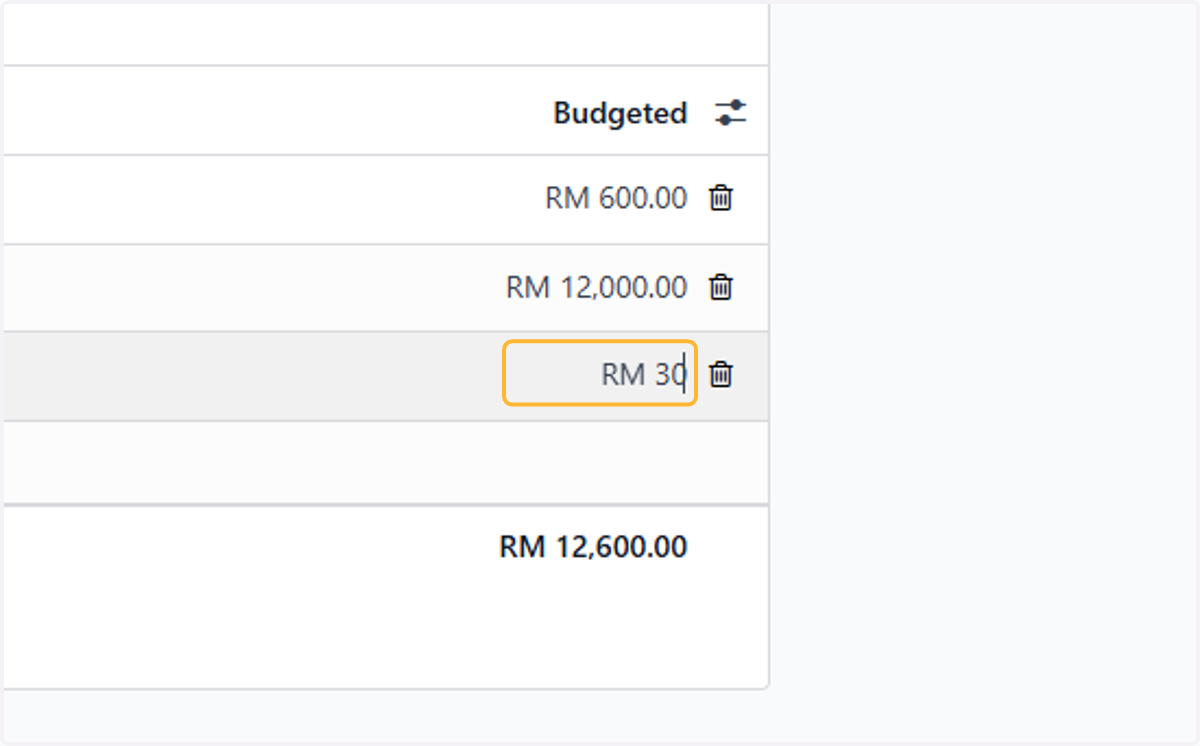
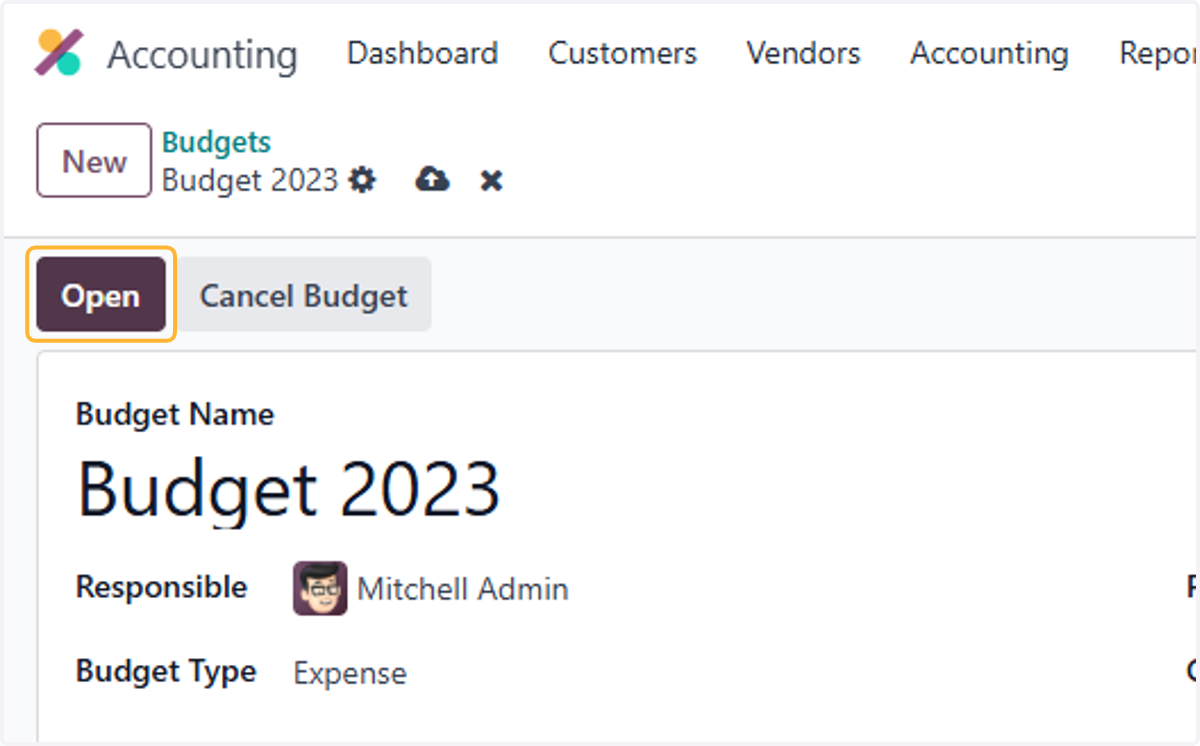
20. Click on Open
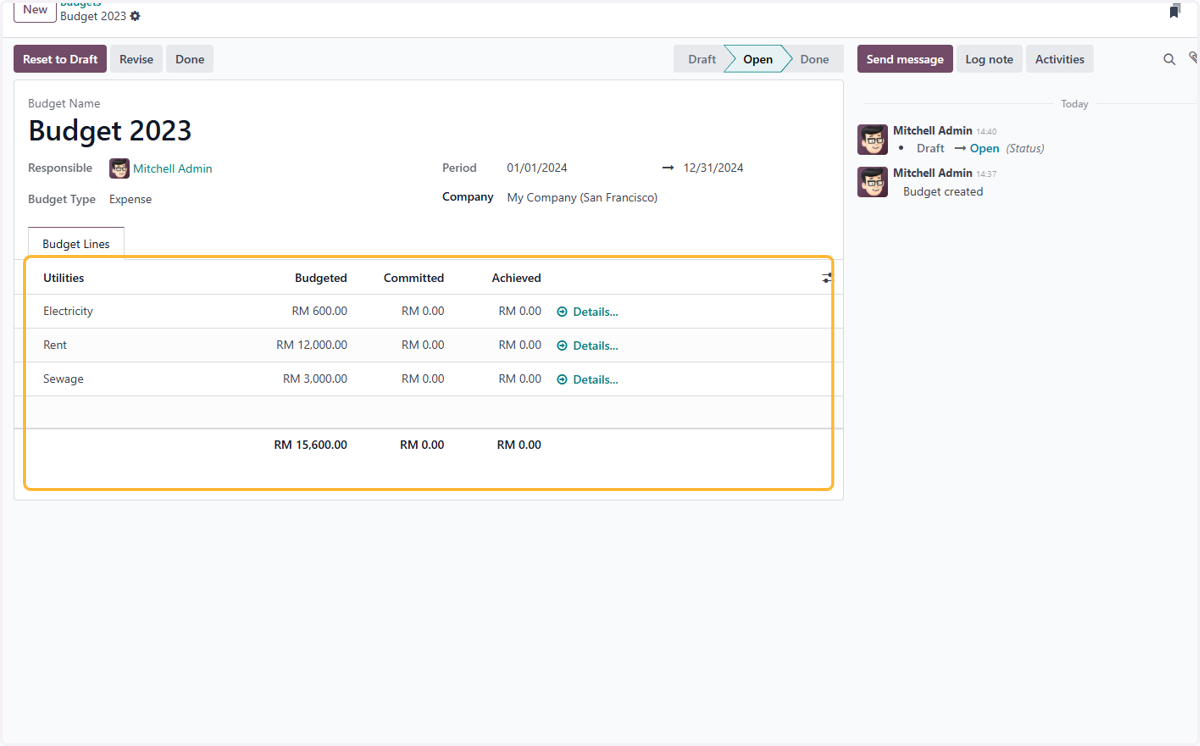
21. List View of approved budget
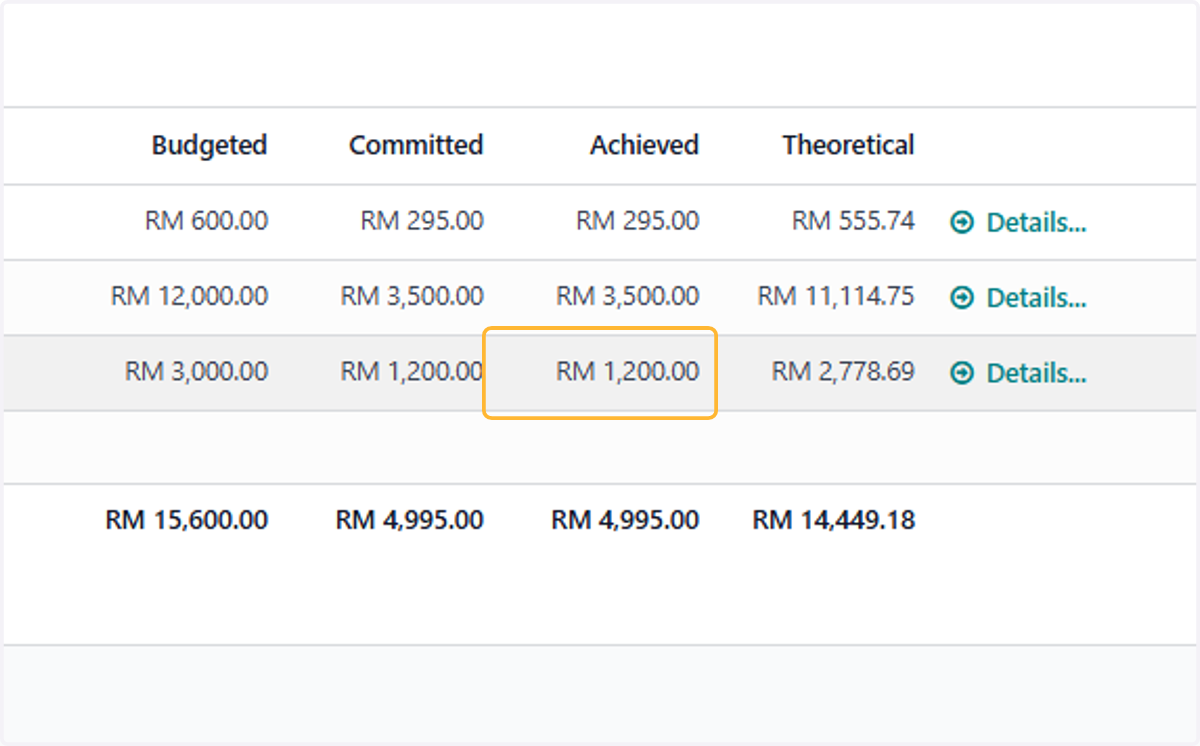
By default, 3 columns are displayed. Budgeted is the planned amount, Committed is the amount that has been ordered(contracted), Achieved is the amount that has been invoiced/billed.
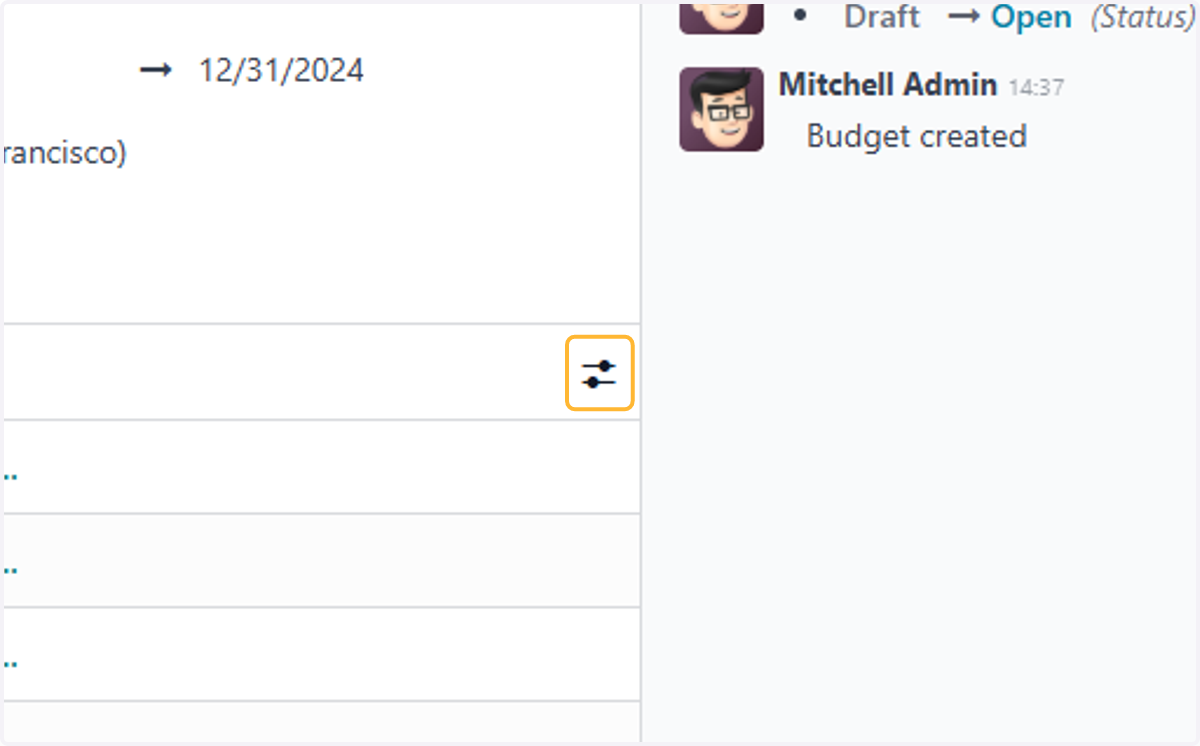
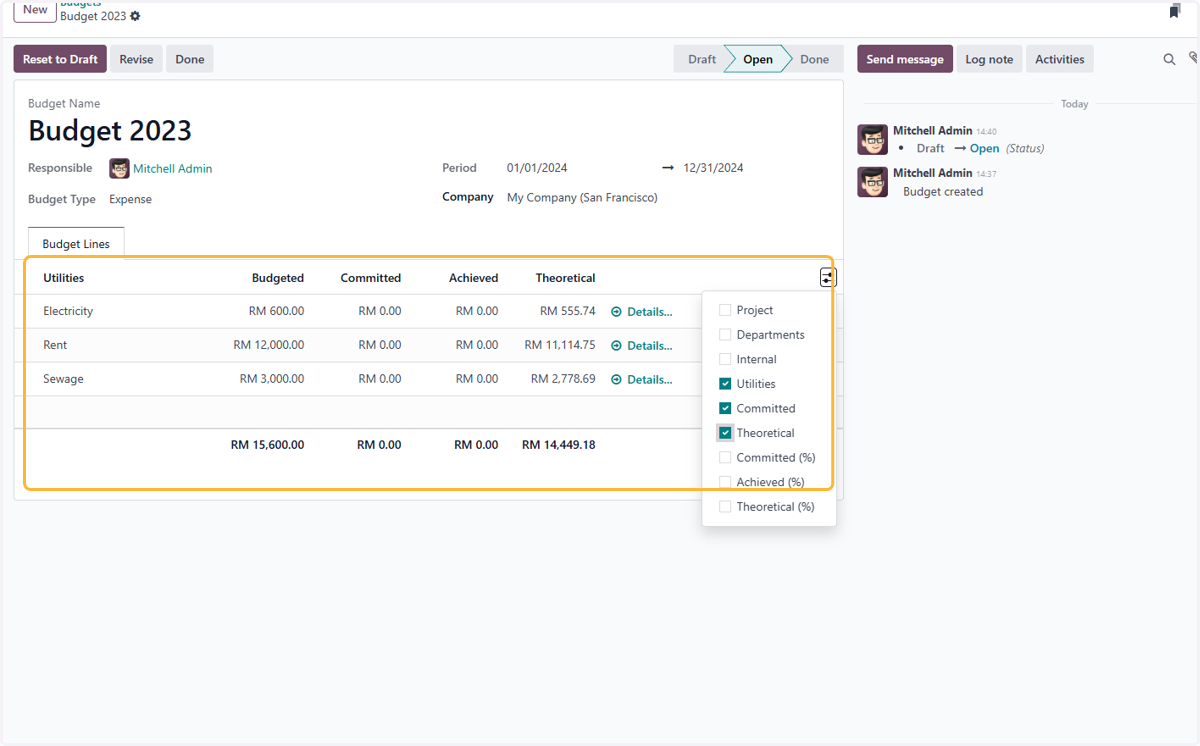
22. Click on highlight.
23. There are additional methods to display budget progress.
For example, I've enabled theoretical amount. This amount is calculated based on the prorated budget amount.
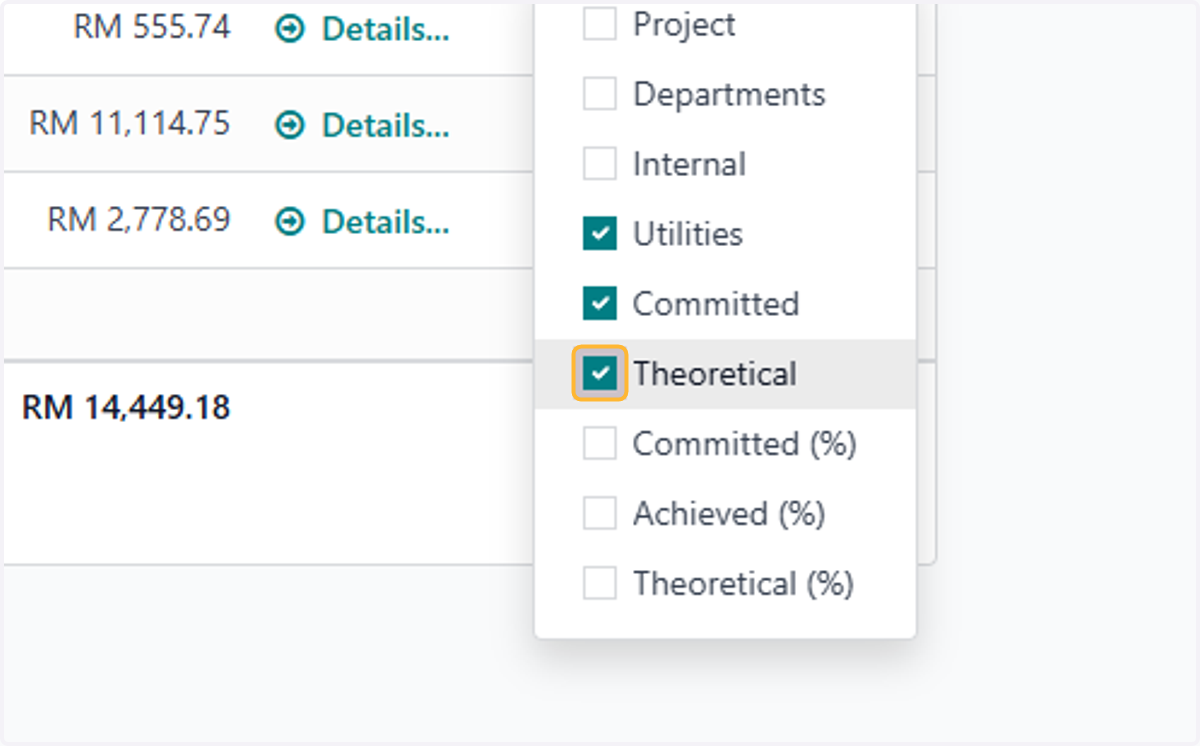
24. List view of budget with theoretical amount
Amending the budget 2 ways.
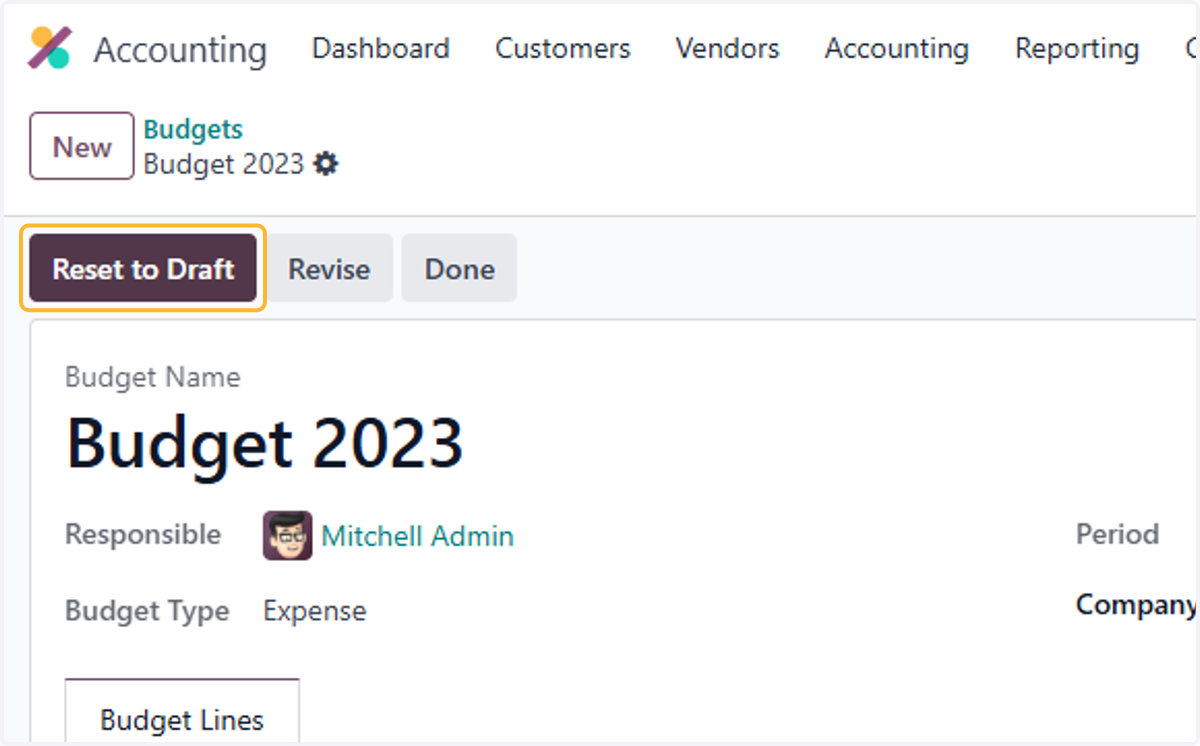
Resetting the budget to draft & making changes
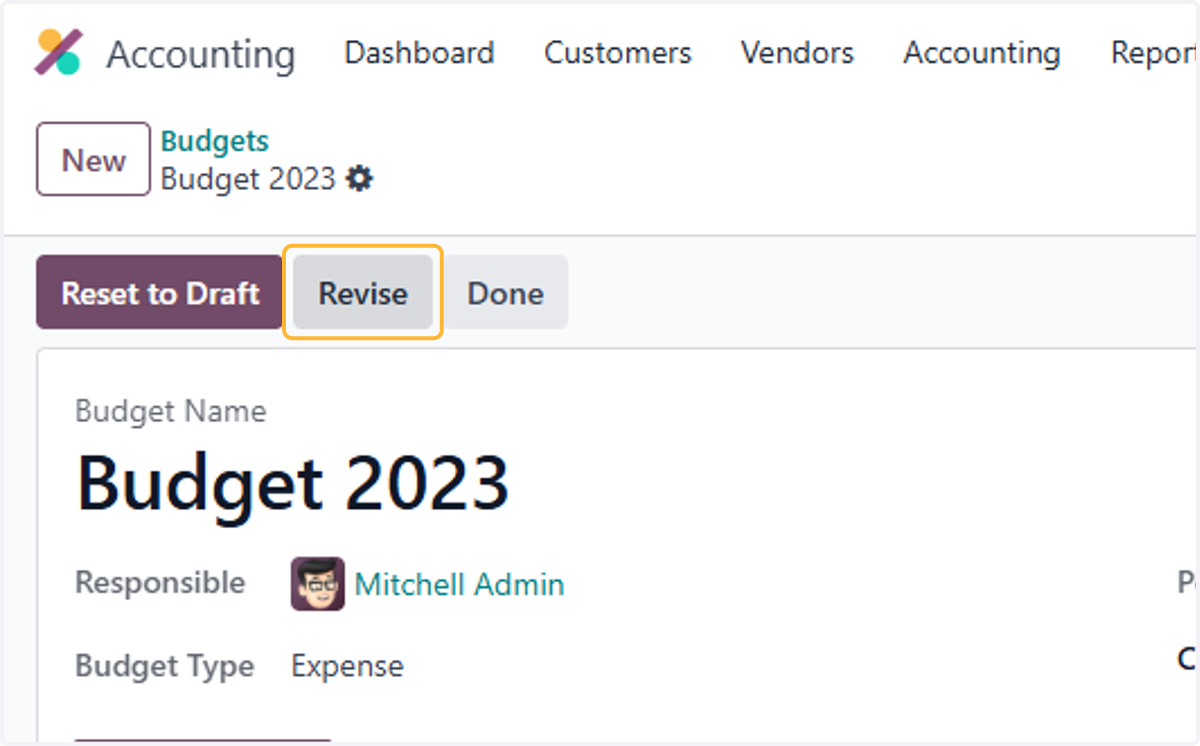
Revising the budget( sets old budget to revised state & duplicates the budget)
25. First method. Click on Reset to Draft
Amend the budget as step 11-19
26. Second method. Click on Revise
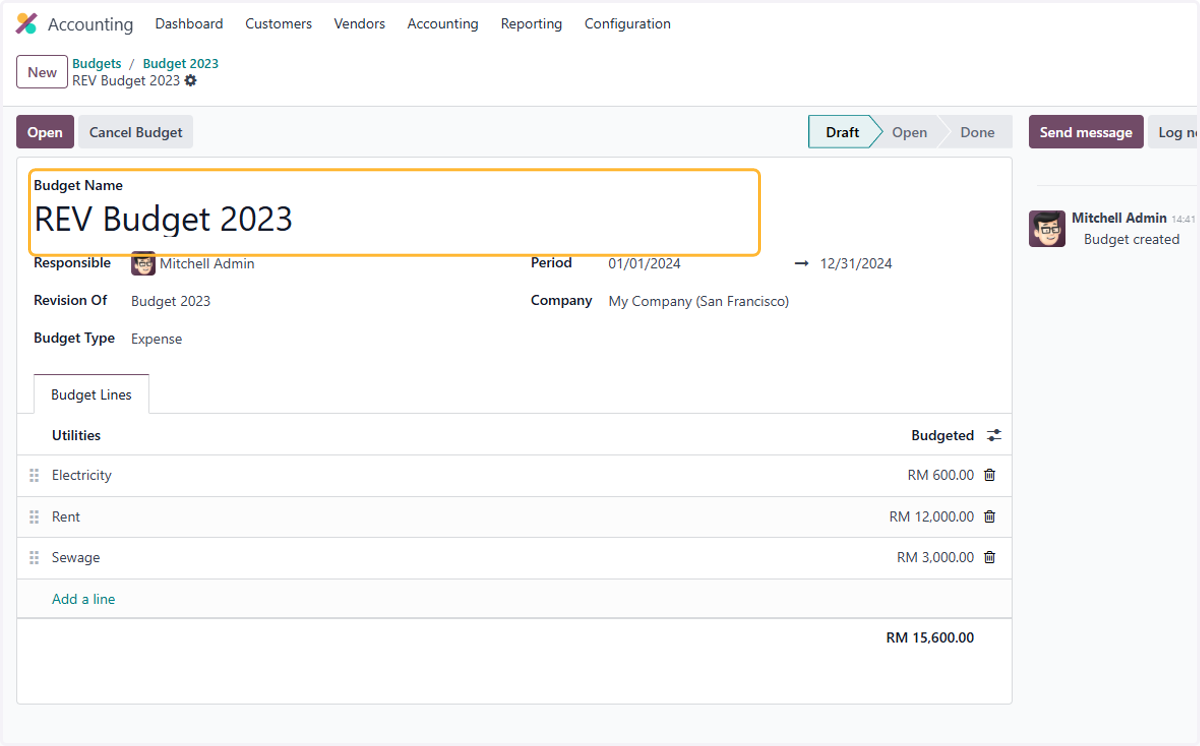
27. New budget is created with REV in the name
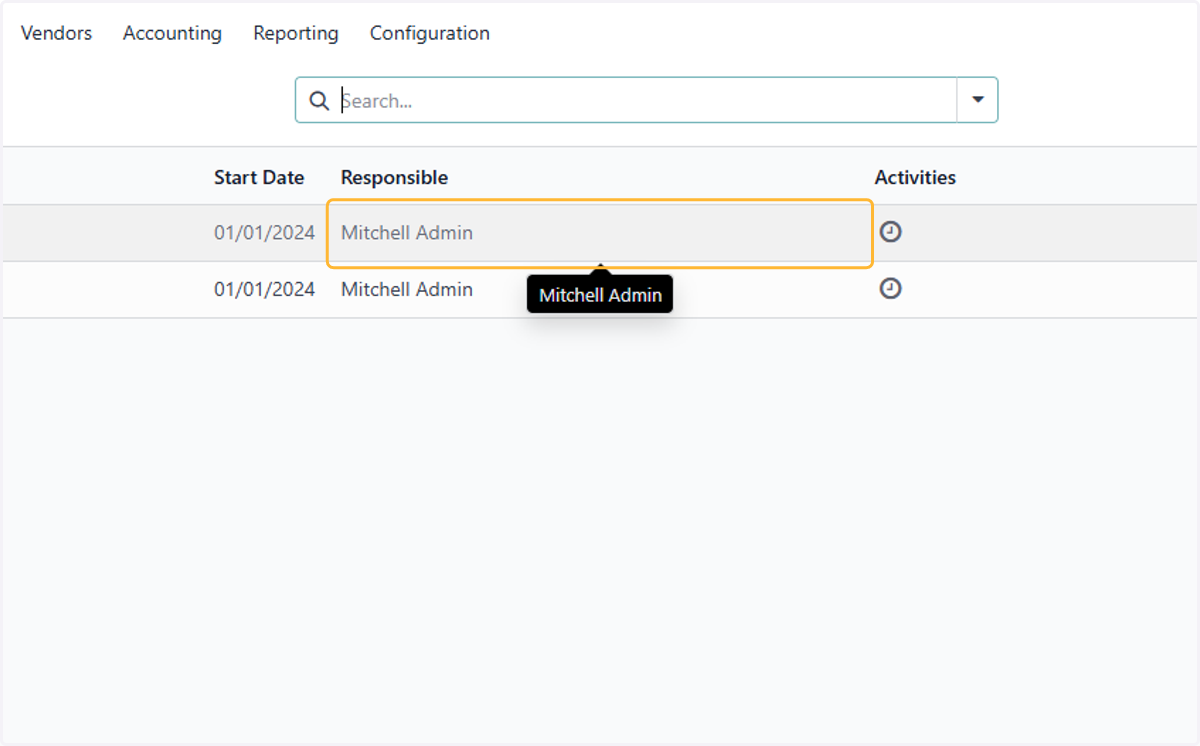
28. Select the old budget
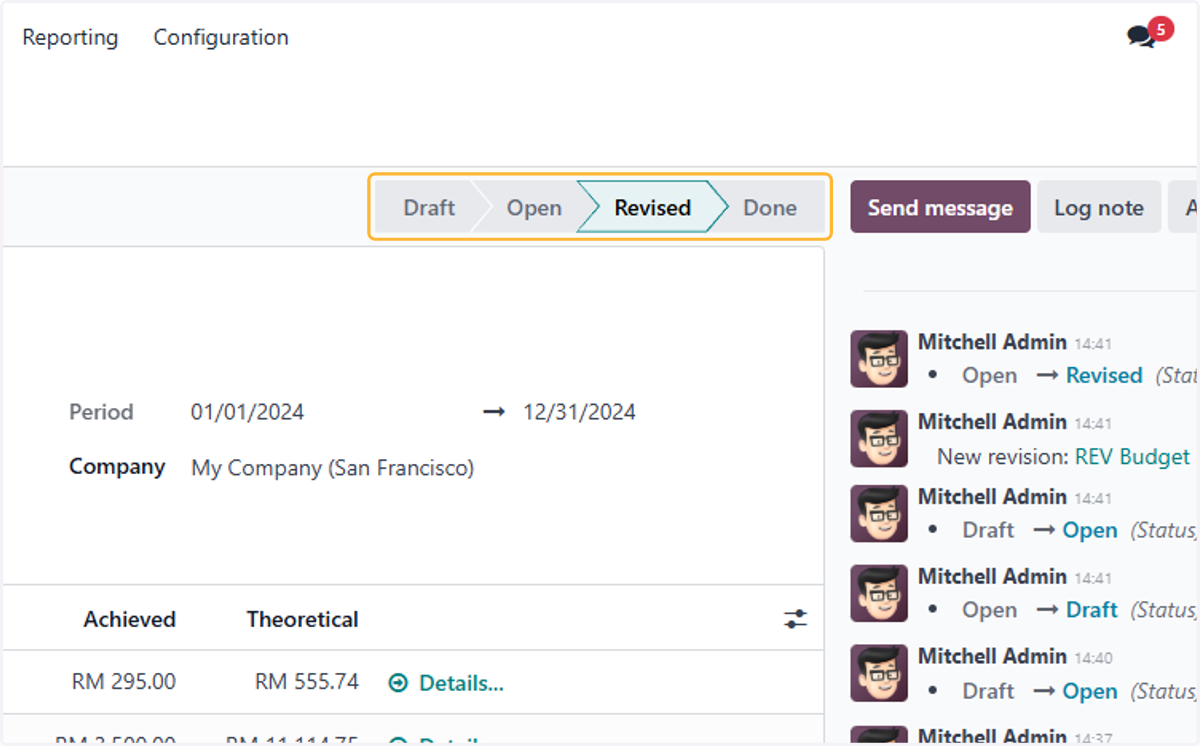
29. The status of the budget is set to "Revised"
How the analytic budgets are affected by Sales & Purchase Documents
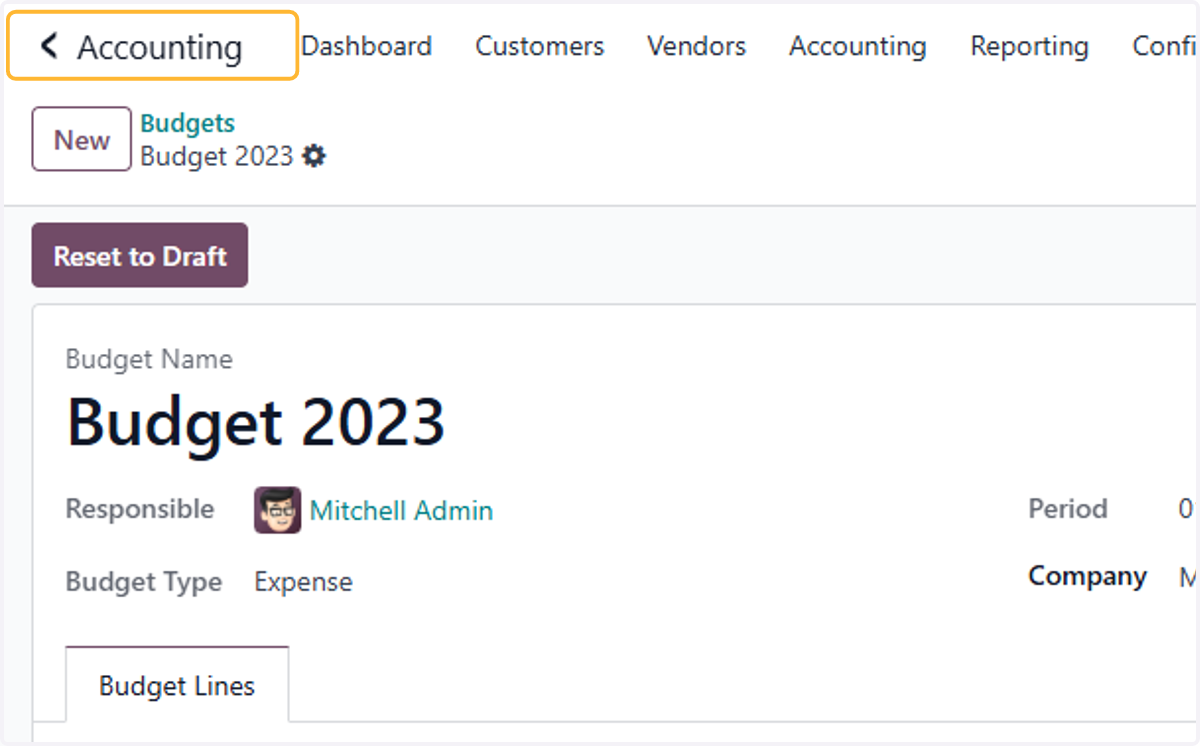
30. Click on Accounting
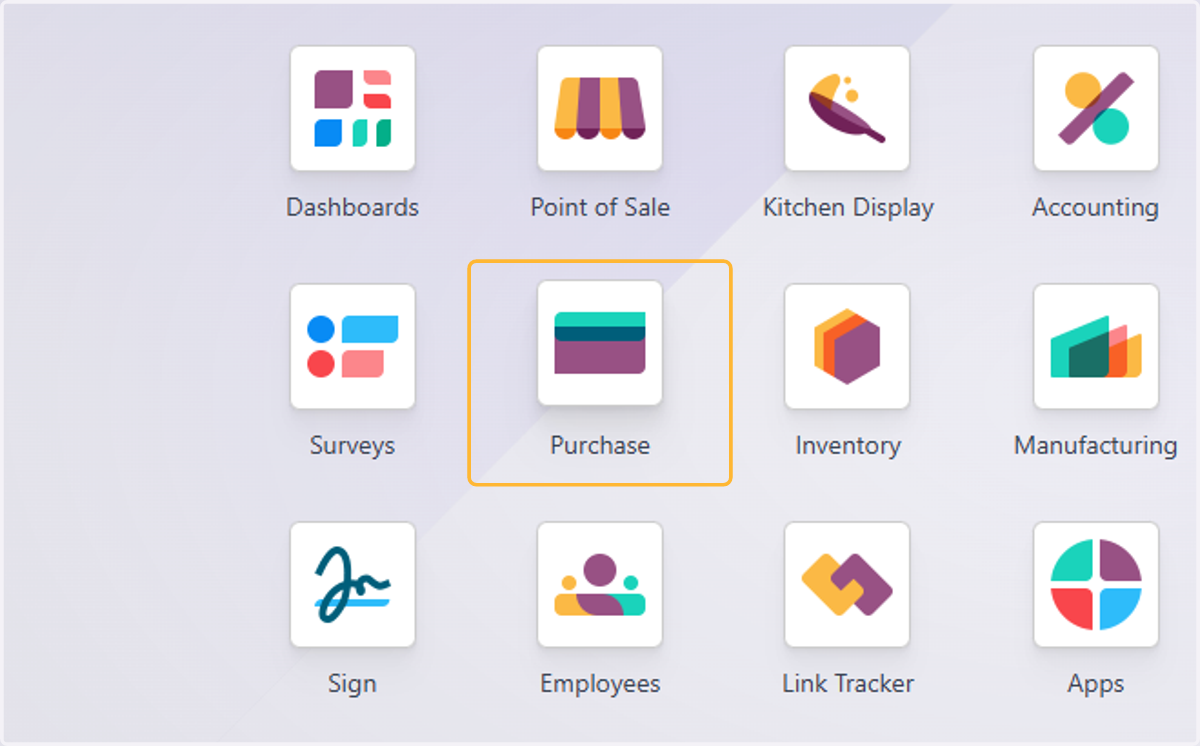
31. Click on Purchase
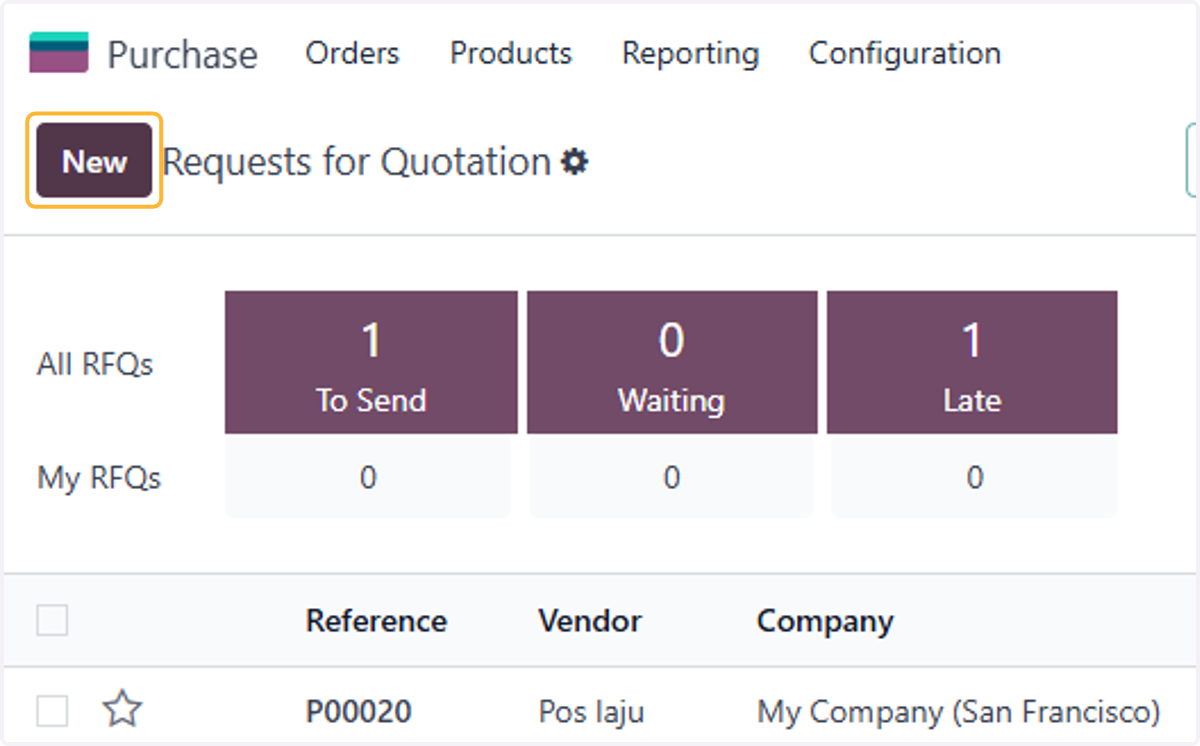
32. Click on New
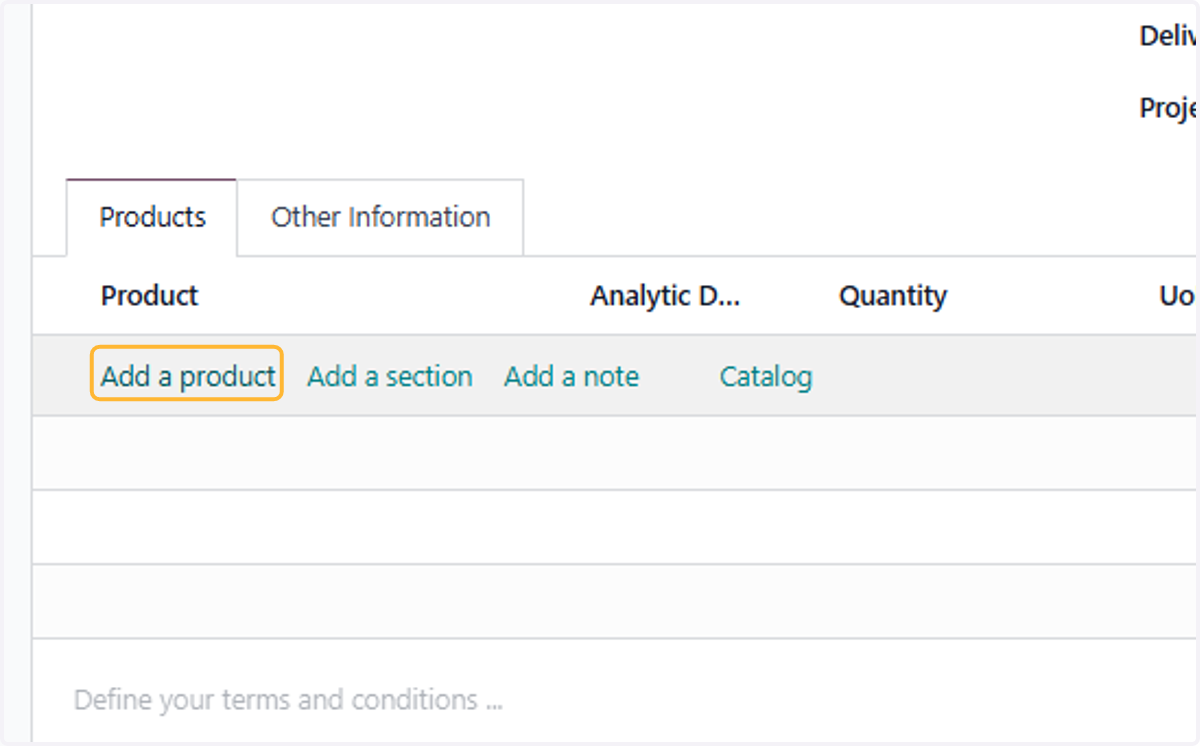
33. Create a new Invoice with the relevant products & analytic accounts
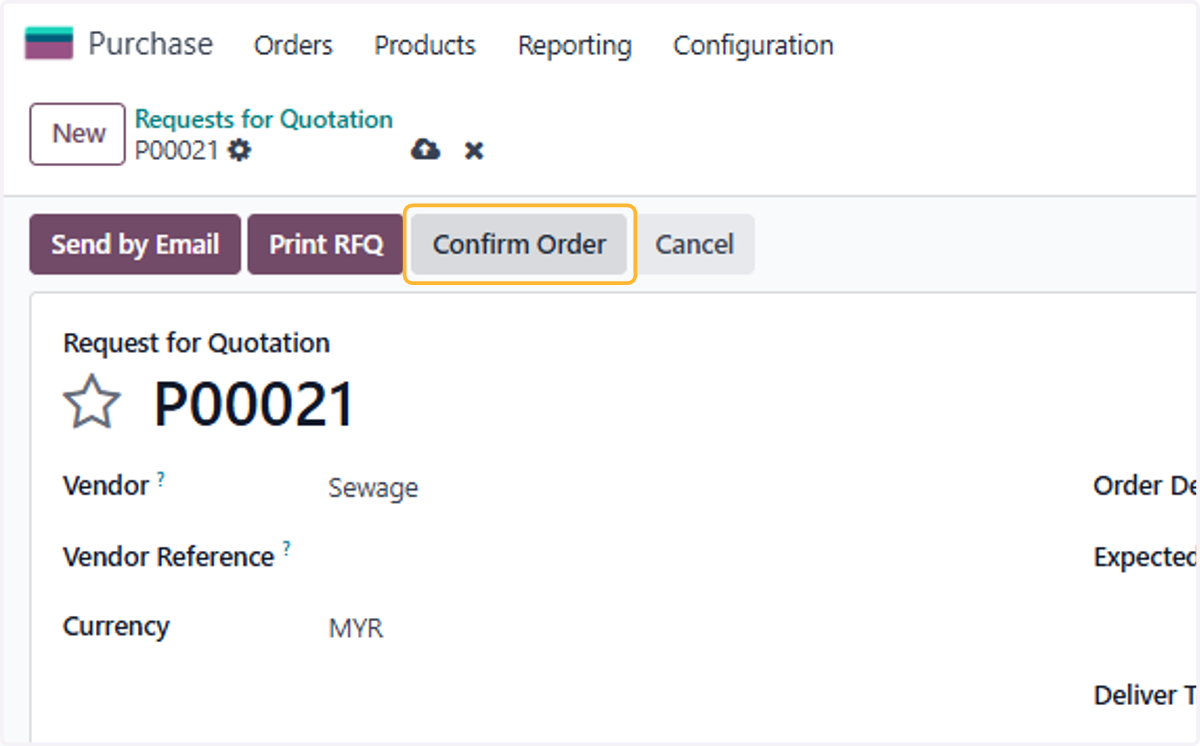
34. Click on Confirm Order
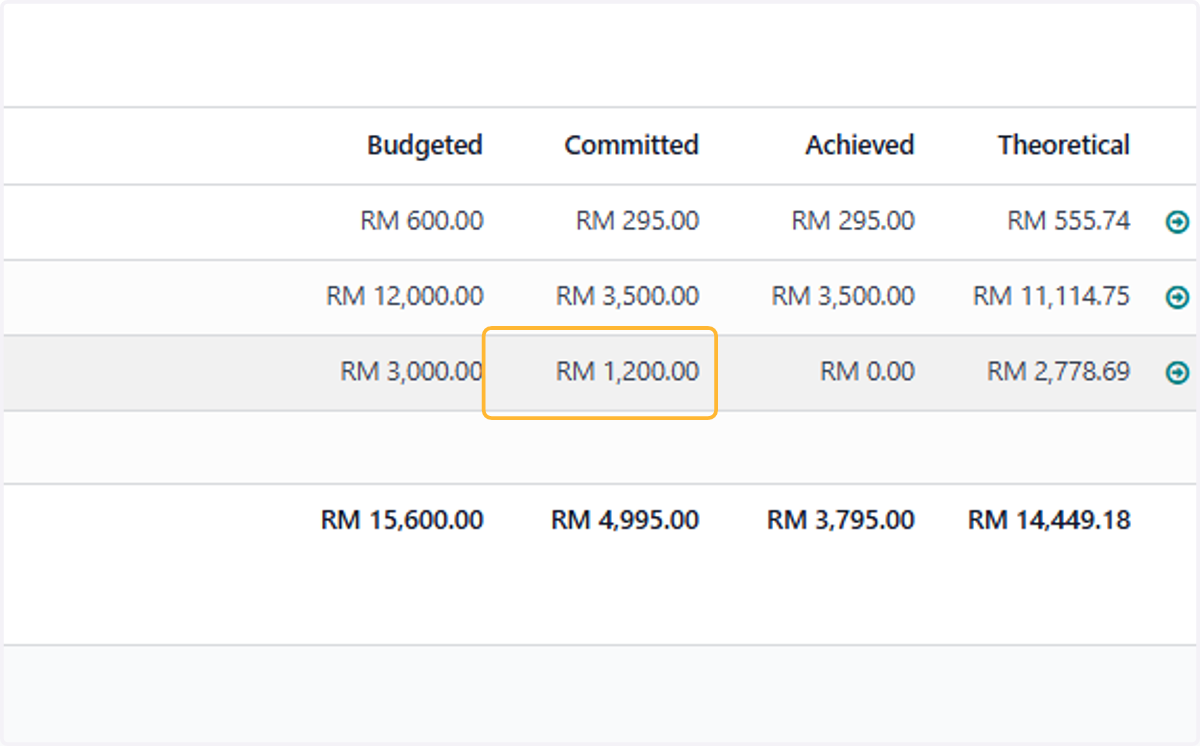
35. Confirmed PO now appears in Committed Column in budget
36. Click on Create Bill & Confirm the bill
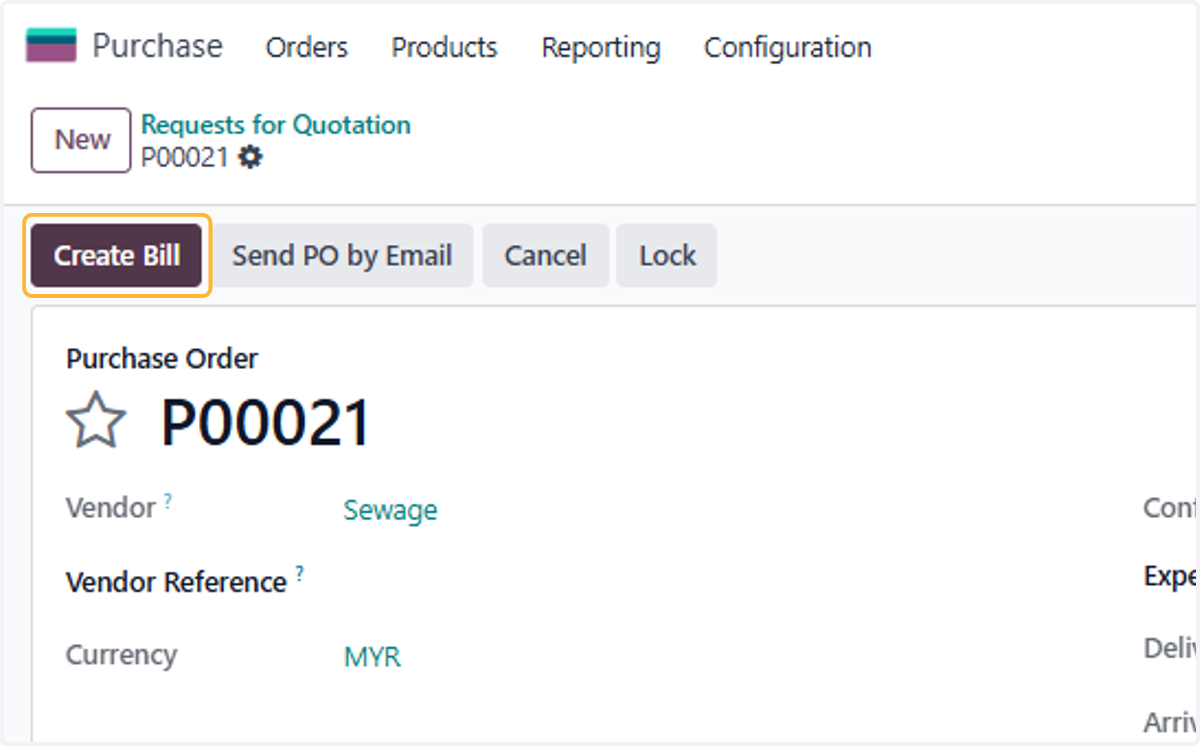
37. Bill created now appears in Achieved Column in budget
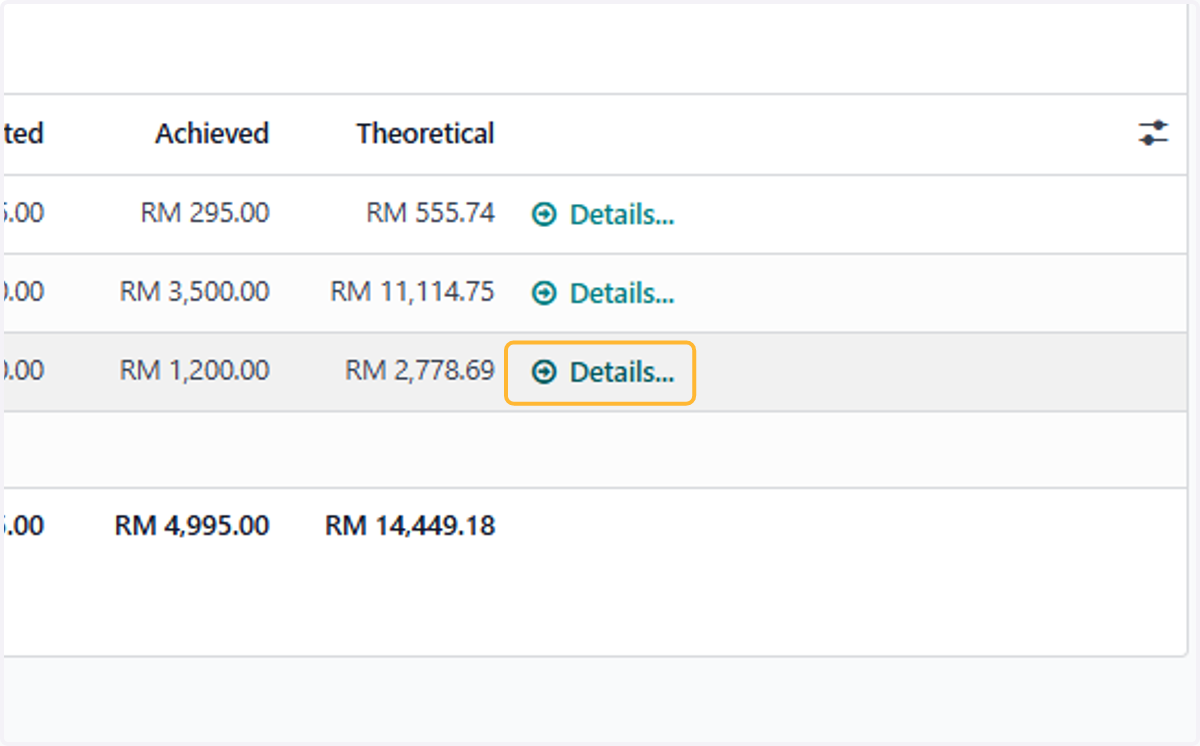
38. Click on Details for further details of all analytic lines
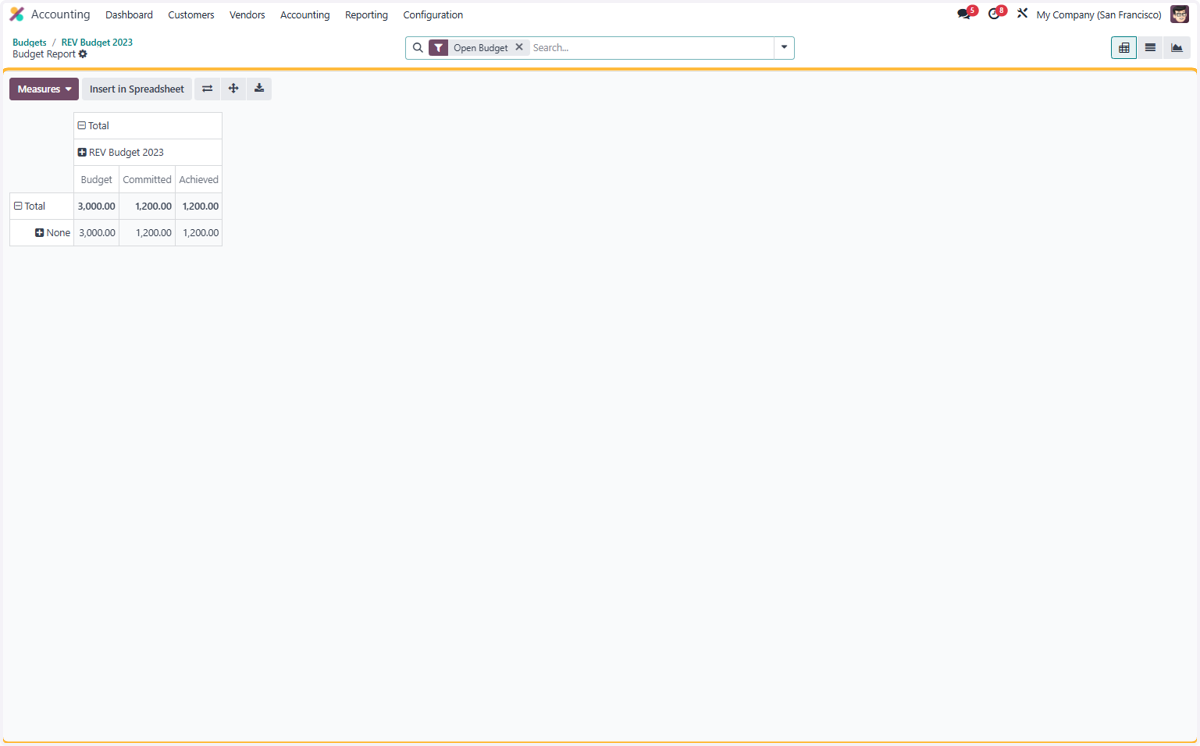
39. Pivot table of selected analytical account
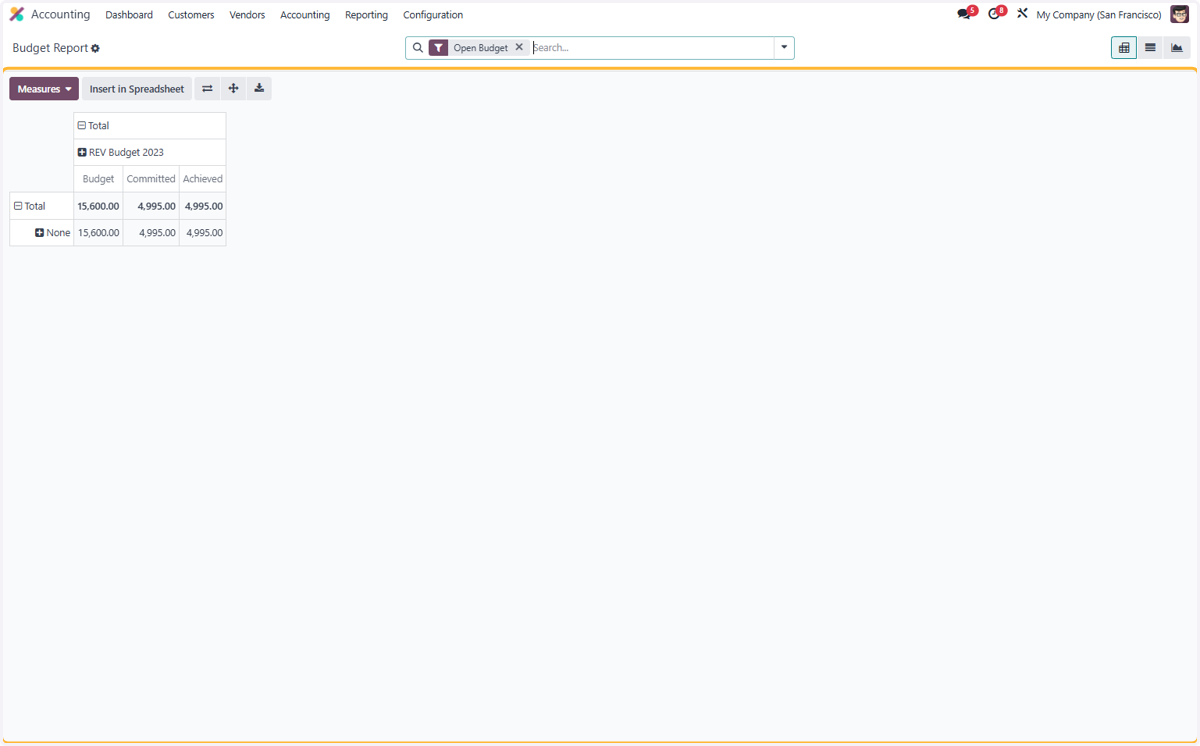
Viewing Analytic lines of budgets as a whole
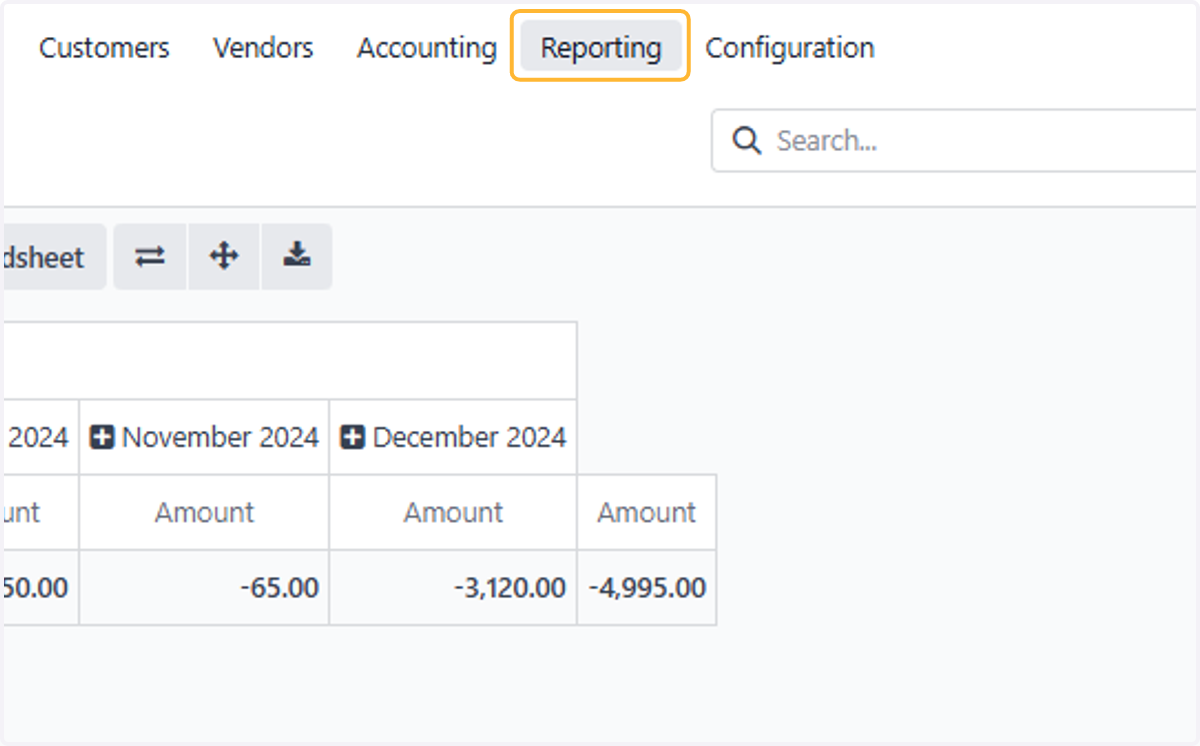
40. Click on Reporting
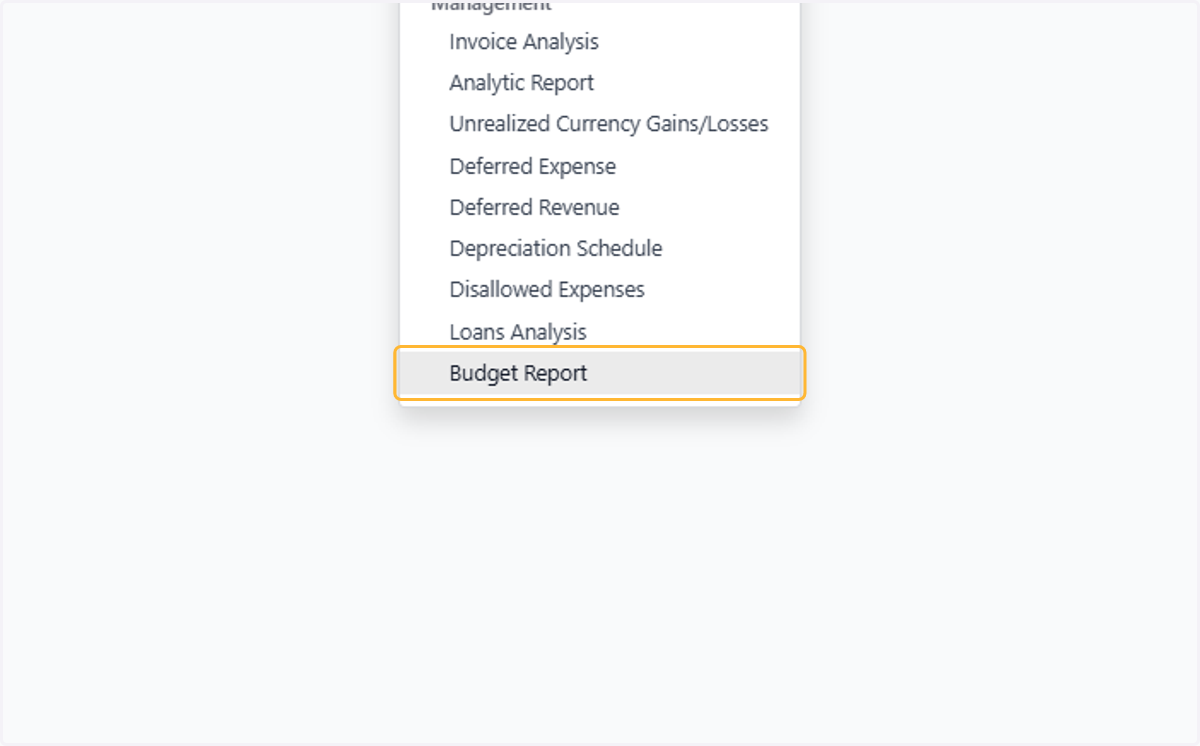
41. Click on Budget Report
42. Click on Measures…
Generating Budgets of different time periods based on available budgets
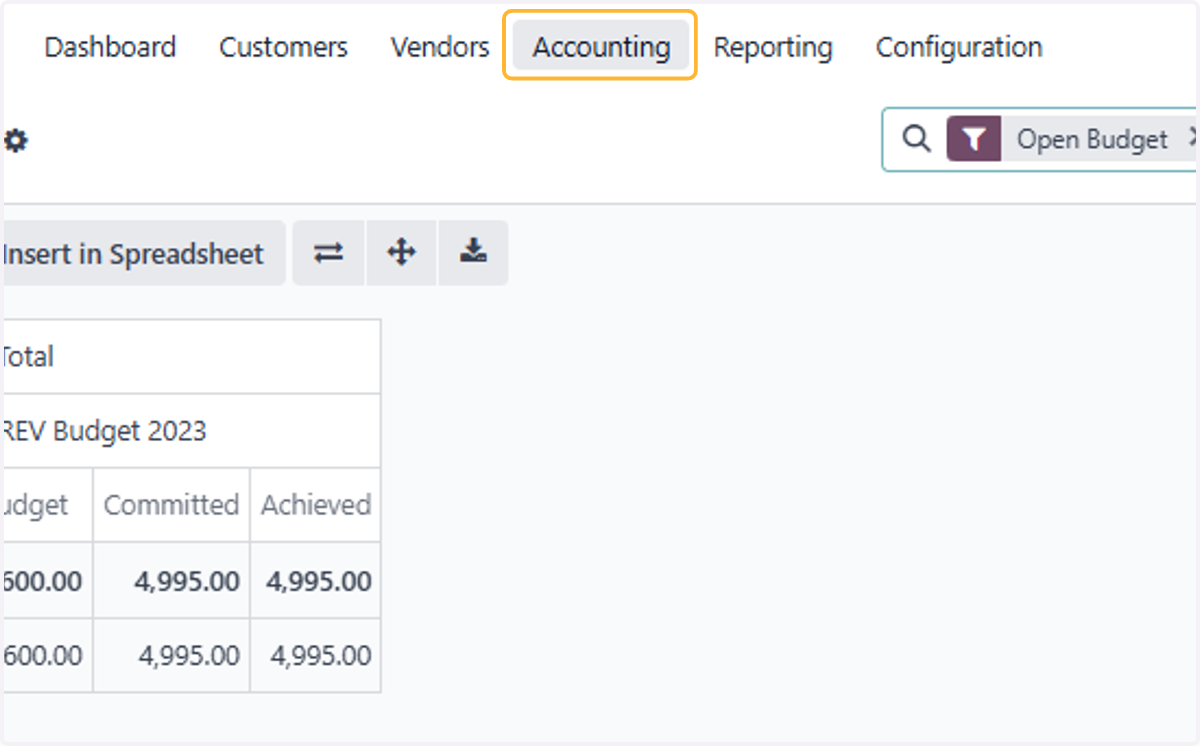
43. Click on Accounting
44. Click on Analytic Budget
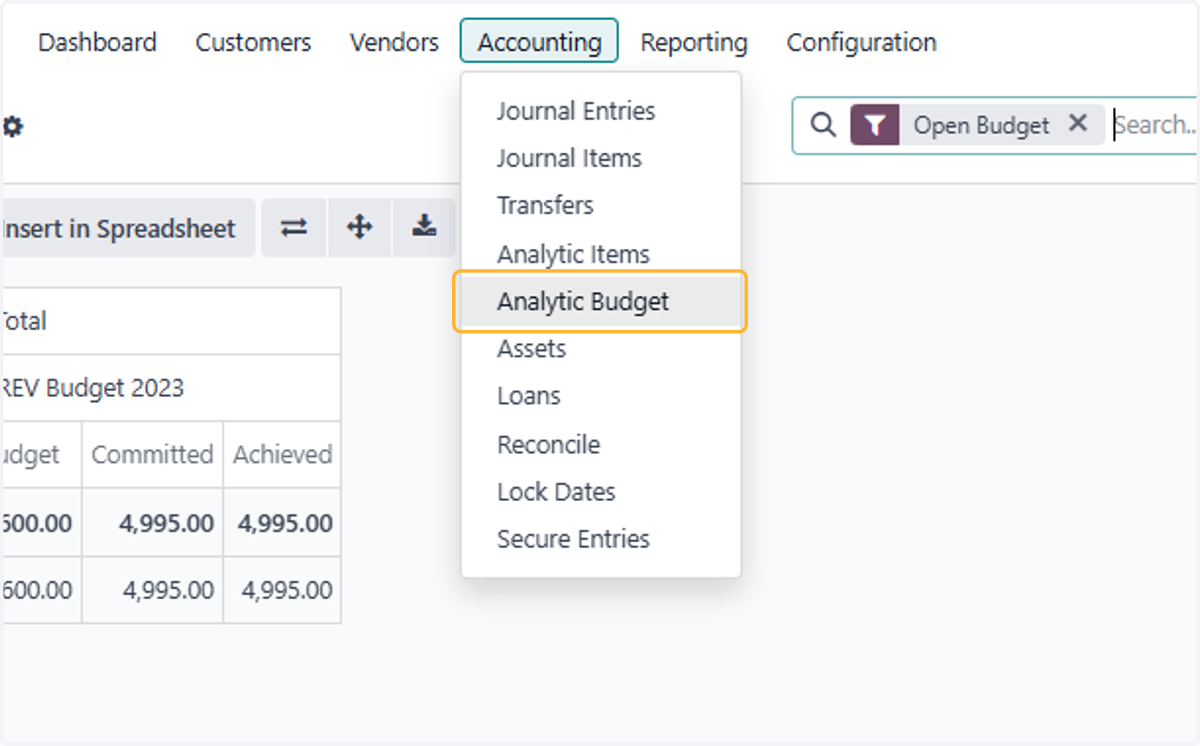
45. Uncheck on
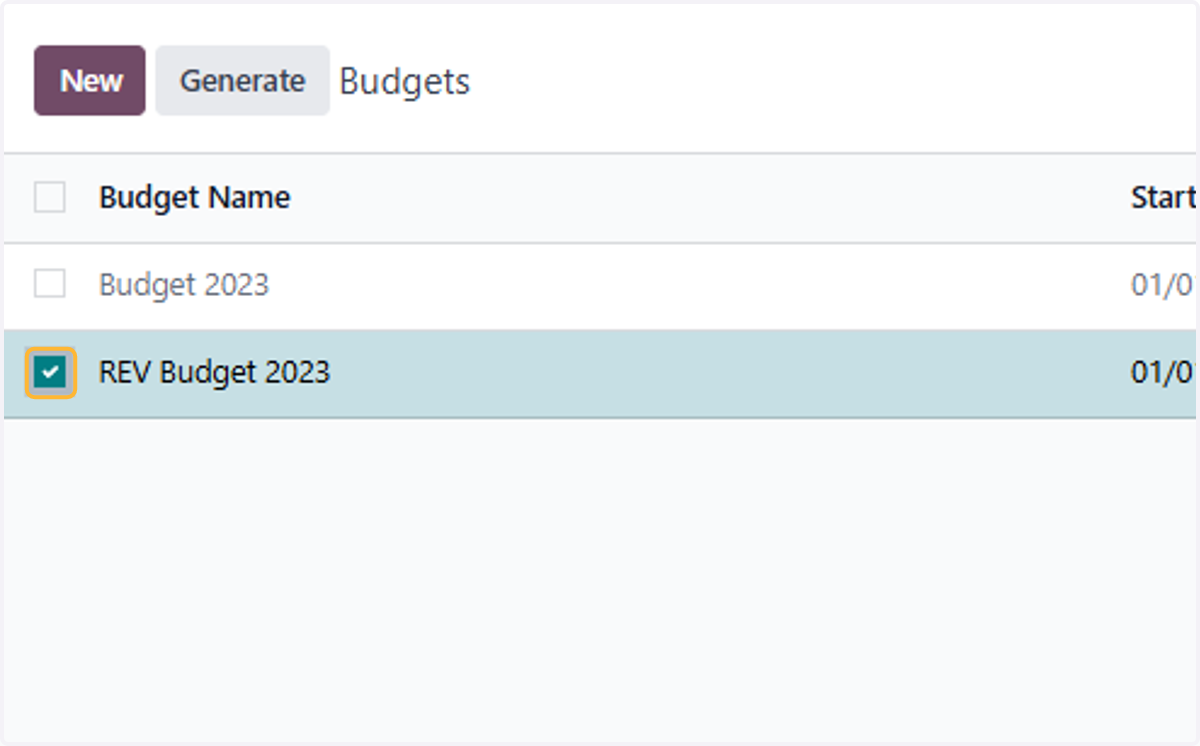
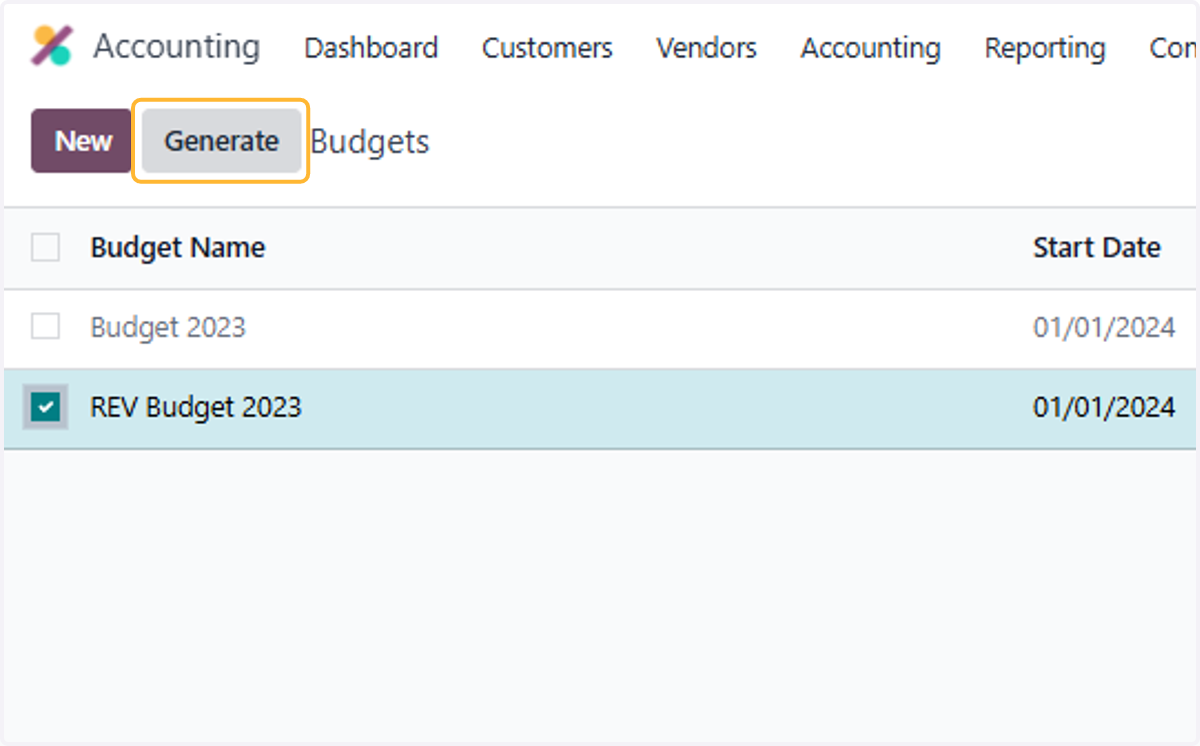
46. Click on Generate
47. Select Month
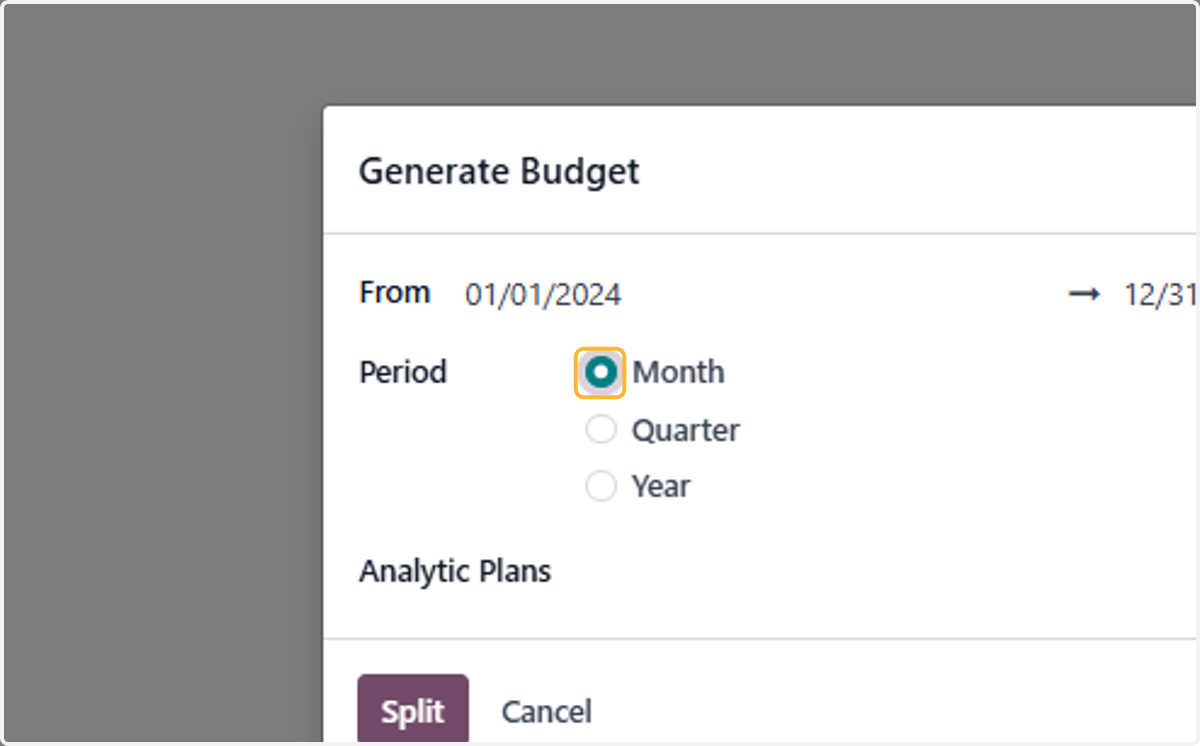
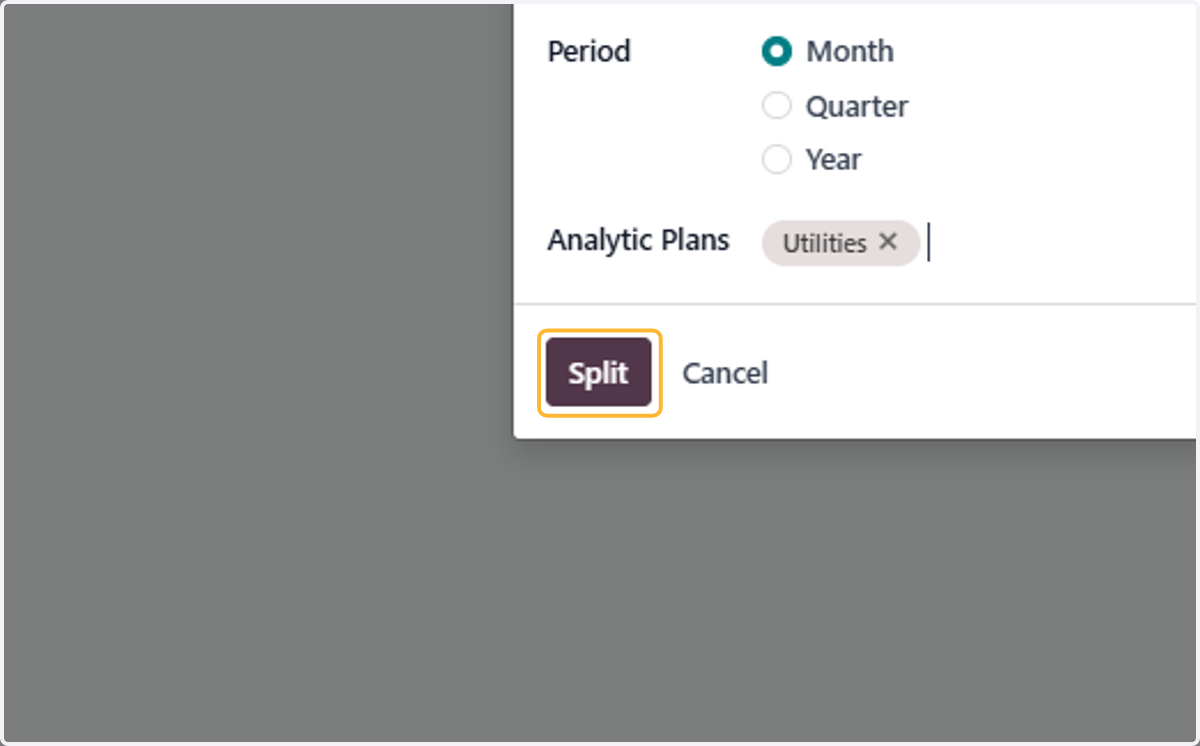
48. Select relevant analytic plans
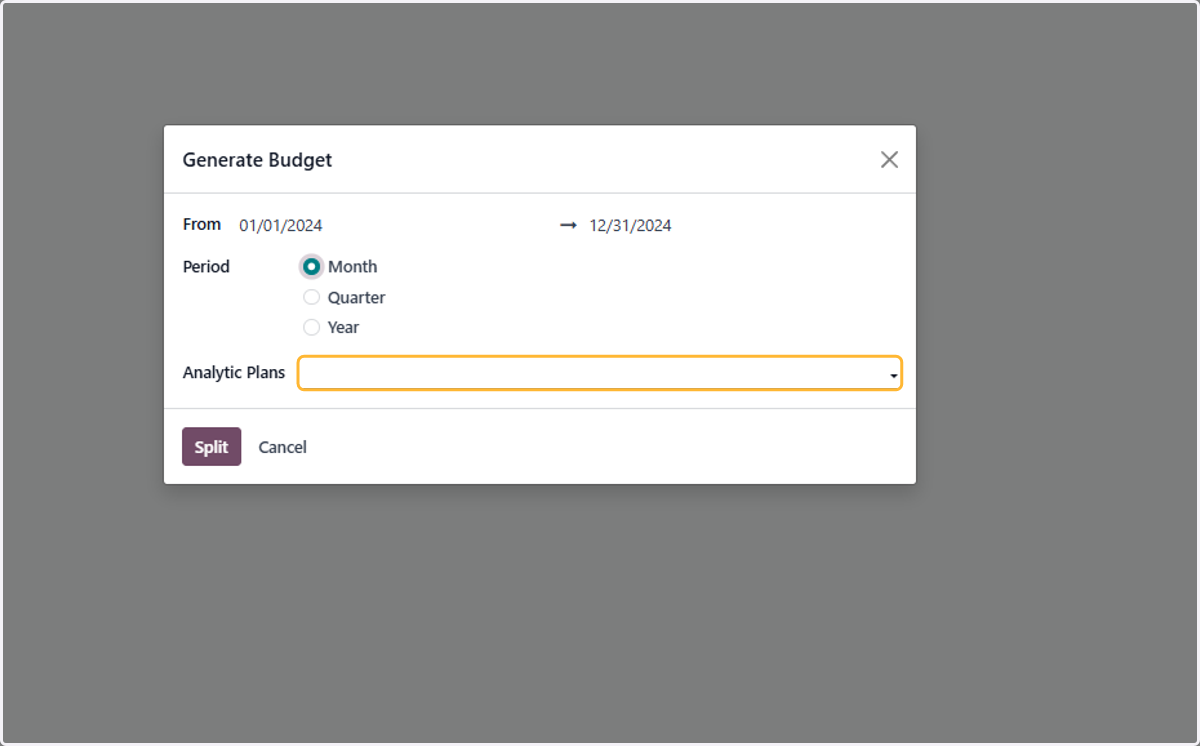
49. Click on Split
50. Click on Budgets
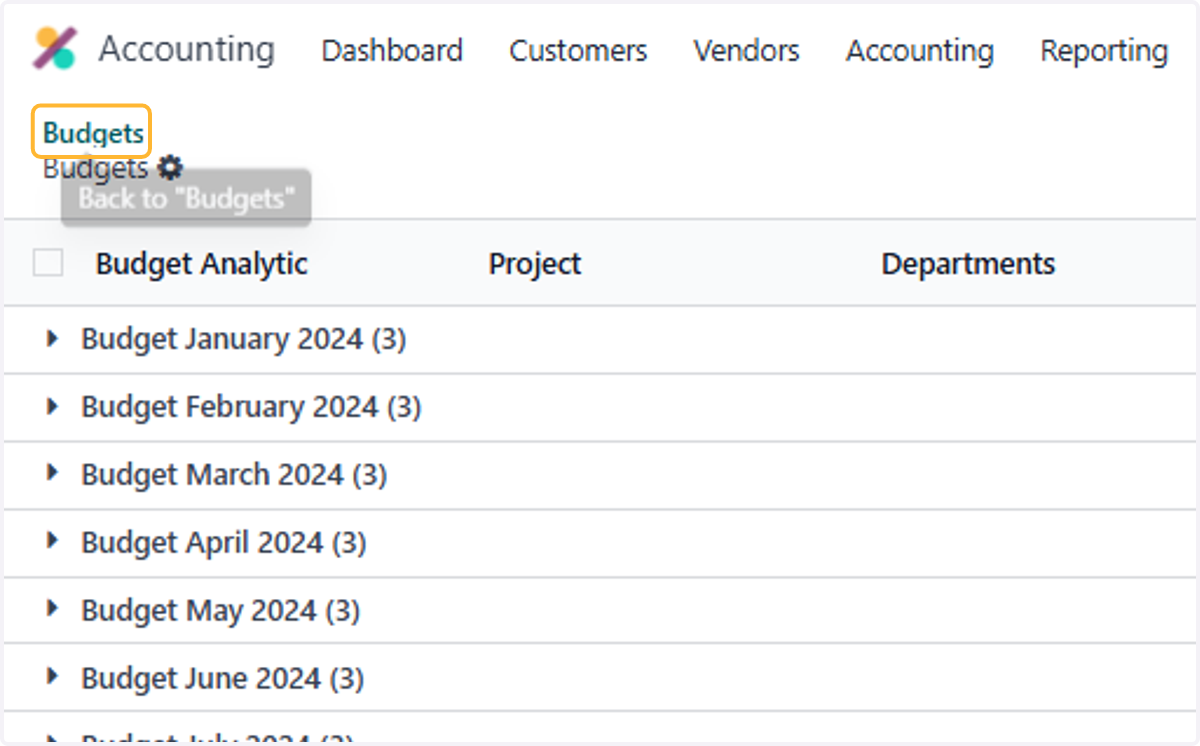
51. List view of all the budgets created in draft mode