Reporting an Absconder
1. From the Profile Compact Cases tab create the Violation Report Requiring Retaking
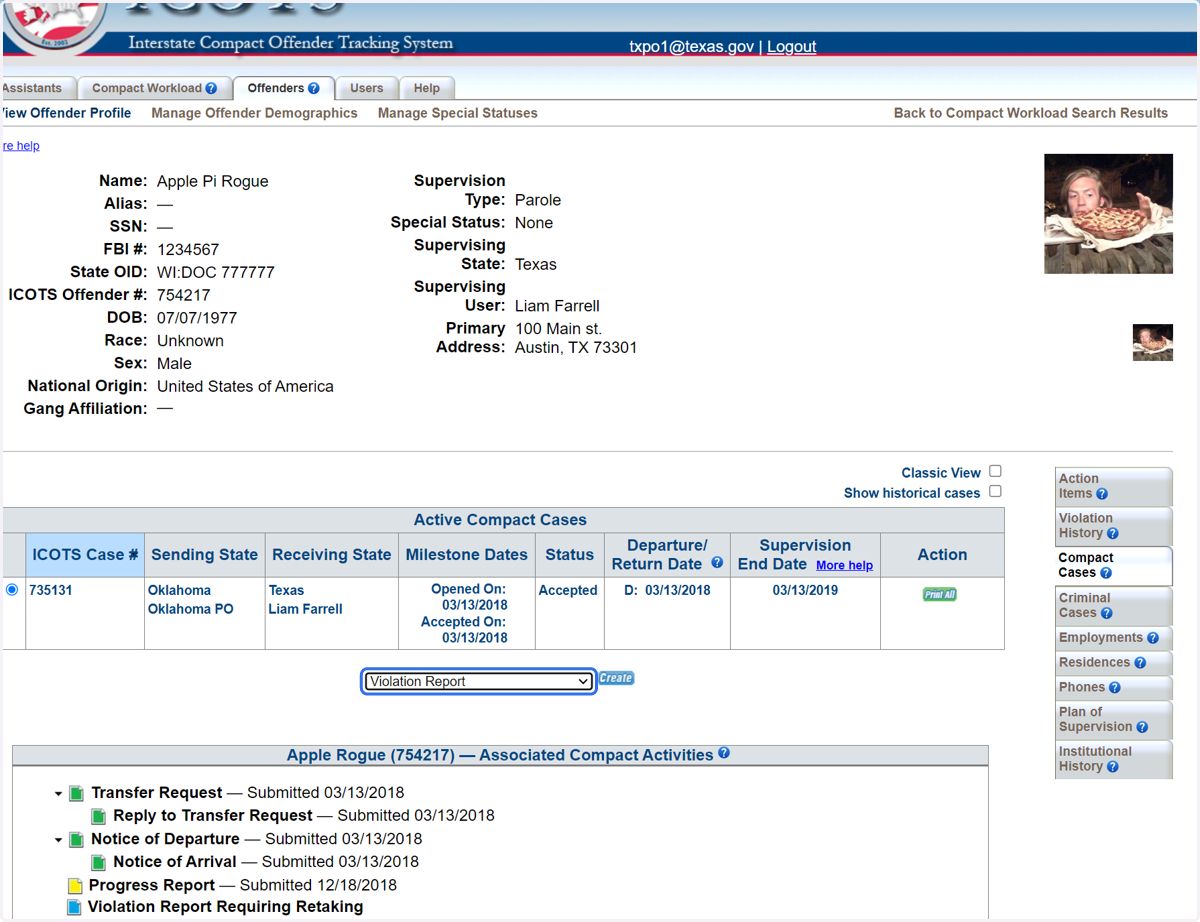
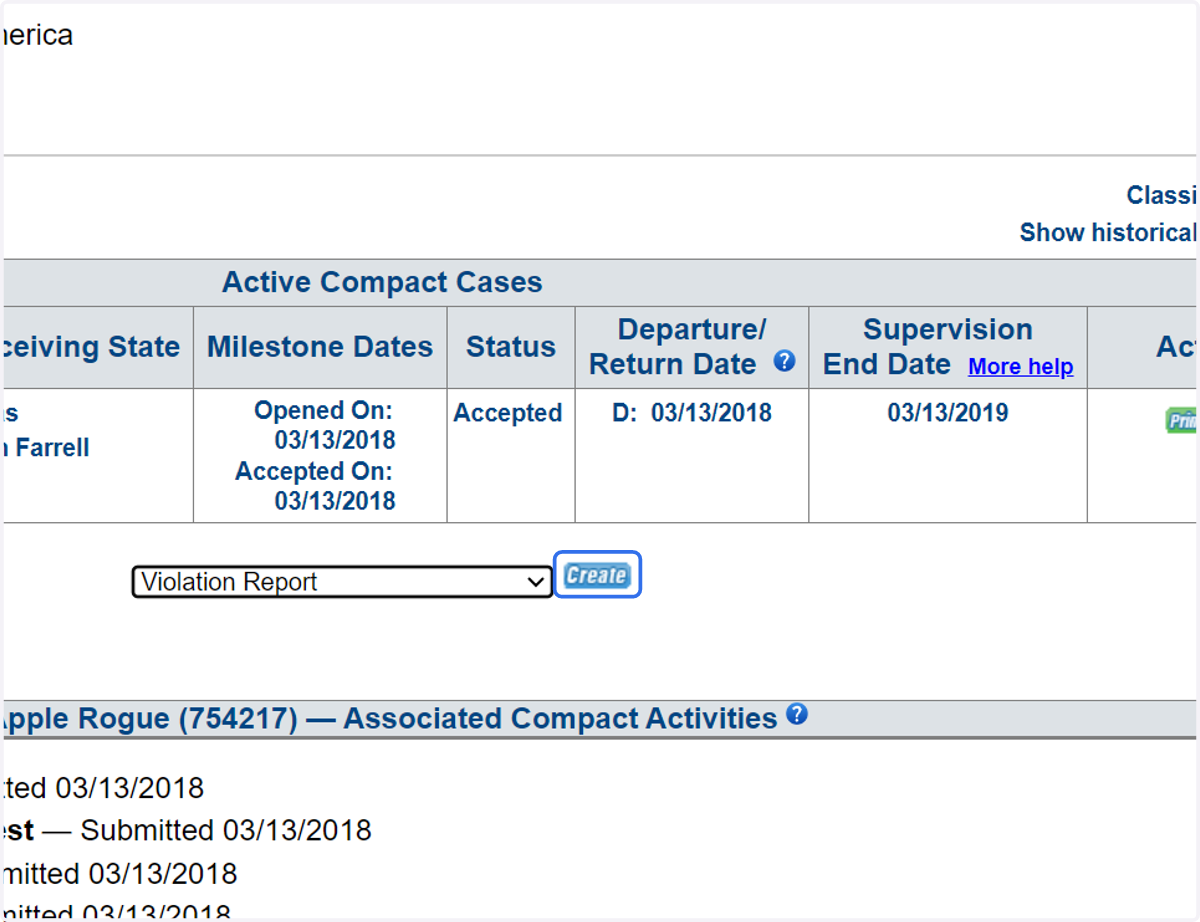
2. Click create.
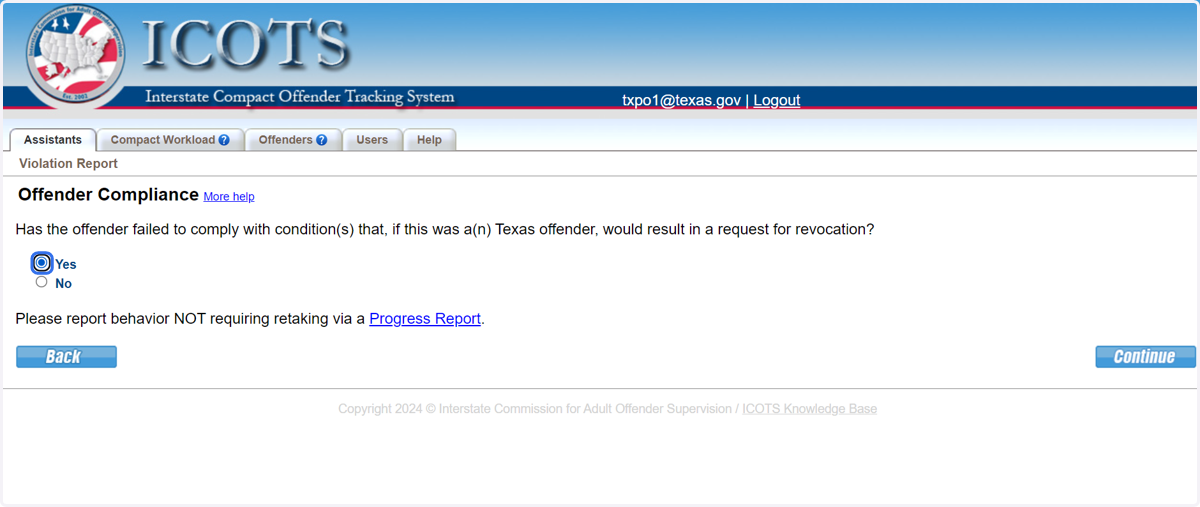
3. To report an absconder, chose 'yes.'
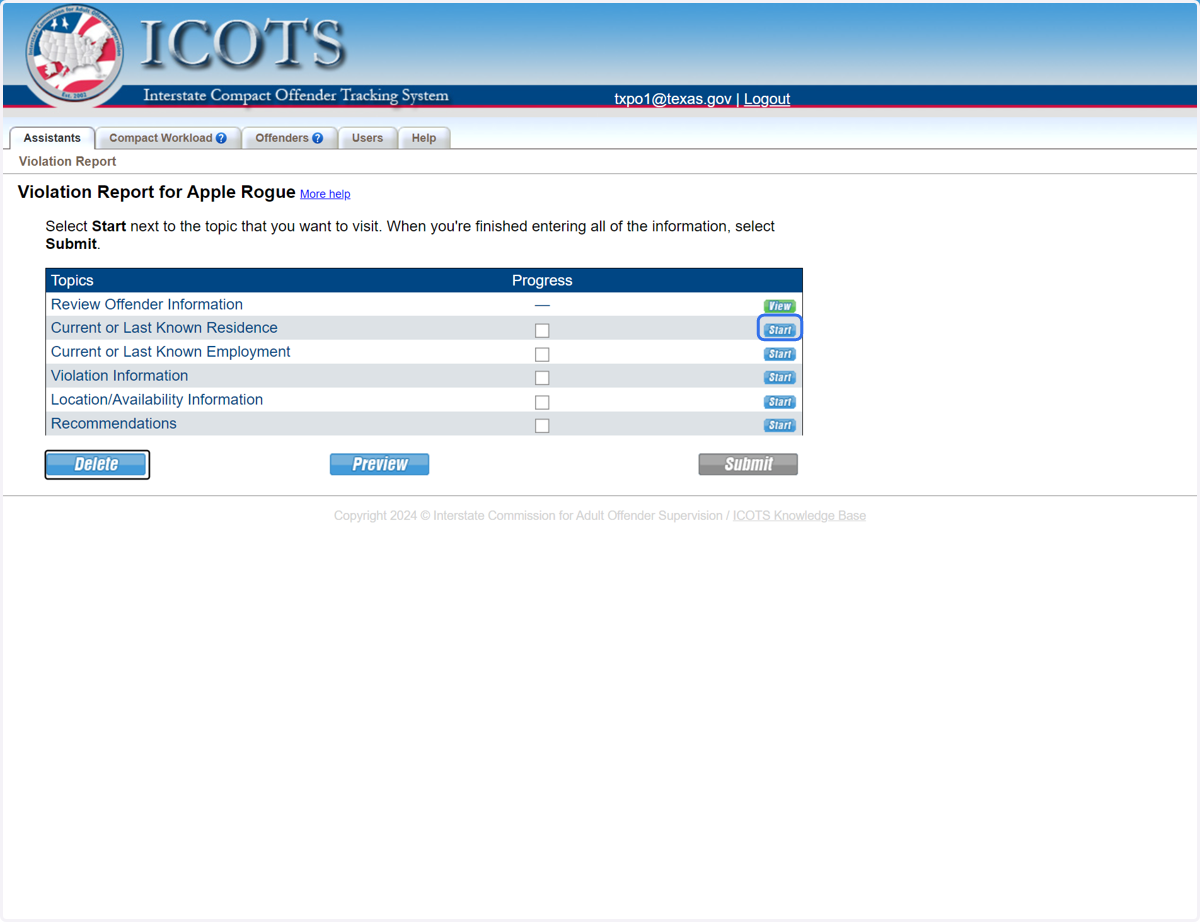
4. Proceed to Current Residence.
5. Select 'No' if the address is current. Select 'Yes' and updated the address if needed.
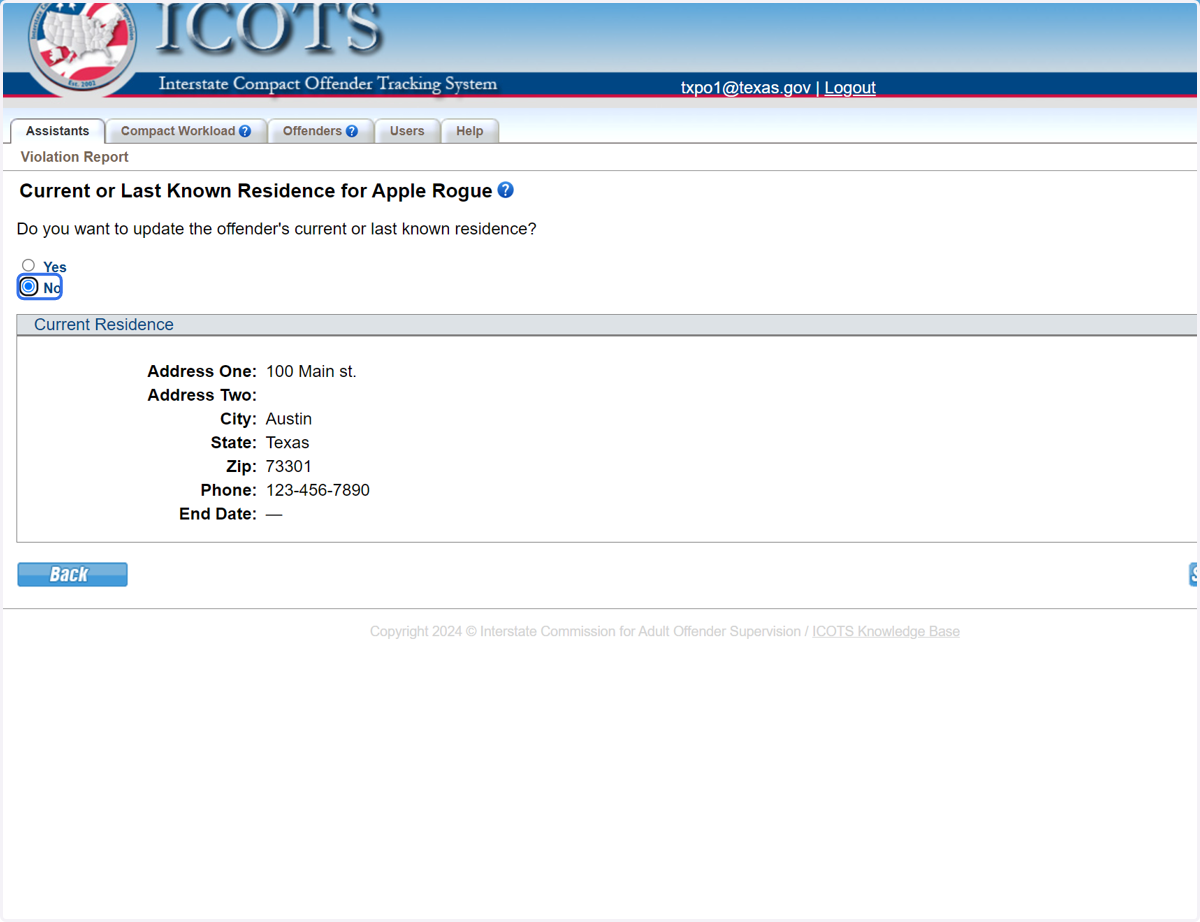
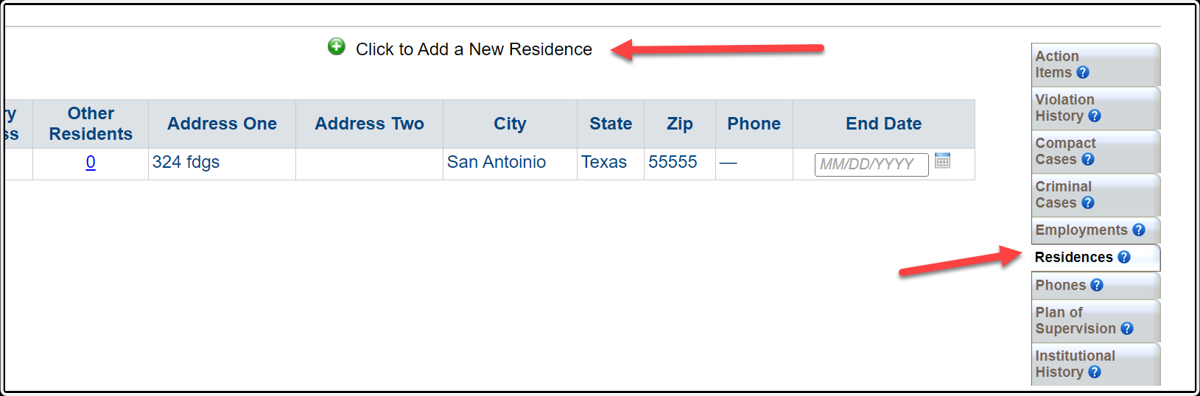
6. This screenshot shows where to make the address updates and to add 'other residents' residing in the home.
7. Proceed to Current Employment.
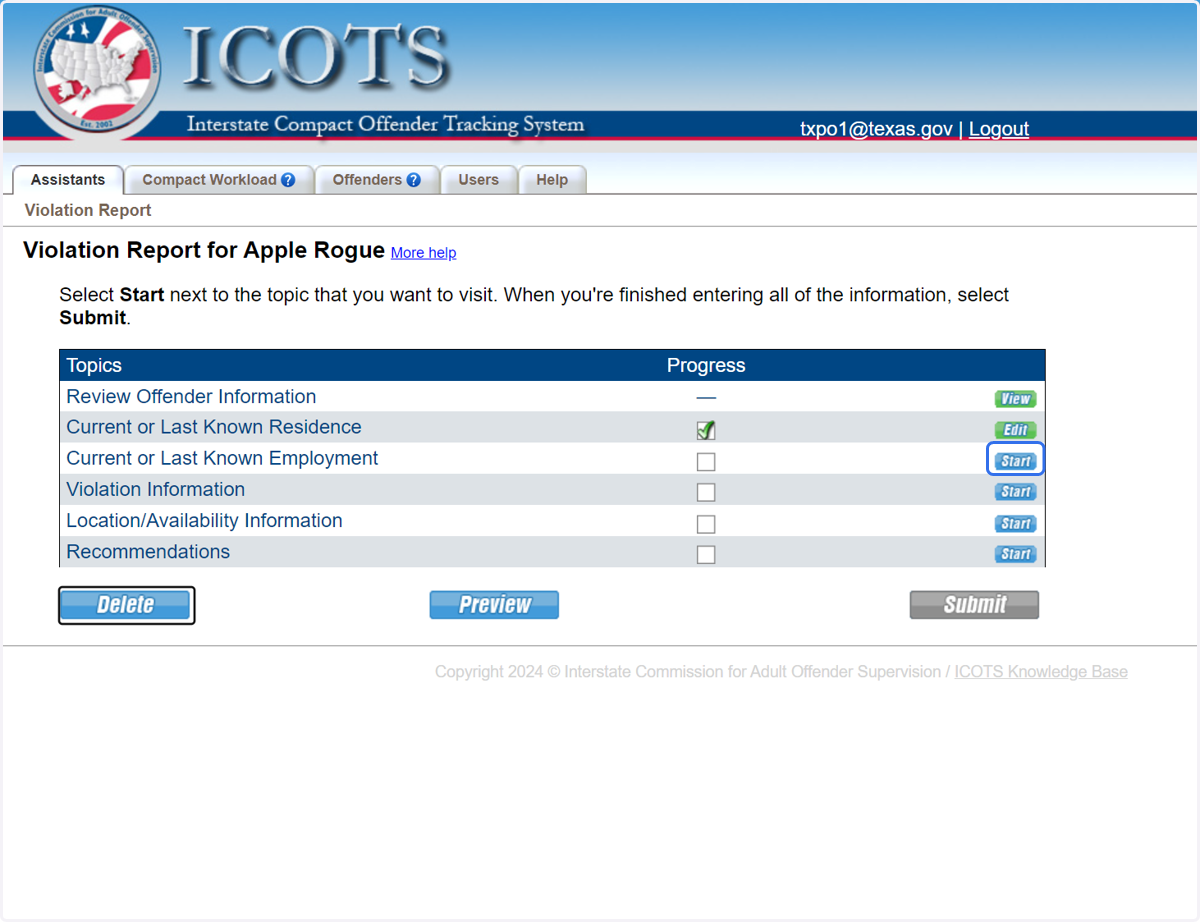
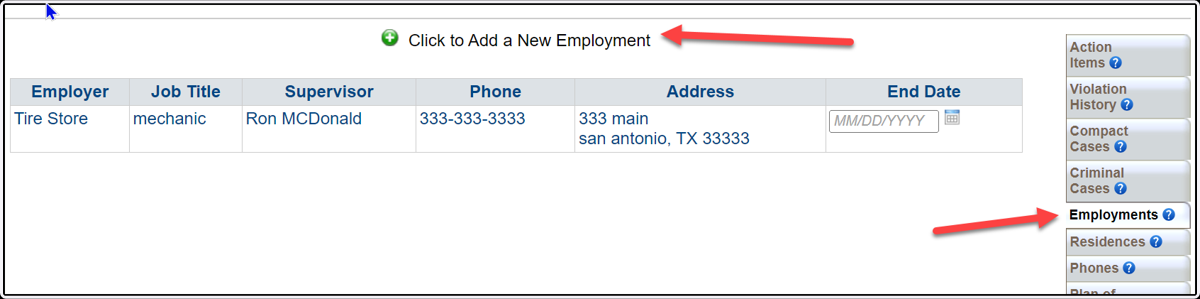
8. Select 'No' if the employment is current. Select 'Yes' and update the employment if needed.
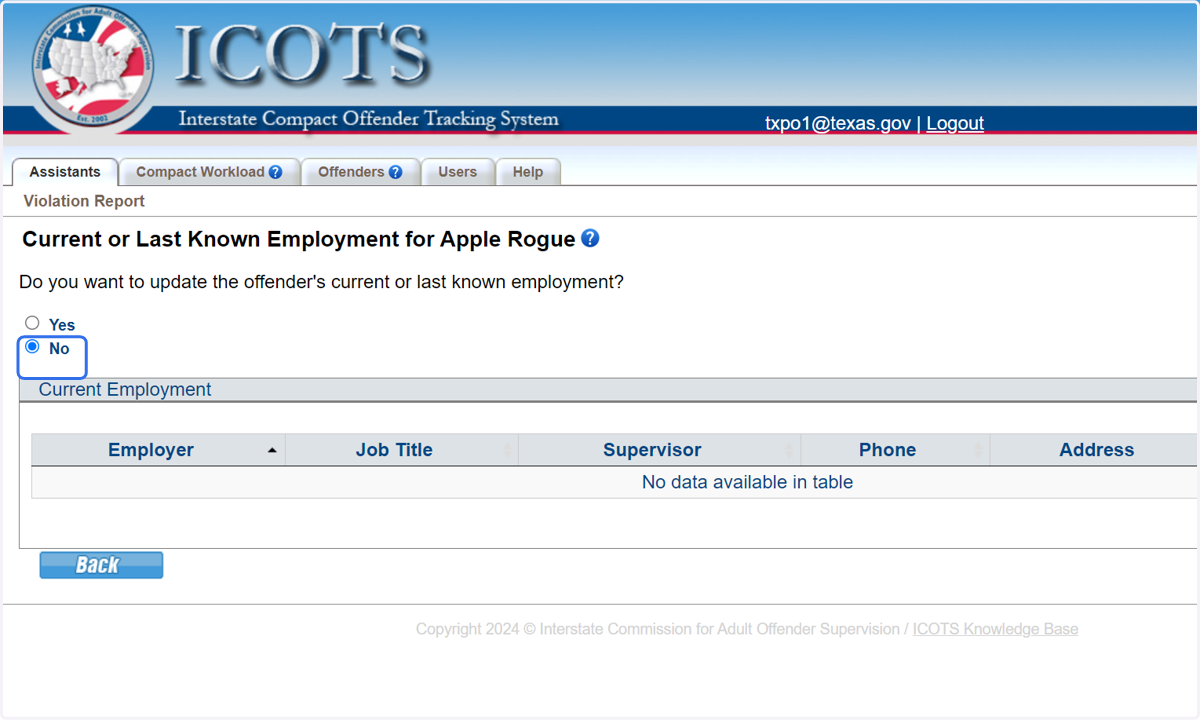
9. This screenshot shows where to make the employment updates.
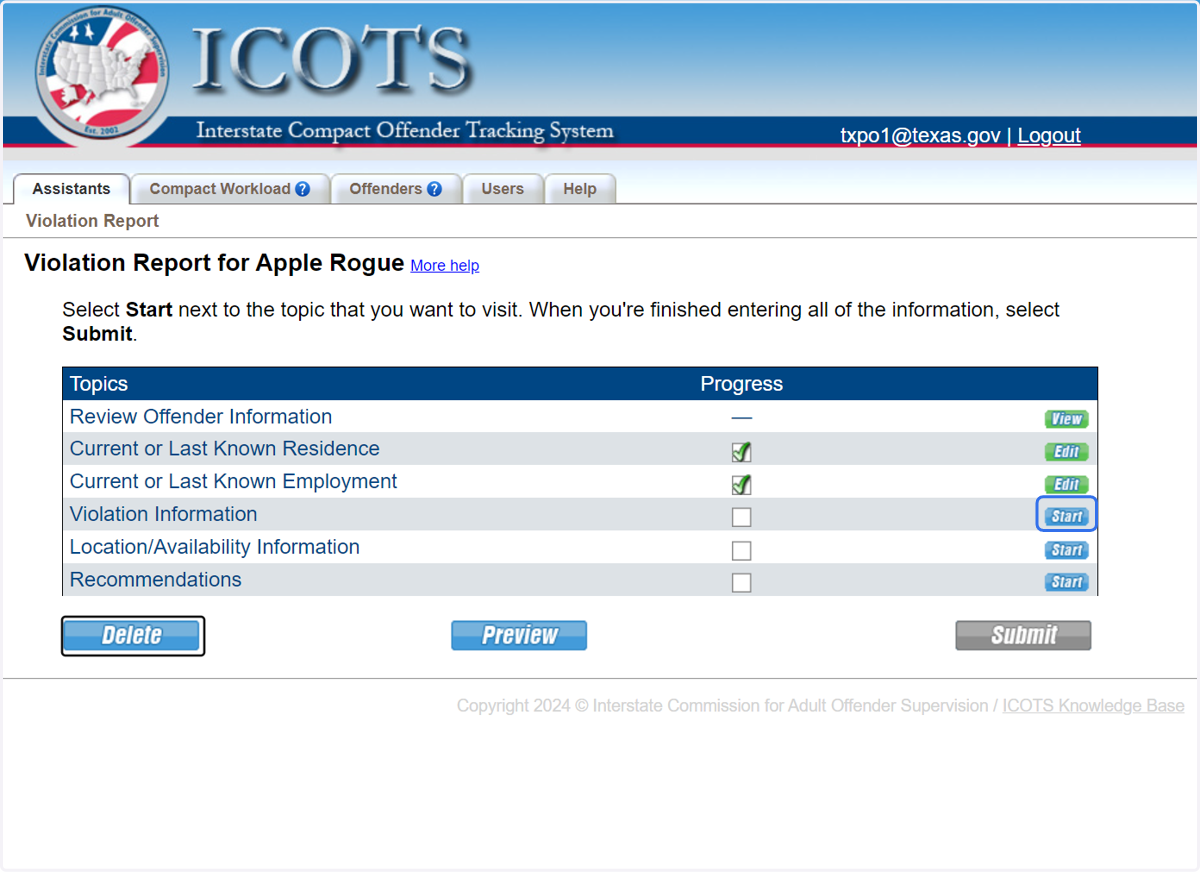
10. Proceed to Violation Information
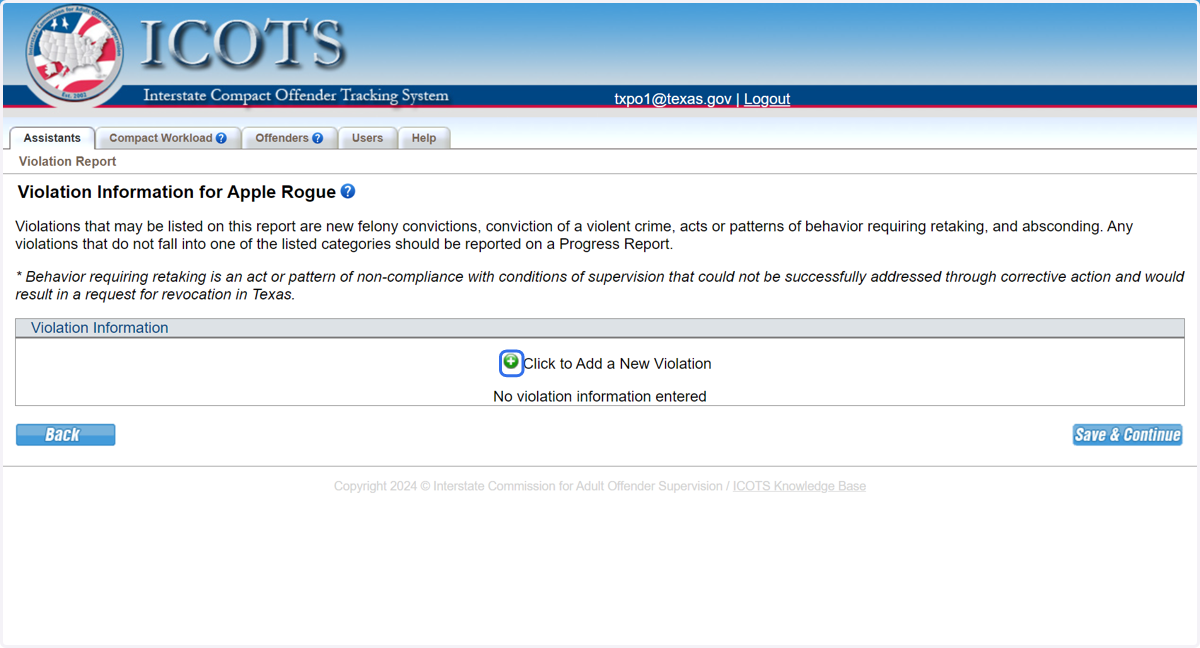
11. Click to Add a New Violation to the Violation Report
12. Click on 'Absconder' as Violation Type.
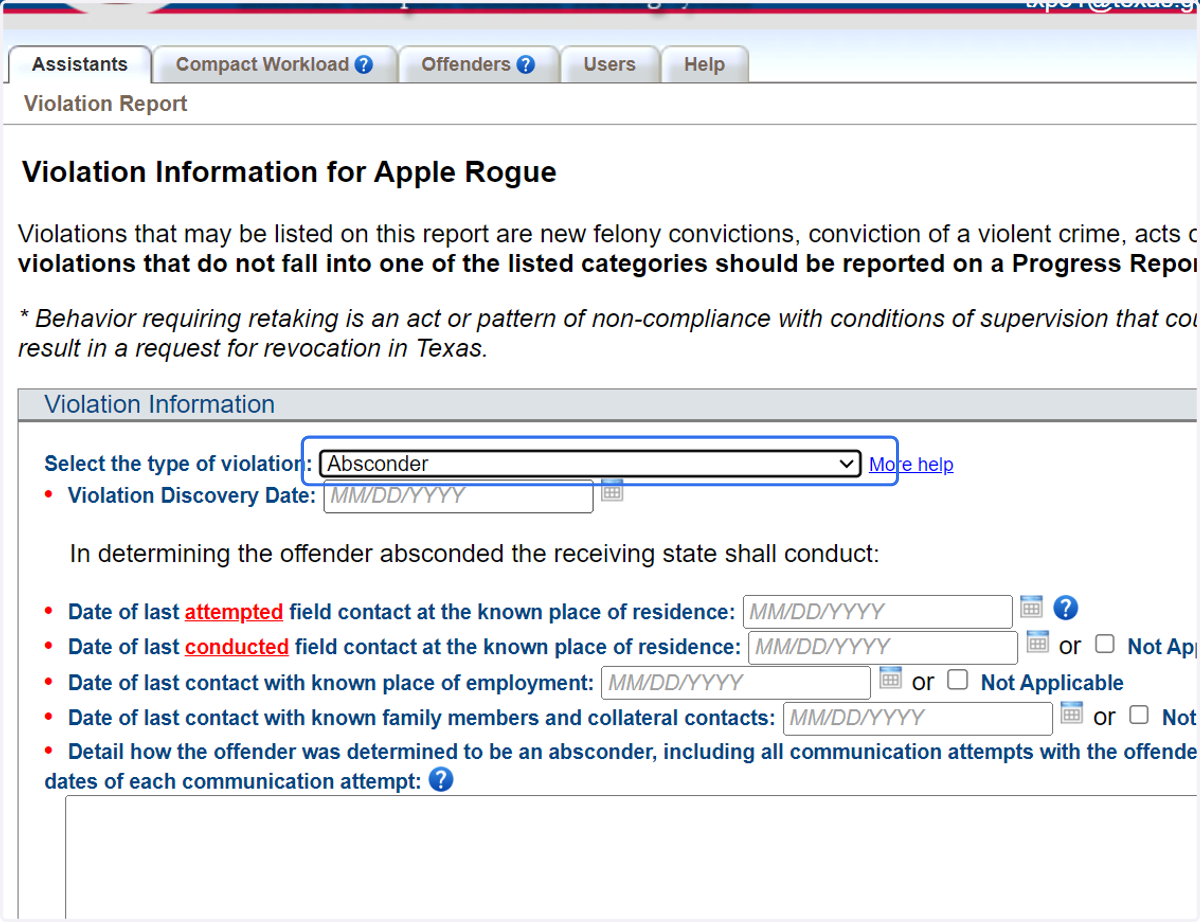
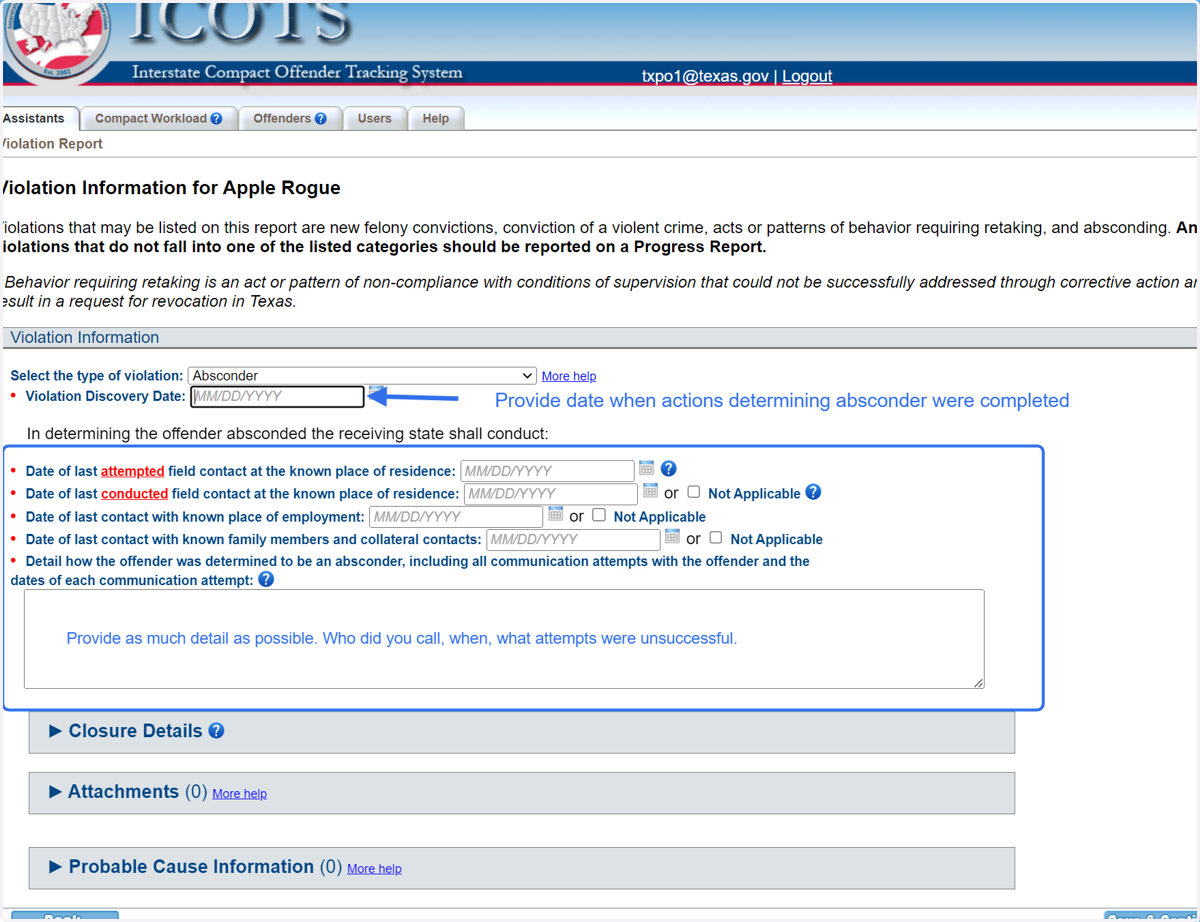
13. Detail your actions in determining the individual an absconder. Who did you speak with, when, what other actions were conducted?
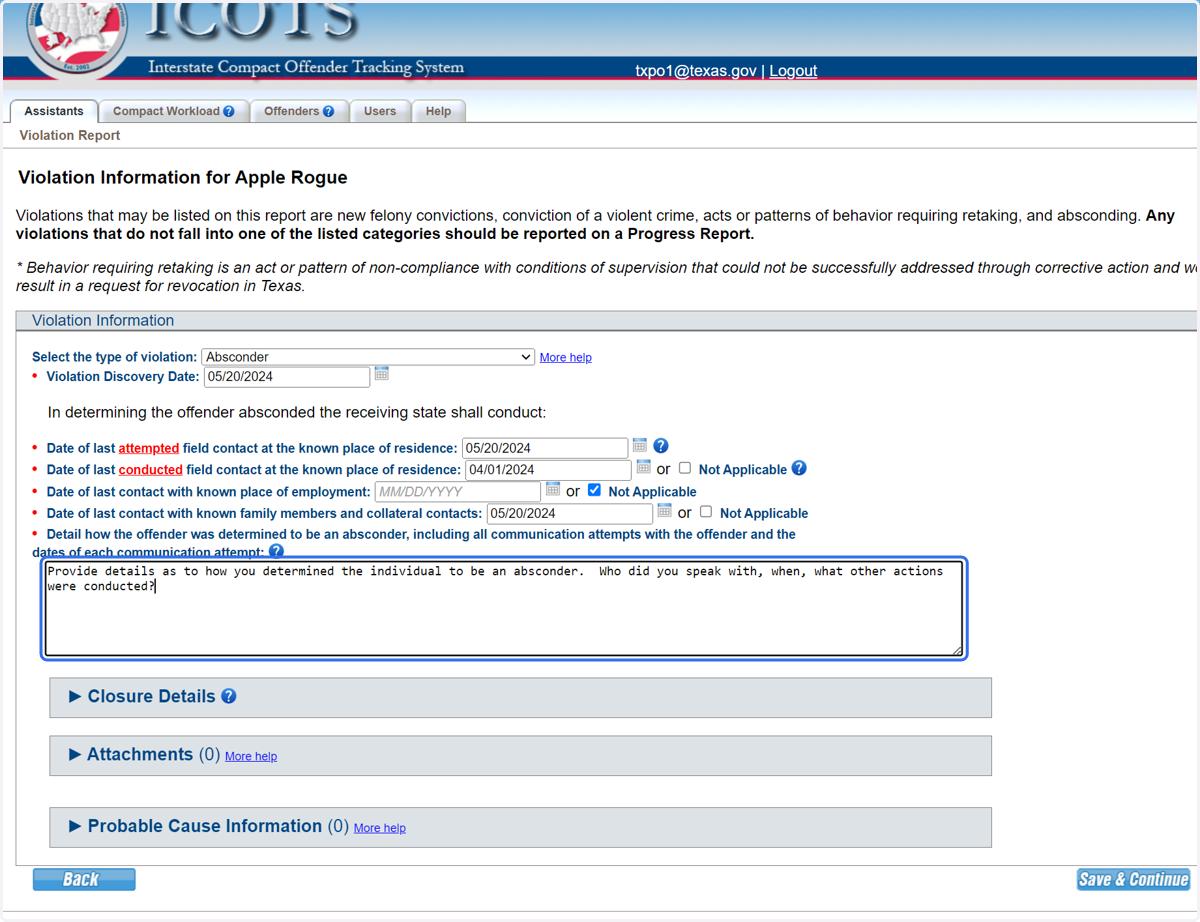
14. Type "Provide details as to how you determined the individual to be an absconder. Who did you speak with, when, what other actions were conducted?"
15. Click on ▶ to provide Closure Details
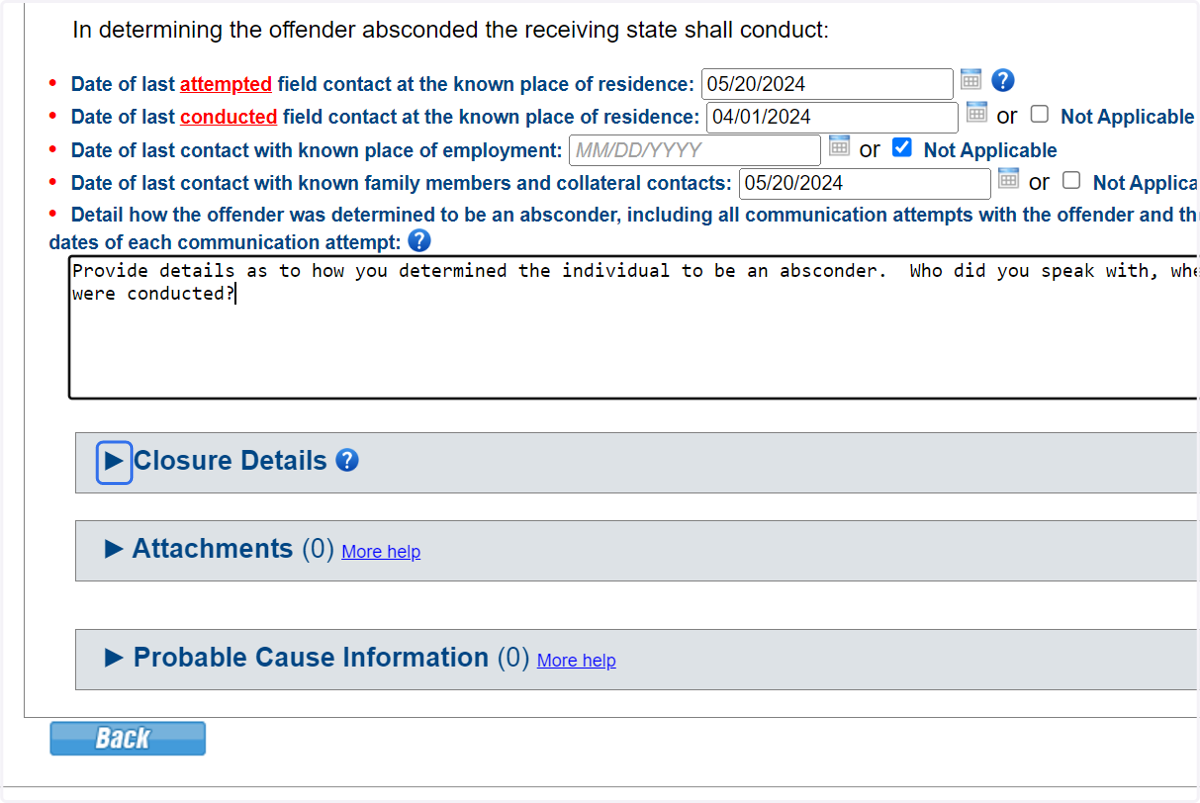
16. Provide details for the closure notice that is created when the violation report is created.
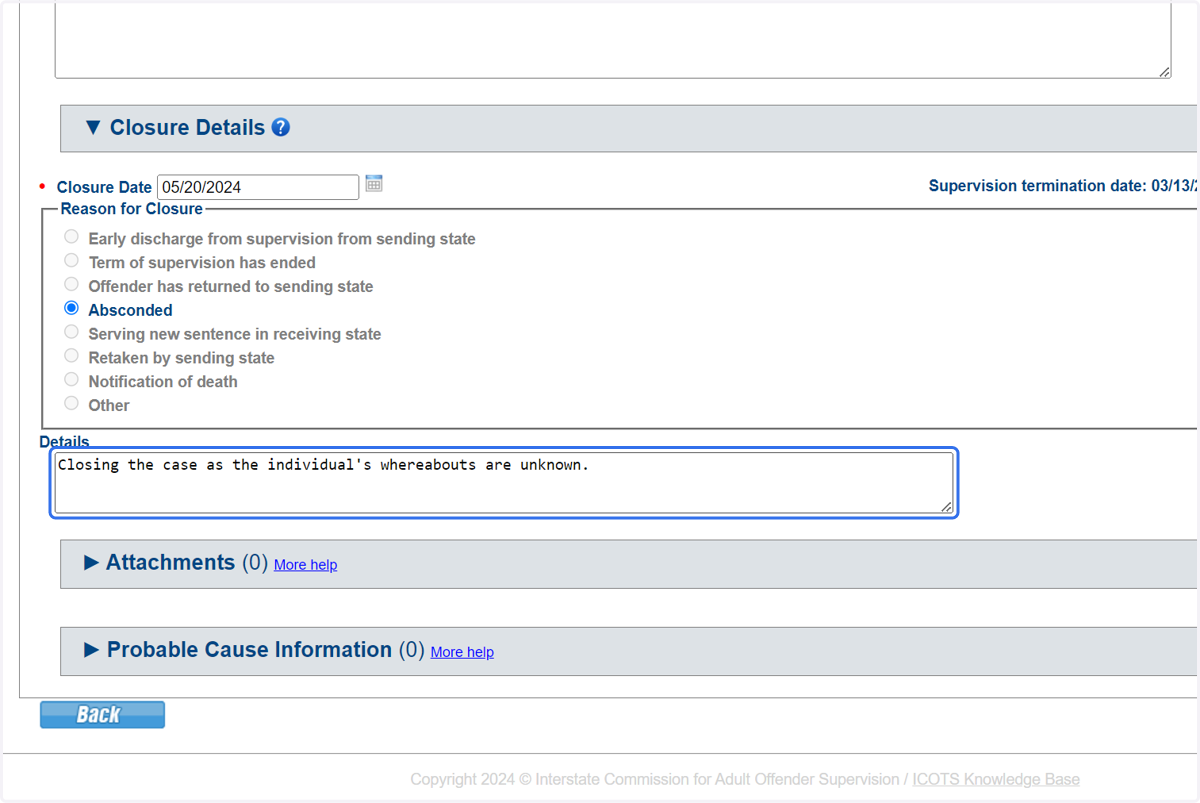
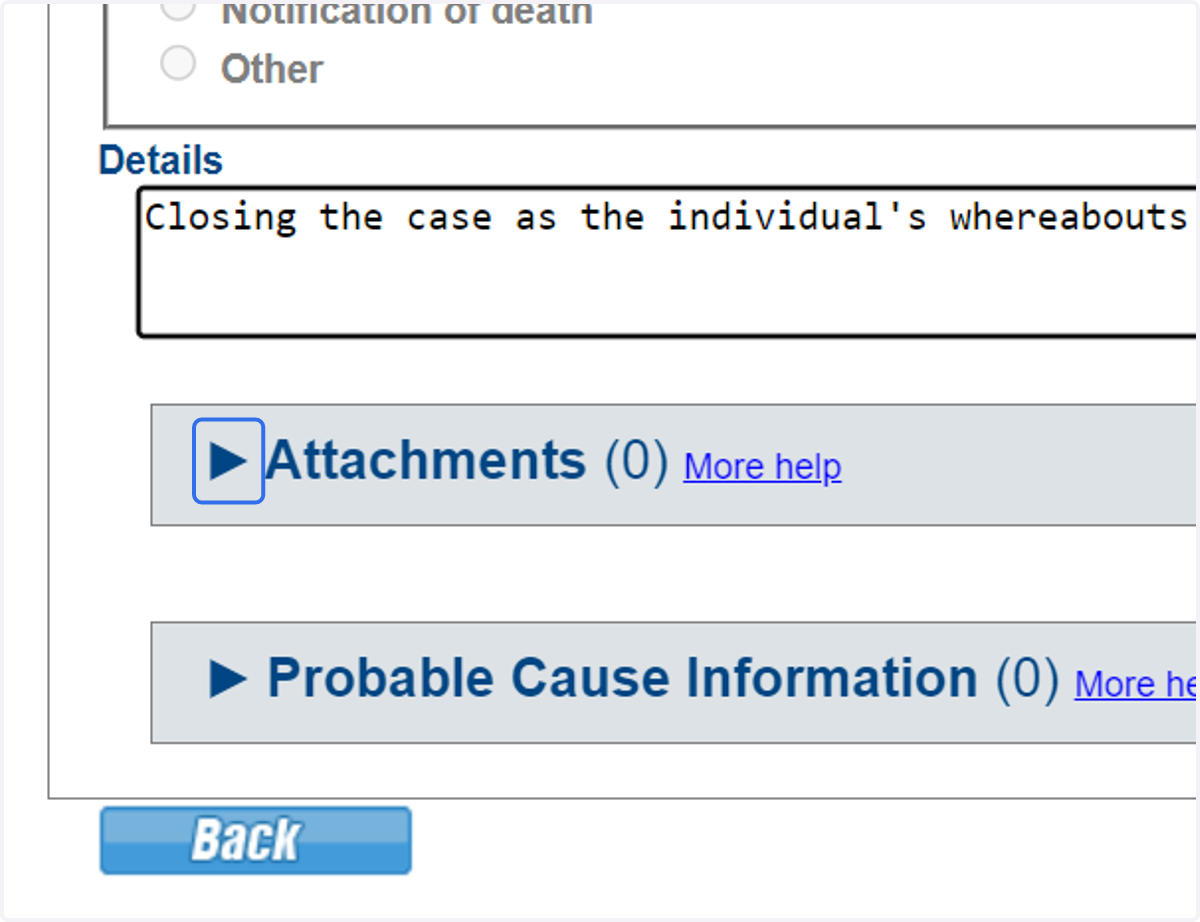
17. Click on ▶ Attachments
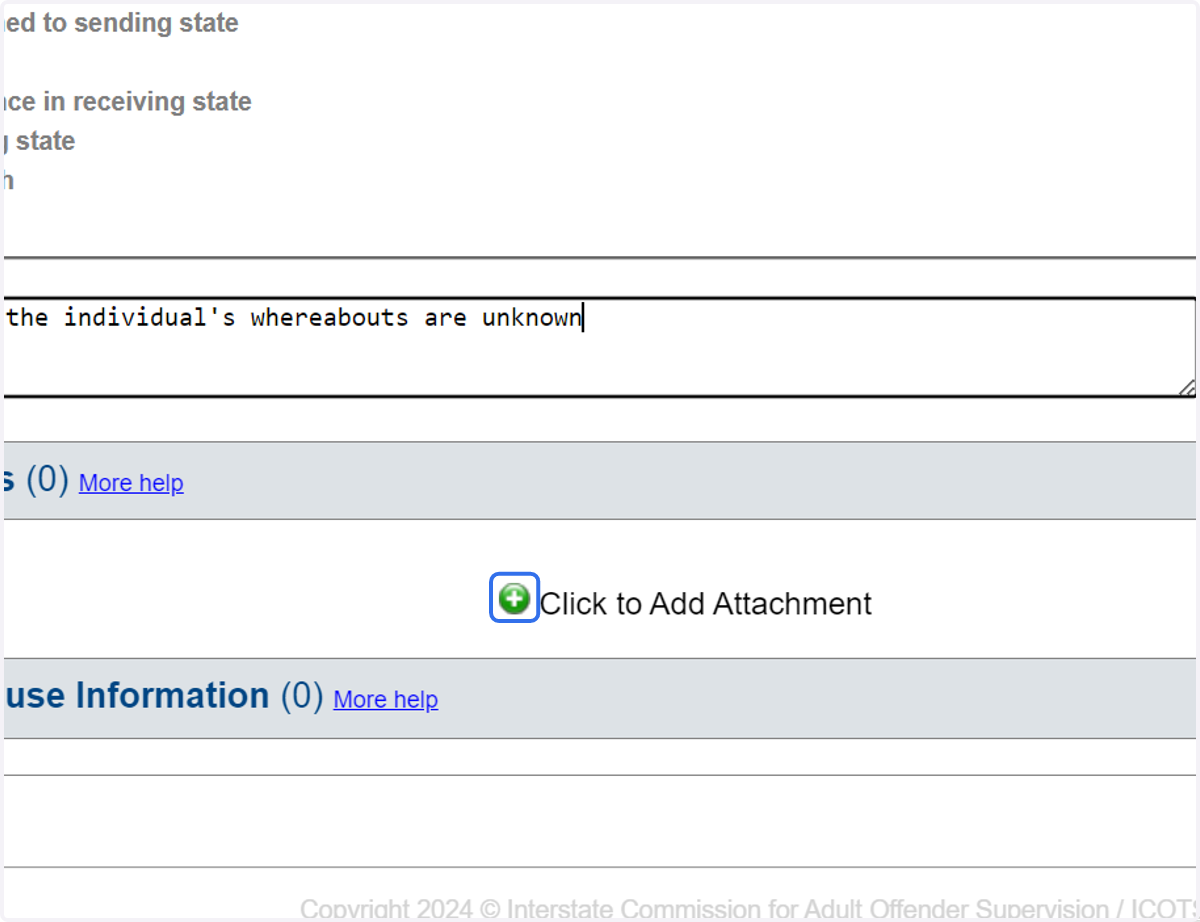
18. Click on Add an attachment or additional documentation
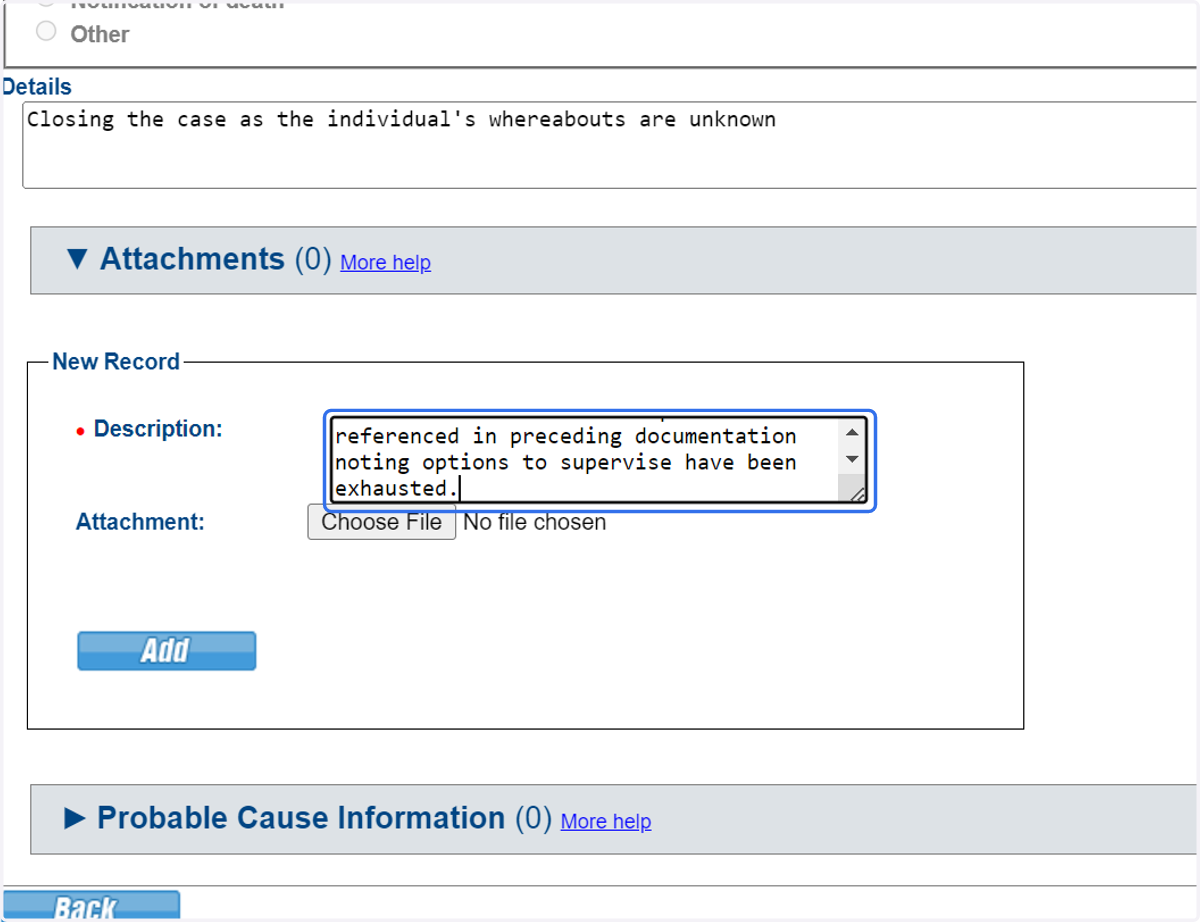
19. Provide other details or references to preceding documentation noting options to supervise have been exhausted."
20. Click on ▶ Probable Cause Information
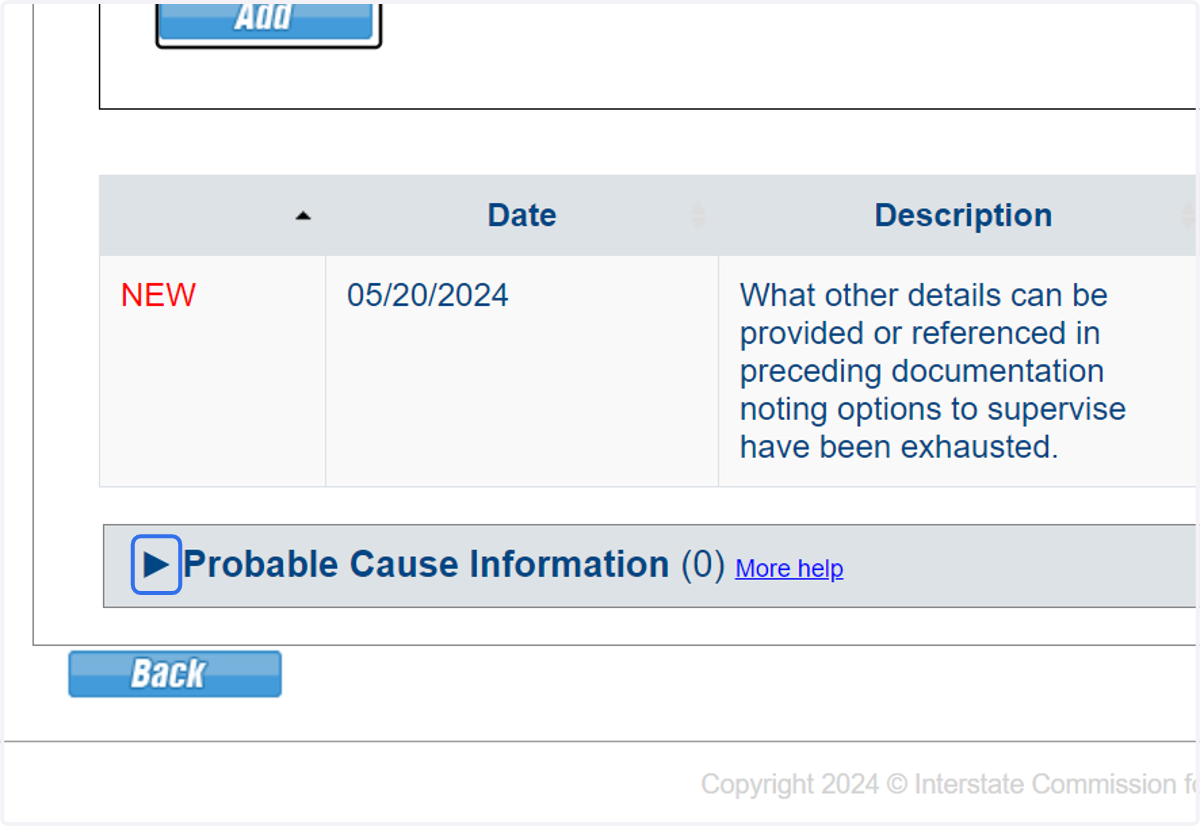
21. Select 'No' to both PC questions as Probable Cause documentation is typically added once apprehended on the sending state's warrant when the compact case is reopened.
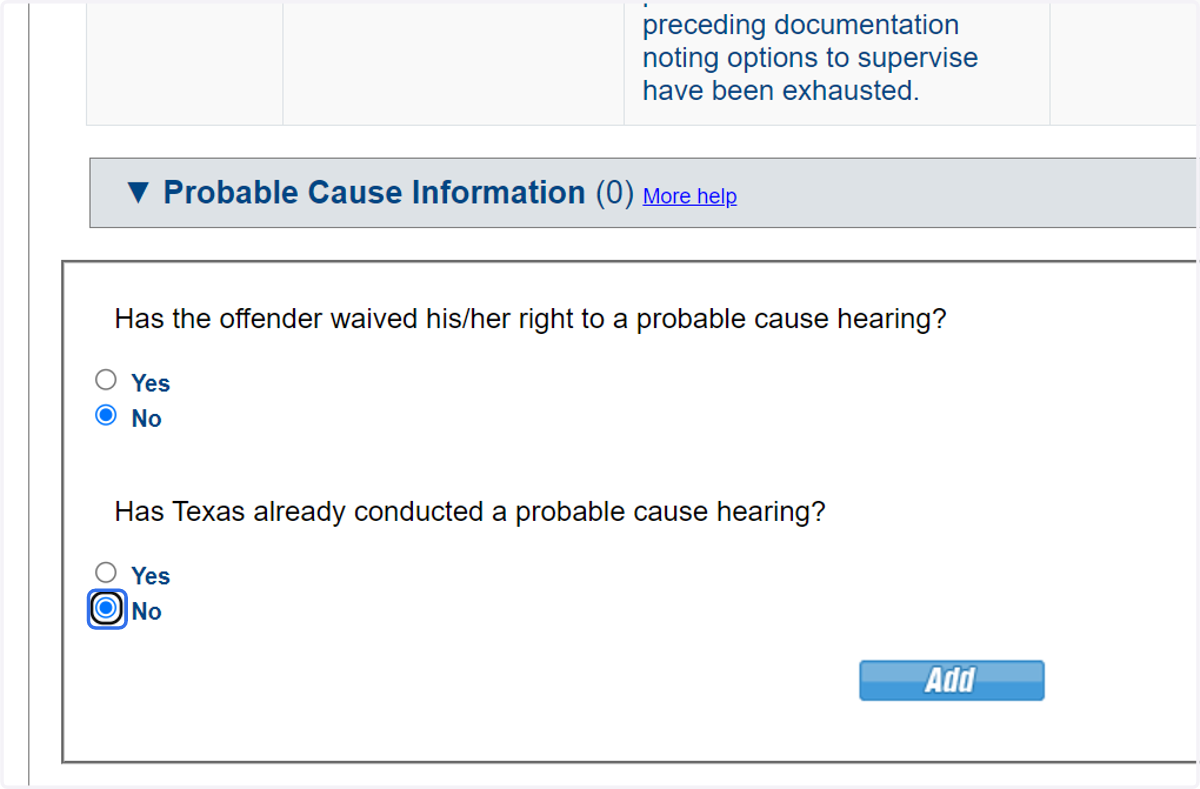
22. Click 'Add' to attach documentation to the violation record.
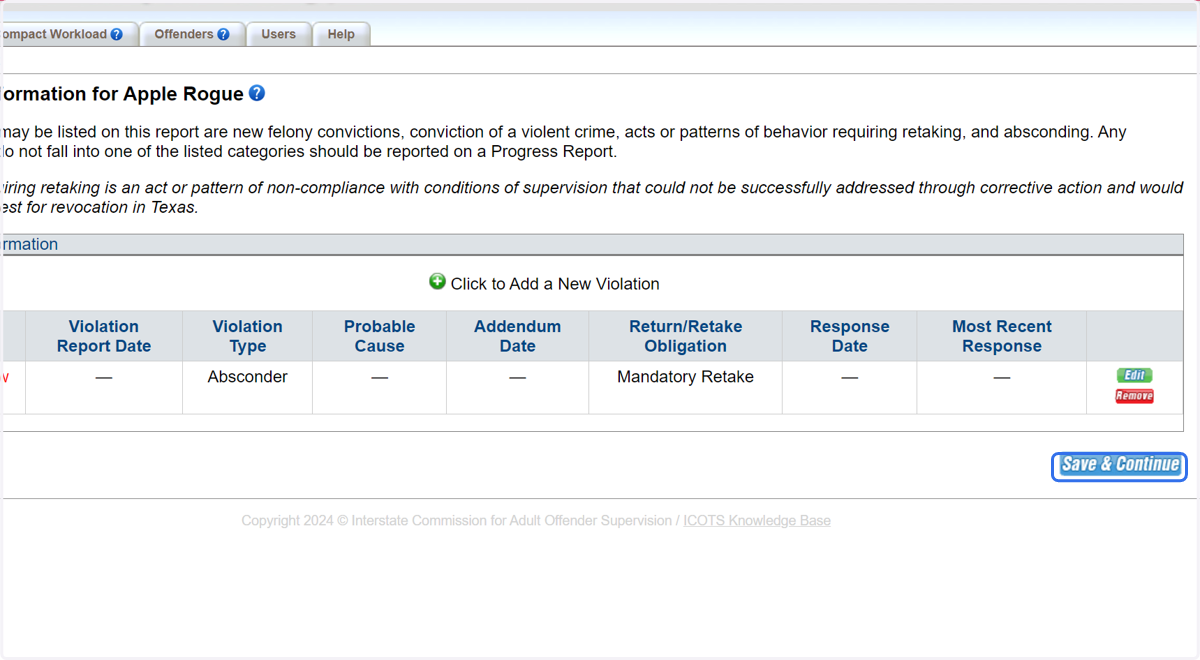
23. Review Violation Overview, then 'Save & Continue' to proceed.
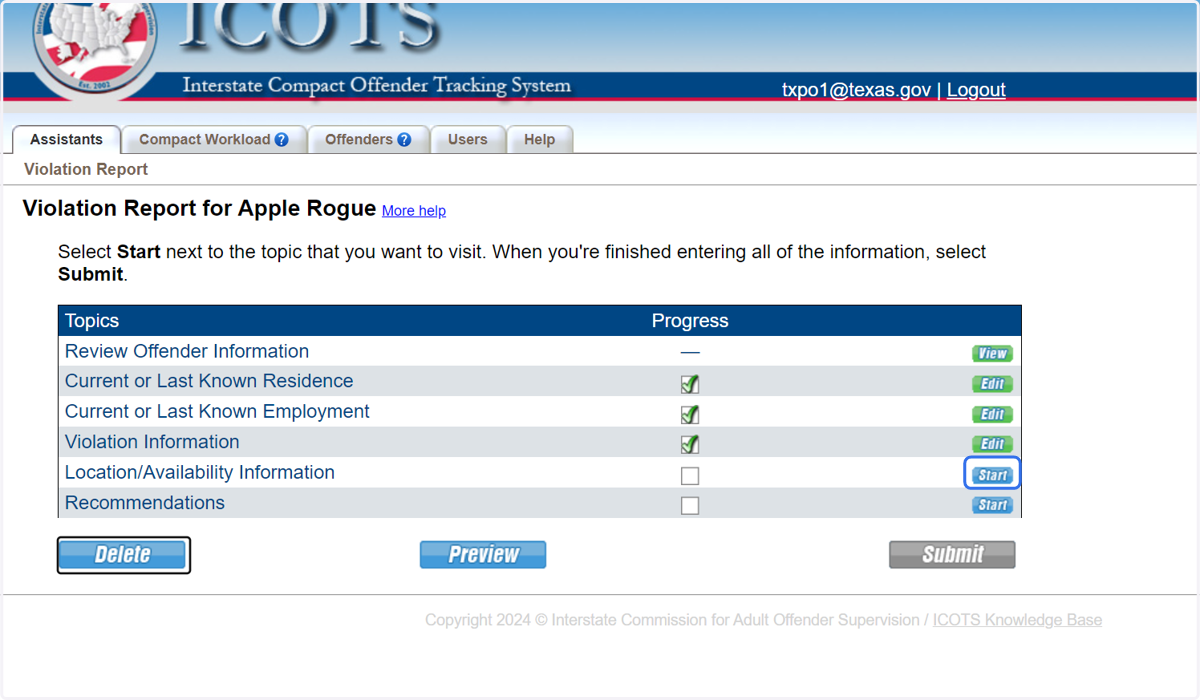
24. Proceed to Location/Availability.
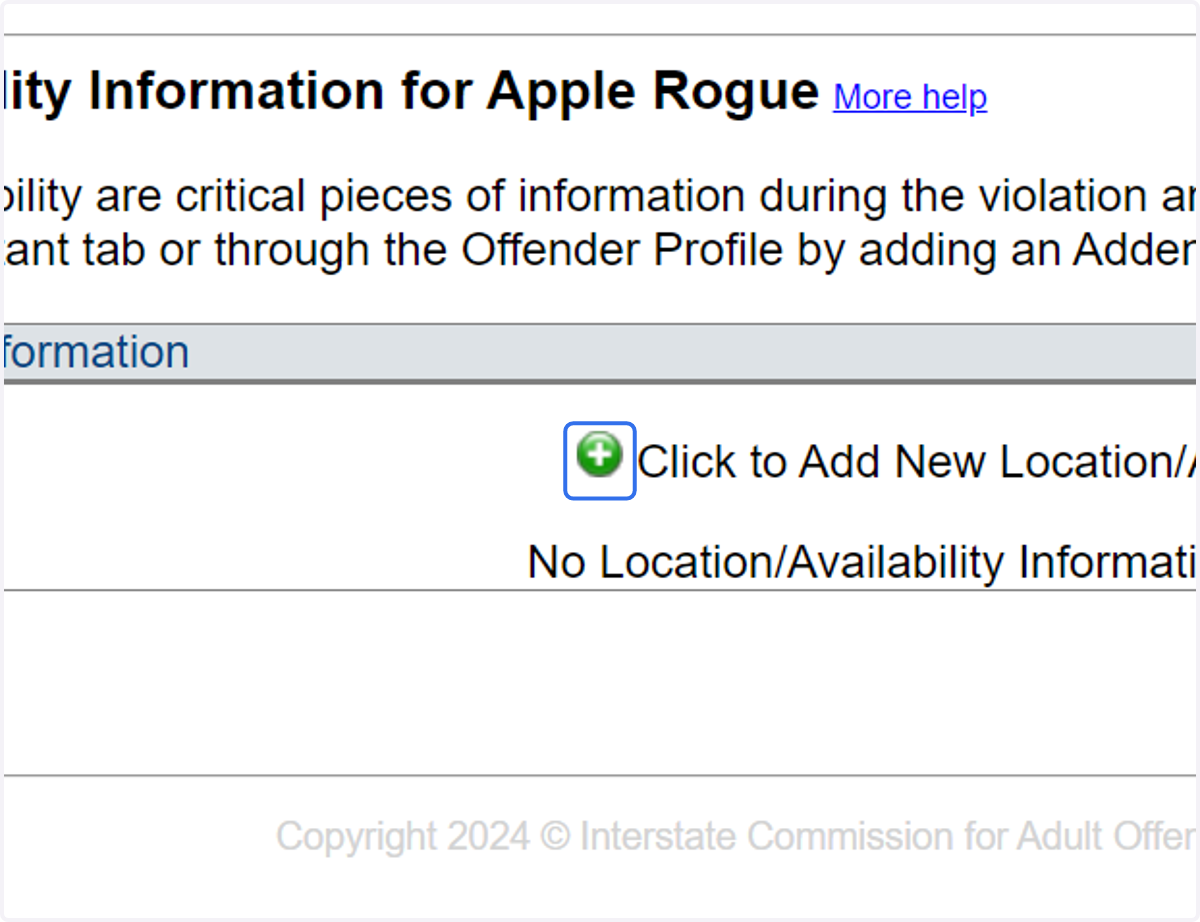
25. Click on '+' to Add New Location/Availability Information
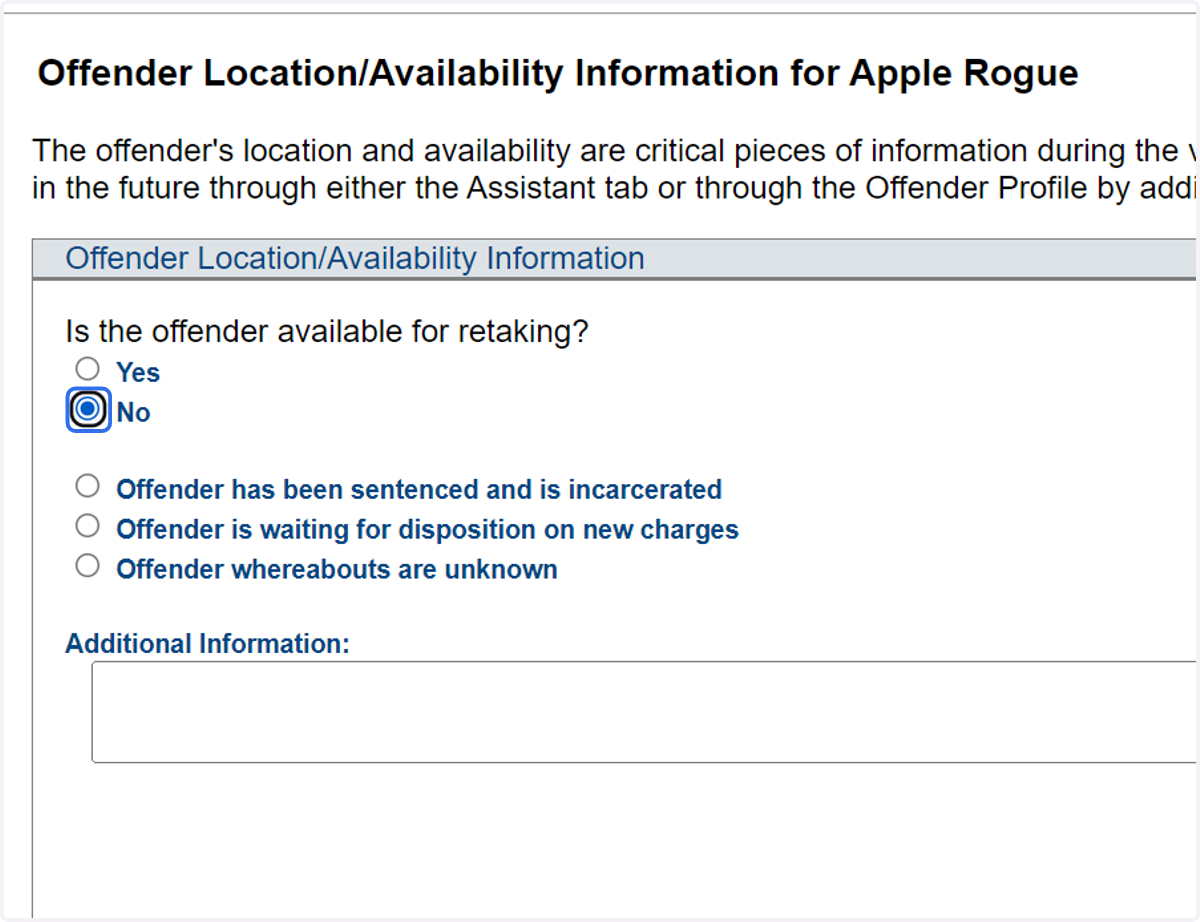
26. Select No; Not available for retaking as 'whereabouts are unknown'
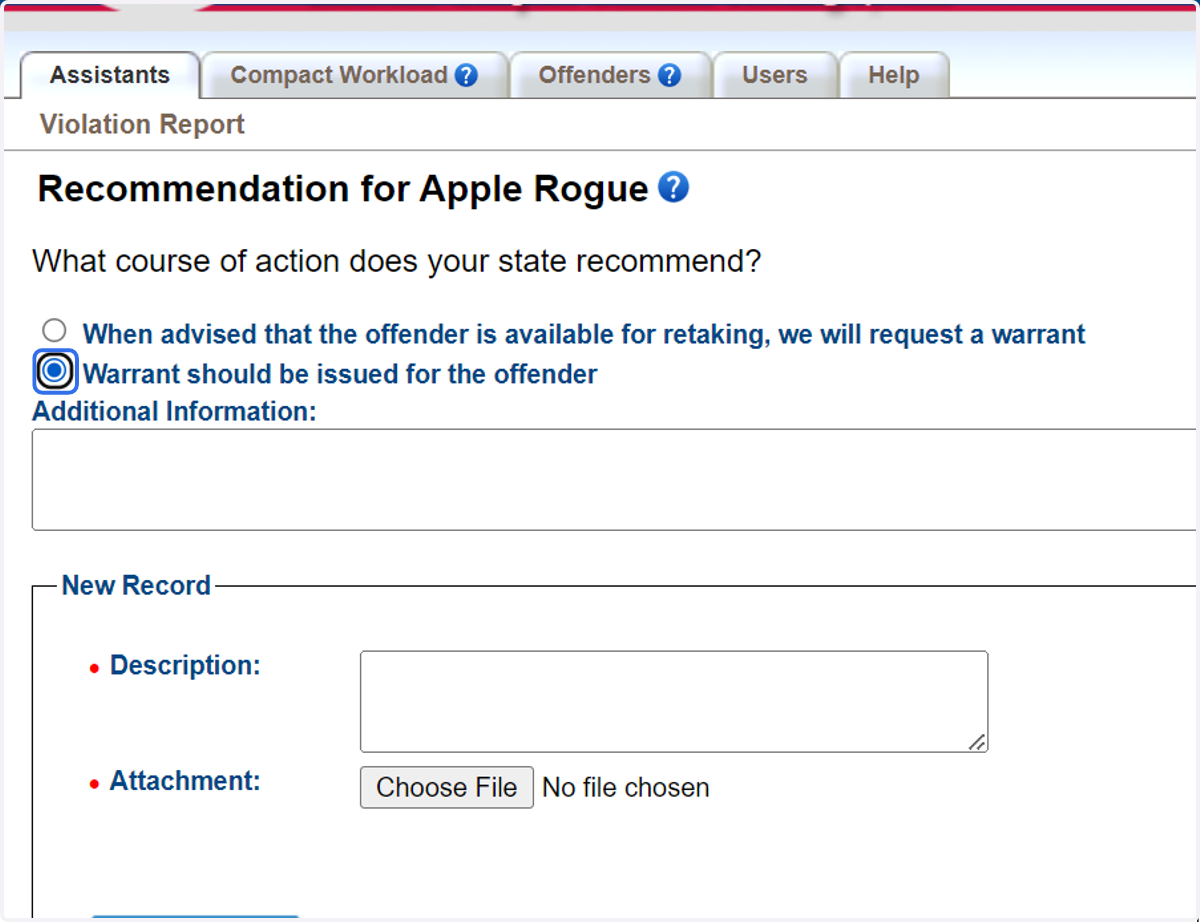
27. Proceed to 'Recommendations.'
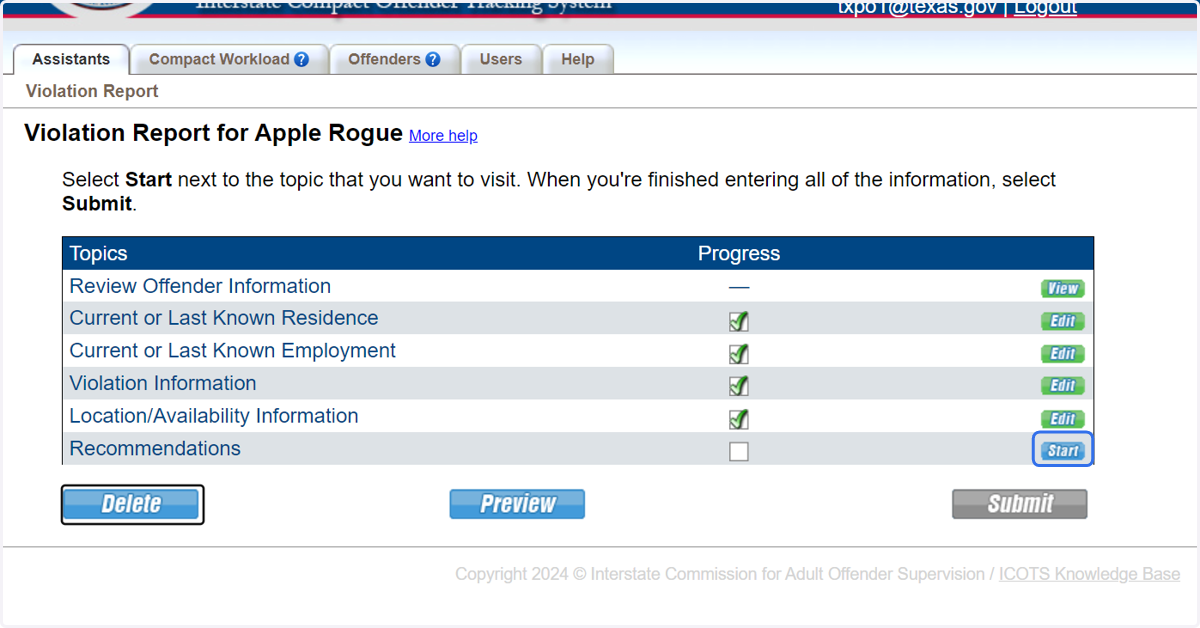
28. Select 'Warrant should be issued' and provide any additional attachments.
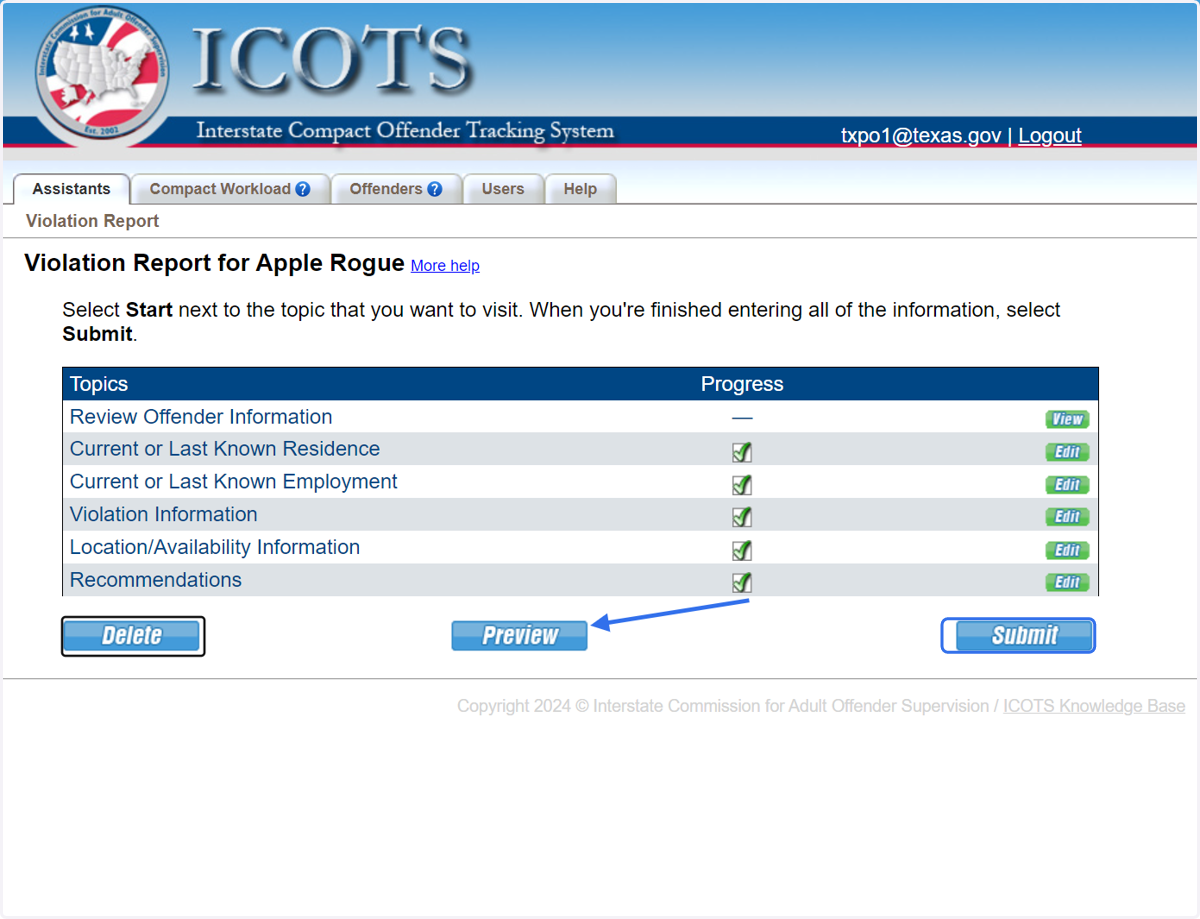
29. Be sure to preview the Violation Report to view how it will be saved and display in ICOTS. When completed, click 'Submit.'