Lost your password? Reset your password on a Navigator website
This tutorial explains how to reset your password if you have forgotten it. You can move through the tutorial at your own pace using the NEXT button.
1. Go to the Home page of your website.
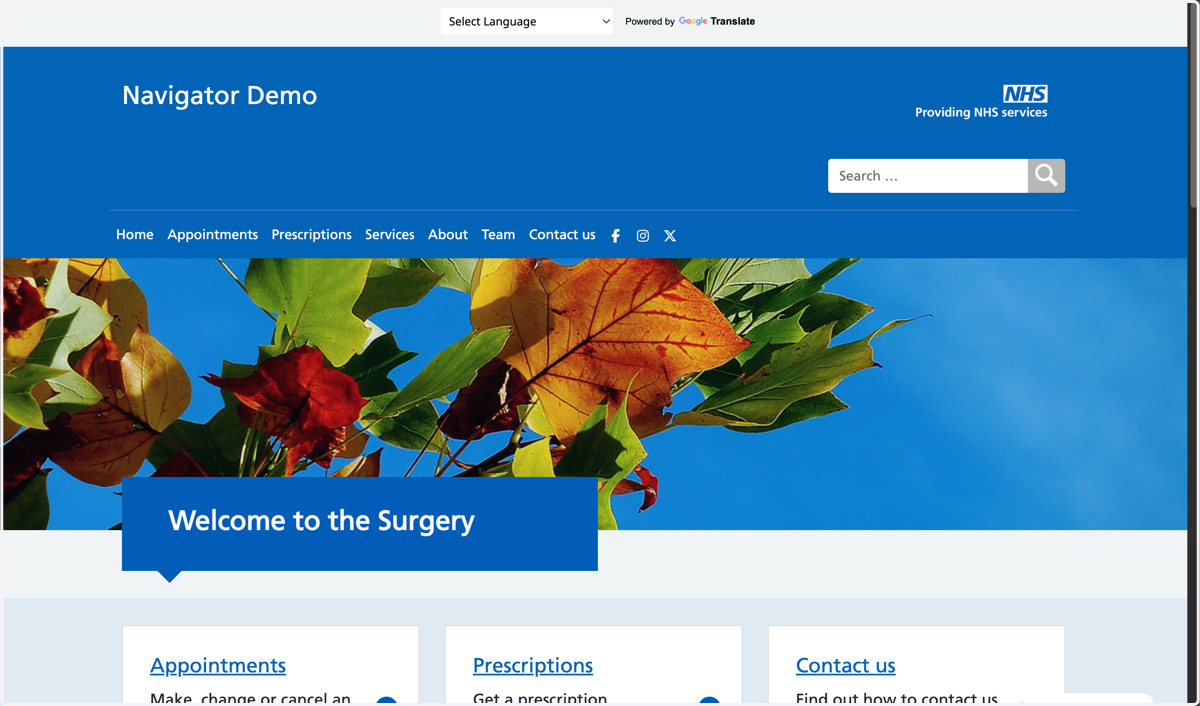
2. In the address bar, add /admin/ to the end of your website address. Load the page.
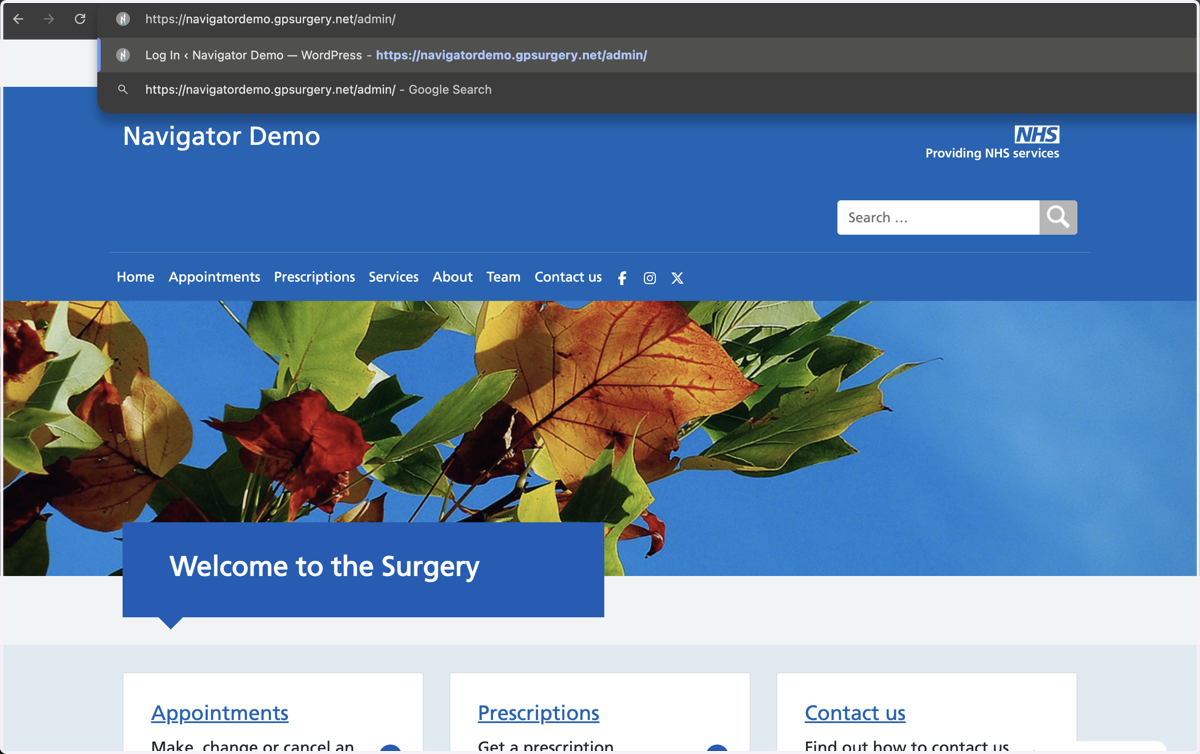
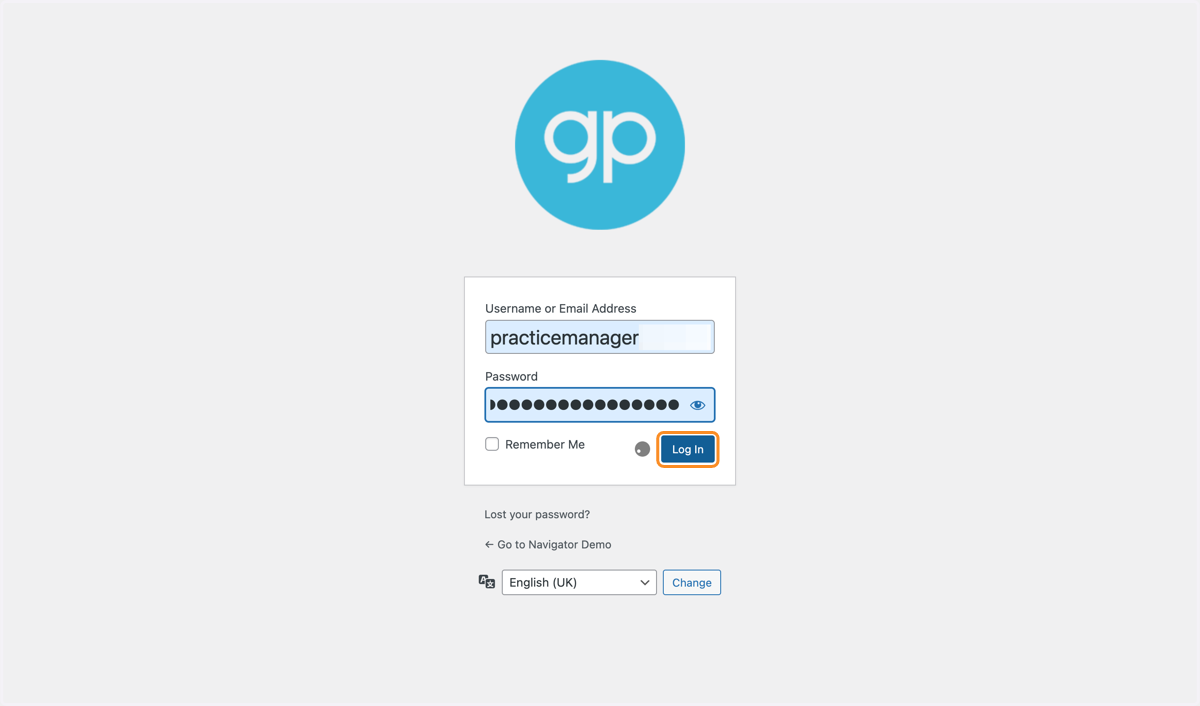
3. You are now on the Log In screen.
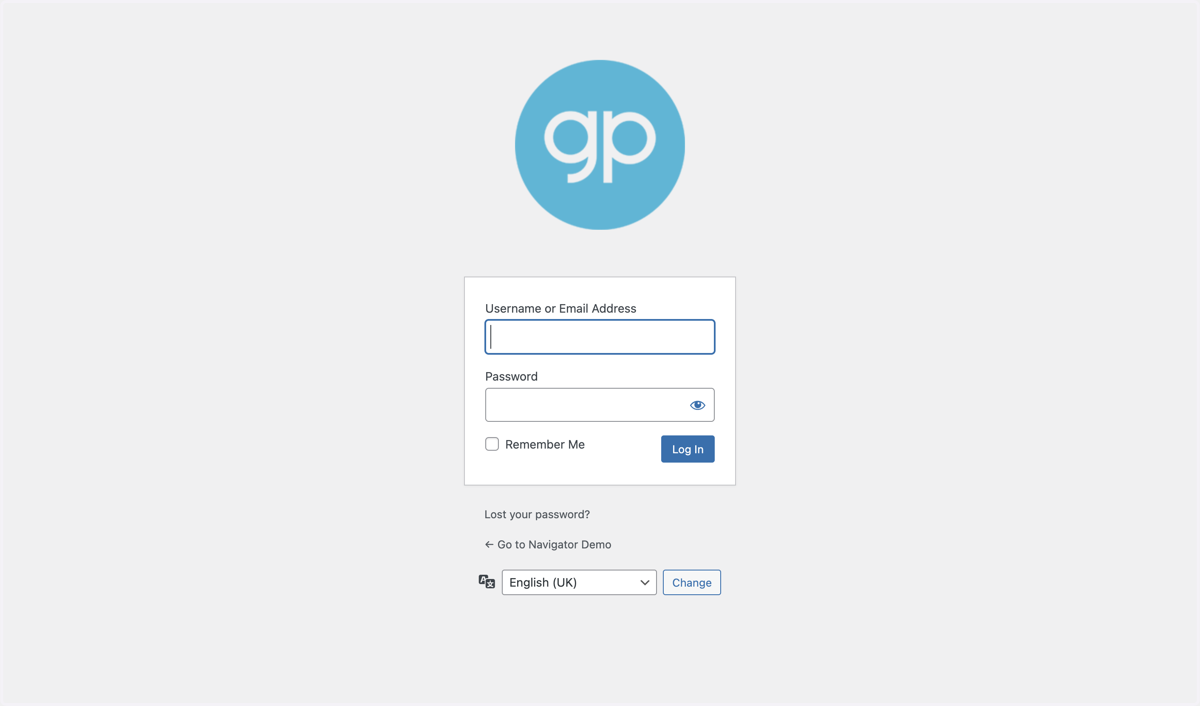
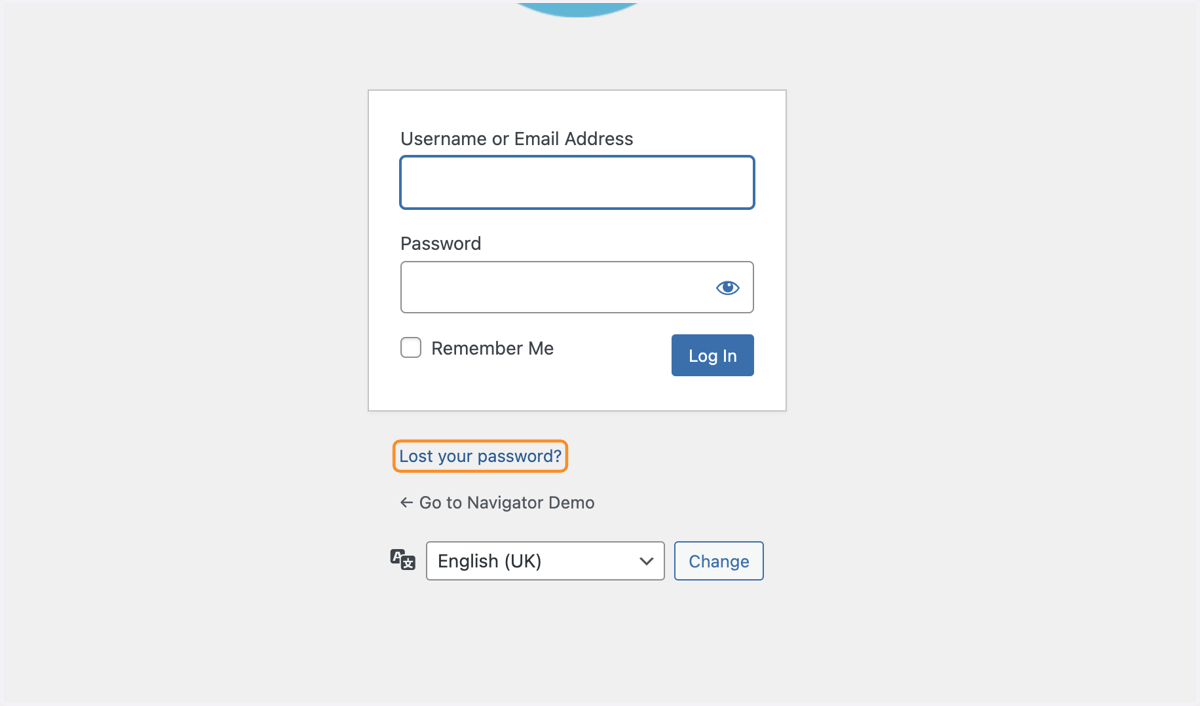
4. Select the Lost your password? link.
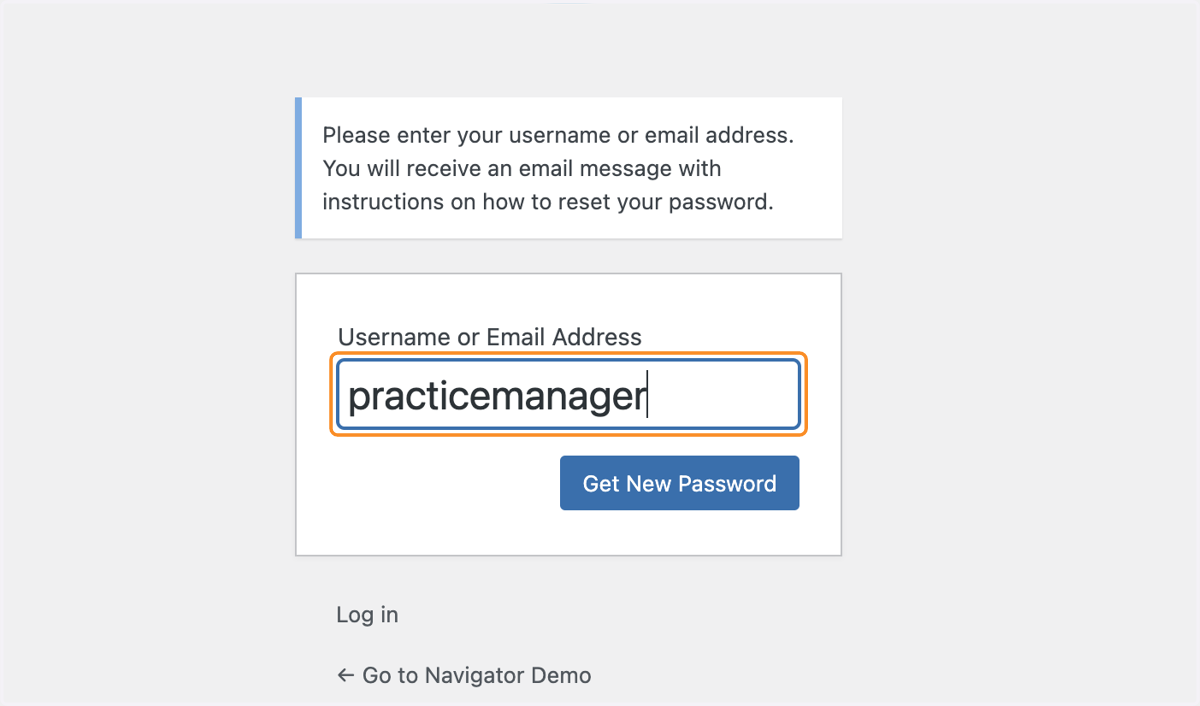
5. Type your NHS email address into the Username or Email Address box
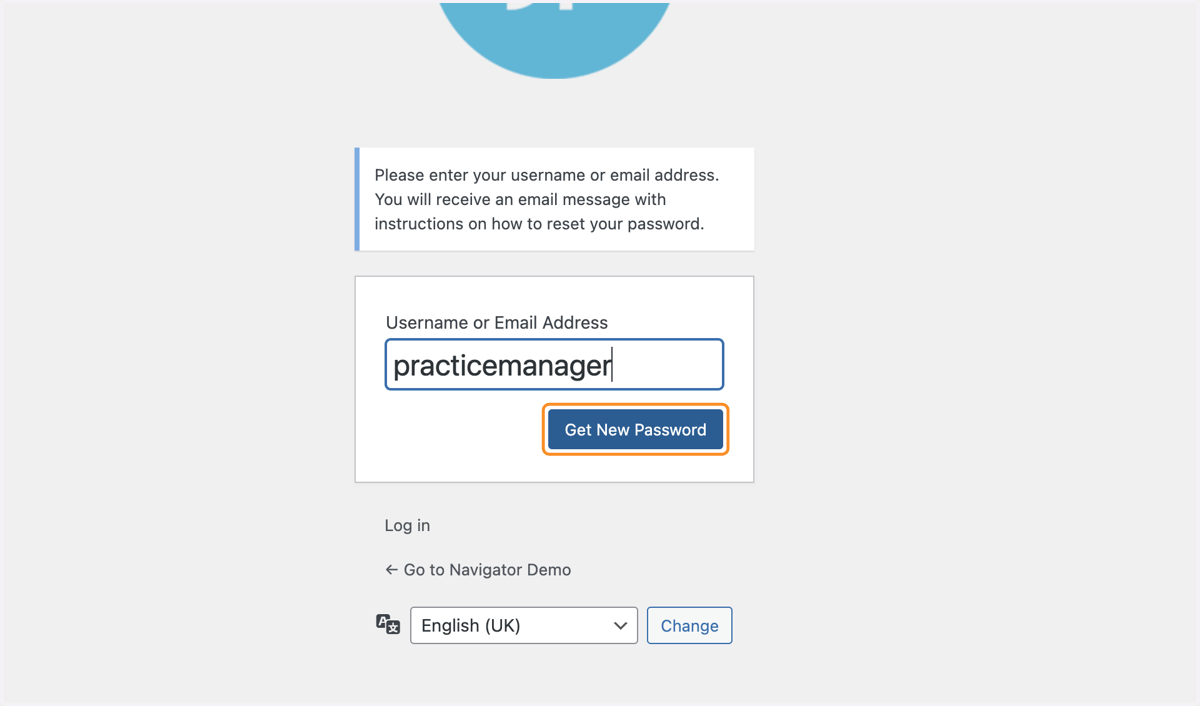
6. Select the blue Get New Password button
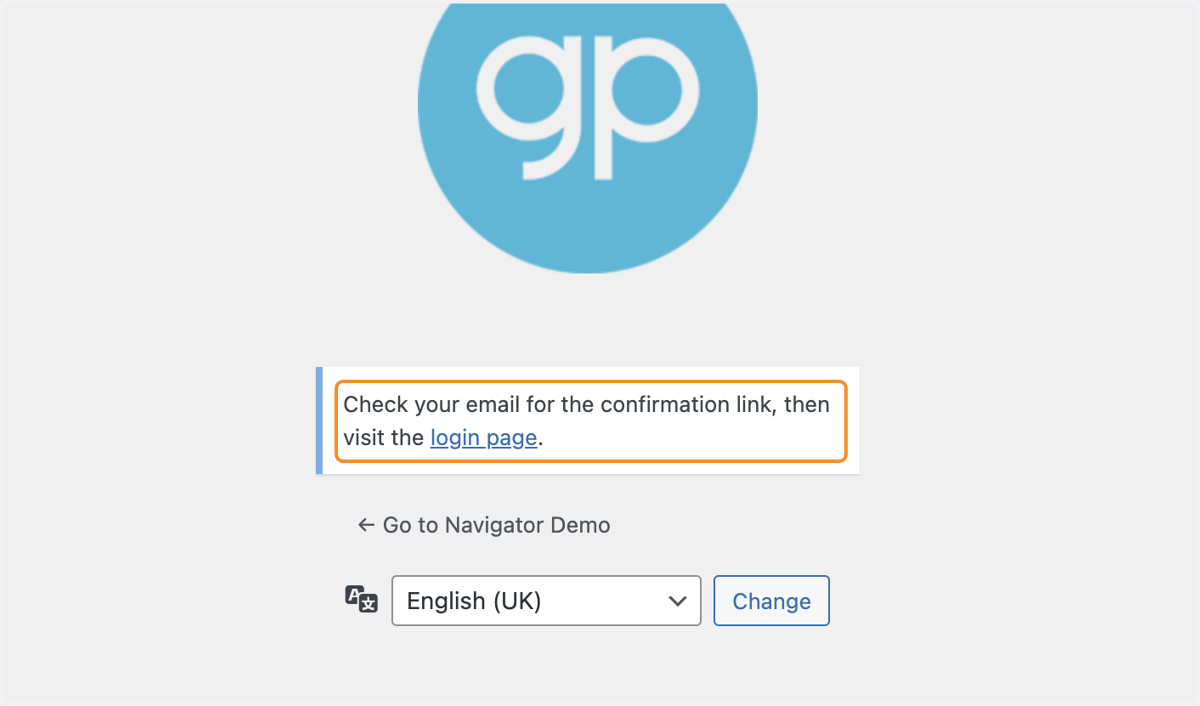
7. You should receive an email explaining how to reset your password.
NOTE: if this does not arrive in 30 minutes and it is not in your spam folder, please email support@gpsurgery.net and we can help you reset your password.
8. Once you have reset your password, you can login to your website by adding /admin/ to the end of your website address as before.
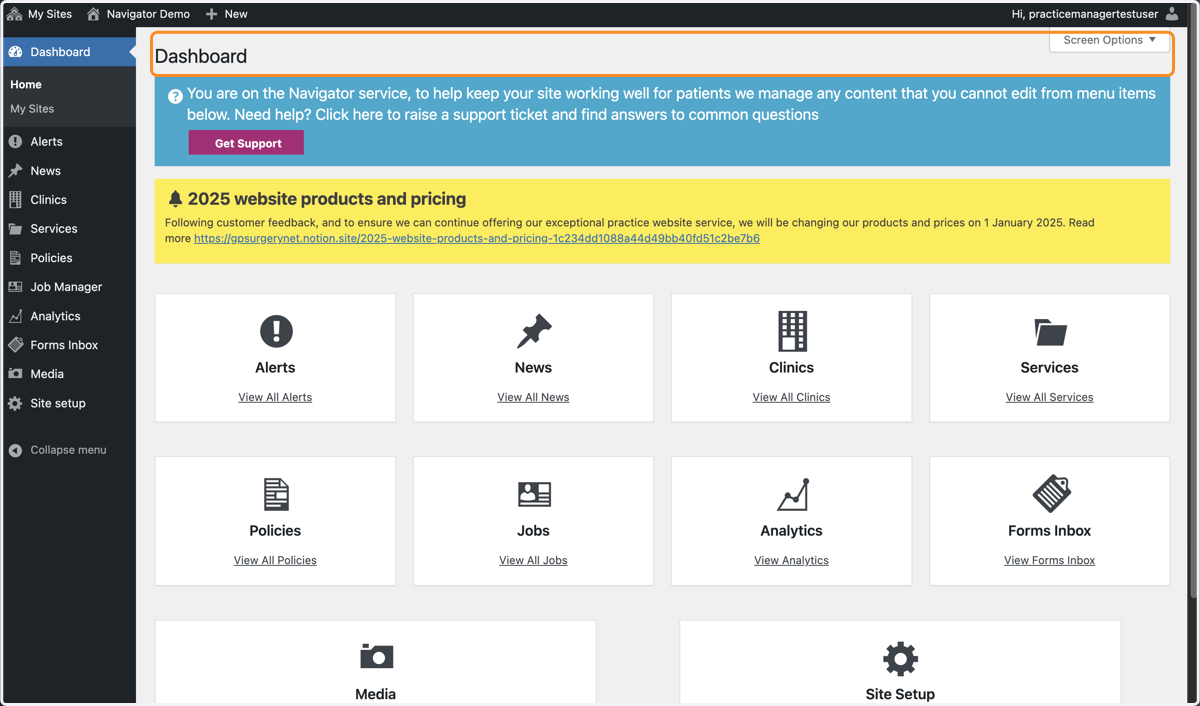
9. You will then be able to see the Dashboard of your website.