Export Class Attendees

ENGAGIFII

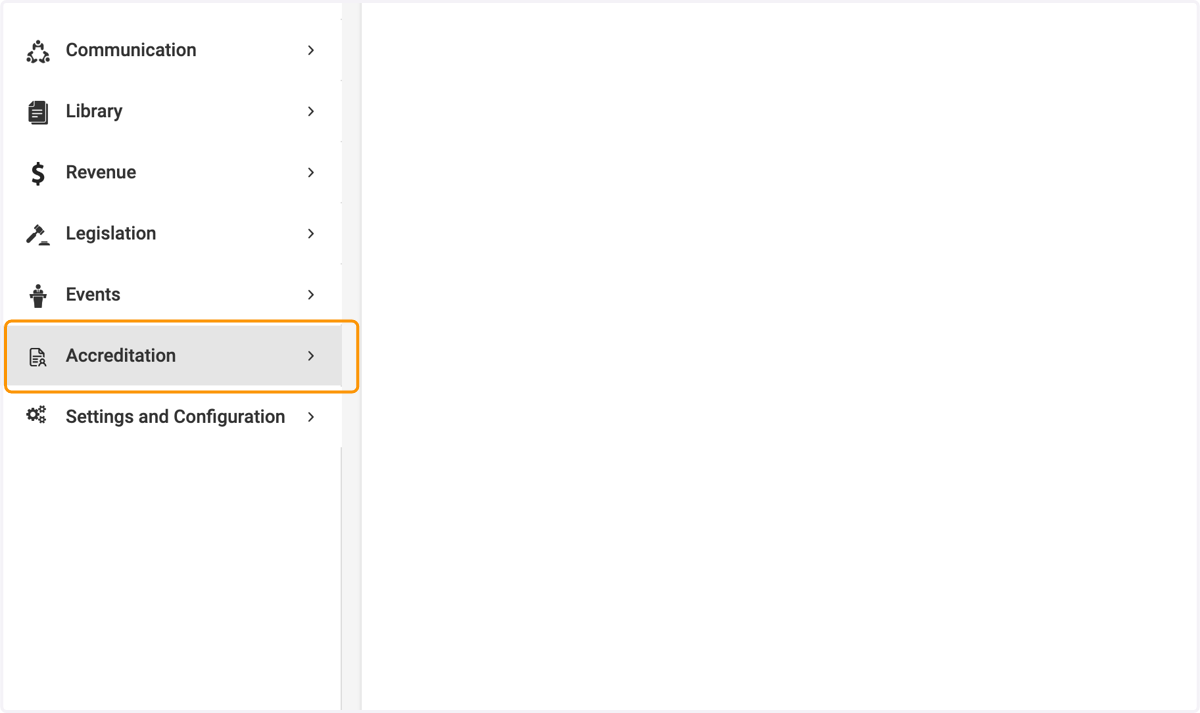
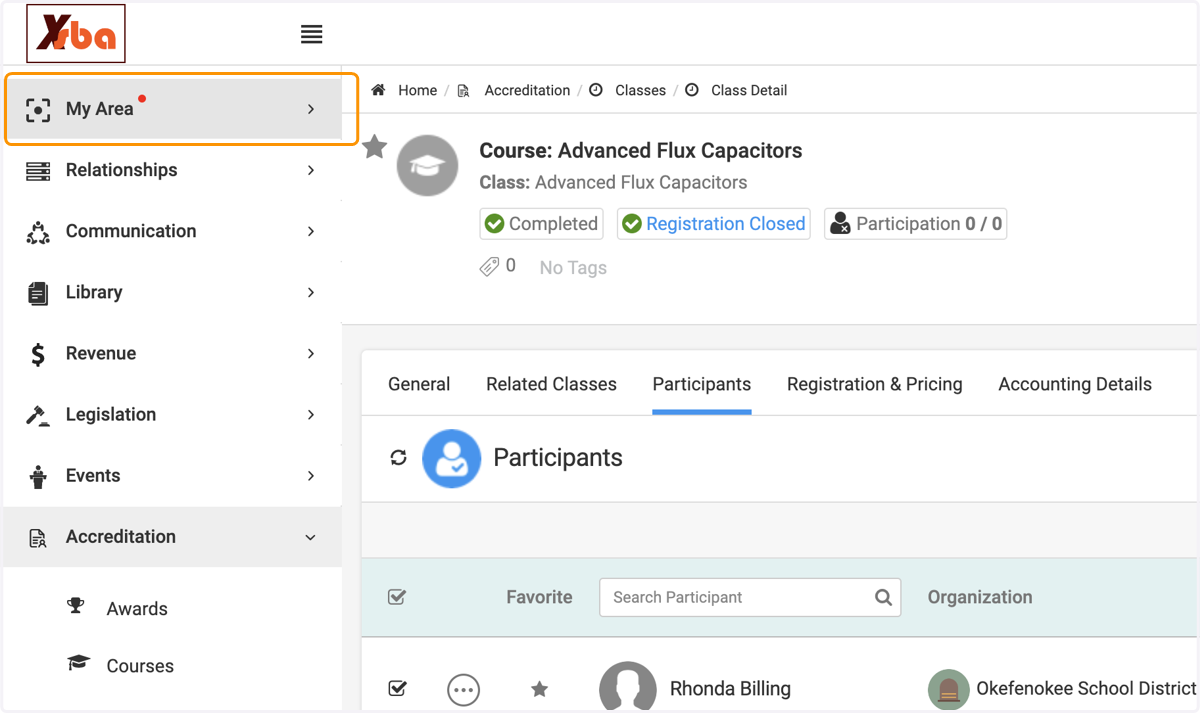
  1. 1. Click on Accreditation

    Click on Accreditation
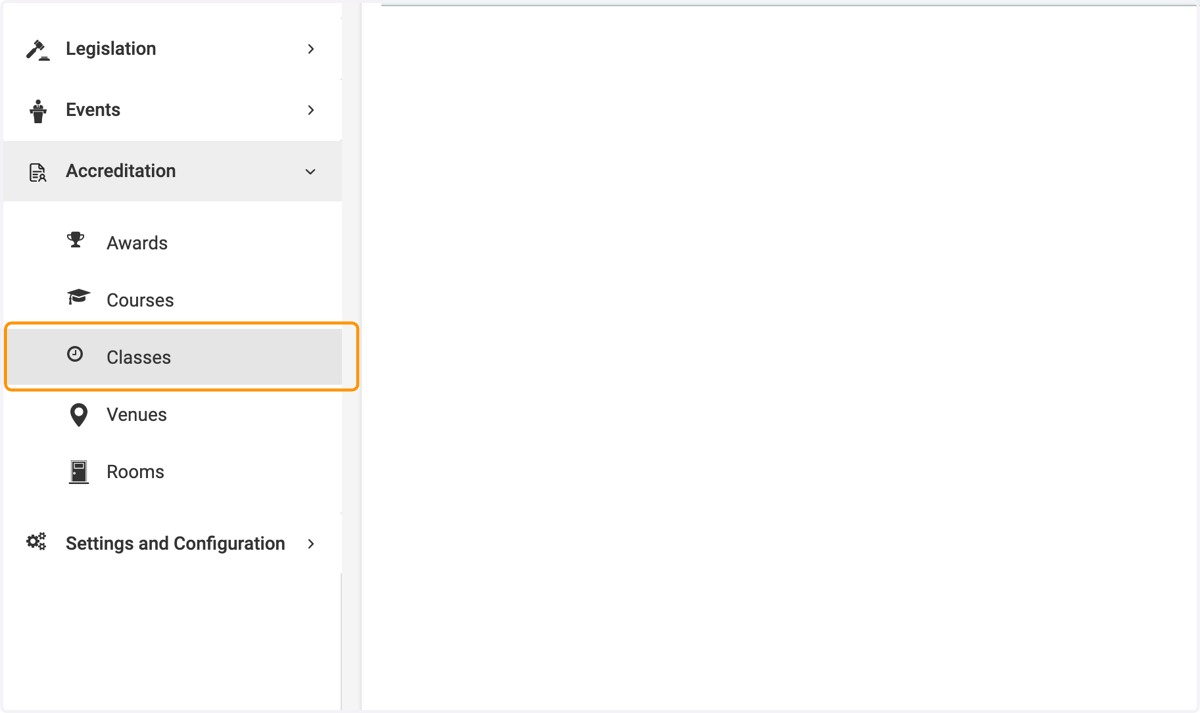
  2. 2. Click on Classes

    Click on Classes
  3. 3. Click on the specific class you wish to export
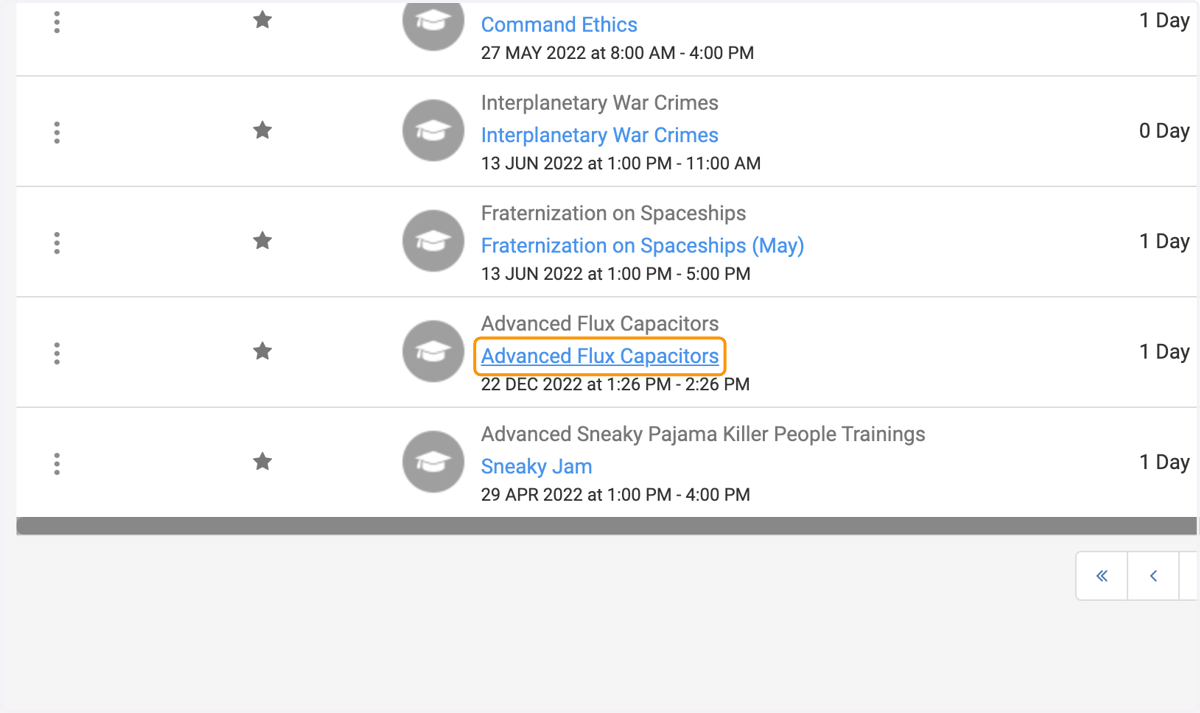
    Click on the specific class you wish to export
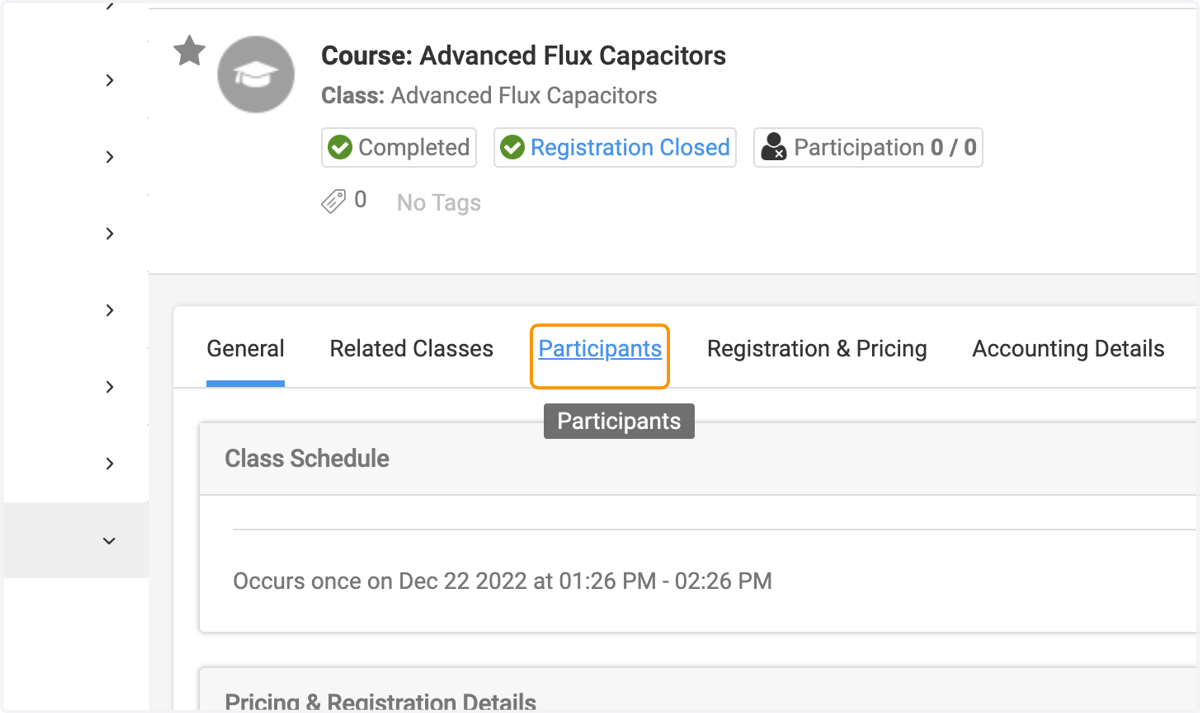
  4. 4. Click on Participants

    Click on Participants
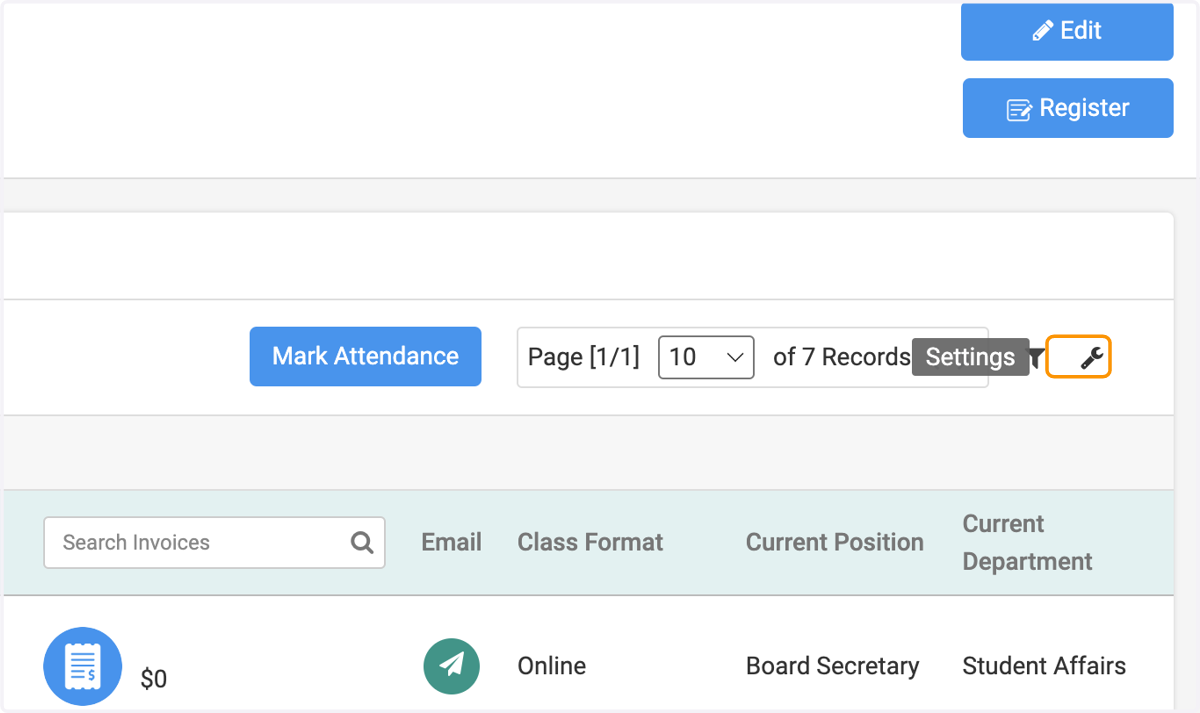
  5. 5. Click on settings

    Click on settings
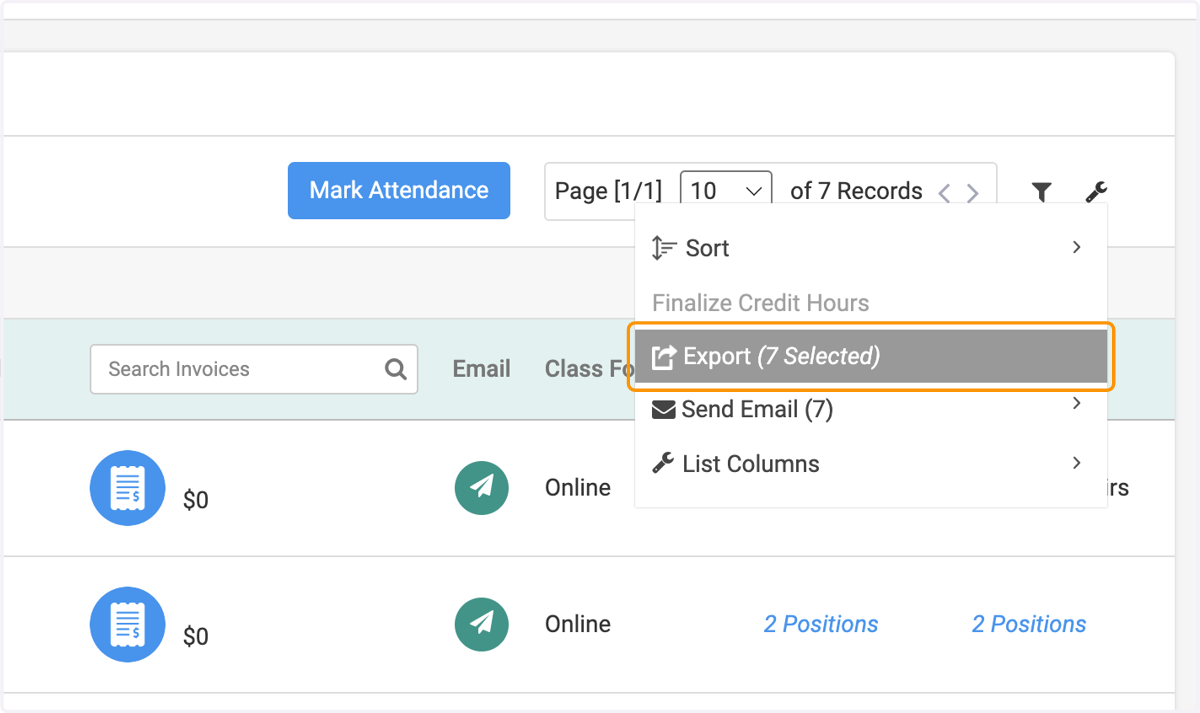
  6. 6. Click on Export

    Click on Export
  7. 7. Check on the fields you wish to add
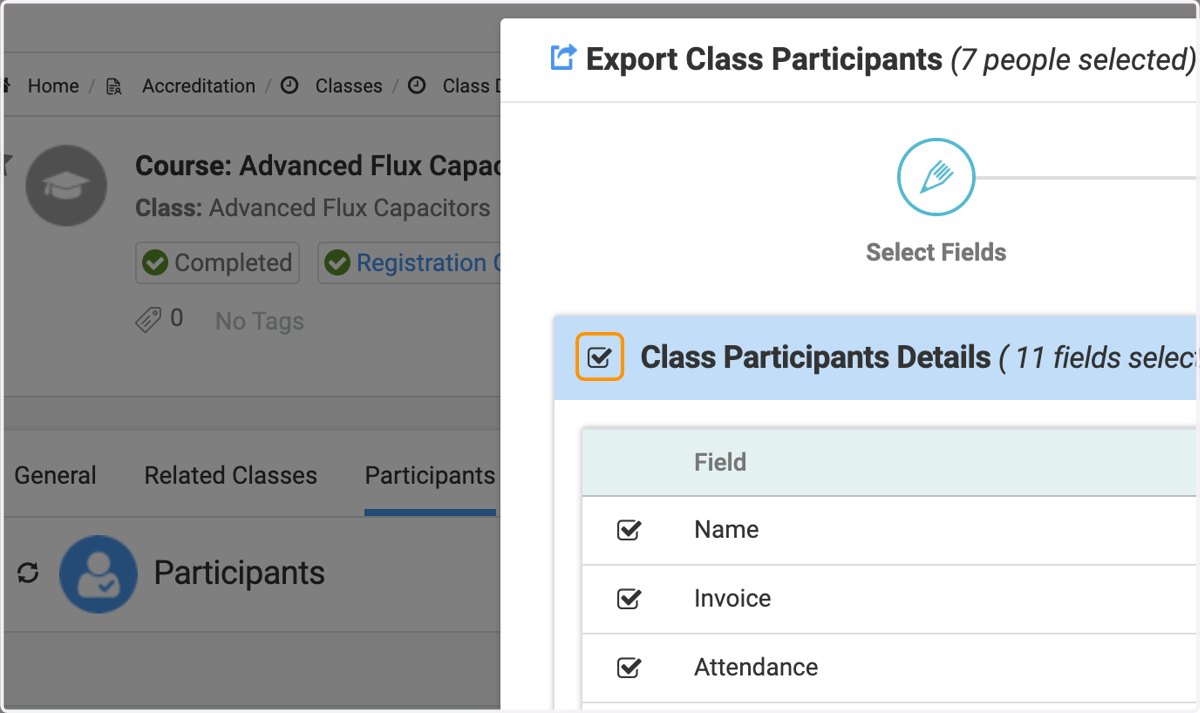
    Check on the fields you wish to add
  8. 8. Check on the tab for other fields you wish to see.
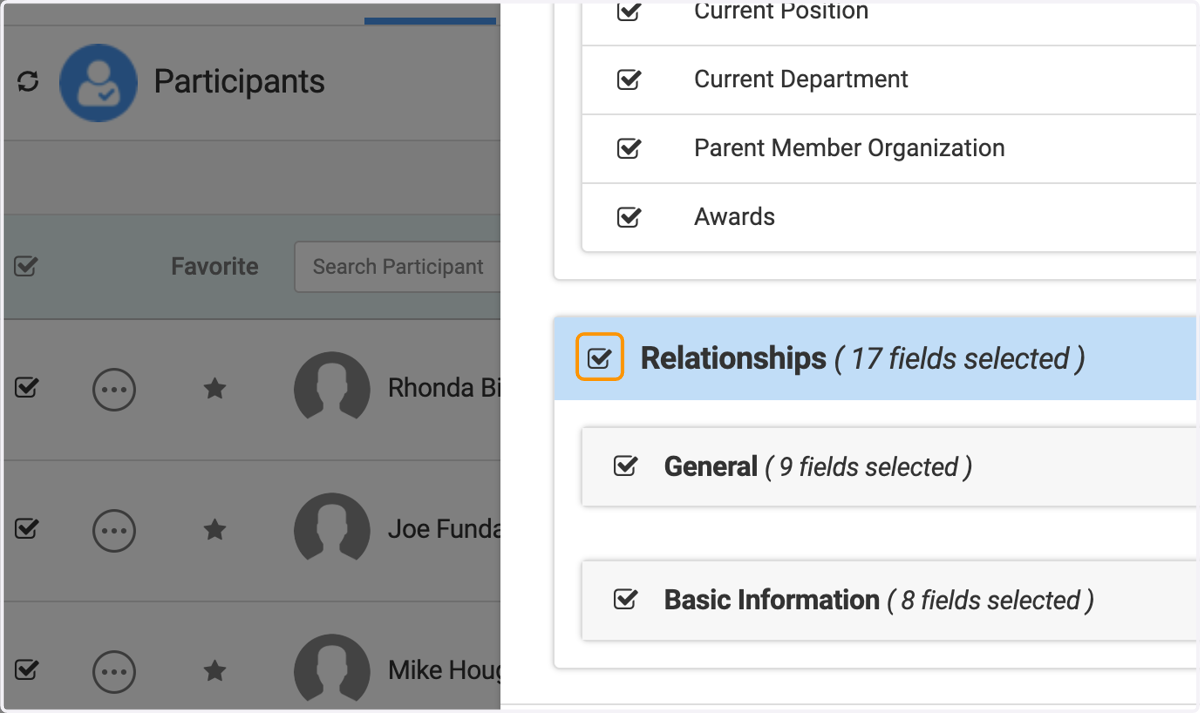
    Check on the tab for other fields you wish to see.
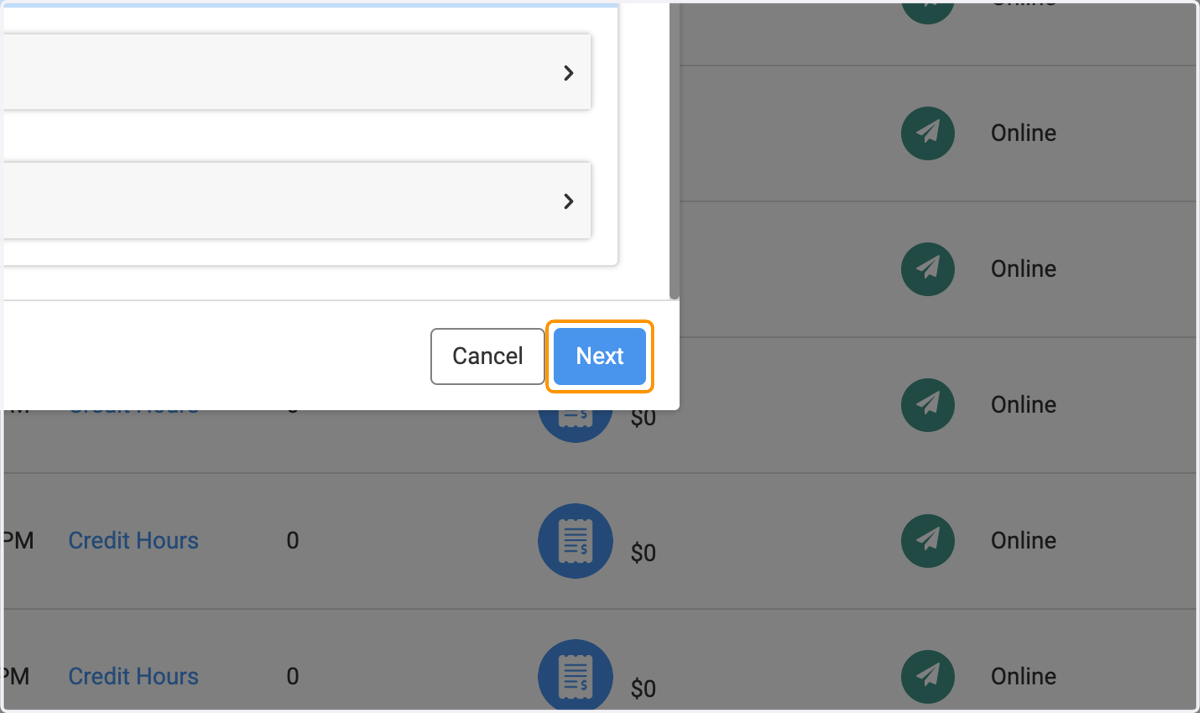
  9. 9. Click on Next

    Click on Next
  10. 10. Write the file name of the report you will be exporting
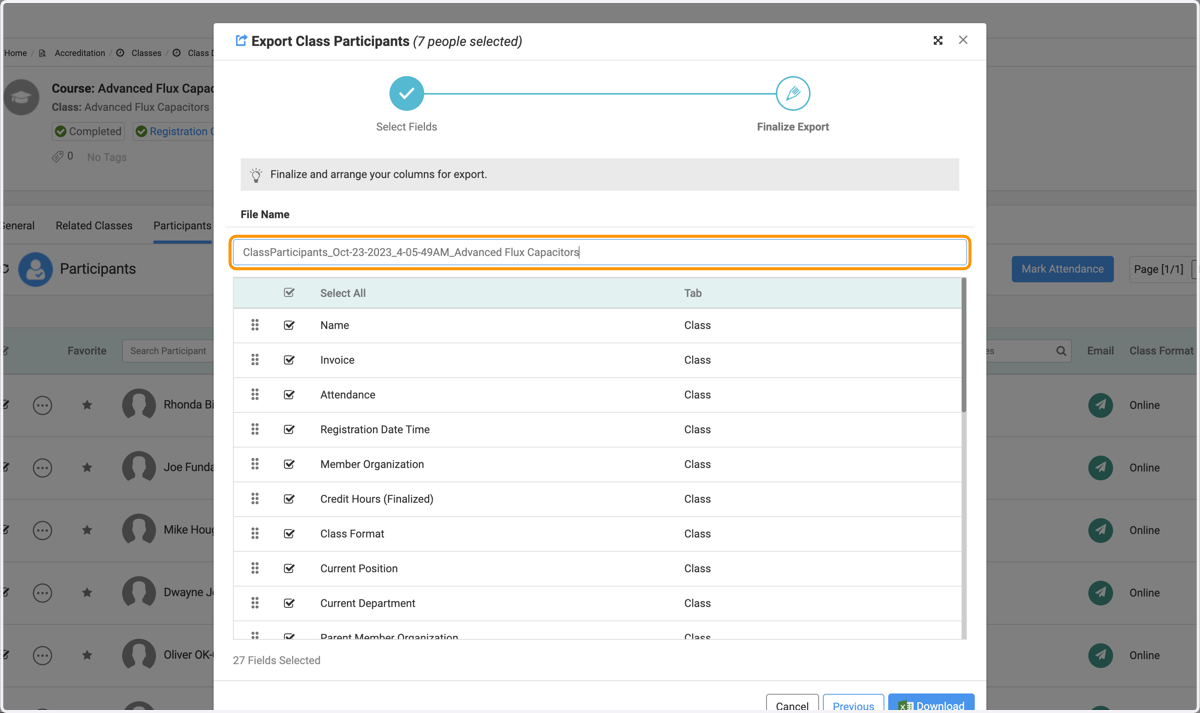
    Write the file name of the report you will be exporting
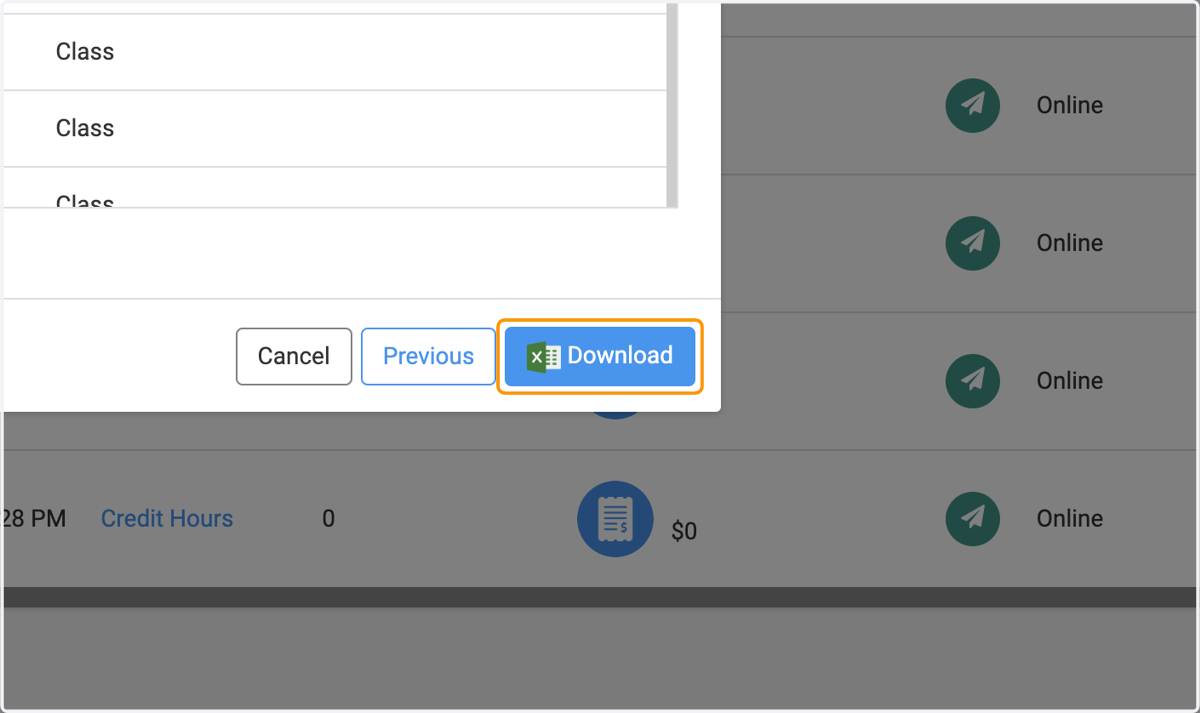
  11. 11. Click on Download

    Click on Download
  12. 12. Click on Okay

    Click on Okay
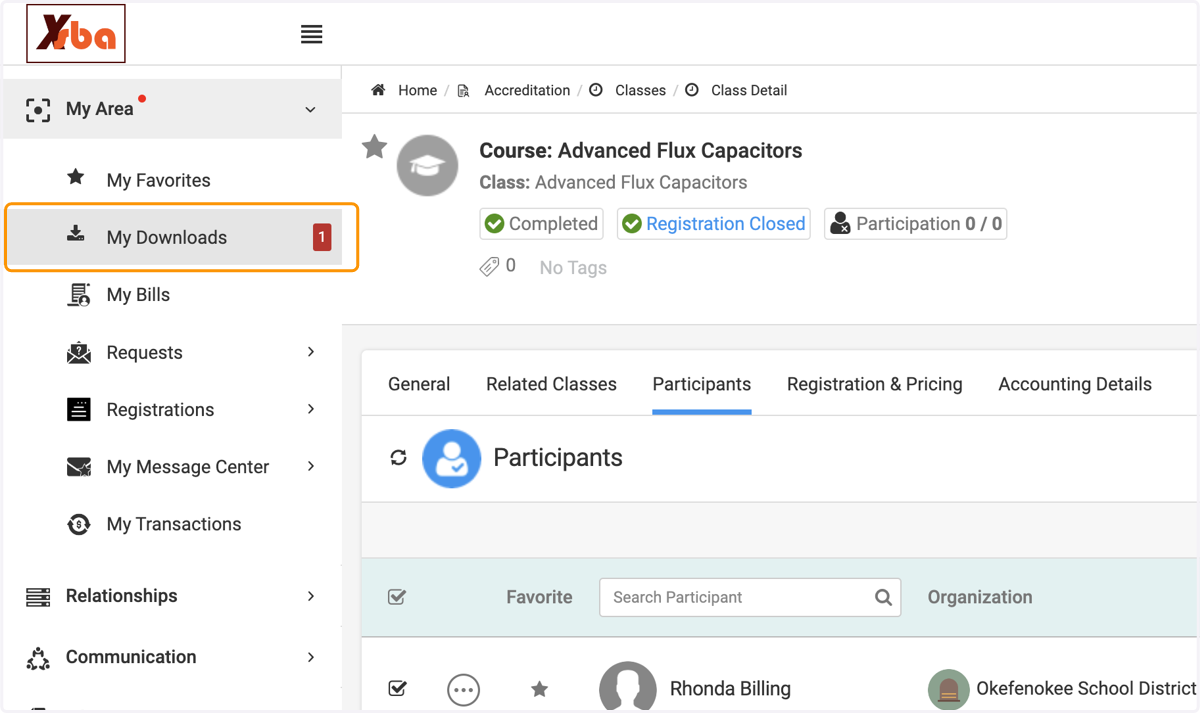
  13. 13. Click on My Area

    Click on My Area
  14. 14. Click on My Downloads…

    Click on My Downloads…
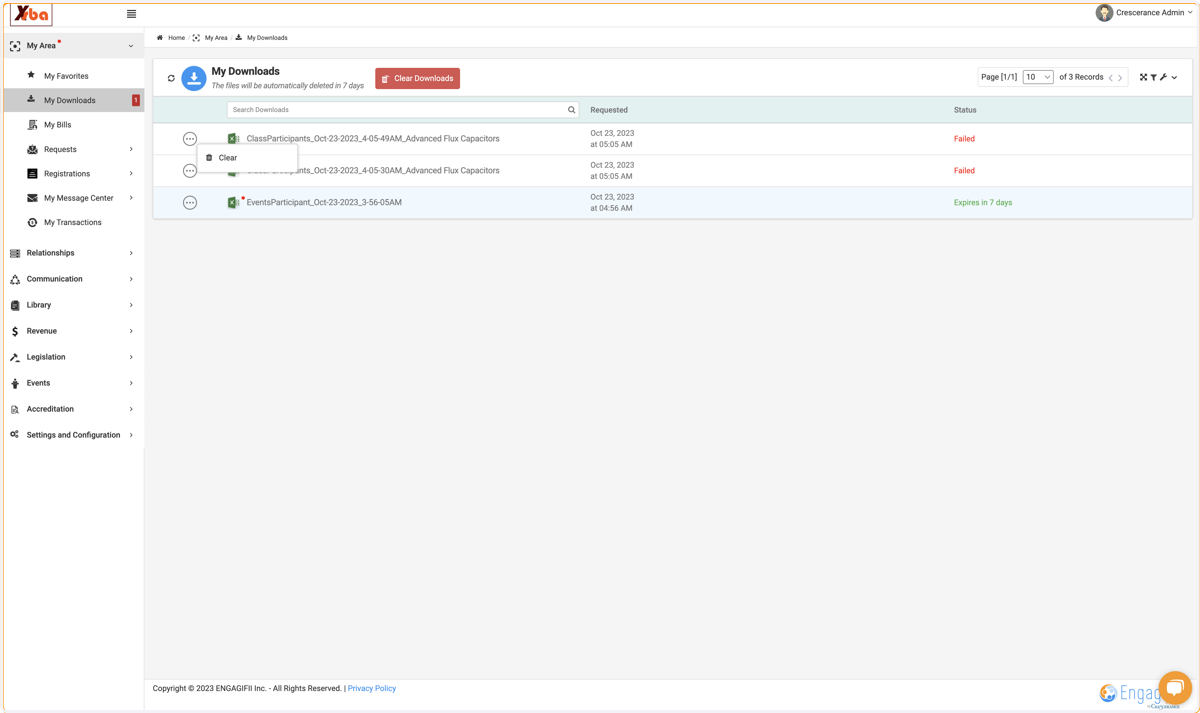
  15. 15. Click on the button if you wish to cancel the download
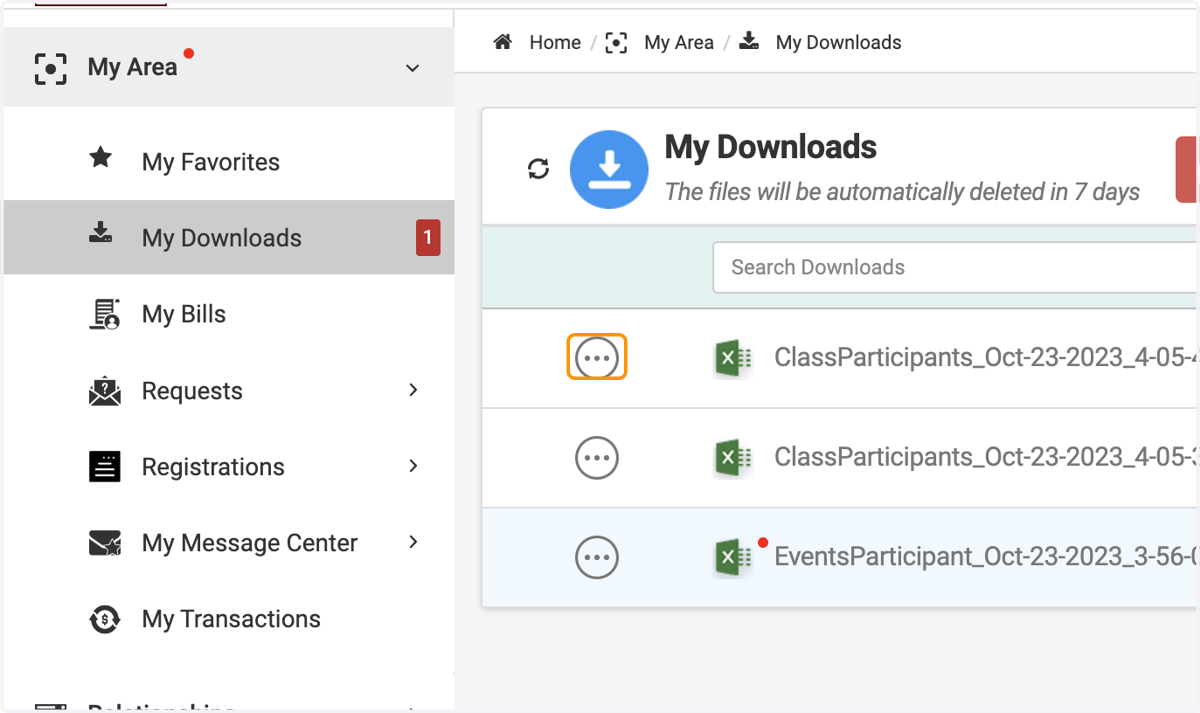
    Click on the button if you wish to cancel the download
  16. 16. Click on Clear

    Click on Clear