How do I create a screener delivery?
Screeners are a type of asset delivery that a Media Room creates and sends to select individuals for preview purposes. Screeners provide high quality previews and are protected with per recipient watermarking and a Digital Rights Management (DRM). Screeners can be tracked and monitored, allowing you to see who has accessed the content.
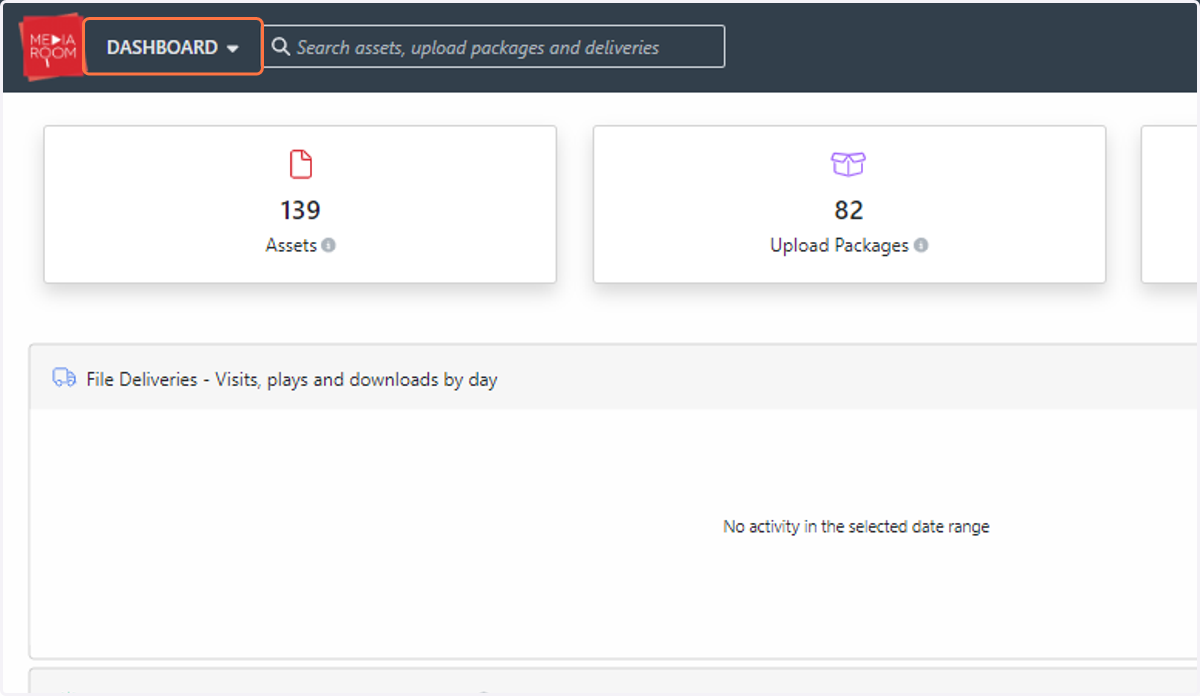
1. To commence the delivery process, click on DASHBOARD
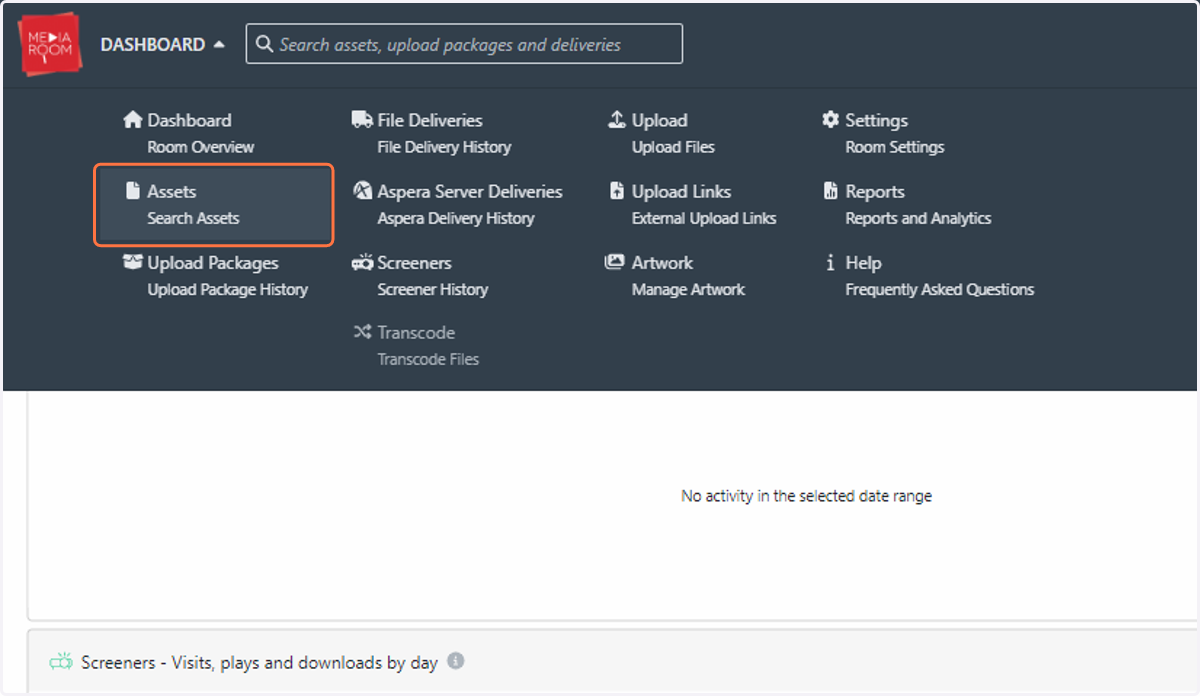
2. Click on Assets…
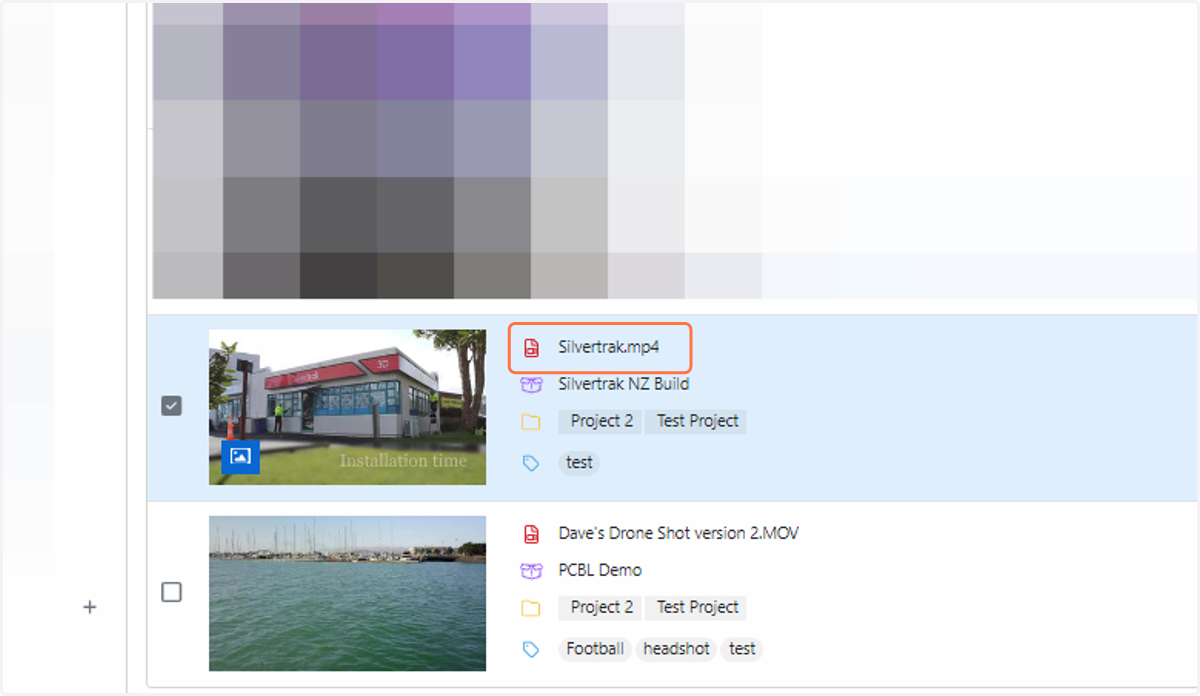
3. Click on the asset for screener delivery
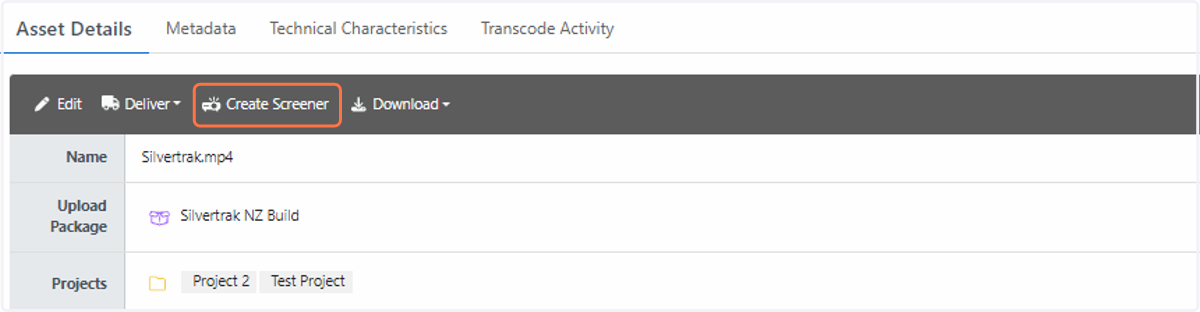
4. You will see a button called “Create Screener” in the “Asset Details” tab underneath your video
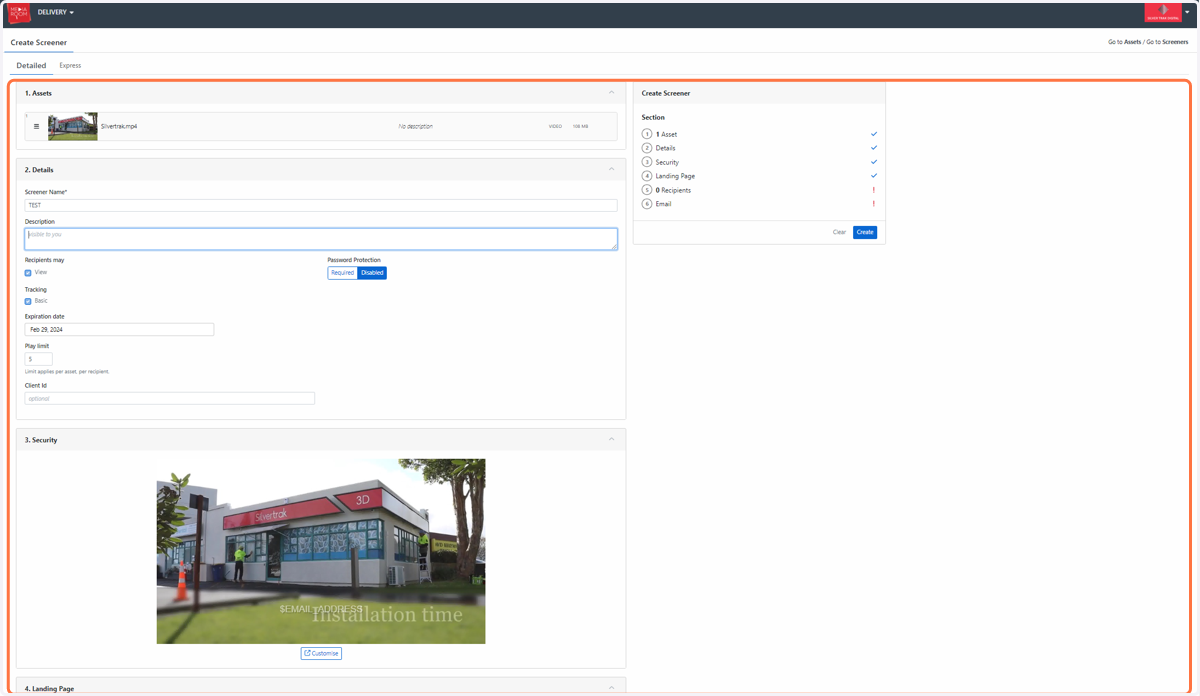
5. Fill in the form with all your relevant screener delivery details and requirements
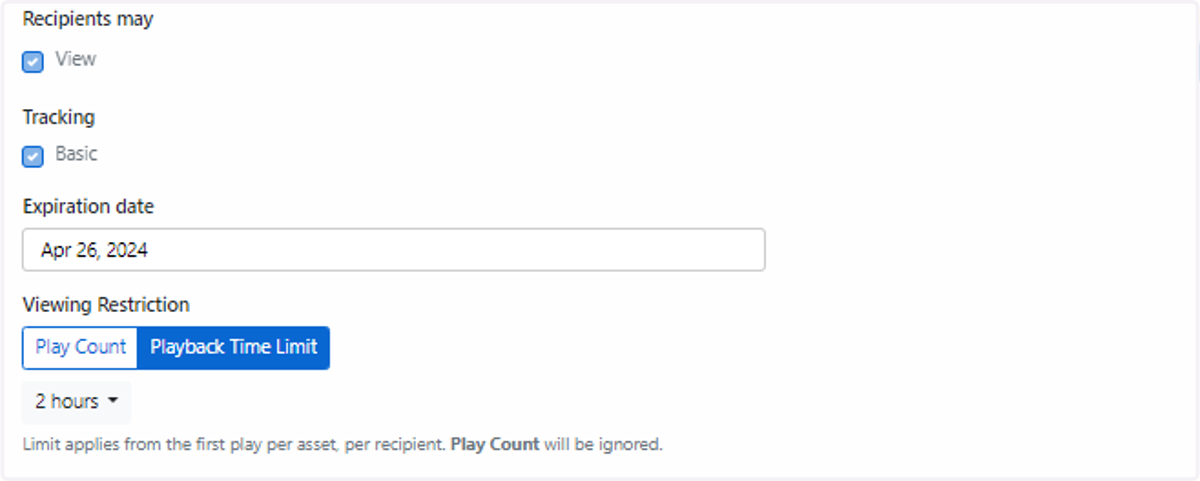
6. You will have the ability to choose what the recipients may receive and how long they can have access to the content
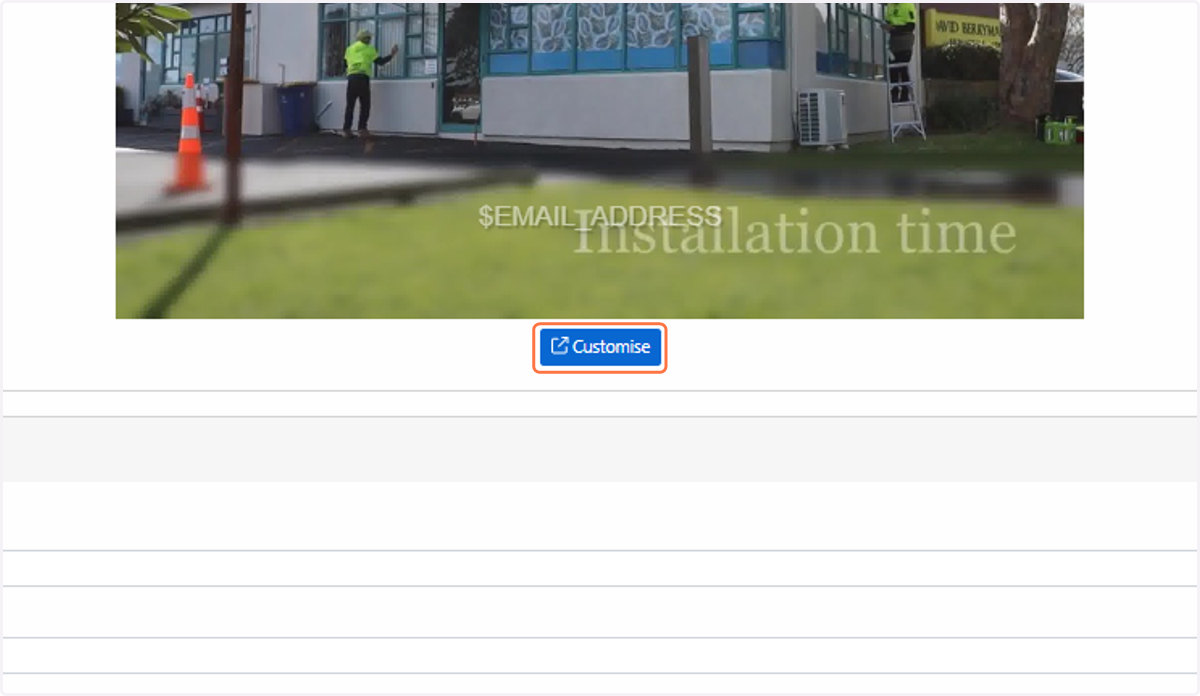
7. Customise the watermark display on the screener to prevent unauthorised distribution
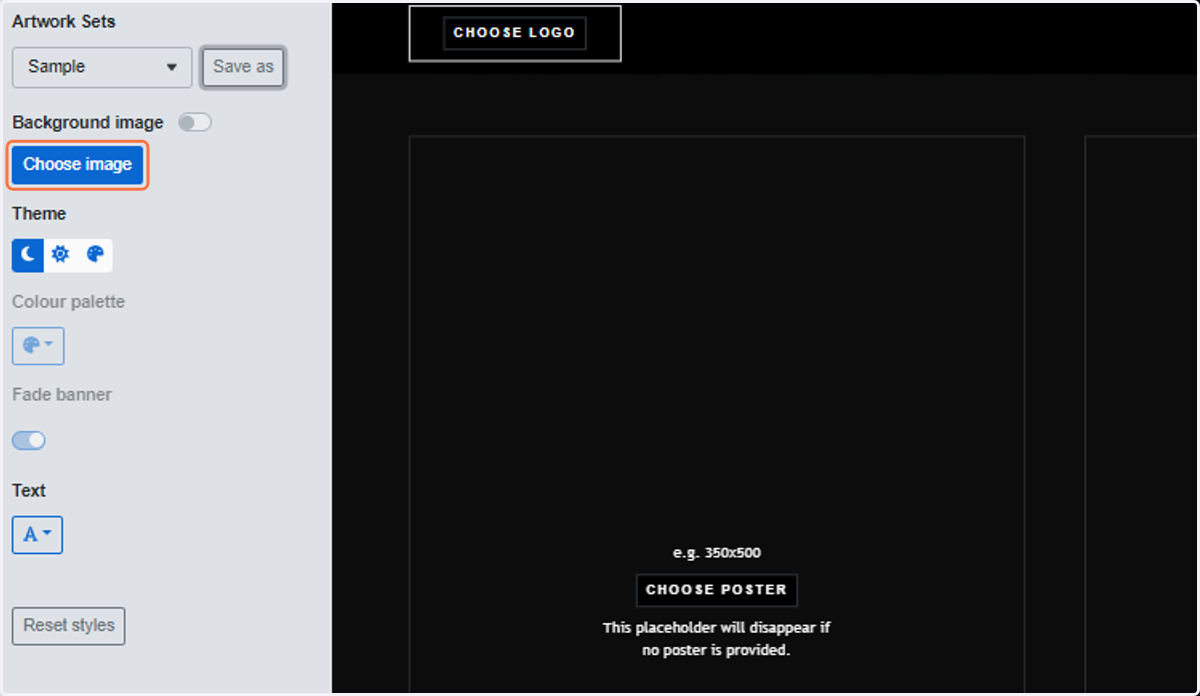
8. You can customise delivery email notifications, as well as the appearance of the delivery landing page using the stored images in your room. You can manage and upload artwork via the steps outlined in Helpdesk.
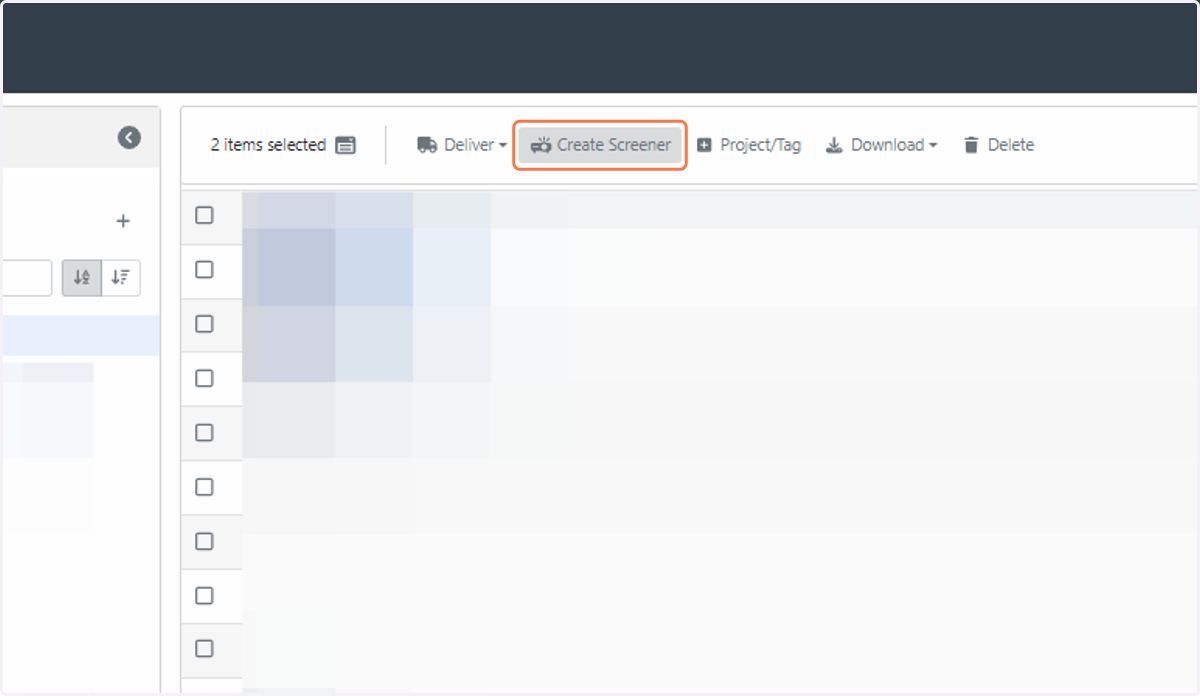
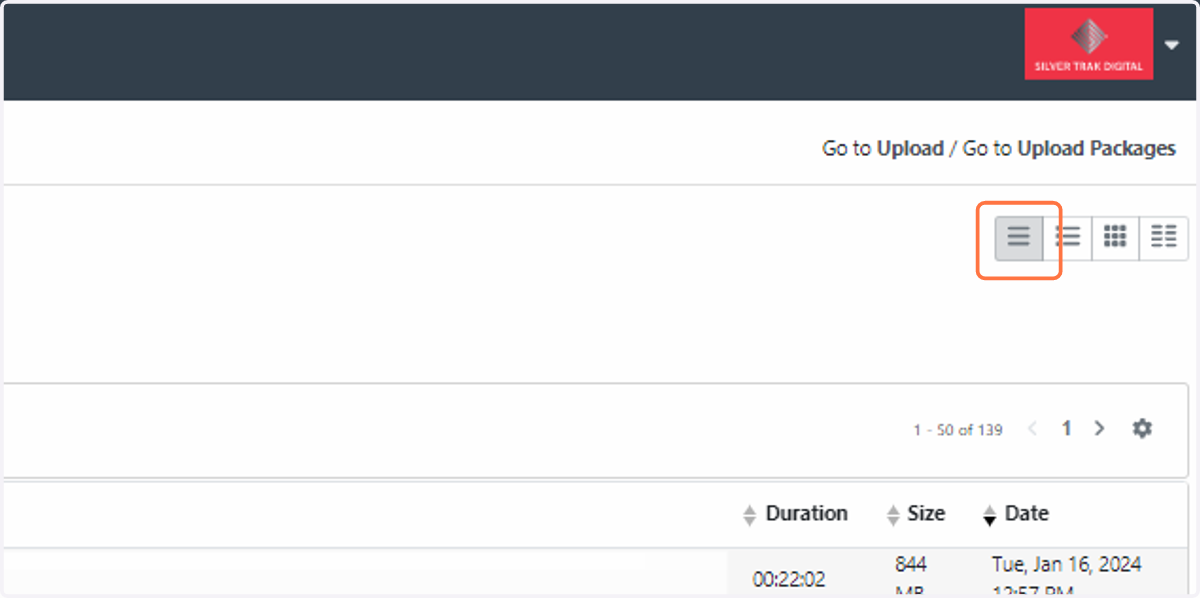
9. To do a bulk delivery of screener files, go back to the Assets page. The compact view is recommended when performing a delivery of multiple assets. This button can be found on the right side of your Assets page
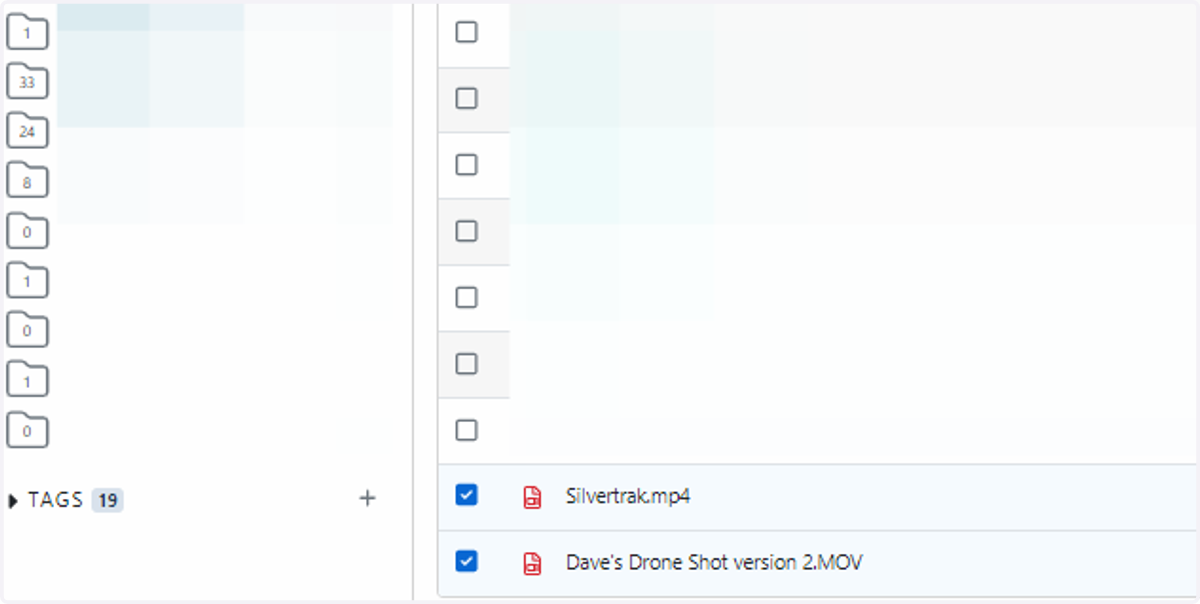
10. Select the required assets for delivery by clicking on the checkbox next to your files
11. Click on Create Screener at the top of your Assets page and fill in the form with all your relevant delivery details and requirements