Workflow of the Sales Section: Sales Quotation, Orders, Invoices, Payments & Return
The Sales module in the Number Accounting System is designed to streamline and manage the sales process efficiently. It encompasses various aspects such as generating quotations, processing orders, creating invoices, handling returns, and managing payments. Let's explore each component in detail:
Sales Quotation
Sales Quotations serve as preliminary offers to potential customers, detailing the products or services and their pricing. Here's how to create a Sales Quotation:
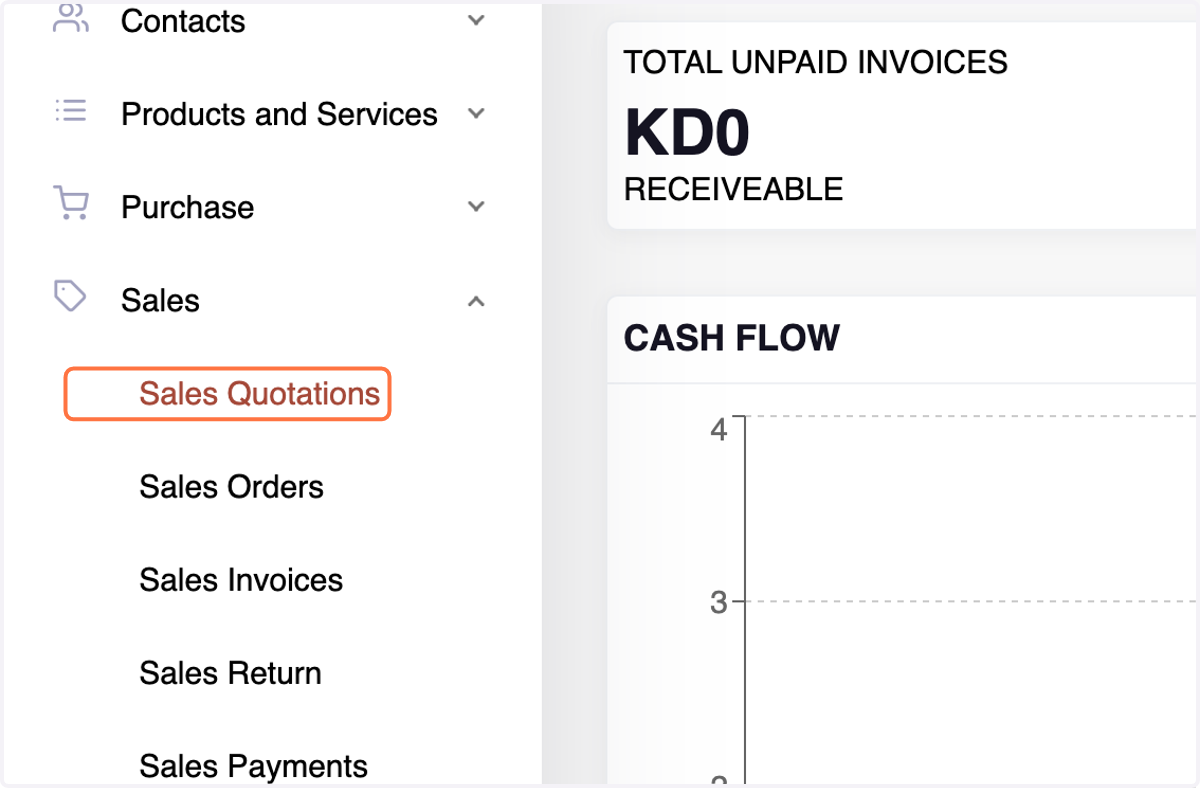
1. Navigate to the Sales Quotation Menu under the Sales Section.
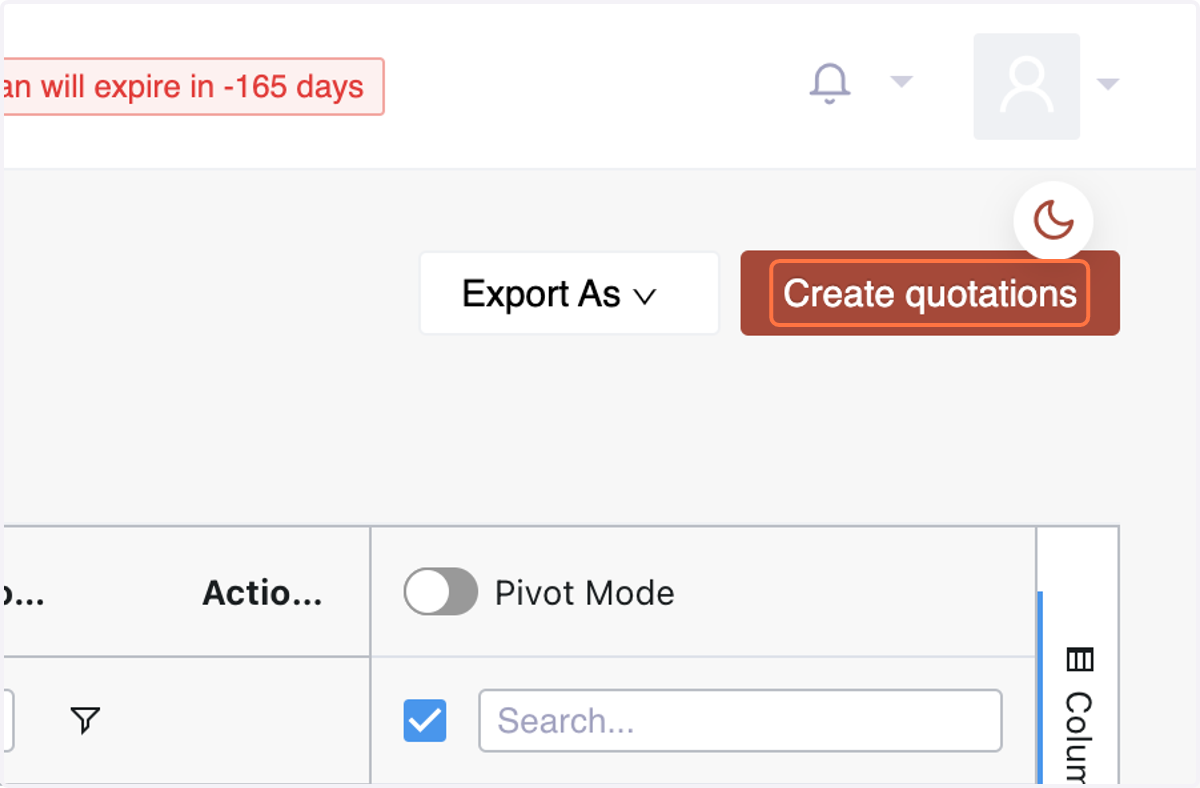
2. Click on Create quotations
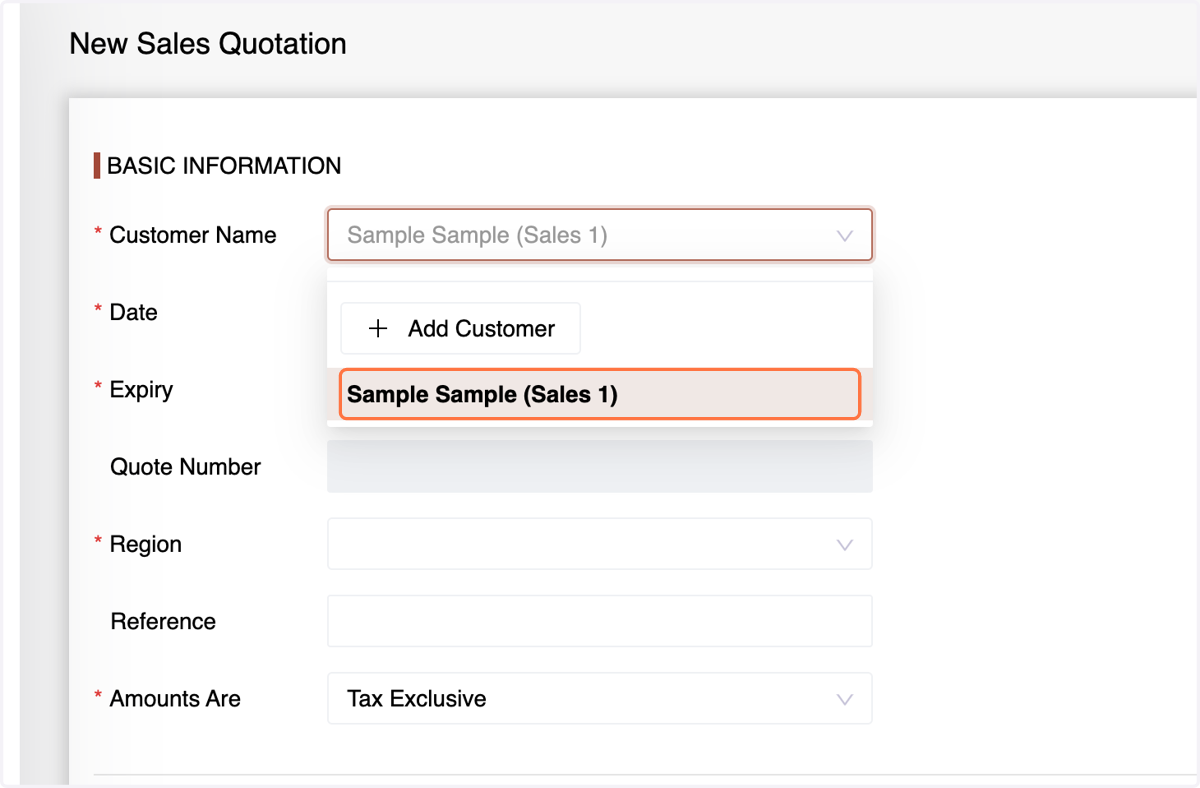
3. Enter basic information such as customer details,
4. quotation date, expiry date,
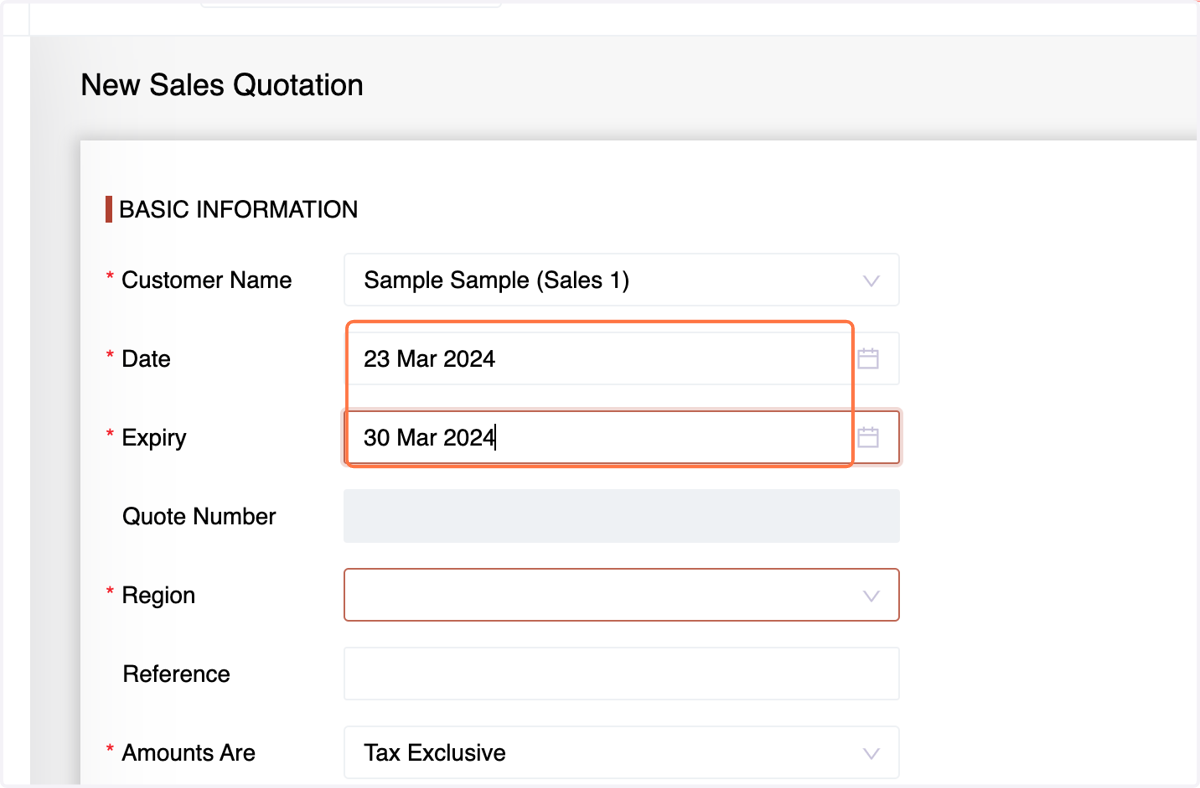
5. region(Branch), and tax options.
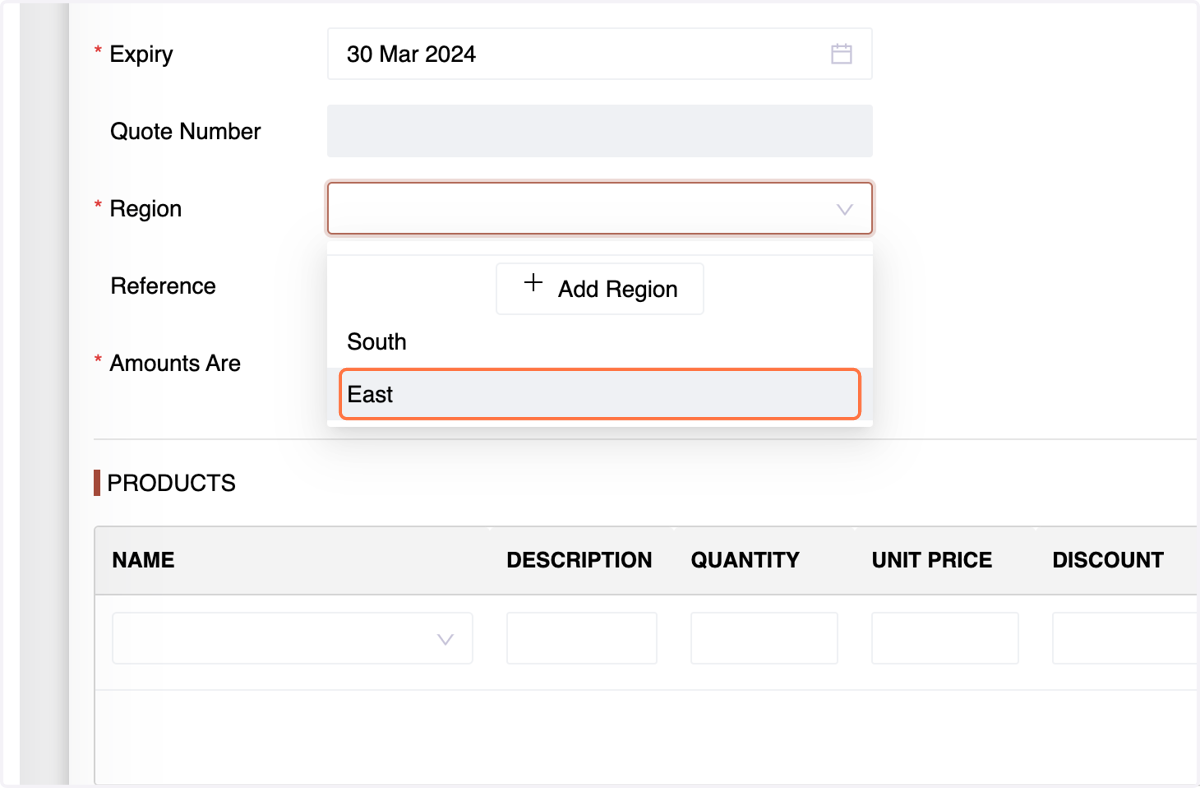
6. and tax options.
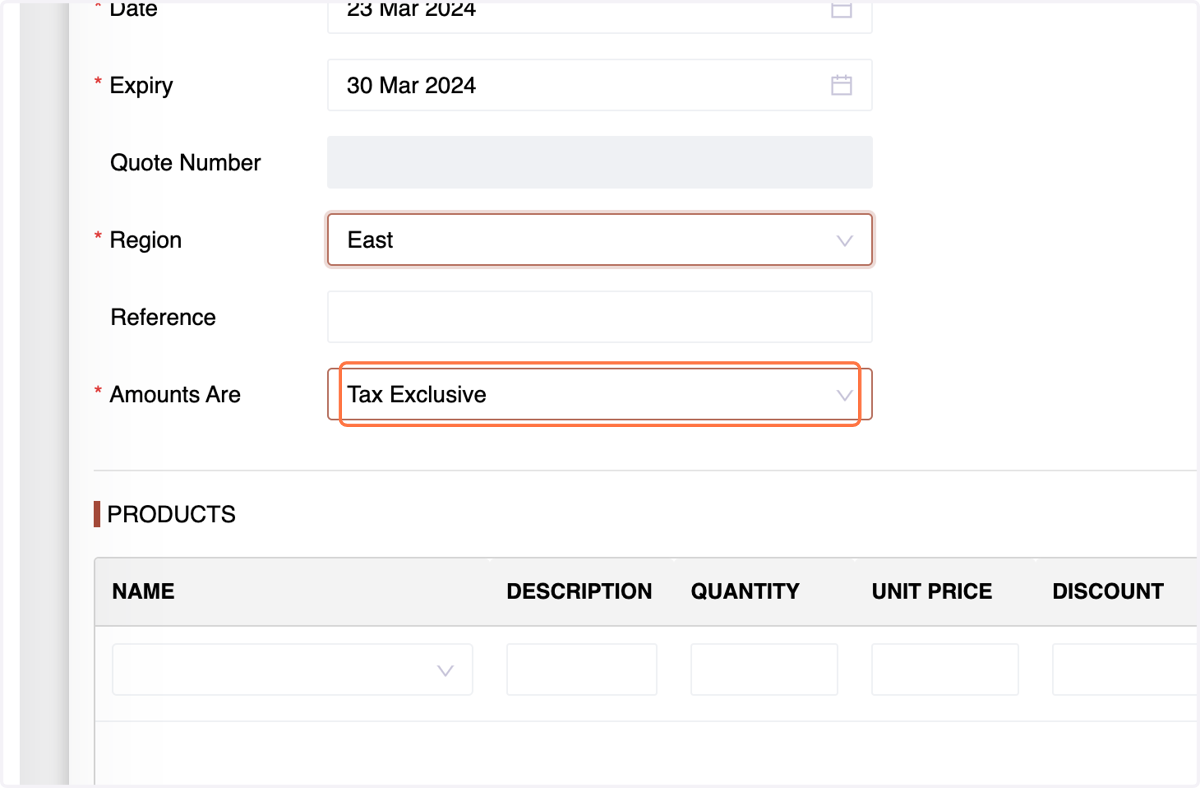
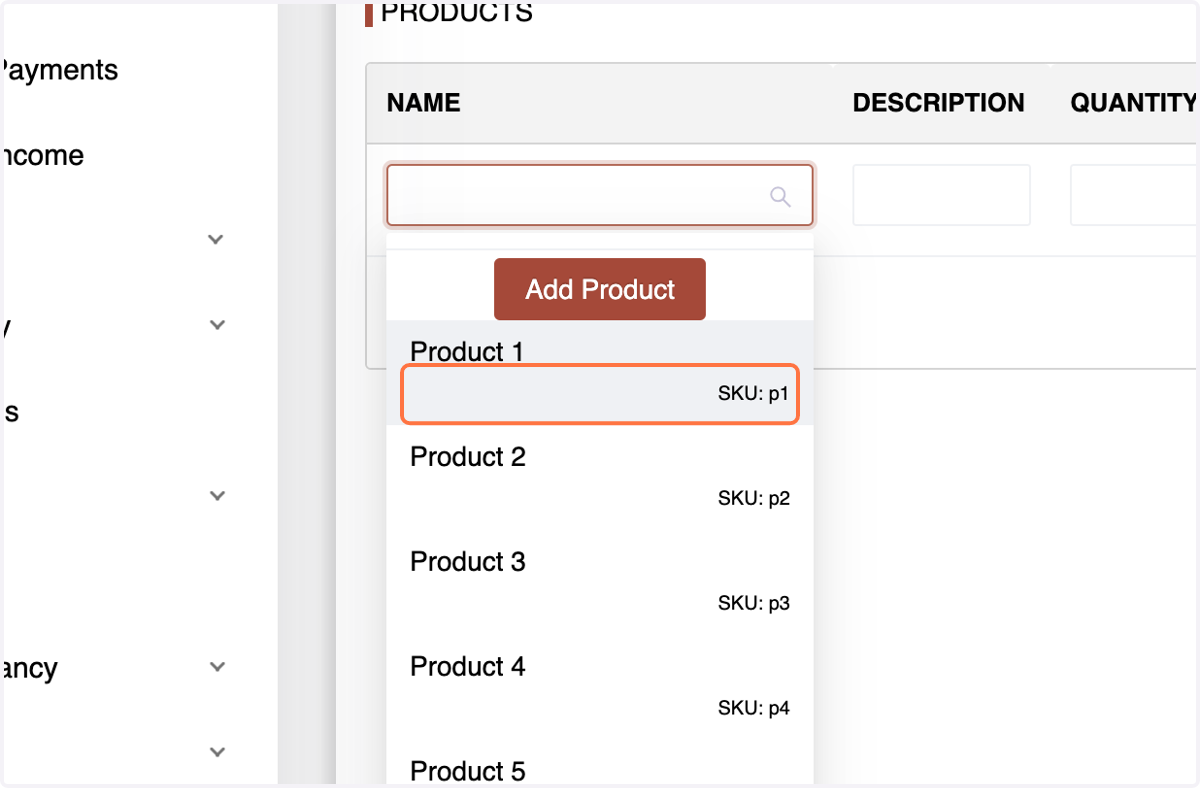
7. In the Products section, choose the product,enter a description,
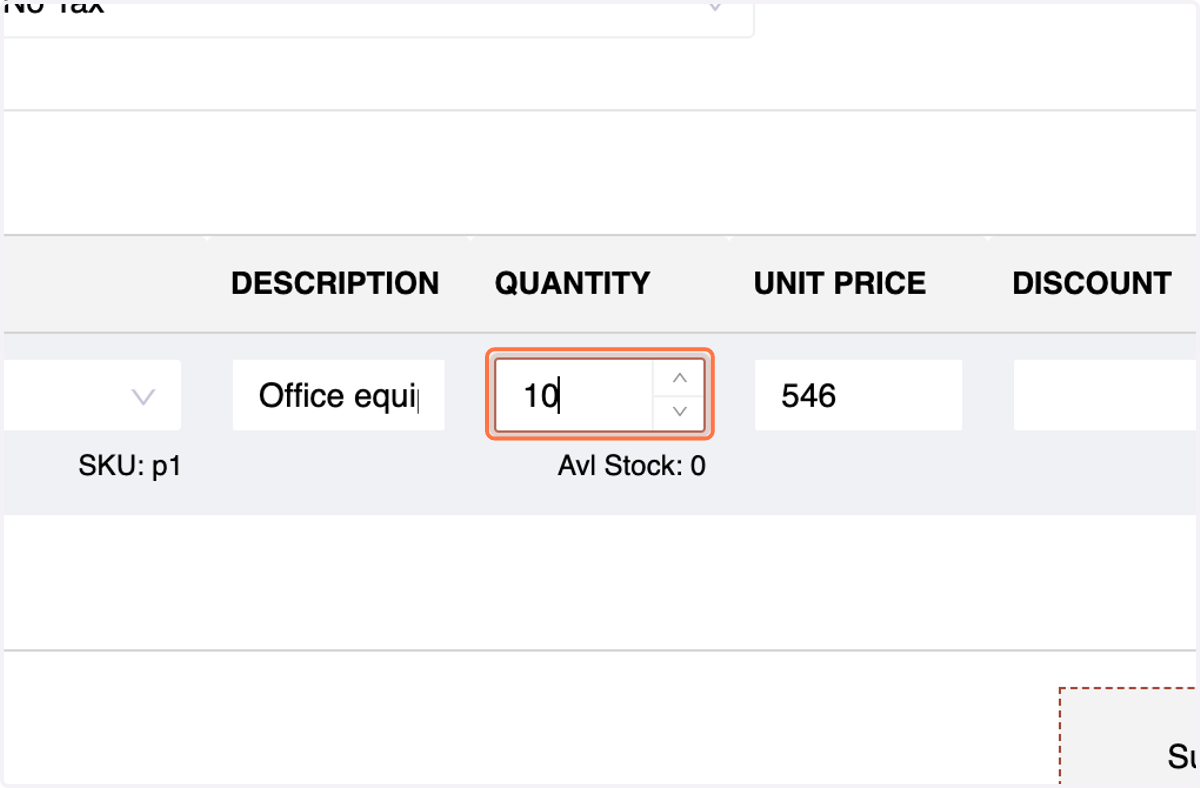
8. quantity, and discount (if applicable),The system will populate the unit price(Modifiable) and total price.
9. Select the Quotation Status (Accepted, Declined, Sent, or Draft)
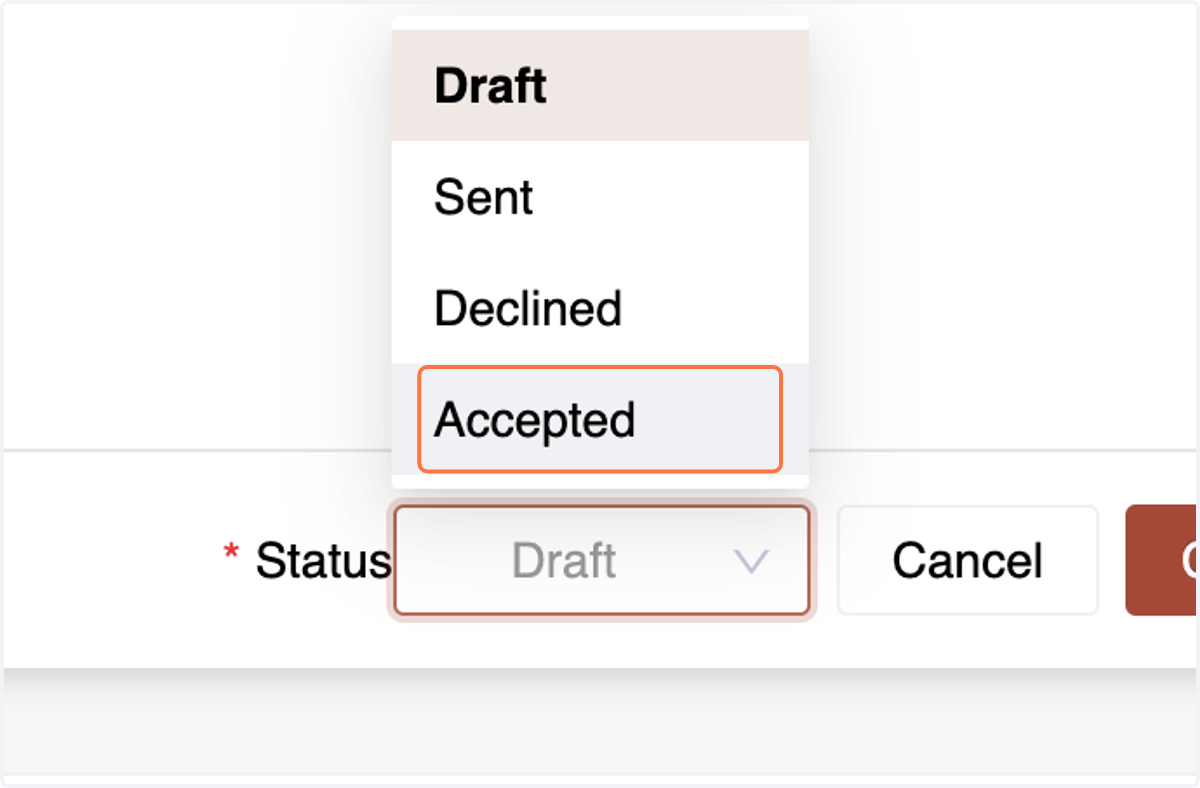
10. and click "Create."
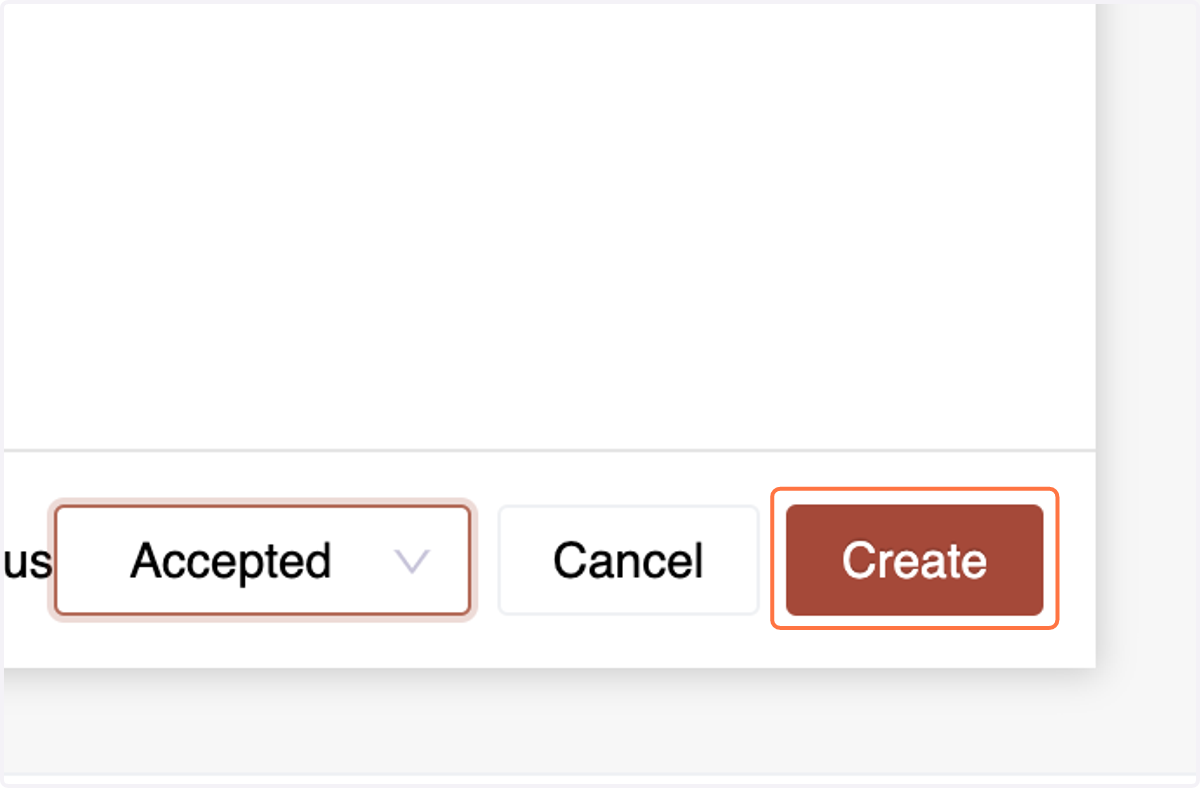
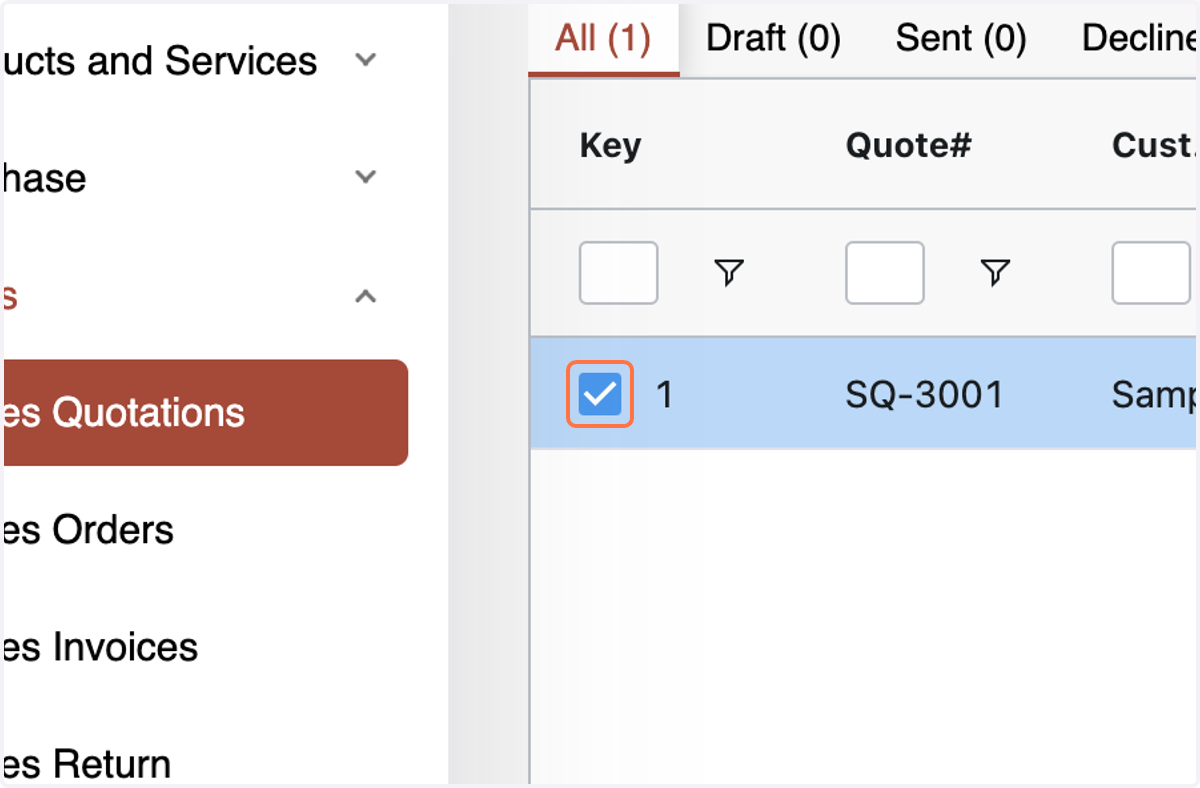
11. In the Number Accounting System, transitioning from a Sales Quote to an Order and from an Order to a Sales Invoice is straightforward. To convert Sales Quotation into Sales Order, just select the desired Orders
12. and choose "Convert to Order".
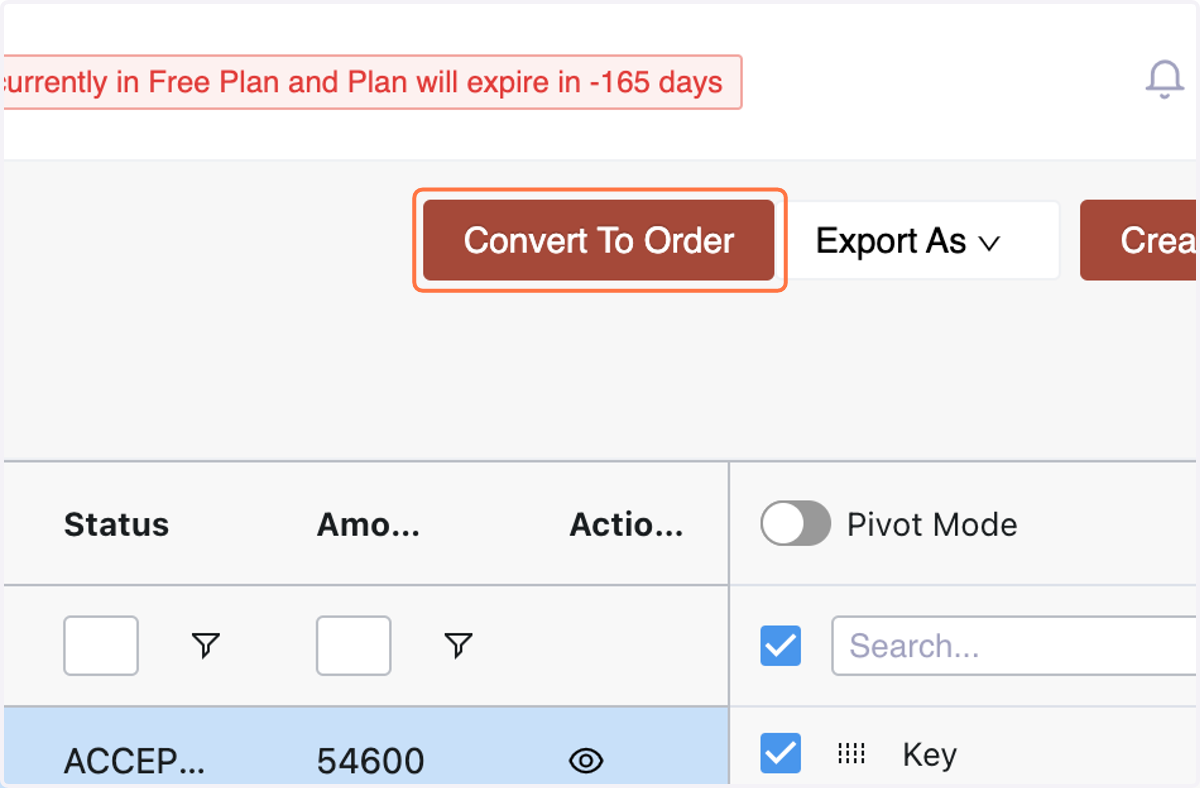
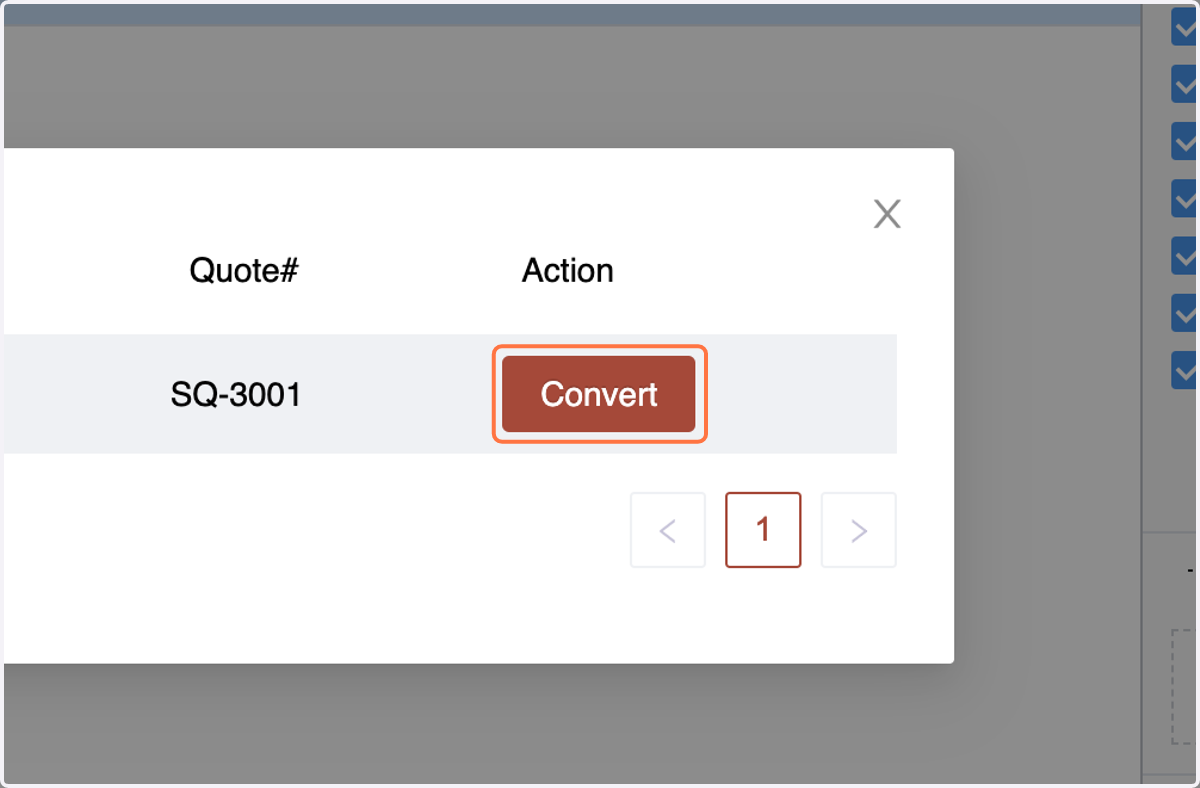
13. Click on "Convert" in in the dialog box, and you can efficiently transform multiple Orders into Sales Invoices simultaneously.
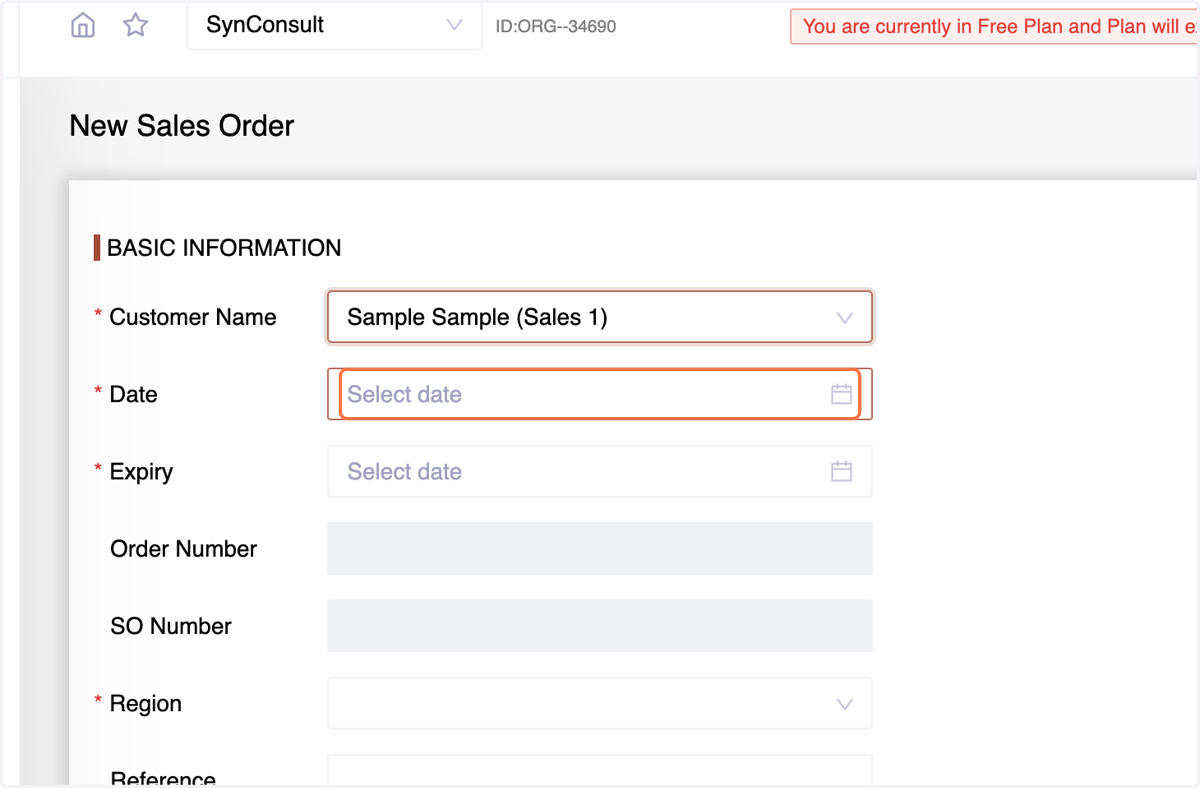
Sales Order:
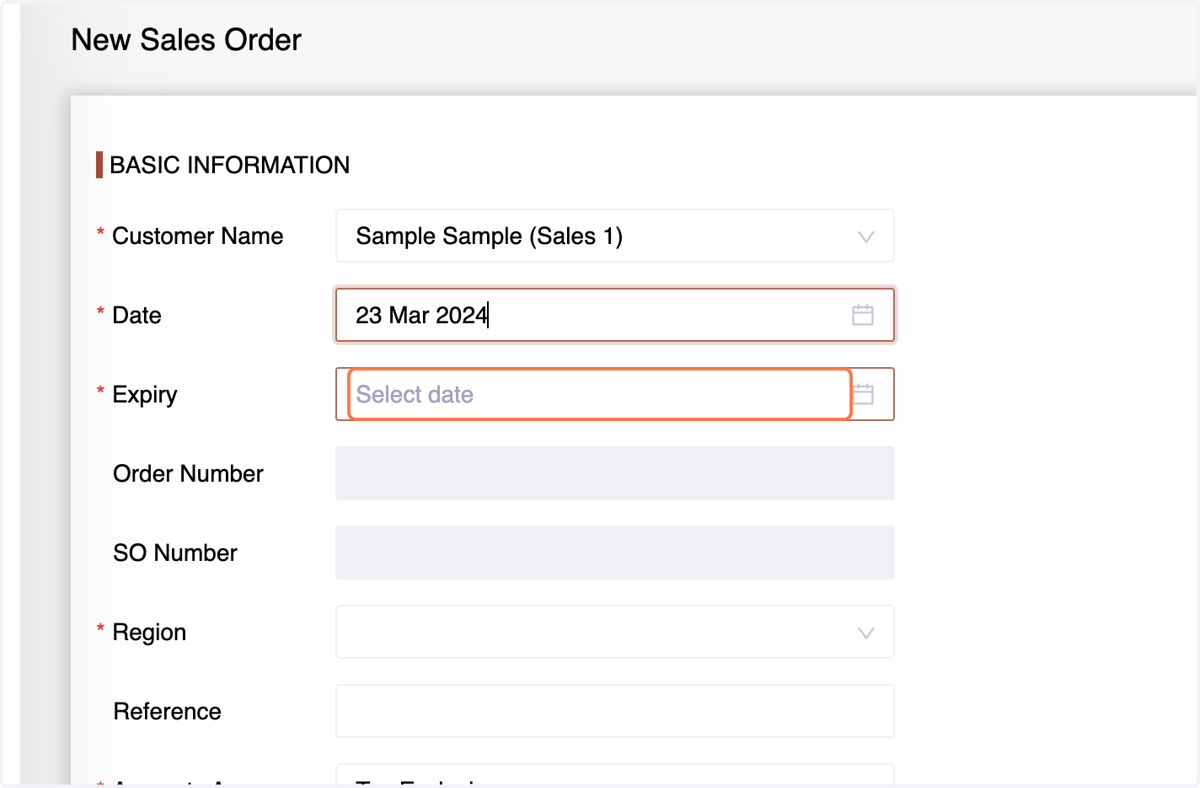
A Sales Order is a binding agreement between a seller and a buyer that details the specific products or services ordered, their quantities, prices, and delivery terms. It confirms the customer's intent to purchase and initiates the fulfillment process.
14. Navigate to the Sales Orders menu within the Sales section.
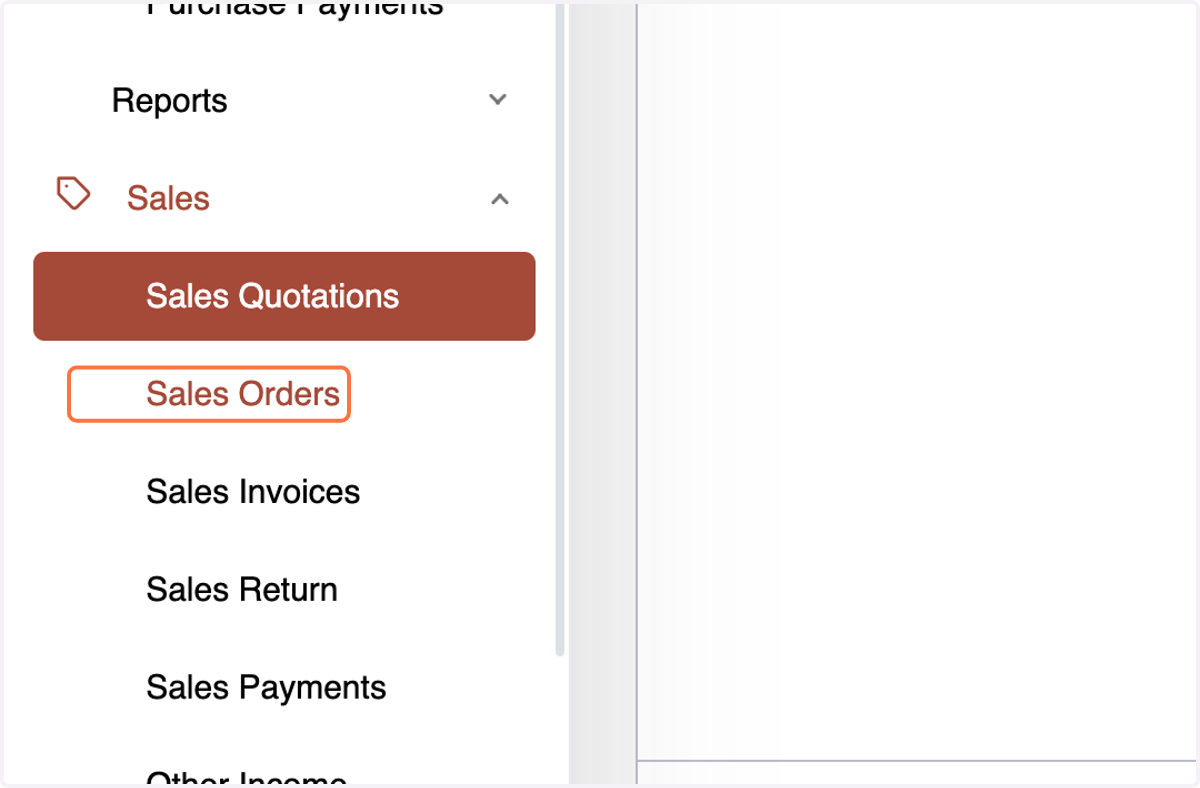
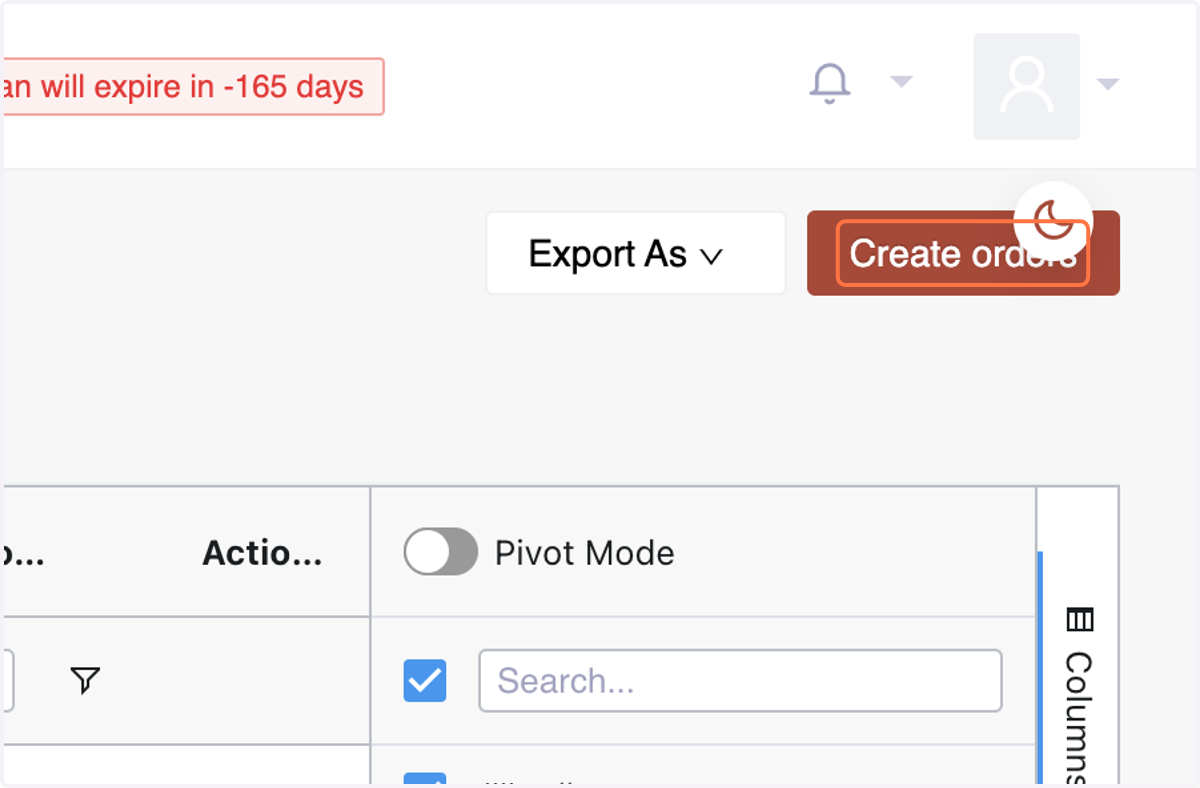
15. Click on Create orders
16. Enter basic information: Choose/Add Customer Name,
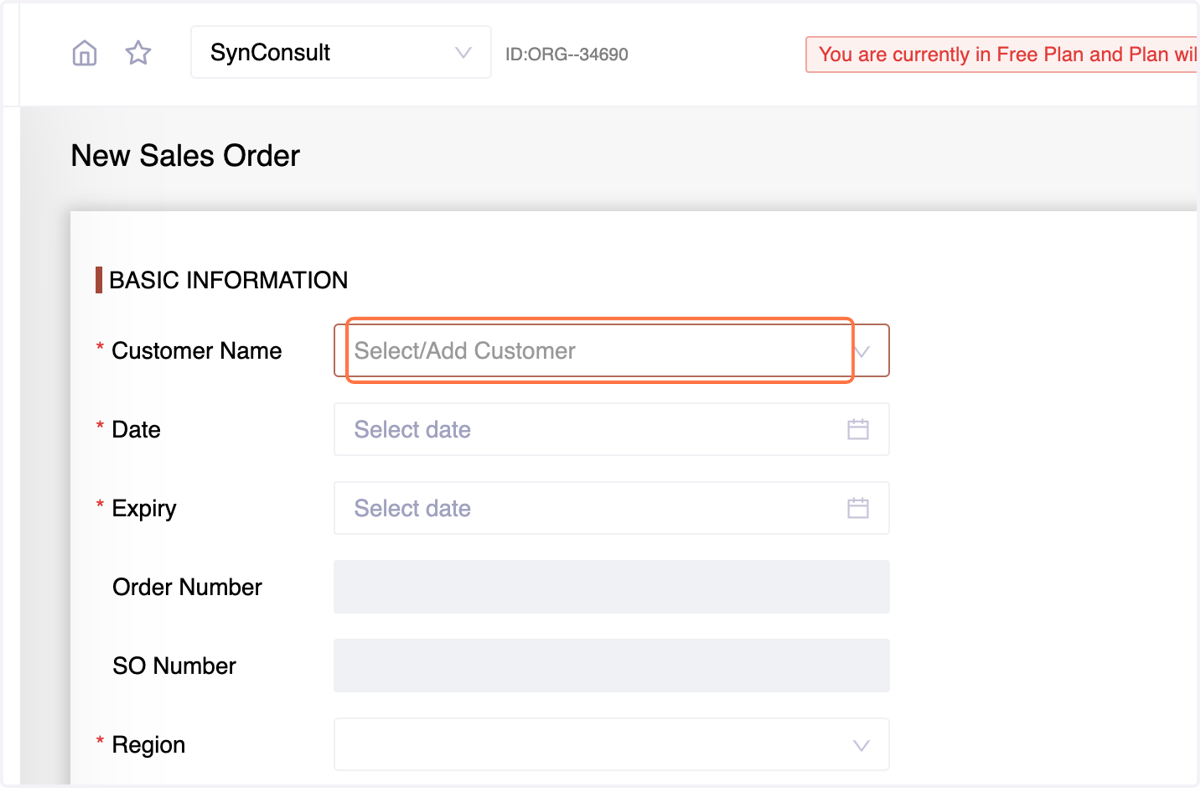
17. Order Date,
18. Expiry Date:indicates the timeframe within which the customer must accept the order at the quoted price and terms. After this date, the prices or terms may change.
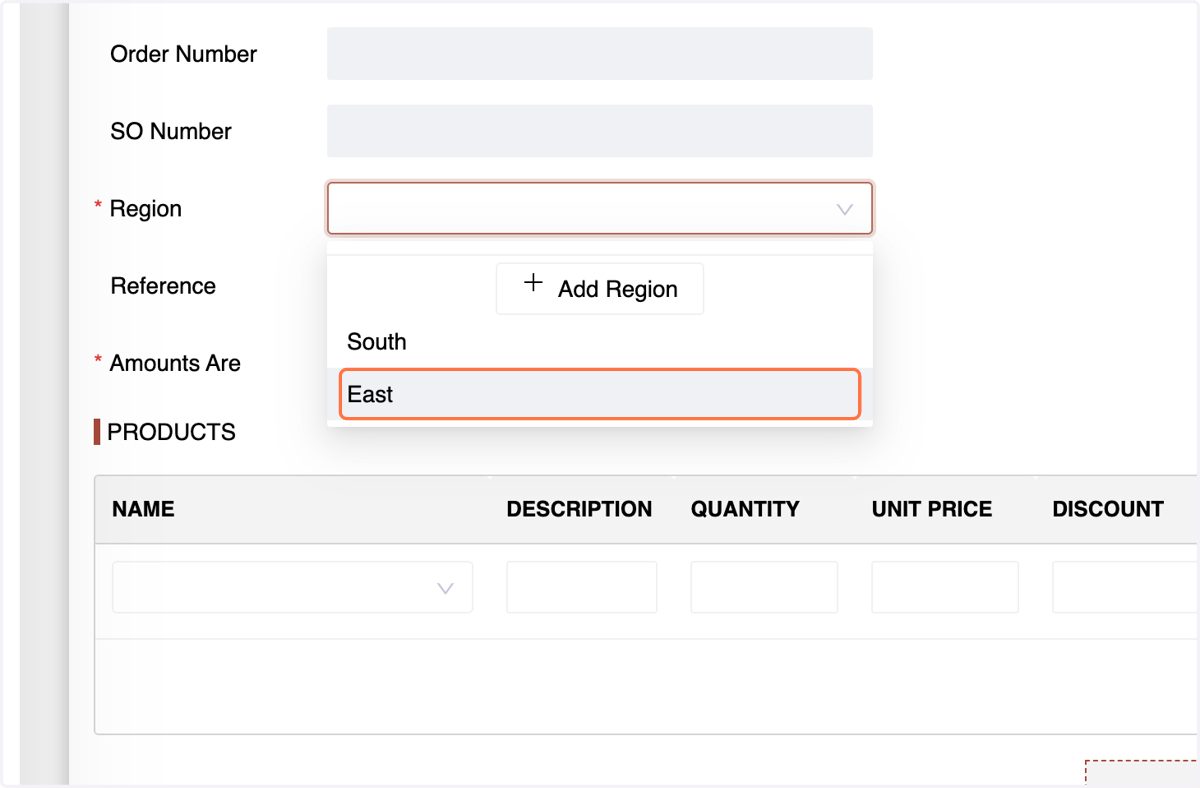
19. Region/Branch,
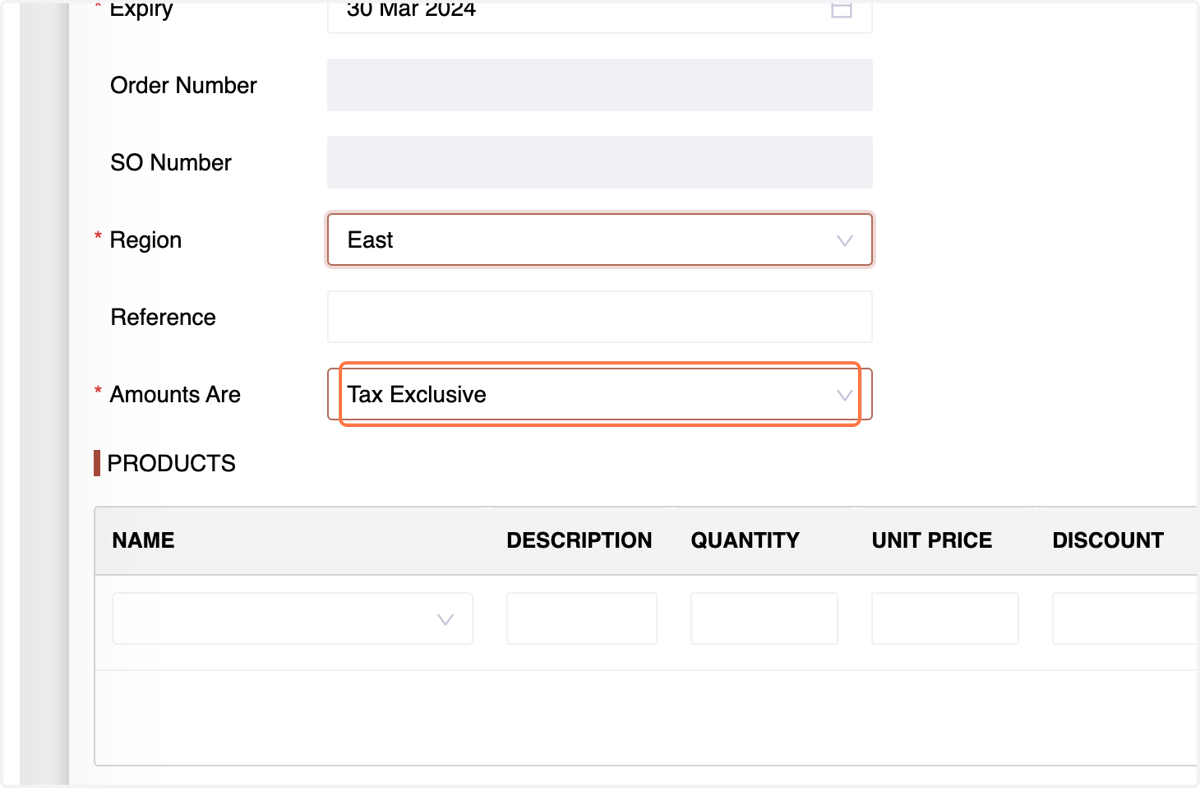
20. and Tax Option.
21. n the Products section, choose the product, enter a description,
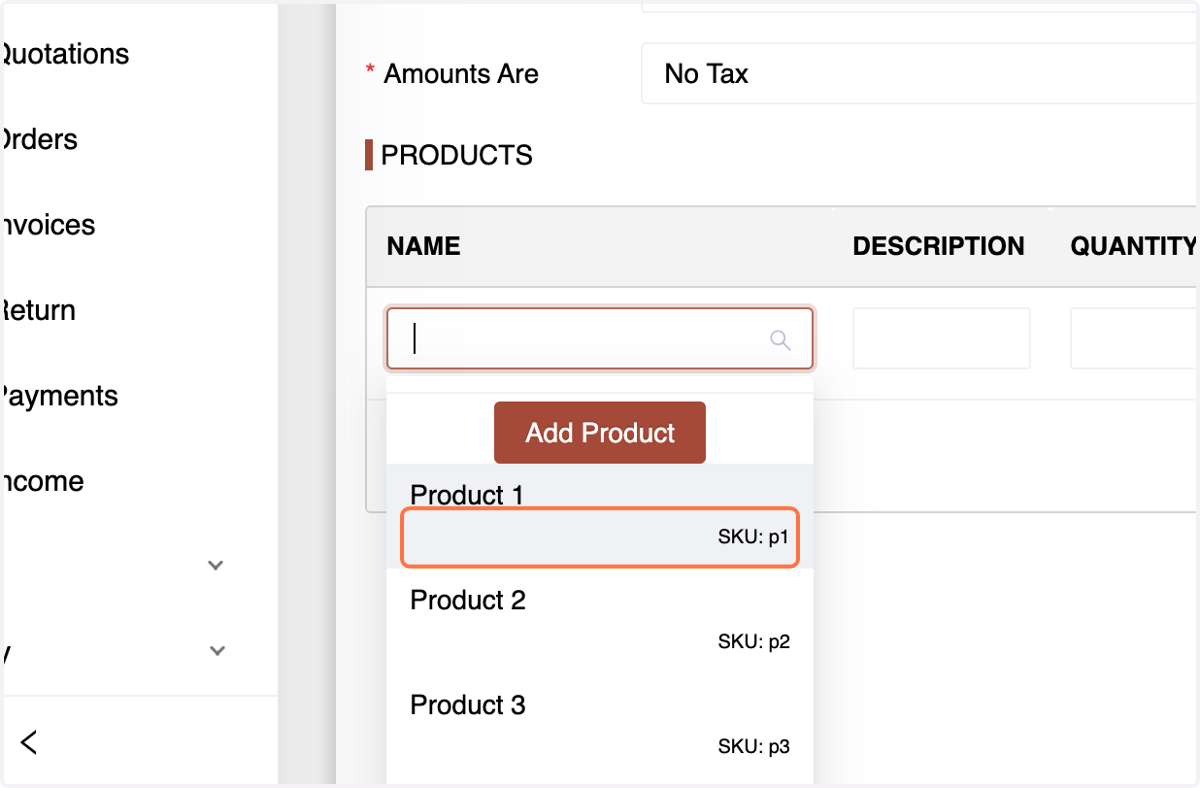
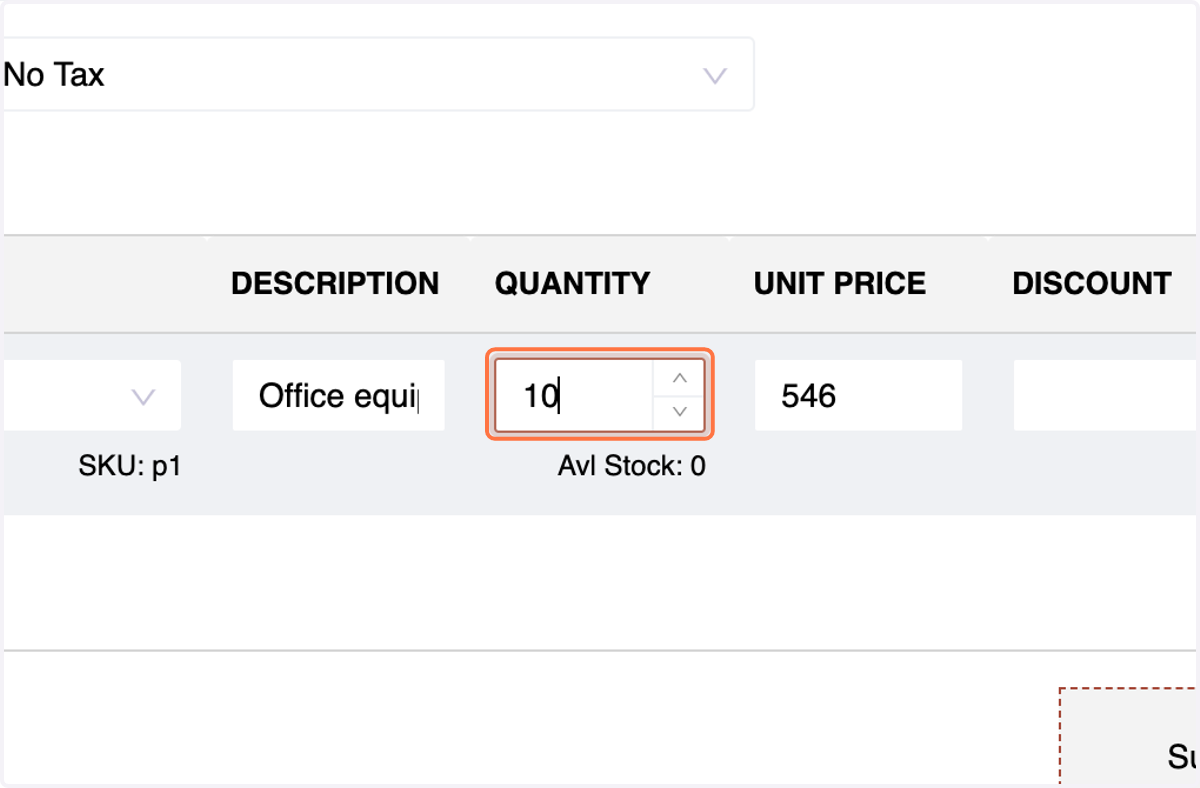
22. quantity, and discount (if applicable).
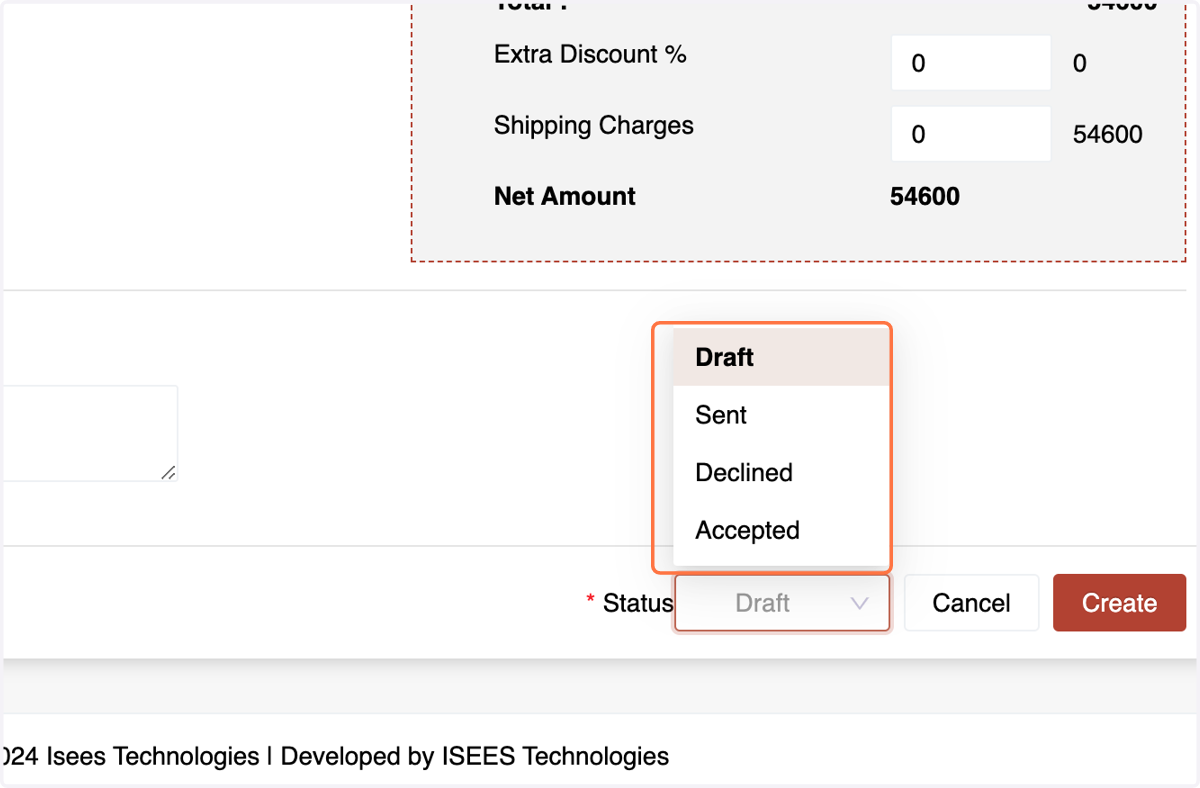
23. Select the Order Status (Accepted, Declined, Sent, or Draft) and
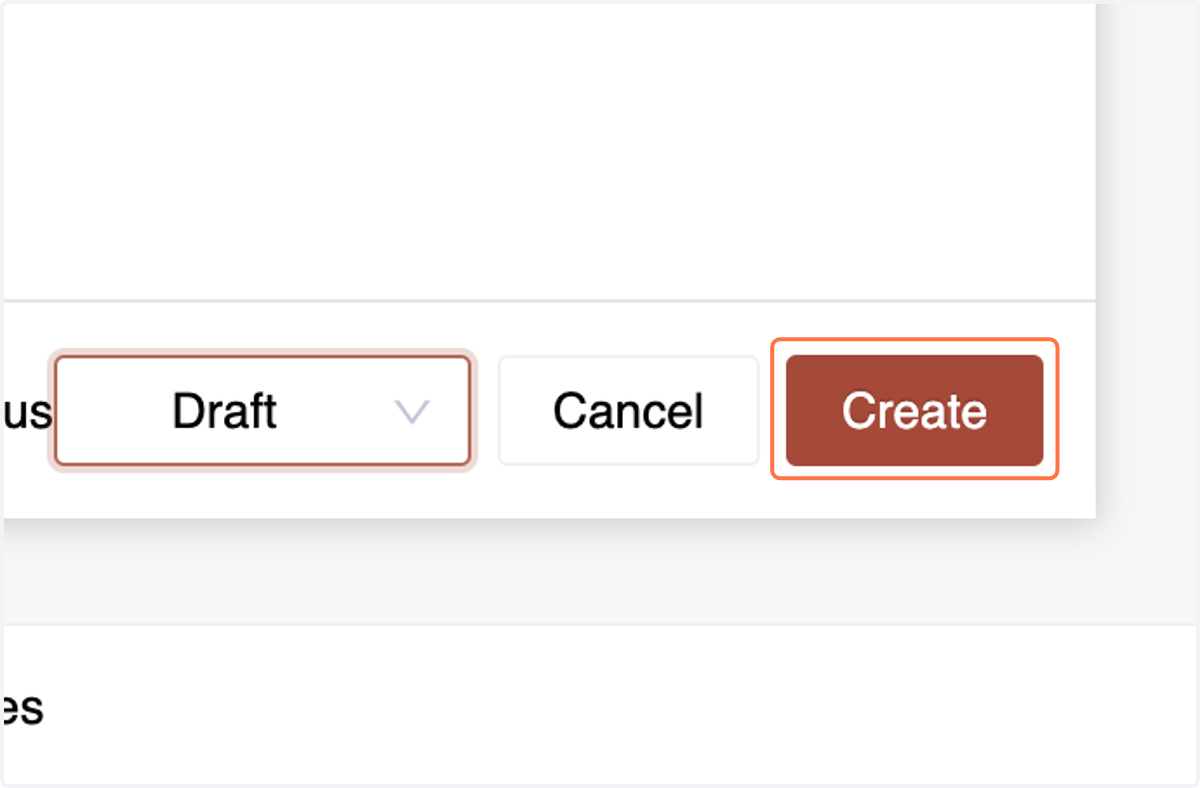
24. Click on Create
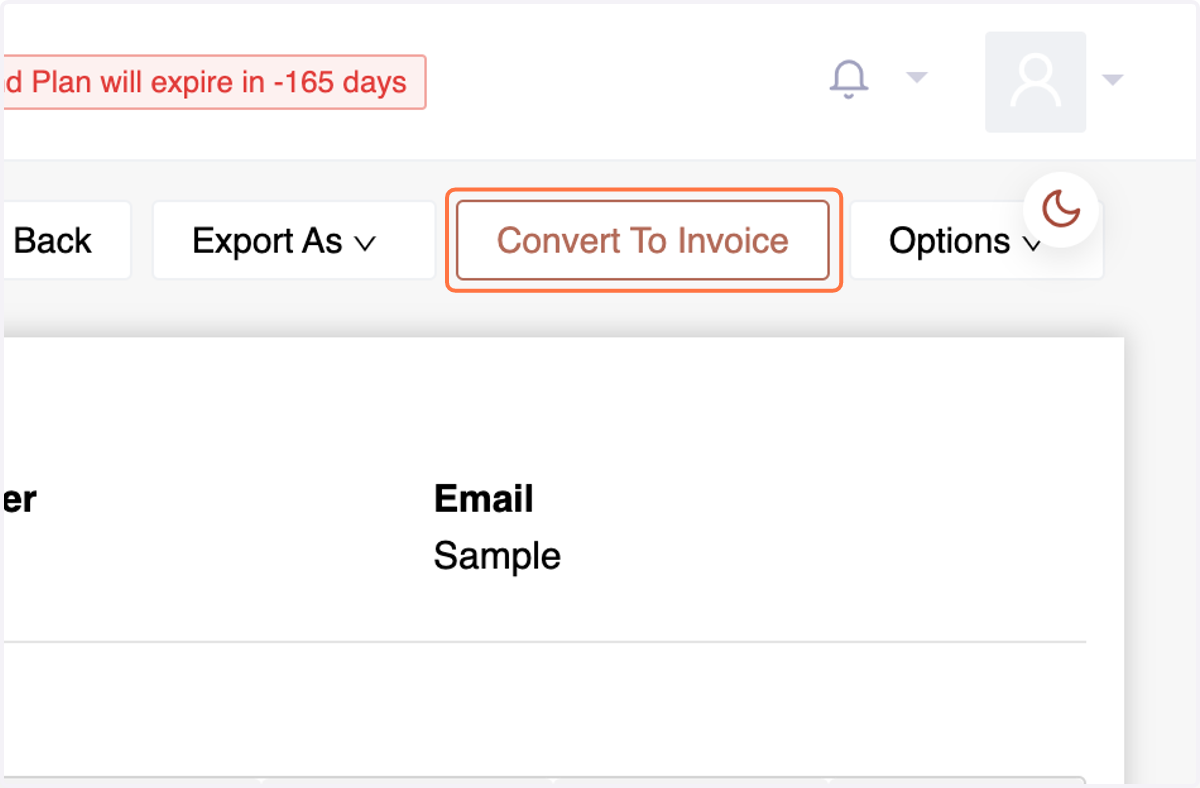
25. In the Number accounting system, transitioning from a Sales Quote to an Order and from an Order to a Sales Invoice is straightforward. To convert Sales Orders into Sales Invoices, just select the desired Orders,
and choose "Convert to Invoice" from the menu. Click on "Convert" in in the dialog box, and you can efficiently transform multiple Orders into Sales Invoices simultaneously.
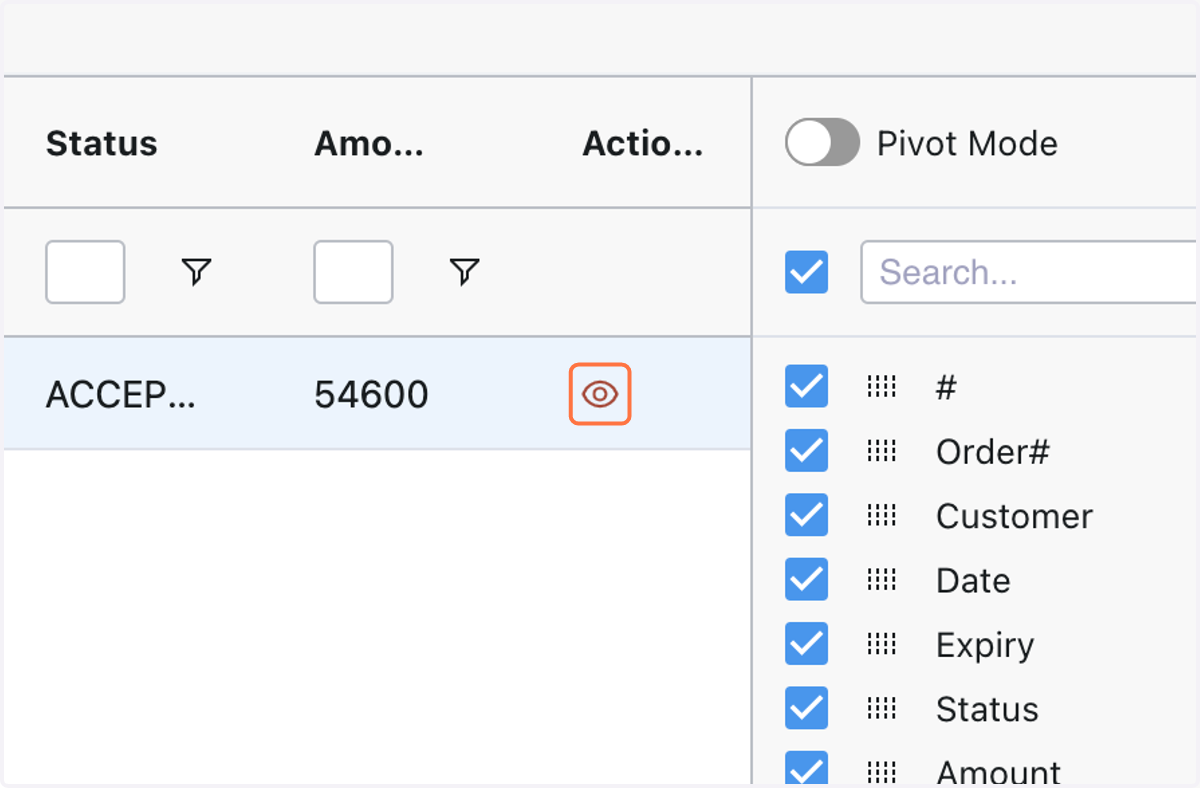
26. and choose "Convert to Invoice" . Click on "Convert" in in the dialog box, and you can efficiently transform multiple Orders into Sales Invoices simultaneously.
Sales Invoice
A Sales Invoice is a formal document issued to a customer upon the sale of goods or services. It details the products or services provided, their quantities, prices, taxes (if applicable), and payment terms. It serves as a record of the transaction and a request for payment.
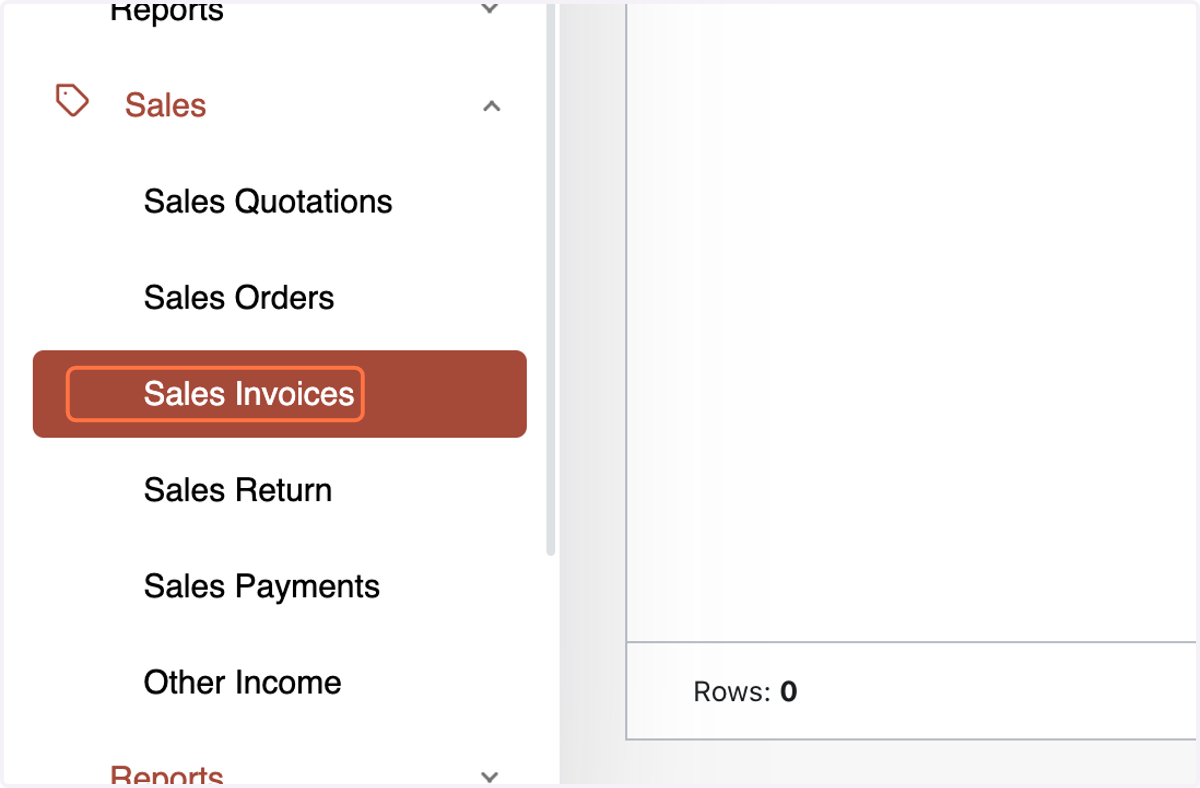
27. Access the Sales Invoice menu within the Sales section.
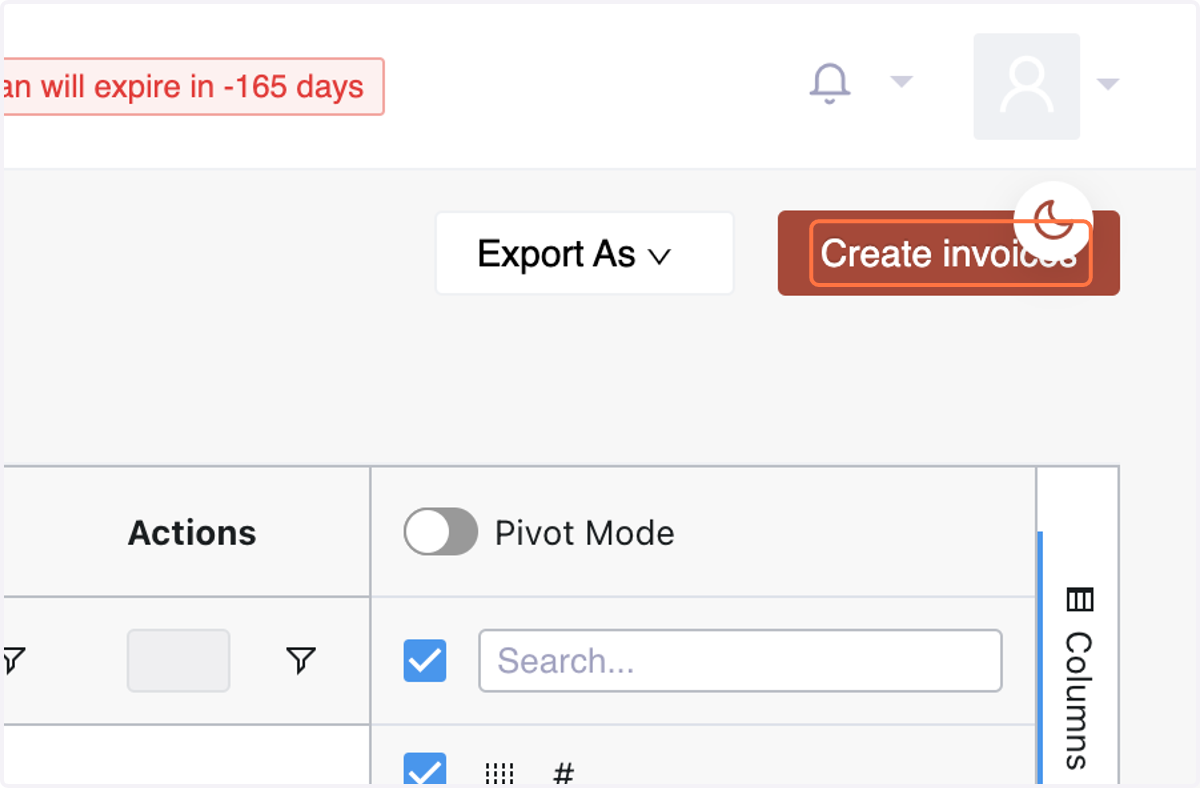
28. Click "Create Invoice" on the top right corner.
29. Enter basic information: Select/ Add Customer Name,
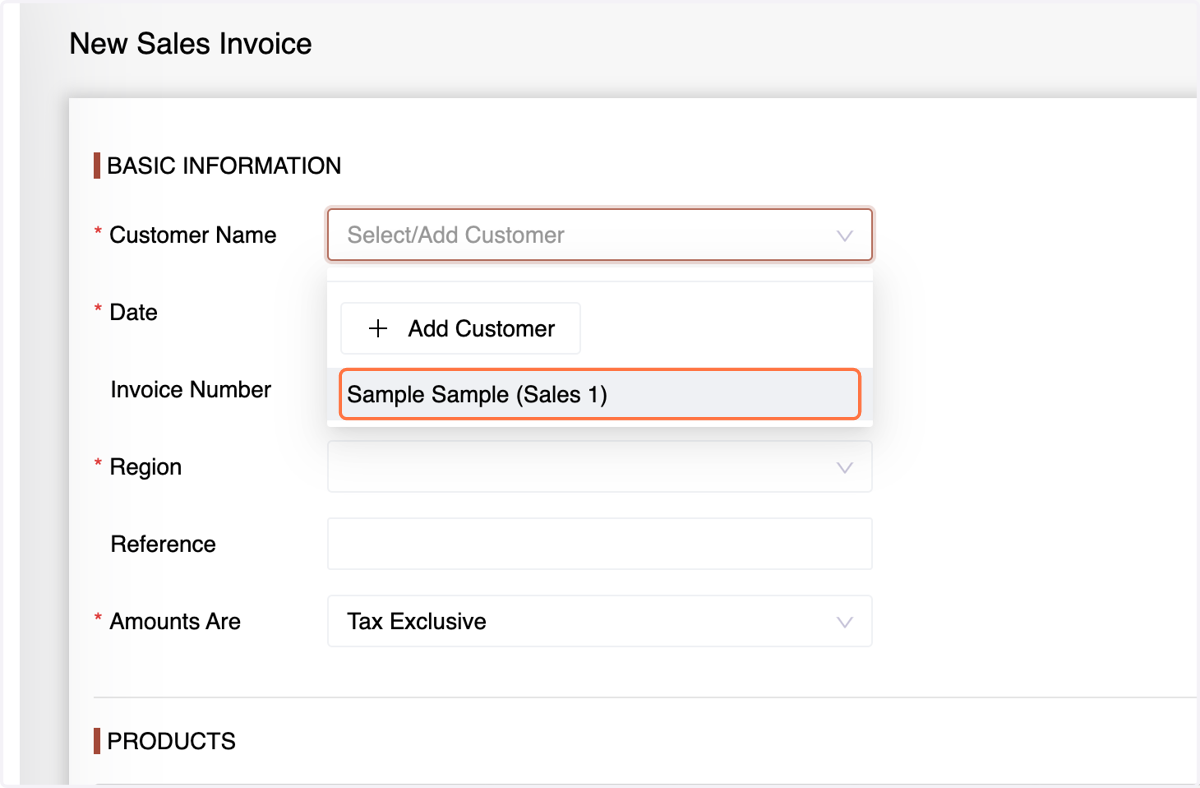
30. Enter the Date of Invoice,
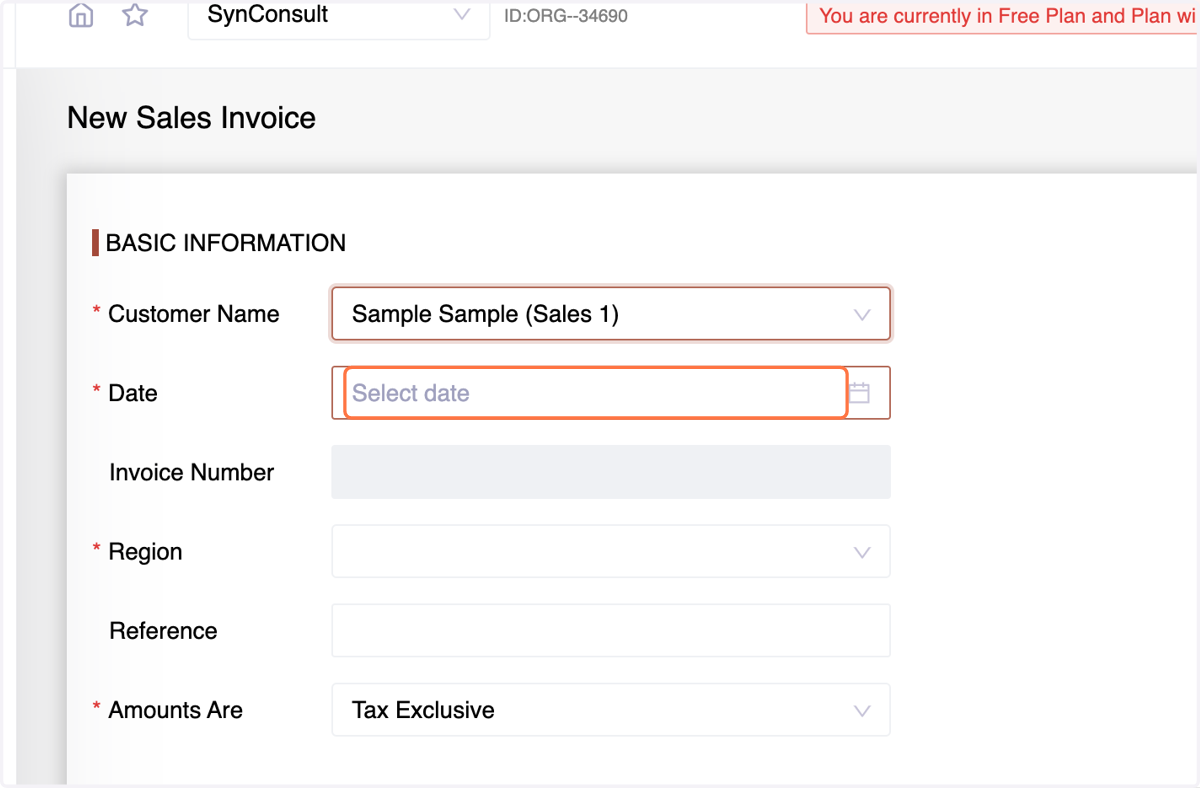
31. Region/Branch,
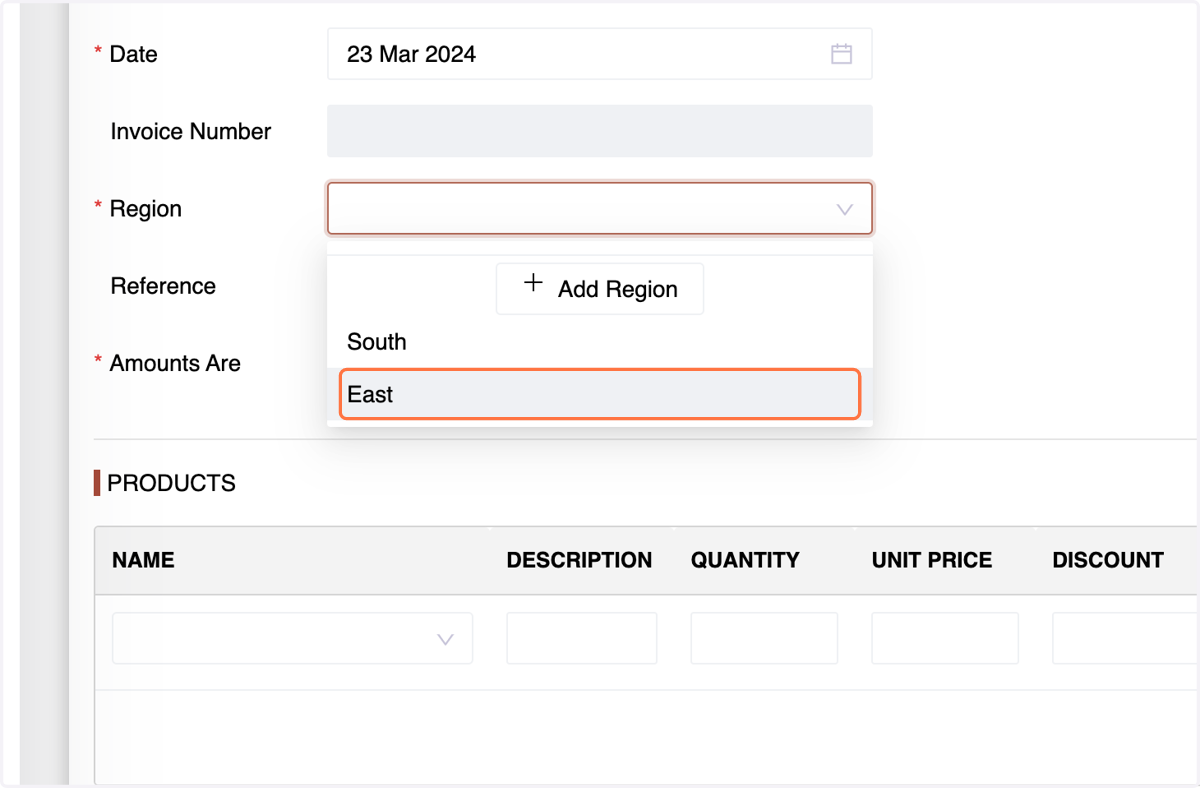
32. and Tax Option.
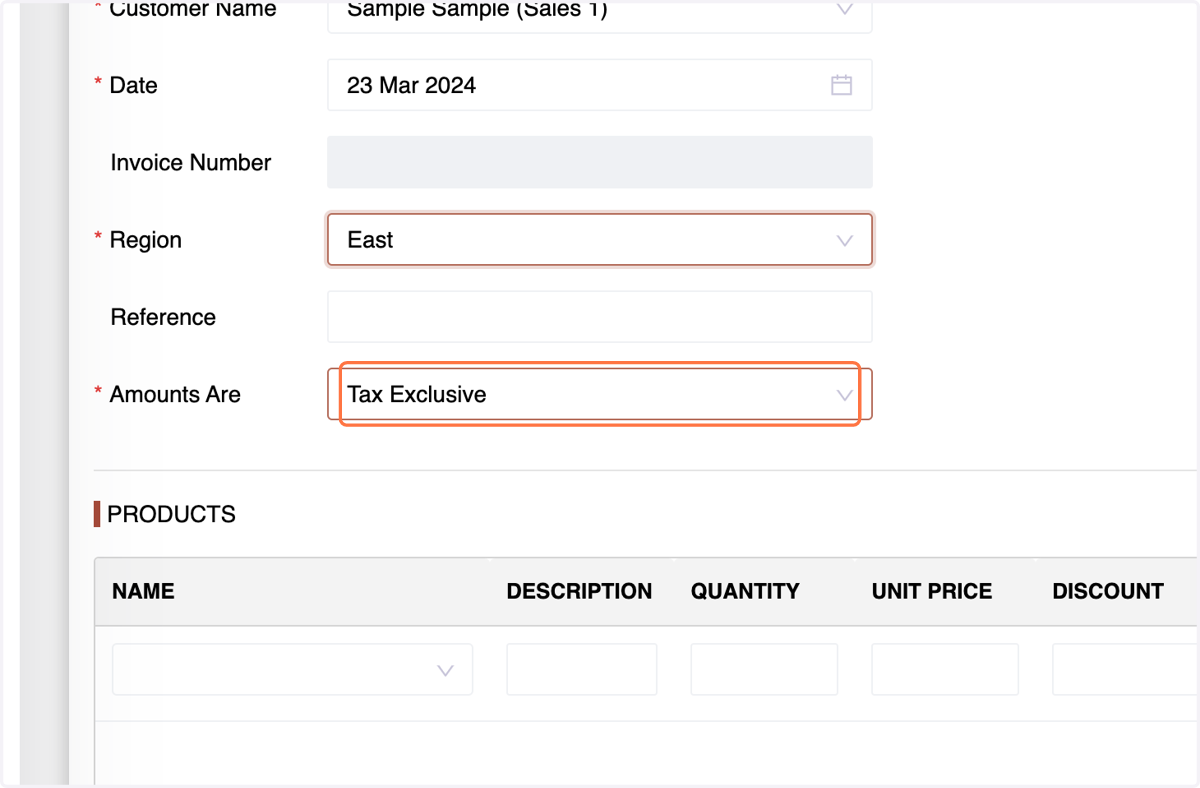
33. In the Products section, choose the product, enter a description,
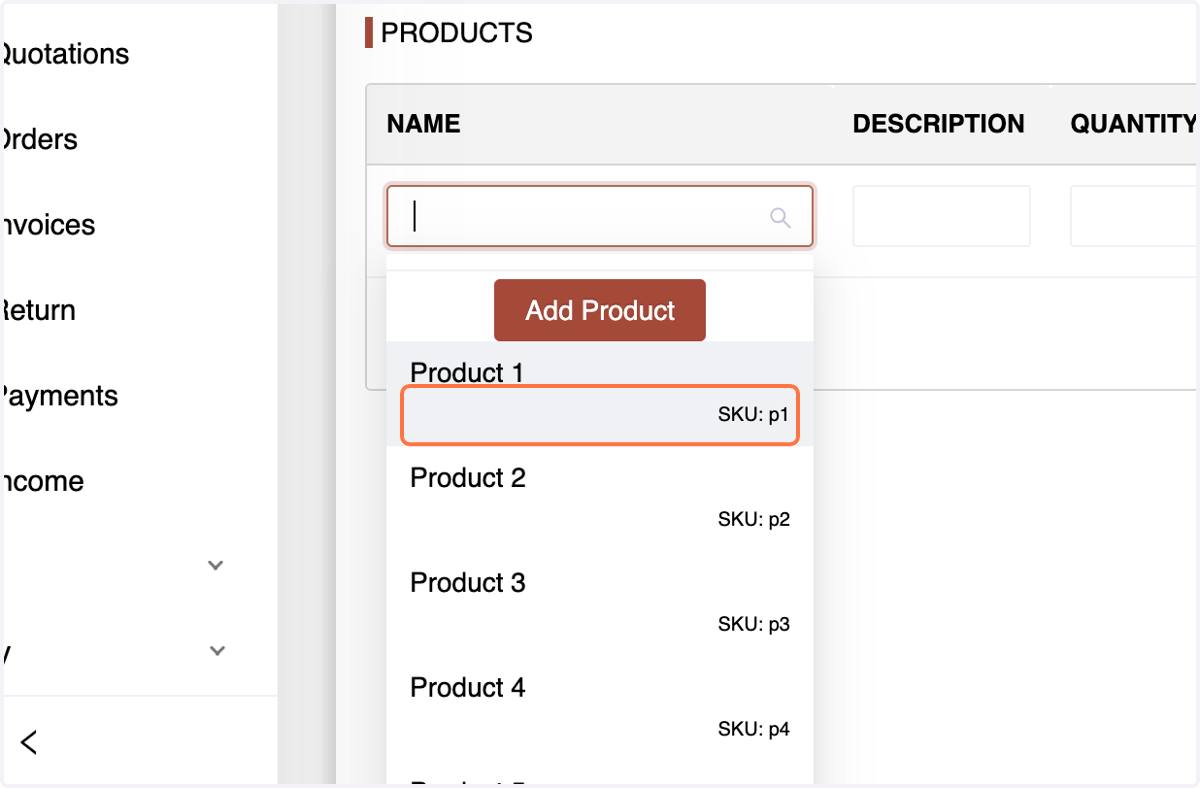
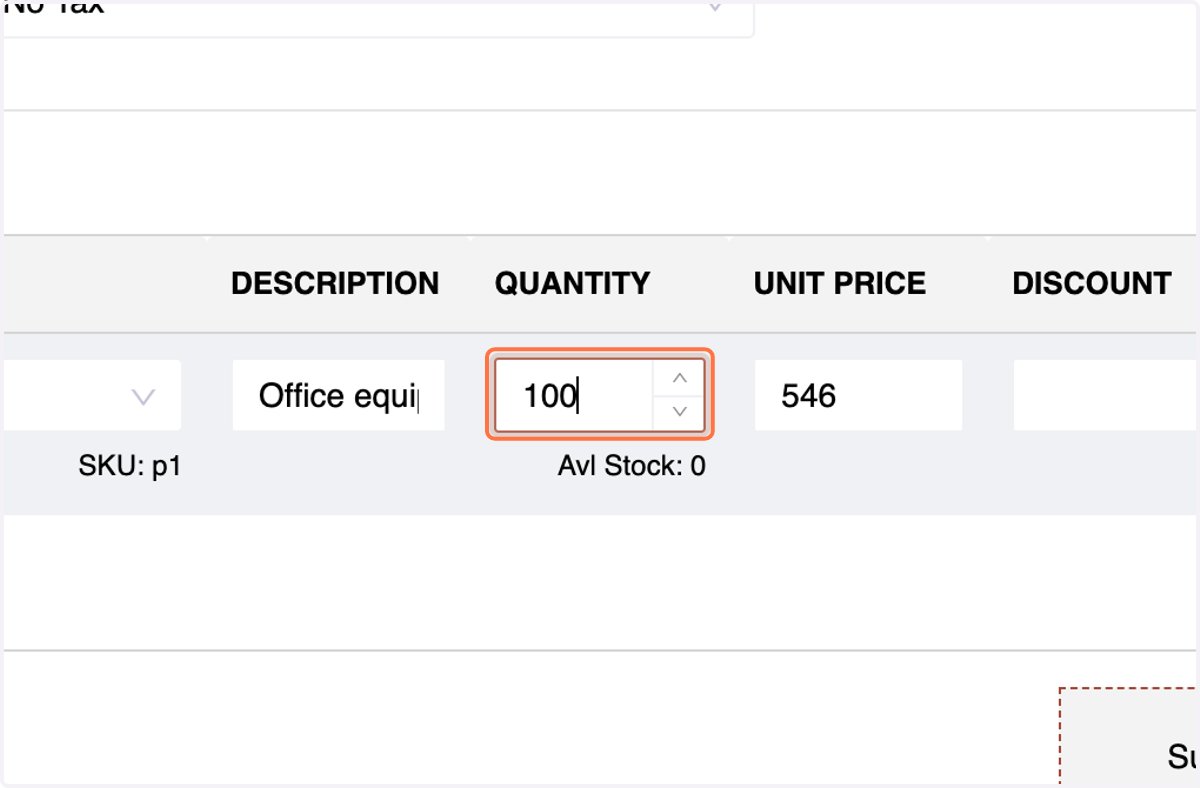
34. quantity, and discount (if applicable). The system will populate the unit price and total price.
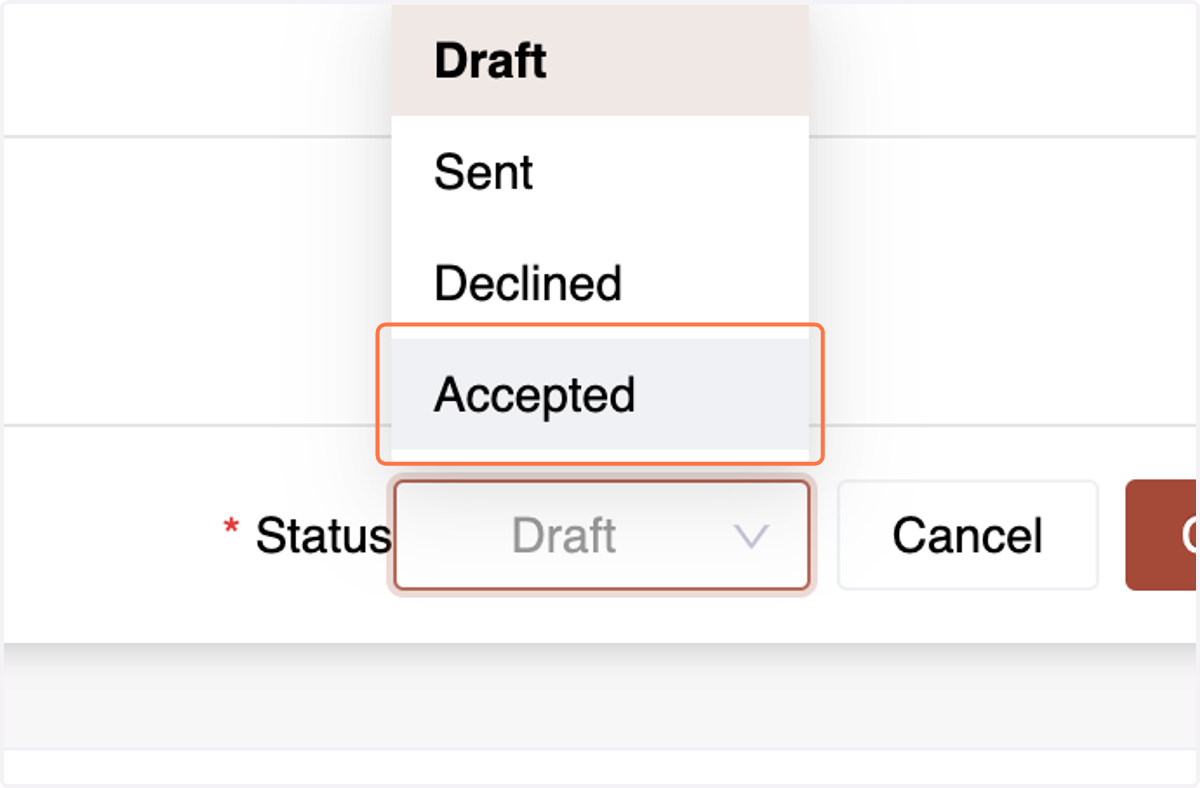
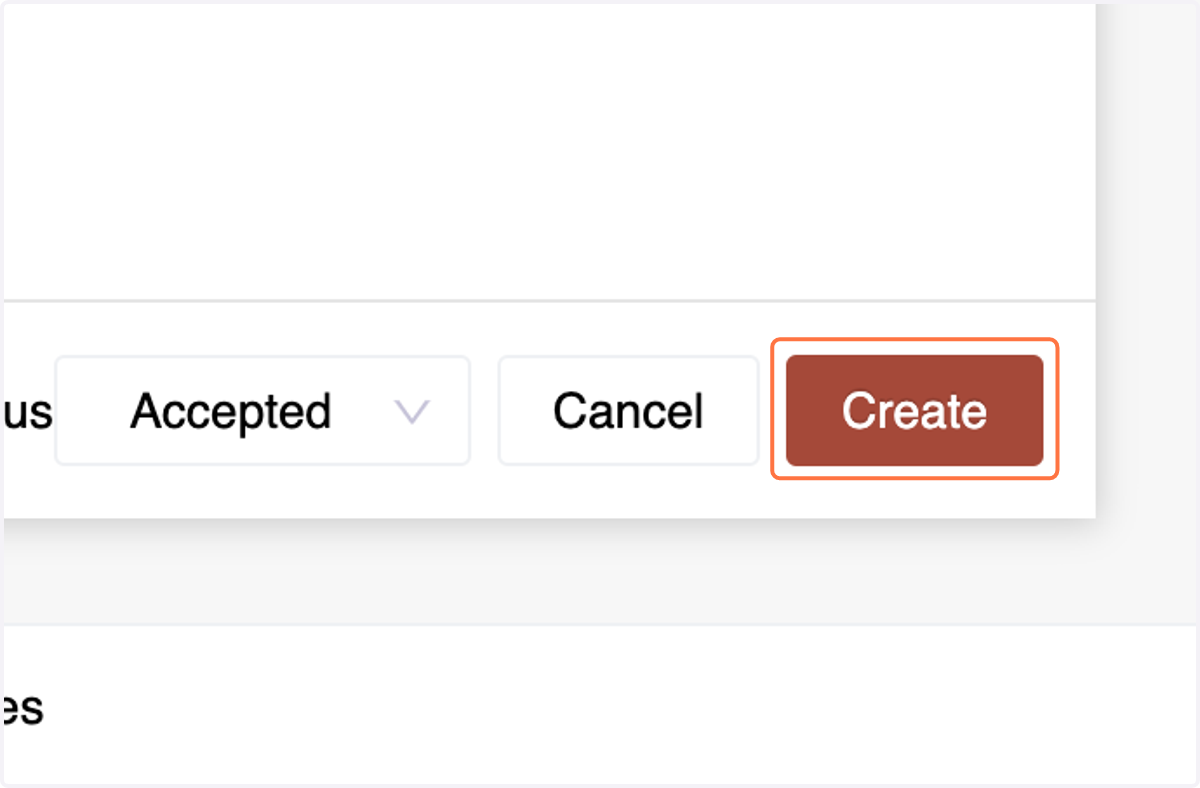
35. Select the Invoice Status (Accepted, Declined, Sent, or Draft),
36. If it's a cash invoice, check "I've Received the Payment,"
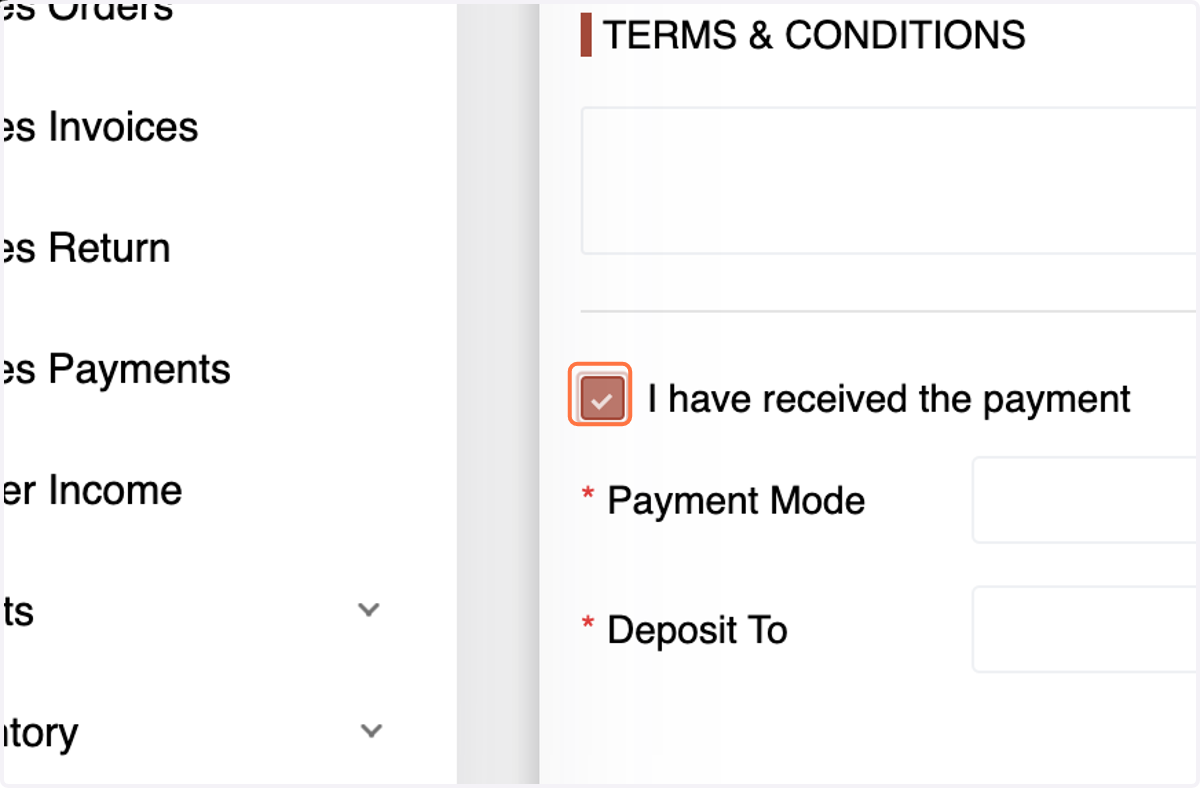
37. choose the Payment Mode
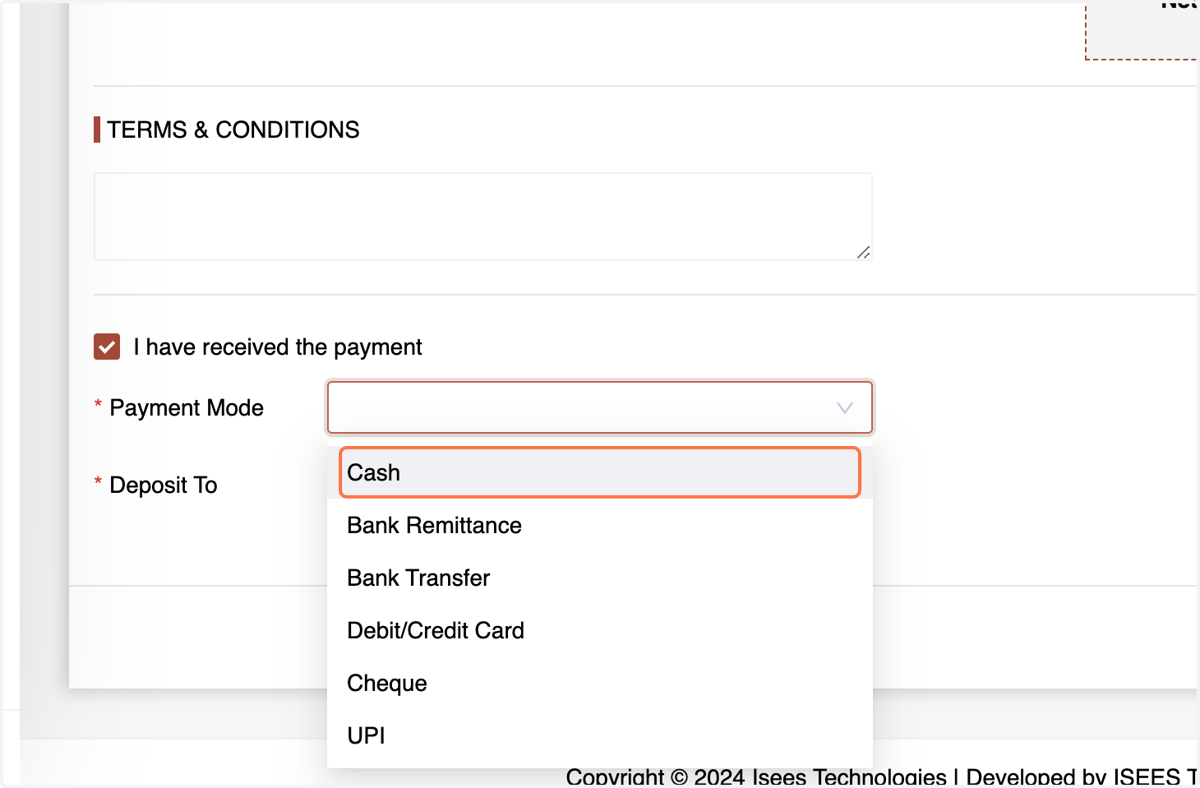
38. and Account.
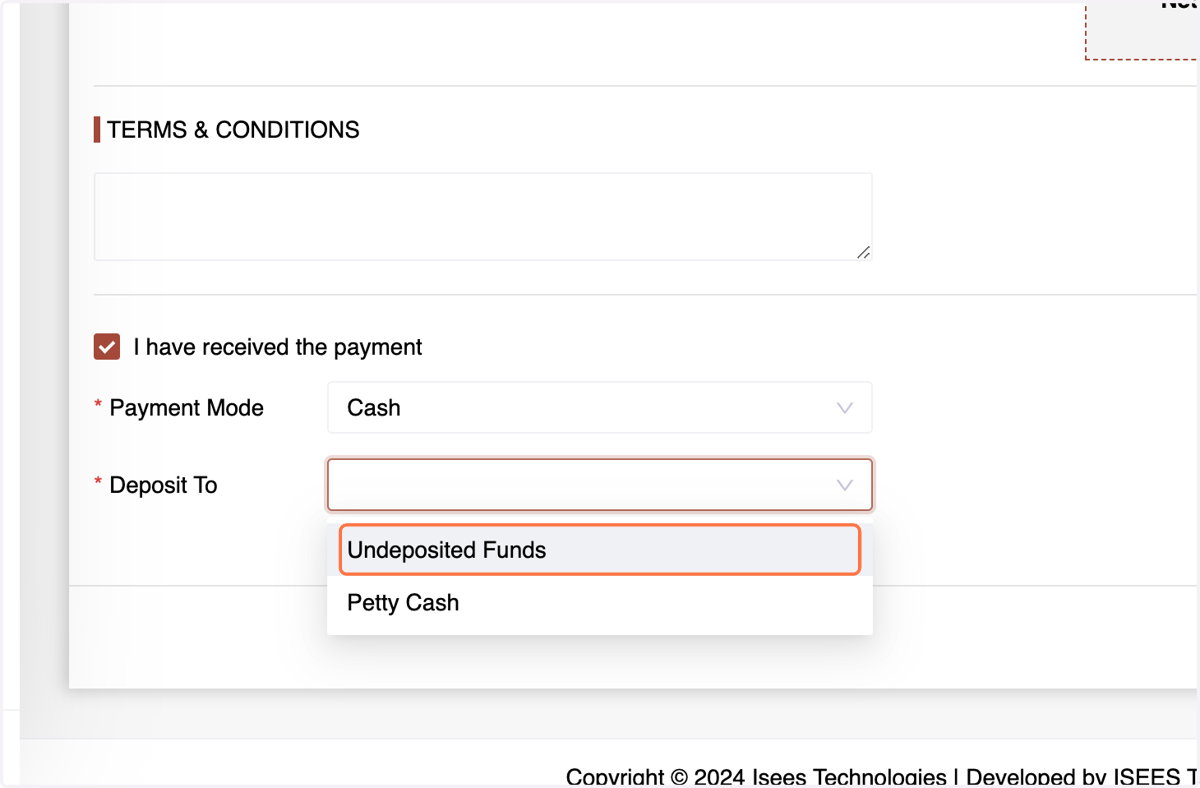
39. and click "Create."
4. Sales Return
A Sales Return document is created when a customer returns purchased products. It specifies the reason for the return, the returned items with their quantities, and any applicable adjustments to the original invoice.
40. Navigate to the Sales Return menu within the Sales section.
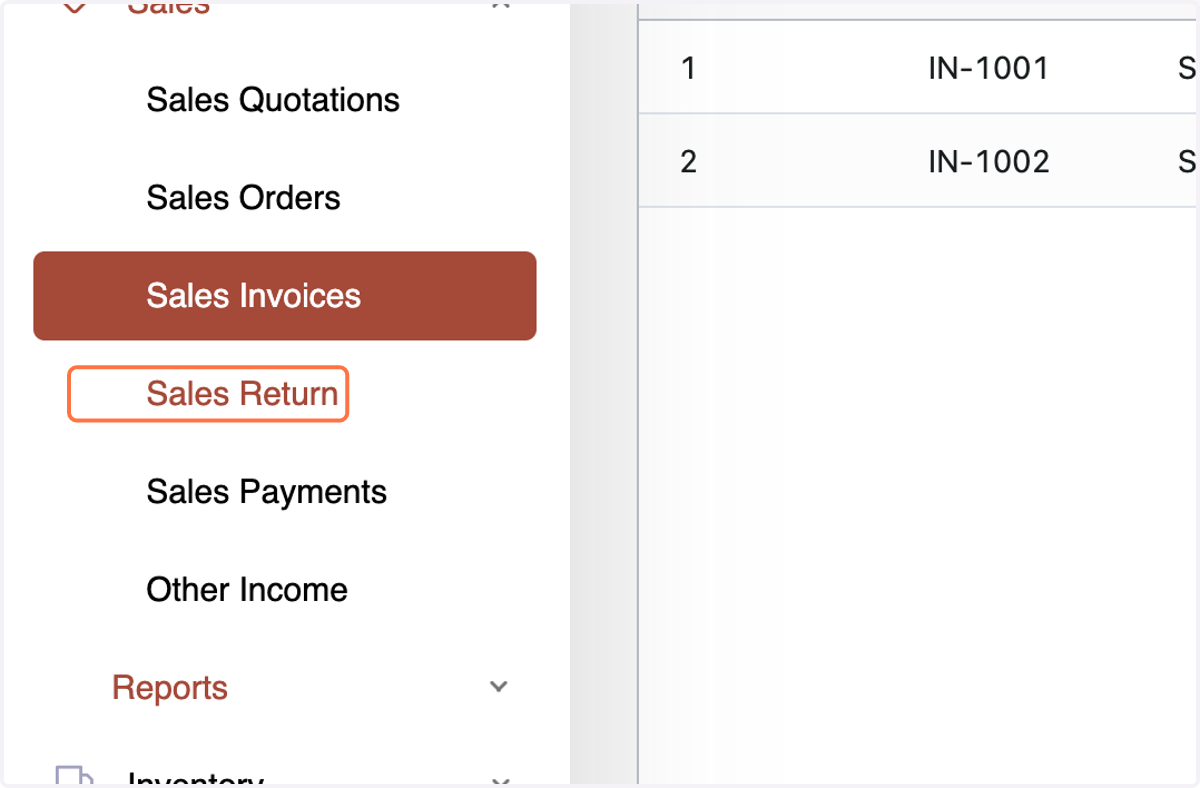
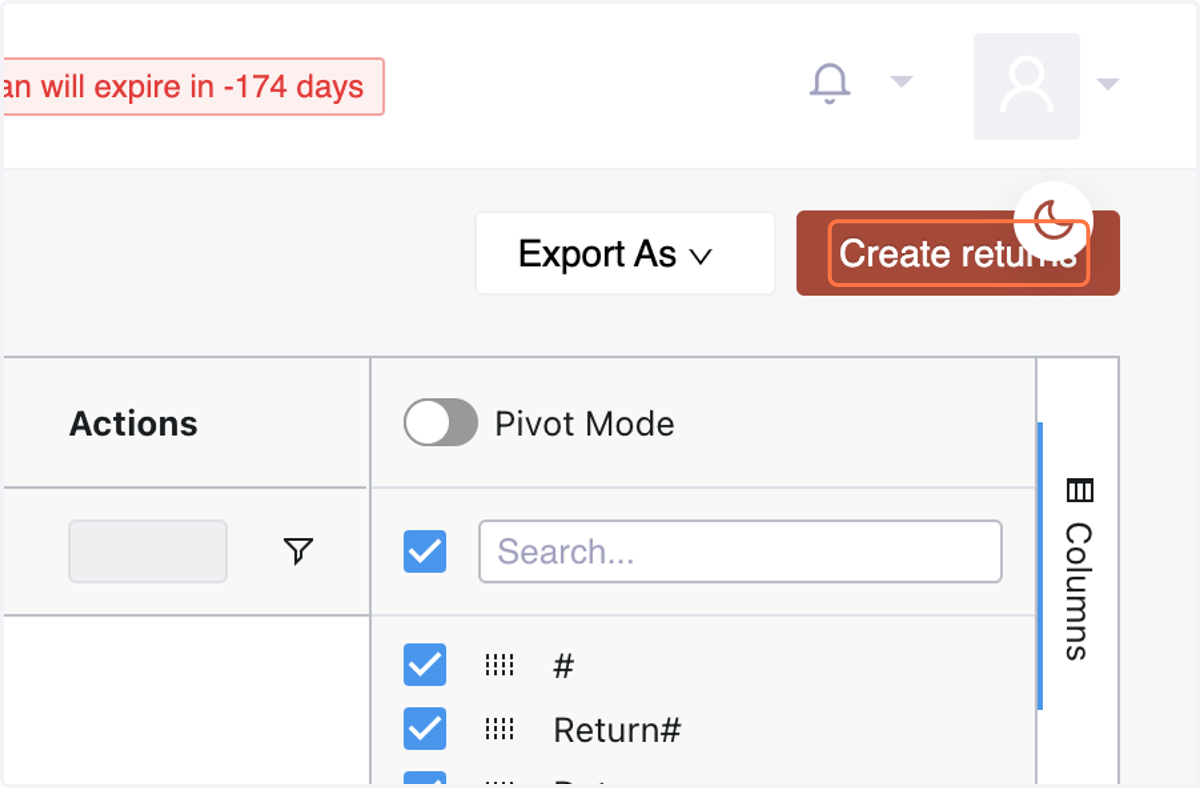
41. Click "Create Return" on the top right corner.
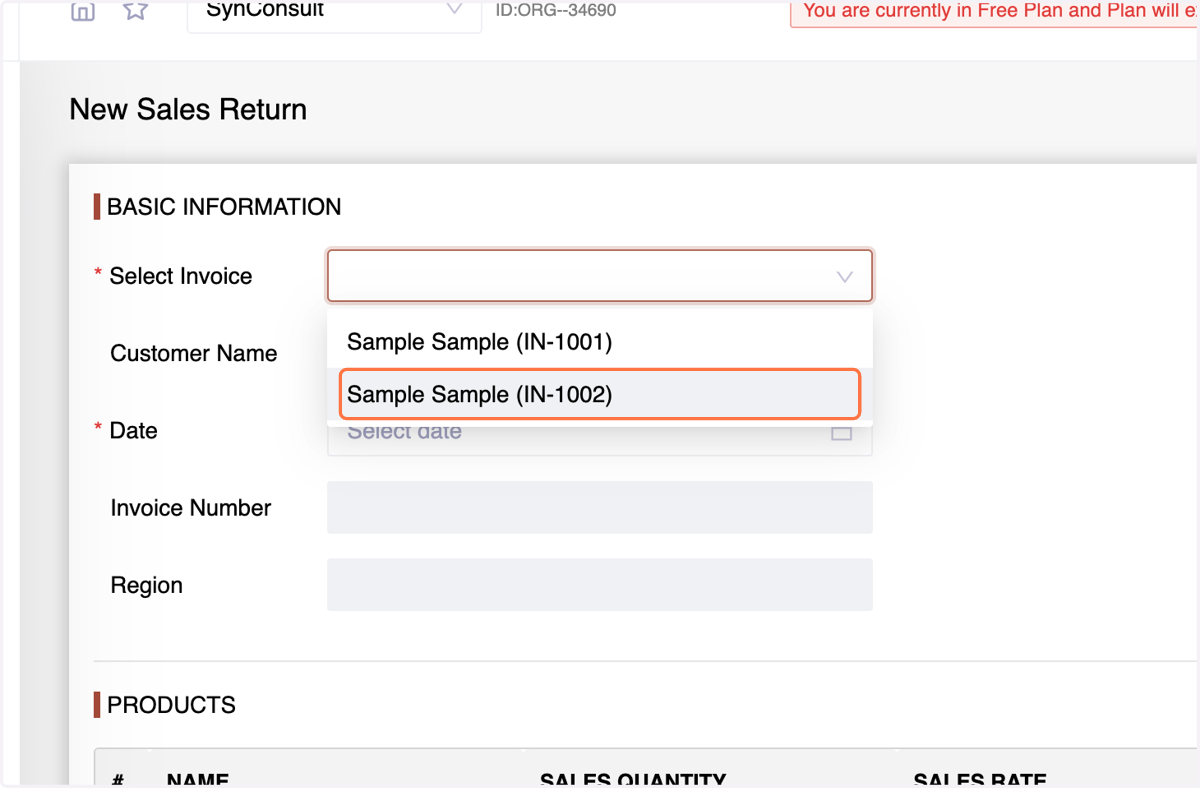
42. Select the invoice from which the return originates using the "Select Invoice" option.
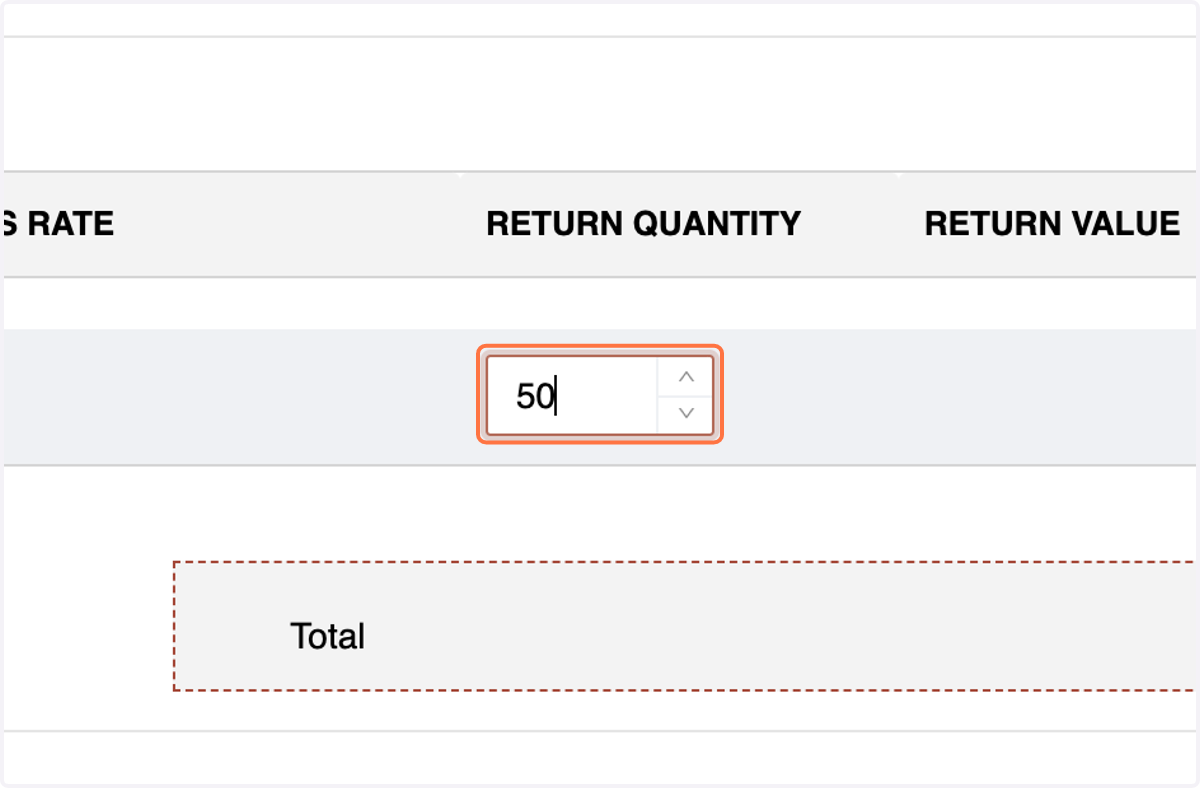
43. In the Products section, specify the quantity being returned and review the information before clicking "Update."
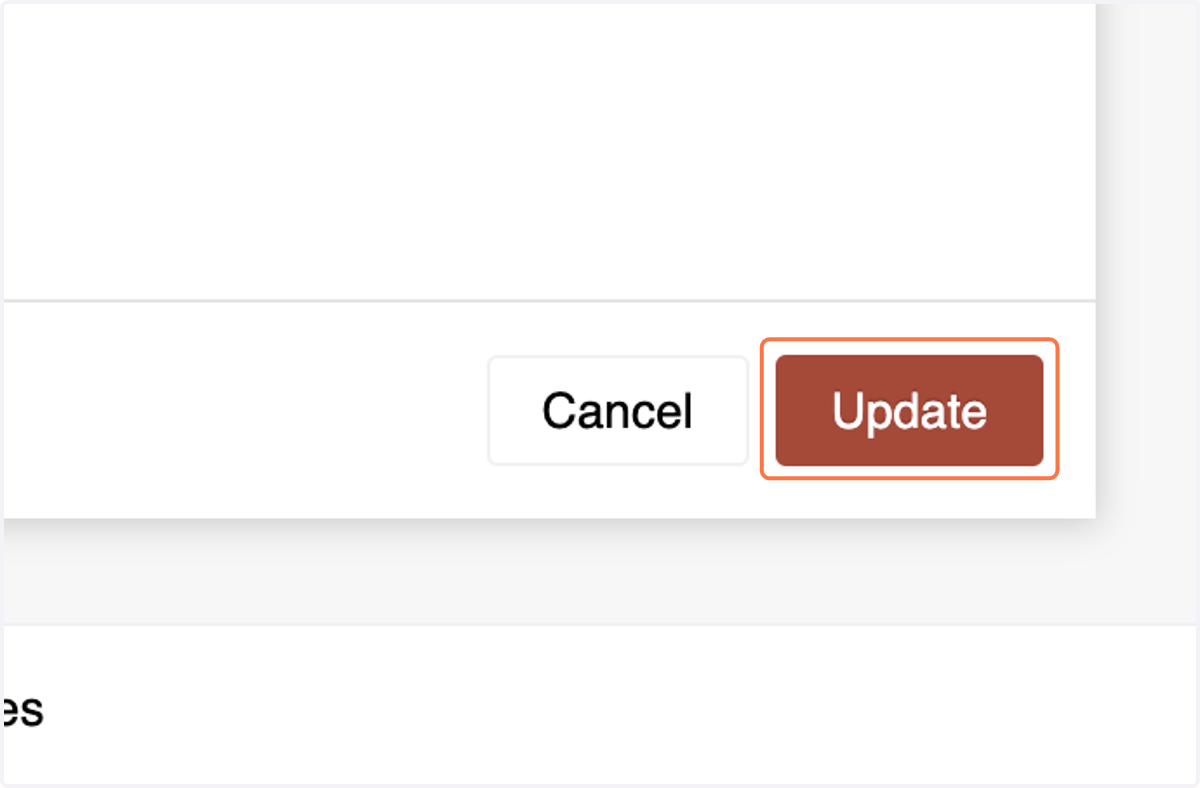
44. review the information before clicking "Update."
Sales Payment:
The Sales Payment function allows you to record customer payments for outstanding invoices. It facilitates tracking received funds and reconciling accounts receivable.
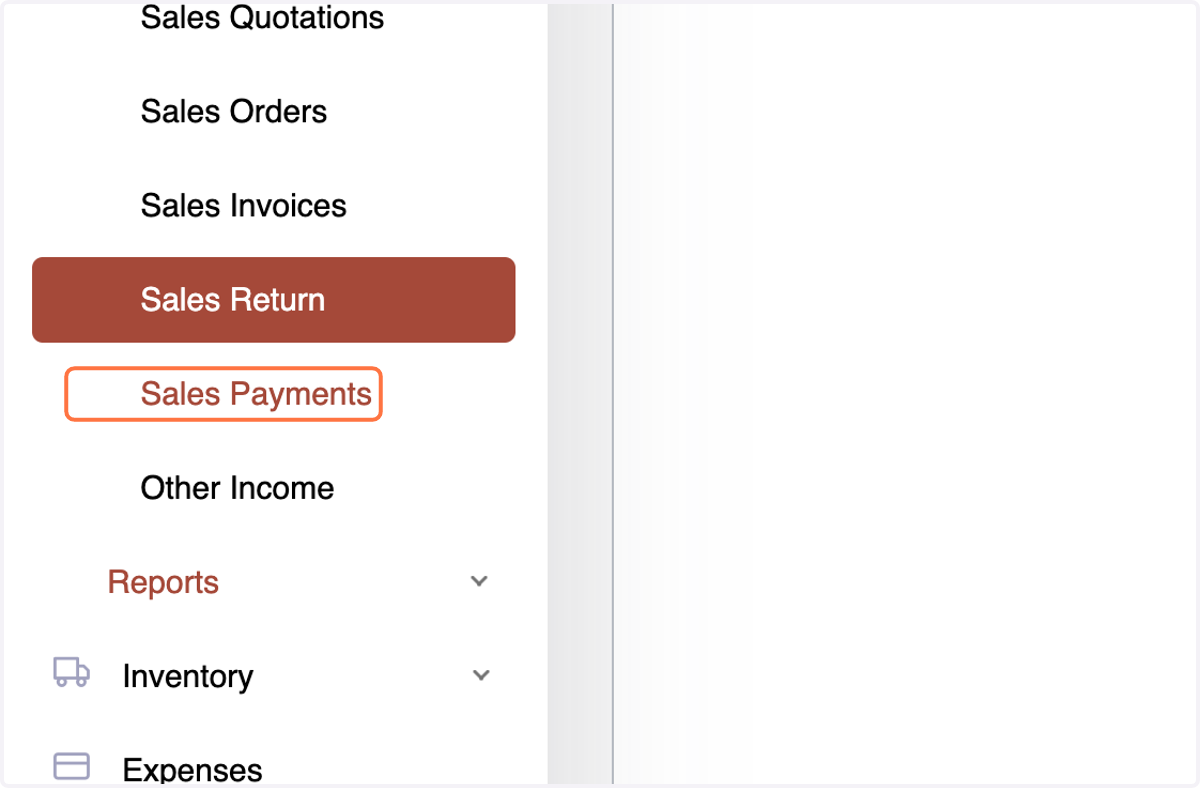
45. Access the Sales Payment menu within the Sales section.
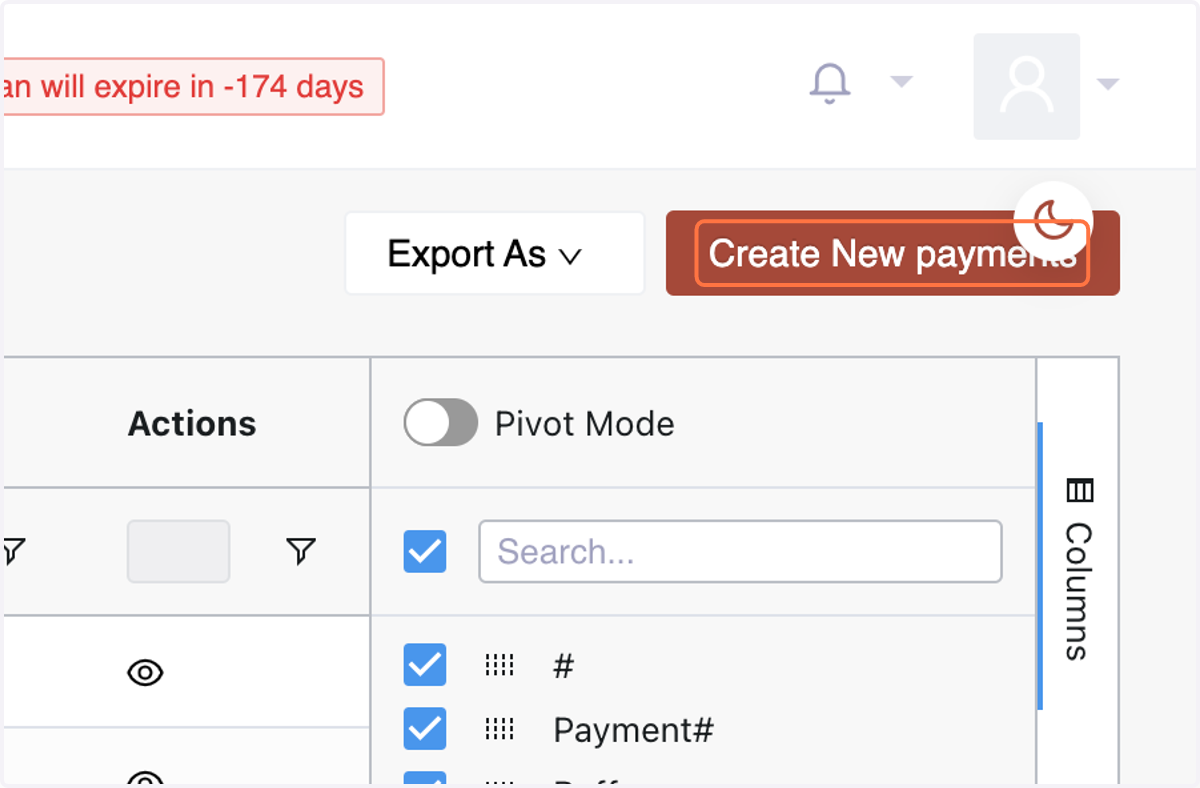
46. Click "Create New Payment" on the top right corner.
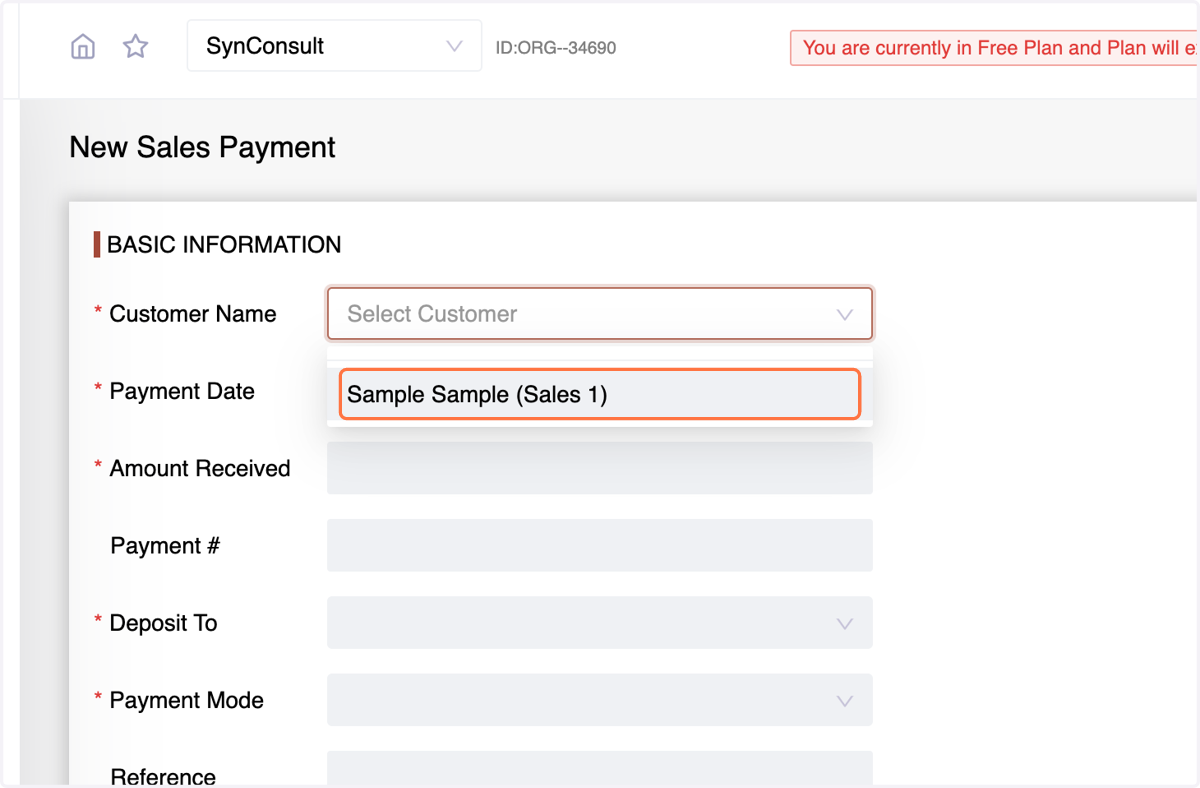
47. Select the Customer Name. The system will display all their unpaid invoices.
48. Enter the Payment Date and
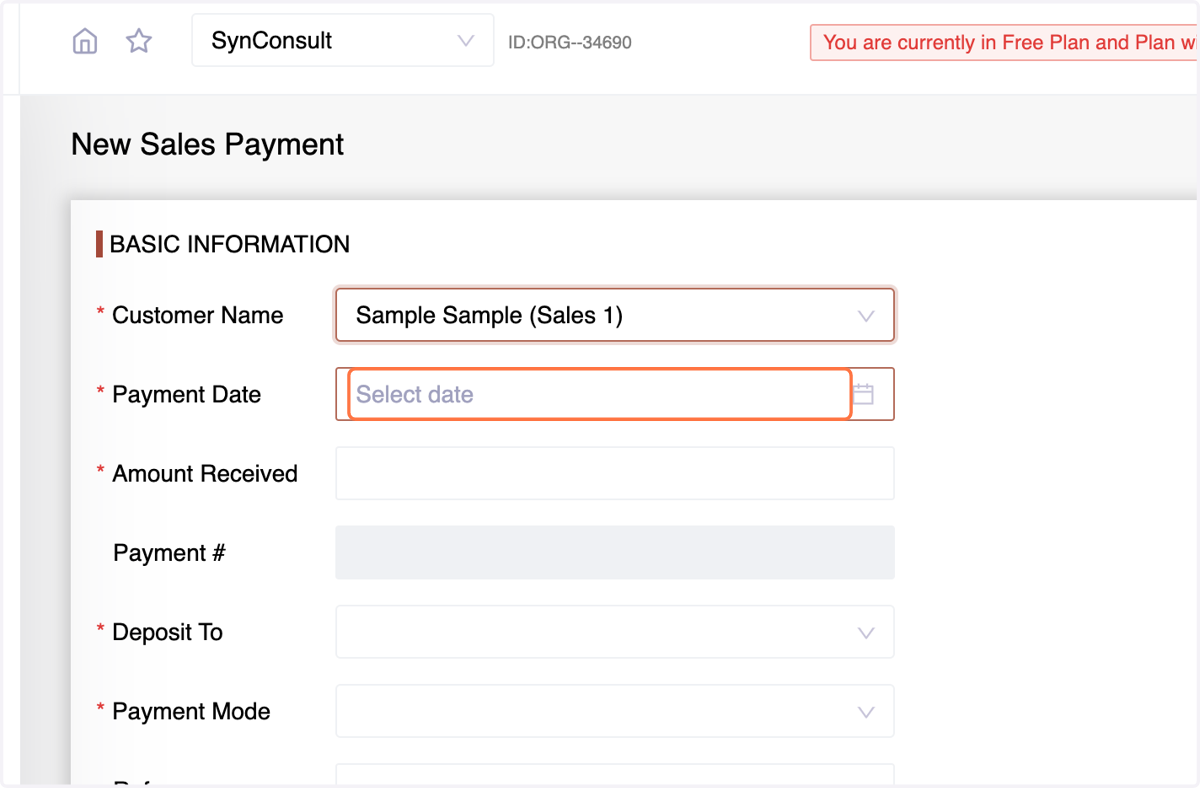
49. Amount. The system will automatically distribute the payment across the invoices (modifiable).
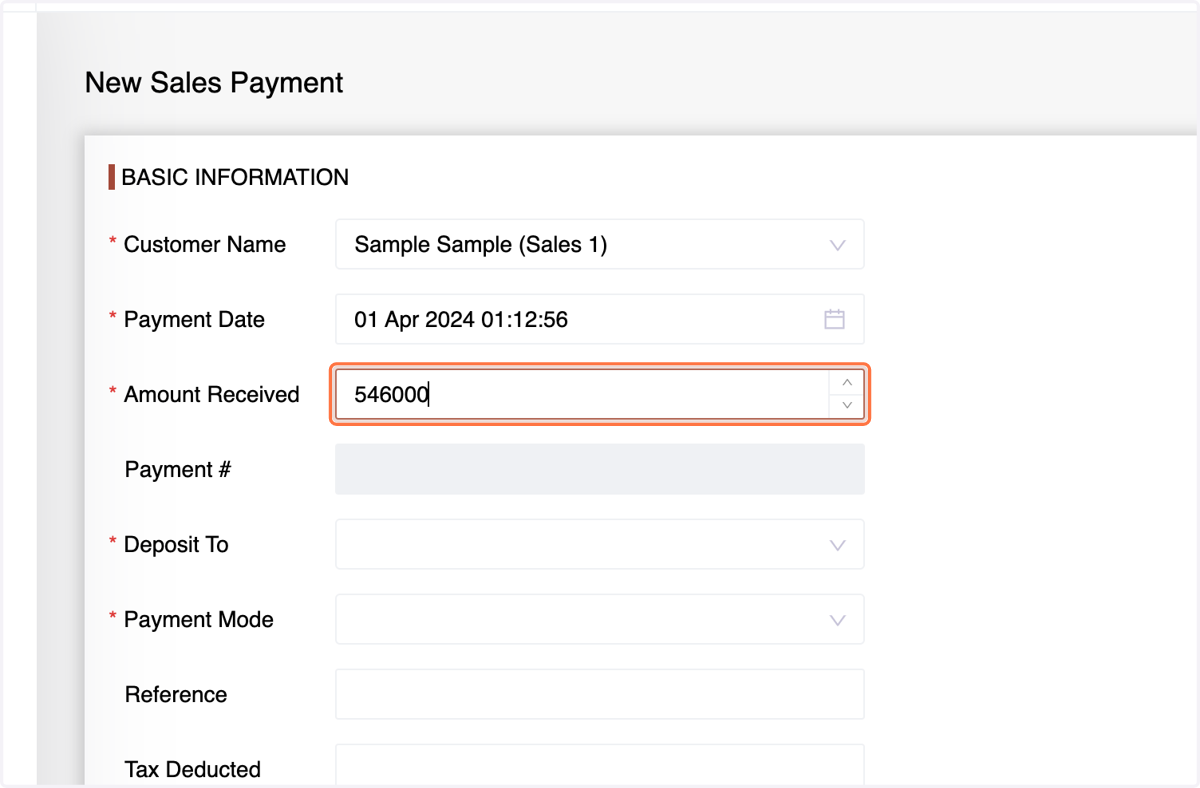
50. Choose the Payment Account
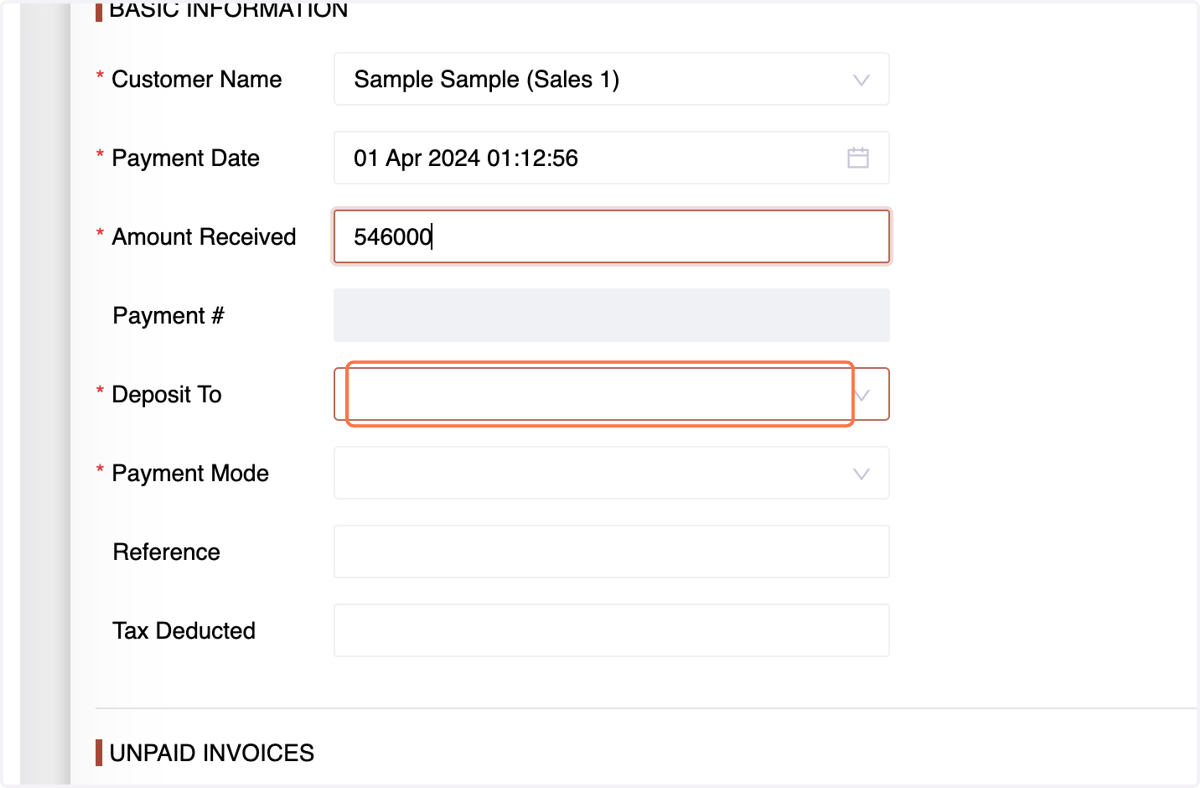
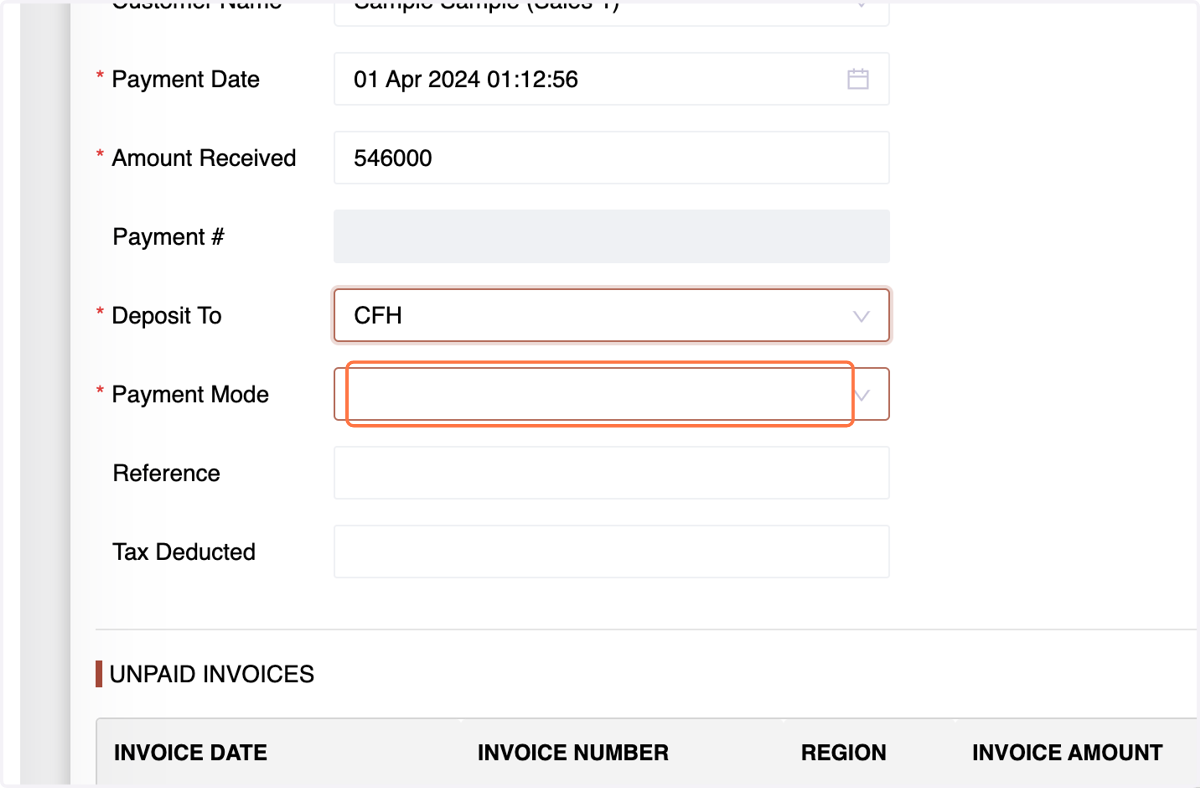
51. and Payment Mode.
52. Select the Taxes and
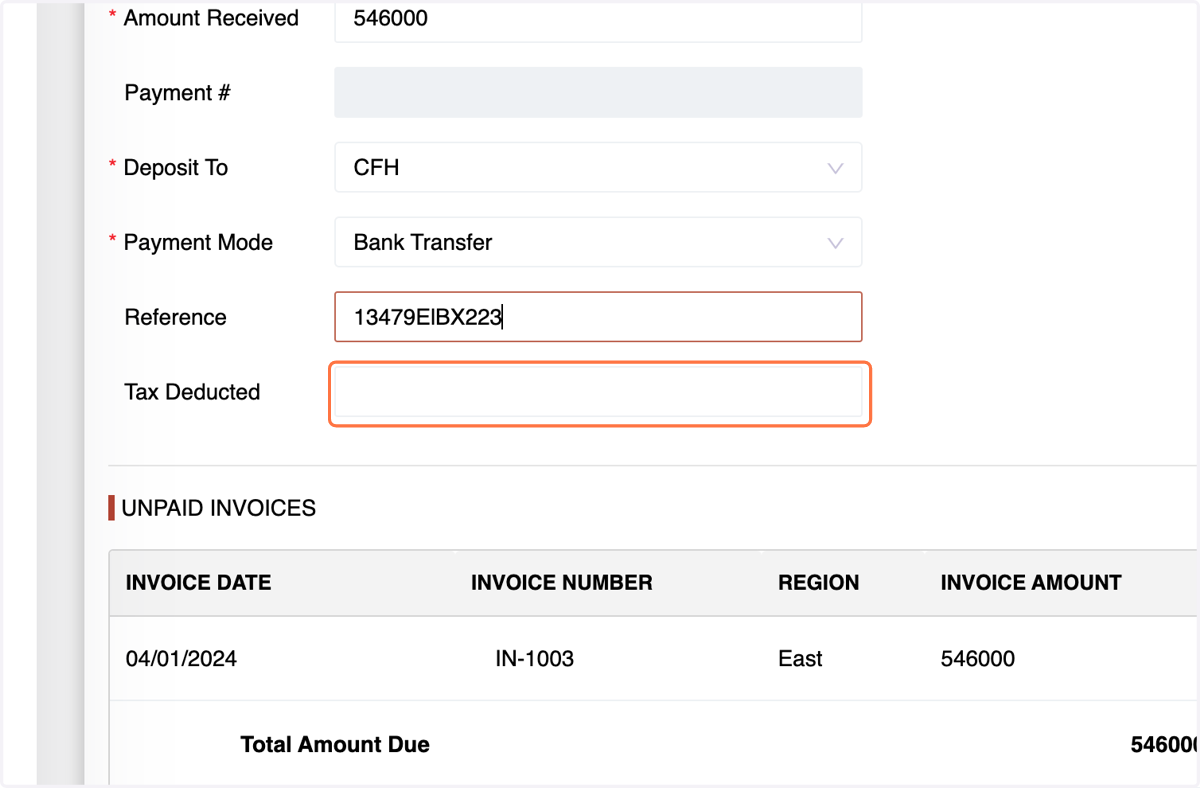
53. review all details before clicking "Create."
54. This comprehensive guide empowers you to effectively manage your sales cycle within the Number Accounting System, ensuring accurate record-keeping, efficient order fulfillment, and timely payment collection.