4.4 How to do End of Year Closing
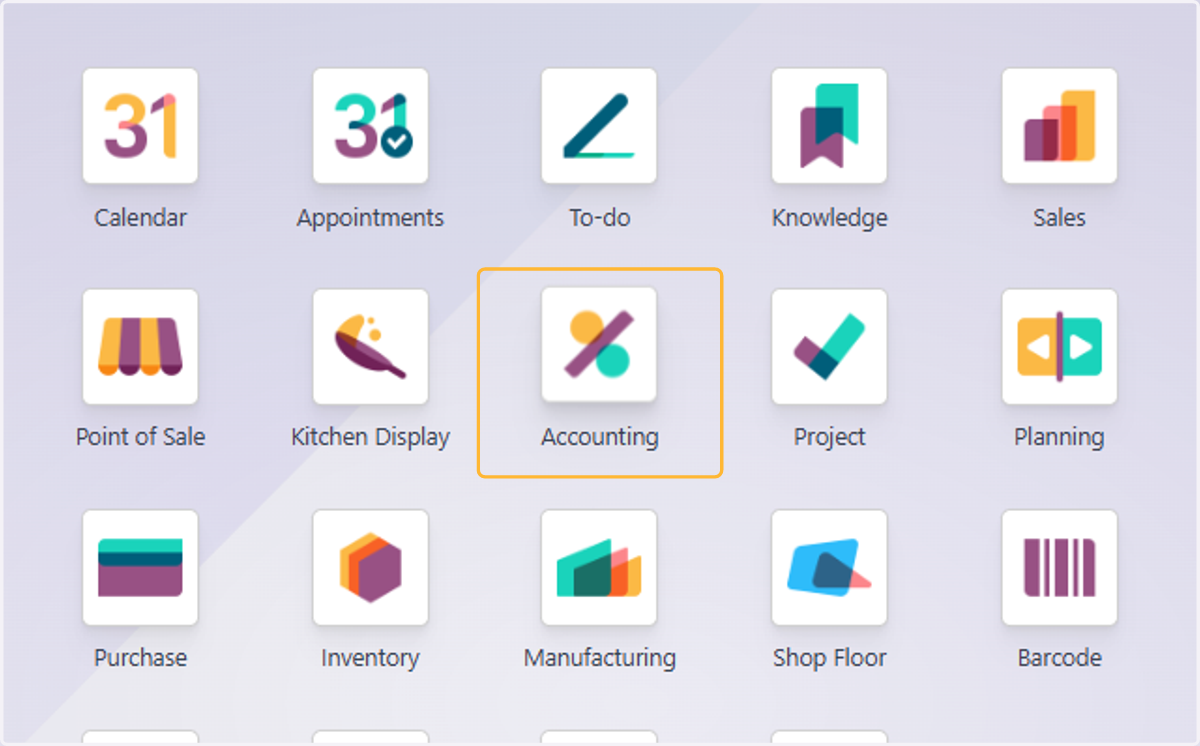
1. Click on Accounting
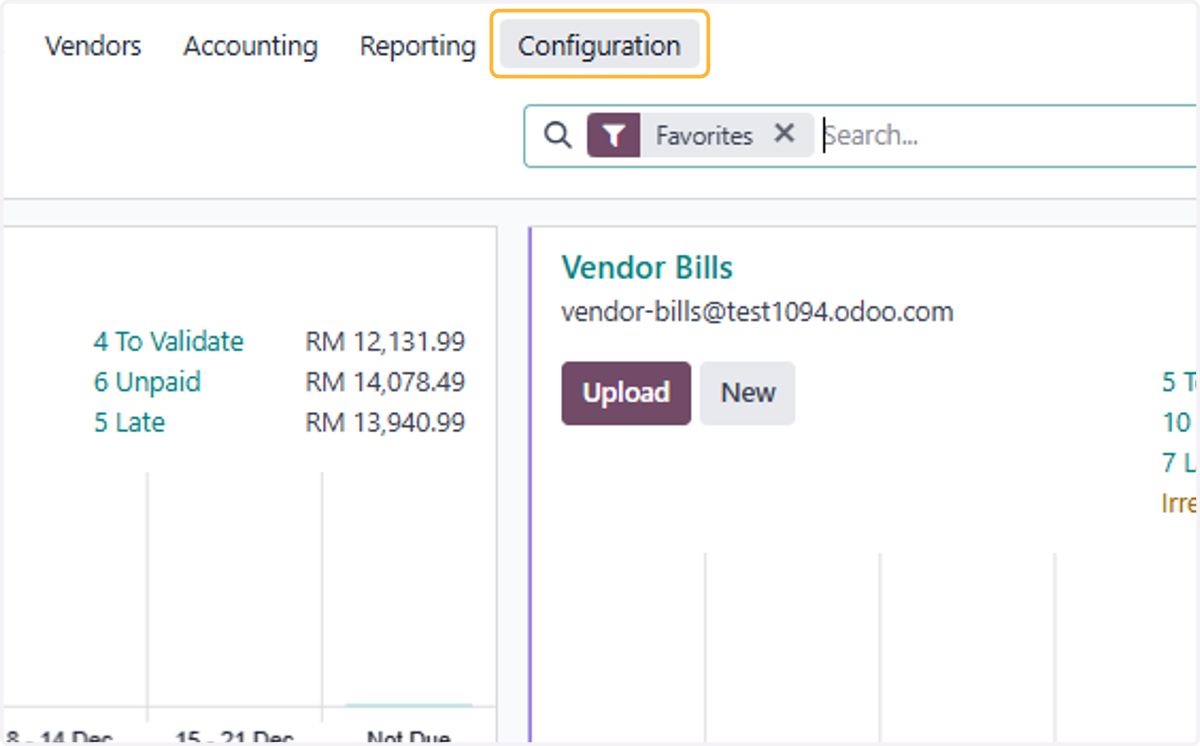
2. Click on Configuration
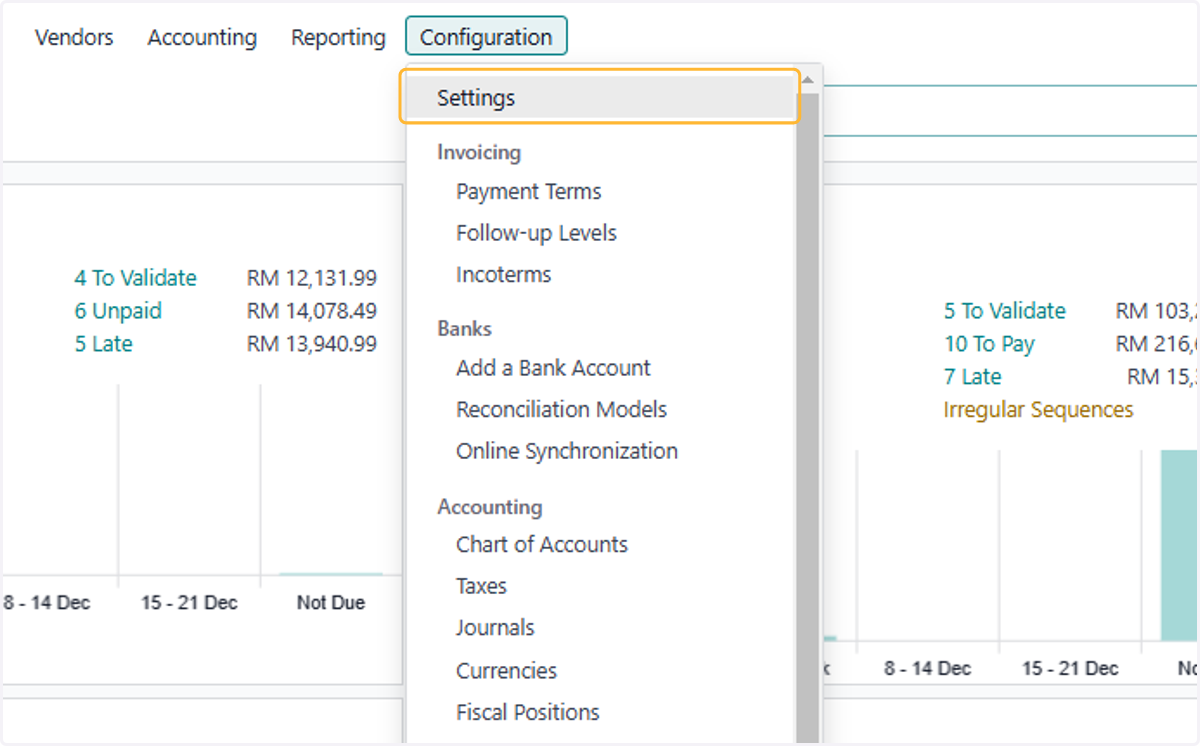
3. Click on Settings
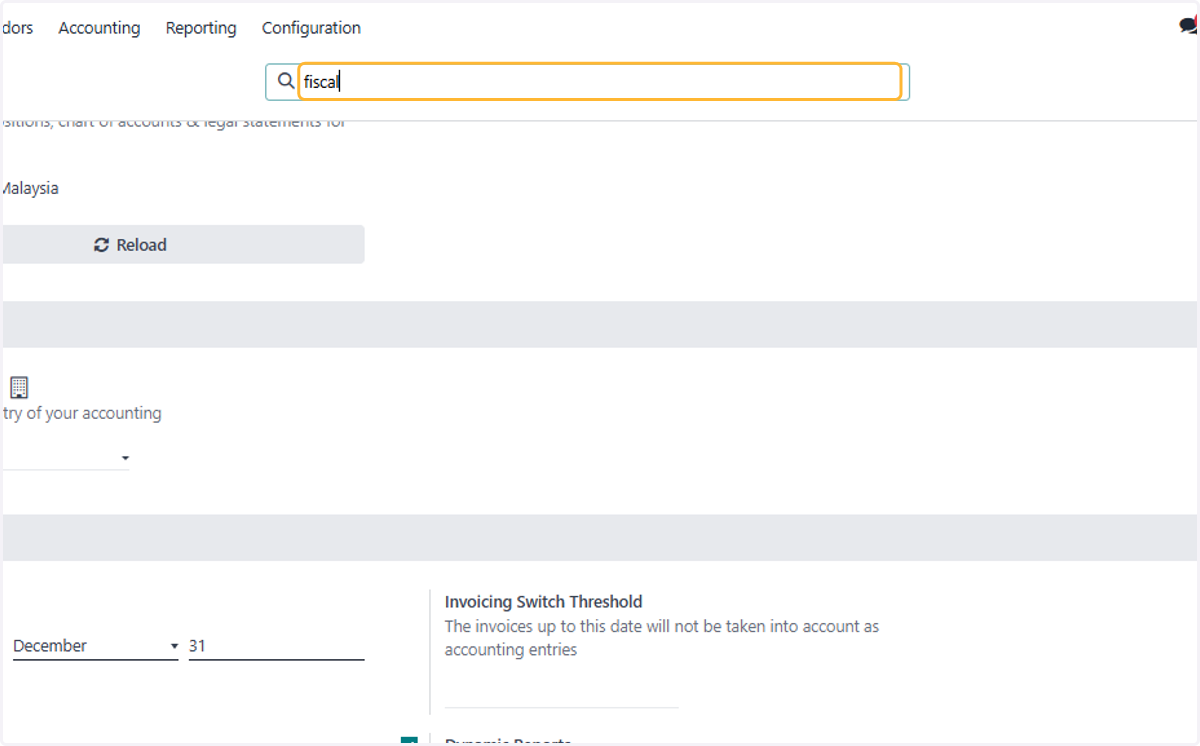
4. Type "fiscal"
5. Click on Fiscal Year…
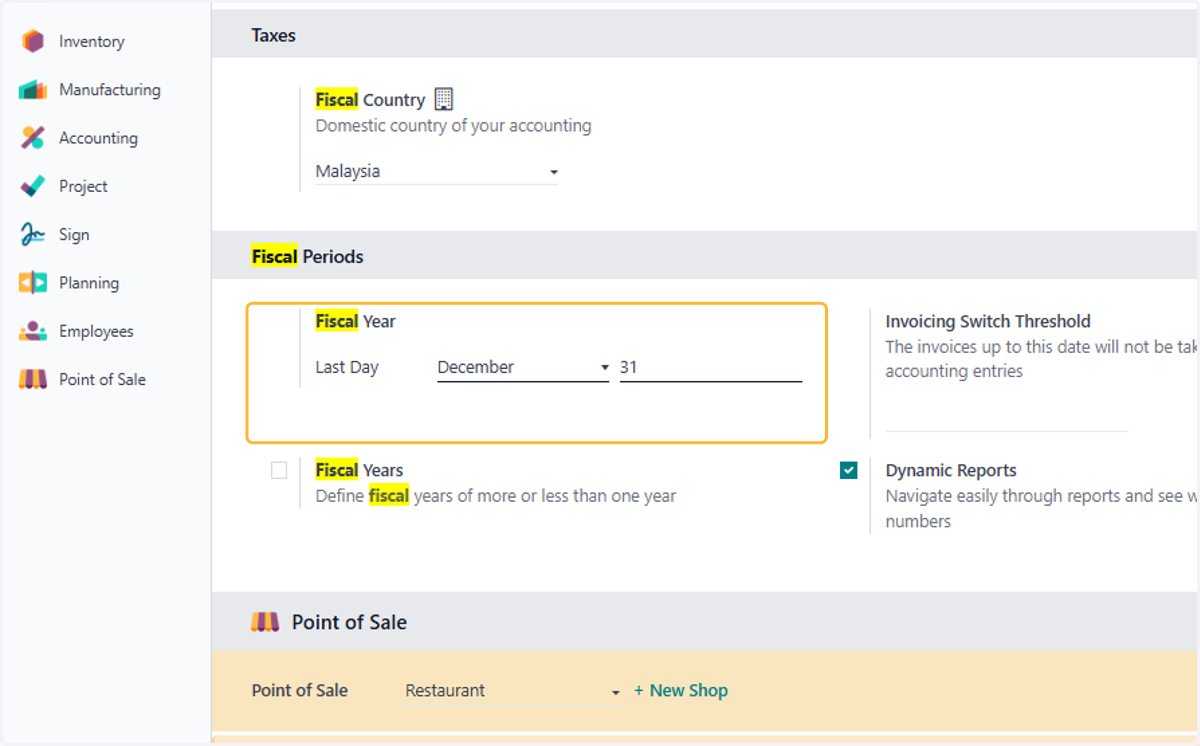
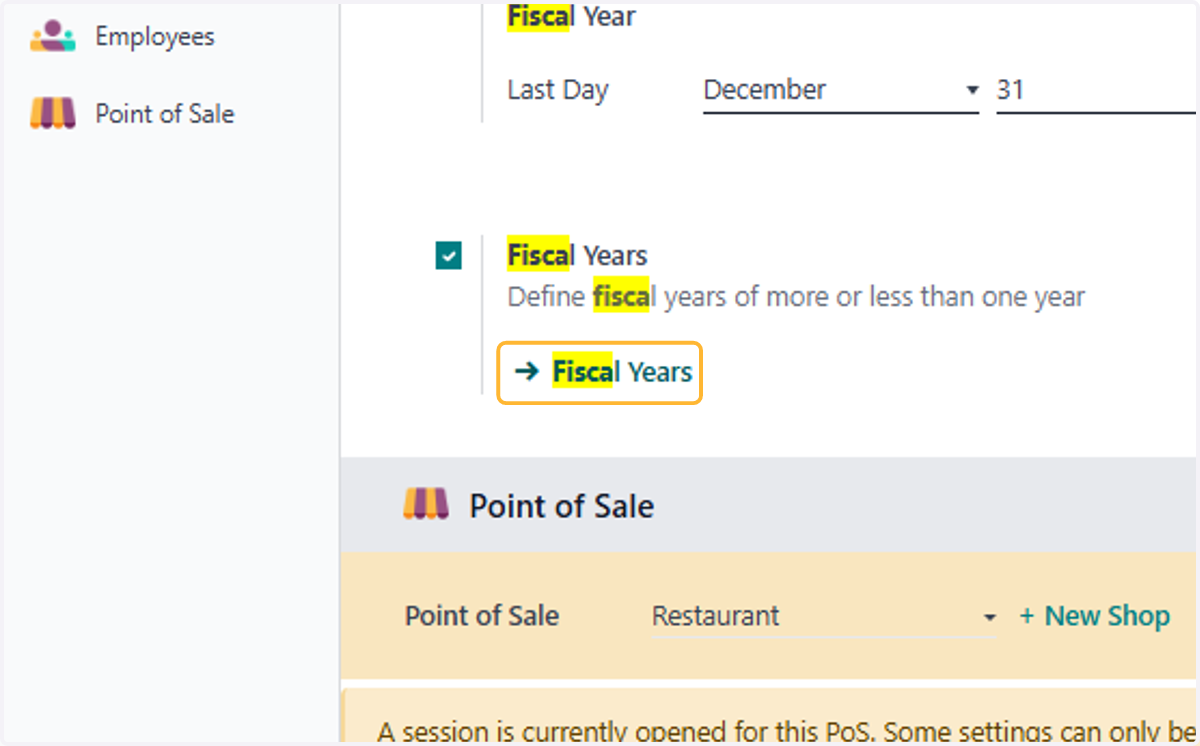
6. Uncheck Fiscal Years
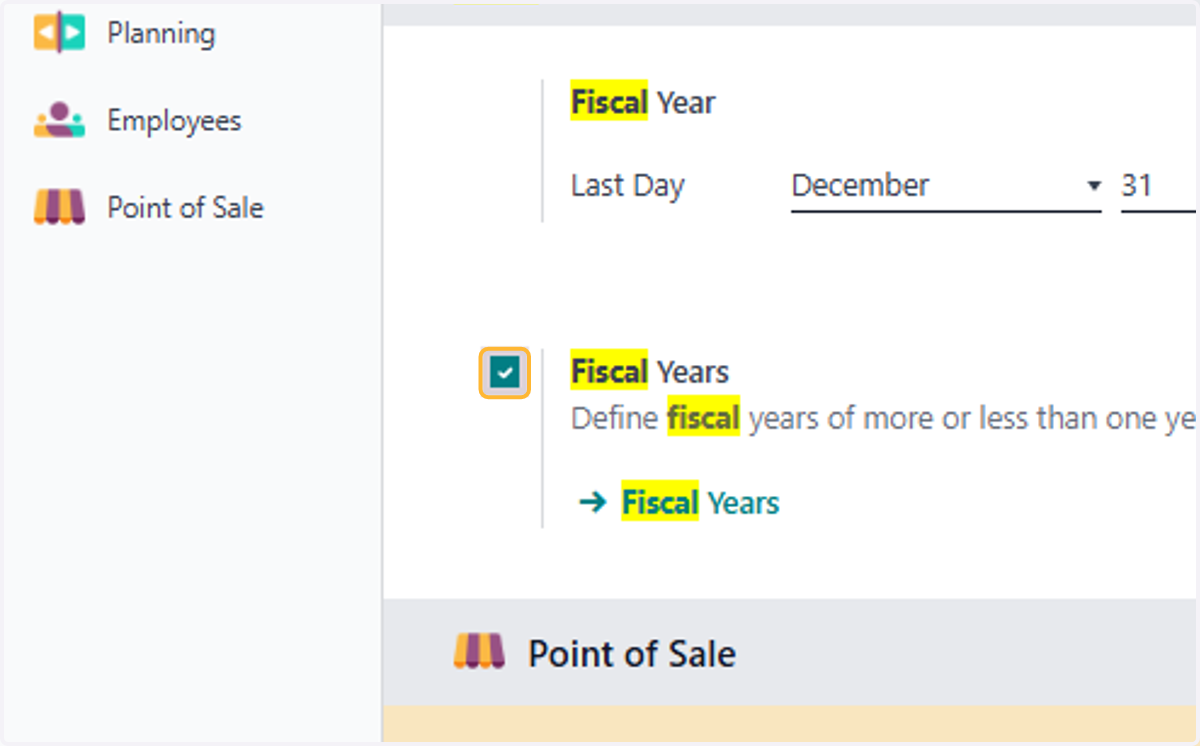
7. Click on Fiscal Years
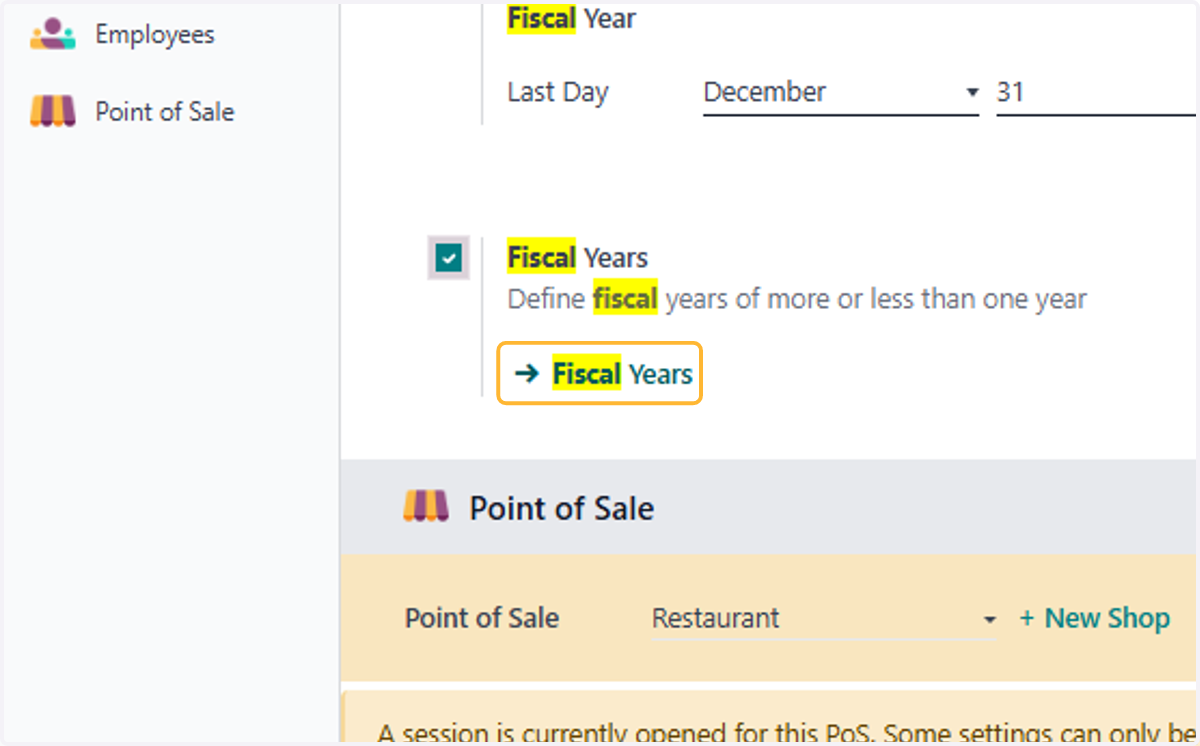
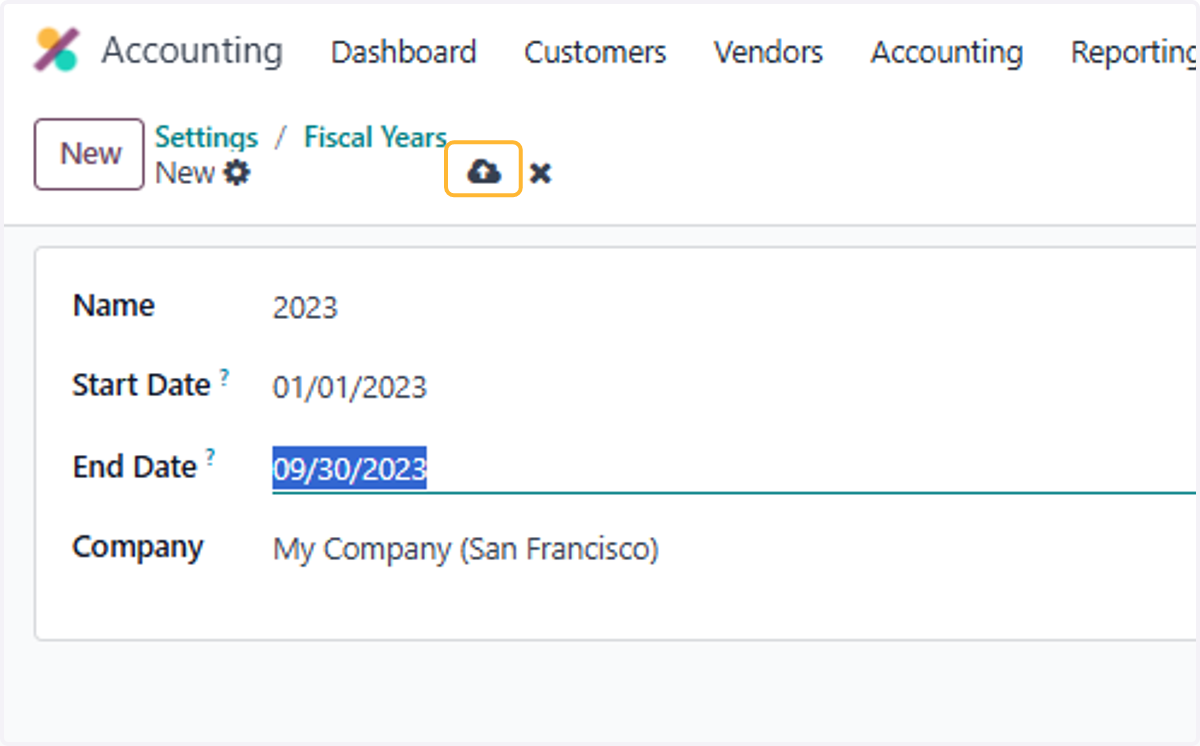
8. In the event of a fiscal year with less than 12 months. Click Fiscal years
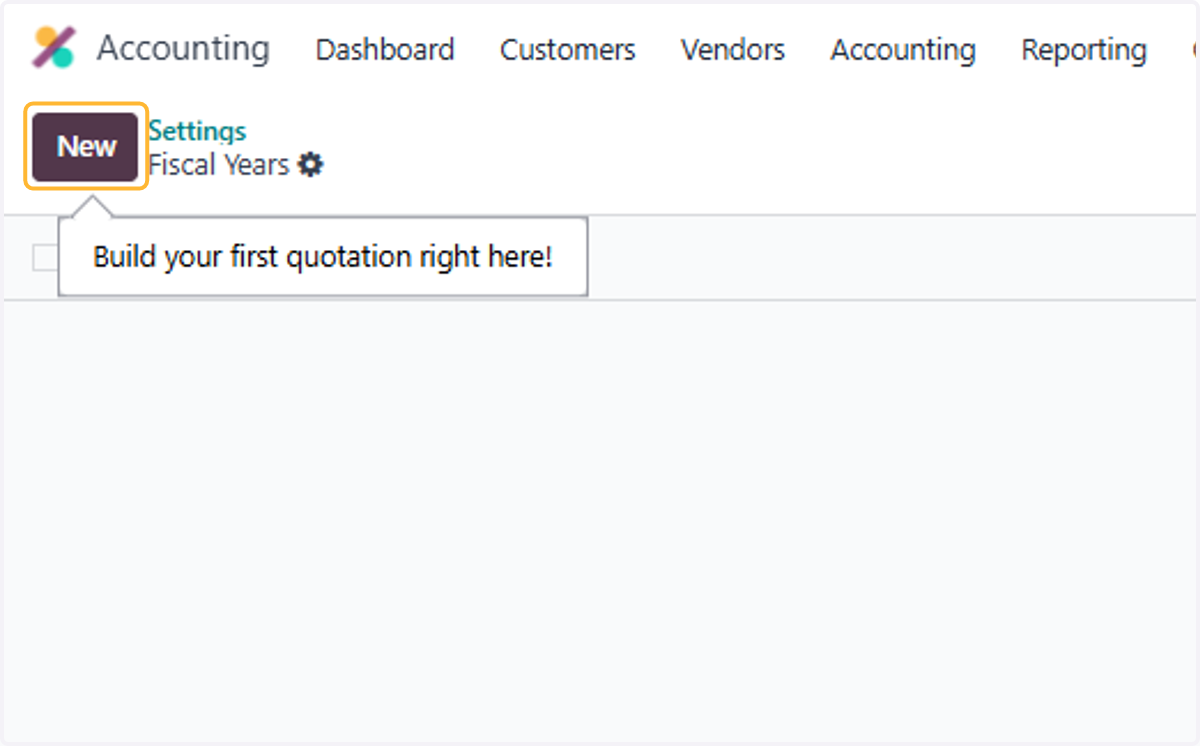
9. Click on New
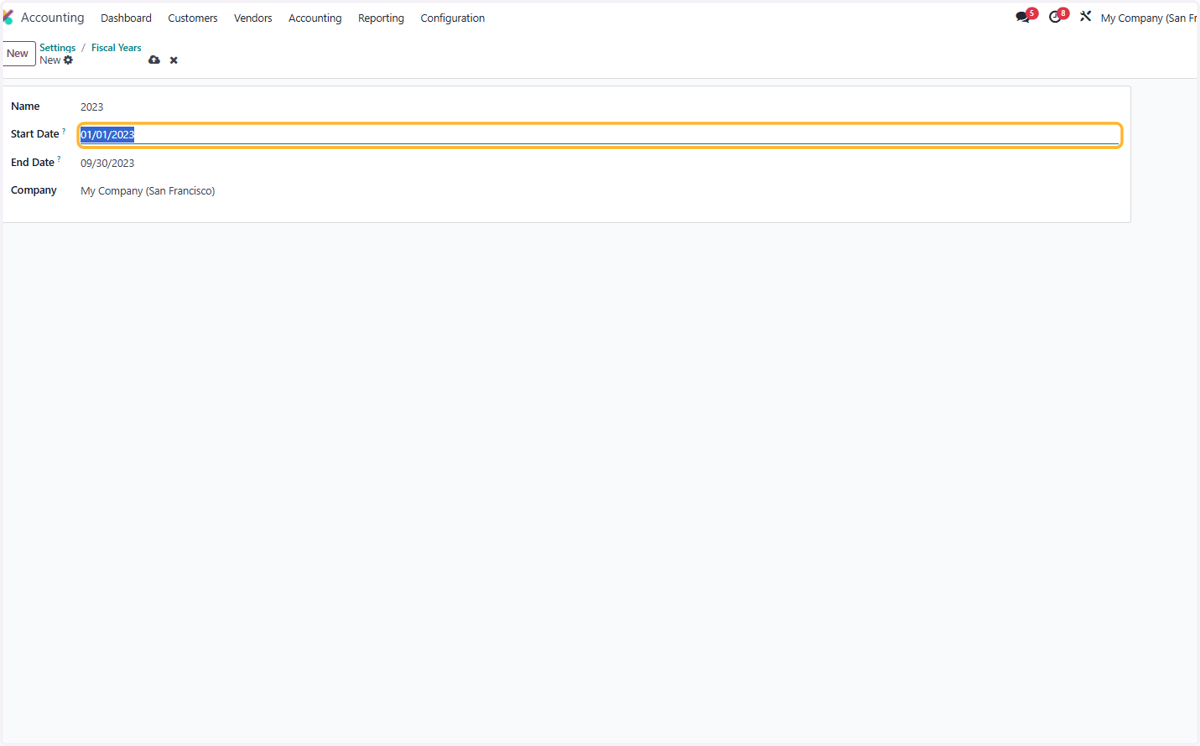
10. Select Start Date
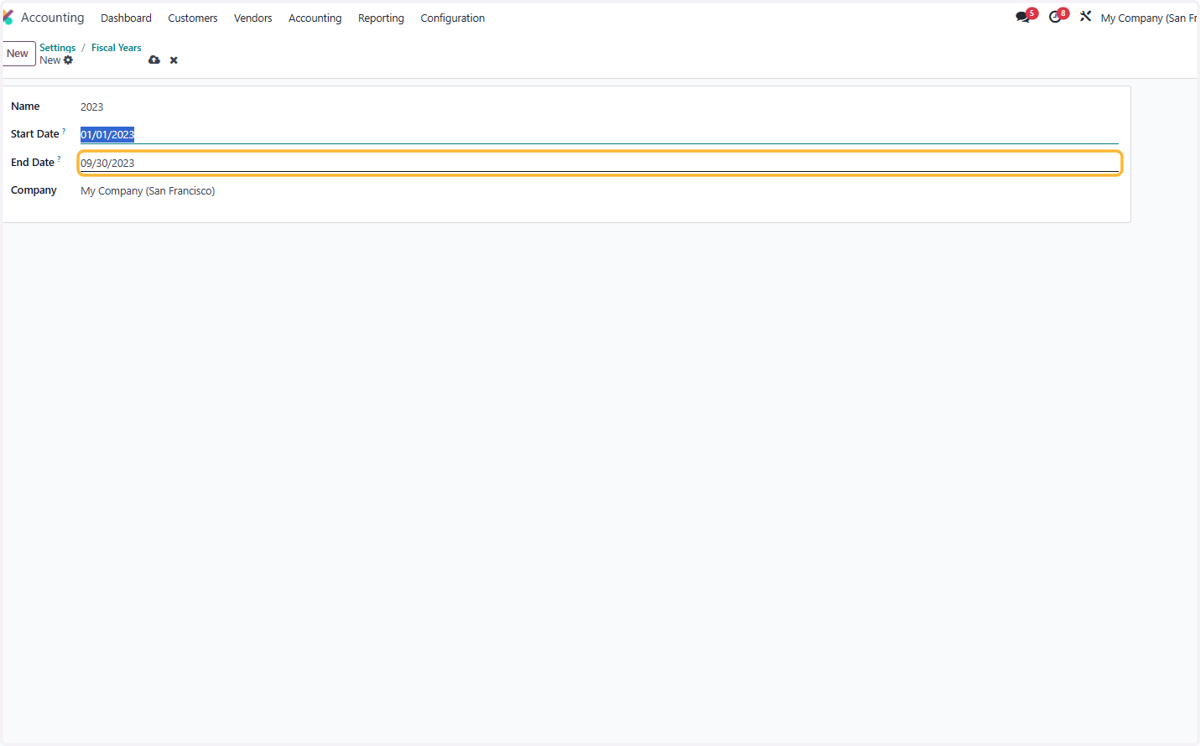
11. Select End Date
12. Click on Save manually
Lock dates
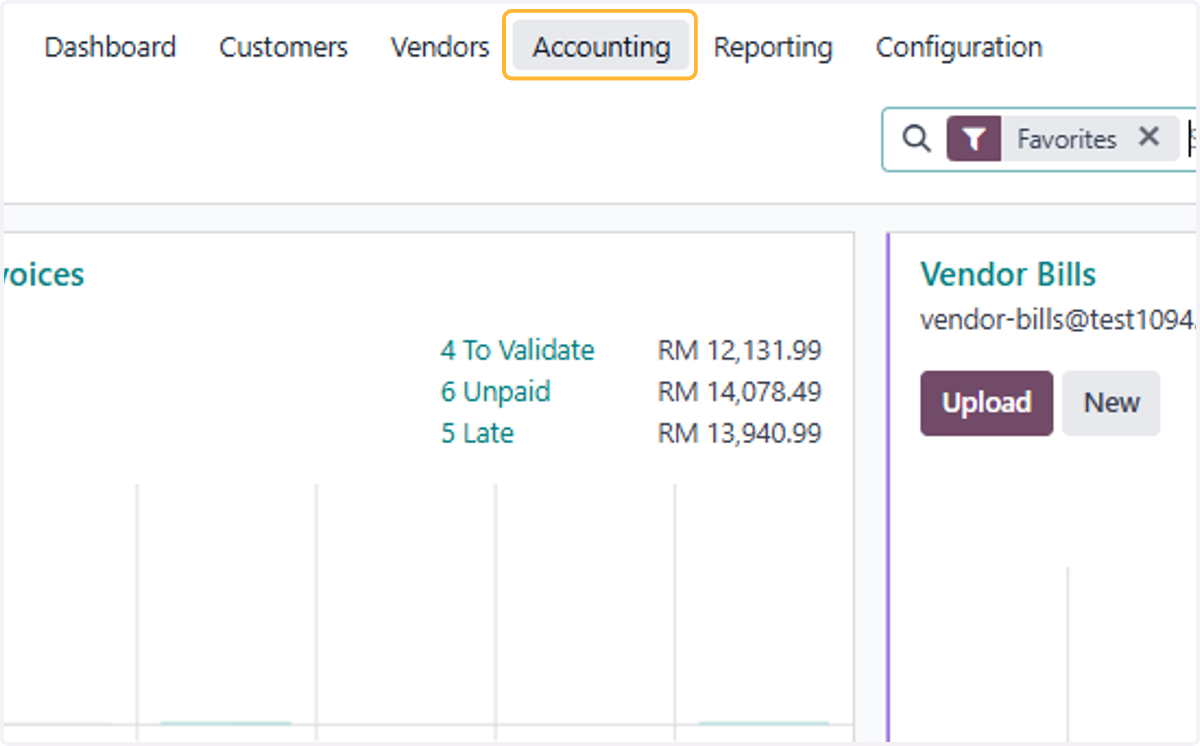
13. Click on Accounting
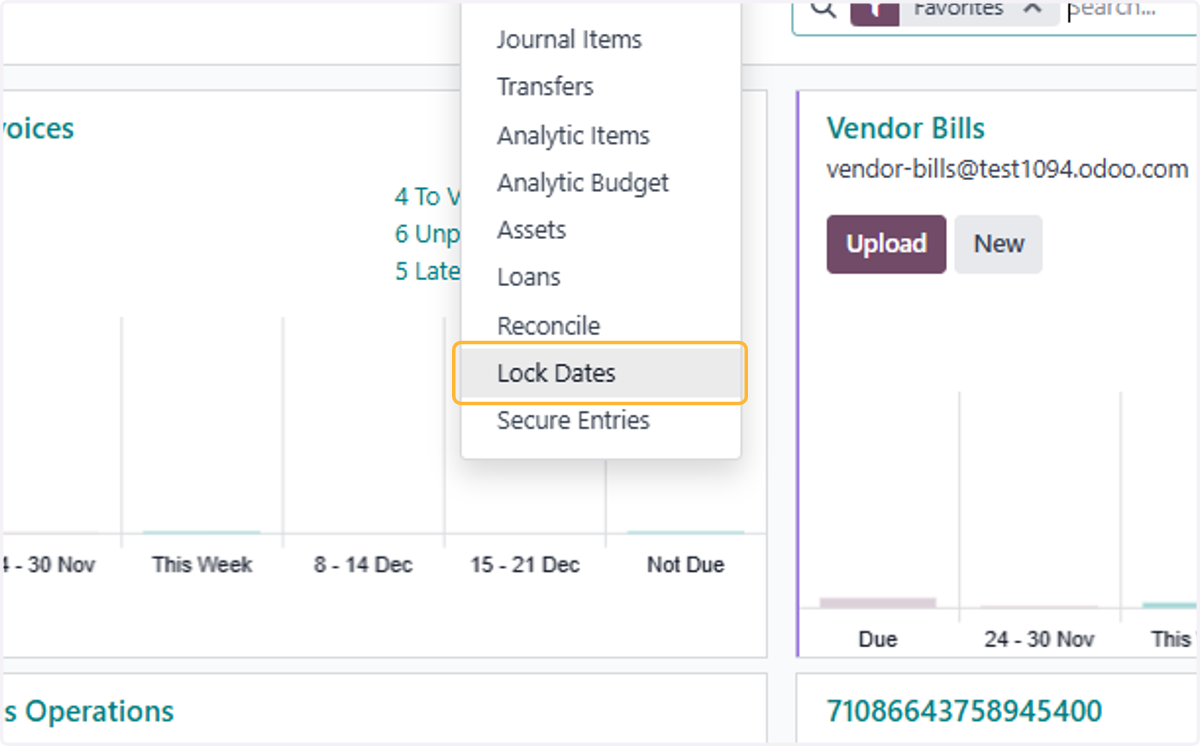
14. Click on Lock Dates
15. Click on Lock Journal Entries…
You may lock Sales, Purchase or Tax return to prevent User's without overwriting right to add entries before the selected dates.
Lock everyone prevents even authorized user with overwriting authority
Hard lock prevents even the admin from key-in entries prior to the lock date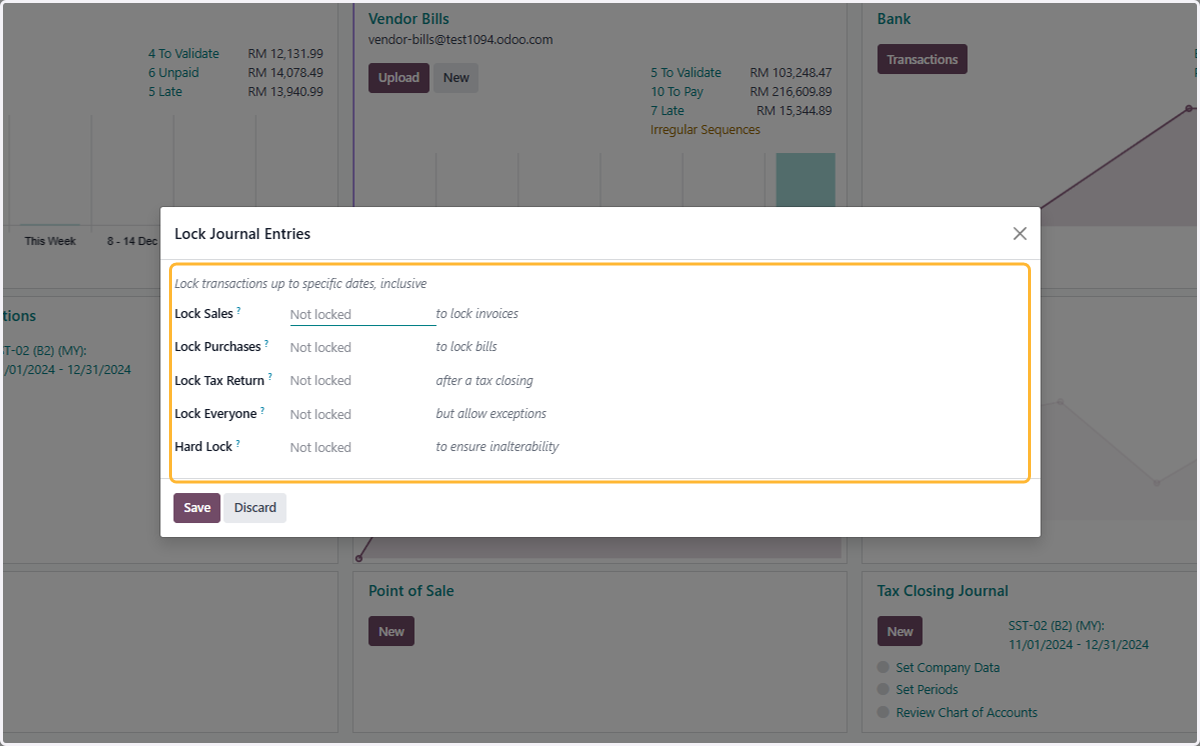
Closing year end Profit & loss
16. Click on As of 12/04/2024…
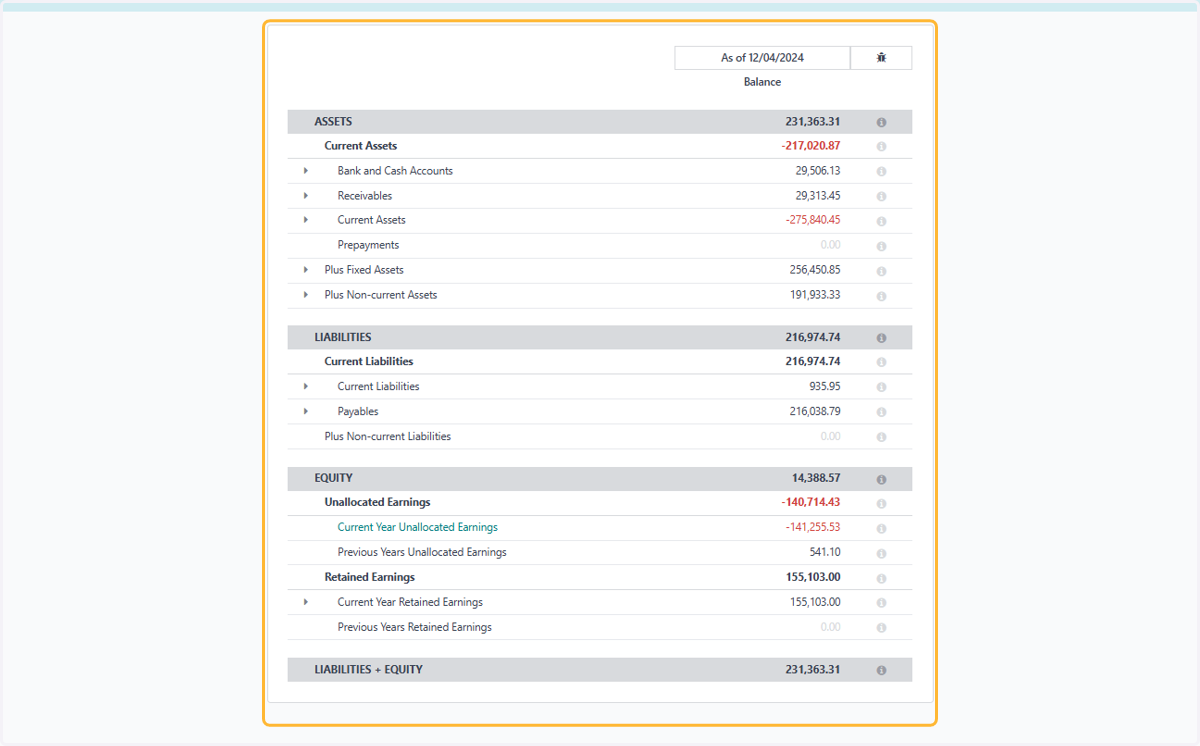
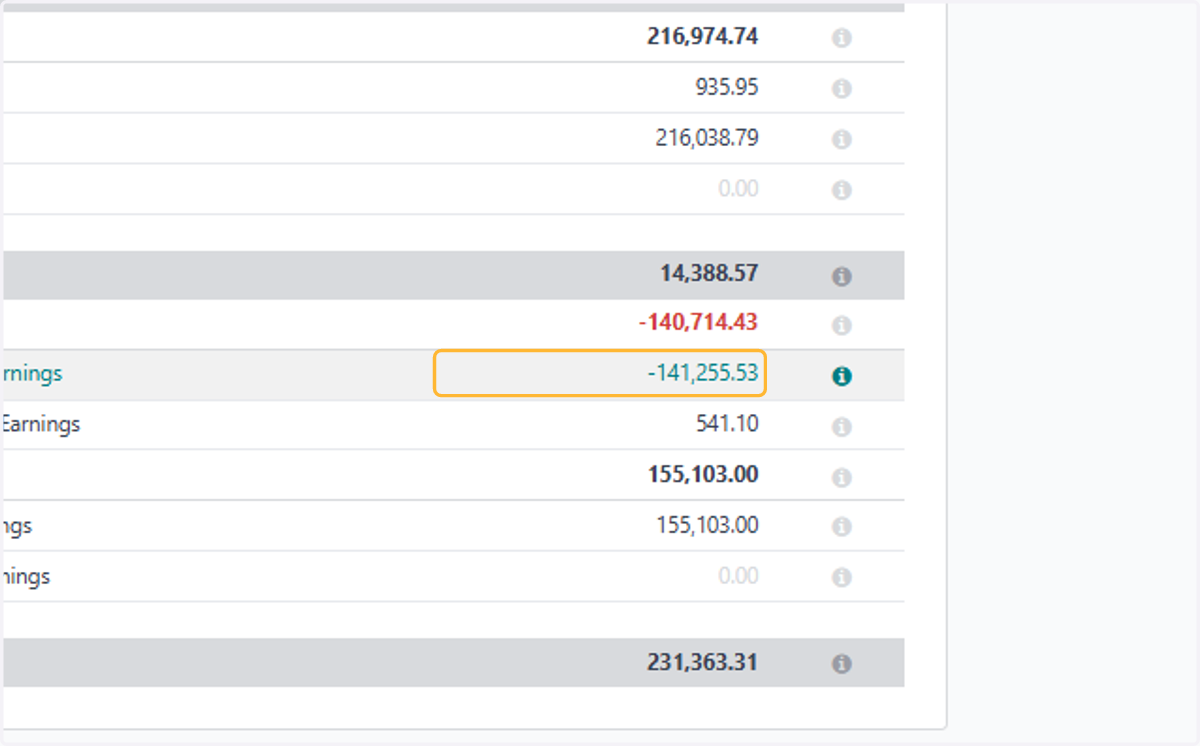
17. Click on -141,255.53
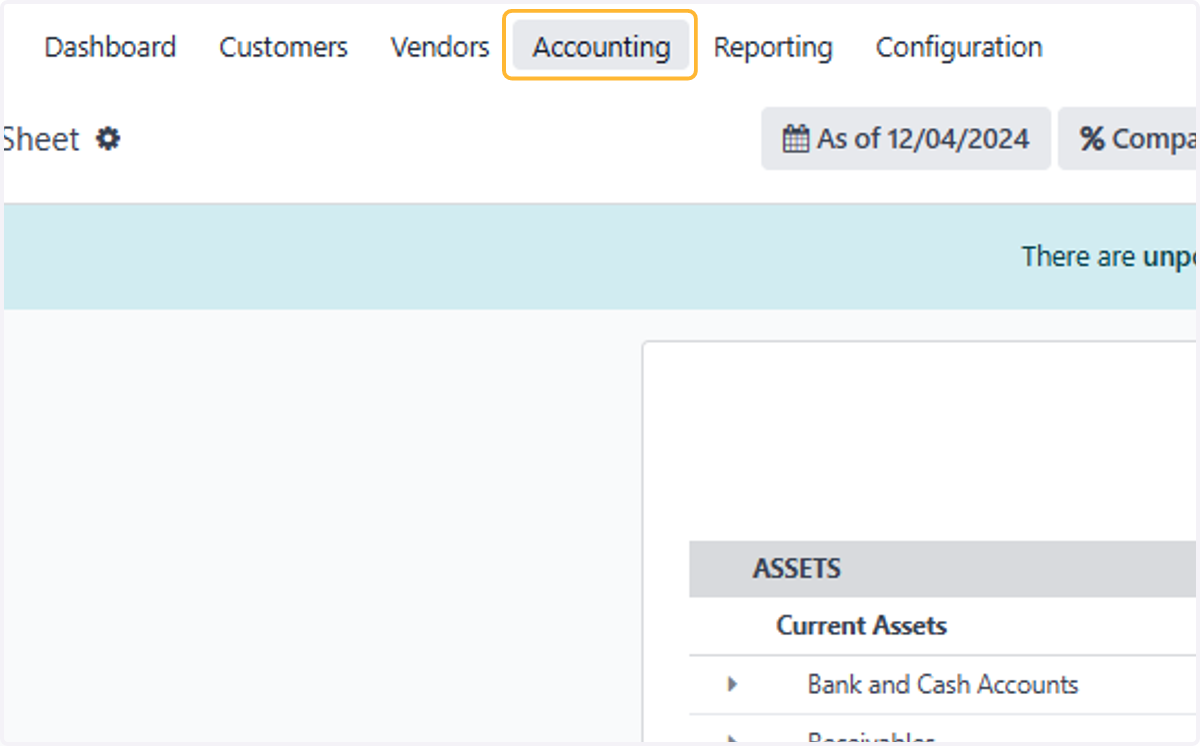
18. Click on Accounting
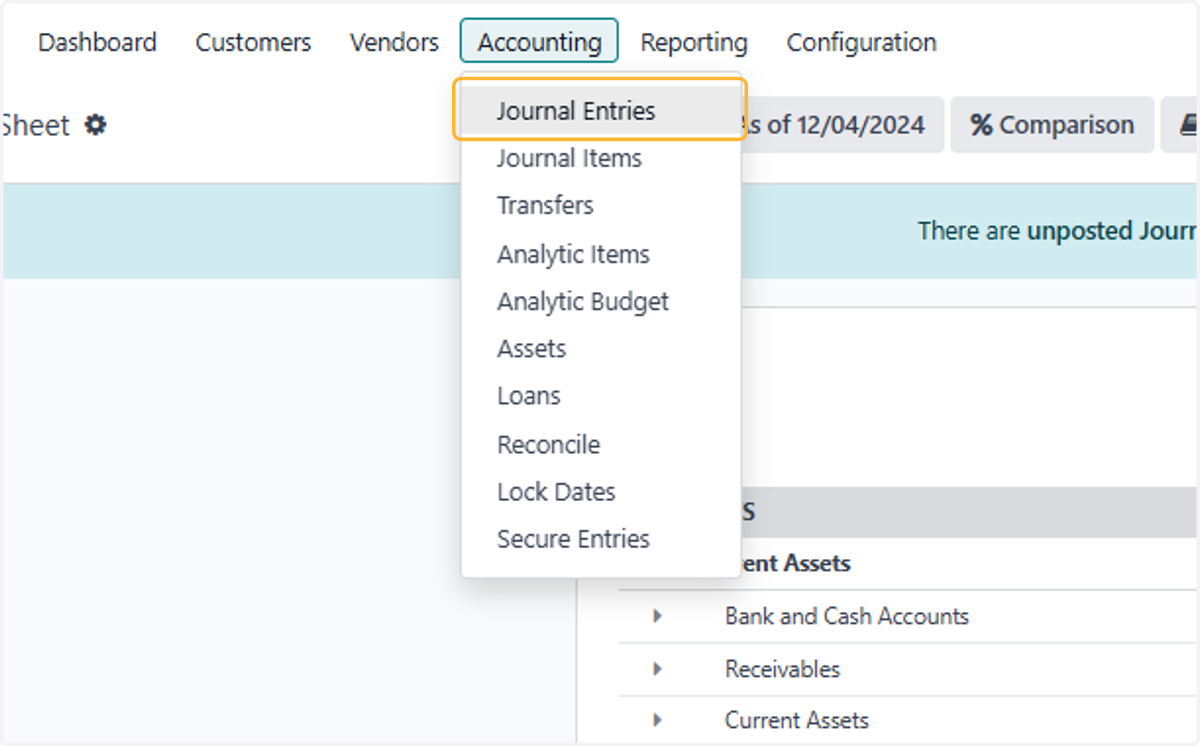
19. Click on Journal Entries
20. Click on New
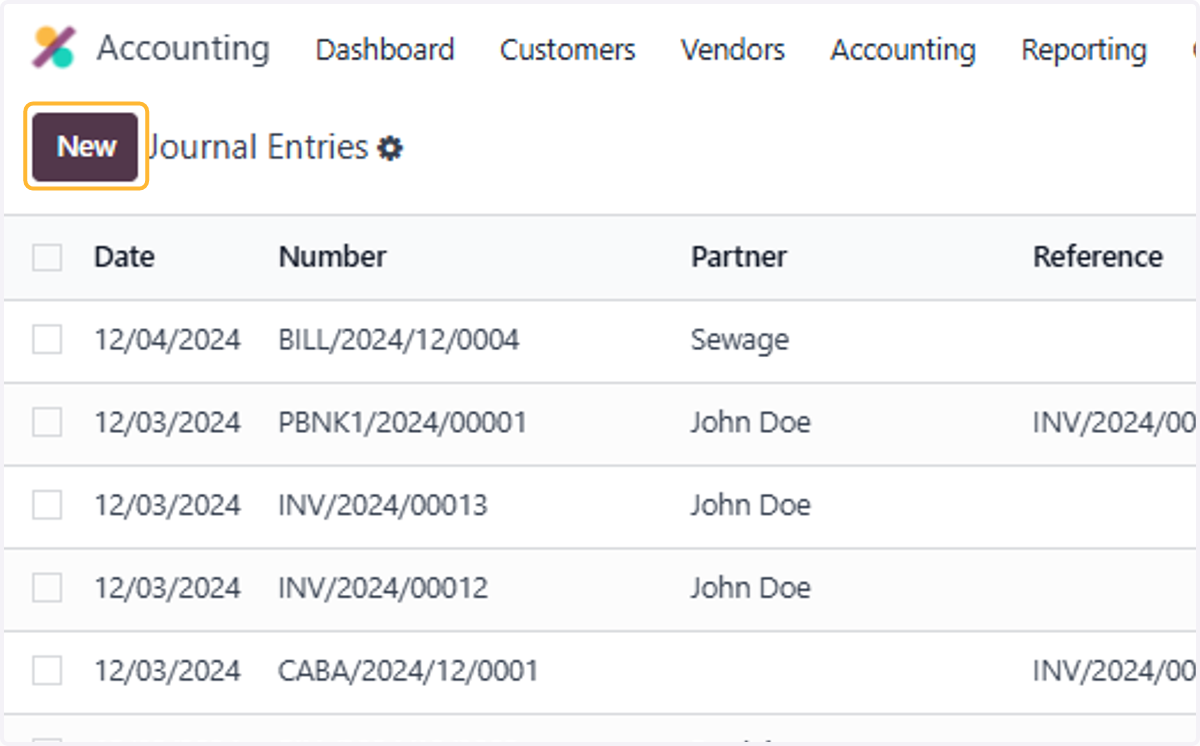
21. Type "Profit for the year"
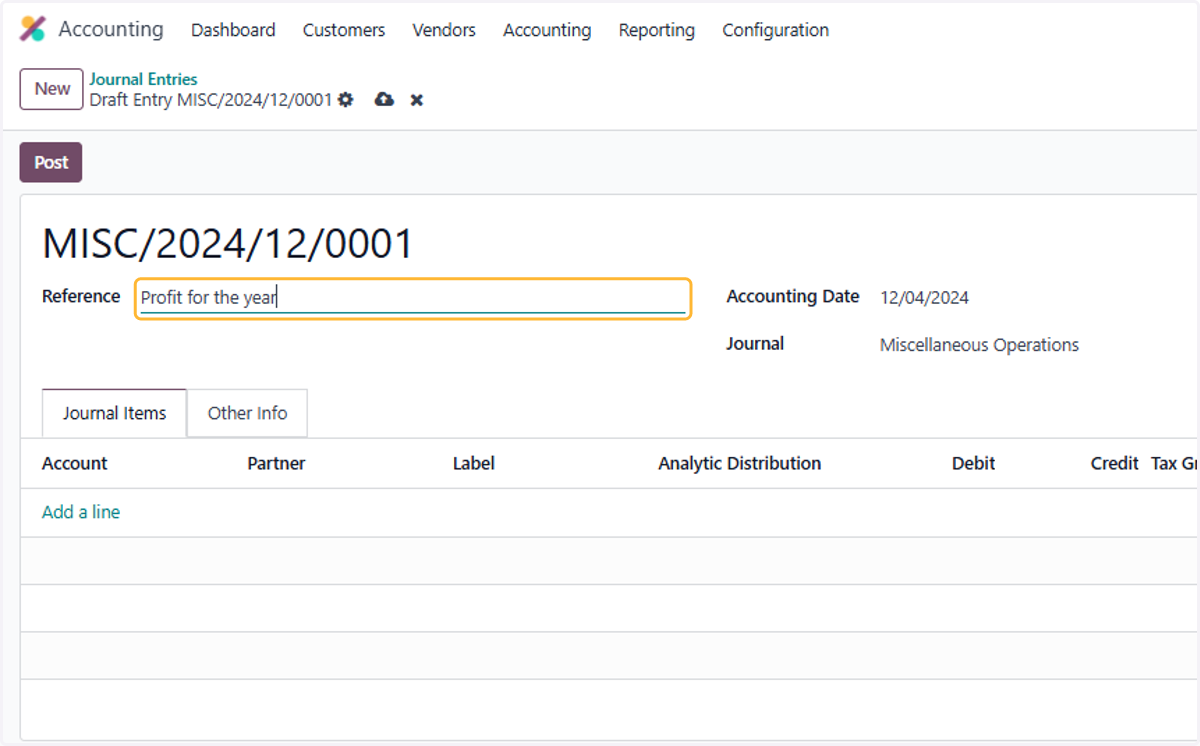
22. Click on Accounting Date
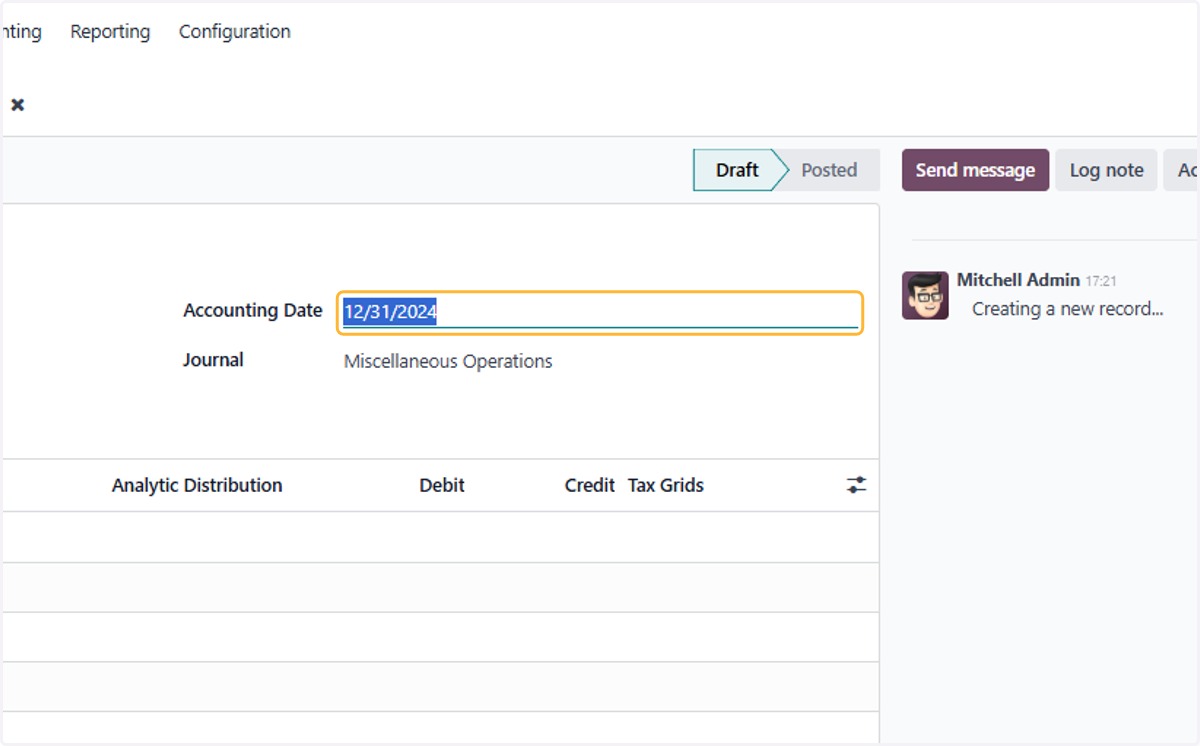
23. Click on Add a line
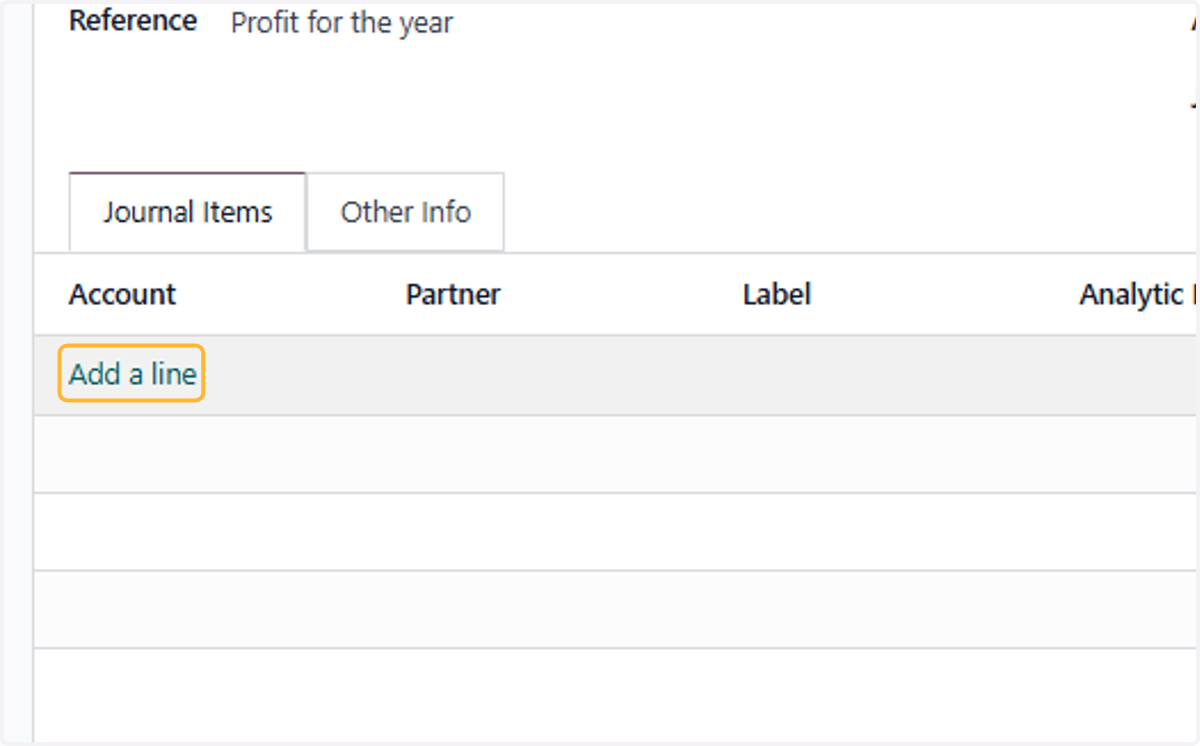
24. Click on Account…
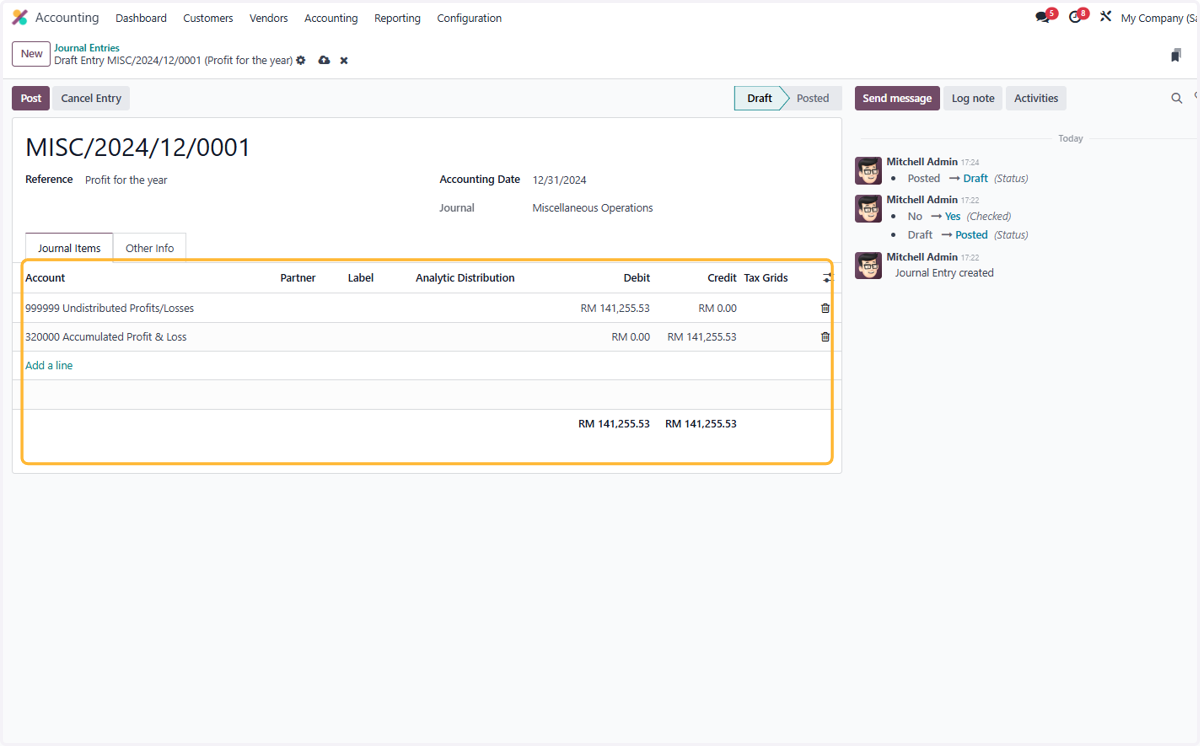
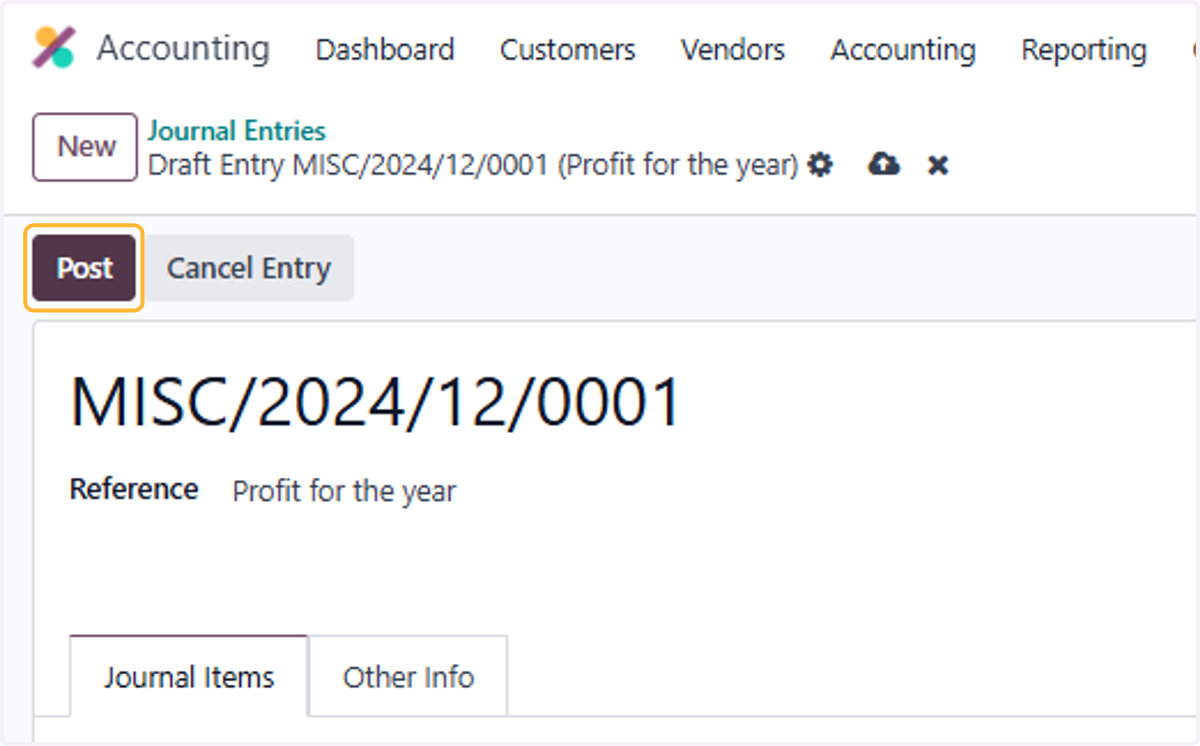
25. Click on Post
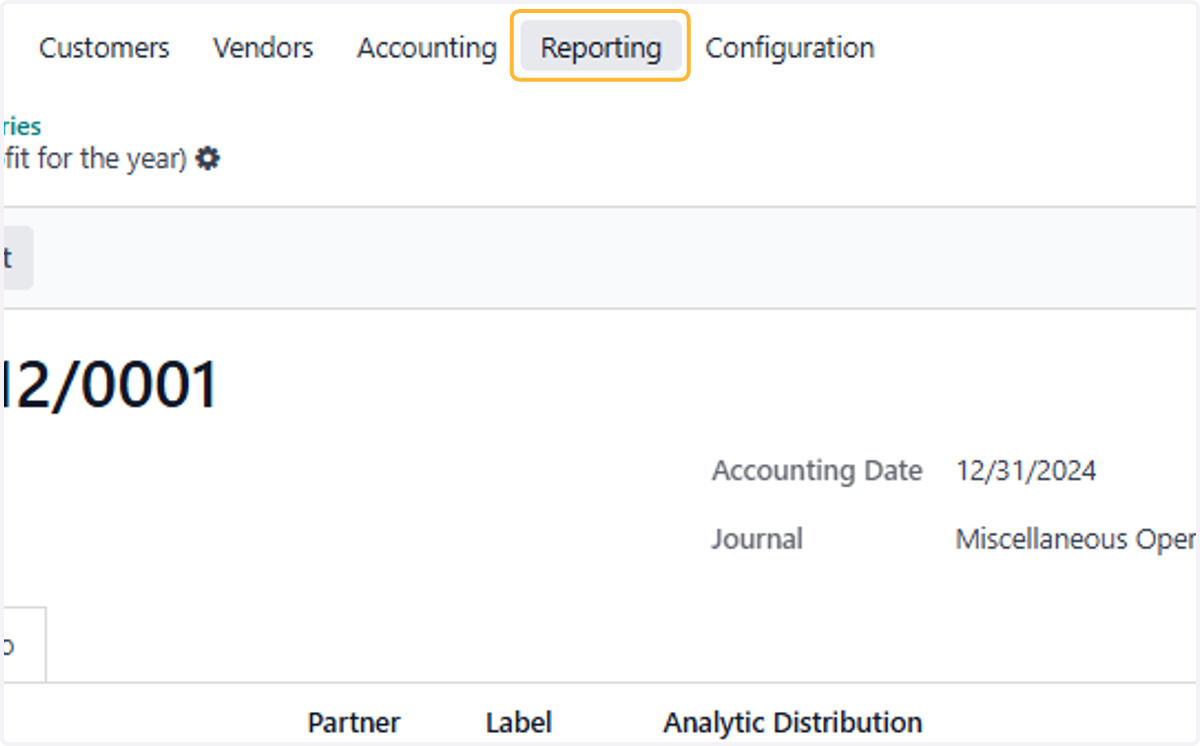
26. Click on Reporting
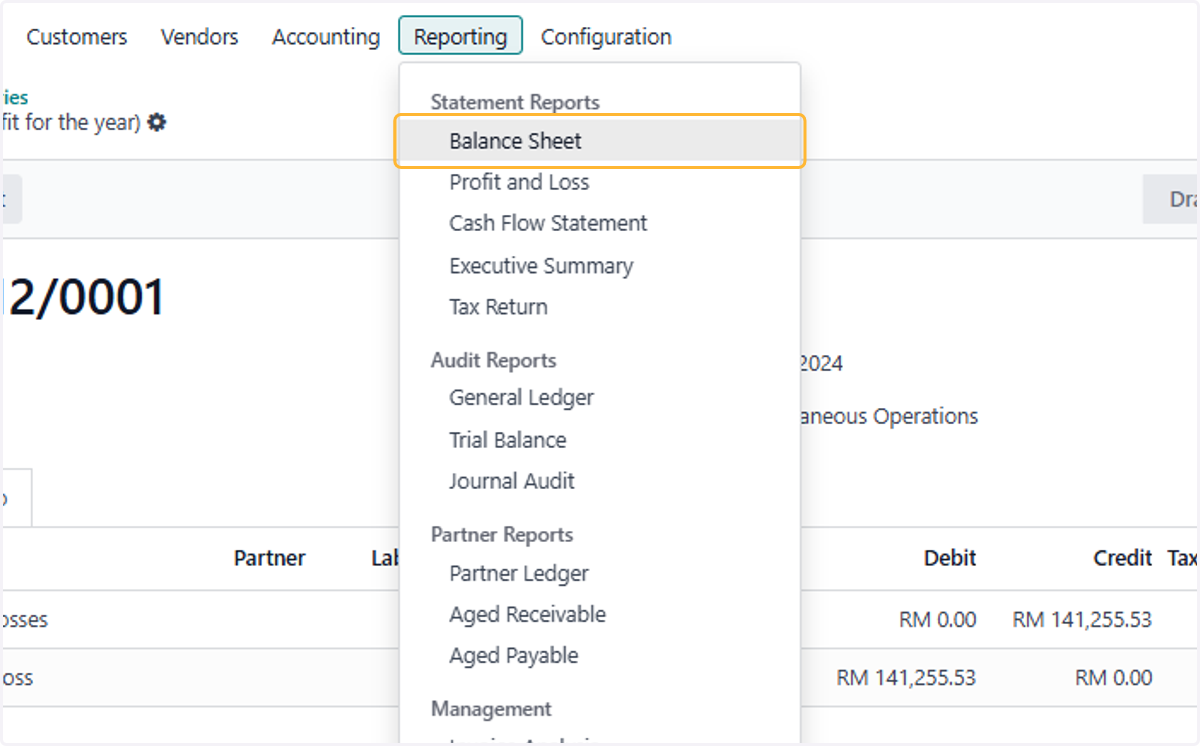
27. Click on Balance Sheet
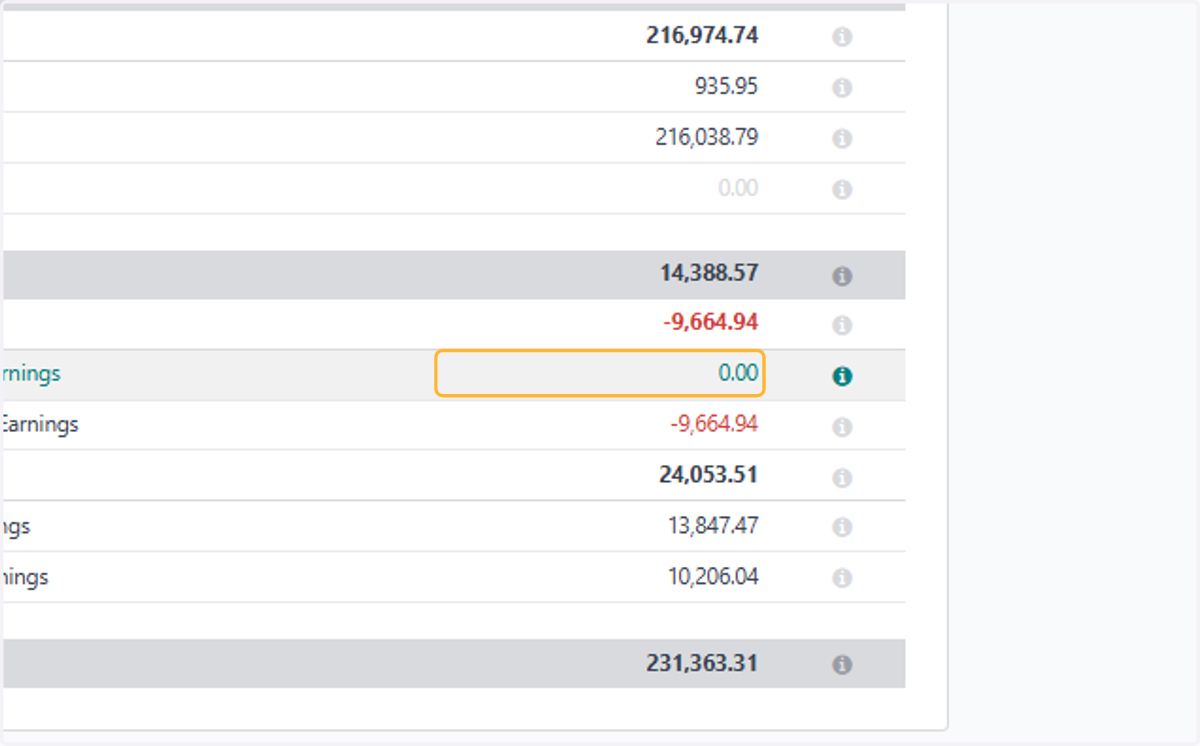
28. Click on 0.00