Deleting an alert
This tutorial will show you how to delete an alert from your website. You can move through the tutorial at your own pace using the Next button below.
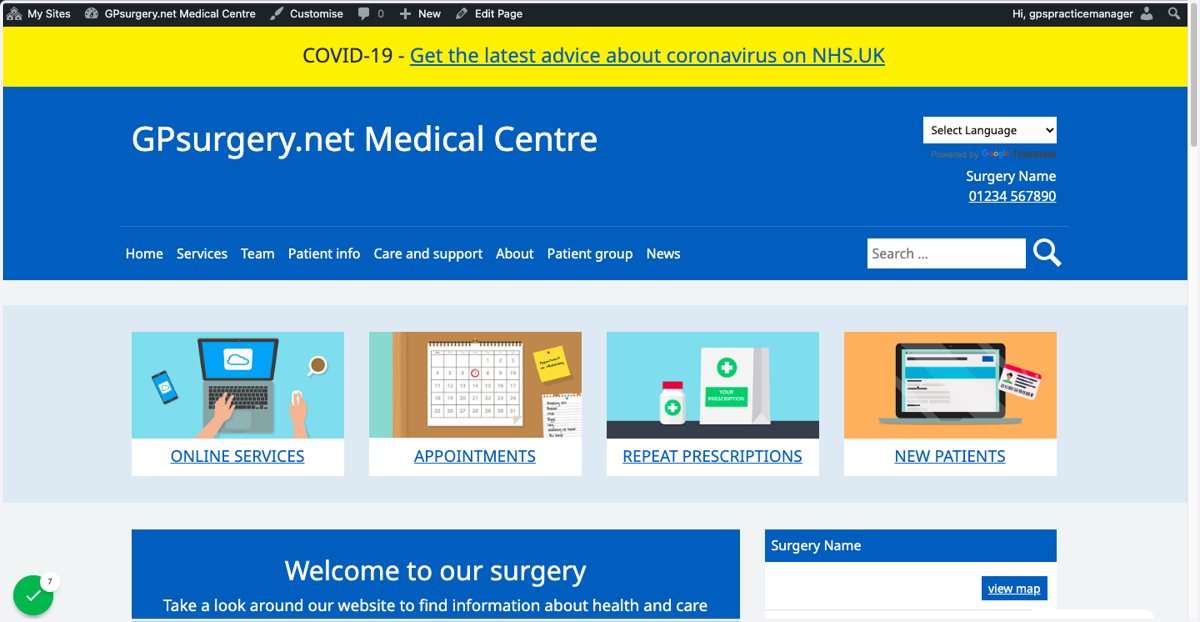
1. Ensure that you are logged into your website. The black admin toolbar should be visible at the top of the screen.
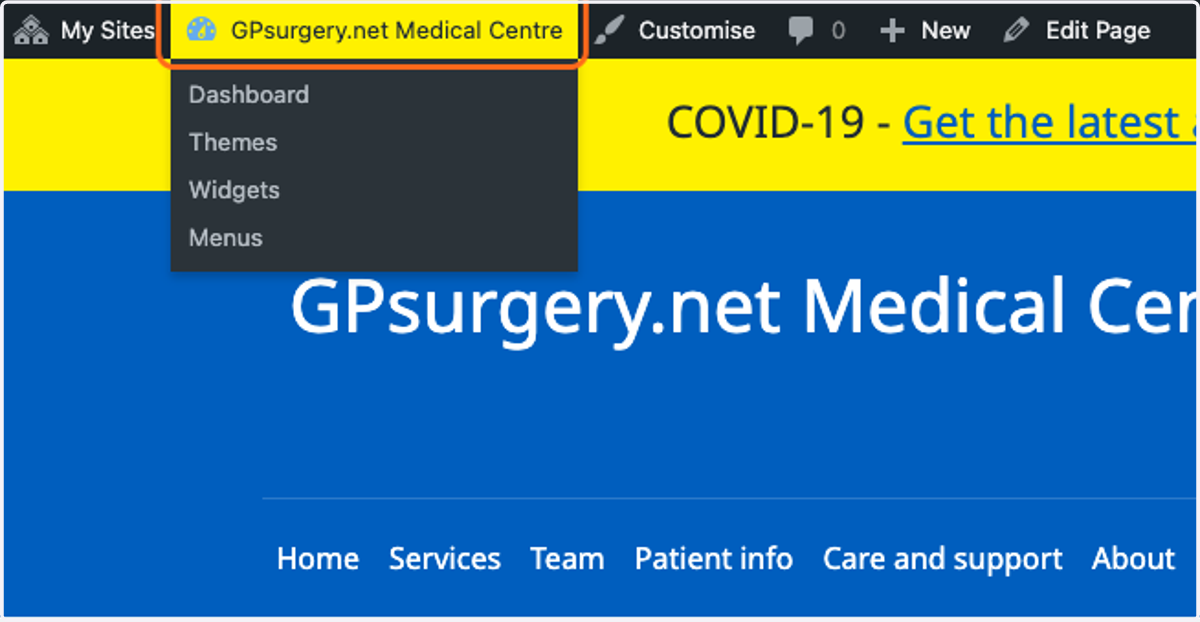
2. Click on the name of your website in the admin toolbar to go to the dashboard.
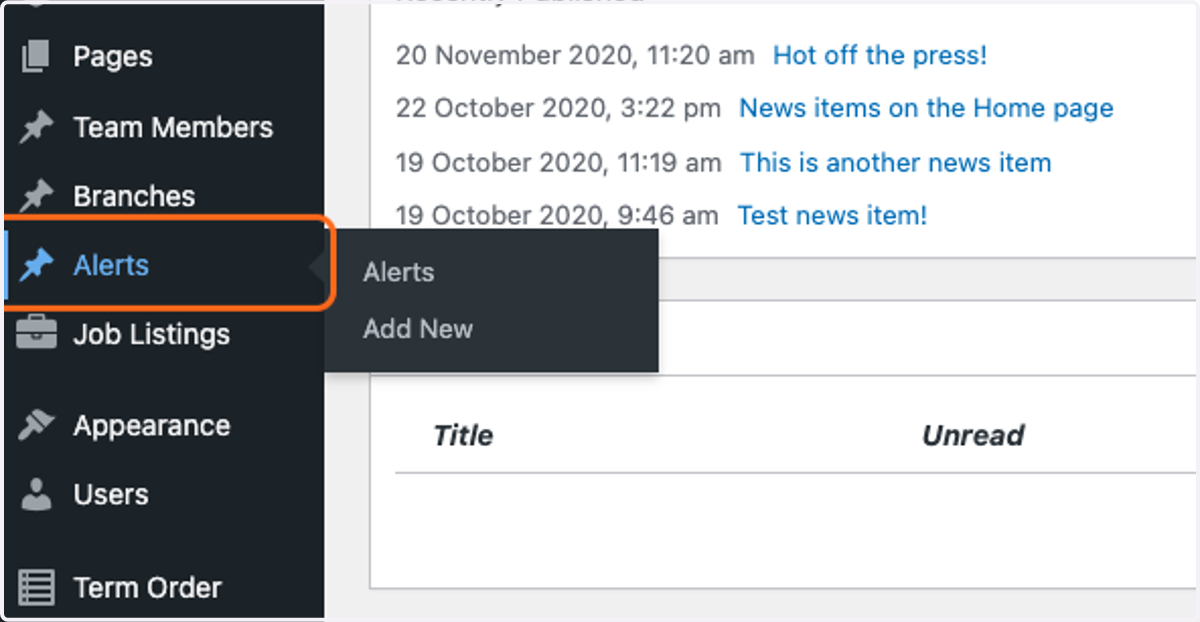
3. In the left-hand sidebar, click Alerts. This will bring you to the Alerts section of the dashboard.
4. From the list of alerts on the site, hover your mouse over the alert that you wish to remove. Click the Bin link that appears.
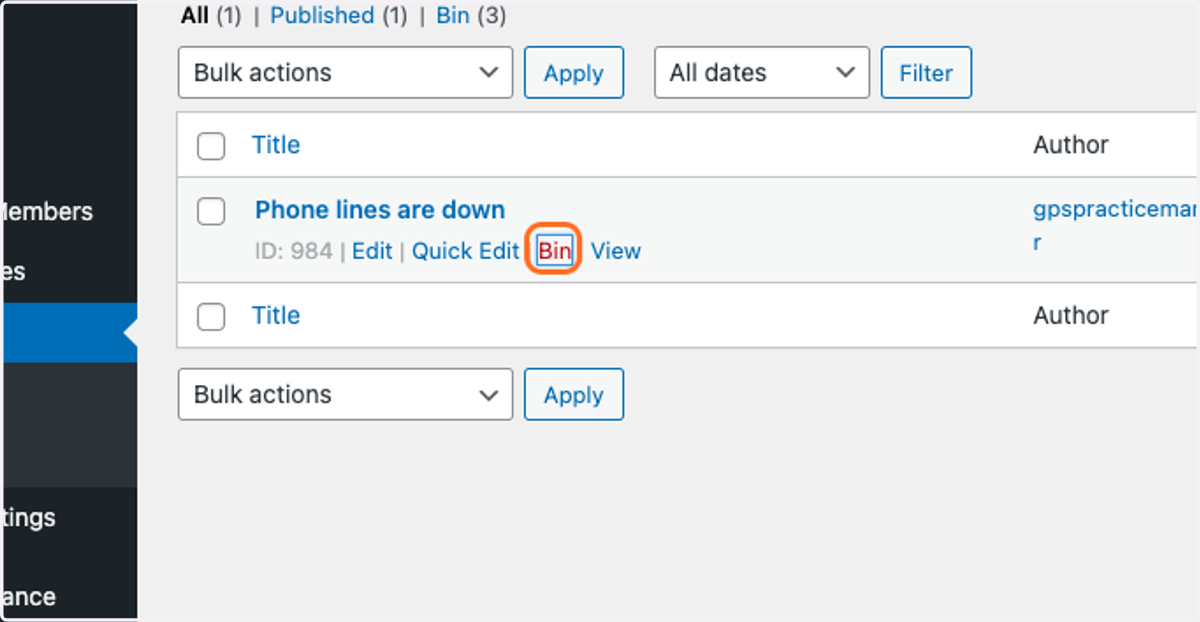
5. Your alert will now be in the bin.
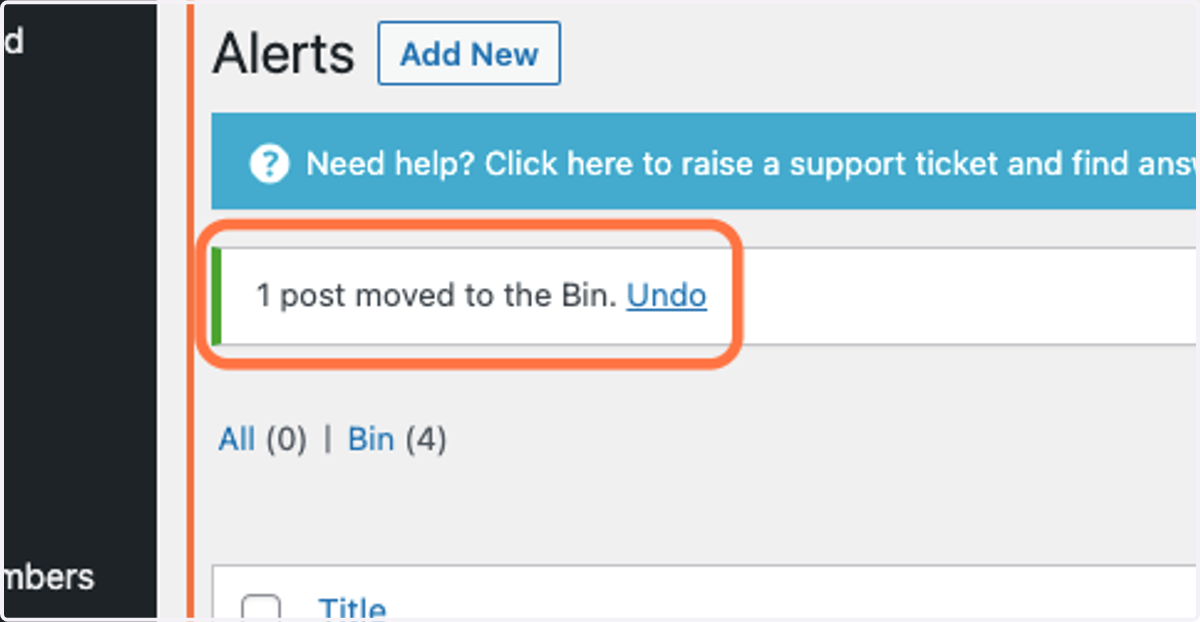
If you moved the wrong alert, you can undo this by clicking the Undo link that appears immediately after you move an alert to the bin.
Gpsurgery
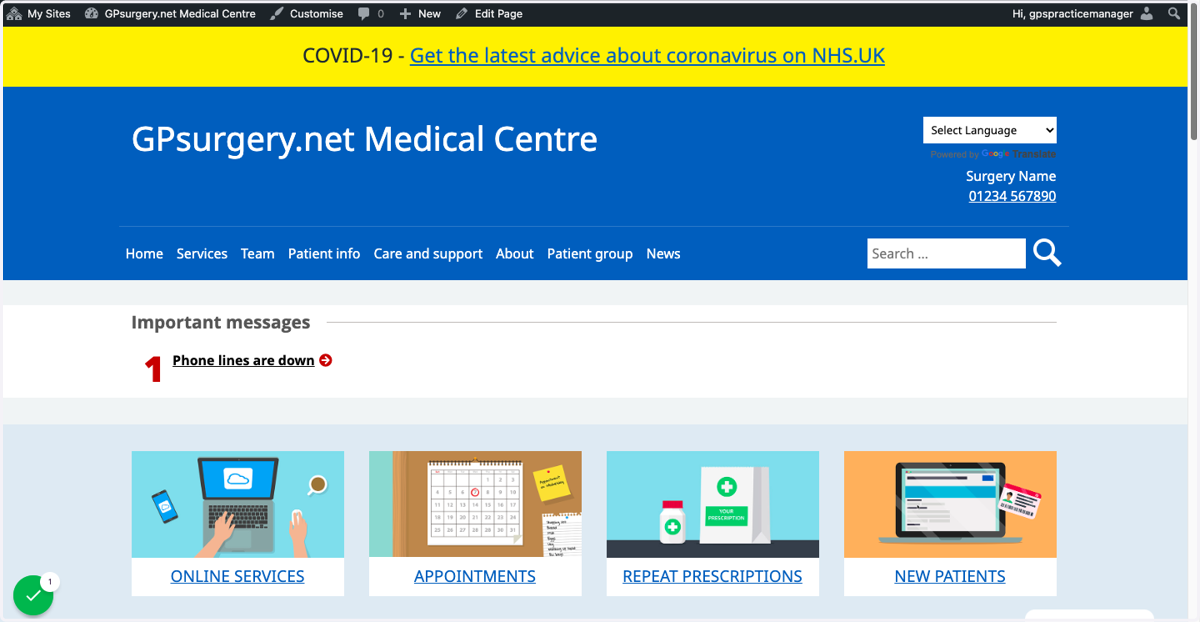
6. Your alert will now disappear from the Home page. It may take a few minutes for the alert to disappear.