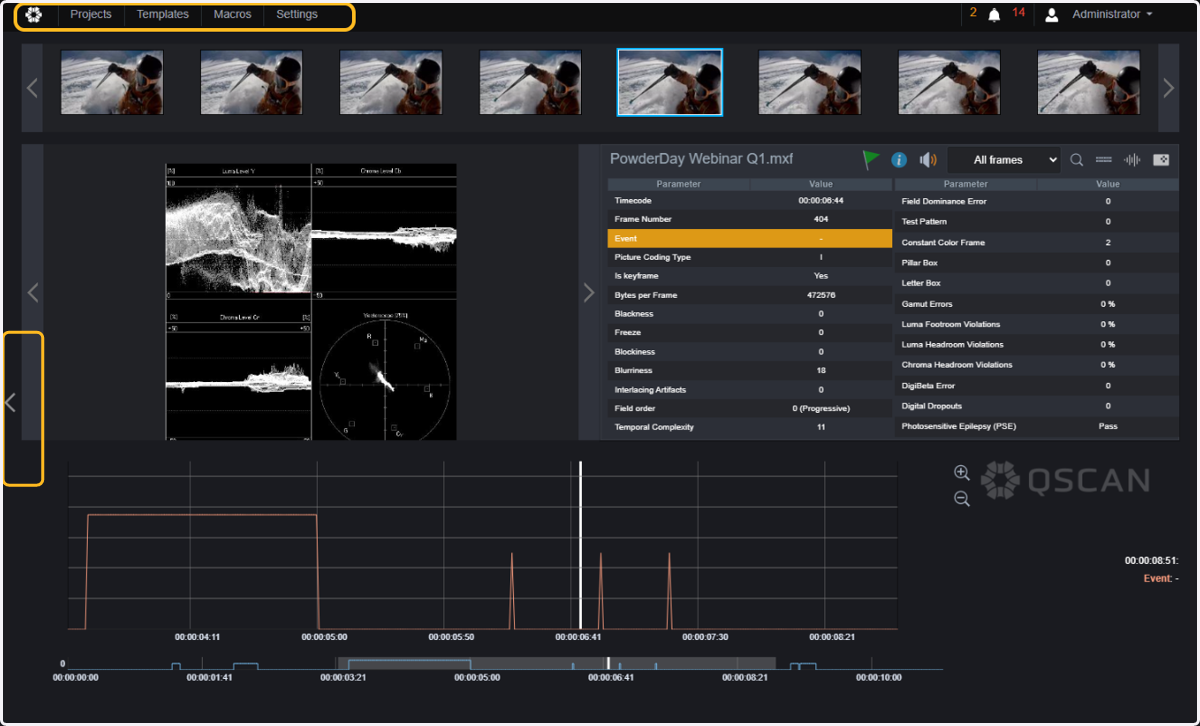
Using the Detailed View for In-Depth Inspection of Results
By now, you already know that QScan can provide an automated QC report that will provide information about the detected events in an HTML, PDF, XML, EDL, or JSON format.
But QScan also includes an extremely useful tool for inspecting the results and the behaviour of all parameters throughout the whole file.
This is the Detailed View, or Timeline View, where you can see details about the events and how your measurements behave throughout your media.
The Timeline View also provides some tools, such as Eyeball Event Insertion, CSV download (you can get a CSV with all measured values per frame for the selected parameters), jump to specific TCs, waveform display, and more.
This guide will provide you with some tips about how to use the Timeline View to do a visual inspection of your results and your media.
QScan Users
1. When you are on the Main Page, click on the Video Details Icon.
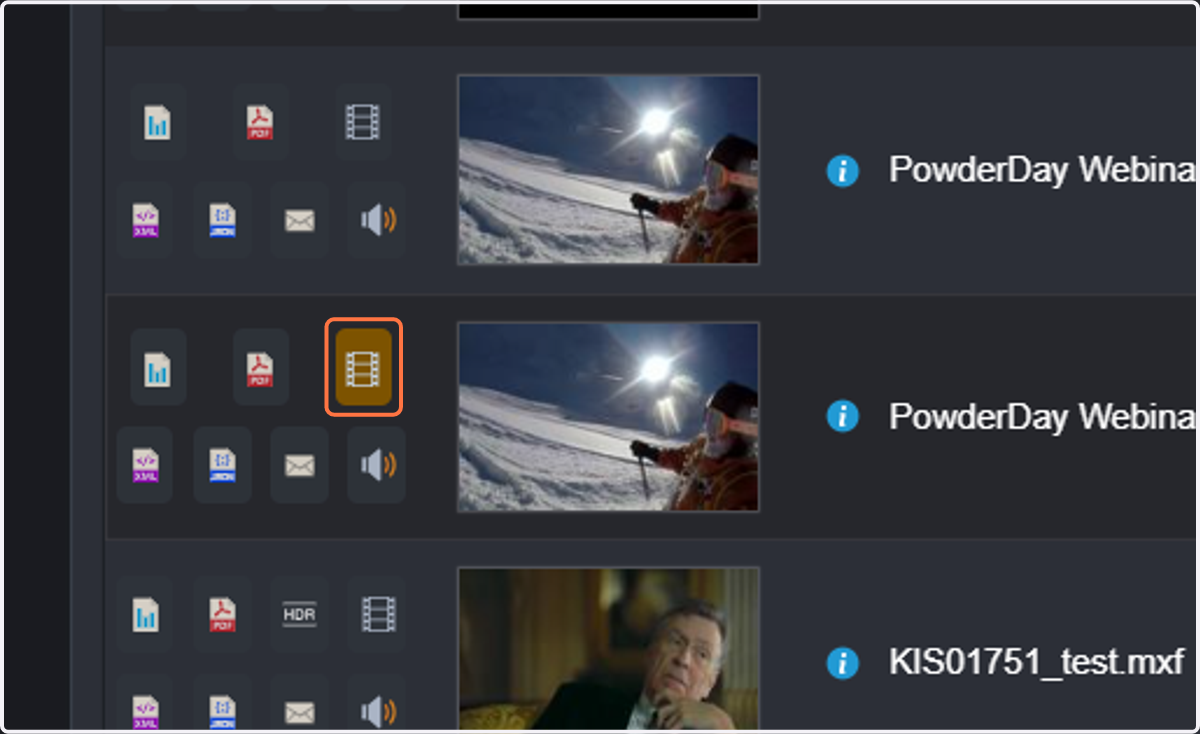
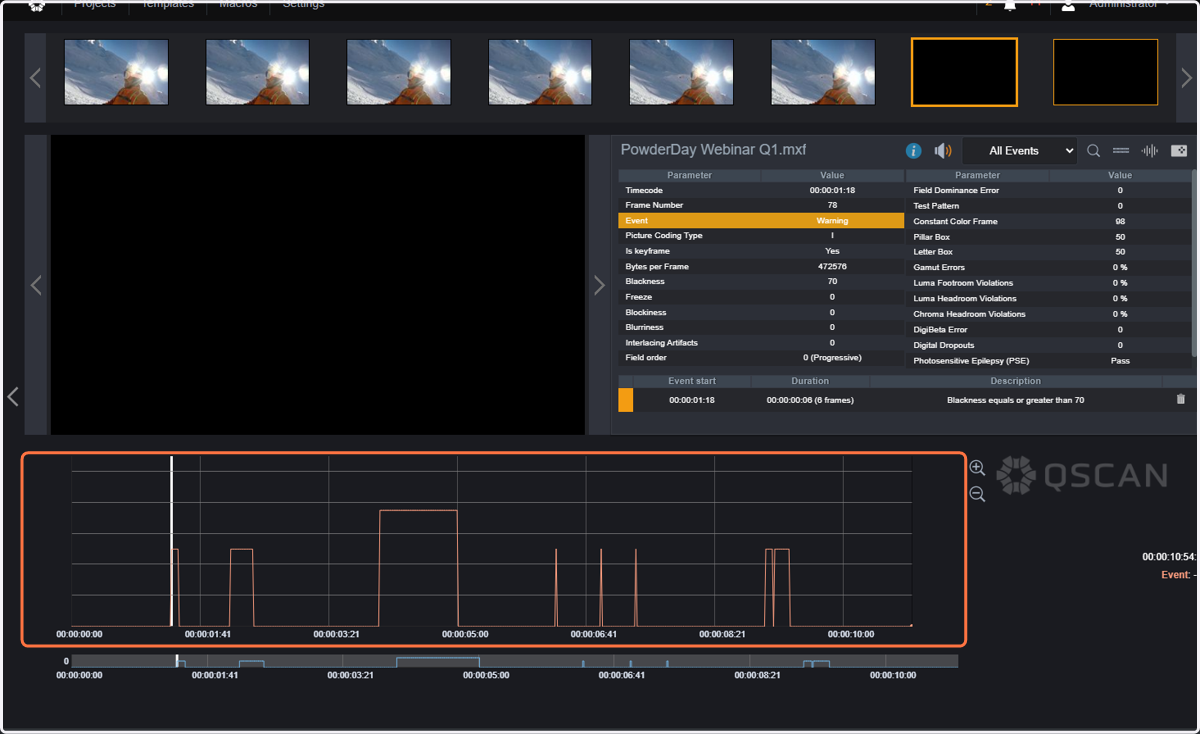
2. The Timeline view will be displayed, showing the location of the events in the timeline.
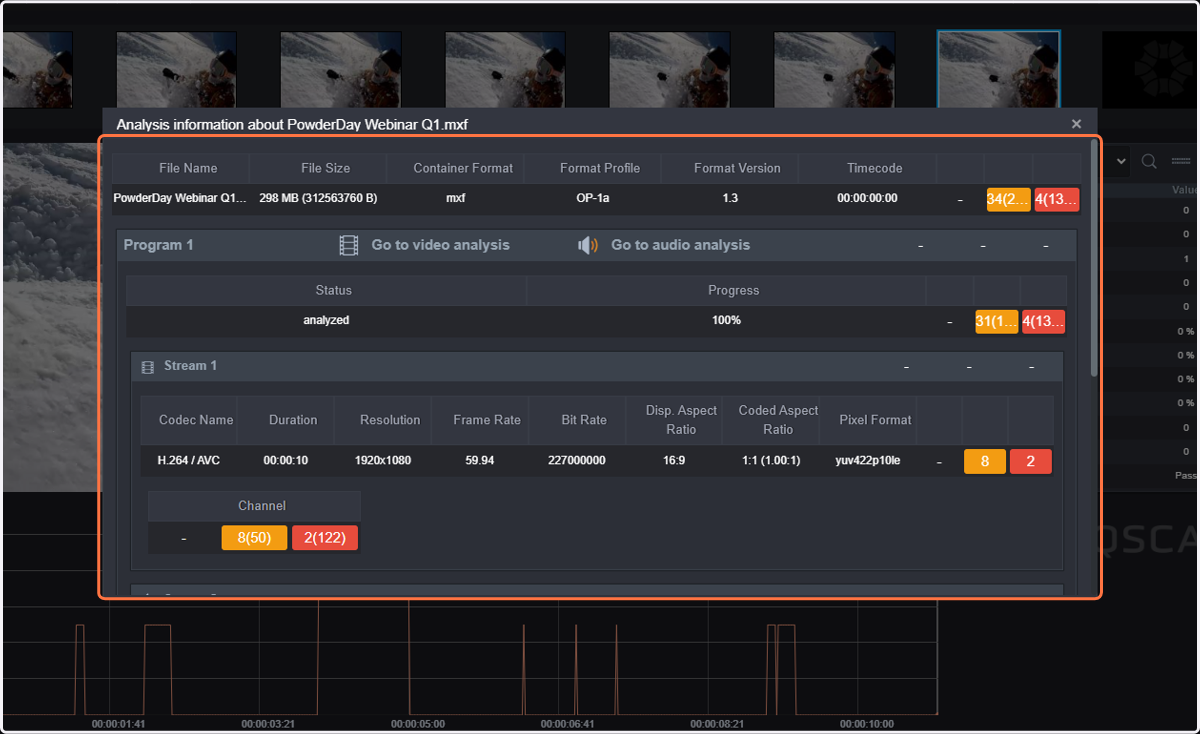
3. Click on the file name.
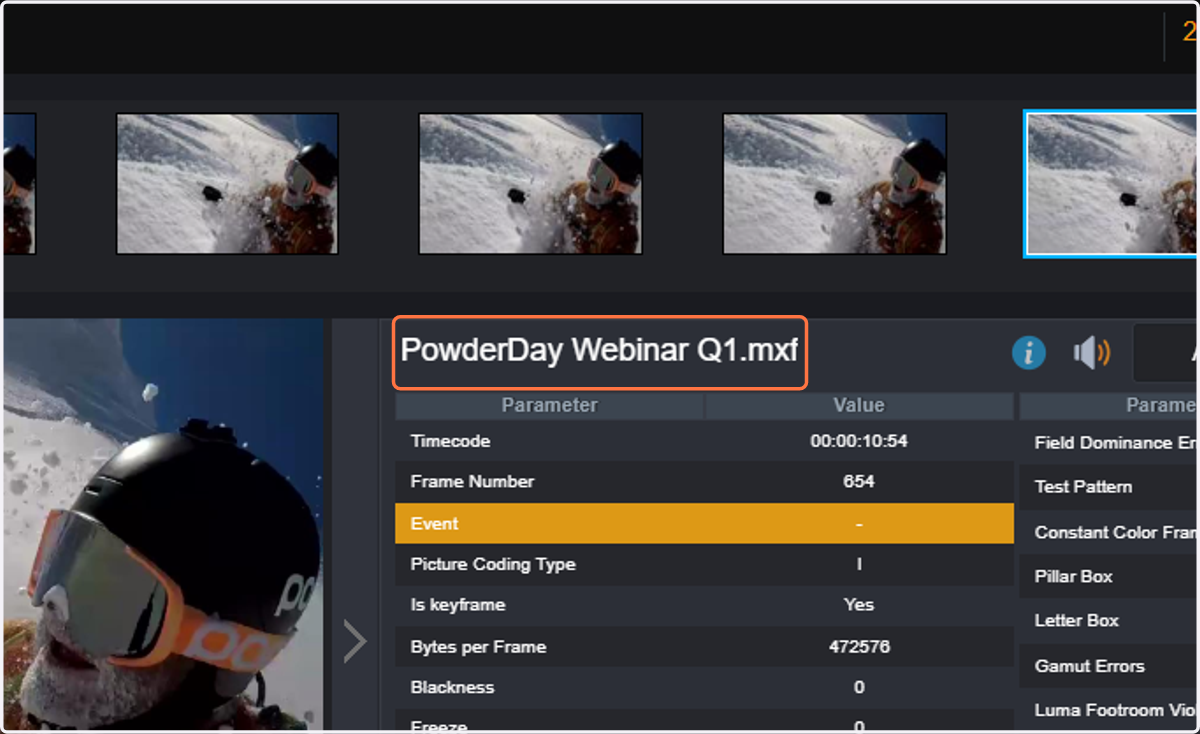
4. Information about the file will be displayed.
Format parameters for audio and video
Events for each of the streams (audio and video streams)
Total number of events
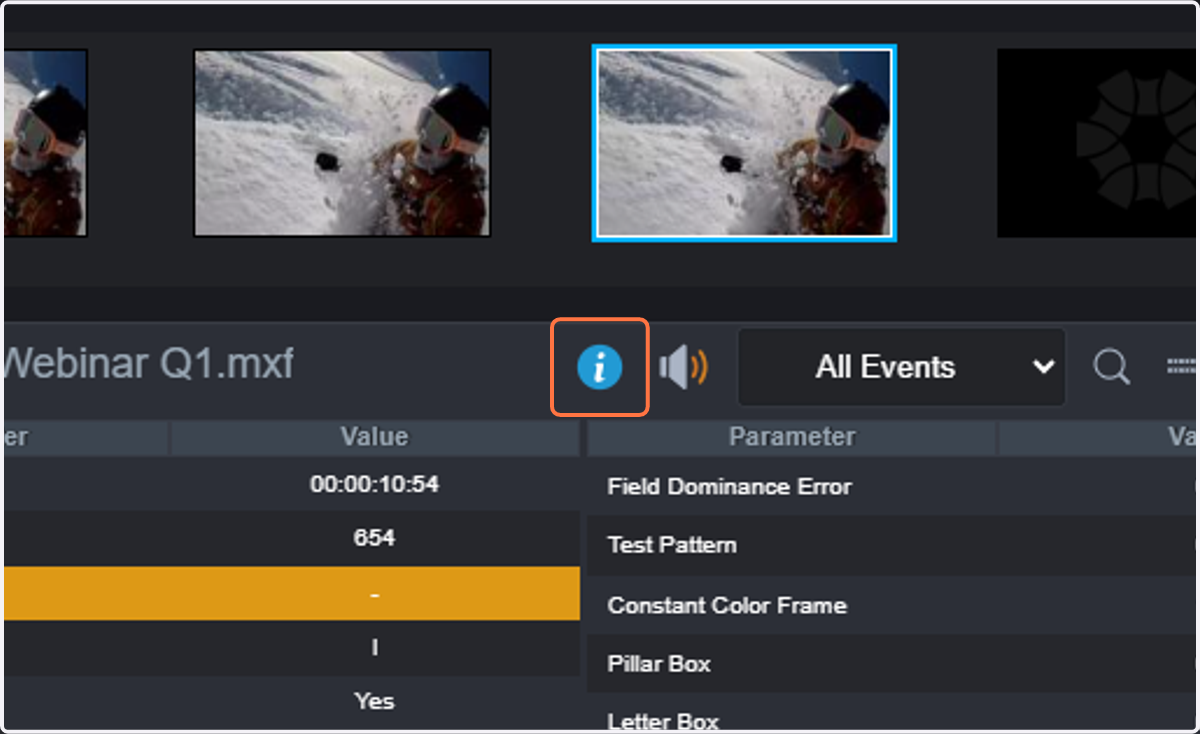
5. Click on the "info" icon.
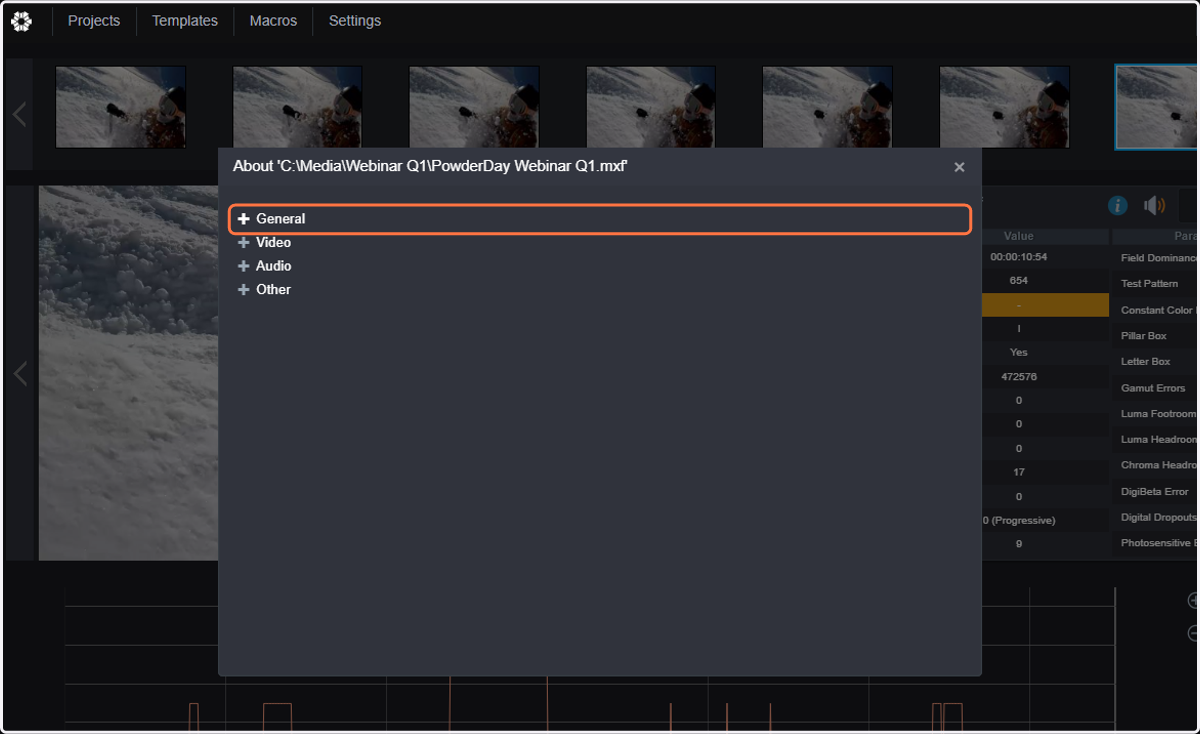
6. It will show detailed format information about the file by calling Media Info.
You can expand each of the sections (general, video, audio, and other) to see detailed format information.
7. By clicking on the right arrow you will jump to the next event in the timeline.
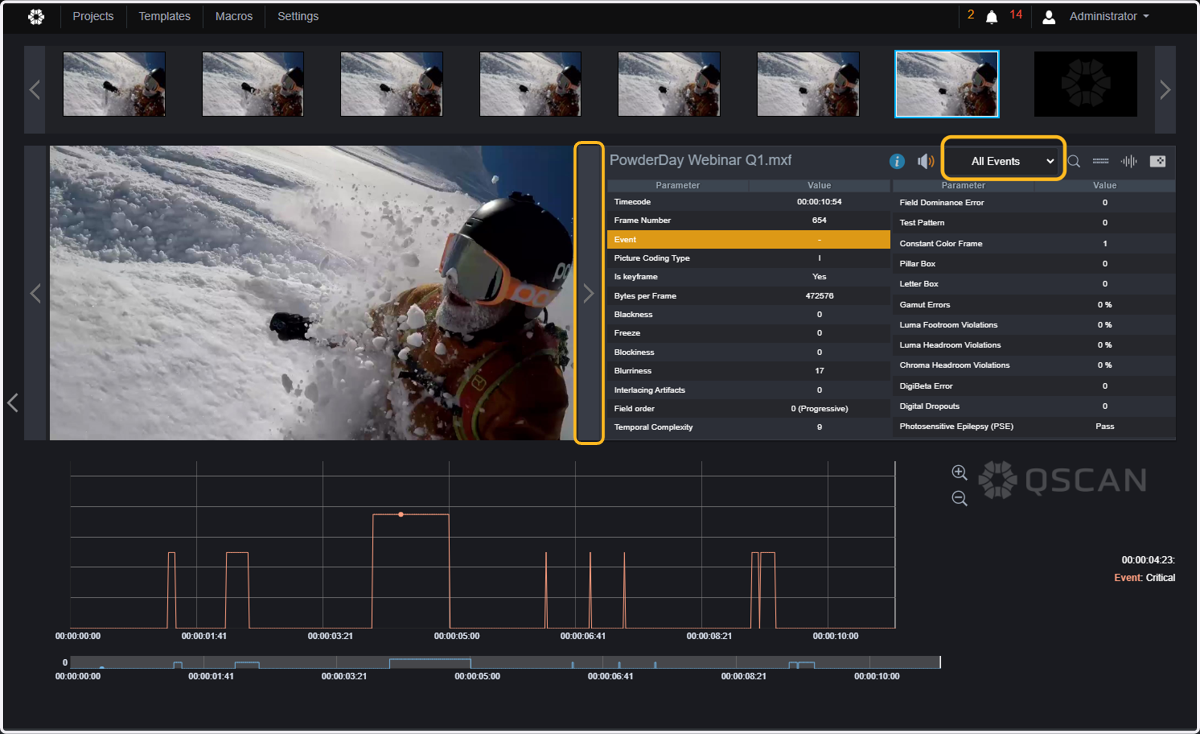
8. The right arrow will jump to the next event in the timeline when "all events" is selected in the dropdown list.
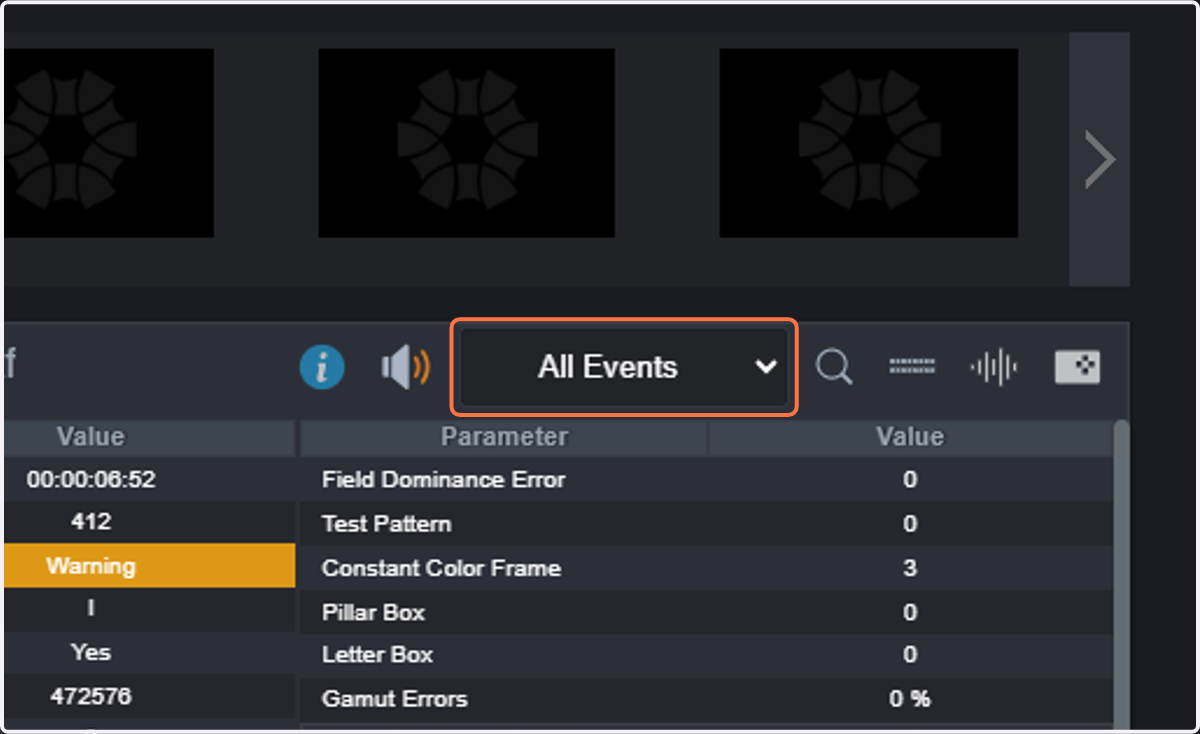
9. The table shows all measurements for the current frame
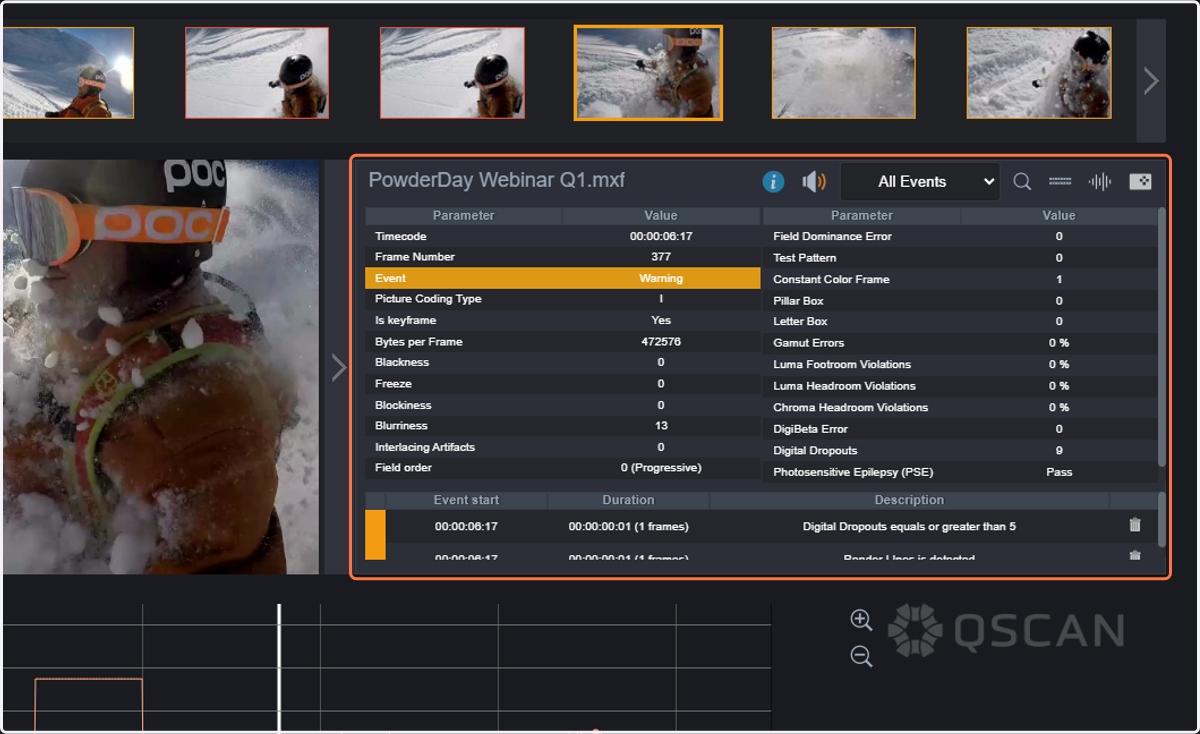
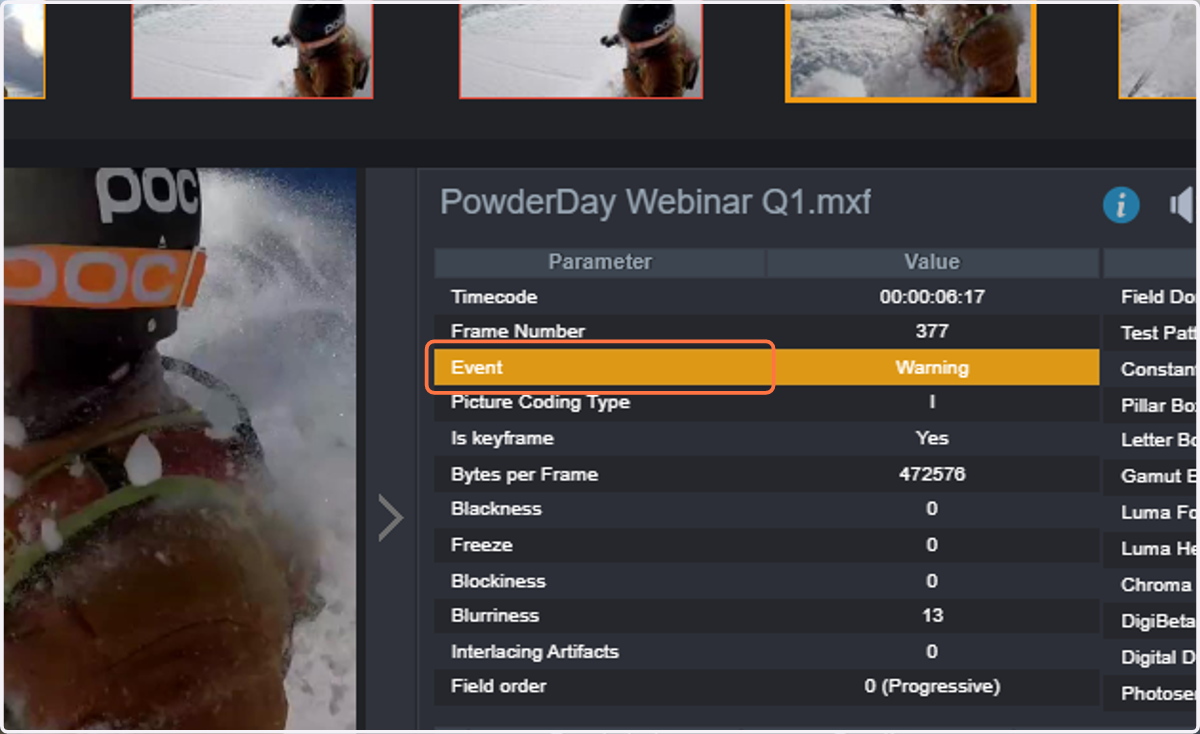
10. You can remove the events from the timeline by clicking on "event".
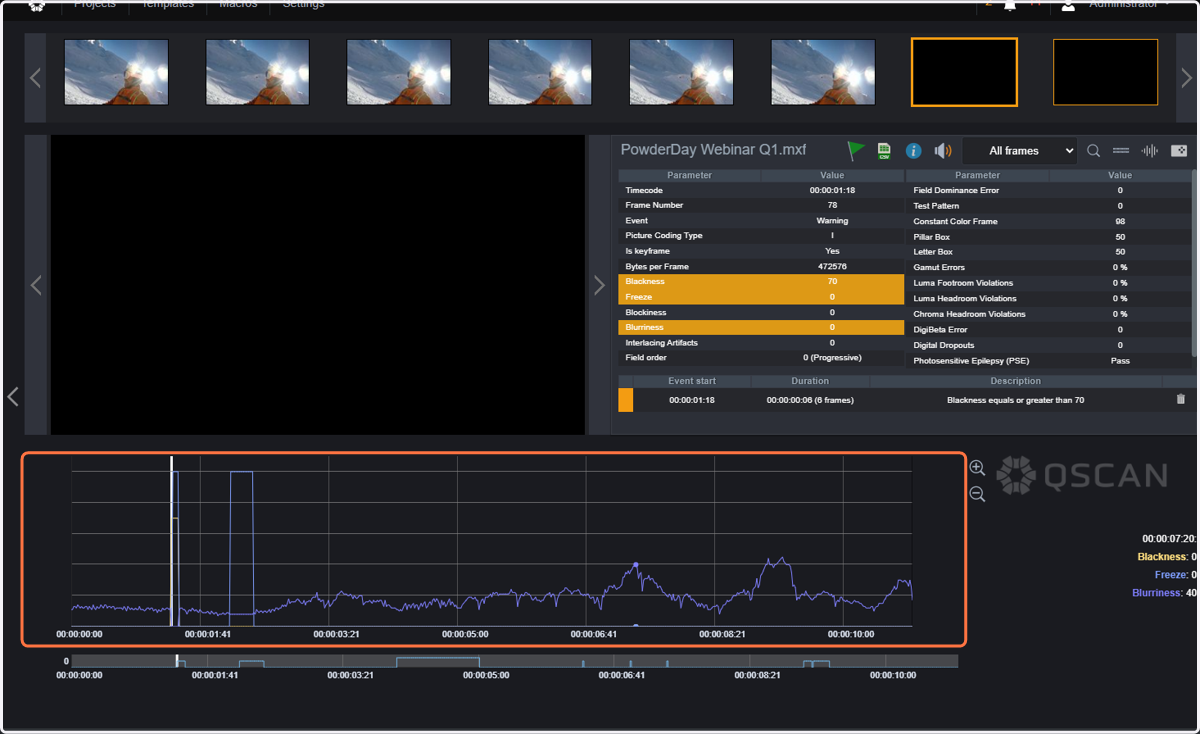
11. You can see the behavior of each of the measured parameters bu clicking on the name of the parameter in the table.
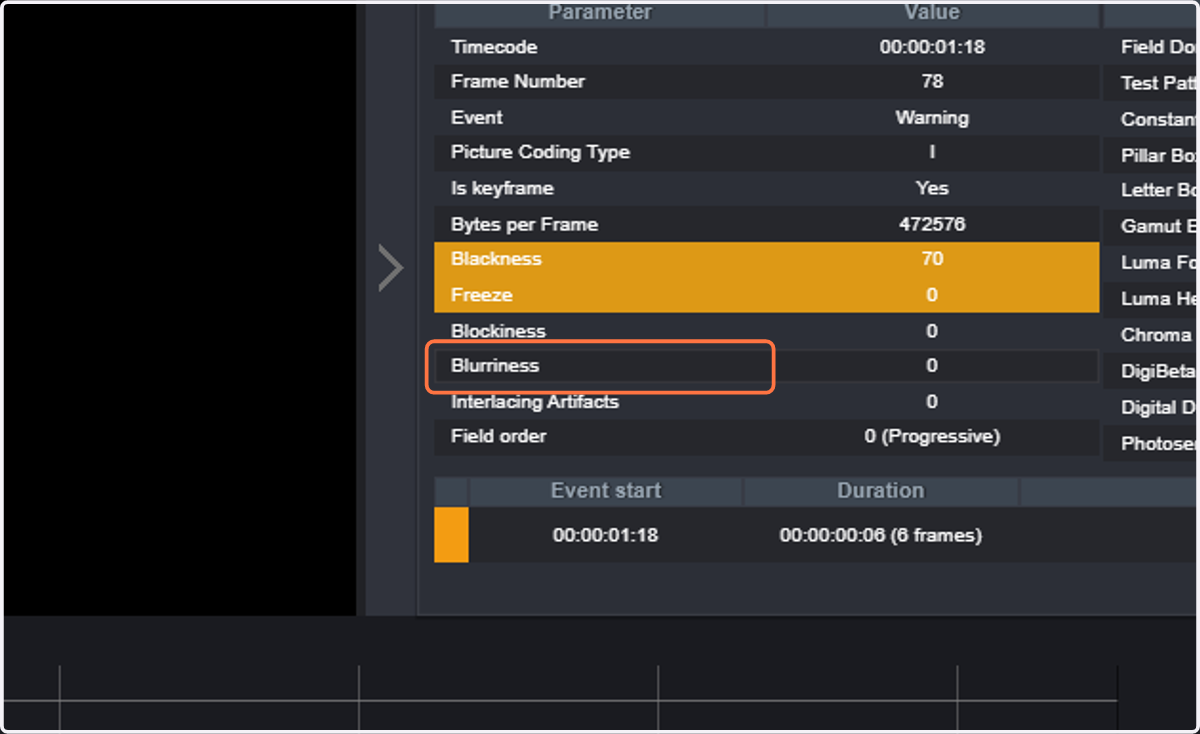
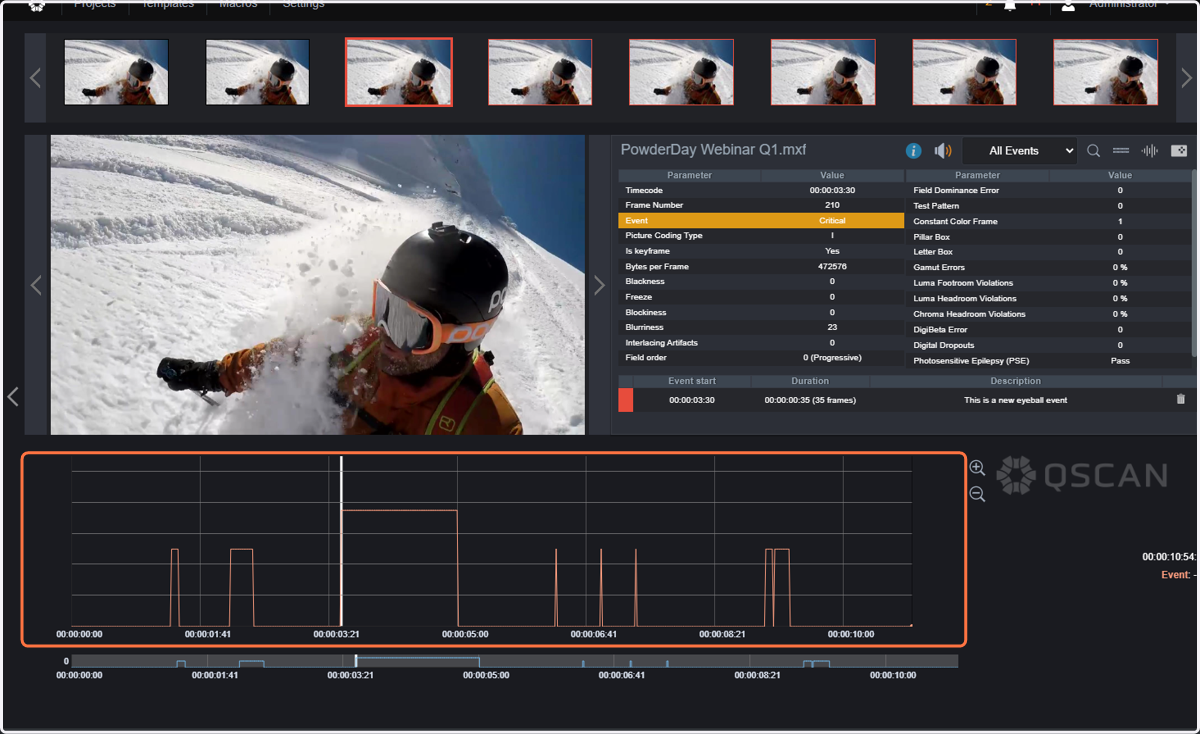
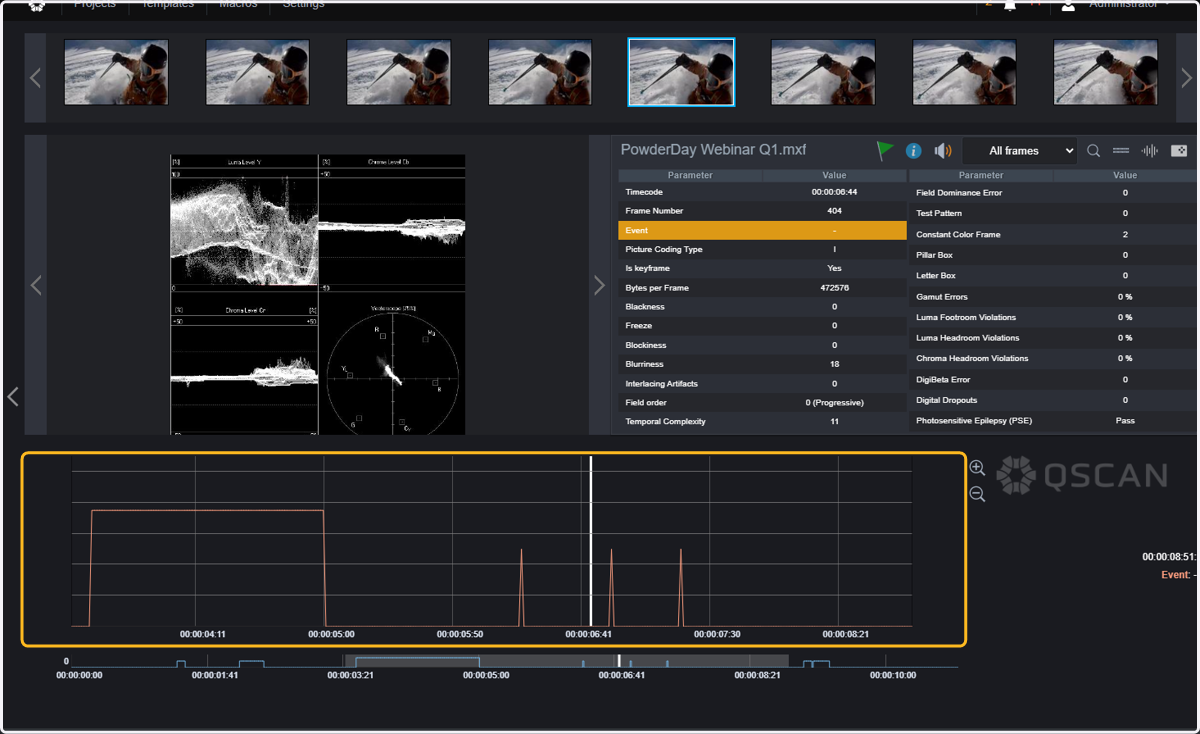
12. The timeline view will display a graph with the values of the selected parameters throughout the whole file.
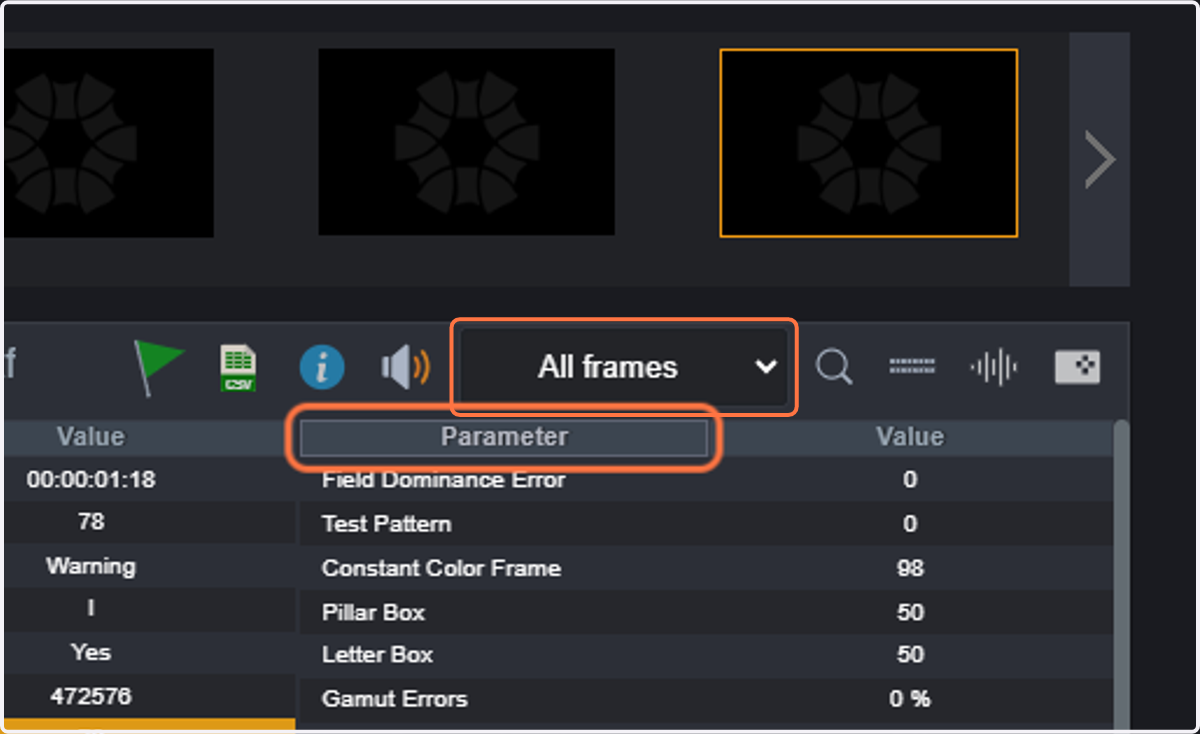
13. By selecting "All frames" you will be able to move frame by frame.
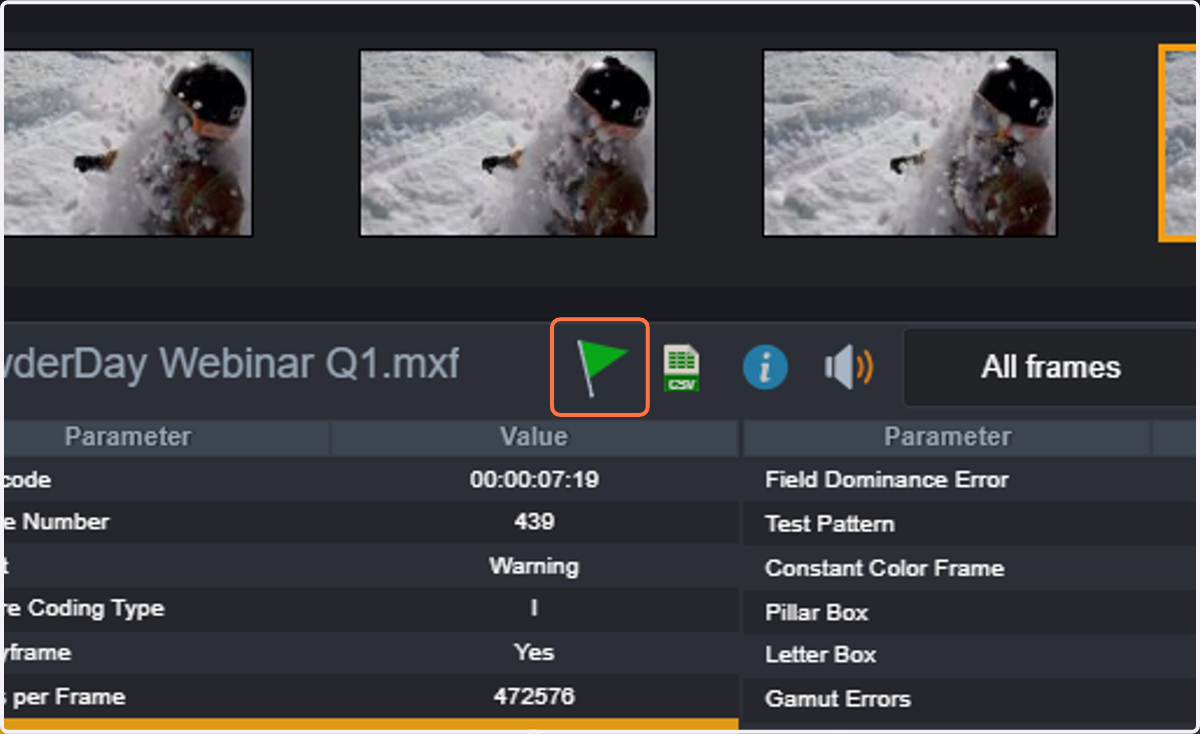
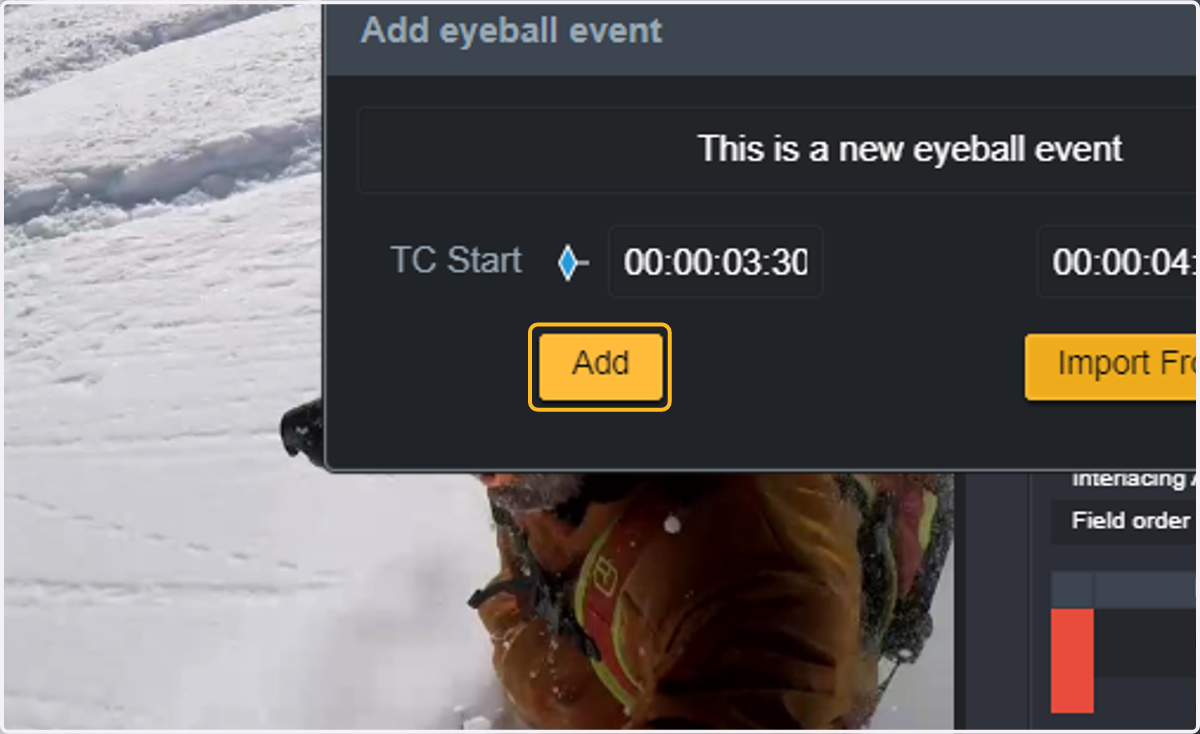
14. You can now add Eyeball Events.
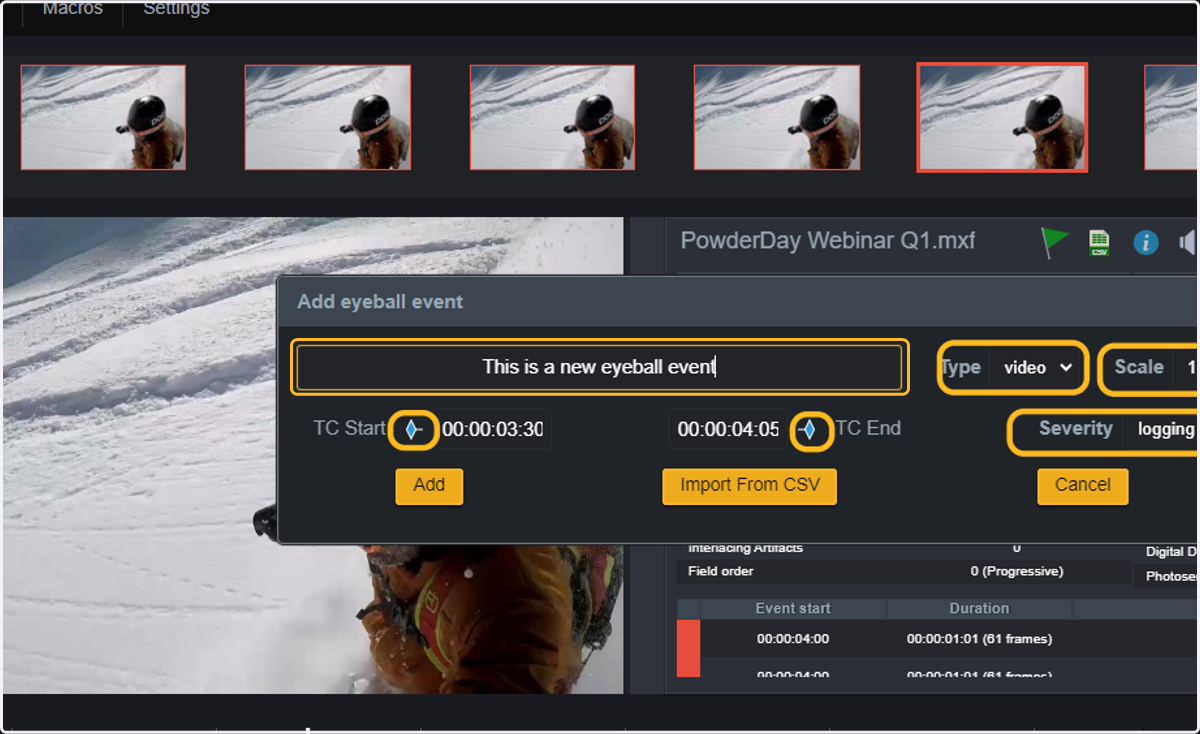
15. Enter the Start TC and End TC for the eyeball event.
You can also click on the graph to use the current frame as the start TC or end TC by clicking the marker next to them.
Enter the description of the event (free text), select the severity level, type (audio or video) and the scale (this can be used freely for your own purposes)
16. Click on Add.
17. Your new Eyeball Event will be displayed in the timeline view.
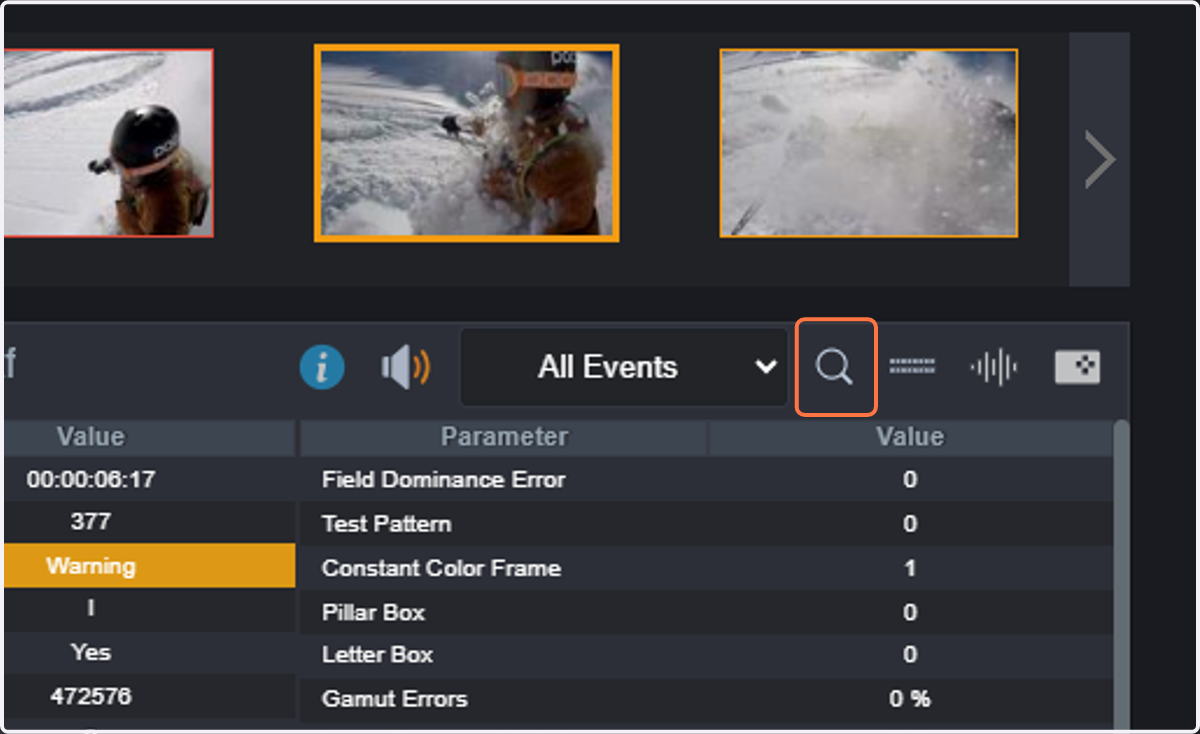
18. You can Jump to a specific TC in the timeline.
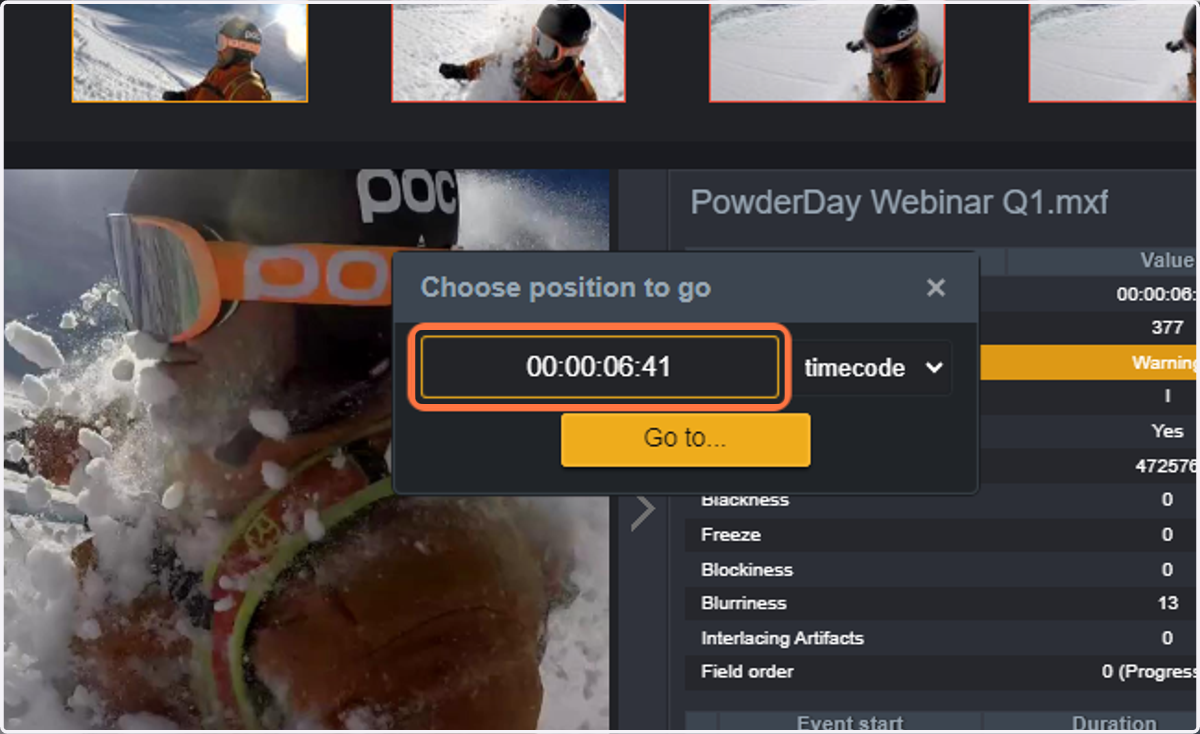
19. Enter the TC you want to jump to.
20. You can change the number of thumbnails to be displayed on top of the timeline view between 16 thumbnails or 8 thumbnails.
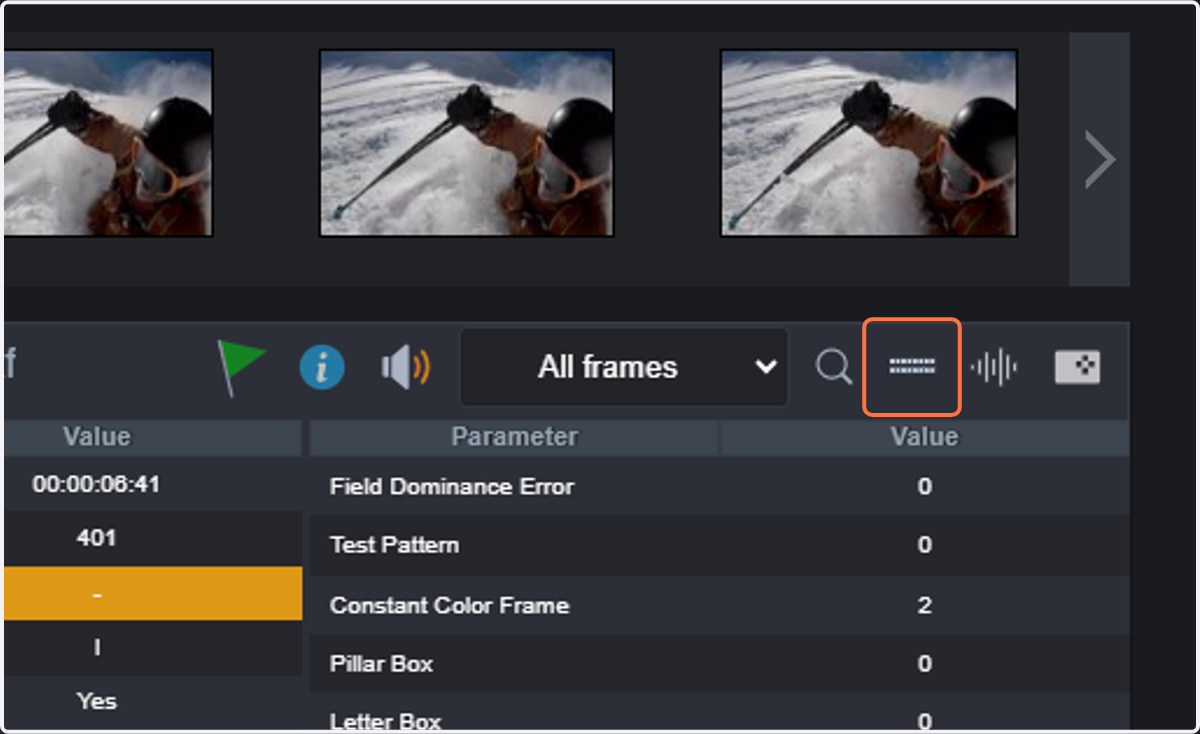
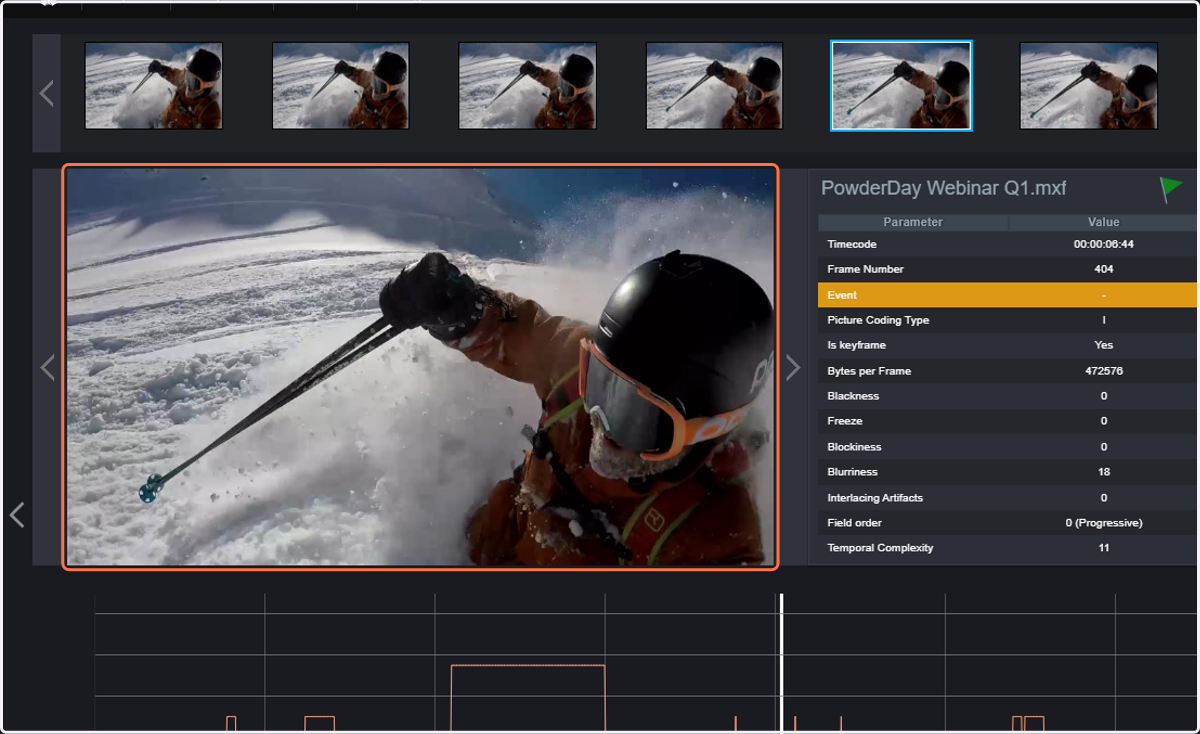
21. By clicking on the frame, you can display the full-size frame.
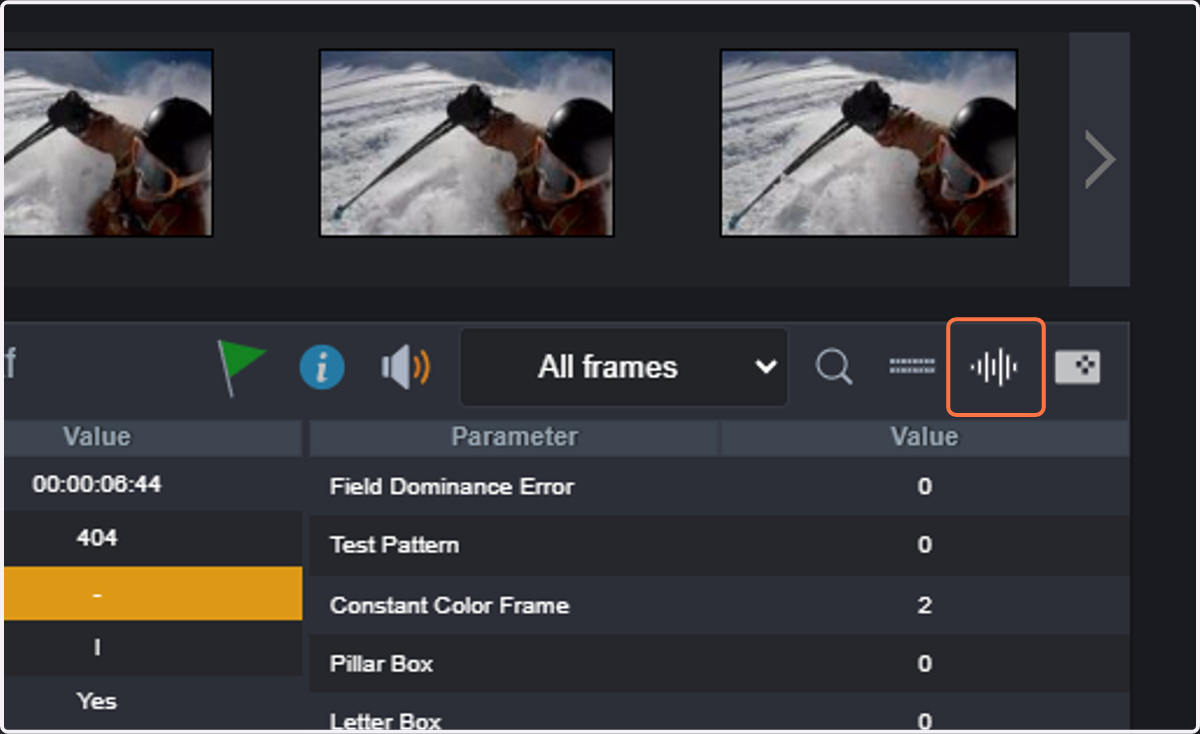
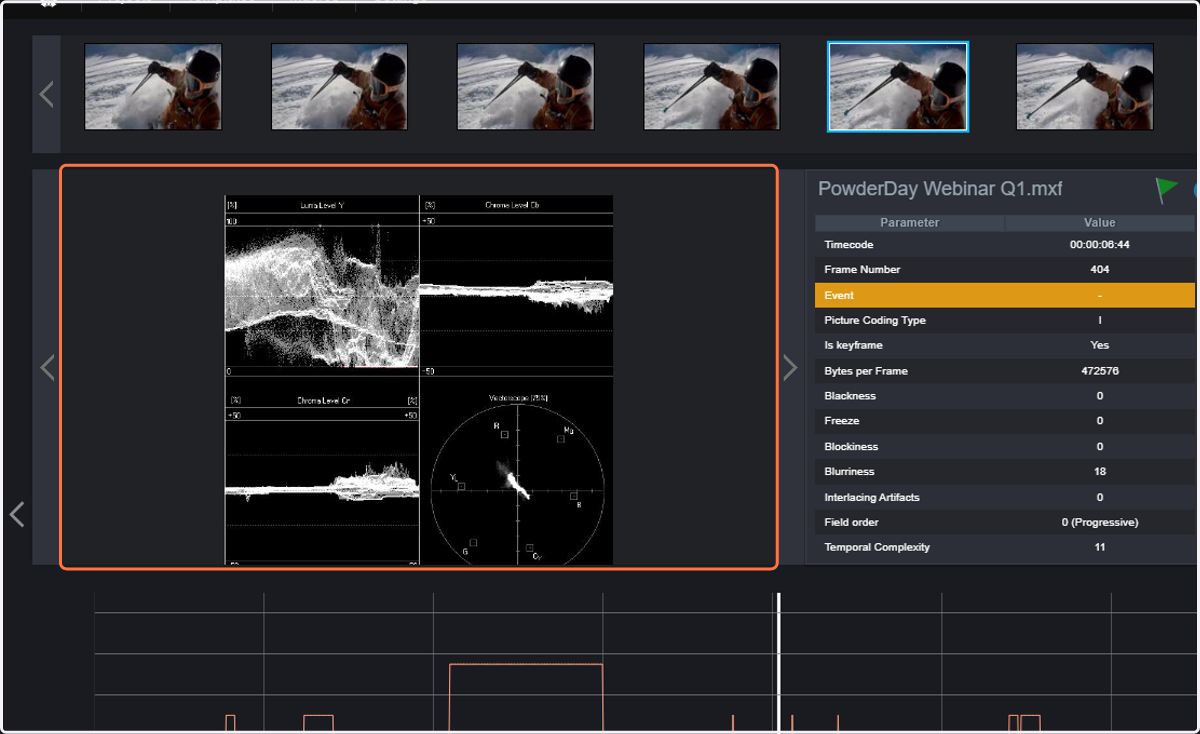
22. The waveform can also be displayed.
23. The waveform with video levels will be displayed instead of the frame image.
24. You can zoom in or out in the timeline.
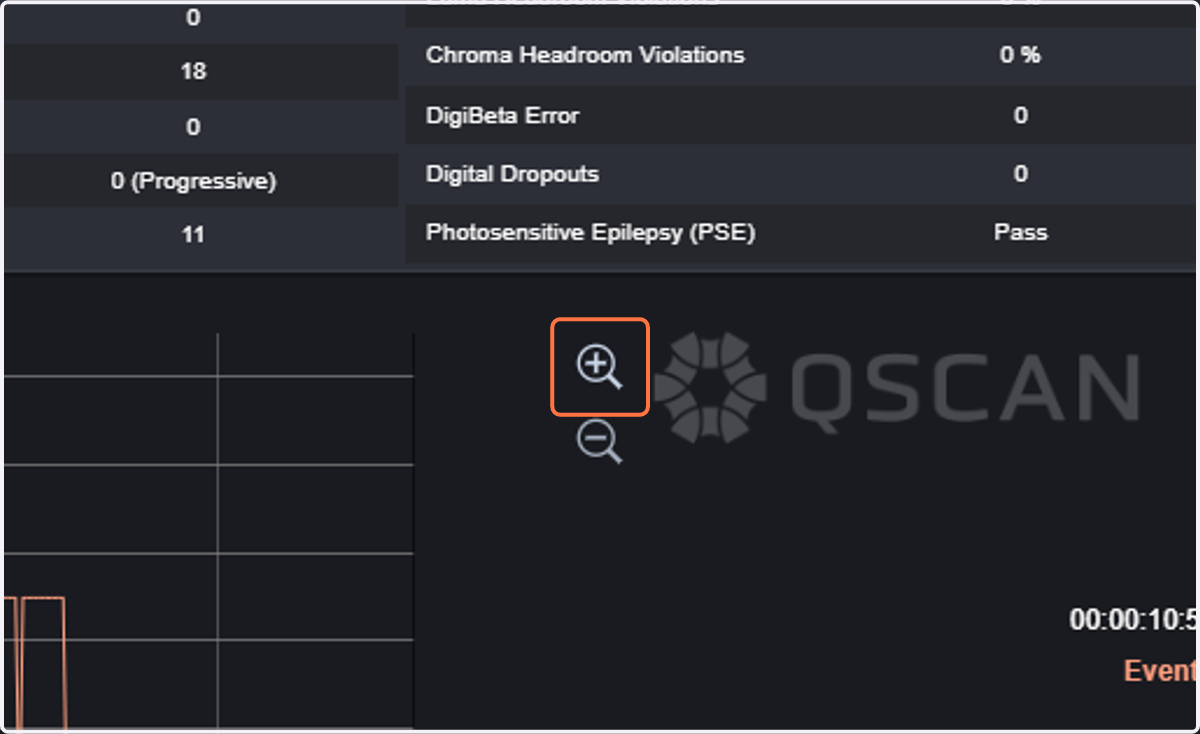
25. When zooming in, you can see more details about the measured parameters per frame.
26. Once your inspection is finished, you can jump to any of the QScan pages or go back to the previous page.