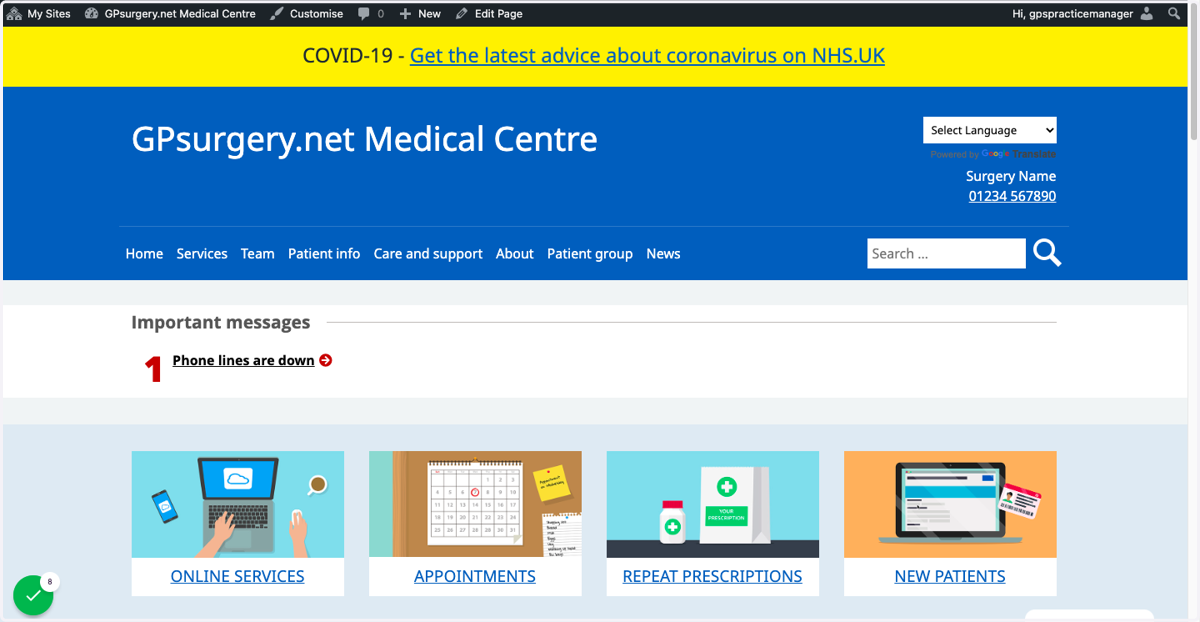
Remove a Parent page and delete it from the Main Menu
This tutorial will show you how to remove a Parent page, and delete it from the Main Menu. You can move through the tutorial at your own pace using the NEXT button below.
1. Ensure that you are logged into your website. The black admin toolbar should be visible at the top of the screen.
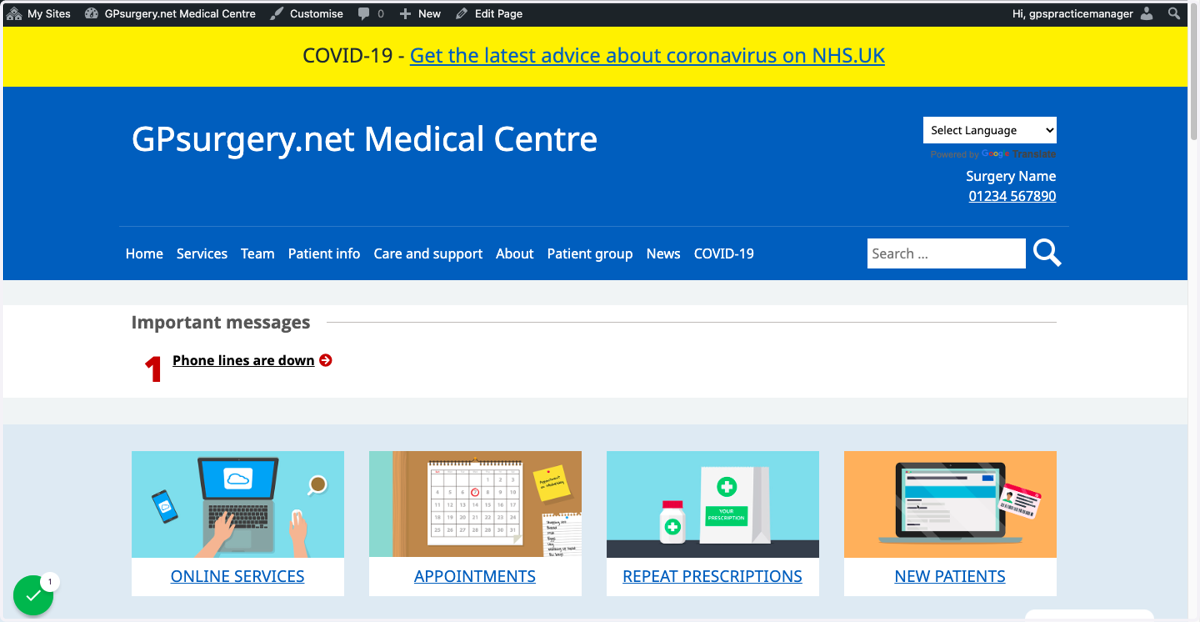
2. Go to the Parent page that you would like to remove.
For this example, we are using the COVID-19 Parent page.
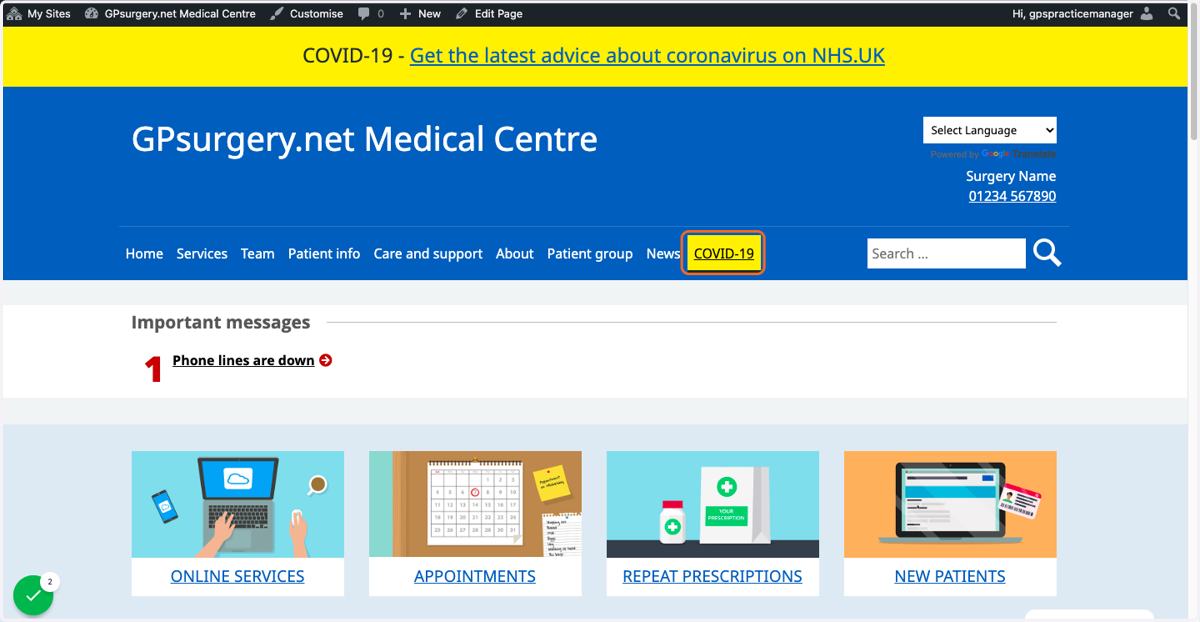
3. In the admin toolbar, click Edit Page.
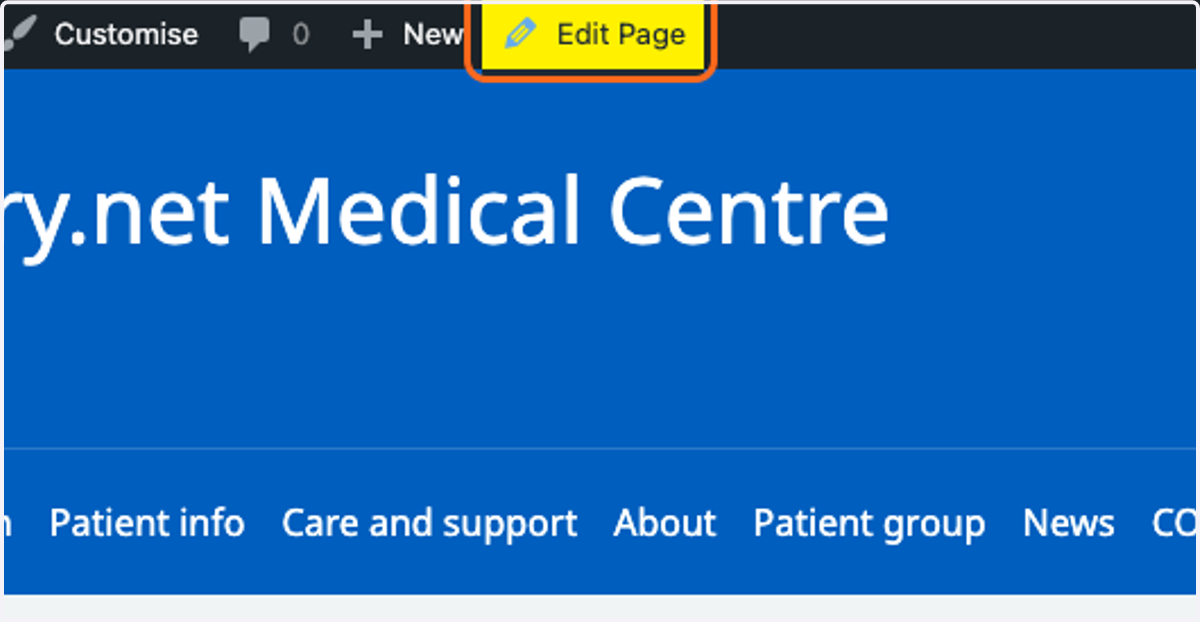
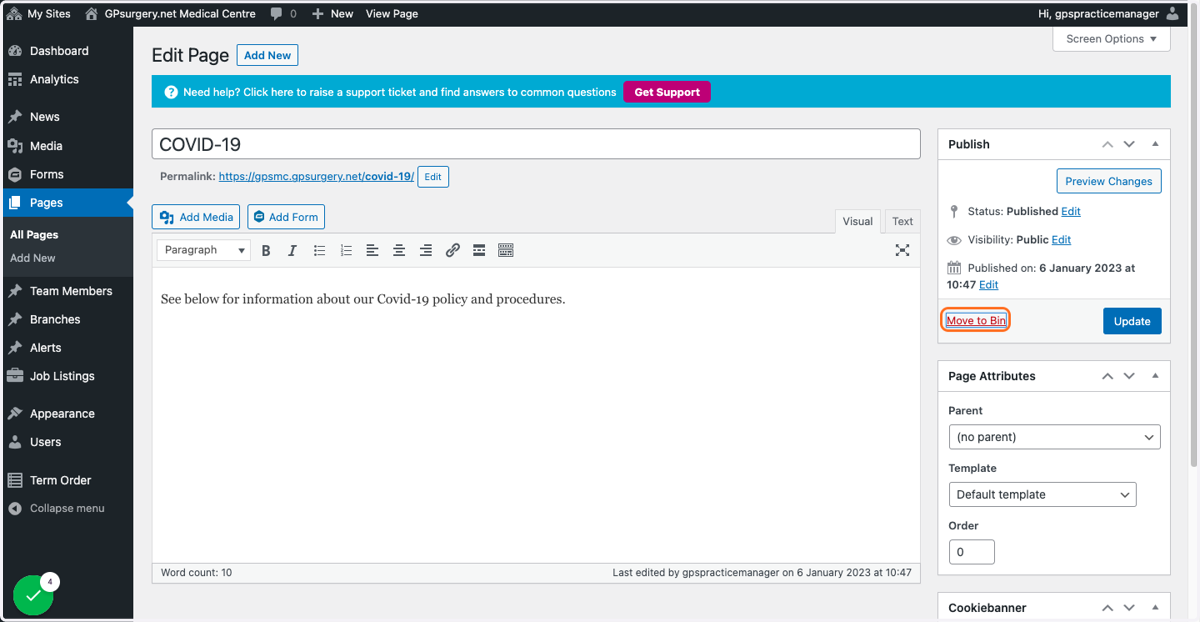
4. In the Page editor, click the Move to Bin link.
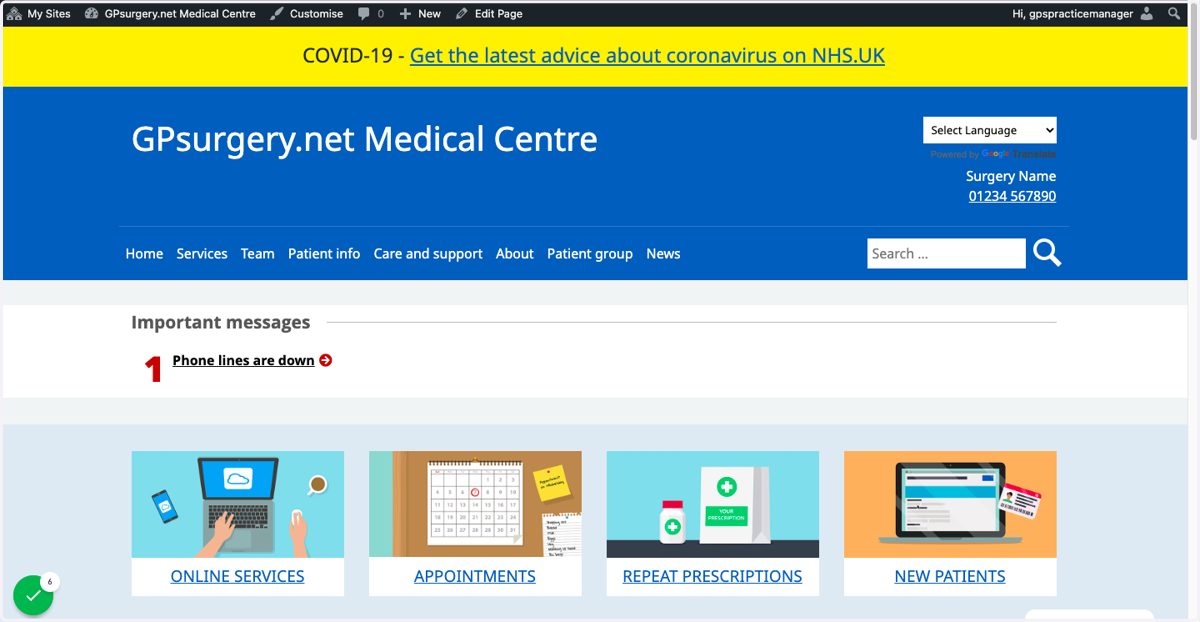
5. It will now appear that the Parent page has also been removed from the menu. It is important to follow the next steps, however, to ensure that your menu remains correctly organised.
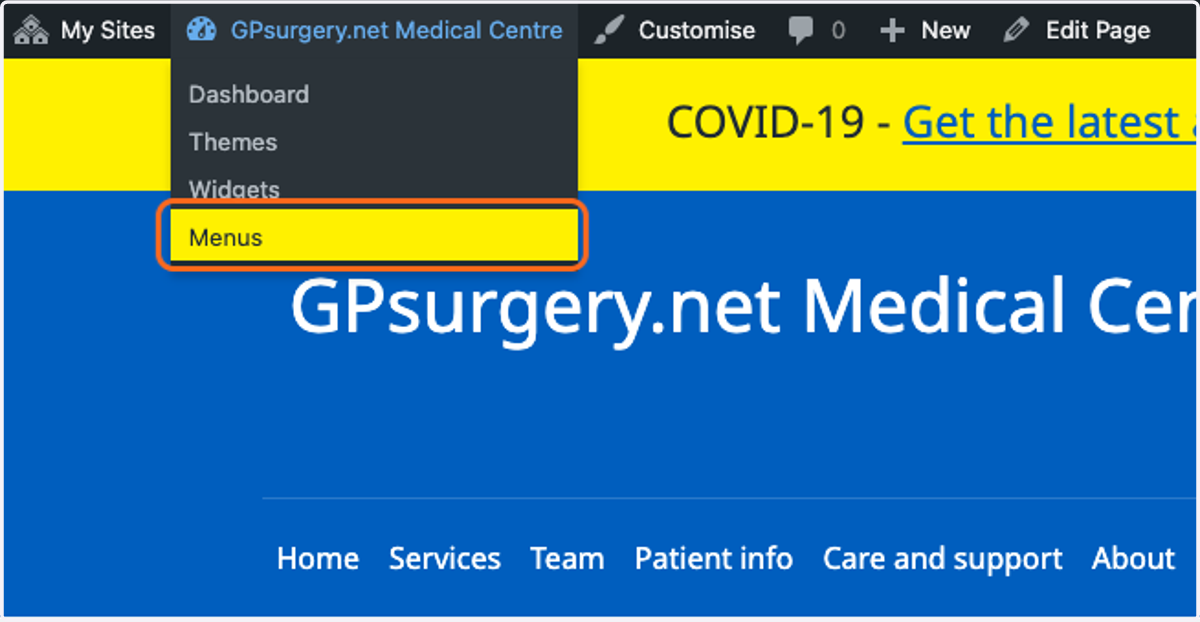
6. Hover your mouse over the name of your website in the admin toolbar, and select Menus from the drop-down menu that appears.
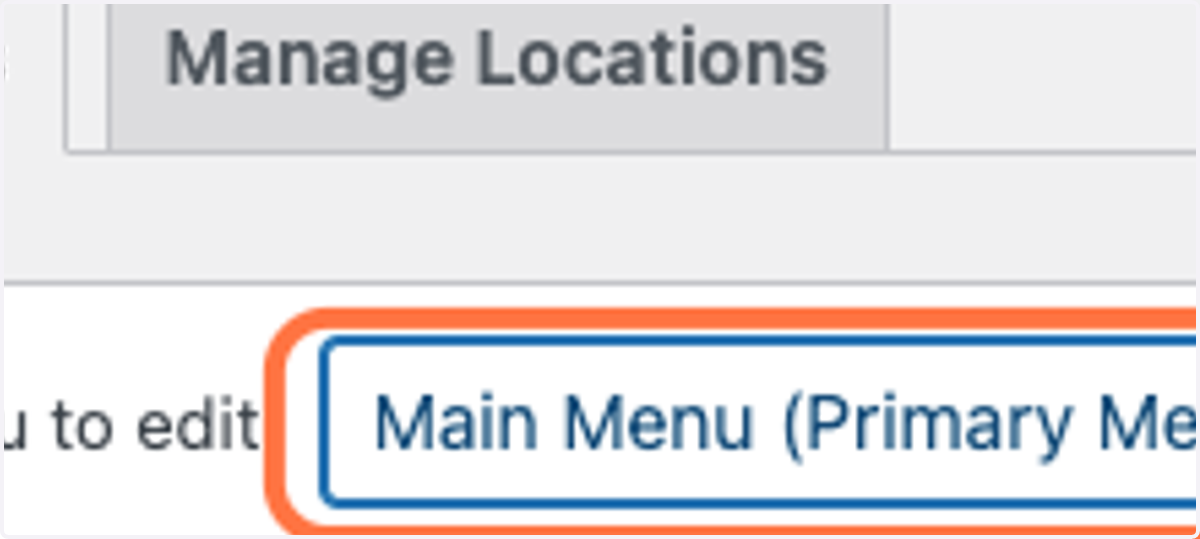
7. In the Menus editor, ensure that the Main Menu has been selected from the Select a menu to edit drop-down. Click the Select button once this has been done.
8. Once you have selected the Main Menu, you will see a warning message (There are some invalid menu items...) The Parent page that you have just moved to the bin will appear in red in the list of menu items.
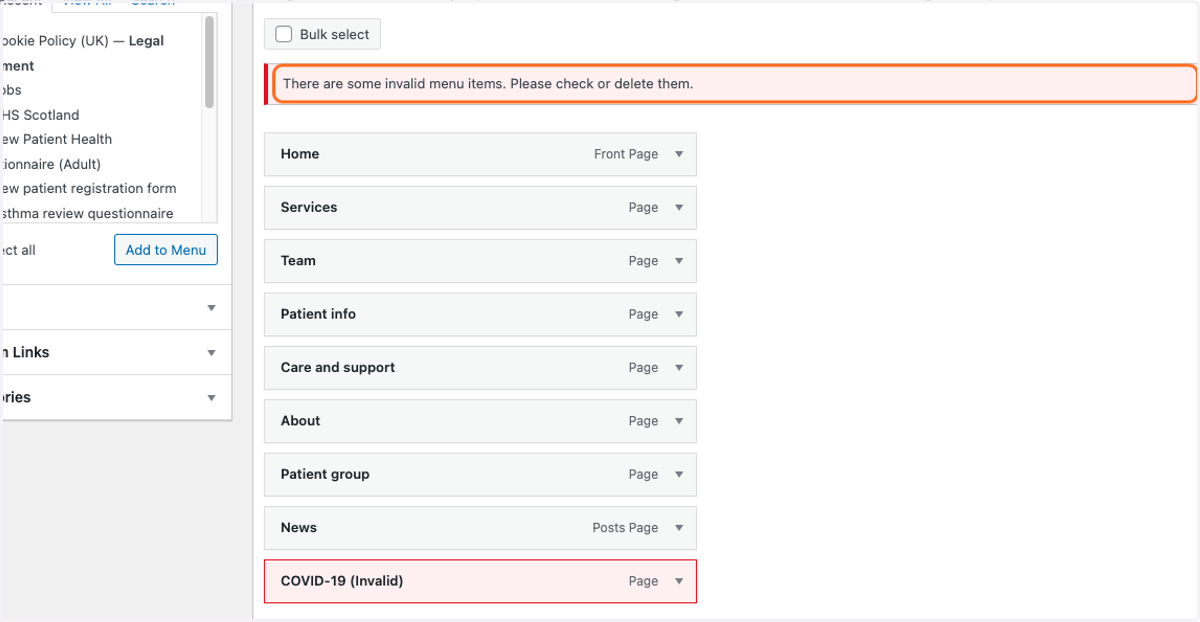
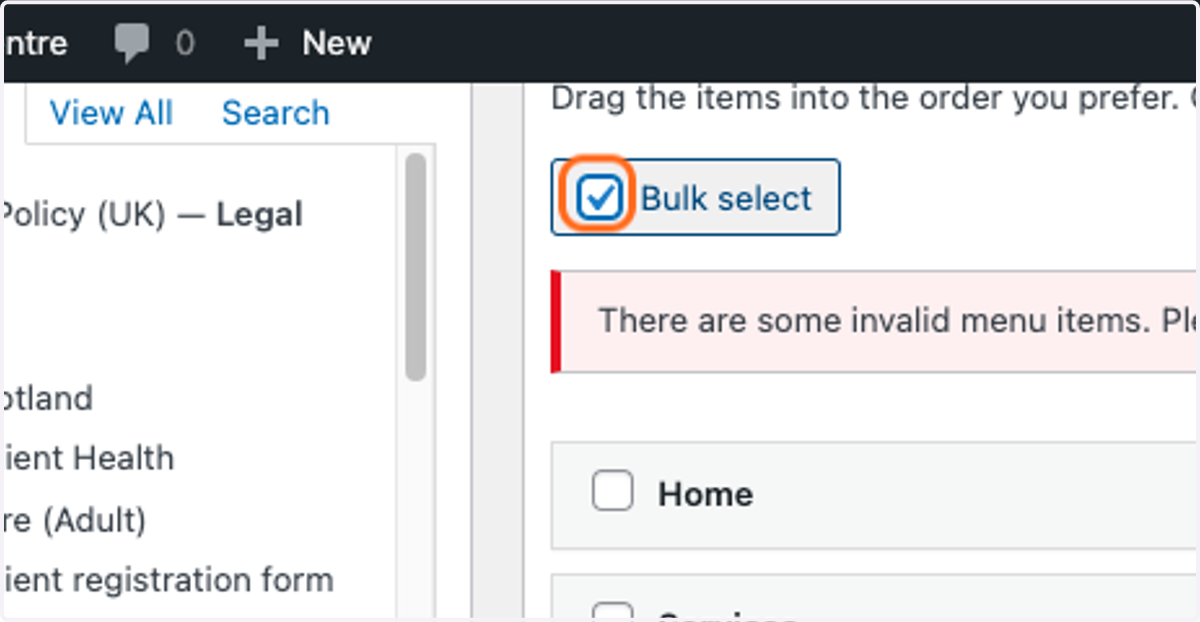
9. Check the Bulk select checkbox at the top of the list.
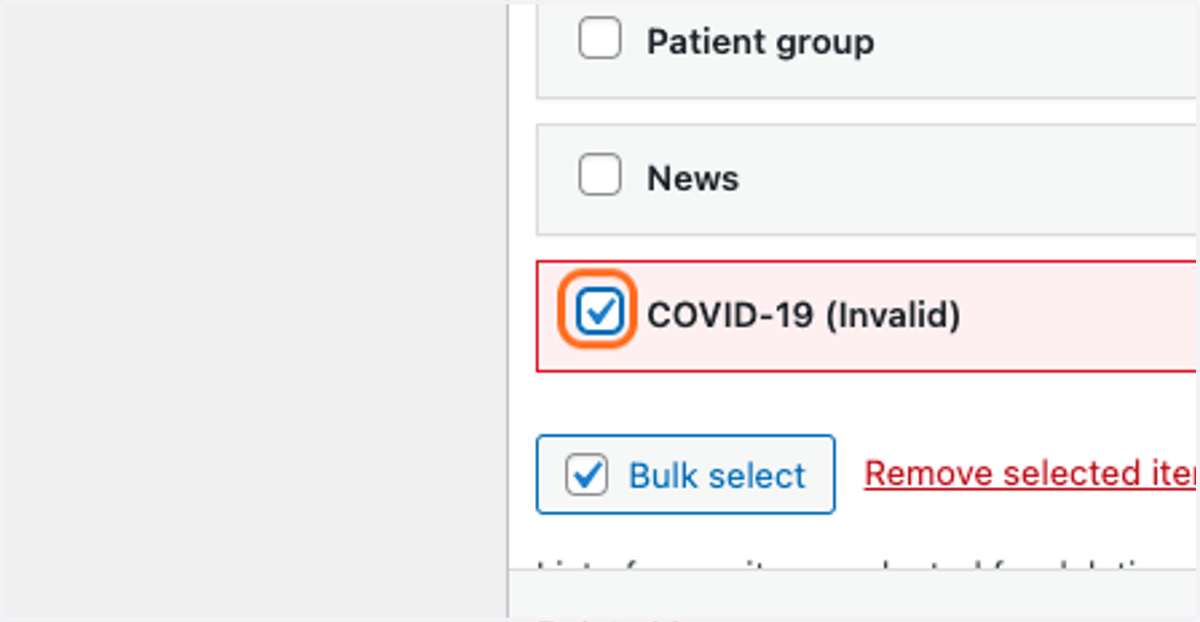
10. Mark the checkbox next to the Parent page that you have just removed.
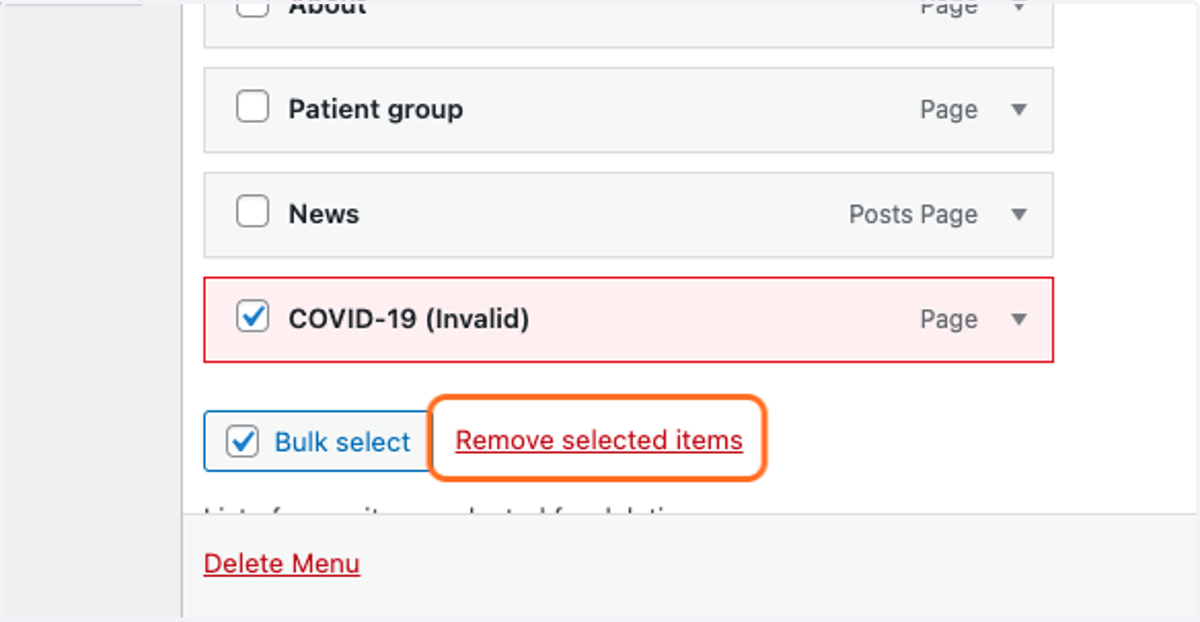
11. At the bottom of the list, click the Remove selected items link.
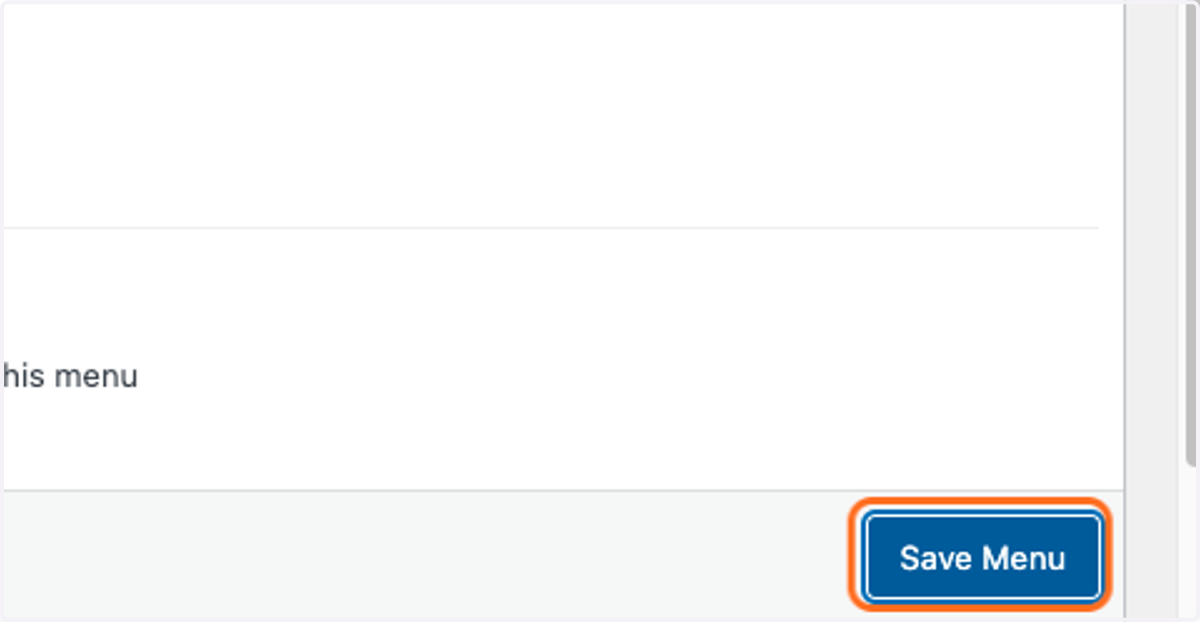
12. Click the blue Save Menu button at the bottom of the screen to save the changes you have just made to the menu.
13. The Parent page will now have been removed from the site, and from the Main Menu.