A Step-by-Step Guide to Setting up a WordPress Website for a Designer.

Login to the WordPress Dashboard

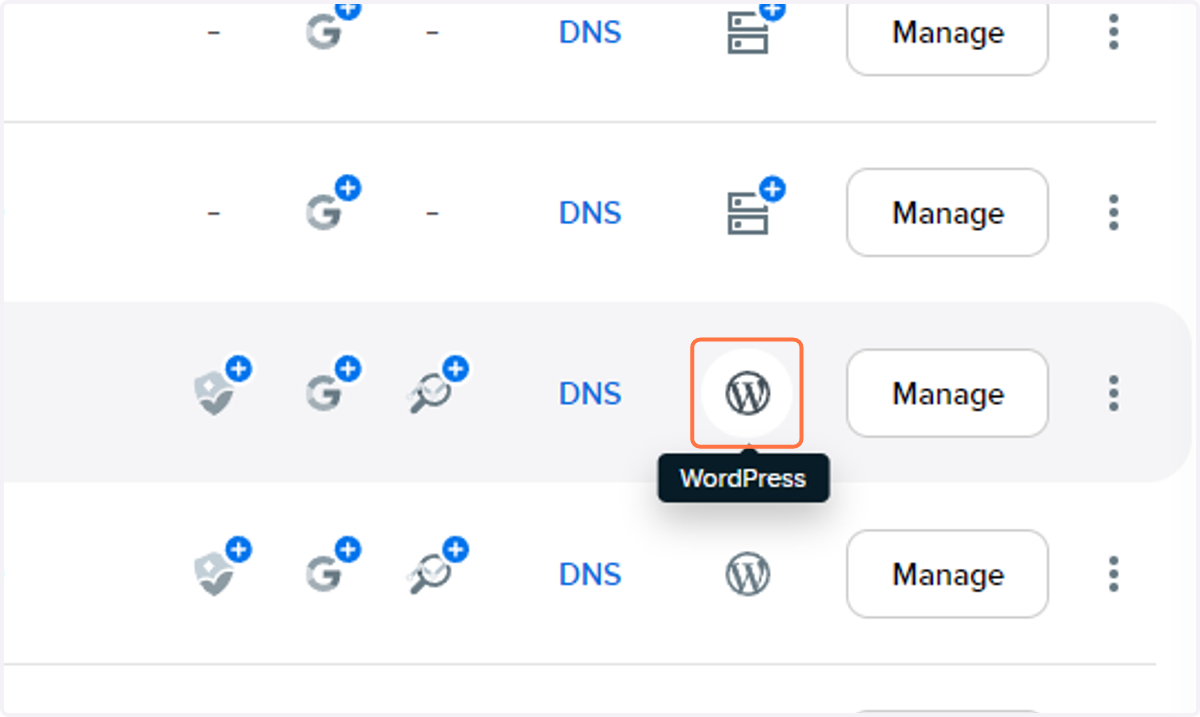
  1. 1. Login to WordPress

    Login to WordPress
  2. 2. Click on Yes, take me to my profile page
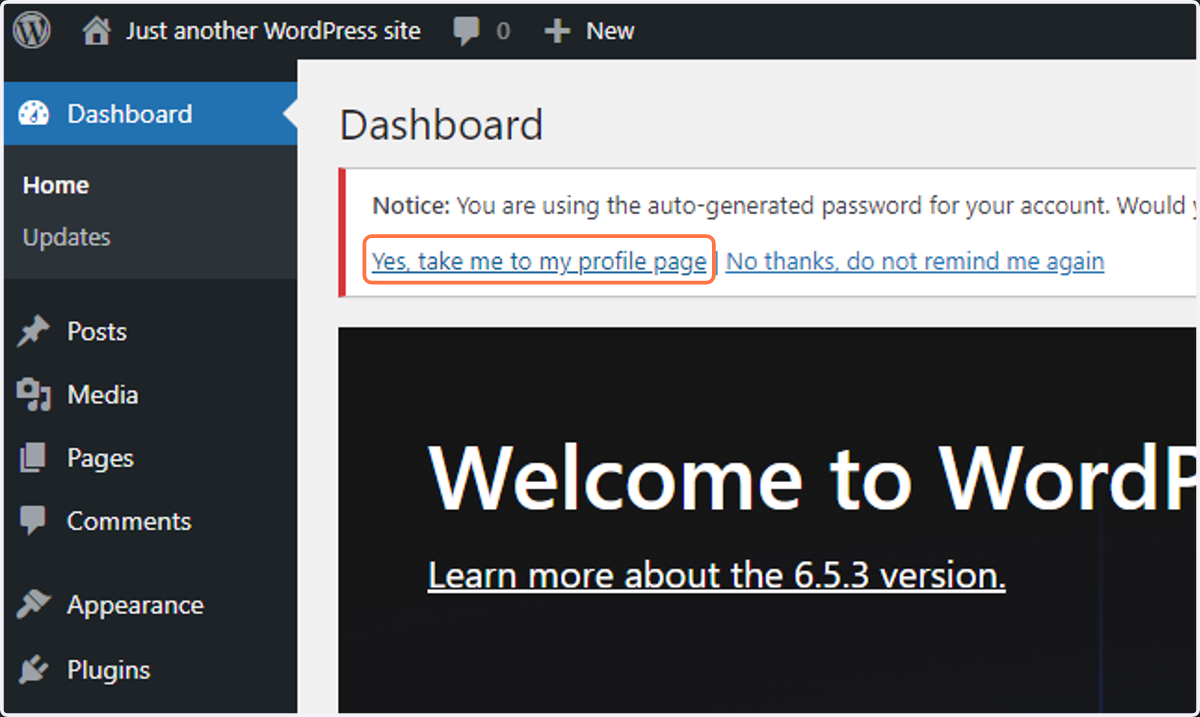
    Click on Yes, take me to my profile page
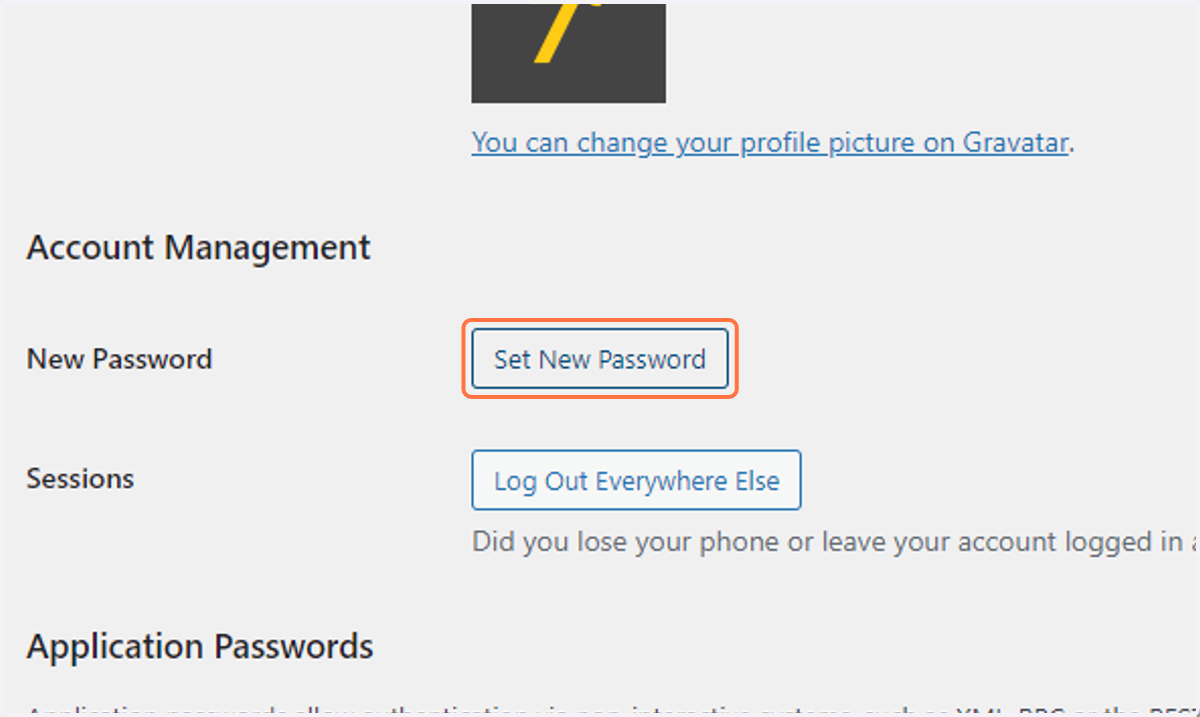
  3. 3. Click on Set New Password

    Click on Set New Password
  4. 4. Add the approved password to the box provided
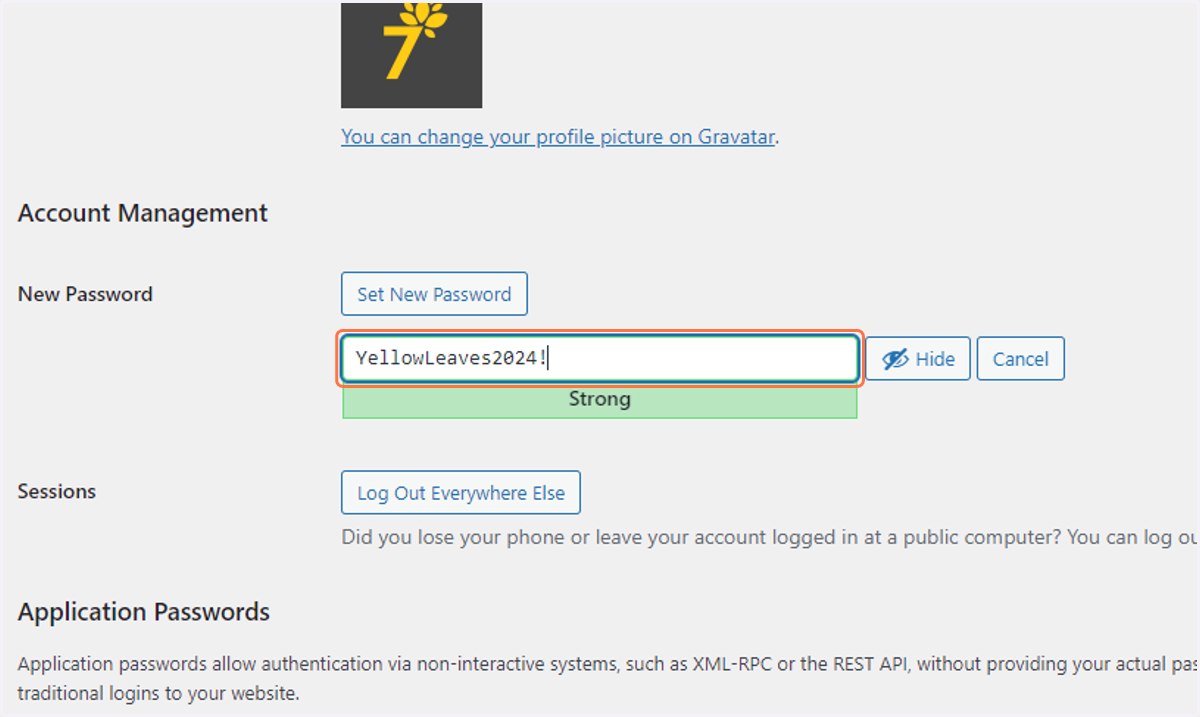
    Add the approved password to the box provided
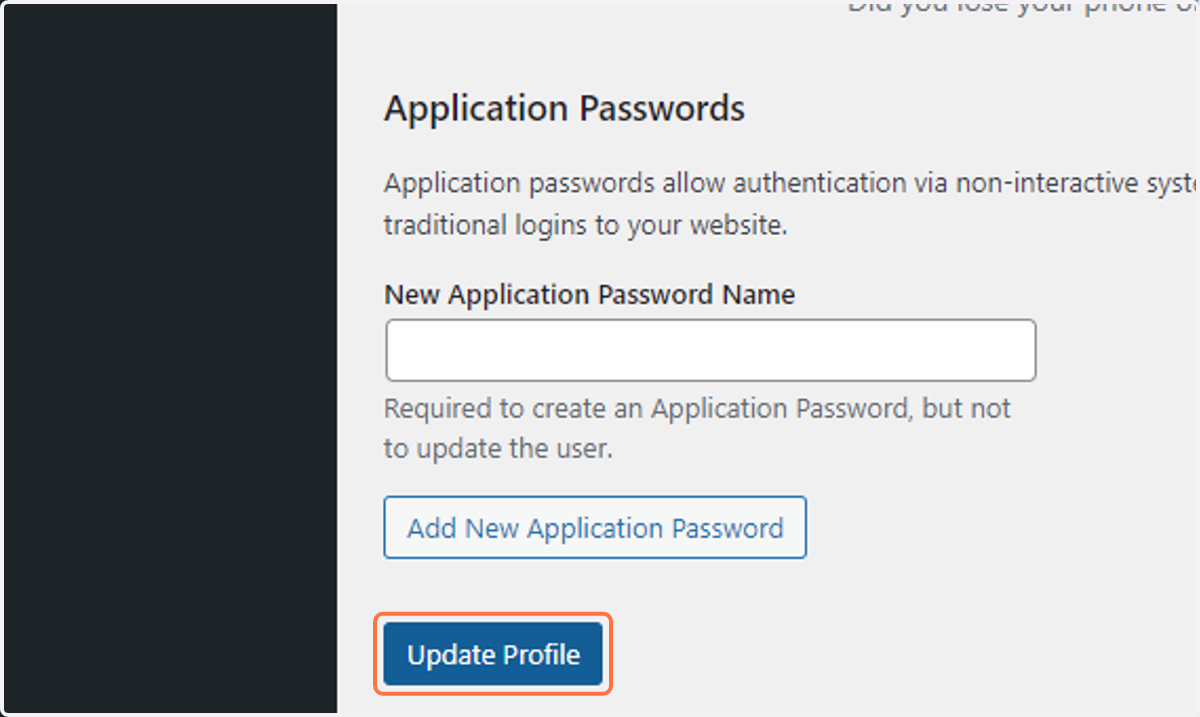
  5. 5. Click on Update Profile

    Click on Update Profile
  6. 6. Click on the "Dashboard" option in the main menu
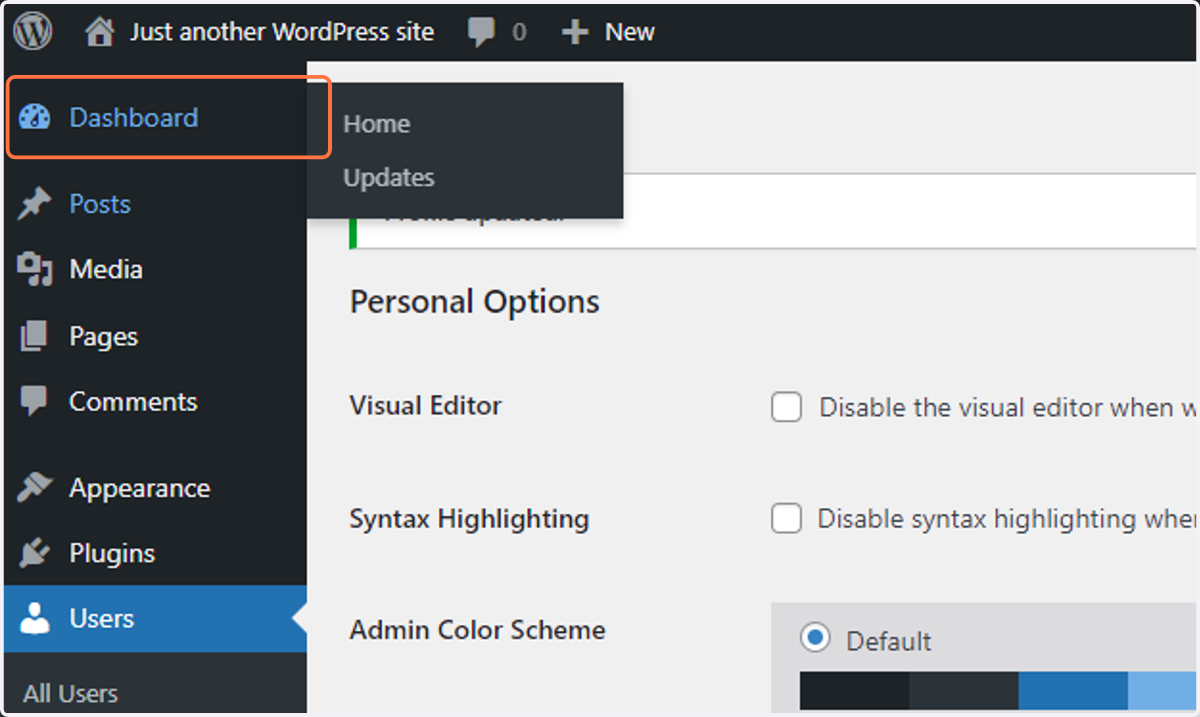
    Click on the "Dashboard" option in the main menu
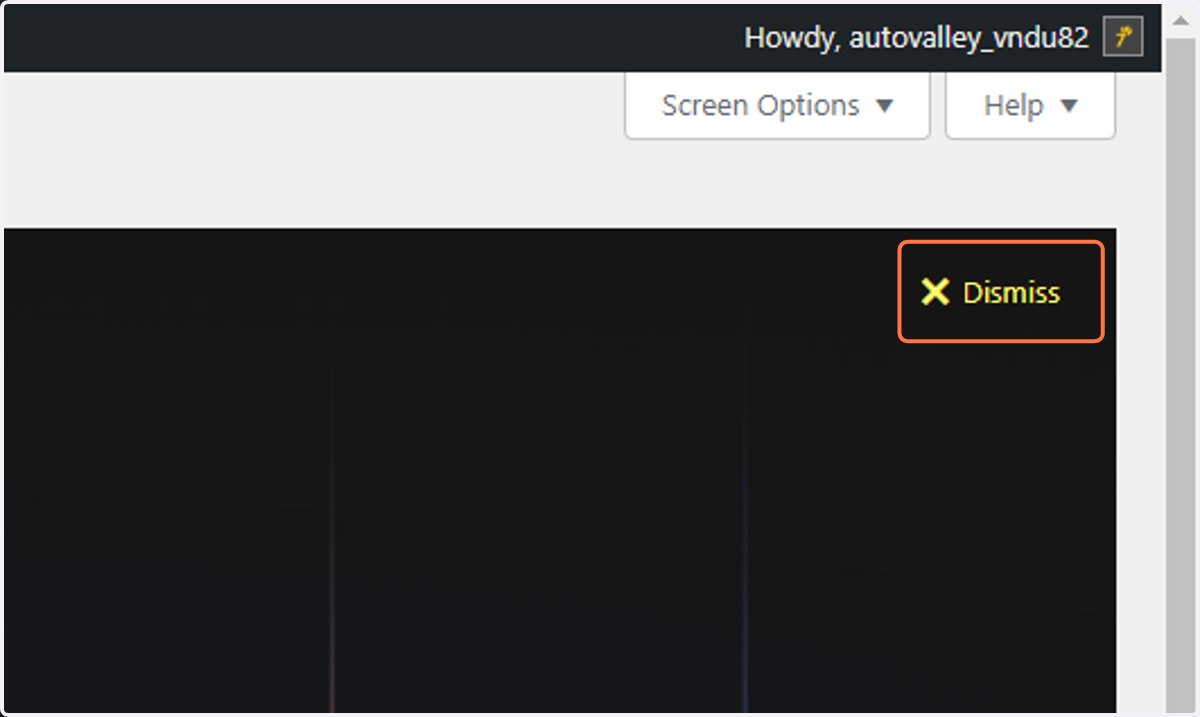
  7. 7. Click on Dismiss

    Click on Dismiss
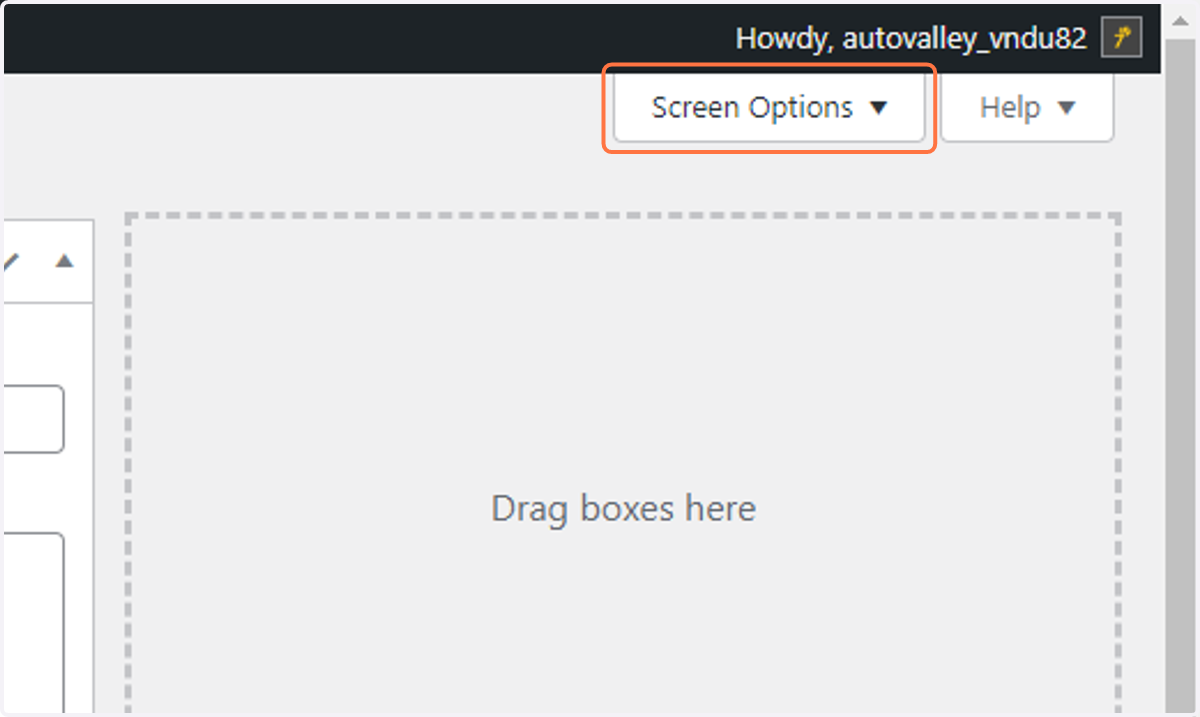
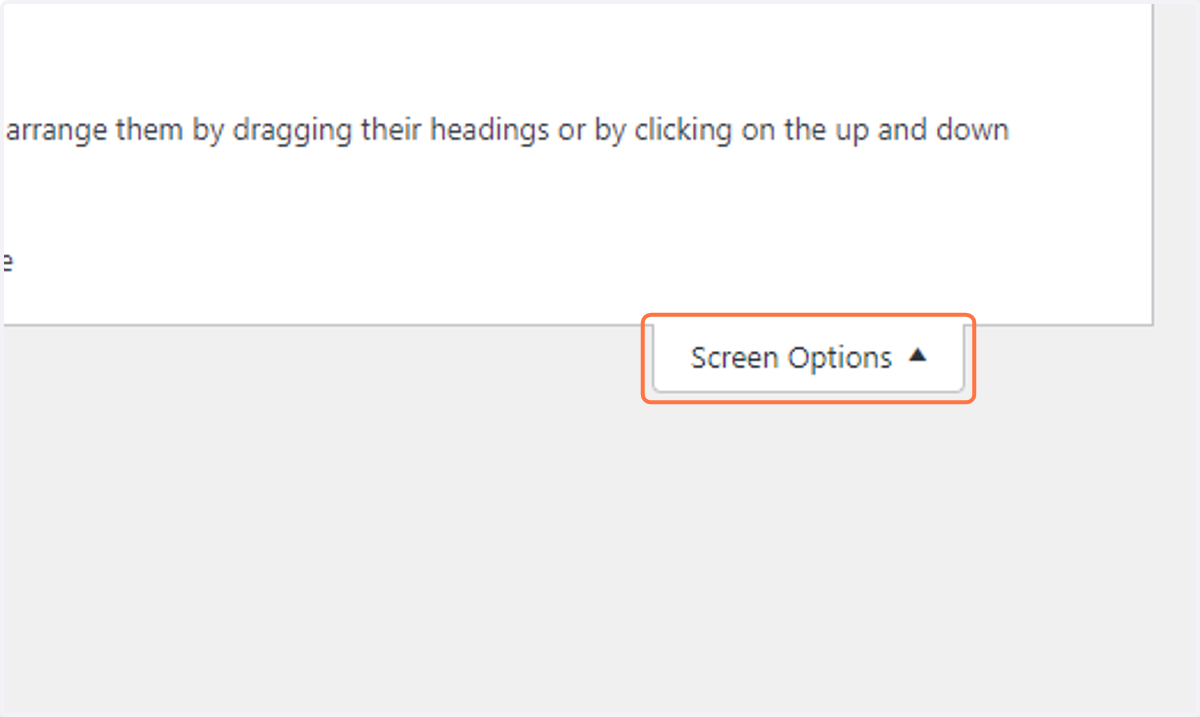
  8. 8. Click on Screen Options

    Click on Screen Options
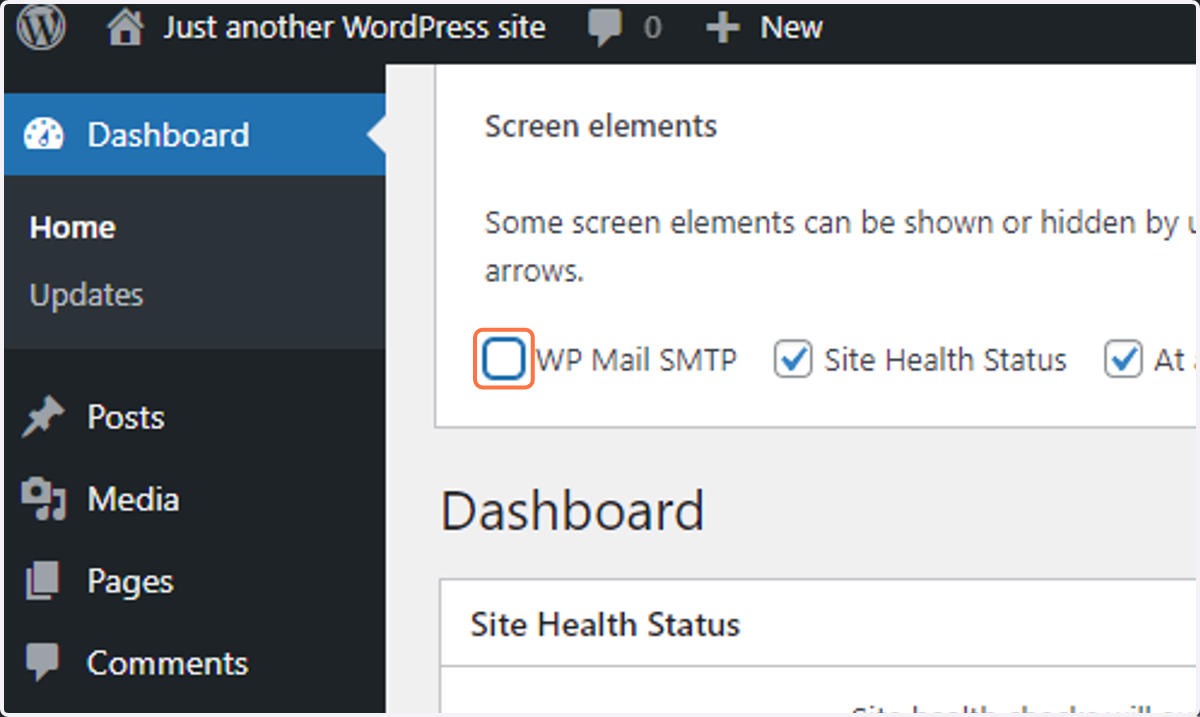
  9. 9. Uncheck WP Mail SMTP

    Uncheck WP Mail SMTP
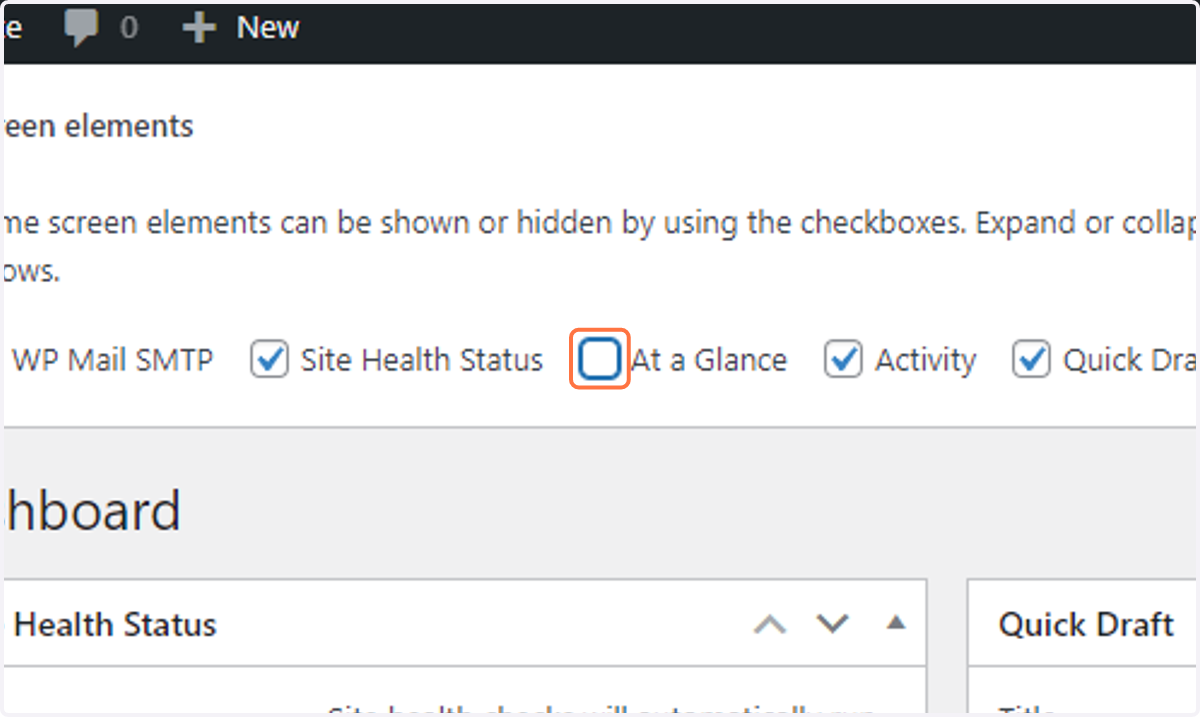
  10. 10. Uncheck At a Glance

    Uncheck At a Glance
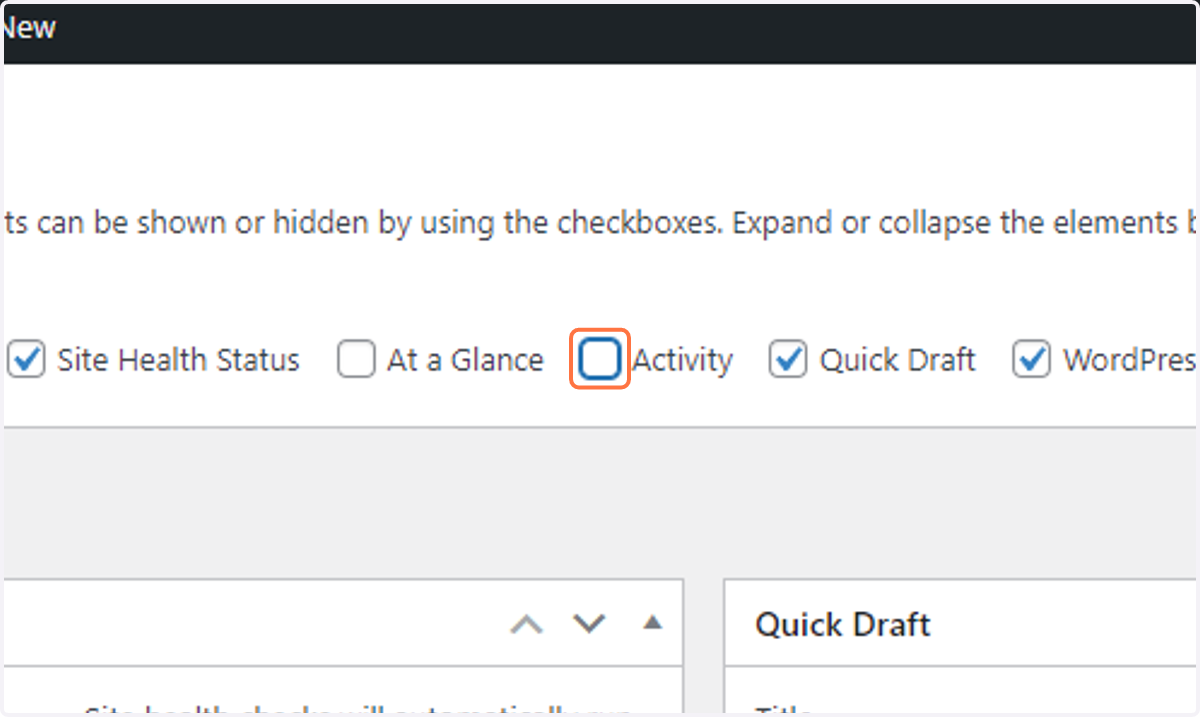
  11. 11. Uncheck Activity

    Uncheck Activity
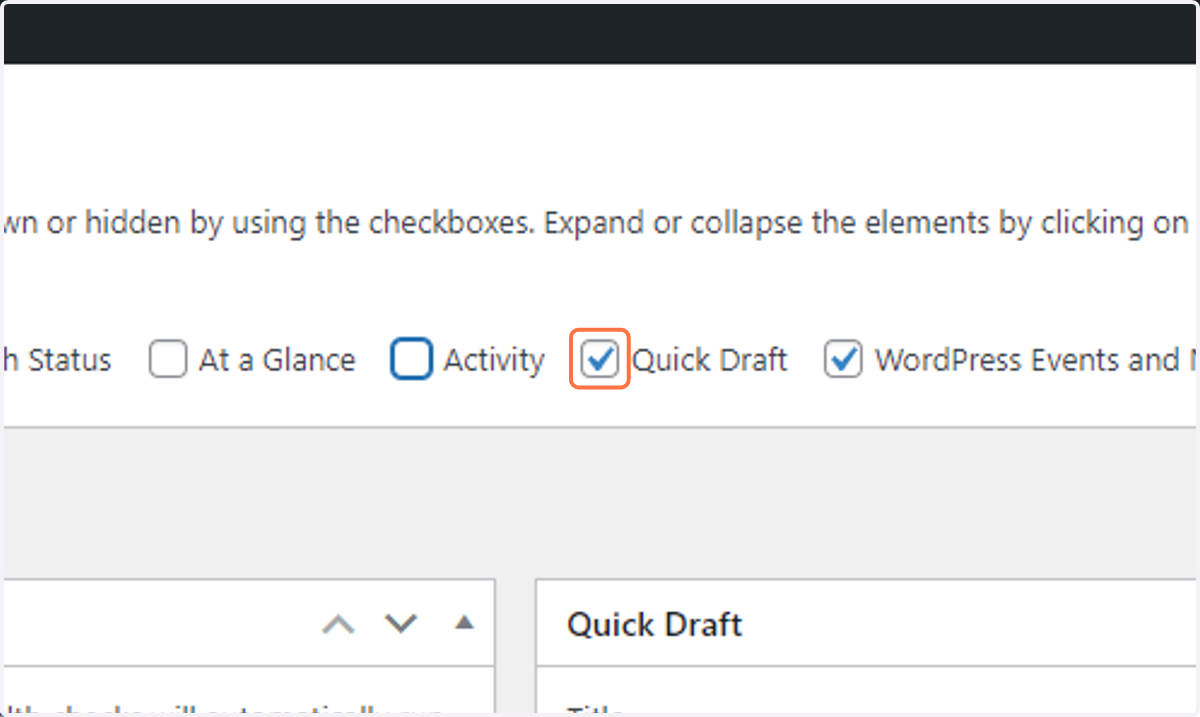
  12. 12. Uncheck Quick Draft

    Uncheck Quick Draft
  13. 13. Uncheck WordPress Events and News
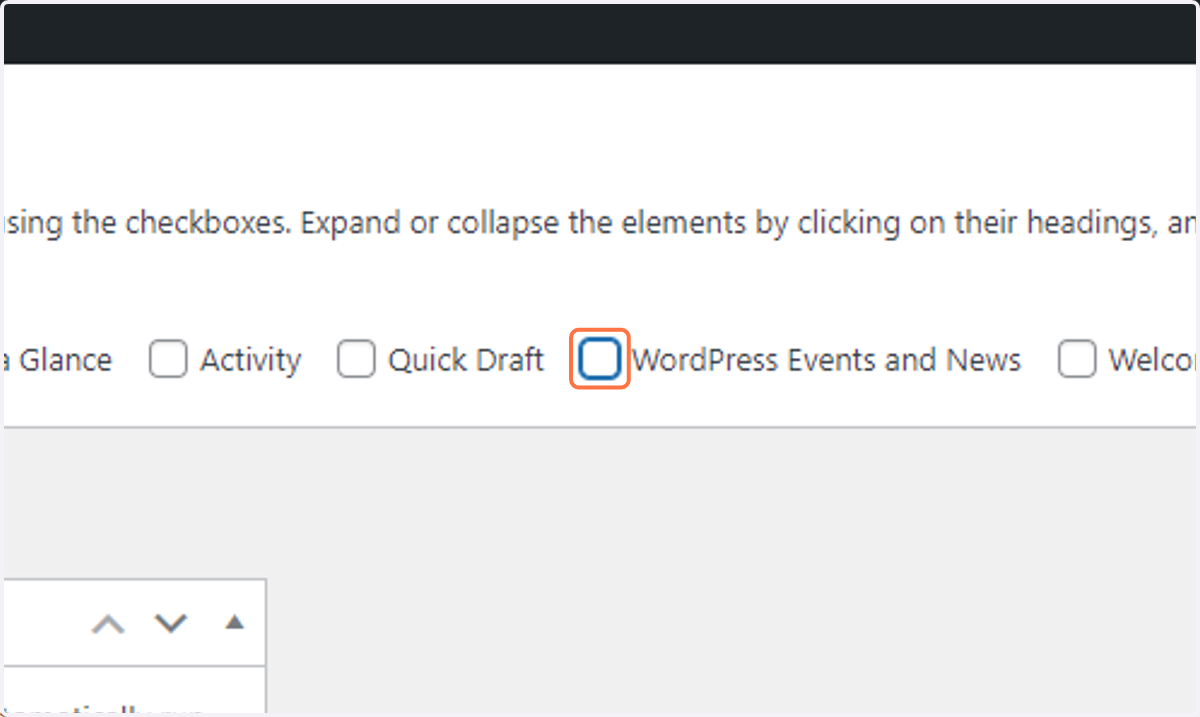
    Uncheck WordPress Events and News
  14. 14. Click on Screen Options

    Click on Screen Options
  15. 15. Click on "Posts" in the Main menu
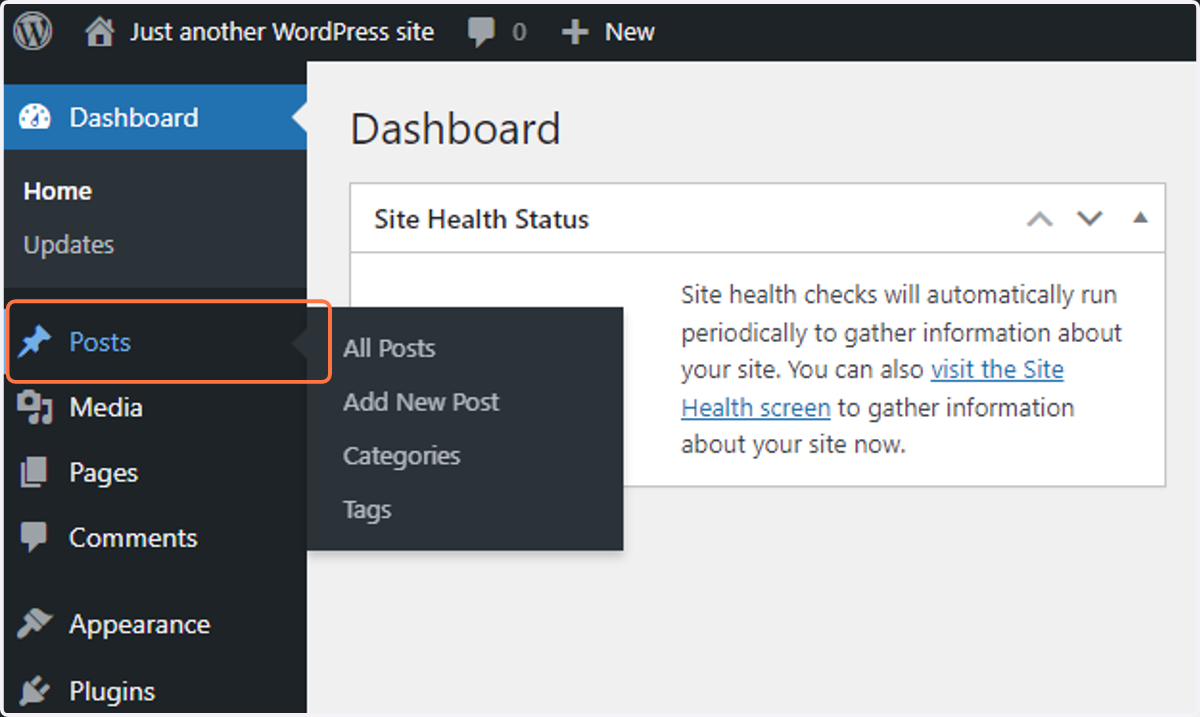
    Click on "Posts" in the Main menu
  16. 16. Click on Trash to delete existing posts
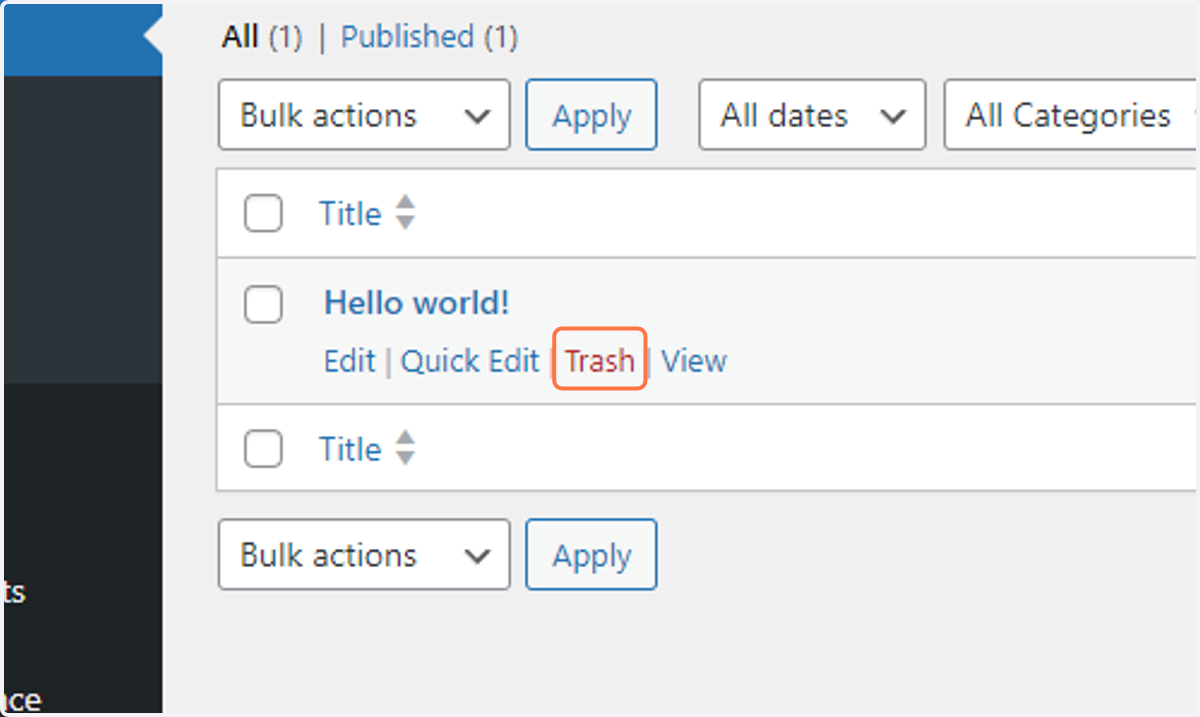
    Click on Trash to delete existing posts
  17. 17. Click on "Pages" in the Main menu
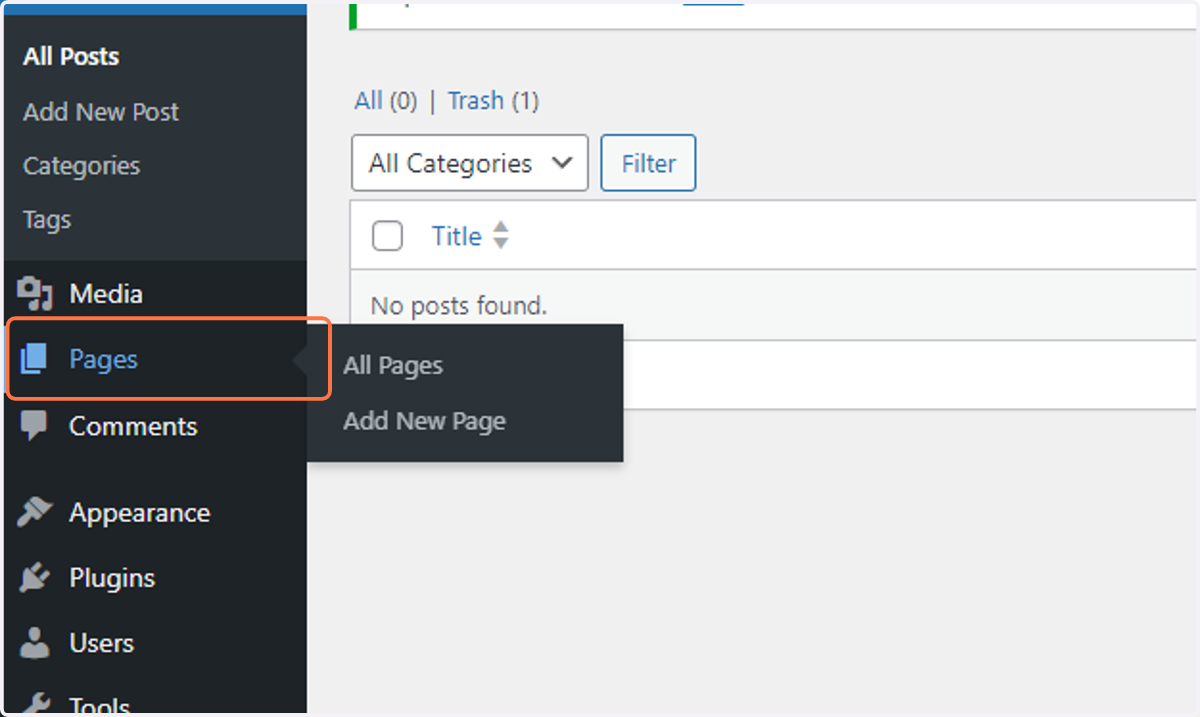
    Click on "Pages" in the Main menu
  18. 18. Click on Trash to delete the sample page
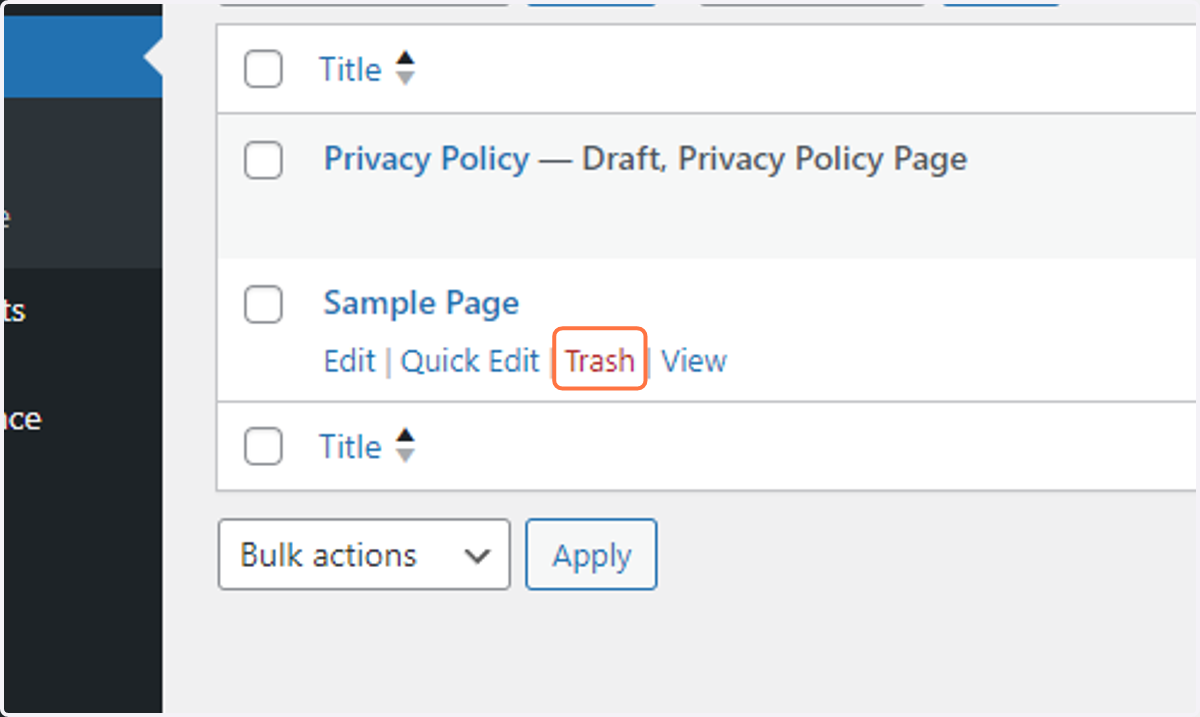
    Click on Trash to delete the sample page
  19. 19. Click on "Appearance" in the Main menu
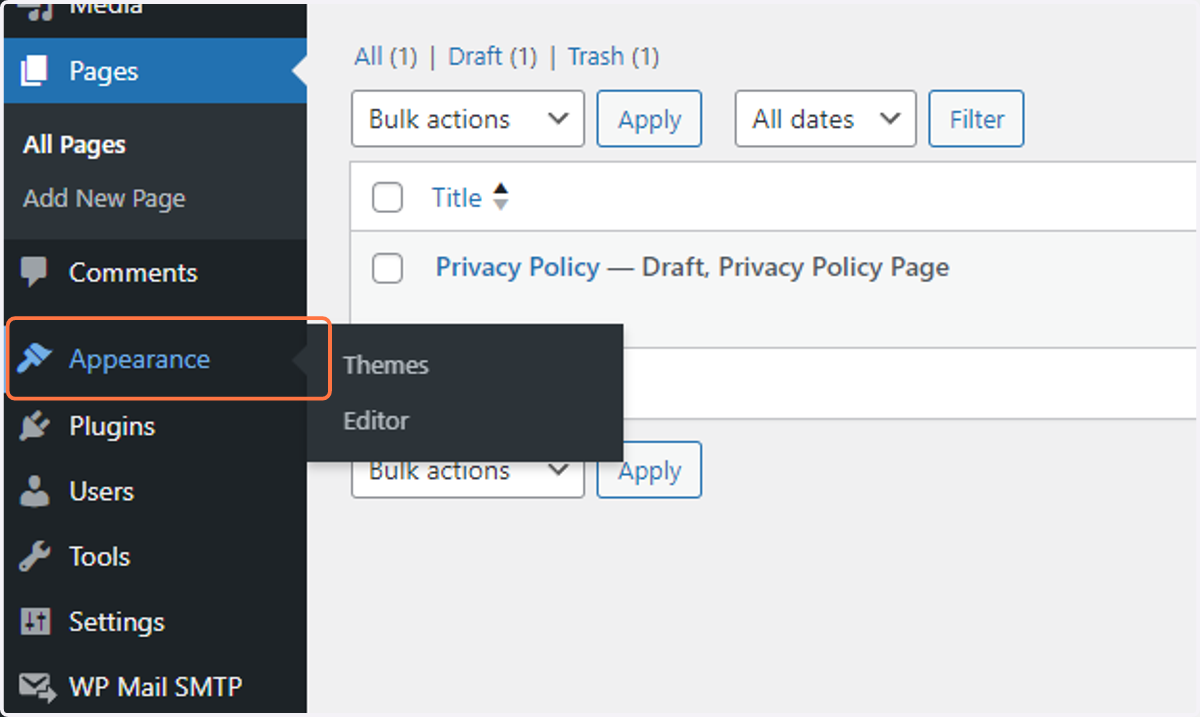
    Click on "Appearance" in the Main menu
  20. 20. Click on the image of one of the older themes
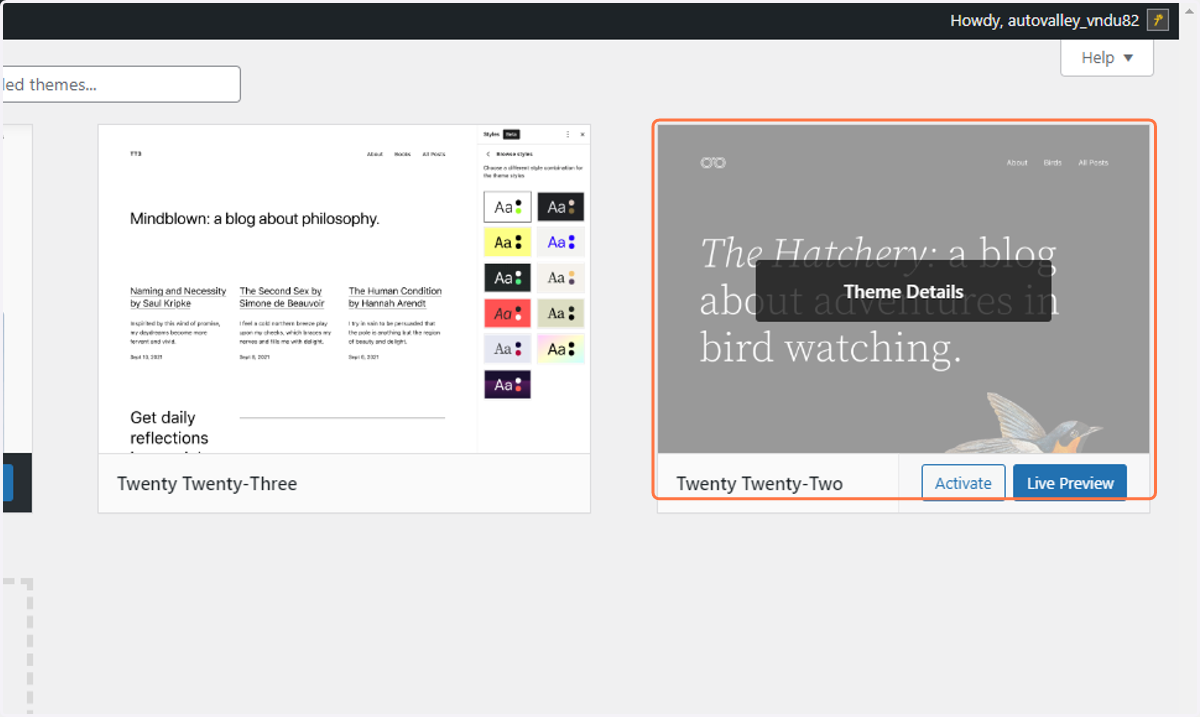
    Click on the image of one of the older themes
  21. 21. Click on Delete to remove the unnecessary theme
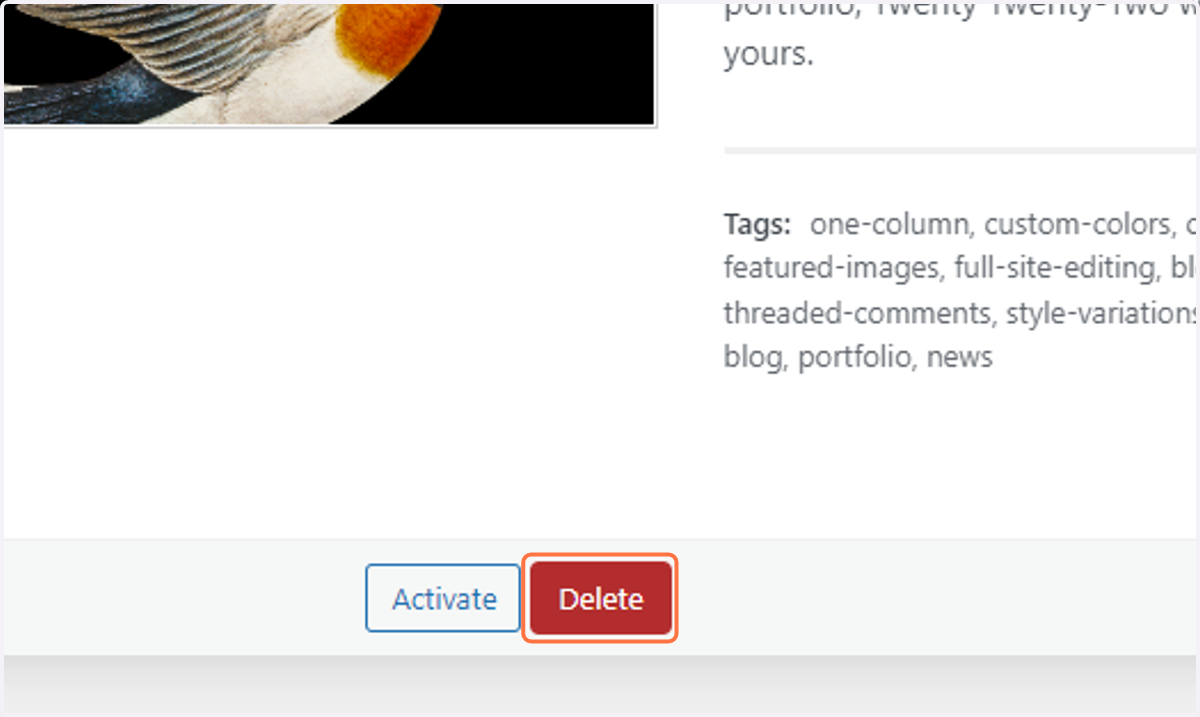
    Click on Delete to remove the unnecessary theme
  22. 22. Click on the image of the second oldest default theme
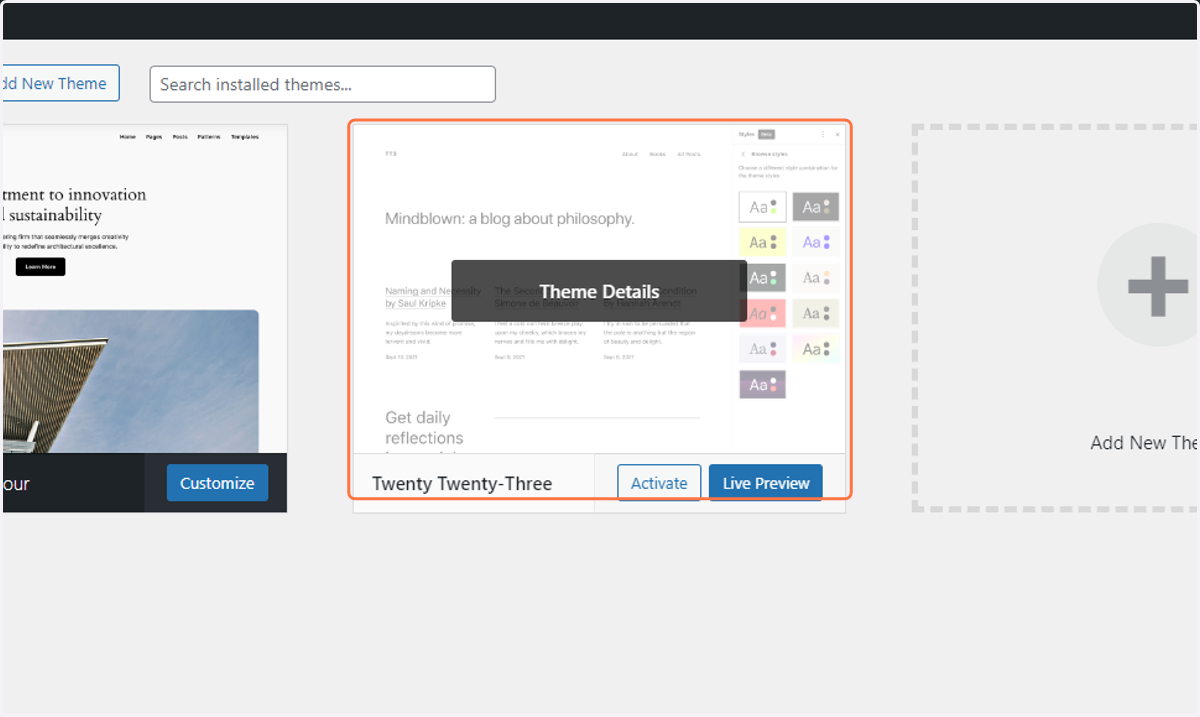
    Click on the image of the second oldest default theme
  23. 23. Click on Delete to remvoe this theme too
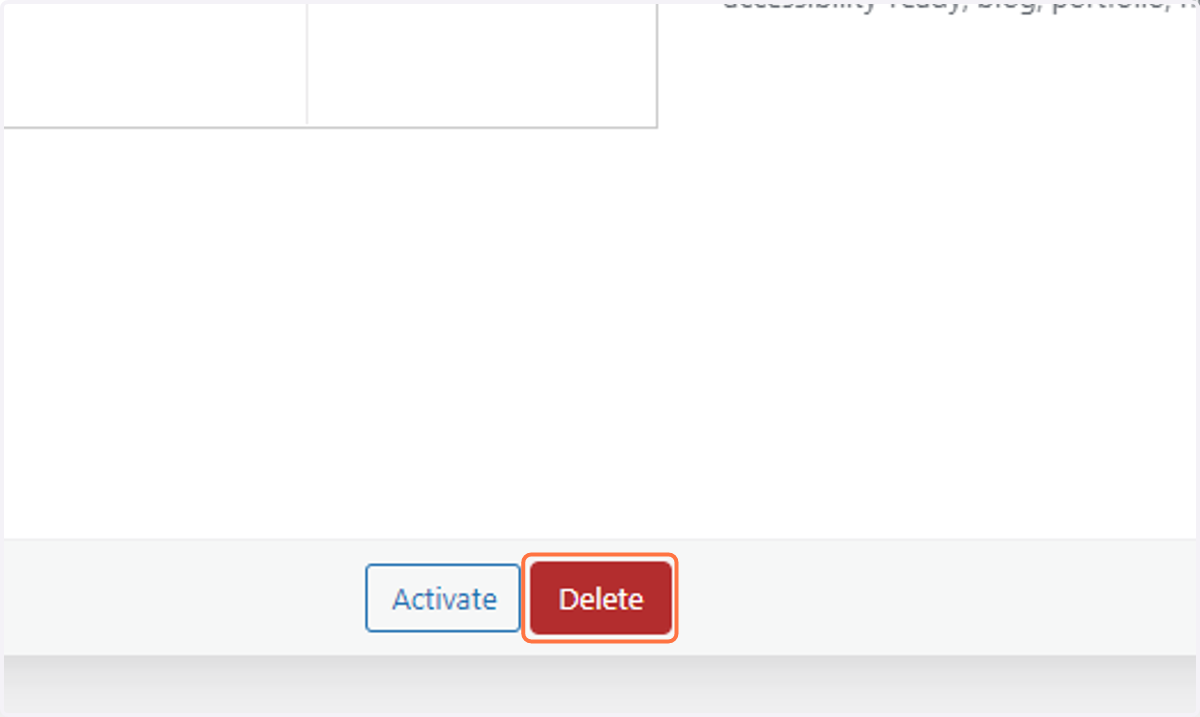
    Click on Delete to remvoe this theme too
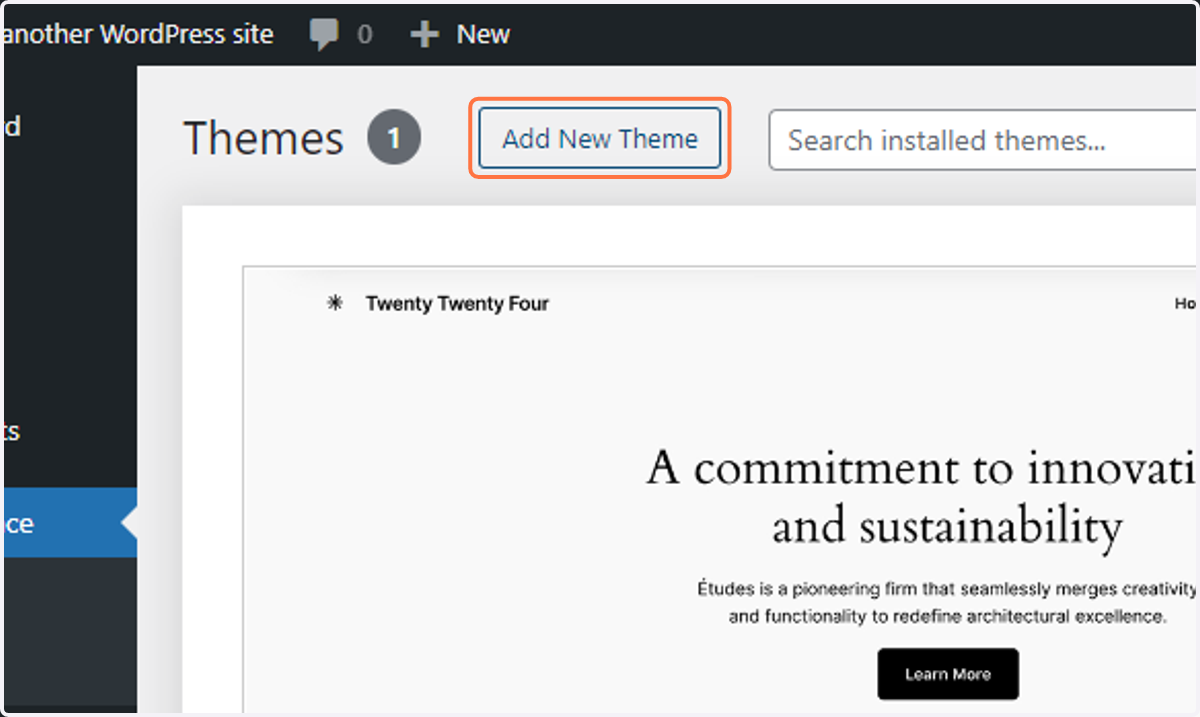
  24. 24. Click on Add New Theme

    Click on Add New Theme
  25. 25. Type "Customizr" in the search bar at the top right
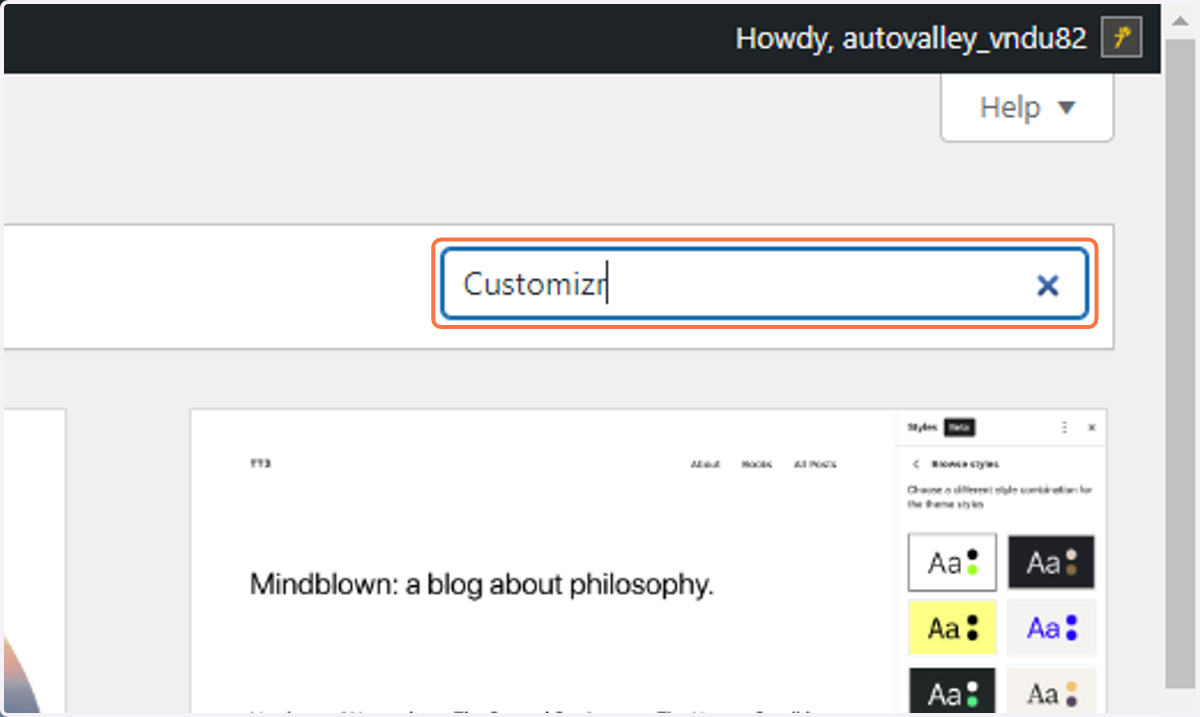
    Type "Customizr" in the search bar at the top right
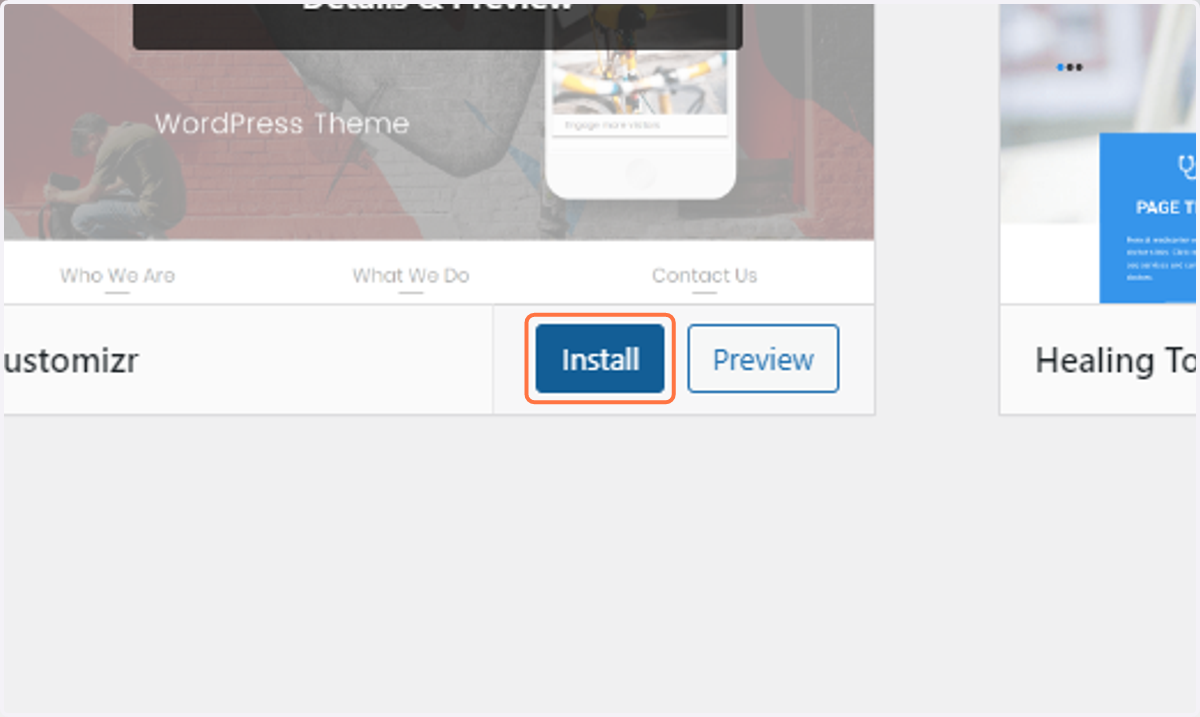
  26. 26. Click on Install

    Click on Install
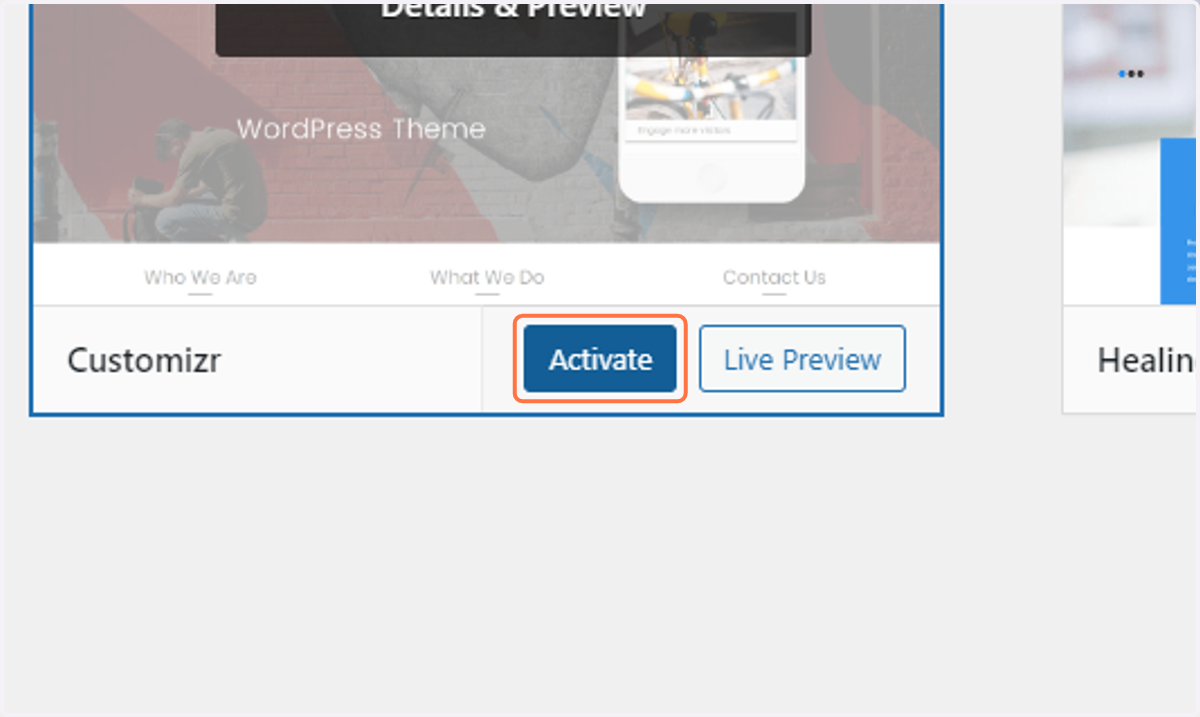
  27. 27. Click on Activate

    Click on Activate
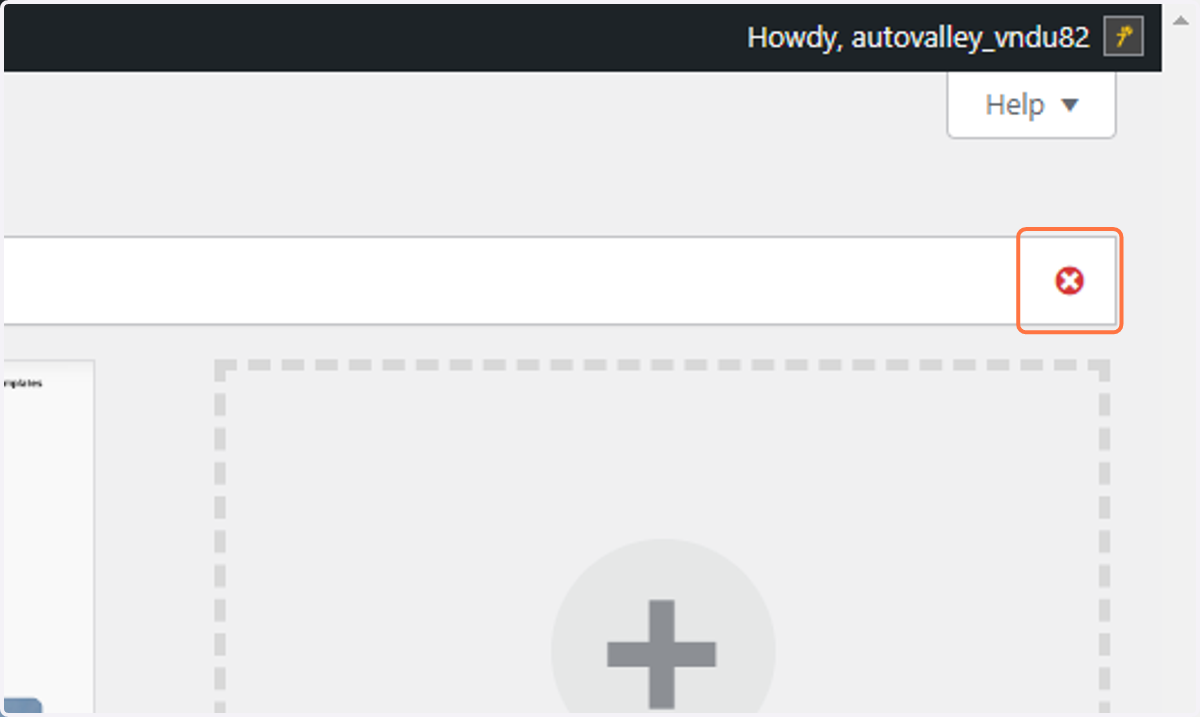
  28. 28. Click on Dismiss this notice.

    Click on Dismiss this notice.
  29. 29. Click on "Plugins" in the Main menu
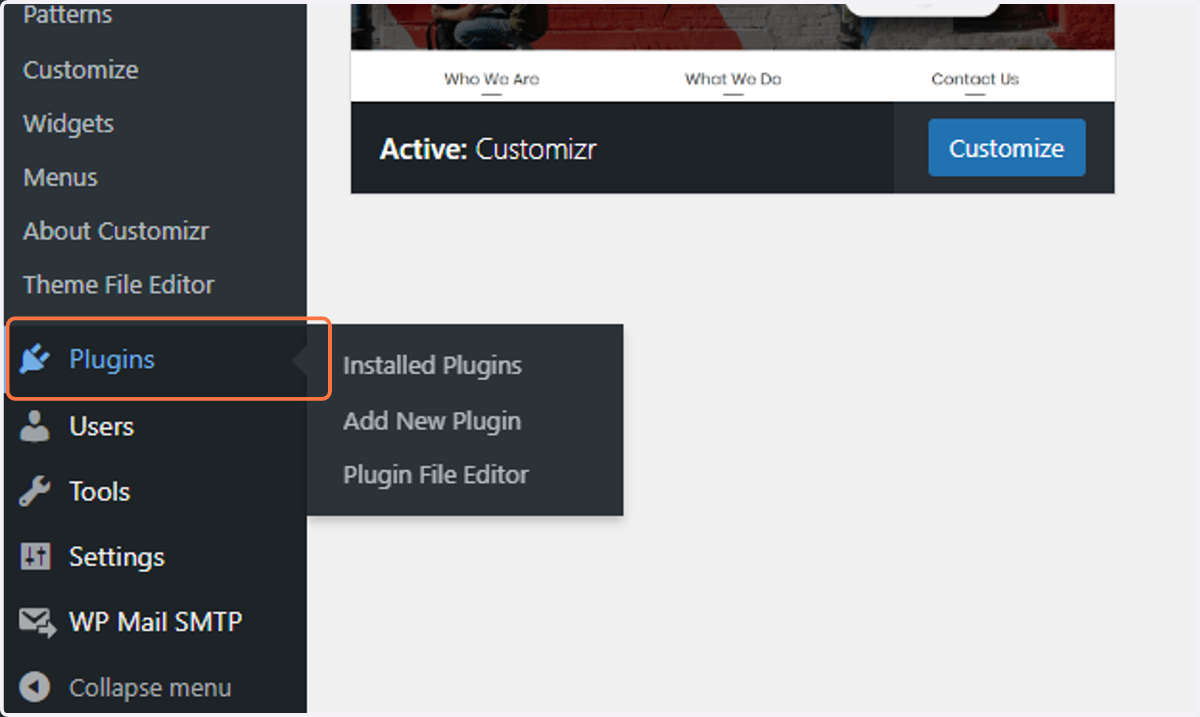
    Click on "Plugins" in the Main menu
  30. 30. Click on Delete to remove the unnecessary plugins
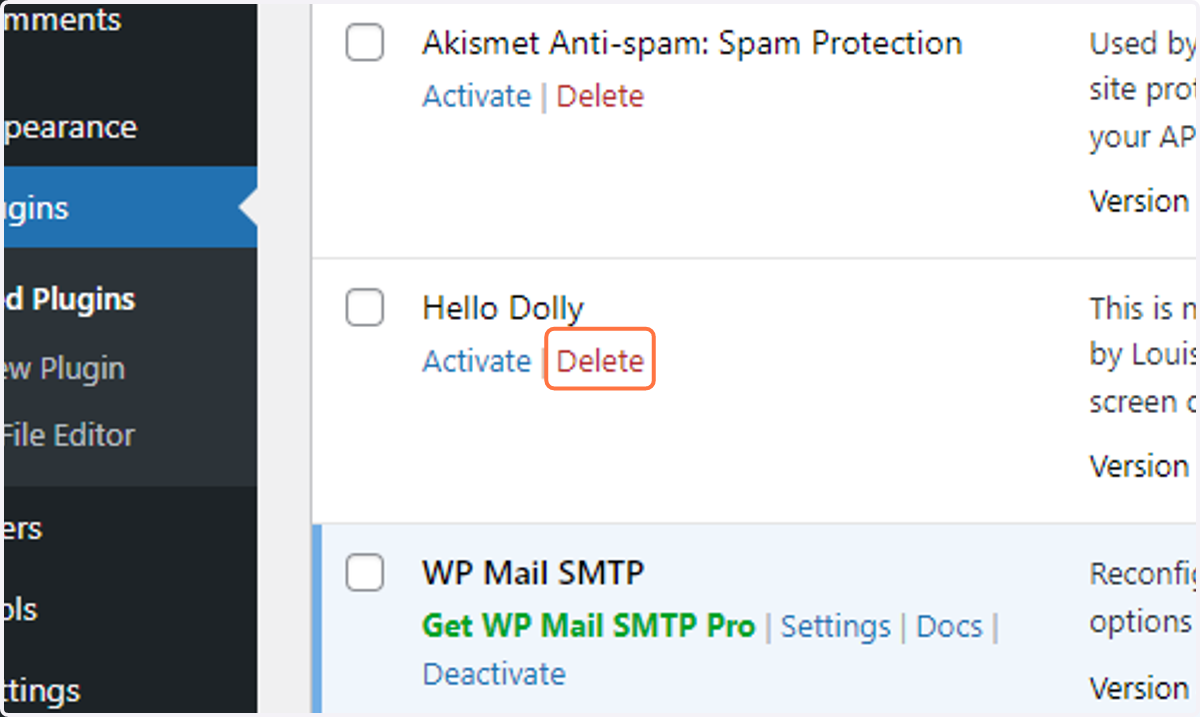
    Click on Delete to remove the unnecessary plugins
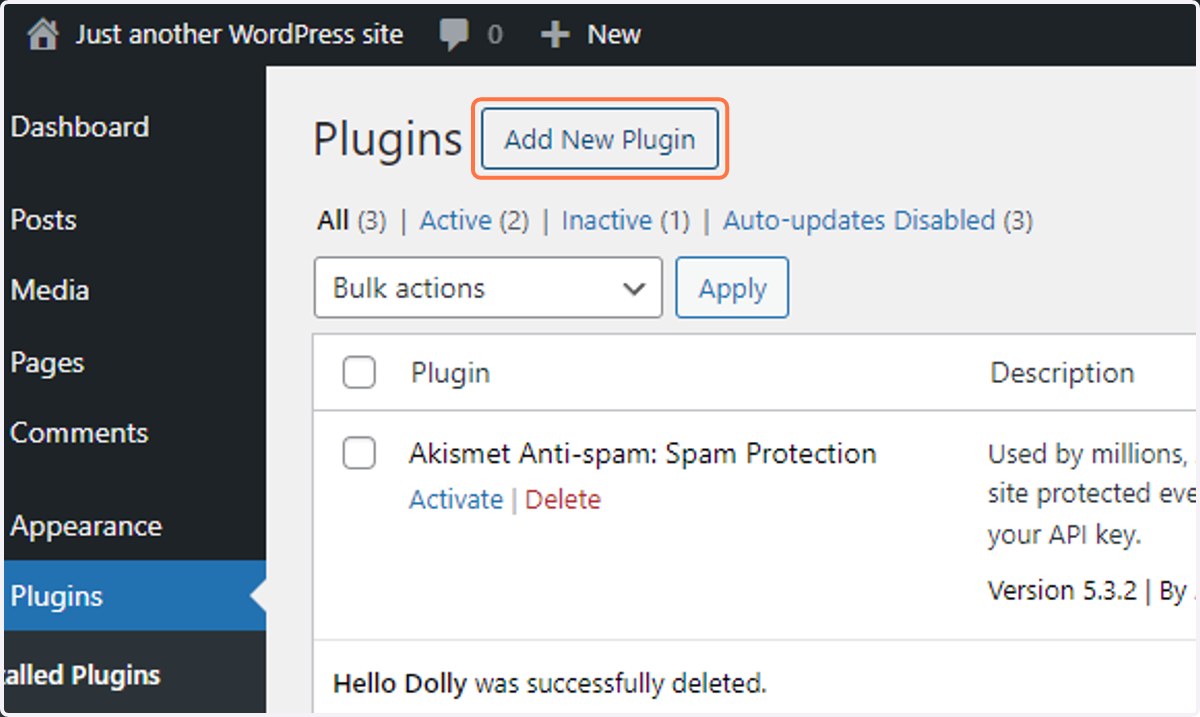
  31. 31. Click on Add New Plugin

    Click on Add New Plugin
  32. 32. Locate this plugin and click on Install Now
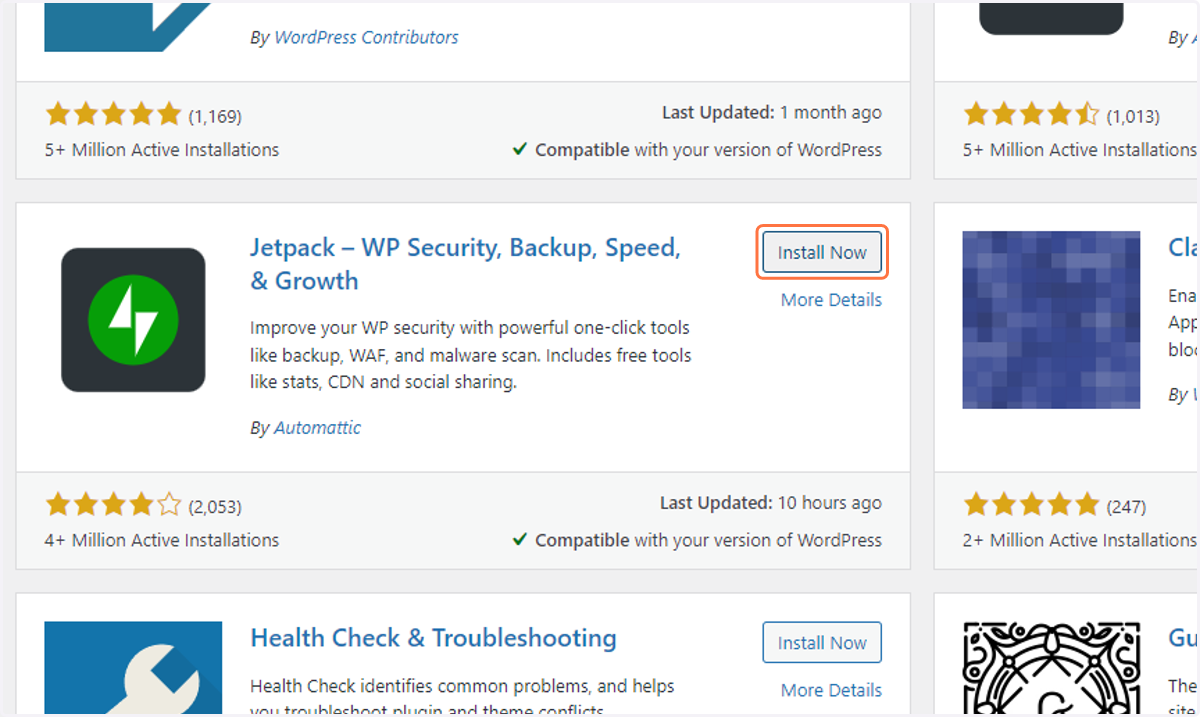
    Locate this plugin and click on Install Now
  33. 33. In the search bar on the top right of the screen Type "elementor"
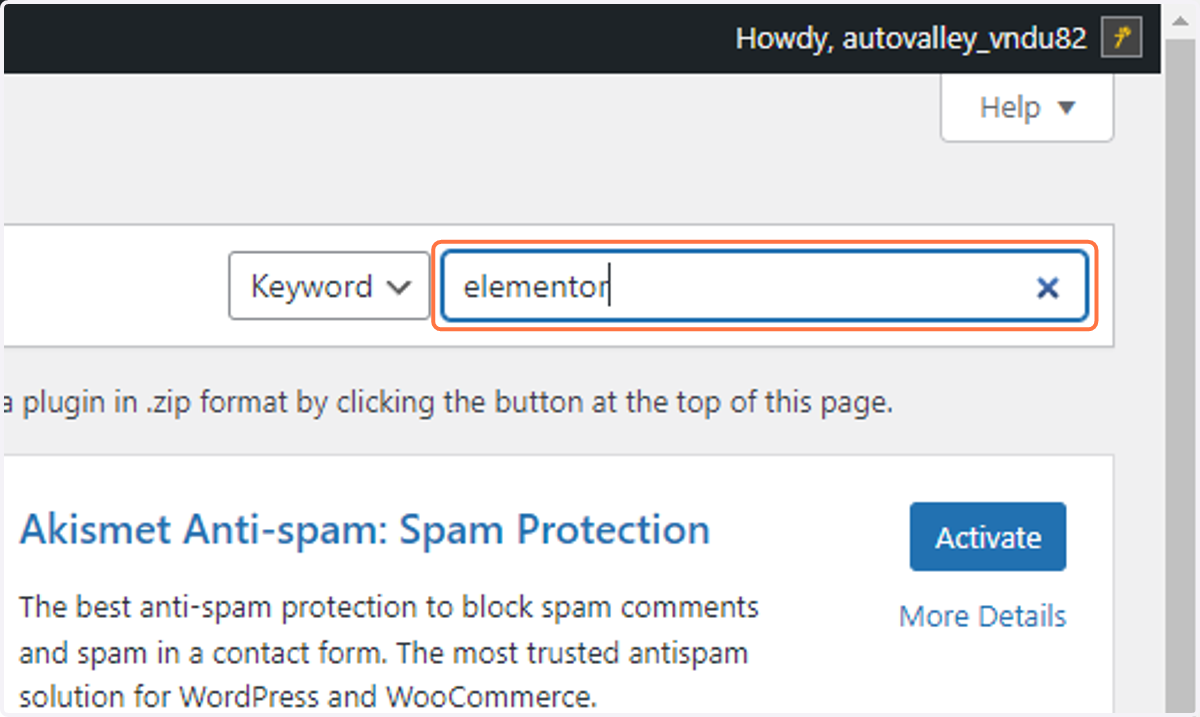
    In the search bar on the top right of the screen Type "elementor"
  34. 34. Locate this plugin and Click on Install Now
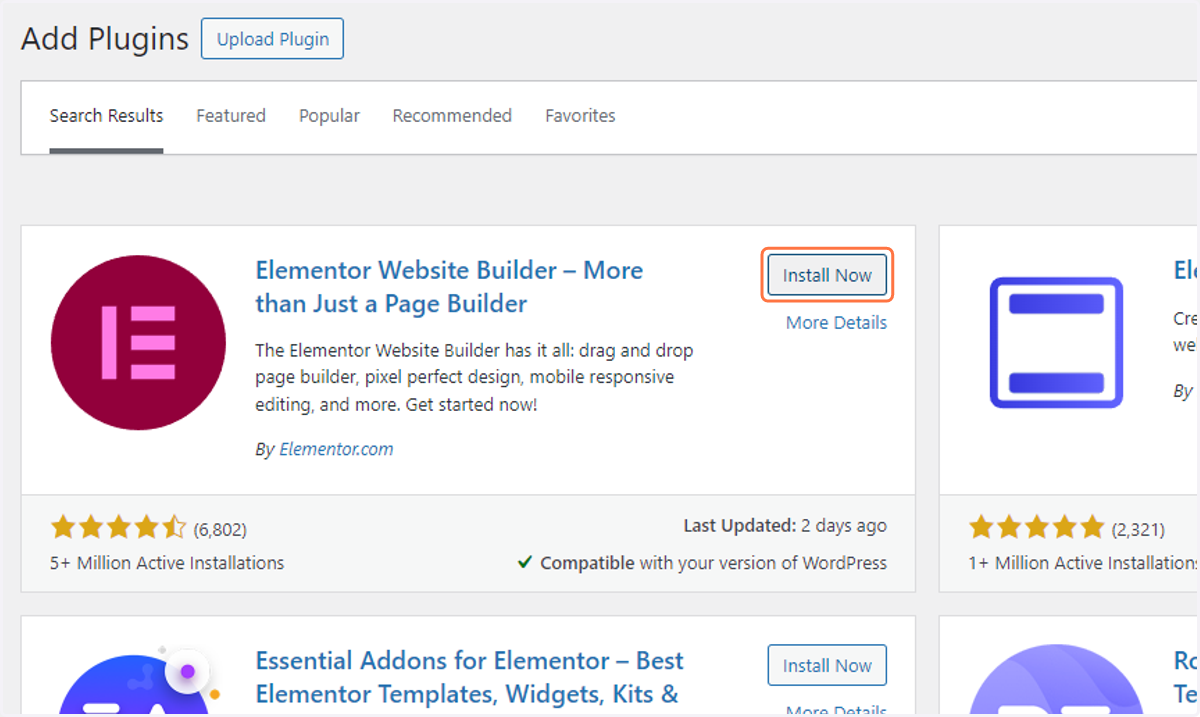
    Locate this plugin and Click on Install Now
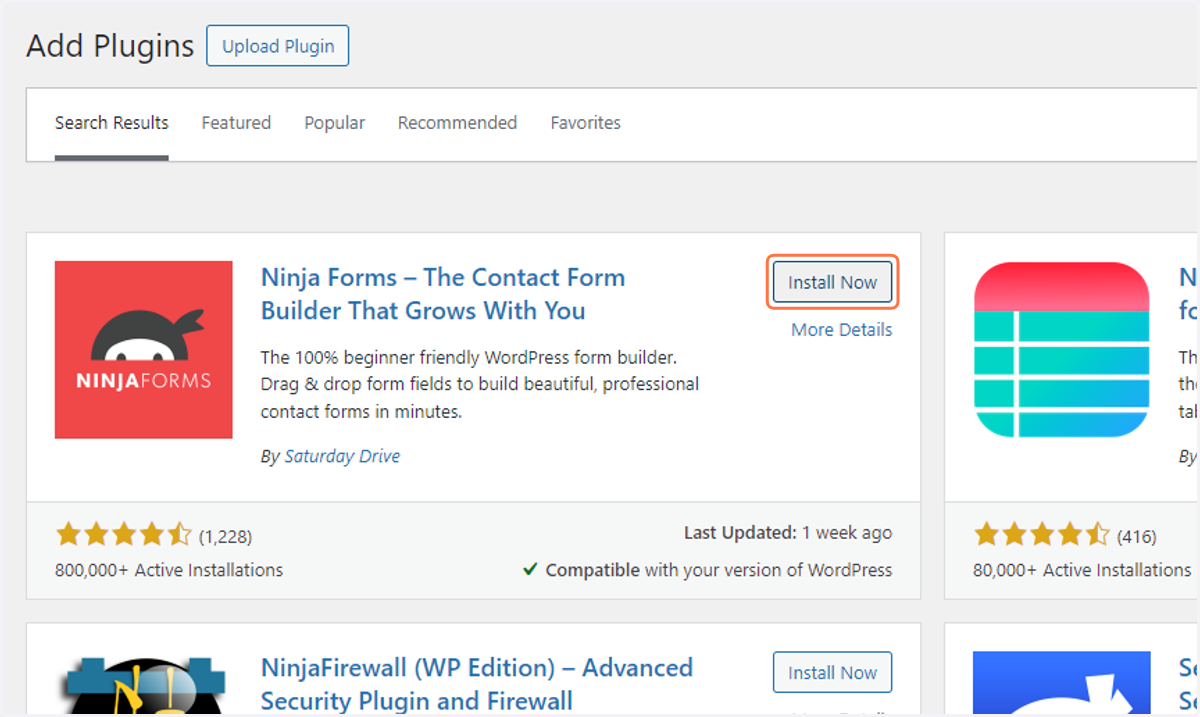
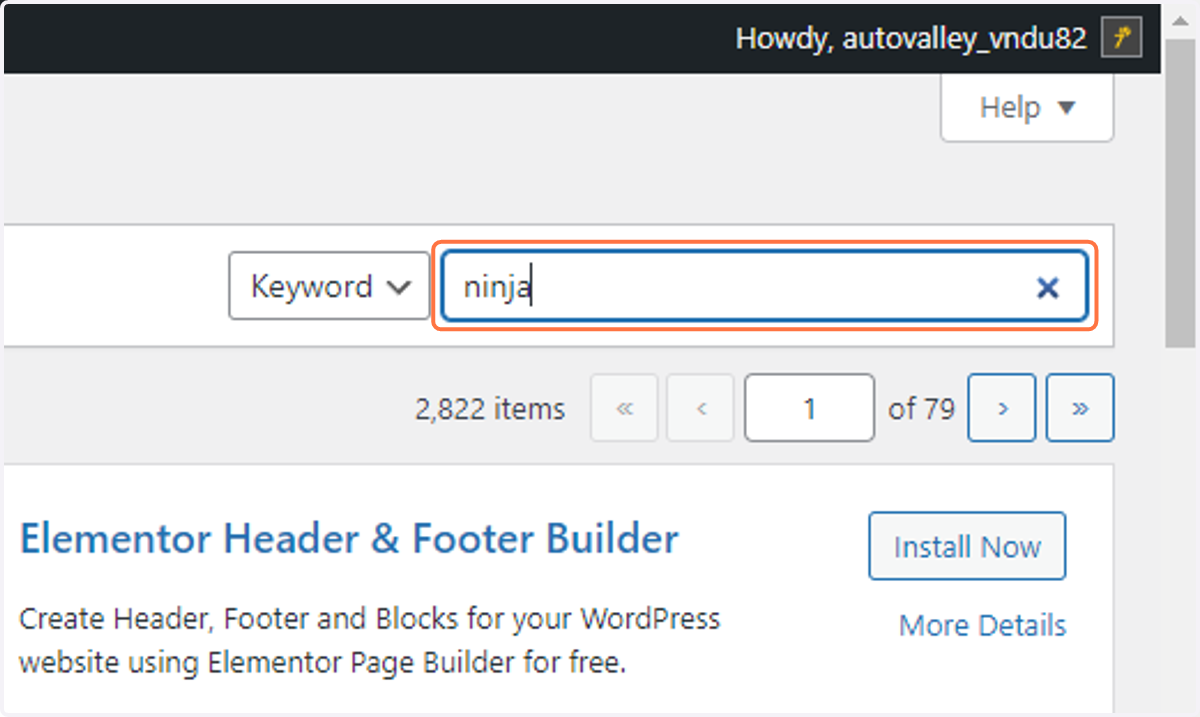
  35. 35. In the search bar type "ninja"

    In the search bar type "ninja"
  36. 36. Locate this plugin and Click on Install Now

    Locate this plugin and Click on Install Now
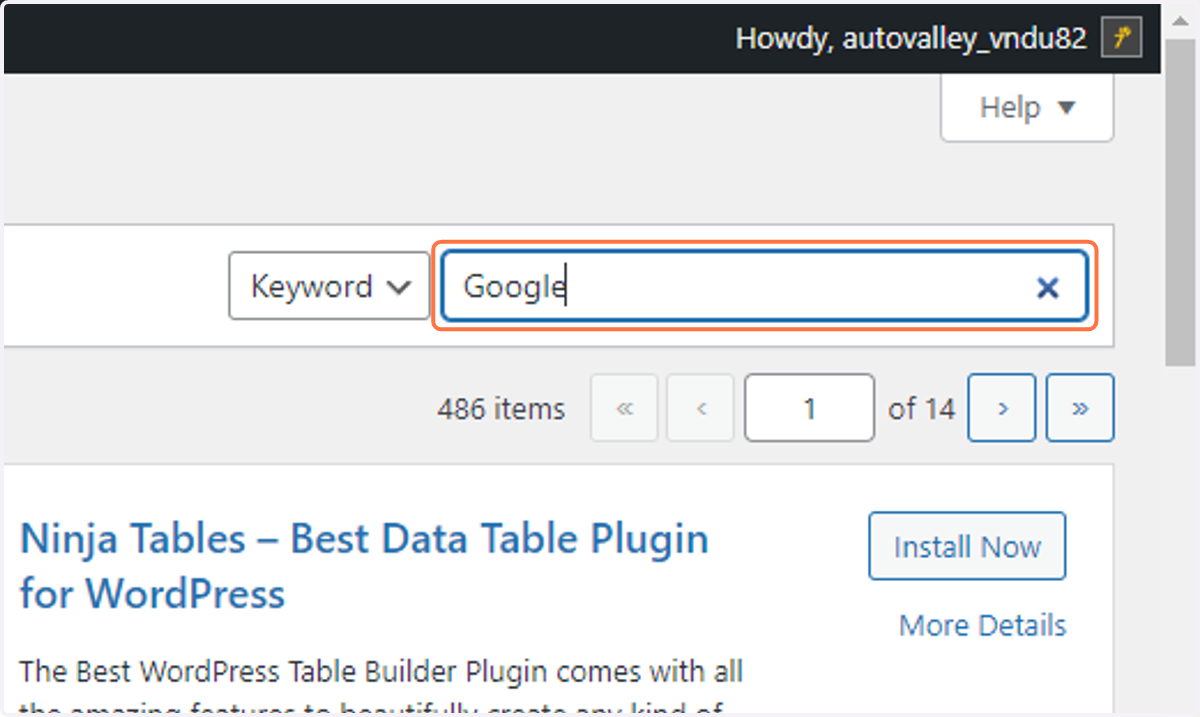
  37. 37. In the search bar type "Google"

    In the search bar type "Google"
  38. 38. Locate this plugin and click on Install Now
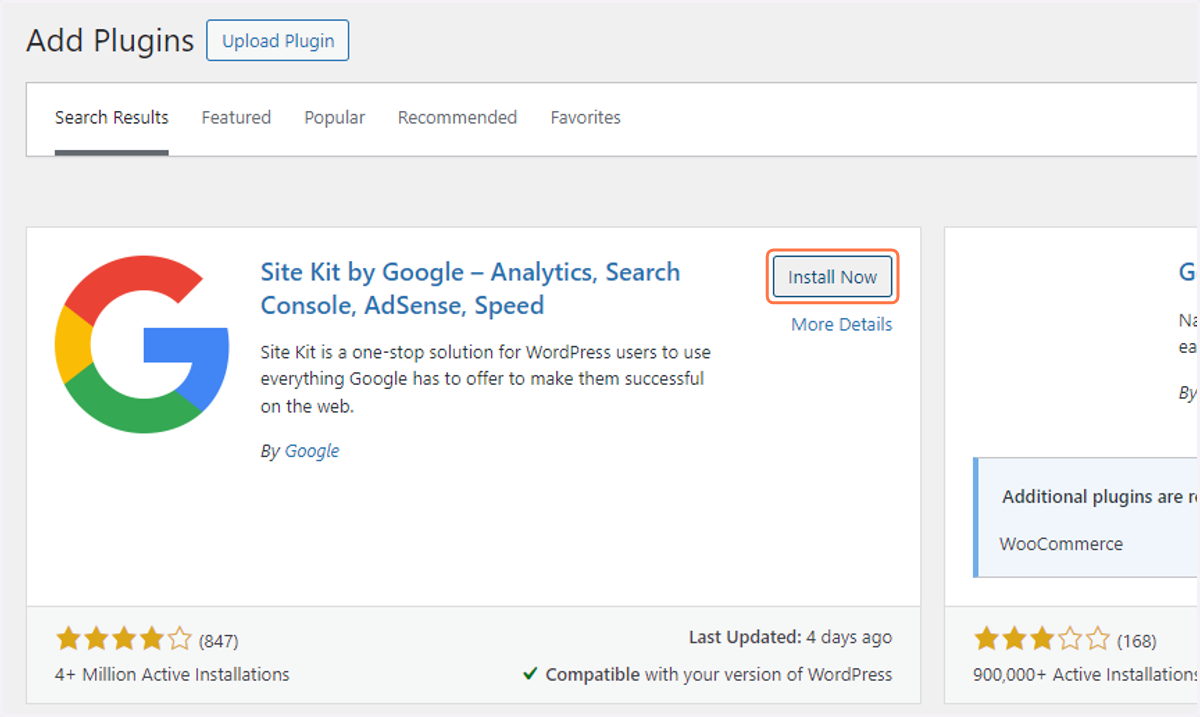
    Locate this plugin and click on Install Now
  39. 39. In the search bar type "Hide Admin Bar" into input
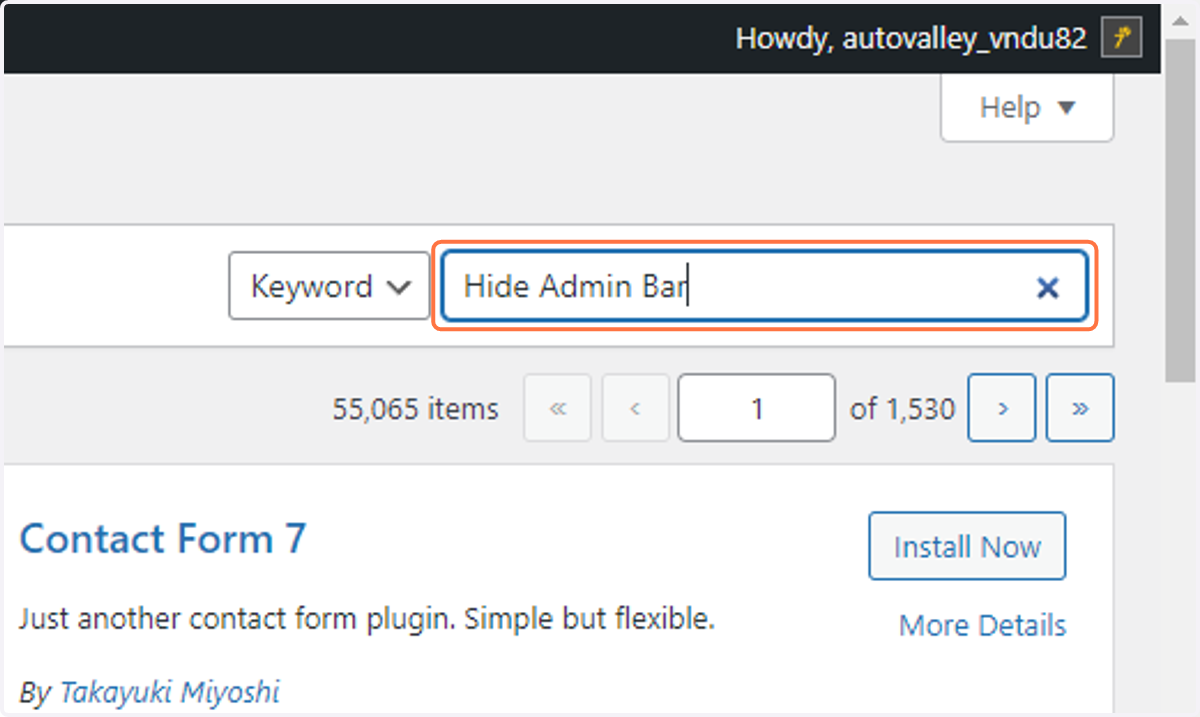
    In the search bar type "Hide Admin Bar" into input
  40. 40. Locate this plugin and click on Install Now
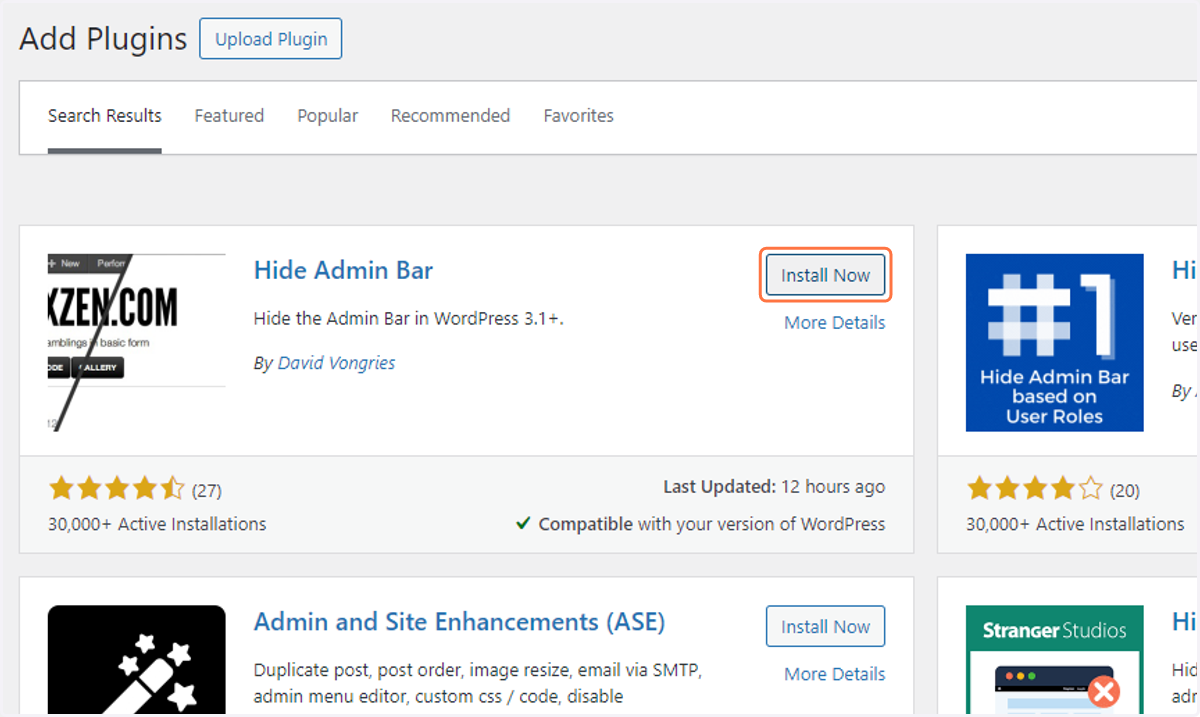
    Locate this plugin and click on Install Now
  41. 41. In the search bar type "snippets"
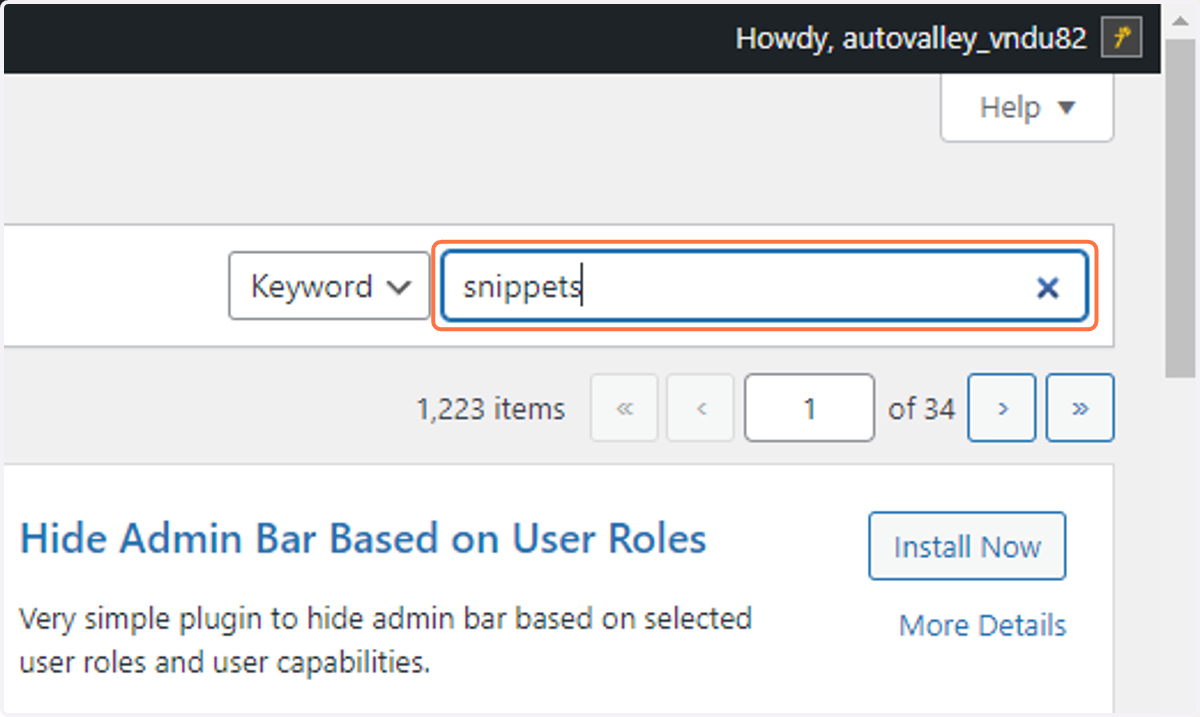
    In the search bar type "snippets"
  42. 42. Locate this plugin and click on Install Now
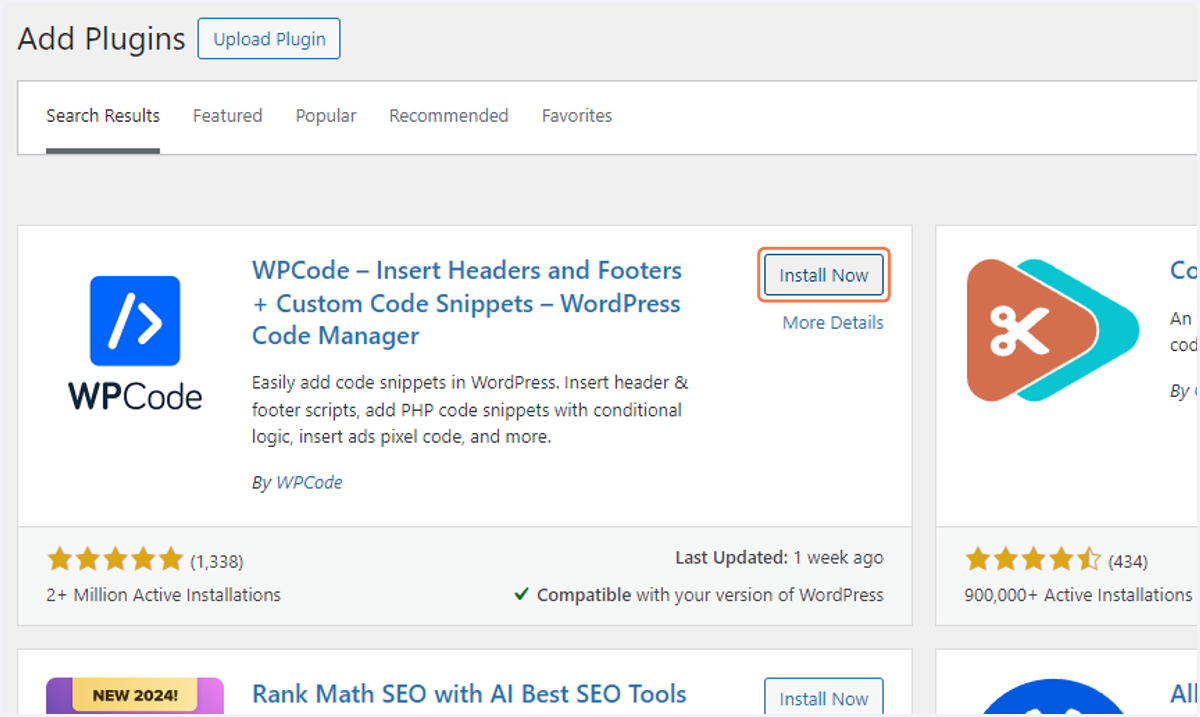
    Locate this plugin and click on Install Now
  43. 43. In the search bar type "Meta pixel"
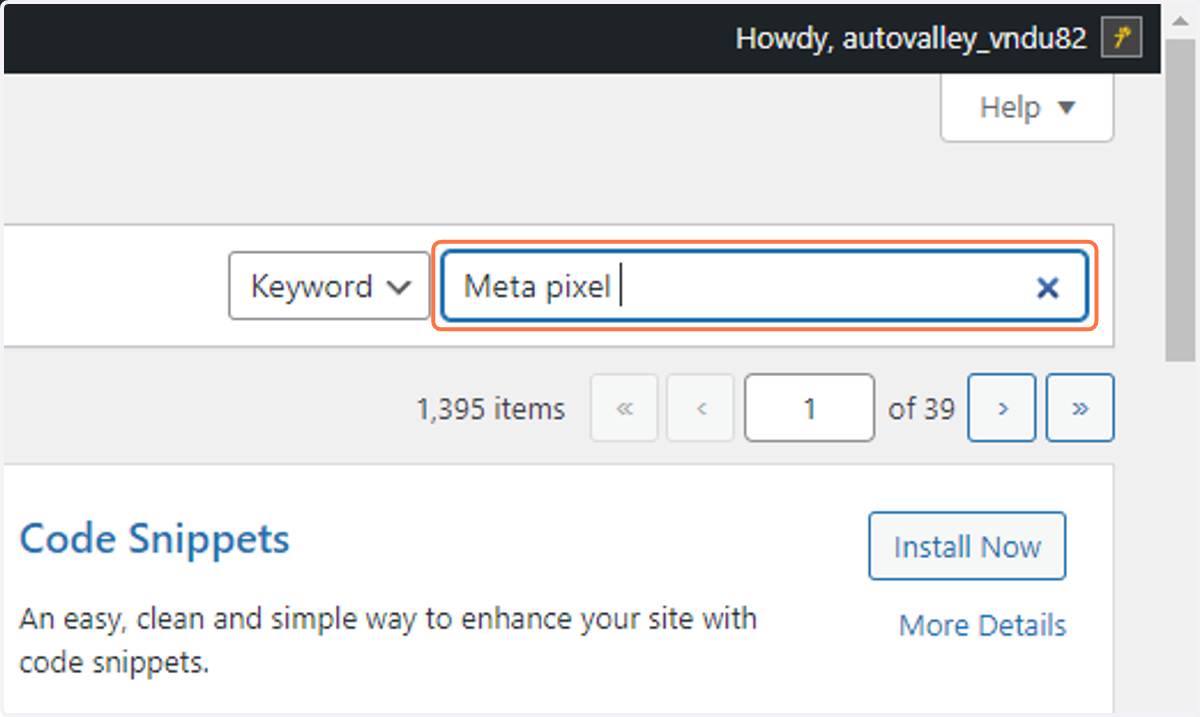
    In the search bar type "Meta pixel"
  44. 44. Locate this plugin and click on Install Now
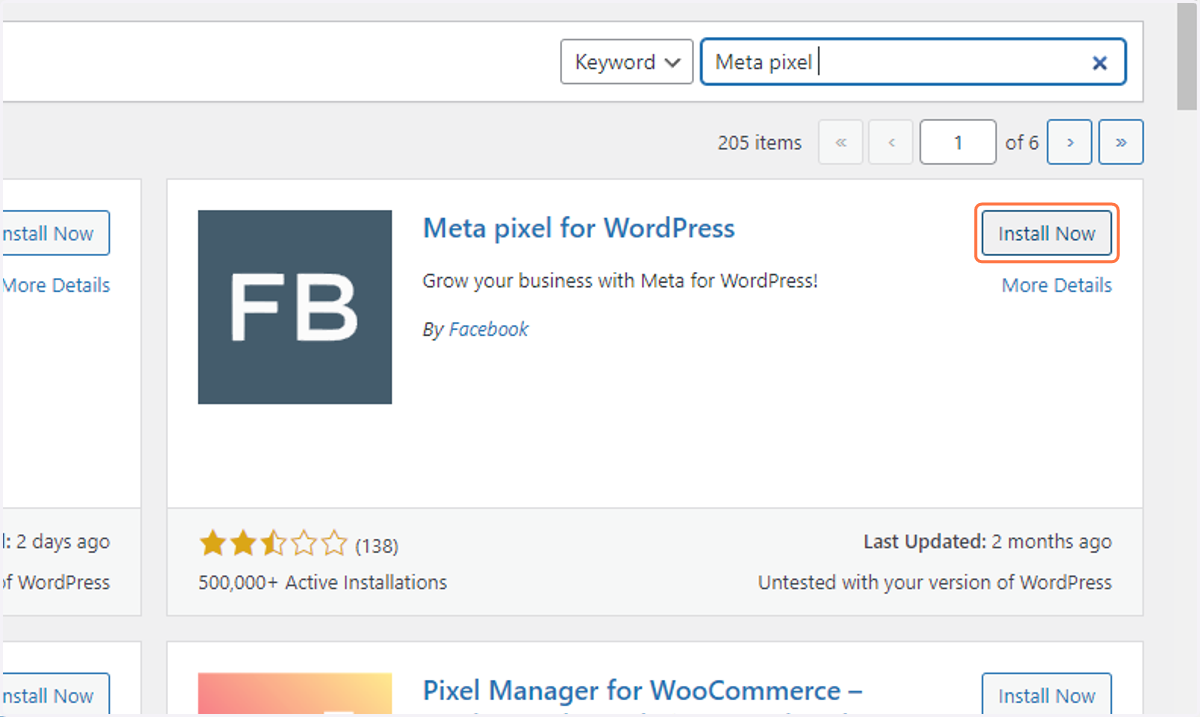
    Locate this plugin and click on Install Now
  45. 45. In the search bar type "Redirection"
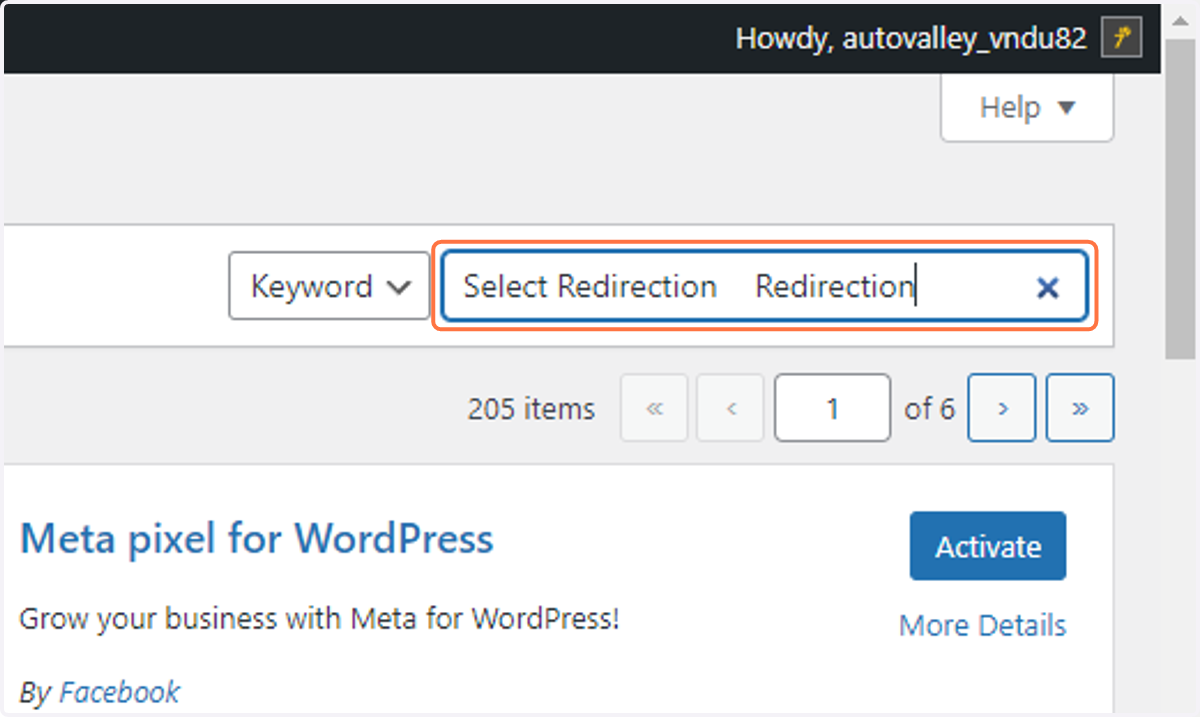
    In the search bar type "Redirection"
  46. 46. Locate this plugin and click on Install Now
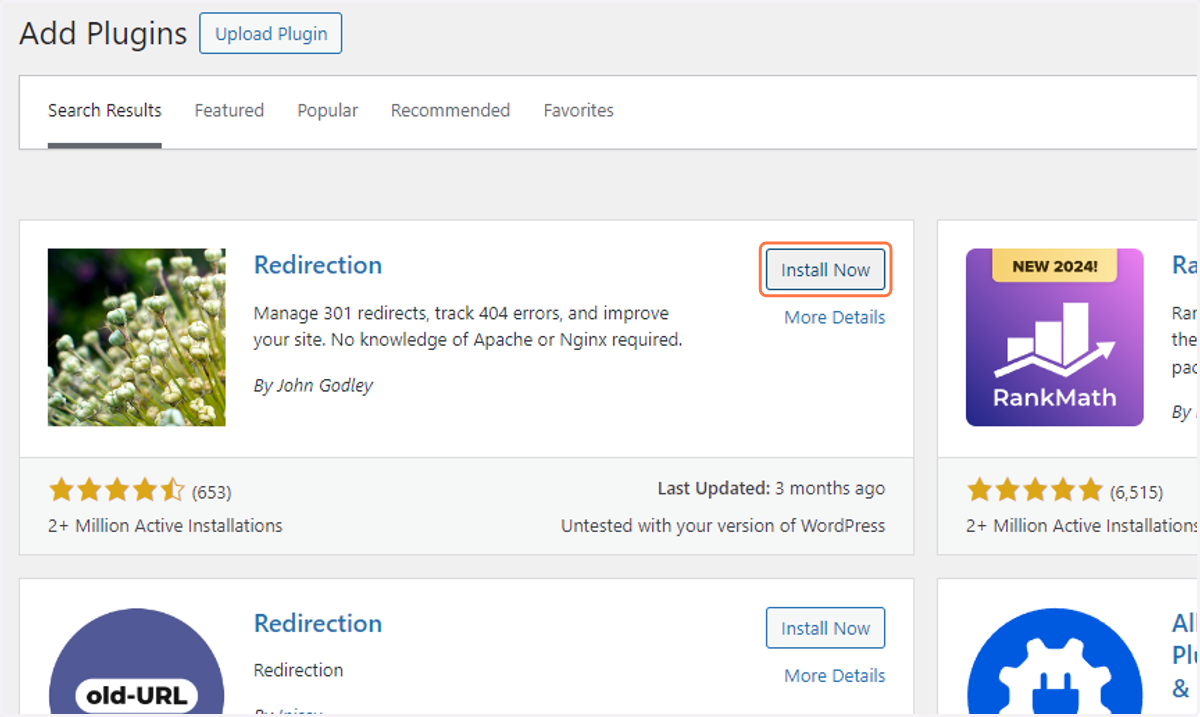
    Locate this plugin and click on Install Now
  47. 47. In the search bar type "Woocommerce"
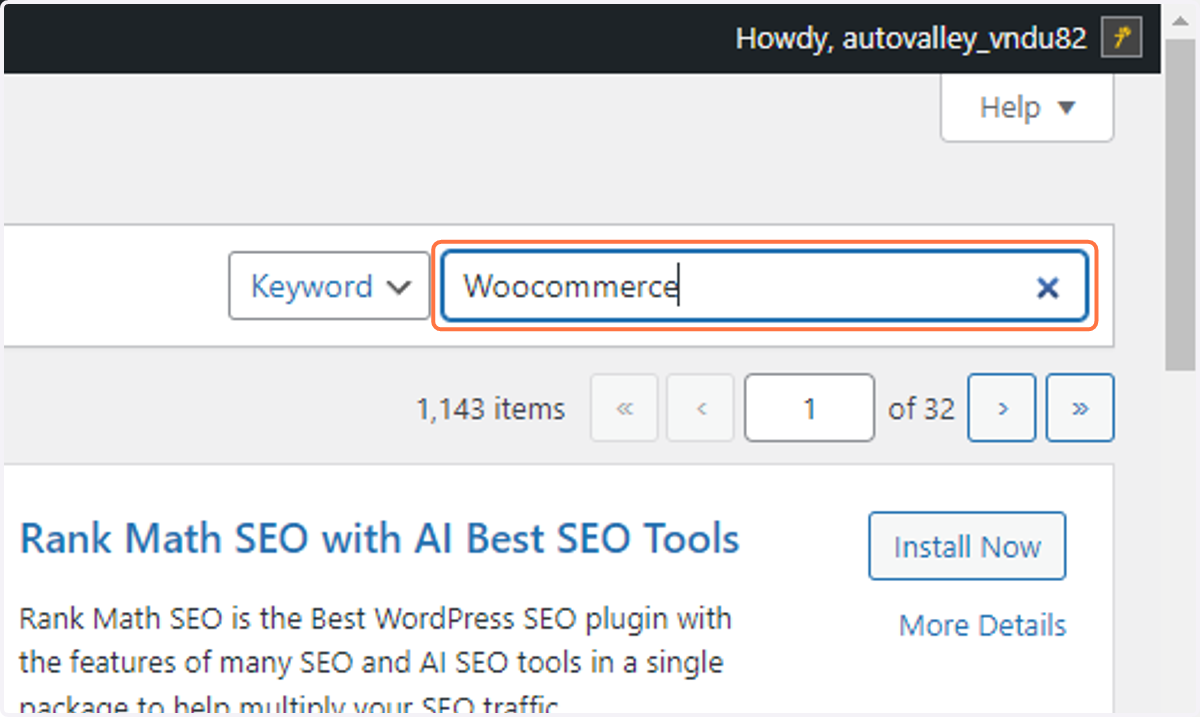
    In the search bar type "Woocommerce"
  48. 48. Locate this plugin and click on Install Now
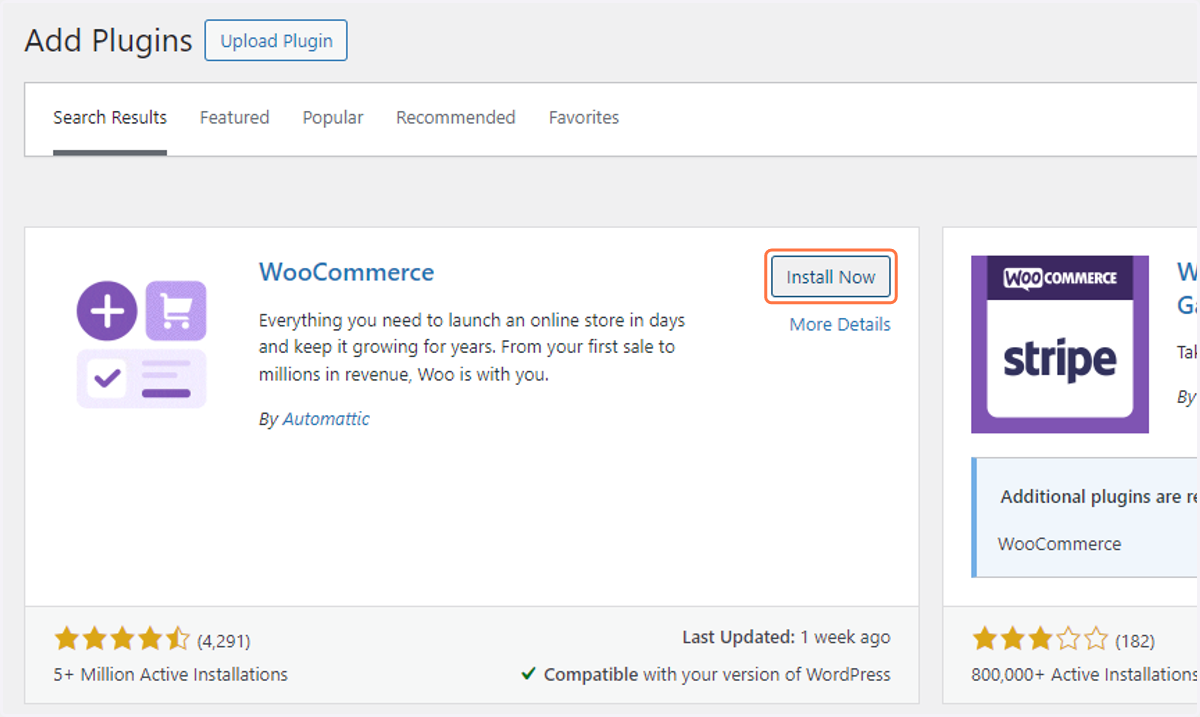
    Locate this plugin and click on Install Now
  49. 49. Click on "Users" in the Main menu
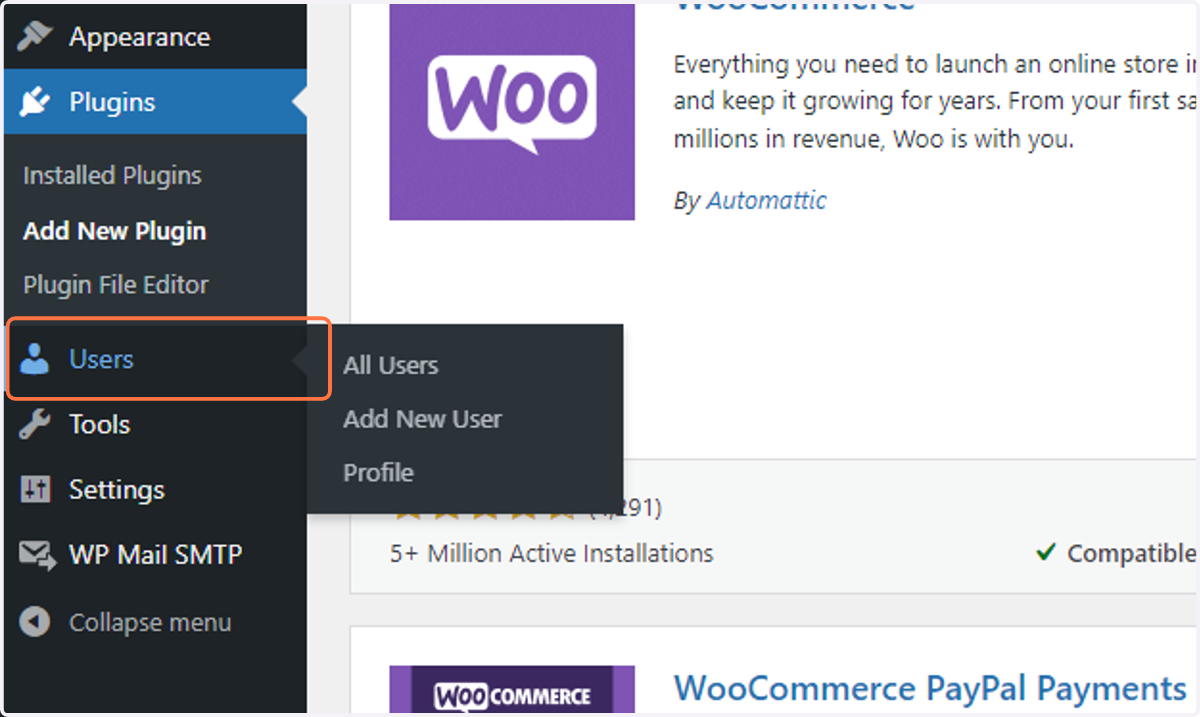
    Click on "Users" in the Main menu
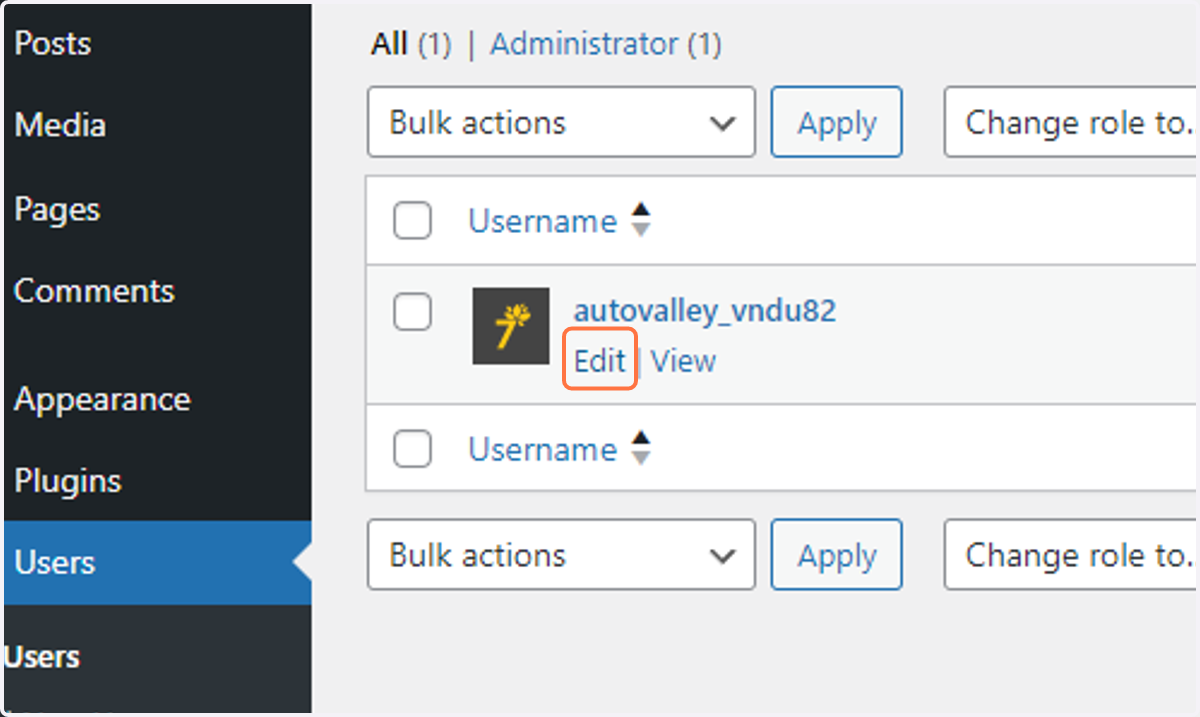
  50. 50. Click on Edit

    Click on Edit
  51. 51. Uncheck Show Toolbar when viewing site
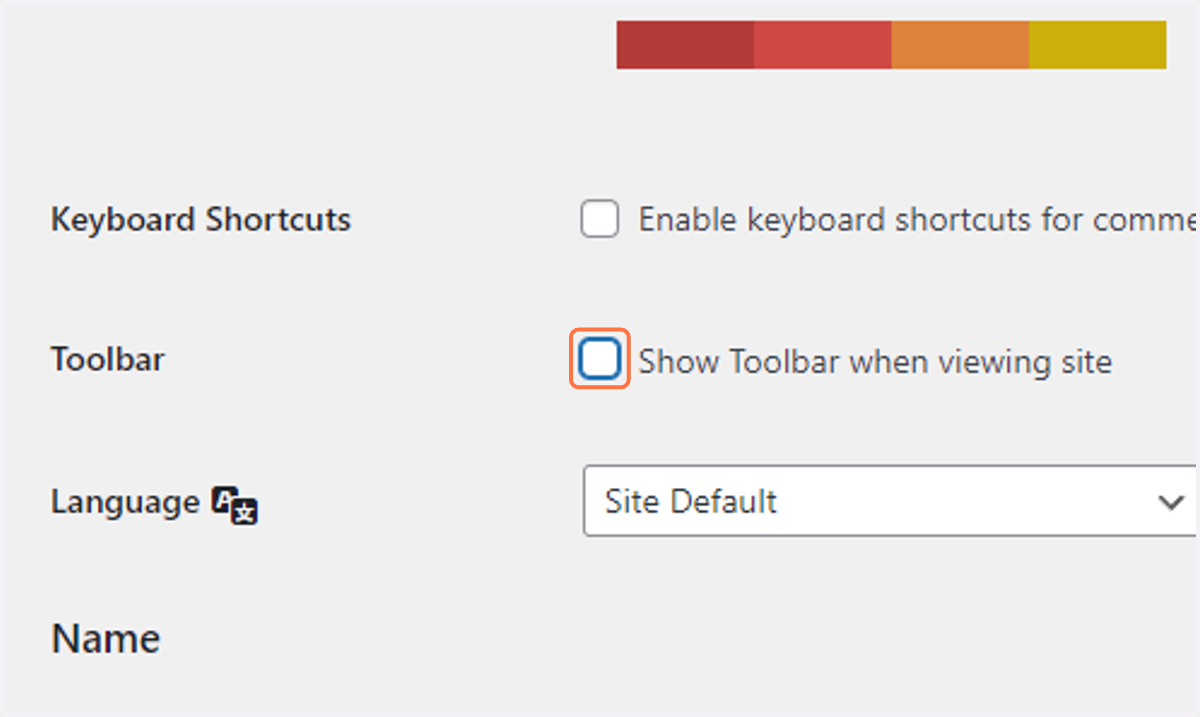
    Uncheck Show Toolbar when viewing site
  52. 52. Add the client first and last name
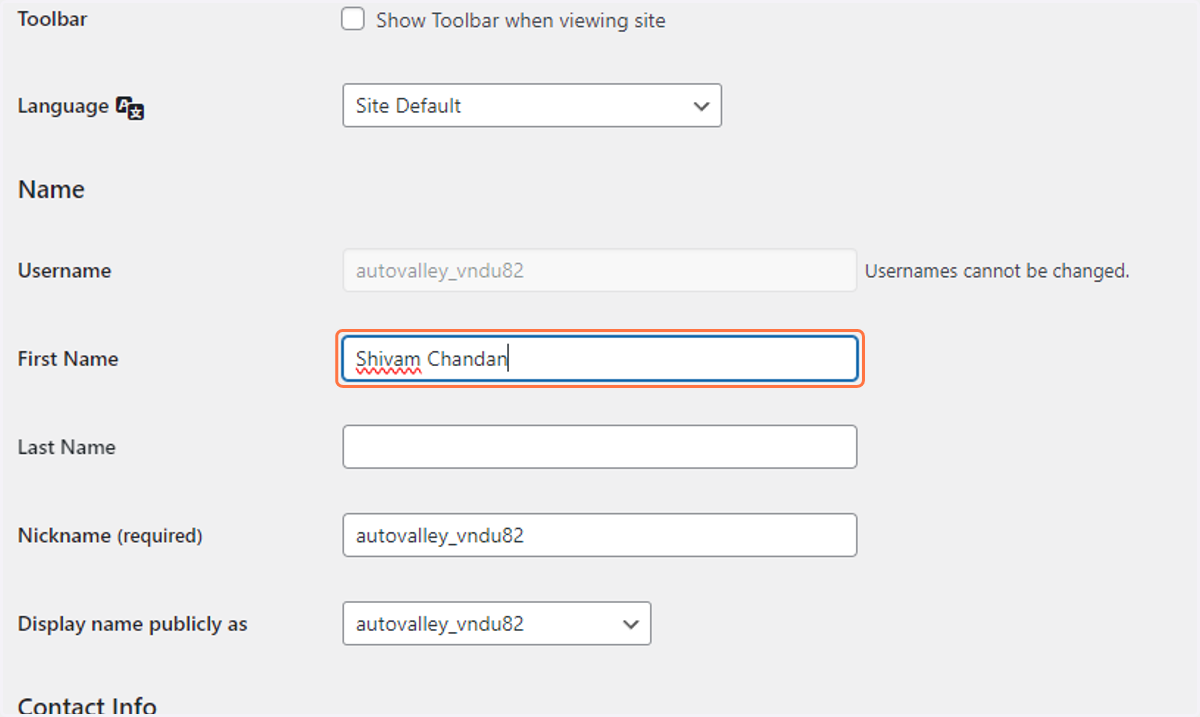
    Add the client first and last name
  53. 53. Add the Business Name to the Nickname input
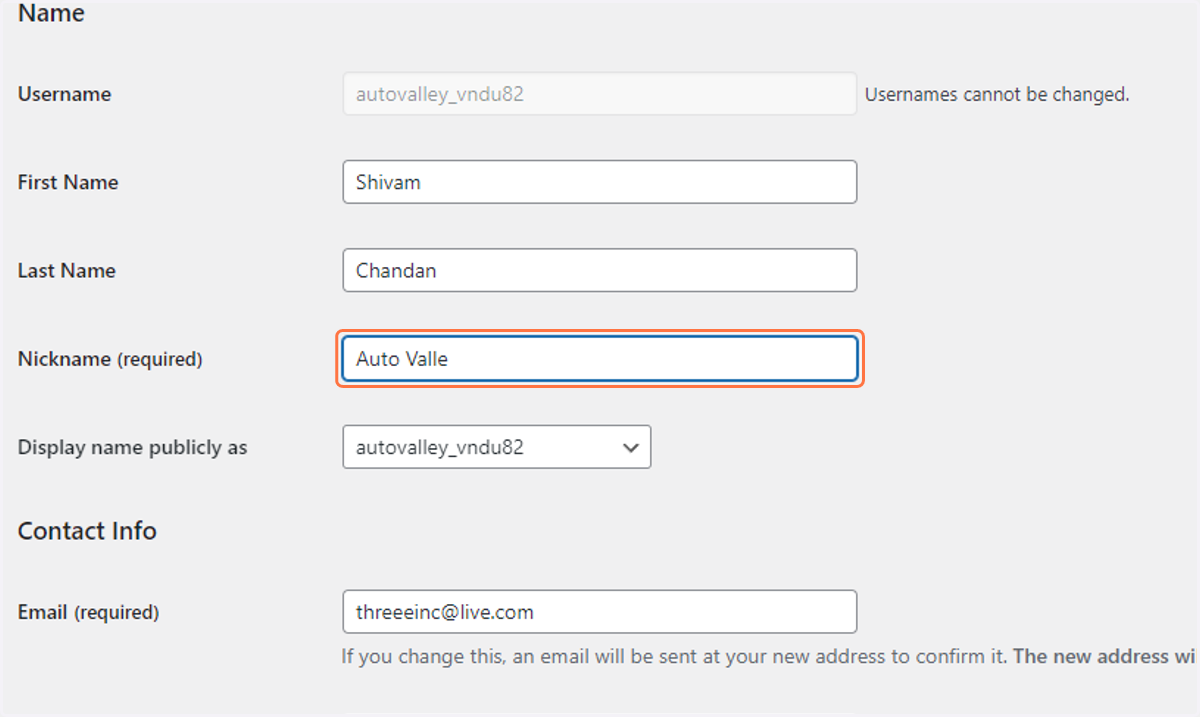
    Add the Business Name to the Nickname input
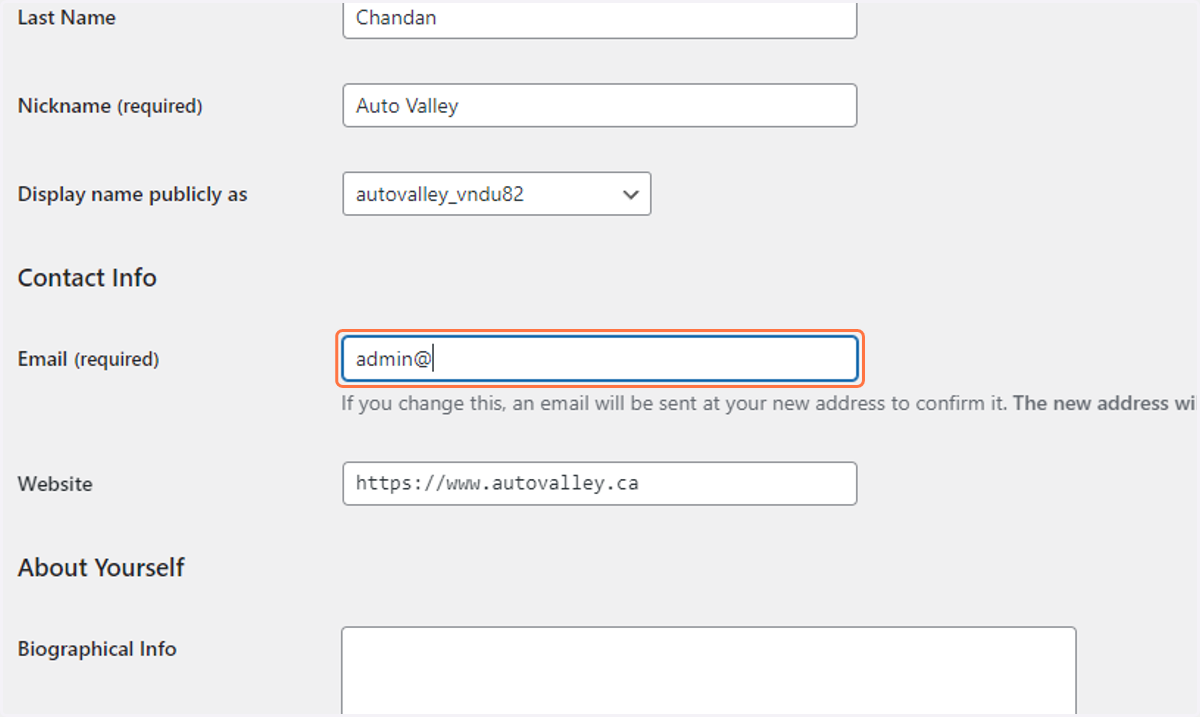
  54. 54. Add the "admin@"CLIENTURL" email

    Add the "admin@"CLIENTURL" email
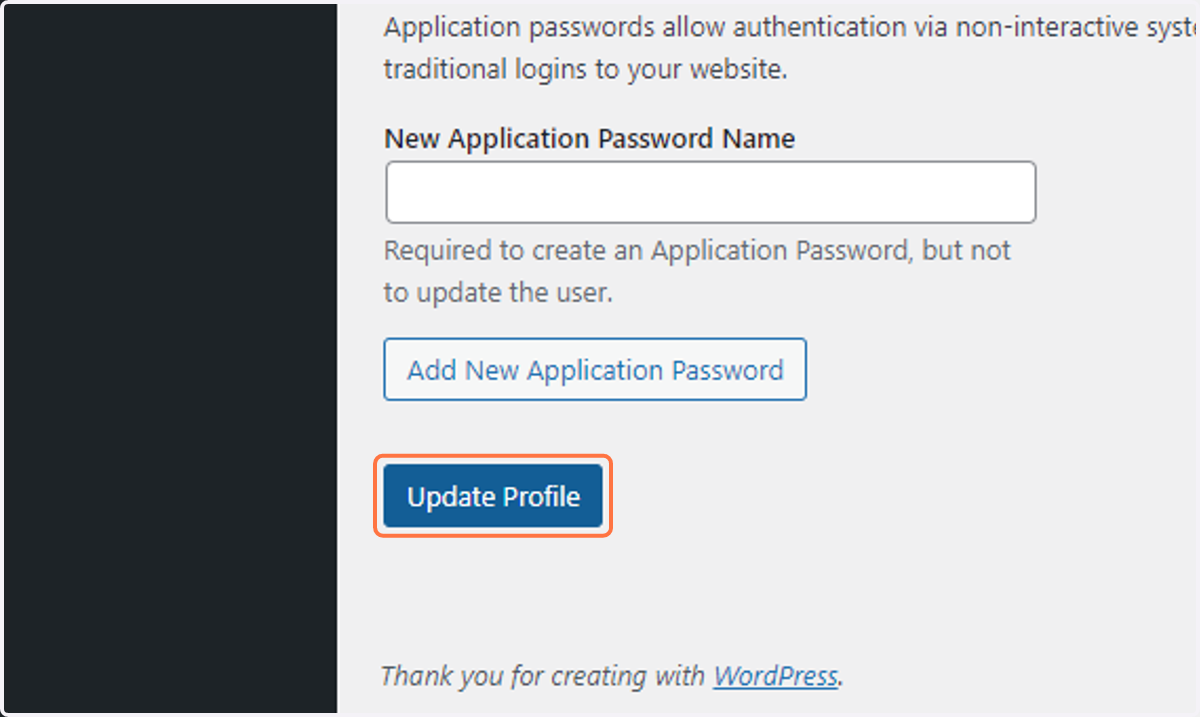
  55. 55. Click on Update Profile

    Click on Update Profile
  56. 56. Click on "Settings" in the main menu
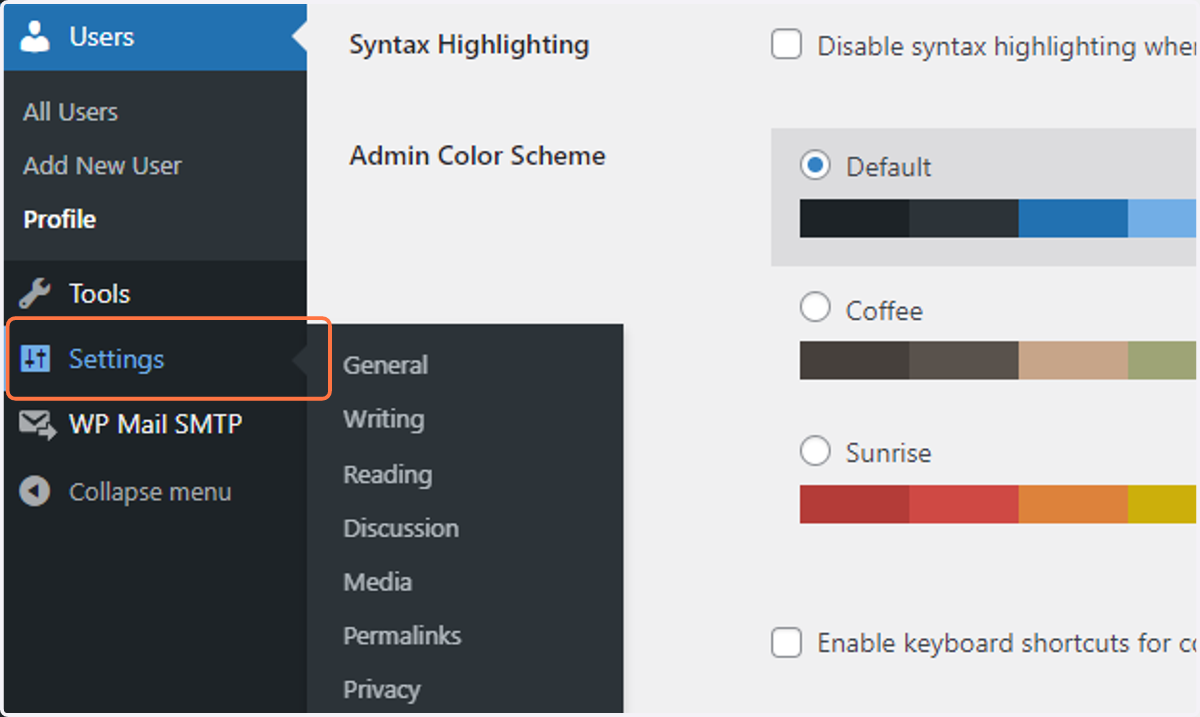
    Click on "Settings" in the main menu
  57. 57. Add the business name to the "Site Title" section
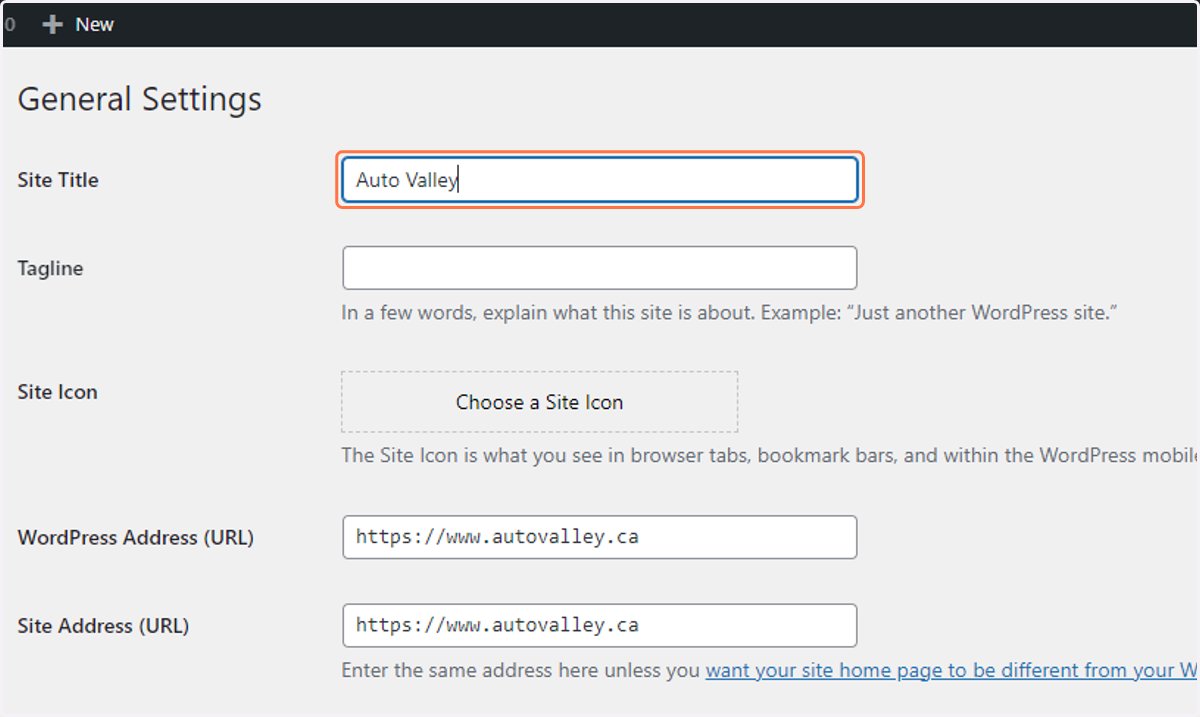
    Add the business name to the "Site Title" section
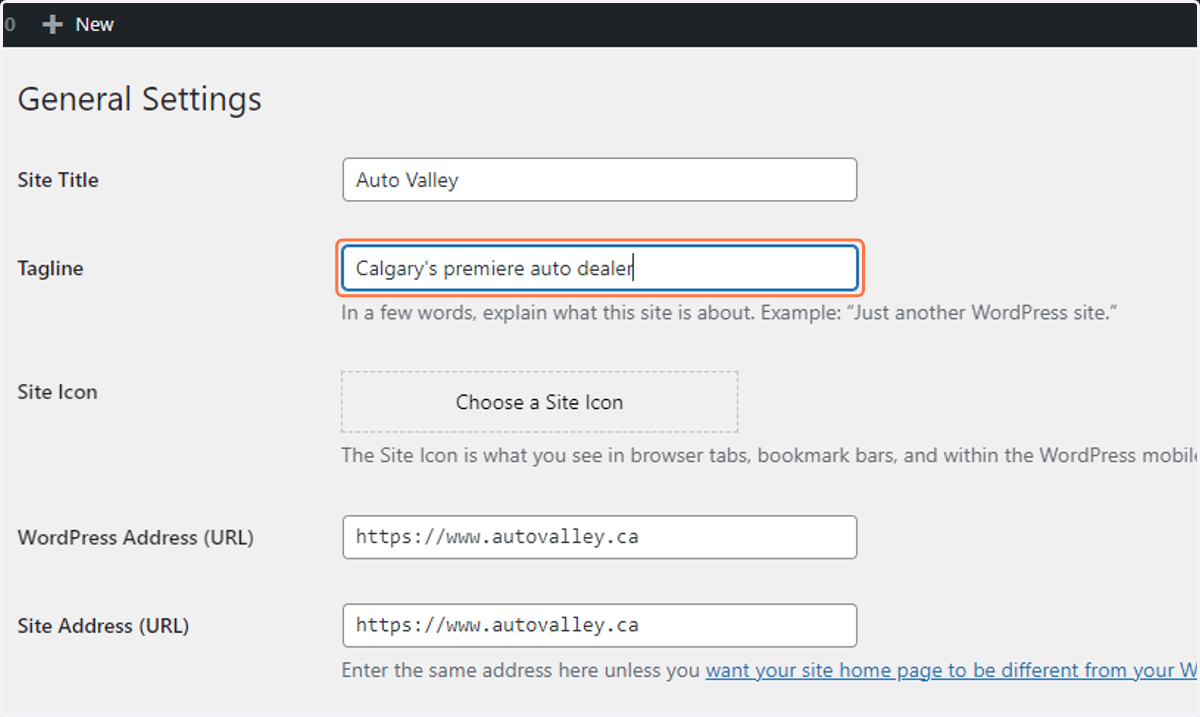
  58. 58. Add the tagline

    Add the tagline
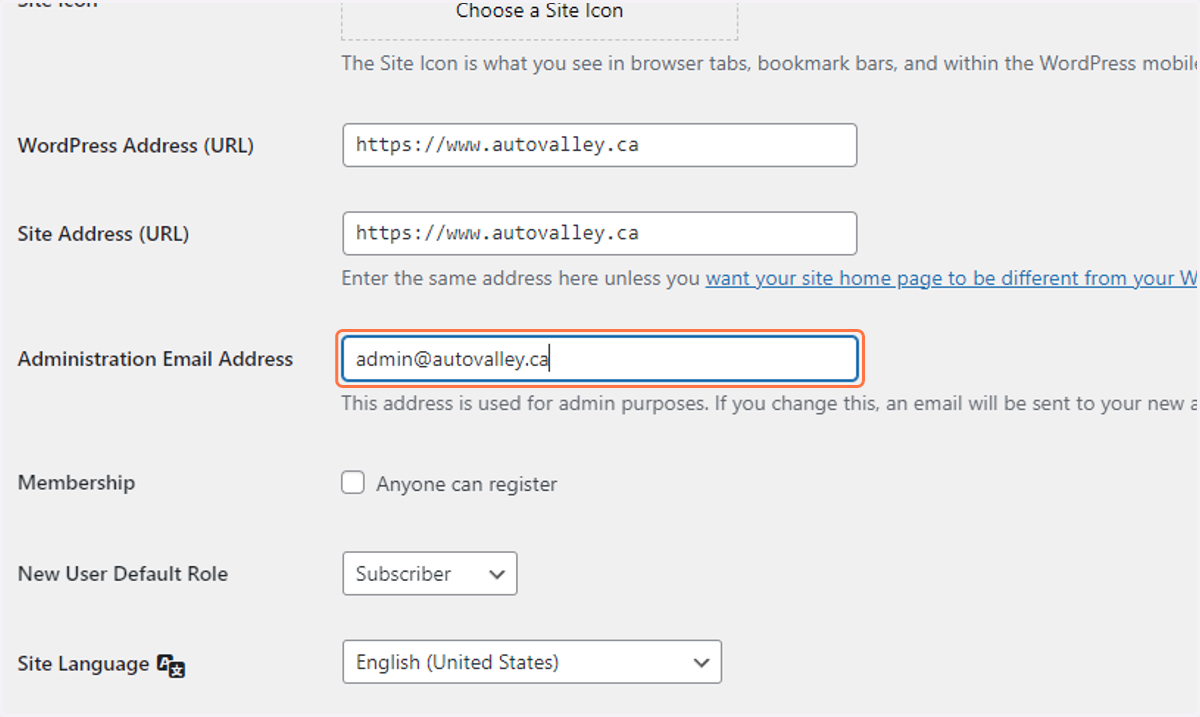
  59. 59. Add the "admin@"CLIENTURL" email

    Add the "admin@"CLIENTURL" email
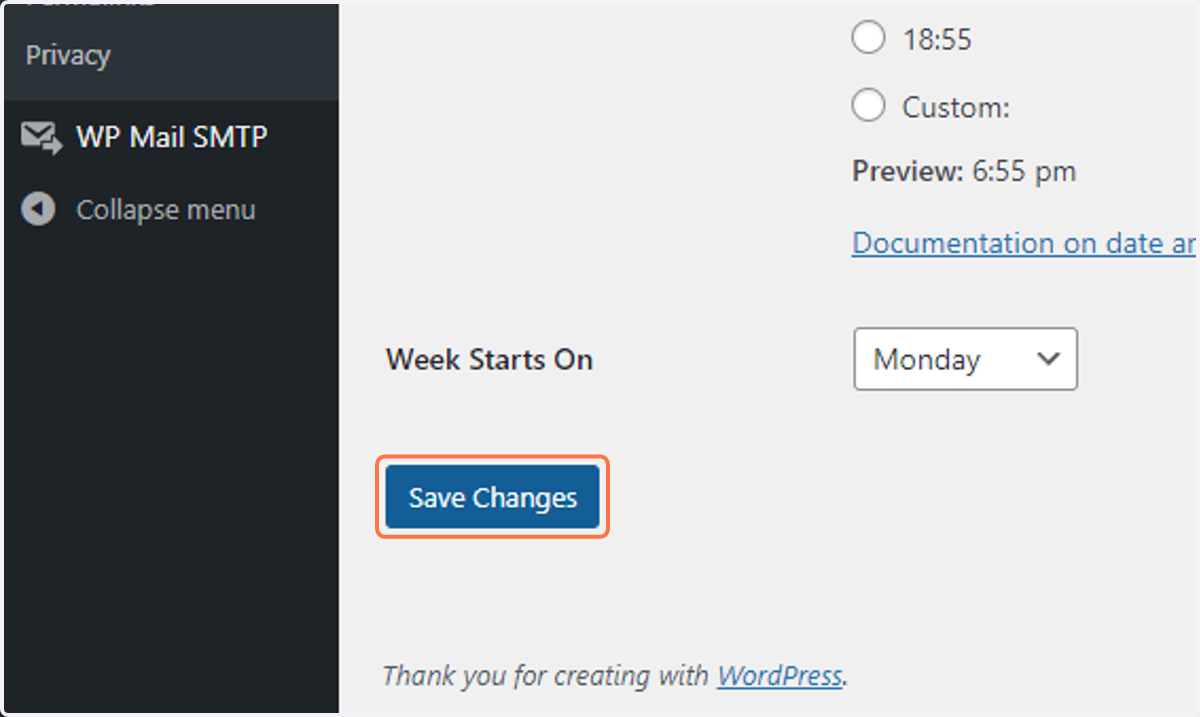
  60. 60. Click on Save Changes

    Click on Save Changes
  61. 61. Click on "Reading" in the settings pane in the main menu
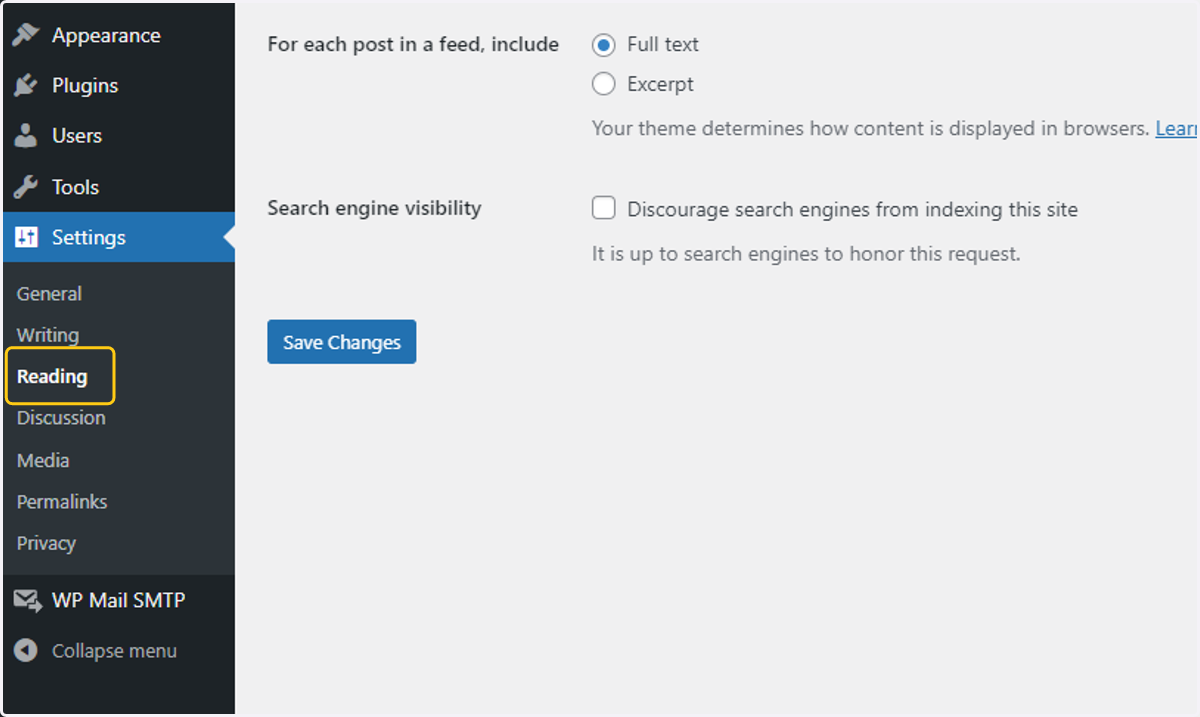
    Click on "Reading" in the settings pane in the main menu
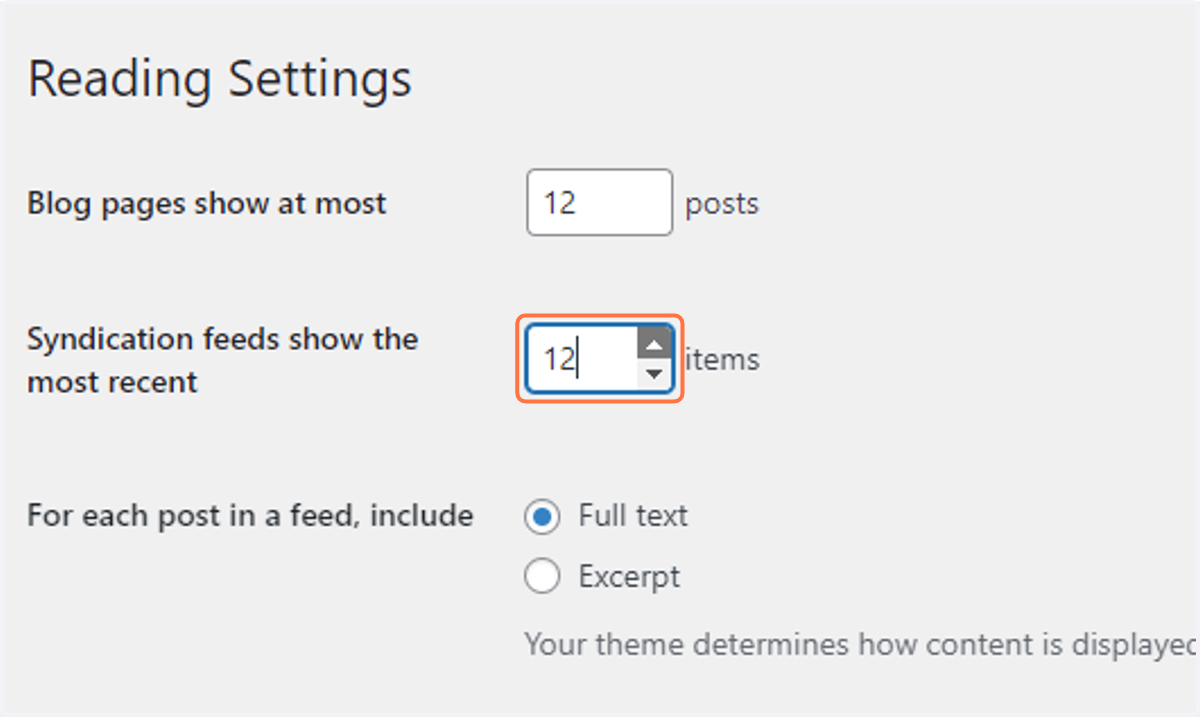
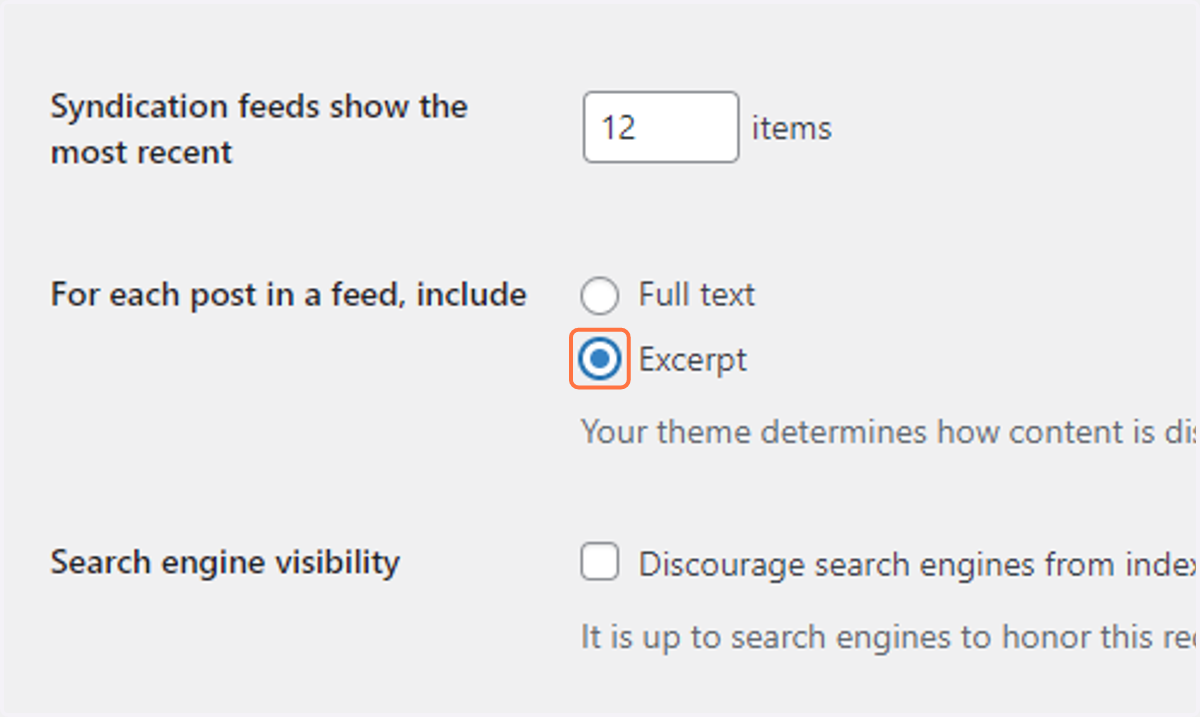
  62. 62. Change posts and items to "12"

    Change posts and items to "12"
  63. 63. Select Excerpt

    Select Excerpt
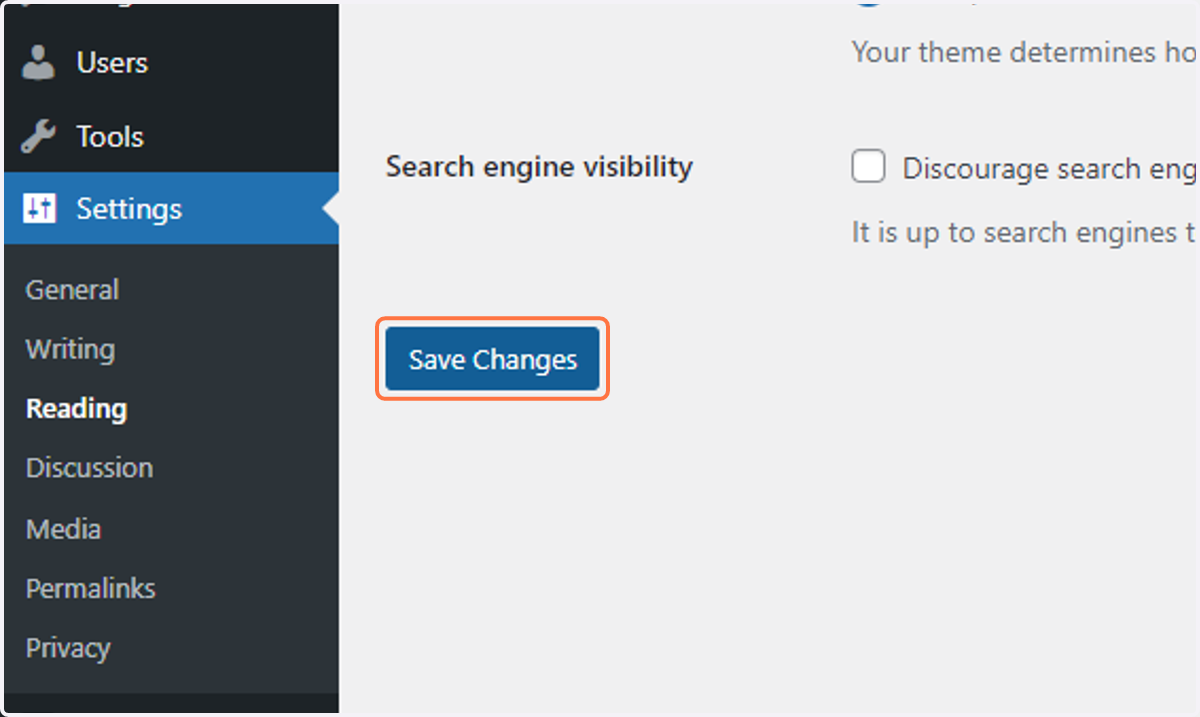
  64. 64. Click on Save Changes

    Click on Save Changes
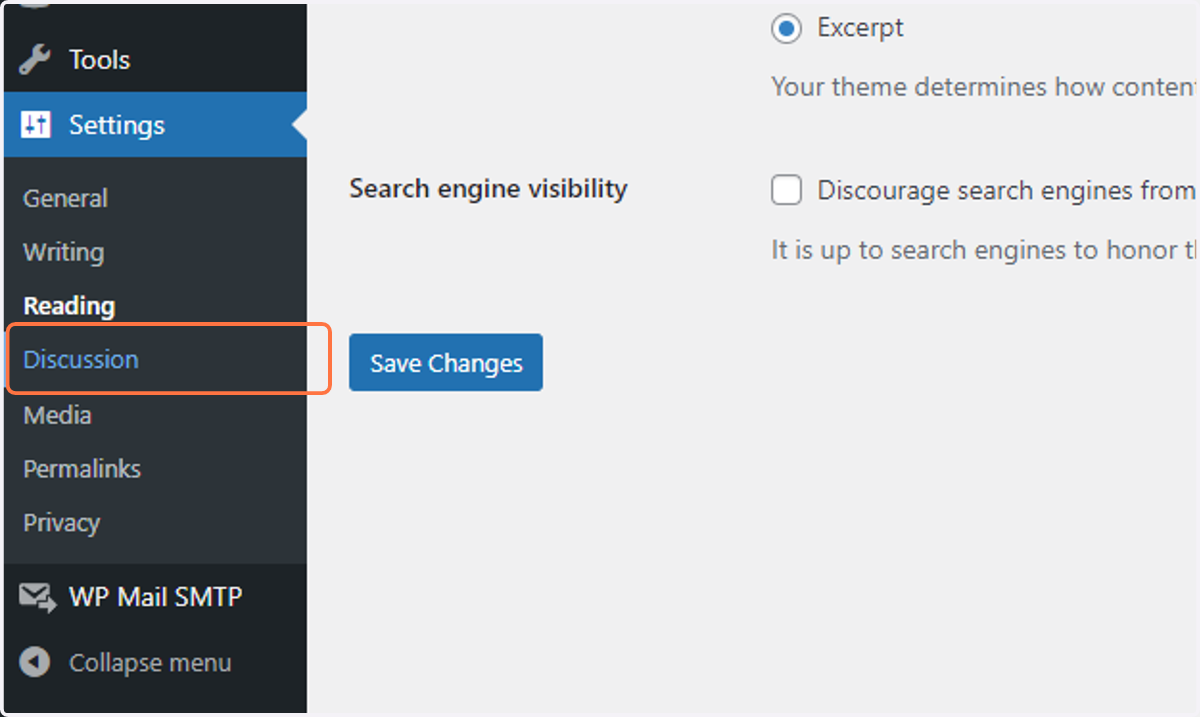
  65. 65. Click on Discussion

    Click on Discussion
  66. 66. Uncheck Attempt to notify any blogs linked to from the post
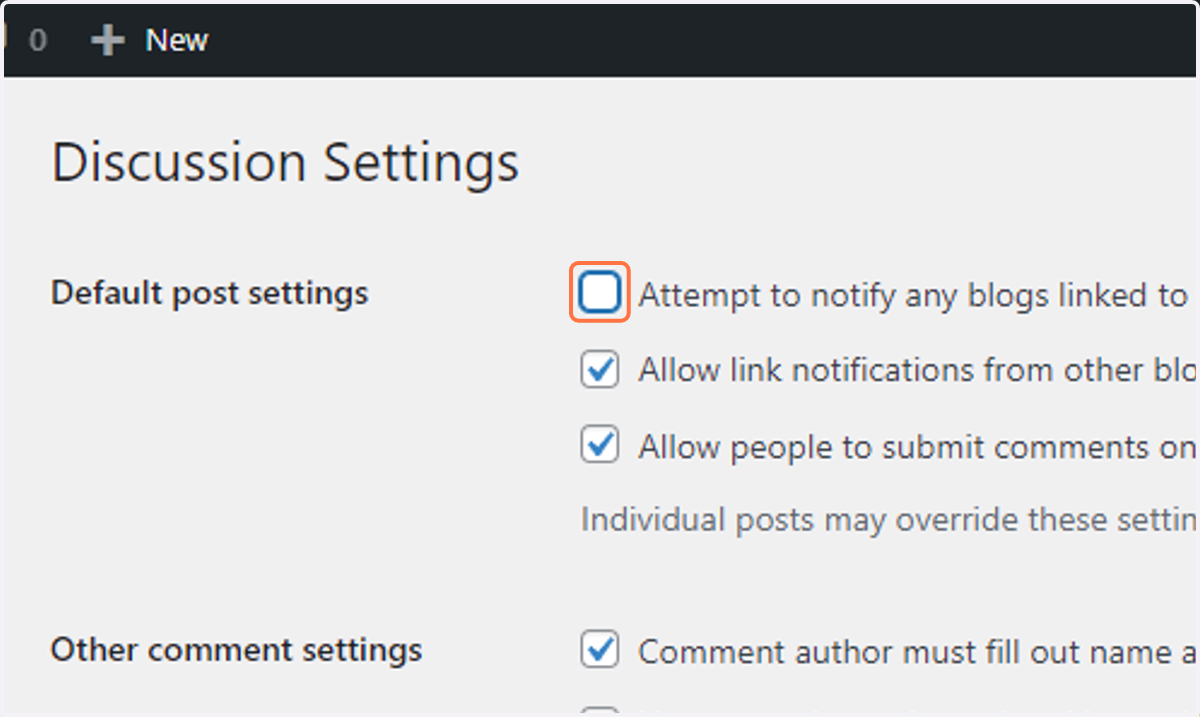
    Uncheck Attempt to notify any blogs linked to from the post
  67. 67. Uncheck Allow link notifications from other blogs (pingbacks and trackbacks) on new posts
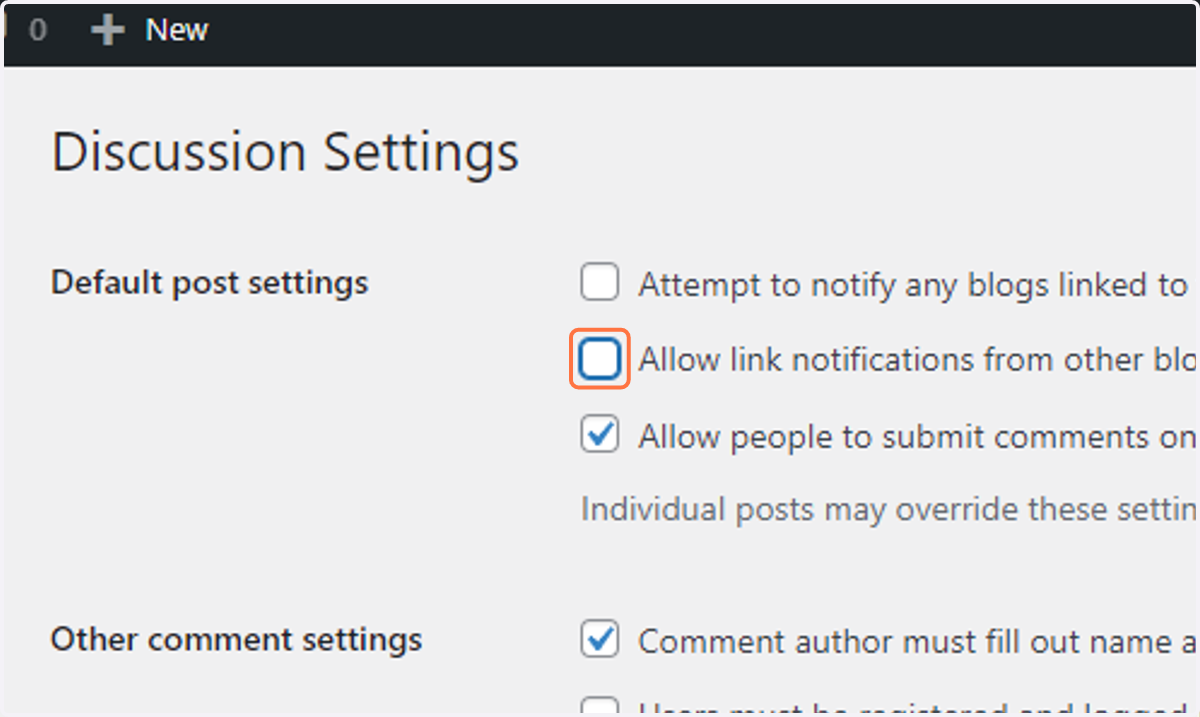
    Uncheck Allow link notifications from other blogs (pingbacks and trackbacks) on new posts
  68. 68. Uncheck Allow people to submit comments on new posts
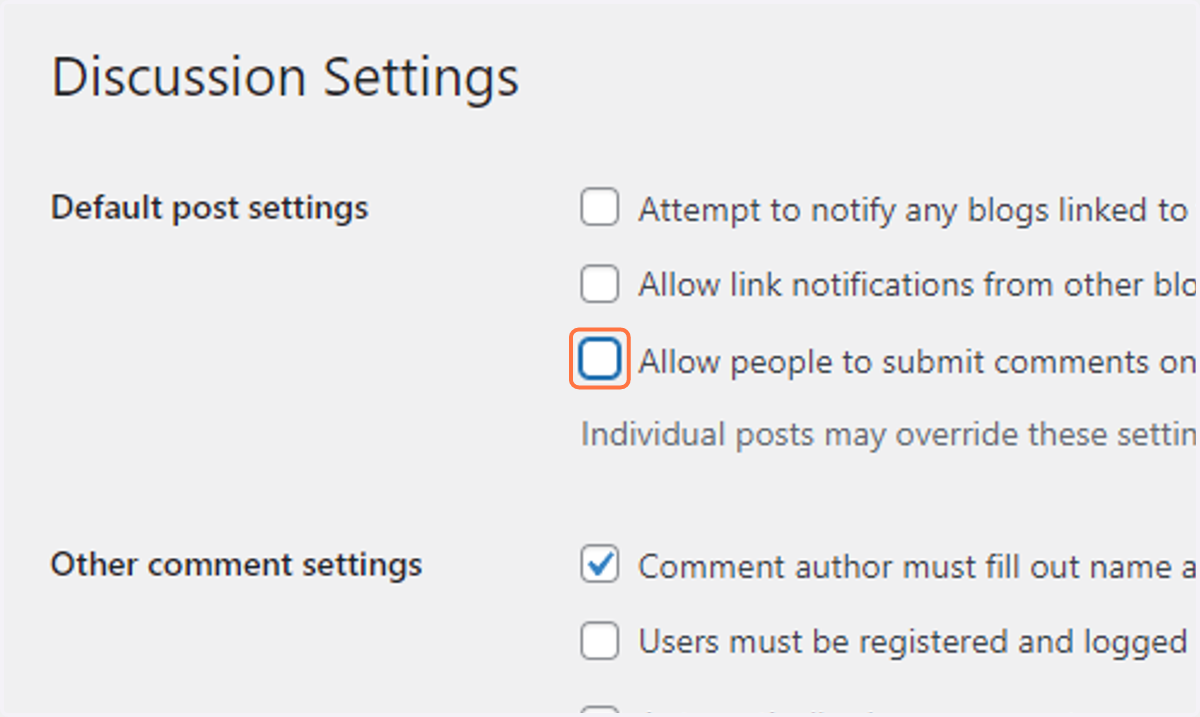
    Uncheck Allow people to submit comments on new posts
  69. 69. Check Users must be registered and logged in to comment
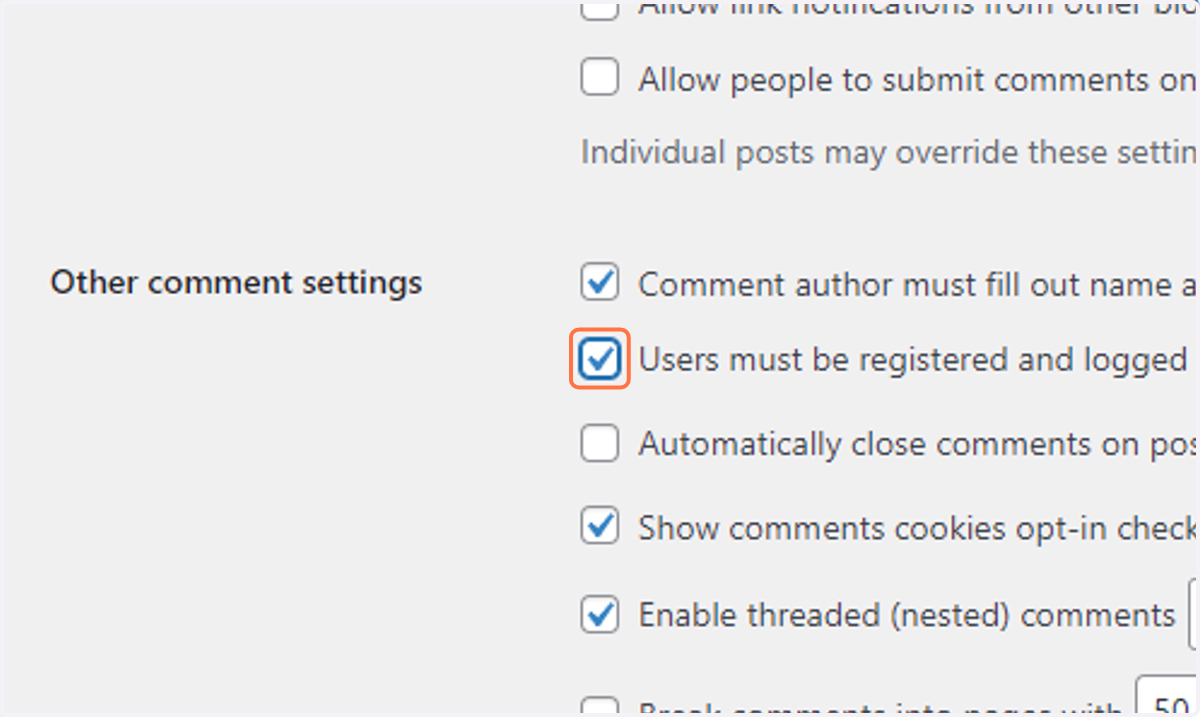
    Check Users must be registered and logged in to comment
  70. 70. Check Automatically close comments on posts older than
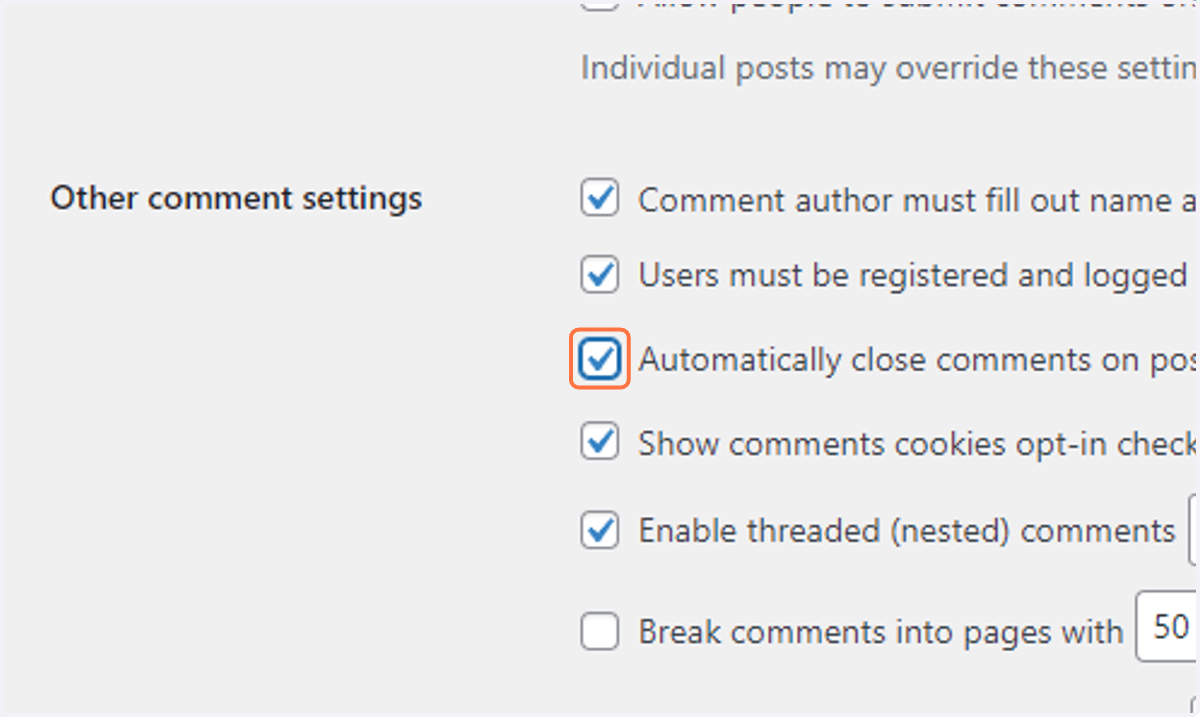
    Check Automatically close comments on posts older than
  71. 71. Check Break comments into pages with
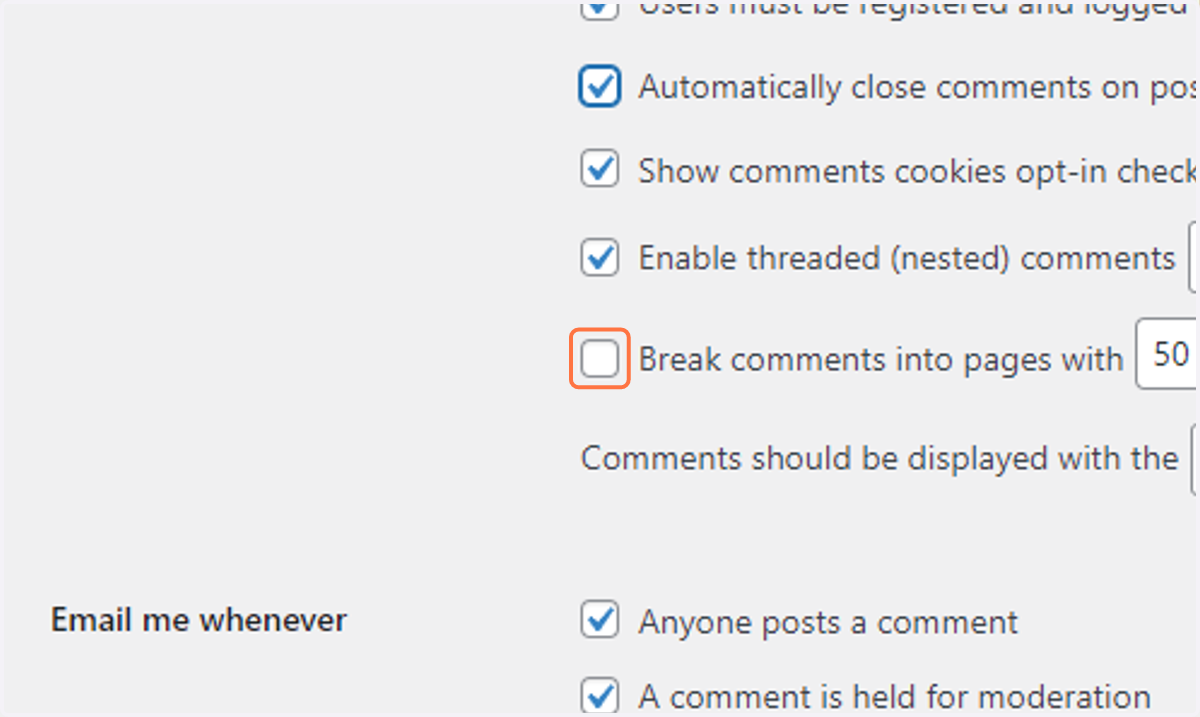
    Check Break comments into pages with
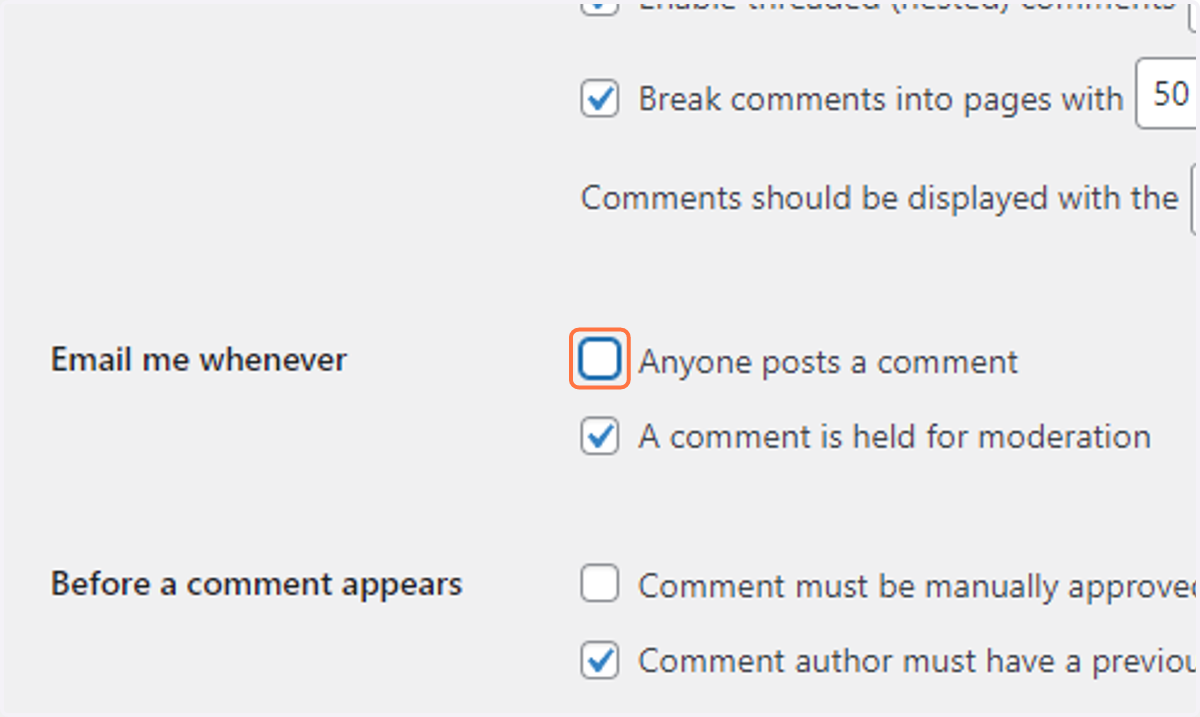
  72. 72. Uncheck Anyone posts a comment

    Uncheck Anyone posts a comment
  73. 73. Uncheck A comment is held for moderation
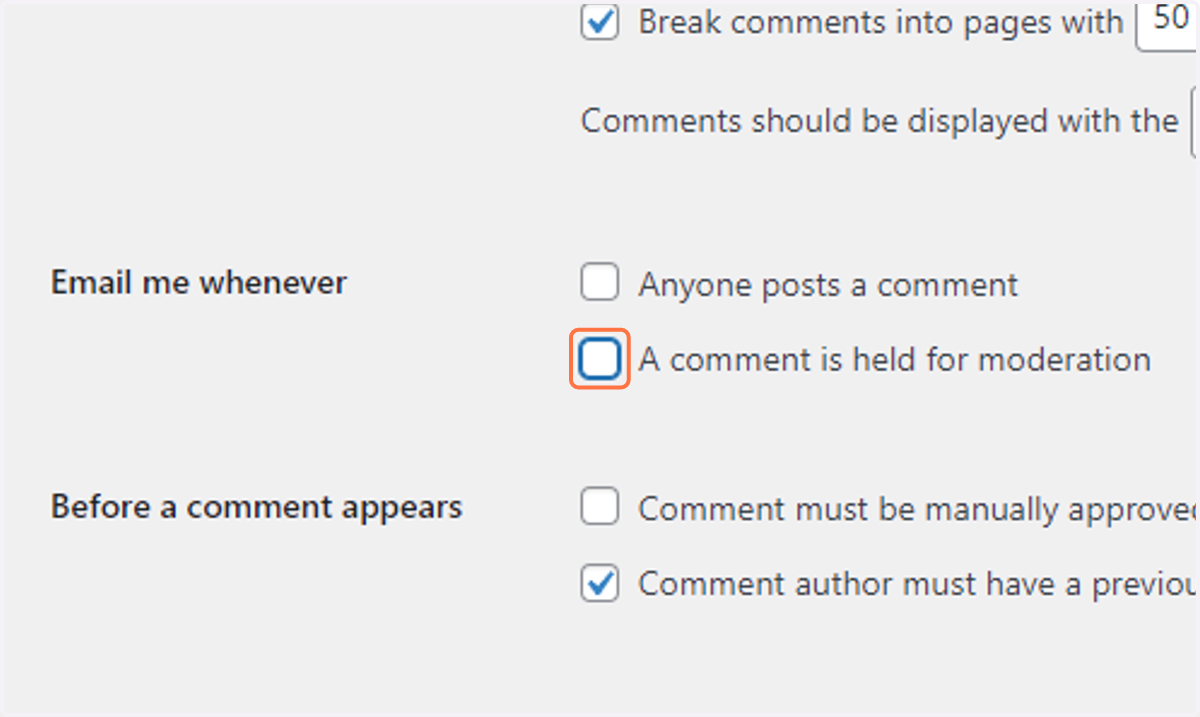
    Uncheck A comment is held for moderation
  74. 74. Check Comment must be manually approved
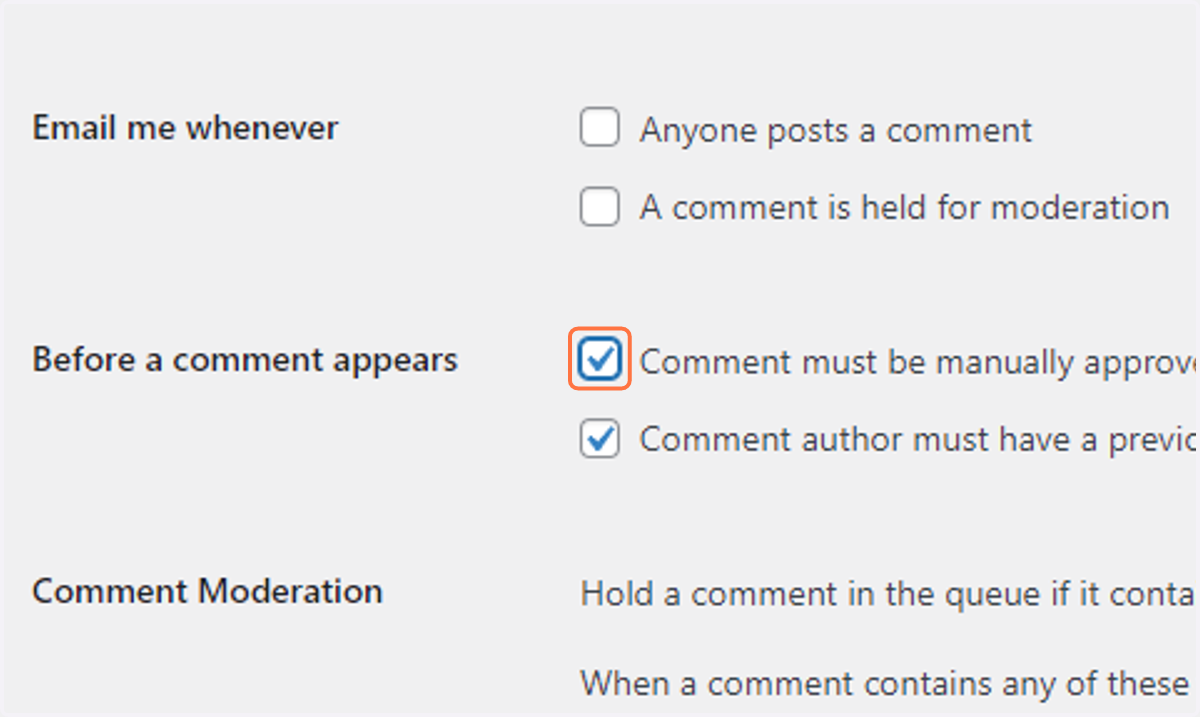
    Check Comment must be manually approved
  75. 75. Change the number of acceptable links to "1"
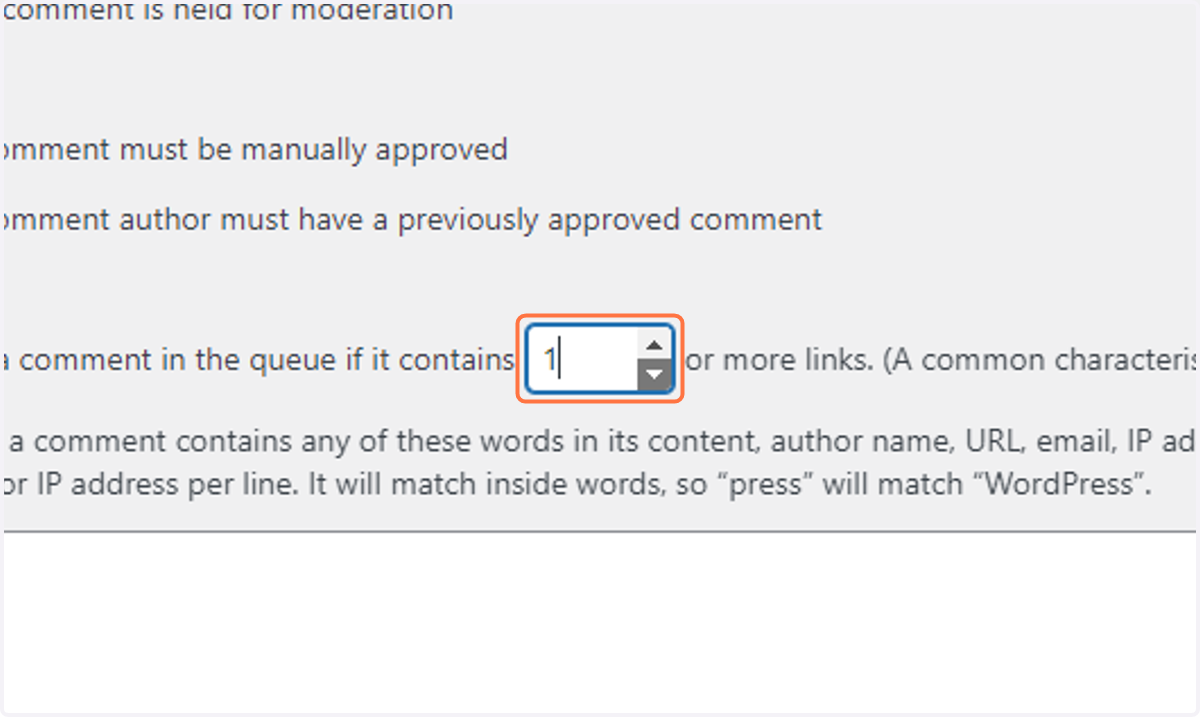
    Change the number of acceptable links to "1"
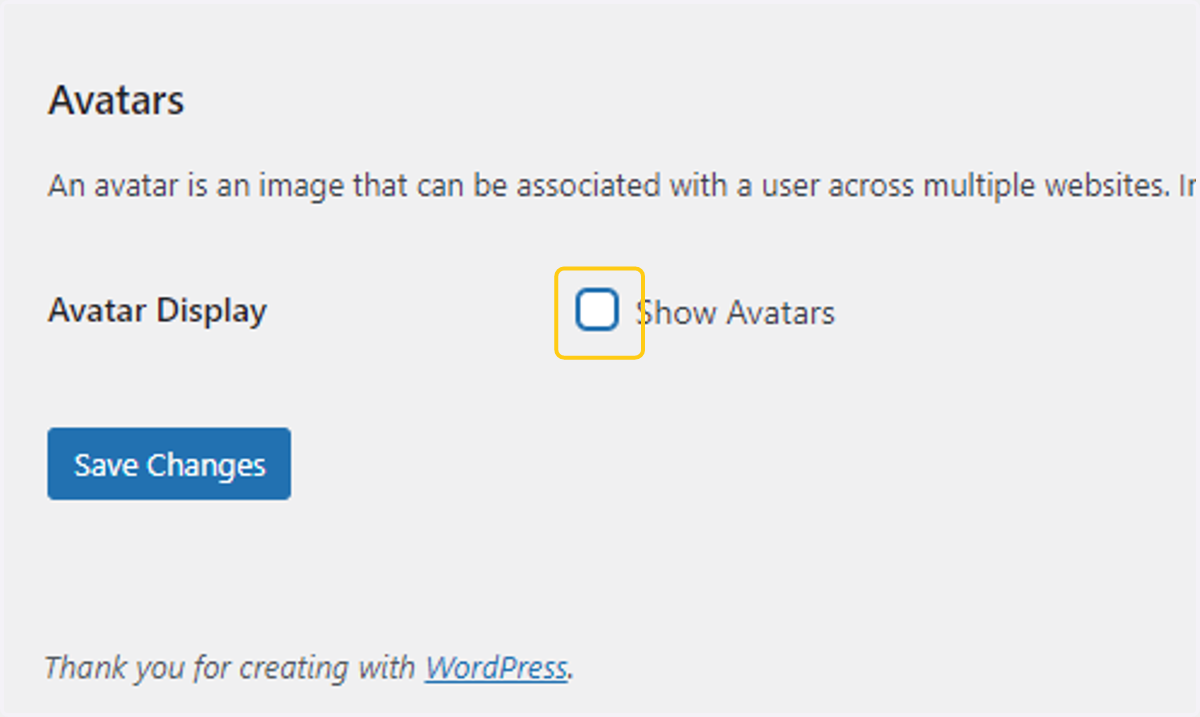
  76. 76. Uncheck Show Avatars

    Uncheck Show Avatars
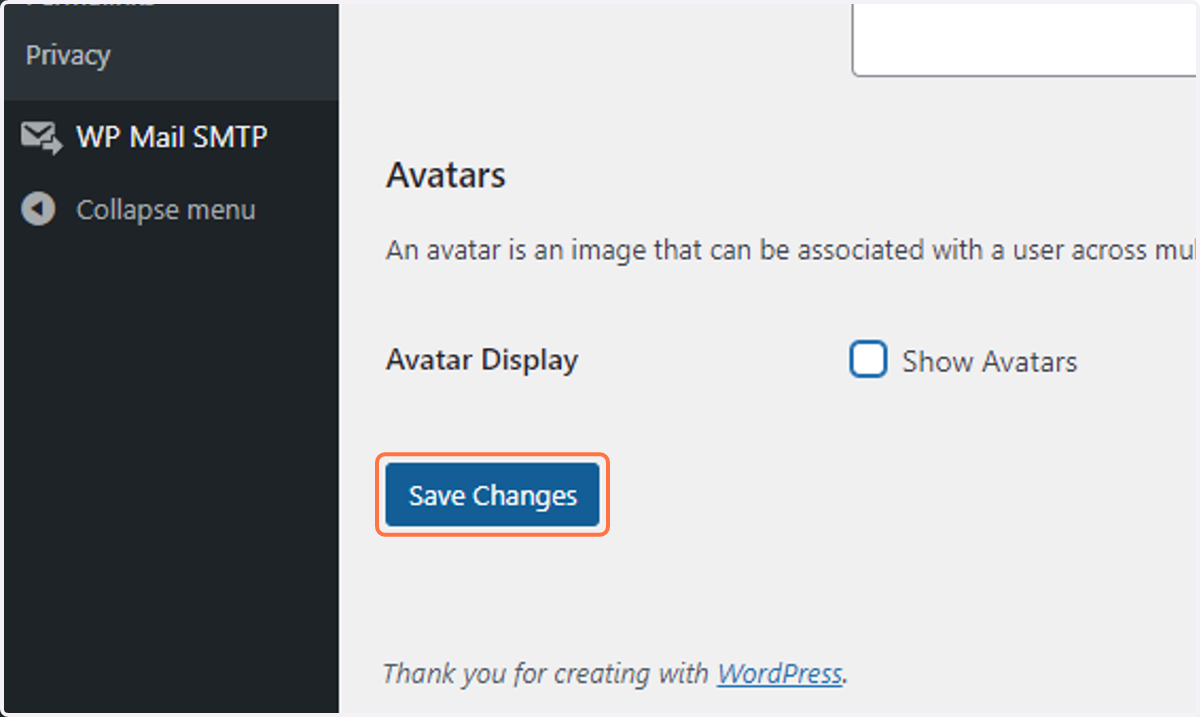
  77. 77. Click on Save Changes

    Click on Save Changes
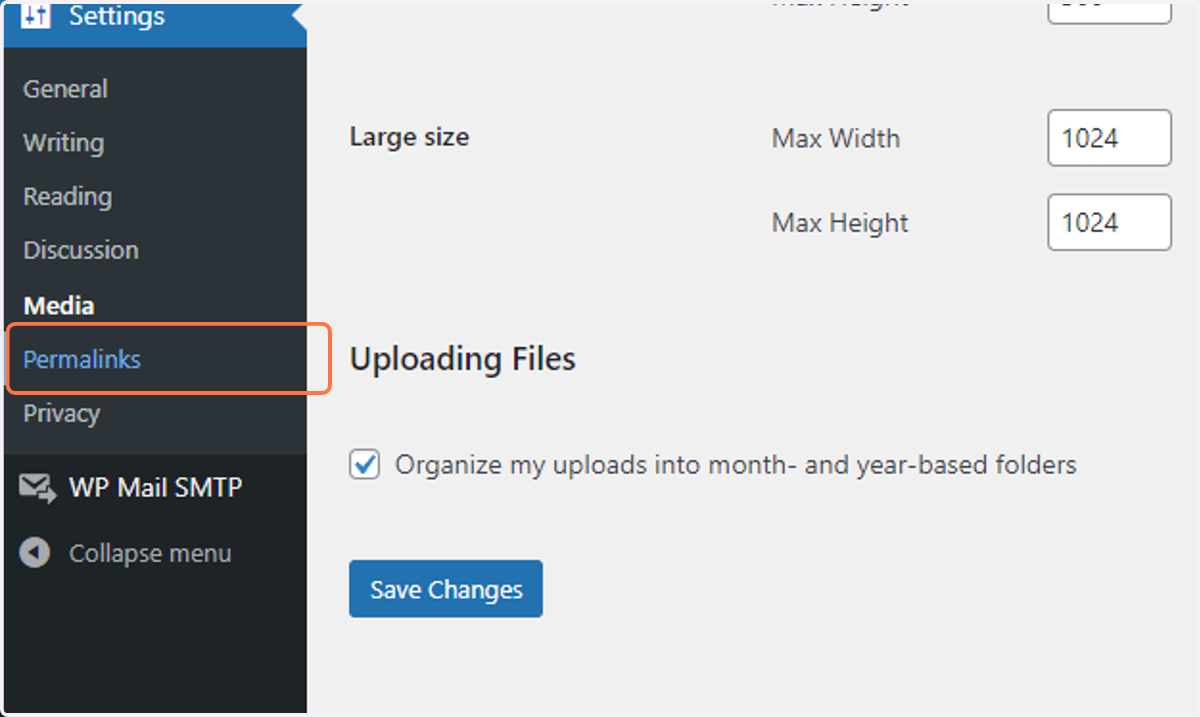
  78. 78. Click on Permalinks

    Click on Permalinks
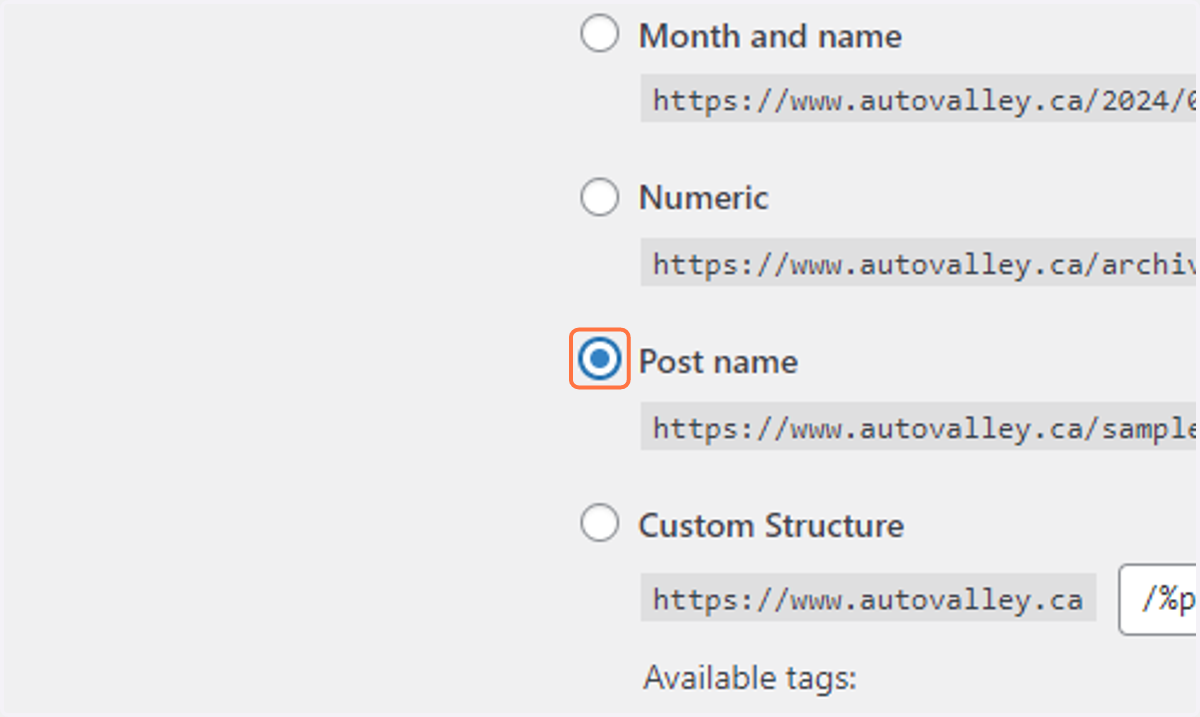
  79. 79. Select Post name

    Select Post name
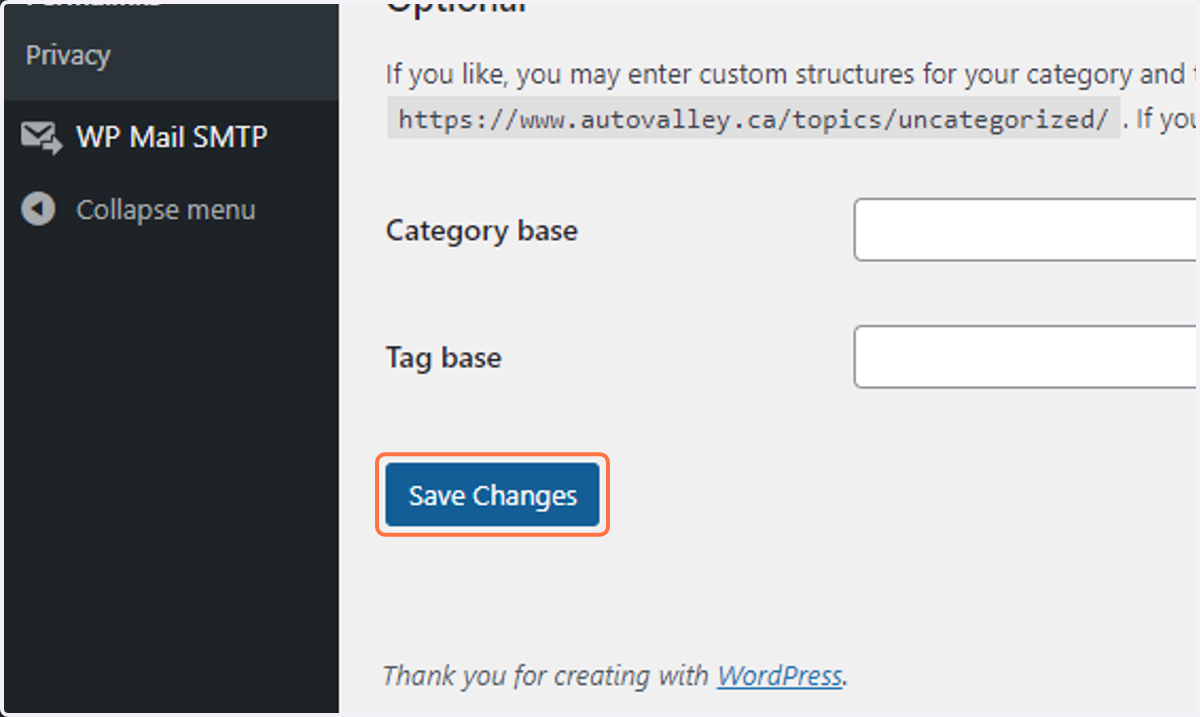
  80. 80. Click on Save Changes

    Click on Save Changes