Uploading Files to an Order
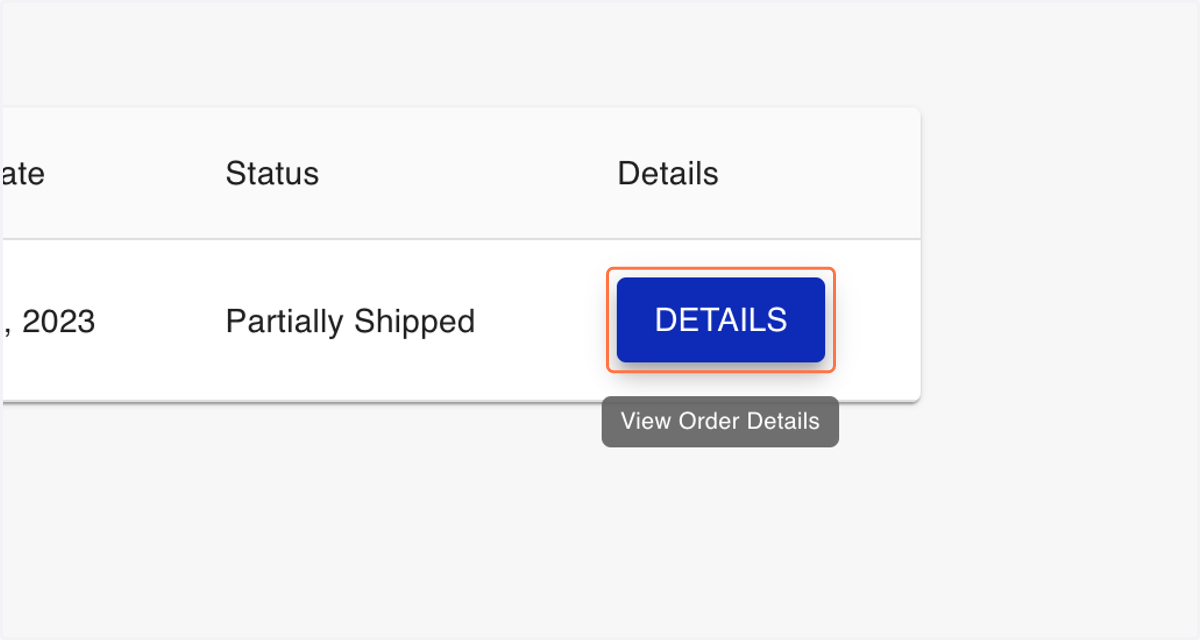
2. Click on the Details button for the order you wish to attach files to
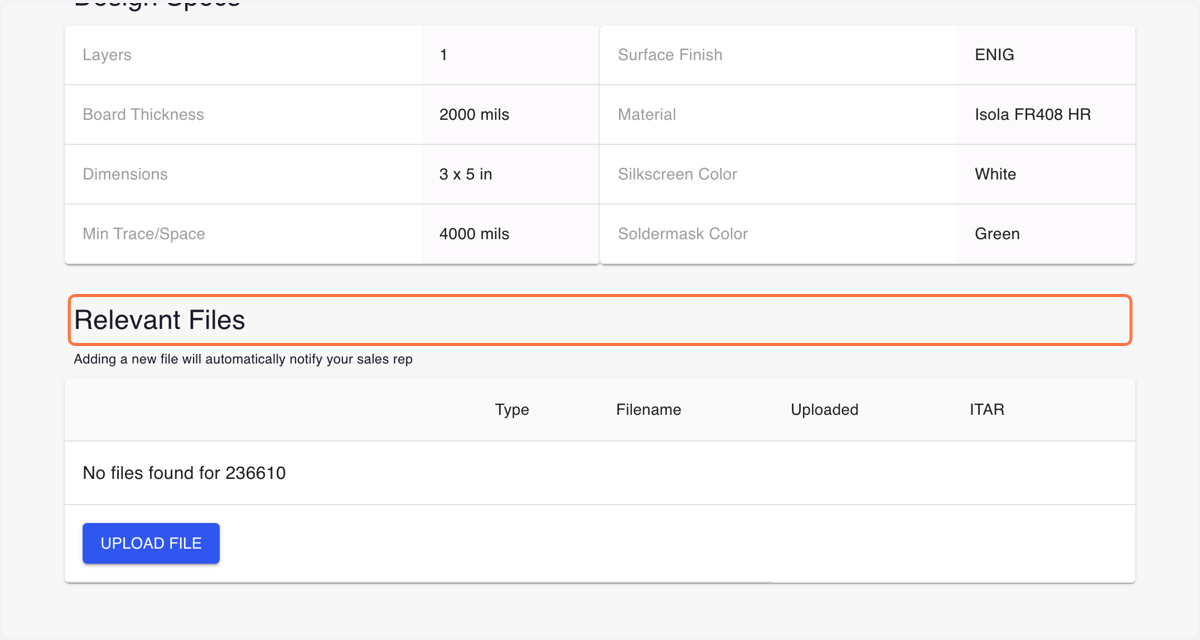
3. Scroll down to the Relevant Files section within the order details page
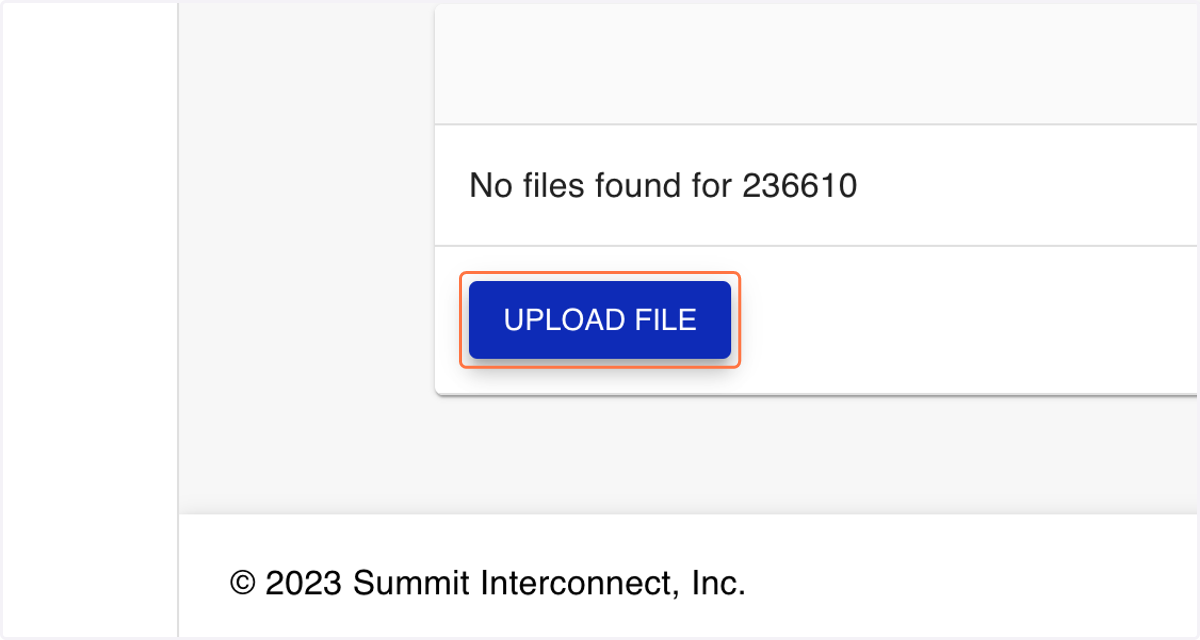
4. Click on UPLOAD FILE
5. Choose a File Type to label the file
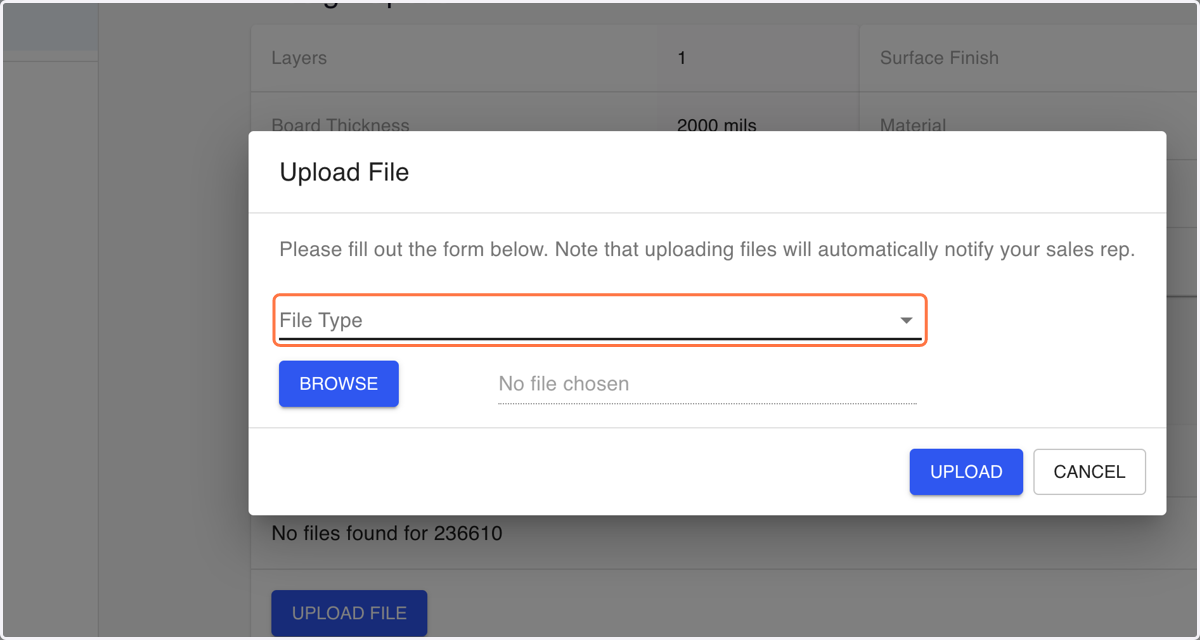
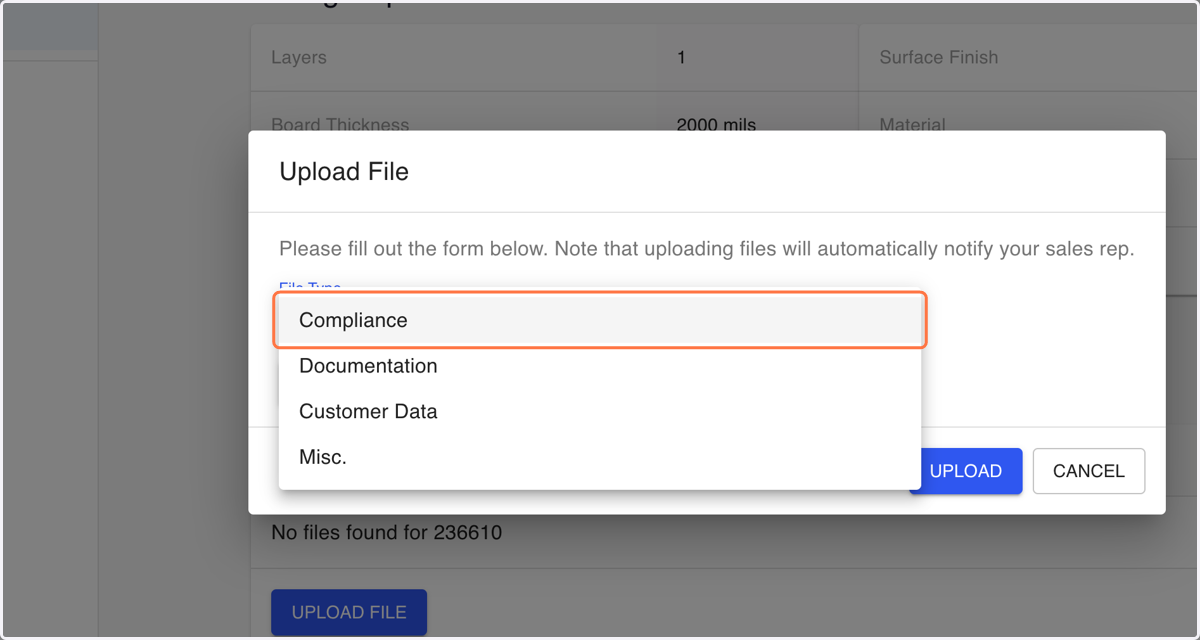
6. Click on the file type that is most relevant to your uploaded file
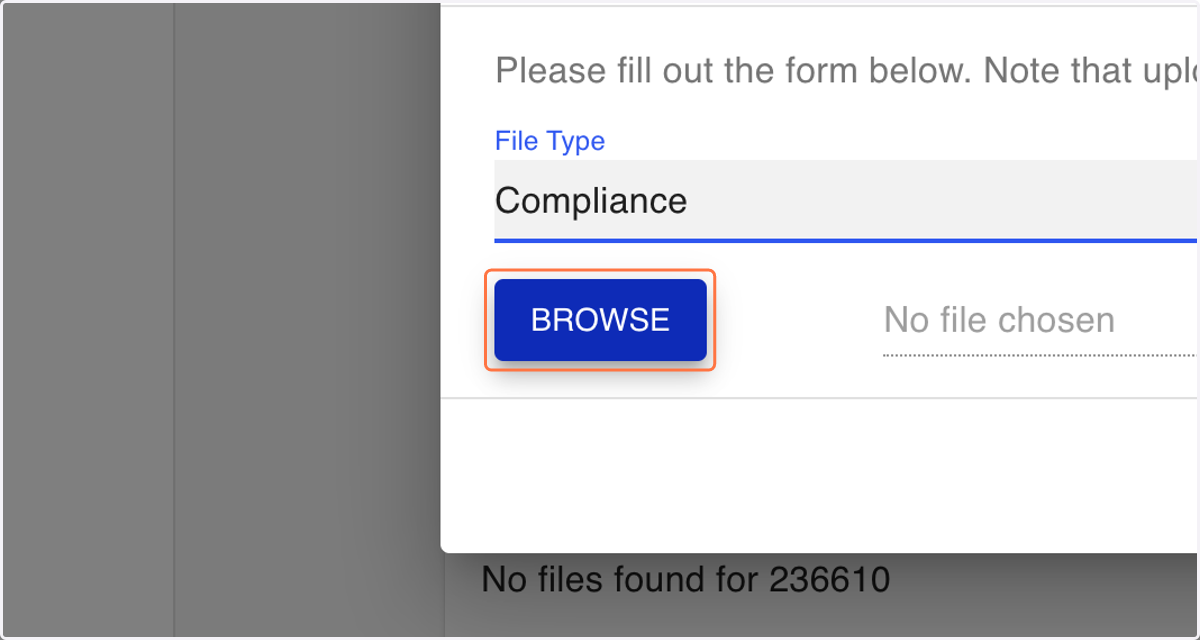
7. Click on Browse to upload a file from your computer
8. Once you have chosen a file, you should see the file name next to the Browse button
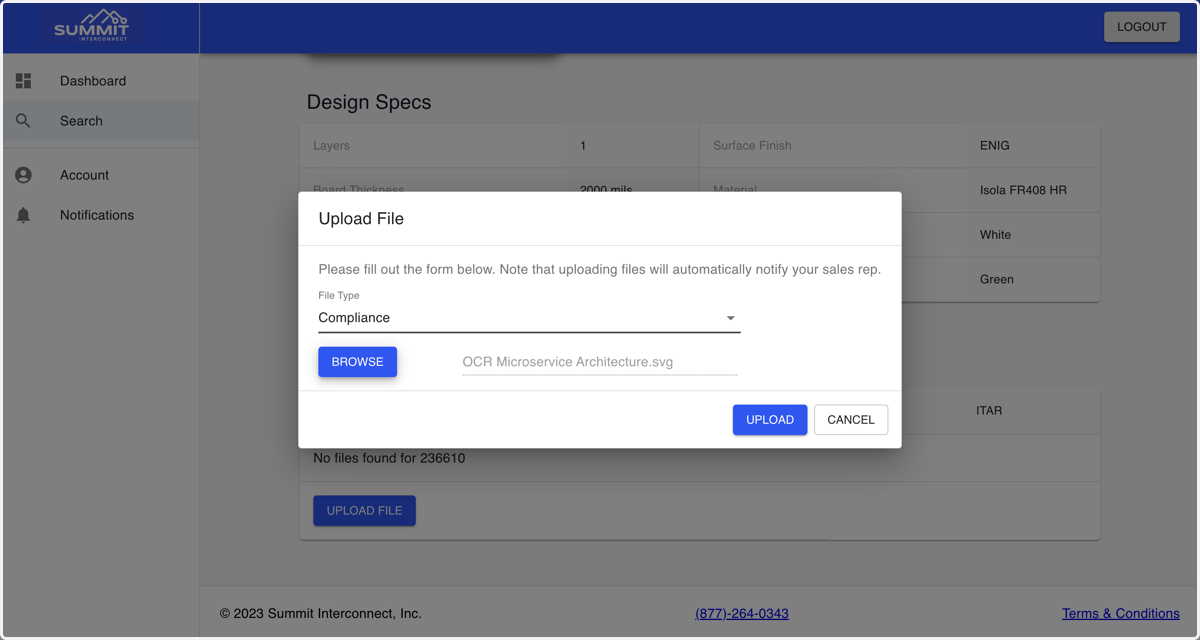
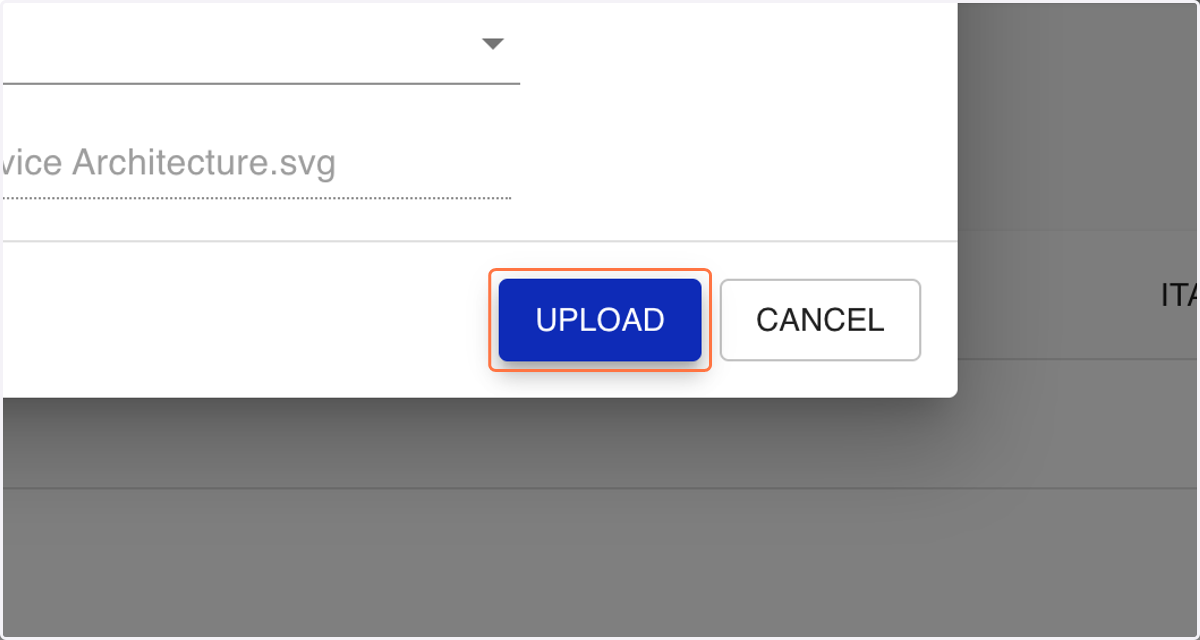
9. Click on UPLOAD
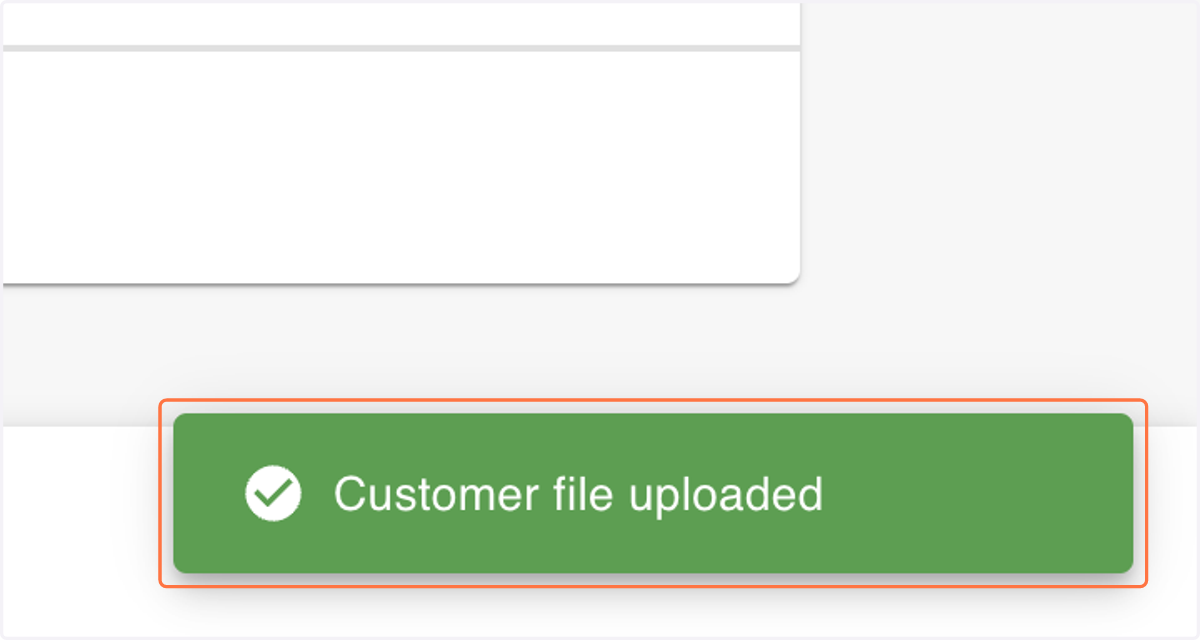
10. Look for a green notification that your file was uploaded successfully
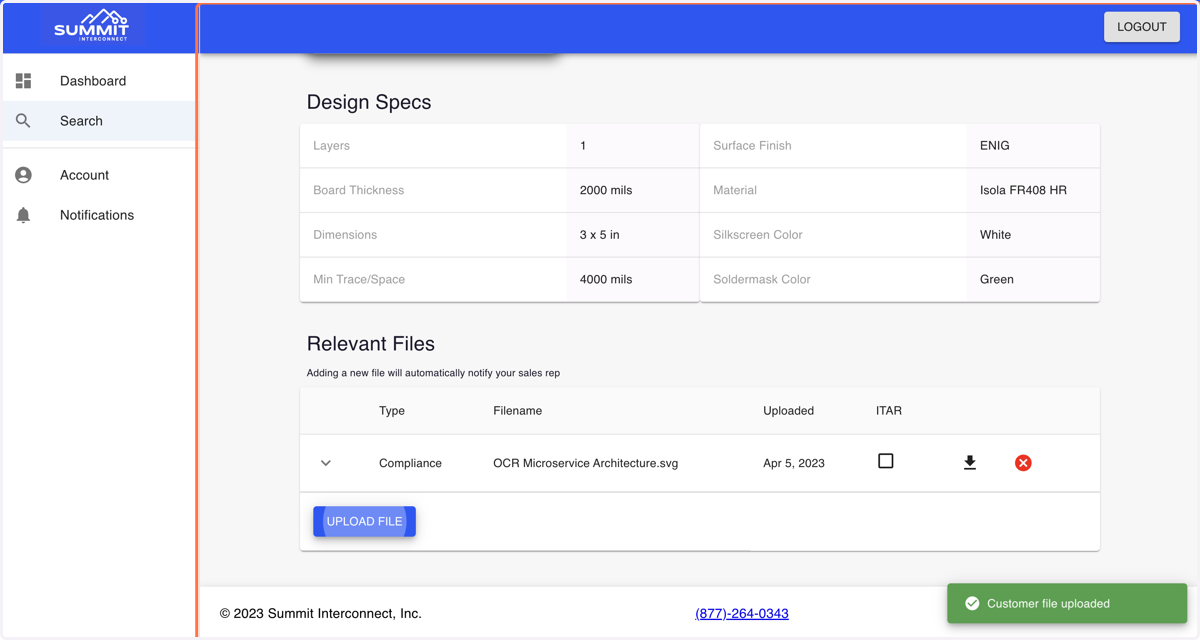
11. Refresh the page and viola! Your file is now attached to this order
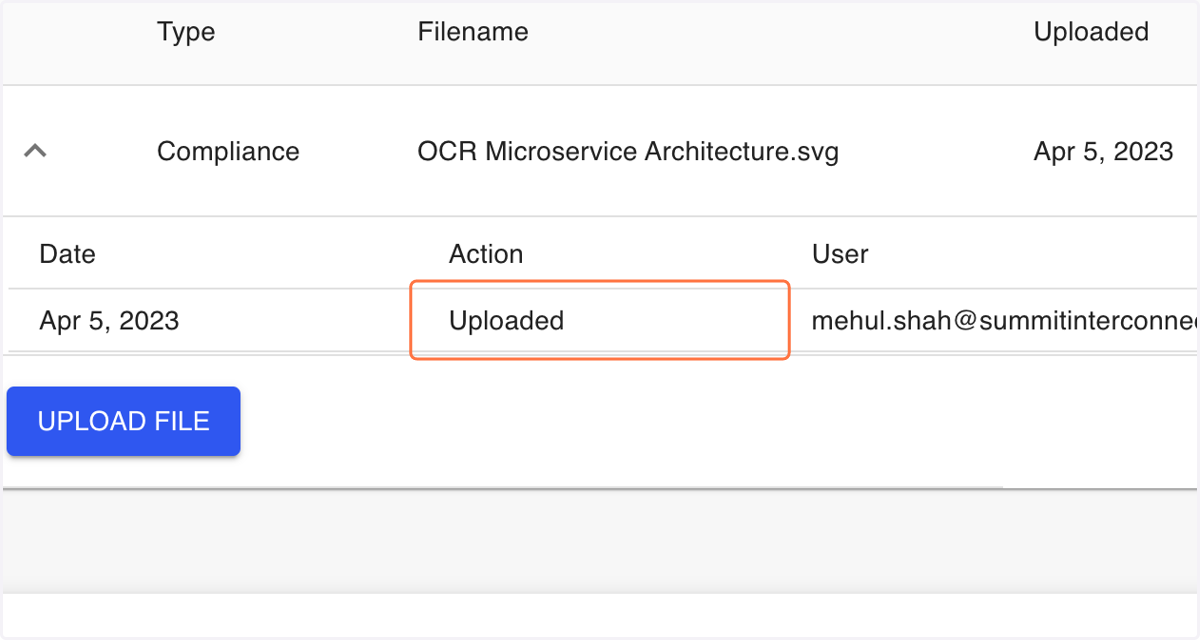
12. Click on the down arrow next to your file to see the viewing history
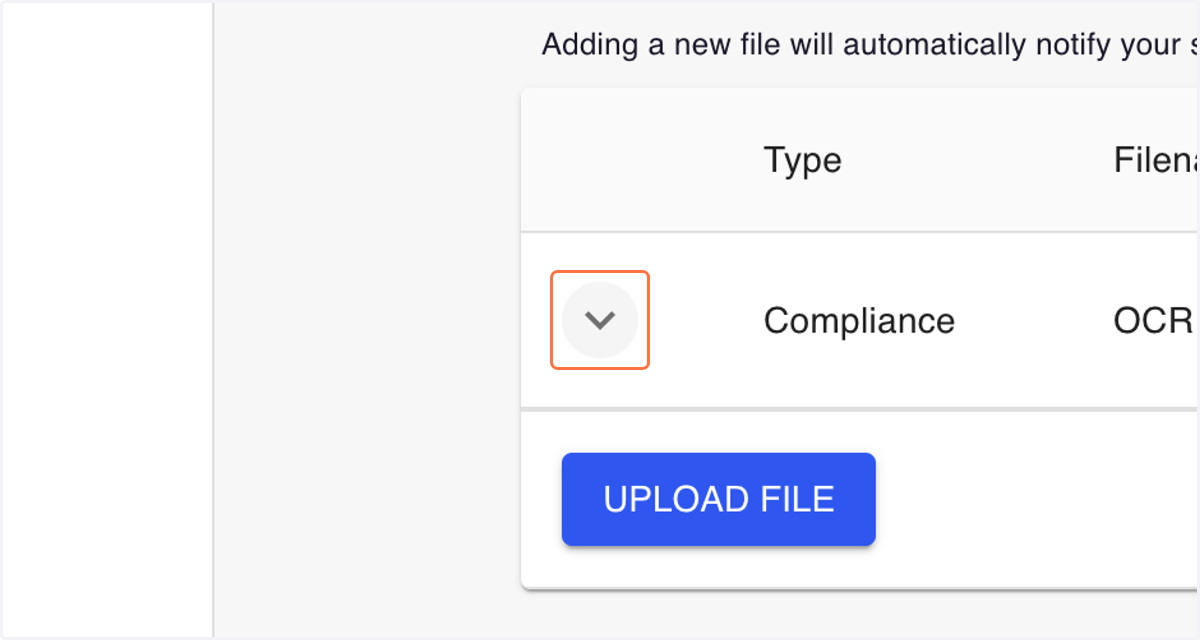
13. As you can see, this file was indeed uploaded by me on April 5th.