How to edit your Saint Joseph's University profile.
University Directory | University Directory
1. Log in to directory.sju.edu by going to https://directory.sju.edu/user.
Log into Saint Joseph's University directory website with your SJU credentials.
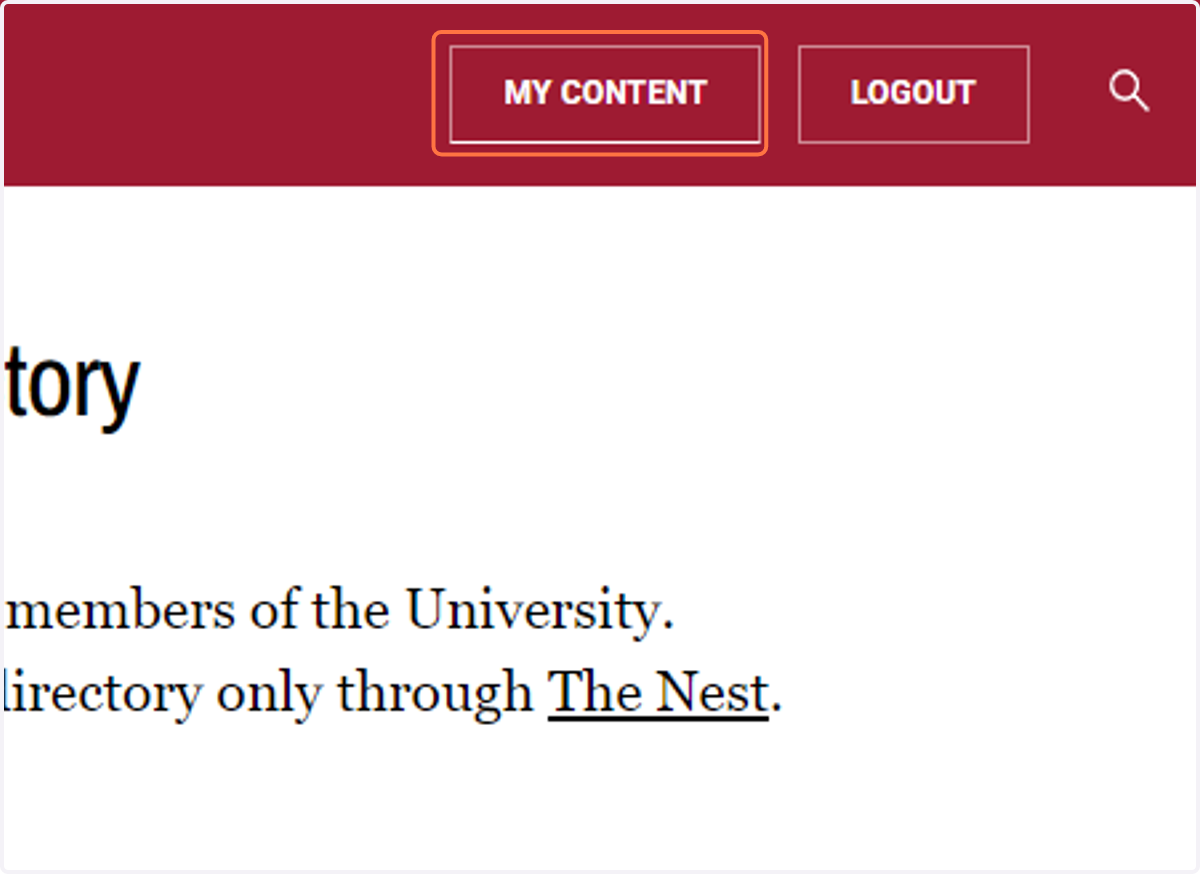
2. Click on MY CONTENT
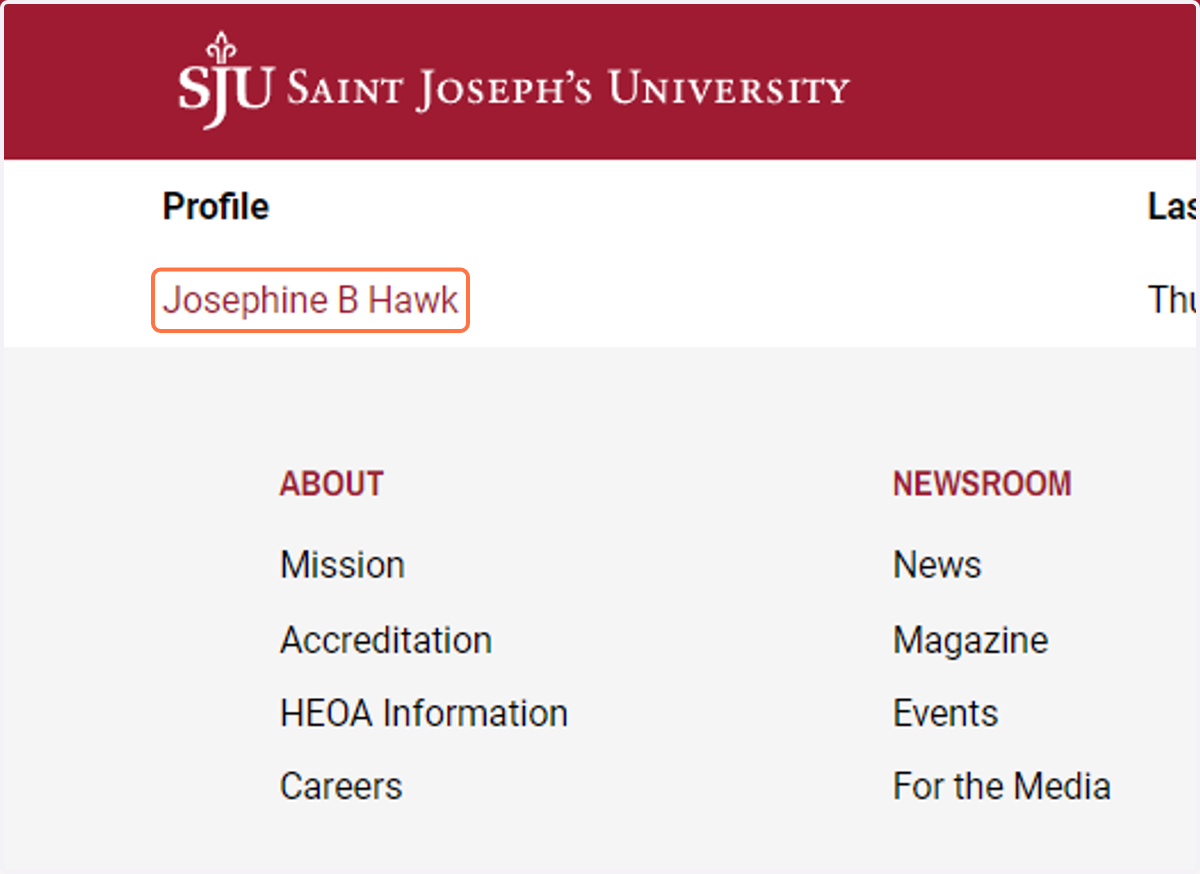
3. Click on the faculty or staff profile name. In this example it is "Josephine B Hawk"
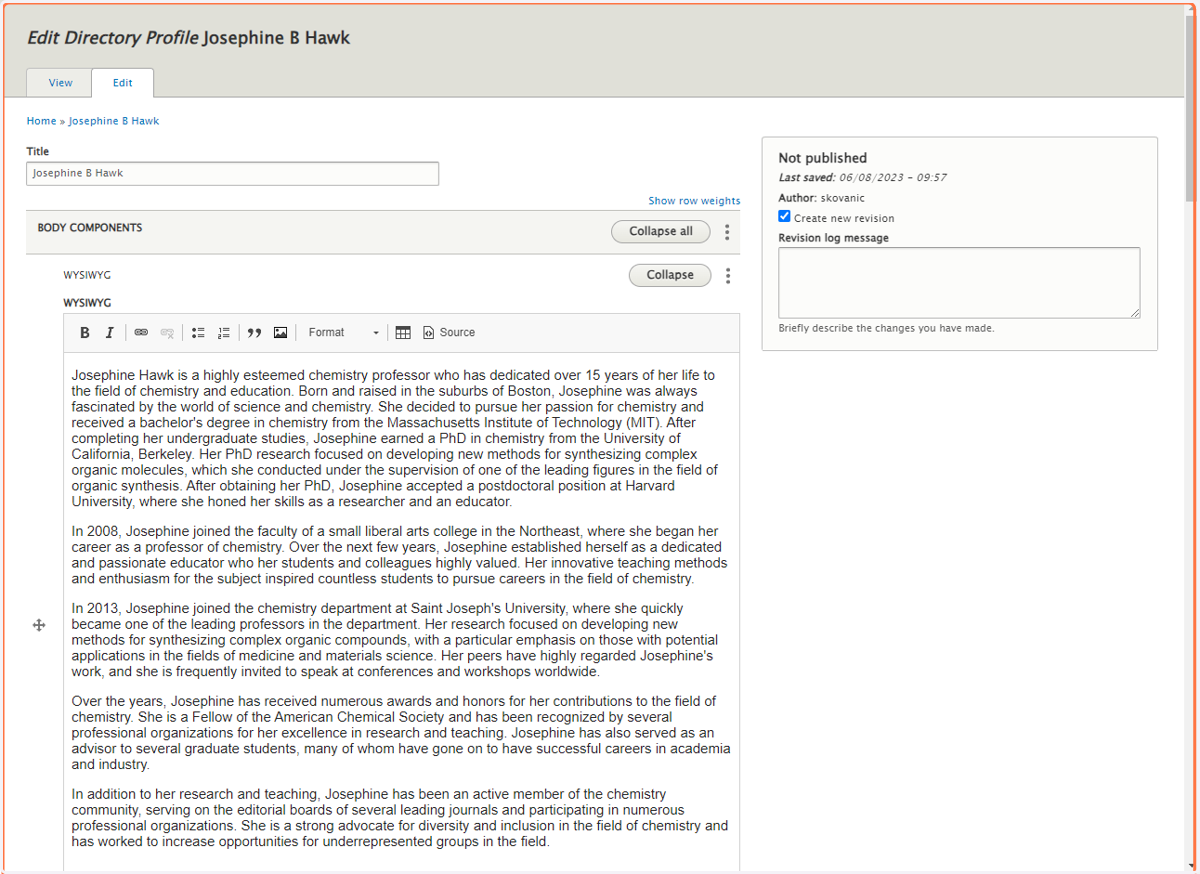
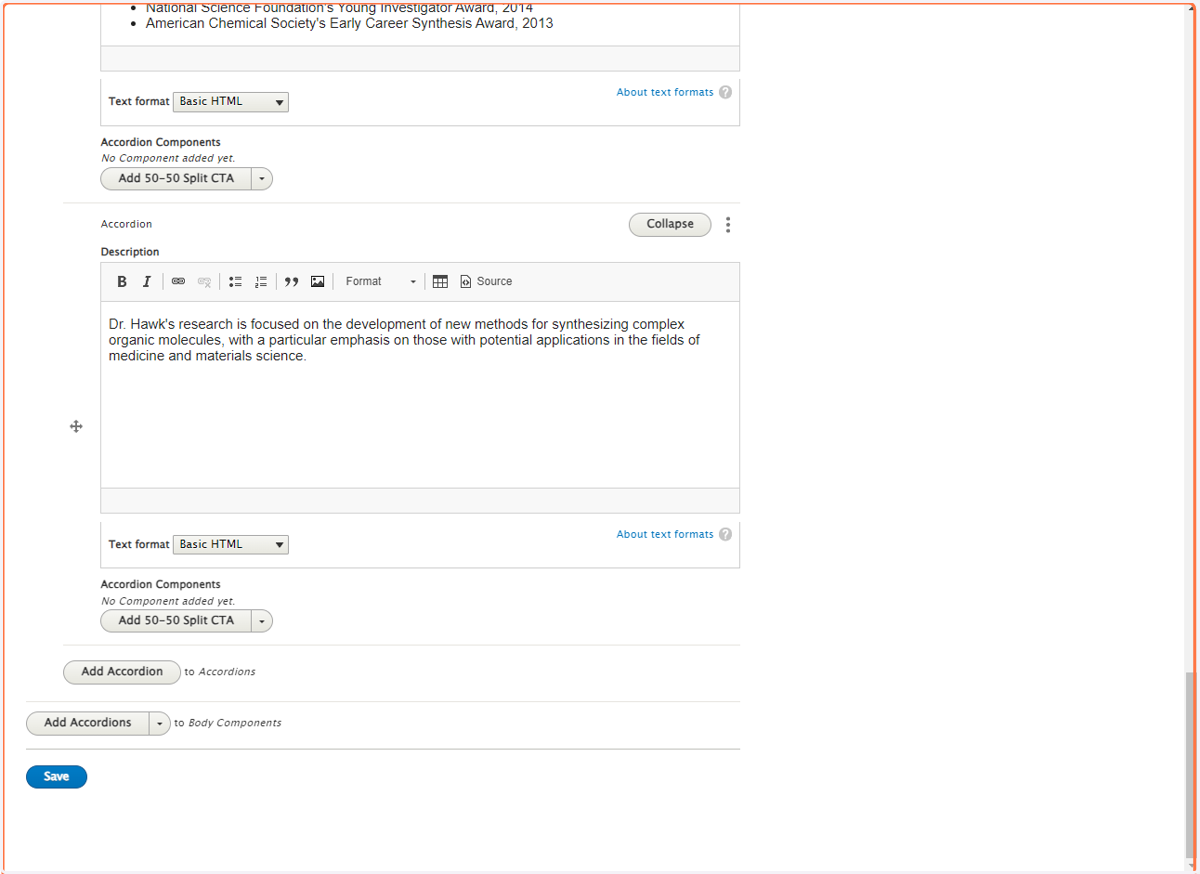
4. From here you can edit your biography content, format it, as you see fit.
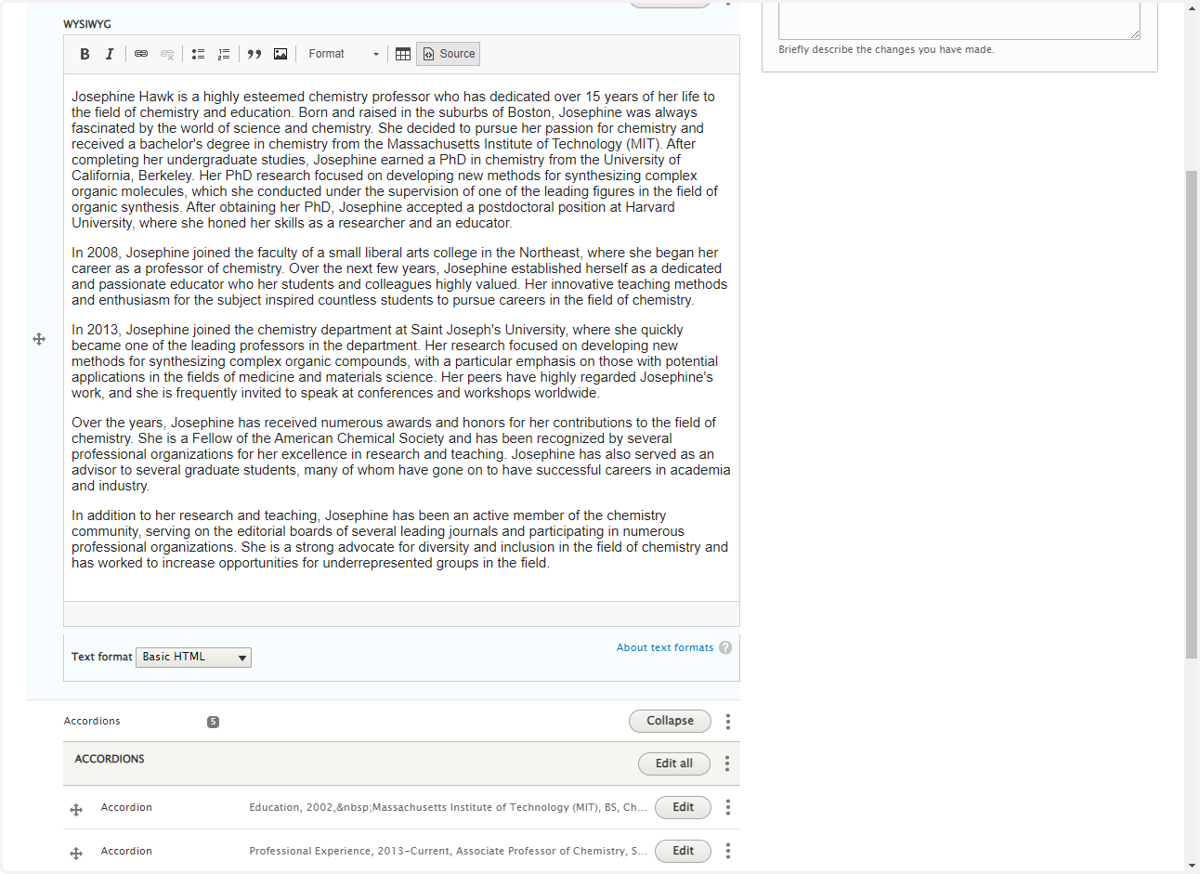
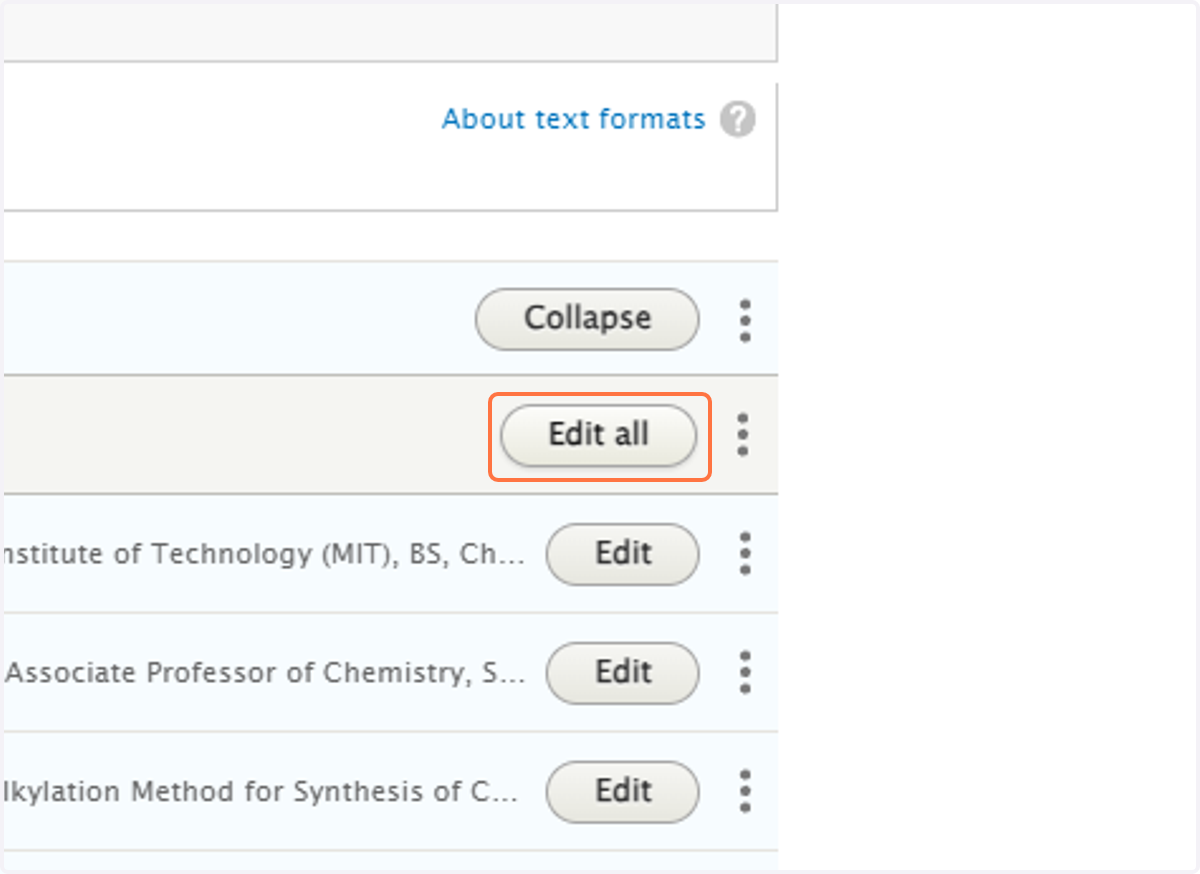
5. Next, click on "Edit all"
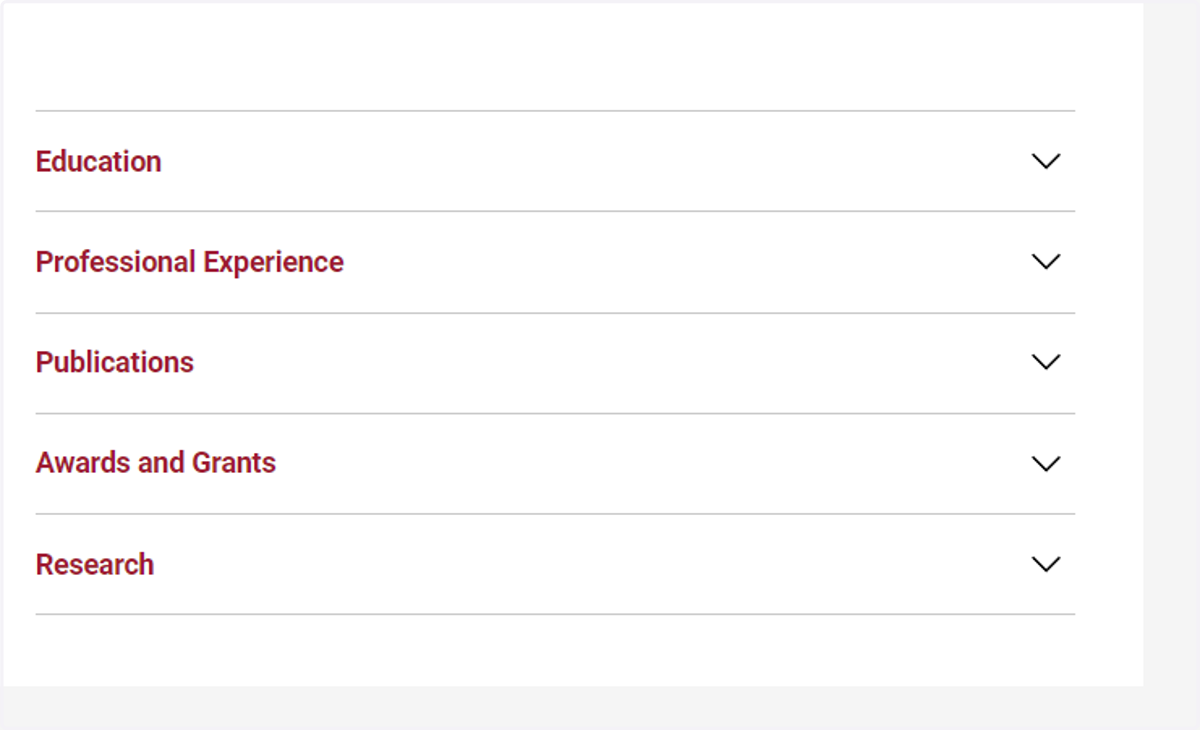
This edit all button will expand the accordion content for "Education" "Professional Experience", "Publications", "Awards and Grants" and "Research"
6. The accordion fields are located at the bottom of your faculty profile.
7. Once you are finished updating, make a not in the revision log what you did.
This note can be informal, but allows us to see what was done, if you ever want to revert changes back to a previous version of the faculty profile.
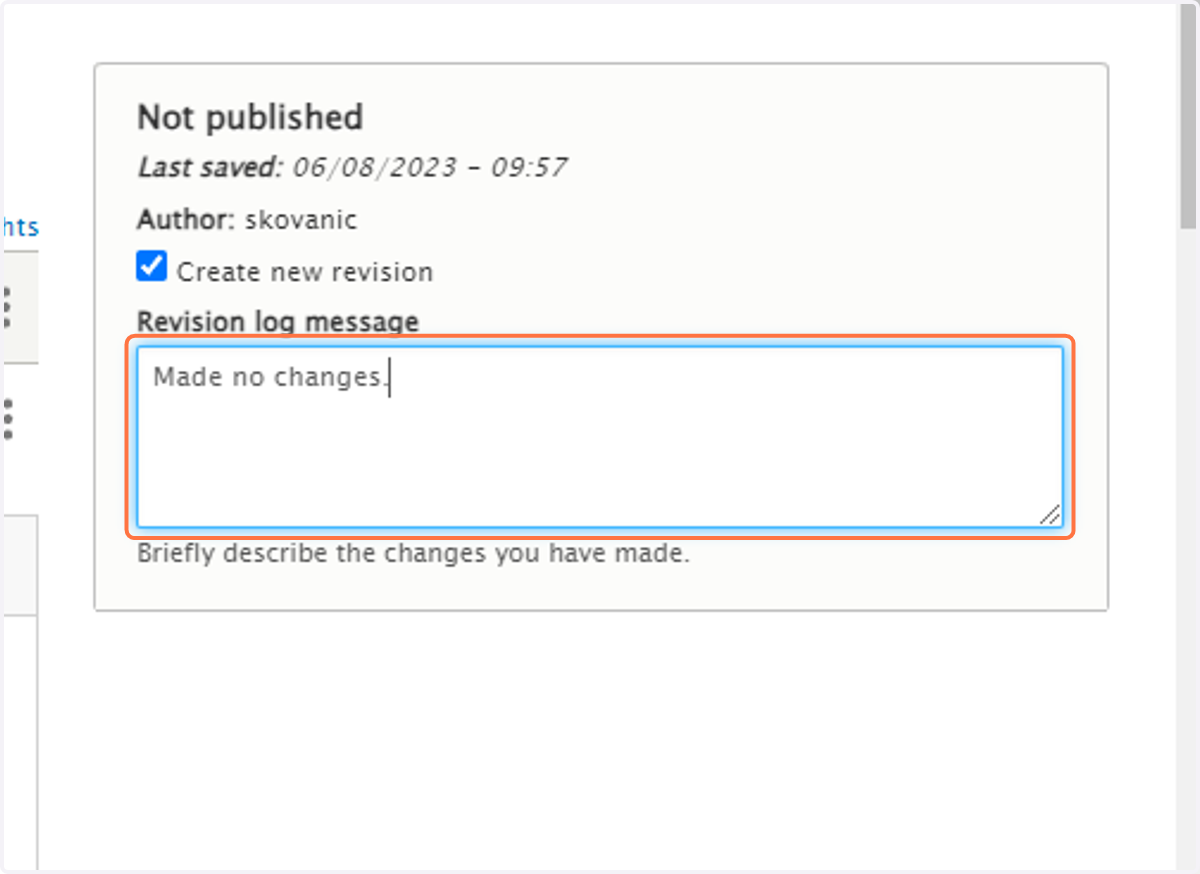
8. Make revision notes.
In this example, you can see the note "Made no changes."
9. Click "Save"
Once you have completed your updates, you can scroll to the bottom of the page and click save.
10. View the profile, once updates are complete.
Once the updates have been saved, go review the profile to ensure all updates were made.
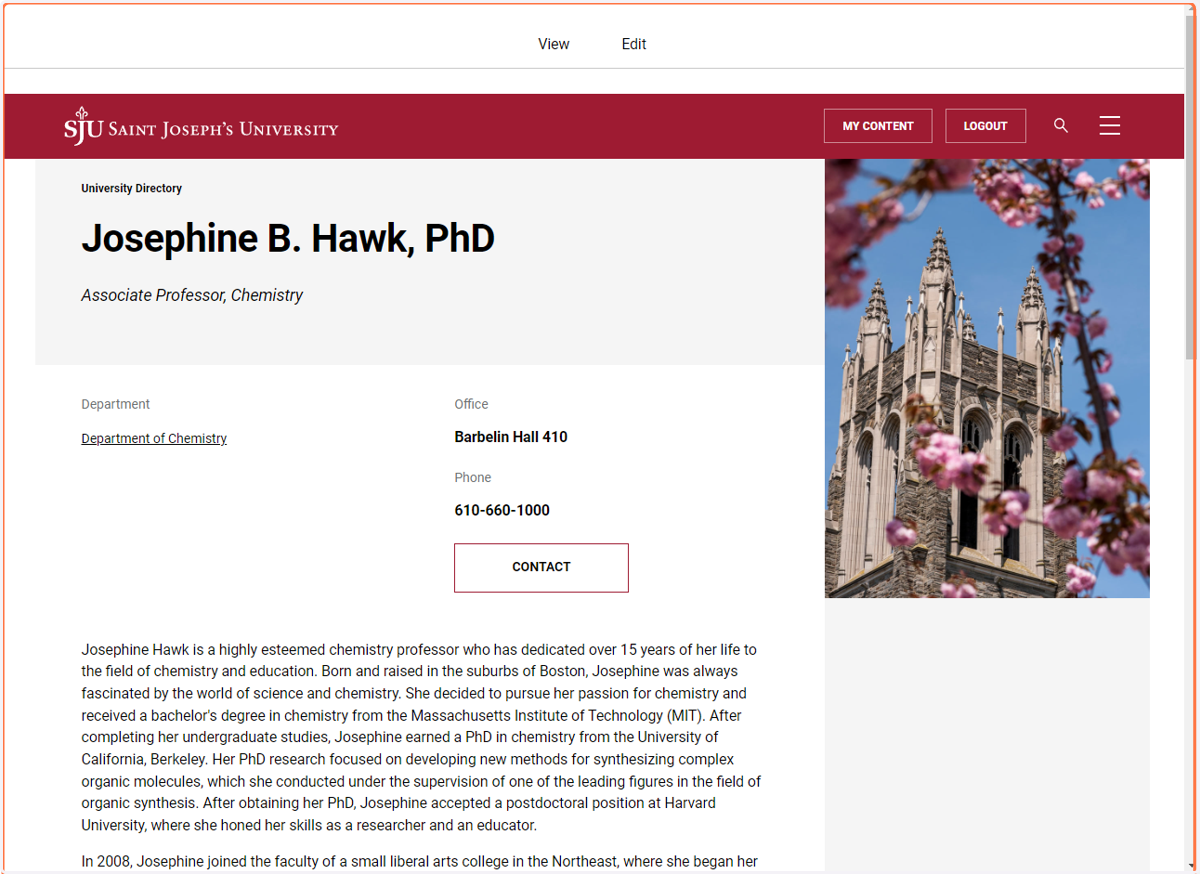
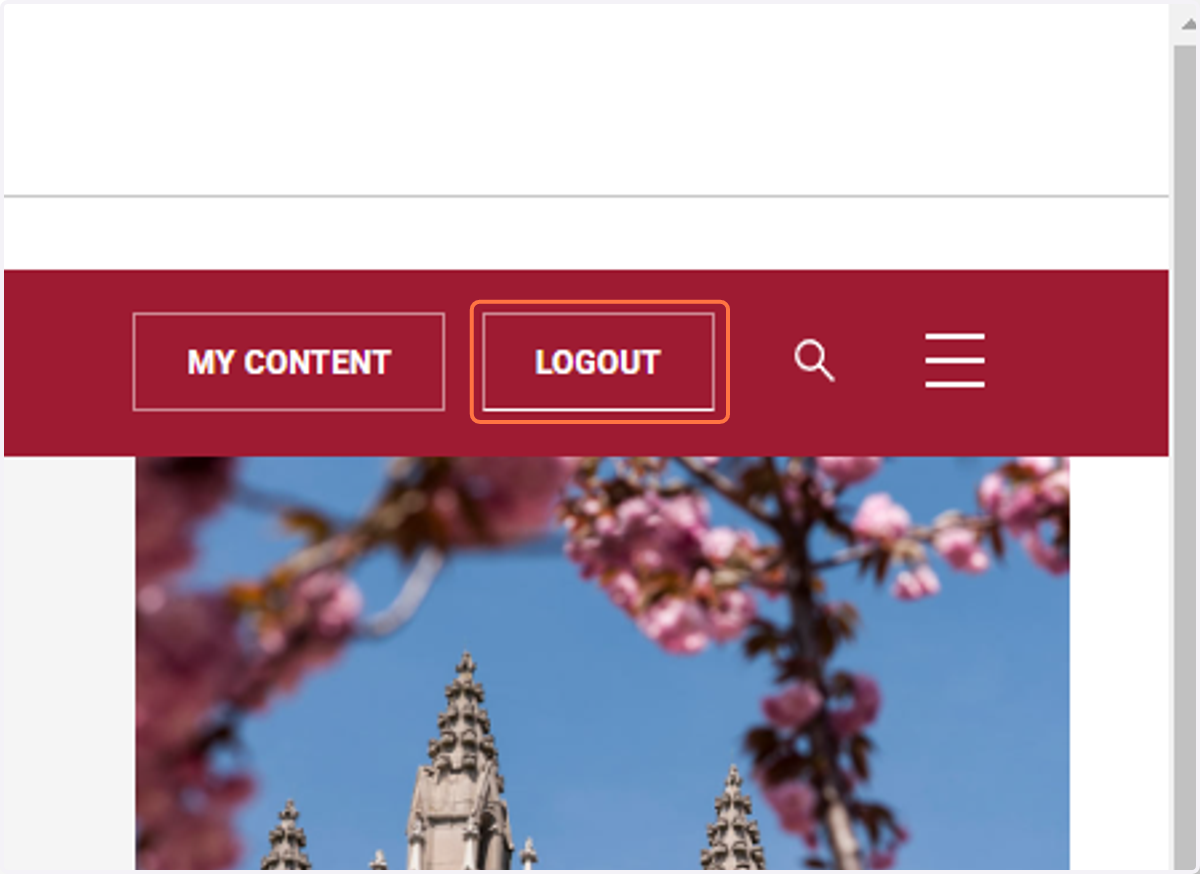
11. Click on LOGOUT
Once you are done, can click "LOGOUT" to return to the directory homepage.