Support Portal
The following guide will help you log in and use our support portal.
Navigate to our website.
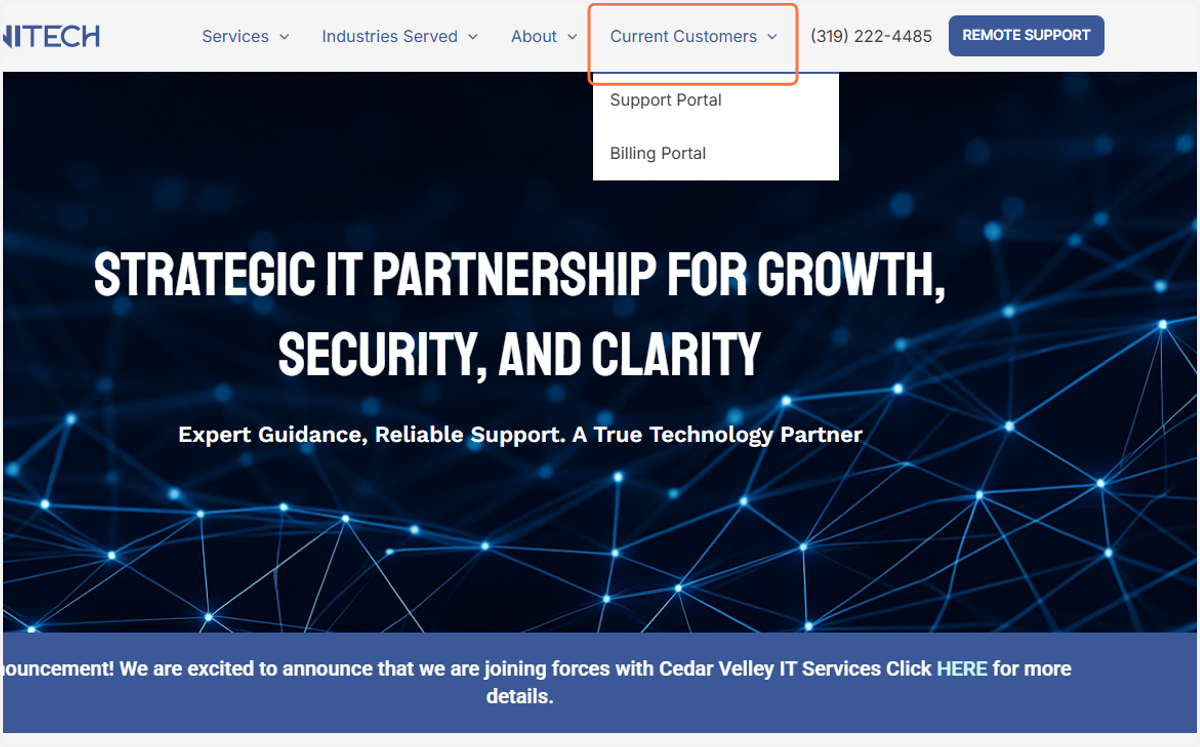
1. Click on Current Customers
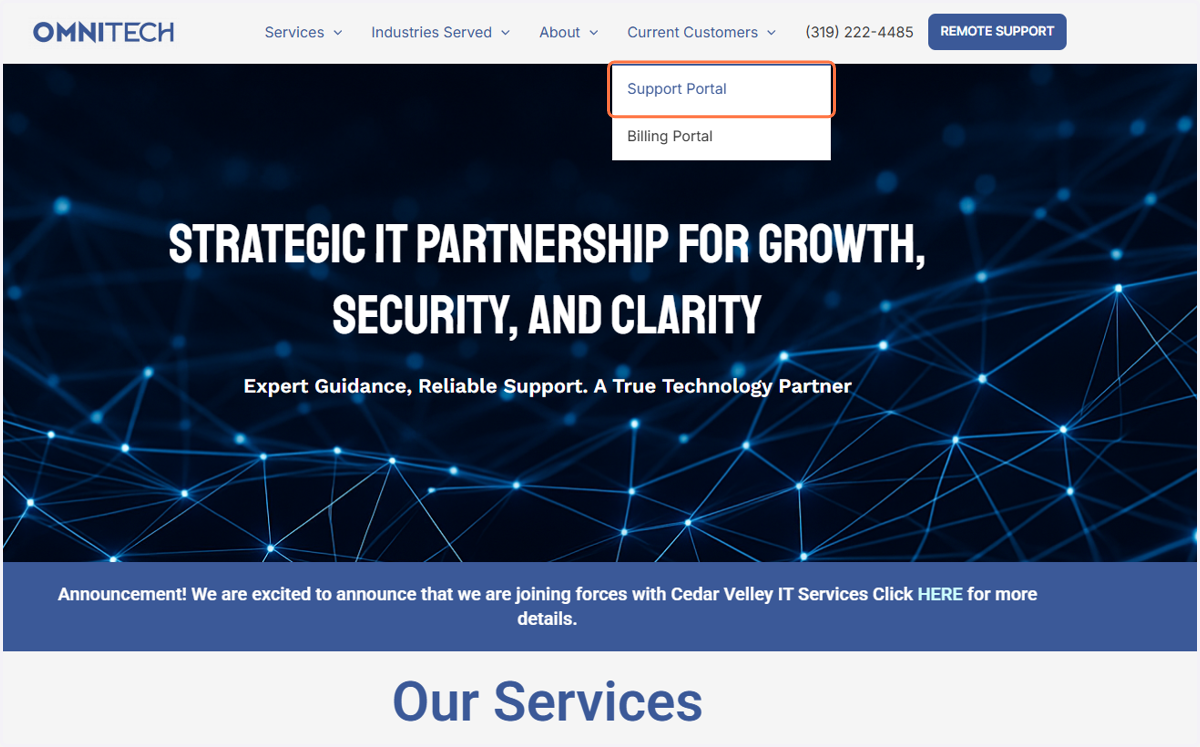
2. Click on Support Portal
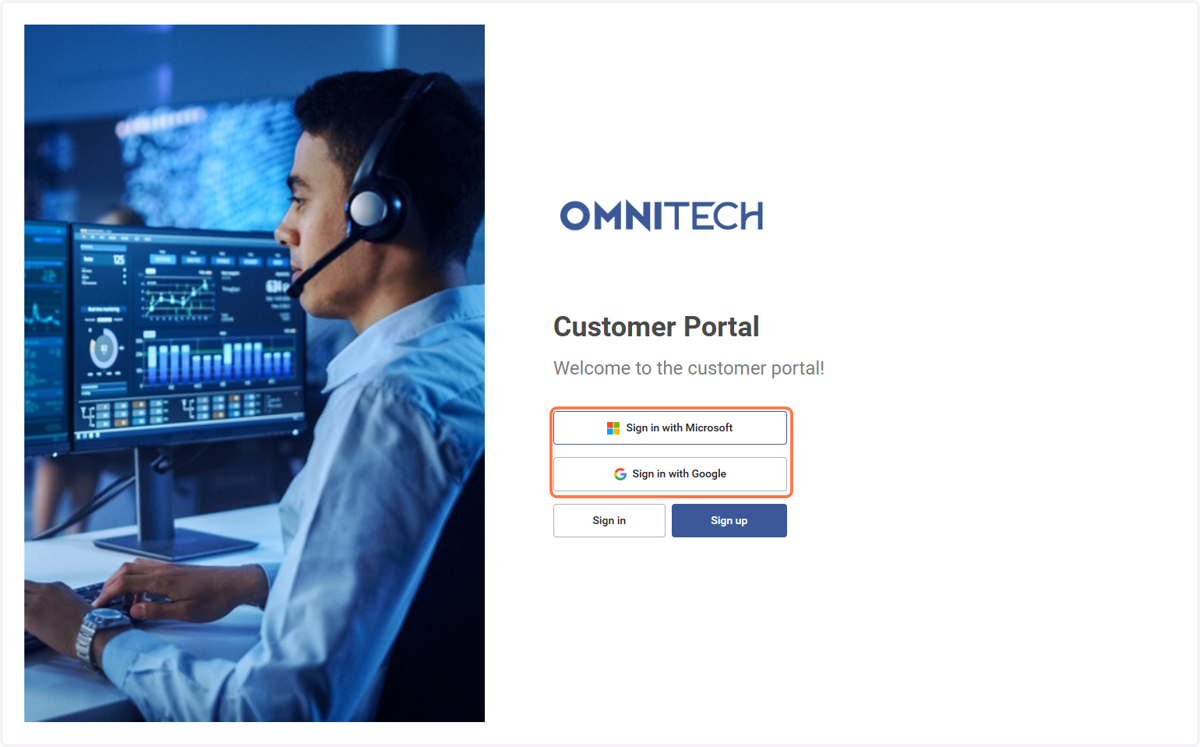
3. Click on Sign in with Microsoft or Google
4. You should now see the homepage of the Support Portal
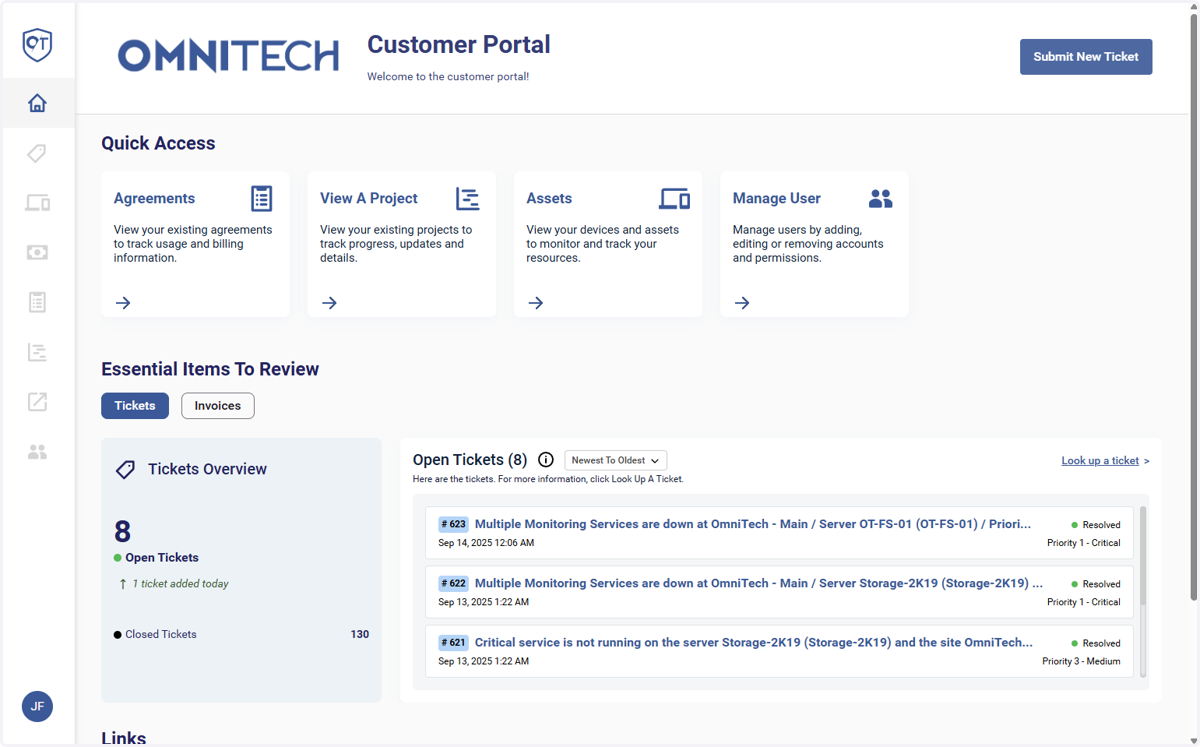
5. To create a new ticket, click "Submit New Ticket"
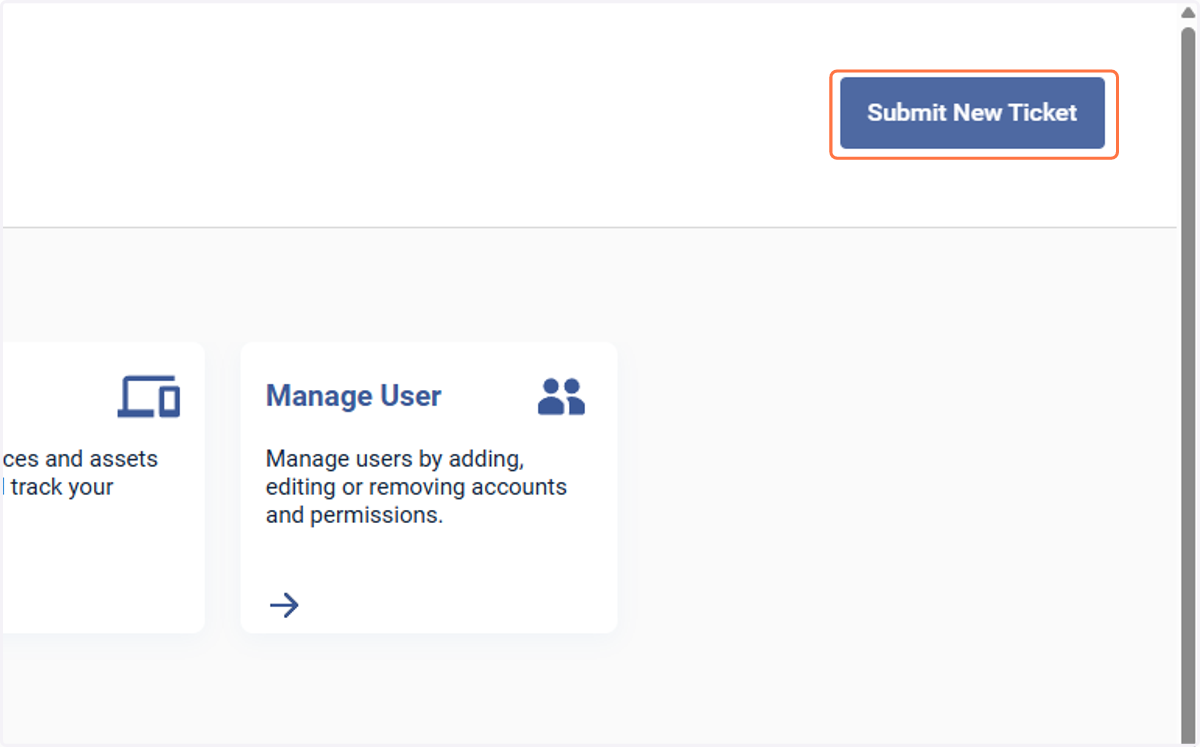
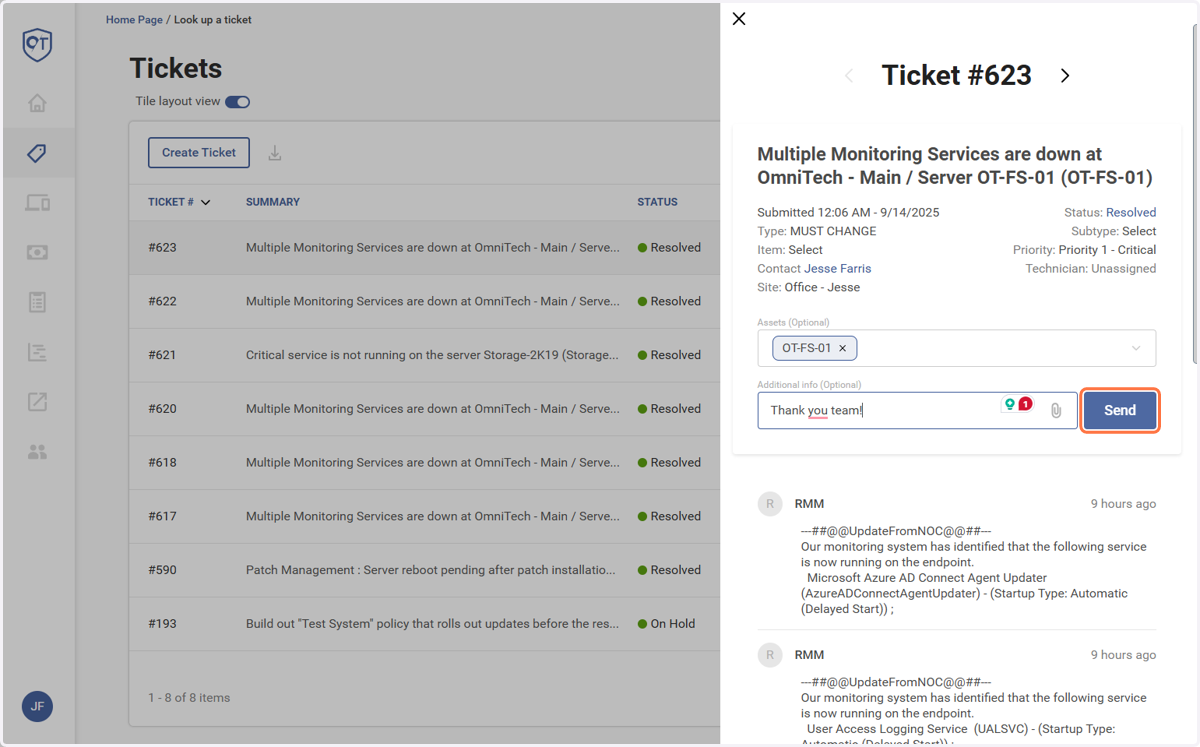
6. You can also view open tickets by clicking the "Ticket" icon on the left.
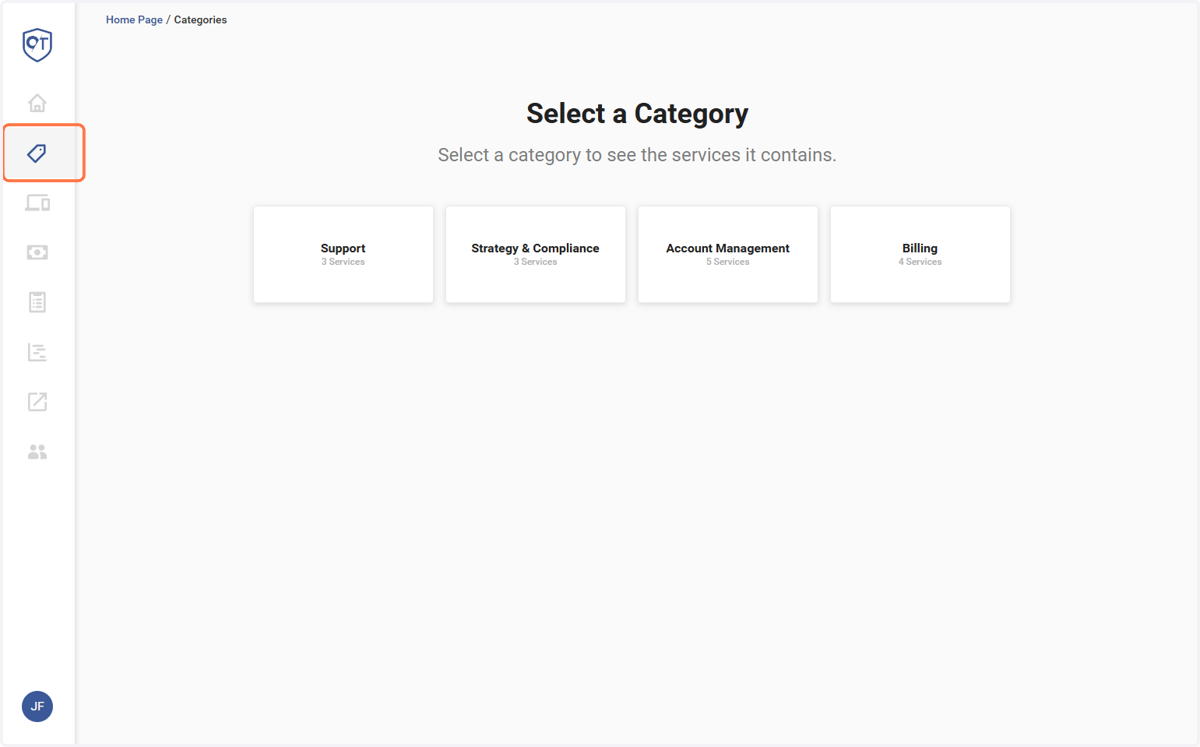
7. This will open up a list of open tickets. If you would like to view closed tickets, select the "Funnel" button at the top of the list, and select "All" tickets
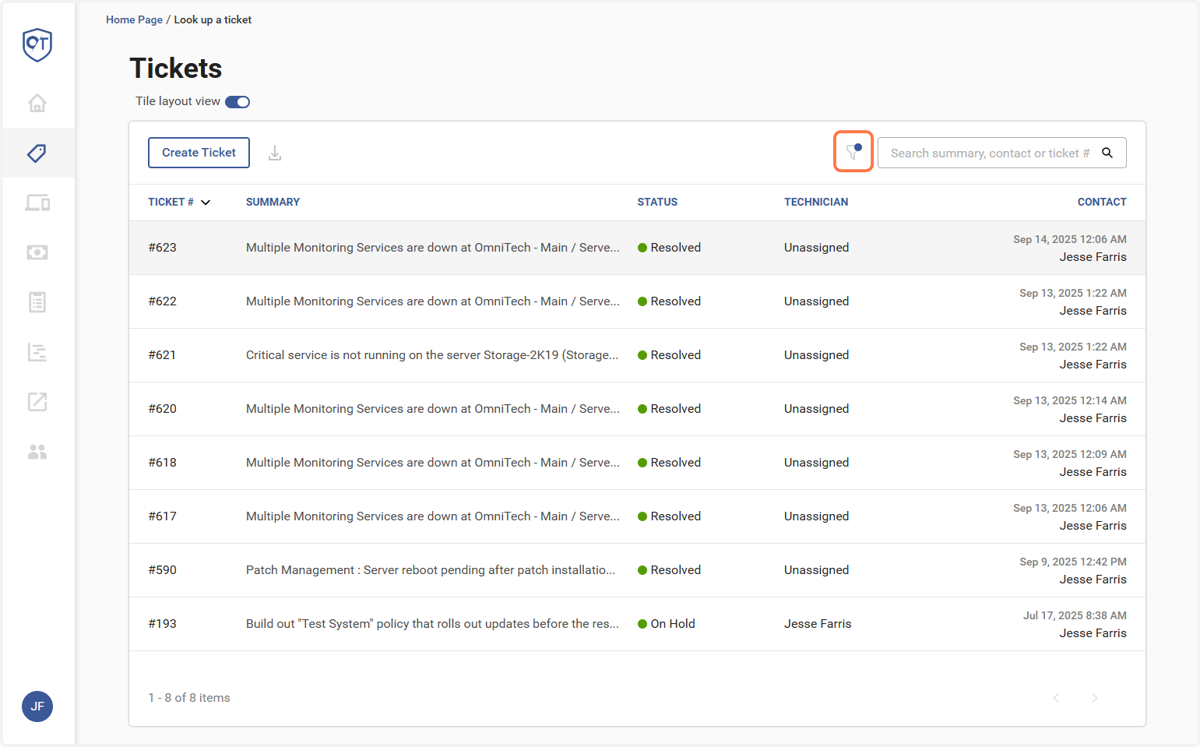
8. You can also open each ticket, review technician and user notes, and send emails to the technician.
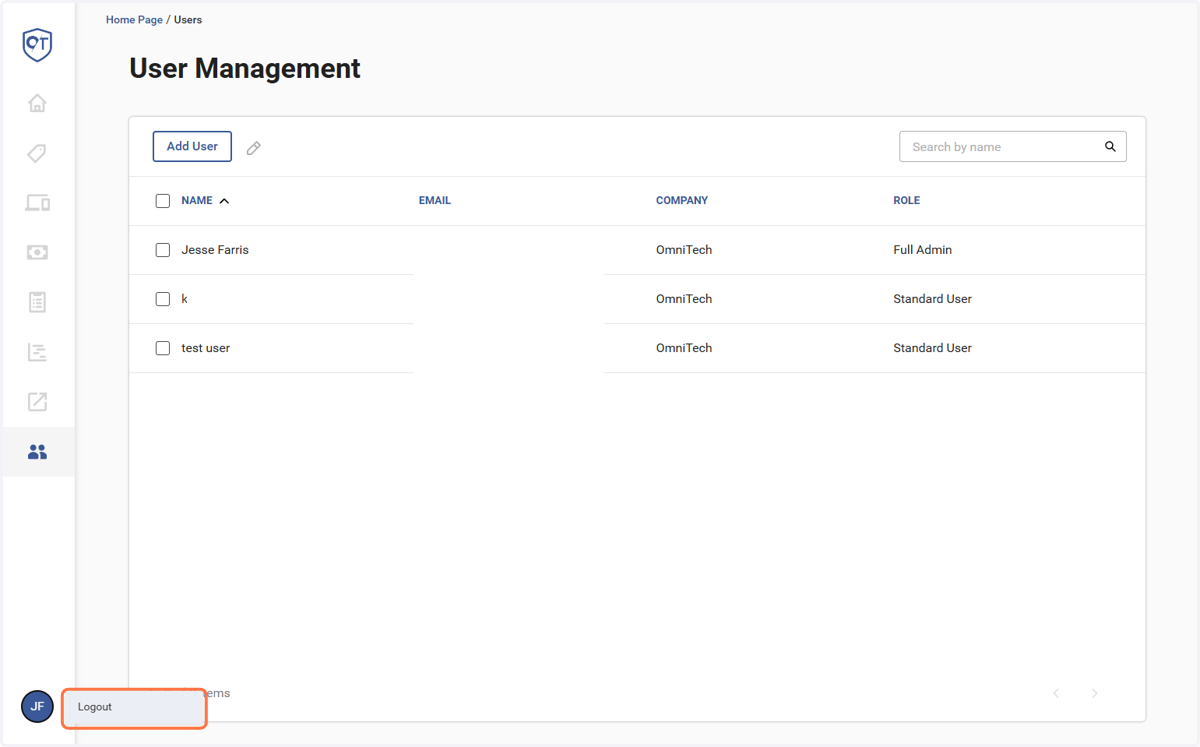
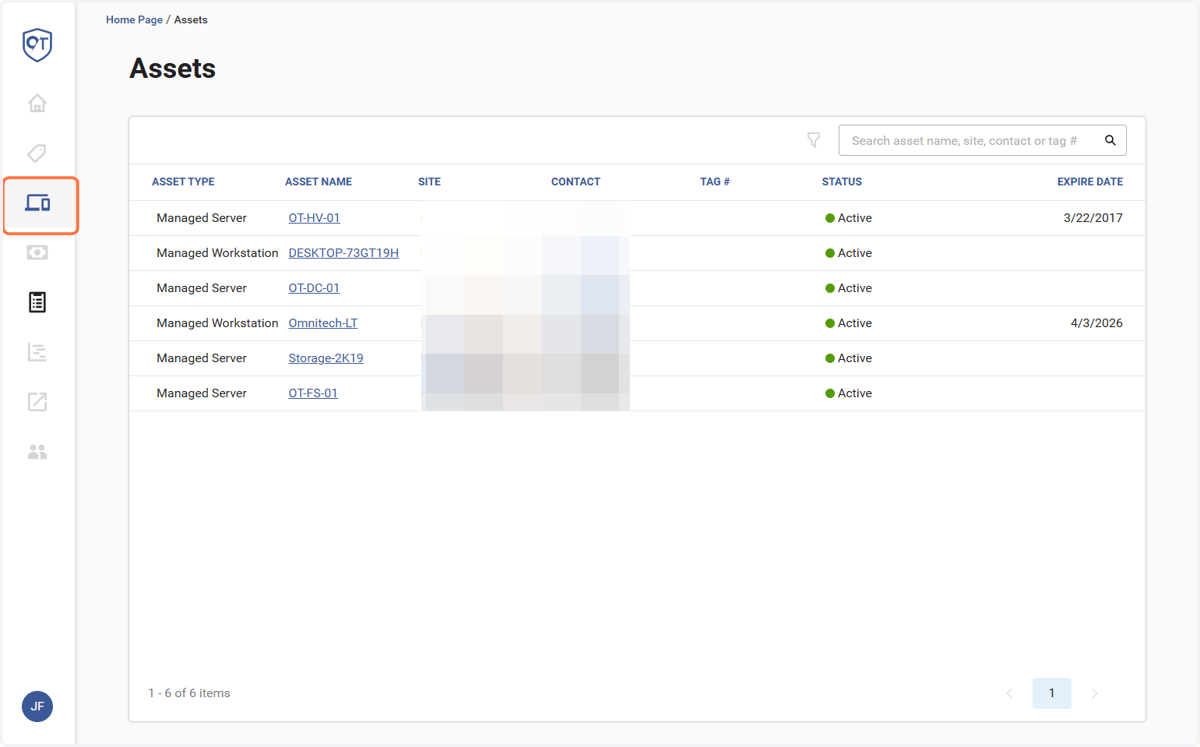
9. If you click on the "Assets" tab, you will see a list of assets we manage. Note: This only applies to customer with monthly service packages.
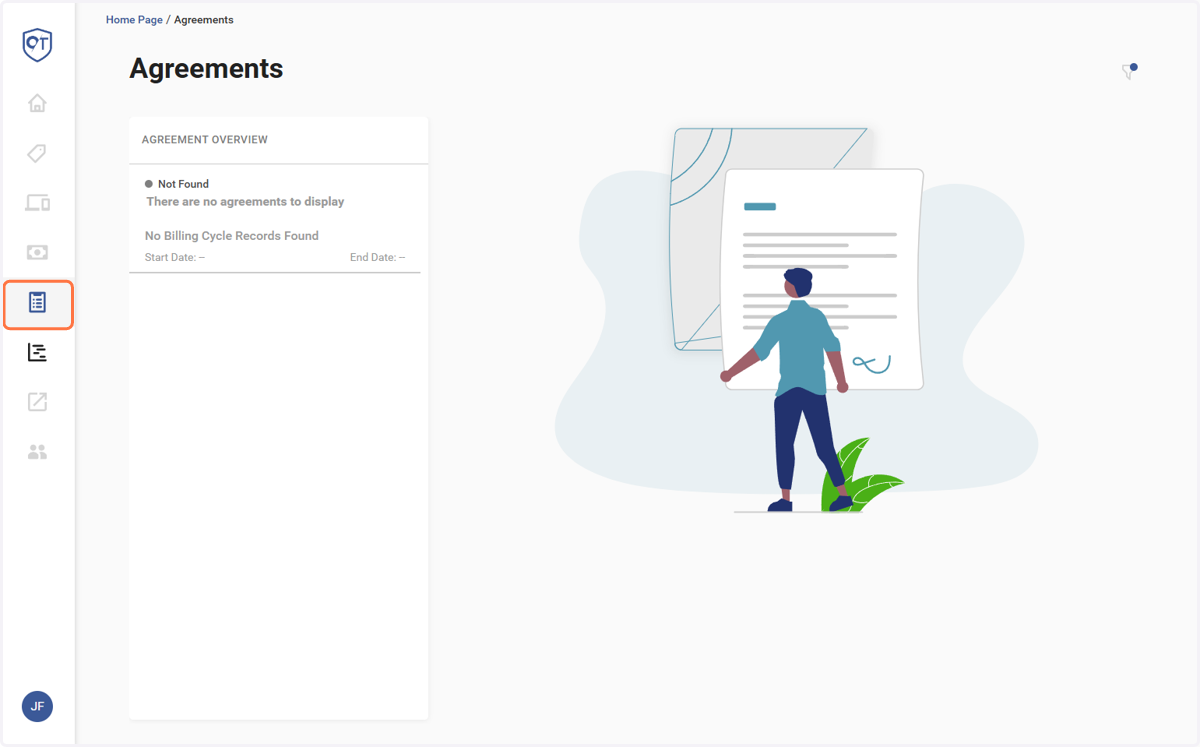
10. Selecting the "Agreement" tab will show you a list of your active agreements.
11. Selecting the "Users" tab will show you a list of employees/users that we have in our system, if you would like to add a new users contact information for us, you can click the "Add User" button. You can also adjust that users access by changing their "Role"
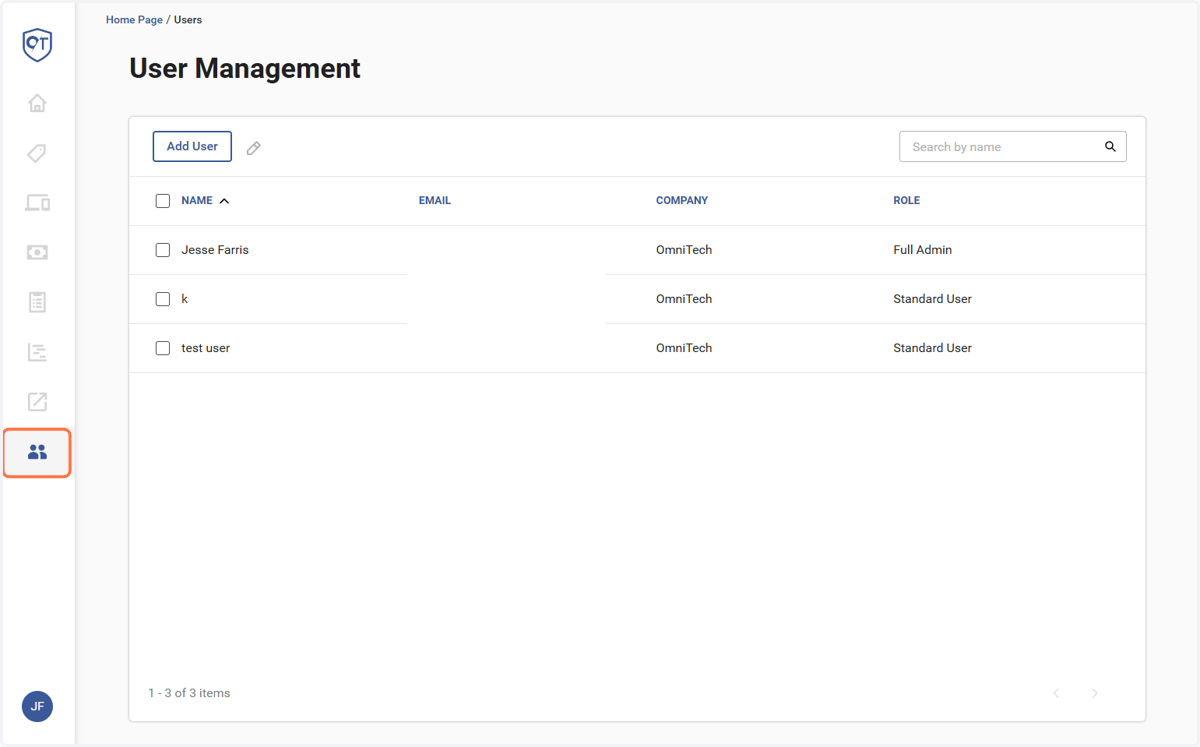
12. When you are finished with the portal, you can simply log out by selecting your initials on the bottom left, and selecting "Log Out"