Approve Membership Transfers in MatchPoint
MatchPoint
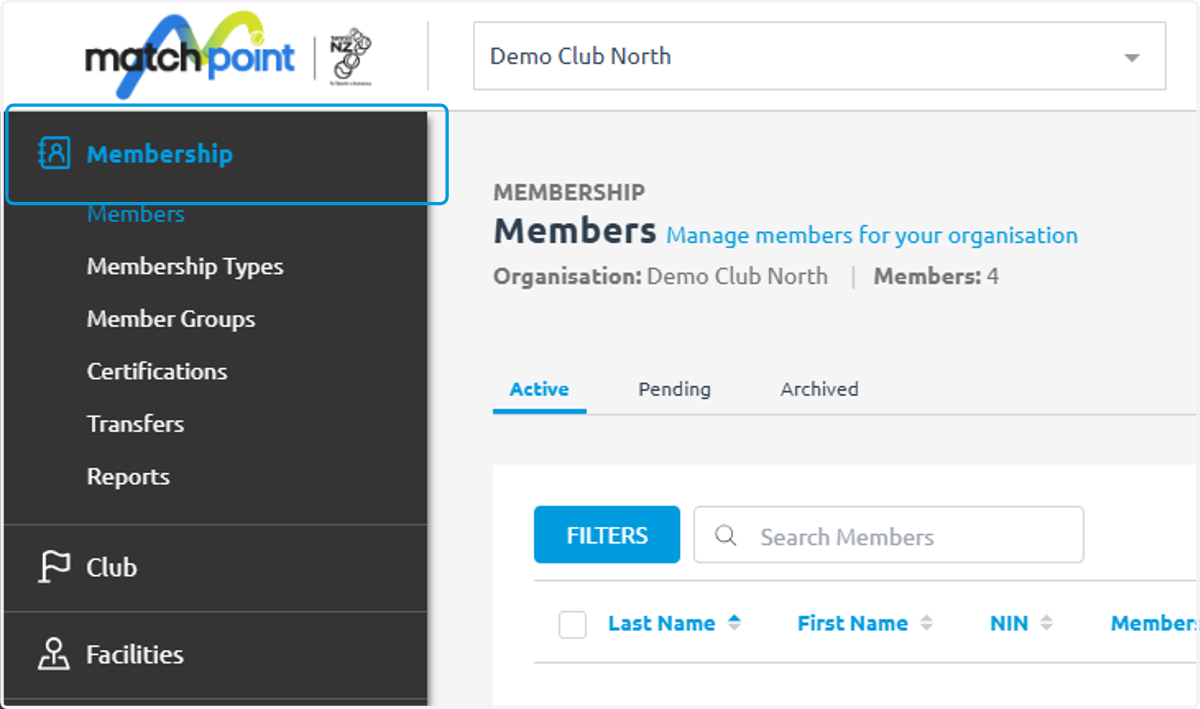
1. This is found under the membership section
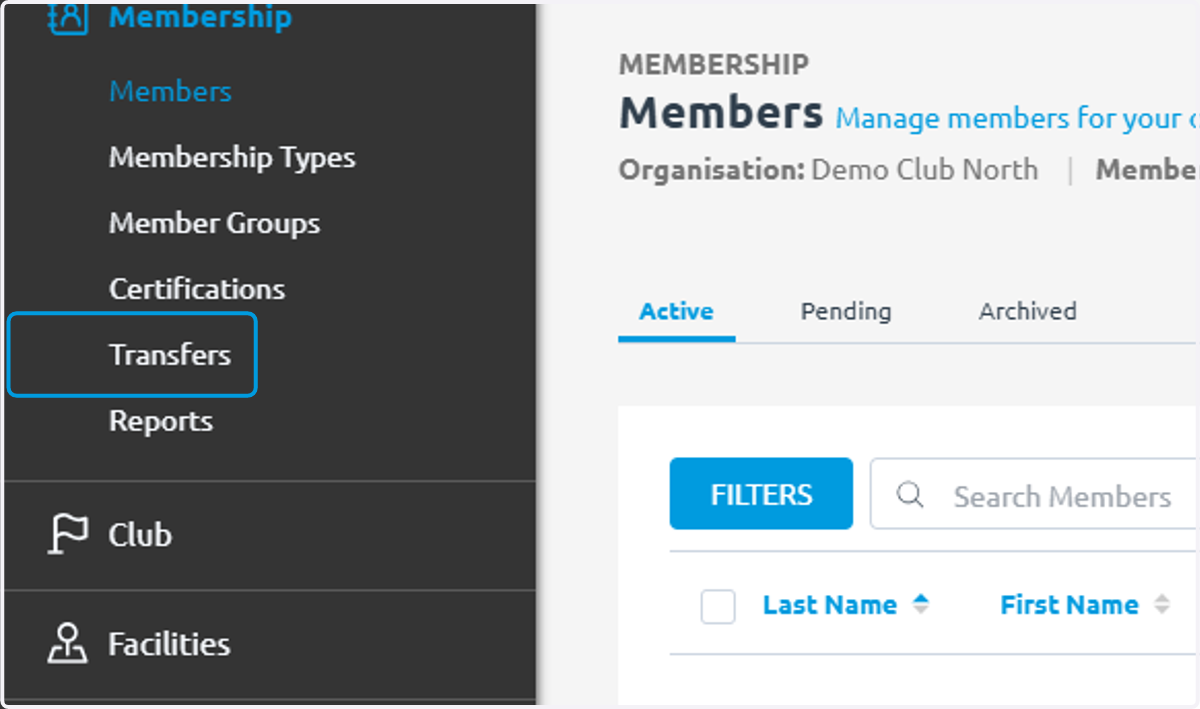
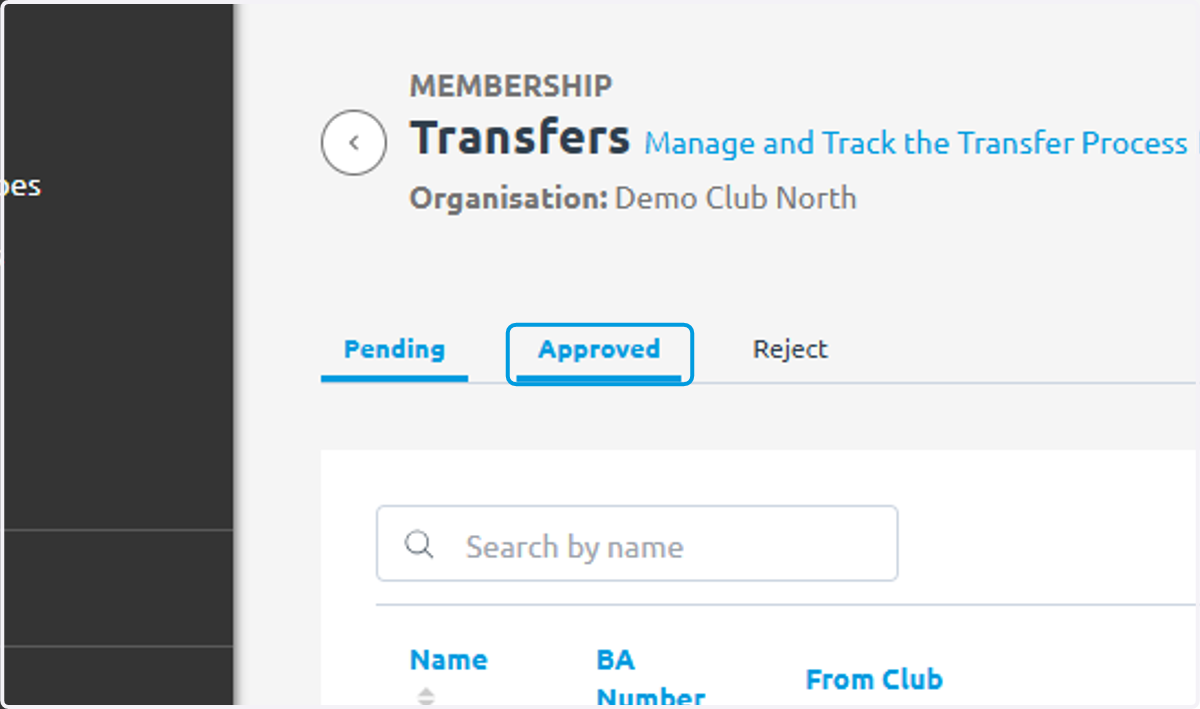
2. Click on Transfers
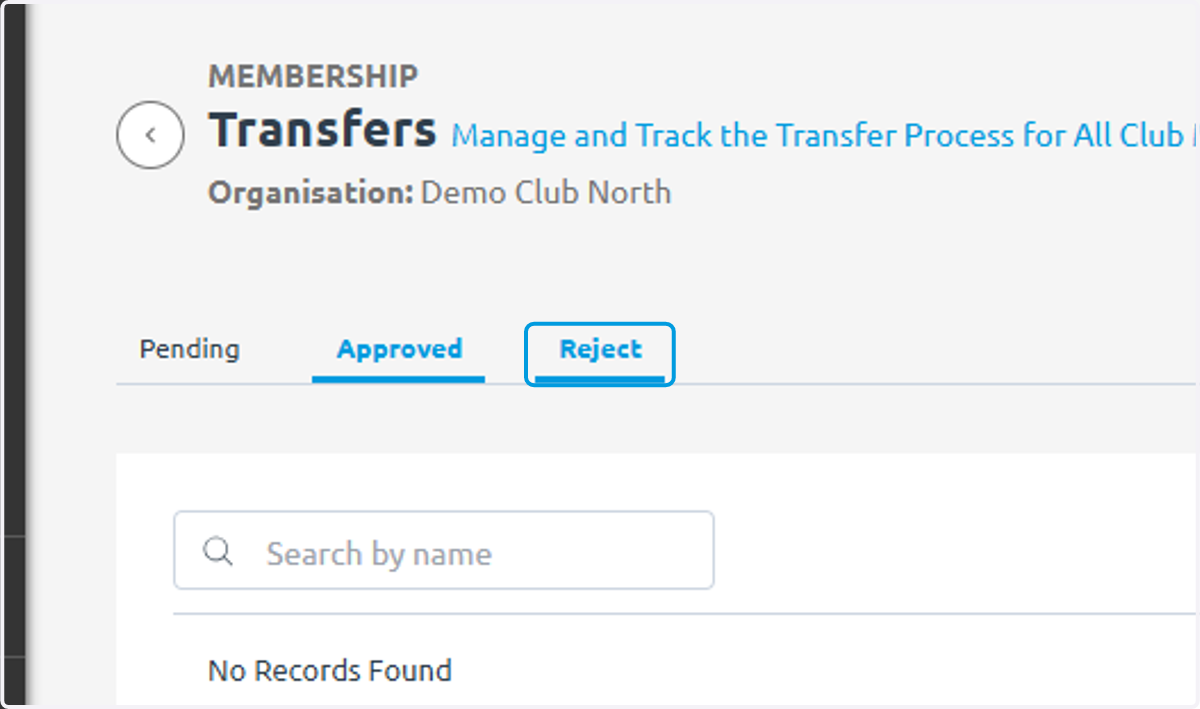
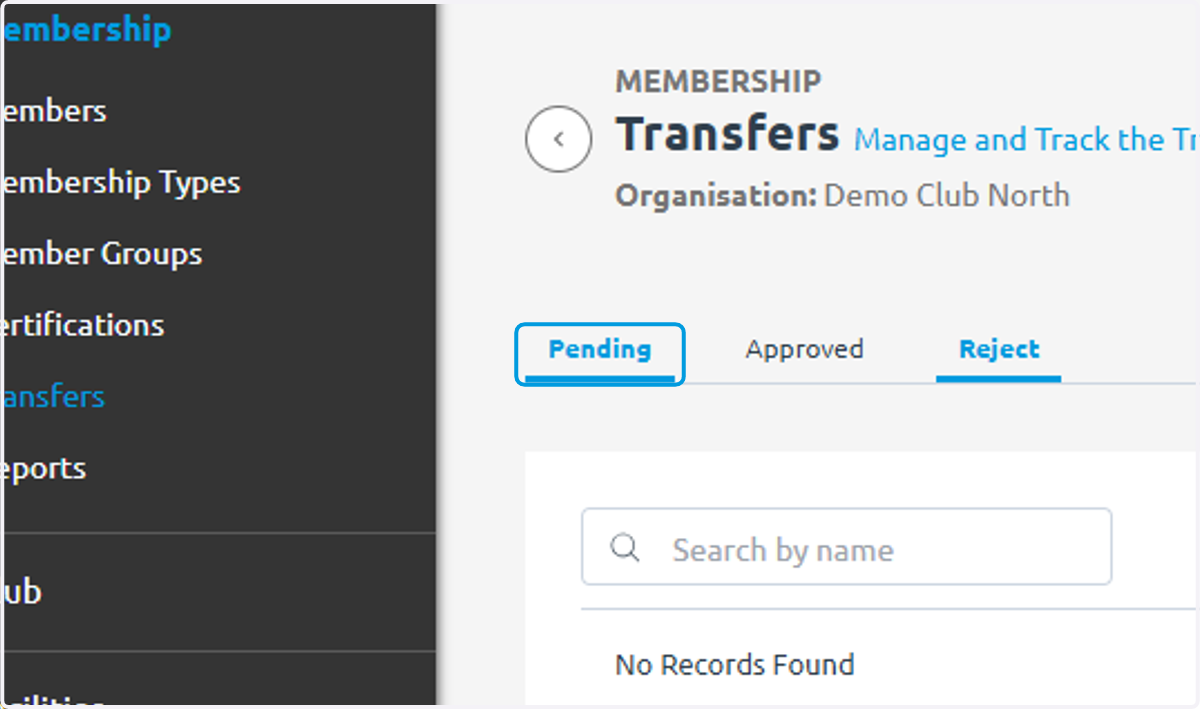
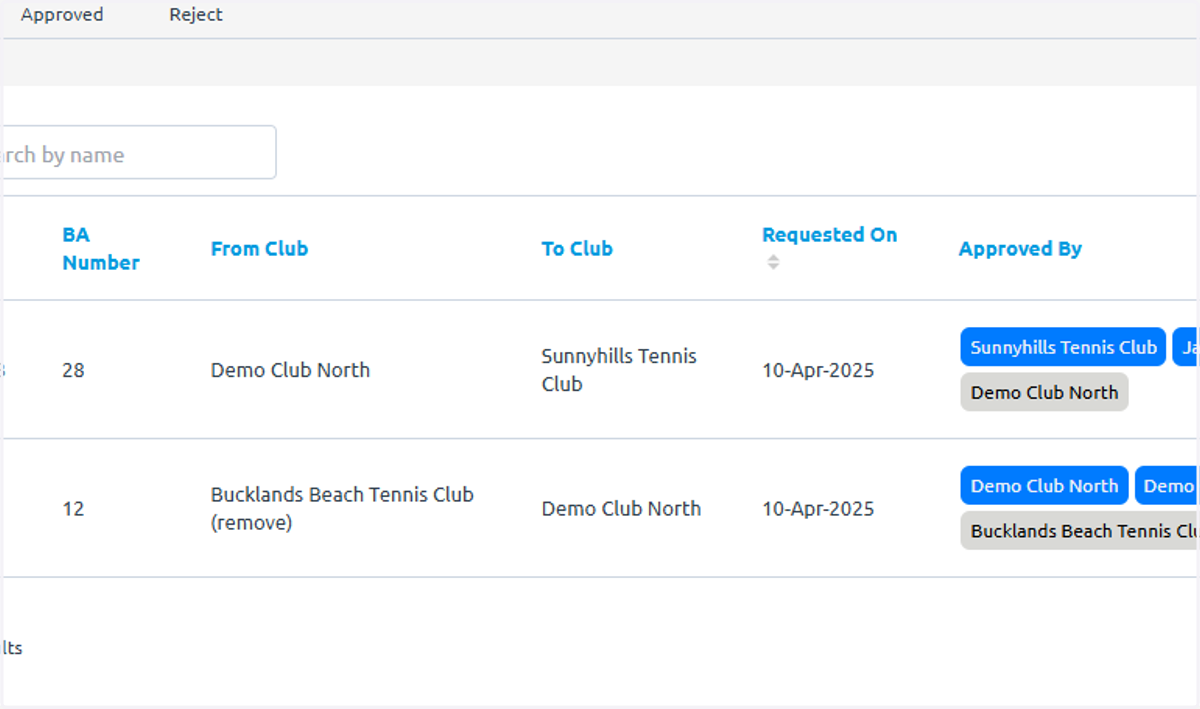
3. Transfers sit in three different states
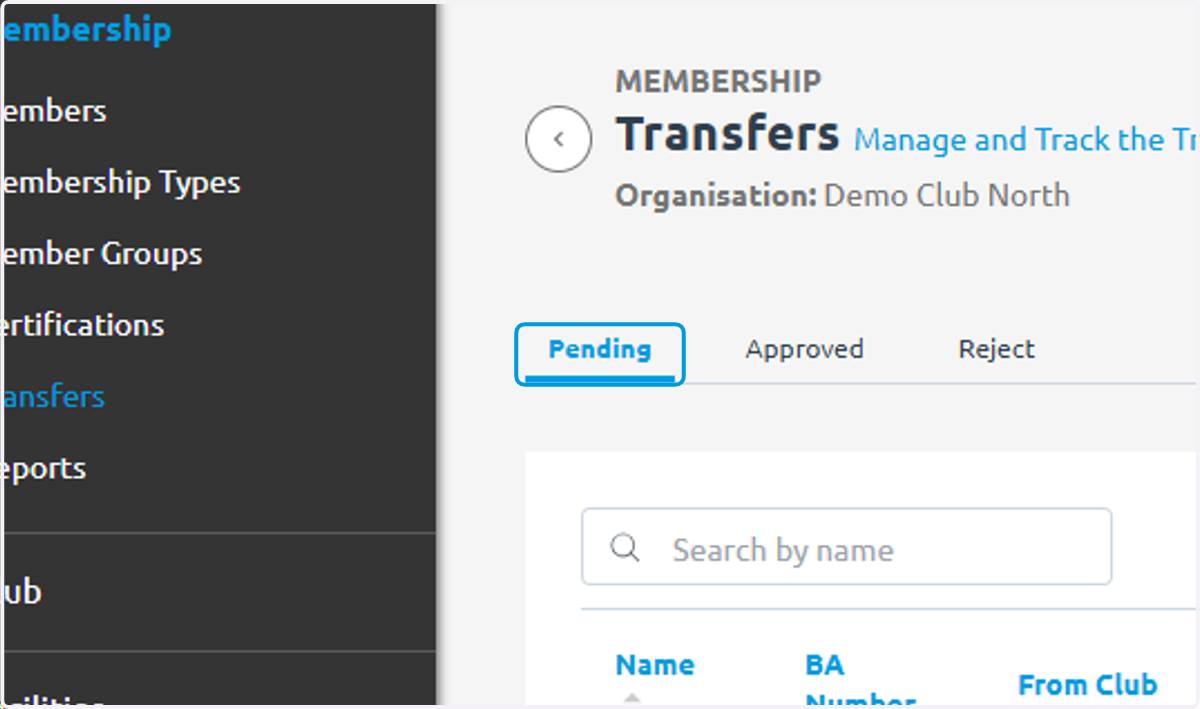
4. Approved
5. Reject
6. & Pending
This is where you will spend a majority of your time regarding transfers
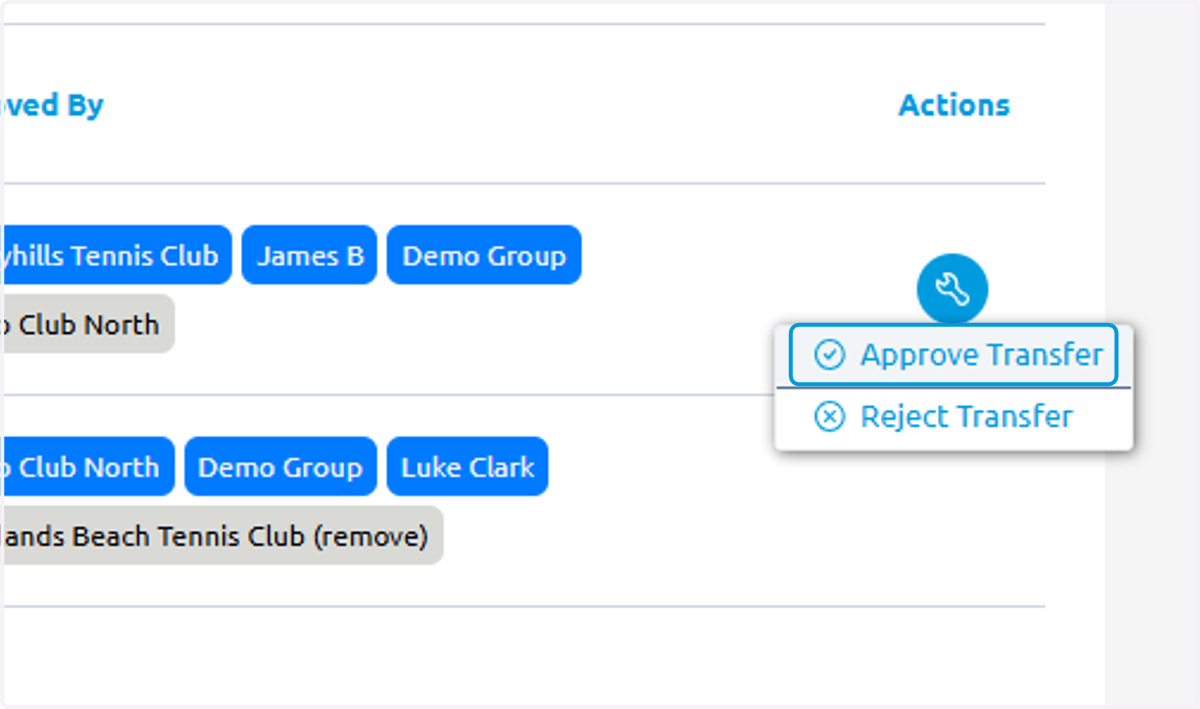
7. Identify your transfers requiring any actions by looking for the "spanner" button
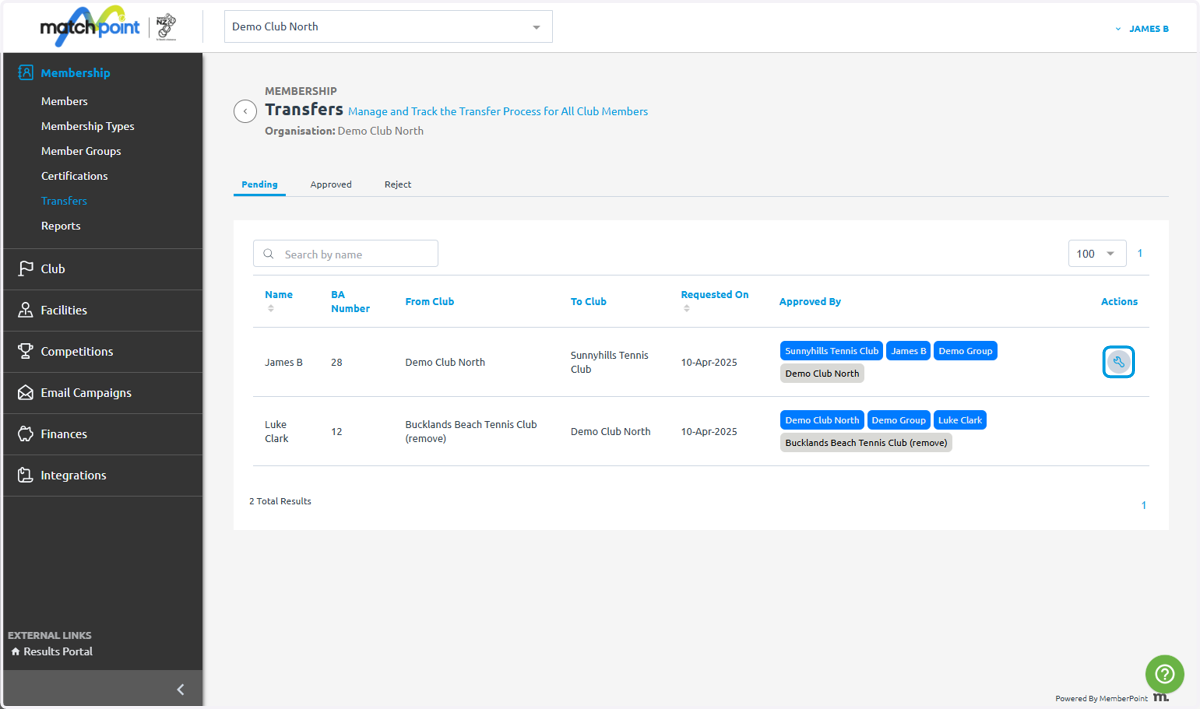
8. Click on the button
9. Click on Approve Transfer
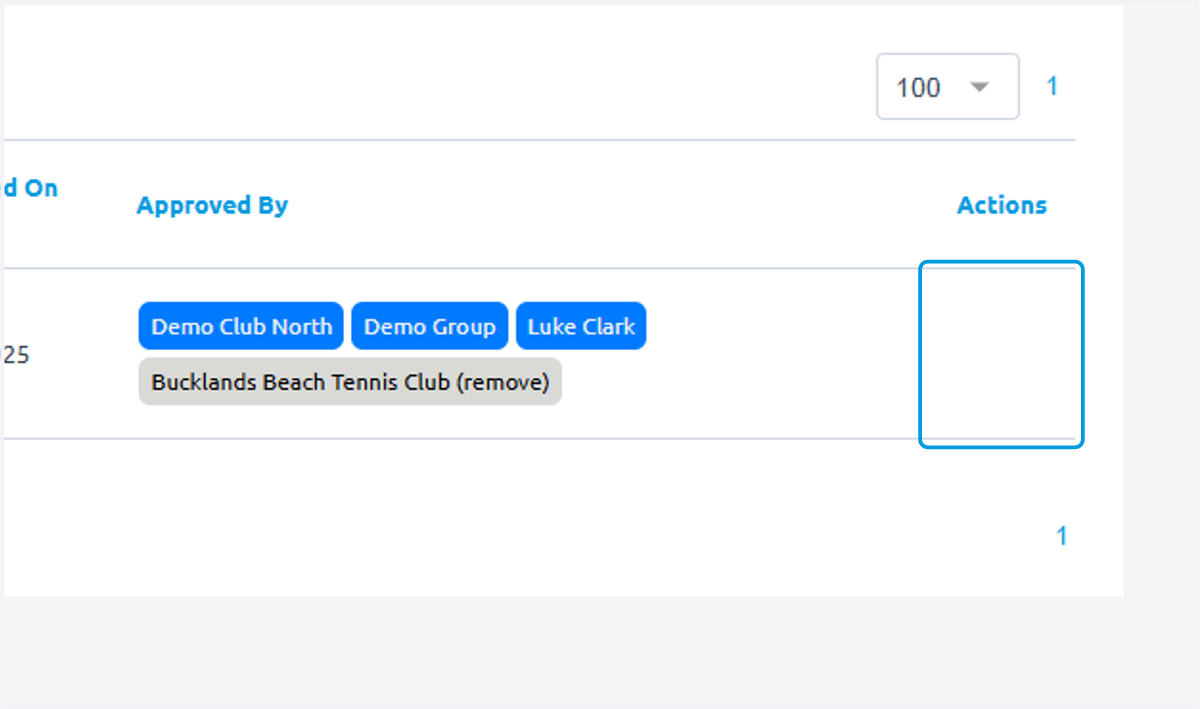
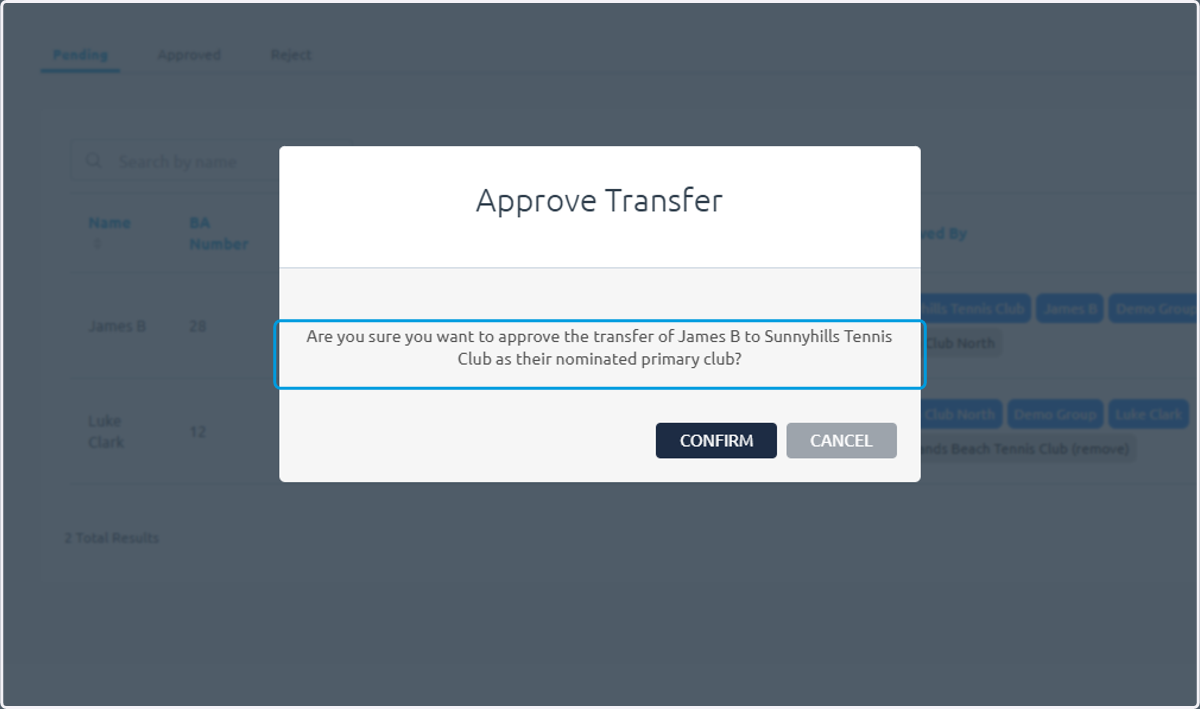
10. This will require you to review and confirm the action
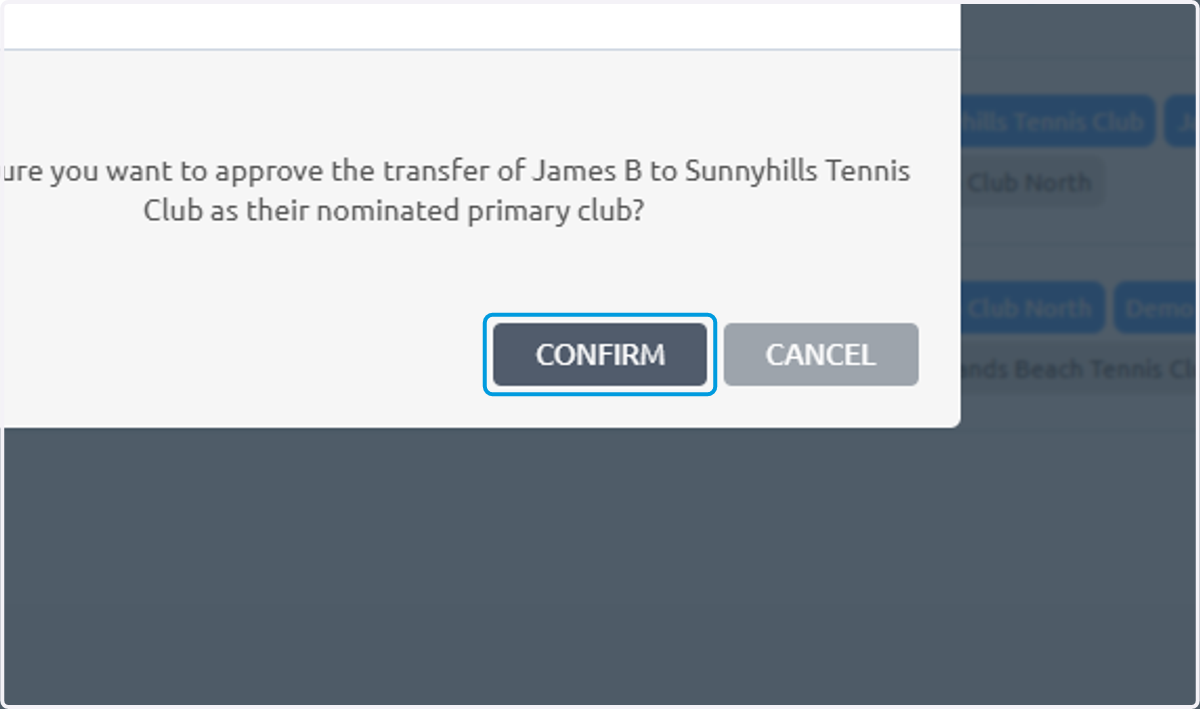
11. Click on CONFIRM
12. If a player requires no action and is waiting on another club to approve they will not show up with a button
You will receive an email when a transfer is requested or approved