Resetting Student Passwords
Updates to the ARS system occurred in the Spring of 2023.
If you have reset a student's password and the student is still struggling to log in, use a unique password to force all systems to sync.
1. Go to ars.knoxschools.org
You will be asked to log in with your Active Directory login.
2. Type the student's name into the quick search at the top of the page.
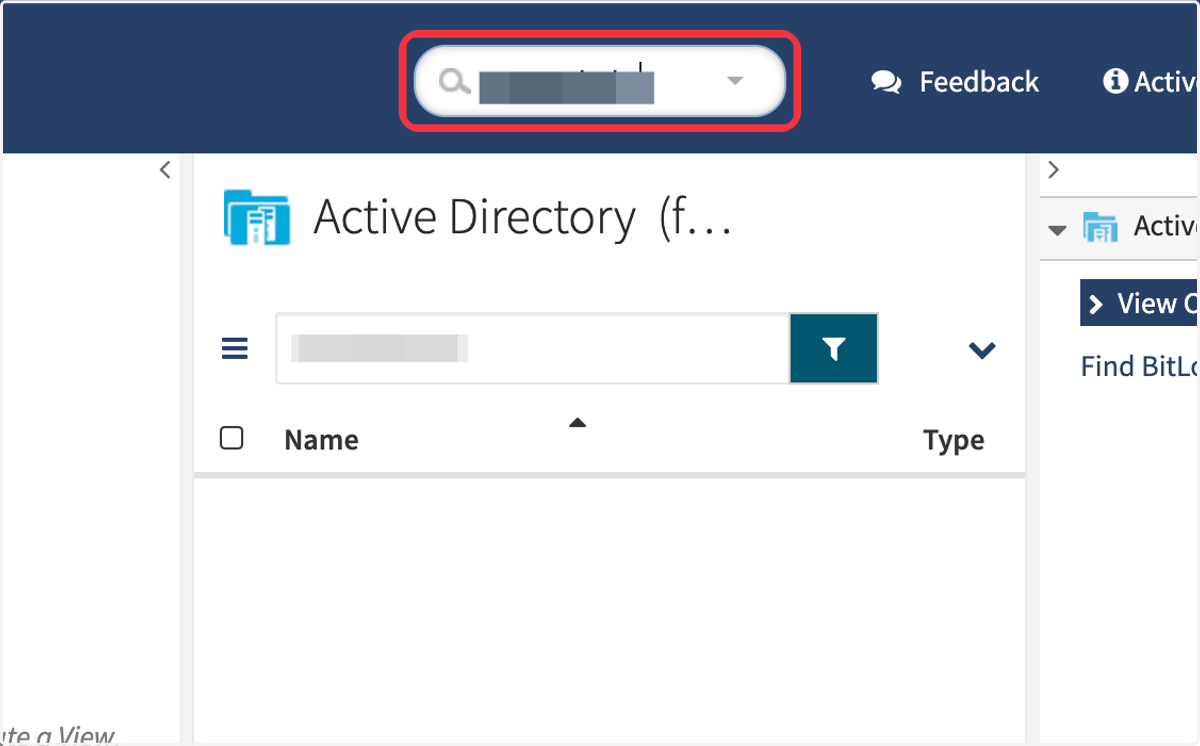
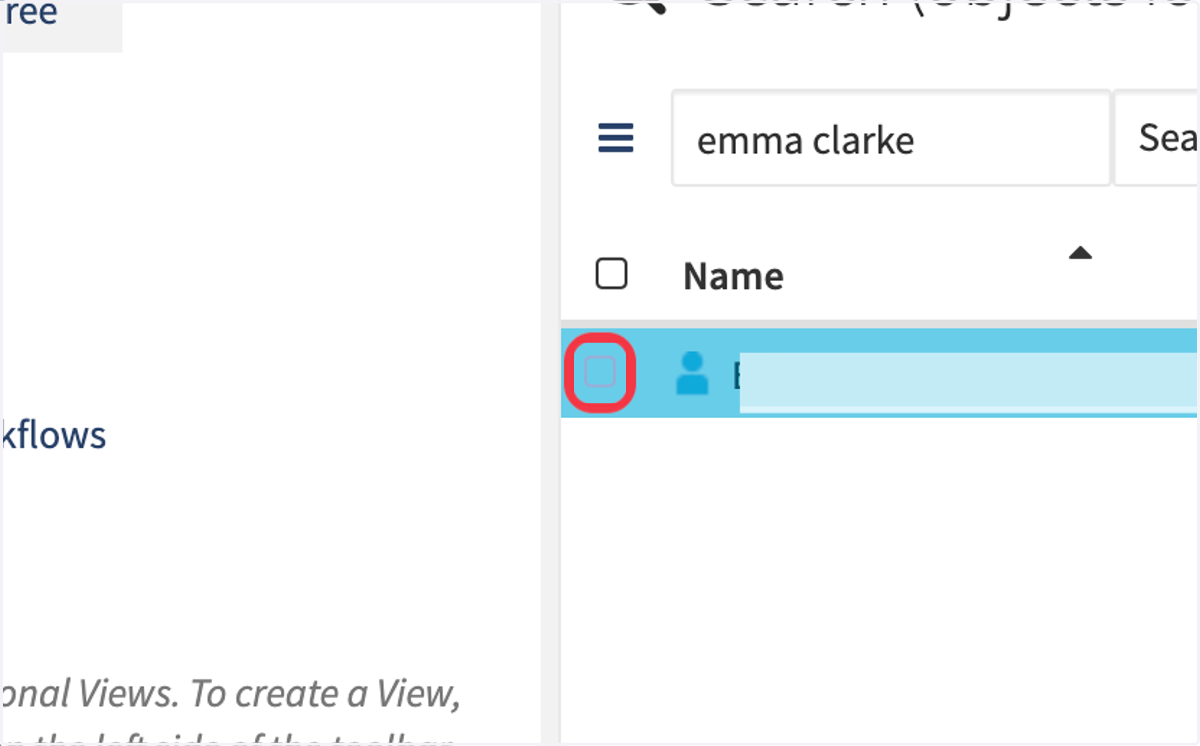
3. Check the box next to the student's name.
Be sure you have the correct student. For ways to filter for individual schools, see the directions at the bottom of this PDF.
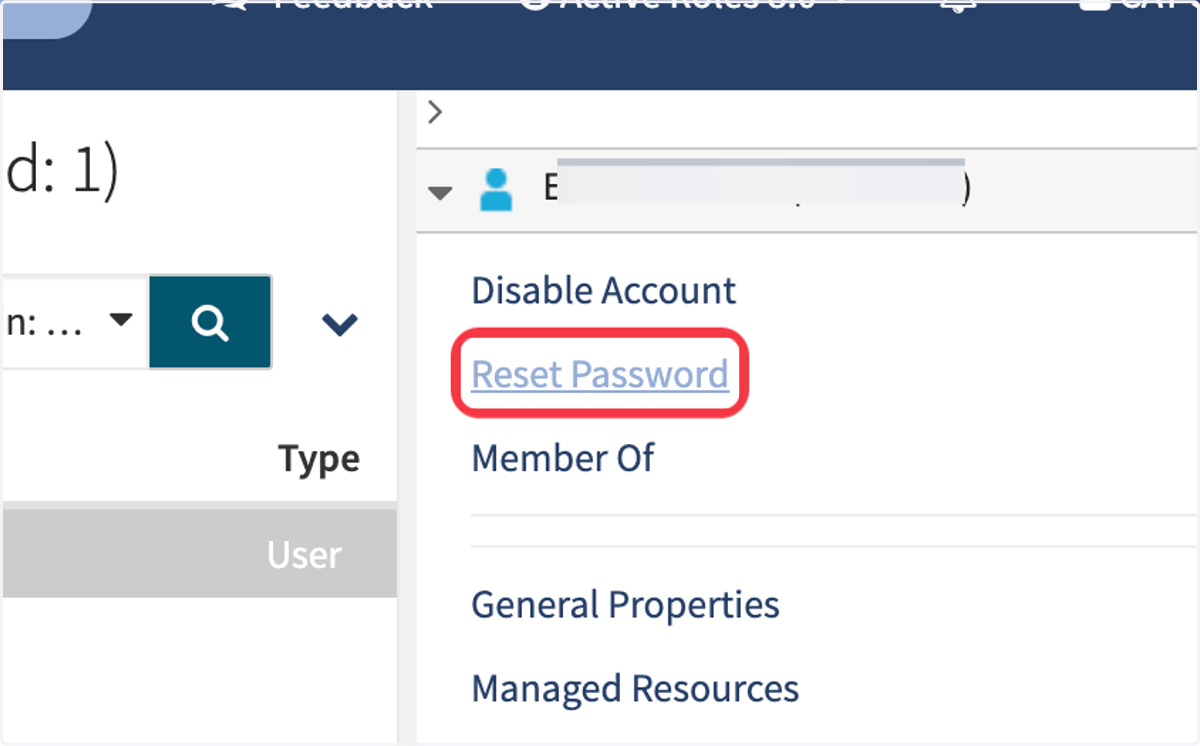
4. Click on Reset Password
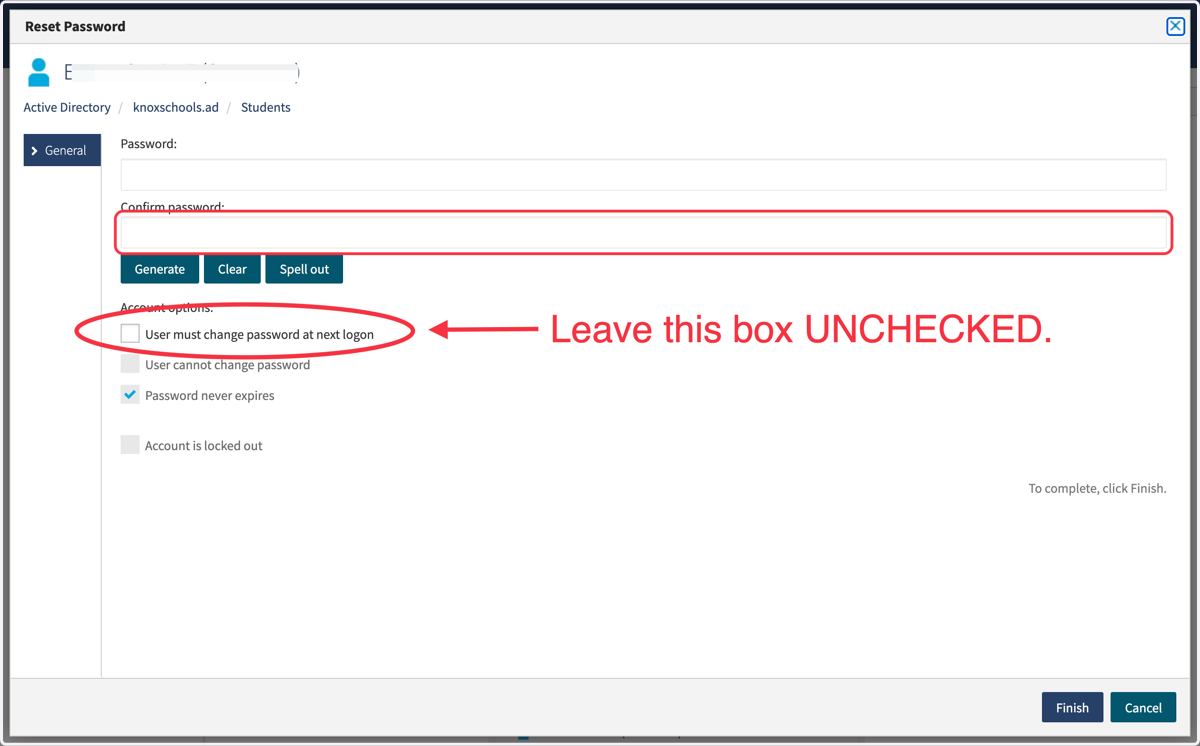
5. Type new password.
Often, this password needs to be something unique that hasn't been used before to force all systems to sync. If the student is struggling to login with the school's standard password convention. Give the student a unique password.
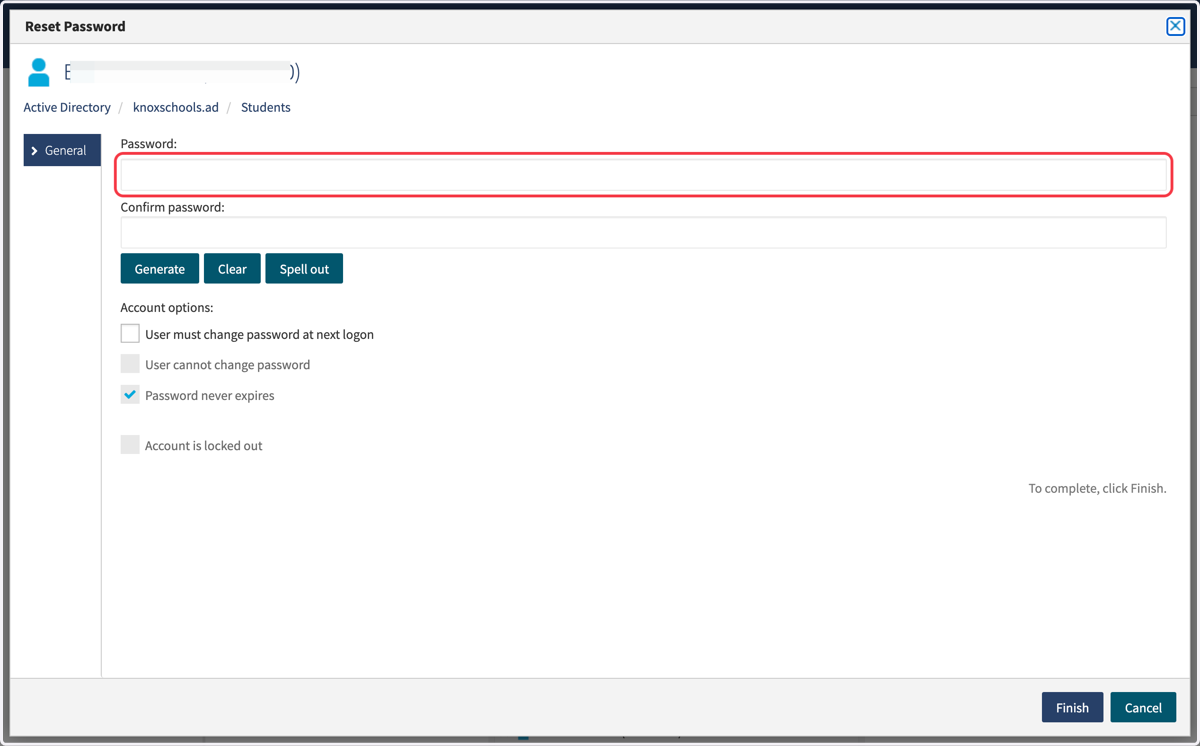
6. Confirm the password.
IMPORTANT- Be sure the box that says "User must change password at next logon" is NOT checked! This impacts their ability to log in to Canvas.
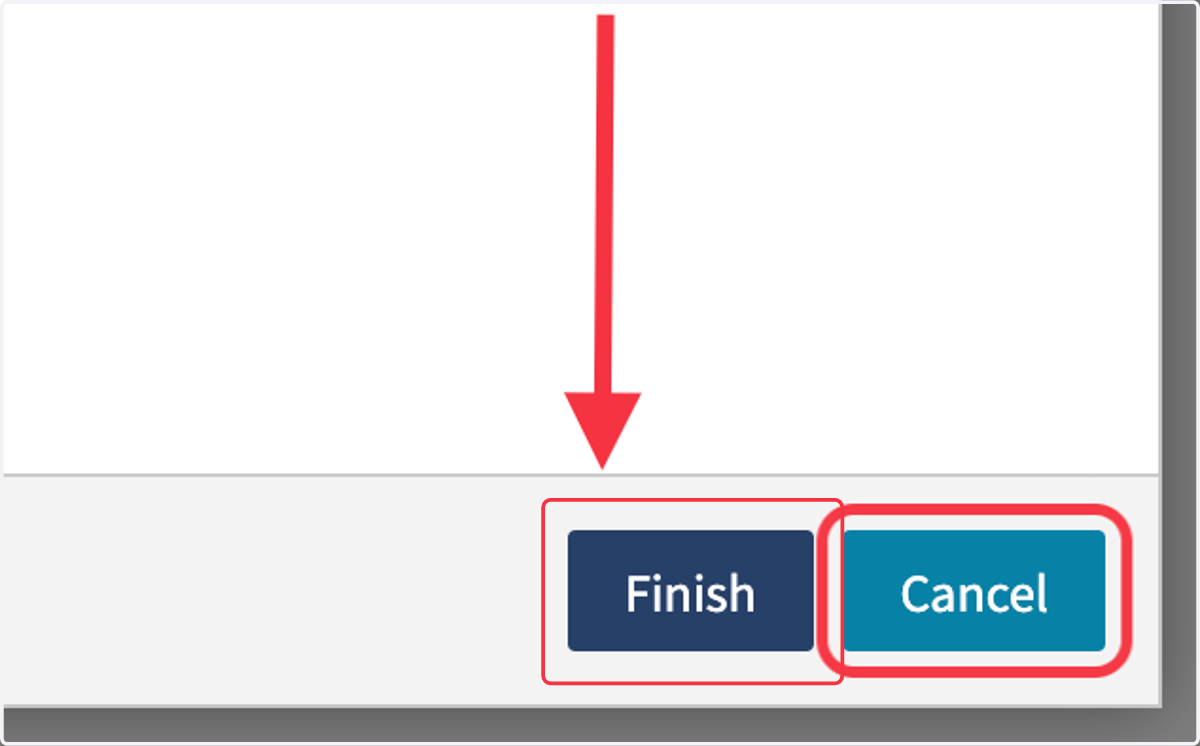
7. Click on Finish to Save, or Cancel to stop the operation.
Wait 15 minutes before asking student to log in.
8. Directions for Filtering by School
You can limit all searches to within a specific school, and save it for future searches. This is helpful when there are multiple search results for a name.
Instead of using the quick search bar at the top of the page, click on the eyeglass search on the left side menu. On the right-hand side of the resulting search window, you’ll see an arrow pointed down. Click on this arrow, and you’ll see an “Add Criteria” button. Click on this, and you can then choose whatever information you wish to filter with. To search only within a single school, choose Office Location (you’ll have to click Other Properties to find this one), click OK, choose “Starts with” for the drop-down box, and then a school abbreviation, like CAR5. While this is active, any search results will be limited to that criteria. You can then save this view using the 3 vertical bar menu to quickly access this filter in the future. Saved views can be accessed by clicking on the Eyeglass Search menu from the left sidebar.