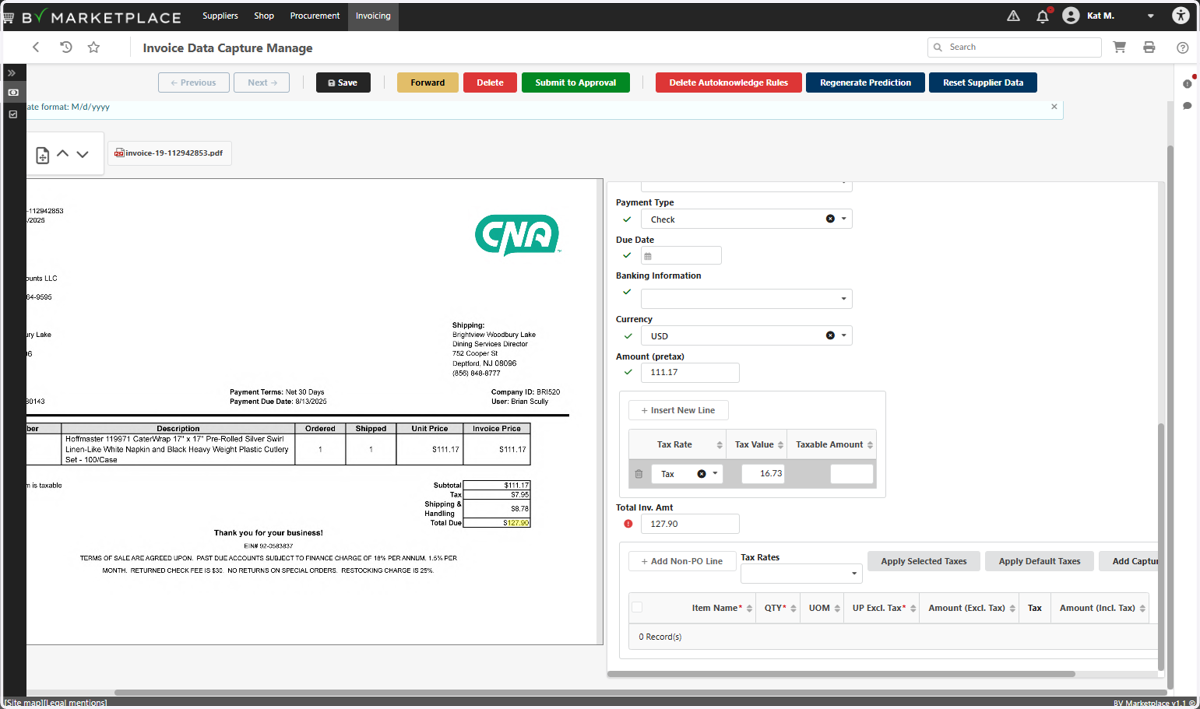
2. Find the line item labeled "New Invoice Data Capture Wfl"
3. Complete or confirm the following fields:
-Invoicing Supplier
-Invoice Type
-Organization ID
-Supplier Invoice #
-Invoice Date
4. You can remove the data from Due Date, or leave it if it's within 30 days. Complete or Confirm the Amount pretax and pre-shipping
5. If there is shipping and/or freight, add those totals up and insert one line with the total with those items
6. Click on Insert New Line
7. Type in the value in the "Tax Value" field
8. Complete or confirm the Total invoice Amount
9. Drag highlighted input
10. You have two options to add the line items of the invoice:
1. If most or all of the items are limited to 1 or 2 commodities, you can "Add Non-PO Line" and then complete the fields with the red asterisk in the table.
2. If not grayed out, you can also click "Add Captured Lines"
11. With either option above, confirm the data and ensure all of the totals are accurate
12. Click on Save
13. Click on Submit to Approval
14. The invoice will be back in your to-do list, but this time as an Invoice Approval for you to add the commodities and push to the requestor