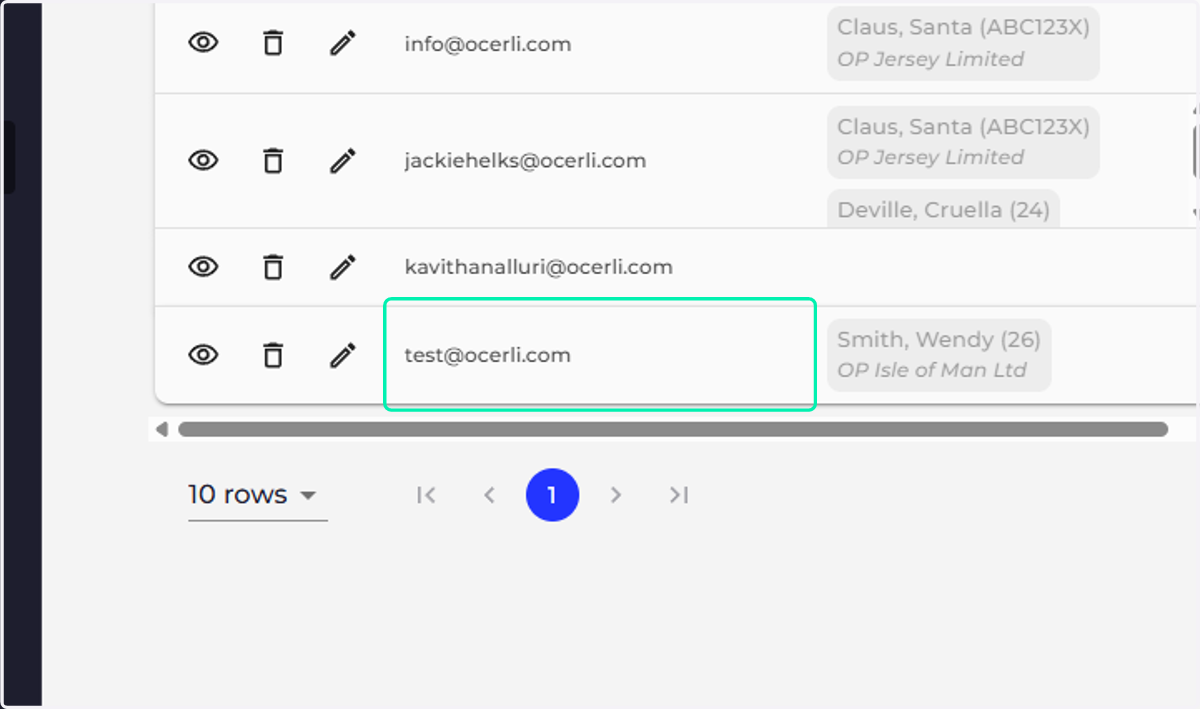
How to Bulk Import Employee Users in Ocerli
Ocerli
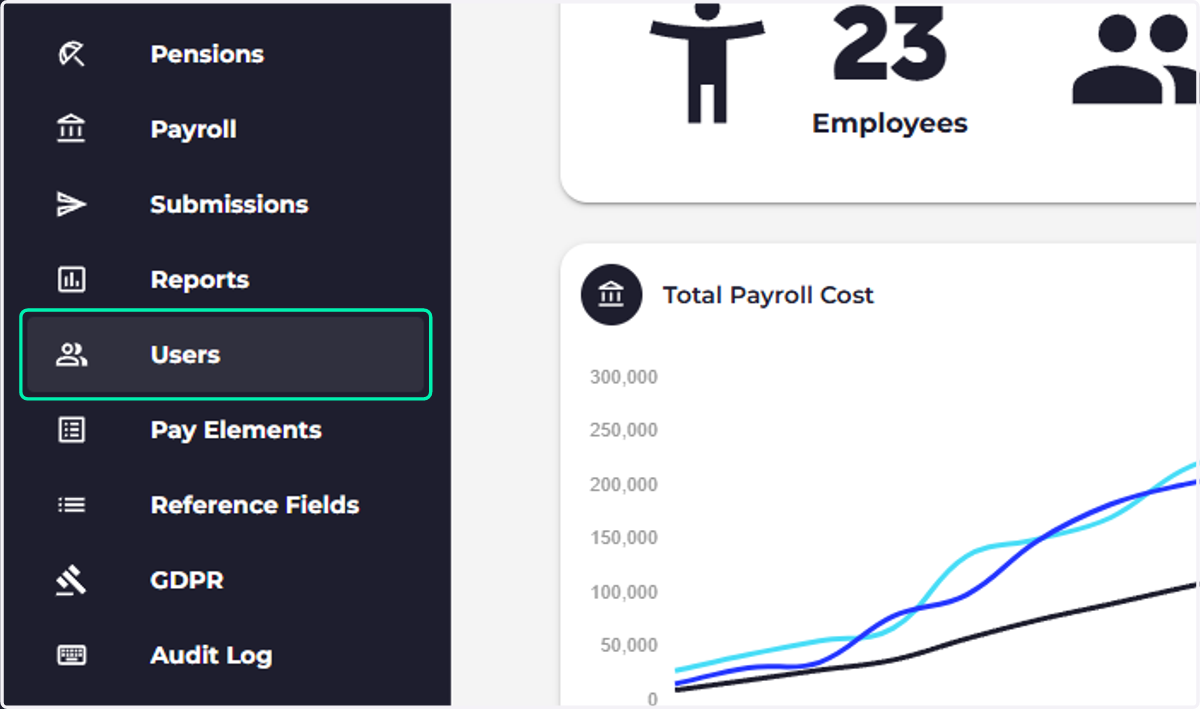
1. Click on Users
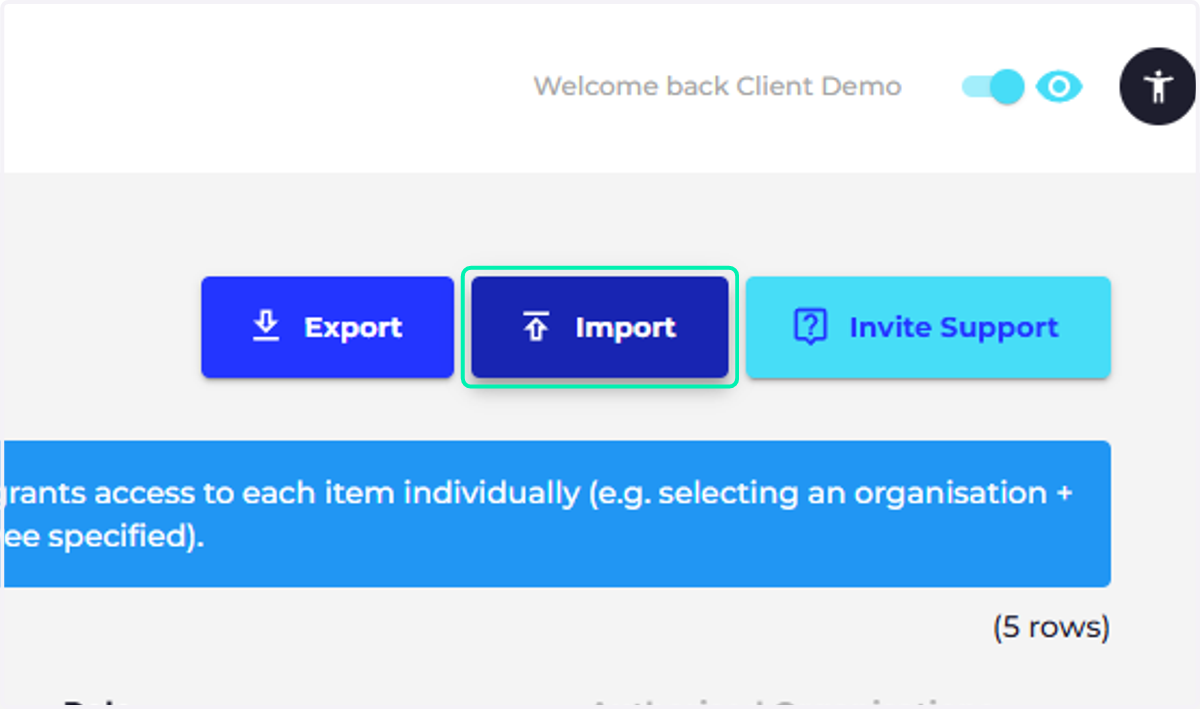
2. Click on Import
3. Click on Download Template and save the file to your chosen folder.
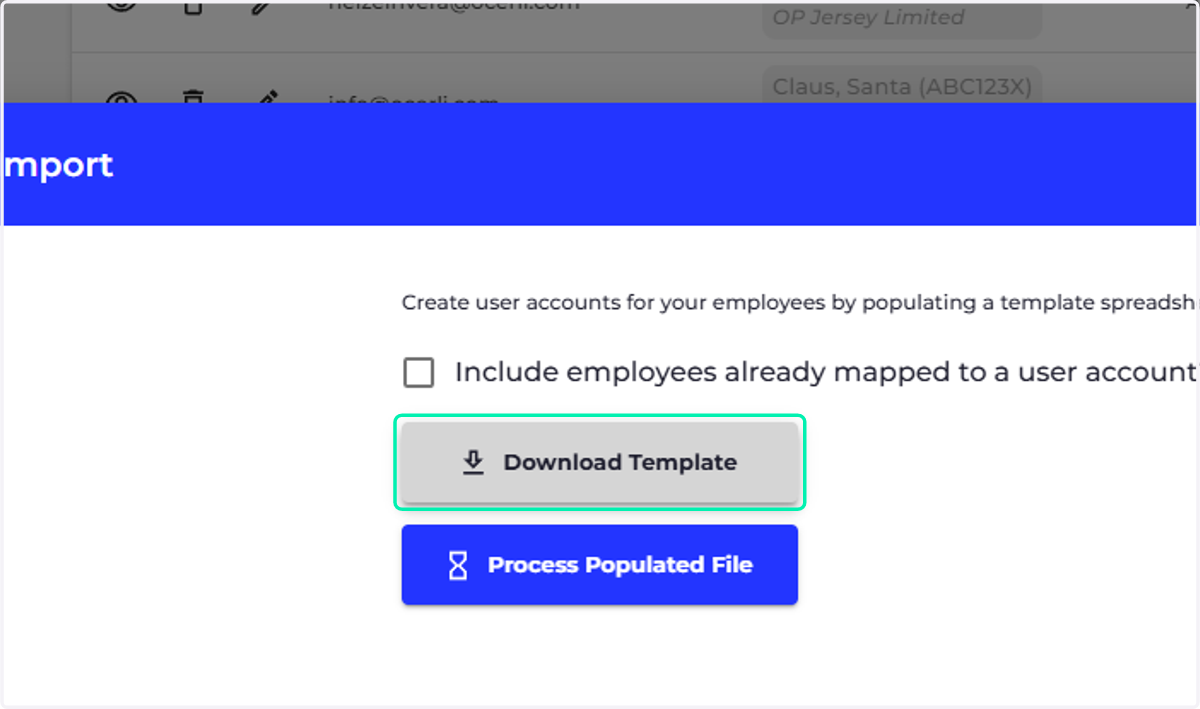
4. Complete the template
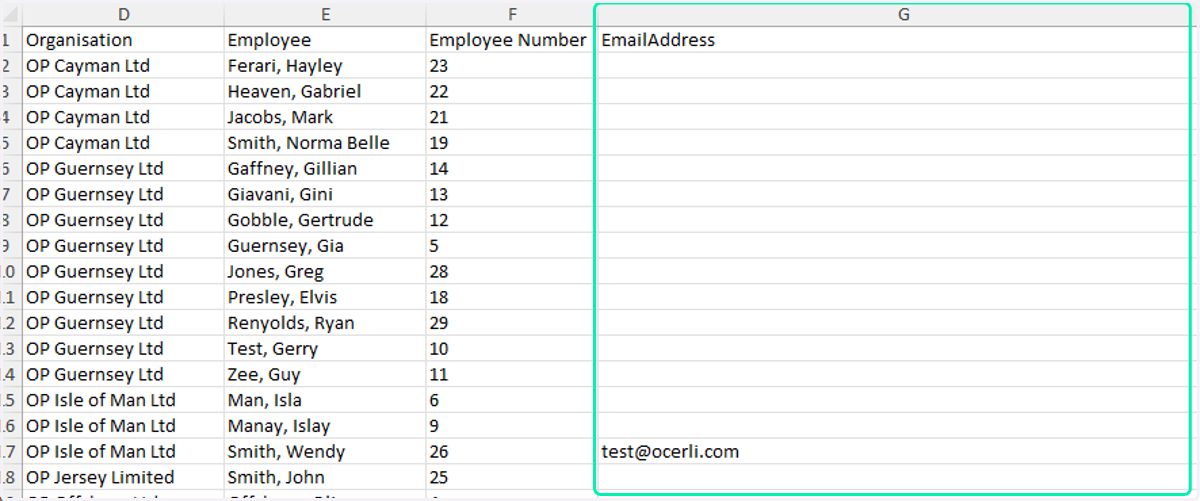
Use Column G to add your employee's email addresses next to their corresponding employee record. Leave blank cells in column G for any employees who don't have an email address, or who you don't want to invite to their payslip portal account at this time.
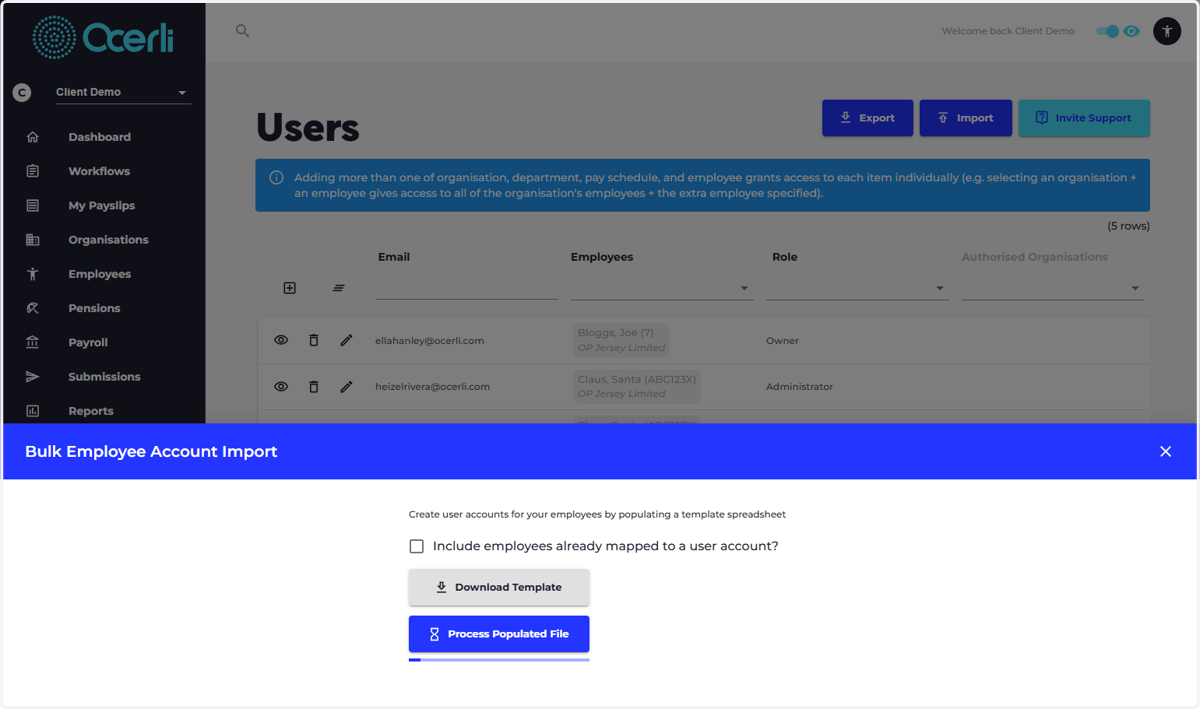
5. Once your import template is completed, save and close it. Return to Ocerli to the Users page and click Import once more, then clickProcess Populated File
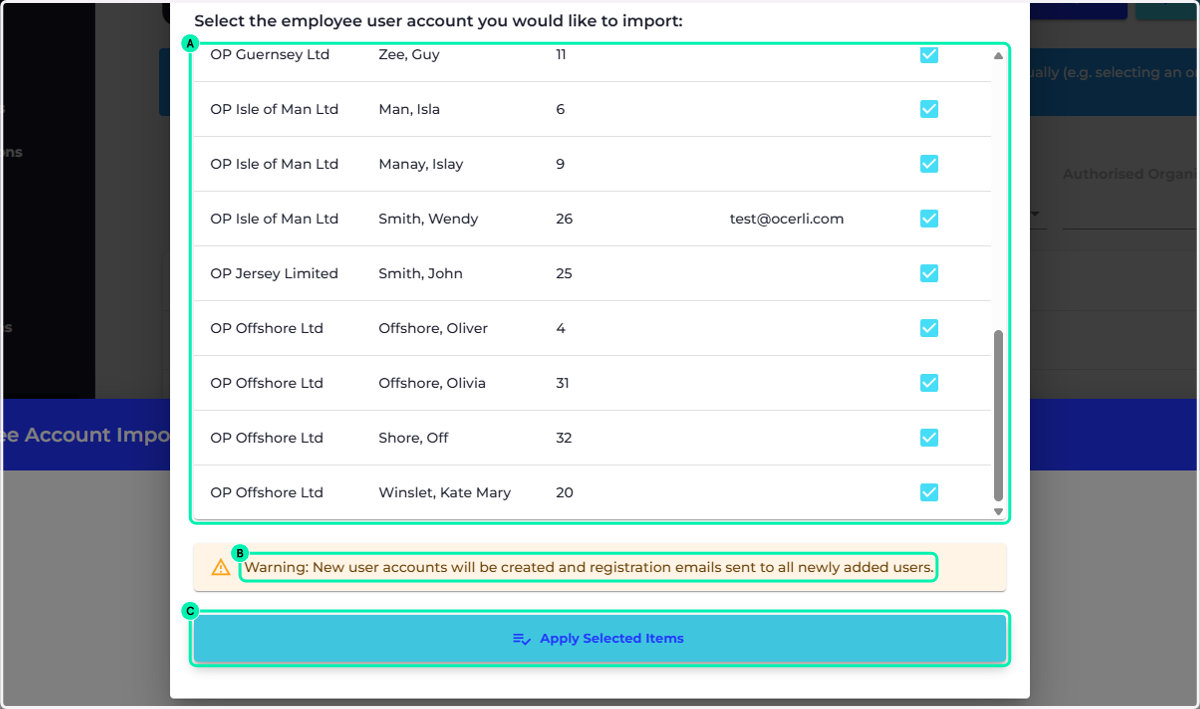
6. A. Double check each employee record is being associated to the correct email address.
6. B. Warning: New user accounts will be created and registration emails sent to all newly added users.
6. C. Click on Apply Selected Items once you have checked through the list.
7. Once the upload has been processed successfully your employee's invitation emails will be sent and they'll be able to login straight away. You can view your newly created users in the list of accounts displayed on the users page.