Disabling a submission
The "Disable Submission" function in the Ocerli system allows users to deactivate a specific submission within the Submission module.
This option is primarily useful in several situations:
Error Resolution: If you encounter an error message during a submission attempt, you may decide to disable the submission while you investigate and resolve the cause. This prevents the system from repeatedly trying to submit the incorrect data.
Manual Correction: If you've identified errors and need to make manual changes through the government's platform rather than through Ocerli, disabling the submission prevents the platform from interfering.
Pause Submission: If you need a temporary pause in the submission process, disabling it prevents unintentional submissions.
Important Note: When disabling a submission, you may need to Re-enable it later to allow for the submission to proceed. The Re-enable step is also a good point to review for any errors and do corrections.
1. To Disable a Submission:
Log in to the Ocerli system
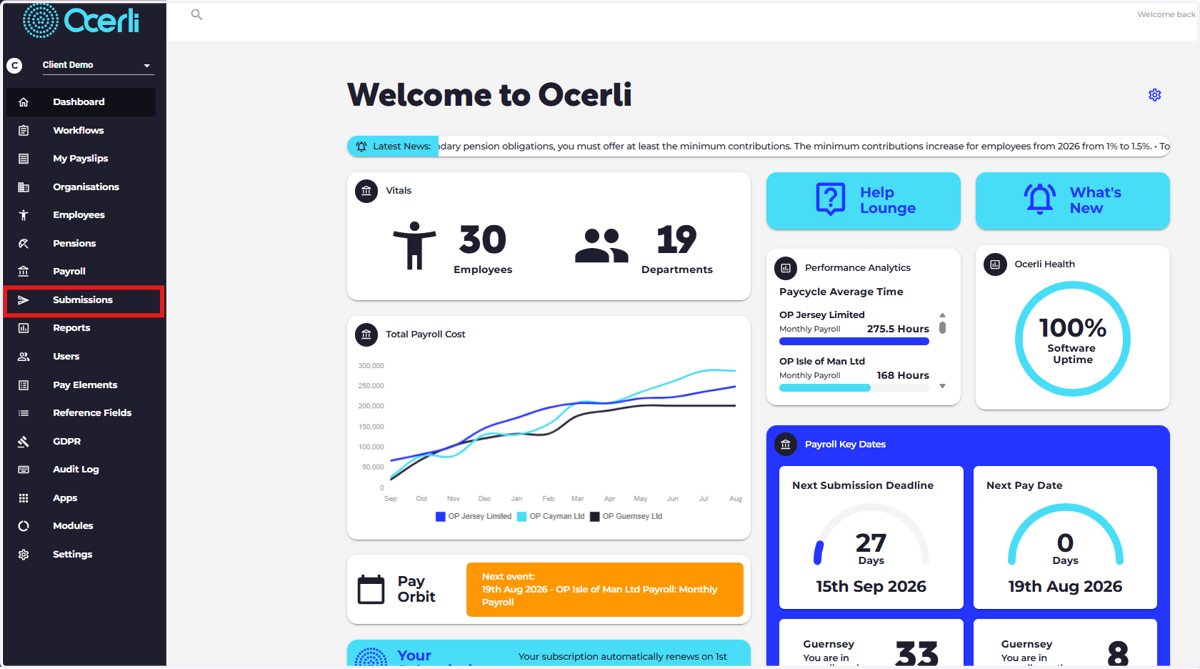
From the main dashboard, navigate to the Submissions module
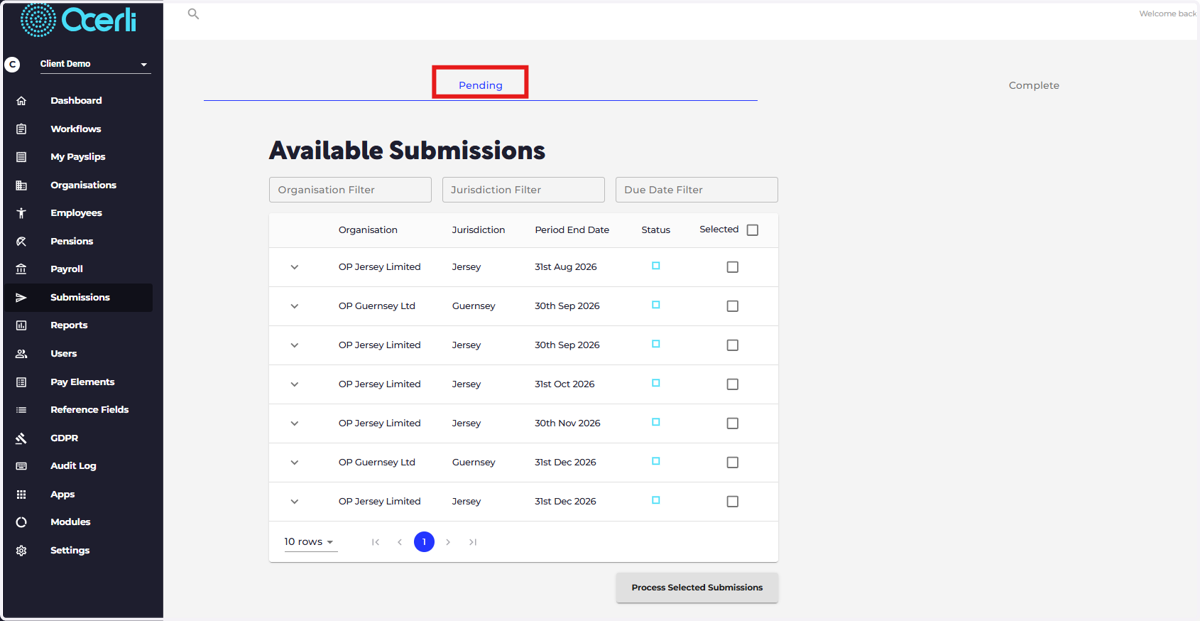
2. Click the Pending submissions tab.
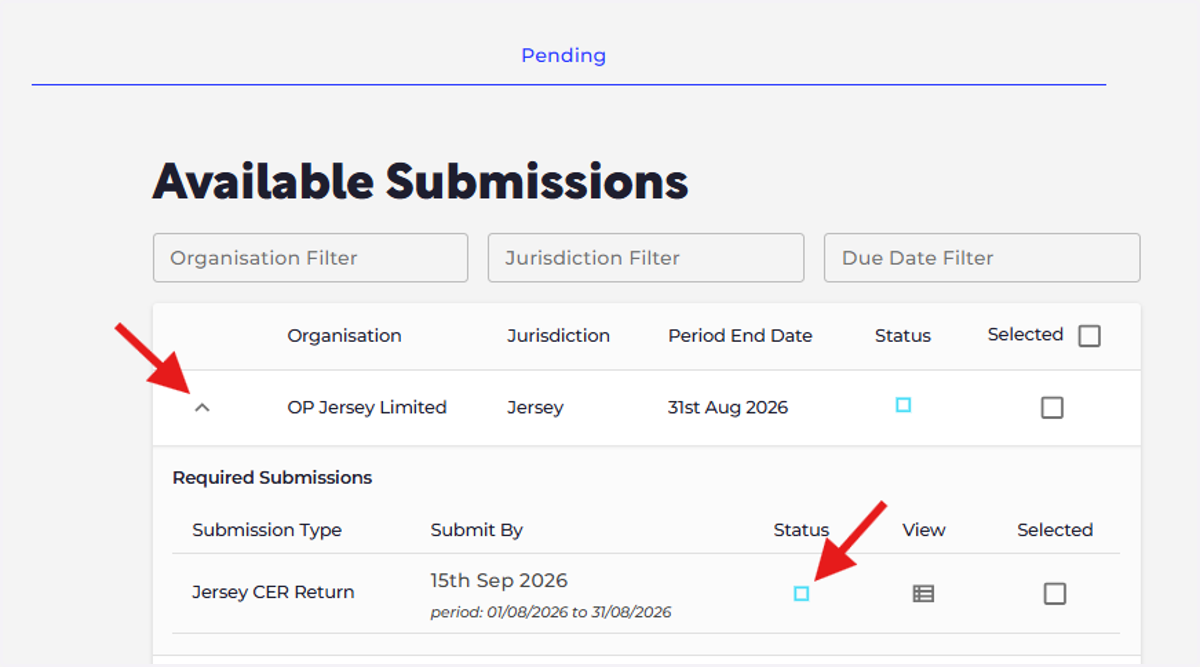
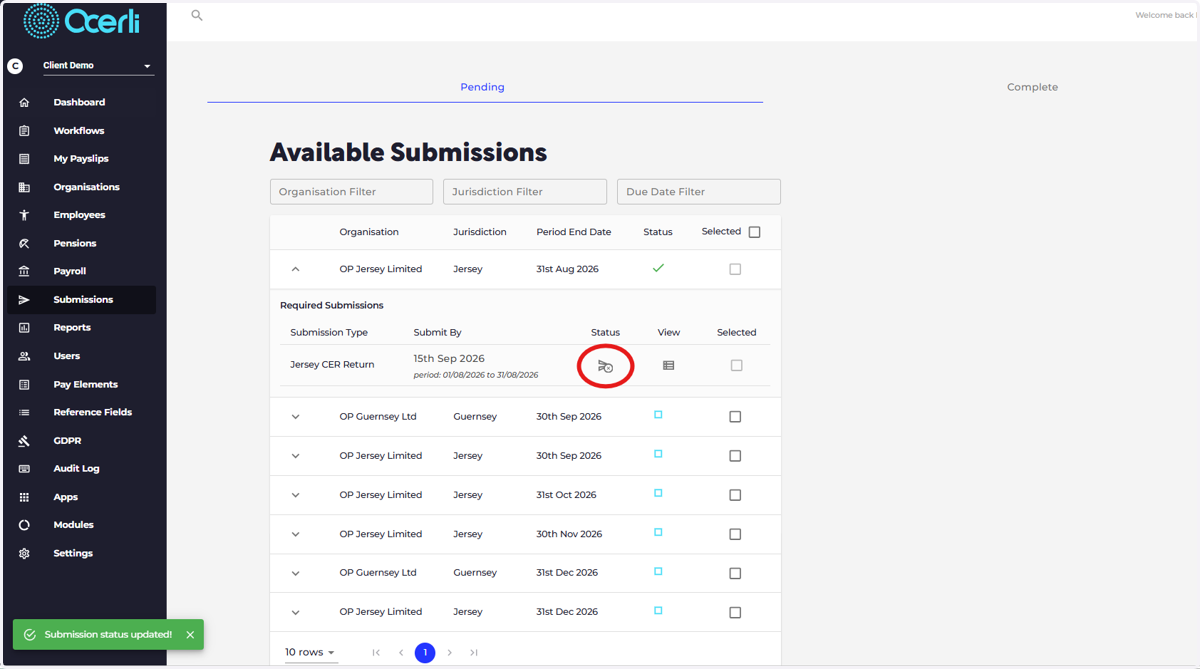
3. Use the Filtering feature to find the specific submission you wish to disable. Click 'Status' icon to disable the submission.
Note: Verify that this is the correct submission, as disabling is irreversible (without re-enabling later)
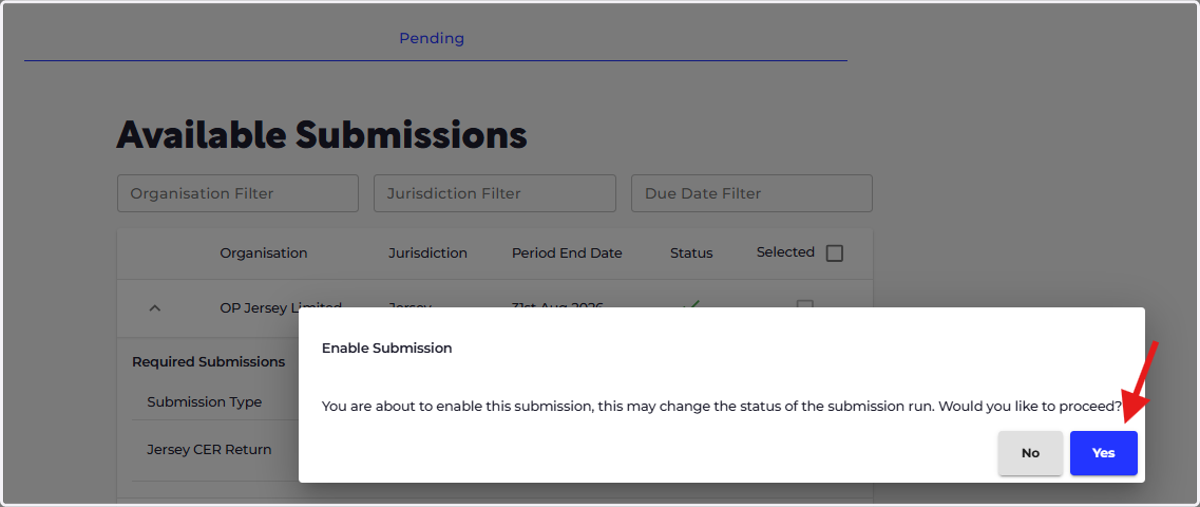
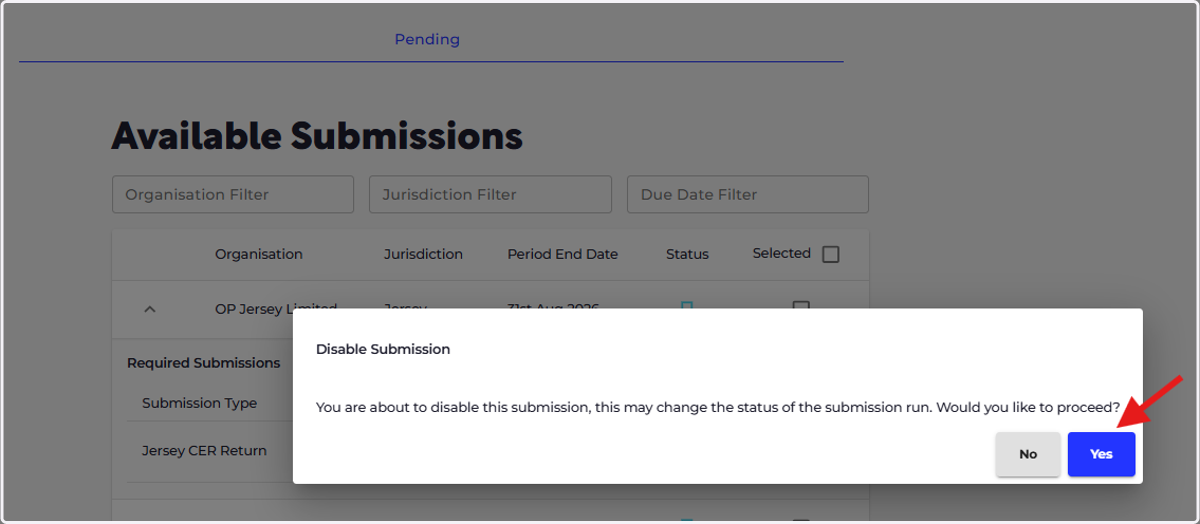
4. Confirm that you want to disable this submission.
5. After disabling, the submission status will change to Disabled.
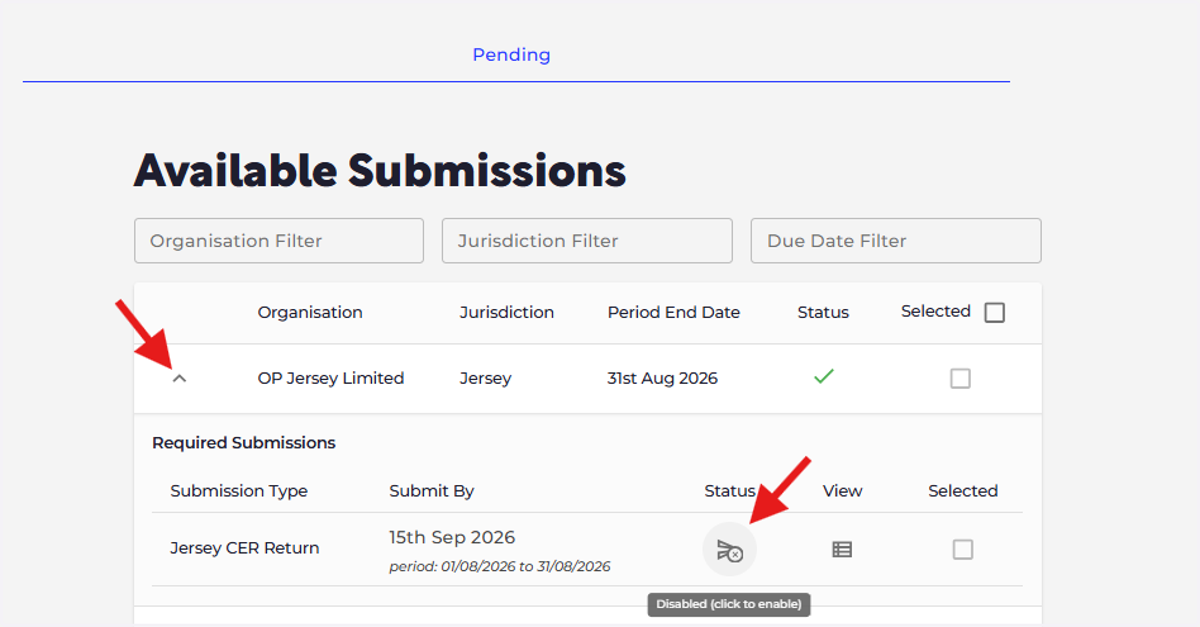
6. To Re-enable a submission please follow the below:
Navigate to either the "Pending Submissions" or "Completed Submissions" tab, depending on where the disabled submission is listed
Click the Status icon to enable
7. Confirm your decision by clicking 'YES'