Send an Agreement Request to a customer
1. Go to your RunLoyal business portal and find your customer's profile.
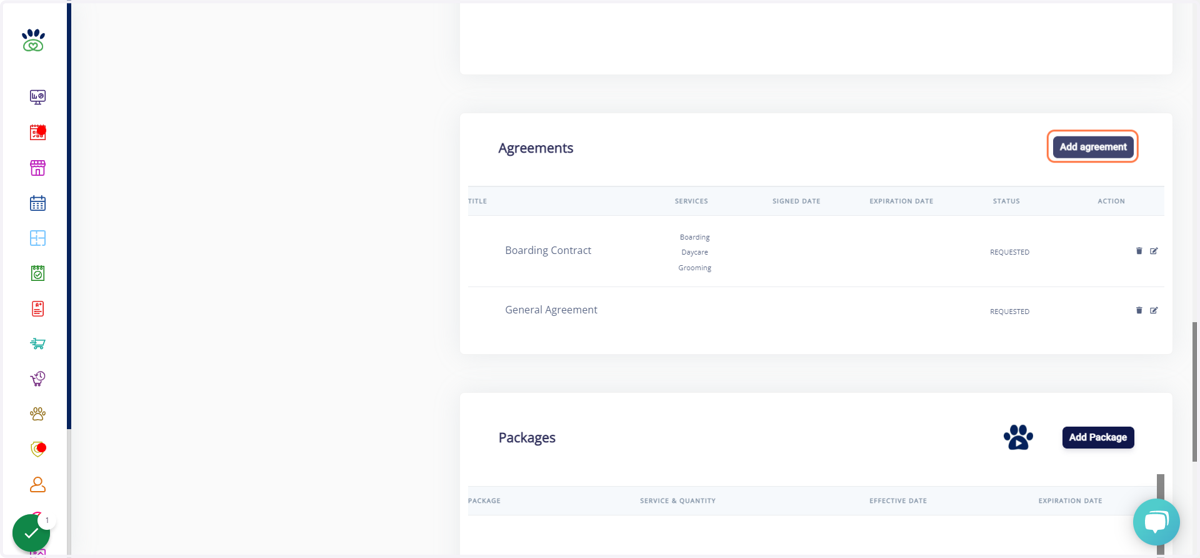
2. Click on Add agreement, in the agreements section.
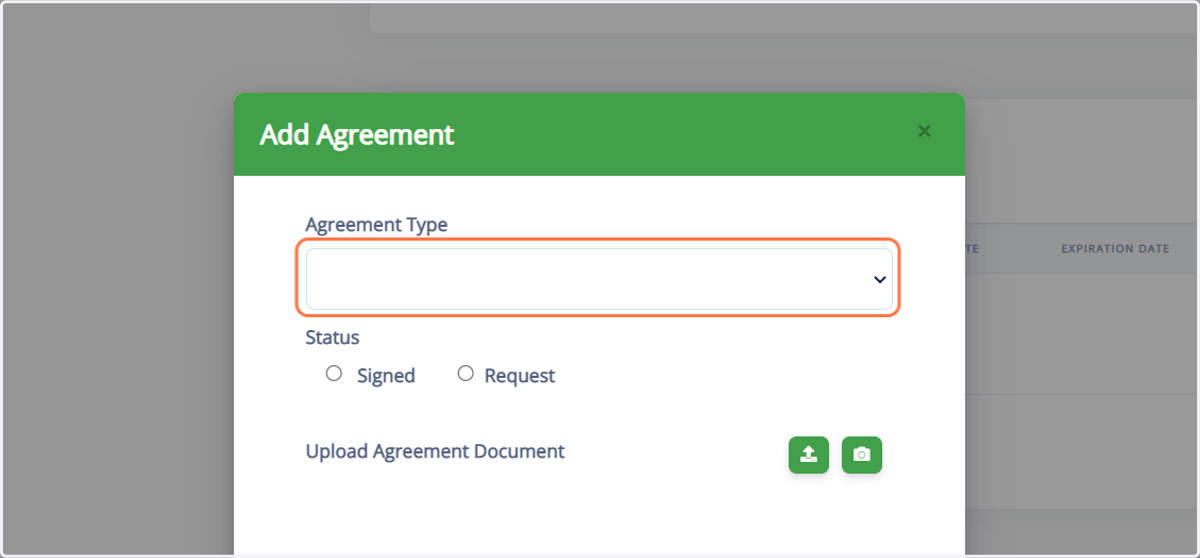
3. Click on the agreement you would like to send.
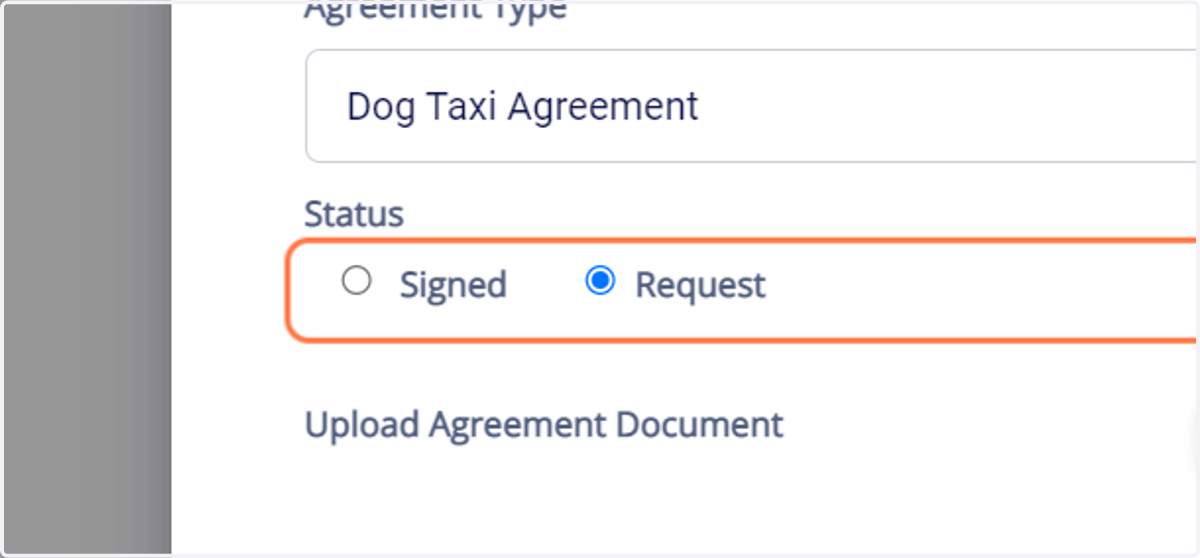
4. Select "REQUEST"
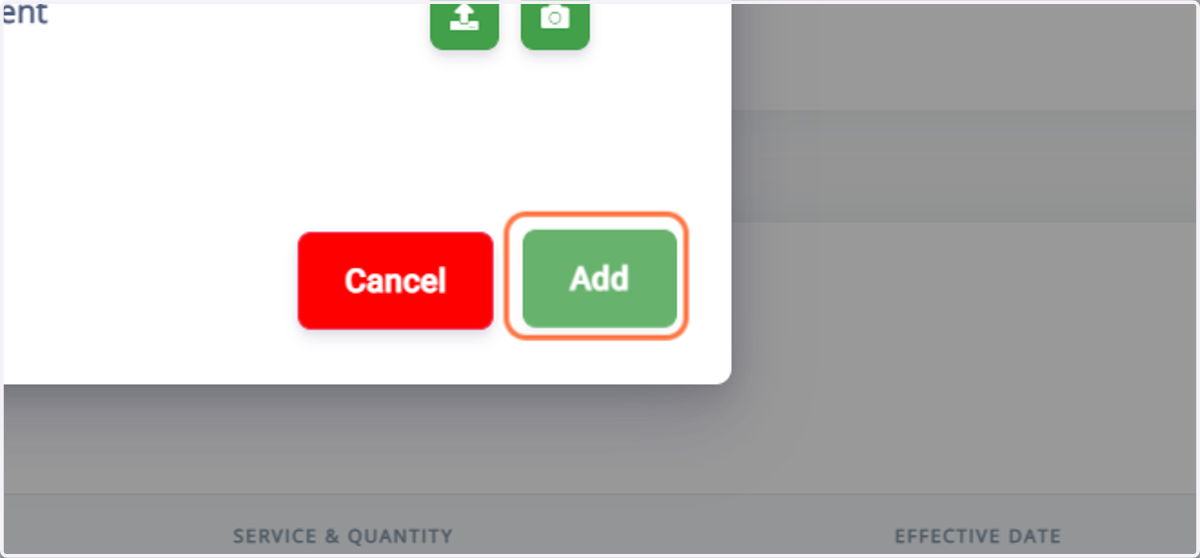
5. Click on Add, then it will take you back to the main screen. On the main screen a new button will appear next to "add agreement" titled "Request"
6. Click on Request All

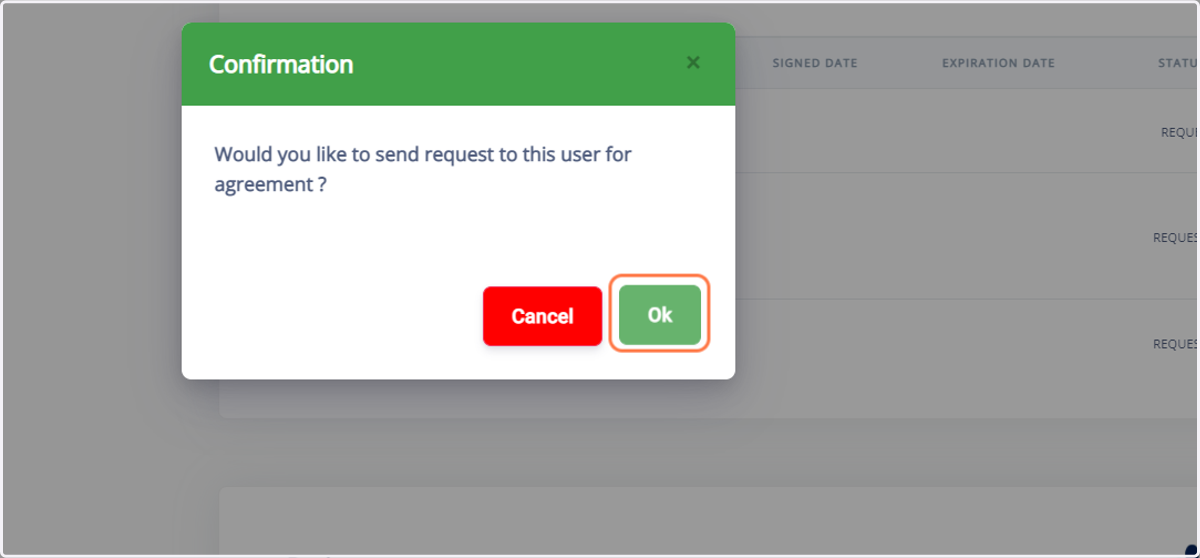
7. Click on Ok to confirm.
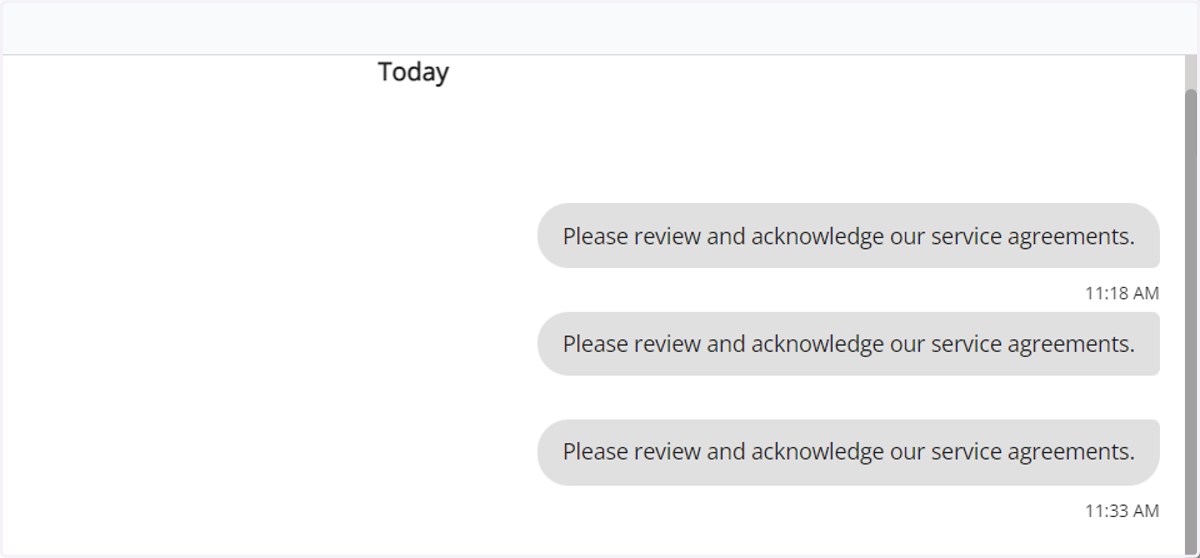
8. [Optional] If you send it as an app notification, you can verify that it was sent by clicking on Message in the customers profile at the very top.
![[Optional] If you send it as an app notification, you can verify that it was sent by clicking on Message in the customers profile at the very top.](https://images.tango.us/public/screenshot_e18ff070-cc9e-4a2f-8584-65728426fcd8.png?fp-x=0.5000&fp-y=0.5000&w=1200&border=F4F2F7&dpr=1.00)
9. The screen will show the following in the messages section to make sure that it went through.
The client can go to the agreements section on their end and sign or if it's emailed they would click the link and it will automatically take them to the agreements section to sign.