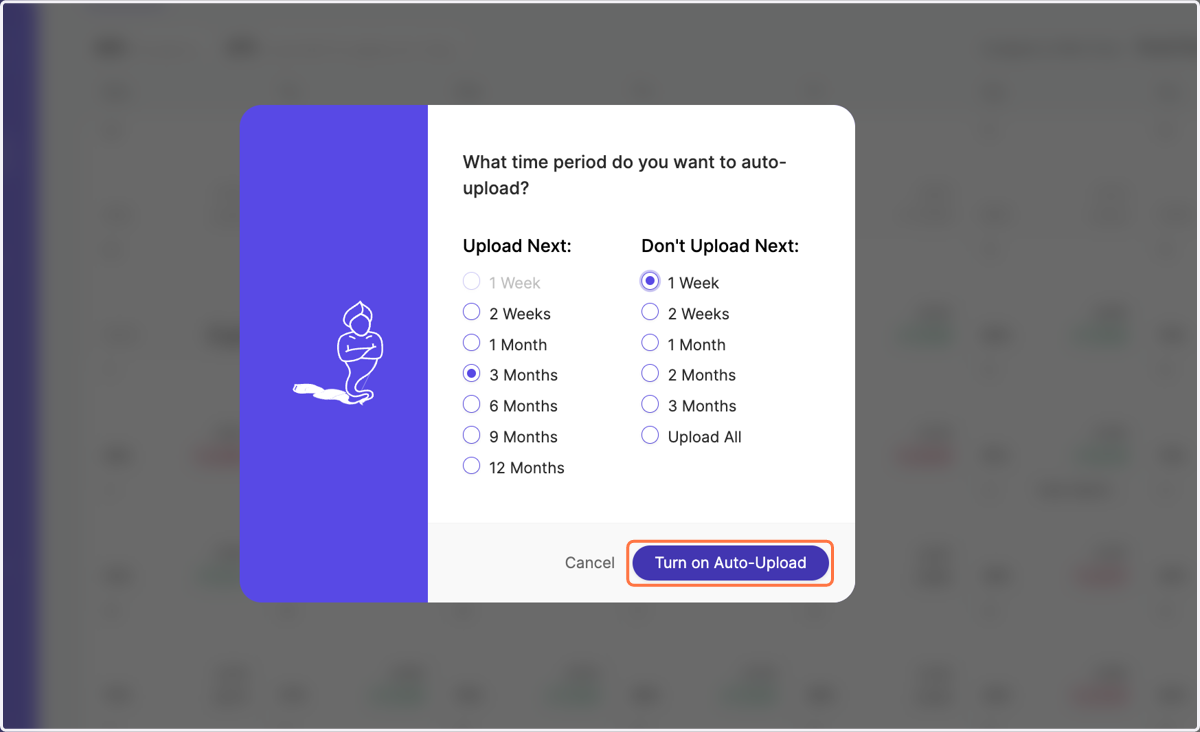
How does auto-upload work?

  1. 1. Click on "Calendar" in the navigation bar
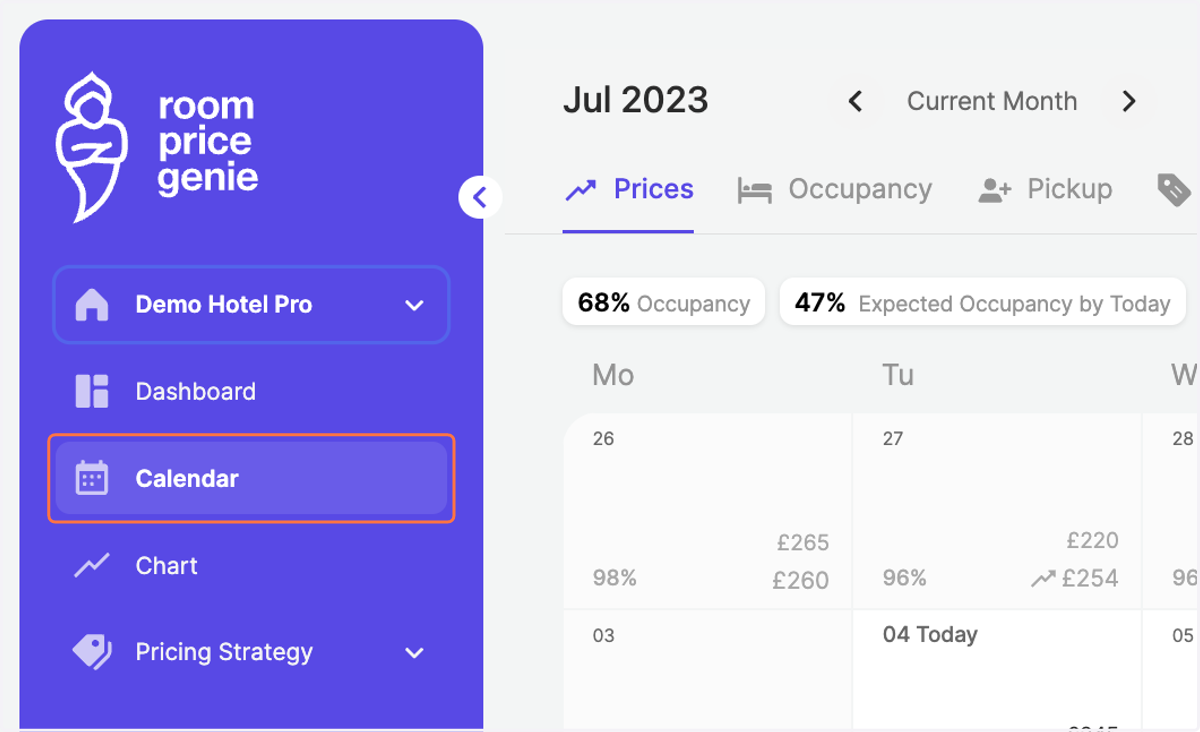
    Click on "Calendar" in the navigation bar
  2. 2. Click on "Turn on Auto-Upload" at the top right
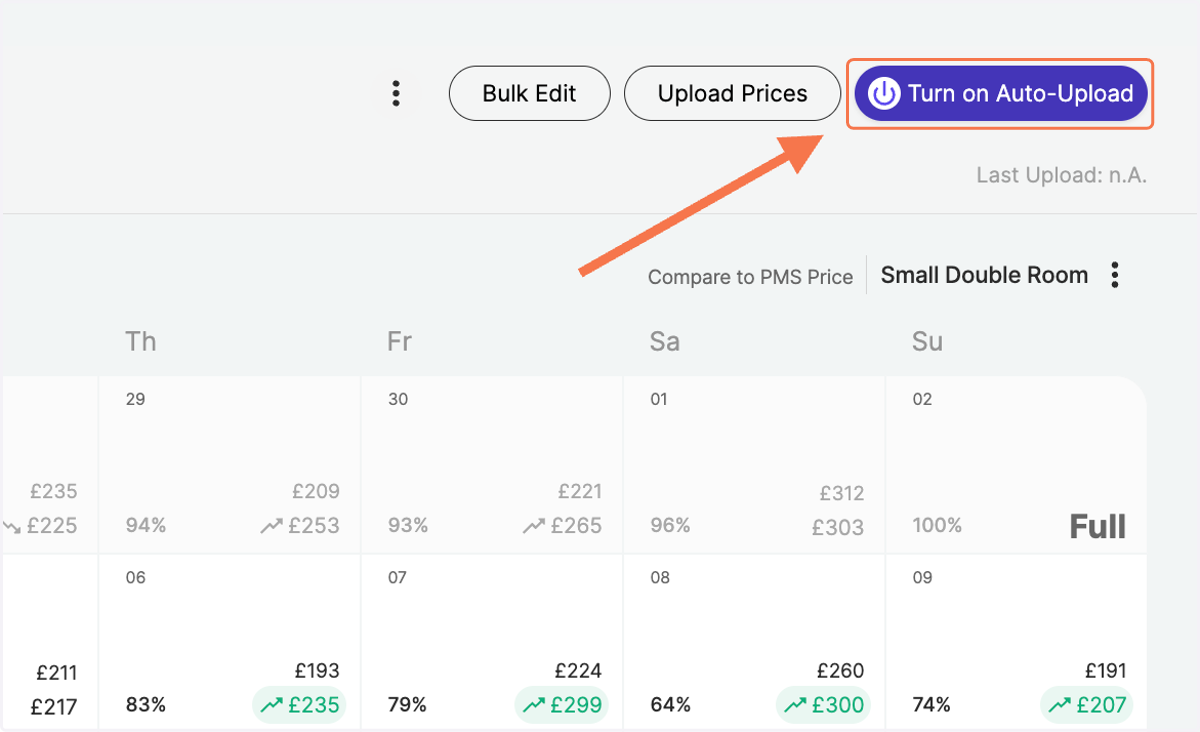
    Click on "Turn on Auto-Upload" at the top right
  3. 3. In the pop-up message, click on "Continue"
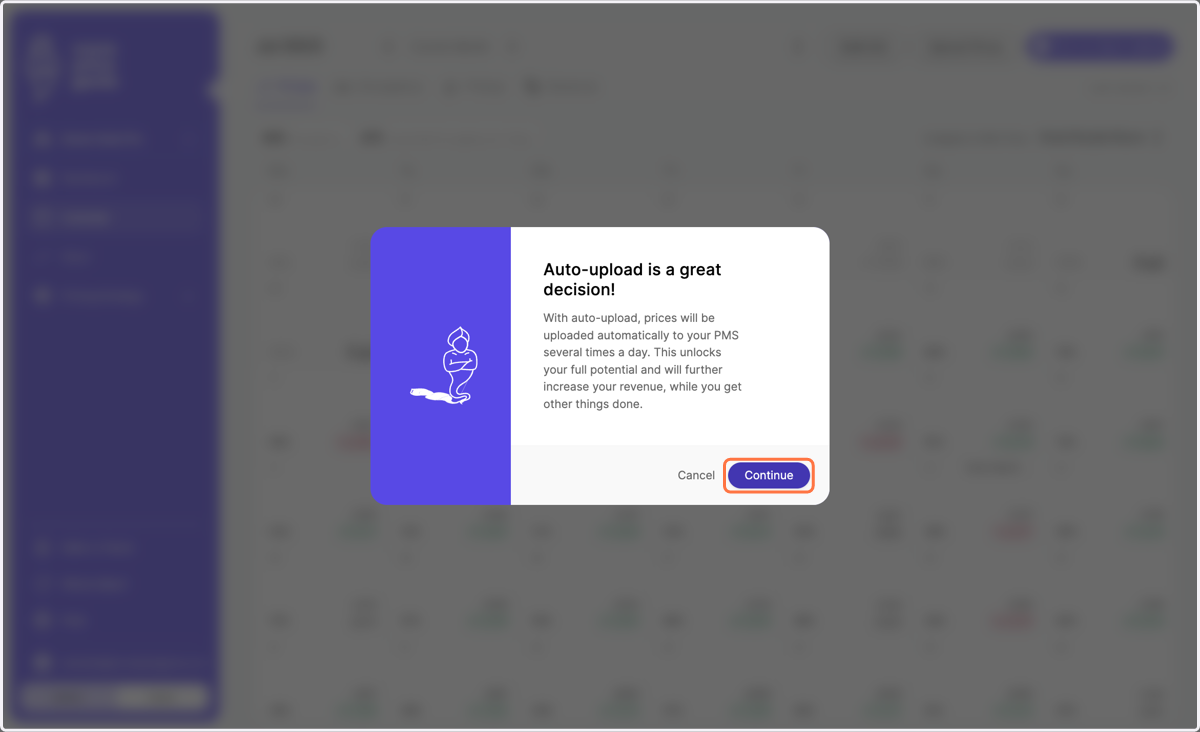
    In the pop-up message, click on "Continue"
  4. 4. Select the period for which you want to upload prices for
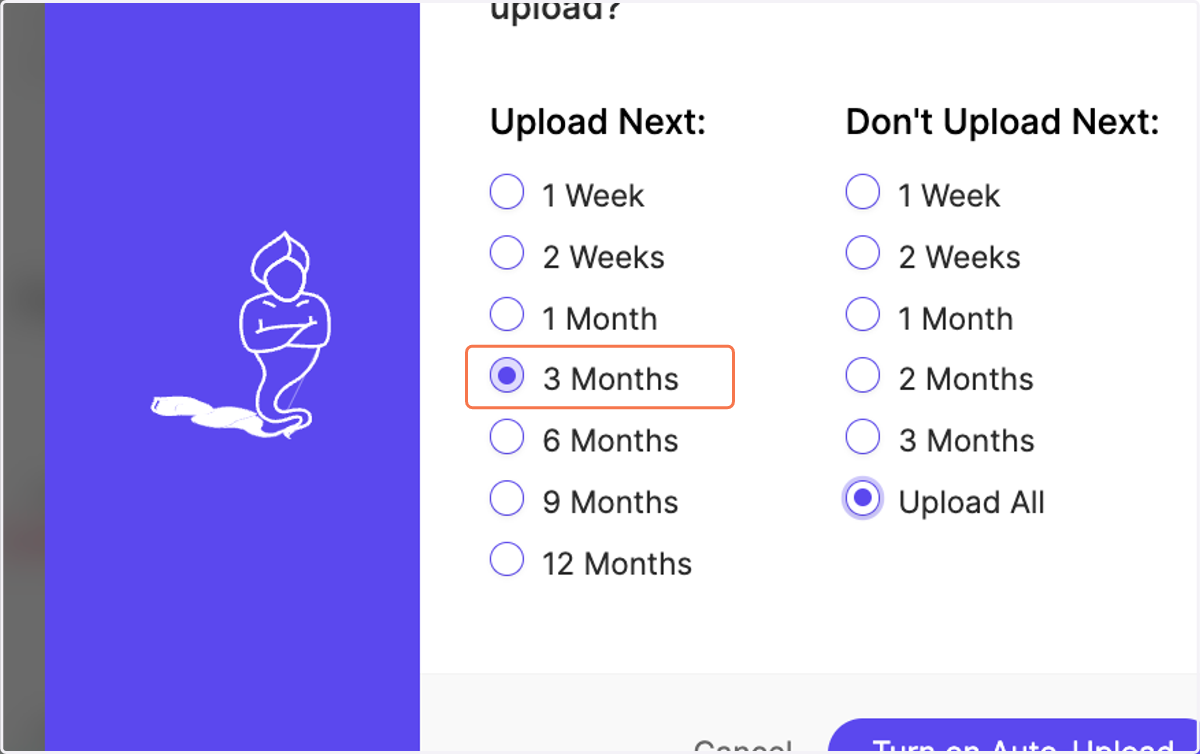
    Select the period for which you want to upload prices for
  5. 5. You can also include a period starting today when you want to skip auto-upload
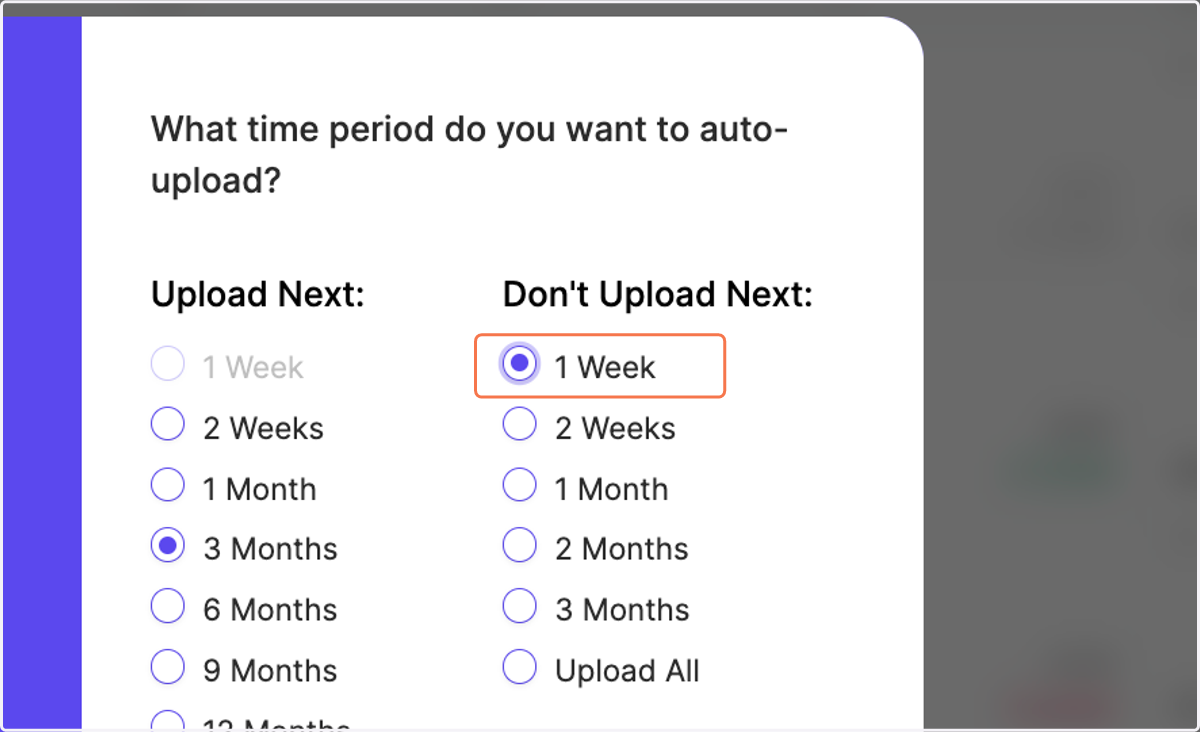
    You can also include a period starting today when you want to skip auto-upload
  6. 6. Click on "Turn on Auto-Upload"

    Click on "Turn on Auto-Upload"
  7. 7. If the auto-upload was successful a green confirmation box will appear
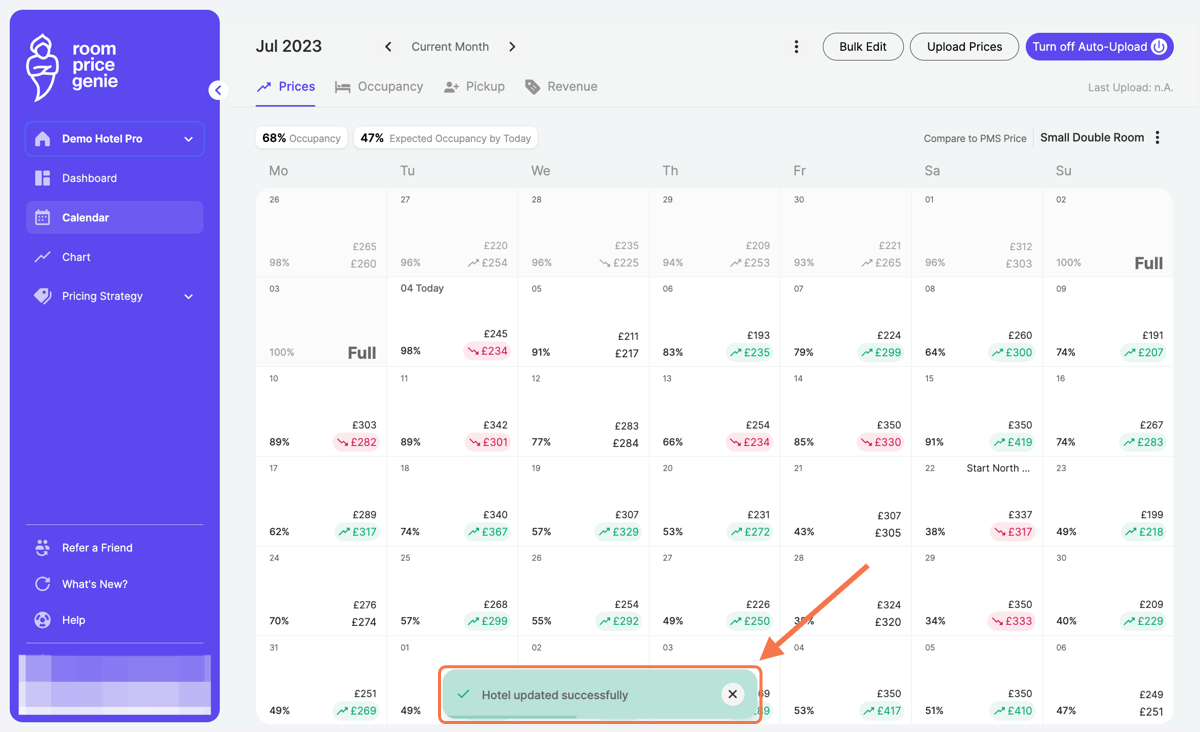
    If the auto-upload was successful a green confirmation box will appear