Pension Boost Feature
1. FIRST STEP: Pay Element Set Up- Employee Pension
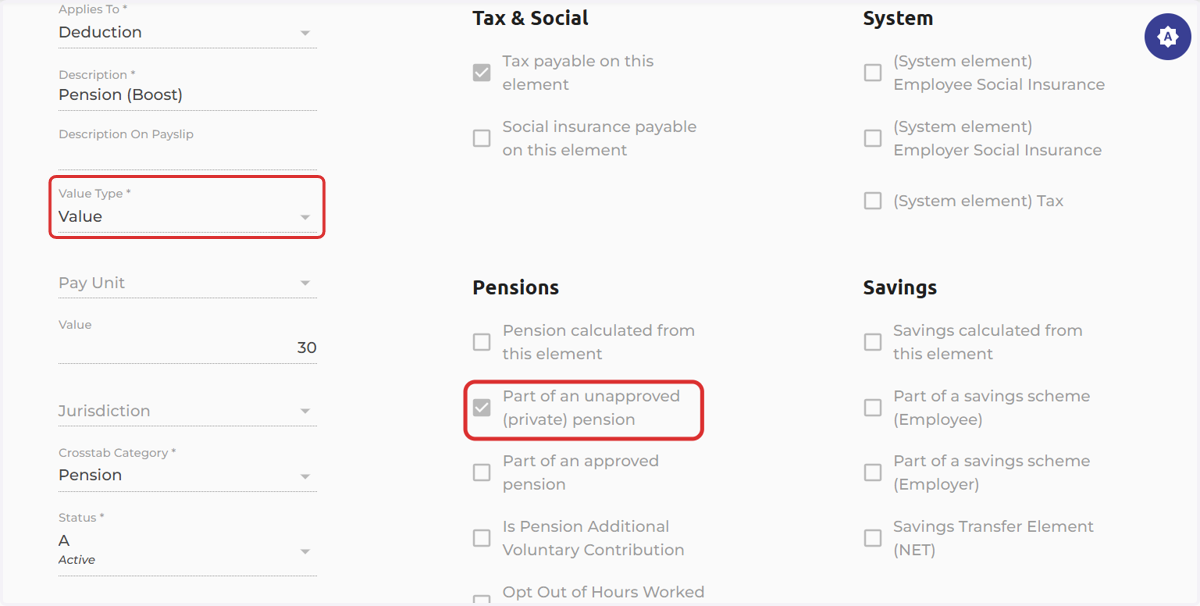
For your pension pay element to be increased using the pension boost feature, it must be a value-type pay element and marked as "Part of an approved pension."
The screenshot below is an example of how an employee pension pay element can be set up.
2. Pay Element Set Up- Employer Pension
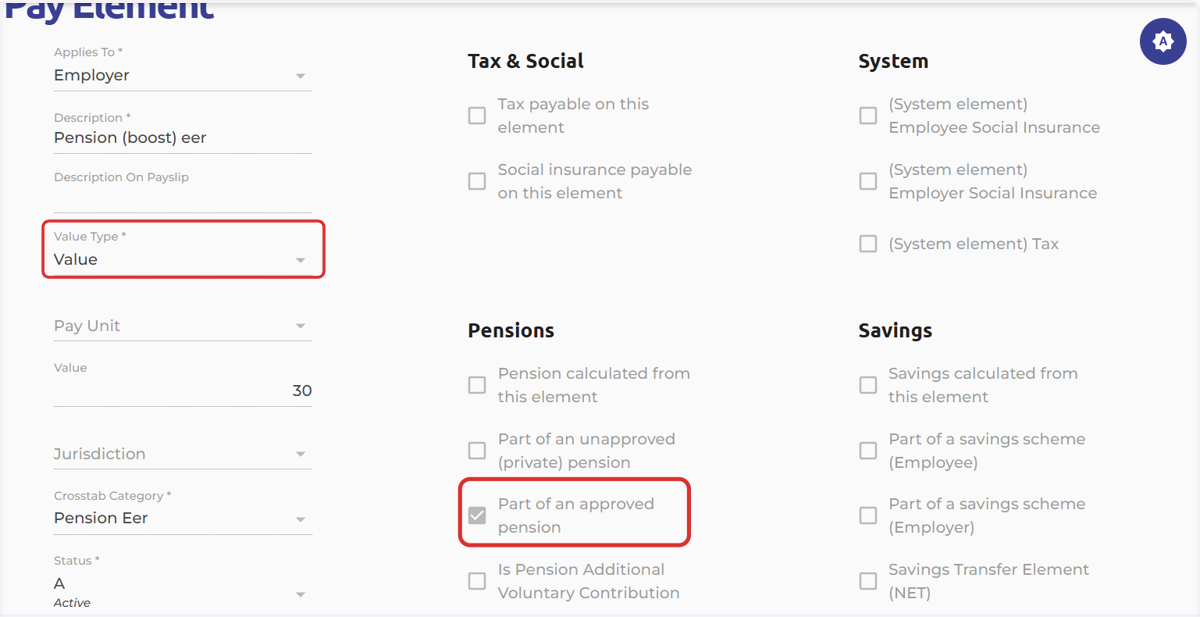
The same applies to the employer pension; this must be a value-type pay element and must be marked as part of an approved pension.
3. HOW TO USE THE PENSION BOOST FEATURE
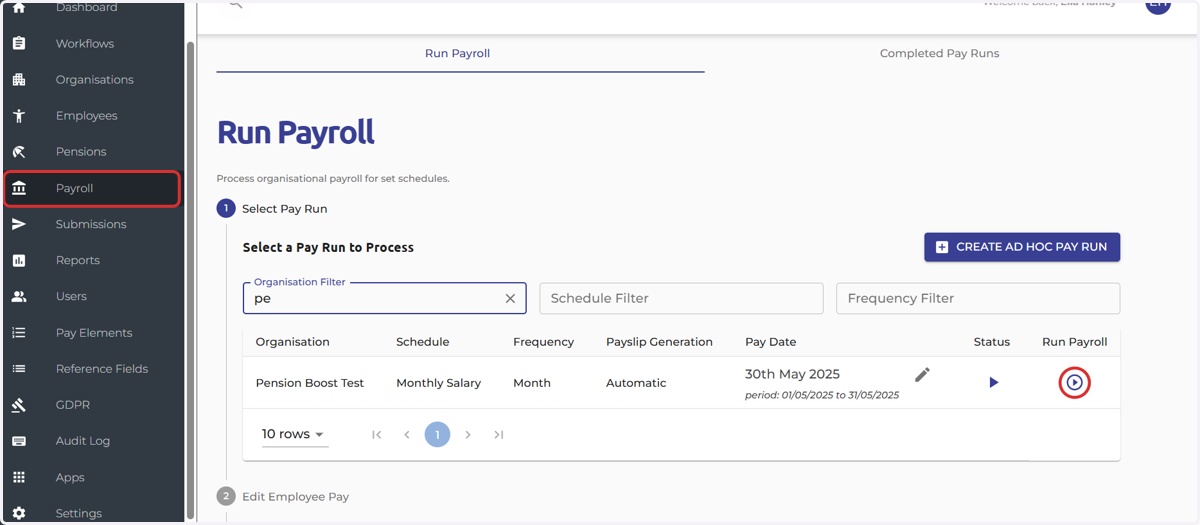
Navigate to the Payroll Screen > Select 'Run Payroll'
4. Select the payslip icon to view the employee's contributions
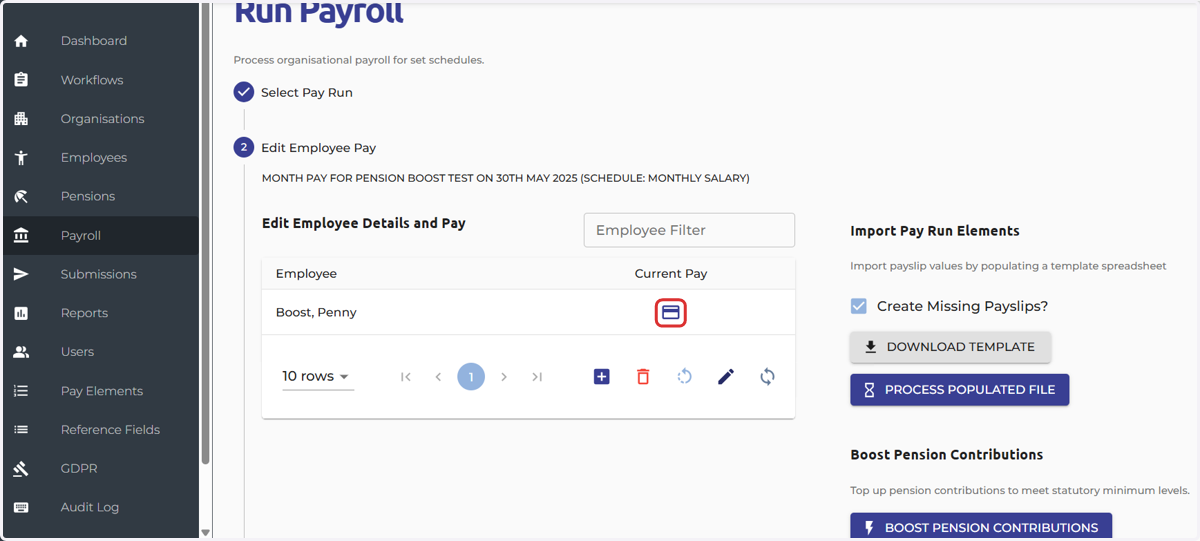
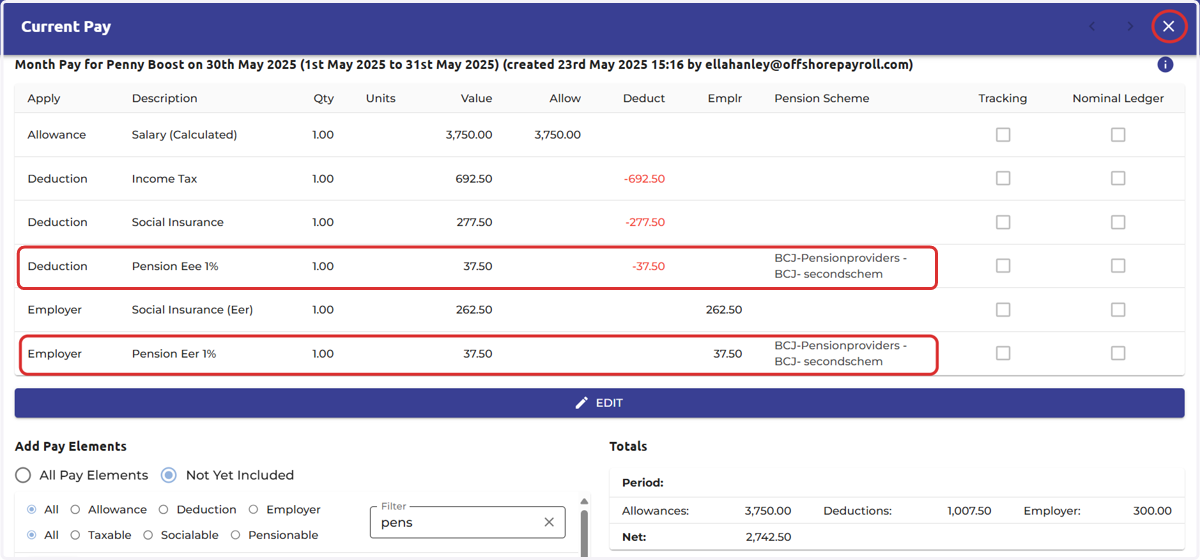
5. In this case, both the employee and the employer contribute 1% to pension.
Exit the payslip at the top right hand side
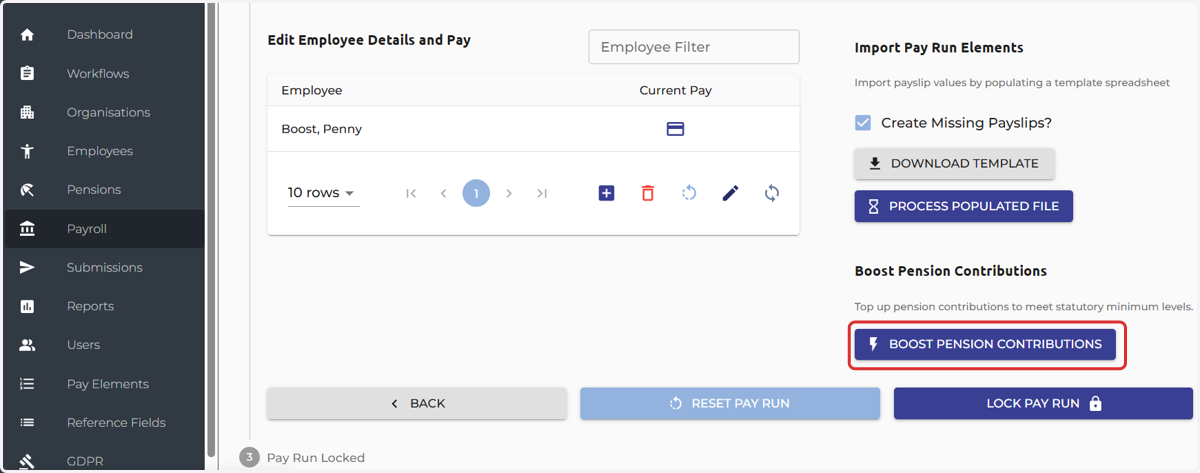
6. Select 'Boost Pension Contributions' to check to see if any employee or employer pension contributions need to be increased to meet the minimum contributions.
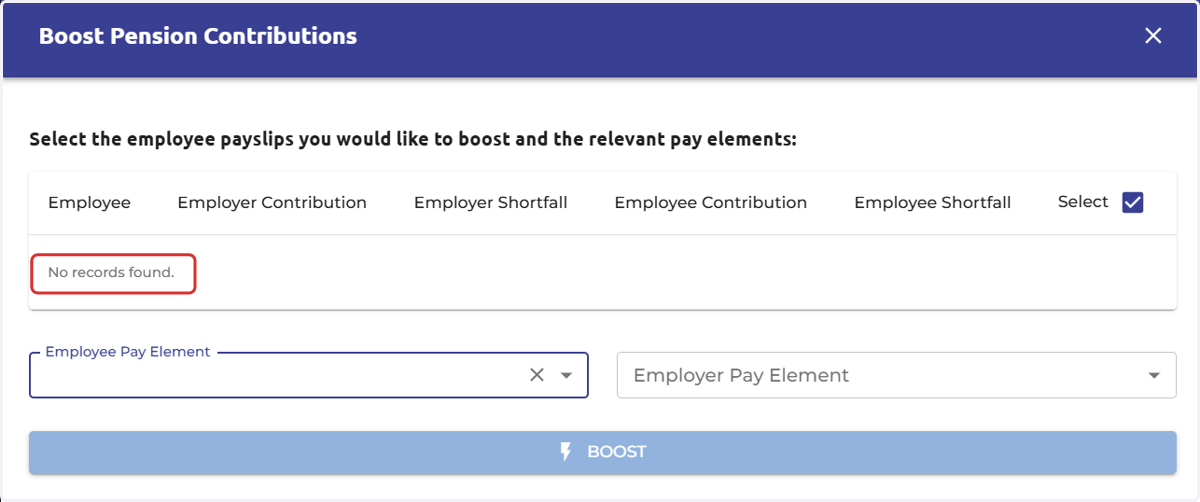
7. For this employee, there is no amount to increase the employee or employer contributions, as the current amounts meet the minimum contribution requirements.
Please view the link to the Government website on the minimum pension contributions.
8. In this case, this employee has a value type pension contribution of £30 employee and £30 employer.
Exit the payslip at the top right-hand side
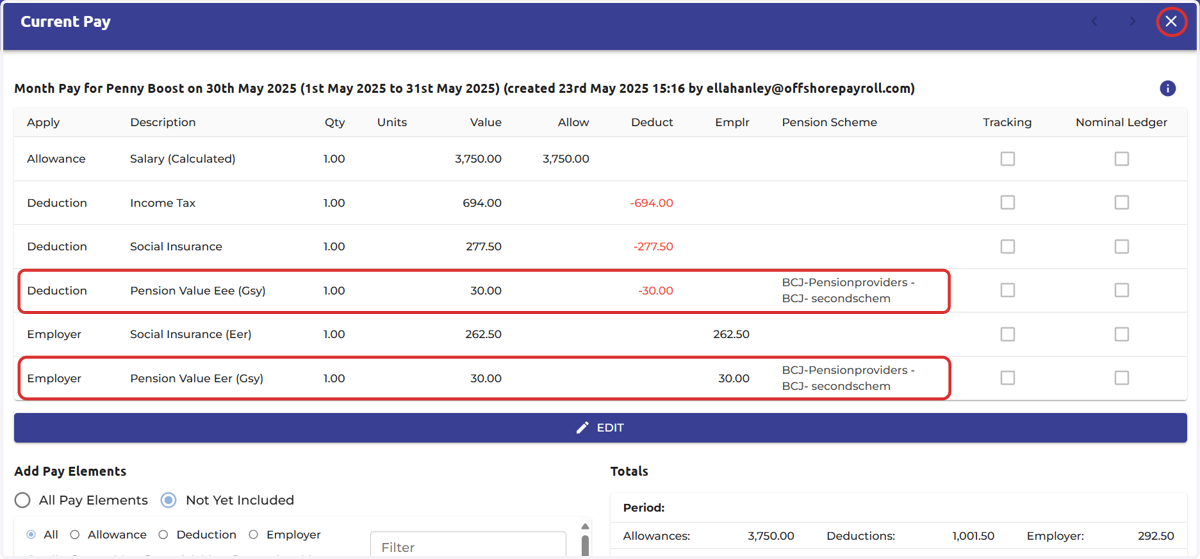
9. The employee and employer amount has a shortfall of £7.50, selecting boost will increase both amounts by £7.50
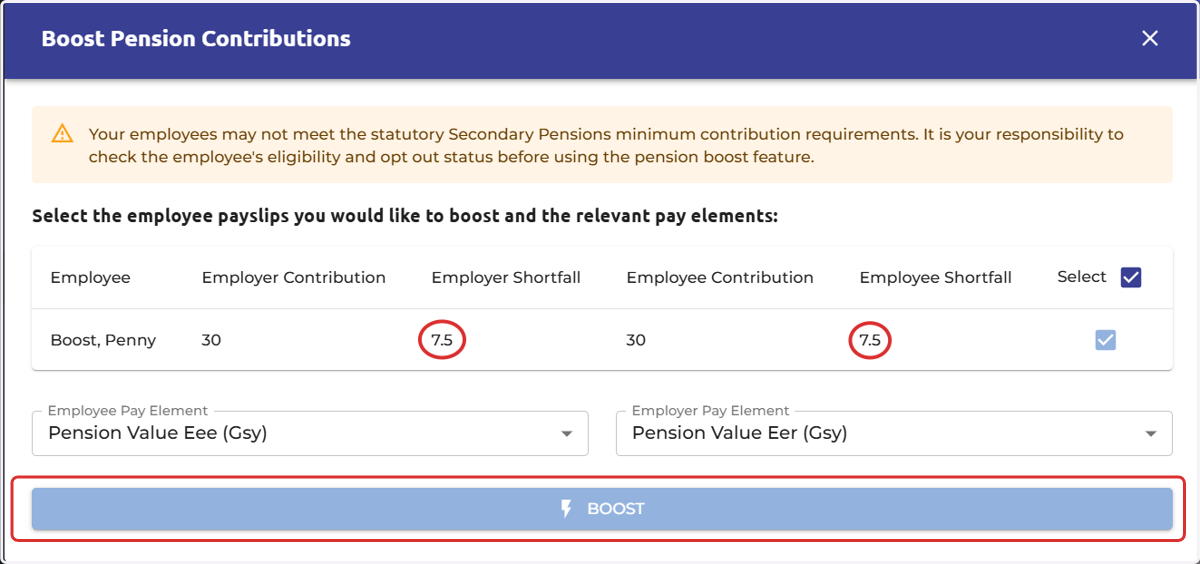
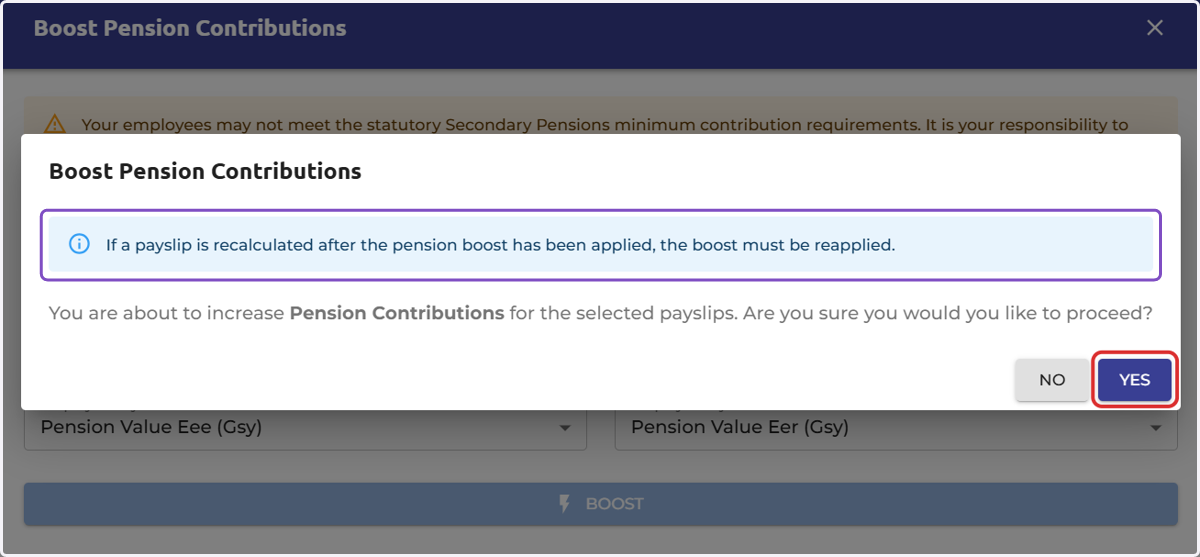
10. Before the pension boost is added to the payslip, a pop-up message will appear on screen to notify you that if the payslip is recalculated after the boost has been applied, the boost must be re-applied.
Select 'Yes' to increase the pension contributions
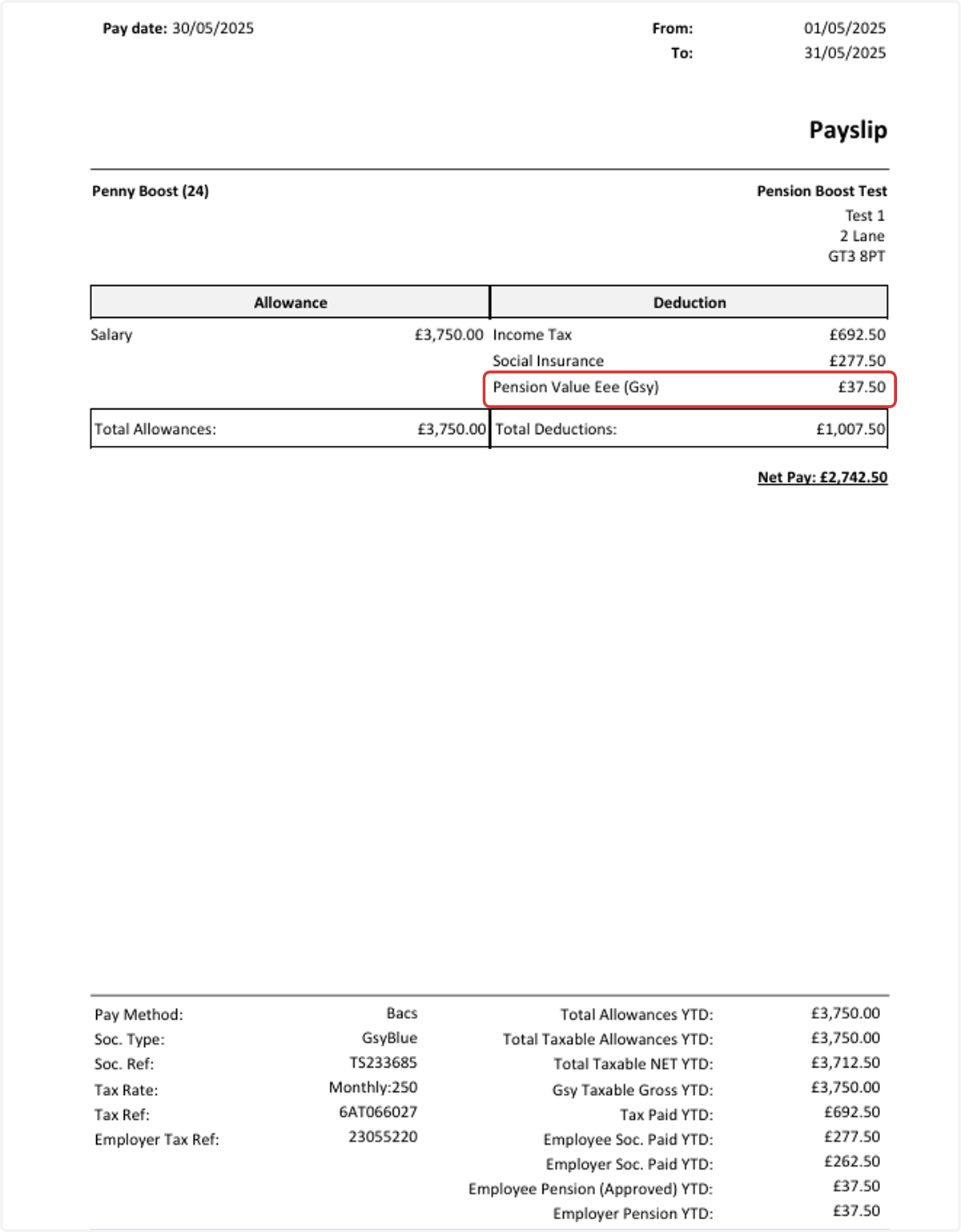
11. The pension contributions have now been increased by £7.50
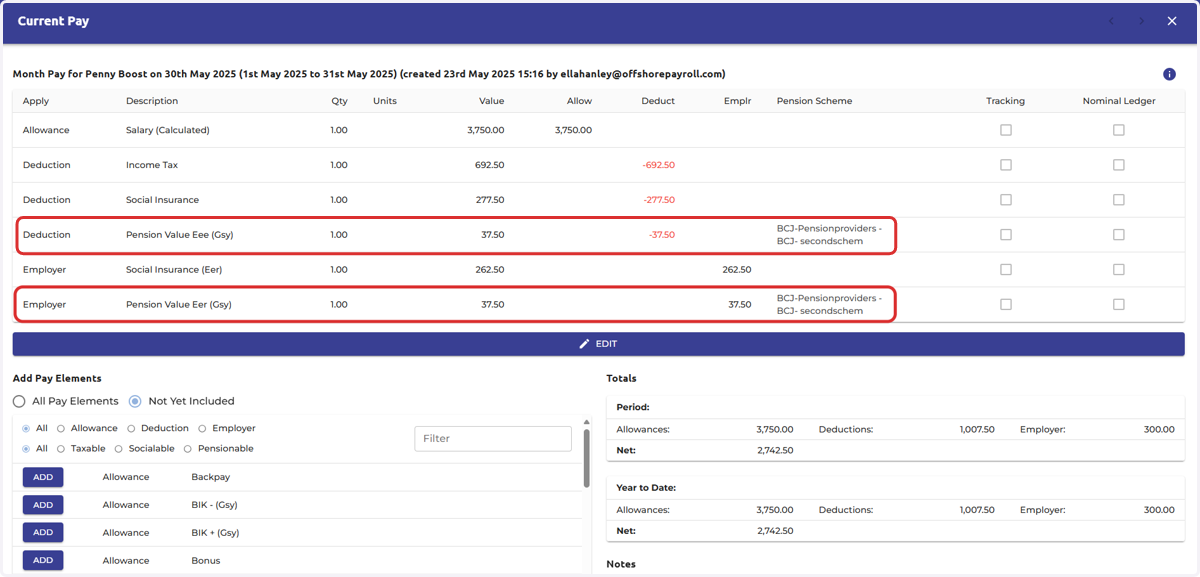
12. The increased employee pension deduction will be reflected on the payslip