Advanced Staff Calendar(ASC) User Guide
Filters in ASC for Easy Viewing of Appointments
1. Navigate to the Advanced Staff Calendar from the left-side menu.
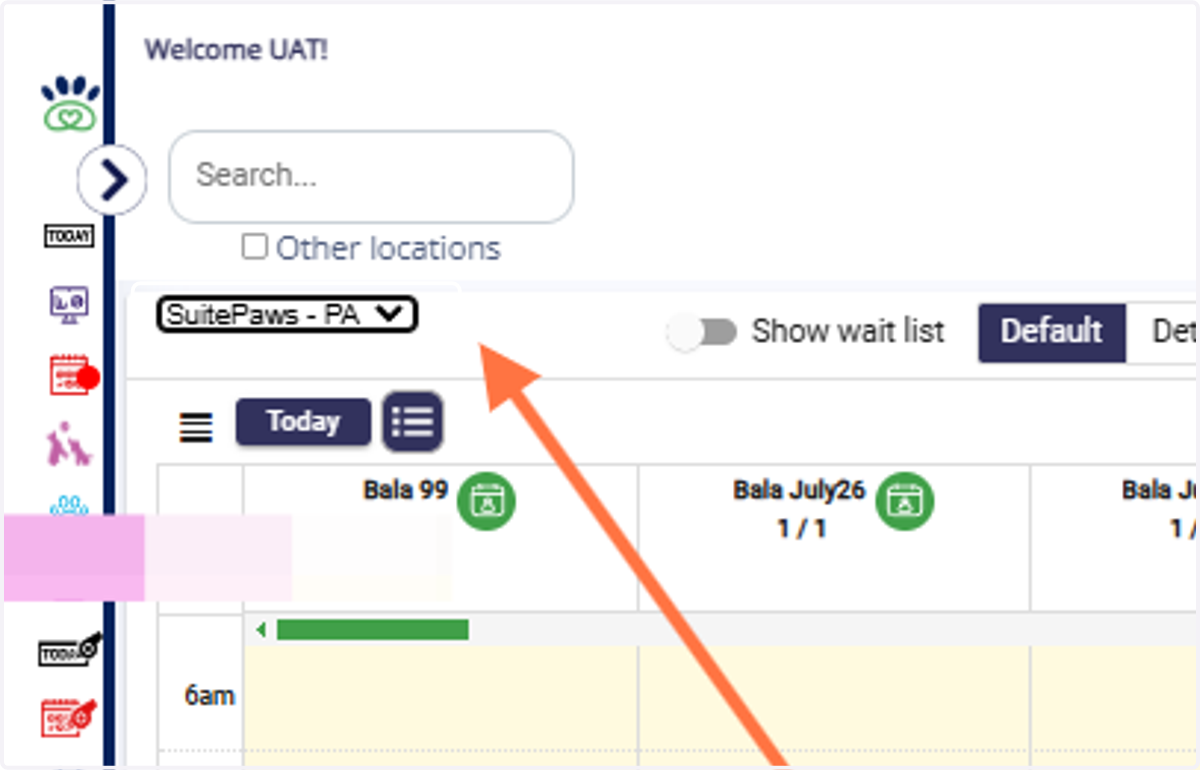
2. Change Location: Switch between locations to view appointments at other locations.
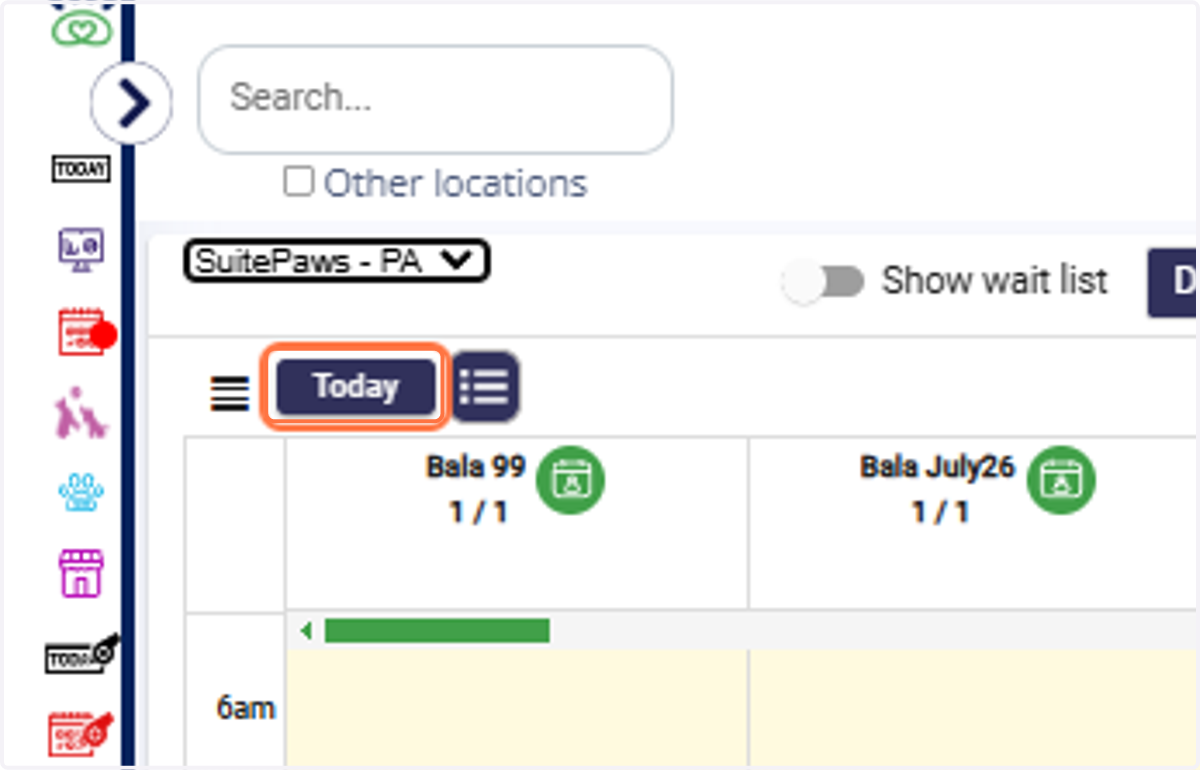
3. Filter for Today's Appointments: Use the "Today" filter to quickly jump to the current day.
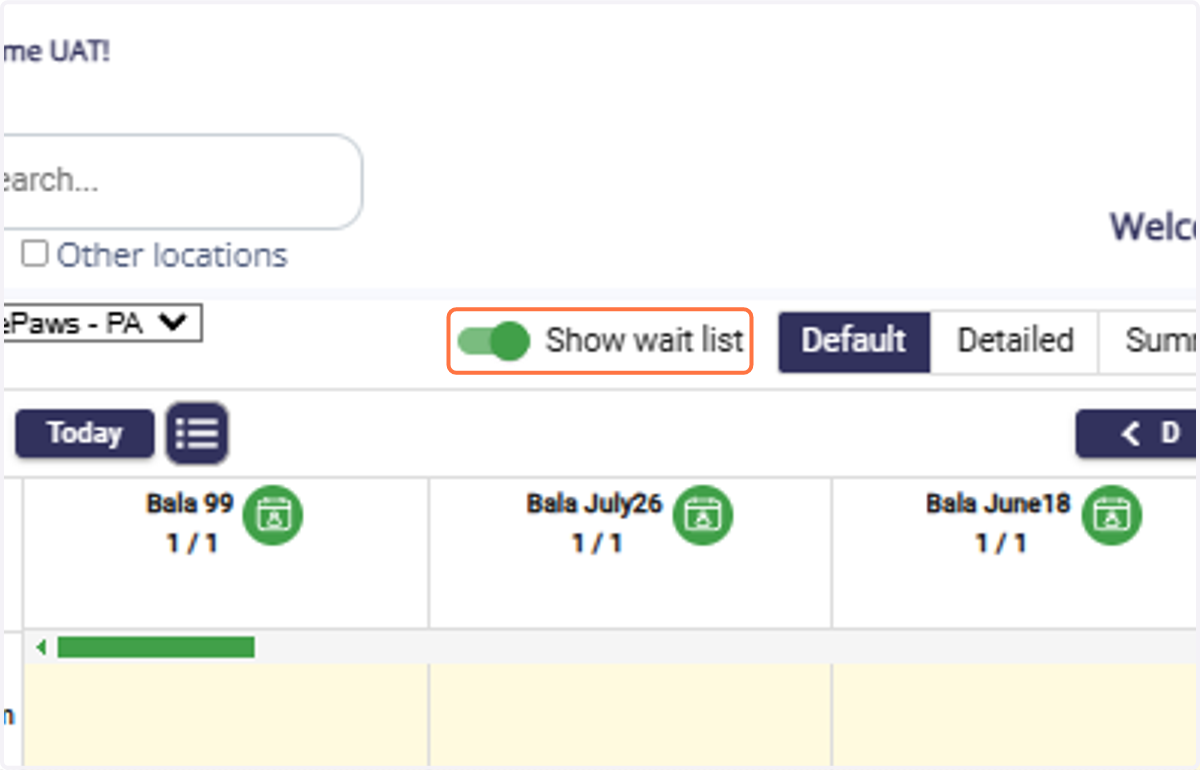
4. Show Waitlist Appointments: Toggle the "Show waitlist" option to display unapproved or waitlist appointments.
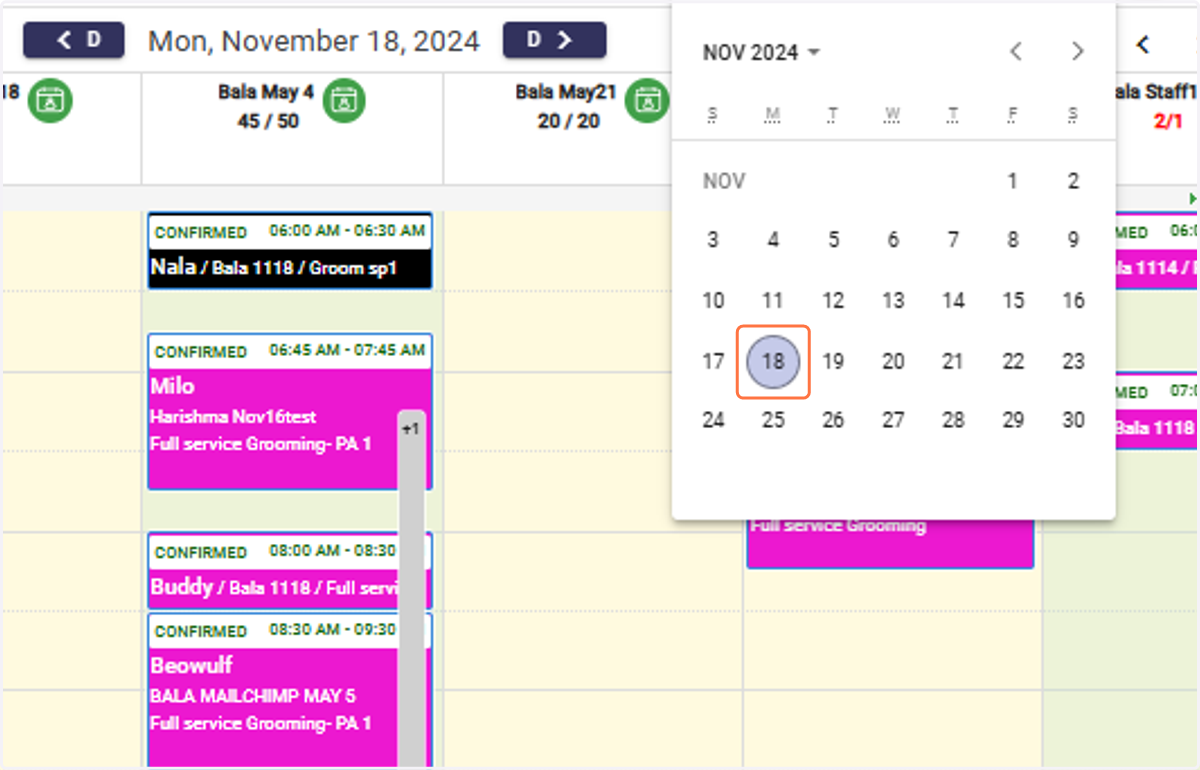
5. Use "Go to Date" Filter: Quickly navigate to a specific day using this feature.
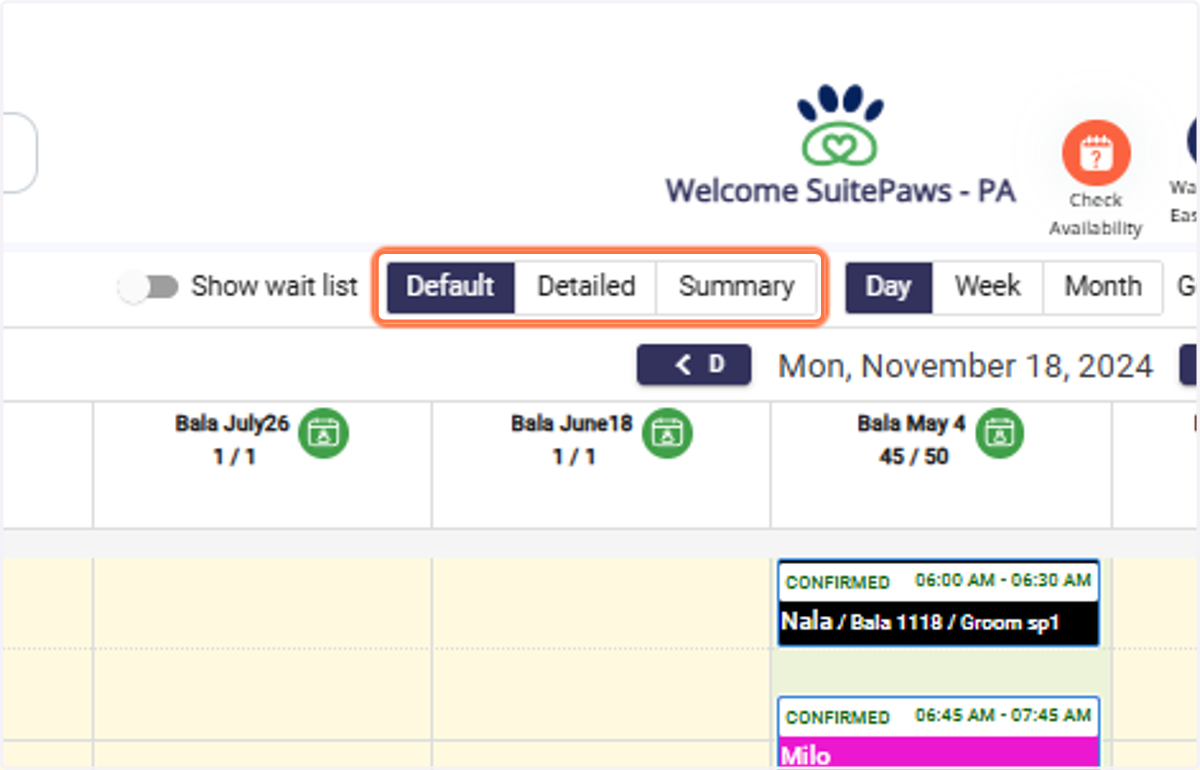
6. View Selector: Choose between three view types: 1. Default 2. Detailed 3. Summary
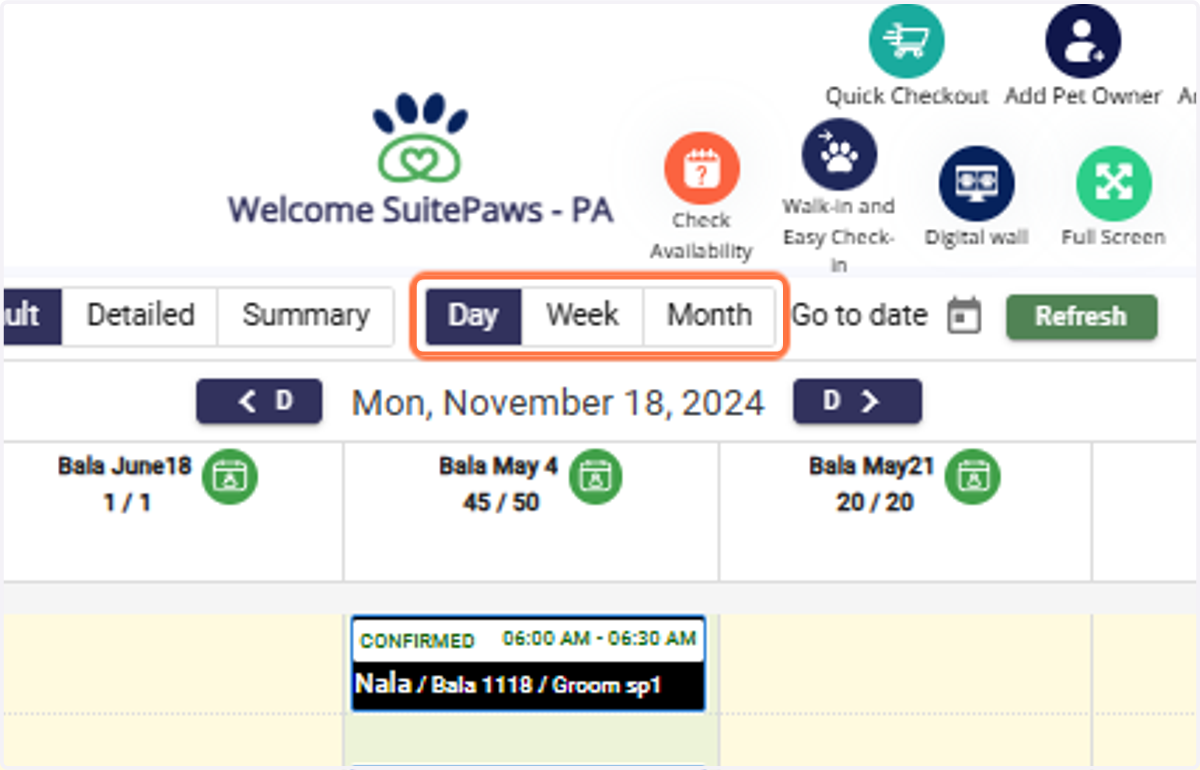
7. Switch View Mode: View appointments by Day, Week, or Month
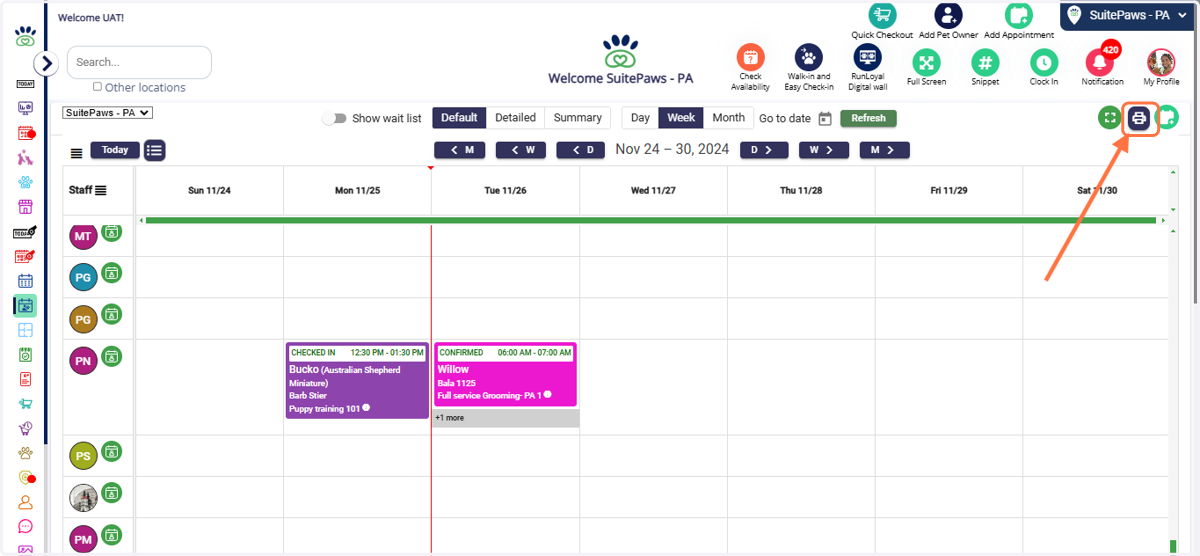
8. Print the view by clicking on the print icon.
Navigation
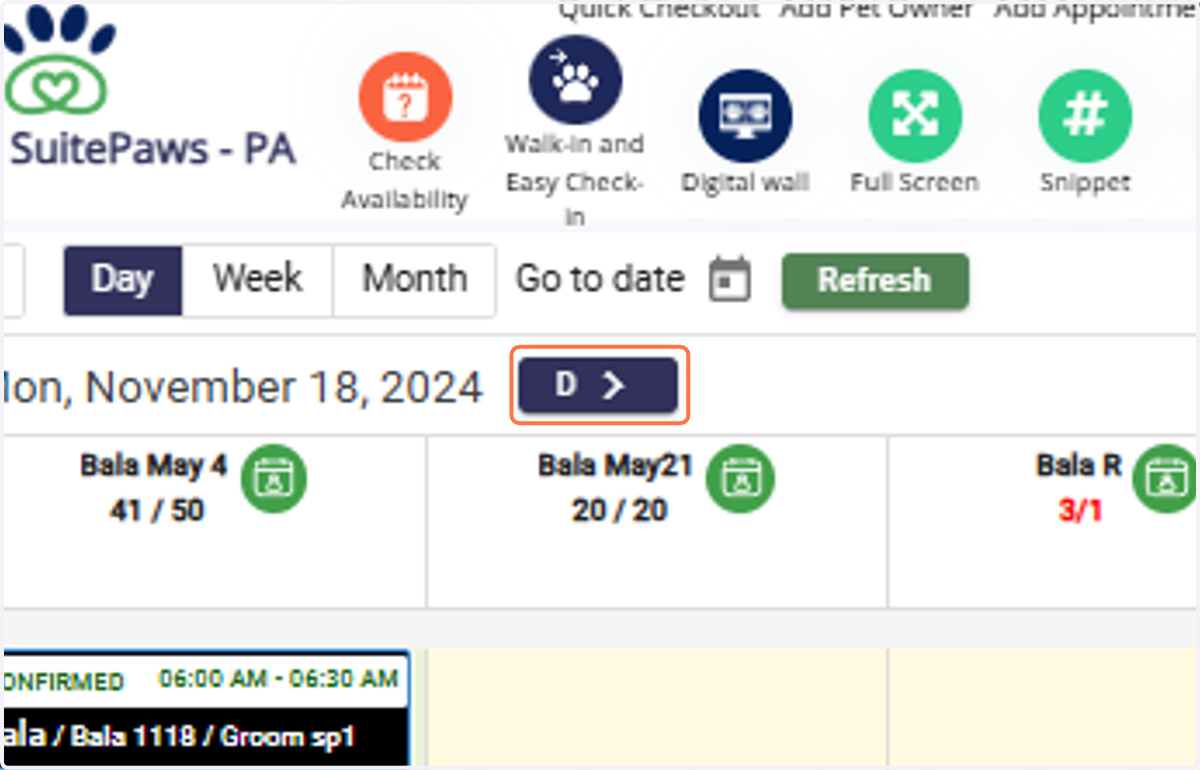
9. Daily Navigation: Use the Previous Day and Next Day buttons for day-to-day navigation.
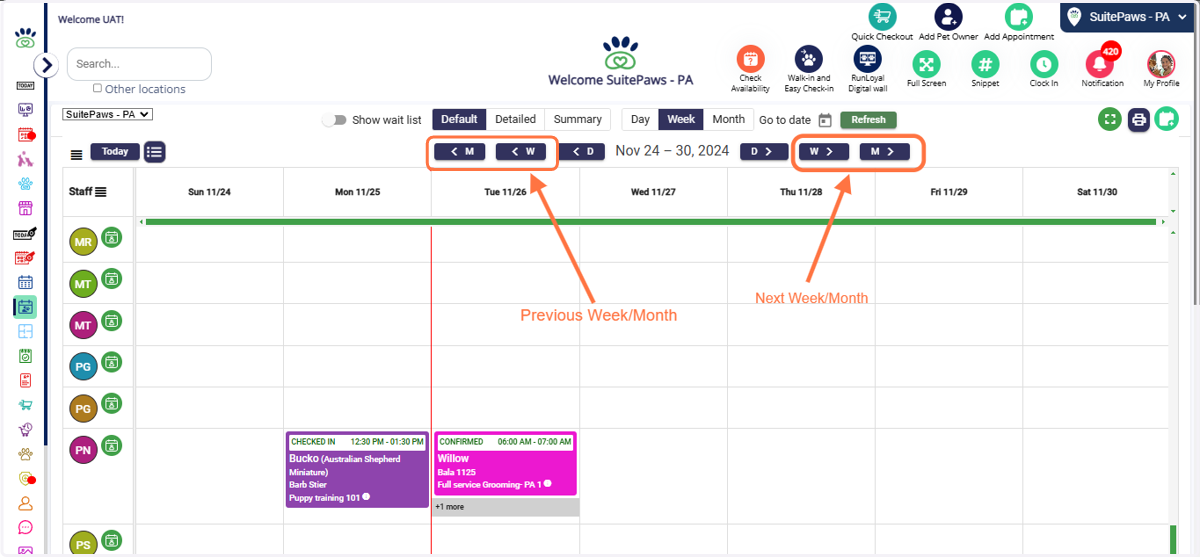
10. Weekly/Monthly Navigation: In Week View or Month View, navigate to the previous or next week/month using the navigation buttons.
Manage Hours for the Staff
11. Manage Staff Hours: Click on the calendar next to the staff's name to manage their hours.
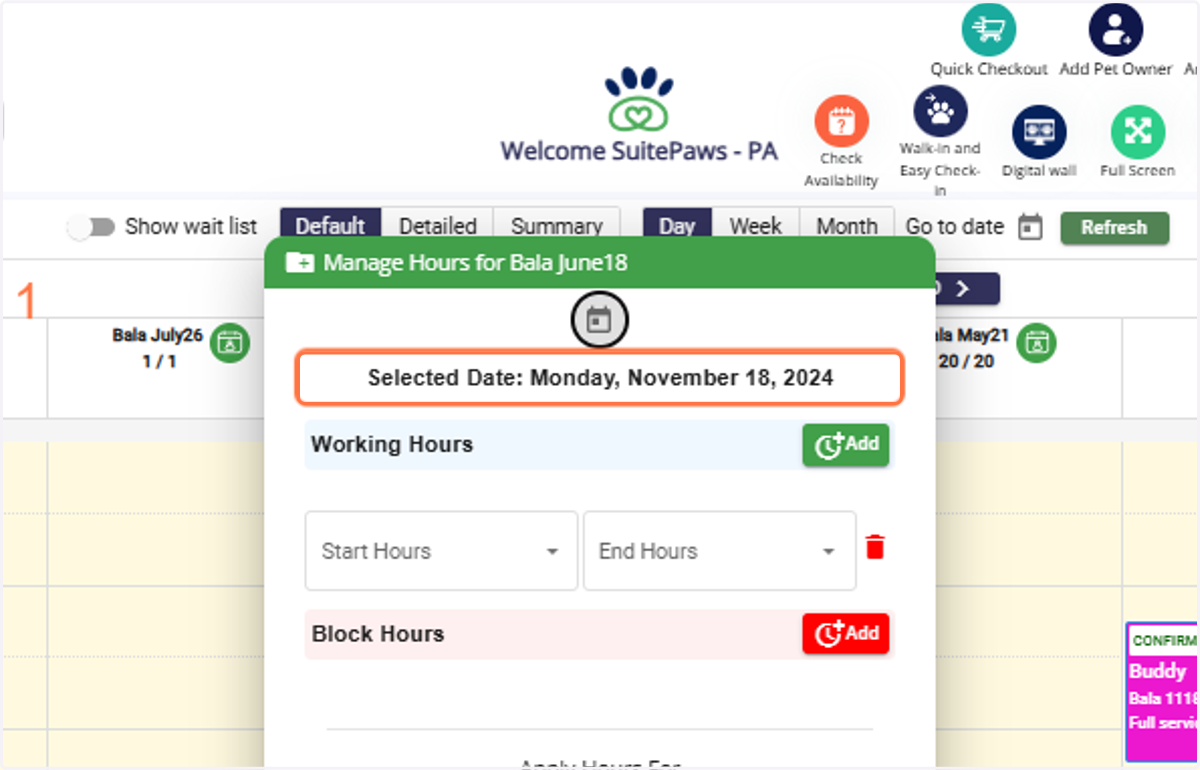
12. Add Working Hours: Specify the Start Time and End Time for the staff.
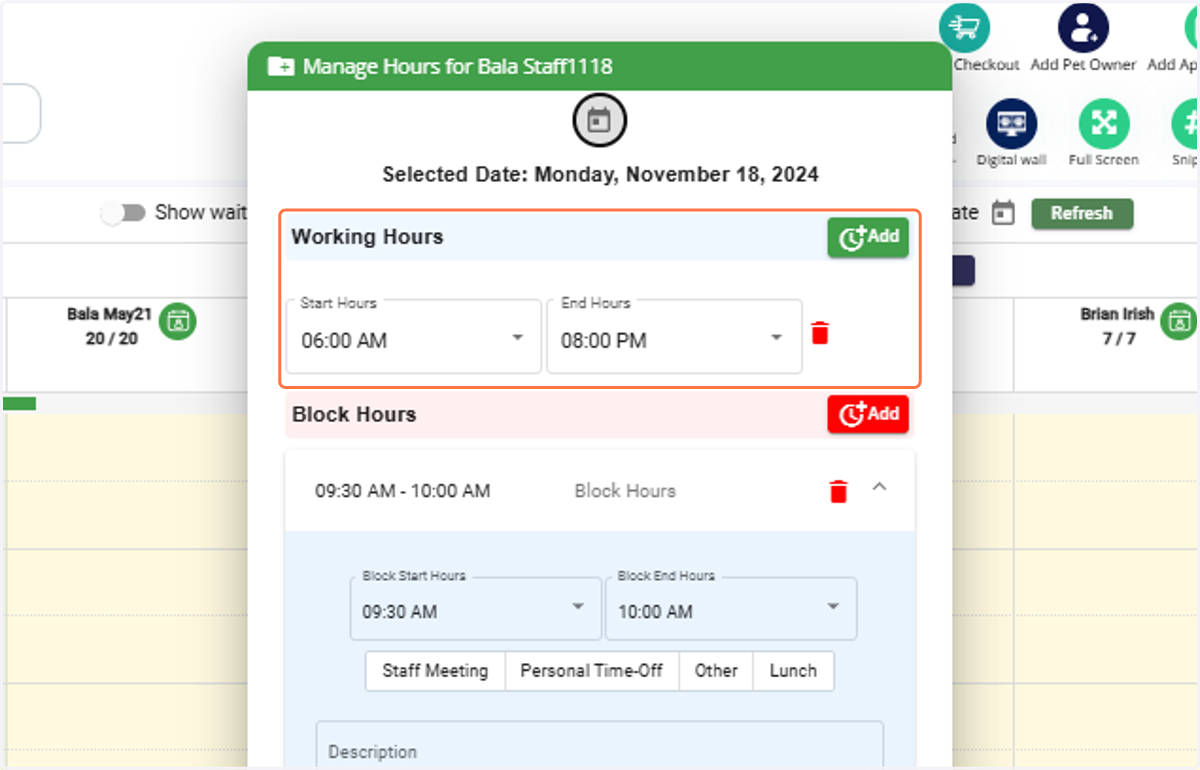
13. Block Hours: Add block hours (e.g., Staff Meeting, Personal Time Off, Other, Lunch) to restrict appointment availability.
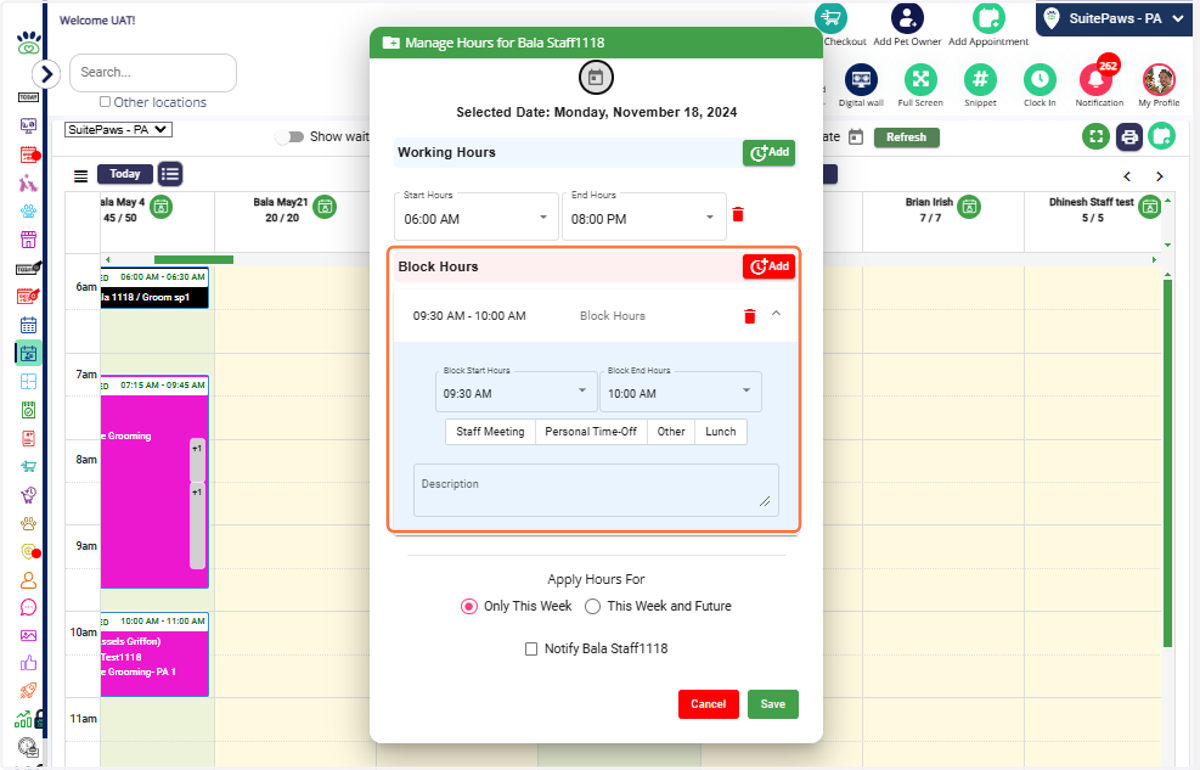
14. Apply Changes: Apply changes for the current week or future weeks and notify staff if necessary.
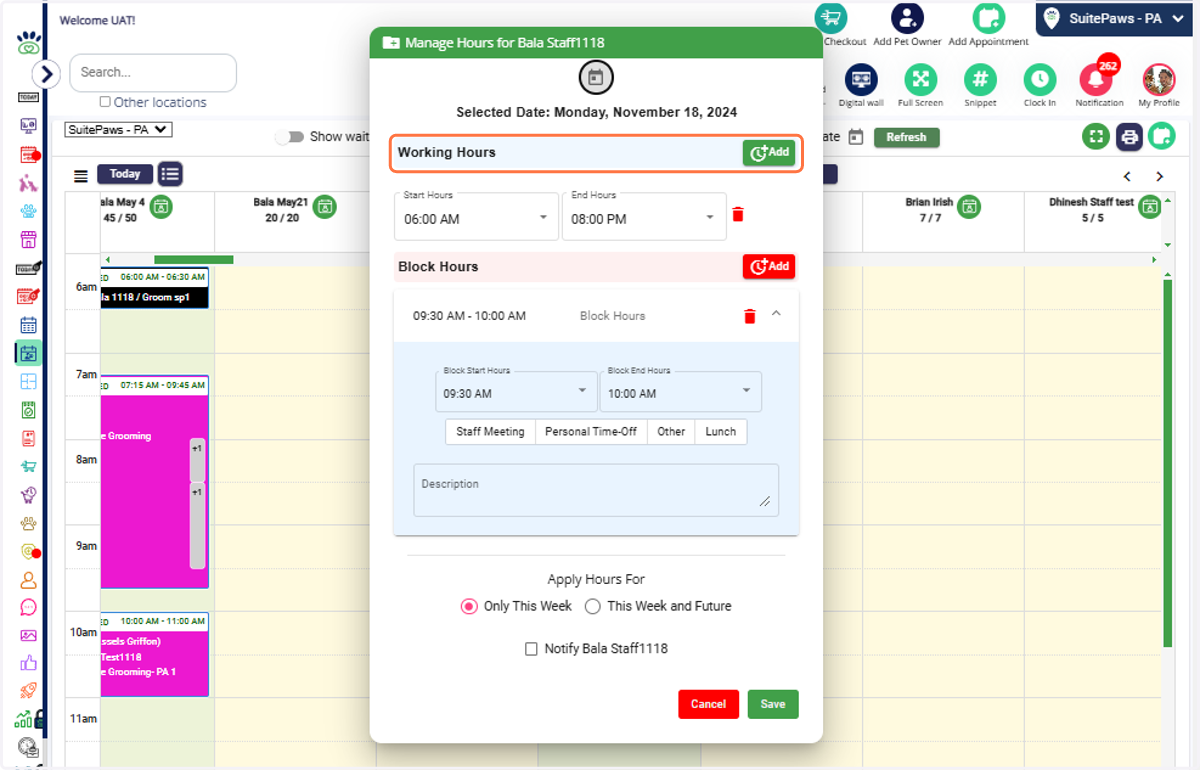
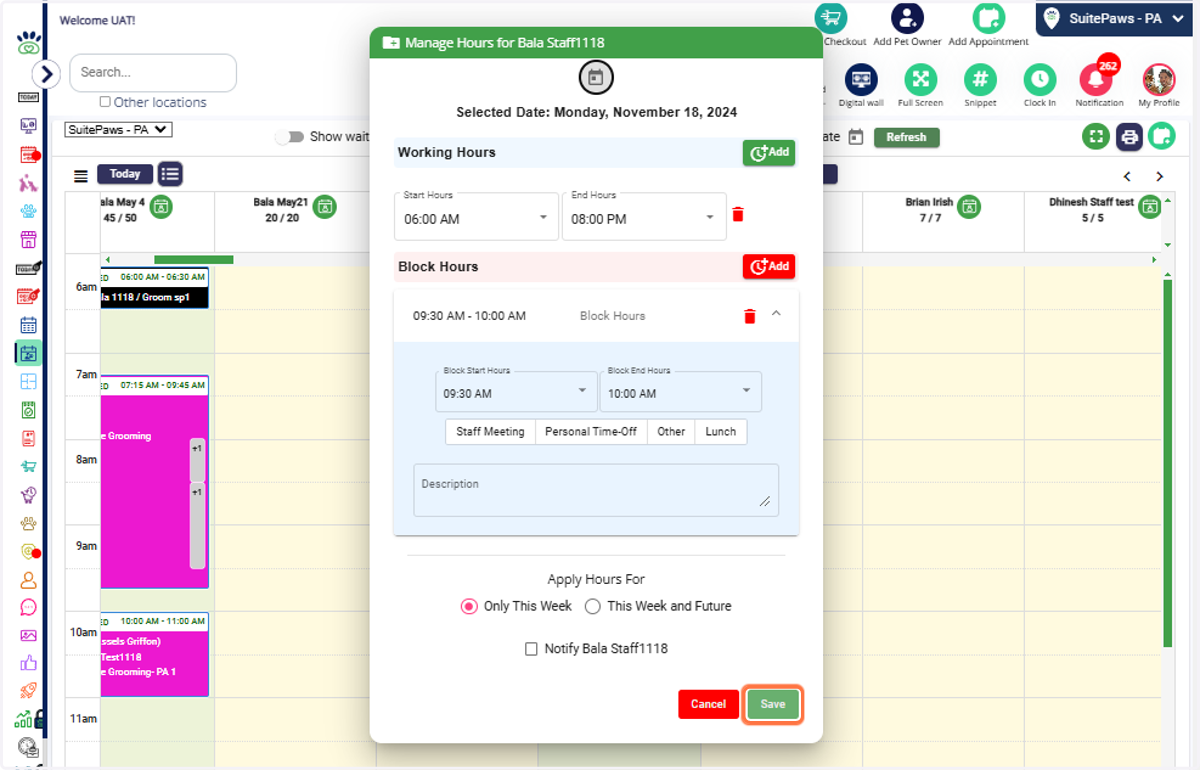
15. Save Changes: Click Save to update the hours.
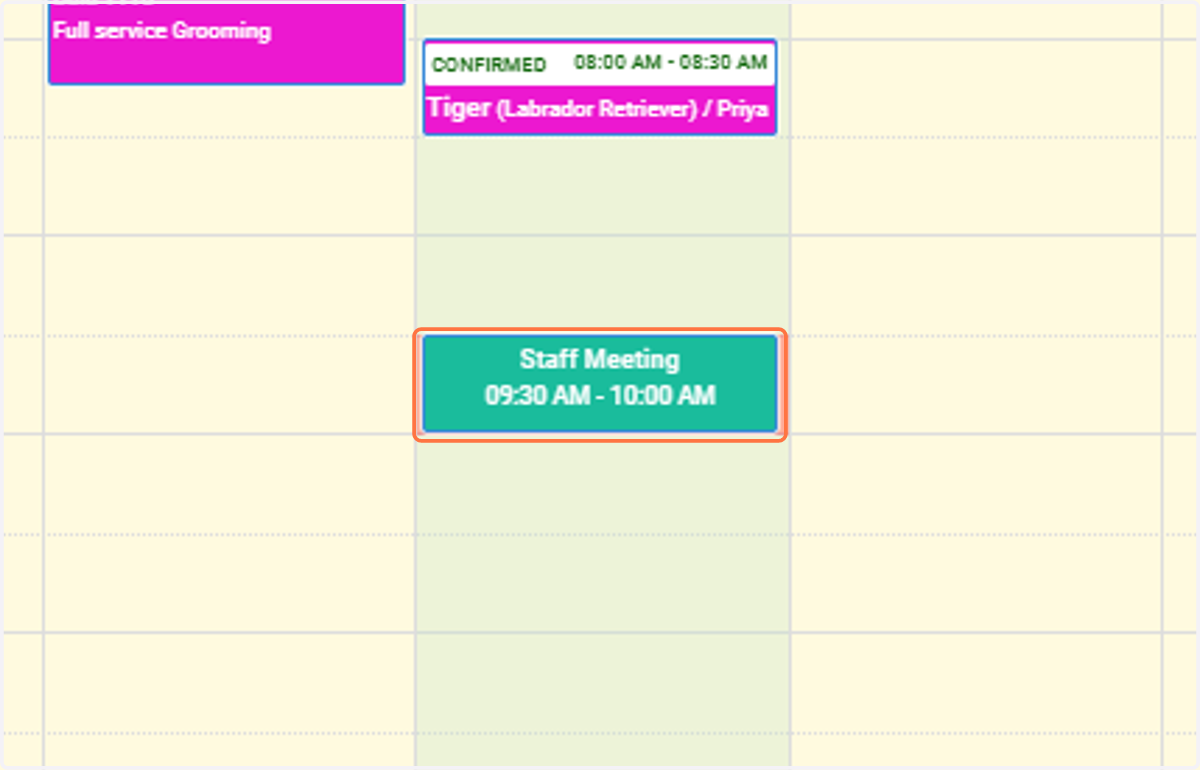
16. you can now see the working and block hours updated in the calendarView Updates: Check the updated working and block hours displayed on the calendar.
Drag & Drop Appointments
17. Move Appointments: Drag and drop appointments to another staff or to a new time slot.
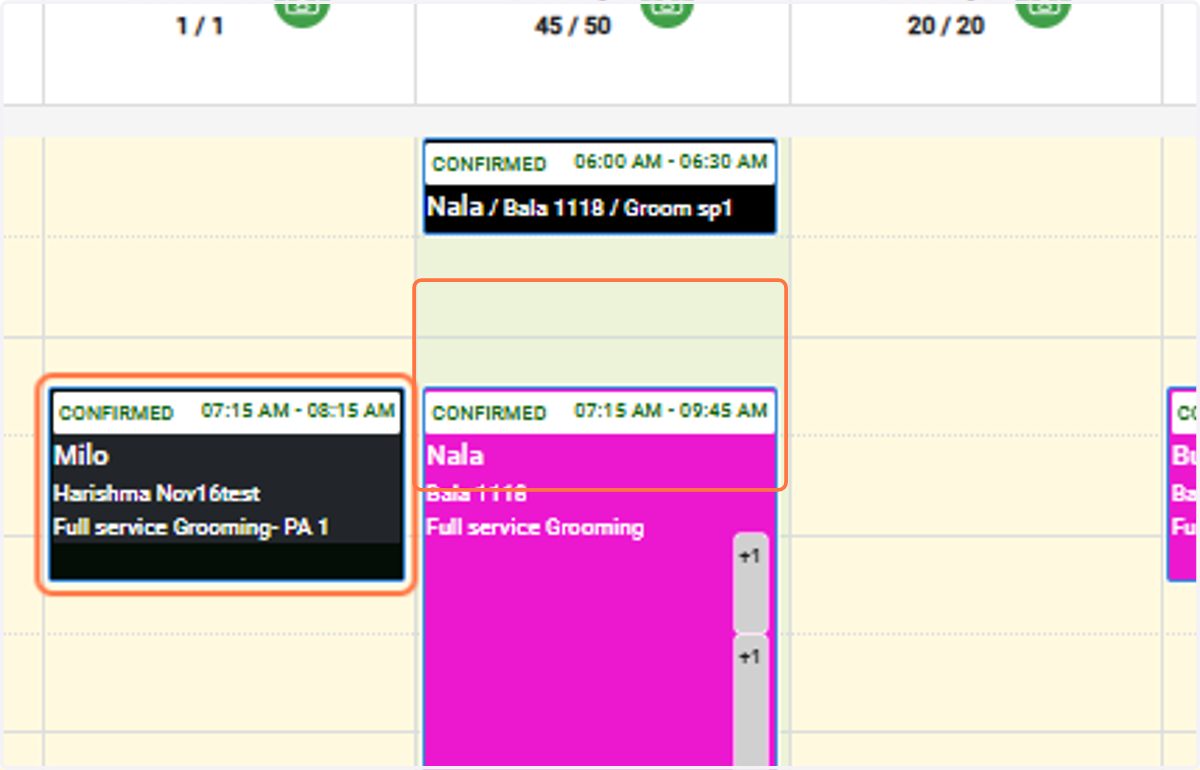
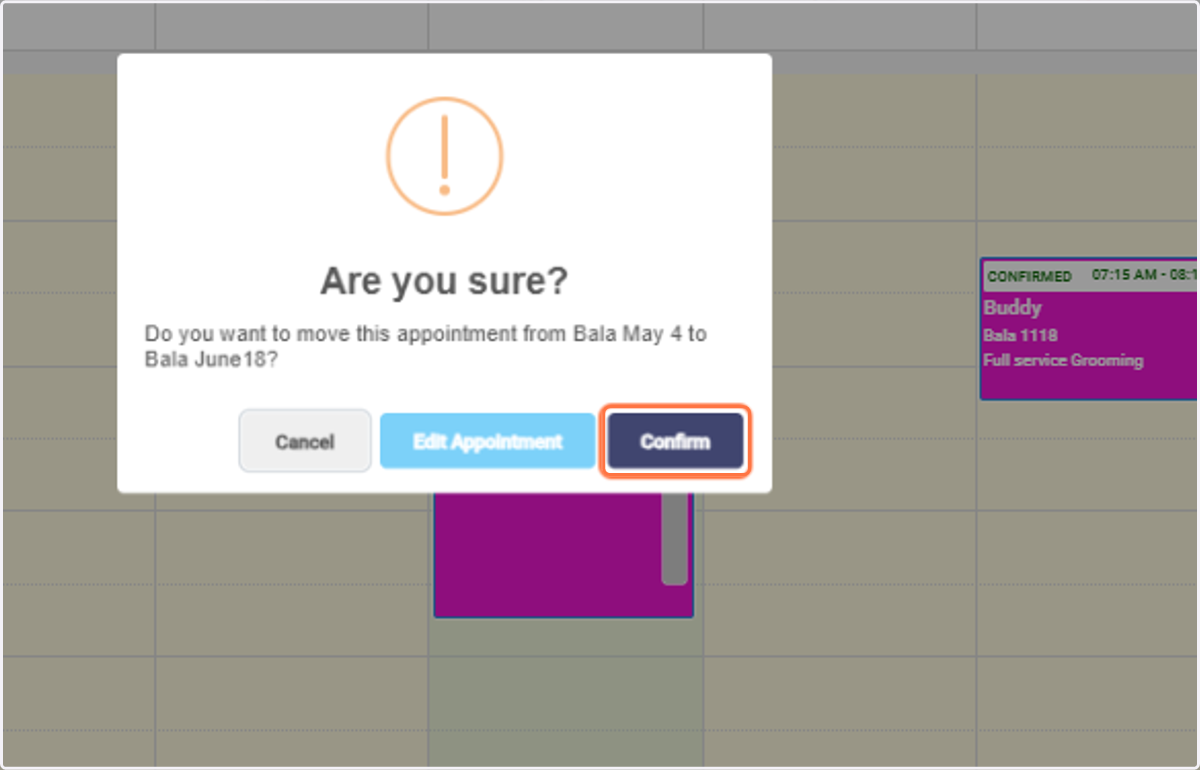
18. Confirm Move: Click Confirm to save changes.
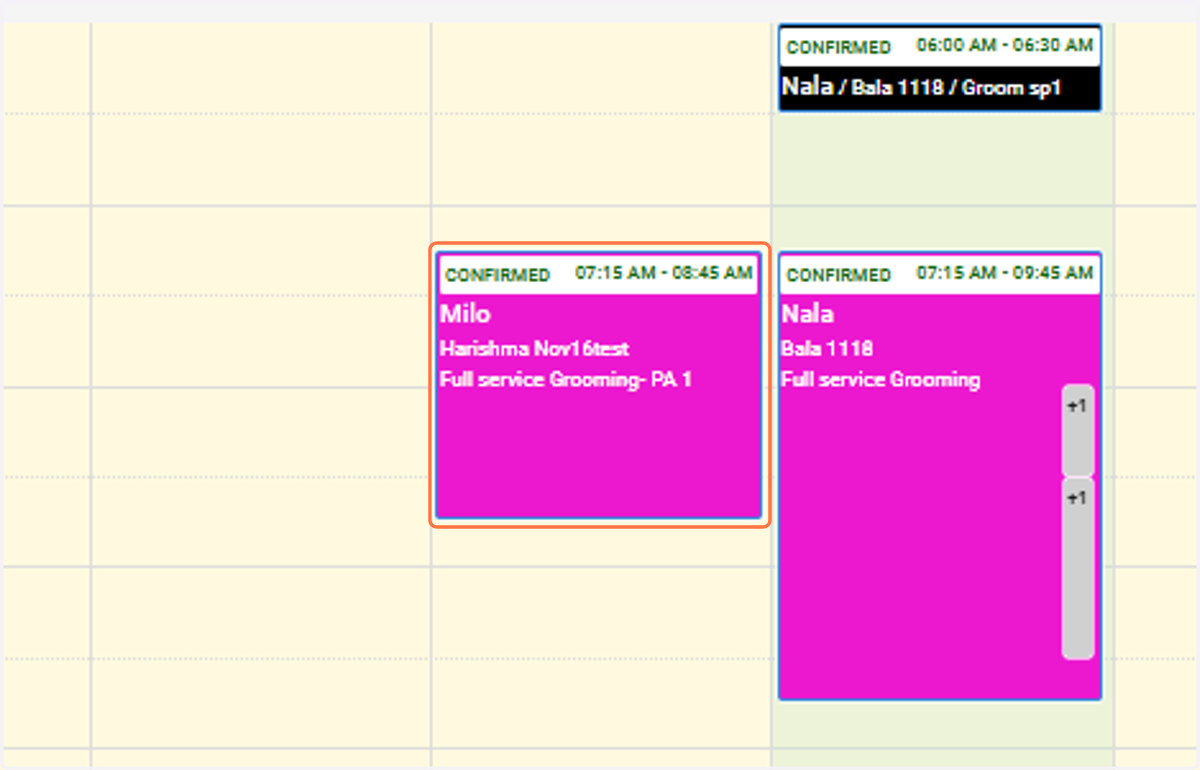
19. Updated Appointment: The appointment will be updated with the new staff and/or time.
Creating New Appointments from Staff Calendar
20. Add New Appointment: Click on the Add Appointment icon.
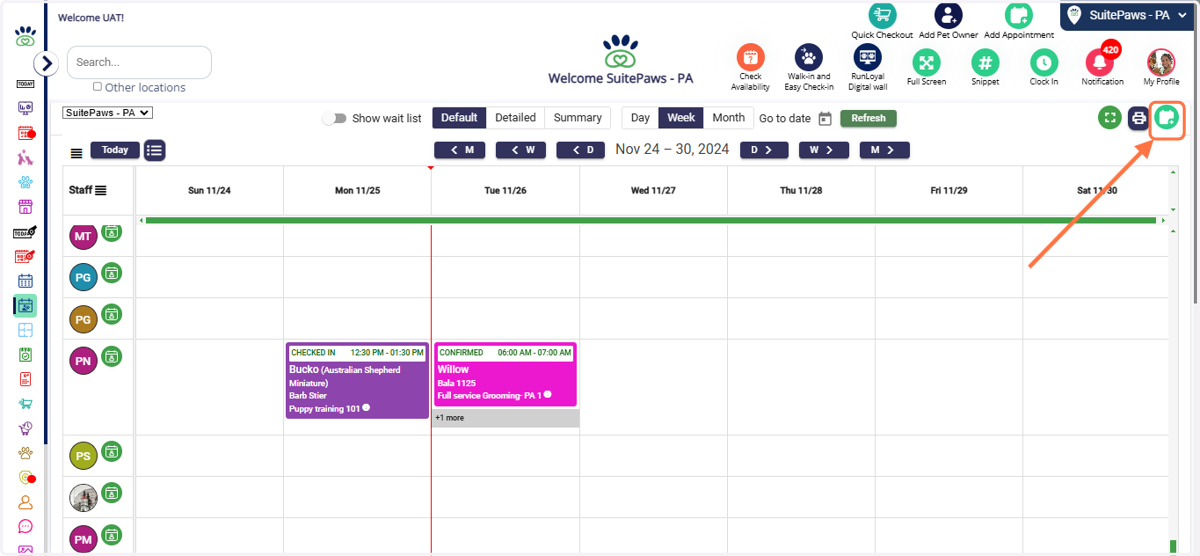
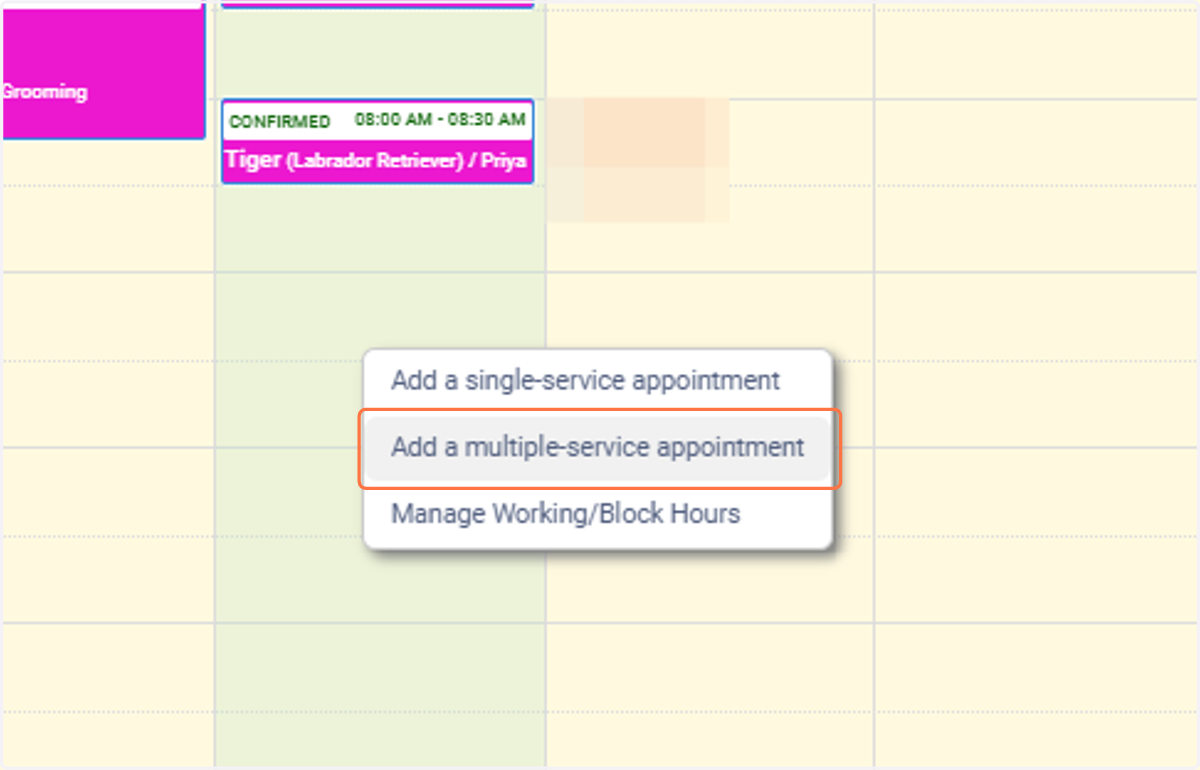
21. Select Options: Click on the staff’s working hours to choose: 1. Add a Single-Service Appointment 2. Add a Multiple-Service Appointment 3. Manage Working & Block Hours
Single-Service Appointments:
Staff-Based Services Only:
When creating a single-service appointment, you are limited to selecting services that are specifically staff-based.This ensures that the service aligns with the availability and expertise of the assigned staff.
Multiple-Service Appointments:
No Restrictions on Staff-Based Services:
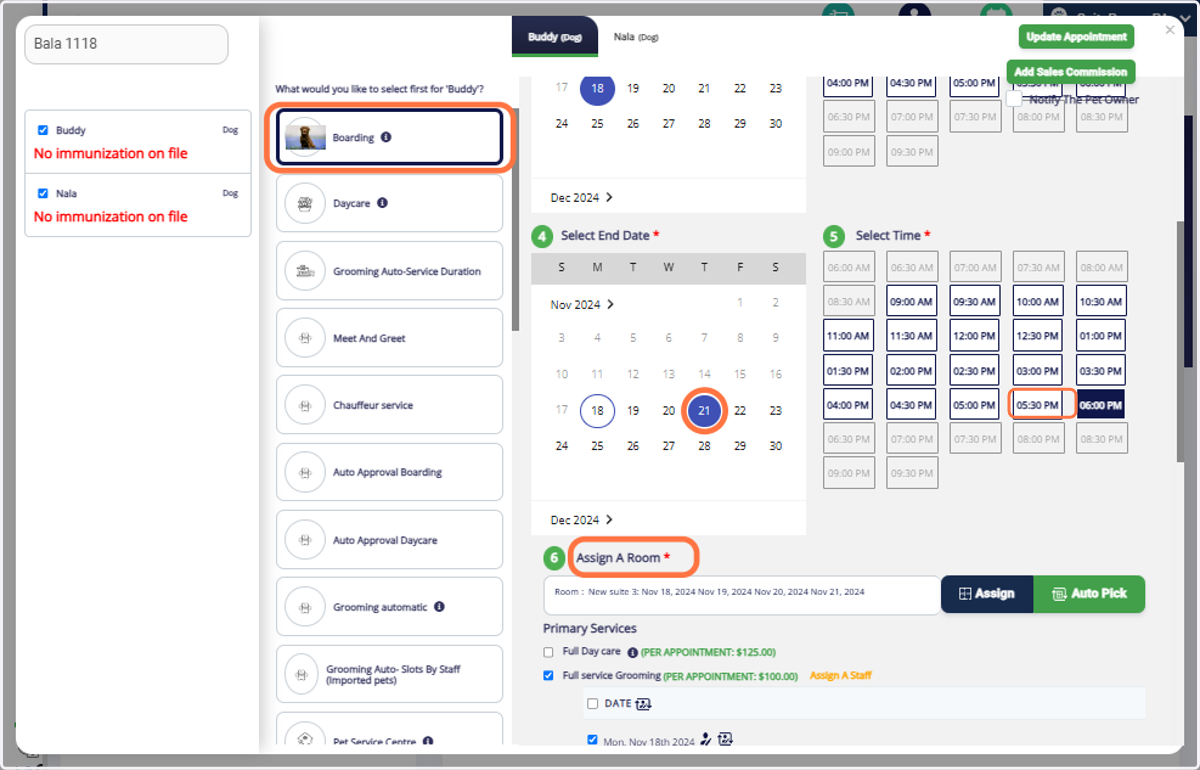
For multiple-service appointments, you can choose one or more services, regardless of whether they are staff-based.This provides flexibility to combine different services and streamline scheduling for the pet's needs, even if some services are not tied to specific staff members.
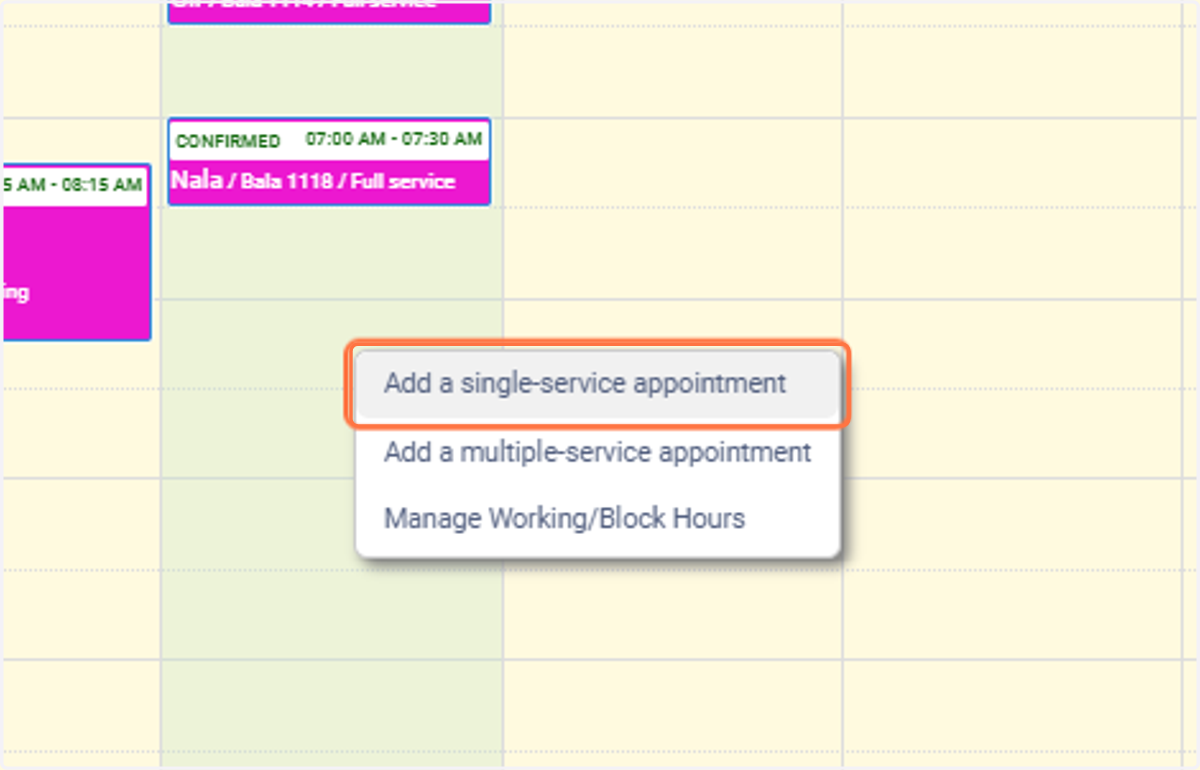
Adding a Single-Service Appointment
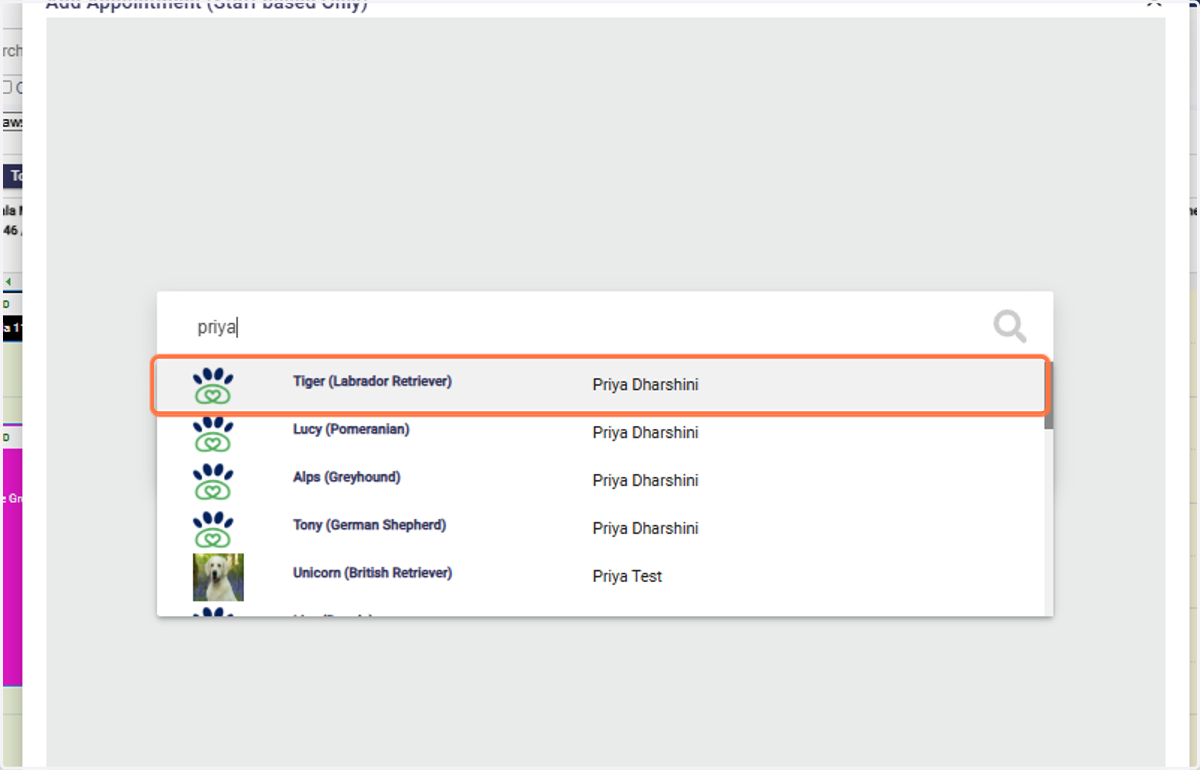
22. Search for Pet/Owner: Type the pet owner or pet’s name and select from the list.
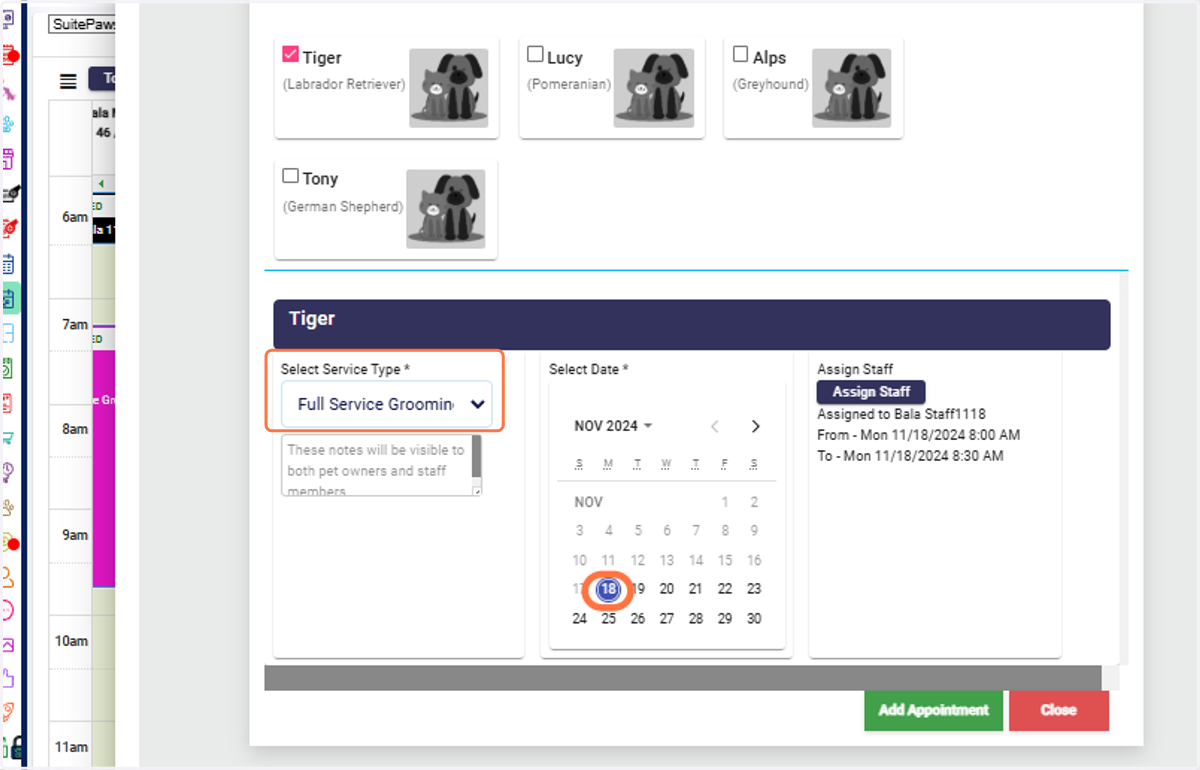
23. Choose Service and Start Date: Select the service and start date.
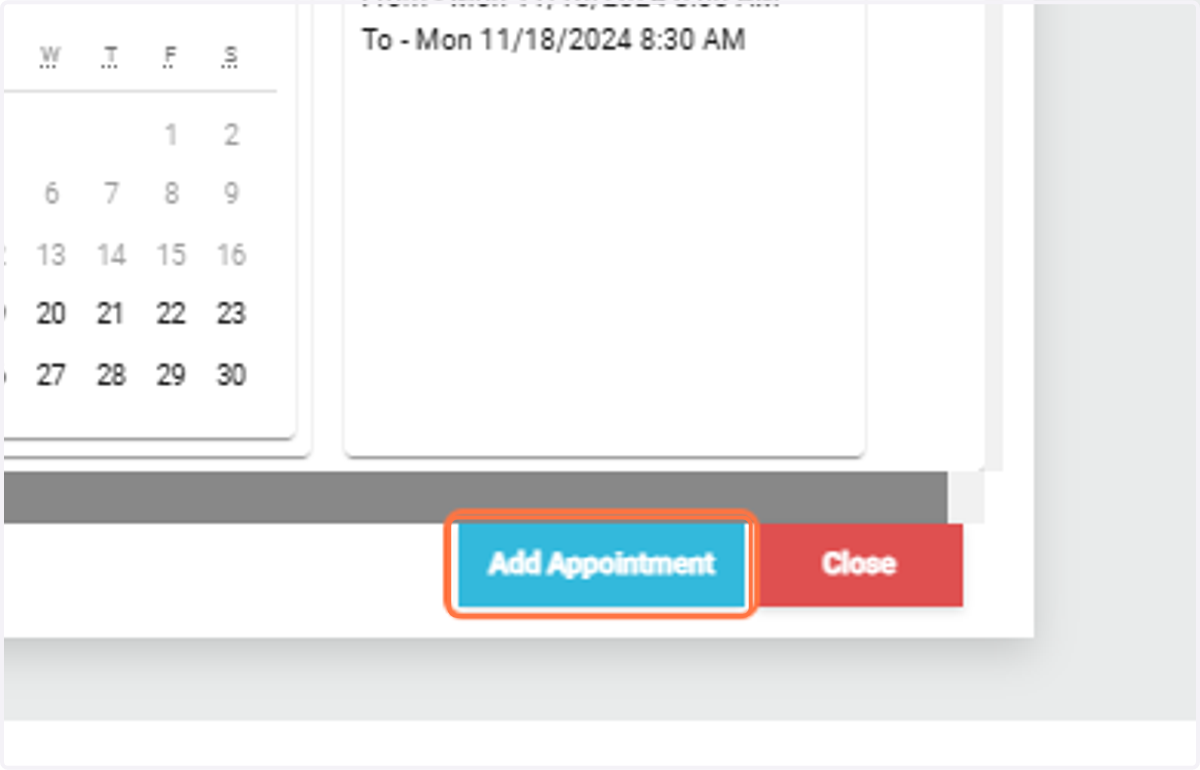
24. Add Appointment: Click Add Appointment to schedule it.
25. View Appointment: The appointment will now appear on the calendar.
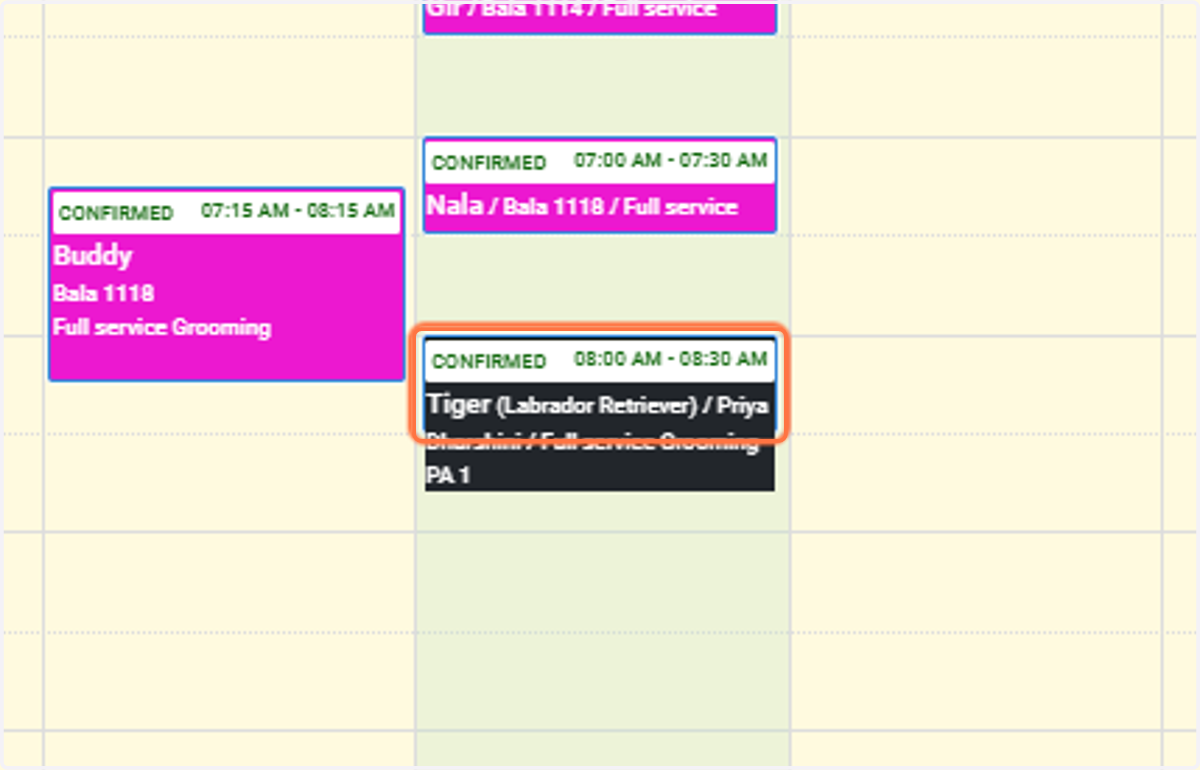
Adding a Multiple-Service Appointment
26. Click on Add a multiple-service appointment
27. Select Multiple Services: Choose multiple services, along with start and end dates/times and Assign staff/room for the service.
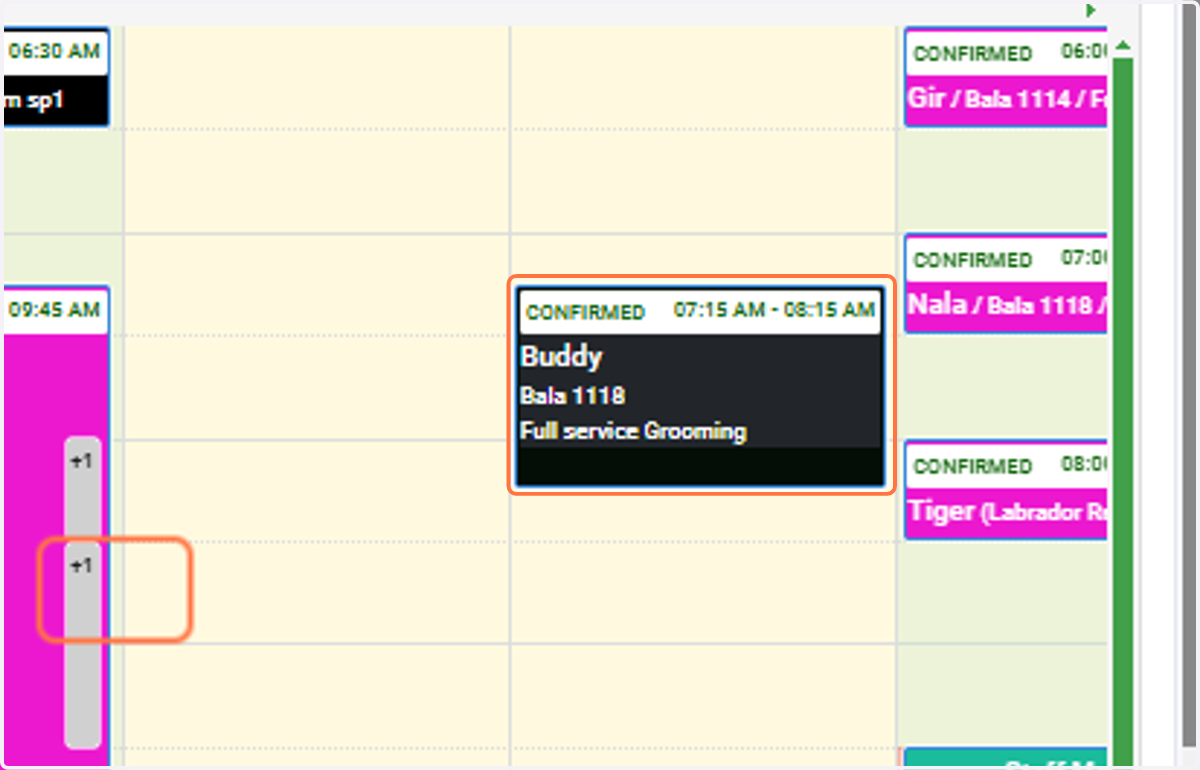
28. View Staff-Based Services: Confirm the services displayed as per the staff’s assignments.
Pet Details
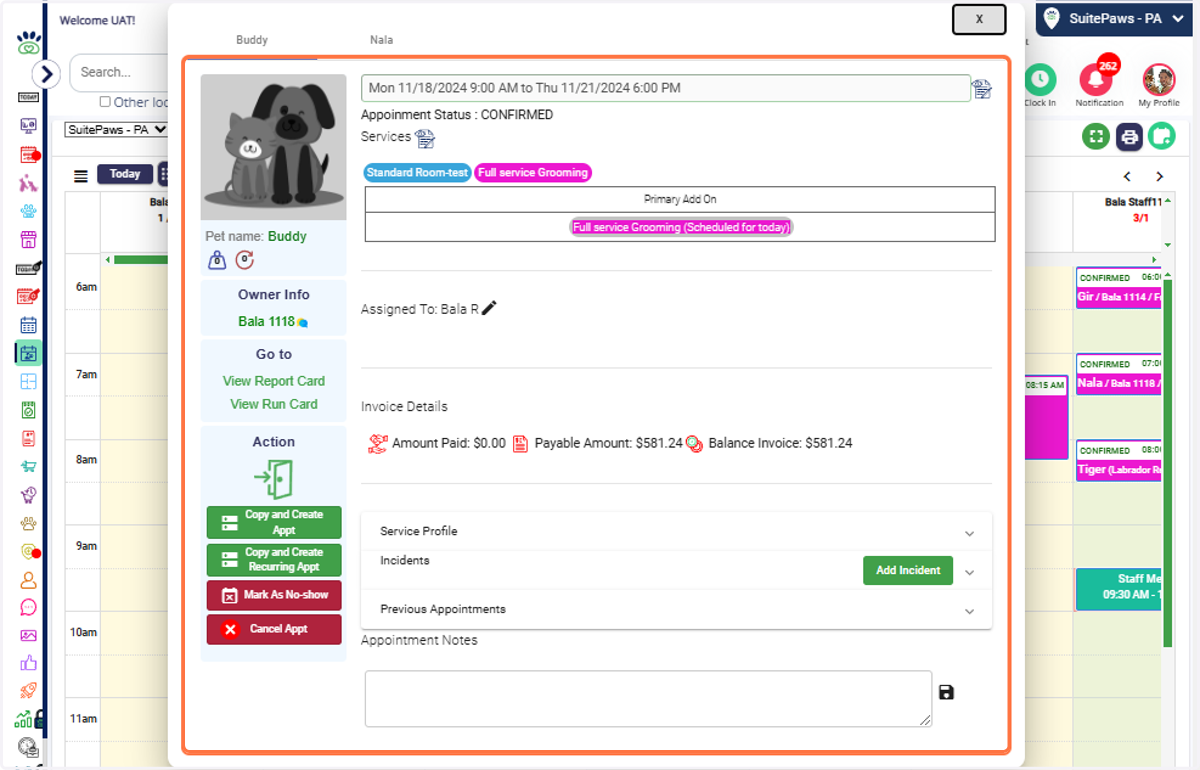
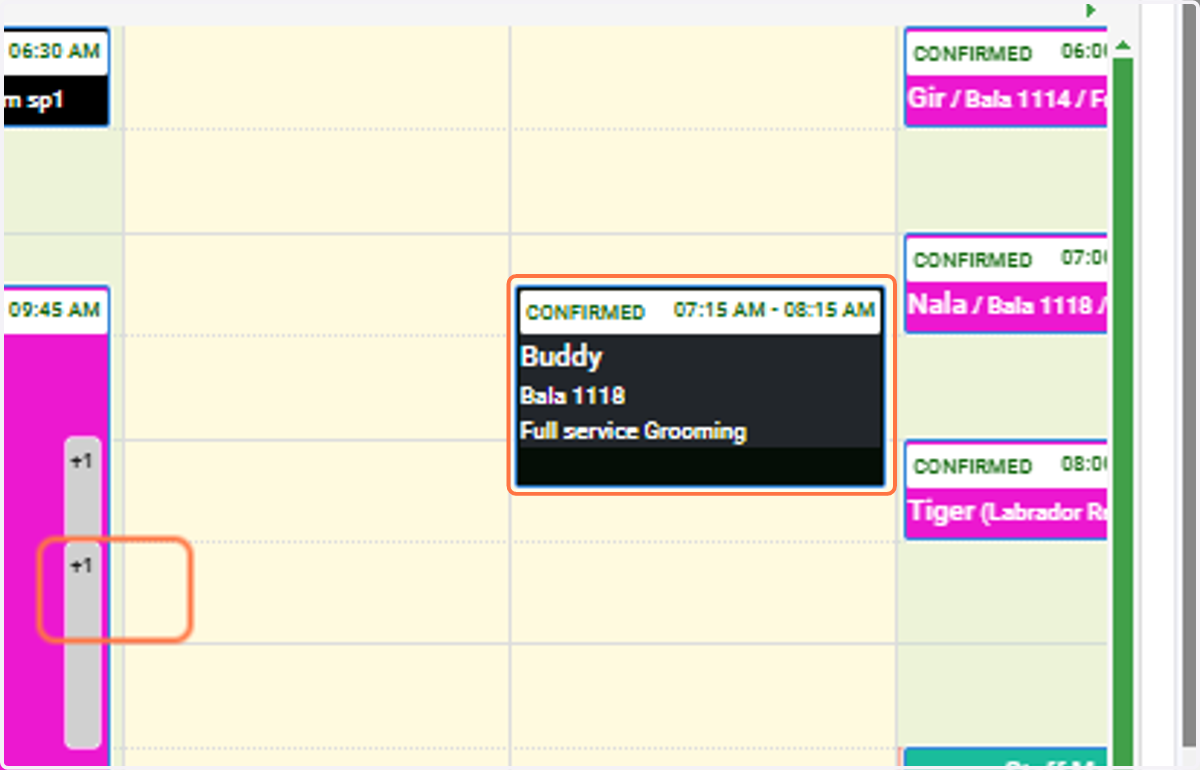
29. View Appointment Details: Click on the pet’s appointment to view its details.
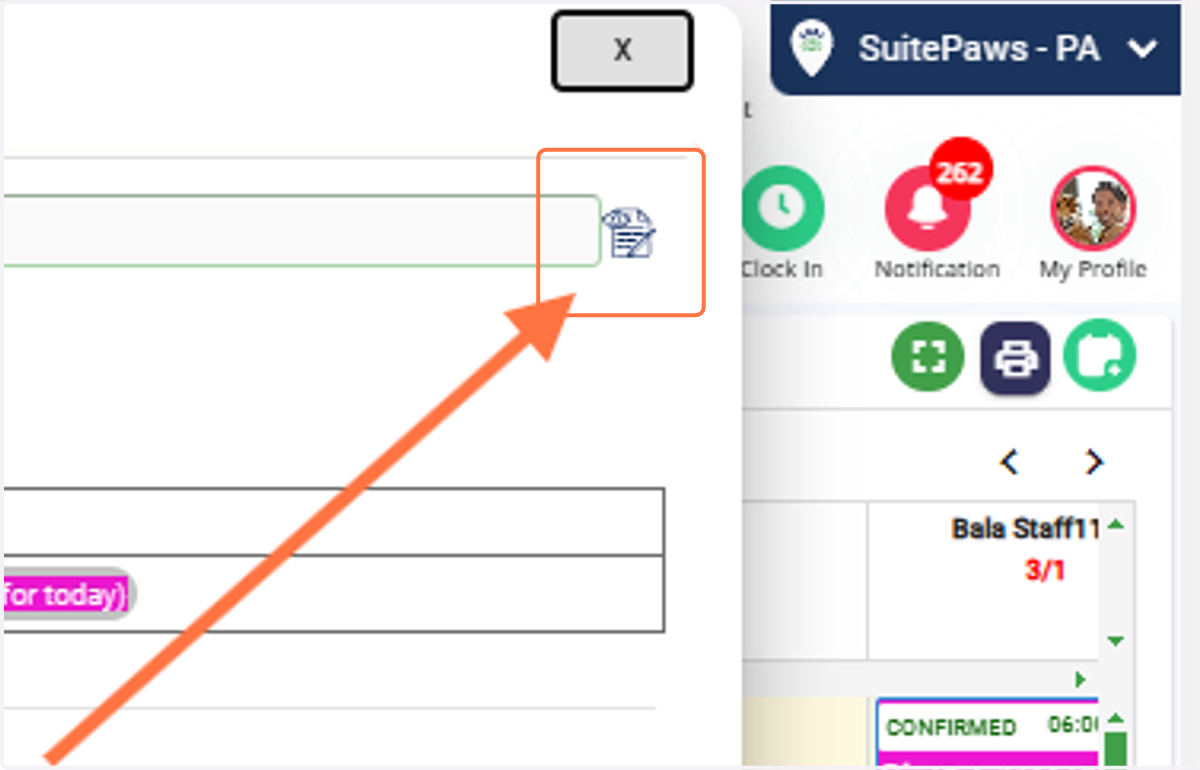
30. Edit Appointment: Edit the appointment, reassign staff, or adjust other details.
31. Pet Information: Displays essential details, including: 1. Name 2. Weight 3. Age 4. Pet Owner Information
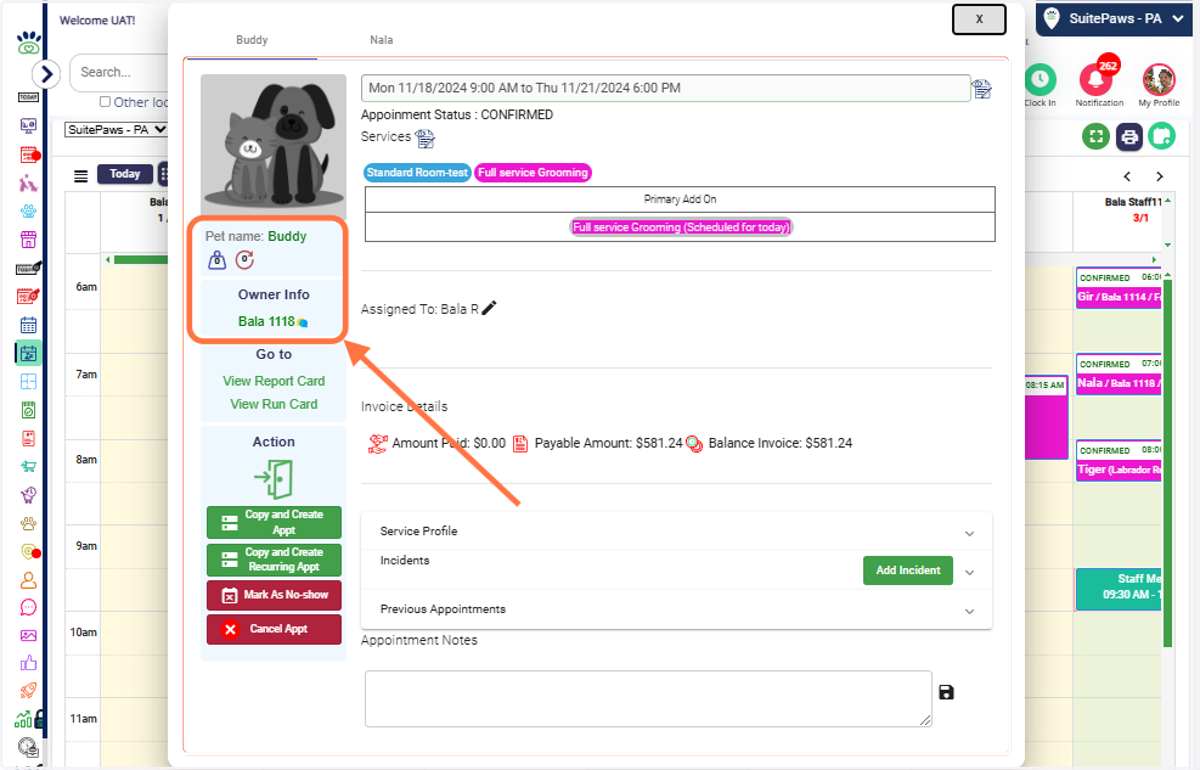
32. View Report Card: Click "View Report Card" to access detailed records about the pet's services and activities during the appointment. View Run Card: Click "View Run Card" to see activity-specific details related to the pet’s care.
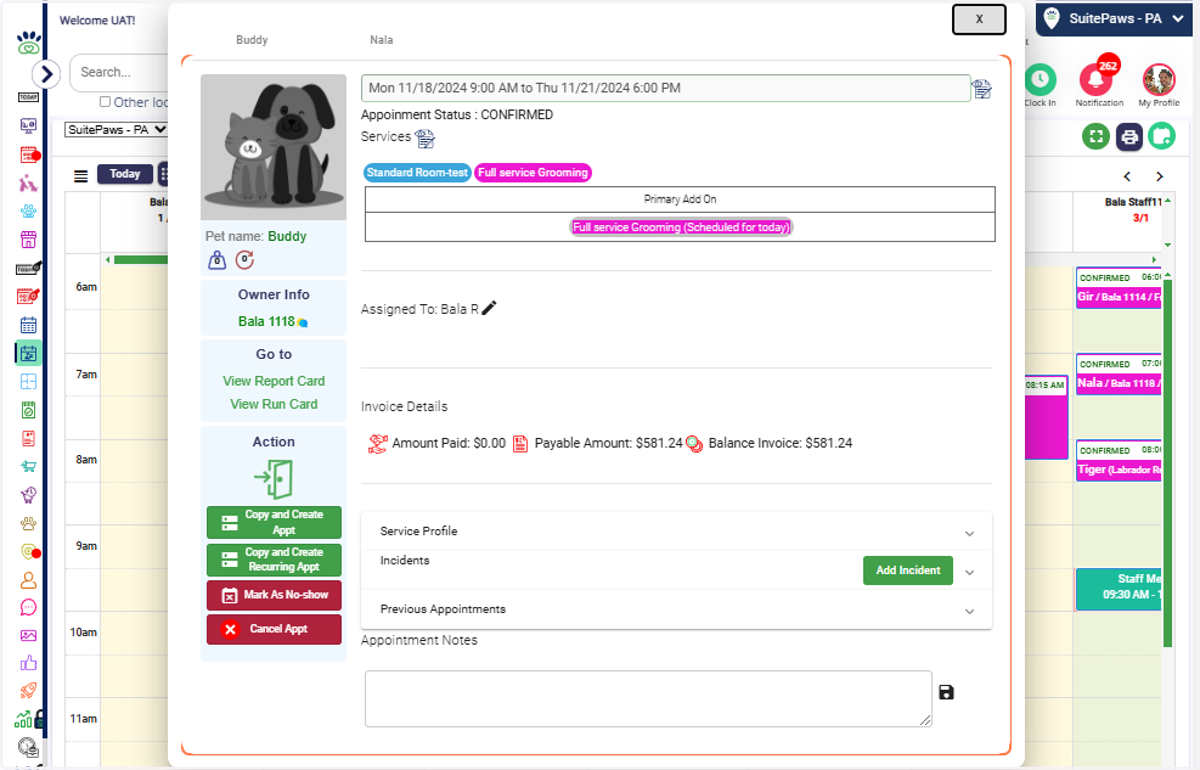
33. Check-In the Pet: For confirmed appointments, click "Check-In" when the pet arrives. Check-Out the Pet: Once the appointment is complete and the pet is ready to leave, click "Check-Out."
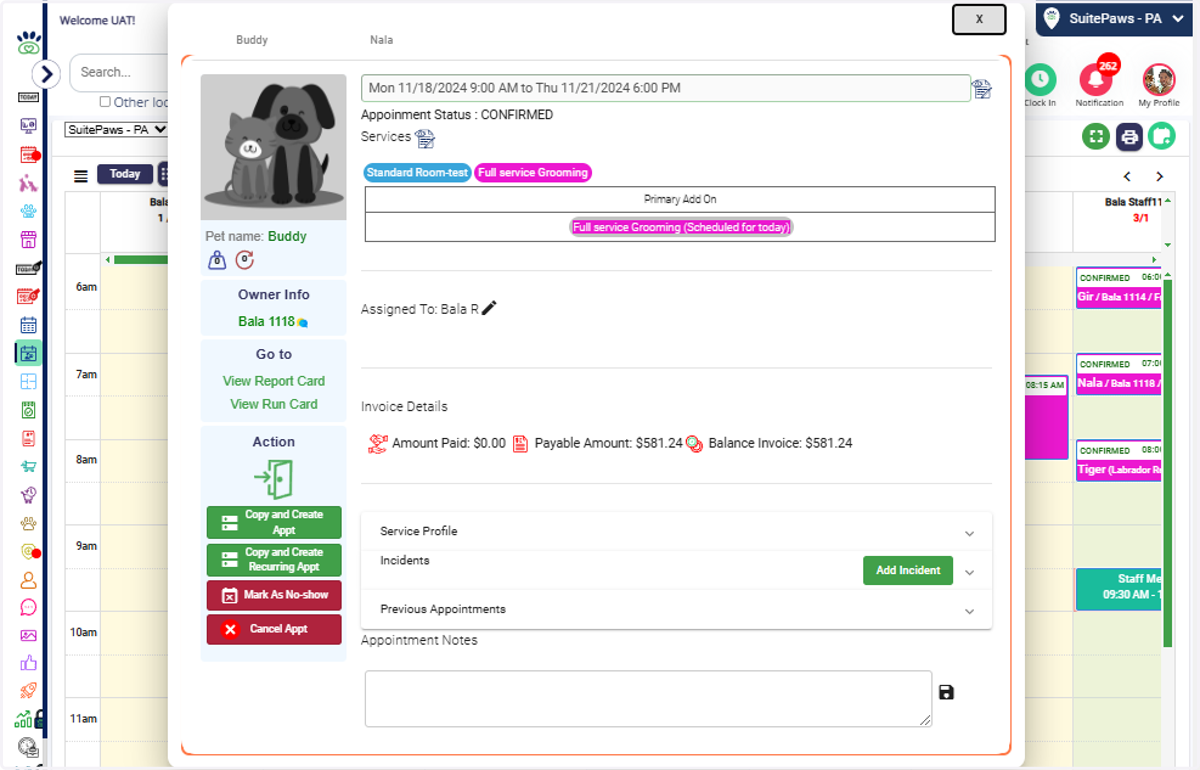
Appointment Details
34. Copy/Create Appointments: Copy and create normal/recurring appointments or mark as No Show. Cancellations are also allowed here.
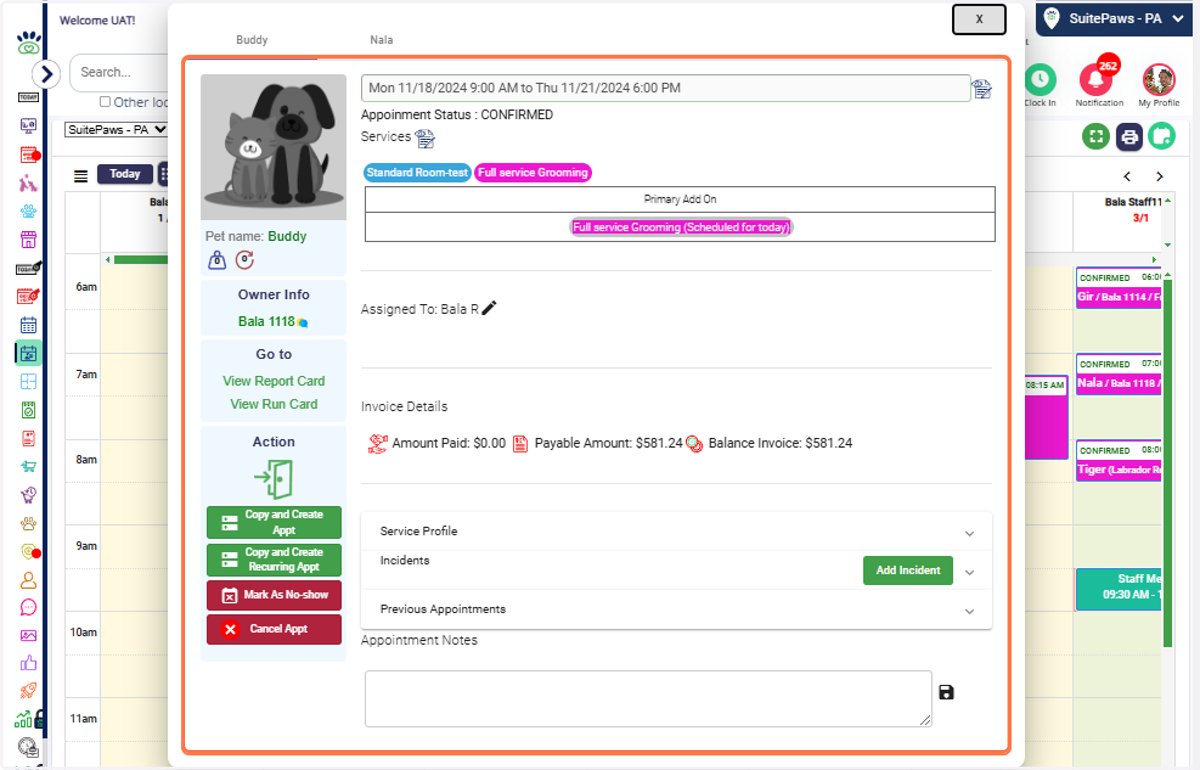
35. Mark as No Show: 1. Select the appointment from the calendar. 2. On the left-side panel, click "Mark as No Show" to update the appointment status for a pet that did not show up.
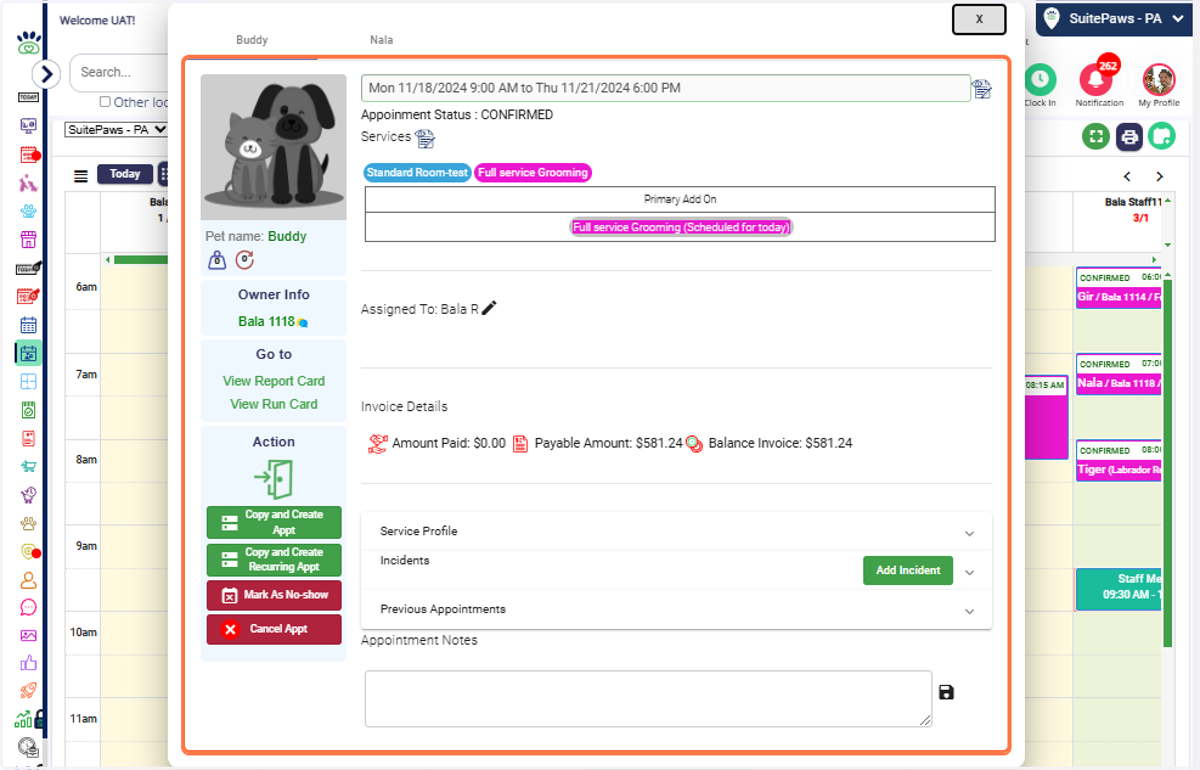
36. Cancel Appointment: 1. Choose the appointment from the calendar. 2. On the left-side panel, click "Cancel Appointment" to remove it from the schedule.
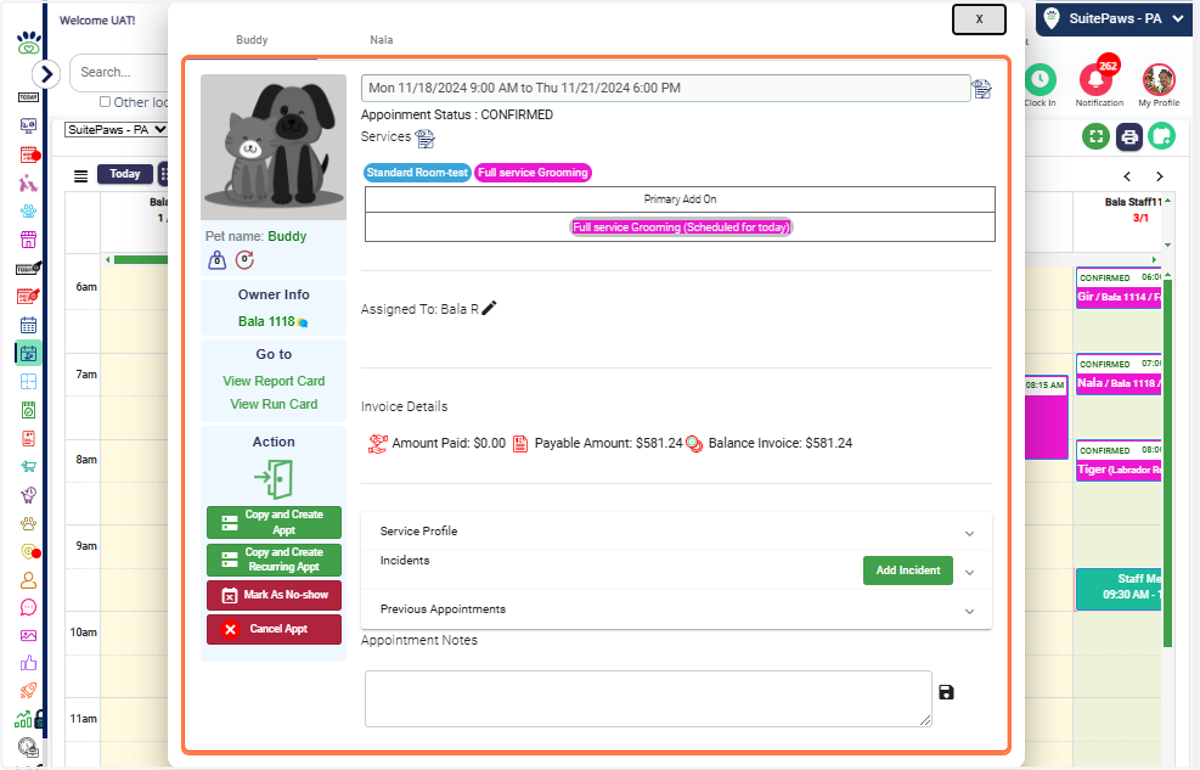
37. View Invoice Details: Access the appointment and view associated invoice details, including Amount Paid, Payable Amount and Balance Invoice.
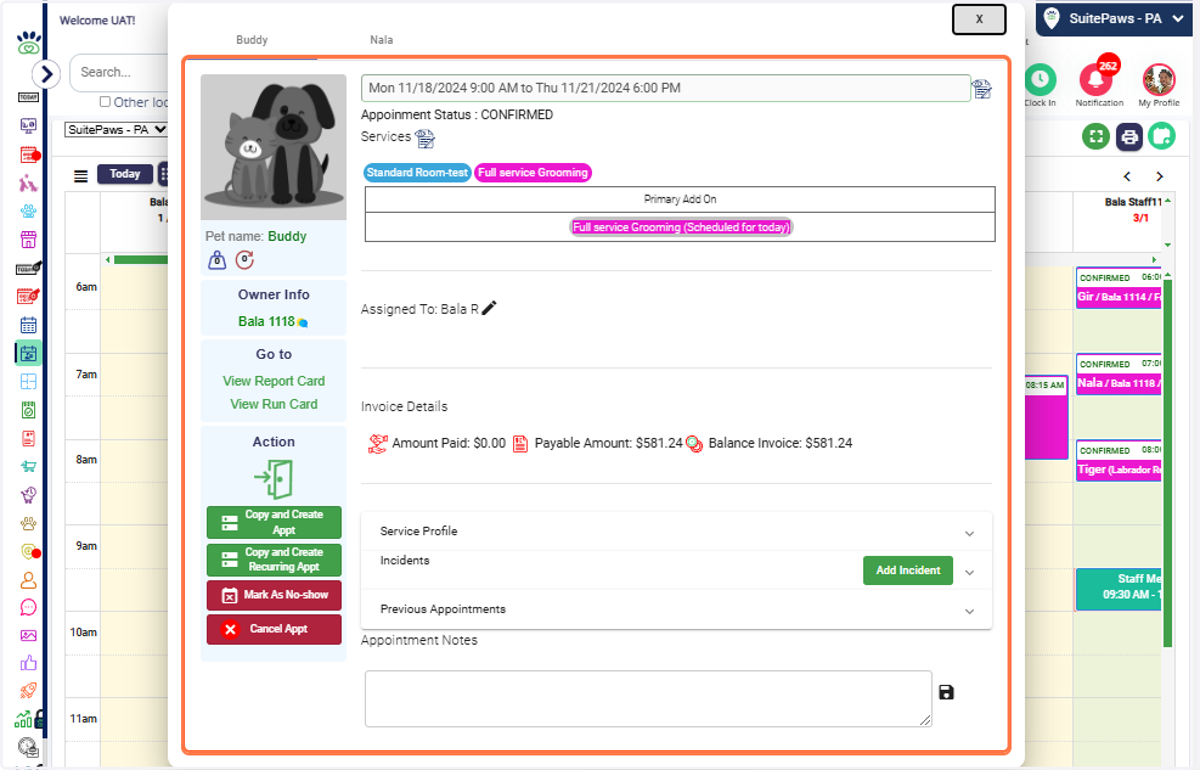
38. View Service Profiles: Review the service details linked to the appointment to ensure accurate scheduling.
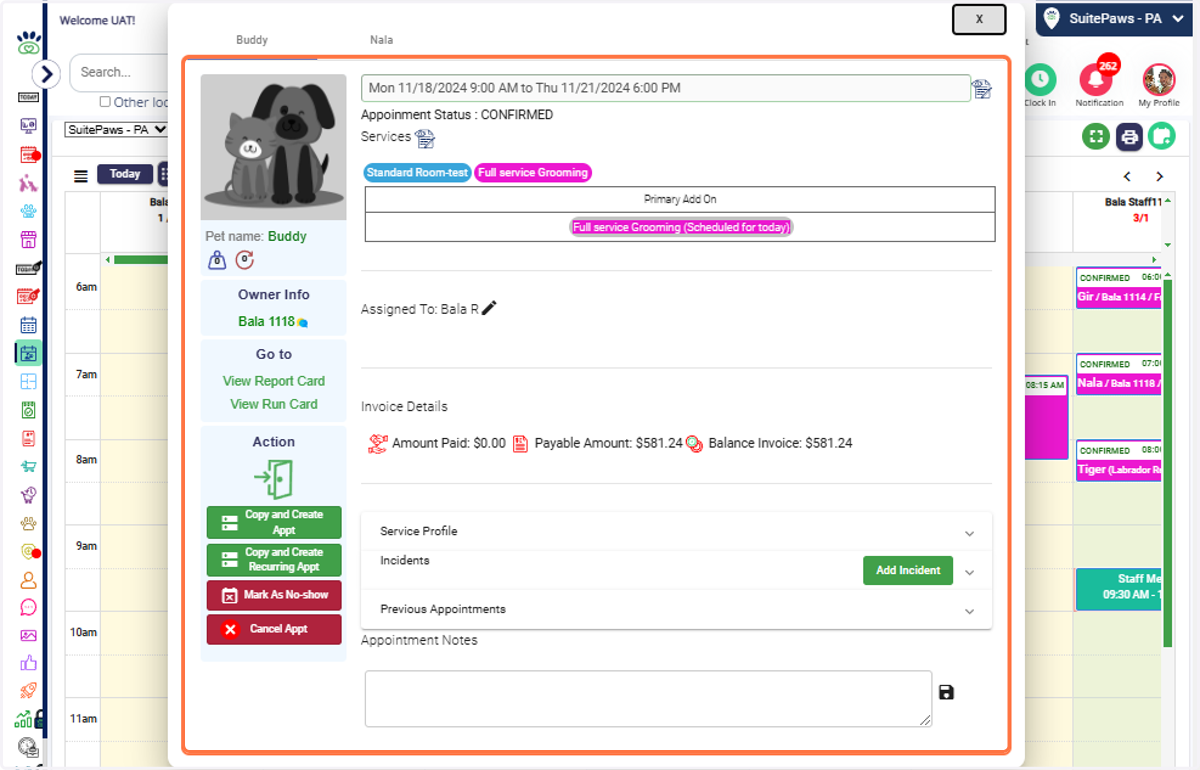
39. Add Incidents: Click "Add Incident" to log any issues or notable events related to the pet or appointment.
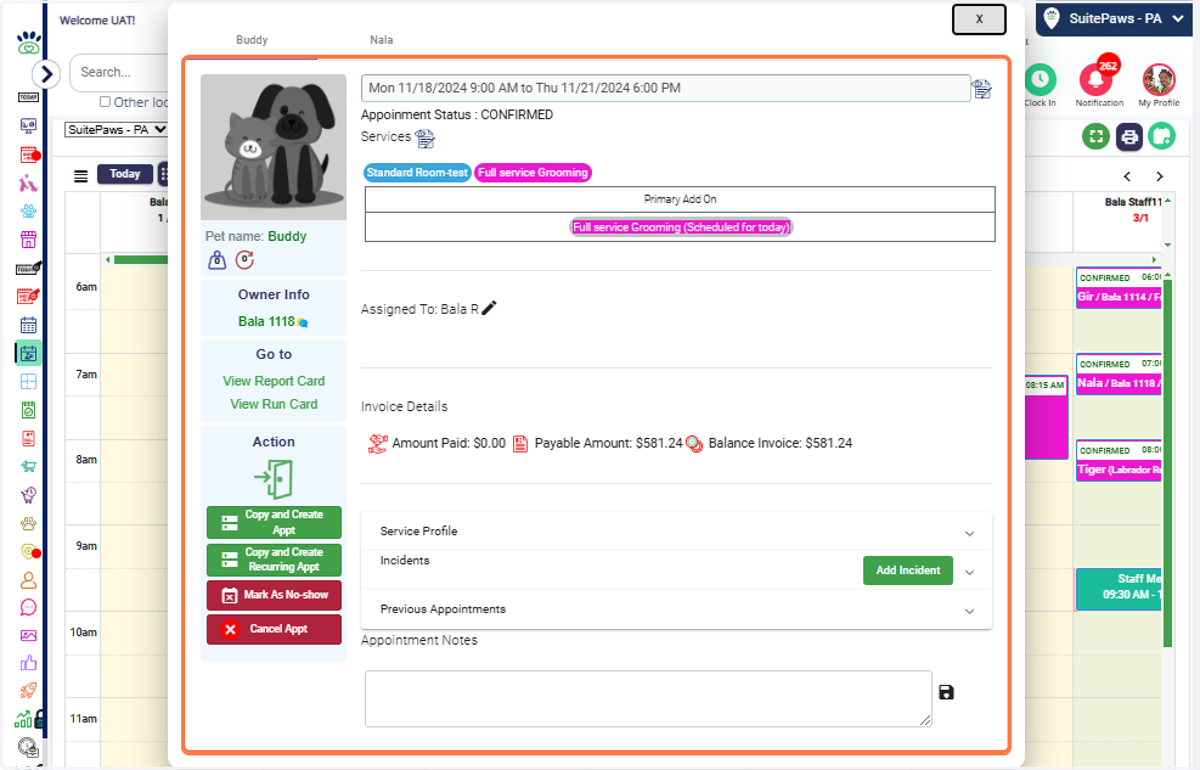
40. Review Past Appointments: Click "Previous appointments" to Browse through the pet's history of appointments for reference or analysis.
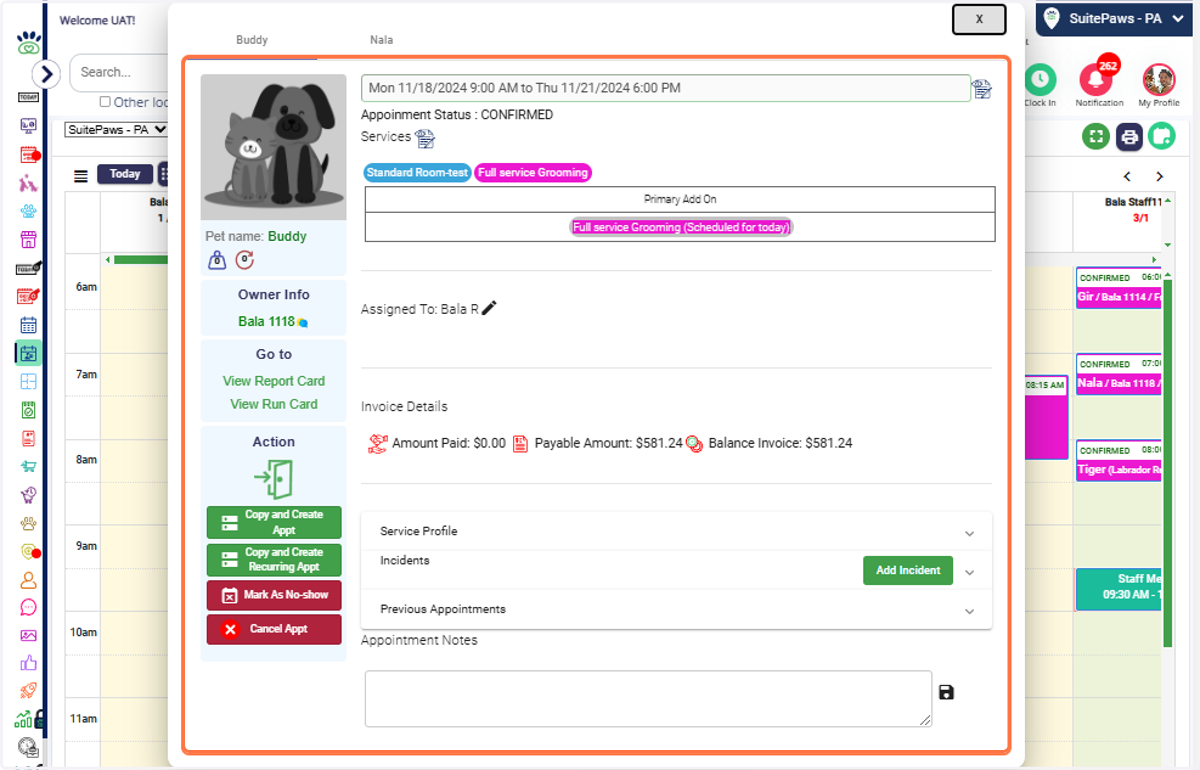
41. Add Appointment Notes: Easily input additional notes about the appointment for future reference or staff collaboration.