Creating an alert for the future
This tutorial will show you how to create and schedule an alert for the future. This could be useful if you know that you'll want to tell your patients about your flu clinic when it opens in a few months' time, for example. You can move through the tutorial at your own pace using the NEXT button below.
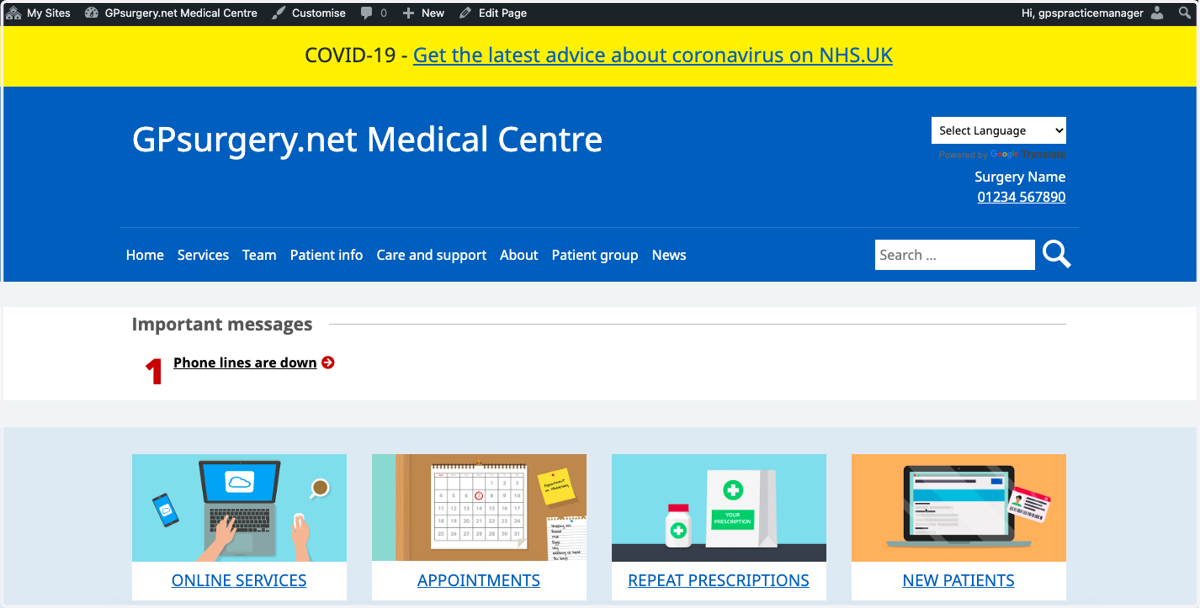
1. Ensure that you are logged into your website. The black admin toolbar should be visible at the top of the screen.
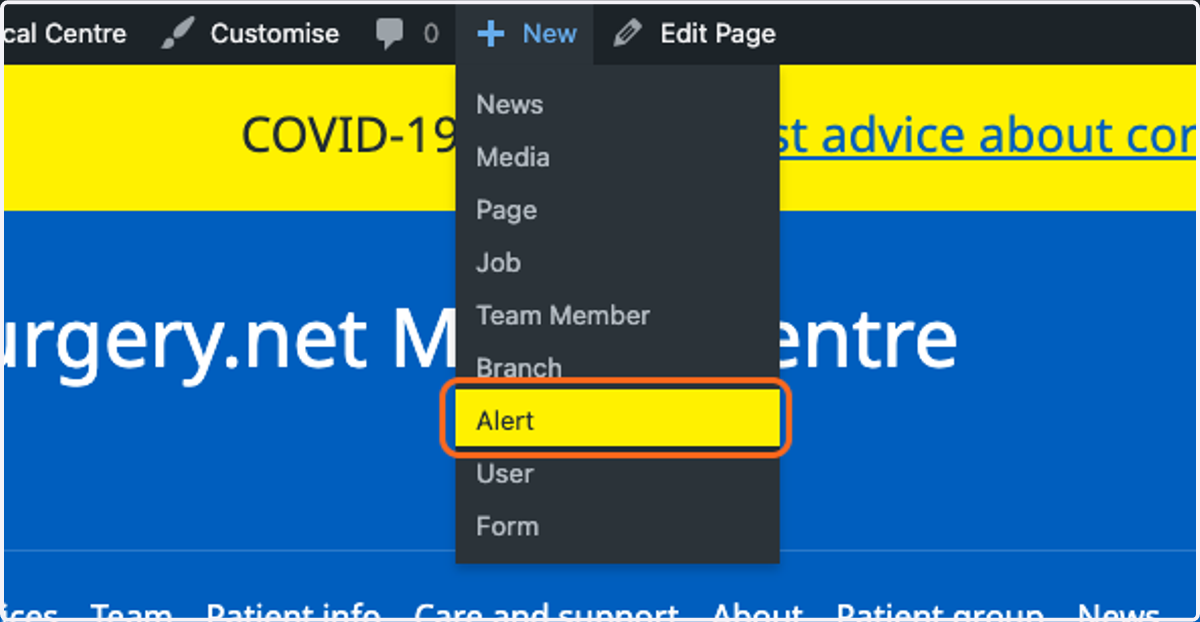
2. Hover your mouse over + New on the admin toolbar. Select Alert from the drop-down menu.
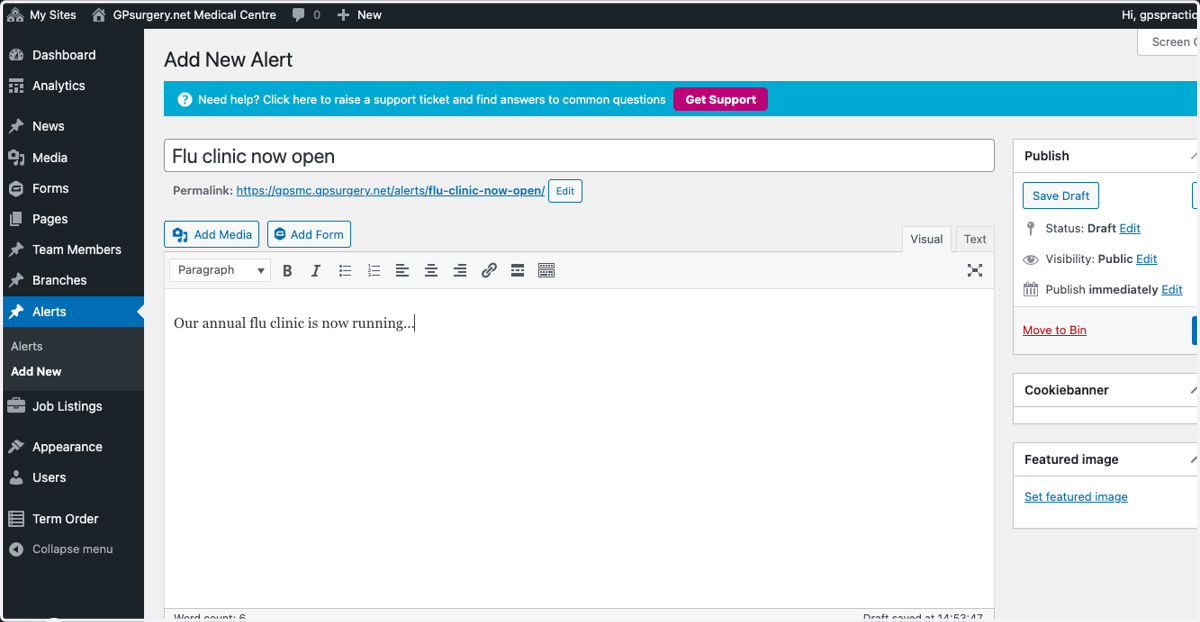
3. Write your alert as you would normally.
Remember that your title should be concise. The main text box can be used to add additional information.
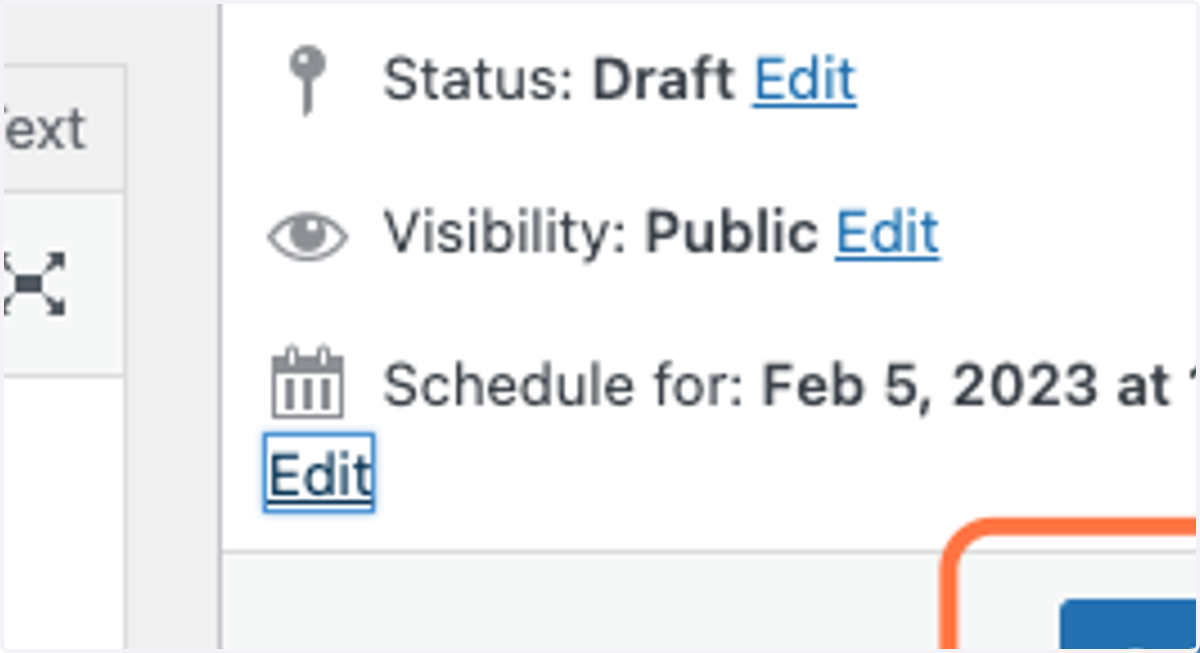
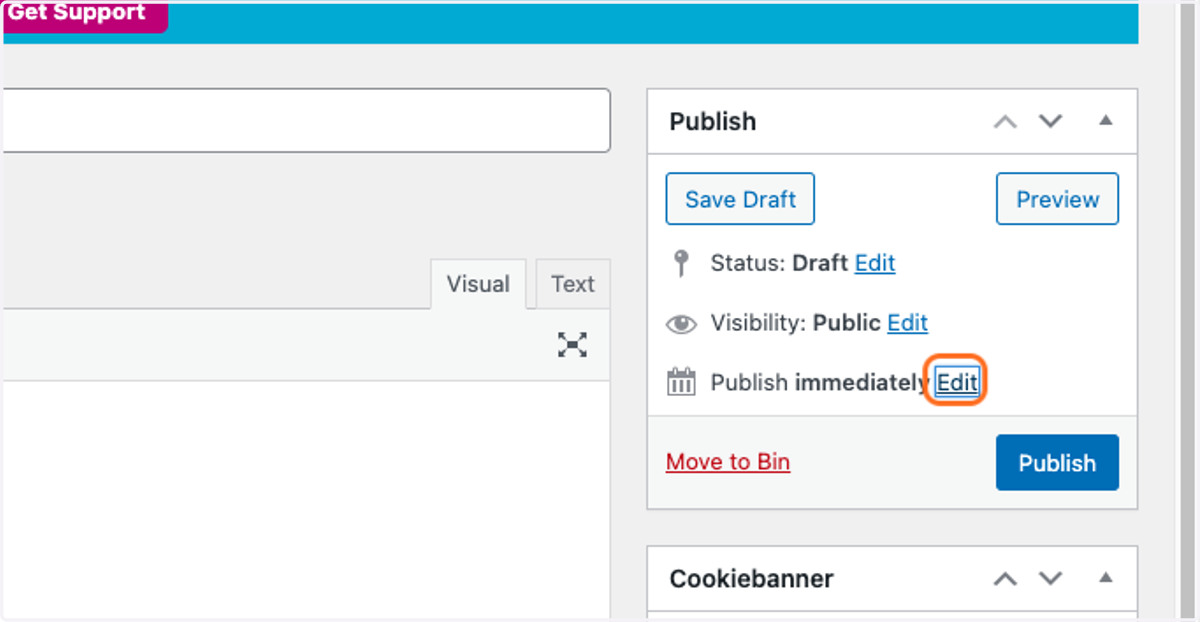
4. In the white Publish box, click the Edit link next to the Publish heading.
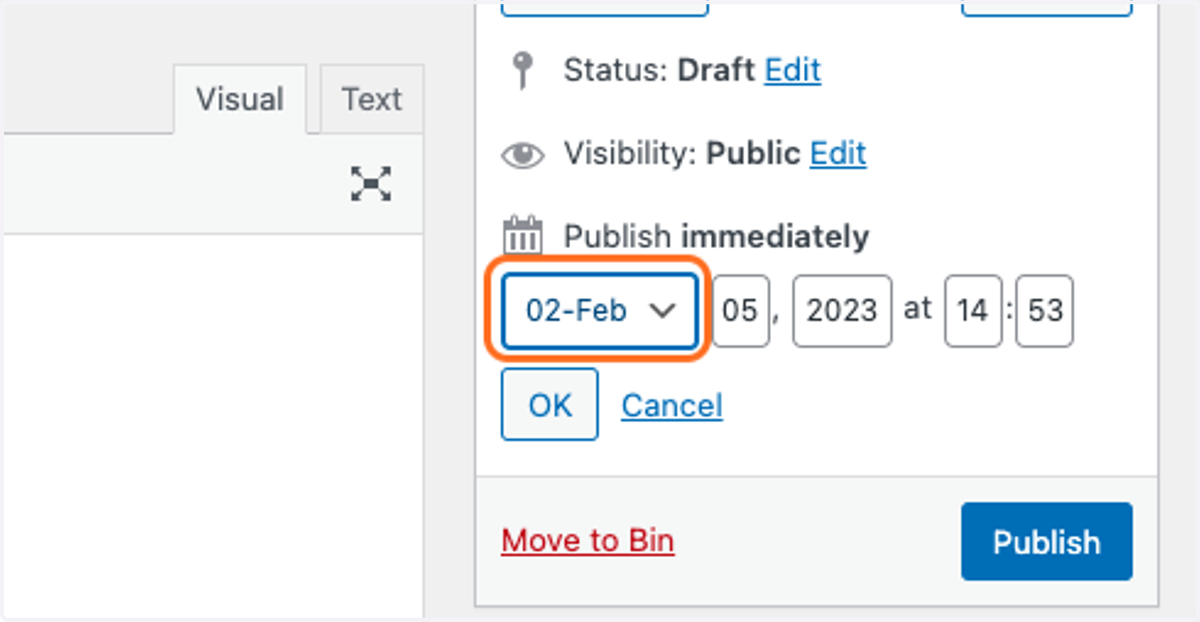
5. Choose a date and time in the future when you would like your alert to be posted
You will have to select the month, then day, then year and time.
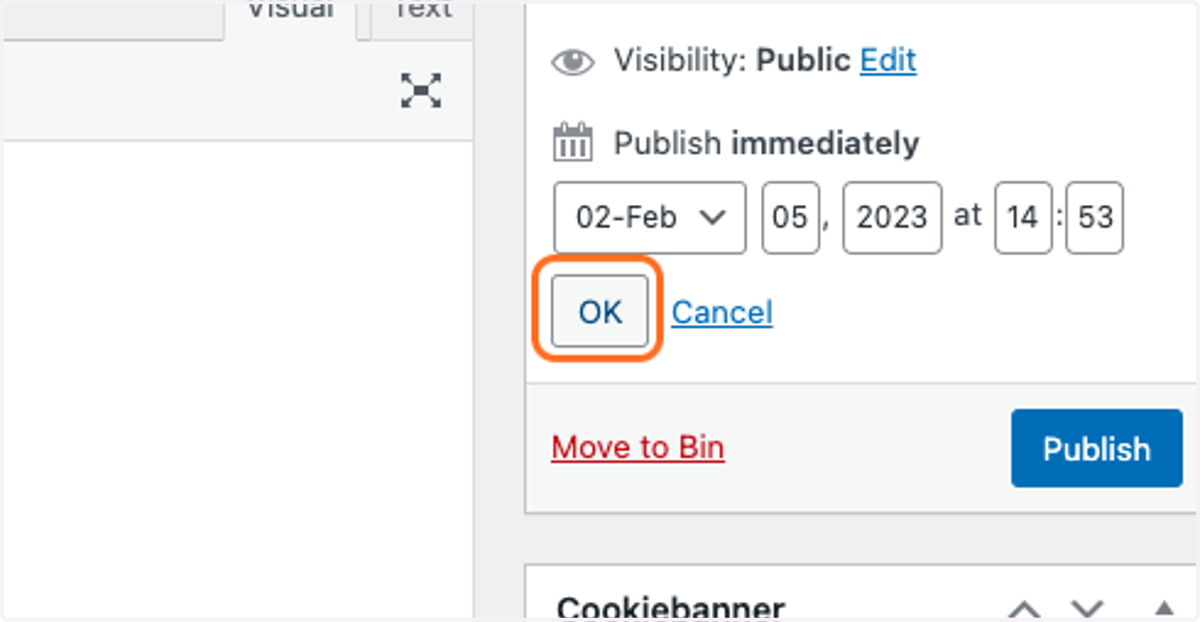
6. Click the OK button. This saves your chosen date.
7. Now, click the blue Schedule button. This will schedule your alert to be published on the date you have chosen.